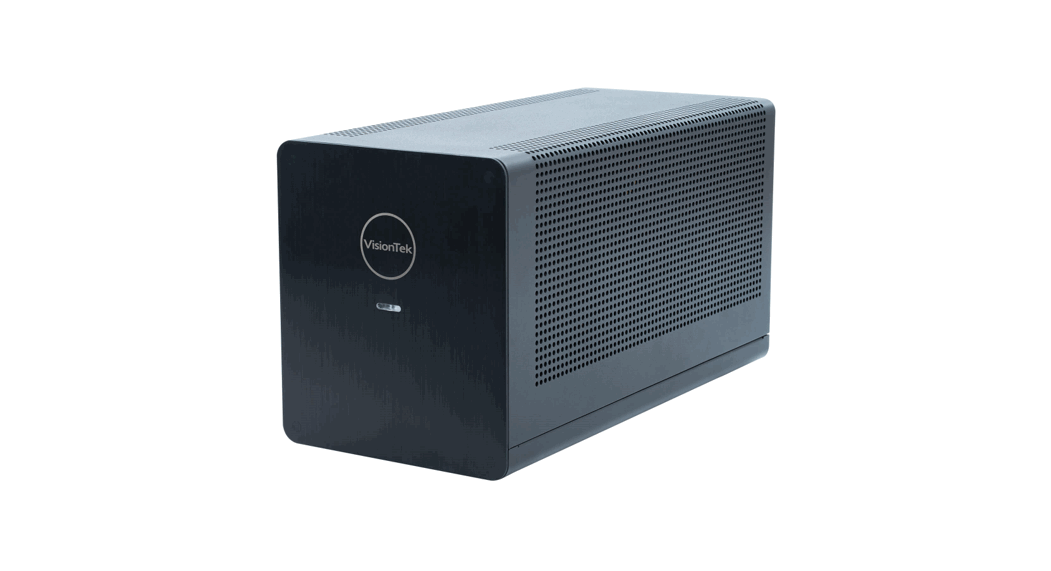
 3-eGFX THUNDERBOLT ENCLOSURE 750W
User Manual
The VisionTek Thunderbolt™ 3 eGFX Enclosure allows you to connect an external graphics card to your laptop or computer using the Thunderbolt™ 3 (Type-C) connection. Before using the enclosure, ensure that your laptop or PC has a Thunderbolt™ 3 (Type-C) port that supports external graphics.
For further information on this product, including compatible graphics cards, troubleshooting, and warranty information, please visit: www.visiontek.com
One Year Limited Warranty
Software Setup:
Note: Your computer’s Thunderbolt™ 3 ports might not function properly until you update one or more of the following on your computer:
- BIOS
- Thunderbolt™ 3rmware
- Thunderbolt™ 3 controller drivers
- Thunderbolt™ 3 software
Ensure the latest BIOS, Thunderbolt™, and Windows updates have been installed. Visit your PC manufacturer’s website to download the latest software
Hardware Setup:
- Make sure the power cord is unplugged.
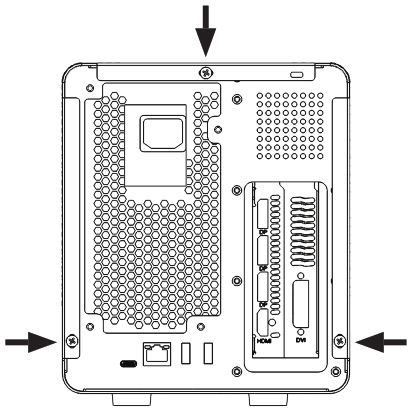
- Open the eGFX enclosure by removing the three rear screws and sliding the cover back and then up.

- Locate the PCIe X16 graphics card slot and install your graphics card.
Make sure the card is secured to the eGFX enclosure with the provided screws. If your graphics card requires additional power, connect the PCIe power cable to the card.
- Reinstall the sliding cover and screws.
- Connect the AC power cable to the enclosure and to a power outlet. Turn on the power supply.
- Connect the Thunderbolt™ 3 cable to the enclosure and connect the other end to your computer.
 Note: Use only active Thunderbolt™ 3 cables for runs longer than 0.5m.
 - Connect your display to the display out ports on your graphics card.
 Note: Display out ports may vary depending on the installed graphics card.
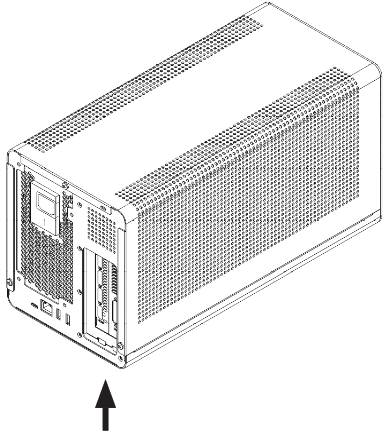
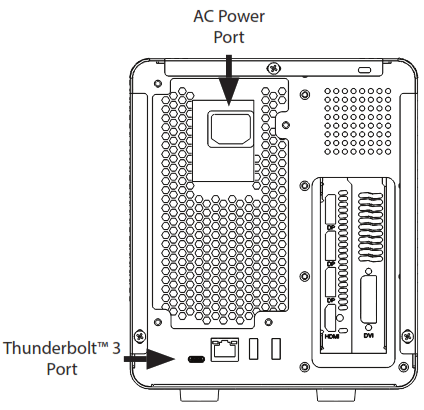 Note: Use only active Thunderbolt™ 3 cables for runs longer than 0.5m.
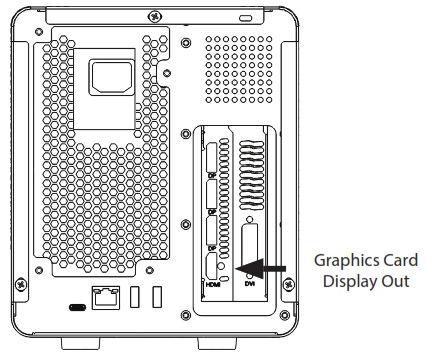 Note: Display out ports may vary depending on the installed graphics card.
System Configuration:
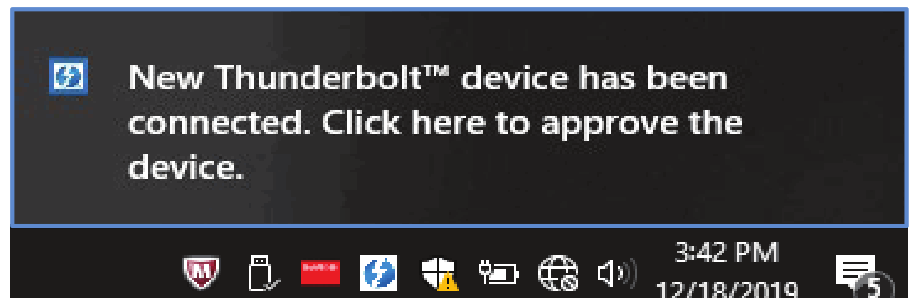
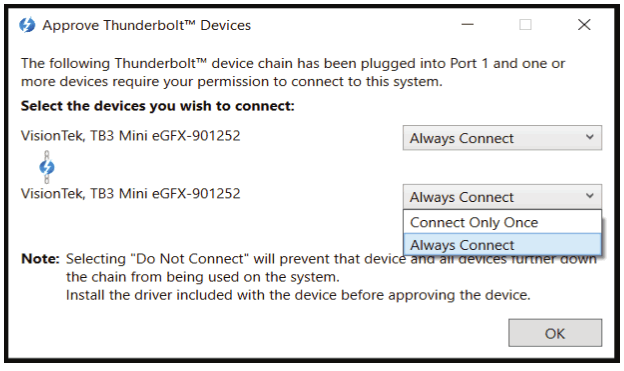
- After connecting the eGFX enclosure, the Thunderbolt™ device will be detected by the computer. Click to approve the device.

- When the system shows the dialogue box below, select “Always Connect” for each controller.
Click “OK” to complete the setup.
- Install the graphics card driver for your installed graphics card. Please refer to your graphics card manufacturer’s website for driver download and installation instructions.
For additional product support contact:
VisionTek Support
Toll-free call:
1 (866) 883 5411
Hours: 8 am to 5 pm CST
Email:
[email protected]
 VisionTek | Performance PC & Mac Upgrades – VisionTek.com