B04N Intelligent Display Instrument
B04N Intelligent Display Instrument Manual
Product Introduction
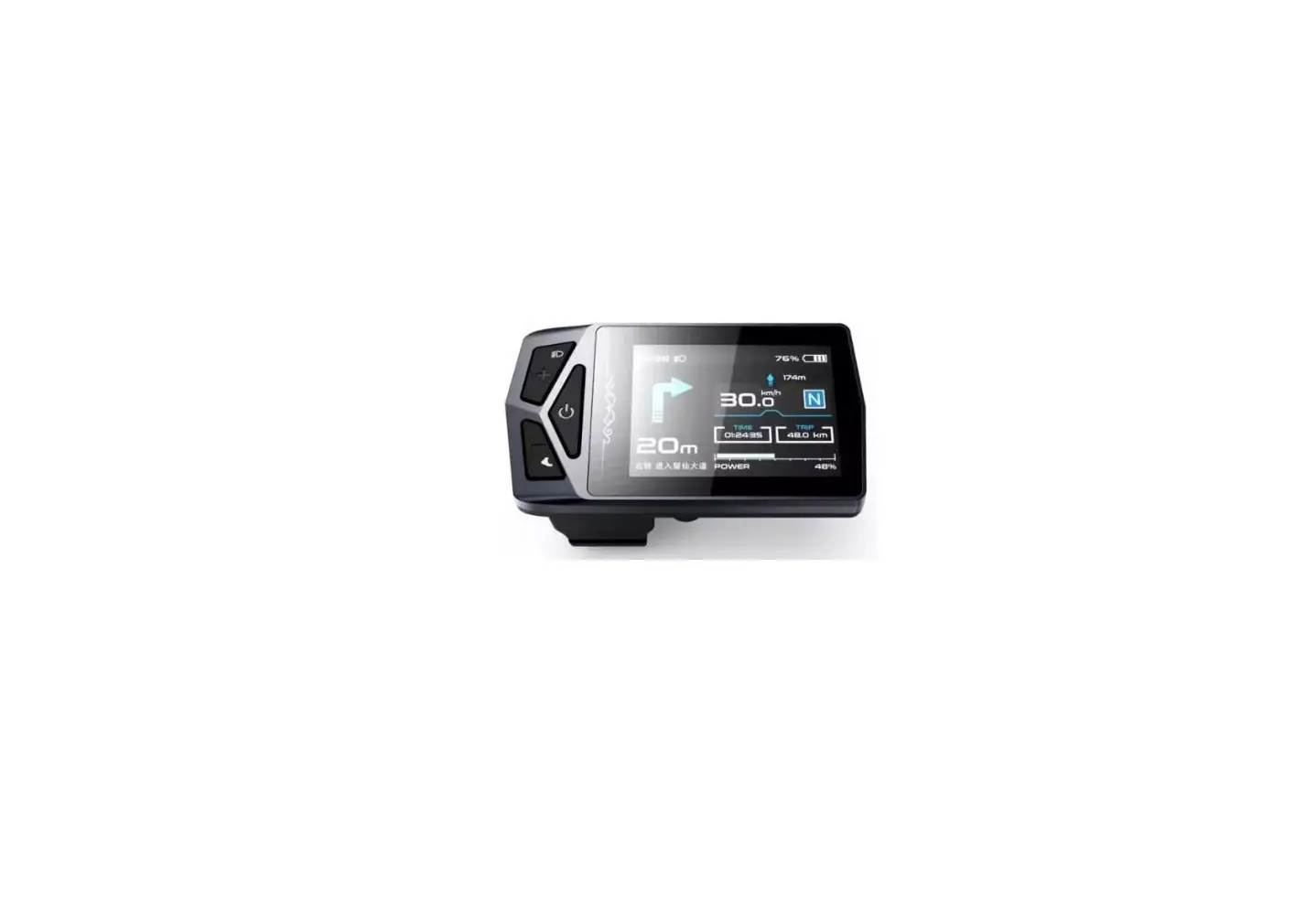
The B04N Intelligent Display Instrument is a product of our
company that provides a variety of features to enhance your e-bike
riding experience. The product comes with the following
specifications:
- Name: Intelligent Display Instrument
- Product Model: B04N
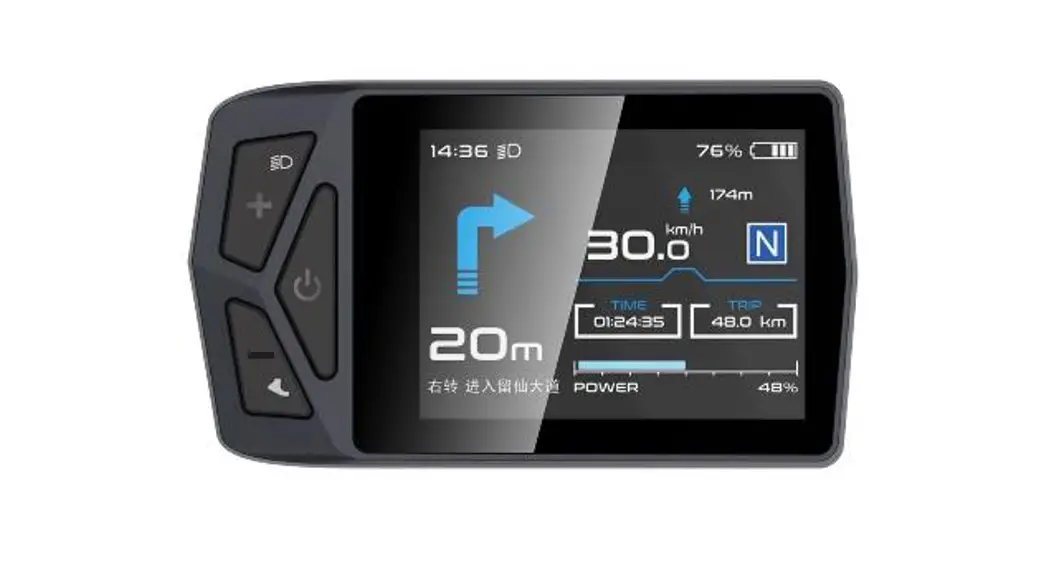
- Product Appearance: Compact and sleek
design - General Parameters:
- Length*Width*Height: 89.3*60.8*80mm
- Screen Dimension: 3.5” IPS screen with RGB
color and 320*480 resolution - Handlebar Adaption: Compatible with handlebars
of 22.2/25.4/31.8(mm) - Connector Type/Length: M5 Waterproof Connector
with 20cm length - Operating Voltage: 12v-60v
- Operating Temperature: -20-+70
- Waterproof Rating: IP67
- Total Weight: 115g (with handle)
- Protocol: UART/CAN
- Bluetooth: 4.0+BLE
- Type-C Support: Yes
- Certification: CE/ROHS/FCC
Product Usage Instructions
The B04N Intelligent Display Instrument comes with a variety of
features that can be used to enhance your e-bike riding experience.
Here are some instructions on how to use the product:
- Headlight Indicator: The headlight indicator
graphic will light up when the headlight is turned on. - Navigation Indicator: If the BIKEGO app is
connected to the instrument, the symbol will light up when
navigation starts. (Real-time navigation requires payment) - Maintenance Tips: The electronics system has
some ability to self-diagnose and report a limited set of faults.
The faults will be reported as error codes displayed on the
screen. - Cruise Indicator: The symbol will light up
when the vehicle enters constant speed cruise. - Bluetooth Indicator: After the app is
successfully connected to the instrument, the symbol will light
up. - Battery Level Graphic: The battery level
graphic is a graphical representation of how much charge remains in
the battery. More bars will appear in the graphic when the battery
is charged. Less bars will appear when the battery is
depleted. - Real-time Speed: The number shows the current
speed that the e-bike is traveling. - Gear Indicator: This indicator shows which
gear the bike is currently engaged. - Single Mileage: Mileage for this ride.
- Odometer: The total number of miles the
vehicle has traveled. - Average Speed: The average speed of this
trip. - Navigation Interface: When the mobile phone
app connects the Bluetooth of the display, selects the destination
to start navigation after entering the navigation interface, the
main display screen changes as follows (Real-time navigation
requires payment):- Navigation Indicator: The symbol lights up to
indicate that it is now in the navigation interface. - Bluetooth Indicator: The symbol lights up to
indicate that the mobile phone app is now connected to the
instrument. - Current Turn Prompt and Distance: Turn prompt
and distance during current driving. - Next Turn Prompt and Distance: Next turn
prompt and distance during driving. - Distance to Destination: Prompt of the total
distance from the current location to the destination. - Real-time Speed: The number shows the current
speed that the e-bike is traveling.
- Navigation Indicator: The symbol lights up to
B04N intelligent display instrument manual
1 / 24
Contents
1. THE PRODUCT INTRODUCTION …………………………………………..3 1. NAME………………………………………………………………………………………..3 2. PRODUCT MODEL ………………………………………………………………………..3 3. PRODUCT APPEARANCE………………………………………………………………..3 4. PRODUCT SPECIFICATION ……………………………………………………………3 5. THE MAIN DISPLAY SCREEN ………………………………………………………..5 6. BUTTON DEFINITION ………………………………………………………………….7 7. GENERAL OPERATION ………………………………………………………………..8
2. INFORMATION VIEWING AND SETTING……………………………10 1. DISPLAY SETTING………………………………………………………………………10 2. INFORMATION VIEWING ……………………………………………………………..15 3. LANGUAGE SELECTION ………………………………………………………………18 4. THEME MENU……………………………………………………………………………18 5. PASSWORD SETTING…………………………………………………………………..18 6. BLUETOOTH CONNECTION…………………………………………………………..21
Note: Due to the upgrade of the company’s products, the display contents of the products you get may be different from those in the manual, but will not affect your normal use.
2 / 24
1. the product introduction 1. Name
Intelligent display instrument.
2. Product model
B04N.
3. Product appearance
4. Product specification
3 / 24
General parameters
Length * Width * Height 89.3*60.8*80mm
size
Screen Dimension
3.5”
Handlebar Adaption
22.2/25.4/31.8(mm)
Type
IPS
screen
Color
RGB
Resolution
320*480
connector
Type Length
M5 Waterproof Connector 20cm
Operating Voltage
12v-60v
Operating Temperature -20-+70
General features Waterproof Rating
IP67
Total Weight
115 g (with handle).
Protocol
UART/CAN
Bluetooth
4.0+BLE
Other features Light sense
Optional
Type-C
Support
Certification
CE/ROHS/FCC
Customizable
4 / 24
5. The main display screen
Maintenance tips
Navigation indicator
Bluetooth indicator
Headlight indicator
Battery level graphic
Real-time speed
Odometer
Gear indicator
Single mileage TRIP
Average speed of riding
Headlight indicator: The headlight Indicator graphic will light up when the headlight is turned on.
Navigation indicator: If the “BIKEGO” app is connected to the instrument, the symbol will light up when navigation starts. (real-time navigation requires payment)
Maintenance tips: The electronics system has some ability to selfdiagnose and report a limited set of faults. The faults will be reported as error codes displayed on the screen.
5 / 24
Cruise indicator: The symbol will light up when the vehicle enters constant speed cruise.
Bluetooth indicator: After the app is successfully connected to the instrument, the symbol will light up.
Battery level graphic: The battery level graphic is a graphical representation of how much charge remains in the battery. More bars will appear in the graphic when the battery is charged. Less bars will appear when the battery is depleted.
Real-time speed: The number shows the current speed that the e-bike is traveling.
Gear indicator: This indicator shows which gear the bike is currently engaged.
Single mileage: Mileage for this ride. Odometer: The total number of miles the vehicle has traveled. Average speed: The average speed of this trip.
When the mobile phone app connects the Bluetooth of the display, selects the destination to start navigation after entering the navigation interface, the main display screen changes as follows (real-time navigation requires payment):
Navigation indicator: The symbol lights up to indicate that it is now in the
navigation interface.
Bluetooth indicator: The symbol lights up to indicate that the mobile phone
app is now connected to the instrument.
Current turn prompt and distance: Turn prompt and distance during current
driving.
Next turn prompt and distance: Next turn prompt and distance during
driving.
6 / 24
Distance to destination: Prompt of the total distance from the current location to the destination.
Navigation is turned on The app is connected
Current turn prompt and distance
Next turn prompt and distance
Distance to destination
Real-time speed
Odometer
Geer indicator Single mileage
6. button definition
B04N has 3 buttons. Includes “Power key “, “Plus key +”, “Minus key -“. The key definition is shown in the following figure:
7 / 24
Plus + Minus-
Power
7. General operation
B04N provides 4 themes and 3 languages for users to set, this manual takes Theme1(English version) as examples.
“Press and hold key>2.5s” is replaced by “long press”, and “press and hold key<0.5s” is replaced by “click”.
On/off Long press the ” ” to power on/off the display. In the shutdown state,
the leakage current of the display is less than 1uA. The boot interface is shown in the following figure. (You need to enter the password before entering the main screen, the default password is 0000).
8 / 24
Assist level selection After entering the main display screen, click the “+” or “-” to increase or decrease the assist level and change the motor output power, the default gears of the instrument are 0–5 (support customization); no power output at 0 gear, 1 gear is the lowest power and 5 gear is the highest power. When the display is powered on, the default setting is gear 0. The assist level selection interface is shown in the following figure:
Headlight/backlight switch Turn on the light: Long press the “+” when the light is off, the headlight indicator lights up, and the brightness of the display becomes dim. Turn off the light: Long press the “+” key when the light is on, the headlight Indicator darkens. The headlight switch interface is shown in the following figure:
9 / 24
Boost mode Click “-” button to shift to gear 0 when the vehicle is stationary, click the “-” button again to light the boost indicator ” “, and then long press the “-” button to enter the boost mode. The interface is shown in the following figure:
In the boost mode, the indicator is displayed dynamically. When the vehicle speed is less than 6km/h, release the “-” to stop the boost status. If no operation within 5s under static boost, it will be automatically jump to gear 0.
2. Information viewing and setting 1. Display settings
Click ” ” to enter the setting menu, use “+” or “-” to move the cursor up and down, select “Display Setting”, “Information”, “Language”, “Themes”,
10 / 24
“Password”, “Bluetooth”, “Reset Factory” and “Exit”, and click ” ” to enter. The interface is shown in the following figure:
Imperial and metric unit conversion Enter the “Display Setting” menu, select “Unit”, click ” ” to enter the setting, use “+” or “-” to move the cursor up and down after entering the setting, select “Metric”/”Imperial”, click ” ” to save and exit to “Unit”, and exit to the main interface through “Back” “Exit”. (The entry and exit procedures for other settings are similar, and will not be repeated.) Unit conversion is shown in the following figure. Note: The default unit is imperial.
11 / 24
Auto Off Enter the “Auto Off” menu, select “OFF”, “1min”, “2min”, “3min”, “4min”, “5min”, “6min”, “7min”, “8min”, “9min”, “10min” (“OFF” means to turn off the function, and “1min-10min” means to turn off the auto off time respectively.) Note: Any operation during the auto off time will be timed again, and the shutdown will not occur until the non-operating time reaches the auto off time.
TRIP Reset Enter the “TRIP Reset” menu, select “NO”/”YES”. When the single mileage reaches the maximum value(655km), it will be reset automatically, (the maximum values are different by the protocols, and the average speed will be set synchronously with the single mileage.) The interface is shown in the following figure:
12 / 24
Backlight brightness setting Enter the “Brightness” menu, select “30%”/”50%”/”75%”/”100%”. The interface is shown in the following figure:
Max Pas Maximum gear setting Enter the “MAX PAS” menu, and it is not adjustable.
13 / 24
Enter “Light sensitive” menu, select “Low/Mid/High”. The interface is shown in the following figure:
14 / 24
BT Rssi Level Bluetooth distance level setting, level 1 is near, 5 is far.
Note: Different mobile phones have slight differences.
2. Information viewing
Wheel Size information – Enter “Wheel Size” menu, the default wheel diameter is 26Inch (660mm), and the setting range is 16Inch (410mm) – 29Inch (740mm).
As shown in the figure below:
Speed limit information – Enter the “Speed Limit” menu. When the unit is km (metric), the default speed limit is 36km/h; When the unit is Imperial, the default speed limit is 22.50MPH. 0~100km/h is optional.
15 / 24
As shown in the figure below:
Display informationEnter the “Display Info” menu, the software and hardware version number (different by products) are displayed. As shown in the figure below:
Battery information-Enter the ” Battery Info” menu, the battery information is not adjustable. (The software and hardware version number may change due to different batches of products, so it is indicated by “–“.
16 / 24
Error code Enter the “Error Code” menu, “E-CODE 0” refers to the last error message, while “E-CODE 9” refers to the tenth error message. Record can be up to ten. Press “+” or “-” to switch. The error code “00” refers to no error. Please refer to the error code definition table for the meaning of other codes. As shown in the figure below:
17 / 24
3. Language selection
B02 provides 3 languages for users to choose. Enter the “Language” menu, switch “English”, “Deutsch” or “Español”.
The interface is shown in the following figure:
4. Theme menu
B02 provides 4 different themes for users to choose. Enter the “Themes” menu, switch between “Theme1” – “Theme2” – “Theme3” – “Theme4”.
The interface is shown in the following figure:
5. Password settings
Start password off/on- Enter the “Password” menu, select and enter the
18 / 24
“Start Password” (Status is on/off) menu, and the interface prompts you to enter the password. At this time, use the “+” or “-” keys to switch the numbers “0-9″, click ” ” to enter digits. After entering, the system will prompt to close/open the password function. Then the interface will automatically jump to the original menu. The procedure is shown in the figure below:
Reset password Enter the “Reset Password” menu. 1. The interface prompts “Please enter your old password”. At this time, use the “+” or “-” key to switch the number “0-9″, and click ” ” to enter the number, 2. After entering, the interface prompts “Please enter your password”. Repeat the above operation once to enter new password. 3. After entering, the interface prompts “Please confirm your password”.
19 / 24
Repeat the above operation once. Note: If you want to enable the password function, you need to
enter the new password after modification. Do not change the initial password unnecessarily. The interface will automatically jump to the original menu after modification. The procedure is shown in the figure below:
Bluetooth unlock setting (Enabled by default) Enter “Bluetooth Unlock” menu, click “+” or “-” to select “On”/”Off” (“On” means to enable it, “Off” means to disable it). If the Bluetooth unlock is enabled when the mobile application is not connected, the Bluetooth QR code interface will pop up for you to bind. It will be back to “Password” menu after binding.
20 / 24
The procedure is shown as below:
6. Bluetooth connection
Enter the “Bluetooth” menu, click ” ” to enter the Bluetooth QR code interface. You can scan the QR code to bind the device through the mobile phone app. After binding, it jumps to the main screen automatically, and the Bluetooth indicator lights up.
The procedure is shown as below:
21 / 24
Error code comparison table
The error code
Fault description
Troubleshooting methods
“02”
Brake handle failure
Stop riding and check whether
the brake returns and is
damaged
“04”
The speed control put does
Check whether the speed
not returned
control is in place
“05”
Speed regulation put fault
Check the speed gauge
“06”
Undervoltage protection
Check the battery voltage
status
“07”
Overvoltage protection
Check the battery voltage
“08”
Hall signal line fault of motor Check the motor module
“09”
Motor phase line fault
Check the motor module
“10”
The temperature inside the
Check the motor
motor is too high
“11”
Motor temperature sensor
Stop riding
failure
“12”
Current sensor failure
Check the controller
“13”
Failure of temperature inside
Check the battery
the battery
“14”
The temperature inside the
Check the controller
controller is too high
“15”
Controller temperature sensor
Stop riding
failure
“16”
Controller failure
Stop riding
“17”
Abnormal braking
Stop riding and check whether
the brake returns and is
damaged
“21”
Bafang: Speed sensor failure Bafang: Check the installation
KM5S: Abnormal current
position of speed sensor
KM5S: Check the controller
plug-in
“22”
KM5S: Abnormal handle
Check the speed regulating
handle
“23”
KM5S: Motor phase loss
Check the motor
“24”
KM5S: Abnormal Hall of
Check the motor
motor
22 / 24
“25”
Bafang: Torque signal fault of Bafang: Check the torque
torque sensor
KM5S: Stop riding
KM5S: Abnormal braking
“26”
Speed signal fault of torque
Check the torque
sensor
“27”
Controller overcurrent
Check the controller
“29”
Controller communication
Check the controller
failure
connector
“30”
Communication failure
Check the controller
connector
“33”
Brake detection circuit fault
Check the controller
“35”
15V power supply detection
Check the controller
fault
“36”
Key detection circuit failure
Check the controller
“37”
Watchdog fault
Check the controller
“41”
The total voltage is too high
Check the battery
“42”
The total voltage is too low
Check the battery
“43”
The total current is too large
Check the battery
“44”
The monomer voltage is too
Check the battery
high
“45”
Temperature too high
Check the battery
(battery)
“46”
Temperature too low (battery)
Check the battery
“47”
SOC is too high (battery).
Check the battery
“48”
SOC is too low (battery).
Check the battery
“61”
The transmission is stuck
Check the transmission
“62”
The transmission cannot be
Check the transmission
reset
“71”
The electronic lock is stuck
Check the electronic lock
“81”
Bluetooth module failure
Check Bluetooth
23 / 24
Menu descriptions are not commonly used
Menu function drive mode
shifter assistance
s&a
boost magnetic
2–63
speed magnetic 0–15
Function description Throttle assist
Power assisted drive Throttle assist drive Number of boost magnets Number of speed magnets
boost ratio
0–255
Boost speed following adjustment (0-255)
off boost function
on
Throttle 6km function (0-normal, 1-6Km)
0
1 soft start
2
Boost starting strength (0-3)
gear step current limit boost signal
PWM set
3 off on 0–63 positive negative 1–255
Whether the throttle shift with the gear (0-no, 1-yes)
Current-limit value
Power assist signal polarity Maximum gear and PWM change corresponding to
each gear
24 / 24
FCC Caution.
This device complies with part 15 of the FCC Rules. Operation is subject to the following two conditions: (1) This device may not cause harmful interference, and (2) this device must accept any interference received, including interference that may cause undesired operation.
Any Changes or modifications not expressly approved by the party responsible for compliance could void the user’s authority to operate the equipment.
Note: This equipment has been tested and found to comply with the limits for a Class B digital device, pursuant to part 15 of the FCC Rules. These limits are designed to provide reasonable protection against harmful interference in a residential installation. This equipment generates uses and can radiate radio frequency energy and, if not installed and used in accordance with the instructions, may cause harmful interference to radio communications. However, there is no guarantee that interference will not occur in a particular installation. If this equipment does cause harmful interference to radio or television reception, which can be determined by turning the equipment off and on, the user is encouraged to try to correct the interference by one or more of the following measures: -Reorient or relocate the receiving antenna. -Increase the separation between the equipment and receiver. -Connect the equipment into an outlet on a circuit different from that to which the receiver is connected. -Consult the dealer or an experienced radio/TV technician for help.
This equipment complies with FCC radiation exposure limits set forth for an uncontrolled environment. This equipment should be installed and operated with minimum distance 20cm between the radiator & your body.