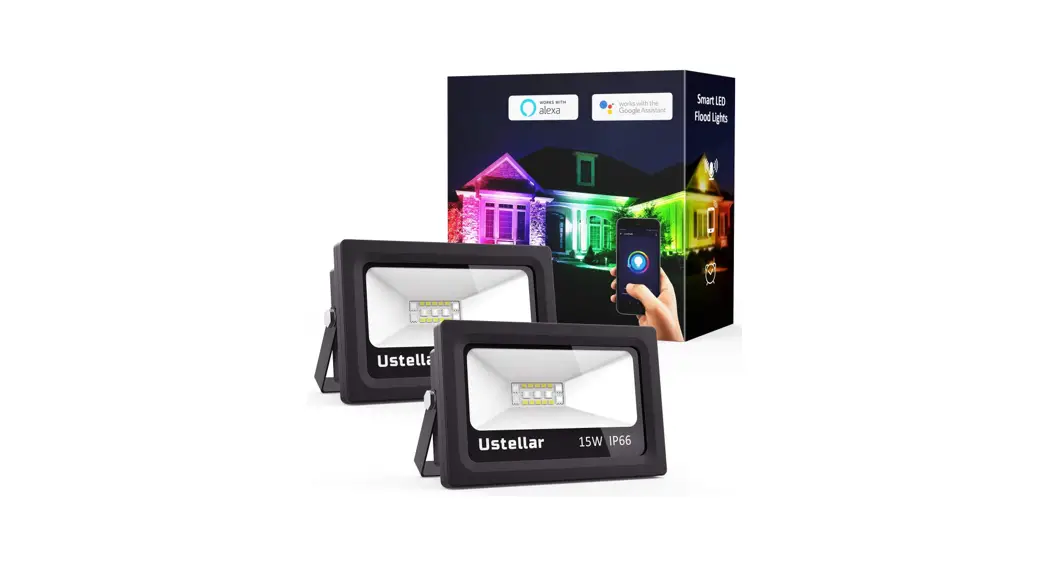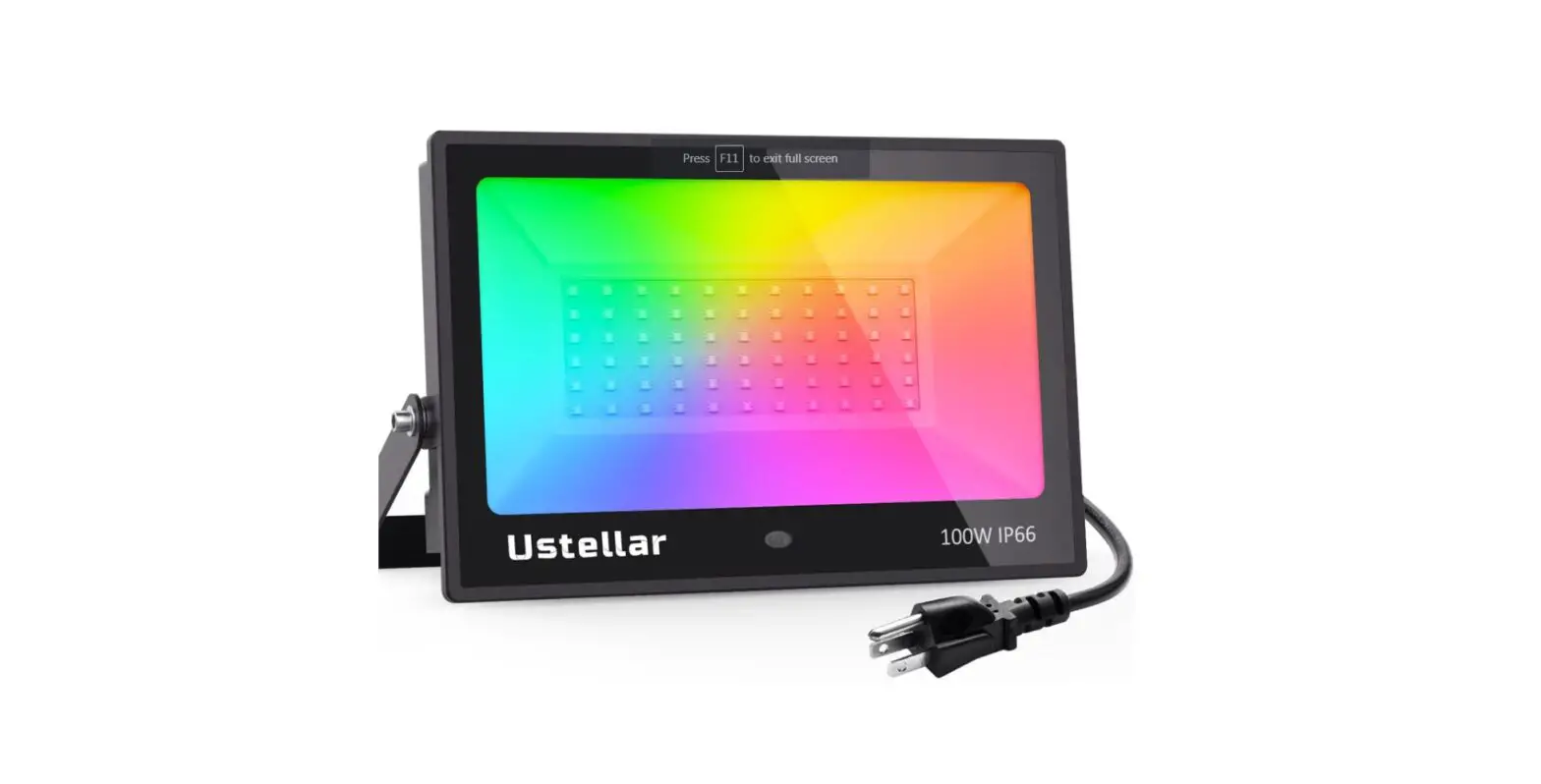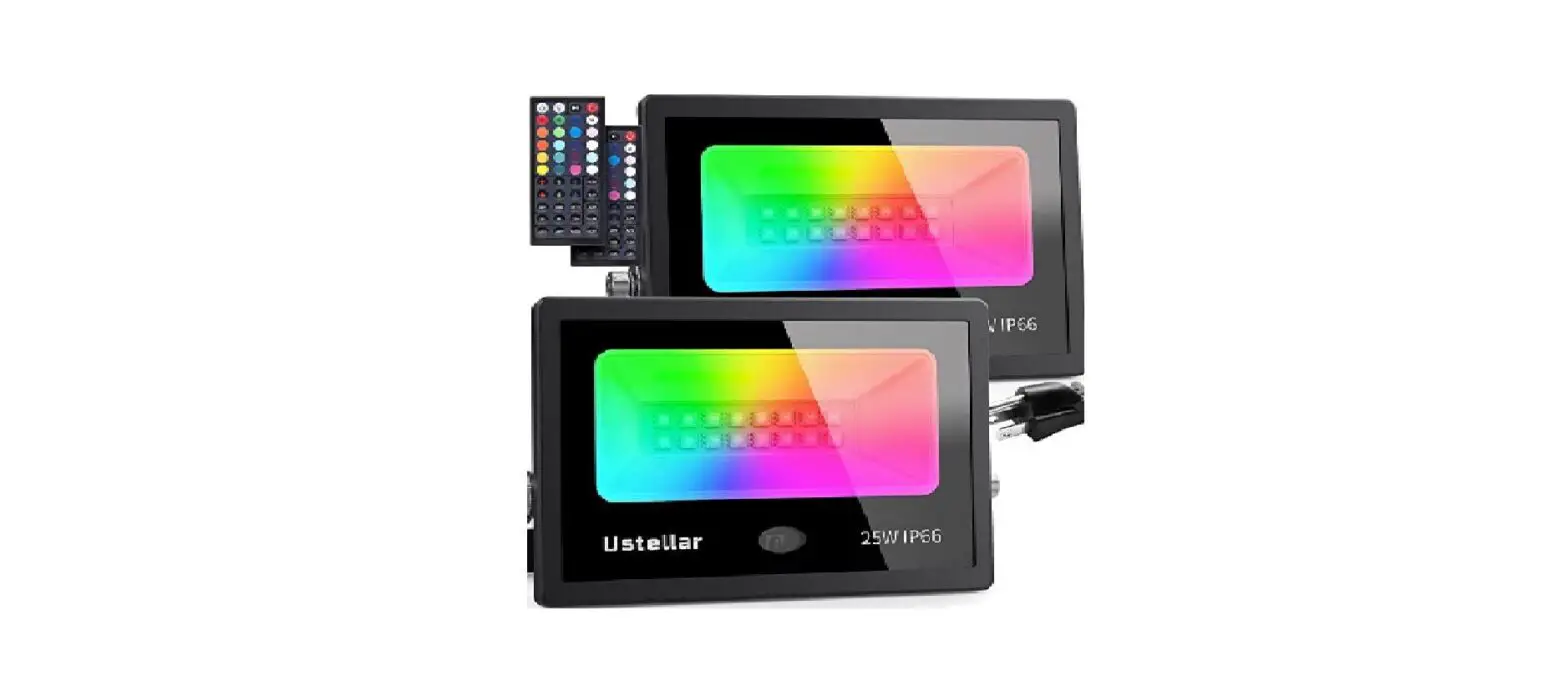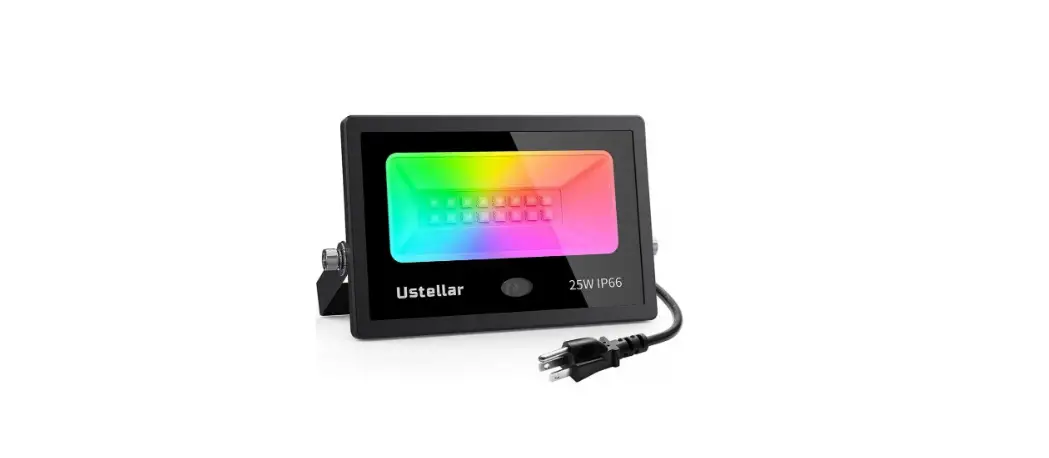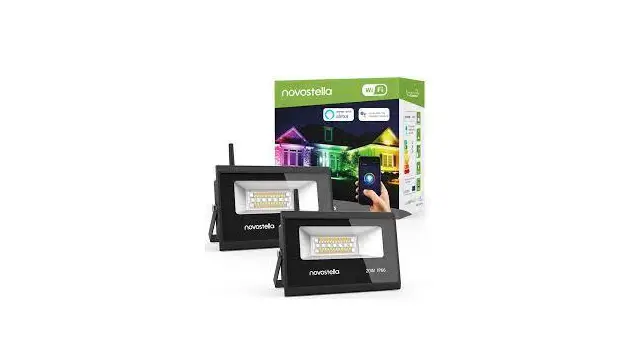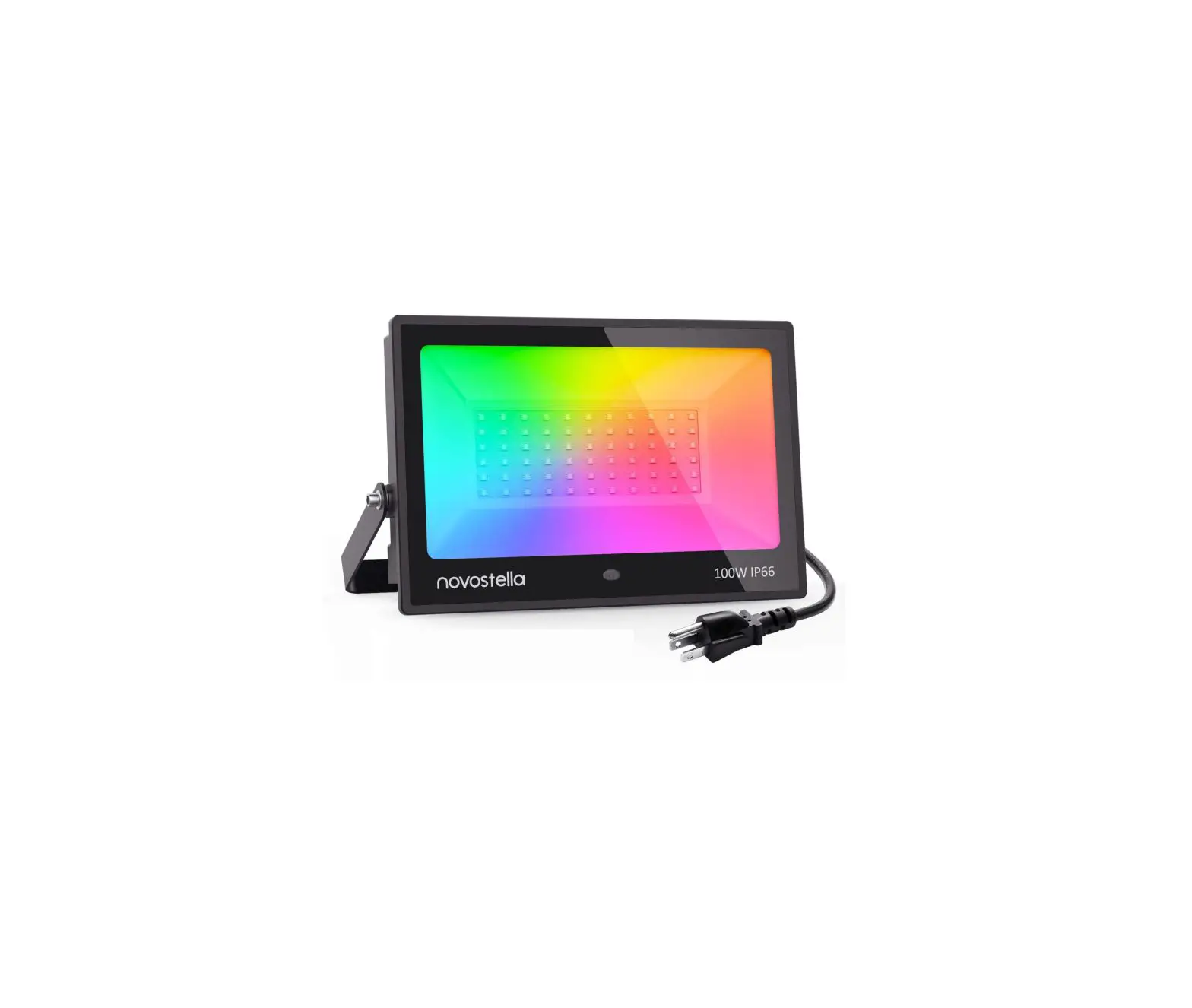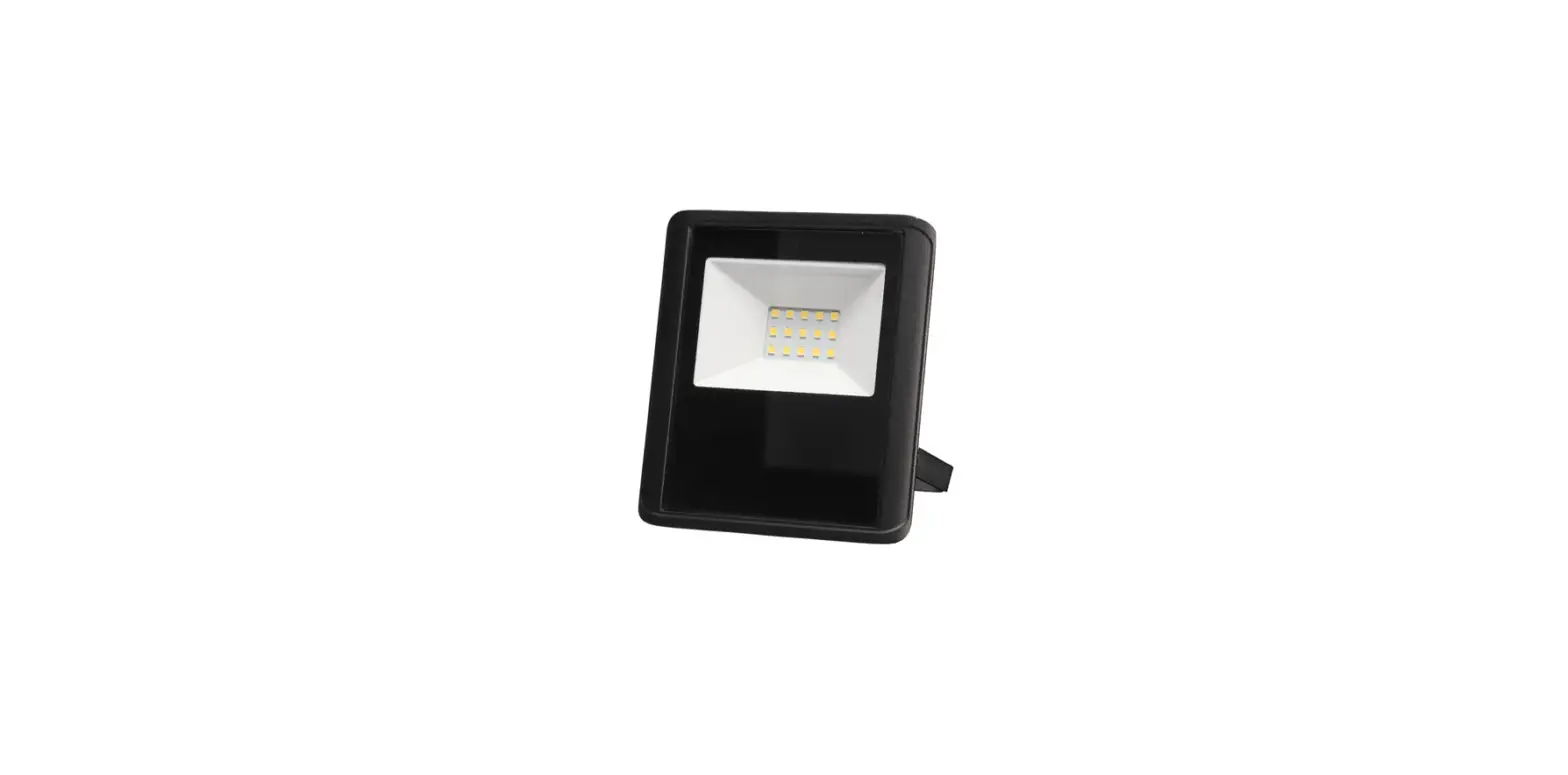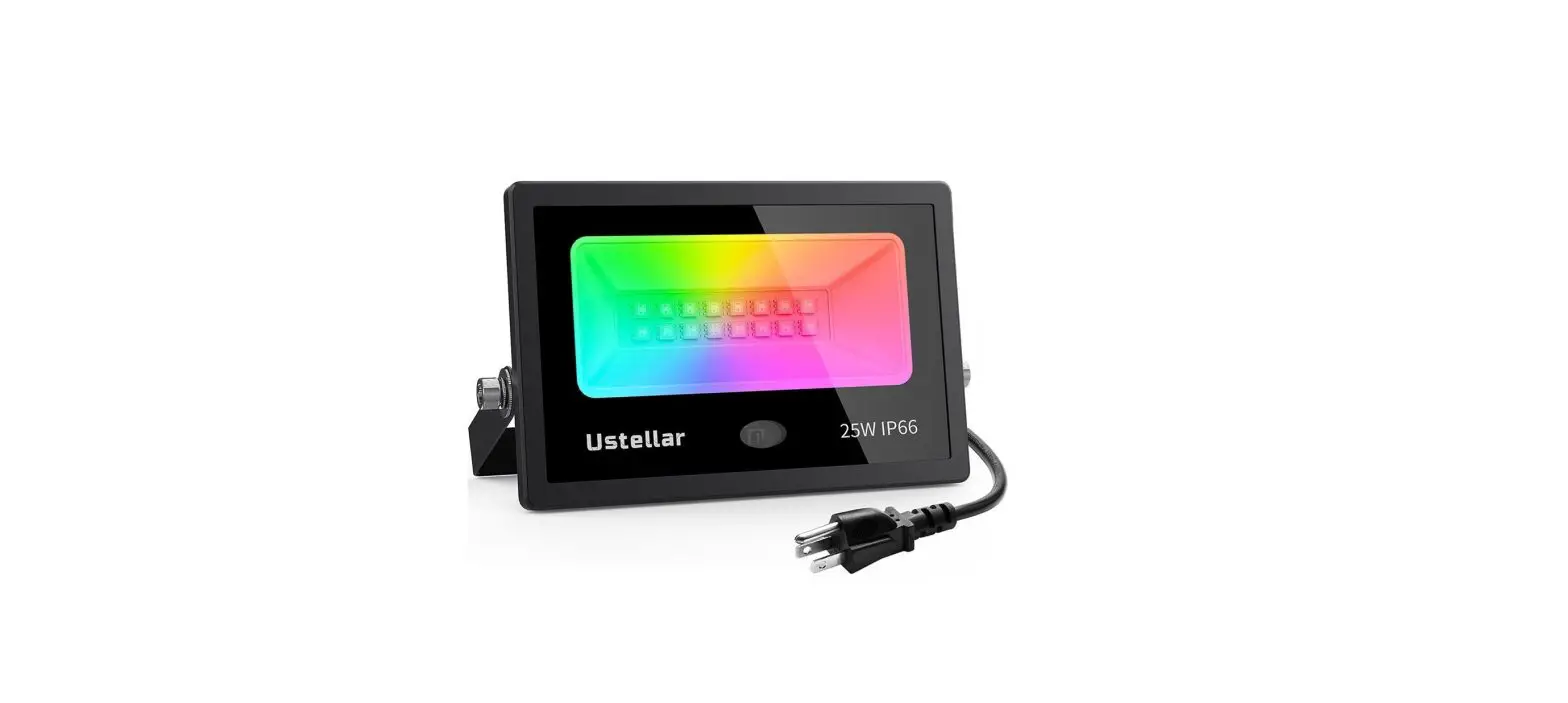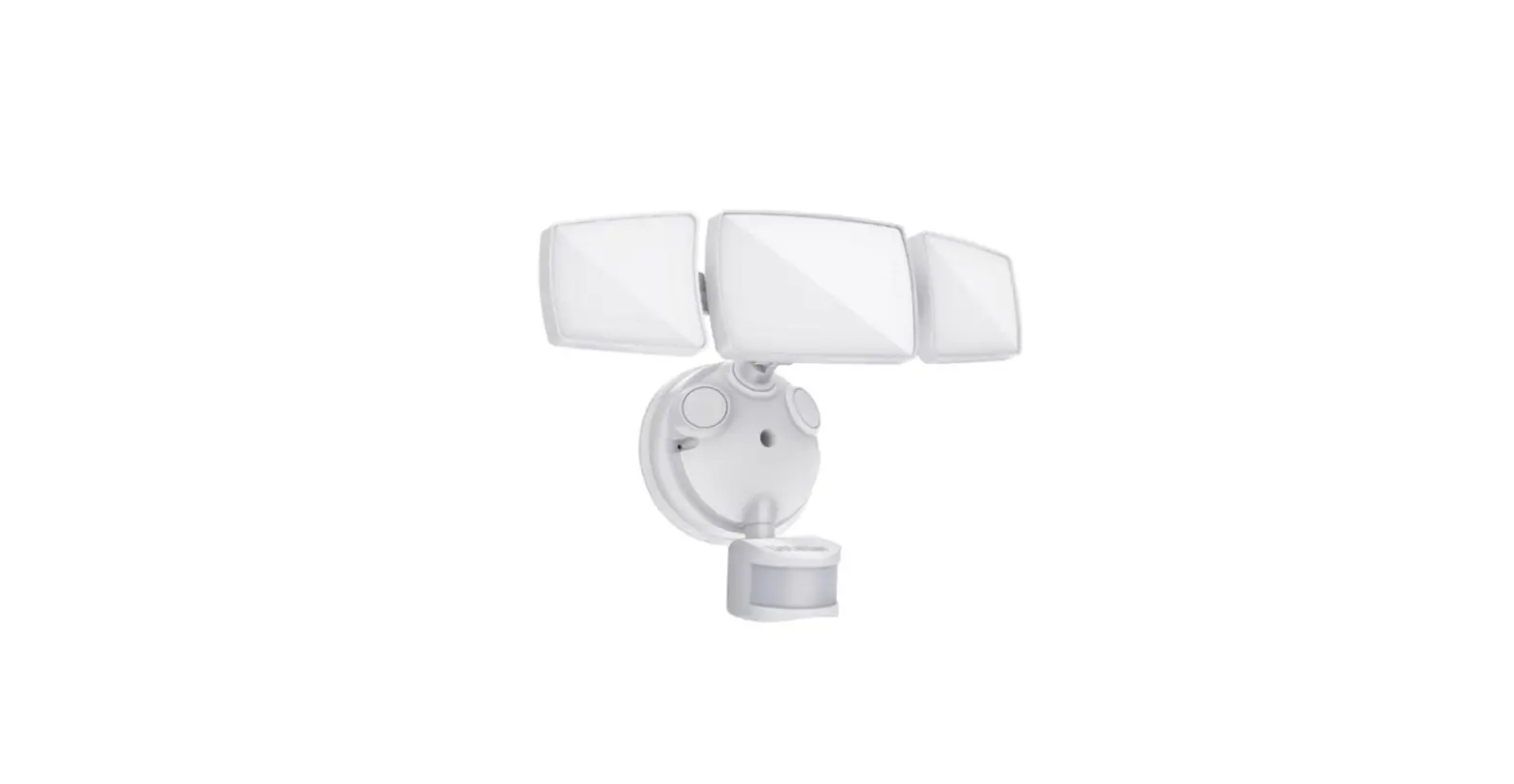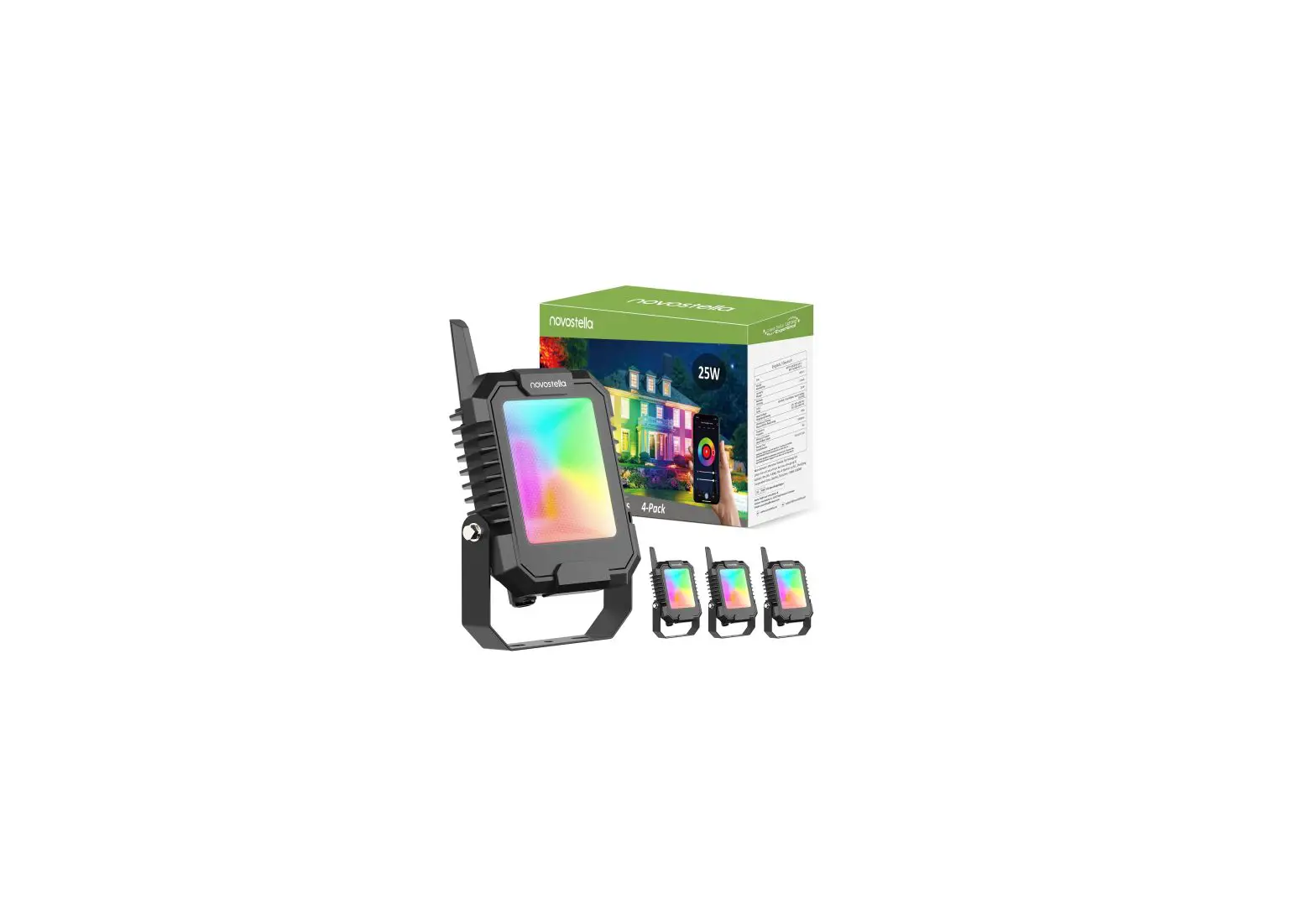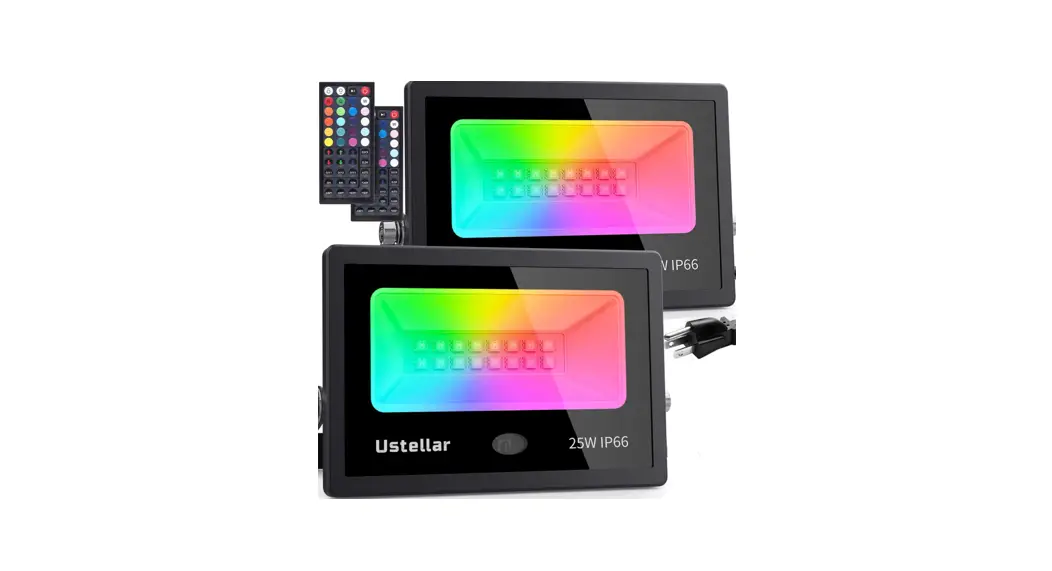

Smart LED Flood Light User Guide
Manual Version: UT88875-RGBW / V1.0
Smart LED Flood Light
Before installation, let’s know how the whole thing works.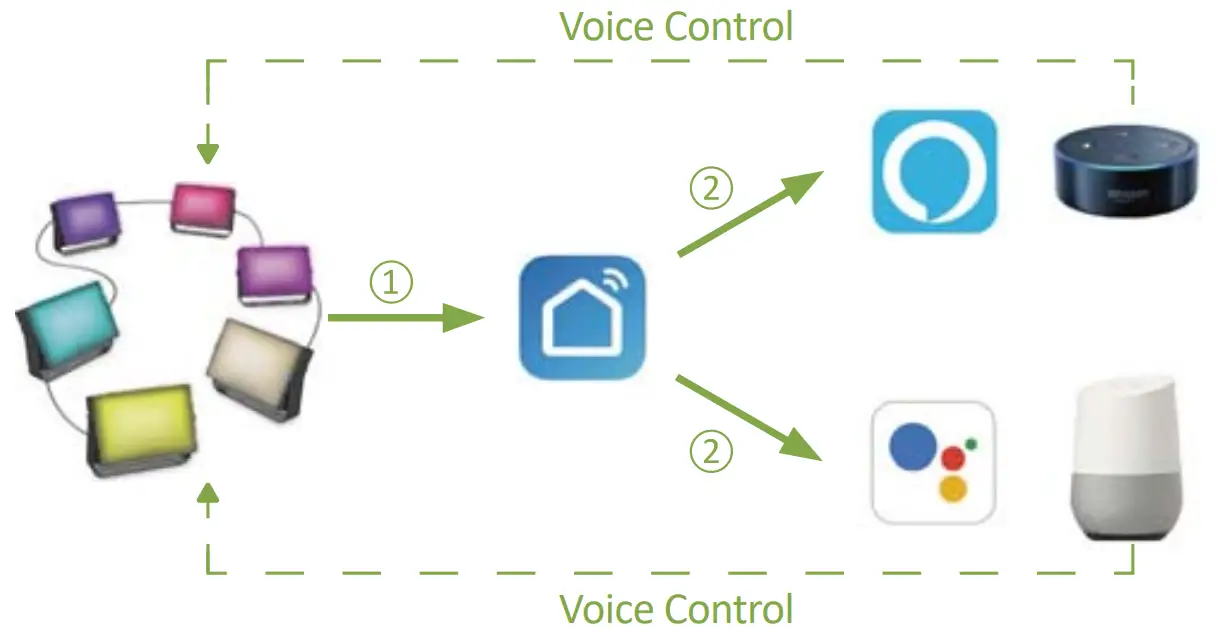 Step One: Install the smart flood light.
Step Two: Fundamental set-up-Connect smart LED flood light to Smart Life App.
Step Three & Four: Optional set-up – Connect Smart Life App to Amazon Alexa or Google Assistant. After completing Step Two, you can remote control the light on Smart Life App. After completing Step Three and Four, you can voice control the light with Alexa or Google Assistant. This manual consists of four parts. Part One – How to install
Part One – How to install the light?
Warning
- Please check if the light and the parts are intact before installation.
- Make sure to cut off the power before installation.
- Please do not place this light in corrosive conditions.
- If there is any damage to the cord, please cut off the power and stop using it immediately.
- Please do not retrofit the light within the warranty period.
- To ensure the light works properly, please use the voltage indicated on the packing.
Parameters
| Model | UT88875 |
| Total Wattage | 40W |
| Max Luminous Flux | 40001m |
| Input Voltage | AC120V |
| Color | RGB, Warm White |
| Color Temperature | 2700K |
| Frequency | 50/60Hz |
| Waterproof Rating | Flood Lights IP66 Power Adapter IP44 |
| Bean Angle | 120° |
| Working temperature | -20-40°C |
Components
 Package Includes: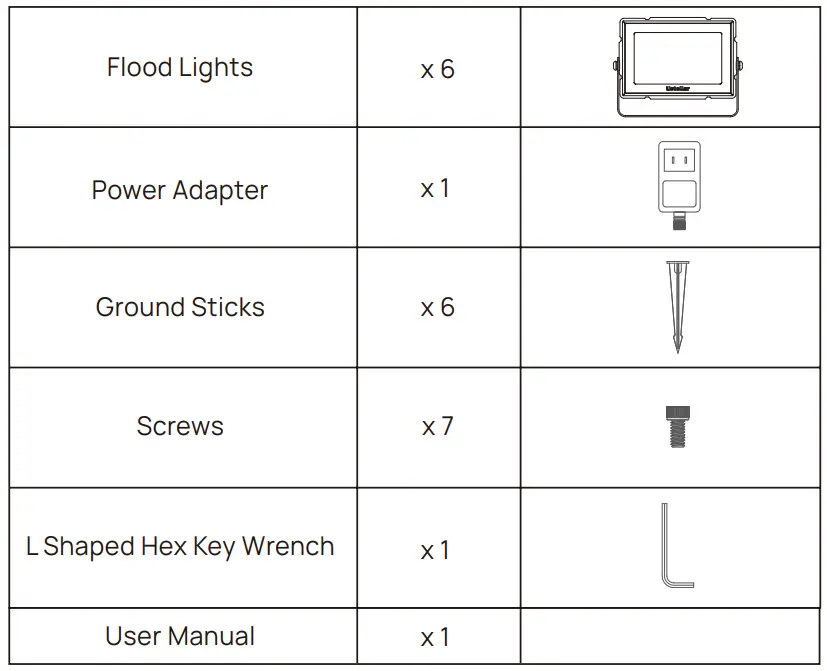
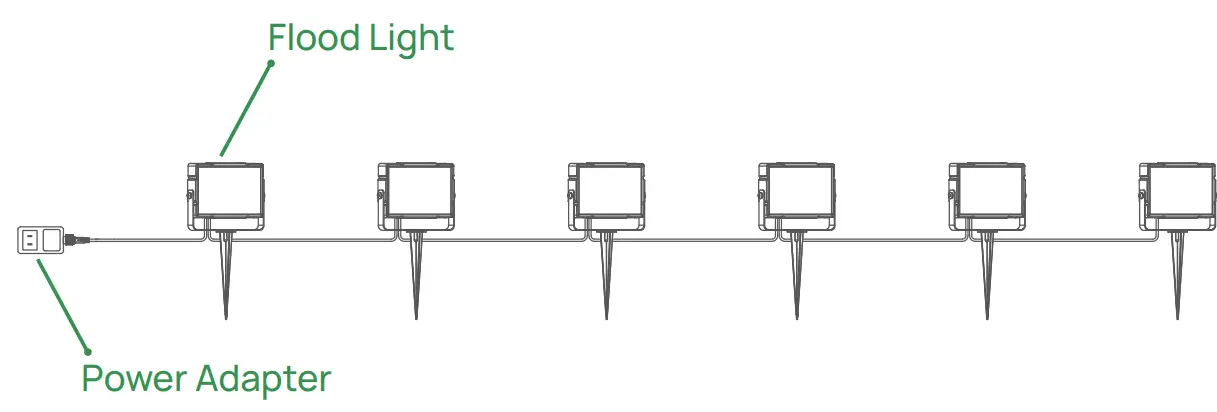 Package Includes:
Dimension
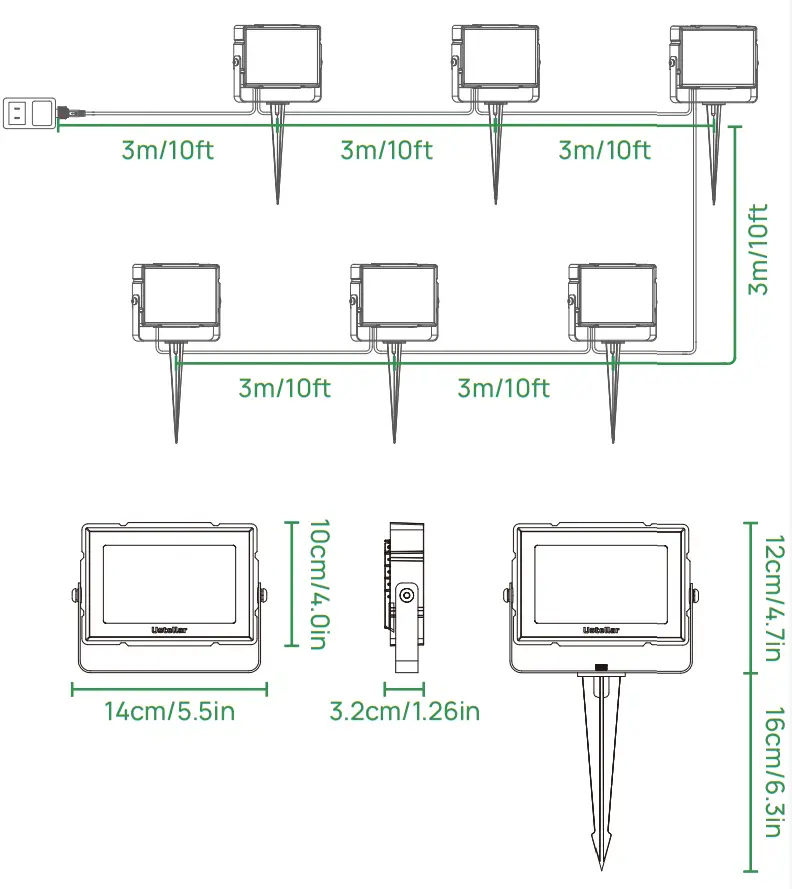
Note:
- The floodlights and cables can not be extended, Do not cut the cable.
- Use this product with the provided power adapter only.
- The power adapter is IP44 grade waterproof, which can not be directly used outdoor. Please connect to an indoor socket, or use a waterproof box.
- The flood lights are IP66 grade waterproof, which can be used outdoor. But do not immerse the lights in the water.
Installation
Scenario 1:
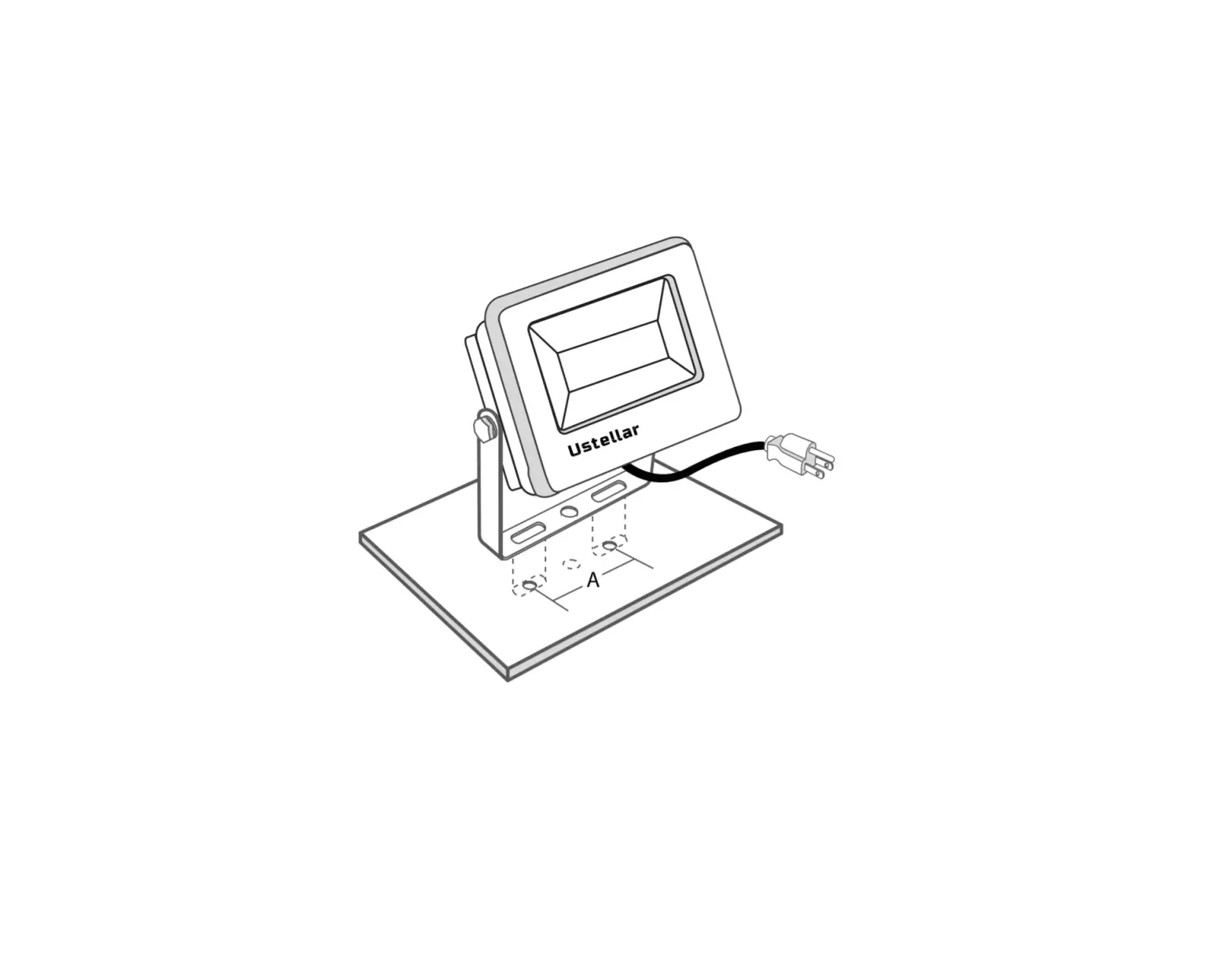
Step A: According to the spacing of two screw bits on the bracket, drill two holes on the mounting panel.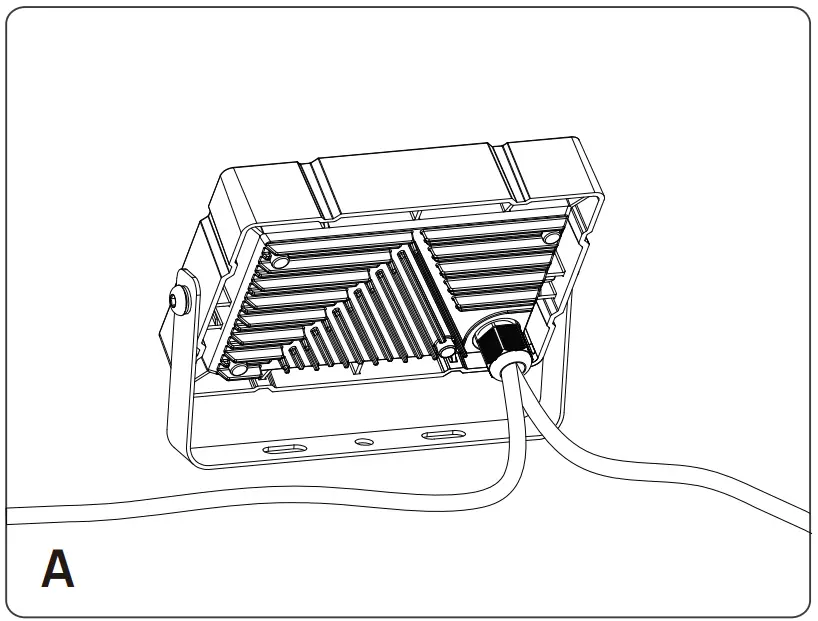 Note: Maximum mounting height is over 5m.
Step B: Aim the bracket at the holes and fix it with two bolts (not included).
Step C: Adjust the lighting direction up or down as per your need and plug into power the light on.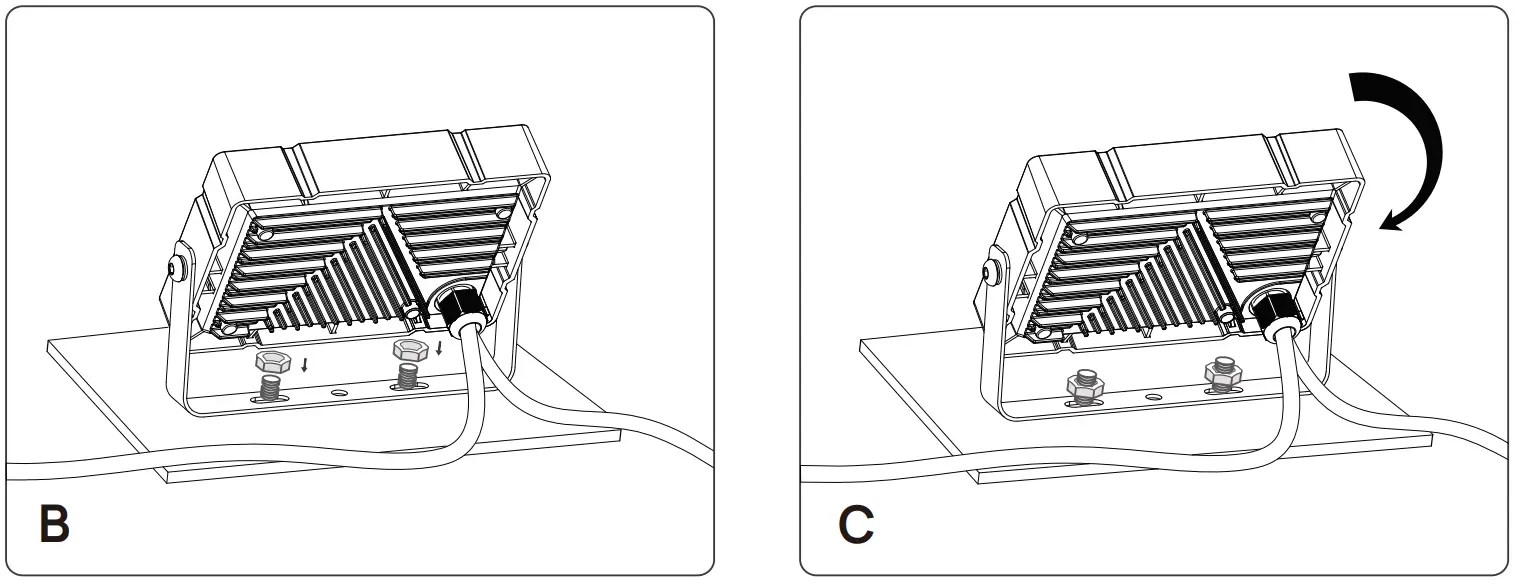 Scenario 2:
Step A: Attach the ground stick to the Flood light, with the screw provided in the package.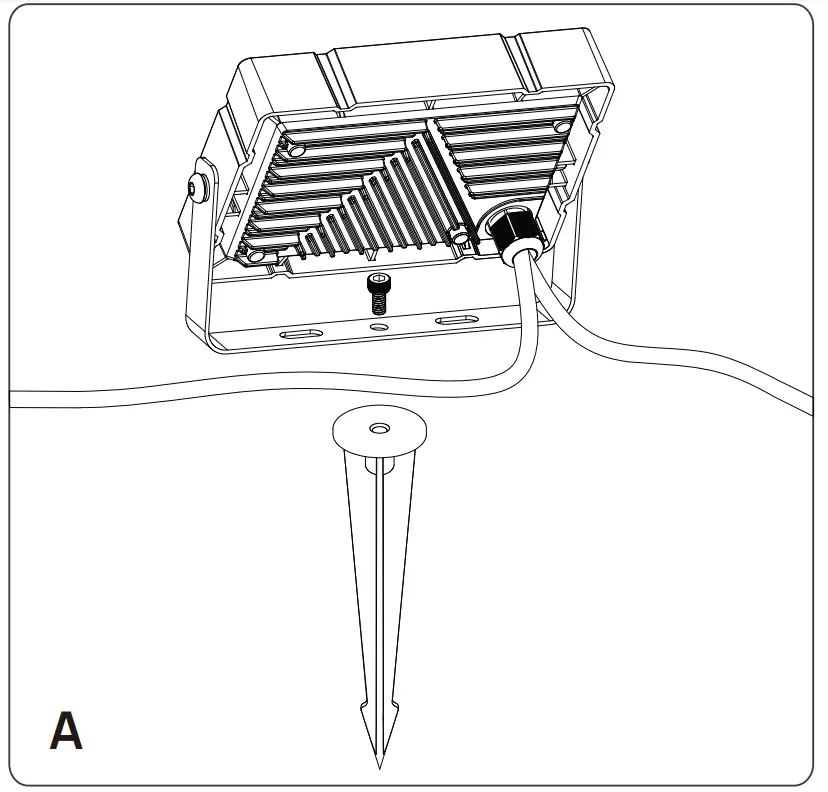 Step B: Tighten the screw with the Hex Key Wrench.
Step C: Adjust the lighting direction up or down as per your need and plug into power the light on.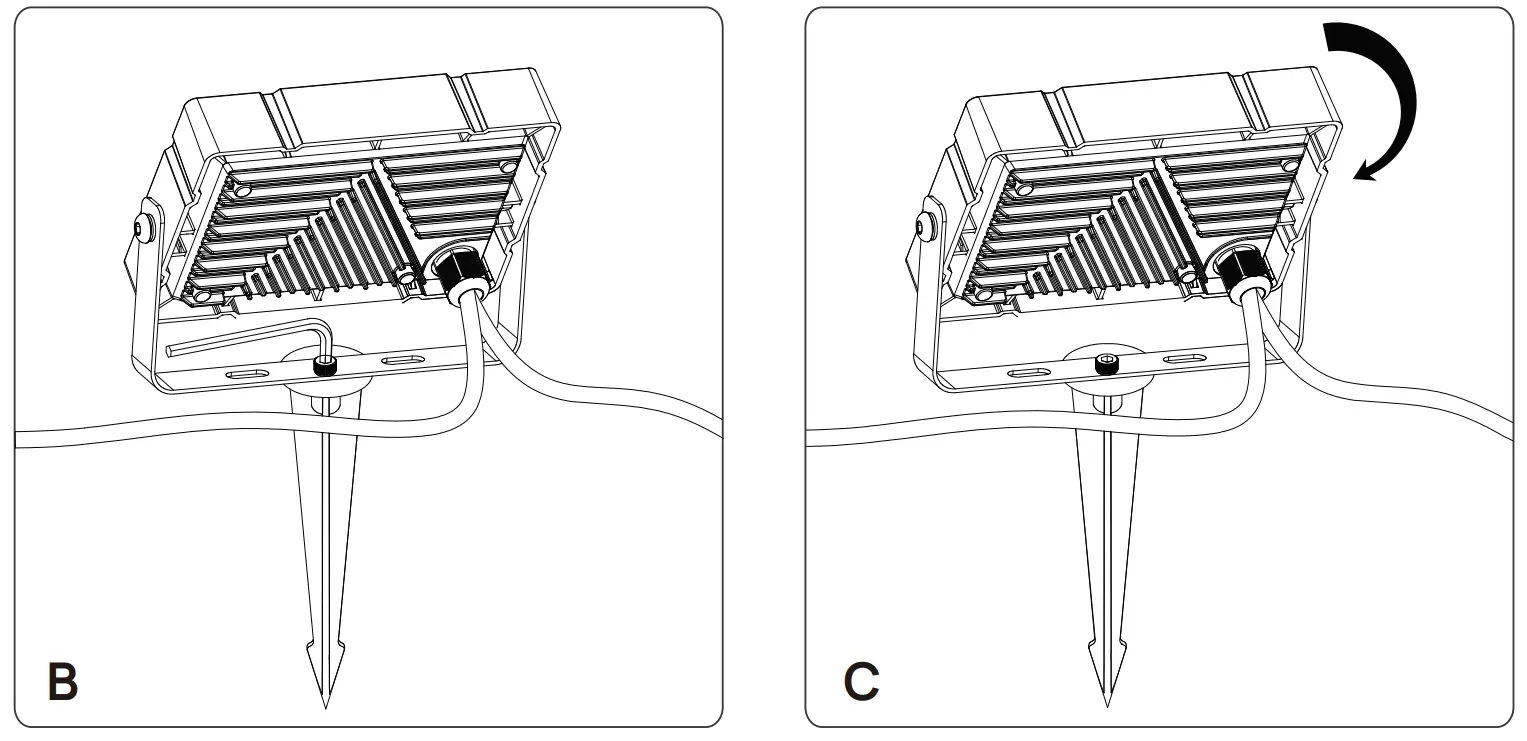 Note:
Note: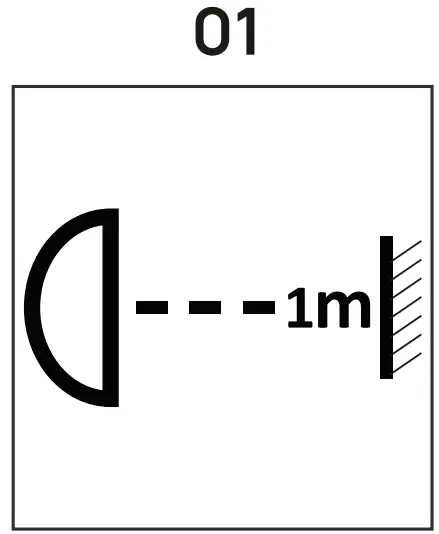
01 Make sure that the distance between the light and the object being lits is more than 1 meter, so as to avoid high temperature caused by a short distance.
The light source of this Luminaire is not replaceable.
Limitations of Indoor and Outdoor Use
- This light is waterproof and dampproof. It is protected against rain, but it cannot be immersed in water.
- The mounting position of this light should be able to bear at least 10 times as heavy as the light.
- This light should be used in a condition that is good for heat dissipation. Its working temperature should be less than 45°C Too high the working temperature will cause serious lumen depression and affect the lifespan of the light.
FCC ID: 2AWONUT88875
This device complies with part 15 of the FCC rules. Operation is subject to two conditions: (1) this device may not cause harmful interference, and (2) this device must accept any interference received, including interference that may cause undesired operation. This equipment complies with FCC radiation exposure limits set forth for an uncontrolled environment. This equipment should be installed and operated with a minimum distance of 20 cm between the radiator and your body. This transmitter must not be co-located or operating in conjunction with any other antenna or transmitter.
Part Two – How to pair the light to Smart Life app?
Before starting the paring, please make sure to turn on the Bluetooth and WiFi on your phone.
The smart light only supports a 2.4GHz WiFi network, not 5.0GHz. Please make sure the working network is 2.4GHz, and your phone is connected to it. If your WiFi router supports both 2.4GHz and 5.0GHz, please separate the two frequency bands in the router settings, and select the 2.4GHz for connection.
The WiFi signal receiving module is built in the first floodlight head (the one close to the power adapter). The maximum wireless connection distance is up to 65ft/20m.
Step A: Smart Life app installation
Please choose either way below to download and install the app. (1) As per your phone system, choose the QR code to scan.
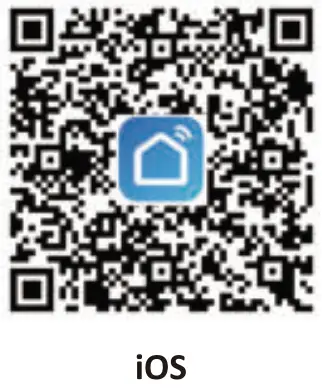 | 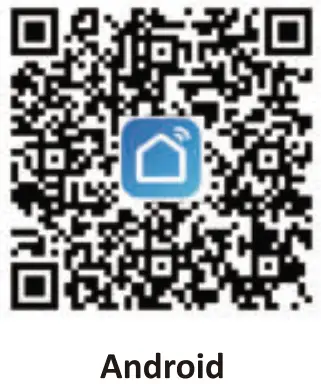 |
| https://itunes.apple.com/cn/app/smart-life-smart-living/id1115101477?l=en | https://play.google.com/store/apps/details?id=com.tuya.smartlife |
(2) Search the keyword `Smart Life’ in Apple Store or Google Play.
Step B: Create an account on Smart Life and log in.
Note: Please keep your account and password in mind for Alexa or Google Assistant App pairing later.
Step C: Add the light to Smart Life App 1. Tap the `+’ button on the top right corner to add devices. Tap `Lighting’, then choose `PIR Light (BLE+Wi-Fi)’ to add the lights.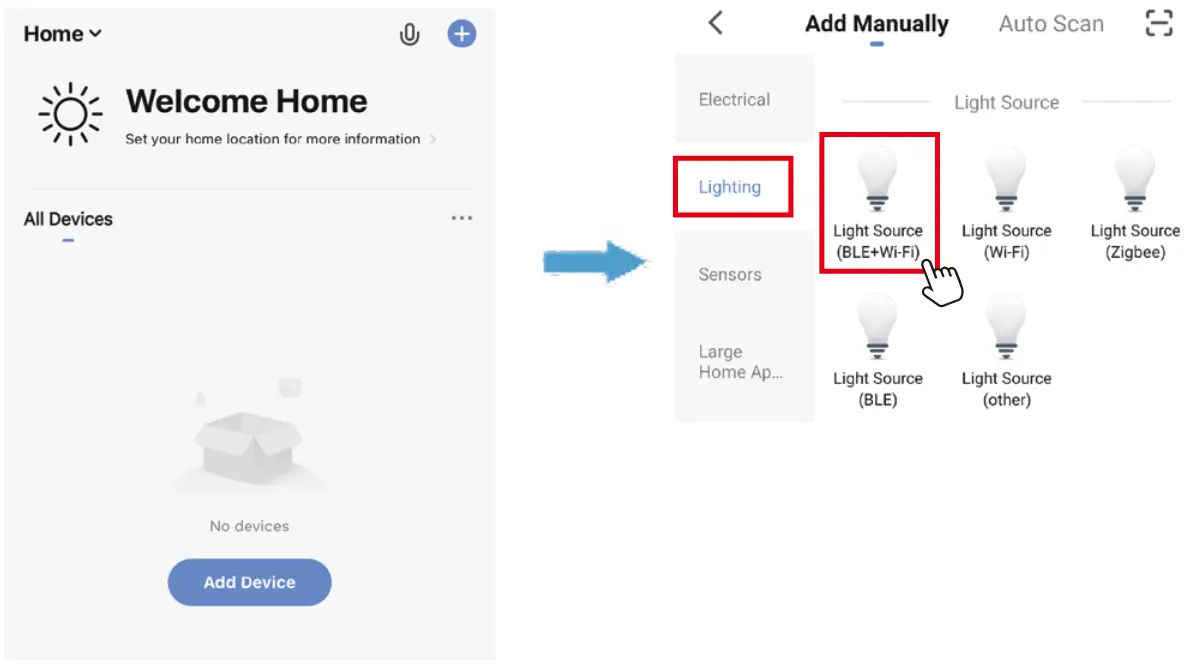
2. Power on the light with your own switch. Repeatedly turn the on-off-on-off -on-off-on switch (3 times) to activate the light into rapid blinking status (about 0.5s per blink). Please make sure to keep an interval of over 2 seconds between each turn-on and turn-off. Then click the `Next’ button on this page. Find the lighting devices and click `+’.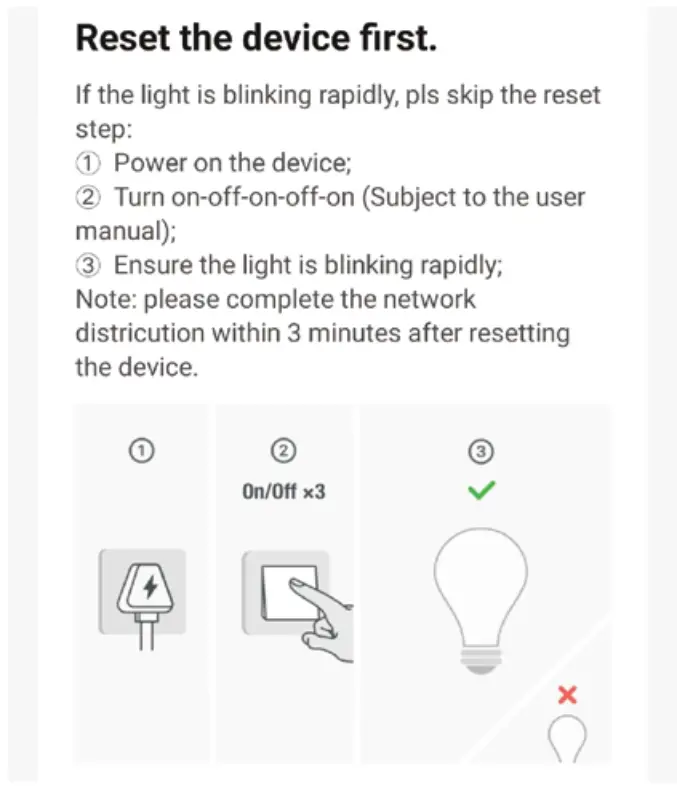 3. Choose your WiFi network, enter your password, and tap the `Next’ button. Then give a name to the light and tap the `Done’ button.
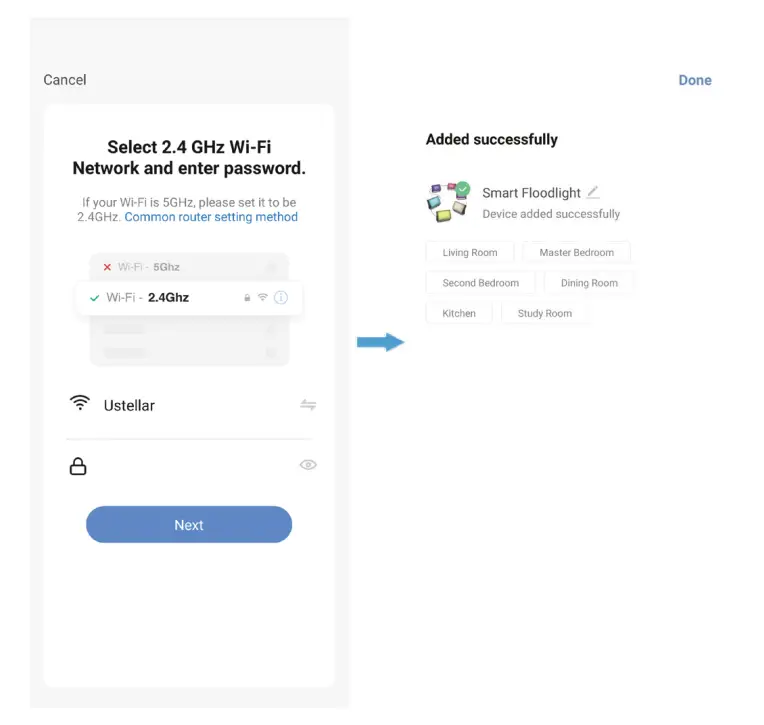 Step D: Give a name to the light.
– A simple name is recommended for easier voice recognition with Alexa or Google Assistant.
– The name given to the light will be the same for voice control on Alexa or Google Assistant.
Step E: Control the lights.
The named light will be shown on the app homepage. Now you can control the light (turn on/off, change colors, adjust brightness ect) with Smart Life on the setting page.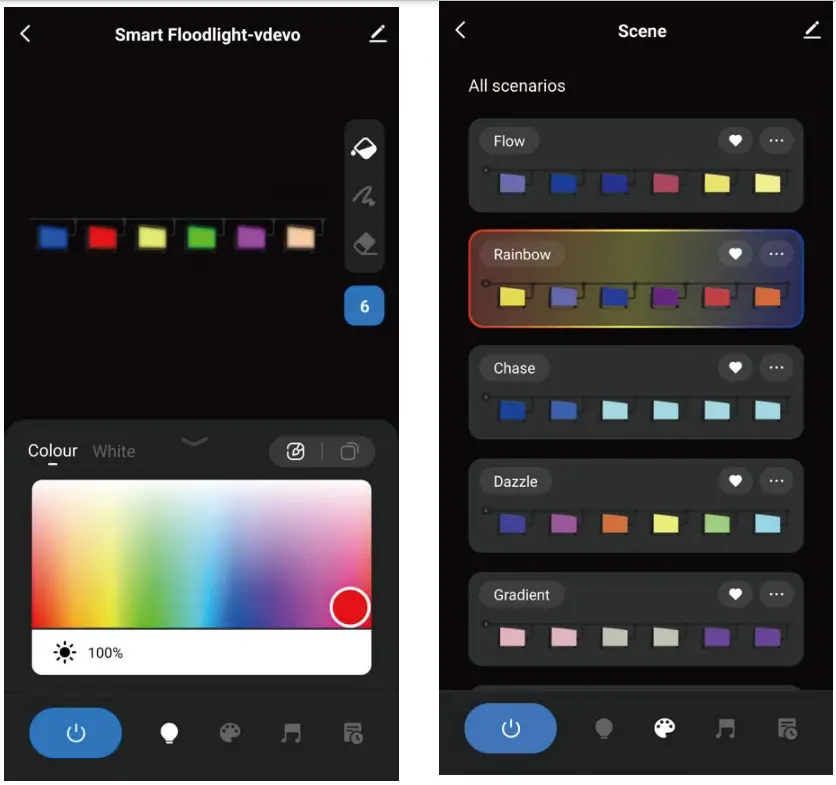 Tips:
Tips:
- This botton sets the number of floodlights, please click and set it to ` 6 ‘.
- Click the `
 ‘ botton, and select the color in the color plate, the color of all the floodlights will be changed at the same time.
 - Click the `
 ‘ botton, select the color in the color plate, and select the floodlight you want, the color will be changed separately.
 - Click the ` ‘ botton, and select the floodlight, the flood light will be turned off separately.
- Click the `
 ‘ botton, all the floodlights will be turned on/off at the same time.
 - Click the `White’ tab, you can set the floodlights to warm white and adjust the brightness.
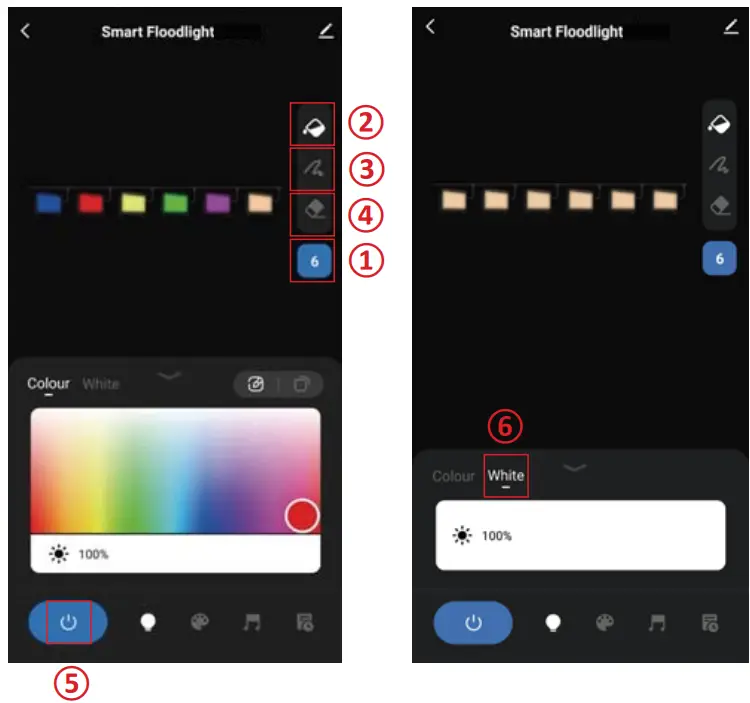
 ‘ botton, and select the color in the color plate, the color of all the floodlights will be changed at the same time.
How to group the lights?
Make sure all the lights have been paired to the “smart life” app, then group the lights by following these steps.
1. Choose any light on the app, click the edit button on the top right corner, then click “Create Group” .
2. Choose the lights you want to group from the device list and rename the group.
Now you can control the lights and sync with the music, the colors will be synchronized in the group.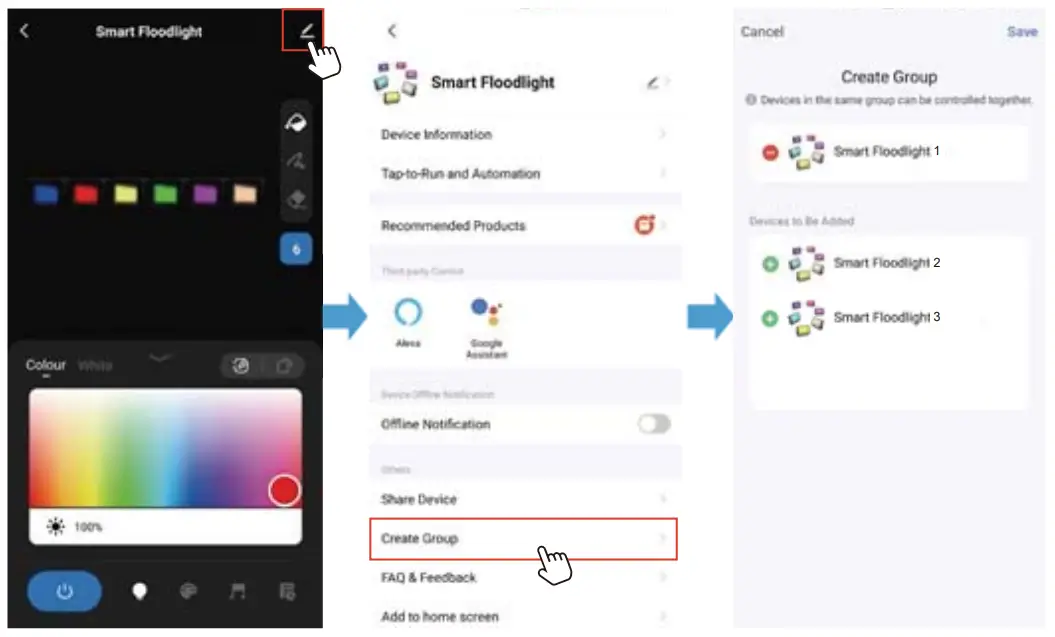
Part Three — How to control the light with Amazon Alexa?
Please make sure that your Alexa app is connected to Echo, and both work well under your WiFi network.
Step A: Log in to your Alexa App, tap the top left corner, and tap `Skills’.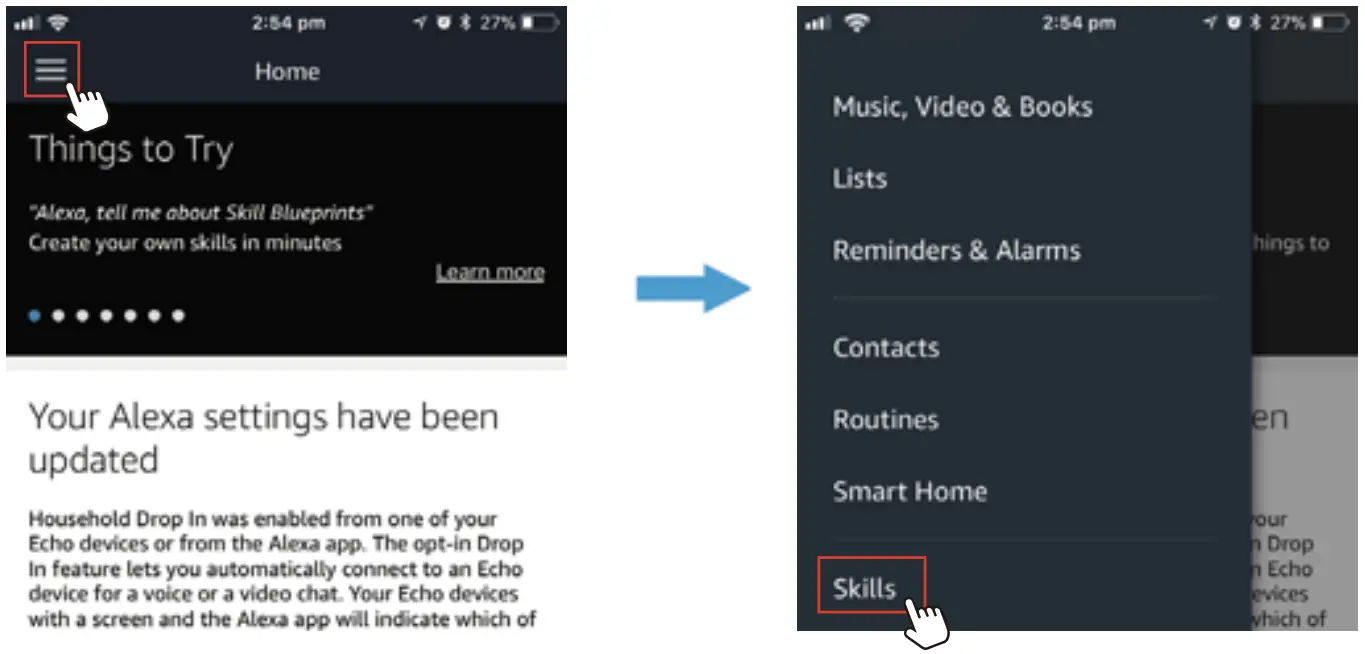 Step B: Type `Smart Life’, find `Smart Life’ from the search result and tap it to enable the skill.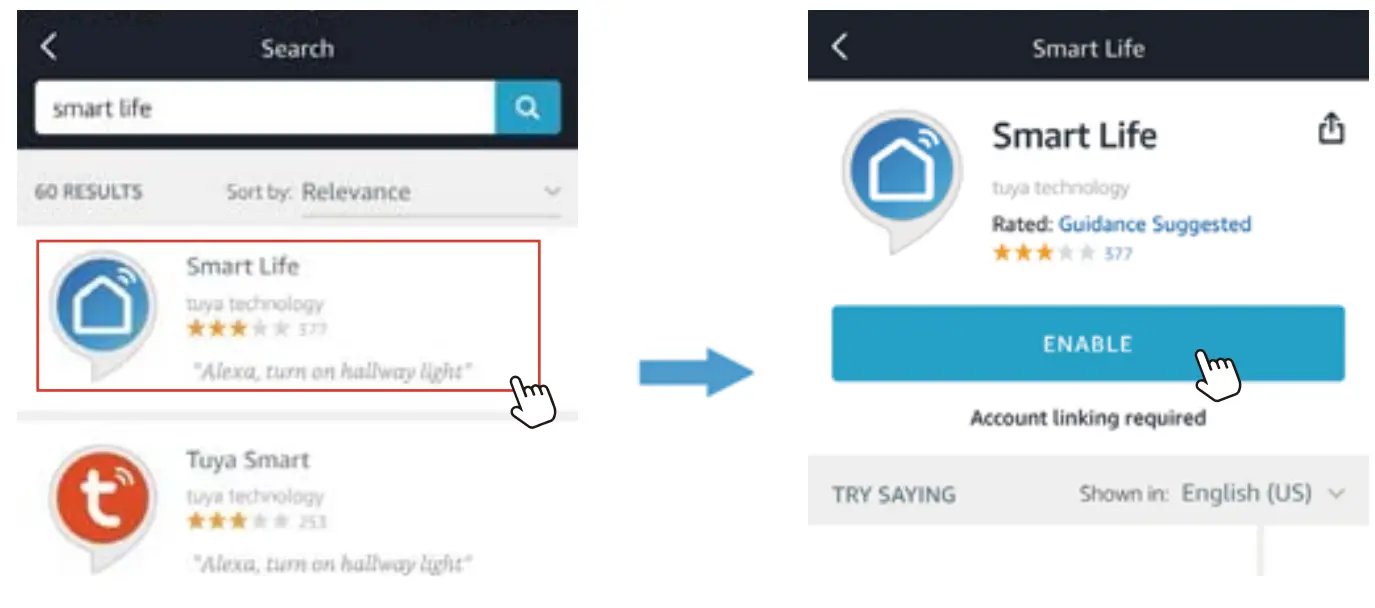
Step C: Enter your Smart Life App account and password. Tap `Link Now’, then tap `Authorize’ on the next page to bind Smart Life account to Alexa.
Step D : When your Smart Life account is bound to Alexa, tap `DISCOVER DEVICES’ to detect the light.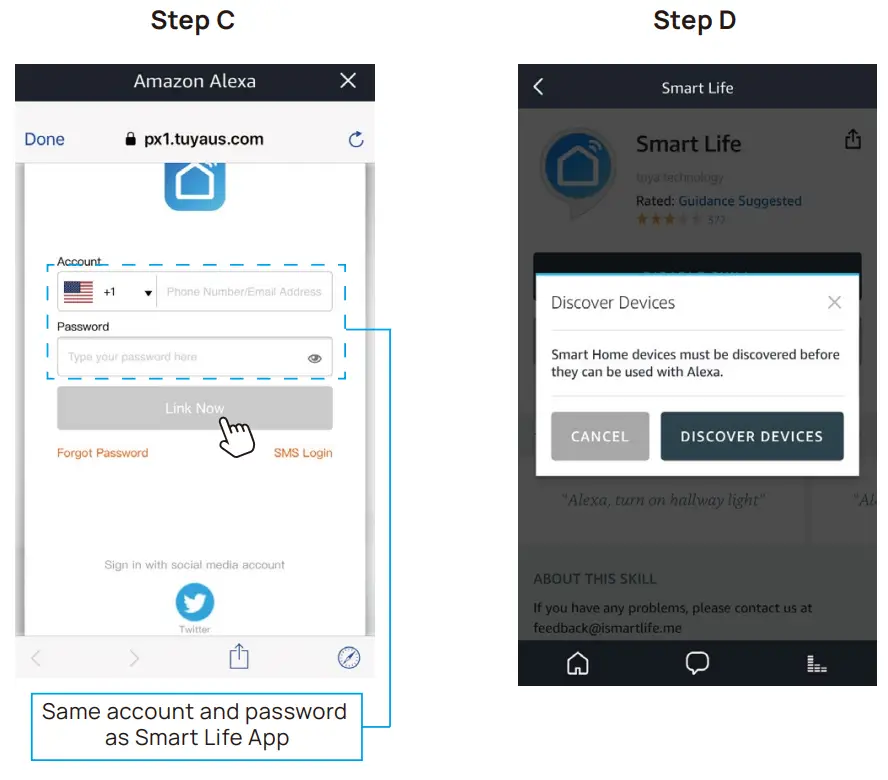
Same account and password as Smart Life App
Step E: When the named light is paired to Alexa from Smart Life, it will show on the device page (see the `smart light’ example).
Step F: Now you can control the light with Alexa App on the setting page. To turn on or off the light, simply tap the bulb icon.
Step G: You can also voice control the light with Alexa by giving these commands: “Alexa, turn on `device name'”,”Alexa, set `device name’ to `color'”, “Alexa, set `device name’ to `number'”. The Device Name is the one you give to the light. The light is named `smart light’ in this user guide. For example, “Alexa, turn on `smart light'”, “Alexa, set `smart light’ to `blue'” etc.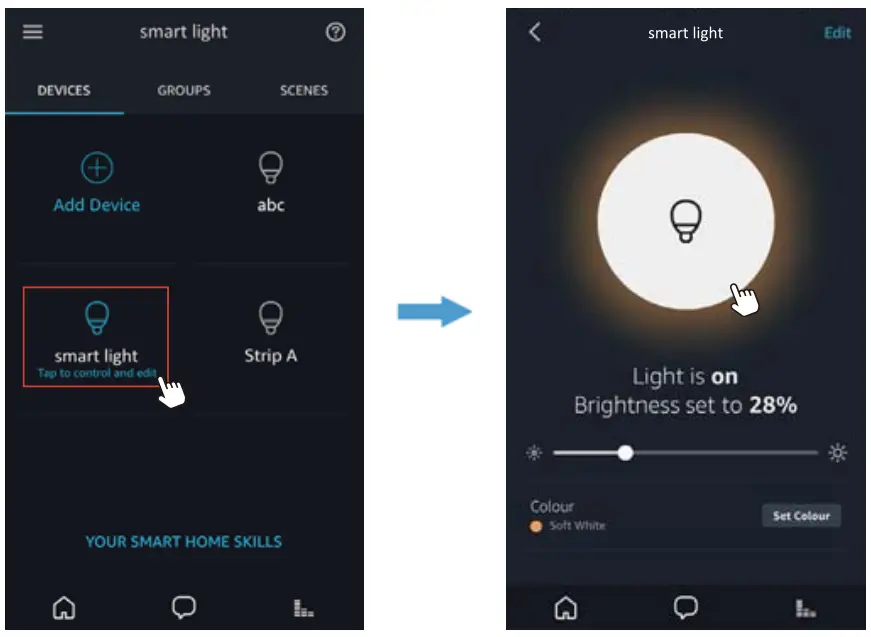 Note: To control the light with Google Assistant, please continue to read Part Four.
Part Four — How to control the light with Google Assistant?
Step A: Login Google Assistant App, and tap `Home Control’ on the left sidebar page.
Step B: Tap the `+’ button on the bottom right to enter the next page.
Step C: Find `Smart Life’ from the sidebar list.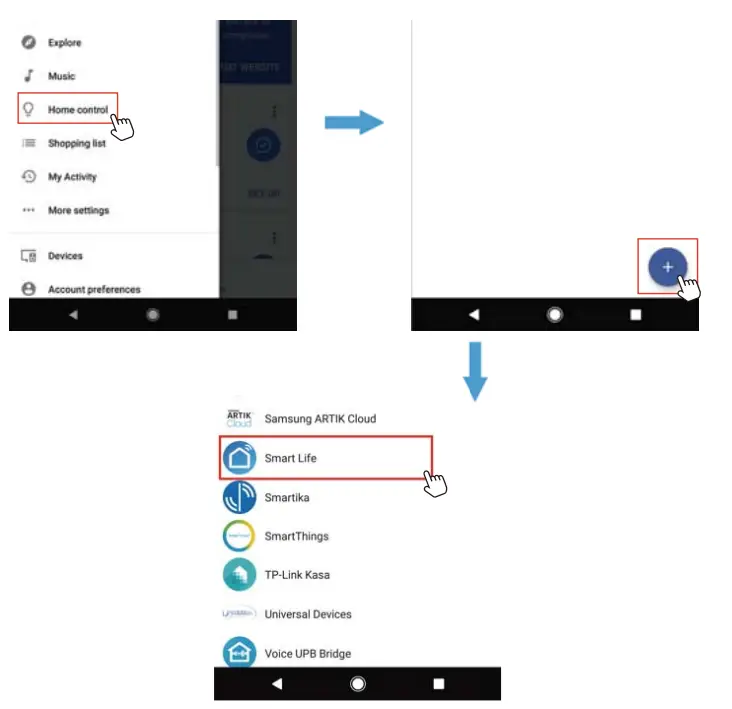
Step D: Enter your Smart Life App account and password to bind your Smart Life account to Google Assistant.
Step E: You will find the named light shown on the Home Control page. Now you can control the light on Google Assistant App, or voice control it by giving these commands: “ok Google, turn on `device name'”, ” ok Google, set `device name’ `to color'”, ” ok Google, set `device name’ to `number'”.
The Device Name is the one you give to the light. The light is named `smart light’ in this user guide. For example, “ok Google, turn on `smart light'”, “ok Google, set `smart light’ to `blue'” etc.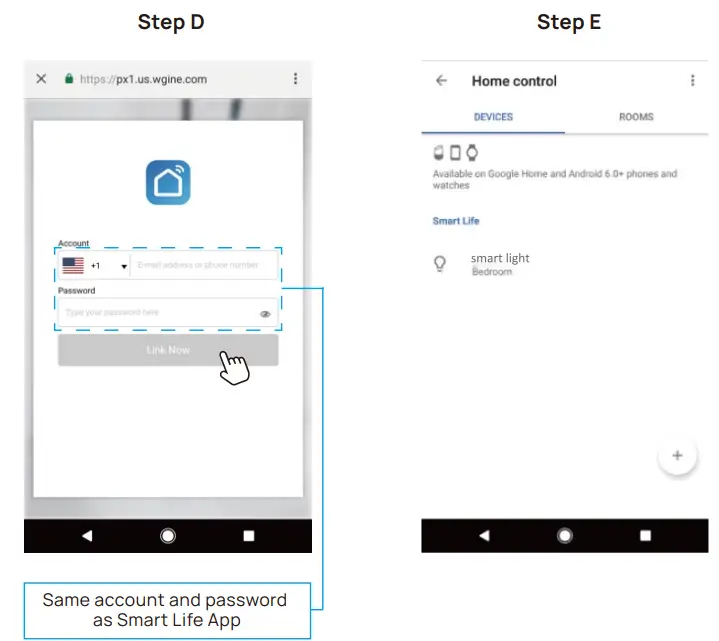
Any changes or modifications not expressly approved by the party responsible for compliance could void the user’s authority to operate the equipment. This equipment has been tested and found to comply with the limits for a Class B digital device, pursuant to part 15 of the FCC Rules. These limits are designed to protect reasonably against harmful interference in a residential installation. This equipment generates, uses, and can radiate radio frequency energy and, if not installed and used in accordance with the instructions, may cause harmful interference to radio communications. However, there is no guarantee that interference will not occur in a particular installation. If this equipment does cause harmful interference to radio or television reception, which can be determined by turning the equipment off and on, the user is encouraged to try to correct the interference by one or more of the following measures:
– Reorient or relocate the receiving antenna.
– Increase the separation between the equipment and receiver.
– Connect the equipment into an outlet on a circuit different from that to which the receiver is connected.
– Consult the dealer or an experienced radio/TV technician for help.
Contact Us
Have some issues? No worries! Please reach us via these channels. Our customer services team is more than happy to help.
www.ustellar.com
[email protected]
Manufacturer: Shenzhen Ustellar Technology Ltd.
(shen Zhen shi you shi to ke ji you xian gong si )
Address: Rm.C306, 3/F, C Bldg., Youth Entrepreneur Hub, Jianshe
East Road, Qinghua Community, Longhua, Shenzhen, China
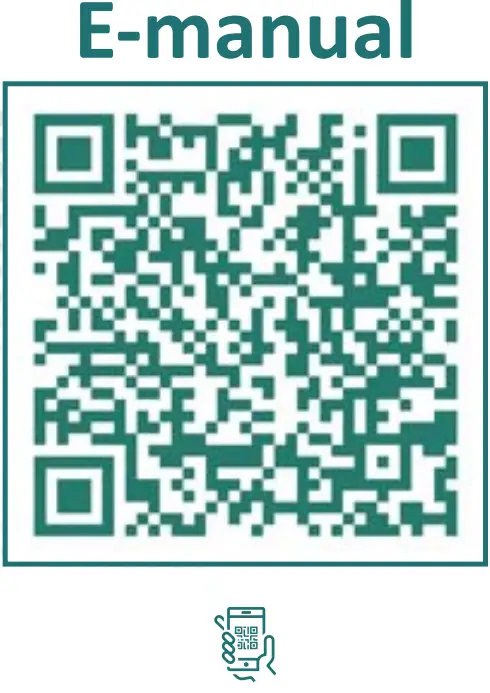
https://www.ustellar.com/pages/ustellar-smart-chain-40w-rgbw-flood-light-e-manual
Step 1: Scan the QR code
Step 2: Click E-manal PDF five
Step 3: Read le online or download
Go paper-free, make life easier, and do something good for the environment. MADE IN CHINA