
NetHome Plus APP for heat pumps Multi-Split Aquaman
NET HOME PLUS APP
User manual
DECLARATION OF CONFORMITY
Hereby, we declare that this Smart WiFi is in compliance with the essential requirements and other relevant provisions of Directive 2014/53/EU. A copy of the full DoC is attached. (European Union products only)
 IMPORTANT NOTE
All the illustrations in the manual are for explanation purposes only. Your unit may be slightly different. The actual shape shall prevail.
NetHome Plus APP for heat pumps Multi-Split Aquaman
PART 1. SPECIFICATION AND INSTALLATION
IMPORTANT NOTE
Read the manual carefully before connecting your Smart kit (Wireless module). Make sure to save this manual for future reference. Illustrations in this manual are for explanatory purposes. The actual shape shall prevail.
SPECIFICATION
| Parameters | Details |
| Model | EU-SK105, US-SK105 |
| Standard | IEEE 802. 11b/g/n |
| Antenna Type | Printed PCB Antenna |
| Frequency | WLAN 2400~2483.5 MHz |
| Operation Temperature | 0°C~45°C/32°F~113°F |
| Operation Humidity | 10%~85% |
| Power Input | DC 5V/300mA |
| Maximum TX Power | <20dBm |
Note: Rotenso® will not be liable for any issues and problems caused by the Internet, Wireless Router, and Smart Devices. Please contact the original provider to get further help.
INSTALLATION
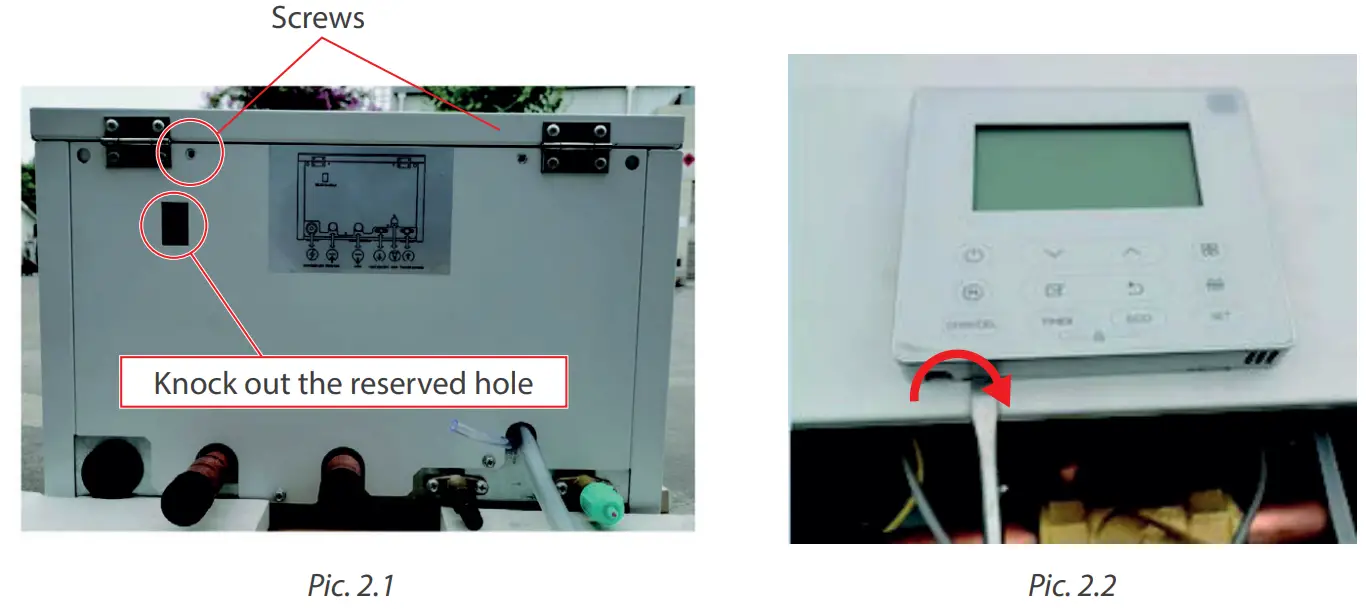
- Remove the two screws fixed on the lower cover of the case and the wire controller mounting plate, and knock down the reserved hole. (Rys. 2.1)
- Open the switch door, take out the wired controller and the installation sheet metal, and open the upper cover of the wire controller with a tool. (Pic. 2.2)
 PART 1. SPECIFICATION AND INSTALLATION
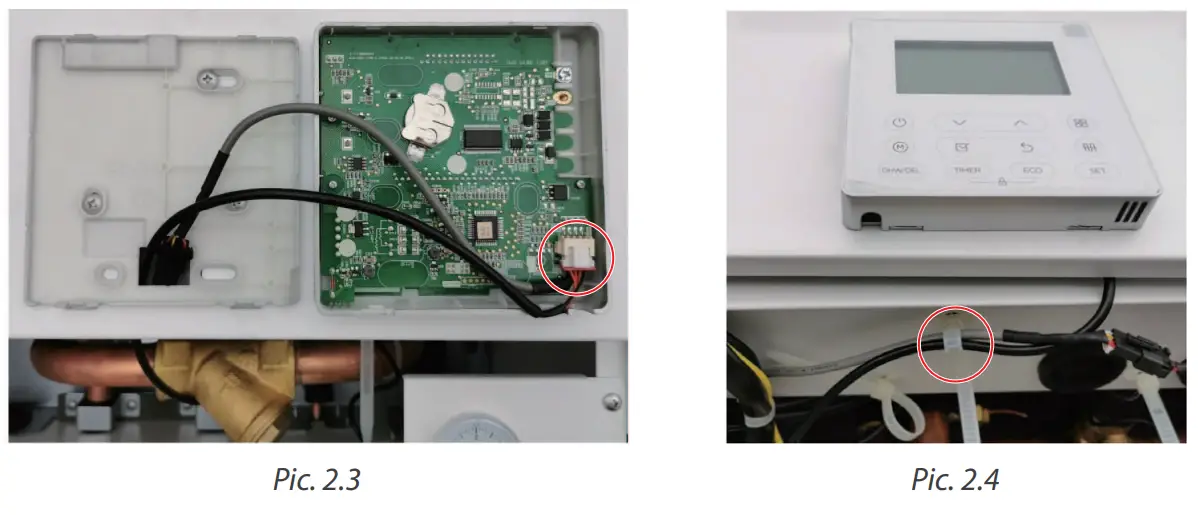
Take out the Wireless module connection cable from the accessory bag, insert it into the PCB of the wire controller, and the wire body comes out from the hole in the lower cover of the wired controller. (Pic. 2.3)- Reattach the upper cover assembly and the lower cover of the wired controller. (Pic. 2.4) The Wireless module connection cable is fixed by the cable tie on the electric control box.
 Remove the Wireless installation rubber and Wireless module from the accessories, and install the rubber parts on the lower cover of the housing. (Pic. 2.5)6.
- Pair the USB cable with the wireless module, and insert the Wireless module into the rubber on the lower cover of the case. (Pic. 2.6)

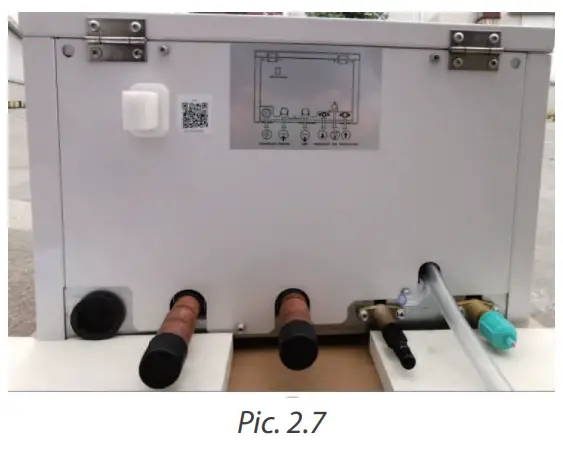
- Put the wire controller mounting plate into the machine again, close the switch door, then fix it with screws, and stick the QR code in the attachment to the Wireless rubber attachment on the lower cover of the case. (Pic. 2.7)

 PART 1. SPECIFICATION AND INSTALLATION
 Remove the Wireless installation rubber and Wireless module from the accessories, and install the rubber parts on the lower cover of the housing. (Pic. 2.5)6.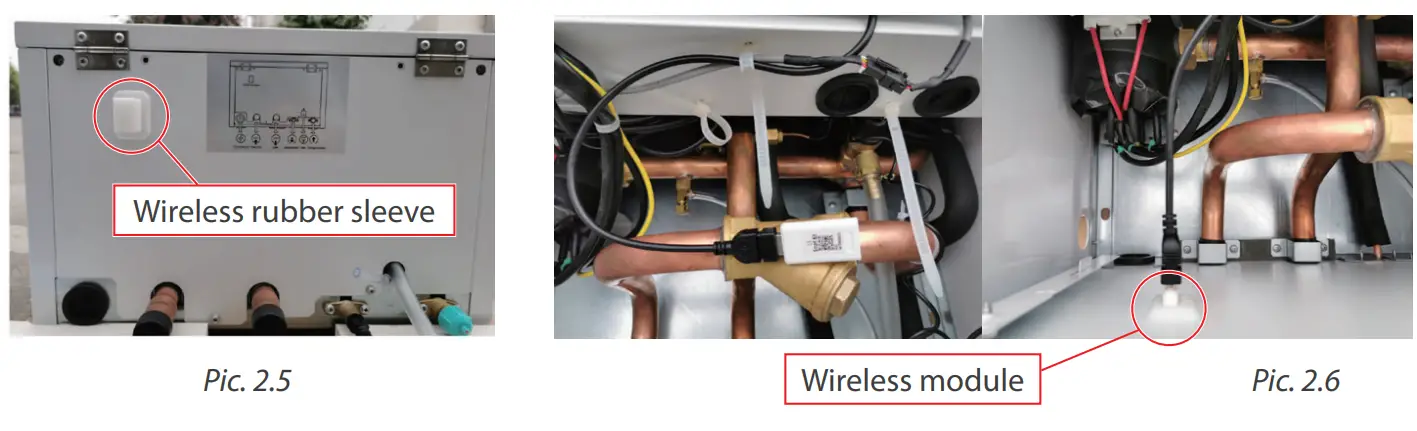
PART 2. APPLICATION CONFIGURATION AND USAGE
1. DOWNLOAD AND INSTALL THE APP CAUTION
The following QR code is only available for downloading the APP. It is totally different from the QR code packed with units.
Android Phone users:
Scan Android QR code or go to google play, search the `NetHome Plus” app and download it.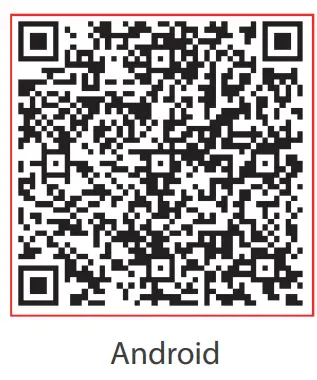
https://play.google.com/store/apps/details?id=com.midea.aircondition
Scan iOS QR code or go to APP Store, search `NetHome Plus” app and download it.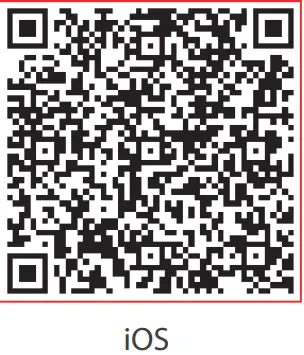
https://itunes.apple.com/us/app/nethome-plus/id1008001920?l=zh&ls=1&mt=8
PREPARATION
2.1. Applicable system: iOS, Android.
(Suggest: iOS 8.0 or later, Android 4.0 or later)
- Please keep your APP up to date with the latest version.
- Due to the special situation that may occur, we explicitly claim below: Not all of the Android and iOS systems are compatible with APP. We will not be responsible for any issue as a result of the incompatibility.
2.2. Wireless safety strategy
Smart kit only supports WPA-PSK/WPA2-PSK encryption and no encryption. WPA-PSK/WPA2-PSK encryption is recommended.
Cautions
- Due to different network situations, the control process may return timeout sometimes. If this situation occurs, the display between board and App may not be the same, please do not feel confused.
- Smart Phone camera needs to be 5 million pixels or above to make sure scan QR code well.
- Due to different network situations, sometimes, request time-out could happen, thus, it is necessary to do network configuration again.
- The APP system is subject to update without prior notice for product functional improvement.
- The actual network configuration process may be slightly different from the manual, the actual process shall prevail.
- Please Check The Service Website For More information.
PART 2. APPLICATION CONFIGURATION AND USAGE
3. USER REGISTRATION
- Please ensure your mobile device is connected to a Wireless router. Also, the Wireless router has already connected to the Internet before doing user registration and network configuration.
- It is better to log in to your email box and active your registration account by clicking the link in case you forget the password. You can log in with third-party accounts.

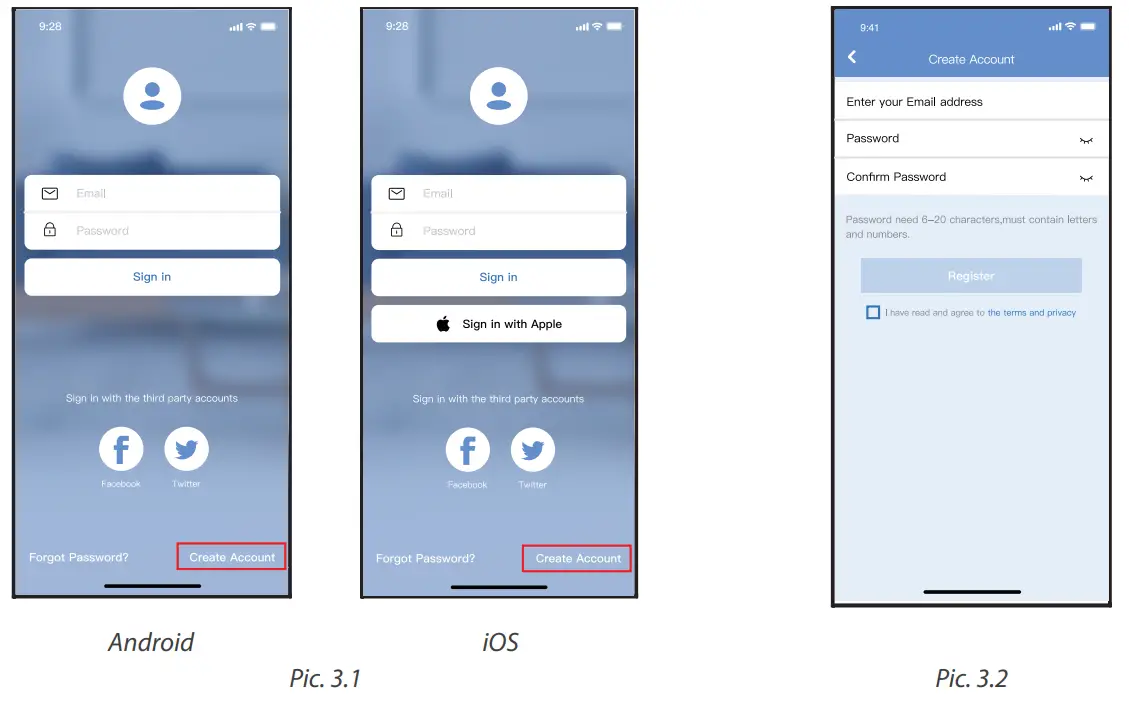
1. Click “Create Account” (Pic. 3.1)
2. Enter your email address and password, and then click “Register”.
NETWORK CONFIGURATION
Cautions
- It is necessary to forget any other around the network and make sure the Android or iOS device just connect to the
- The wireless network you want to configure.
- Make sure the Android or iOS device Wireless function works well and can be connected back to your original
- The wireless network automatically.
- The user must finish all the steps in 8 minutes after powering on the air conditioner, otherwise, you need to power on it again.
4.1. Using Android AND IOS devices to do network configuration
- Make sure your mobile device has already been connecting to the Wireless network which you want to use.
Also, you need to forget another irrelevant Wireless network in case it influences your configuration process. - Disconnect the power supply of AC.
- Connect the power supply of AC, activate the AP mode (The pictures in the manual are for explanation purposes only. Your machine may be slightly different. Read the WIRELESS MODE IN USER’S MANUAL or INSTRUCTION MANUAL for detailed operations.).
- When AP appears in the display, It means that the AC WIRELESS has already entered into AP Mode. Users can do the next step configuration.
PART 2. APPLICATION CONFIGURATION AND USAGE NOTE
There are two ways to finish the network configuration: · Network configuration by Bluetooth scan · Network configuration by select appliance type
4.2. Network configuration by Bluetooth scan
Note: Make sure the Bluetooth of your mobile device is working.
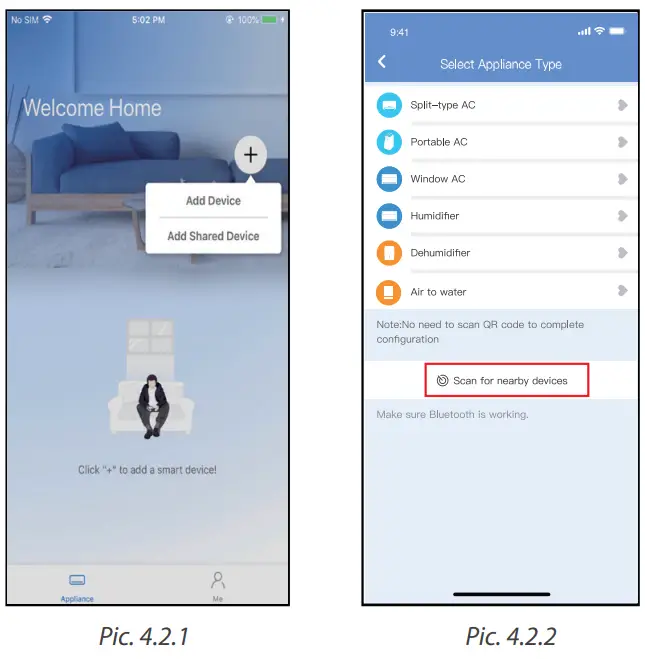
- Press ” + Add Device “. (Pic. 4.21)
- Press “Scan for nearby devices”. (Pic. 4.2.2)

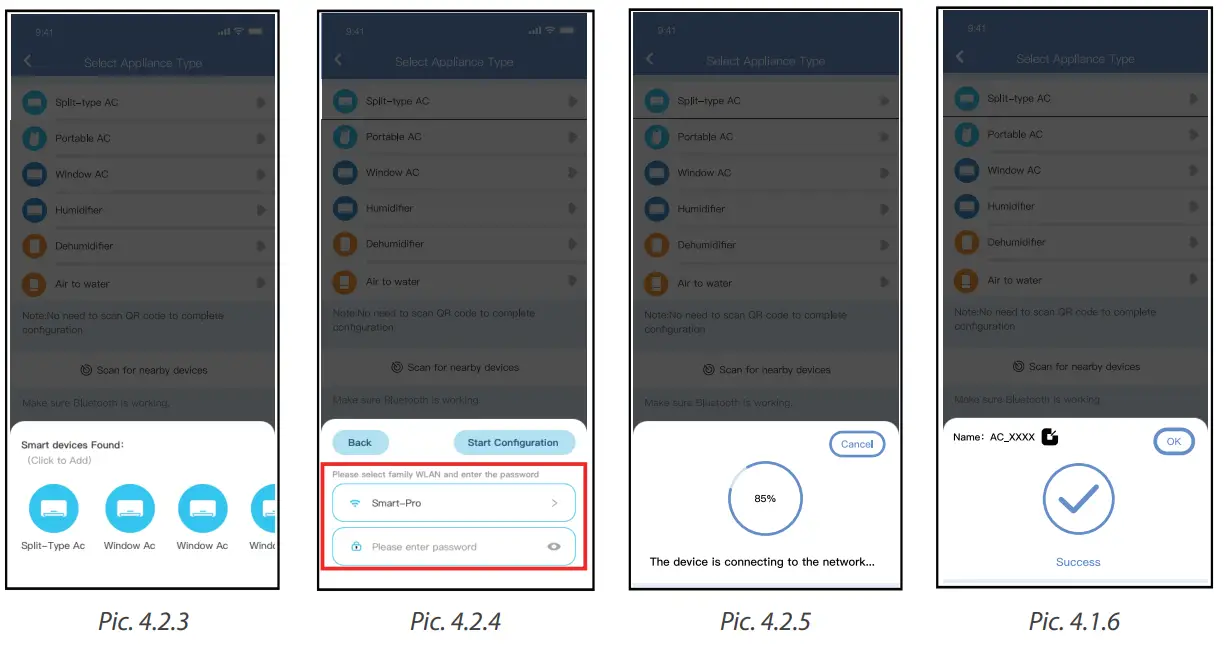
- Wait for smart devices to find, then click to add it. (Pic. 4.2.3)
- Select home network connection, enter the password. (Pic. 4.2.4)
- Wait to connect to the network. (Pic. 4.2.5)
- Configuration Success, you can modify the default name. (Pic. 4.2.6)
PART 2. APPLICATION CONFIGURATION AND USAGE
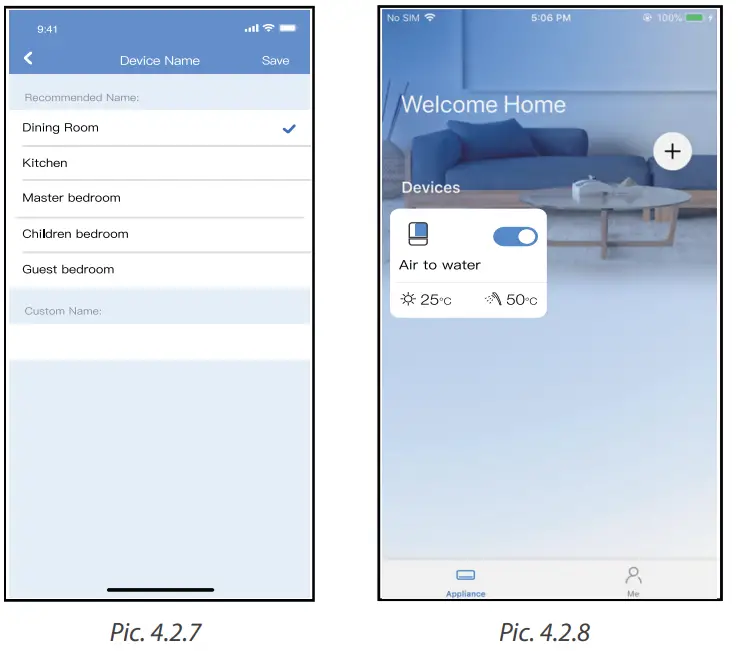
- You can choose an existing name or customize a new name. (Pic. 4.2.7)
- Bluetooth network configuration is successful, now you can see the device in the list. (Pic. 4.2.8)
 PART 2. APPLICATION CONFIGURATION AND USAGE
4.3. Network configuration by selecting appliance type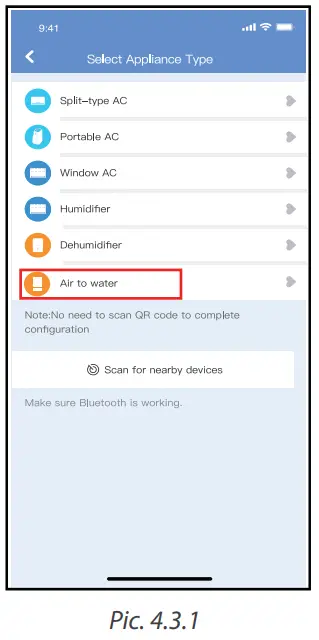
- If the Bluetooth network configuration is a failure, please select the appliance type. (Pic. 4.3.1)
- Please follow the steps to enter “AP” mode. (Pic. 4.3.2)
- Choose the network configuration method. (Pic. 4.3.3)
- Choose the “Scan the QR code” method. (Pic. 4.3.4)
Note: Steps 3 and 4 are applicable to the Android system only. iOS system does not need these two steps.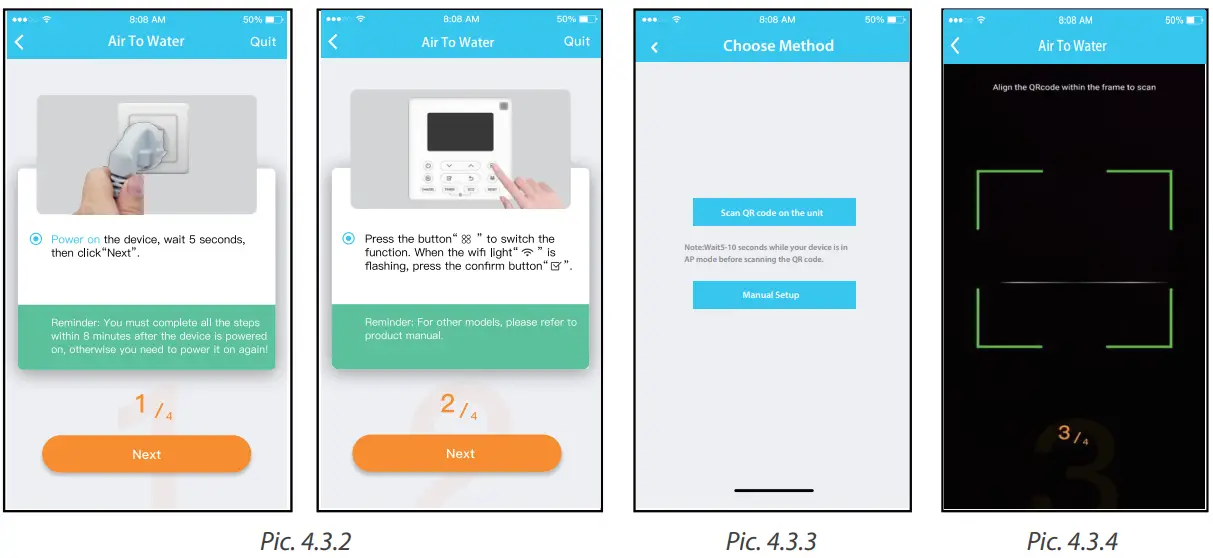 5. When choosing the “Manual Setup” method (Android). Connect to the wireless network (iOS). (Pic. 4.3.5)
6. Please enter a password. (Pic. 4.3.6)
7. Network configuration is successful. (Pic. 4.3.7)
8. Configuration Success, you can see the device in the list. (Pic. 4.3.8)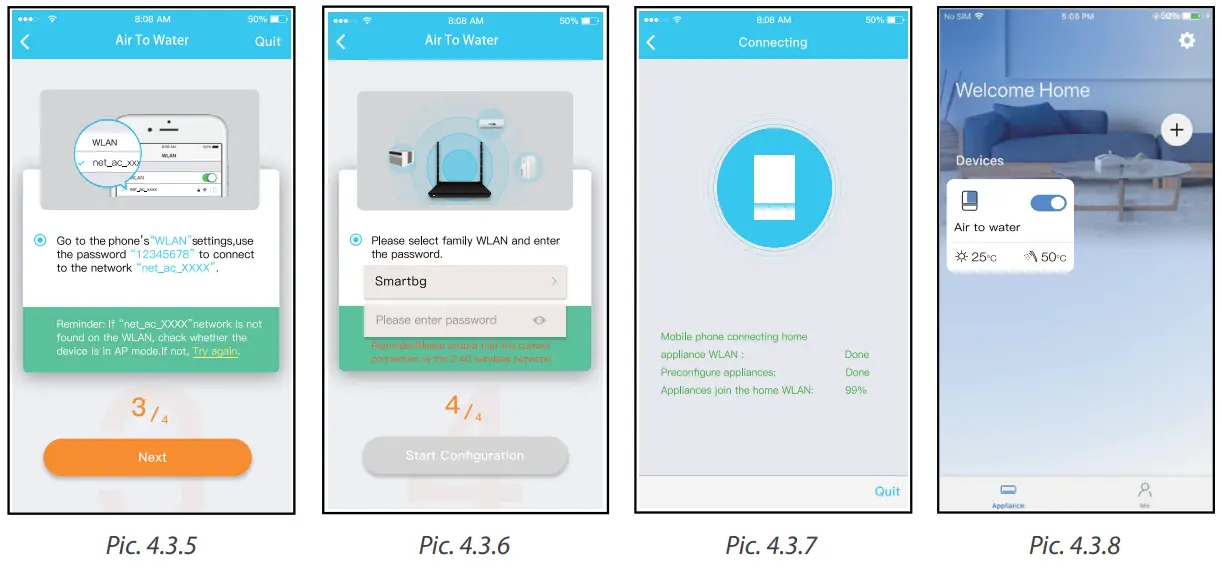
Note:
- When finishing network configuration, APP will display success cue words on the screen.
- Due to different internet environments, it is possible that the device status still displays “offline”. If this situation occurs, it is necessary to pull and refresh the device list on the APP and make sure the device status becomes “online”. Alternatively, the user can turn off the AC power and turn on it again, the device status will become “online” after a few minutes.
5. HOW TO USE THE APP
Please ensure both your mobile device and air conditioner are connected to the Internet before using app to control the air conditioner via the internet, please follow the next steps: 1. Click “Sign up”. (Pic. 5.1)
2. Choose the air conditioner. (Pic. 5.2)
3. Thus, the user can control air conditioners on/off status, operation mode, temperature, fan speed and so on. (Pic. 5.3)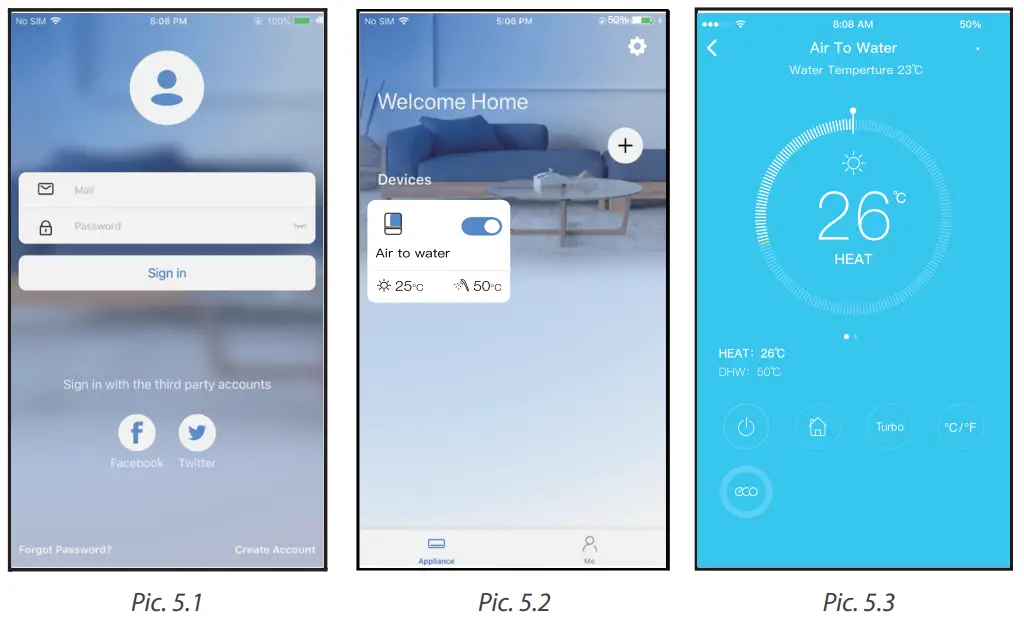
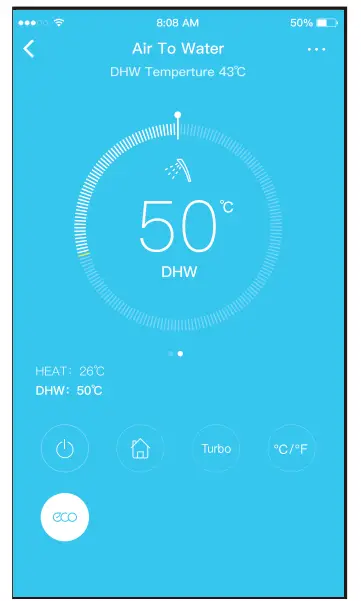
NOTE: Heat The temperature adjustment range is 25°C – 60°C. The initial default temperature is 35°C. The DWH temperature adjustment range is 35°C – 55°C. The initial default temperature is 50°C. The interactive method of temperature adjustment is ring adjustment. Not all the function of the APP is available on the air conditioner. For example ECO, Turbo, please check the user manual to find more information.
FUNCTIONS
6.1. ON/OFF
In the shutdown state, there is a separate shutdown status page. Click the button to enter the device control page.
In the power-on state, click the button, the device will shut down, and the page will jump to the shutdown state page.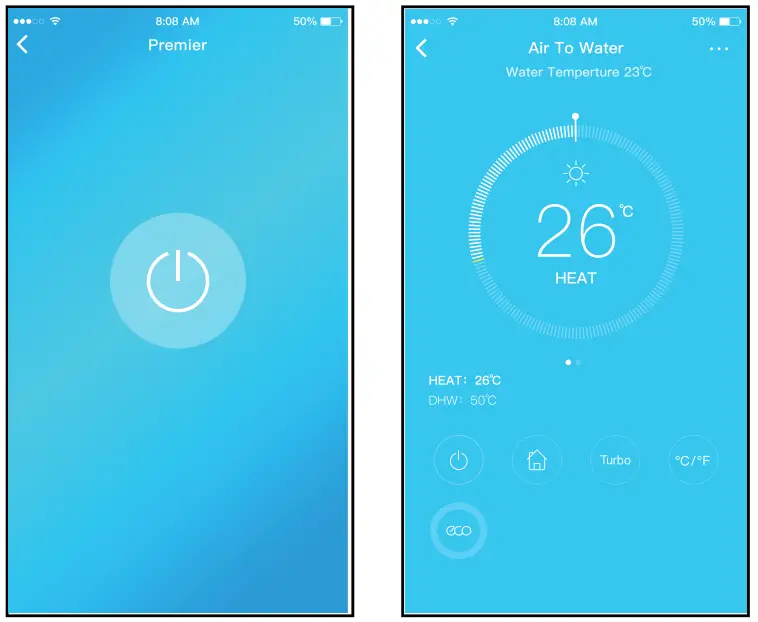 6.2. Mode
Click the Mode button to select Heat, DHW, Heat+DHW modes.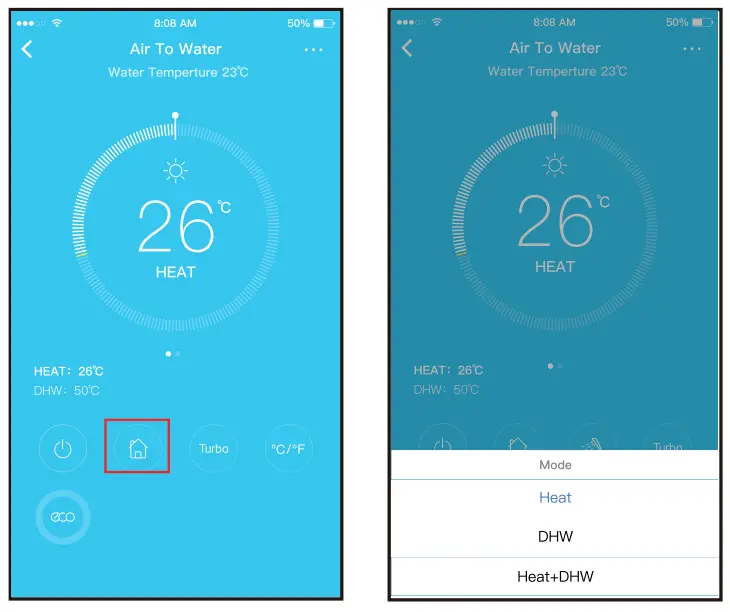 6.3. Turbo
Click the Turbo button to select Heat, DHW, Heat+DHW modes.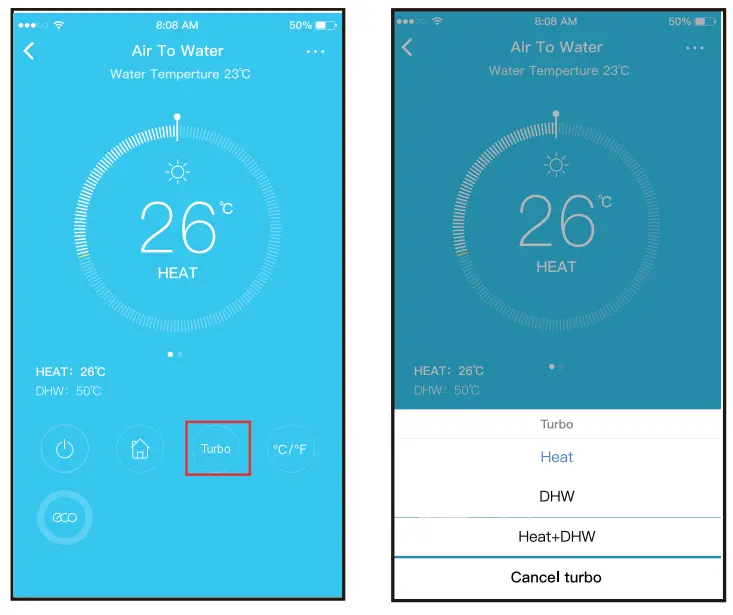 6.4. Eco
In Heat or Heat+DHW mode, press the eco button to turn on or turn o the eco function. In DWH mode, there is no eco function.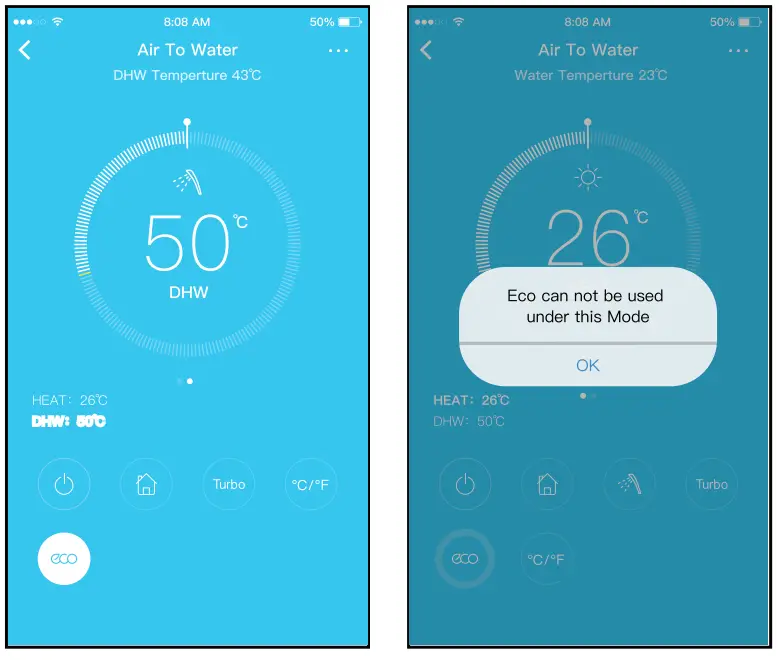 6.5. °C/°F Press this button will alternate the temperature display between the °C & °F.
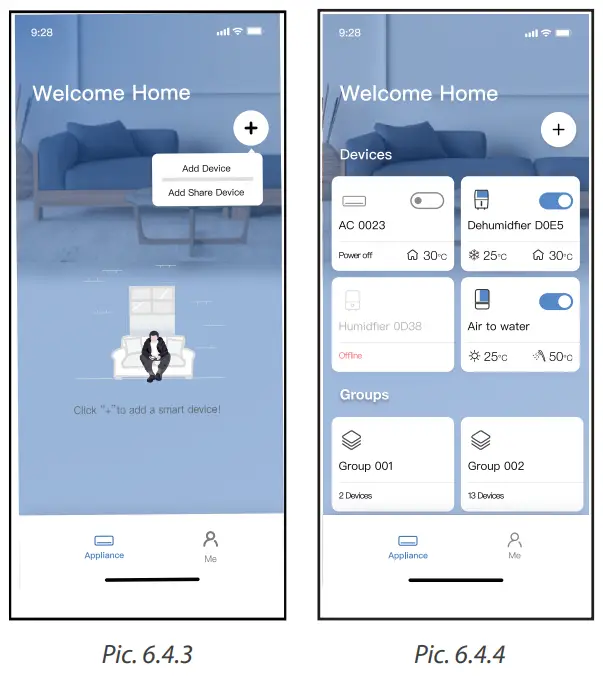
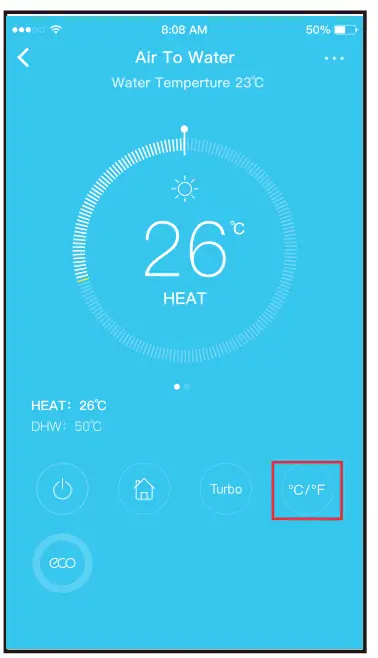 6.6. Share Device
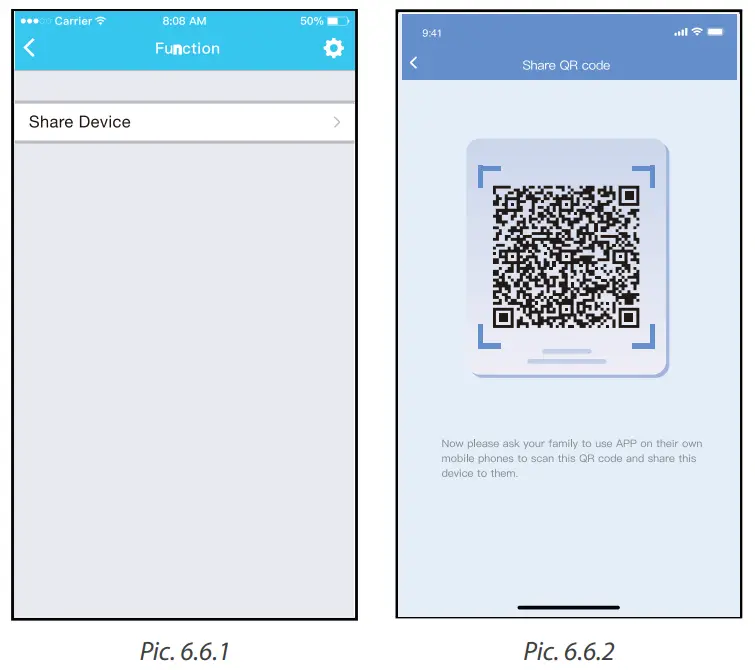
The air conditioner can be controlled by multi-users at the same time by the Share Device function.
- Click “Share device”. (Pic. 6.6.1)
- Let the others scan the displayed QR code. (Pic. 6.6.2)

- The other users must log in NetHome Plus app first, then click “Add Share Device” on their own mobile, then ask them to scan the QR code. (Pic. 6.6.3)
- Now the others can add the shared device. (Pic. 6.6.4)
APP DECLARATION
Only operate the device in accordance with the instructions supplied. Changes or modifications to this unit not expressly approved by the party responsible for compliance could void the user’s authority to operate the equipment. This device complies with FCC radiation exposure limits set forth for an uncontrolled environment. In order to avoid the possibility of exceeding the FCC radio frequency exposure limits, human proximity to the antenna shall not be less than 20cm (8 inches) during normal operation.
NOTE
This equipment has been tested and found to comply with the limits for a Class B digital device, pursuant to part 15 of the FCC Rules. These limits are designed to provide reasonable protection against harmful interference in a residential installation. This equipment generates, uses, and can radiate radio frequency energy and, if not installed and used in accordance with the instructions, may cause harmful interference to radio communications. However, there is no guarantee that interference will not occur in a particular installation. If this equipment does cause harmful interference to radio or television reception, which can be determined by turning the equipment off and on, the user is encouraged to try to correct the interference by one or more of the following measures:
- Reorient or relocate the receiving antenna.
- Increase the separation between the equipment and receiver.
- Connect the equipment into an outlet on a circuit different from that to which the receiver is connected.
- Consult the dealer or an experienced radio/TV technician for help.
Hereby, Rotenso® declares that this AC is in compliance with the essential requirements and other relevant provisions of RE Directive 2014/53/EU. A copy of the full DoC is attached.
Rotenso® will not be liable for any issues and problems caused by the Internet, Wireless Router, and Smart Devices. Please contact the original provider to get further help.
email: [email protected]
 INSTALLER STAMP
www.rotenso.com