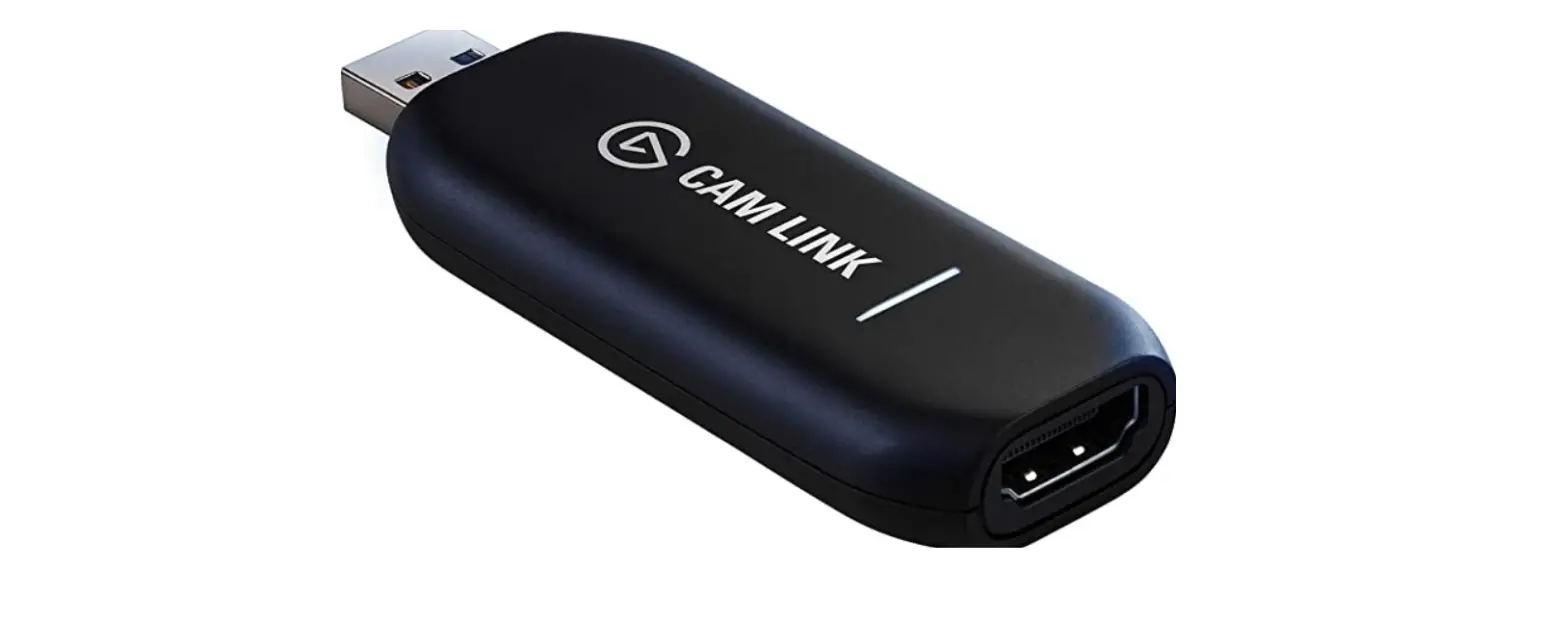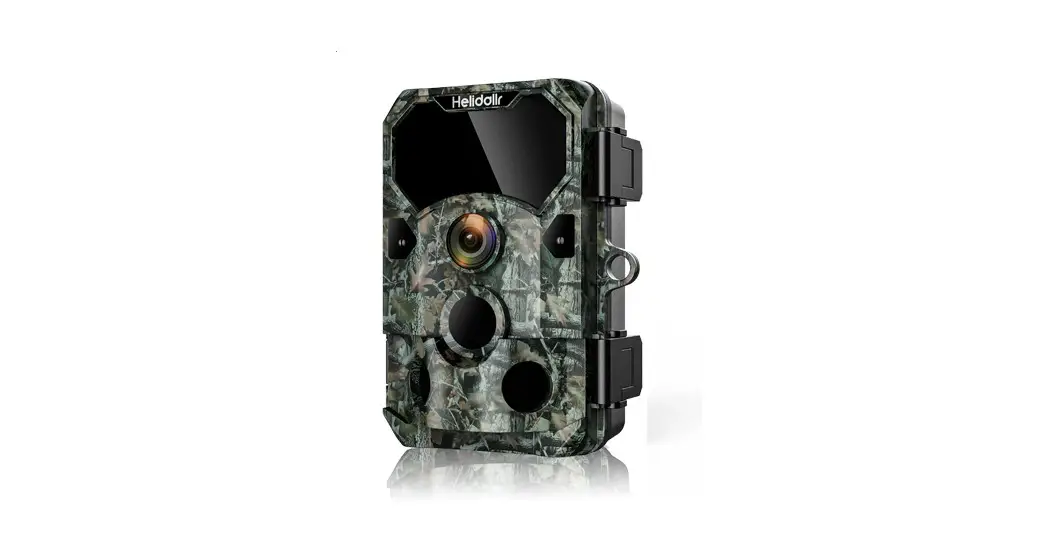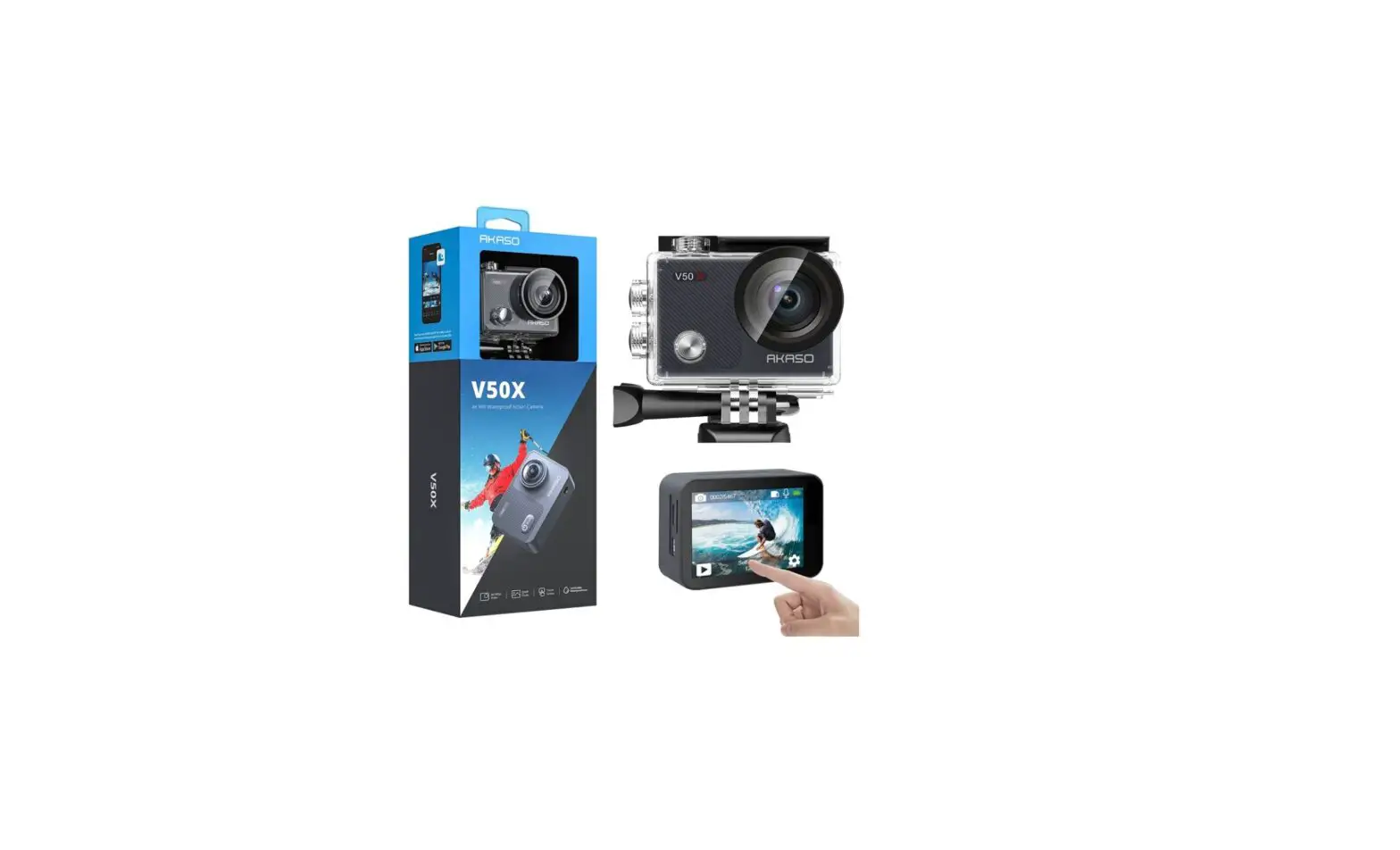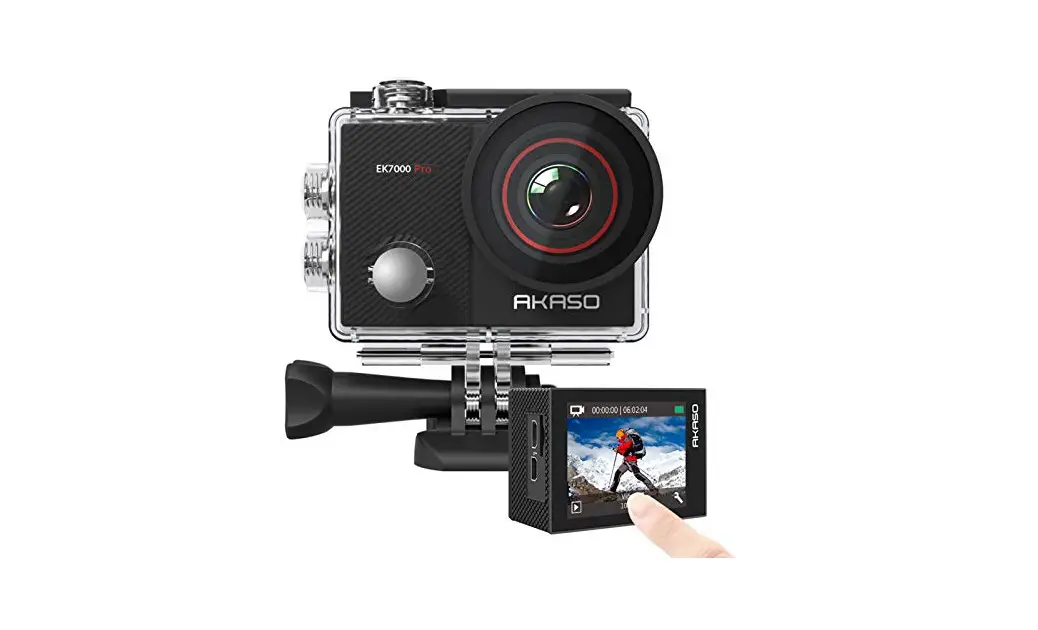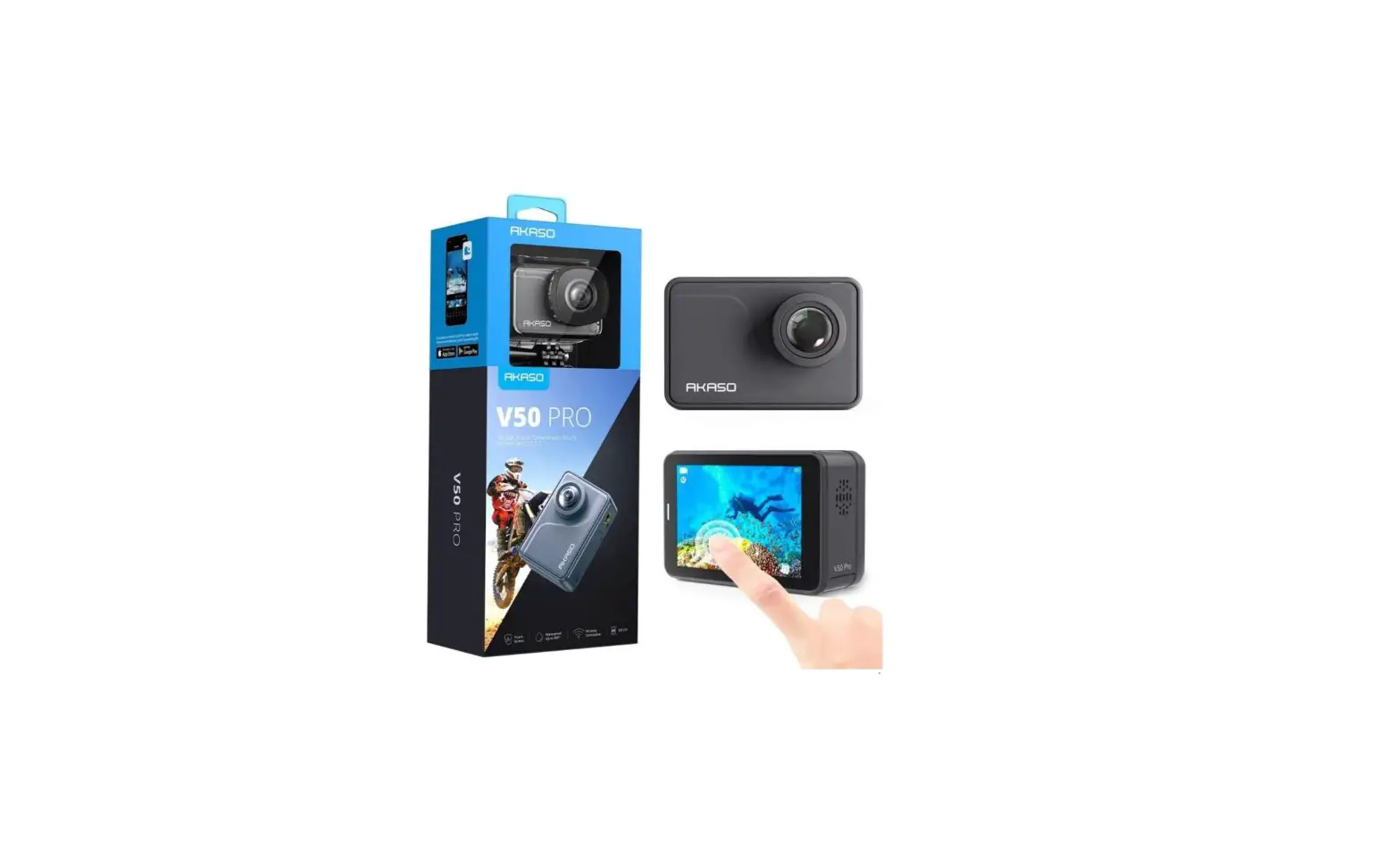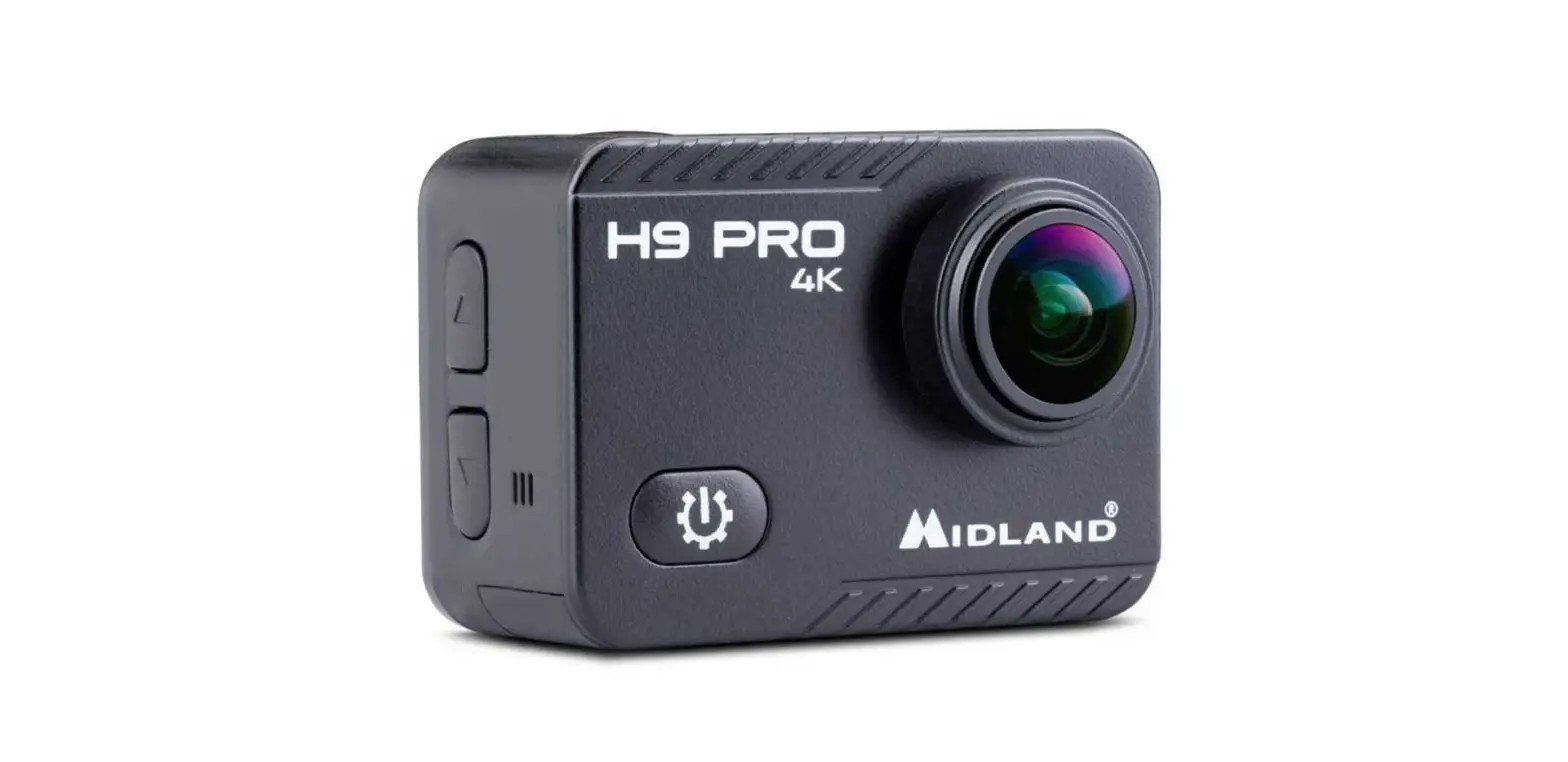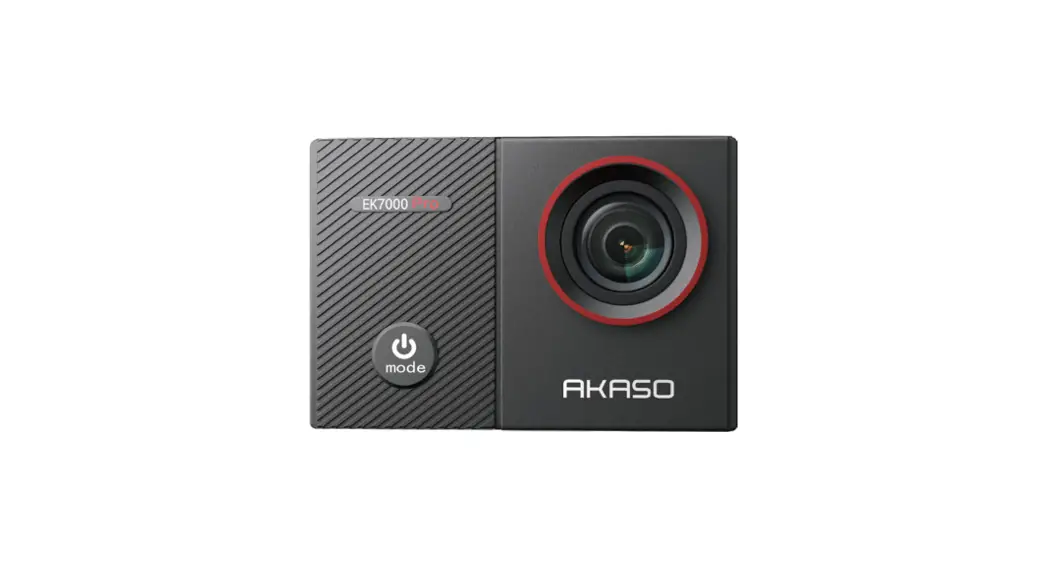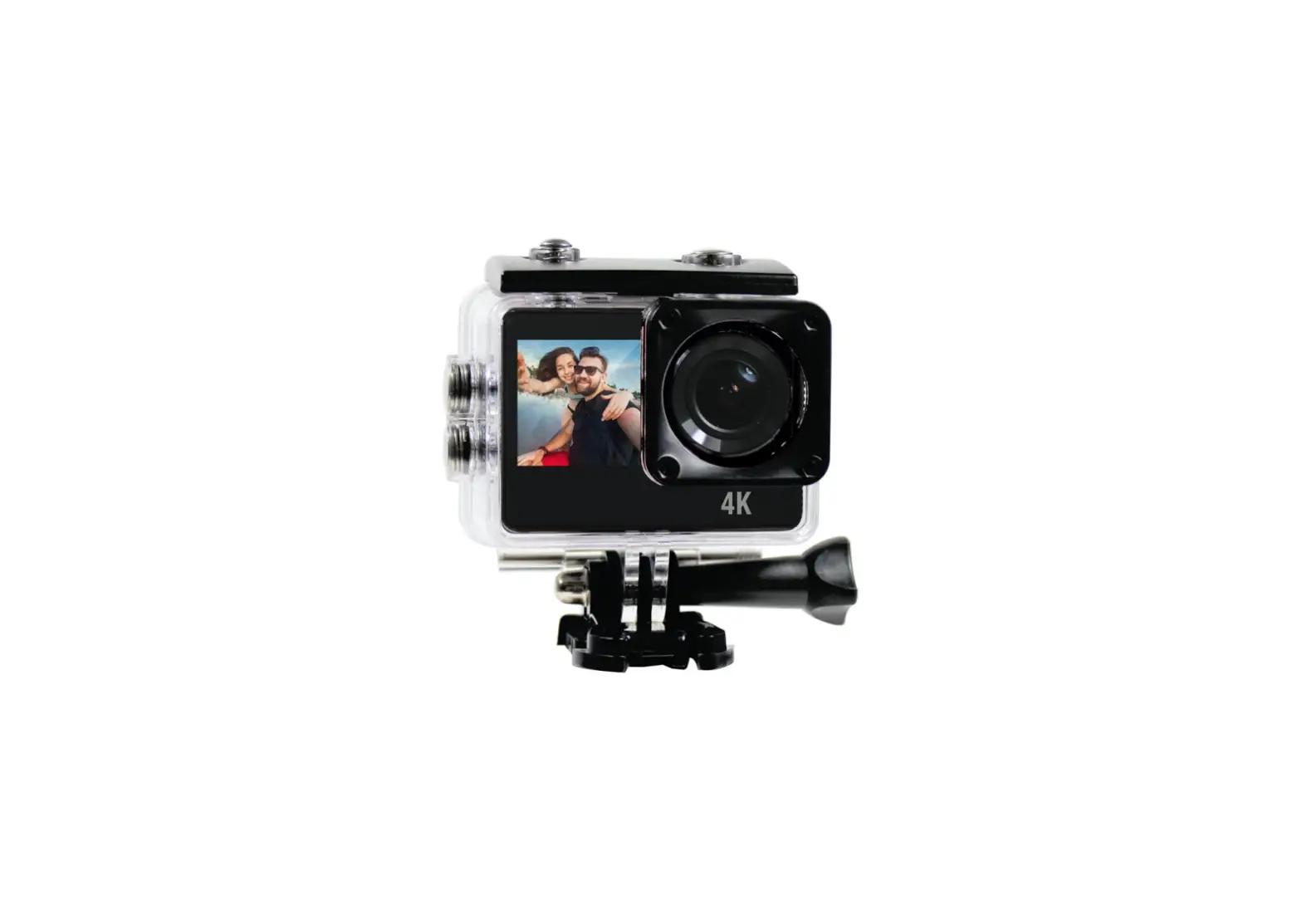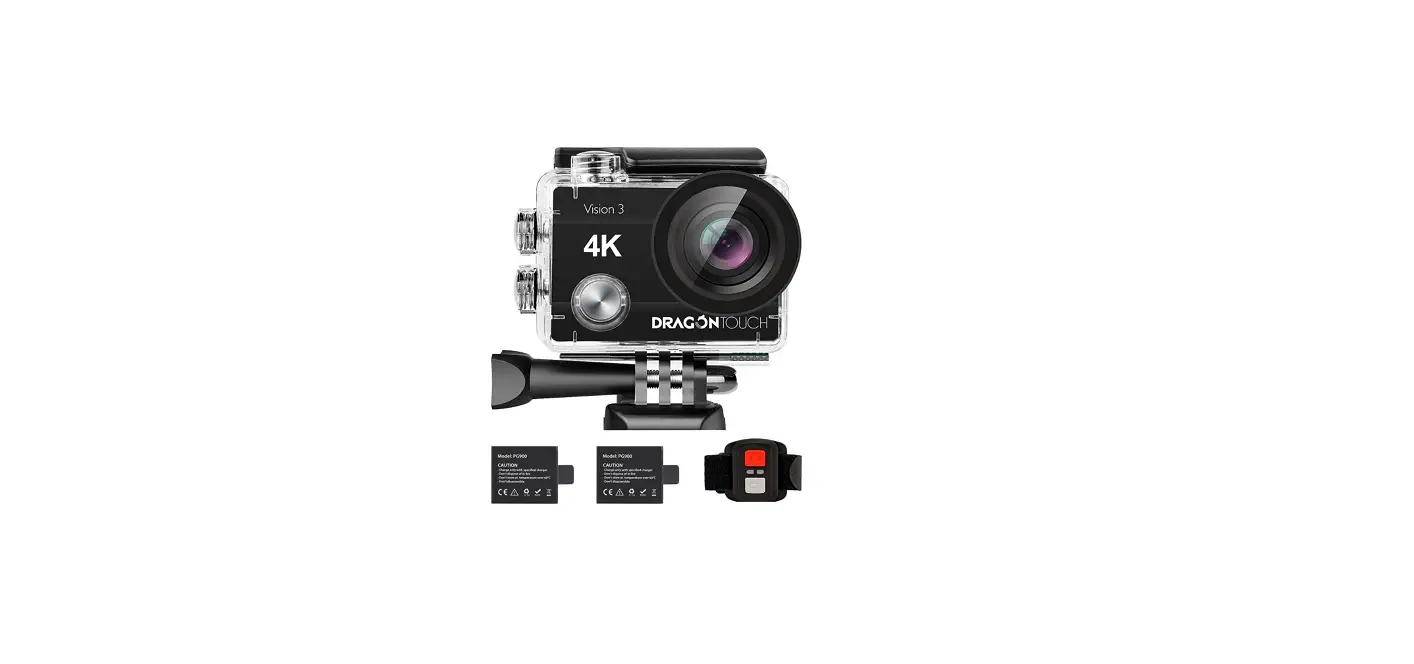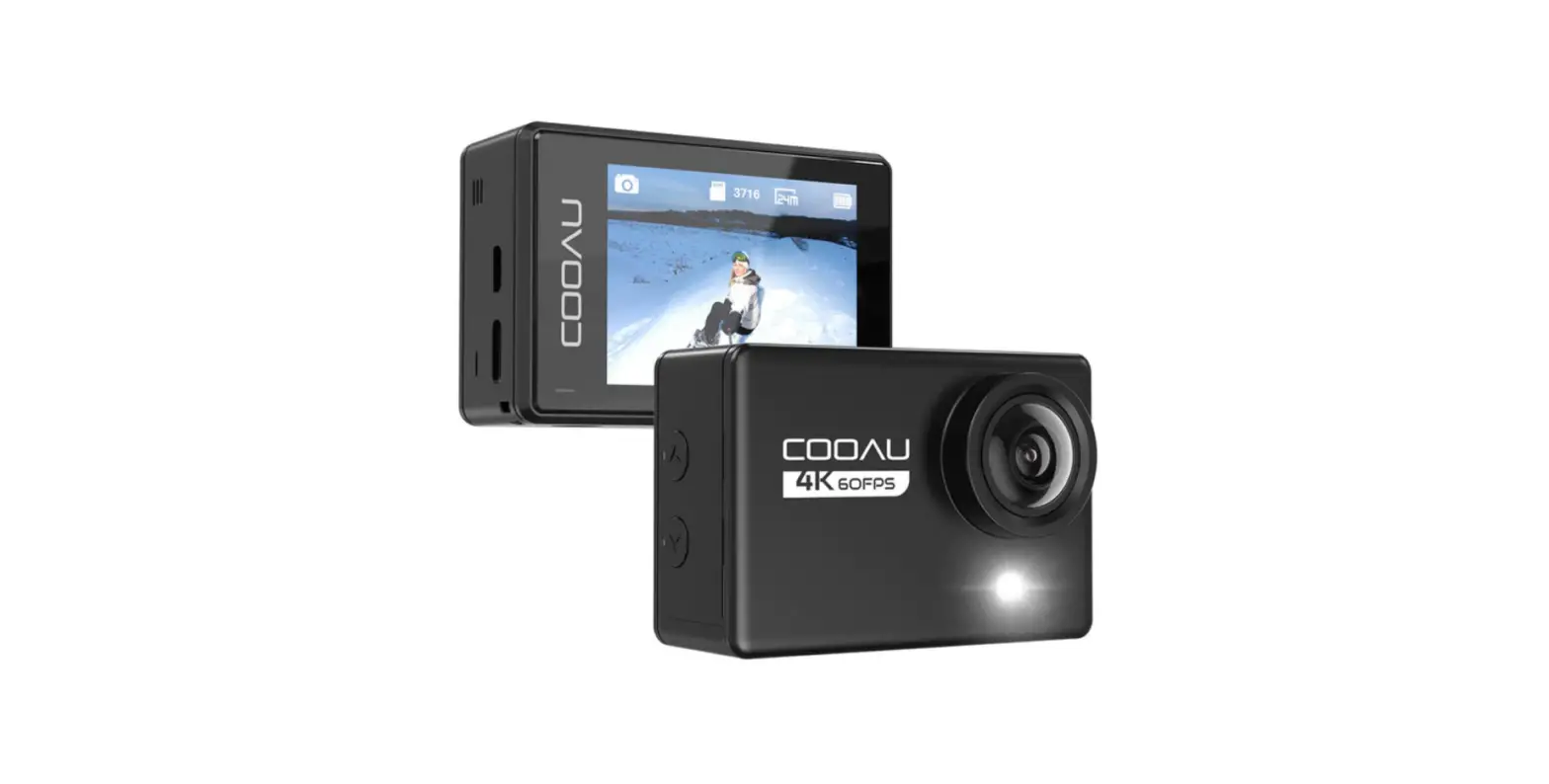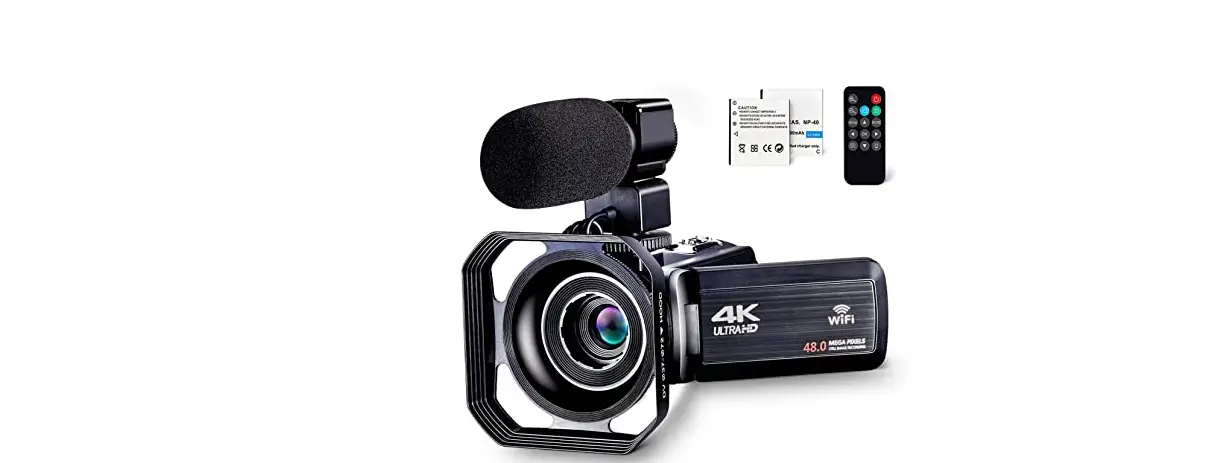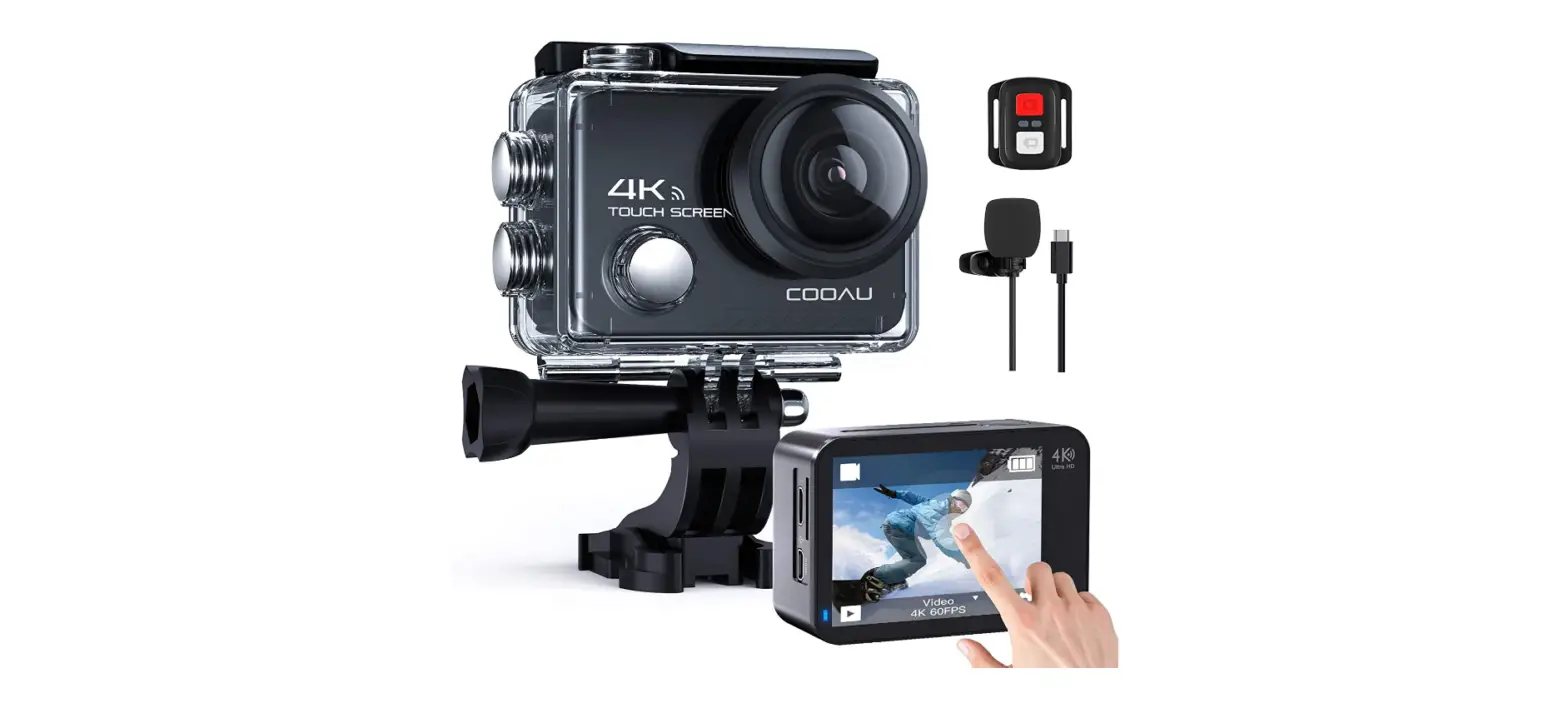

COOAU SPC03 Native 4K-60fps-20MP Touch Screen Camera
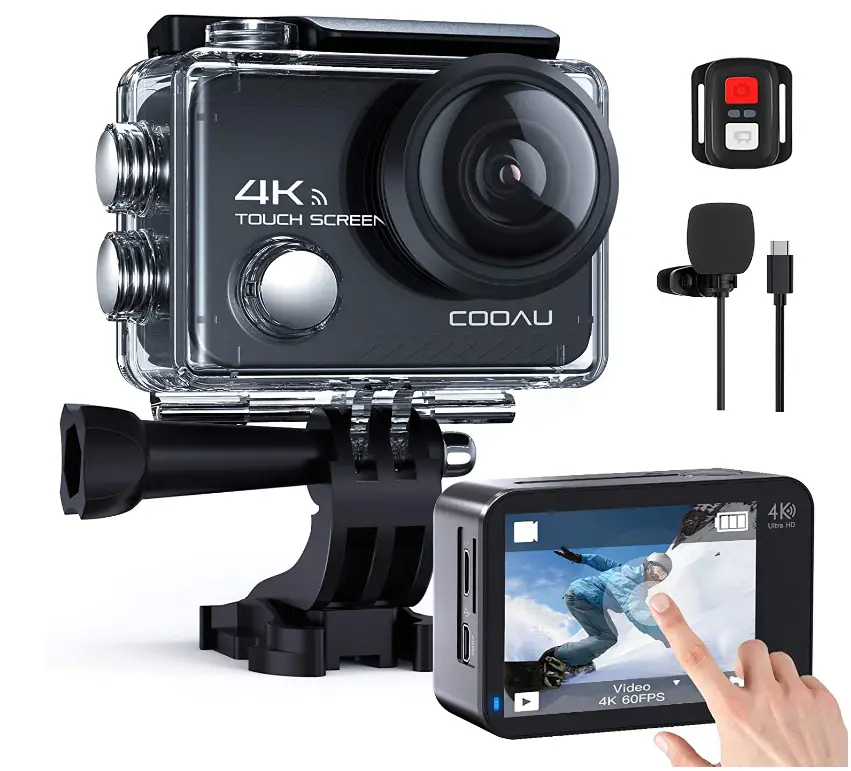
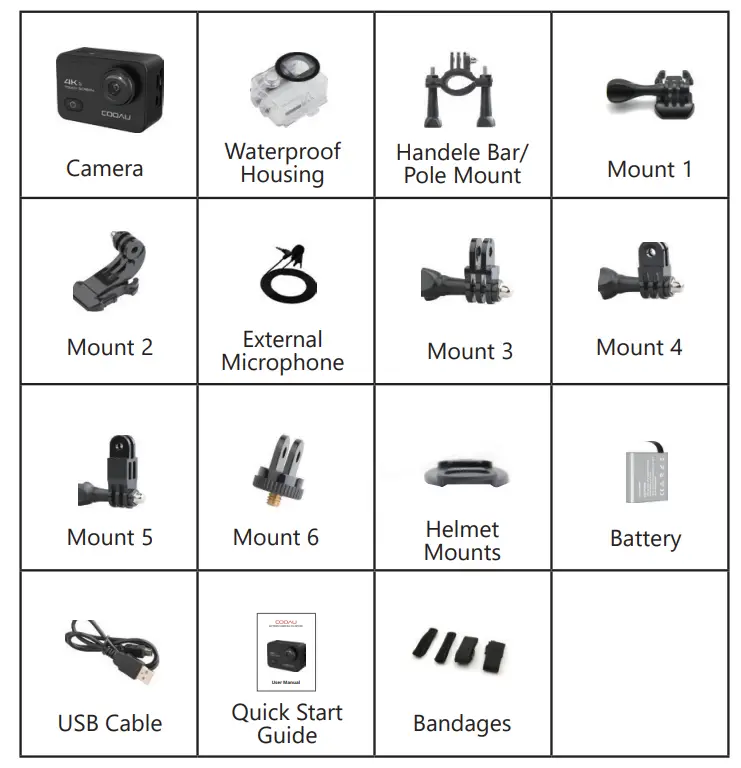
WHAT’S IN THE BOX
 PRODUCT OVERVIEW

 PRODUCT OVERVIEW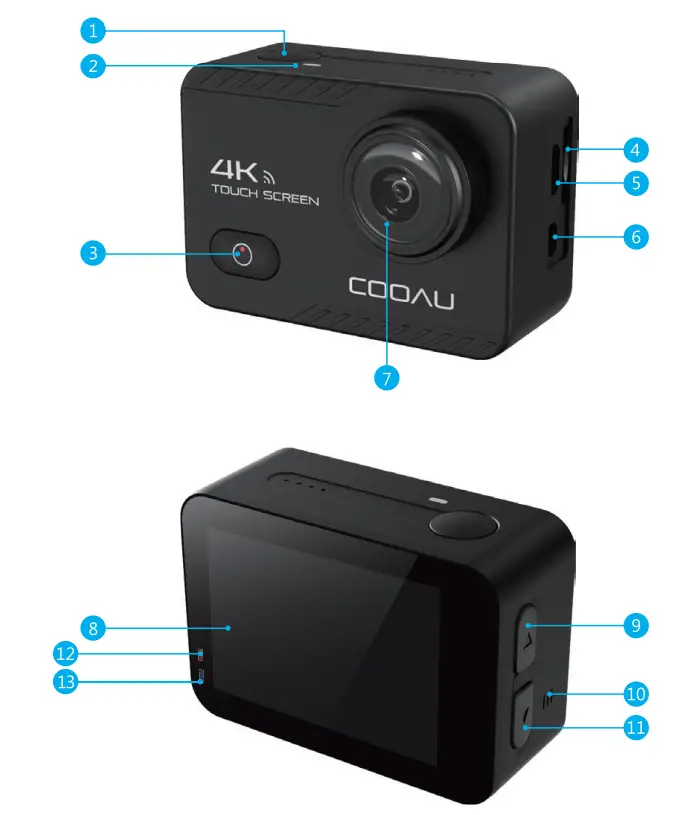
- Shutter / Select Button
- WiFi Indicator
- Power / Mode Button
- MicroSD Slot
- Micro USB Port/ External Mic Port
- Micro HDMI Port
- Lens
- Touch Screen
- Up Button
- Speaker
- Down Button
- Charging Indicator
- Working Indicator
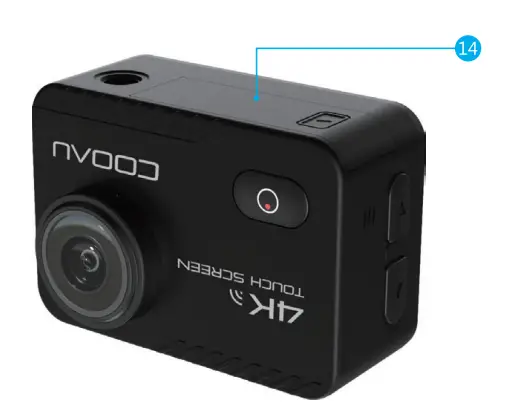
- Battery Door
Note: The camera does not record sound when it is in the waterproof asa.
GETTING STARTED
Welcome to your COOAU CU-SPC03. To capture video and photos, you need a microSD card (sold separately).
Use brand name memory cards that meet these requirements:
- MicroSD, microSDHC, or microSDXC
- Class 10 or UHS-III rating
- Capacity up to 128GB 100MB/s (FAT32)
Note:
- Please format the microSD card first in this camera before using it. To keep your micro sd card in good condition, reformat it on a regular basis. Reformatting erases all of your content, so be sure to offload your photos and videos first.
- FAT32 format microSD card stops recording when the storage of each file is over 4GB and starts to record again on a new file.
POWERING ON + OFF
- To Power On:
Press and hold Mode button for three seconds. The camera beeps while the camera status light is on. When information appears on the IPS display or the camera status screen, your camera is on. - To Power Off:
Press and hold the Mode button for three seconds. The camera beeps while the camera status light is off.
SWITCHING MODE
To Switch Mode:
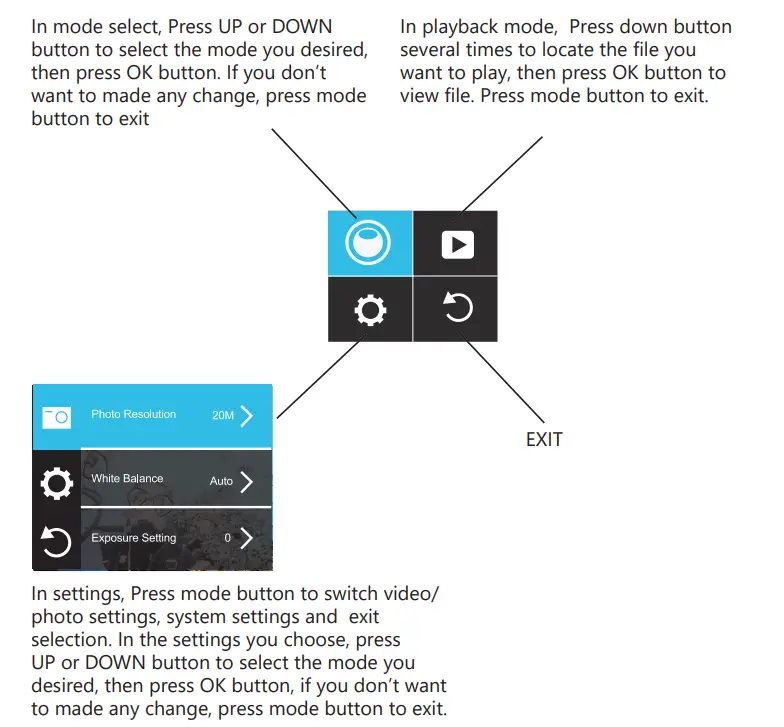
Press the Mode button after you turn on the camera, you can switch the mode.
To Exit Mode:
Press the Mode button to exit mode.
TURNING ON / OFF Wi-Fi
To turn on Wi-Fi:
- Method 1:
Turn on the camera, swipe down from the top of the screen with your finger to access to menu. Then tap Wi-Fi icon to turn on Wi-Fi. - Method 2:
Turn on the camera, press and hold the Up Button three seconds to turn on Wi-Fi. - Method 3:
Enter System Setting to turn on Wi-Fi. - to turn off Wi-Fi:
Press the Up button to turn off Wi-Fi.
THE INSTRUCTIONS OF TOUCHSCREEN USE 


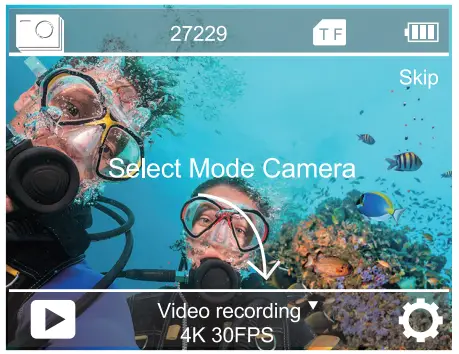
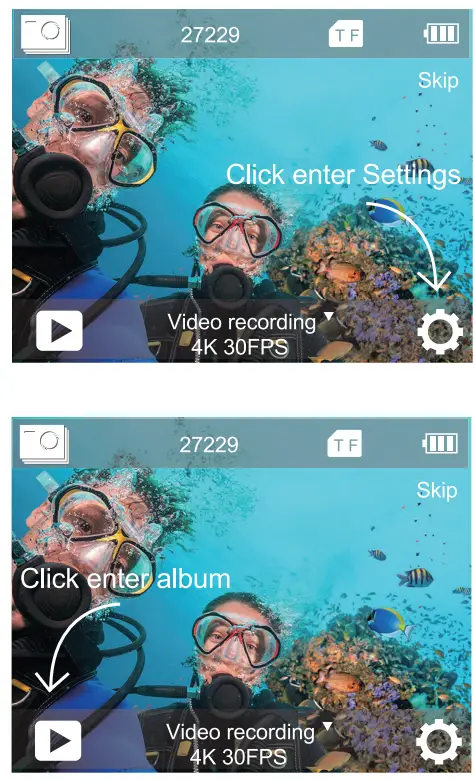
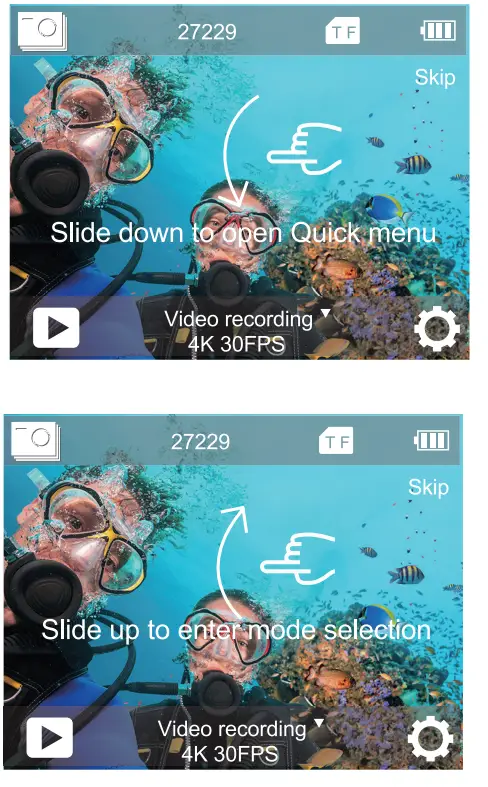
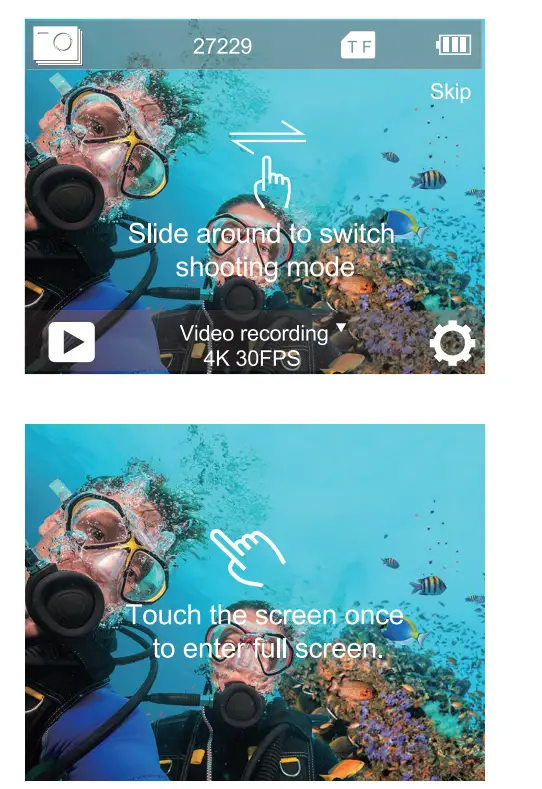
When the cam is installed in a waterproof case, the touch screen can’t be used. You need to open waterproof case mode before installing the cam in waterproof case.
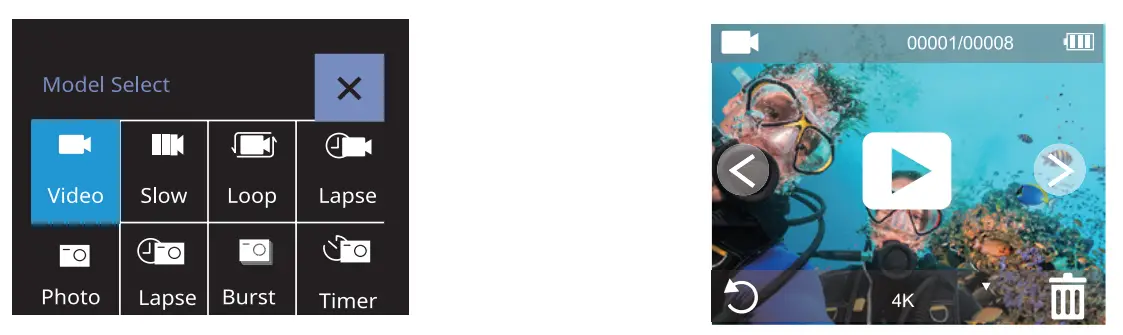
In video mode or photo mode, press OK button for three seconds, the screen will appear below menu. Press UP or DOWN button to select the mode you desired, then press OK button.
If you open the screen saver and waterproof case mode at the same time, after setting time, the IPS display will be turn off. To turn on the IPS display again, press any button on the camera.
OVERVIEW OF MODES
There are 8 modes: Video, Slow Motion, Loop Recording, Time Lapse Video, Photo, Time Lapse Photo, Burst Photo, and Self-Timer.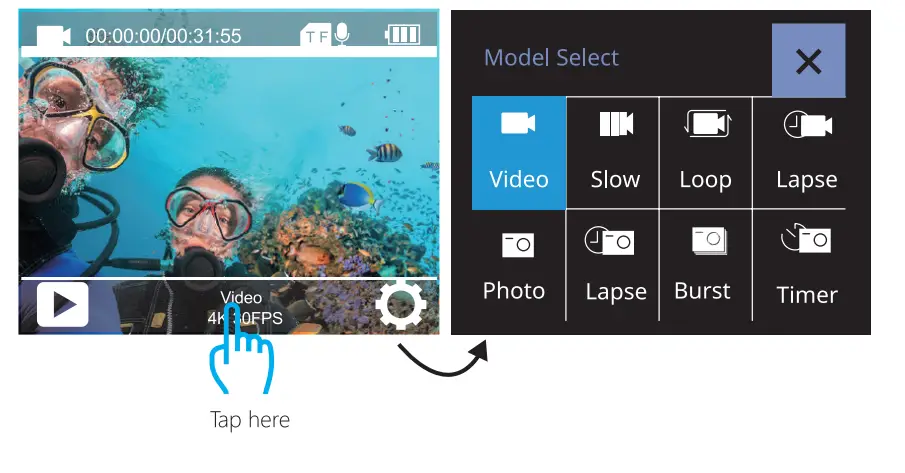
VIDEO MODE
Video Mode is the default mode when you turn on the camera. In Video Mode, press the Shutter button, the camera starts recording video. Press Shutter button to stop recording the video.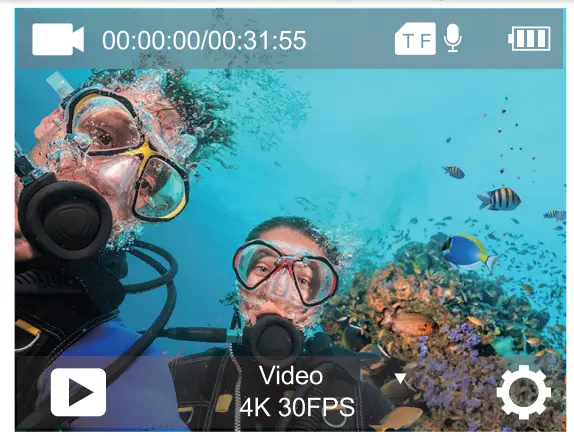
SLOW-MOTION VIDEO MODE
In Slow Motion video mode, press the Shutter button, the camera records slow motion video.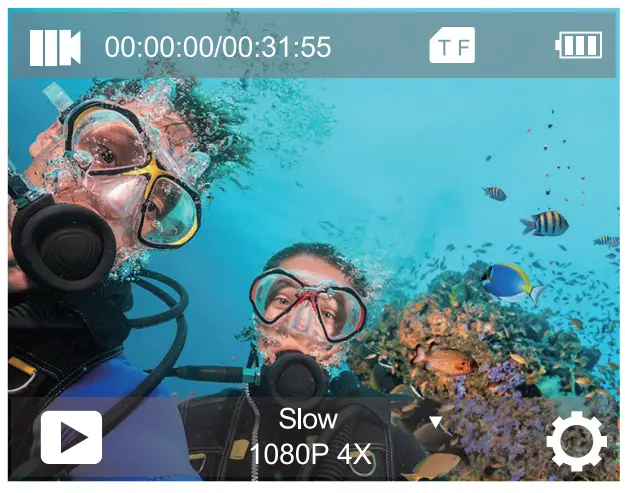
LOOP RECORDING MODE
Using Loop Recording, you can continuously record video at the video length you set. For example, if you select a 5-minute interval, the cam will record many 5-minute small videos. When the micro SD card is full, the new files will cover the oldest one if loop recording is on.
Note: Loop recording is disabled when image stabilization is active.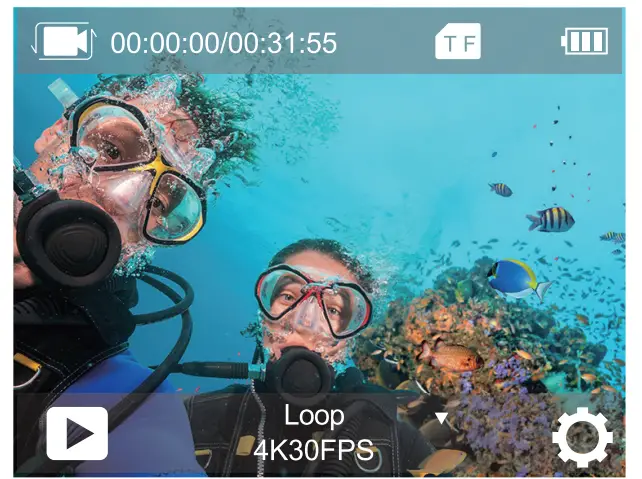
TIME LAPSE VIDEO MODE
In Time Lapse Video mode, press Shutter button, the camera records video from frames captured at specific intervals.
Time Lapse Video is captured without audio.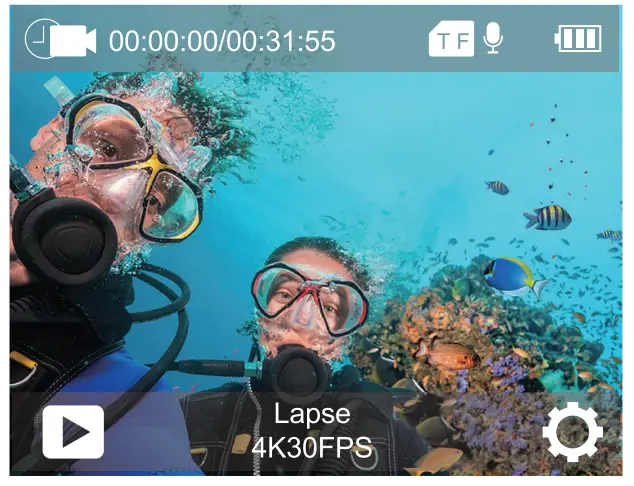
PHOTO MODE
In Photo mode, press Shutter button, the camera takes a photo.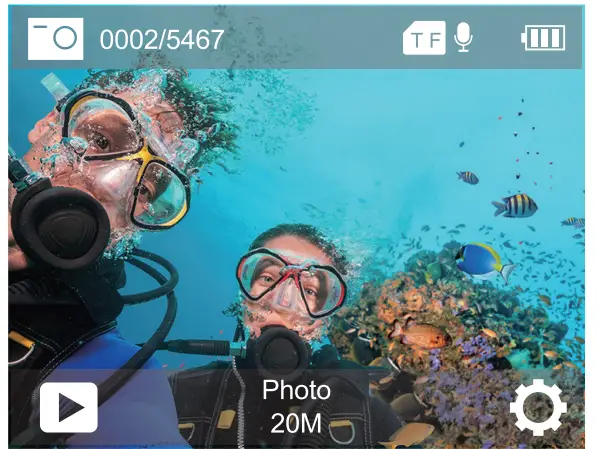
TIME LAPSE PHOTO MODE
In Time Lapse Photo Mode, press Shutter button, the camera takes a serial of photos at 3s / 10s / 15s / 20s/ 30s intervals.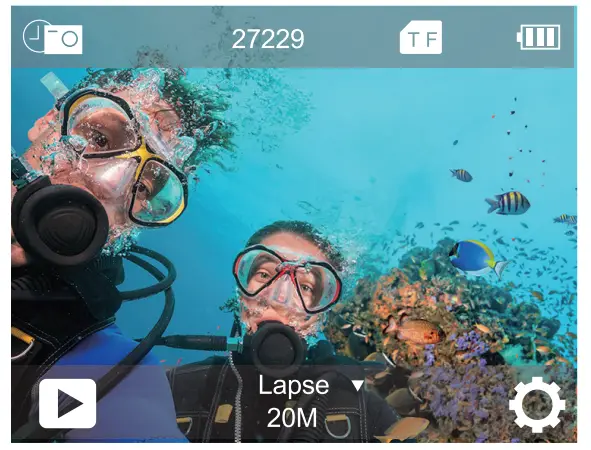
BURST PHOTO MODE
In Burst Photo mode, press Shutter button, the camera takes 3 photos per second, 5 photos per second or 10 photos per second.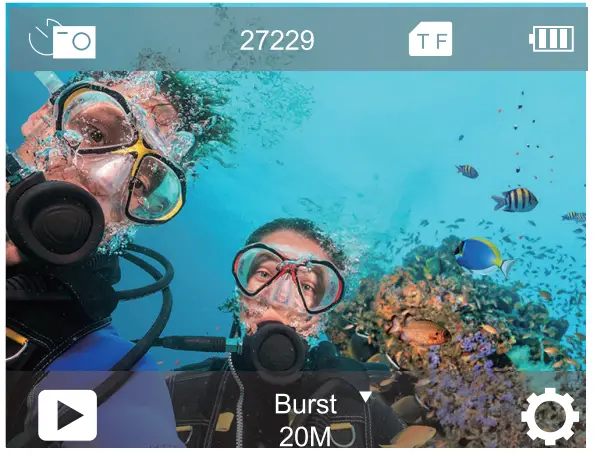
SELF-TIMER MODE
In Self-timer mode, press OK button, it takes a self-timer photo.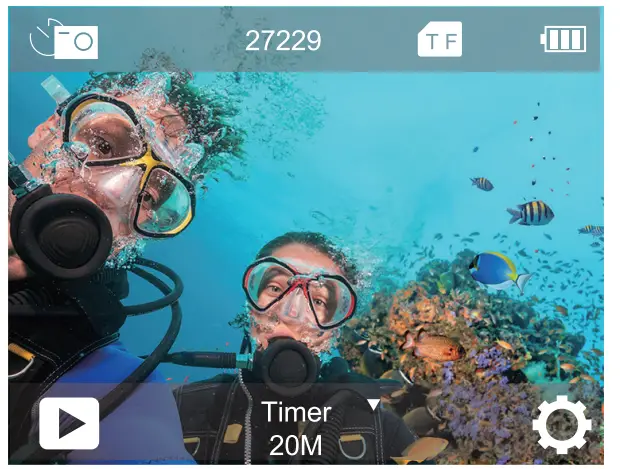
CUSTOMIZING CU-SPC03
VIDEO SETTING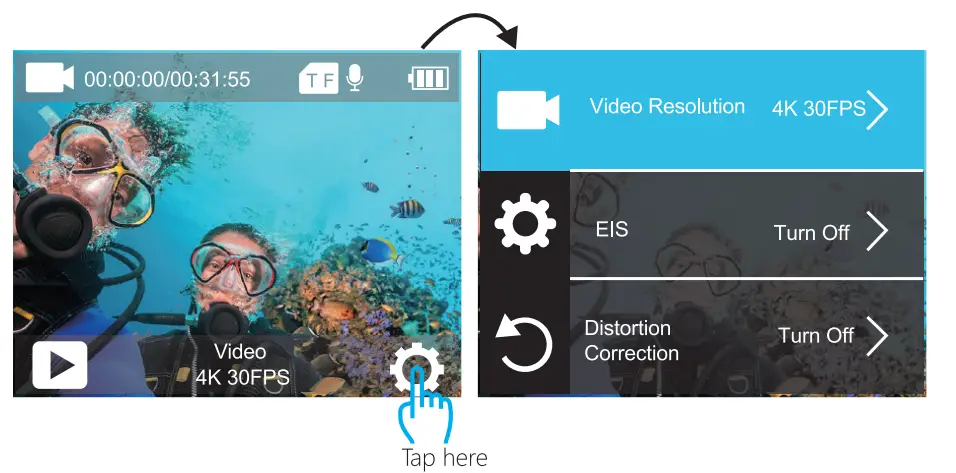
- Video Resolution: 4K 60fps, 4K 30fps, 2.7K 30fps,1080P 120fps, 1080P 60fps, 1080P 30fps, 720P 240fps, 720P 120fps, 720P 60fps, 720P 30fps Default setting is 4K 30fps.
- EIS(Image Stabilization):
The OFF/ON Default setting is off. This setting adjusts the footage to offset for motion during capture. The result is smoother footage, especially in activities with relatively small but fast motion including cycling, motorcycling, and handheld uses.
Note: Image Stabilization is disabled when you select 4K 60fps, 1080P 120fps, 720P 240fps, 720P 120fps, 720P 60fps, 720P 30fps video resolution - Distortion Correction: OFF/ON
The default setting is off. Turn on Distortion Correction, it can correct the image distortion. Note: You cannot select Distortion Correction when Image Stabilization is on. Distortion Correction is disabled when you select 4K 60fps, 1080P 120fps, 720P 240fps, 720P 120fps video resolution. - White Balance: Auto / Sunny / cloudy / Incandescent /Fluorescence
The default setting is Auto. White Balance lets you adjust the color temperature in cool or warm lighting conditions. When you change this setting, the IPS display immediately shows you the effect on your image. - Exposure Setting EV: -3 ~ +3
The default setting is 0.
By default, your camera uses the entire image to determine the appropriate exposure level. However, EV lets you select an area that you want the camera to prioritize when determining exposure. This setting is particularly useful in shots where an important region might be over- or underexposed.
When you change this setting, the IPS display immediately shows you the effect on your image. If you change modes, the camera returns to using the entire scene to determine the correct level of exposure. - Metering Mode: Average / Center / Spot / Matrix
The default setting is Average.
The metering mode refers to the way in which a camera determines the exposure. Cameras generally allow the user to select between average, center, spot or matrix metering modes. The different metering modes allow the user to select the most appropriate one for use in a variety of lighting conditions. - Sharpness: High / Middle / Low
The default setting is Middle. Sharpness controls the quality of details captured in your video footage or photos. When you change this setting, the IPS display immediately shows you the effect on your image. - ISO: Auto / 100 / 200 / 400 / 800 / 1600 / 3200 /6400
The default setting is Auto.
ISO determines the camera’s sensitivity to light and creates a tradeoff between brightness and resulting image noise. Image noise refers to the degree of graininess in the image. In low light, higher ISO values result in brighter images, but with greater image noise.
Lower values result in lower image noise, but darker images. When you change this setting, the IPS display immediately shows you the effect on your image. - Time Watermark: Off/On
The default setting is On.
If you turn on Date Stamp, this camera adds date/time stamps to the videos you record.
If you turn off Date Stamp, this camera will not add date/time stamp to the videos you record. - Audio Record: Off/On
The default setting is On.
Turn off Audio Record, the camera does not record sound when you record video. - Diving mode: OFF/ON
Default setting is OFF.
Turn on Diving Mode, it can compensate for the lack of red light in underwater scenes. Diving Mode is designed to be used in tropical and blue water, optimized for use between 10 and 80 feet.
PHOTO SETTING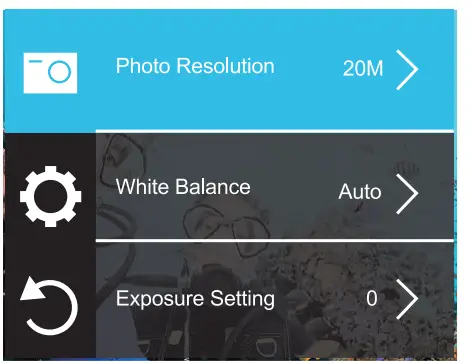
- Photo Resolution: 20M/16M/12M/8M/5M
Default setting is 20M. - White Balance: Auto/ Sunny / cloudy / Incandescent / Fluorescence Default setting is Auto.
White Balance lets you adjust the color temperature cool or warm lighting conditions. When you change this setting, the IPS display immediately shows you the effect on your image. - Exposure Setting: -3 ~ +3
Default setting is 0.
By default, your camera uses the entire image to determine the appropriate exposure level. However, EV lets you select an area that you want the camera to prioritize when determining exposure. This setting is particularly useful in shots where an important region might be over- or underexposed. When you change this setting, the IPS display immediately shows you the effect on your image. If you change modes, the camera returns to using the entire scene to determine the correct level of exposure. - Metering Mode: Average / Center / Spot / Matrix Default setting is Average.
The metering mode refers to the way in which a camera determines exposure. Cameras generally allow the user to select between average, center, spot or matrix metering modes. The different metering modes allow the user to select the most appropriate one for use in a variety of lighting conditions. - Sharpness: High / Middle / Low
The default setting is Middle. Sharpness controls the quality of details captured in your video footage or photos. When you change this setting, the IPS display display immediately shows you the effect on your image. - Long Exposure: Auto/ 2sec / 5sec / 10sec /15sec / 20sec / 30sec
The default setting is Auto.
Long Exposure is an exposure method that selects a slow shutter speed. Long exposures can make dark scenes clearer and get fantastic effects. Especially in night vision scenes such as starry sky or city night traffic, the camera can also take fantastic photos at night.
Note:
If using Long Exposure function, Time Lapse Photo, Burst Photo and Self-Timer will not be available automatically. - ISO: Auto / 100 / 200 / 400 / 800 / 1600 / 3200 /6400
The default setting is Auto.
ISO determines the camera’s sensitivity to light and creates a trade off between brightness and resulting image noise. Image noise refers to the degree of graininess in the image.
In low light, higher ISO values result in brighter images, but with greater image noise. Lower values result in lower image noise, but darker images. When you change this setting, the IPS display immediately shows you the effect on your image. - Time Watermark: OFF/ON
Default setting is ON.
If you turn on Date Stamp, this camera adds date/time stamp to the photos you record. If you turn off Date Stamp, this camera will not add date/time stamp to the photos you record. - Diving mode: OFF/ON
Default setting is OFF.
Turn on Diving Mode, it can compensate for the lack of red light in underwater scenes. Diving Mode is designed to be used in tropical and blue water, optimized for use between 10 and 80 feet.
SYSTEM SETTING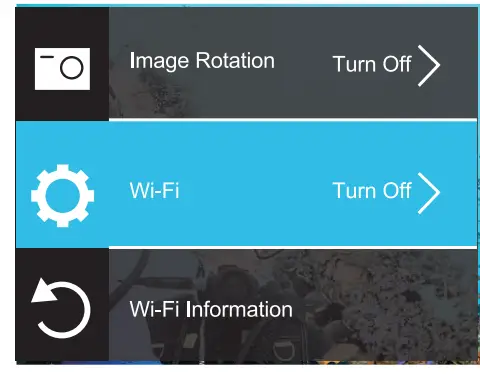
- Image Rotation: OFF/ON
The default setting is OFF.
This setting determines the orientation of your video or photos to help you prevent upside-down footage. - Wi-Fi: OFF/ON
The default setting is OFF. - Wi-Fi Information
Wi-Fi ID: COOAU CU-SPC03
Wi-Fi password: 1234567890 - Reset Wi-Fi
If you reset the Wi-Fi in cam, this option can set the Wi-Fi data into the factory setting. If you reset Wi-Fi in DV KING 4K app, the Wi-Fi name and password can be changed. - Light Source Frequency: Auto / 50Hz / 60Hz
The default setting is Auto. - LED Indicator: Off/On
The default setting is On. - Auto Screen Saver: Off / the 30s /1min / 2min
The default setting is the 30s.
Turns off the IPS display after a period of inactivity to save battery life.
To turn on the IPS display again, press any button on the camera. - Auto Power Off: Off / 3 Min / 5 Min / 10 Min.
The default setting is 3 minutes.
Powers off your camera after a period of inactivity to save battery life. - Button Prompt: High / Middle / Low / Off
The default setting is Middle. - Car mode: OFF/ON
The default setting is OFF.
If you turn on Car Mode and connect the camera to car cigarette lighter, the camera will turn on automatically if you start your car and will turn off if you stop your car.
In Car mode, the loop recording will be activated automatically. - Waterproof Case Mode: OFF/ON
The default setting is OFF.
Before you install the cam in waterproof case, please open the waterproof case mode. Otherwise, you can’t change any settings after the cam locked. If you remove the cam from the waterproof case, we suggest you to close this function. - Language: 简体中文/ 繁体中文/ English/ 日本語/ 한국어 /
Pусский/ Deutsch / Français / Italiano/Español/Portugues /Polski - Time Format: YYYY/MM/DD, MM/DD/YYYY, DD/MM/YYYY
The default setting is YYYY/MM/DD.
If you turn on Time Watermark, this camera adds a date stamp to the videos or photos you take.
If you turn off Time Watermark, this camera will not add a date stamp
to the videos or photos you take. - Time Set: hour/minute/second
- Date Set: year/month/day
- Format
To keep your micro SD card in good condition, reformat it on a regular basis. Reformatting erases all of your content, so be sure to offload your photos and videos first. To reformat your card, press the mode button to enter the system setting, then select Format. - Device Info: Product Model / Software Version / Update Time
- Factory Reset: Conform restore factory settings? Confirm/Cancel
This option resets all settings to their default values.
CONNECTING TO THE DV KING 4K APP
The DV KING 4K app lets you control your camera remotely using a smartphone or tablet.
Features include full camera control, live preview, playback, download and sharing of content.
- Download DV KING 4K app from Google Play or Apple Store.
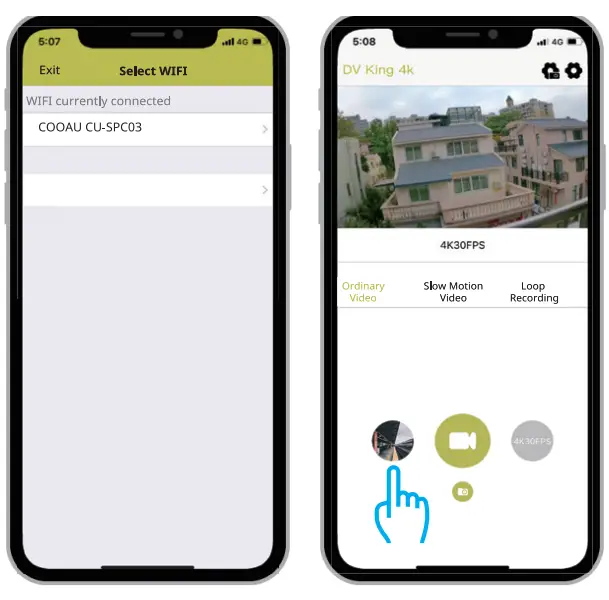
- Turn on the camera, press and hold up button for 3 seconds to turn on Wi-Fi.
- Turn on Wi-Fi of your phone, connect to the Wi-Fi SSID: “COOAU CU-SPC03”
- Enter the password: 1234567890.
- Open the app DV KING 4K. Tap ”COOAU CU-SPC03”. You connect to the DV KING 4K app successfully.
OFFLOADING YOUR CONTENT
OFFLOADING YOUR CONTENT TO A COMPUTER
To play back your video and photos on a computer, you must first transfer these files to a computer. Transferring also frees up space on your micro SD card for new content.
To offload files to a computer using a card reader (sold separately) and your computer’s file explorer, connect the card reader to the computer, then insert the micro SD card. You can then transfer files to your computer or delete selected files on your card. You can also offload files to a computer using a USB cable.
OFFLOADING YOUR CONTENT TO A SMARTPHONE OR TABLET
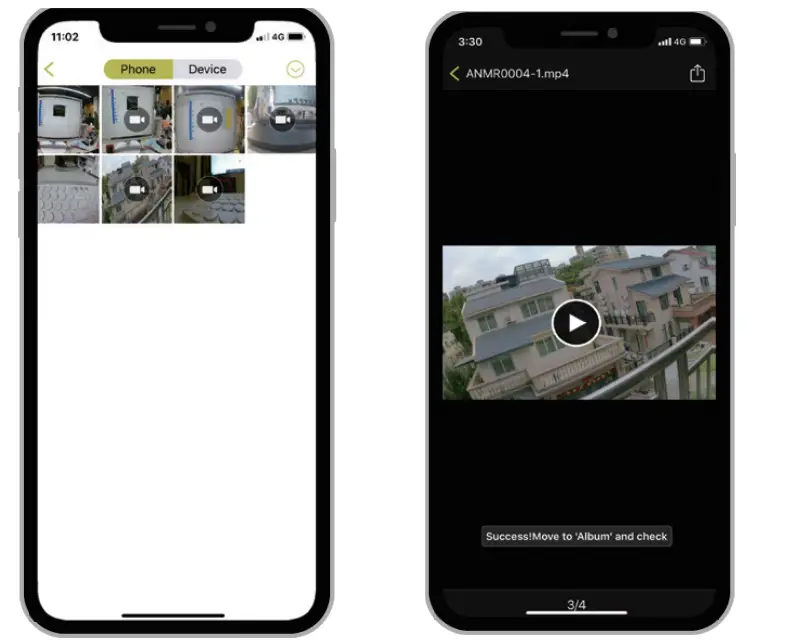
- Connect to the DV KING 4K app.
- Open the DV KING 4K app. Tap ‘COOAU CU-SPC03’. Then tap the first icon at the bottom
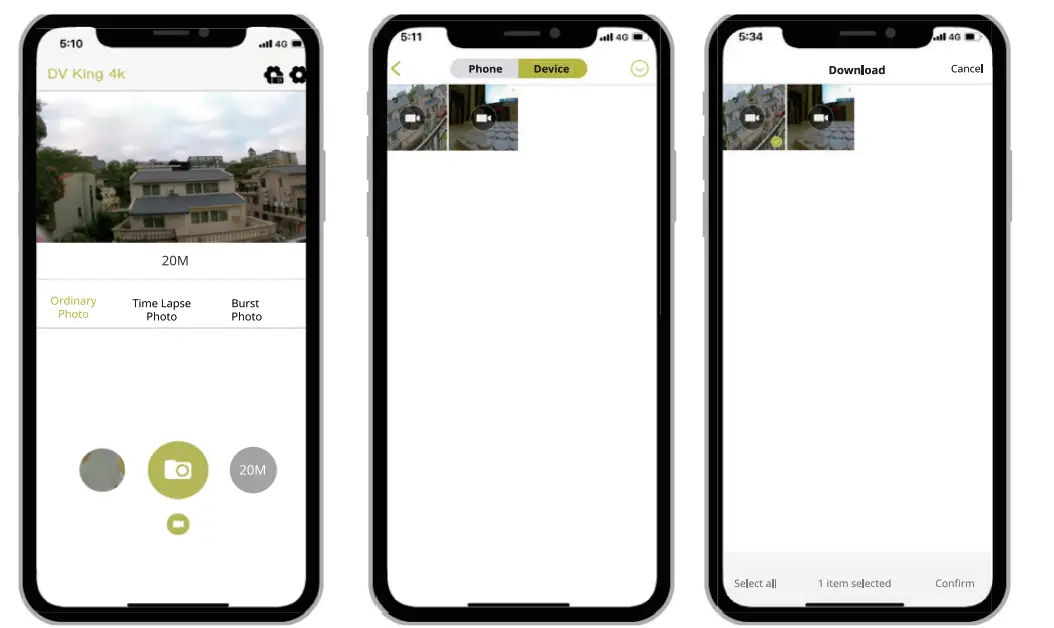
- Tap the “Device” icon.
- Tap the icon at the top of right corner, then select download, then select the file you want to download.
- Tap “Confirm” , you download the files successfully to the phone of DV KING 4K app. If you want to save the files to phone photo album, please touch “phone”, then touch the file you want to save on the smartphone, and finally touch the button in the upper right to save it.
Note:
If you can’t save files to your phone successfully, please check if your phone give authority the DV KING 4K app to access photo. After the app gets authority, the file still can’t be saved, please send your phone version and operation system version to us, we will help you solve it.


PLAYING BACK YOUR CONTENT
You can playback your content on the camera’s IPS display, your
computer, TV, or smartphone/tablet.
You can also playback content by inserting the microSD card directly
into a device, such as a computer or compatible TV. With this method,
playback resolution depends on the resolution of the device and its
ability to playback that resolution.
VIEWING VIDEOS AND PHOTOS ON CU-SPC03
- Turn on the camera.
- Tap the video file icon at the left corner of the screen to enter playback mode.
- Tap video or photo file to playback video and photo in full-screen view.
- To exit video or photo files, tap the return icon.
Note: If your micro SD card contains a lot of content, it might take a minute for it to load.
DELETING VIDEOS AND PHOTOS ON YOUR CU-SPC03
Delete videos and photos with touch screen:
- Tap file icon to enter playback mode. If your micro SD card contains a lot of content, it might take a minute for it to load.
- Tap the video or photo file you want to delete
- Tap , the screen shows “Are you sure delete files? Cancel/ Confirm”.
- Tap “Confirm”. The selected file will be deleted.
Delete videos and photos with buttons:
- In video or photo mode, press the Down button to enter playback mode.If your microSD, card contains a lot of content, it might take a minute for it to load.
- Press the down button several times to locate the file you want to delete. Press shutter button. Then press and hold shutter button for 3 seconds. The screen shows “Are you sure delete files? Cancel/ Confirm”
- Press the down button then the shutter button. The selected file will be deleted.
REFORMATTING YOUR MICRO SD CARD
To keep your microSD card in good condition, reformat it on a regular basis. Reformatting erases all of your content, so be sure to offload your photos and videos first.
- Turn on COOAU CU-SPC03.
- Enter System Setting.
- Scroll through the screen to locate and tap “Format Card”.
- Tap “Confirm”. Then you format your microSD card successfully.
MAINTENANCE YOUR CAMERA
Follow these guidelines to get the best performance from your camera:
- For best audio performance, shake the camera or blow on the mic to remove debris from the microphone holes.
- To clean the lens, wipe it with a soft, lint-free cloth. Do not insert foreign objects around the lens.
- Don’t touch the lens with your fingers.
- Keep the camera away from drops and bumps, which may cause damage to the parts inside.
- Keep the camera away from high temperatures and strong sunshine to avoid being damaged.
MAXIMIZING BATTERY LIFE
If the battery reaches 0% while recording, the camera saves the file and powers off. To maximize battery life, follow these guidelines when possible:
- Turn off Wireless Connections
- Capture video at lower frame rates and resolutions
- Use the Screen Saver setting.
BATTERY STORAGE AND HANDLING
The camera contains sensitive components, including the battery.
Avoid exposing your camera to very cold or very hot temperatures. Low or high-temperature conditions may temporarily shorten the battery life or cause the camera to temporarily stop working properly. Avoid dramatic changes in temperature or humidity when using the camera, as condensation may form on or within the camera.
Do not dry the camera or battery with an external heat source such as a microwave oven or hair dryer. Damage to the camera or battery caused by contact with the liquid inside the camera is not covered under the warranty.
Do not store your battery with metal objects, such as coins, keys, or necklaces. If the battery terminals come in contact with metal objects, this may cause a fire. Do not make any unauthorized alterations to the camera. Doing so may compromise safety, regulatory compliance, and performance, and may void the warranty.
WARNING: Do not drop, disassemble, open, crush, bend, deform, puncture, shred, microwave, incinerate or paint the camera or battery. Do not insert foreign objects into the battery opening on the camera. Do not use the camera or the battery if it has been a damaged-for example if cracked, punctured or harmed by water. Disassembling or puncturing the battery can cause an explosion or fire.
MOUNTING YOUR CAMERA
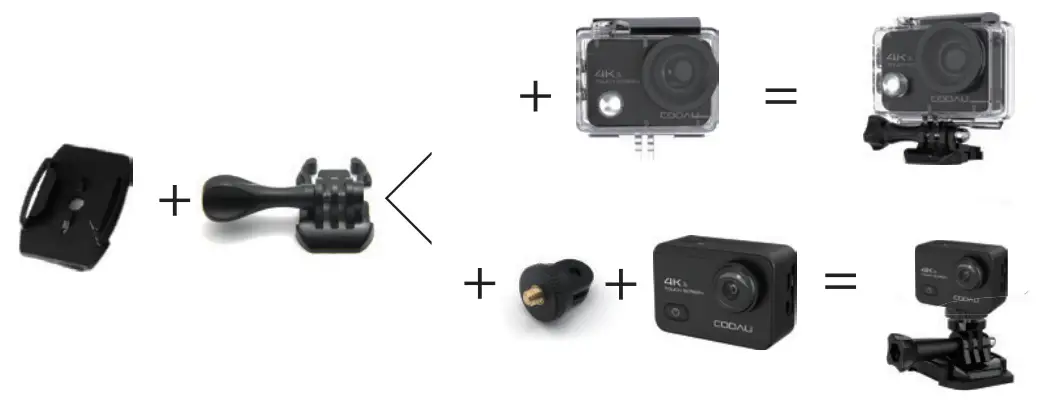
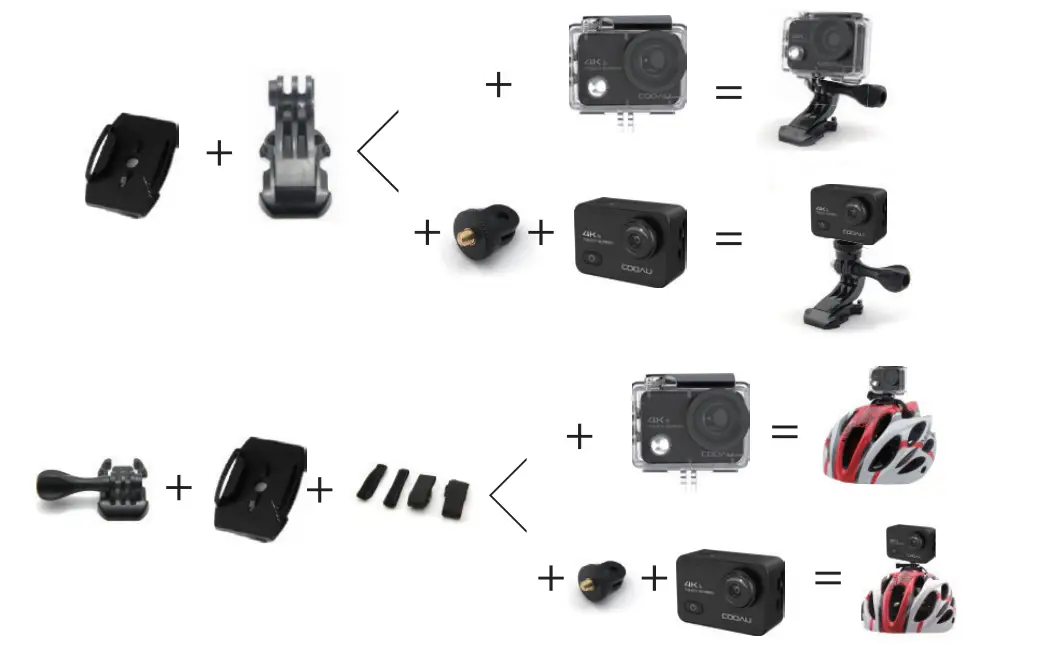
Attach your camera to helmets, gear, and equipment.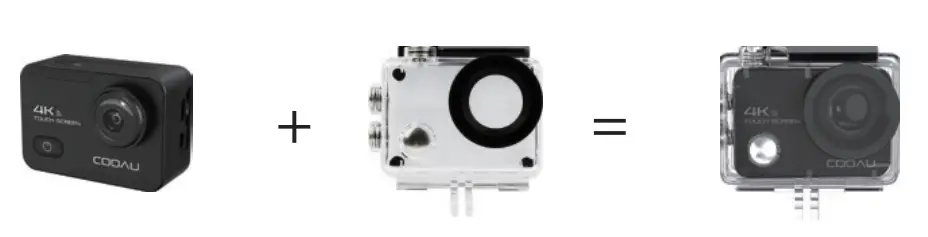
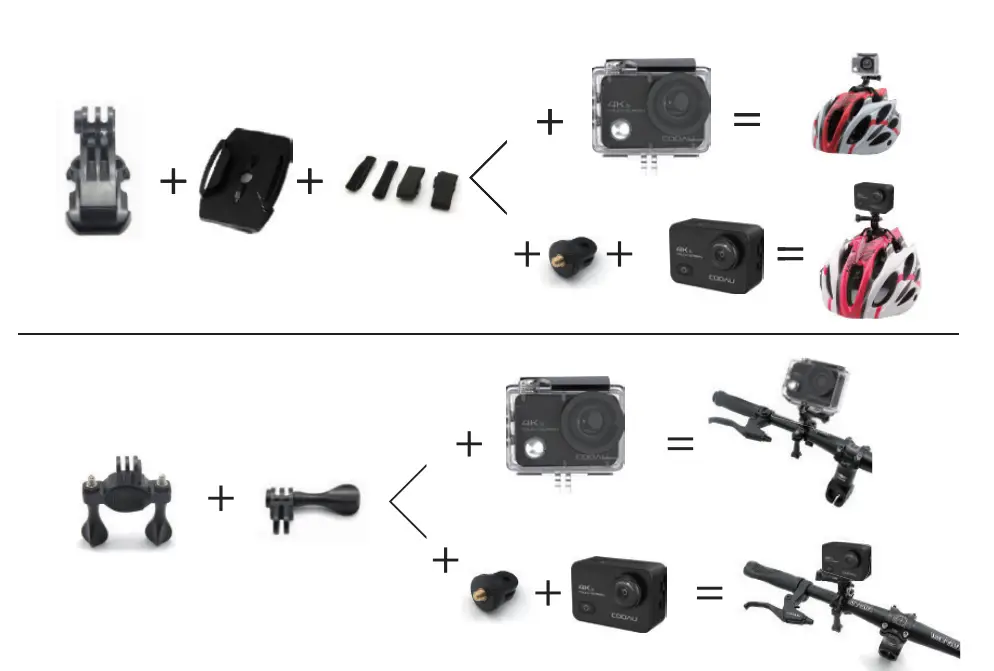
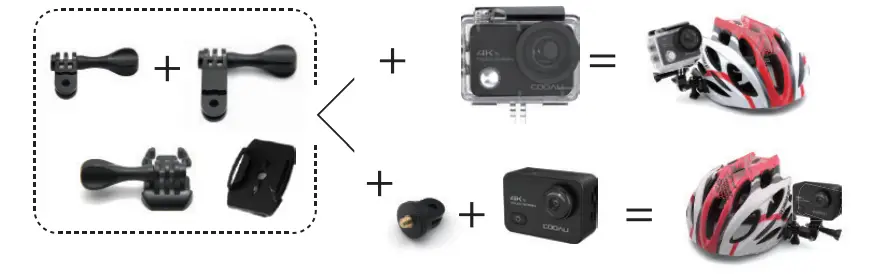
CONTACT US
For any problem with COOAU products, please feel free to contact us, we will respond within 24 hours.
E-mail: [email protected]
Official website: www.cooau.com
FAQS
Is this a crop sensor?
Yes.
Has anyone successfully installed the electronic level or histogram?
Yes, open the menu in normal mode (not preview mode), go to the 1st wrench option -> screen set-up -> disp. custom setting -> electronic level/histogram
How does this compare to cooau?
The a6300 has a tiltable LCD screen. It probably operates faster, i.e. less time between shots. It is said to have excellent autofocus and very good video. The biggest complaint about it that I’ve seen is a poor user interface. The x-e2s is one of my favorite cameras (I’ve been shooting since the 60’s with Mamiya-Sekor, Minolta, Pentax, Nikon, Canon and other cameras). It has an excellent user interface and it takes the best color photos I have ever taken with anything. The negatives are: it is relatively slow, the autofocus is poor with some of the fuji lenses, I don’t think the spot metering works very well (too small a spot?), and the video is ordinary at best. The kit zoom lens with the X-E2s is unusually good. For more information, if you just do a web search on “ COOAU SPC03 vs Sony A6300” you will get several hits. If you can’t decide, you can rent these cameras off the internet for a week or so and compare them.
Does anyone have an x-e2s near central Florida that i could see? without old-fashioned camera stores, touch and feel before buying is impossible.
Camera shops are becoming a thing of the past. Southern Photo closed last year after 53 years.
When shooting raw files, are the DR and film simulation choices disabled (or not relevant)?
They are both still active. They might act during RAW conversion.
Lens: Can i use canon or Nikon Lenses? (w/o an adaptor)
YES
Can you set the X-E2s for auto iso (range from 100 to 6400?) and use manual shutter and aperture to get proper exposure?
Yes, you can. And it has a few options for auto ISO ranges, 100-800 for example, and also 100-6400. It is a very flexible interface with all the control you need.
What is included in the box?
The base system includes the camera, lens and strap. Definitely go for the Bundle ($29 more) – it includes a case, SD card, etc…
Can the battery be charged inside the camera via a USB cable?
The battery will not charge via USB, it has to be inserted into a wall charger. There may be aftermarket products available, however Fuji does not manufacture or support any such products.
Regards,
Dumb questions but is this camera at all good for taking any kind of macro shots?
That would depend entirely on the lens.
Where is the COOAU SPC03 made?
Japan. If you go to digitalrev.com they have a video of a tour given of the factory. Makes you appreciate the work that goes into making a camera.
How is the camera with lens kit different from the camera only? Reading the description I don’t see anything different.
The camera body alone is about $700. If you want the body AND the kit lens (which is excellent), then it is about $1000.