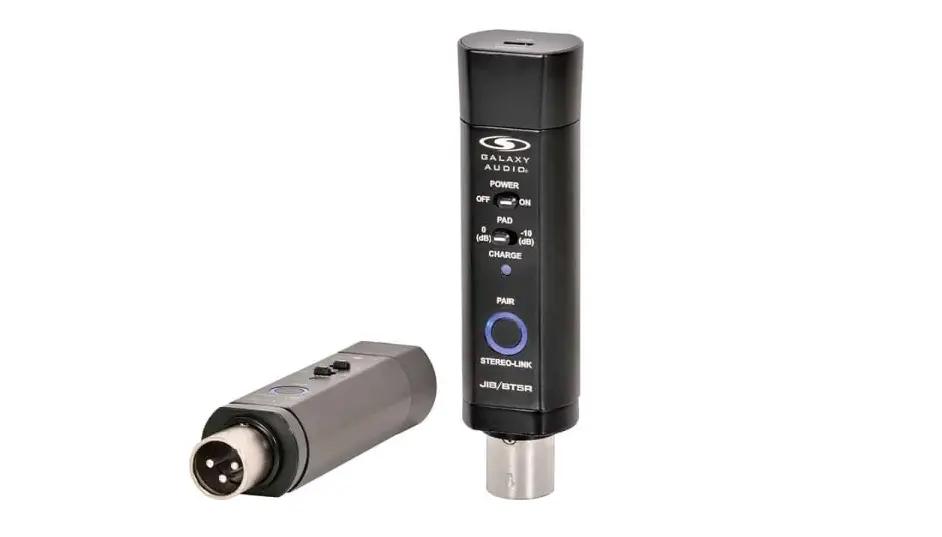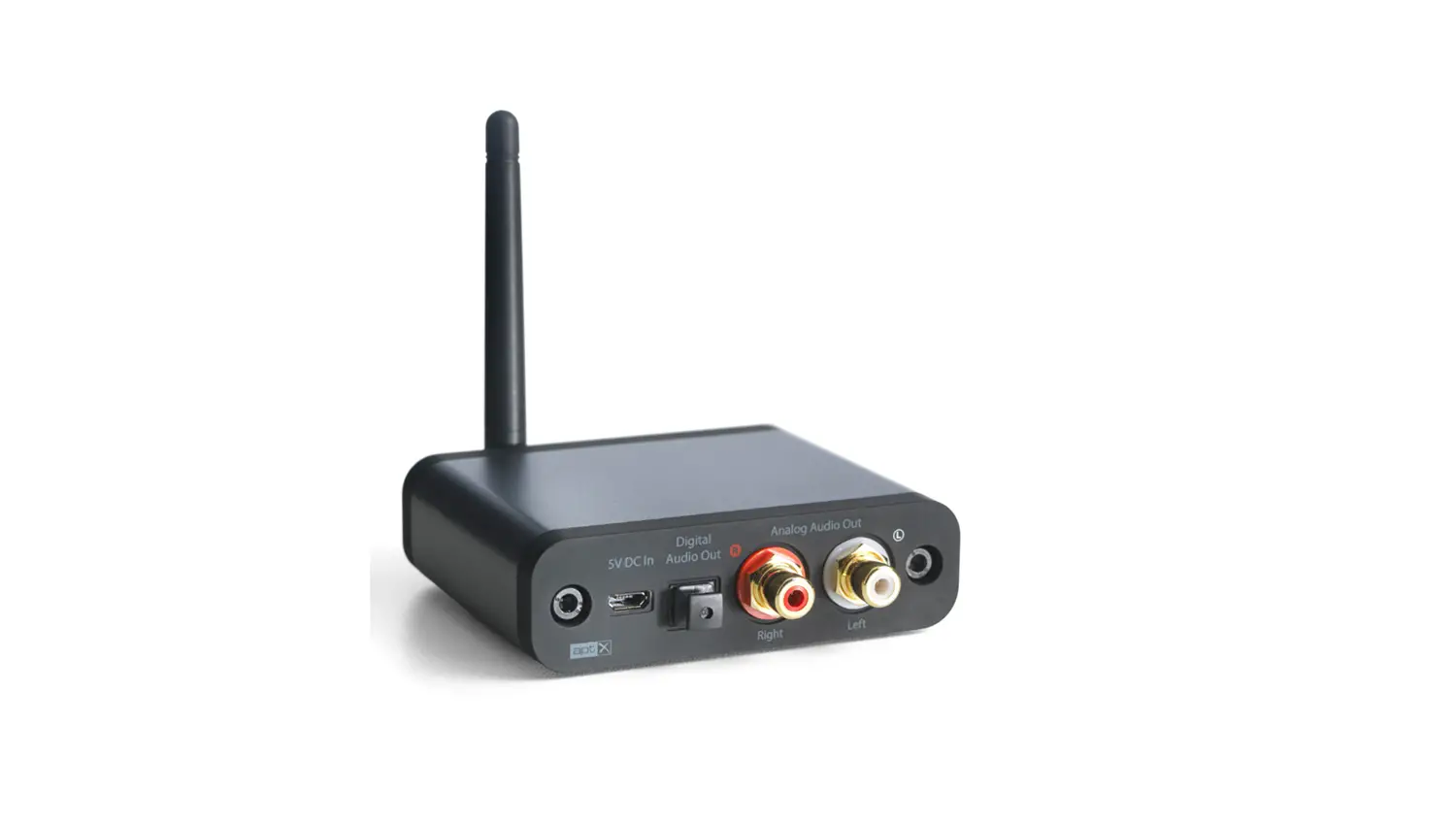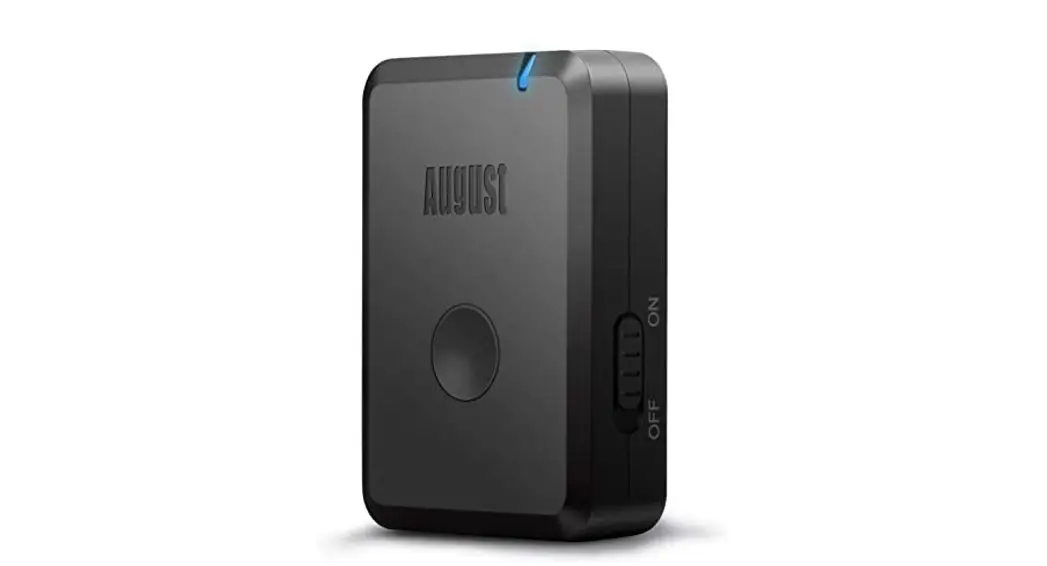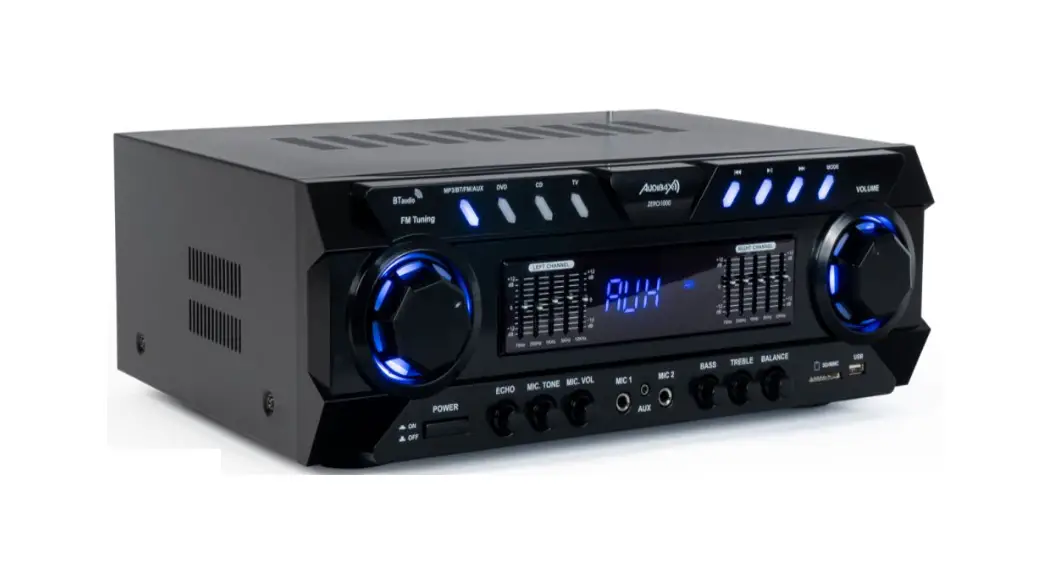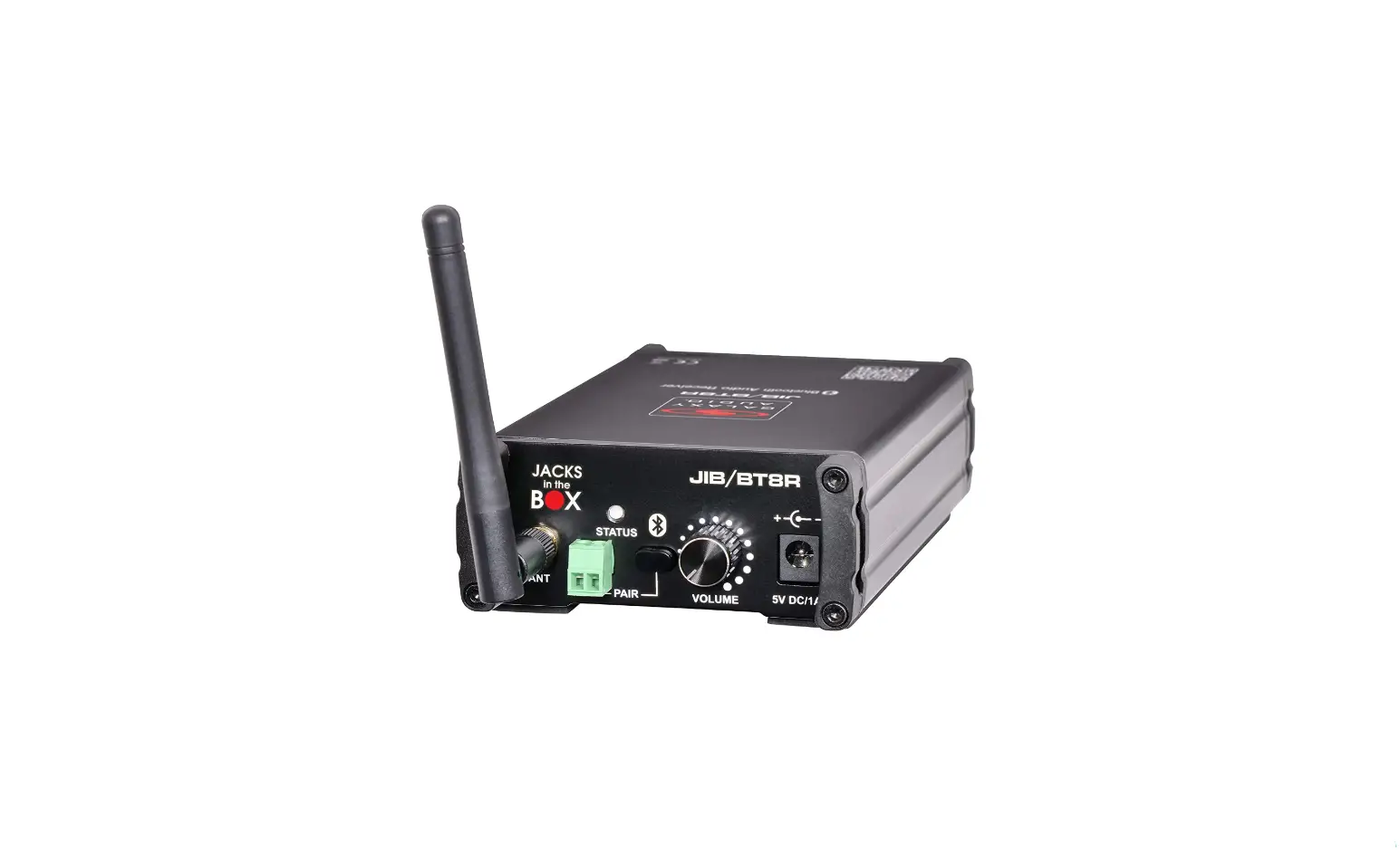

Galaxy JIB/BT8R Bluetooth Receiver Stereo
Introduction
Thank you for choosing the Galaxy Audio® professional, lightweight, compact, portable Stereo Bluetooth® Receiver. The JIB/BT8R interfaces high-quality stereo Bluetooth® audio wirelessly from a Bluetooth® enabled smart device to an active speaker or mixing console using balanced Left/Right XLR and 1 /4″ line outputs with volume control. You have joined the ranks of countless satisfied customers. Our years of professional experience in design and manufacturing ensure our products’ quality, performance, and reliability.
IMPORTANT SAFETY INSTRUCTIONS!
- READ these instructions.
- KEEP these instructions.
- HEED all warnings.
- FOLLOW all instructions.
- DO NOT use this apparatus near water.
- CLEAN ONLY with dry cloth.
- DO NOT block any ventilation openings. Install in accordance with the manufactures instructions.
- DO NOT install near any heat sources such as radiators, heat registers, stoves, or other apparatus (including amplifiers) that produce heat.
- DO NOT defeat the safety purpose of the polarized or grounding-type plug. A polarized plug has two blades one wider than the other. A grounding type plug has two blades and a third grounding prong. The wider blade or the third prong are provided for your safety. If the provided plug does not fit into your outlet, consult an electrician for the replacement of the obsolete outlet.
- PROTECT the power cord from being walked on or pinched, particularly at plugs, convenience receptacles, and the point where they exit from the apparatus.
- ONLY USE attachments/accessories specified by the manufacturer.
- UNPLUG this apparatus during lightning storms or when unused for long periods of time.
- REFER all servicing to qualified service personnel. Servicing is required when the apparatus has been damaged in any way, such as power-supply cord or plug is damaged, liquid has been spilled or objects have fallen into the apparatus, the apparatus has been exposed to rain or moisture, does not operate normally, or has been dropped.
- DO NOT expose the apparatus to dripping and splashing. DO NOT put objects filled with liquids, such as vases, on the apparatus.
System Components
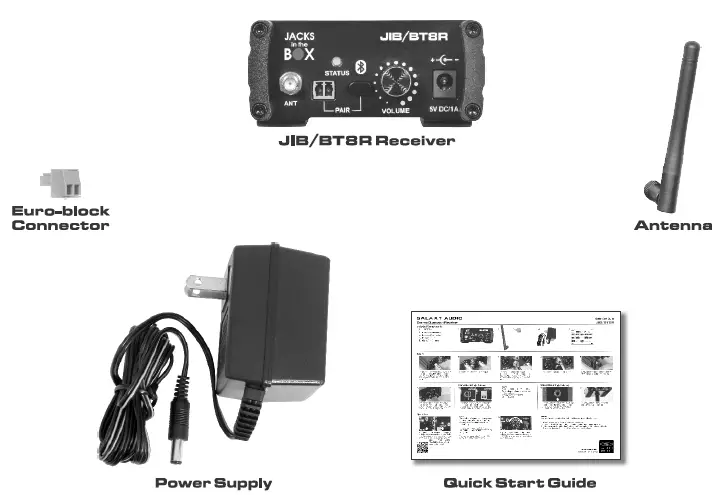
The JIB/BTSR includes the following components:
- JIB/BT8R Receiver
- 2.4 GHz Detachable Antenna
- Euro-block Connector |
- Power Supply
- Quickstart Guide

JIB/BTSR Receiver Features and Functions
Receiver Features
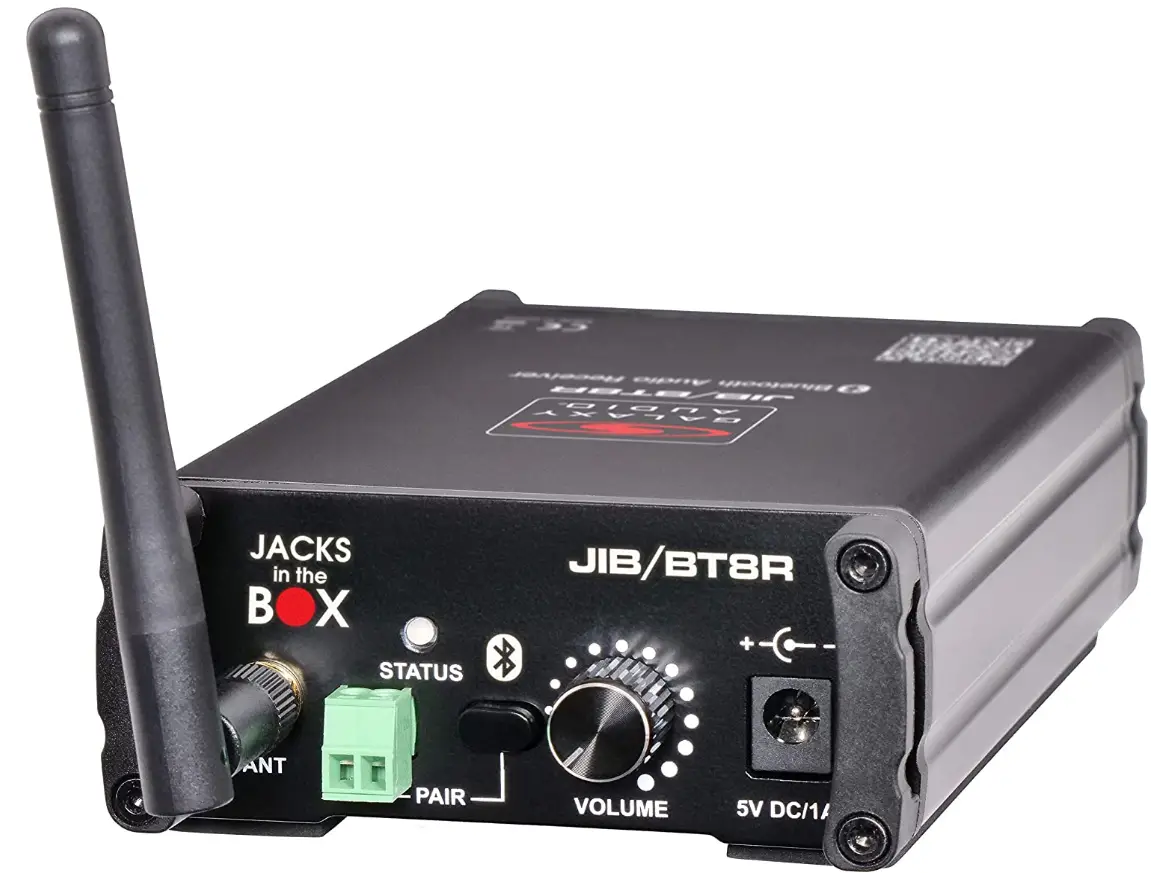
Front Panel 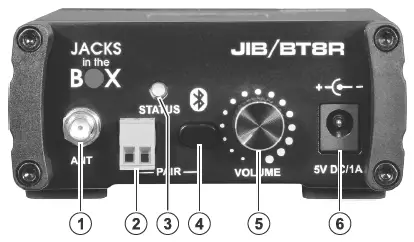
Back Panel 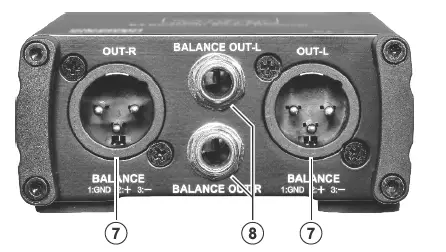
- 2.4 GHz Antenna Connector
- Euro-block Connector
- Status LED
- Bluetooth® Pairing Button
- Volume Control
- SV DC/1A Power Input (j) UR XLR Balance Output –
- UR 1/4″ Balance Output
Receiver Functions
- ANT Connect the included removable 2.4 GHz antenna. The antenna receives and transmits the Bluetooth® signal from a paired Bluetooth® device. The JIB/BTBR has a range of up to 10 meters under optimal conditions.
- Euro-block Connector For remote pairing, use 2 connector cables to connect this connector to a momentary switch. Press the switch to erase the linking between two paired Bluetooth® devices, then make the JIB/BTBR available for pairing to another nearby Bluetooth® device.
- STATUS LED indicates the JIB/BTBR Bluetooth@ pairing status: Alternating between red and green means the JIB/BTBR is not paired to a Bluetooth® device. Flashing only a green light means the JIB/BTBR is paired to a Bluetooth® device.
- PAIR Button With both the receiver and the Bluetooth® enabled device powered on, press “PAIR”. The receiver will remember the previously connected device for the next use. You can play audio from that same device immediately. To disconnect, press the “PAIR” button.
- VOLUME Control Turn this knob to adjust the output volume level.
- SV DC/1A Power Input Use the included power adapter to connect this input to a power outlet.
- UR XLR BALANCE OUT Use XLR cables to connect these outputs to your loudspeakers, mixer, etc.
- L/R 1/4″ BALANCE OUT Use 1/4″ cables to connect these outputs to your loudspeakers, mixer, etc.
Receiver Setup
System Setup
Connecting Cables From JIB/BTSR Receiver Outputs
- Connecting XLR Cables
Plug XLR cables to the XLR balanced UR outputs on the JIB/BT8R. Connect the other ends of the XLR cables to the XLR R/L inputs of a mixer, active speaker, or amp. - Connecting 1/4″ (6.35mm) Cables
Plug 1/4″ (6.35mm) cables to the 1/4″ balanced UR outputs on the JIB/BT8R. Connect the other ends of the 1/4″ cables to the 1/4″ R/L inputs of a mixer, active speaker, or amp.
Final Setup Connections
- Antenna
Attach the antenna to the ANT connector. - Power
Connect the included power adapter to connect JIB/BT8R 5V DC/1A input. Connect the other end to your power source. - Pair
Pair the receiver with a Bluetooth® device.
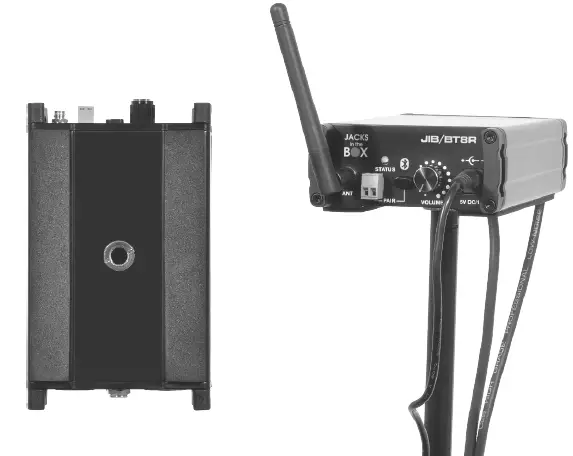
Optional Stand Mounting Setup
- Stand Adapter
The included adapter allows for 3/8″-5/8″ stand options. To remove the adapter 5/8″ size, unscrew counter-clockwise. To insert for 5/8″ size or to tighten, screw in clockwise. - Stand Mounting
To screw the receiver onto the stand, rotate the receiver clockwise until secure.
Receiver Bluetooth® Pairing and Unpairing
Wireless Pairing Setup
- Make Sure The Receiver Is Powered On
If the receiver is not yet powered on, connect the included power adapter to connect JIB/BT8R 5V DC/1A input. Connect the other end to your power source.
NOTE The “STATUS” LED will quickly flash red and green while unpaired. - Ready Your Bluetooth® Enabled Device
Make sure your Bluetooth® enabled device has its Bluetooth® feature turned on and is within range. - Pair Your Bluetooth® Enabled Device
With both the receiver and the Bluetooth® enabled device powered on, press “PAIR” on the receiver. Find the receiver (JIB/BT8R) in your device’s Bluetooth® settings to connect.
NOTE Once paired, the “STATUS” LED will slowly flash green. - Play Your Audio
On your Bluetooth® device, start playing audio. - Adjust Level Controls
Volume can be controlled with the Bluetooth® enabled device, the JIB/BT8R, most active speakers, amp, and mixer.
NOTE It is recommended to adjust the volume of devices in the following order:
- Adjust the Bluetooth® enabled device volume higher.
- Adjust the JIB/BT8R volume higher by rotating the volume knob clockwise.
- If using a mixer, first adjust the input channel levels and then its main output level.
- The active Speaker/Amp should be the last volume adjustment.
Remote Pairing Setup (Optional)
- Using The Euro-Block Connector
Make sure the included Euro-block connector is snapped in. - Connect Wires
Trim the insulation back no more than 3/16″ (5mm).
Insert the 2 trimmed wire leads into the terminal and tighten the screws securely. Connect other ends to the momentary switch.
NOTE Polarity does not matter (either wire can go to either terminal}.
- Make sure terminal screws are snug.
- Do not crimp the terminal screws down on the insulation.
- Avoid any loose wire strands.
- Do not tin wires (do not solder wire ends).
Disconnecting Pair and Changing Paired Device
NOTE The receiver will remember the previously connected device for the next use. You can play audio from that same device. To use a different Bluetooth® enabled device, you will need to disconnect from the previous device first.
- Unpair From Your Bluetooth® Enabled Device
To disconnect, press the “PAIR” button. The status LED will alternate between red and green, signaling that the receiver is unpaired and ready to pair to a new device. - Pair Your New Bluetooth® Enabled Device
Repeat the previous pairing steps with your new device.
NOTE The JIB/BT8R uses a Bluetooth® 4.0 chip and has a range of up to 10 meters under optimal conditions. Once the JIB/BT8R is paired with a Bluetooth® device, other Bluetooth® devices cannot pair to it. There is always a chance of interference with any Bluetooth® connection. Bluetooth® is in the same frequency band as many cell phones and WiFi routers. These have higher outputs than Bluetooth® and can cause interference.
Specifications
- Bluetooth® Version V4.0
- Frequency Range 2.4GHz – 2.48GHz
- Output Connector Left/Right Balanced XLR/M, Left/Right Balanced 1/4″ Line
- Controls Volume, Wireless Bluetooth® Pair, Remote Pairing Euro-block Connector
- Indicators Status LED
- Sensitivity -80dBm < +/-0.1 % BER
- Signal to Noise > 75dB
- Total Harmonic Distortion <0.1 %
- Operating Range Under Typical Conditions 32.8′ (10 m)
Note actual range depends on RF signal absorption, reflection, and interference. - Operating Temperature Range -40° F to 176° F (-40 c0 to +80 C0)
- Mountable Yes, 5/8″ or 3/8″ with included adapter
- Antenna 2.4 GHz Removable
- Dimensions 1.58″ x 3.54″ x 5.8″ (40 x 90 x 147 mm)(HxWxD)
- Weight 12.17 oz (345 g)
- Power Requirements 5V DC/1A Power Supply (included)
WARRANTY
THREE-YEAR LIMITED WARRANTY
WARRANTY Information can be viewed online at https://www.galaxyaudio.com/support/warranty 
Support
Specifications in this manual are subject to change without notice. For the most up-to-date manual and information visit www.galaxyaudio.com. 1-800-369-7768 © Copyright Galaxy Audio 2019
FAQs
Any stereo that has analog audio out or digital audio out can play music from your smartphone using a Bluetooth adaptor. Both of these ports are typically available on Bluetooth audio receivers so that they can work with most stereo systems.
Bluetooth signals are accepted by a receiver, which transforms them so that non-Bluetooth devices can play them. The analog signal from a device like a TV is converted by a transmitter before being broadcast to be received by a Bluetooth-enabled device.
Bluetooth can be used to link the receiver and wireless speakers. You’ll need to purchase a Bluetooth transmitter if your receiver doesn’t support Bluetooth connections. The Bluetooth transmitter and receiver must be connected before you can use the wireless speakers.
In a nutshell, yes, provided two Bluetooth speakers can function simultaneously. You can pair two Bluetooth speakers at once using the same device.
Both transmitters and receivers are crucial components of Bluetooth technology, and audiophiles who value high-quality sound will value them even more. While there are some parallels between the two, the fundamental distinction is that a transmitter sends out Bluetooth signals while a receiver receives them.
Both transmitters and receivers are crucial components of Bluetooth technology, and audiophiles who value high-quality sound will value them even more. While there are some parallels between the two, the primary distinction is that a transmitter sends out Bluetooth signals, whereas a receiver receives them.
Mono audio only has one channel, whereas stereo audio has two channels. This is the main distinction between mono and stereo audio. Additionally, mono audio keeps all sound in a single channel while stereo divides sound into left and right channels. Typically, M & S stand in for them, respectively.
Observing the waveforms of each channel is our first trick. The recording was probably mono if the waveforms are identical. You are working with a stereo file if there are clear variances between the waveforms of each channel.
To access the appropriate settings pane, locate the audio icon in your system tray, right-click it, and select “Recording Devices.” Make sure “View Disabled Devices” and “View Disconnected Devices” are both selected when you right-click on a vacant space in the pane. A “Stereo Mix” option ought to show up.
One Pill+ speaker plays the left audio channel while the other plays the right audio channel in stereo mode.
Stereo Mix is simply shown as deactivated. To fix the issue, make sure you simply re-enable Stereo Mix as a virtual audio device in Sounds settings.
If you choose another HDMI/USB soundcard/other sound output device as the default device, the stereo mix might not function properly. Try to make the motherboard’s built-in speakers, audio, and 3.5mm output your default audio output device instead of one of the other options.
Pull the notification panel down and then hit the gear icon. Find the “Accessibility” entry from there. Find the “Mono Audio” option in this menu and turn it on. On Samsung Galaxy devices, you must first tap the “Hearing” menu in order to access the entry for mono audio.
A 3.5 mm to RCA stereo audio cable is one of the simplest methods to connect your smartphone to your home entertainment system. The stereo amplifier, receiver, or speaker are connected to the other end via the RCA connectors, which hook into the headphone socket on your smartphone.
To use “Stereo Mix,” right-click on it and select “Enable.” You can launch a recording application and choose “Stereo Mix” in place of your microphone before you start recording if “Stereo Mix” is enabled. For instance, Audacity’s drop-down menu contains this option.