
ATEN RS-232 Control Tool Apps
EMC Information
FEDERAL COMMUNICATIONS COMMISSION INTERFERENCE STATEMENT
This equipment has been tested and found to comply with the limits for a Class A digital device, pursuant to Part 15 of the FCC Rules. These limits are designed to provide reasonable protection against harmful interference when the equipment is operated in a commercial environment. This equipment generates, uses, and can radiate radio frequency energy and, if not installed and used in accordance with the instruction manual, may cause harmful interference to radio communications. Operation of this equipment in a residential area is likely to cause harmful interference in which case the user will be required to correct the interference at his own expense.
FCC Caution: Any changes or modifications not expressly approved by the party responsible for compliance could void the user’s authority to operate this equipment.
Warning: Operation of this equipment in a residential environment could cause radio
interference.
This device complies with Part 15 of the FCC Rules. Operation is subject to
- this device may not cause harmful interference, and
- this device must accept any interference received, including interference that may cause undesired operation. following two conditions:
Achtung: Der Gebrauch dieses Geräts in Wohnumgebung kann Funkstörungen verursachen.
KCC Statement
RoHS
This product is RoHS compliant.
© Copyright 2021 ATEN® International Co., Ltd. Manual Date: 2021-01-13 ATEN and the ATEN logo are registered trademarks of ATEN International Co., Ltd. All rights reserved. All other brand names and trademarks are the registered property of their respective owners. The terms HDMI, HDMI High-Definition Multimedia Interface, and the HDMI Logo are trademarks or registered trademarks of HDMI Licensing Administrator, Inc.
RS-232 Control Tool Operation
Overview
The VS1804T / VS1808T’s built-in bi-directional RS-232 serial interface allows system control through a high-end controller, PC, and/or home automation/home theater software package. The RS-232 Control Tool is an application used to send operational commands from your PC – to the VS1804T / VS1808T through a serial (RS-232) interface connection. RS-232 serial operations to and from the VS1804T / VS1808T can be managed using ATEN’s Graphical User Interface (GUI) on computers that are running the Microsoft Windows operating system. In order to use the RS-232 Control Tool, two separate programs must be installed on the PC – .NET Framework 2.0 and the RS-232 Control Tool. The procedure for installing and operating the RS-232 Control Tool is detailed in the following section.
Before You Begin
Installing .NET Framework 2.0
To install .NET Framework on your PC, do the following:
- Download the executable file from the ATEN website or the Microsoft Download Center online, and run it.
- Follow the instructions on the screen. The installation applet will automatically detect the operating system and install the correct drivers.
Installing the RS-232 Control Tool
To install the RS-232 Control Tool, do the following:
- Download the RS-232 Control Tool from the Download or VS1804T / VS1808T’s Resource page on our website: www.aten.com
- Save the file to a convenient location.
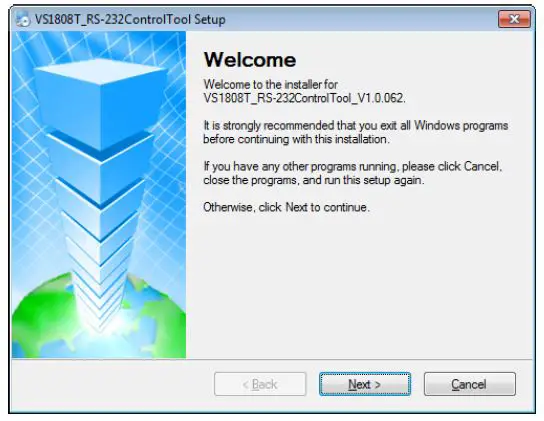
- Double click to run the setup file. The Welcome screen displays: Click Next.

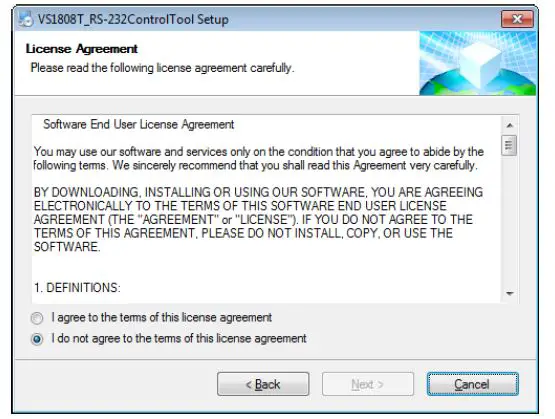
- The License Agreement appears:
If you agree with the License Agreement, select I agree with the terms of this license agreement, and click Next.
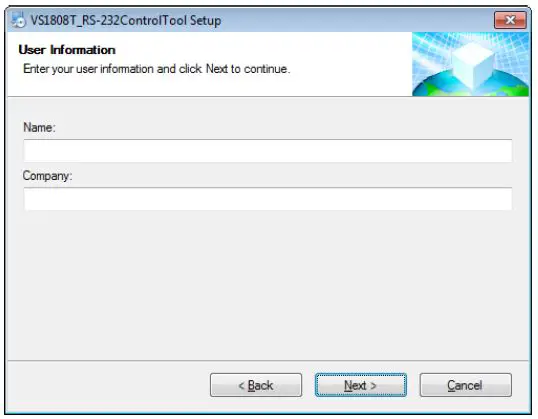
- The User Information screen is displayed as follows:
Fill in your Name and Company, then click Next.
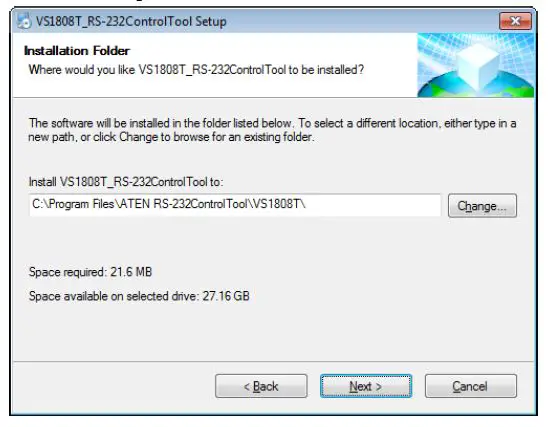
- When the Installation Folder screen appears, you can select where you
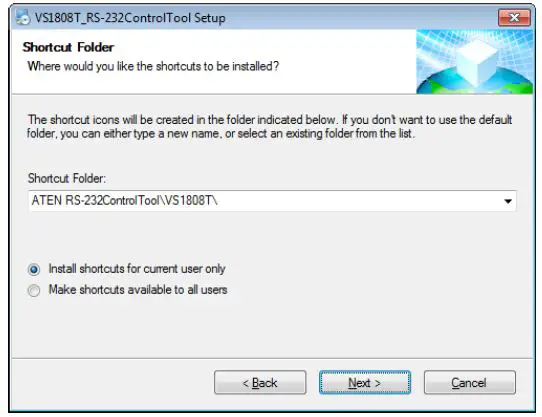
- From the Shortcut Folder screen, type in or use the drop-down menu to enter the folder where you want to install the shortcuts:

Select Install shortcuts for current users only, or Make shortcuts available to all users, and click Next. want to install the program by clicking Change, or use the default installation location provided, then click Next.
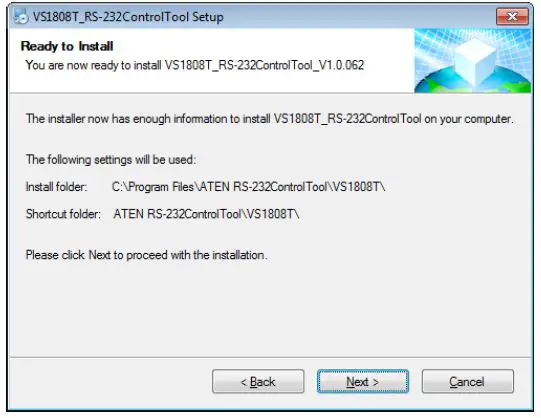
- At the Ready to Install screen, confirm your settings – click Back if you need to make changes, or click Next to begin the installation:

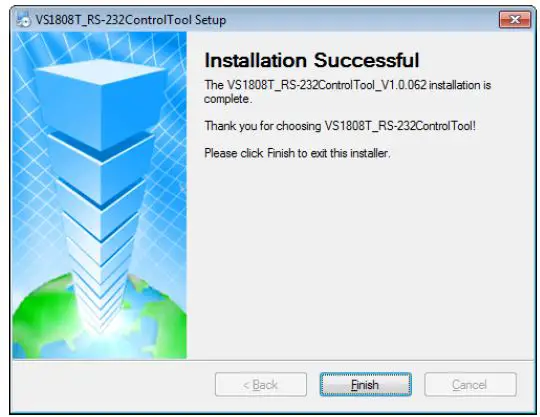
- When the installation has been completed successfully, the following screen is displayed:

Click Finish. You are now ready to use the RS-232 Control Tool.
GUI Main Page
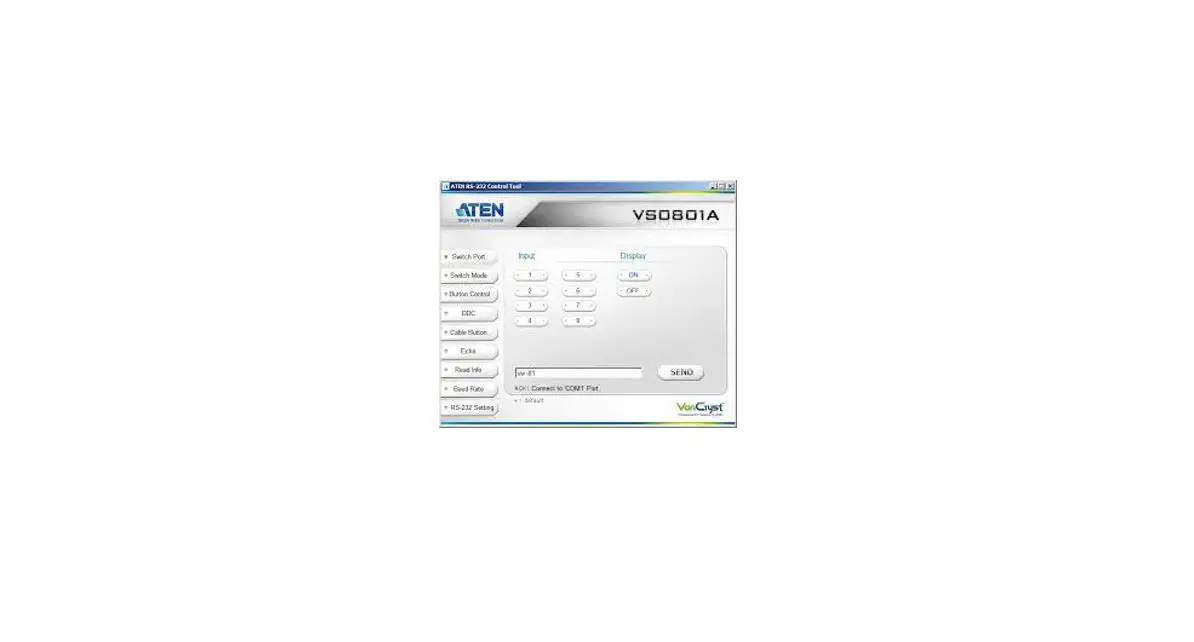
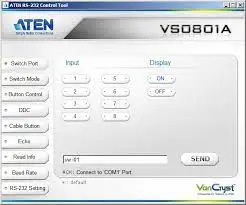
The RS-232 Control Tool is a convenient and intuitive application to send RS-232 commands to your VS1804T / VS1808T. For detailed information about the function of each RS-232 command, see the VS1804T / VS1808T user manual. To invoke the GUI, simply click the RS-232 Control Tool shortcut. The interface opens the Switch Port page by default, as shown below: 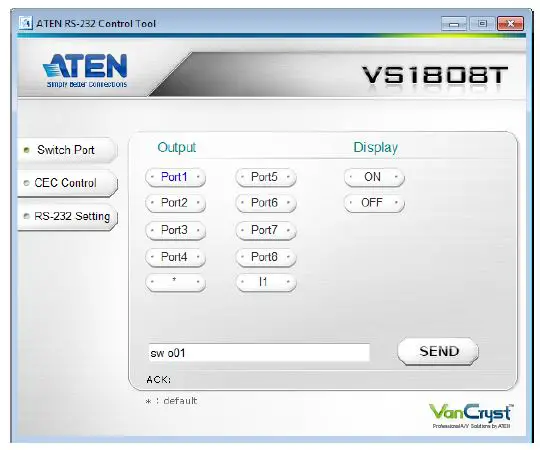 The various elements of the GUI are described in the following sections.
Note: The GUI for the VS1808T and VS1804T is the same, with the only difference being that the VS1808T has four additional ports to manage.
Switch Port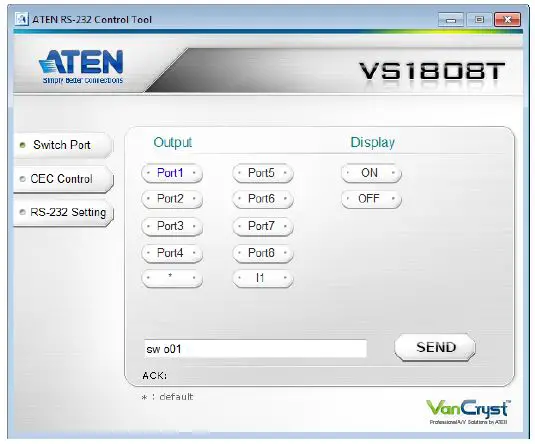
The Switch Port page is used to power on or power off the display connected to a port.
On the Switch Port page, the following actions are possible:
- Click an Output port to select it (options are Ports 1~8, * , l1) * = all output ports / l1 = local output port
- Select whether to turn the Display On or Off
- Use the text box to manually enter the command
- Click Send to execute the command
Switch Port Commands
These actions can also be performed by keying the command into the text box, and clicking Send. The formula for the Switch Port command is as follows:
Switch Command + Output Command + Port Number + Control [Enter]
- For example, to switch Output port 02 on, type the following: sw o02 on [Enter]
- To switch all Output ports off, type the following: sw o* off [Enter]
- To turn the local Output port on, type the following: sw ol1 on [Enter]
Possible Values
The following table shows the possible values for switch commands:
| Command | Description |
| sw | Switch command |
| Output Command | Description |
| o | Output command |
| Output Port Number | Description |
| yy | 01-08 port (default is 01) |
| * | All output ports |
| l1 | Local output port |
| Control | Description |
| on | Turn on |
| off | Turn off |
| Enter | Description |
| [Enter] | Enter and send out the command |
Switch Port Command Table
| Cmd | Out | N1 | Control | Enter | Description |
| sw | o | yy | on | [Enter] | Turn on output port yy |
| * | (yy: 01~08, *, l1) | ||||
| l1 | * = All output ports, | ||||
| l1 = Local output port | |||||
| sw | o | yy | off | [Enter] | Turn off output port yy |
| * | (yy: 01~08, *, l1) | ||||
| l1 | * = All output ports, | ||||
| l1 = Local output port |
Acknowledge
After commands are sent, acknowledge messages are returned.
| Ack | Description |
| Command OK | Command is correct and function executed |
| Command Incorrect | Unavailable command or parameters |
Note:
- Each command string can be separated with a space. +
- The Port Number command string can be skipped, and the default value will be used.
CEC Control
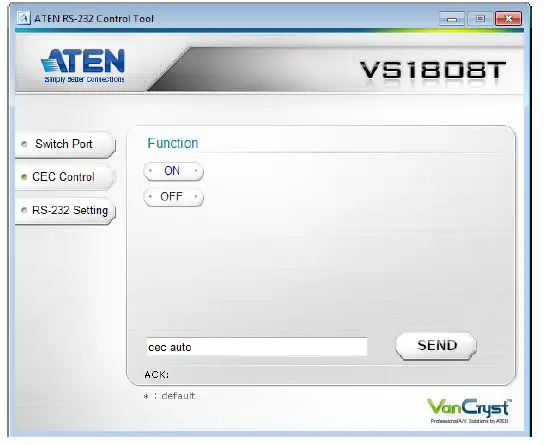
The CEC Control page is used to enable or disable the CEC Control feature. The default setting for the CEC Control is off.
From the CEC Control page, the following actions are possible:
- Select On to enable CEC Control
- Select Off to disable CEC Control (default)
- Use the text box to manually enter the command Click Send to execute the command
CEC Control Commands
These actions can also be performed by keying the command into the text box, and clicking Send. The formula for the CEC Control command is as follows:
Command + Control + [Enter]
- For example, to disable CEC control, type the following: cec off [Enter]
- To enable CEC control, type the following: cec auto [Enter]
Possible Values
The following table shows the possible values for CEC Control commands:
| Command | Description |
| cec | CEC Control command |
| Control | Description |
| auto | Enable CEC Control |
| off | Disable CEC Control (default) |
| Enter | Description |
| [Enter] | Enter and send out the command |
CEC Control Table
| Cmd | Control | Enter | Description |
| cec | auto | [Enter] | Enable CEC Control |
| cec | off | [Enter] | Disable CEC Control |
RS-232 Setting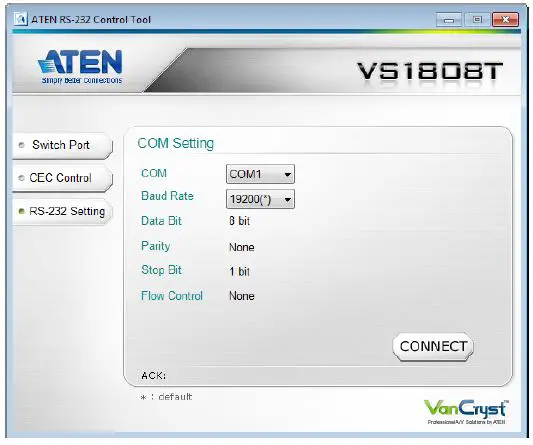
On the RS-232 Settings page, the serial port should be configured as follows:
| Baud Rate | 19200 |
| Data Bits | 8 |
| Parity | None |
| Stop Bits | 1 |
| Flow Control | None |
From the RS-232 Settings page, you can set the COM serial port and Baud Rate. To set the COM port or Baud Rate, do the following:
- Select a COM port from the drop-down menu
- Select a Baud Rate from the drop-down menu
- Click CONNECT
If the port connection exists, the Acknowledgment message displays as follows:
Open port ‘COM1’ successfully
 ATEN - Simply Better Connections | ATEN U.S.A.