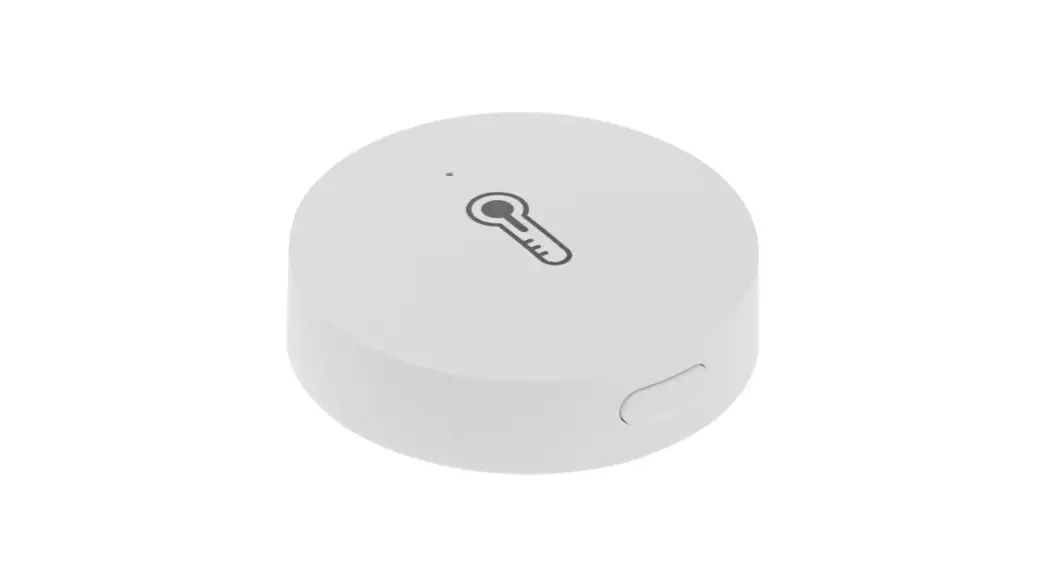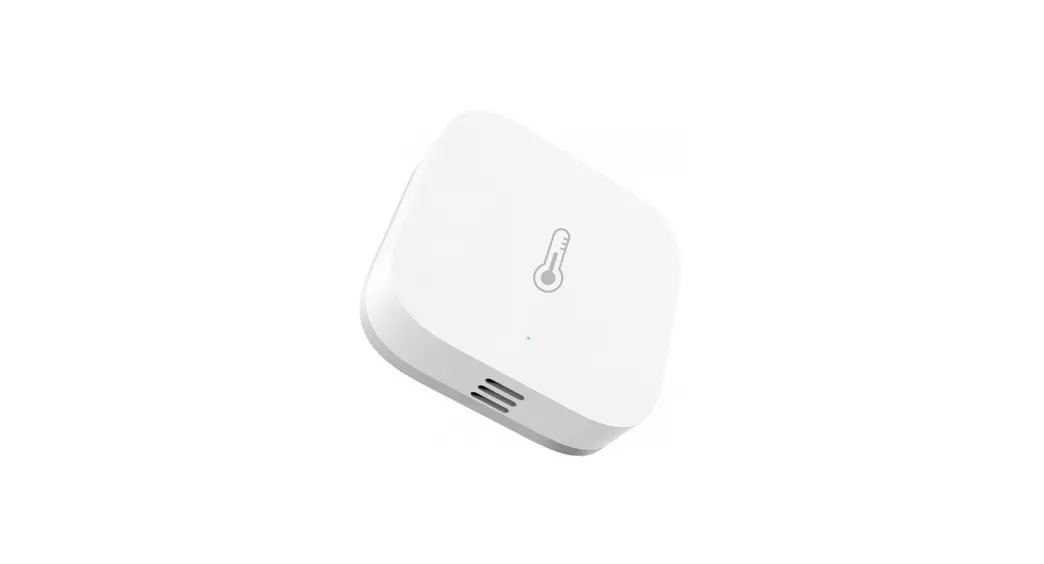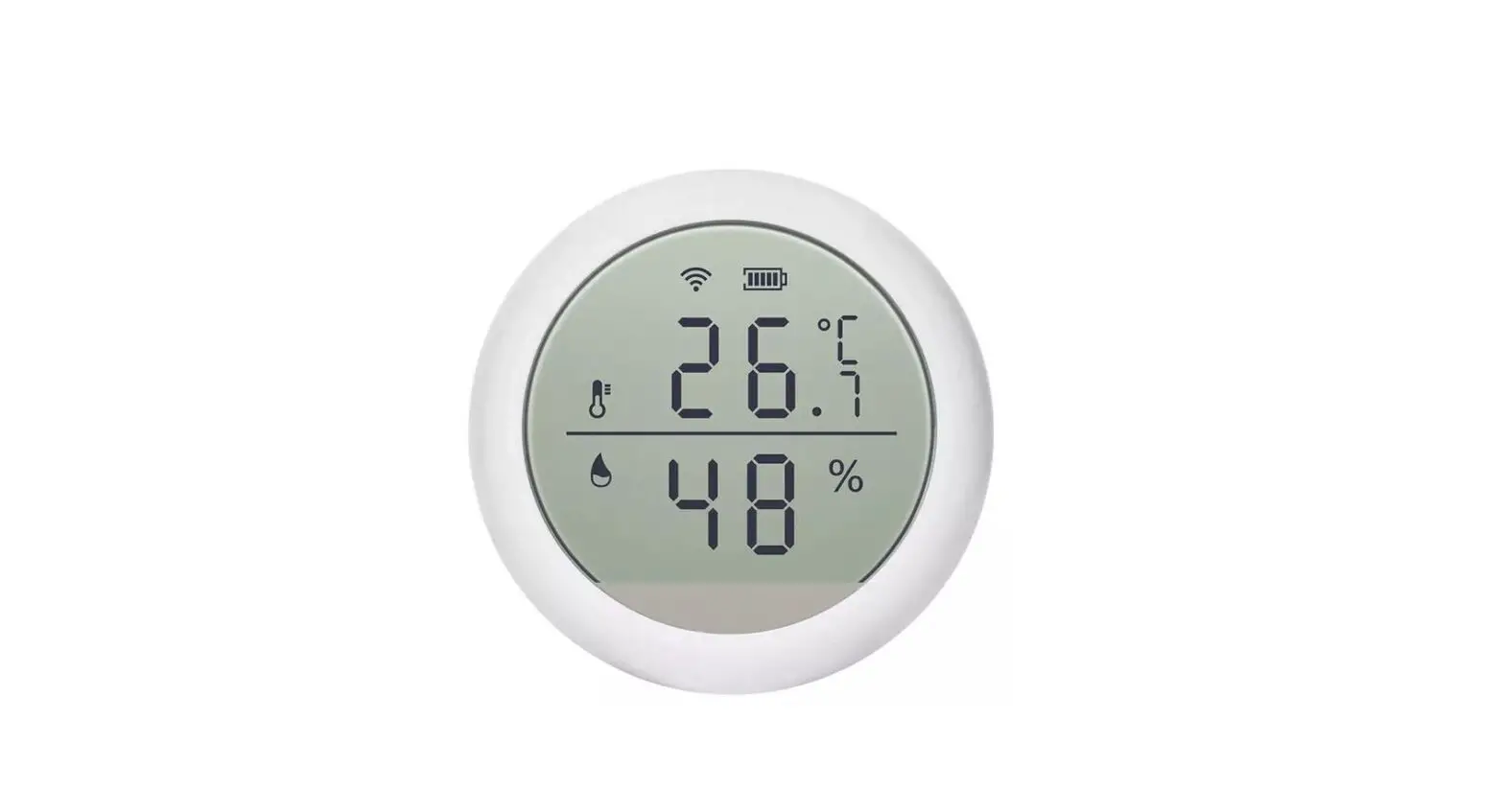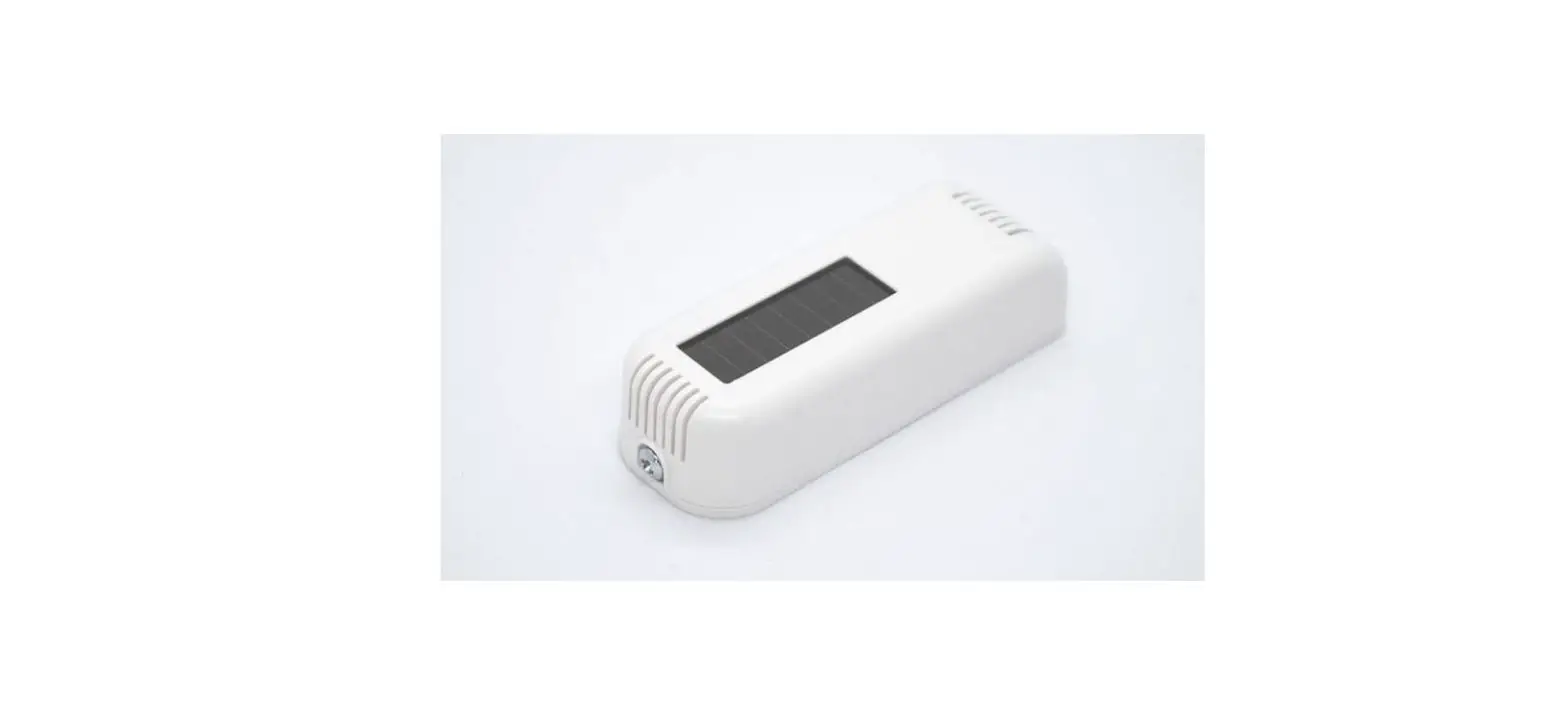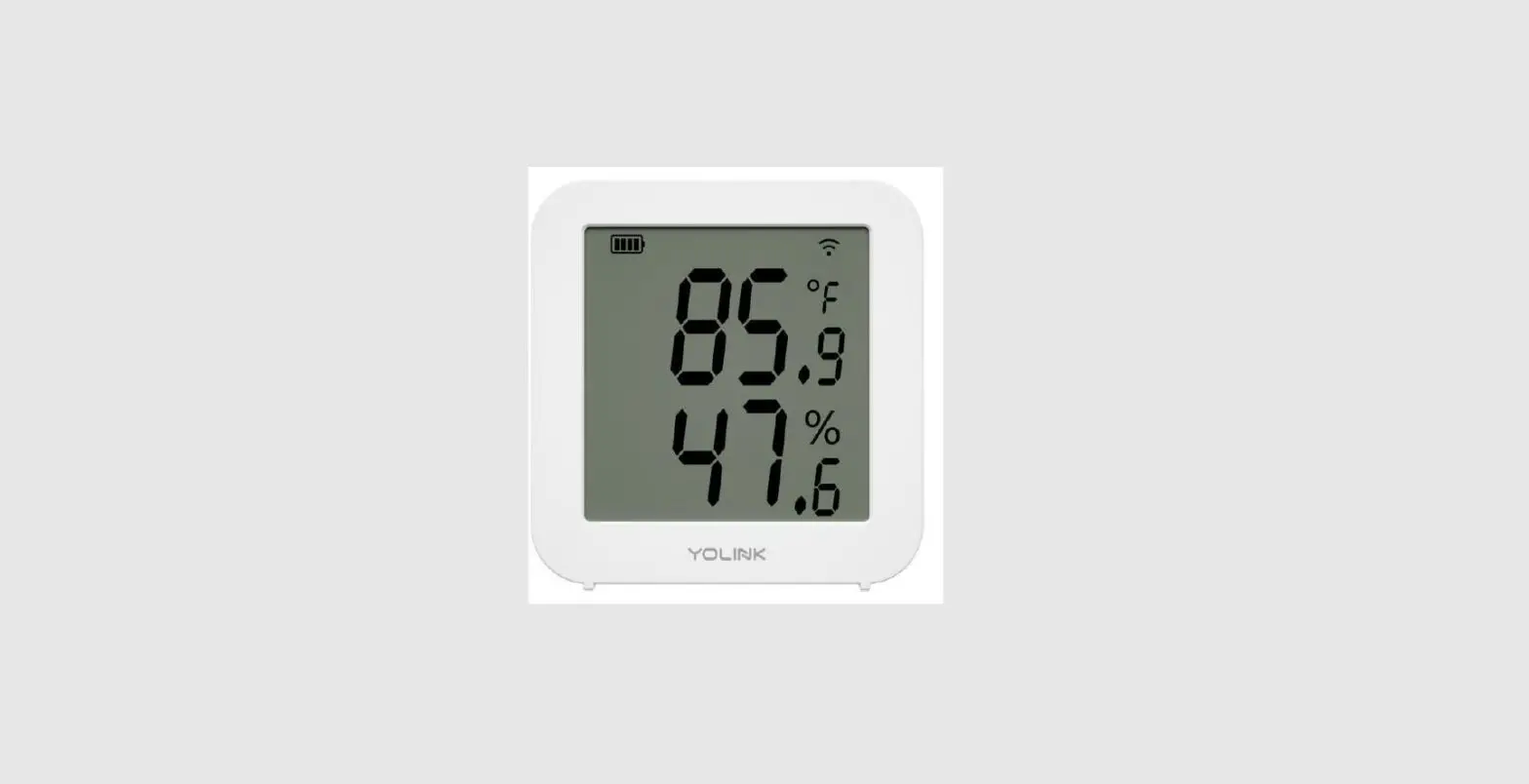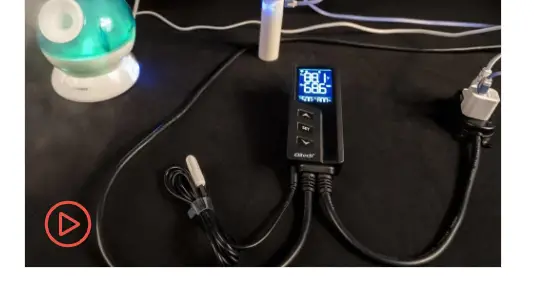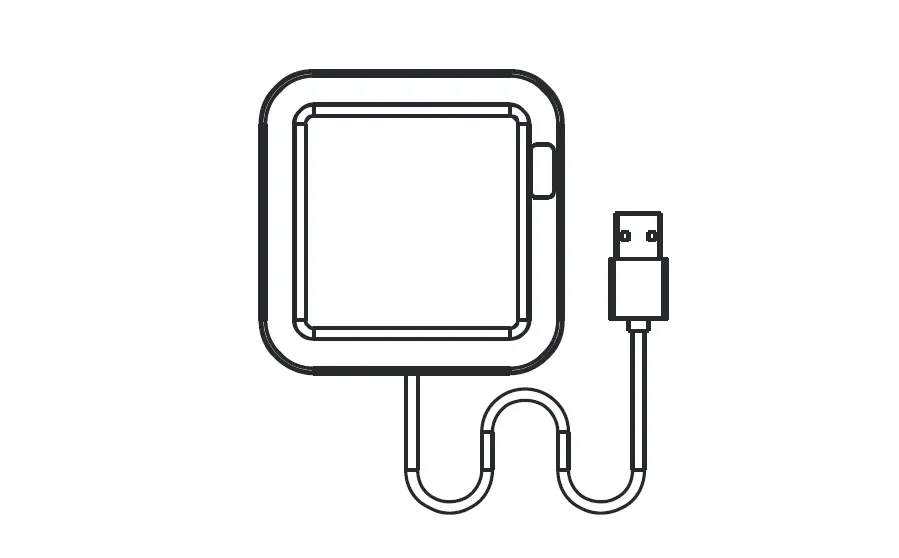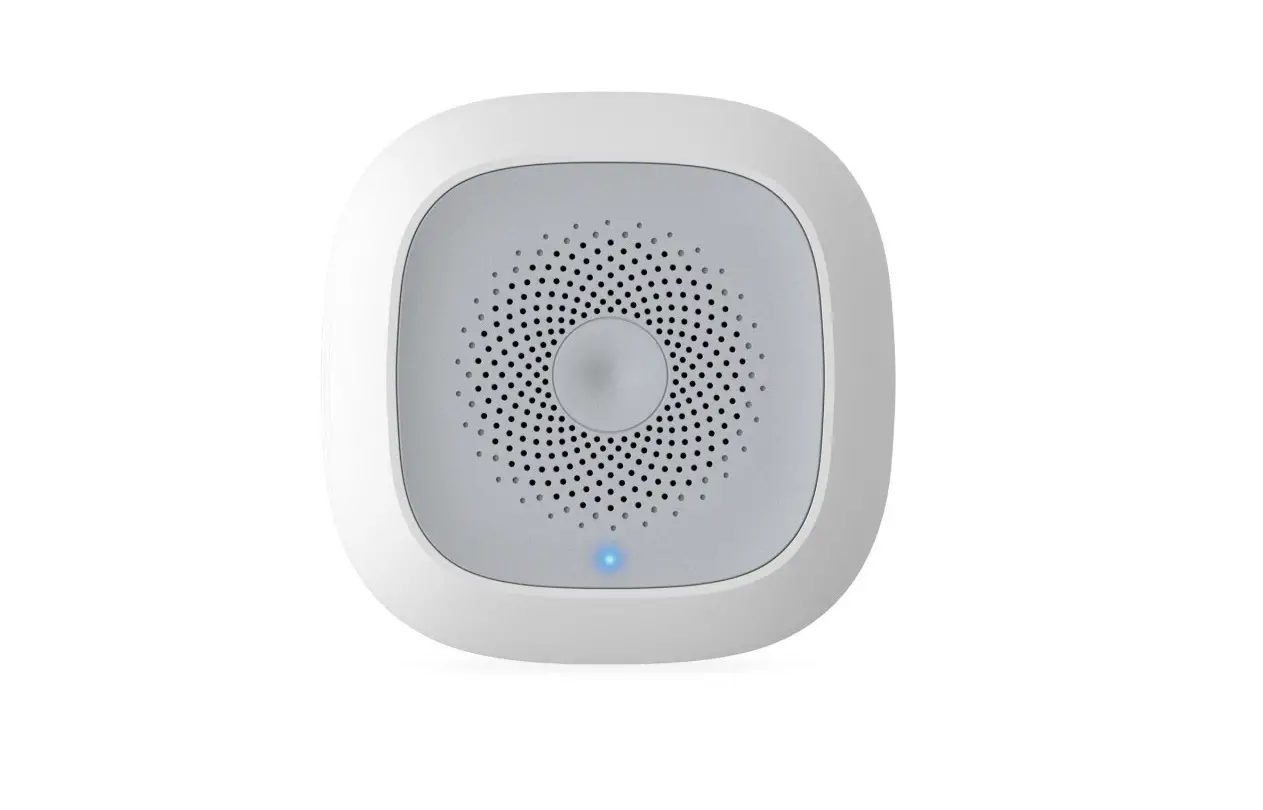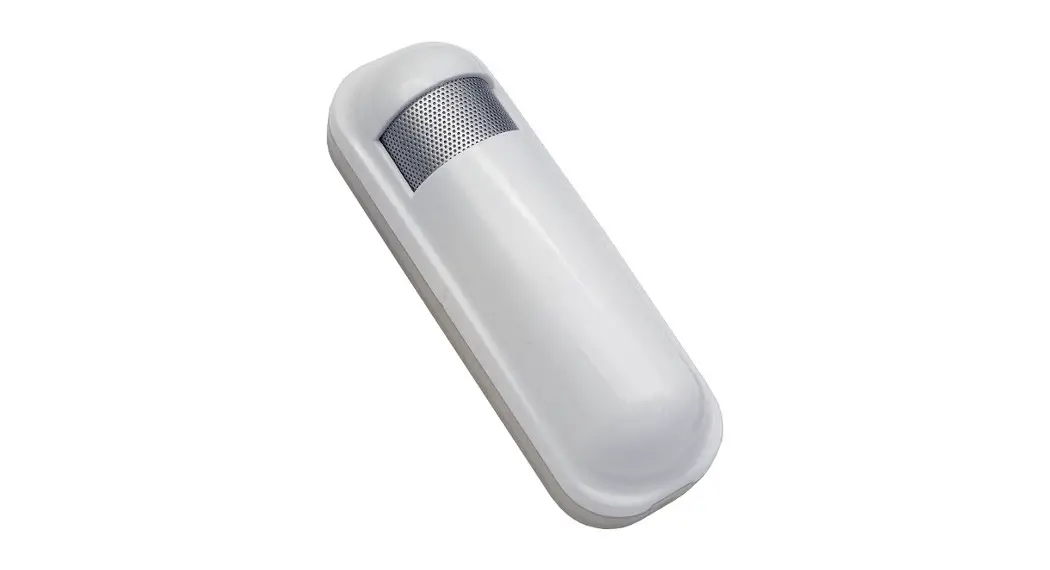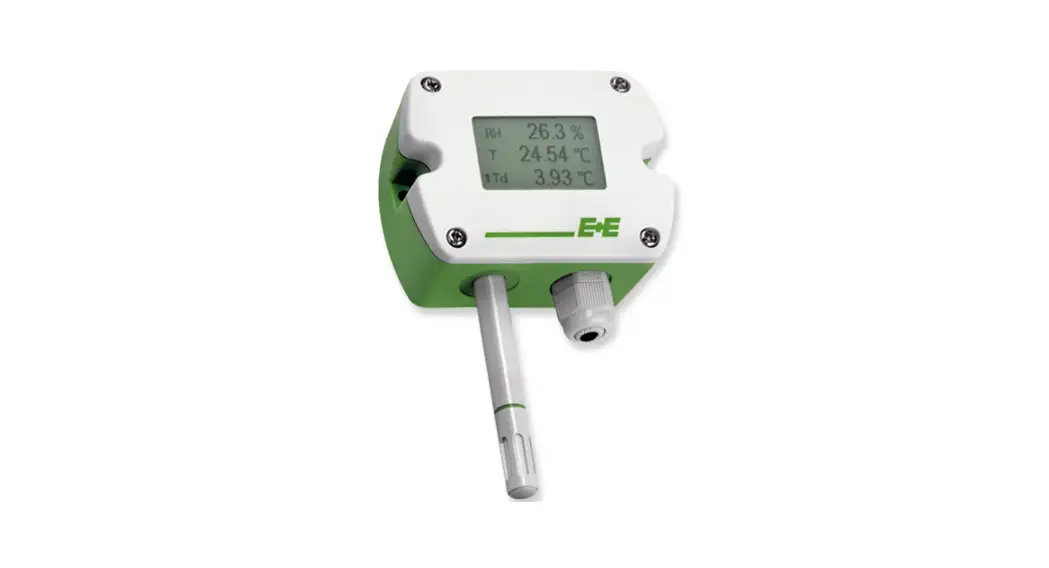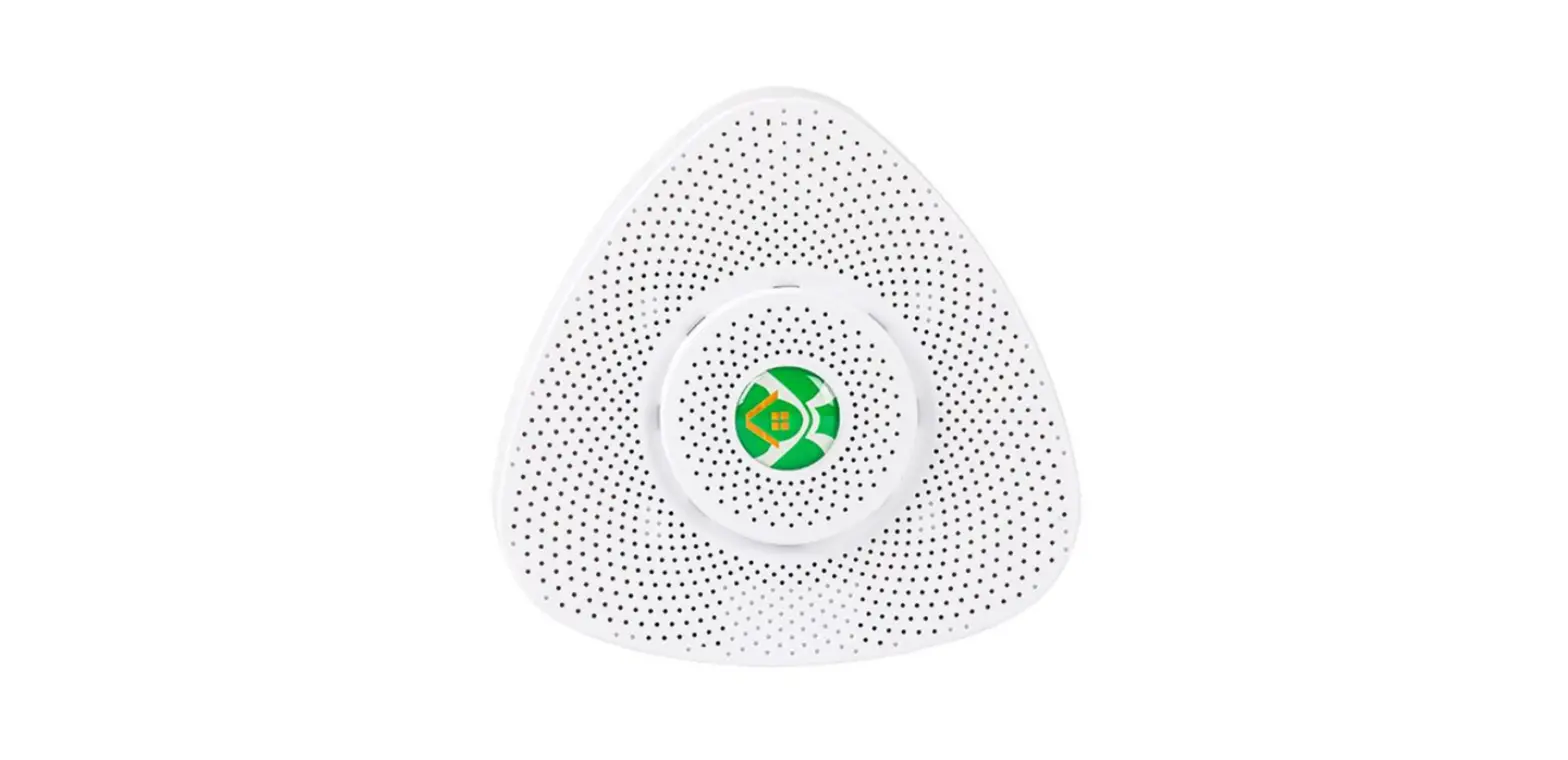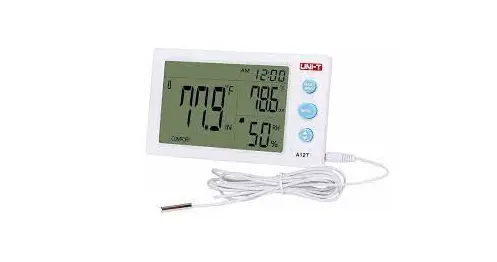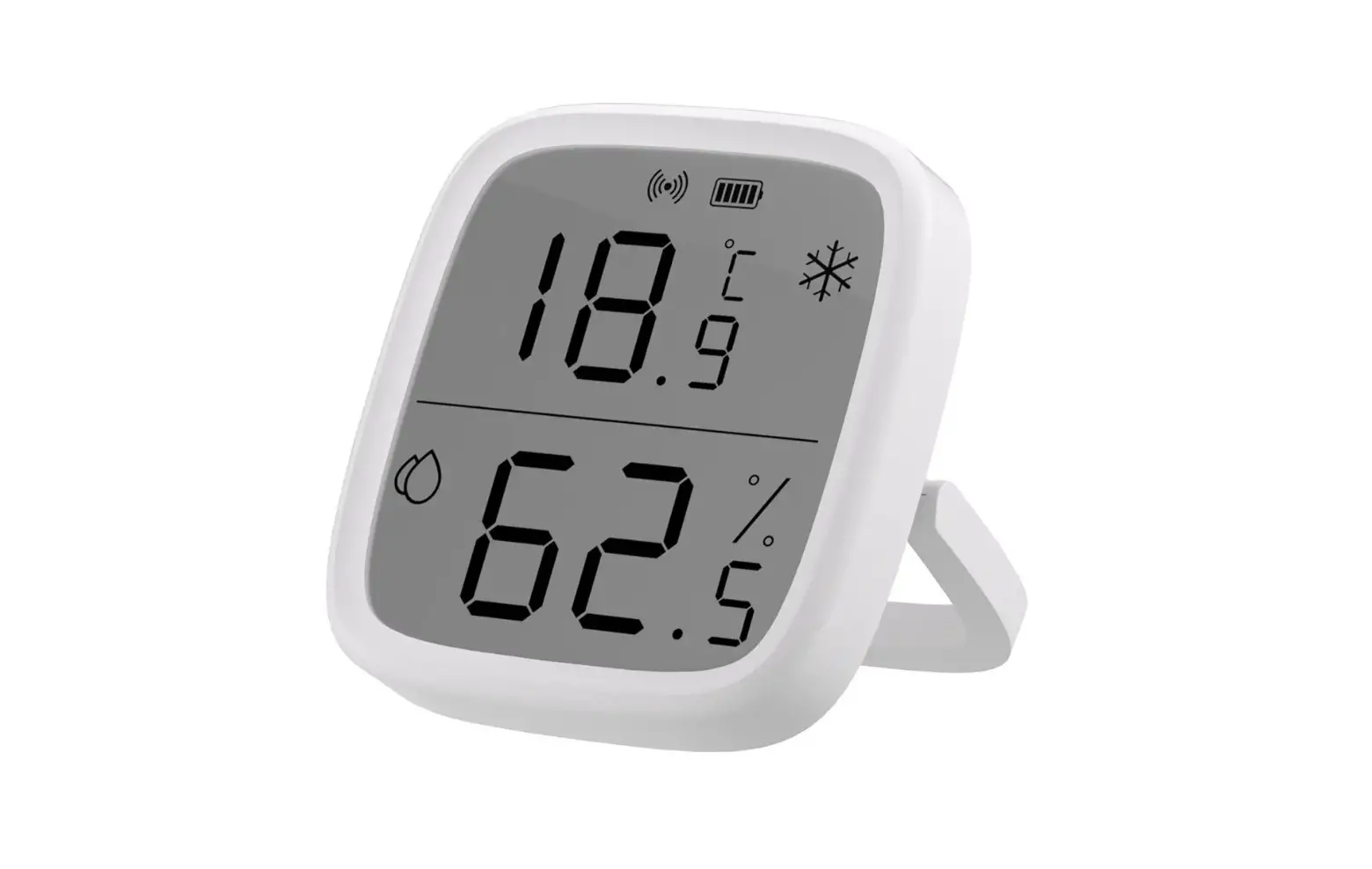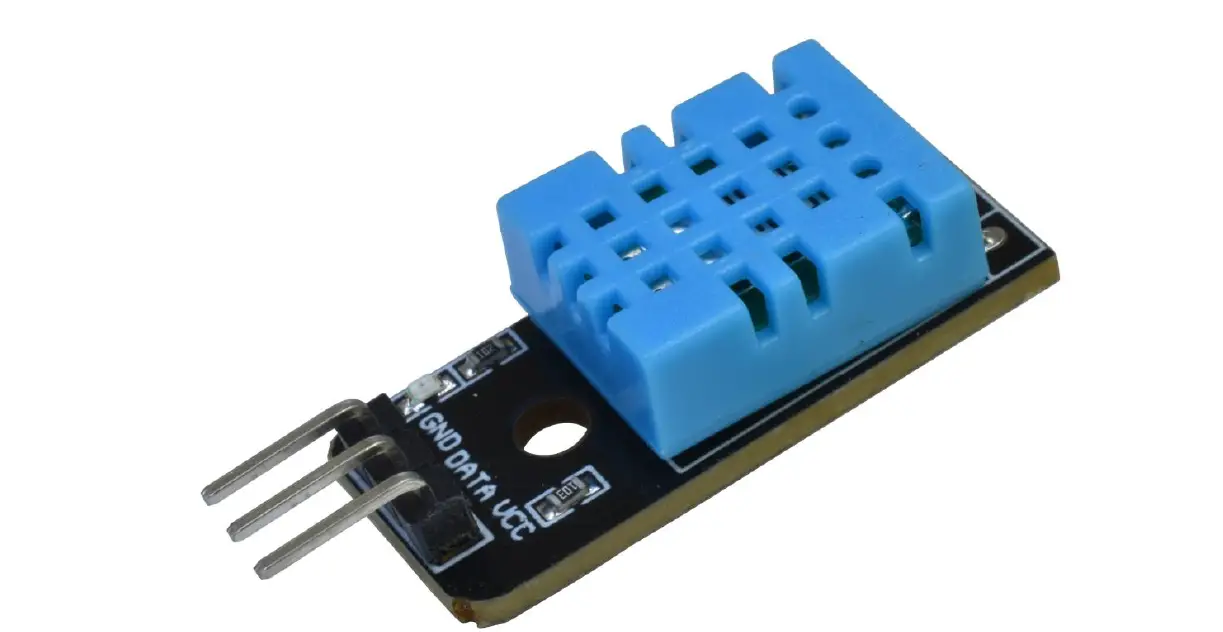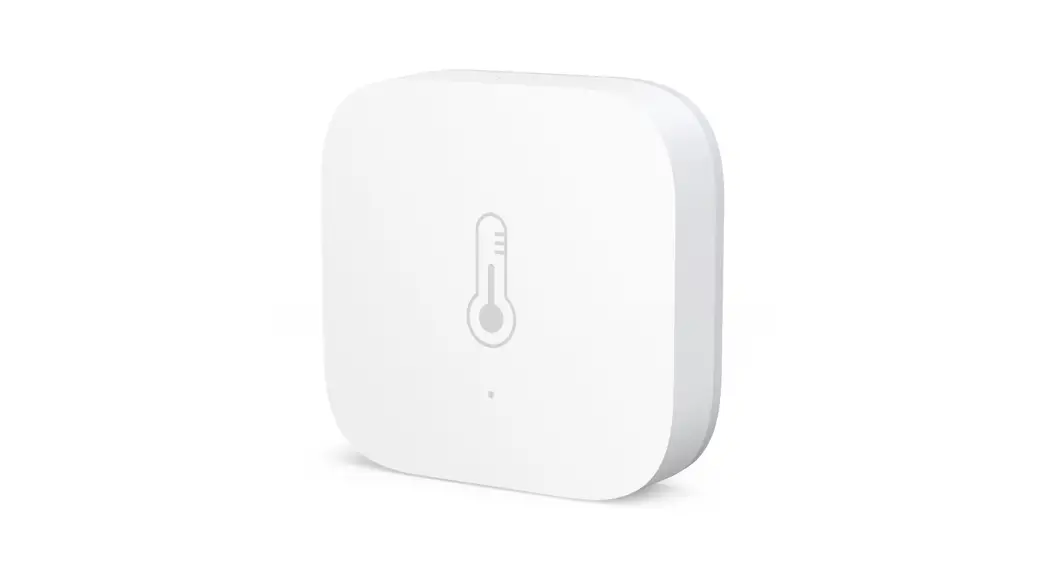

TEMPERATURE AND HUMIDITY SENSOR
USER GUIDE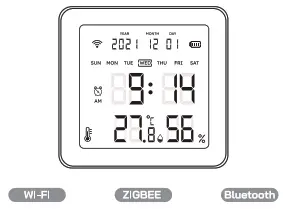
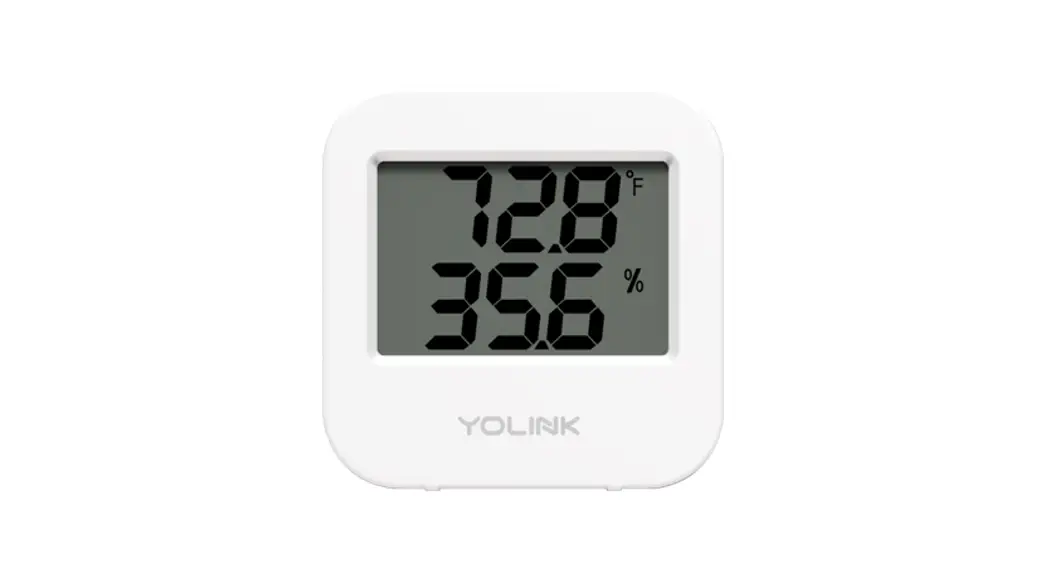
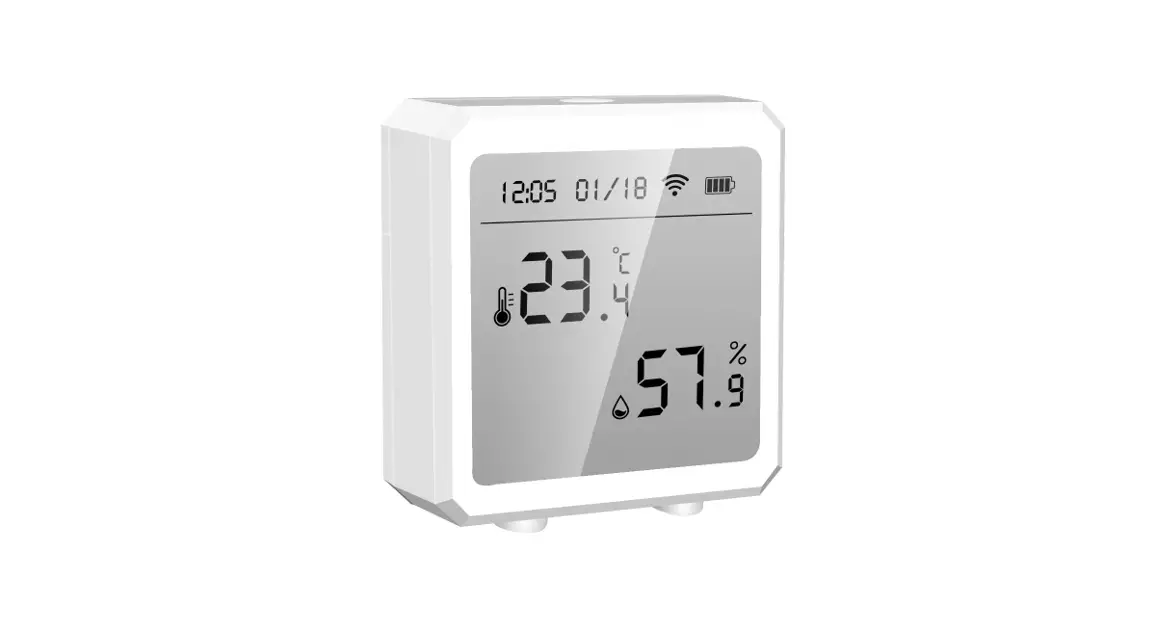
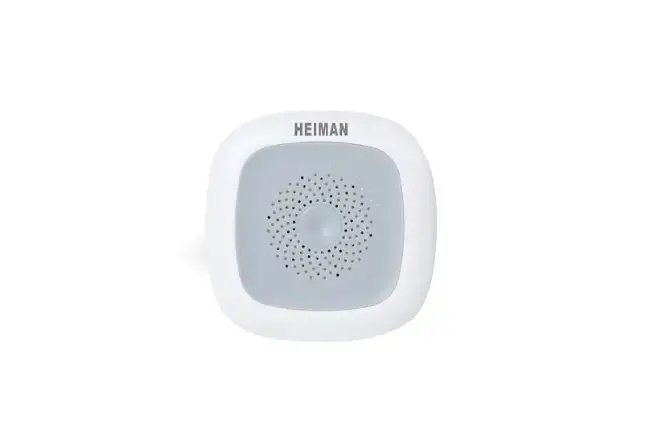
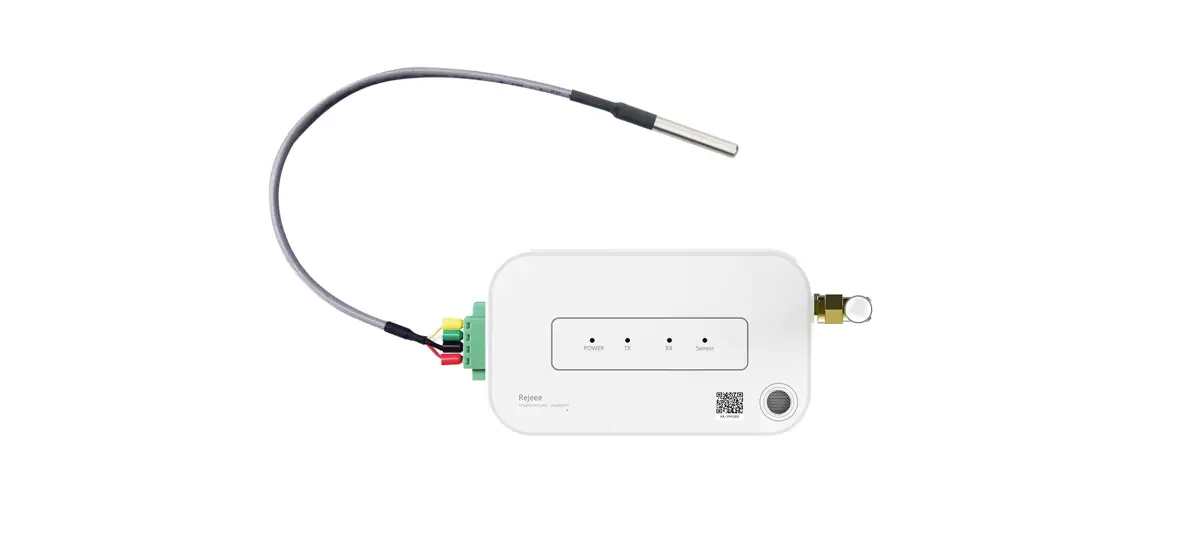
Product Configuration
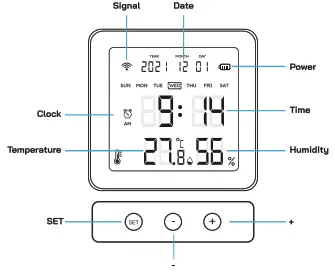
Feature & Specifications
Temperature detection;humidity detection
Battery type: AAA*3PCS
Standby current: 26uA 250uA
Wireless type: 2.4GHz WIFI /Zigbee/BLE
Working temperature: -10 C- 60 C (14°F- 140°F)
Working humidity: 0% – 100%
Temperature error: Typical error +-0.5°C
Relative humidity error: Typical error +-5%
Support protocol: WIFI / Zigbee 3.0 / BLE
Wi-Fi distance: 30-40M Size: 84mm x 80mm x 20mm
Package: 1* Temperature&Humidity
Sensor with Screen: 1* User Manual
Get Started
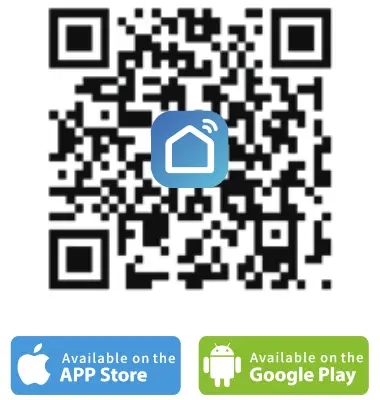
- Download APP
Download the “Smart Life” app from APP Store or Google
Play to your mobile.
http://smartapp.tuya.com/smartlife - Register and Login
A.Launch the “Smart life” app.
B To register, enter your mobile phone number or email address, create a password, then log in to the app.
C.Login if you have an account already.
Add Temperature and humidity sensor (Please check the box and make sure the wireless technology before you use, we have three types: 1 2.40 will 2 Zigbee 3 Bluetooth)
1) Add 2.4G WIFI Type/Bluetooth Type Temperature Humidity Sensor (make sure your WIFI network is 2.43, the device doesn’t support SG connect.)
Turn on the Bluetooth in your mobile phone -> open the smart life app and choose “+” press and hold the “+” button on the device for 5 seconds -‘ After hearing “beep”‘; the  icon will flash quickly and n EE will show up on-screen display. Then will see “Devices to be added:1” on the mobile app. Finally, press “Go to add”, and it will connect to the Wi-Fi network/Bluetooth automatically.
Note: Bluetooth Temperature Humidity Sensor can work directly with a smartphone, if you want to monitor the status remotely please add a Tuya Bluetooth gateway and connect our sensor.
Following the pics in App, and shown below for reference 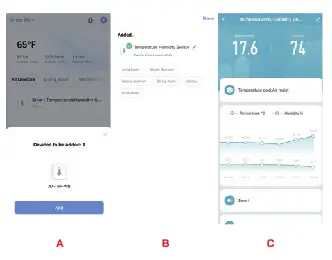
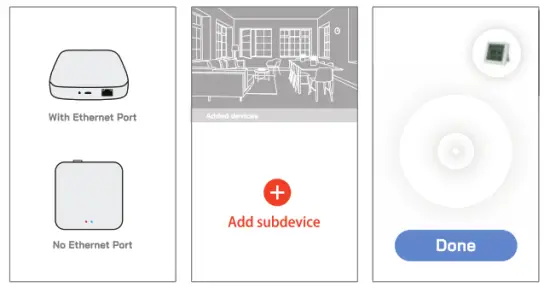
2) Add Zigbee Type Temperature Humidity Sensor
- Add Tuya ZigBee Gateway first and operate with the Gateway user manual.
- Add the ZigBee device via Zigbee Gateway. (Reset first before configuration)
- Press and hold the “+” button on the device for 5 seconds, After hearing a ” beep” sound and the icon will flash quickly and n EE will show up on-screen display, release the “+” button. The Zigbee gateway will search the sensor and add it automatically.
Advanced Features
- Various temperature modes can be adjusted, suitable for different scenarios
- Wireless transmission of data signals, mobile phone remote monitoring
- Low power consumption, long battery life
- With low-voltage monitoring and prompting function
- Send online reports to the host regularly
Other Functions
1: Date and time setting
a. Network time adjustment Manually: Press the <+>button and <-> button at the same time, you will hear a beep sound and the device will get the date and time from the network.
b. Network automatic time adjustment: When the device is connected to the gateway(WI-FI Type Sensor no need gateway) or mobile APP, the device will automatically obtain the local date and time from the network.
c. Time Setting manually: In a non-network environment, when you need to manually set the time, long-press the <Set> button to enter the date and time setting, The date and time numbers will be displayed flashing, press the <+>button the number will increase, press <->button the number will decrease, press <Set>button to switch to the next number, after all, settings are completed, long-press <Set>button will save the set date and time and exit the date and time setting mode. If no button is pressed for more than 30 seconds, the date and time setting will be automatically exited, and the date and time setting will not be saved.
2: Clock setting
Long press <->button to enter the alarm time setting, then the alarm icon 0 will flash, press <+>button or <->button to adjust the function or number, press <Set> button to switch to the next one, long press <Set>button save settings and exit the alarm time setting mode.
Note: LCD display  means the clock function is on
LCD display  means the clock function is off
3: Switch between Celsius and Fahrenheit Press the <Set>Button, it will switch between Celsius and Fahrenheit OR Set via Smart life APP(Follow the pics below )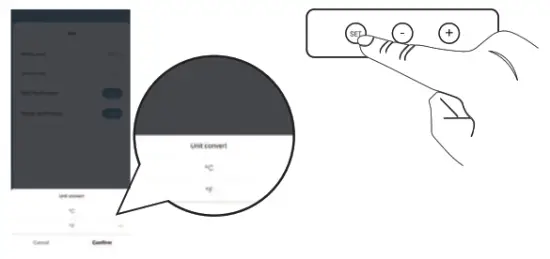
4: 24-hour and 12-hour display switching Press the <->button, it will switch between 24-hour and 12-hour display 5: Theoretical standby Time
Bluetooth Type: Data updating 30min/time, standby time 6 months at least Zigbee Type: Data updating 10min/time, standby time 6 months at least
WI-Fl Type: Standby time refer to table 1 (the default factory updating time is 30 minutes/time):
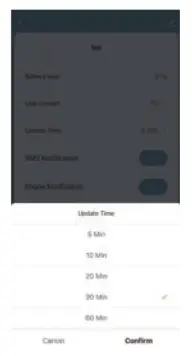
Table 1
| Update time setting | Standby time reference |
| 30mins | 75 days(2. 5 months) |
| 60mins | 150 days(5 months) |
| 120mins | 300 days(10 months) |
| 5mins | 15 days |
| 10mins | 30 days |
| 20mins | 60 days ( 2 months) |
Update time setting Standby time reference 30mins 75 days(2. 5 months) 60mins 150 days(5 months) 120mins 300 days(10 months) 5mins 15 days 10mins 30 days 20mins 60 days ( 2 months)
Work with Amazon Alexa
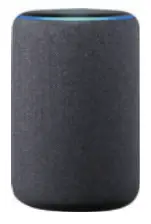
- Open Alexa App, Tap on the menu in the upper left corner and Go to skills.
- Enter “Smart Life “in the search field and search.
- Tap “Smart Life” and Enable the skill.
- Enter your account information and tap on “Log in” to link your account to your Amazon account.

Voice Command:
Alexa, what is the battery on DEVICENAME Alexa, what is the environmental Humidity on the <device name> Alexa, what is the temperature of DEVICENAME

Work with Google Home
- Launch the Google Home app, tap the menu
- Tap Home Control, Under devices, Tap the “+” icon
- Tap “Smart Life”, Enter your account information, and tap on “Log in”to link to your google account.
 Google Assistant
 Google Assistant
Voice Command:
Ok Google, what’s the <device> humidity? OK, Google, What is the DEVICENAME battery level? ok google,what’s the <device> temperature 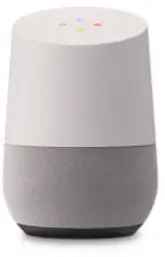 FCC Warning
This device complies with part 15 of the FCC rules. Operation is subject to the following two conditions: (1) this device may not cause harmful interference, and (2) this device must accept any interference received, including interference that may cause undesired operation.
Changes or modifications not expressly approved by the party responsible for compliance could void the user’s authority to operate the equipment.
NOTE: This equipment has been tested and found to comply with the limits for a Class B digital device, pursuant to part 15 of the FCC Rules. These limits are designed to provide reasonable protection against harmful interference in a residential installation. This equipment generates uses and can radiate radio frequency energy and, if not installed and used in accordance with the instructions, may cause harmful interference to radio communications. However, there is no guarantee that interference will not occur in a particular installation. If this equipment does cause harmful interference to radio or television reception, which can be determined by turning the equipment off and on, the user is encouraged to try to correct the interference by one or more of the following measures:
• Reorient or relocate the receiving antenna.
• Increase the separation between the equipment and receiver.
• Connect the equipment into an outlet on a circuit different from that to which the receiver is connected.
• Consult the dealer or an experienced radio/TV technician for help.
Radiation Exposure Statement
This equipment complies with FCC radiation exposure limits set forth for an uncontrolled environment. This equipment should be installed and operated with a minimum distance of 20cm between the radiator and your body.