
D-Link Network Assistant (DNA)
User Manual

Introduction
The manual is organized by the menu layout in the D-Link Network Assistant (DNA). See the Interface Overview section for more information.
Audience
This reference manual is intended for network administrators and other IT professionals responsible for managing network devices using DNA. Alternative management interfaces, such as the Web User Interface (Web UI) and Command Line Interface (CLI) may also be available for your devices but are not documented in this manual. This manual is written in a way that assumes that you already have a basic knowledge of modern networking principles.
Other Documentation
The documents below are a further source of information in regards to configuring and troubleshooting DNA. A ll documents are available from the D-Link website. Other documents related to DNA are:
• Quick Installation Guide
Conventions
| Convention | Description |
| Boldface Font | Indicates a button, a toolbar icon, menu, or menu item. For example: Open the File menu and choose Cancel. Used for emphasis. May also indicate system messages or prompts appearing on screen. For example You have mail. Bold font is also used to represent filenames, program names, and commands. For example: use the copy command. |
| Initial capital letter | Indicates a window name. Names of keys on the keyboard have initial capitals. For example Click Enter. |
| Menu Name > Menu Option | Indicates the menu structure. Device > Port > Port Properties means the Port Properties menu option under the Port menu option that is located under the Device menu. |
| Blue Courier Font | This convention is used to represent an example of a screen console display including example entries of CLI command input with the corresponding output. |
Table 1-1—Conventions
Notes, Notices, and Cautions
Below are examples of the three types of indicators used in this manual. When administering your device using the information in this document, you should pay special attention to these indicators. Each example below provides an explanatory remark regarding each type of indicator.
 | NOTE: A note indicates important information that helps you make better use of your device. |
 | NOTICE: A notice indicates either potential damage to hardware or loss of data and tells you how to avoid the problem. |
 | CAUTION: A caution indicates a potential for property damage, personal injury, or death. |
Product Introduction
The D-Link Network Assistant (DNA) is a Windows standalone application (referred to in this manual as a PC tool run in a Windows browser) that simplifies the first-time setup of D-Link business networking devices. The tool is free and available on any device that is able to be executed in a Windows web browser. It is compatible with any supported devices running the D-Link Discovery Protocol (DDP) v2 and v5, and will automatically scan the D-Link business networking devices for new or existing devices.
The DNA tool makes the first-time setup of D-Link Switches, Access Points (APs), D-Link Business Network Controllers, and D-Link Business Security Routers simple. When a D-Link Business Access Points(APs) has been detected, it is added to the inventory, so it can be managed along with the existing D-Link Business Network Device.
It enables you to set IP addresses, change usernames and passwords, and configure SNMP information so that devices can be managed with an existing Network Management System (NMS).
DNA allows you to set up new devices quickly and easily. Devices can be organized into workspaces so that they can be managed based on physical or organizational requirements. First-time setup of devices is greatly simplified, significantly reducing the time it takes to integrate a new device with the network and lowering administration and maintenance costs.
Installation
Follow these instructions to download and install the DNA tool.
1. Go to https://www.dlink.com/en/business/tools/d-link-network-assistant and click Free Download. On the next page, click Download to download the DNA installer file to your local hard drive.
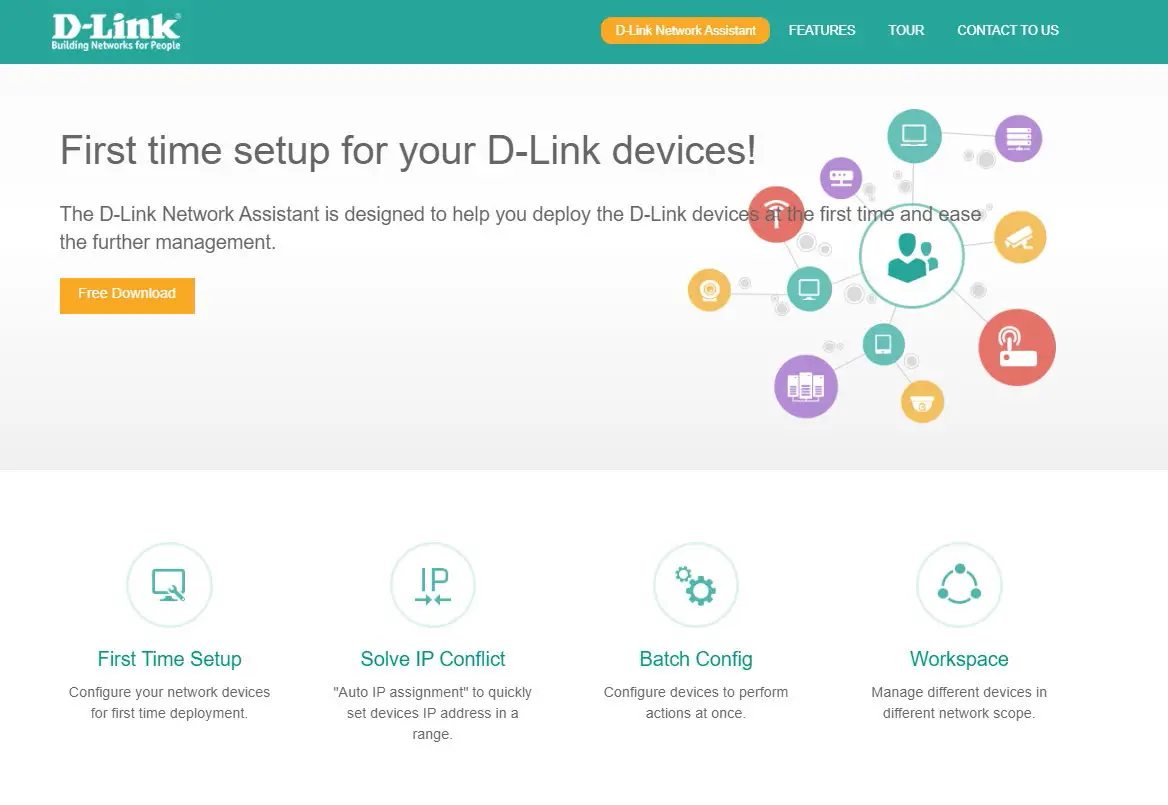 Figure 3-1—
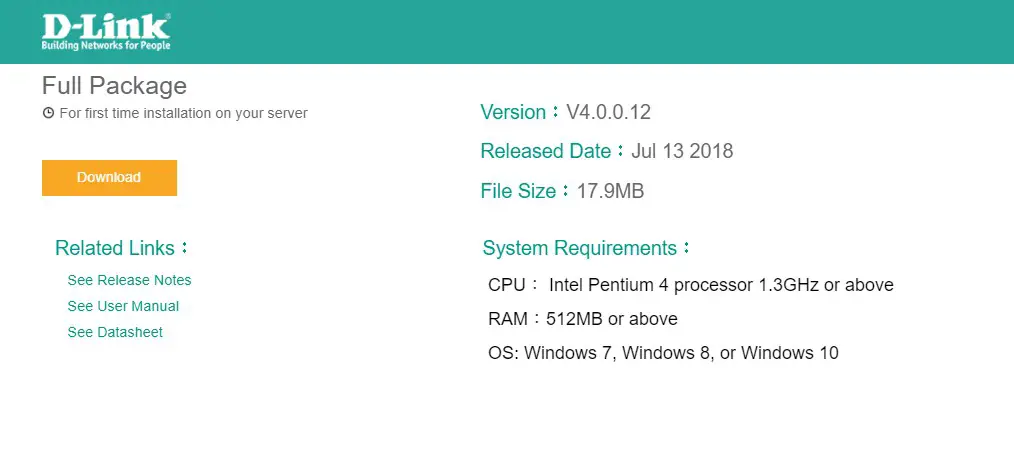
Figure 3-2—
2. Run the DNA installer file and follow the on-screen instructions to complete installation.
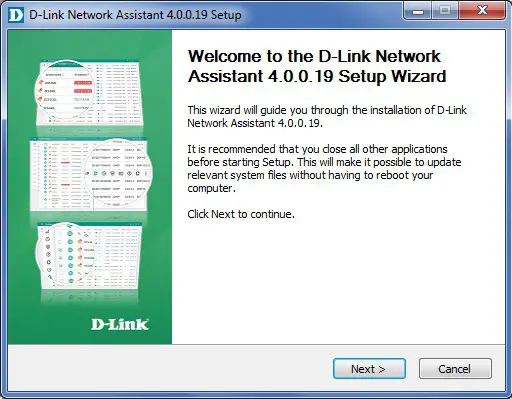
Figure 3-3—
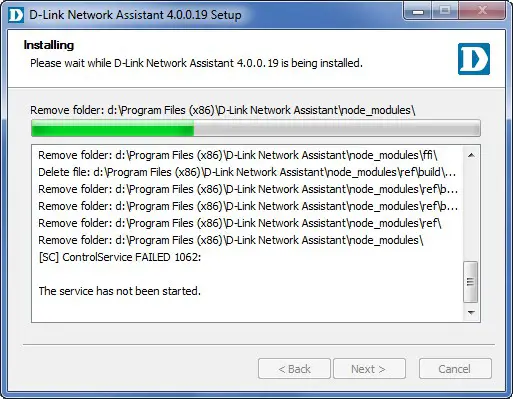
Figure 3-4—
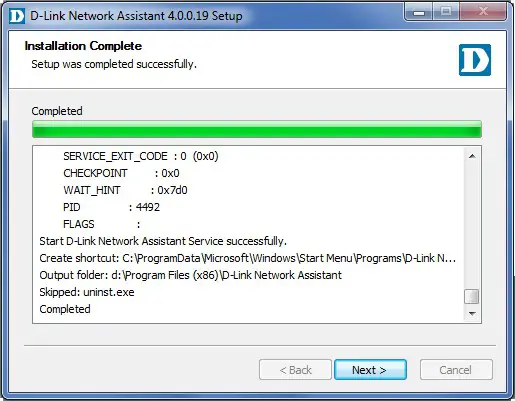
Figure 3-5—
Once installed, run the DNA application and click Launch a Browser to Manage the Network. This will launch your default web browser and open the DNA interface window. To use DNA in a different browser, enter http://localhost:[listening port] into the address bar.
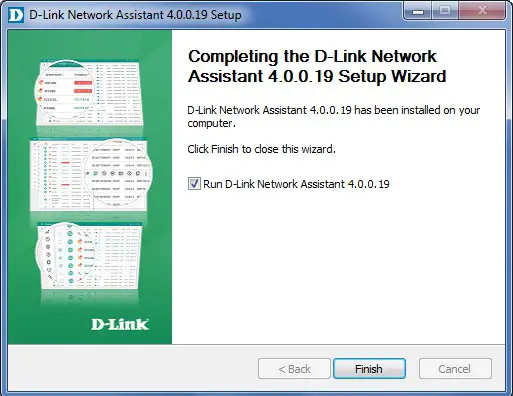
Figure 3-6—
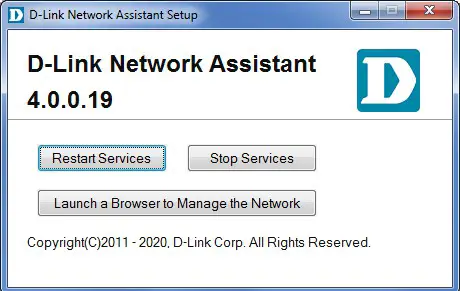
Figure 3-7—
Interface Overview
This provides an overview of the different areas of the interface.
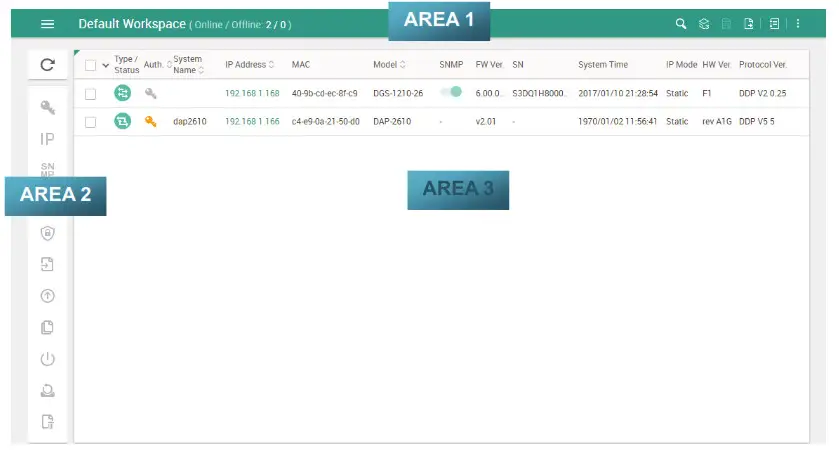
Figure 4-1—Interface Overview
| Field | Description |
| AREA 1 | This is the main toolbar located at the top of the screen. |
| AREA 2 | This is the batch settings menu which is always displayed in the workspace. |
| AREA 3 | This is the main workspace that contains device information and the device inventory. |
Table 4-1—Interface Overview
| NOTE: Ensure that there is IP connectivity to the devices that you wish to manage from your management PC or device before continuing with the instructions. |
Toolbar
This is the DNA toolbar, which contains features that are present in all workspaces.
The toolbar is always displayed in the workspace:
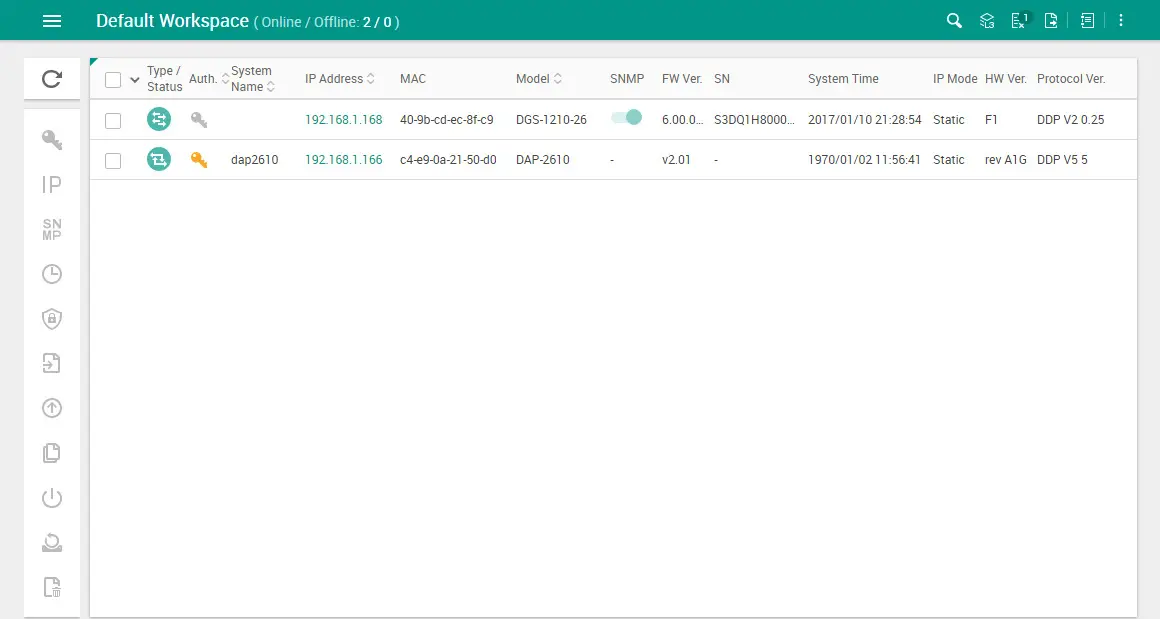
Figure 5-1—Toolbar
| Field | Description | ||
 | The workspace management menu allows workspaces to be created, deleted, and renamed, and also allows global settings to be set. | ||
 | The search feature. This is used for searching the workspace for specific device states | ||
| Field | Description | ||
| Search… | Enter device properties to search the workspace for. | ||
| Click this to begin the search. | ||
 | Click this to get a list of pre-set device states to search for. | ||
| Field | Description | ||
| IP Conflict(s) | Search for devices in the workspace with IP conflicts. | ||
| SNMP off | Search for devices in the workspace with SNMP off. | ||
| New firmware available | Search for devices in the workspace with new firmware available. | ||
| Unauthenticated | Search for unauthenticated devices in the workspace. | ||
| Field | Description | |
 | The Layer 3 discovery function | |
| Field | Description | |
| Range type | Click the drop-down menu to select IP Range or Subnet. In the IP fields, enter the starting and ending addresses to define the search pool. | |
 | Remove a defined range. | |
 | Add a defined range. | |
| Click Save to confirm the discovery range and initiate a search of Layer 3 devices within the defined pool. | ||
 | The ignore list. This is for devices that have been removed from the workspace. There must be devices present in the ignore list for this icon to be available. See the Ignore List section for more information. | |
 | The export feature. This is used to export the inventory in Comma Separated Value (CSV) format. | |
 | The feedback menu. This is used to send problem reports, questions or bugs to the software manufacturers. | |
| Field | Description | |
| Feedback type | Select the feedback type. This can be: Problem, Request, Question, Bug, Complaint, Others. | |
| Your name | Enter your name. This is a required field. | |
| Email address | Enter your email address. This is a required field. | |
| Subject | Enter the subject of your message. This is a required field. | |
| Description | Enter your message. This is a minimum of 10 words and a maximum of 2000. This is a required field. | |
| Add attachment | Click Add an attachment to the message. This can be up to 10 files, with a total combined file size of 10 MB. | |
 | The introduction screen. This is shown when you log in to DNA for the first time. | |
| Field | Description | |
 | The credential information for the workspace. This is used to manage the stored credentials. See the table below for more information: | |
| Field | Description | |
 | Clear the stored credentials for all devices in the workspace. Clicking this will display a clear credentials window, which will ask you to confirm clearing the default credentials and device credentials. Click Yes, clear them to clear the credentials and Cancel to return to the previous page. | |
 | Set the default credentials to be used with all workspaces. Clicking this will display a default workspace credentials window, which will allow you to set default workspace credentials, or specify not to set any credentials. Tick the Don’t set box not to use any credentials, or enter in default device credentials in the Username and Password boxes. Click Save to save the changes and Cancel to return to the previous page. | |
Table 5-1—Toolbar
Workspace Management
This is a sub-menu that is displayed when the menu button is pressed in the top left-hand corner of the DNA interface.
It can be viewed by pressing the menu button in the top left-hand corner of the interface:
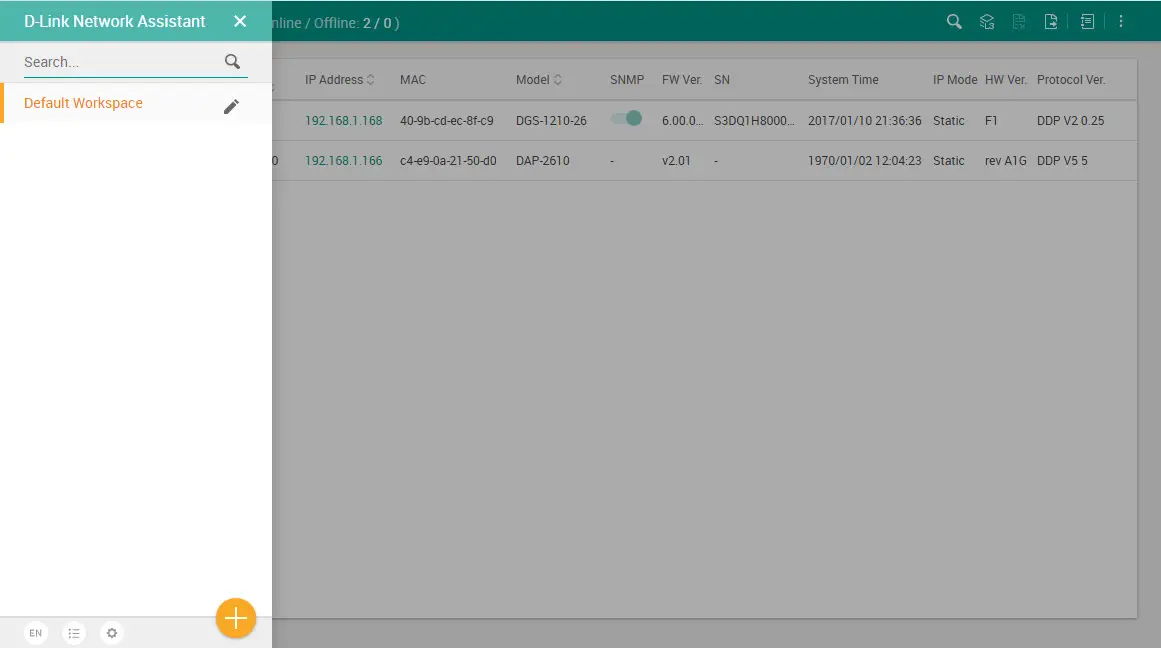 Figure 5-2—Workspace Management
The following fields are available:
| Field | Description |
 | This is used to search for workspaces. The results are shown in the area below. |
| Field | Description | |||
 | The search feature. This is used for searching the workspace for specific device states. | |||
| Field | Enter device properties to search the workspace for. | |||
| Search… | This area shows the search results and workspaces available when no search has been entered. | |||
| Field | Rename the workspace by clicking this button. This is only displayed when hovering over the button with the mouse. This will open a Rename the Workspace window which can be used to rename the workspace. Click Rename this Workspace to rename the workspace or Cancel to return to the previous page. | |||
 | Delete the workspace by clicking this button. This is only displayed when hovering over the button with the mouse. This will open a Delete Workspace window which can be used to delete the workspace. Select the workspace and click Yes, delete this Workspace to delete the workspace, or Cancel to return to the previous page. | |||
 | | NOTE: This icon is only displayed | ||
| EN | This is used to change the language of DNA. Currently supported languages are EN | |||
| Field | Description | |
 | This is the list of devices that DNA supports. Clicking this will open the Supported Devices window. The device model. minimum hardware version and minimum firmware version are di played. Devices are also grouped into categories such as Smart Switches and Security Service Routers (DSRs). | |
 | These are the global settings for DNA. | |
| Field | Description | |
| Country | Choose the country that DNA is being used in. This is used to determine the firmware which is available. This is a required field. | |
| Backup file path | Enter the backup path for device backups using the DNA backup function. This is a required field. | |
| Auto- discover devices when launching DNA | Enable this to automatically scan for devices when launching DNA. The default is enabled. | |
| Clear credentials of all workspaces when closing DNA | Enable this to clear all stored credentials when exiting DNA. The default is disabled | |
| Click Save to save the settings or Cancel to return to the previous page. | ||
| This is used to create a new workspace. Click this button to display a Create a new Workspace window. Enter a Name for the workspace and click Create Workspace to create the workspace or Cancel to return to the previous page. The maximum number of characters that can be entered is 32. | |
Table 5-1—Workspace Management
Ignore List
This is the list of devices that have been removed from the inventory list in the workspace. They are still present in DNA but will not be re-added to the workspace when the network is scanned for devices and are not managed through the workspace.
Use the ignore list icon in the toolbar to access the ignore list:
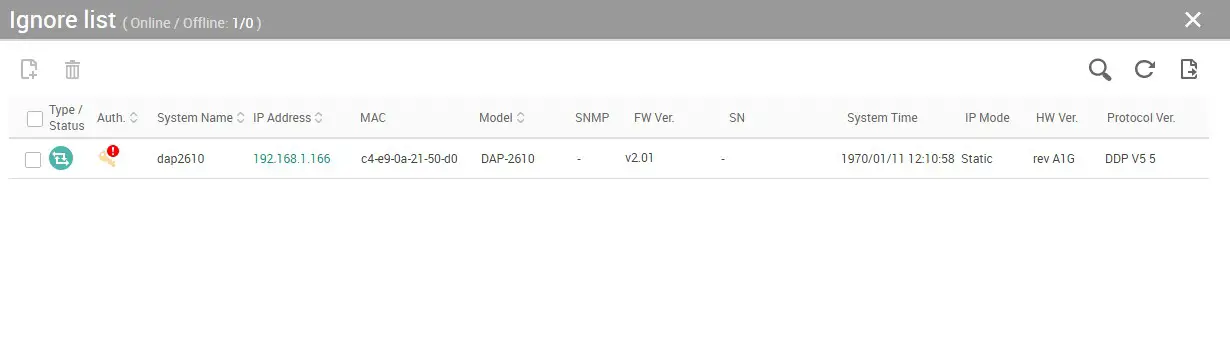 Figure 5-3—Ignore List
The following fields are available:
Field | Description Click to return to the previous menu. | ||
 | Select a device in the list and click this to return the device to the inventory list or workspace. | ||
| Select a device in the list and click this to remove the device from the ignore list. This wit cause the device to reappear in each workspace when the network is scanned for devices. | ||
| Enter device properties Field Search… | to search the ignore list for here. Description Enter device properties to search the workspace for. | |
| Press this to begin the search. | ||
∨ | Press this to get a list of pre-set device states to search for. | ||
| Field IP Conflict(s) | Description Search for devices in the workspace with IP conflicts. | ||
| SNMP off | Search for devices in the workspace with SNMP off. | ||
| New firmware available | Search for devices in the workspace with new firmware available. | ||
| Unauthenticated | Search for unauthenticated devices in the workspace. | ||
 | Press this to refresh the ignore list. | ||
 | Press this to export the ignore list in Comma Separated Value (CSV) format. | ||
| Select | Select either an individual device by ticking the check box next to the device, or choose all devices by clicking the check box at the top of the column. | ||
| Type/Status | This is the device type and status. An icon will be displayed for the device type (Smart Switches. DSRs etc.) and the color of the icon wil change. depending on device availability. | ||
| Auth. | This indicates whether or not the device can be authenticated. If the device can be authenticated. the icon wit be amber. If the device cannot be authenticated, the icon color will be gray. A warning will appear if the device is using the default device username and password. | ||
| System Name | This is the hostname set on the device. | ||
| IP Address | This is the management IP address of the device. | ||
| MAC | This is the MAC address of the device. | ||
| Modelo | This is the model number the device. | ||
| SNMP | This shows whether Simple Network Management Protocol (SNMP) is enabled on the device. This cannot be changed from the ignore list. | ||
| FW Ver. | This is the firmware version the device. | ||
| SN | This is the serial number of the device. | ||
| System Time | This is the system time on the device. | ||
| IP Mode | This is the IP mode of the device. If the switch is set to acquire an address automatically. this wil be set to DHCP. If it has a Static IP address. this will be set to Static. | ||
| HW Ver. | This is the hardware version of the device. | ||
| Protocol Ver. | This shows the D-Link Discovery Protocol (DDP) version of the device. | ||
Table 5-1—Ignore List
Batch Settings
These can be used to simultaneously apply settings to multiple devices.NOTE: This menu is only available when two or more devices have been selected in the workspace.
The batch settings are always displayed in the workspace:
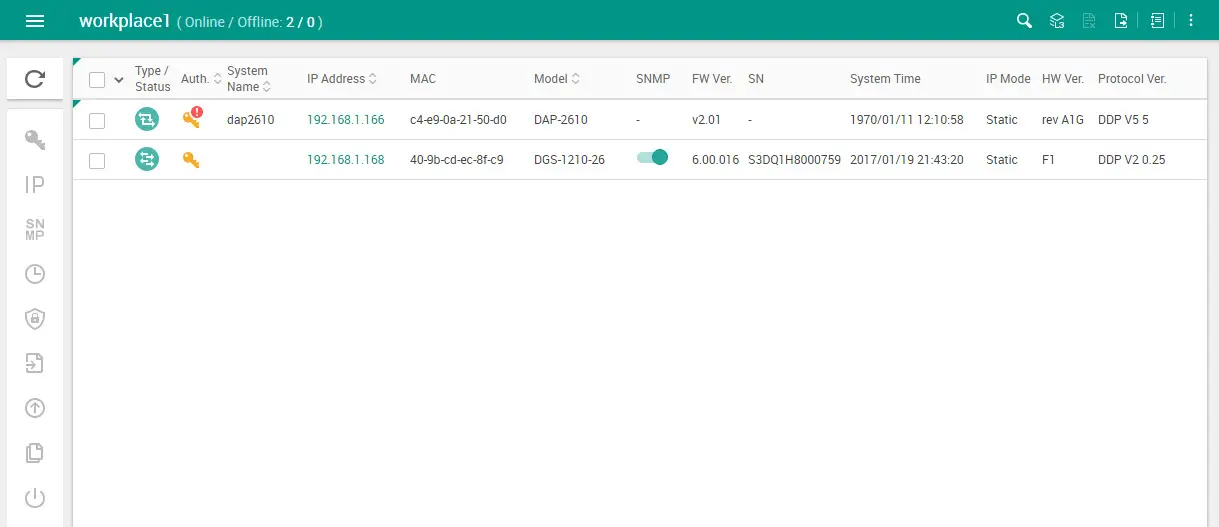
Figure 6-1—Batch Settings
| Field 0 | Description Re-scan the network for devices and refresh the inventory list in the workspace. | |||||
| Enter shared authentication information. This only appears if all devices cannot be authenticated with DNA. Field Description | ||||||
| Username Enter the username to authenticate the selected devices. | ||||||
| Password Enter the password to authenticate the selected devices. | ||||||
| Click Save to save the settings or Cancel to return to the previous page. | ||||||
| (P | Configure set ings for automatic IP assignment, such as enabling DHCP mode and automatically assigning static IPs for selected devices. | |||||
| Field Enable DHCP mode | Description Enable DHCP for the selected devices. | |||||
| Auto assign static IPs | Assign static IPs automatically to the selected devices. | |||||
| Field Start from IP | Description Enter the start IP to use for the range. | |||||
| Subnet mask | Enter the subnet mask to use for the automatically assigned IPs. | |||||
| Default gateway | Enter the default gateway for the selected devices. | |||||
| Click Apply to apply the settings or Cancel to return to the previous page. | ||||||
| Click Apply to apply the settings or Cancel to return to the previous page. | ||||||
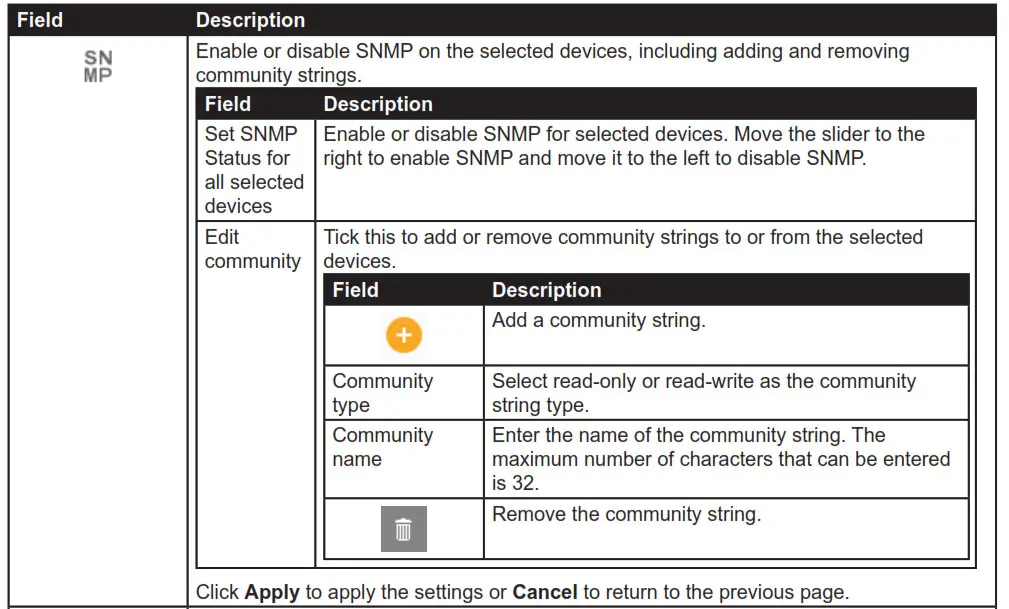
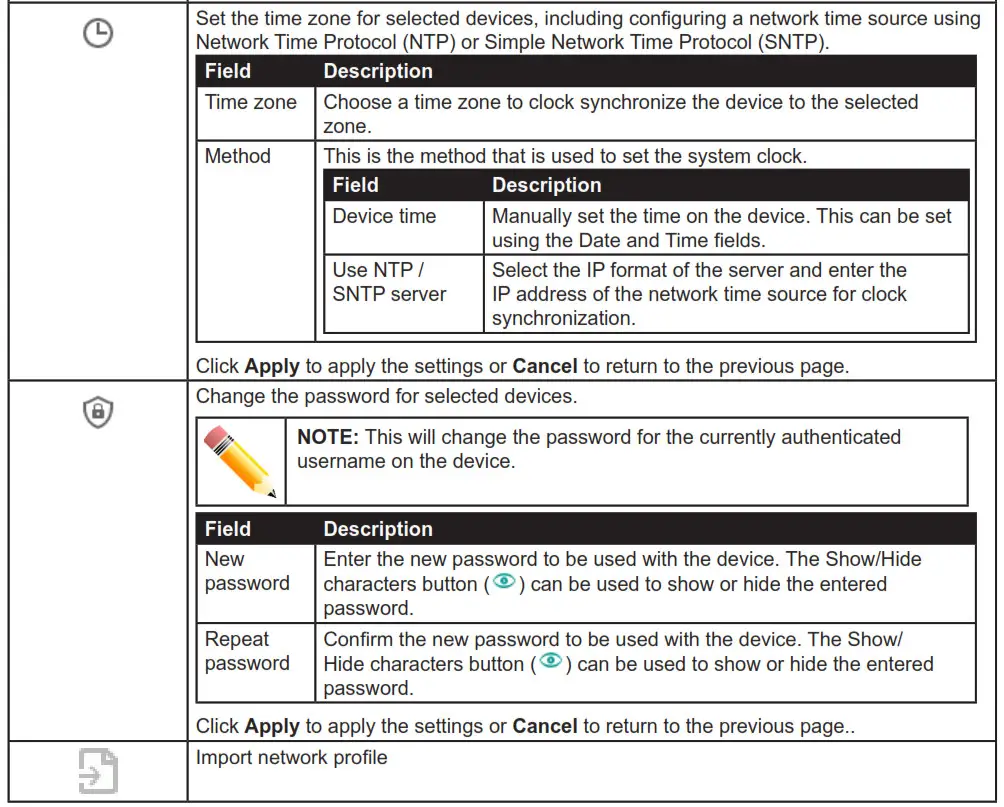
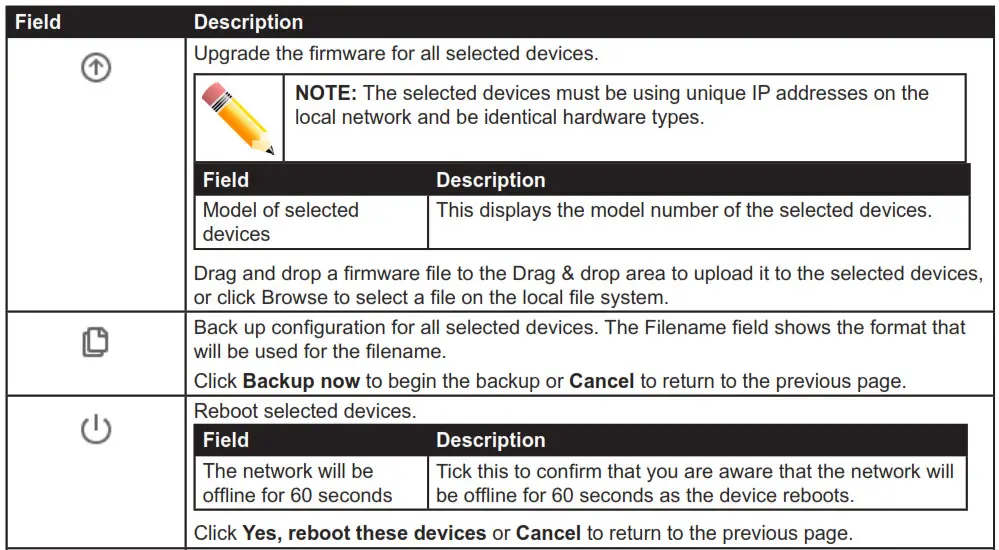
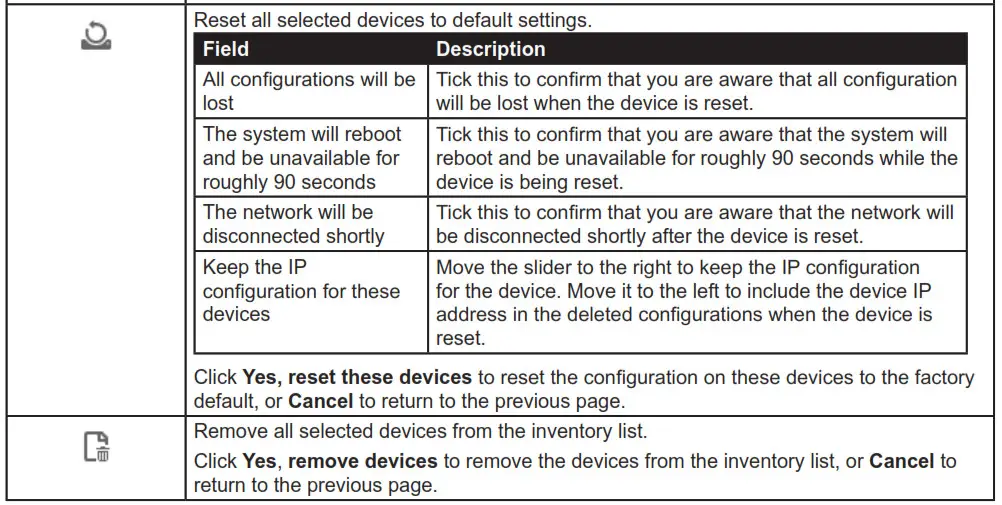
Table 6-1—Batch Settings
NOTE: The authentication information in DNA needs to be correct in order to apply batch settings to a device. If DNA cannot authenticate with a device, then it will not be possible to batch manage devices.
Inventory List
This is the main window of the DNA interface, where a list of devices is displayed. From here you can manage your network devices and view the general overview of all devices in the workspace.
The inventory list is displayed after a workspace is selected:
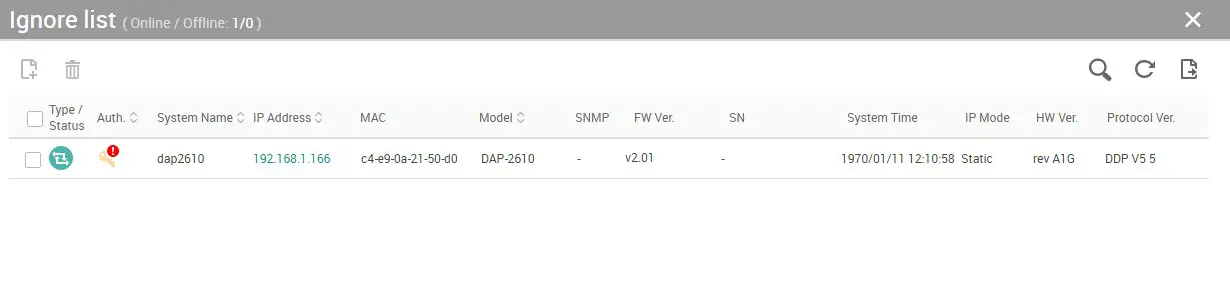
Figure 7-1—Inventory List Window
The following fields are available:
| Field | Description |
| Select | device, or select all devices by ticking the check box at the top of the column. |
| Type/Status | This is the device type and status. An icon will be displayed for the device type (Smart Switches, DSRs etc.) and the color of the icon will change, depending on device availability. |
| Auth. | This shows whether or not the device can be authenticated. If the device can be authenticated, the icon will be amber. If the device cannot be authenticated, the icon color will be gray. A warning will appear if the device is using the default device username and password. |
| System Name | This is the hostname set on the device. |
| IP Address | This is the management IP address of the device. |
| MAC | This is the MAC address of the device. |
| Model | This is the model number the device. |
| SNMP | This shows whether SNMP is enabled on the device. Move the slider to the right to enable SNMP and move it to the left to disable SNMP. |
| FW Ver. | This is the firmware version the device. |
| SN | This is the serial number of the device. |
| System Time | This is the system time on the device. |
| IP Mode | This shows the IP mode of the device. If the switch is set to acquire an address automatically, this will be set to DHCP. If it has a Static IP address, this will be set to Static. |
| HW Ver. | This is the hardware version of the device. |
| Protocol Ver. | This shows the D-Link Discovery Protocol (DDP) version of the device. |
Table 7-1—Inventory List
Device Settings
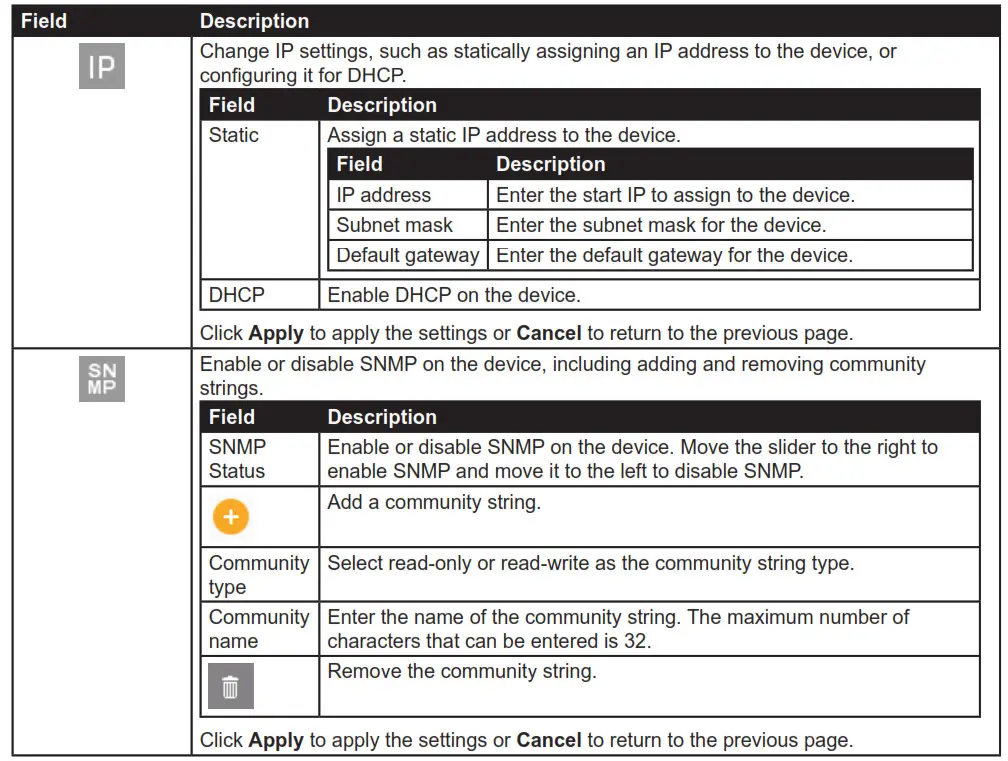
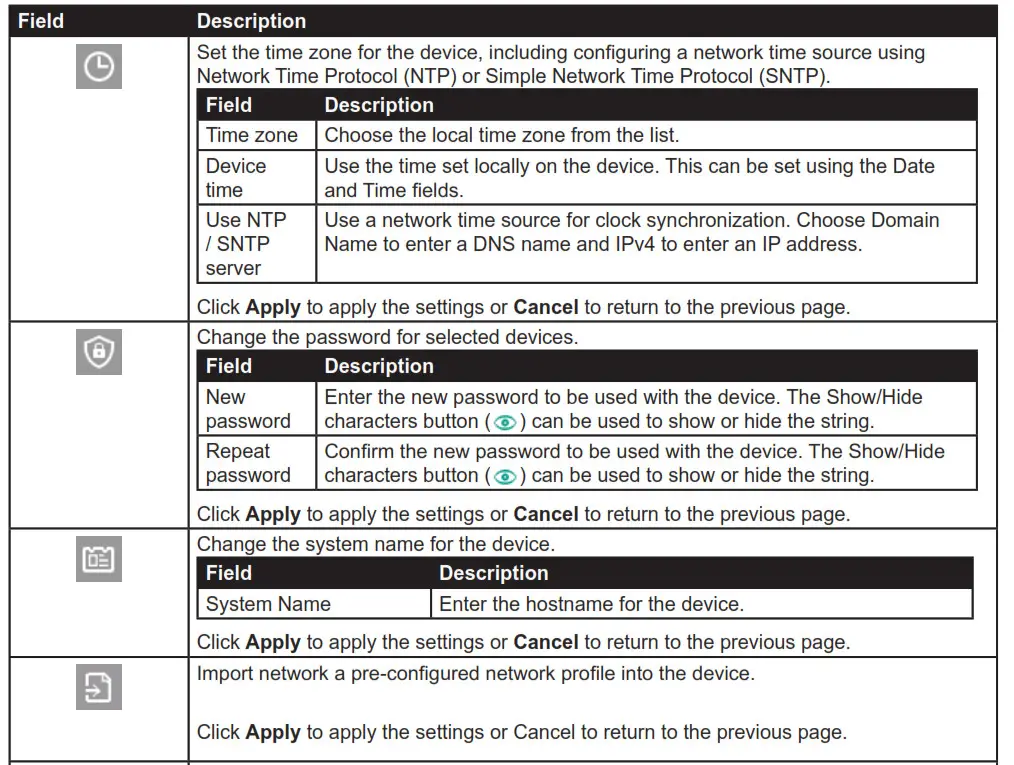
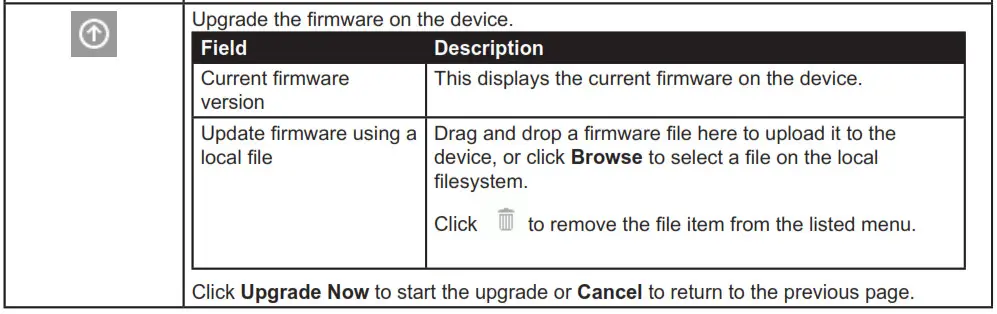
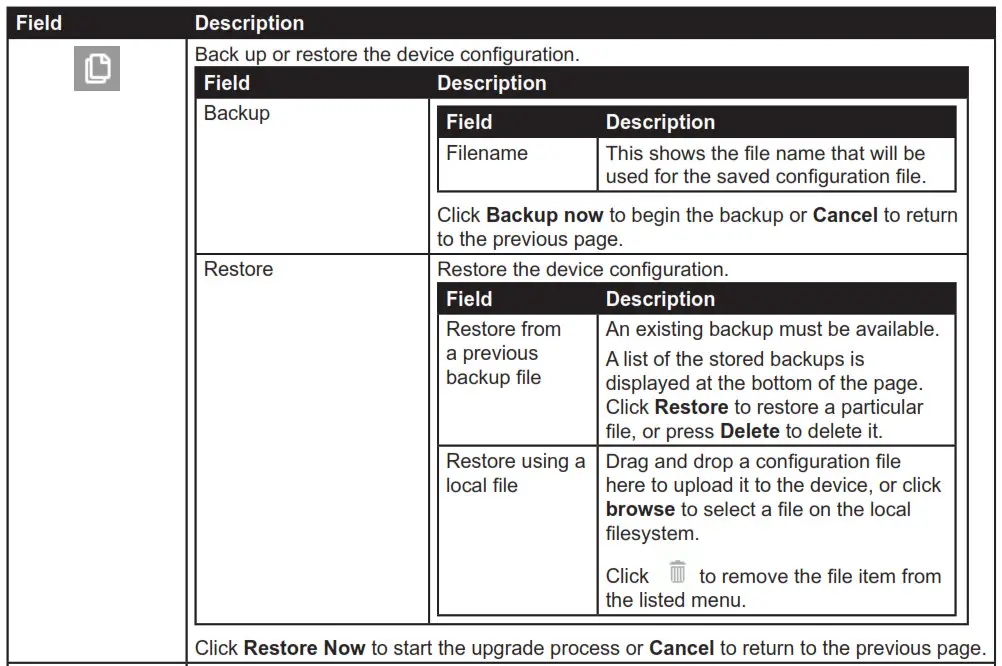
These are the settings that apply to individual devices, and are the same settings that appear in the batch settings menu.
They can be viewed by hovering over the individual device entry in the workspace:
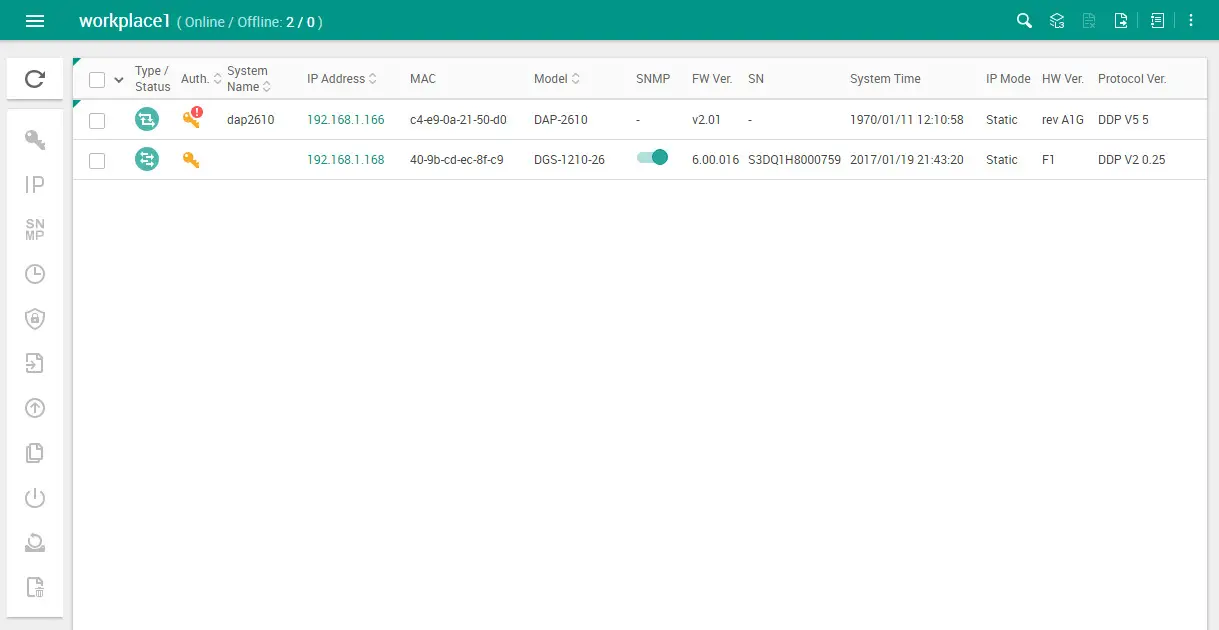
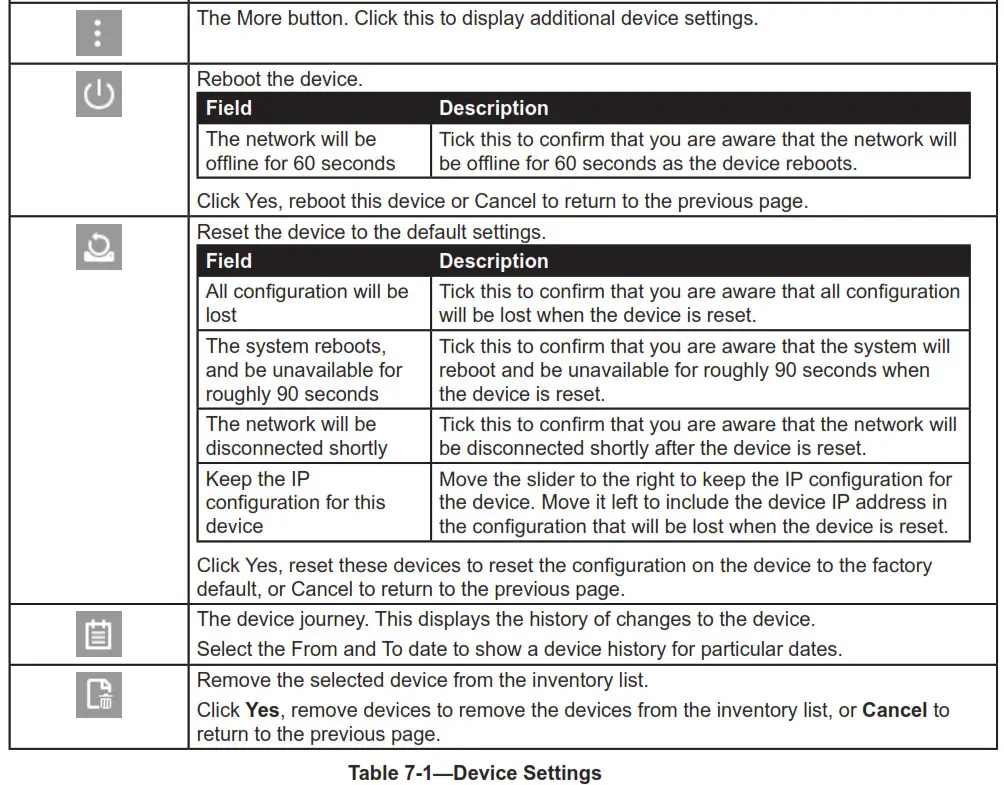
Figure 7-2—Device Settings
The following fields are available:
Inventory List
DNA App
The DNA, D-Link Network Assistant app makes the initial setup and ongoing management of your D-Link business networking devices as easy as it should be.
Key Features
• DNA Guides you through initial setup and deployment of new D-Link devices
• DNA Intuitive interface that makes individual device set up easy to understand
• DNA Simultaneously configure multiple D-Link Network devices for greater productivity
• DNA organize D-Link devices into categories with Workspaces for an overall tidier overview of your network
• DNA Support for all your D-Link devices, including access points, routers, switches and WLAN controllers
Download & Install
Get the free DNA app on the App Store or on Google Play. Search for D-Link Network Assistant, then download and install onto your mobile device.
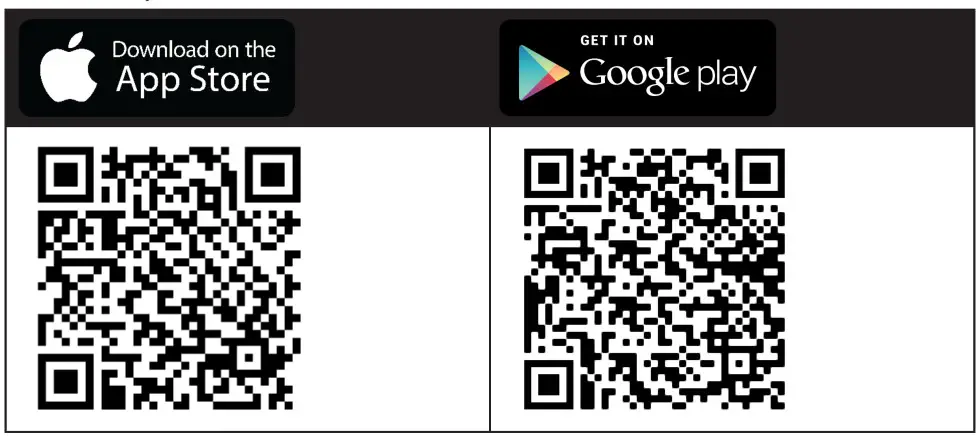
App Store: https://apps.apple.com/app/d-link-network-assistant/id1492675358
Google Play: https://play.google.com/store/apps/details?id=com.dlink.dlinknetworkassistant
Device List
View and manage a list of devices in your DNA inventory. If this is your first time using DNA, your device will scan for compatible devices in your network.
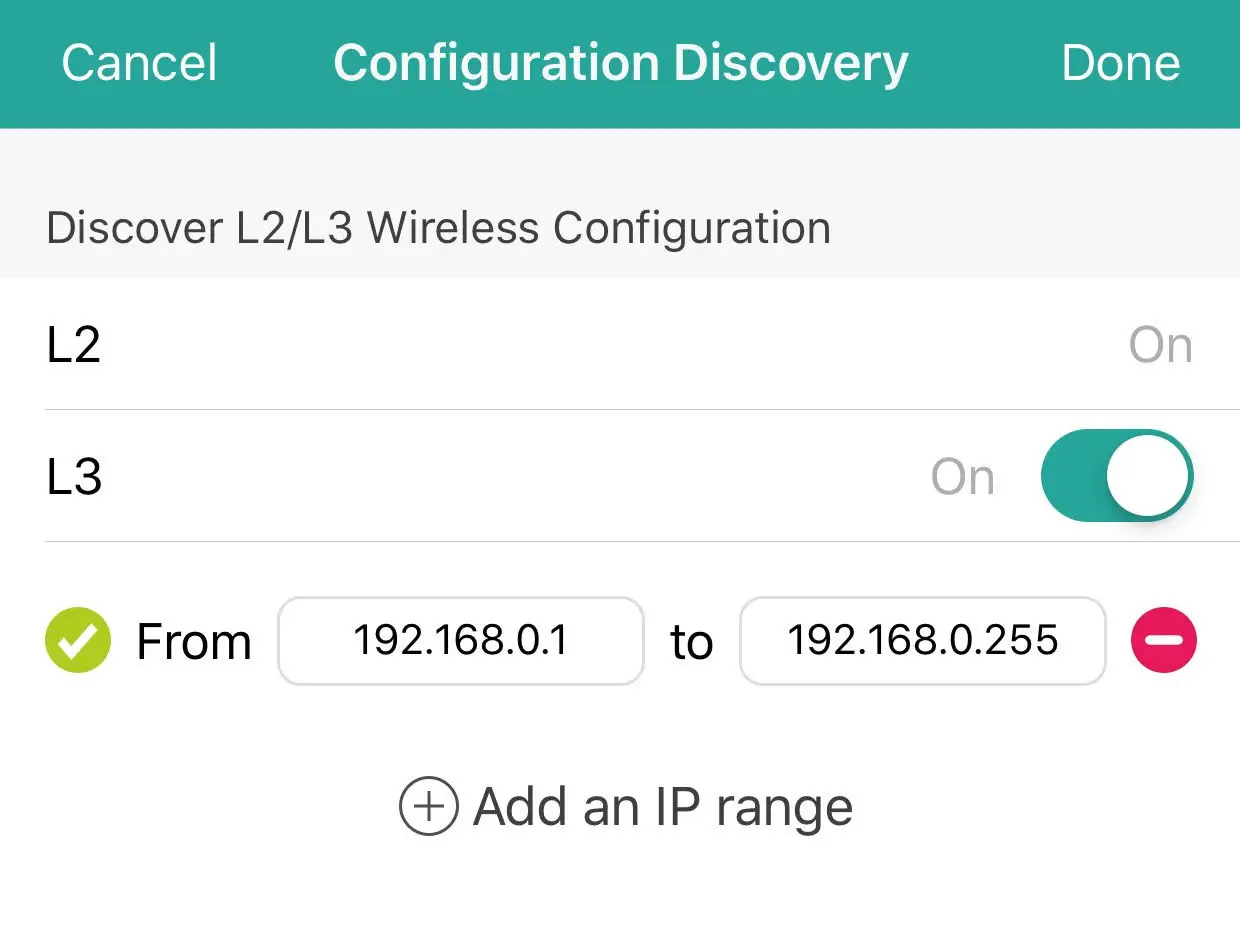
You can change the settings by clicking the settings button in the top right. From there you can change the search settings to include L3 wireless configurations. Enter an IP range for the L3 configuration.
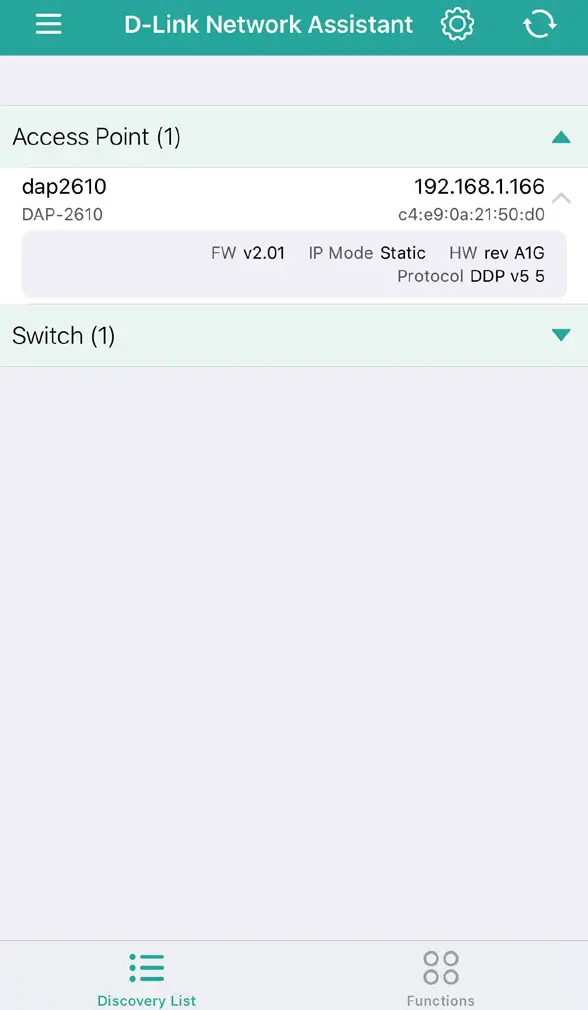
NOTE: Be sure your mobile device is connected to the same Wi-Fi network as your devices are.
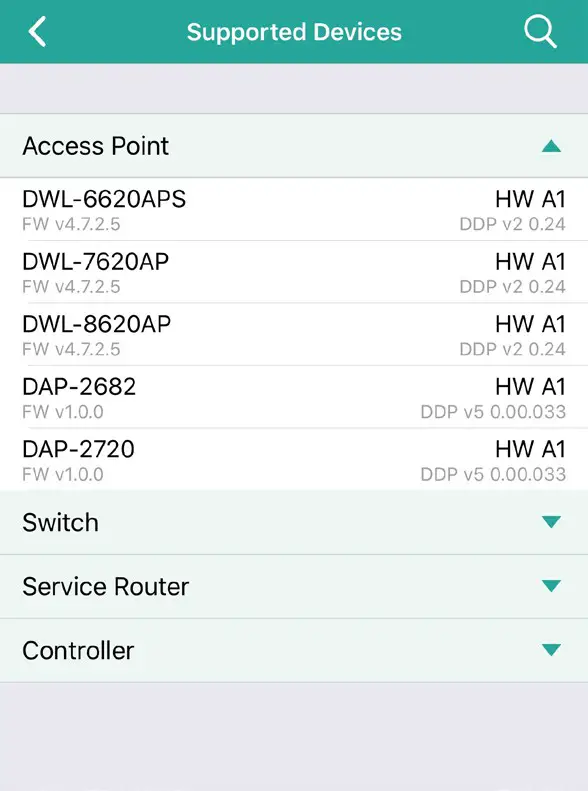
Supported Devices
From the Supported Devices menu, view a full list of supported Access Points and Switches. Service Routers and Controllers that are compatible and can be managed with D-Link Network Assistant.
Tap the different drop-down menus to see a full list of devices along with their required hardware version and minimum firmware. Alternatively, search for a specific model using the search function in the top right of your screen.
 D-Link Network Assistant | D-Link