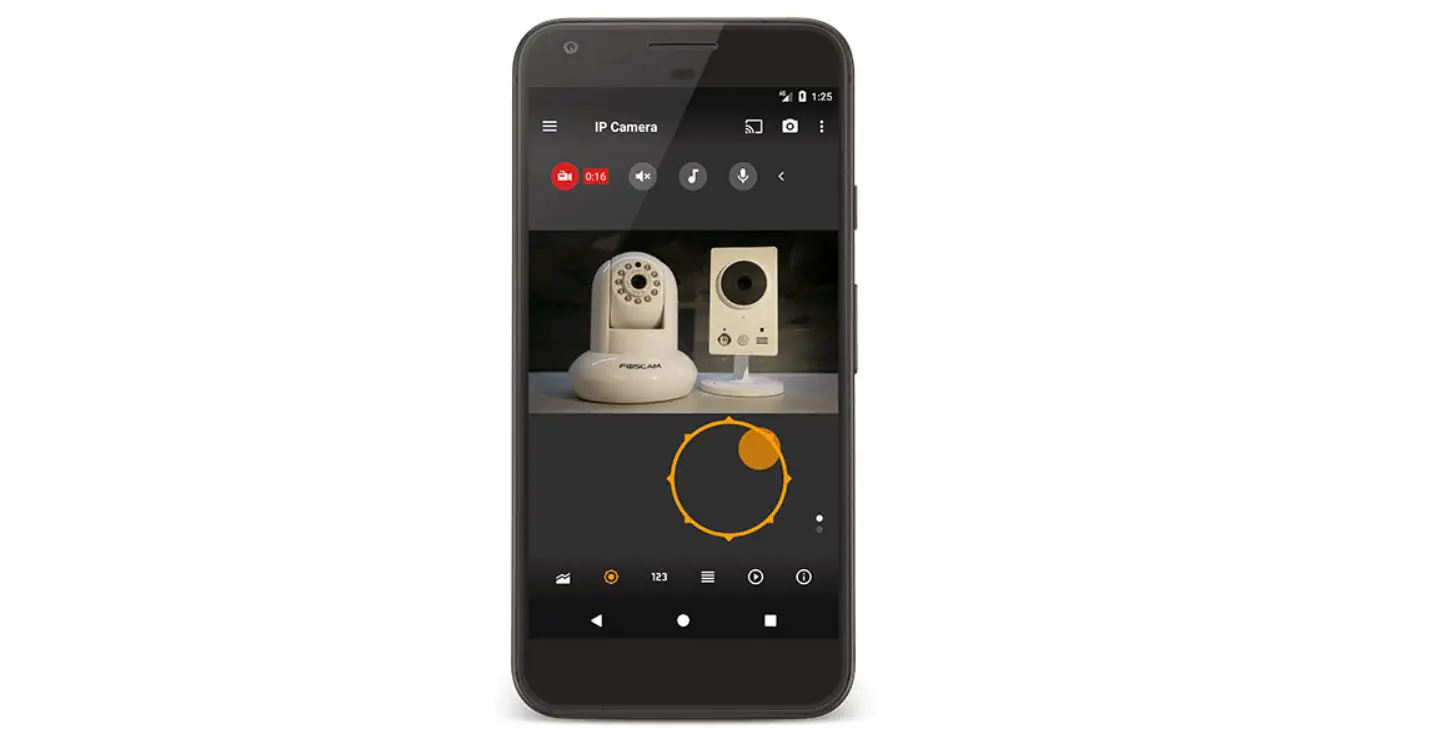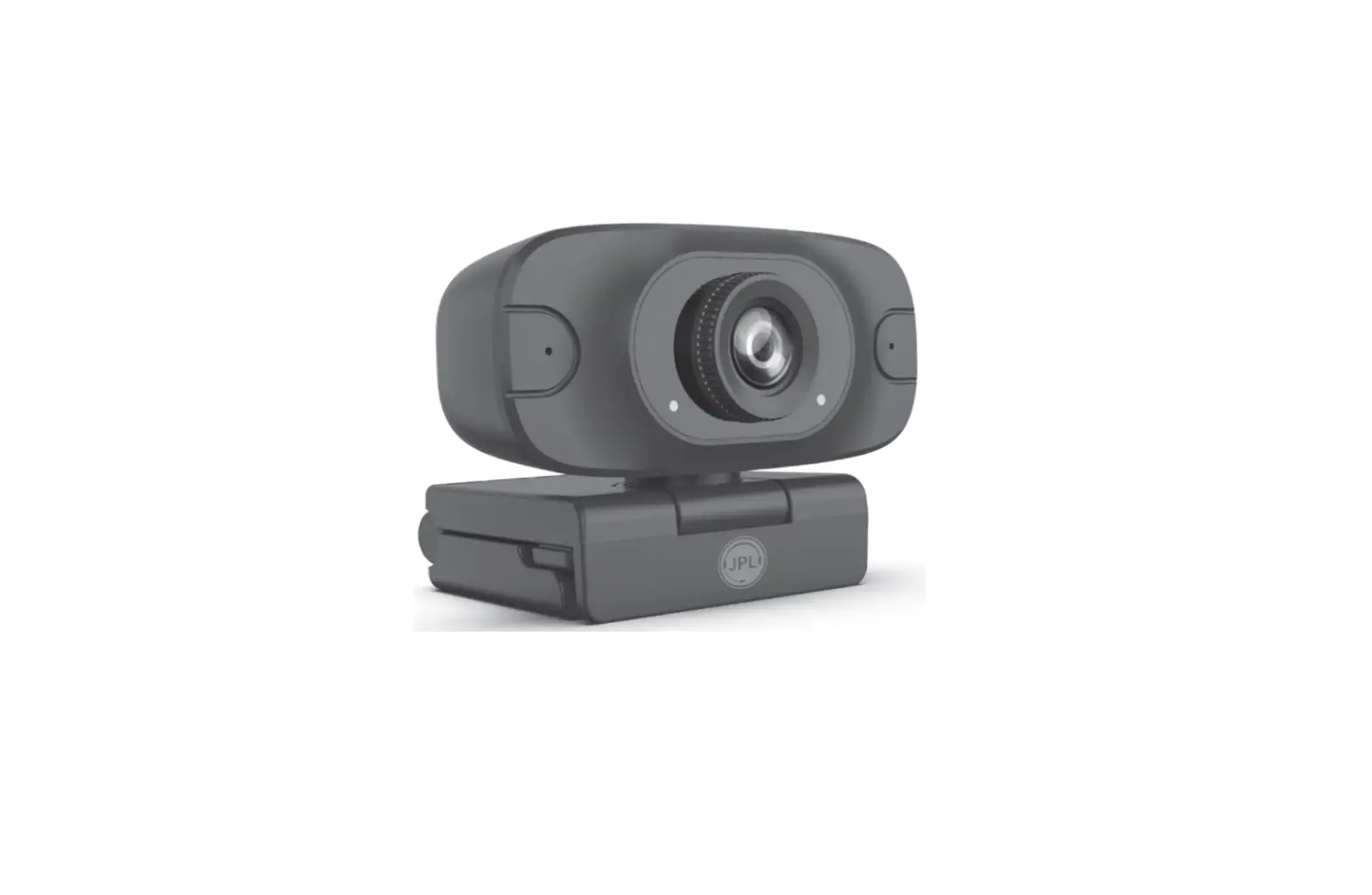

MiniGadgets HDLiveCam App
Quick Start Guide – Android Devices
- Download the “HD Live Cam” app. Scan the QR code to the left, or visit www.minigadgets.com/hdlcdroid on your android device.
- Before proceeding, open the app, make an account, and log in
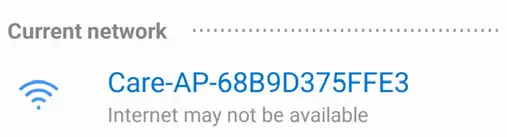
- After creating an account and logging into the app: Power on your device, then connect to the device’s Wi-Fi signal on your phone. Go to your phone’s Settings > Connections > Wi-Fi and select the CARE-
AP signal to join (the below is an example of that signal)
- Once connected, open the HD Live Cam app. It will automatically detect that you are connected and ask: “The hotspot of the camera is currently connected. Whether to watch the camera through a direct
connection.” Choose `OK”. If this does not happen, please go to your phones Settings > Connections > Wi-Fi > Advanced and turn off `Switch to mobile data’, and then try again. - Select the bottom button that reads `Set up camera Wi-Fi’
- Select the Wi-Fi network to pair the device to and input the password for the chosen Wi-Fi network. Then press `Connect’.
- Confirm the wi-fi network and password you chose with `OK’.
- A progress bar will appear and say `One moment please’. Once it reaches 100% the app will ask you to name the Camera (ex: living room, kitchen, den, etc.)
- Your camera is now added to your router and available for remote viewing. Tap on the picture displayed to enter the livestream.
- If your network is still not listed, move closer to the router.
- If the camera fails to connect, please retry and try moving the device closer to the router it is being paired to.
 Scan for instructional videos
 hdlcdroid