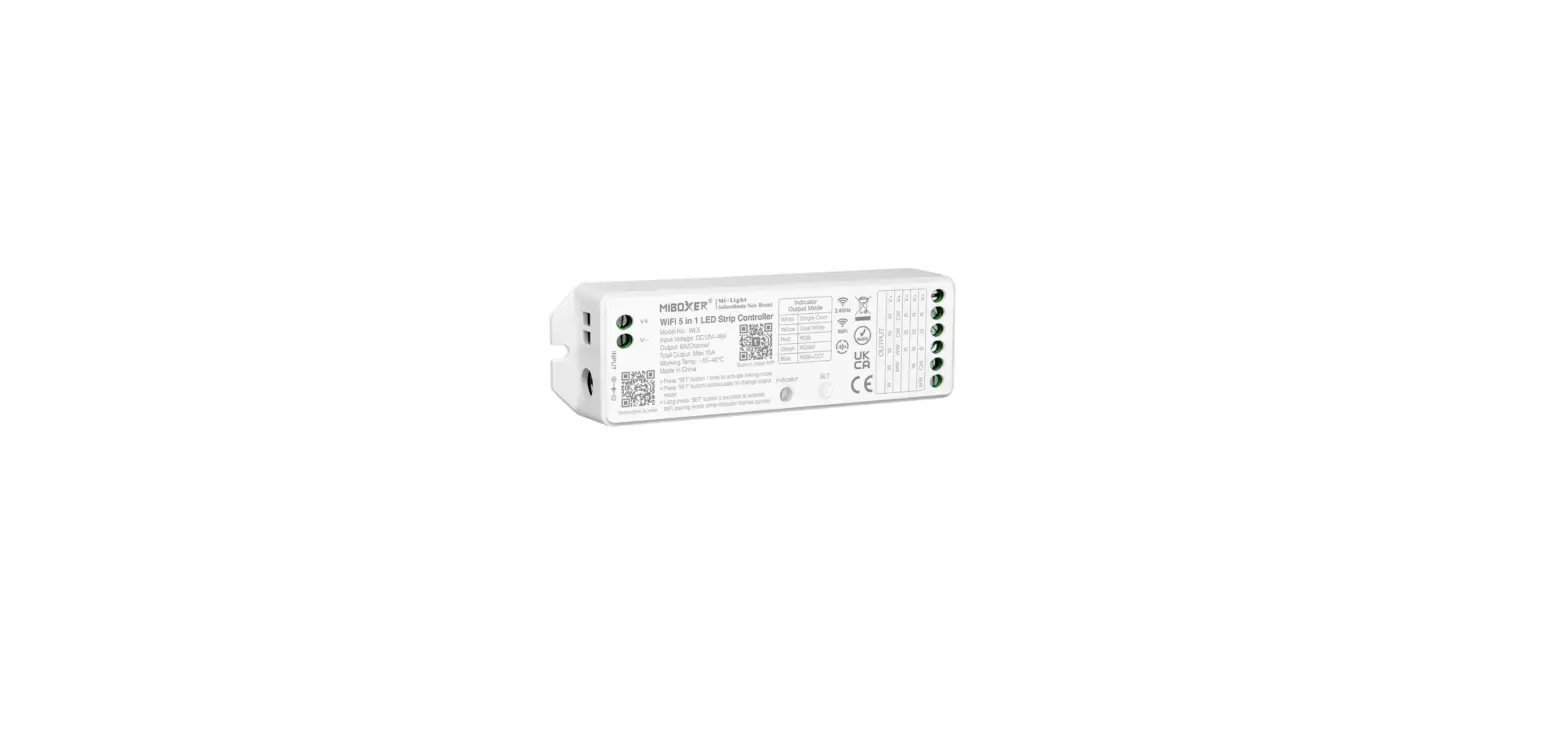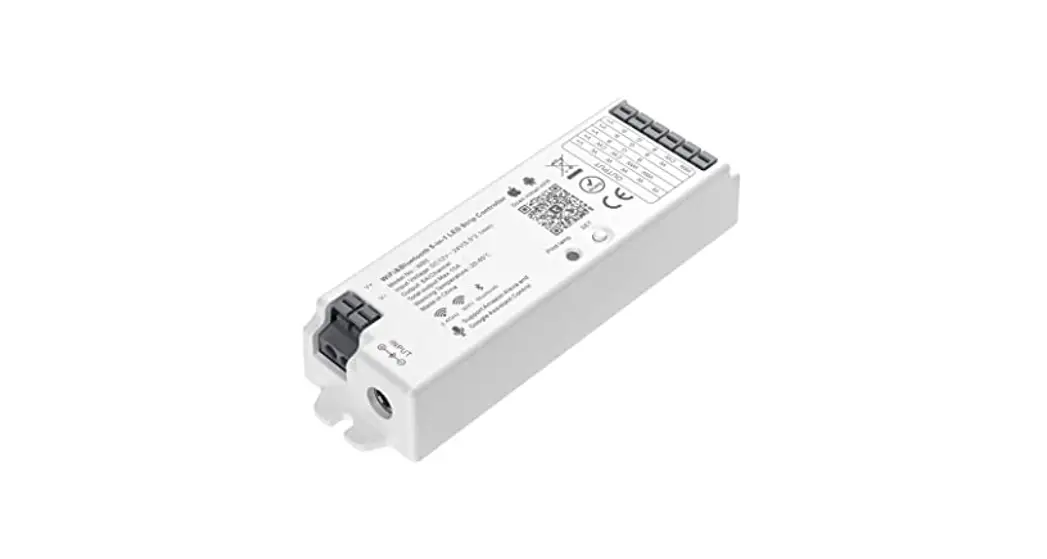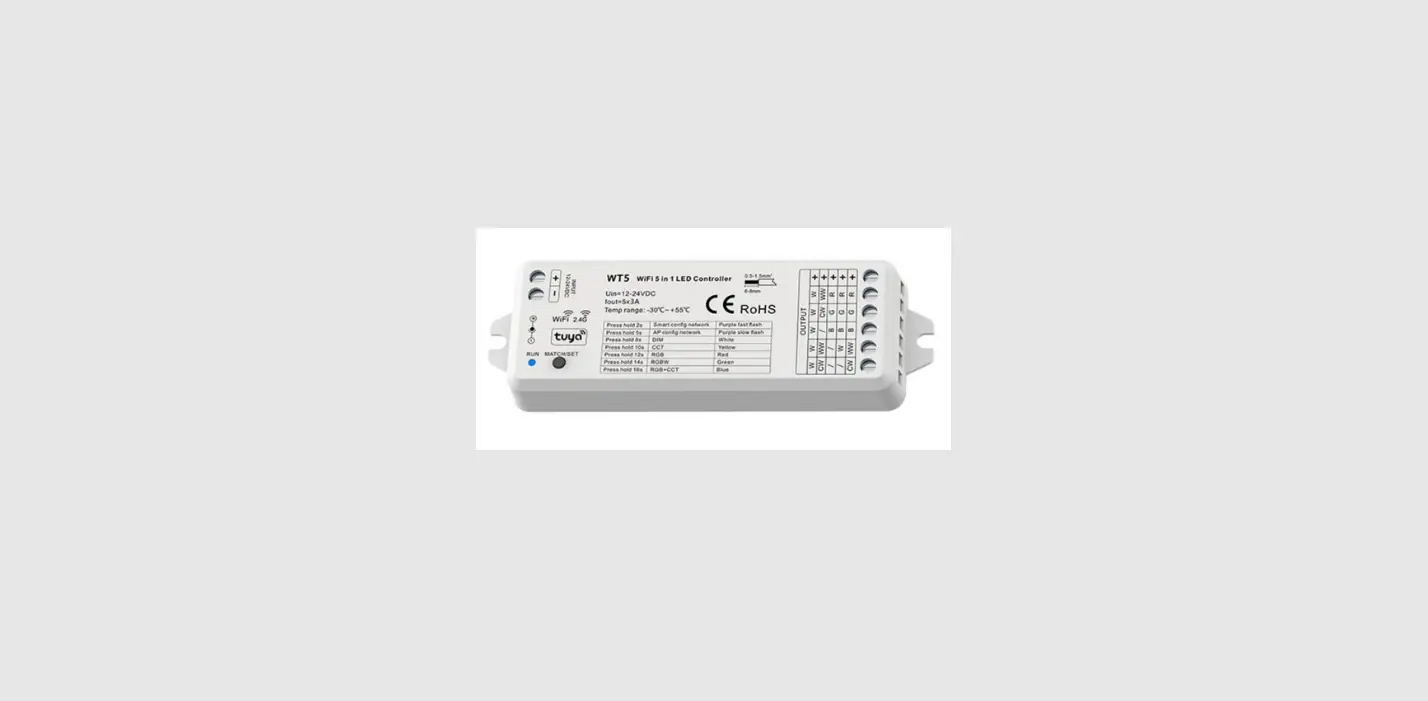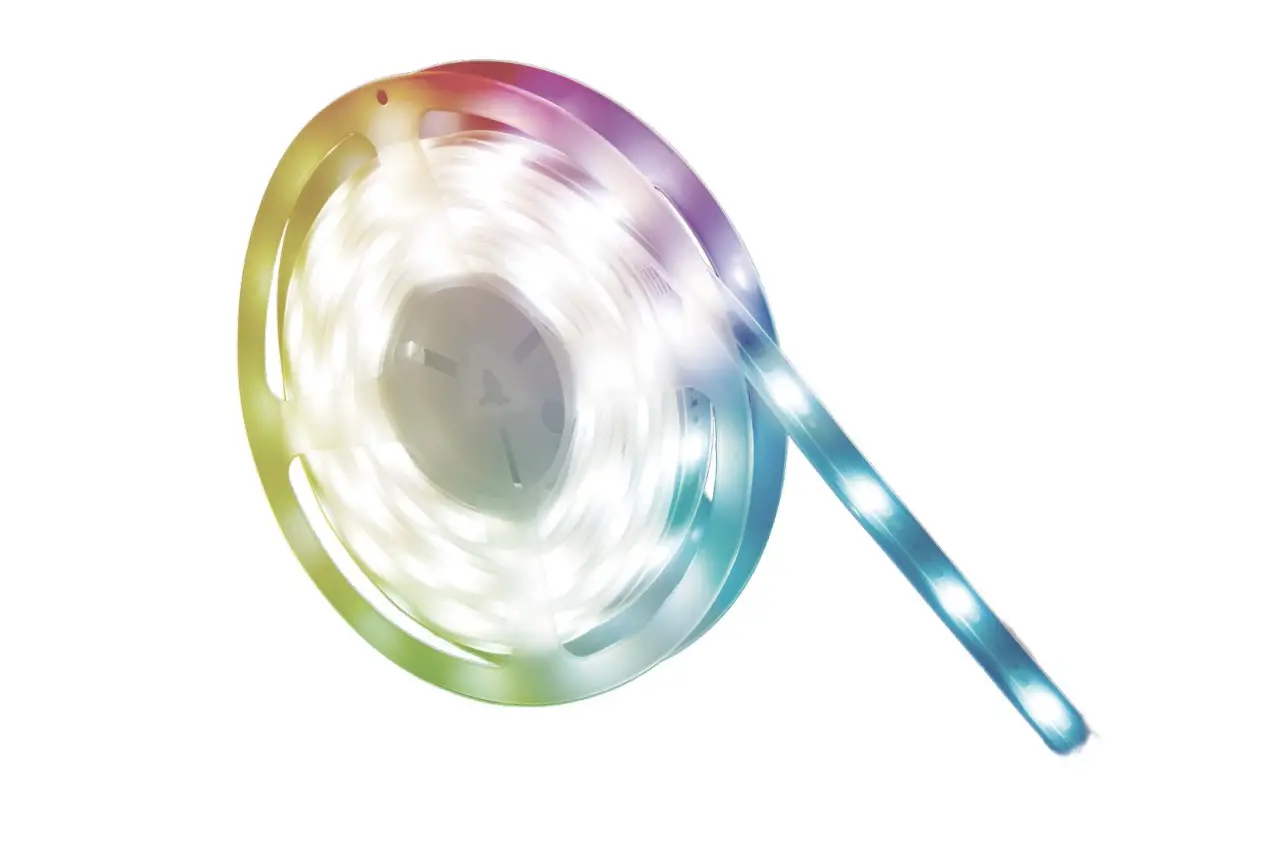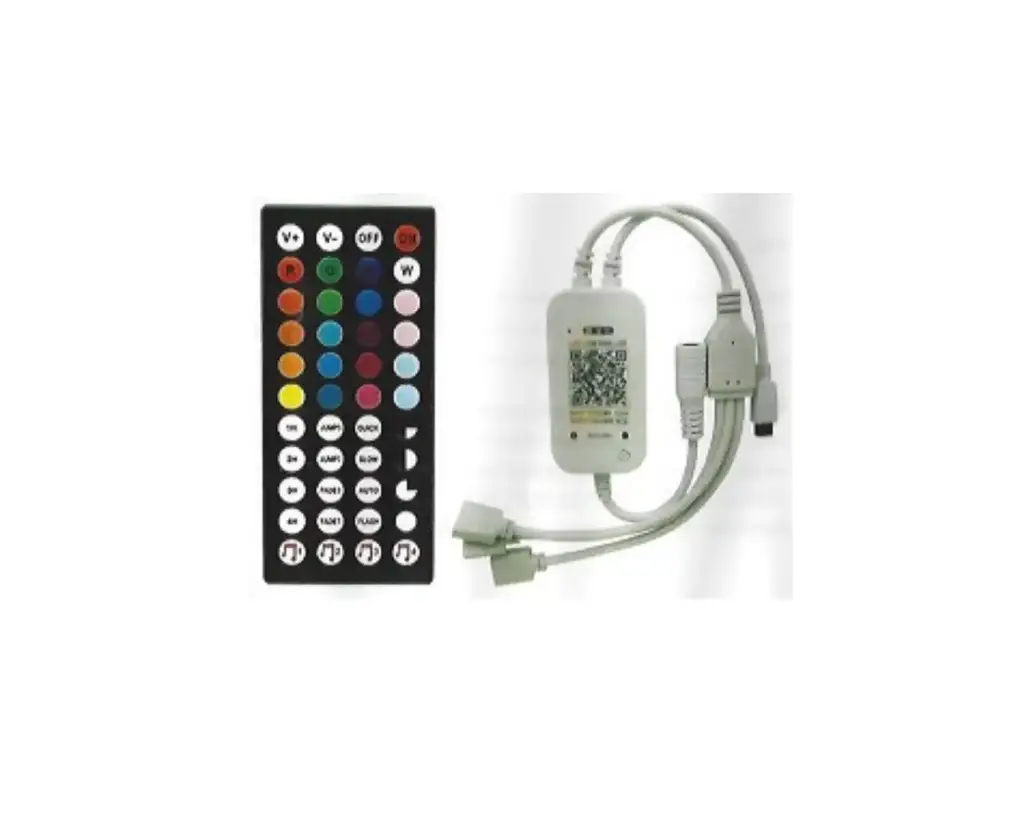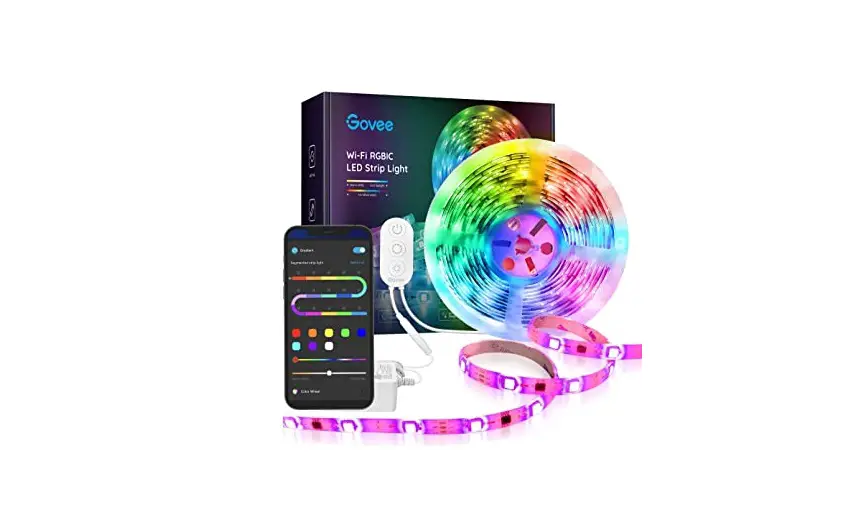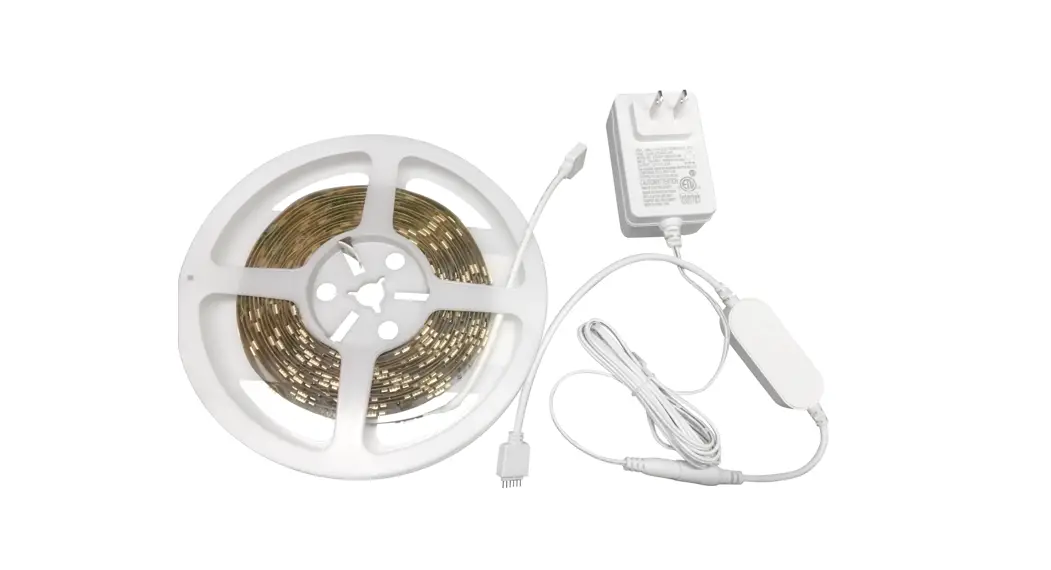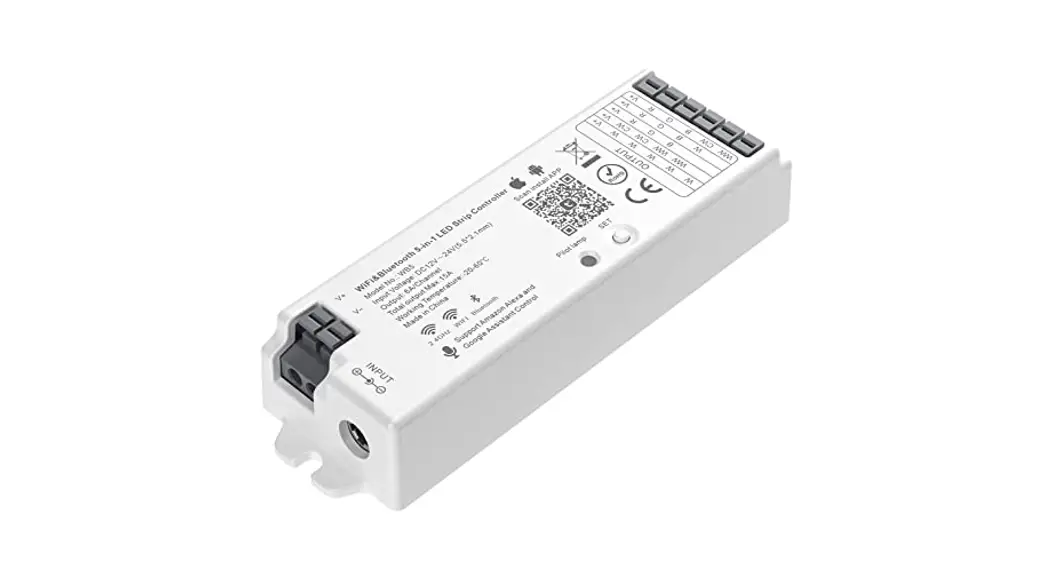

wb5 WiFi&BT 5-in-1 LED Strip Controller
Instruction Manual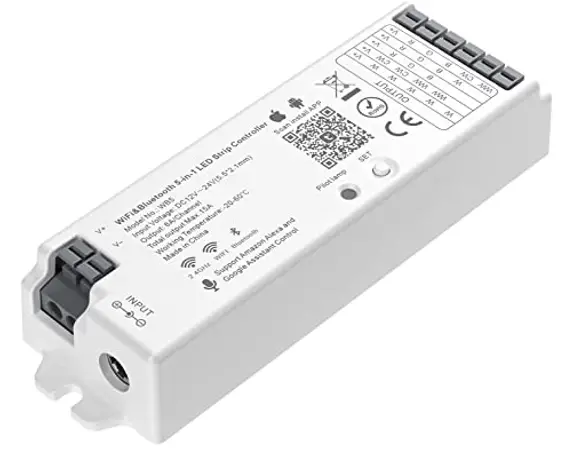
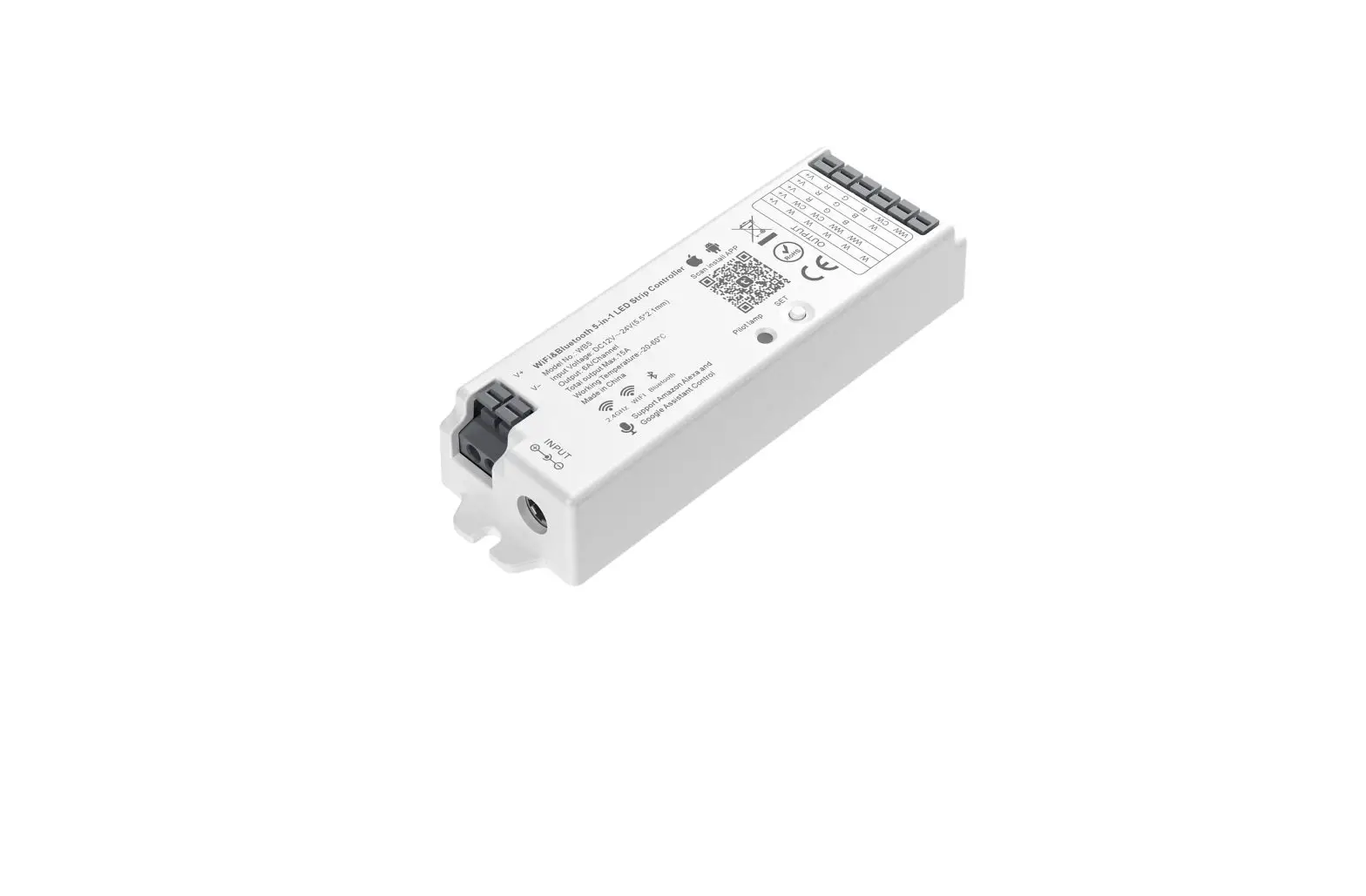
WiFi&BT 5-in-1 LED Strip Controller
Model No.: WB5
Please read the instructions carefully before using the controller.
Features
The controller is adopted by the most advanced PWM control technology, and has a memory function (The light status will keep the same as the status before you tum o the light) ; Wireless and 4G are controlled by Tuya Smart Life APP.
 | 16 Million colors to choose |  | WiFi wireless control |
 | Color temperature 2700K-6500K |  | Smartphone APP control |
 | Dim brightness/saturation |  | Support third-party voice control |
 | Support music rhythm |  | Support remote control (control distance 30m) |
 | Support scene customization |  | Device sharing |
 | Timing selling/countdown turn on /off LED light |  | Group control |
 | Bluetooth wireless control |  | 2.4G wireless transmission technology |
 | Tap-to-Run & automation |  | Auto-transmitting & Synchronization |
 | Free screw when connecting to LED strip |  | Link/Unlink/Reset Button on the controller |
Parameters
Model No.: WB5
Input Voltage: DC12V-24V(5.52. 1mm) O @ @
Output: 6A/Channel ( Total Output Max. 15A)
Working Temperature: -20-60C
Communication Mode: WiFi-IEEE 802. 11b/g/n 2. 4GHz
RF: 2. 4GHz Weight: 65g 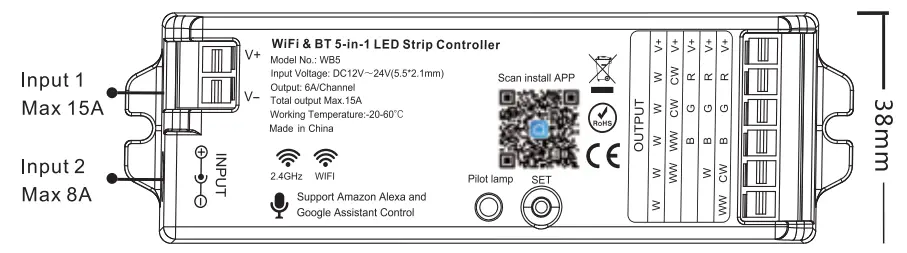
Smart Link&Unlink: We have 3 methods to Link and Unlink to APP.
- Long press “SET” for 3 seconds, the purple will blink 3 times, and the device goes into Smart Link/Unlink mode.
- Use the Linked 091 remote, long press the linked Zone ON button for 3 seconds, the purple light will blink 3 times, and the device go into Smart Link and Unlink Mode.
- Switch ON and OFF 3 times(ON-OFF-ON-OFF-ON) within 10 seconds, the purple light will blink 3 times, and the device goes into Smart Link and Unlink Mode.
Note: Pilot lamp red light always ON means device not link to APP, need to do above steps to link. green light aways ON means device linked to APP; the device is controllable. Switching Output Mode: Short press the “SET’ button to switch the output mode; The indicating lamp flickering means switching successfully; Different colors flickering correspond to different output modes; Details see below sheet.
| White Light Flickering | Yellow Light Flickering | Red Light Flickering | Green Light Flickering | Blue Light Flickering |
| Single Color Mode | Dual White Mode | RGB Mode | RGBW Mode | RGB+CCT Mode (Default Mode) |
Suggestion: Complete the network distribution of the equipment first, then adjust the output mode Pilot lamp.
Indicating light instruction:
| Red light always-on | Greenlight always-on | Red light blinking | Blue light always-on |
| Disconnected from network | Networking successfully | Waiting for the smart link | WiFi router disconnected but still controllable |
3. Auto-synchronization function
Different controllers can work synchronously when they are started at different times, controlled by the same remote, under the same dynamic mode, and with the same speed.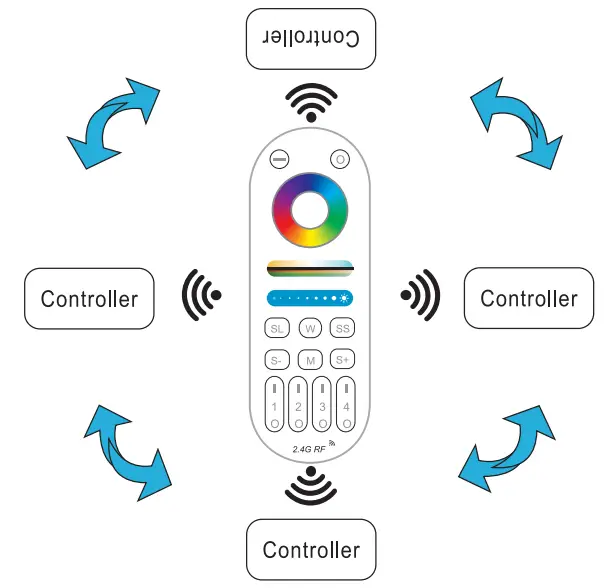
Remark:
 Indicating Auto-transmitting.
- The controller will be auto-synchronizing in the same dynamic modes and within 30m controlling distance.
 Indicating Auto-transmitting.
Auto-transmitting Diagram
One strip controller can transmit the signals from the remote control to another controller within 30m, as long as there is a strip controller within 30m, the remote control distance can be limitless. 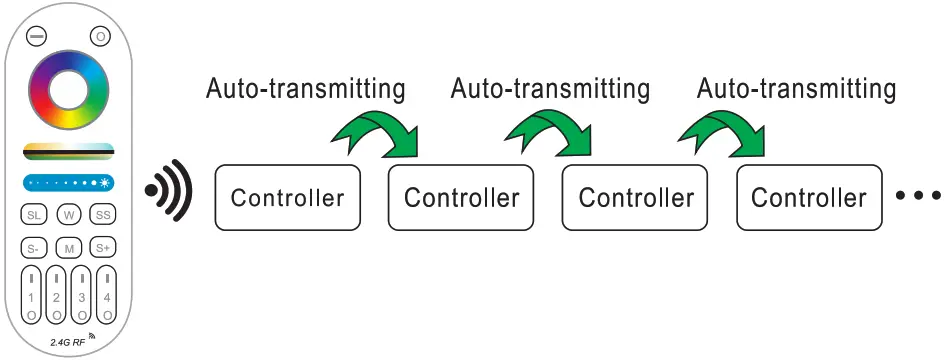
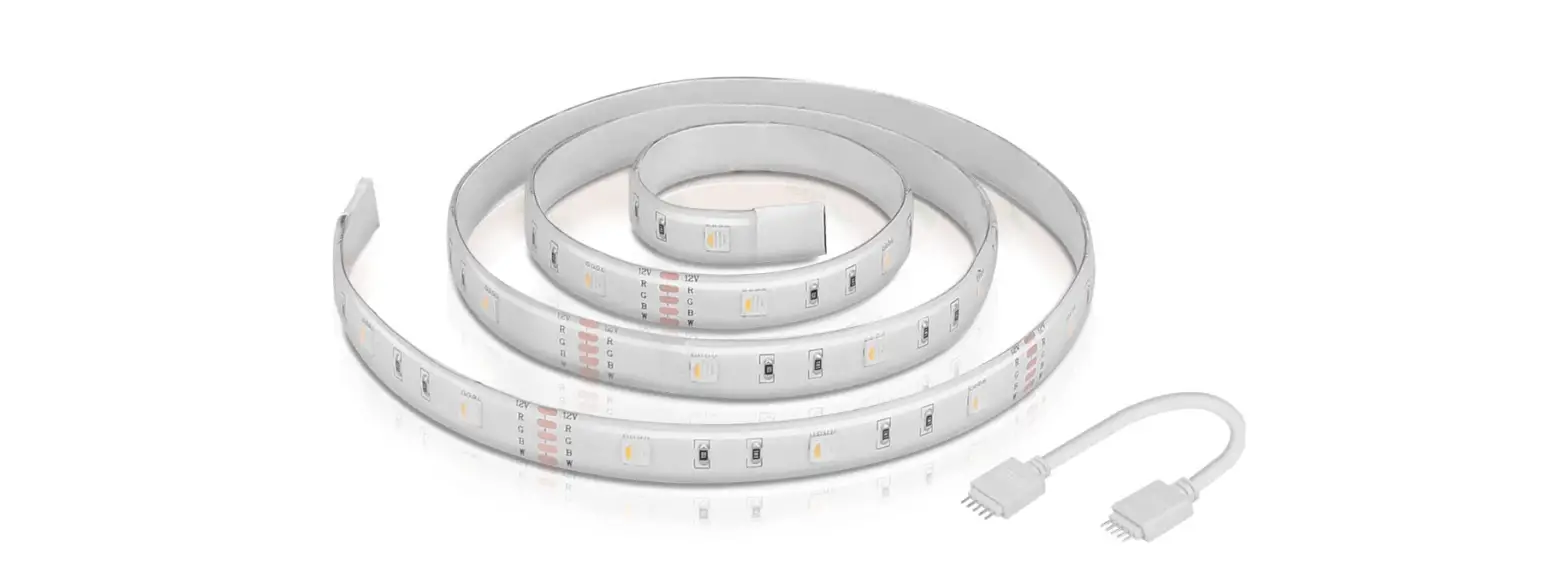
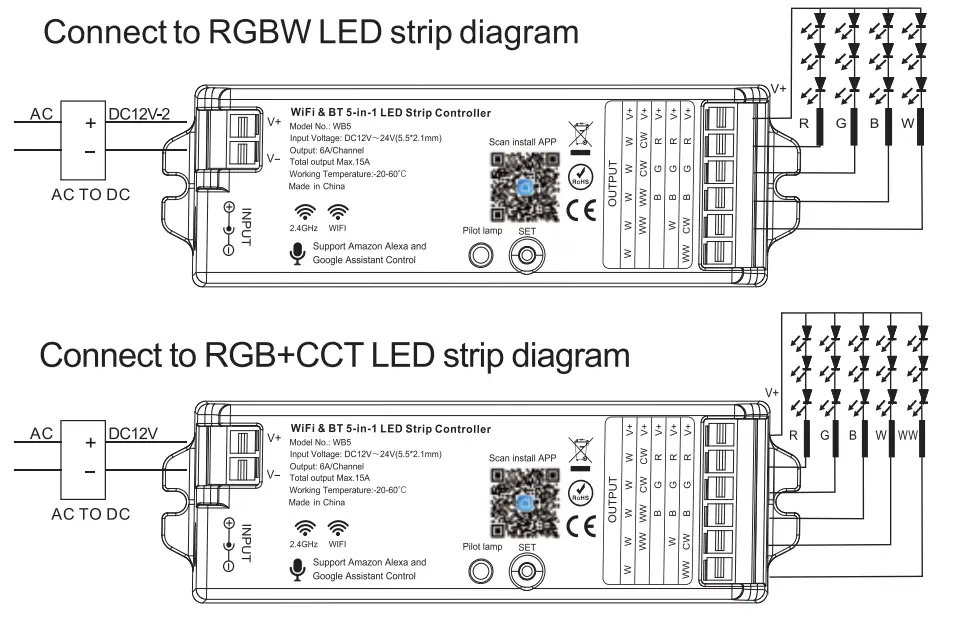
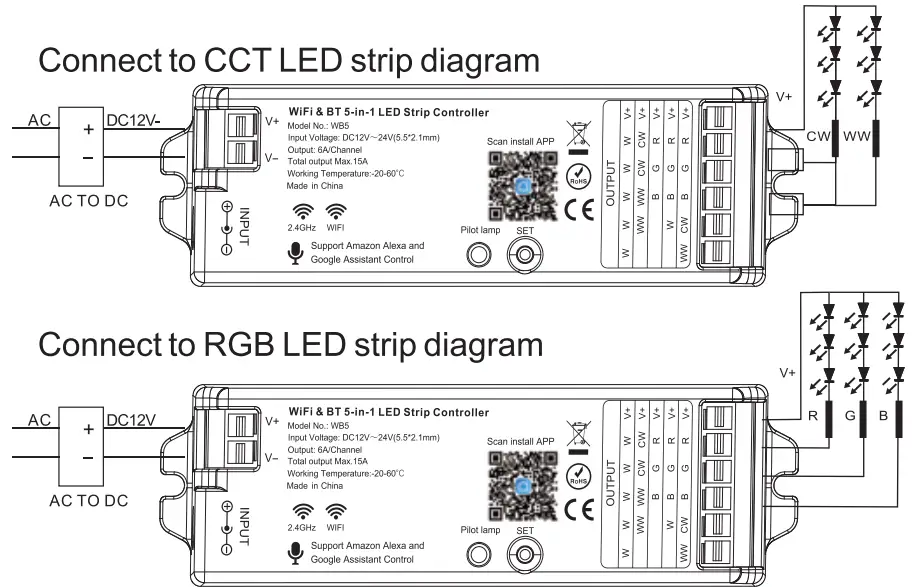
Connect to the LED strip
 Controller input voltage must be in accordance with the required voltage of LED Strips.
Input voltage=Output Voltage
Connect to Single Color LED strip diagram 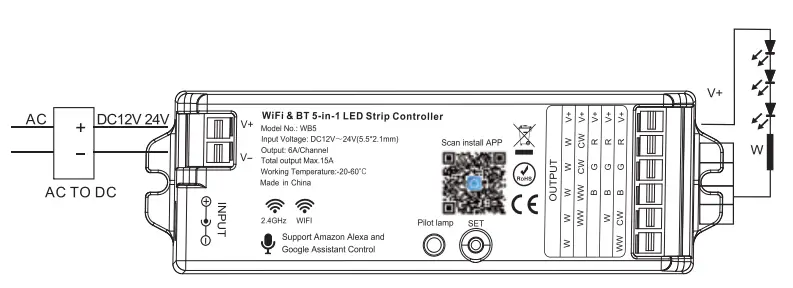
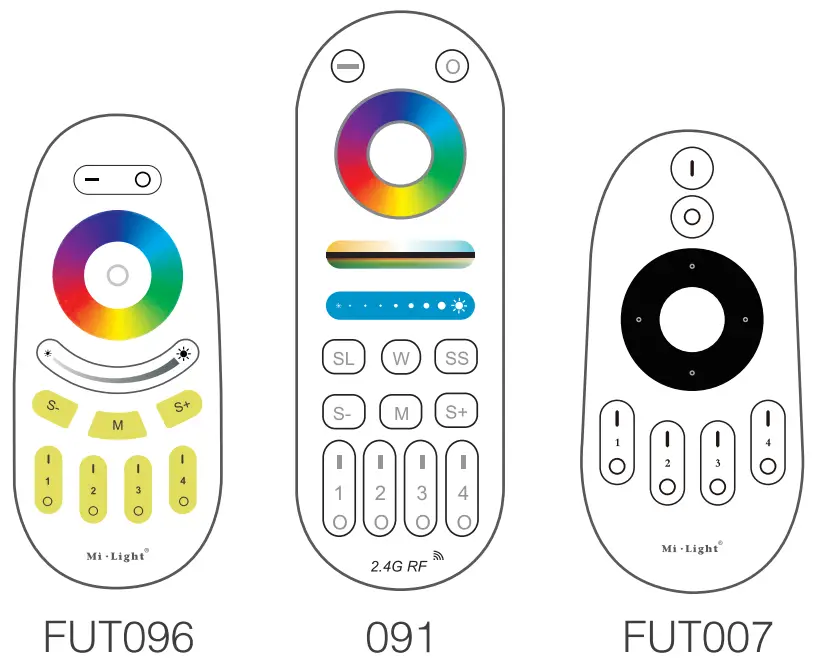
Remote Controller
Compatible with these remote controls (Purchased separately). For more details, pis read the remote instruction.
Bluetooth control instructions
When the router is disconnected, you can turn on the Bluetooth of your smartphone and connect the directly controlled device at a short distance.
Switching Bluetooth control steps:
- Complete the network distribution of the equipment.
- Power off the router used for network configuration, turn off WiFi on the mobile phone, turn on Bluetooth, and wait for about 3-5 minutes to control.
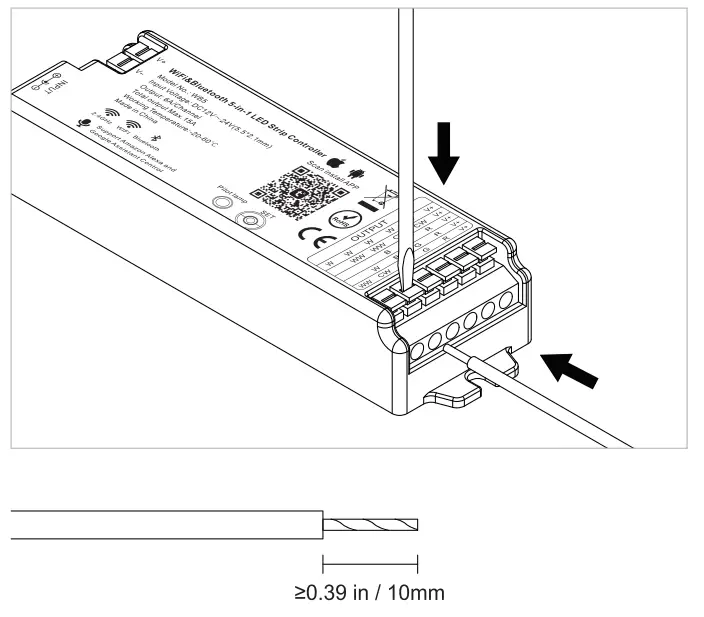
Free screw when connecting to LED strip
Tuya Smart Life APP WiFi Control Instruction:
1, Download and install [Tuy a Smart] APP or [Smart Life] APP
Search for [Smart Life] in Apple or Google store or scan the following QR code to download and install the app.
Please click the” Register” button to create an account while using it in the first time, log in directly if you already had an account.
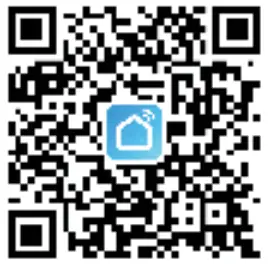 |  |
| https://smartapp.tuya.com/tuyasmart | https://smartapp.tuya.com/smartlife |
Connect to Smartphone
- Connect controller with power supply.
- Confirm Pilot lamp is flashing quickly (2 flashes per second) If the Pilot lamp isn’t in fast flashing state, there are two ways to enter:
• Long press the” SET” key until the Pilot lamp flashes quickly.
• Power OFF and ON once, long press Zone ON button of linked remote until the LED strip blinking 3 times.(available remote model: LM091) - Connect the phone with the home WiFi network at the 2.4GHz frequency.
- Open the homepage of the APP and click the ” + ” button at the upper right corner of the page.lf the pilot lamp is flashing red, it will find the new device automatically.
 Added devices will be displayed on the home page after network configuration is successful.
- Click the device you want to control to enter the control interface.
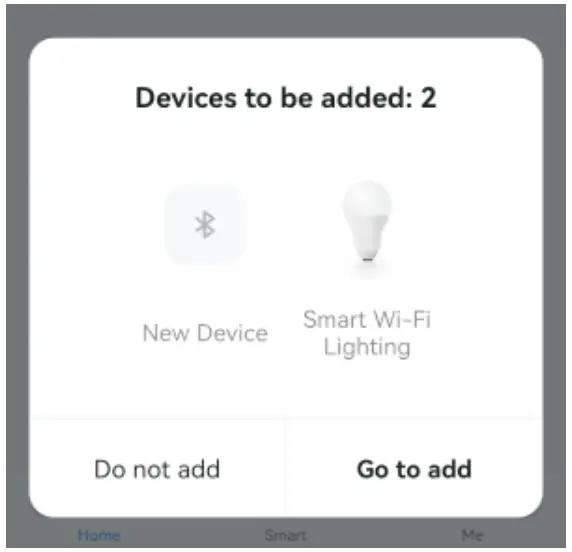 Added devices will be displayed on the home page after network configuration is successful.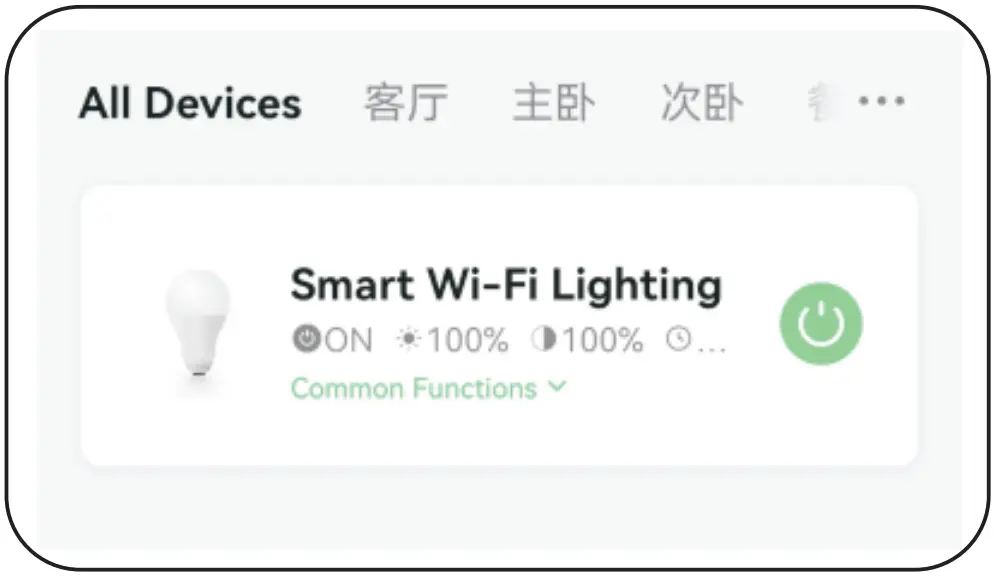
APP Control
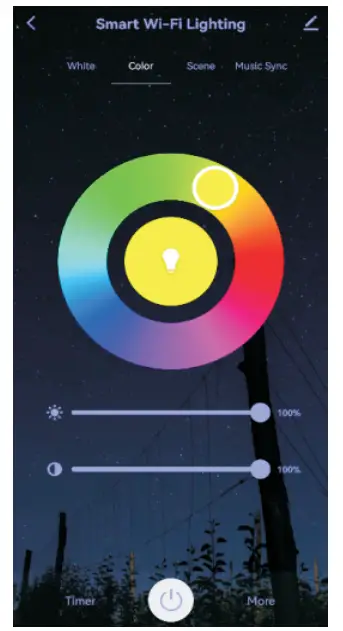
- Click ” device ” or” group ” you want to control on the homepage to enter the control page, where you can control color, saturation, brightness, color temperature, and scene.
- Click music sync to enter music rhythm mode, light will change with the rhythm of the music.
Note: Music rhythm mode requires phone keep on this page
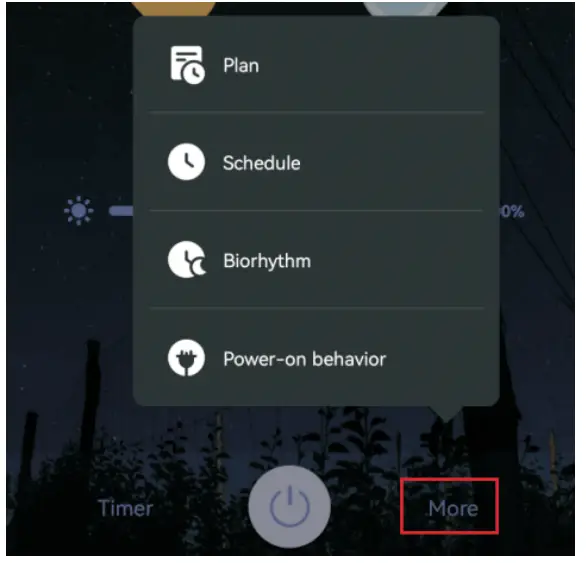
- Click More on the right bottom, you can choose more settings, including Plan, Schedule, Biorhythm and Power-on behavior.
For detailed settings, please read the below links:
https://developer.tuya.com/en/docs/iot/product-panel-configuration?id=K9s9rhj417z8b#title-11-±#1{
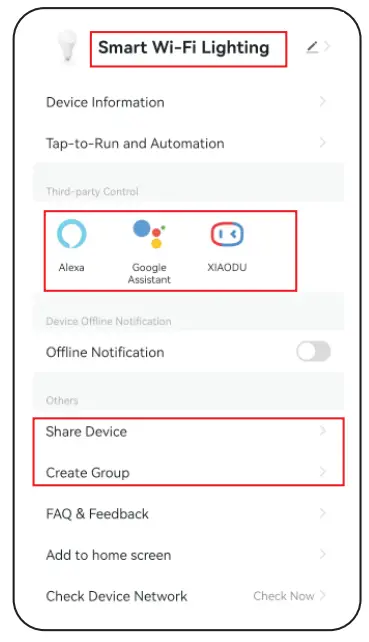
Device name editing, third-party control, device sharing  soup control.
- Click ” ” on the upper right corner of the control page to enter the edit page, where you can modify device name, icon, etc.
- Click the icon under third-party control to view a detailed description of third-party control.
- Click ” Share Device ” to share the device with family and friends.
- Click ” Create Group ” and follow the APP prompt after the setting is completed, the device can be controlled by the group.
5 Intelligent control
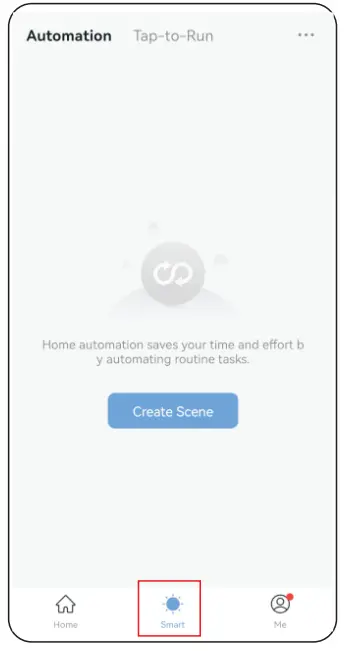
- Click ” Smart ” at the bottom.
- Click ” + ” in the upper right corner to create intelligent control.
 (3) In the page of creating smart, you can set a command to be executed under the specified conditions (such as: turn on or turn off light, color, brightness, mode, etc.)
 (3) In the page of creating smart, you can set a command to be executed under the specified conditions (such as: turn on or turn off light, color, brightness, mode, etc.)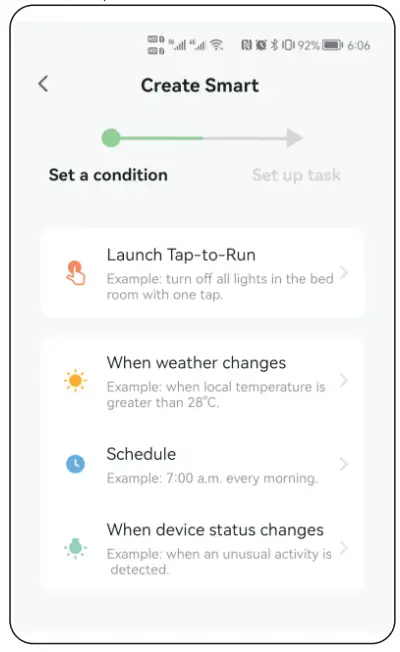
 Attention
- Please check whether the input voltage of the constant voltage power supply is in accordance with the controller, and please check the connection of both the cathode and anode.
- The working Voltage is DC12-24V, the controller will be broken if the voltage is higher than 24V.
- Non-professional users cannot dismantle the controller directly, otherwise, it may cause fire and electric shock.
- The working temperature is-20-60C; Do not use the device to direct sunlight, moisture, and another high-temperature area.
- Please do not use a controller around the mental area and high magnetic field, otherwise, it will badly affect the control distance.
- When the device load to 15A, the wire diameter must be over 1.5mm