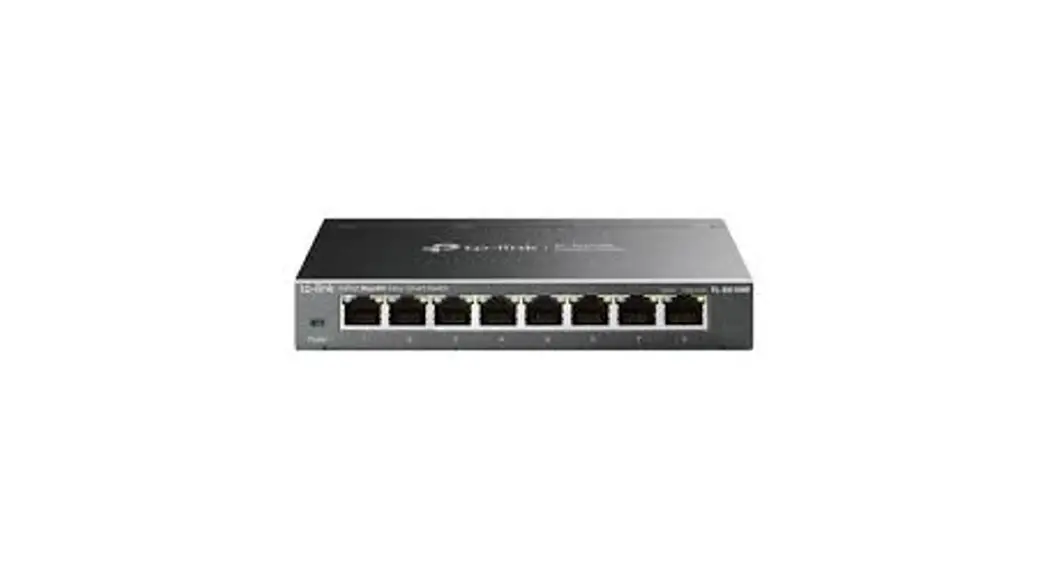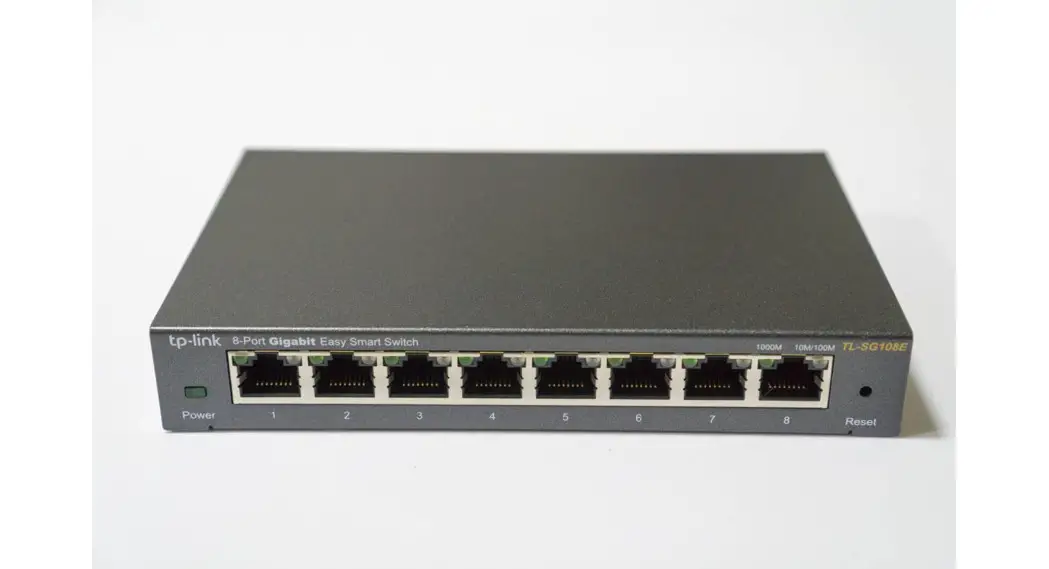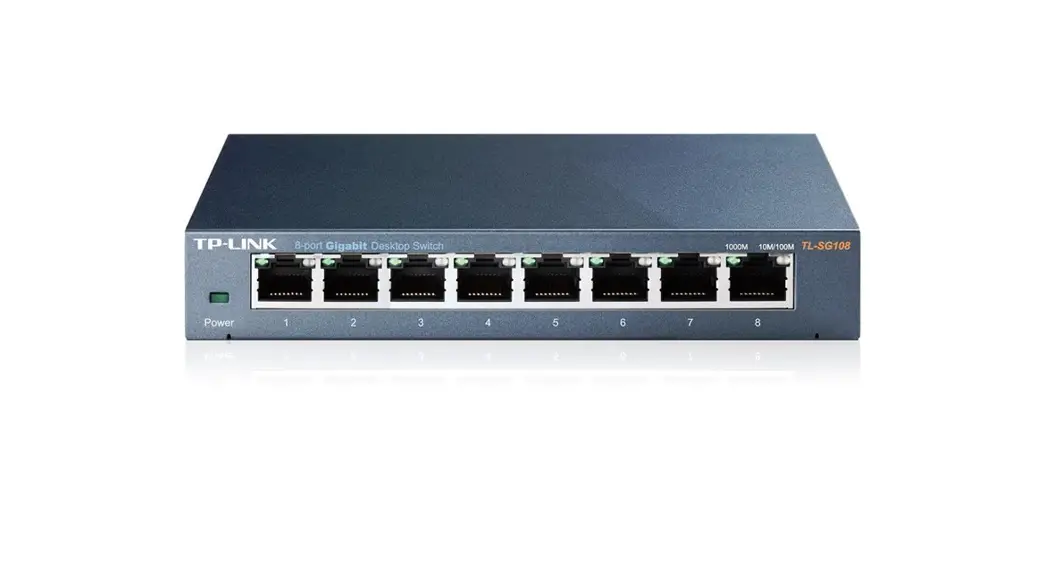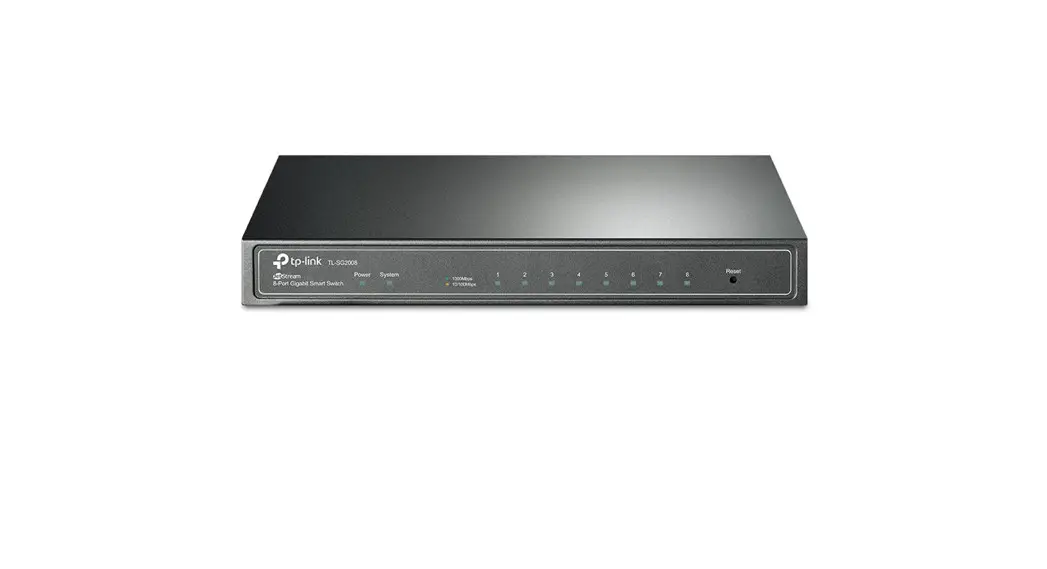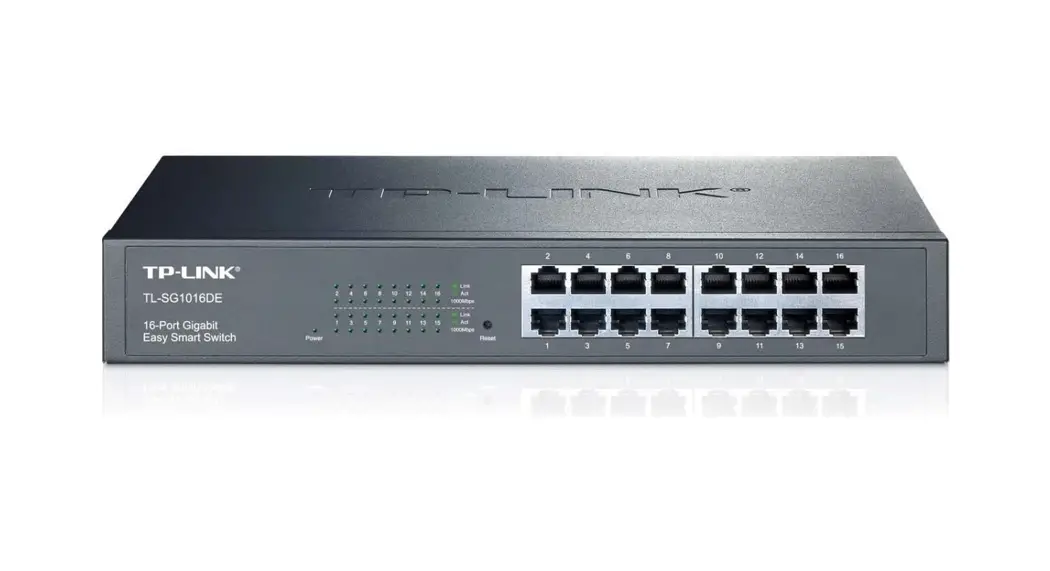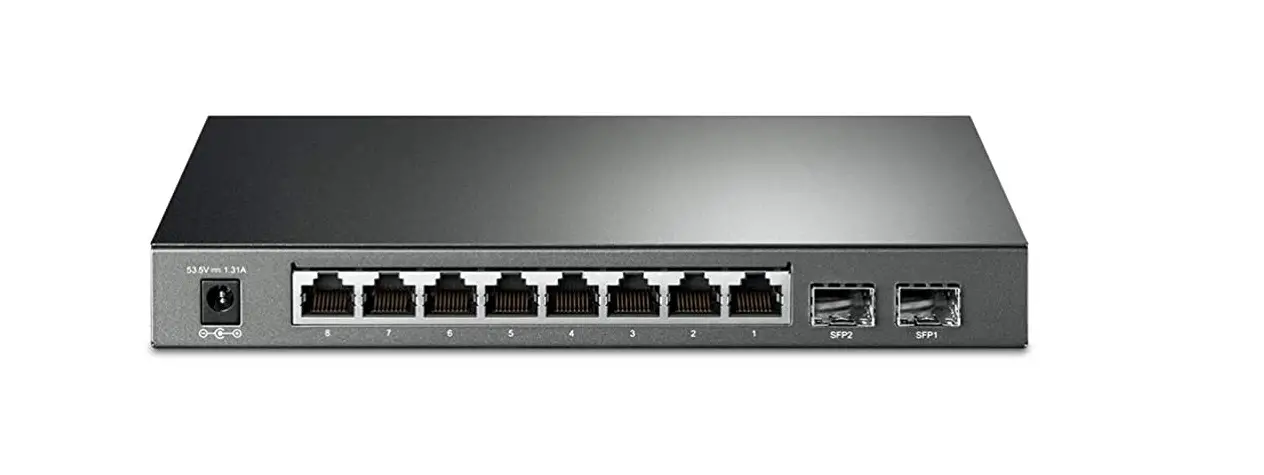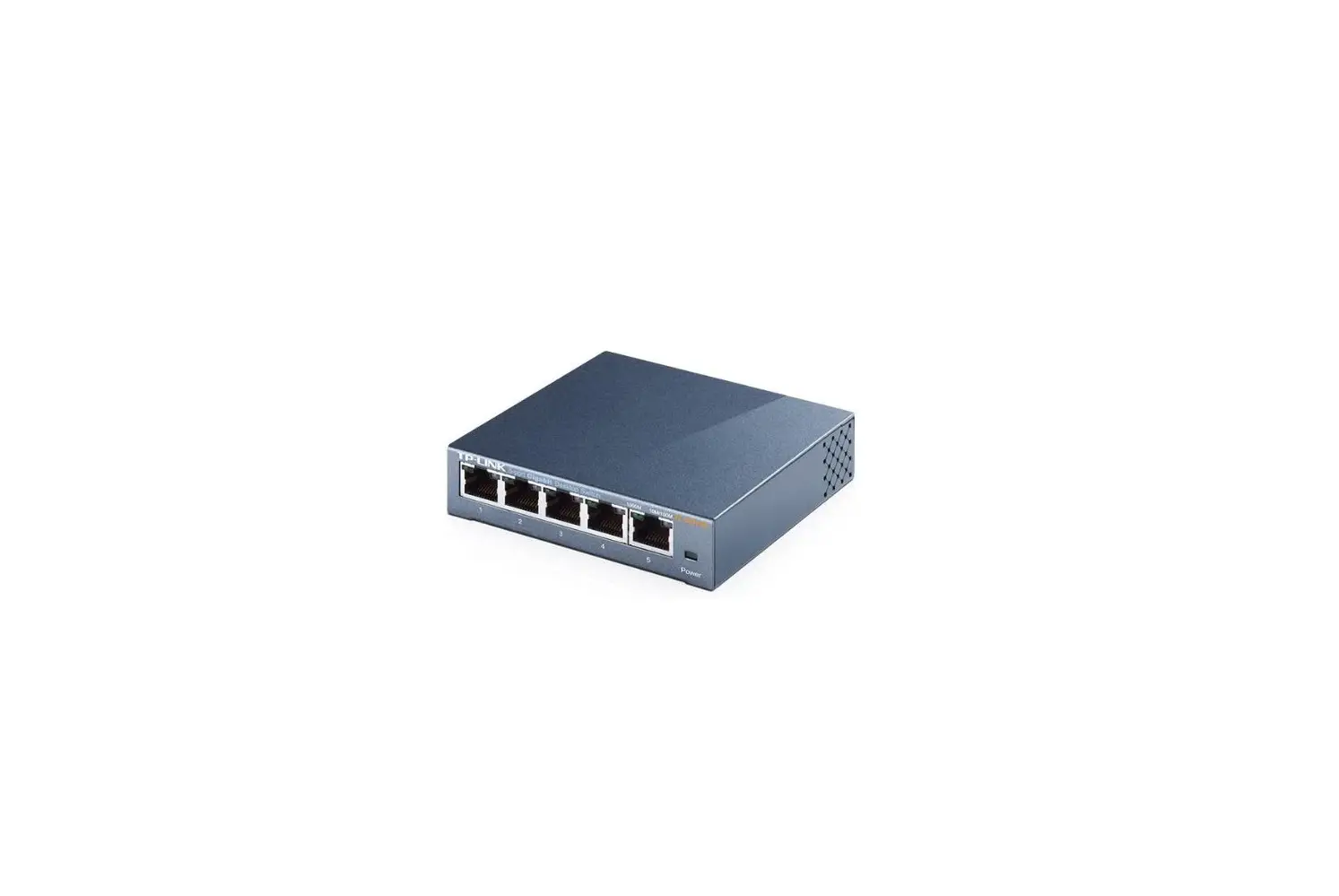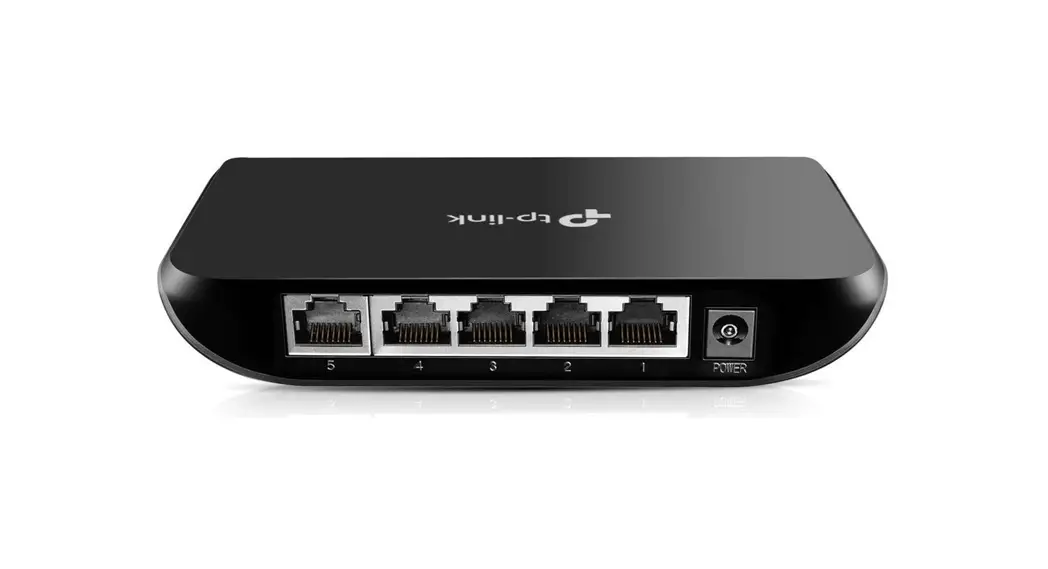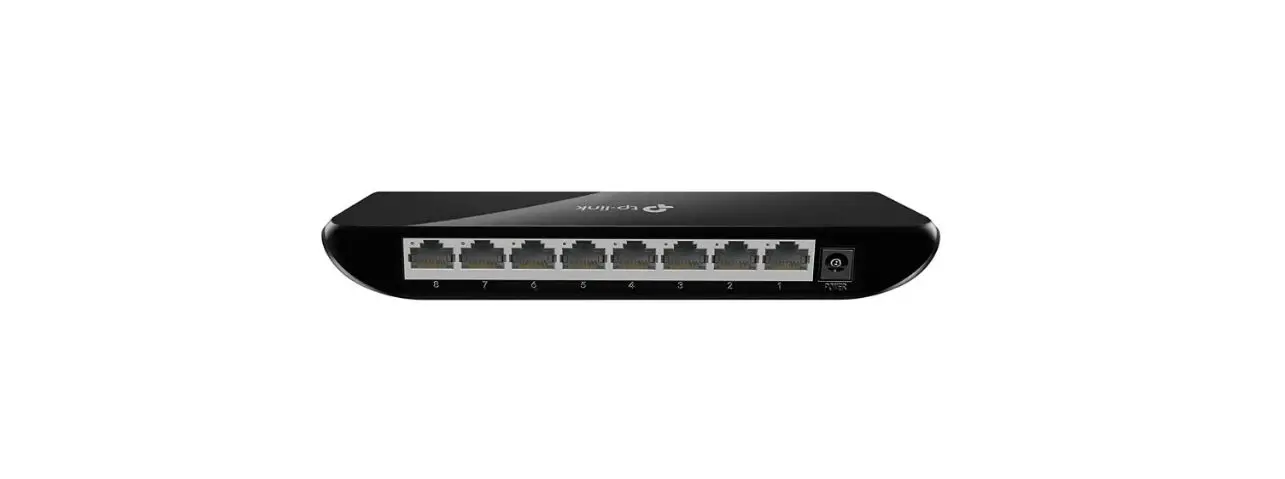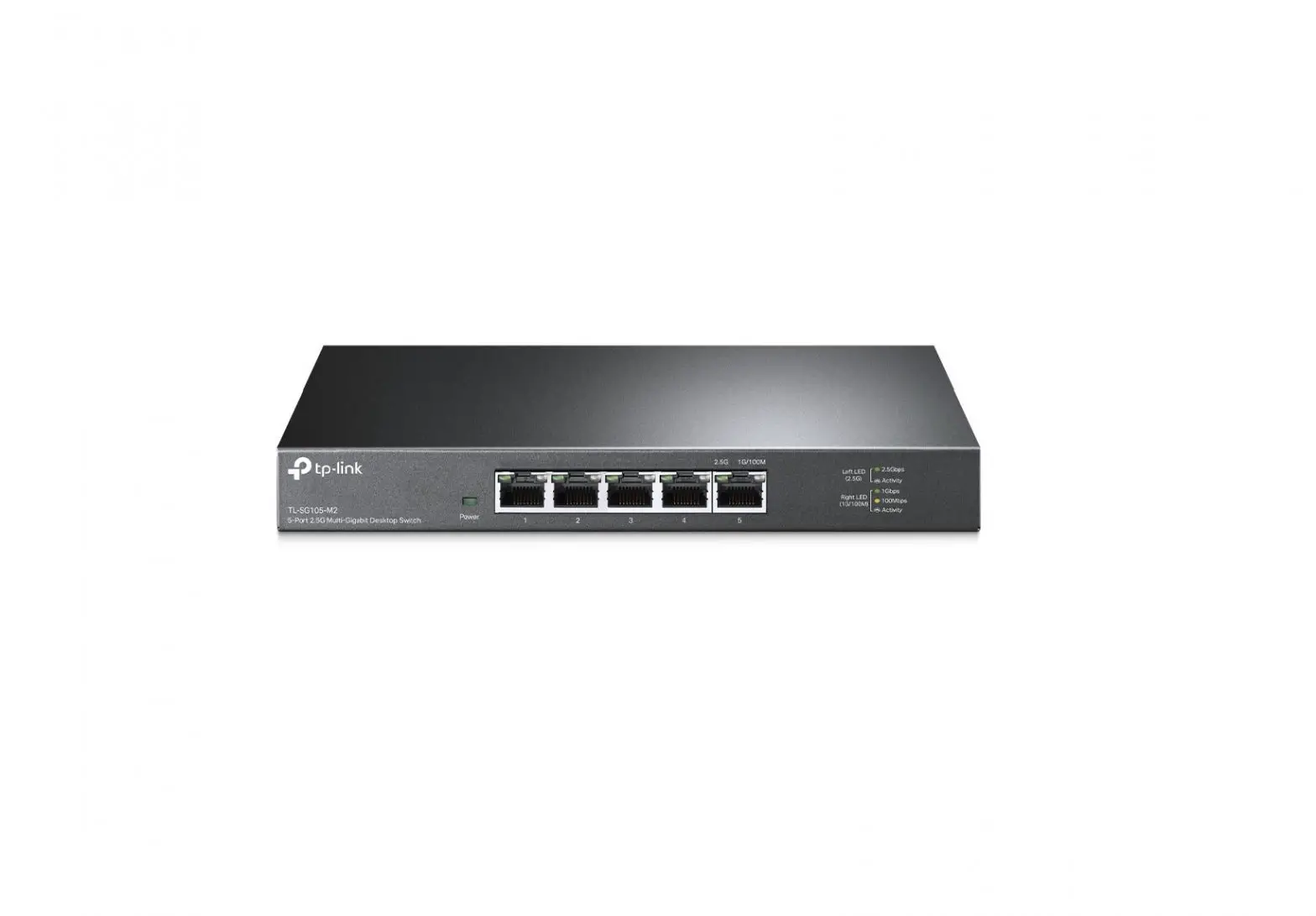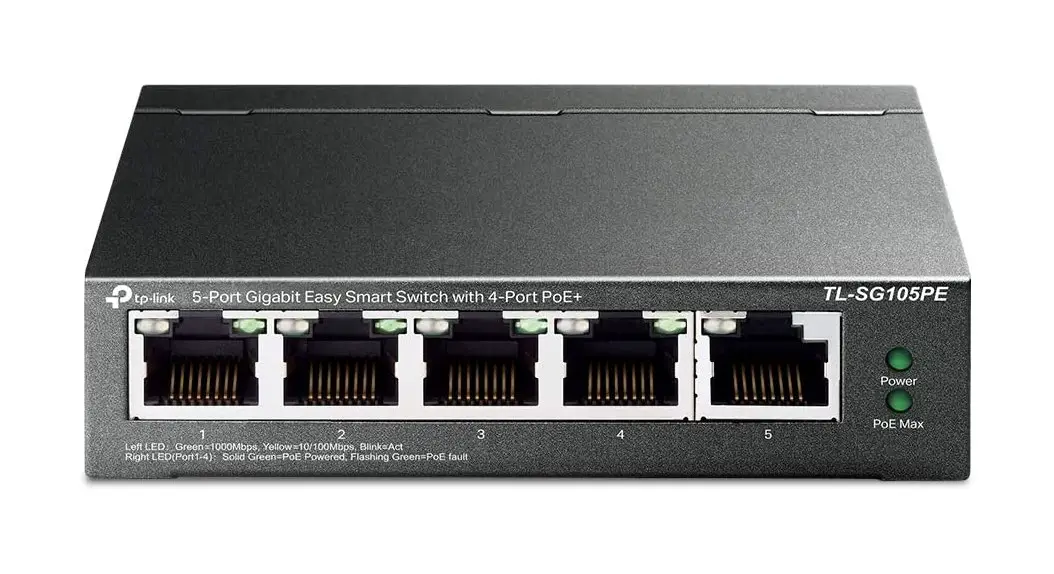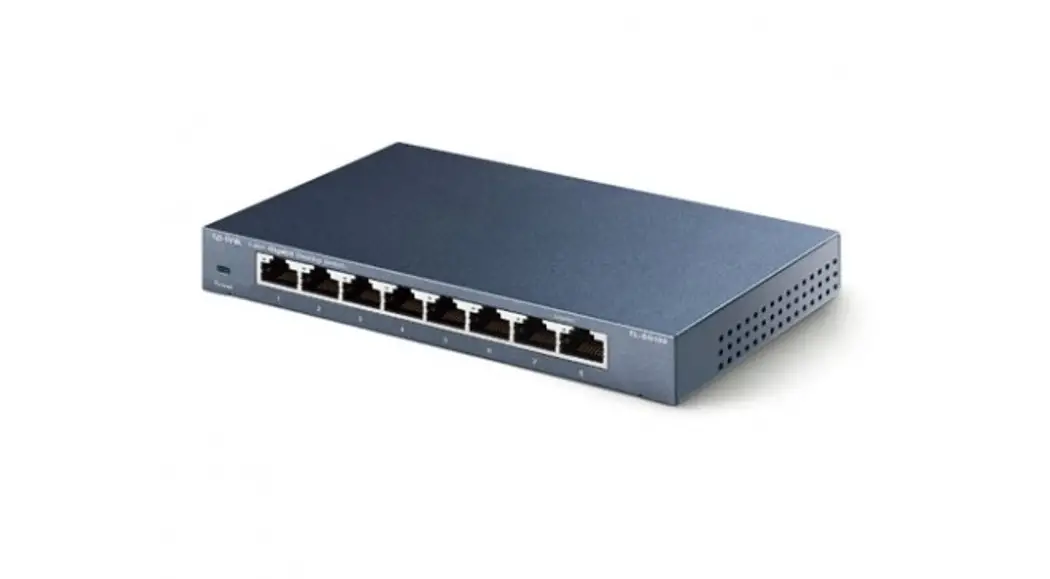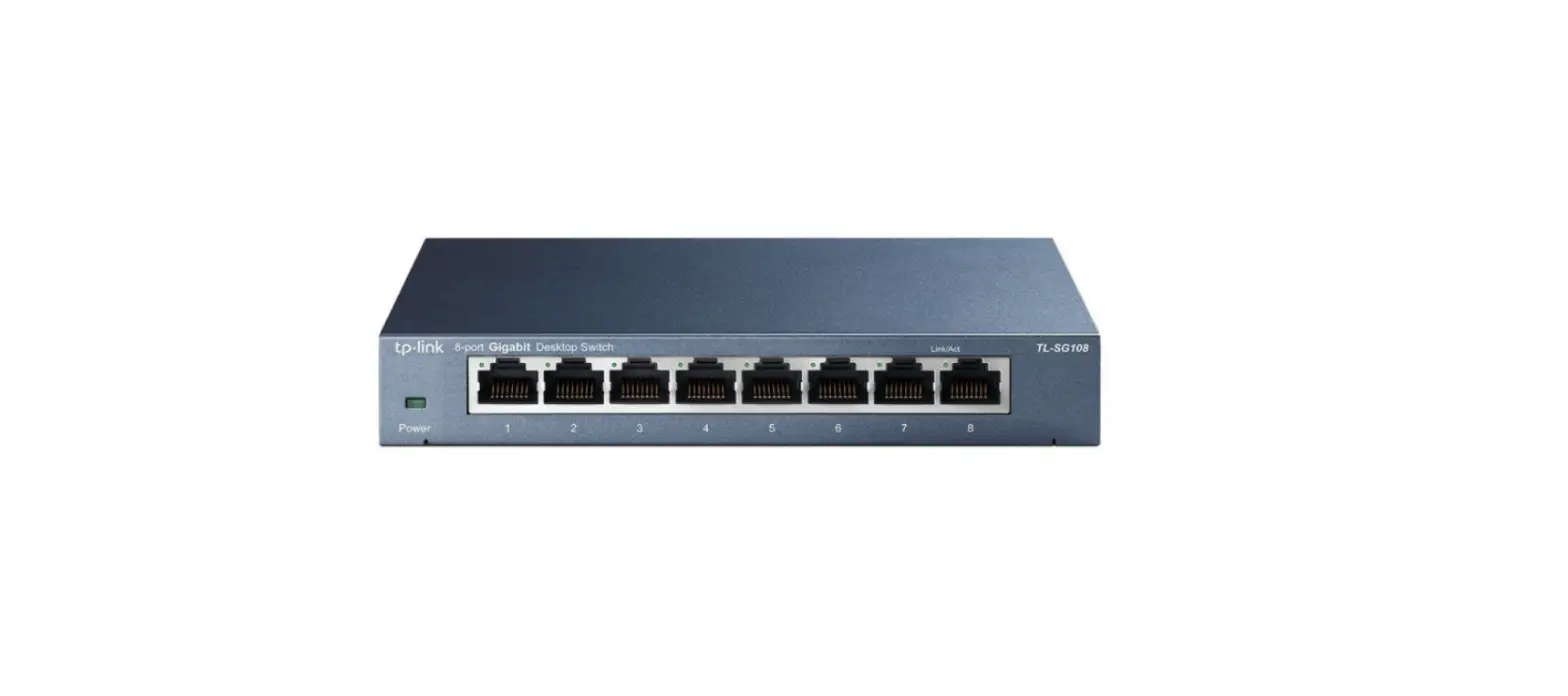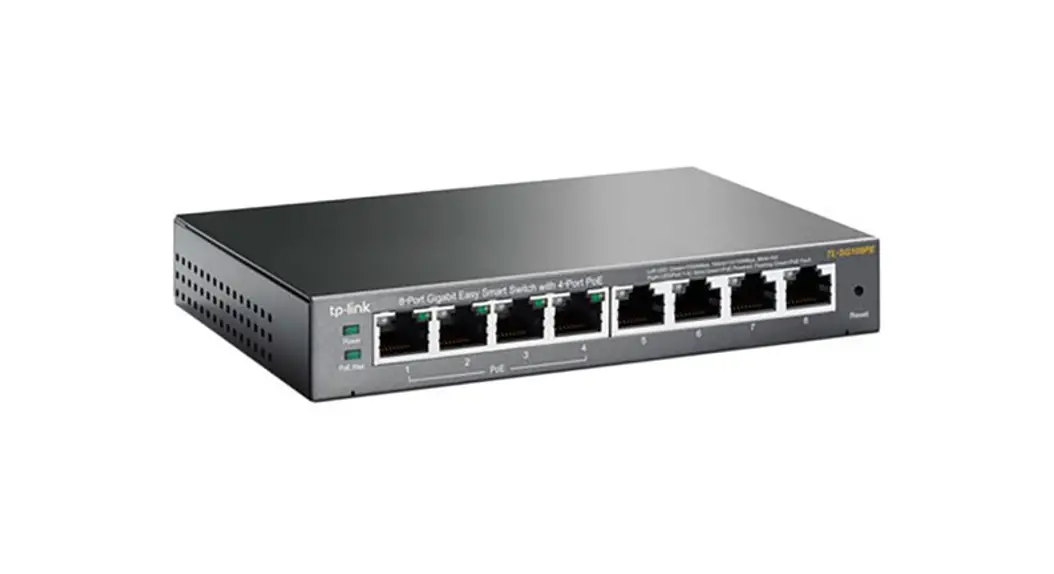

Gigabit Easy Smart PoE+ Switch
Installation Guide
Note: For simplicity, we will take TL-SG108PE for example throughout this Guide.
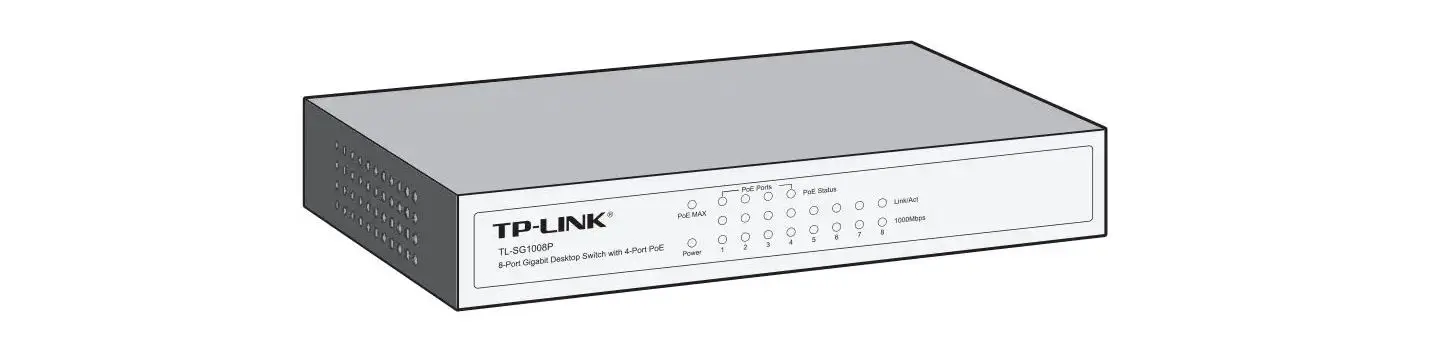
LED Explanation
Power
On: Power on
Flashing: Working abnormally or resetting
Off: Power off
Link/Act; Uplink1, Uplink 2
Green On:
Running at 1000 Mbps, but no activity.
Green Flashing:
Running at 1000 Mbps and transmitting or receiving data.
Yellow On:
Running at 10/100 Mbps, but no activity.
Yellow Flashing:
Running at 10/100 Mbps and transmitting or receiving data.
Off:
No device is linked to the corresponding port.
PoE Status
On: Providing PoE power
Flashing: PoE fault
Off: Not providing PoE power
PoE MAX
For TL-SG105PE:
On: 58 W≤Total power supply < 65 W
Flashing: Total power supply ≥ 65 W
Off: Total power supply < 58 W
For TL-SG108PE:
On: 57 W≤Total power supply < 64 W
Flashing: Total power supply ≥ 64 W
Off: Total power supply < 57 W
For TL-SG1210MPE:
On: 116 W≤Total power supply < 123 W
Flashing: Total power supply ≥ 123 W
Off: Total power supply < 116 W
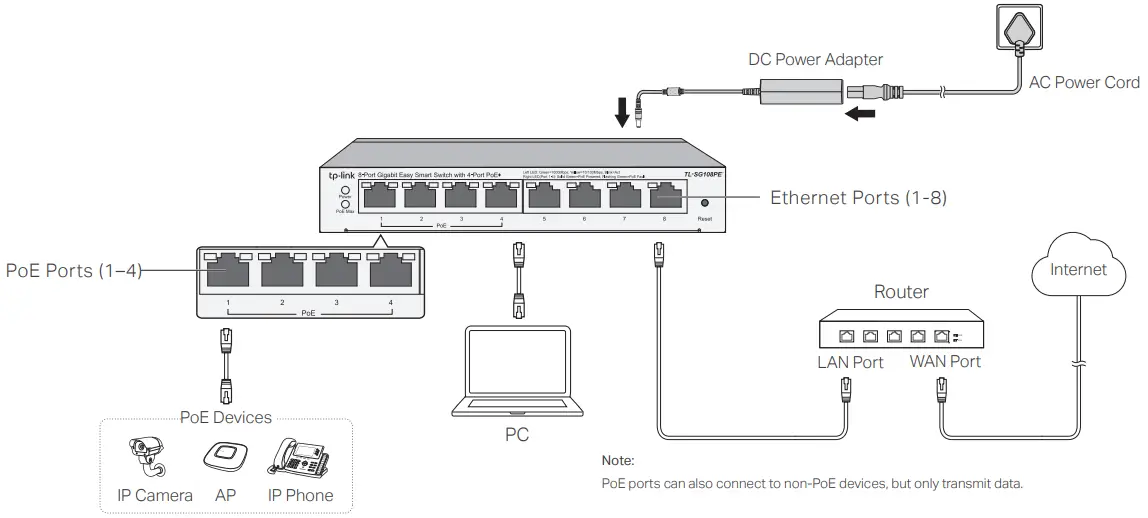
Connection
Configuration
The switch is plug-and-play. To configure the switch, you can use the Web-based GUI or the configuration utility.
The utility is only supported on Windows now.
Using the Web-based GUI
- Find out the IP address of the switch.
 By default, the switch receives an IP address from a DHCP server (typically a router with a DHCP function enabled) in your network. You can find out this IP address on the DHCP server. If the switch cannot receive an IP address from a DHCP server, it uses the static IP address of 192.168.0.1, with a subnet mask of 255.255.255.0.
 - Configure the IP address on your PC to make sure the switch and PC are in the same subnet. If the switch uses an IP address assigned by a DHCP server, set your PC to obtain an IP address automatically from the DHCP server. If the switch uses 192.168.0.1 as the IP address, configure your PC’s IP address as 192.168.0.x (”x” ranges from 2 to 254), and subnet mask as 255.255.255.0.
- Launch a web browser on your PC, enter the IP address of the switch in the address bar, and press Enter. Log in with admin as both user name and password.
 By default, the switch receives an IP address from a DHCP server (typically a router with a DHCP function enabled) in your network. You can find out this IP address on the DHCP server.
Now you can configure the switch using the Web-based GUI. For further information, refer to the User Guide.
Go to https://www.tp-link.com/support, search for the model number of your switch, and you can find this guide on the product Support web page.
Note:
- For certain devices, you may need to change the password the first time you log in, which will better protect your network and devices.
- If the switch gets a new IP address from the DHCP server, your connection to the switch will be lost. Enter the new IP address in your browser to access the switch again.

- Double-click the icon
 on the desktop, and the utility Home page will display a list of TP-Link switches on the local network.
- Click
 to find out the IP parameters of the switch. If the switch uses an IP address assigned by a DHCP server, set your PC to obtain an IP address automatically from the DHCP server. If the switch uses 192.168.0.1 as the IP address, configure your PC’s IP address as 192.168.0.x (”x” ranges from 2 to 254), and subnet mask as 255.255.255.0.
- Double-click the switch that you want to configure. Log in with admin as both user name and password.
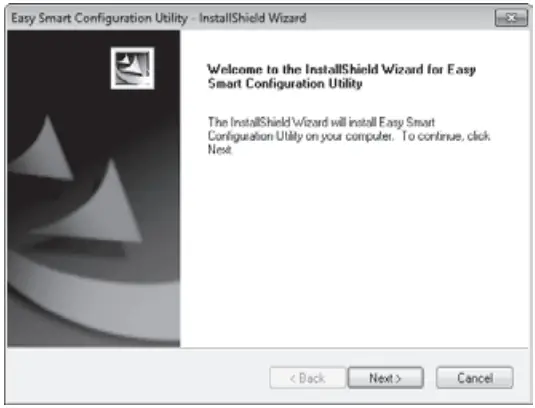
 on the desktop, and the utility Home page will display a list of TP-Link switches on the local network.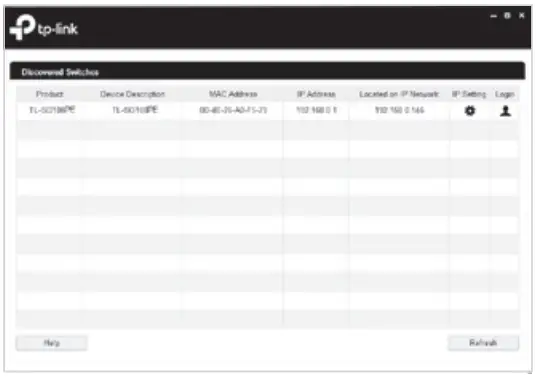
 to find out the IP parameters of the switch.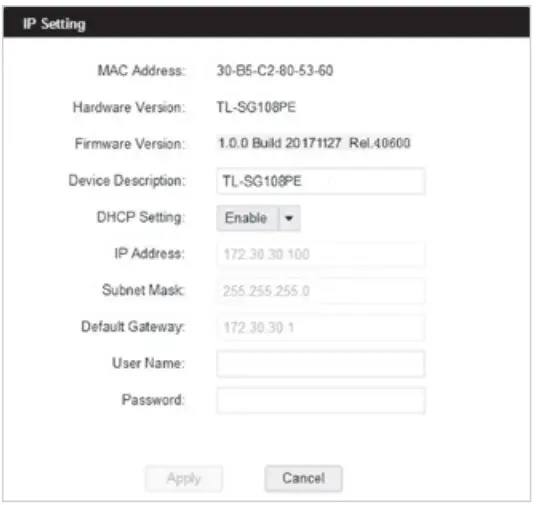
Now you can configure the switch using the configuration utility. For further information, refer to the Easy Smart Configuration Utility User Guide.
Go to https://www.tp-link.com/support, search for the model number of your switch, and you can find this guide on the product Support web page.
Specifications
General Specifications
| Standard | IEEE802.3i, IEEE802.3u, IEEE802.3ab, IEEE802.3af, IEEE 802.3at, IEEE802.3x, IEEE802.1p, IEEE802.1q For TL-SG1210MPE: IEEE802.3z |
| Interface | For TL-SG105PE/TL-SG108PE: 5/8 10/100/1000 Mbps RJ45 Ports Auto-Negotiation, Auto MDI/MDIX; PoE Ports: Port 1– Port 4 For TL-SG1210MPE: 10 10/100/1000 Mbps RJ45 Ports Auto-Negotiation, Auto MDI/MDIX; 1 1000 Mbps SFP port (Combo); PoE Ports: Port 1-Port 8 |
| Data Transfer Rate | Ethernet: 10 Mbps (Half Duplex), 20 Mbps (Full Duplex) Fast Ethernet: 100 Mbps (Half Duplex), 200 Mbps (Full Duplex) Gigabit Ethernet: 2000 Mbps (Full Duplex) |
| Network Media (Cable) | 10Base-T: UTP category 3, 4, 5 cable (maximum 100 m) EIA/TIA-568 100 Ω STP (maximum 100 m) 100Base-TX: UTP category 5, 5e cable (maximum 100 m) EIA/TIA-568 100 Ω STP (maximum 100 m) 100BASE-FX/LX10/BX10: MMF, SMF (Only for TL-SG1210MPE) 1000Base-T: UTP category 5e cable or above (maximum 100 m) EIA/TIA-568 100 Ω STP (maximum 100 m) 1000BASE-SX/LX/LX10/BX10: MMF, SMF (Only for TL-SG1210MPE) |
| Power Supply | External Power Adapter Input: 100-240 V AC, 50/60 Hz Output: 53.5 V DC/2.43 A (For TL-SG1210MPE) 53.5 V DC/1.31 A (For TL-SG105PE/TL-SG108PE) |
| PoE Budget | TL-SG105PE: 65 W TL-SG108PE: 64 W TL-SG1210MPE: 123W |
| Switching Capacity | TL-SG105PE: 10 Gbps TL-SG108PE: 16 Gbps TL-SG1210MPE: 20 Gbps |
| MAC Address Table | TL-SG105PE: 2K, automatically learning, automatically aging TL-SG108PE/TL-SG1210MPE: 4K, automatically learning, automatically aging |
| Wall Mountable | Yes |
| Distance Between Mounting Holes | TL-SG105PE: 39 mm TL-SG108PE: 94 mm TL-SG1210MPE: 150 mm |
Frequently Asked Questions (FAQ)
– The Power LED should be lit when the power system is working normally. If the Power LED is not lit, please try the following:
– A1: Make sure the power adapter is connected to the switch with the power source properly.
– A2: Make sure the voltage of the power supply meets the requirements of the input voltage of the switch.
– A3: Make sure the power source is ON.
– A4: On the LED On/Off configuration page, check whether the LED status is on. By default, the LED status is on.
– Please try the following:
– A1: Make sure that the cable connectors are firmly plugged into the switch and the device.
– A2: Make sure the connected device is turned on and works normally.
– A3: The cable must be less than 100 meters long (328 feet). If Extend Mode is enabled, it should be less than 250 meters (820 feet).
– A4: On the LED On/Off configuration page, check whether the LED status is on. By default, the LED status is on.
When the total power consumption of connected PoE devices exceeds the maximum, the PoE port with a smaller port number has a higher priority. The system will cut off power to the ports with larger port numbers to ensure supply to other ports. Take TL-SG108PE as an example. Port 1, 2, and 4 are consuming 15.4 W respectively. If an additional PoE device with 18 W is inserted into port 3, the system will cut off the power of port 4 to compensate for the overload
Environmental and Physical Specifications
| Certification | FCC, CE, RoHS |
| Operating Temperature | 0 ˚C to 40 ˚C (32 ˚F to 104 ˚F) |
| Storage Temperature | -40 ˚C to 70 ˚C (-40 ˚F to 158 ˚F) |
| Operating Humidity | 10% to 90%RH non-condensing |
| Storage Humidity | 5% to 90%RH non-condensing |

http://www.tp-link.com/support
 To ask questions, find answers, and communicate with TP-Link users or engineers, please visit https://community.tp-link.com to join TP-Link Community.
 For technical support and other information, please visit https://www.tp-link.com/support, or simply scan the QR code.
 If you have any suggestions or needs on the product guides, welcome to email [email protected].
PoE Disclaimer
The speed of the ports in extended mode will downgrade to 10 Mbps. The actual transmission distance may vary due to the power consumption of PoE-powered devices or the cable quality and type.
PoE budget calculations are based on laboratory testing. The actual PoE power budget is not guaranteed and will vary as a result of client limitations and environmental factors.
EU Declaration of Conformity
TP-Link hereby declares that the device is in compliance with the essential requirements and other relevant provisions of directives 2014/30/EU, 2014/35/EU, 2009/125/EC, 2011/65/EU, and (EU)2015/863.
The original EU declaration of conformity may be found at https://www.tp-link.com/en/ce.
Safety Information
- Keep the device away from water, fire, humidity, or hot environments.
- Do not attempt to disassemble, repair, or modify the device. If you need service, please contact us.
- Do not use a damaged charger or USB cable to charge the device.
- Do not use any other chargers than those recommended.
- The adapter shall be installed near the equipment and shall be easily accessible.
- The plug on the power supply cord is used as the disconnect device, the socket outlet shall be easily accessible.

 域名售卖
域名售卖 TP-Link Community
 CE Regulatory Compliance | TP-Link