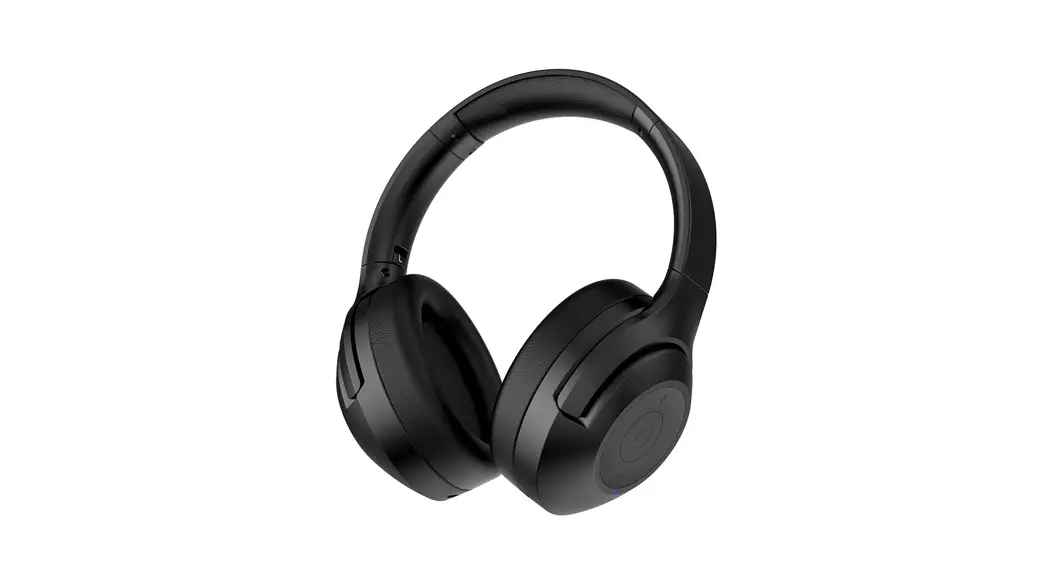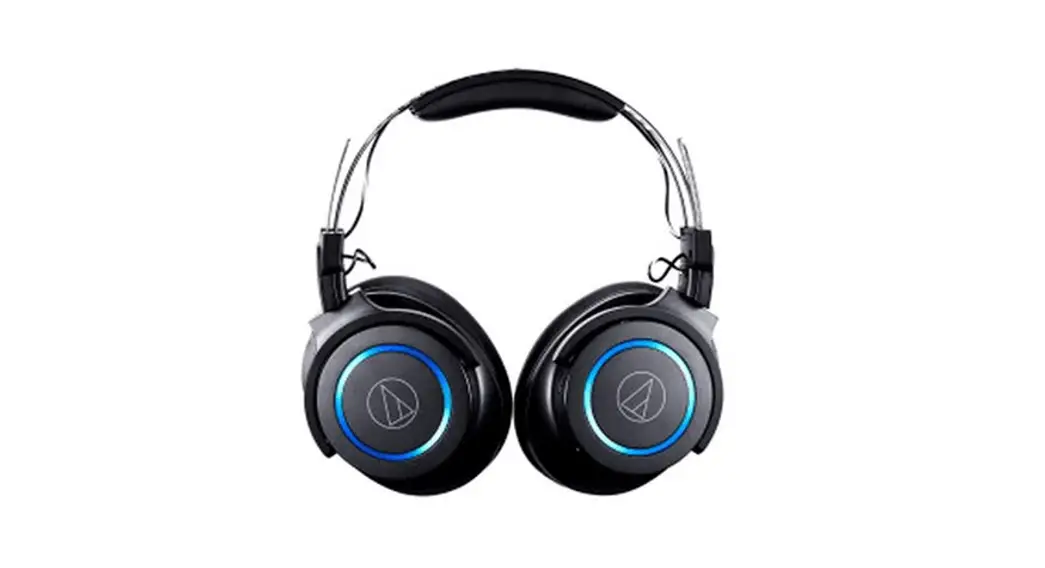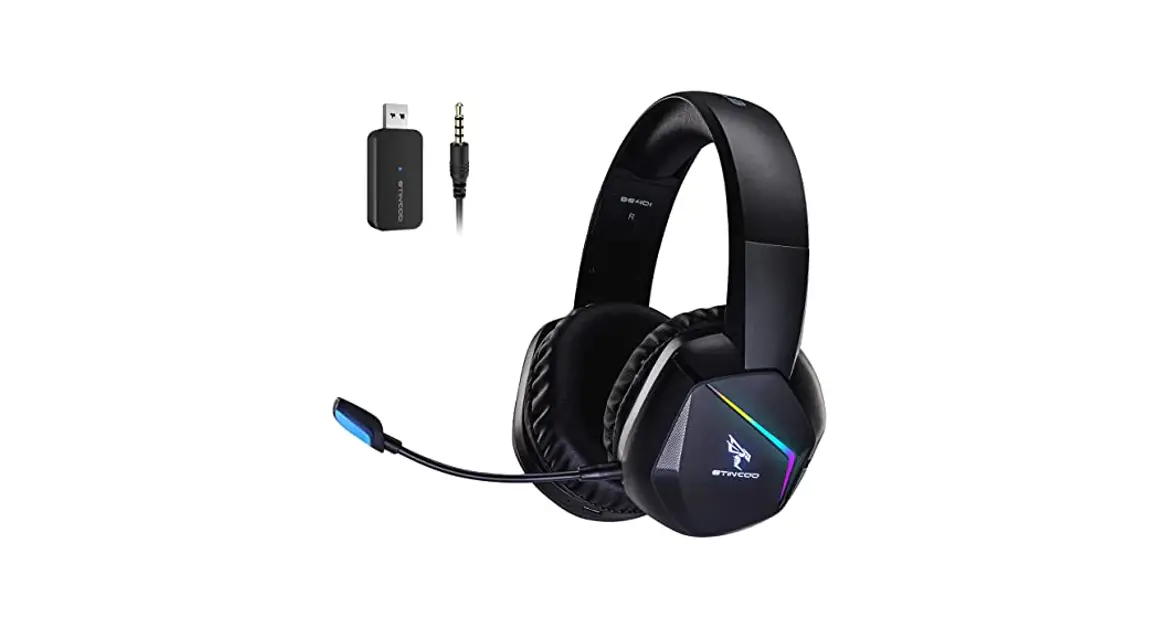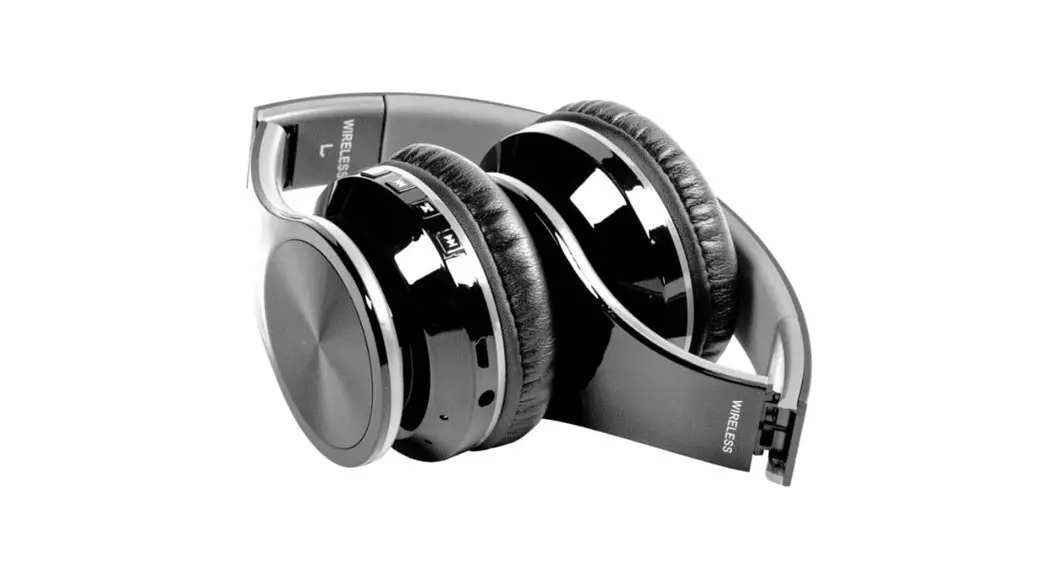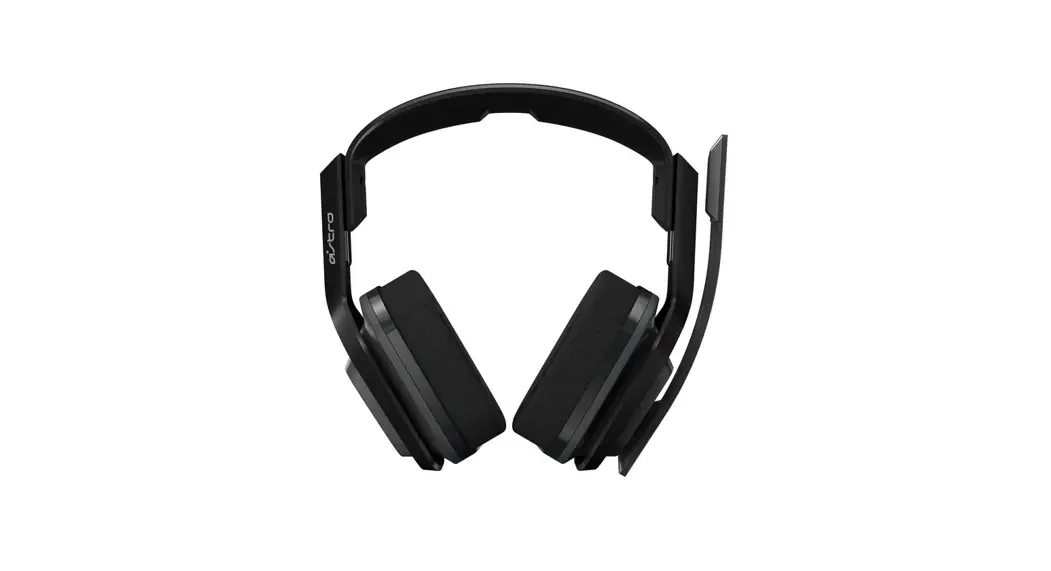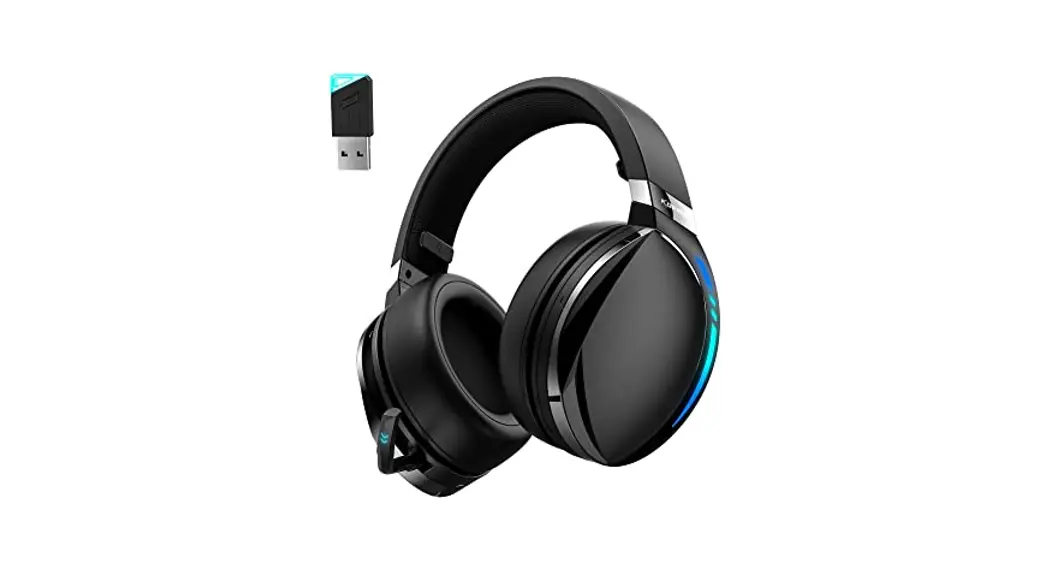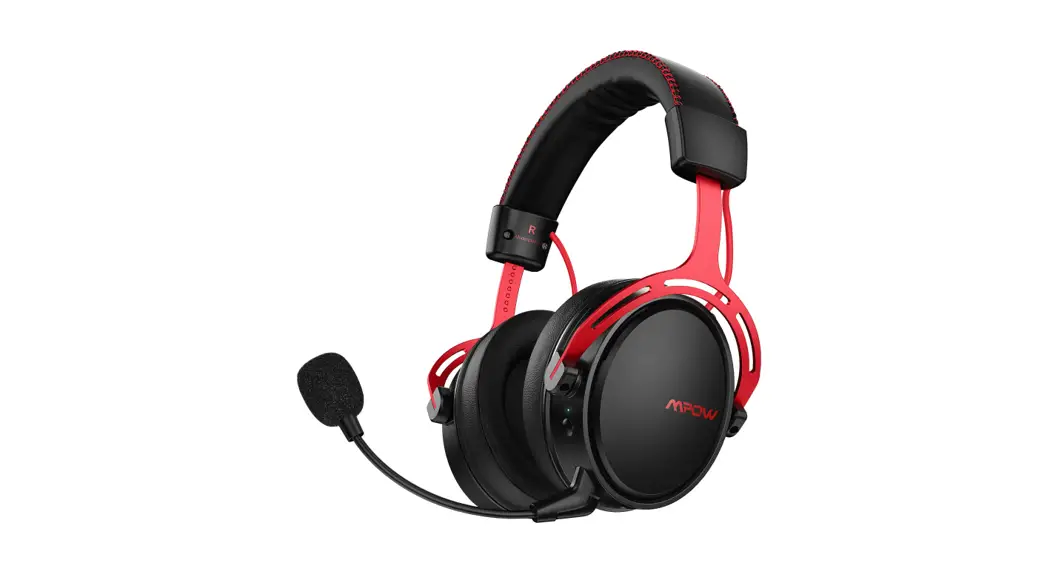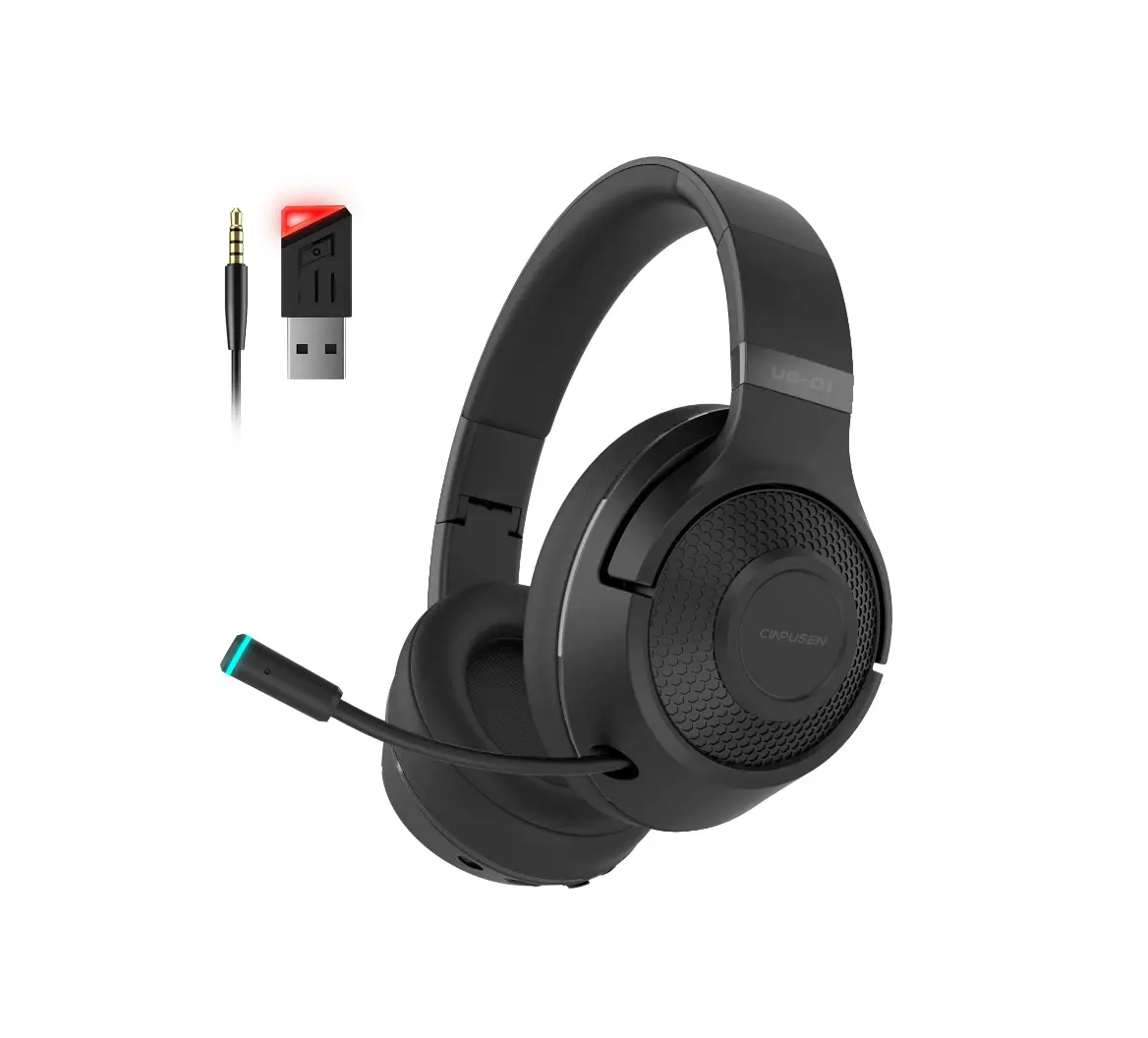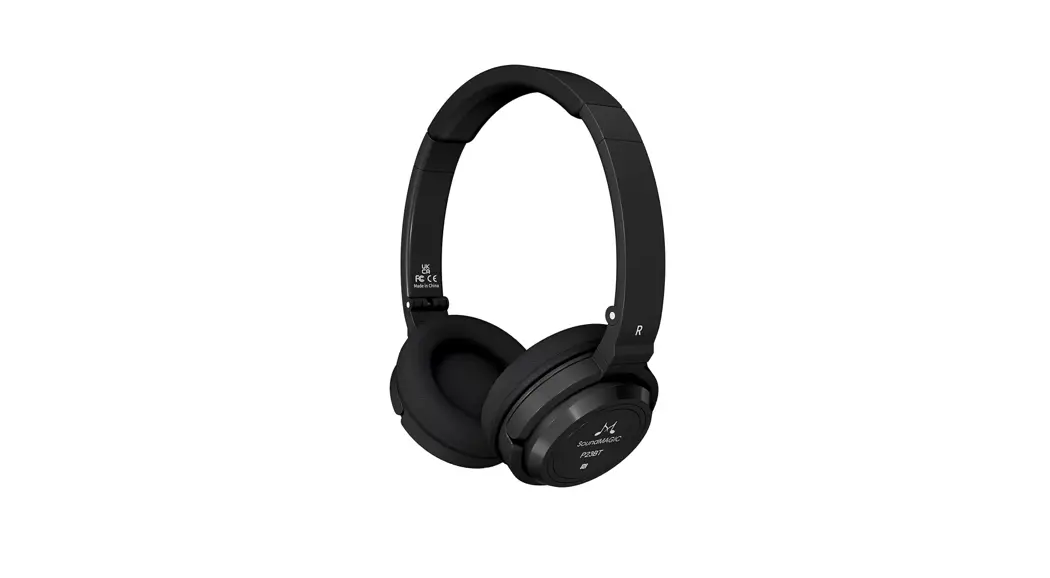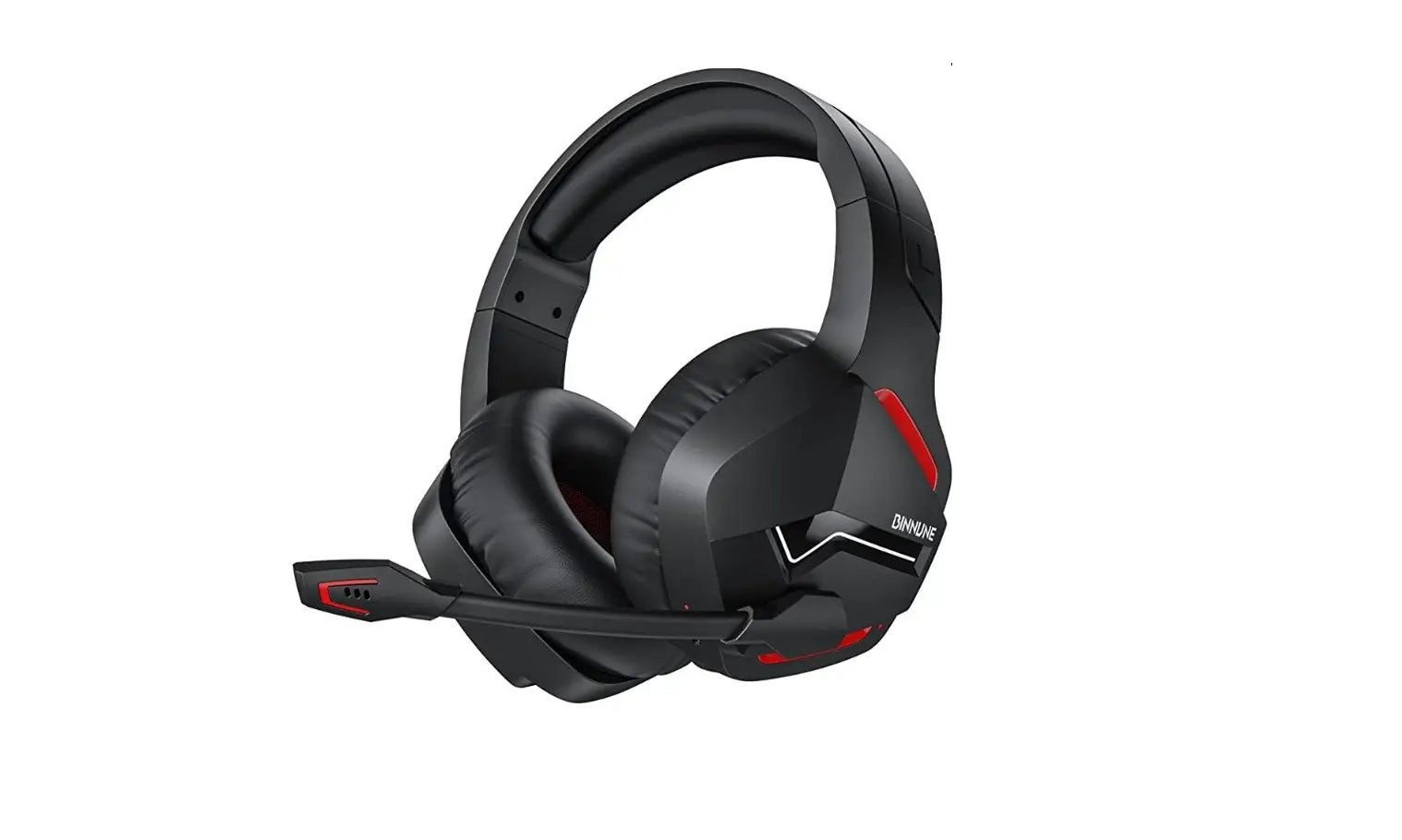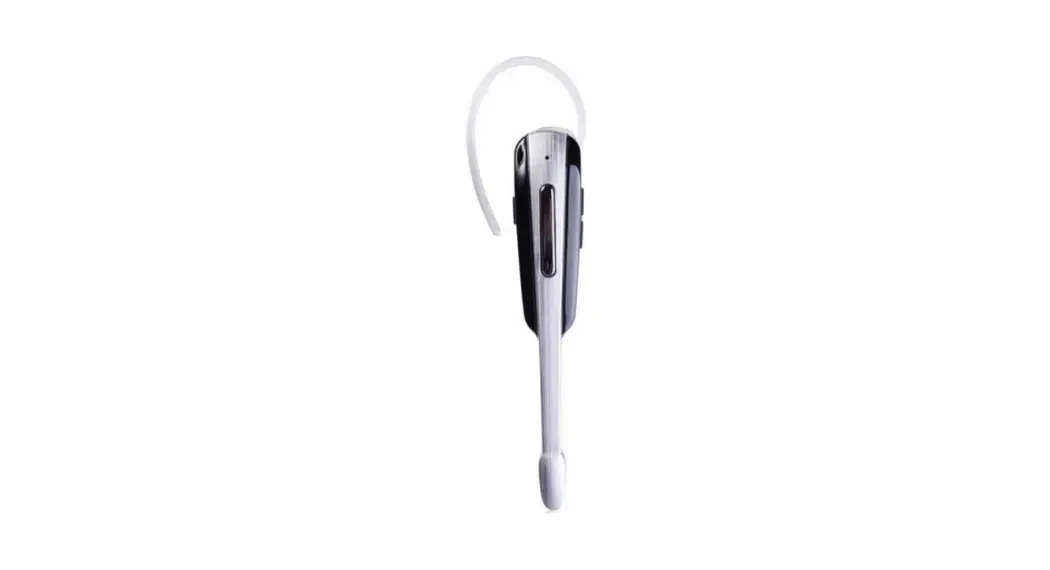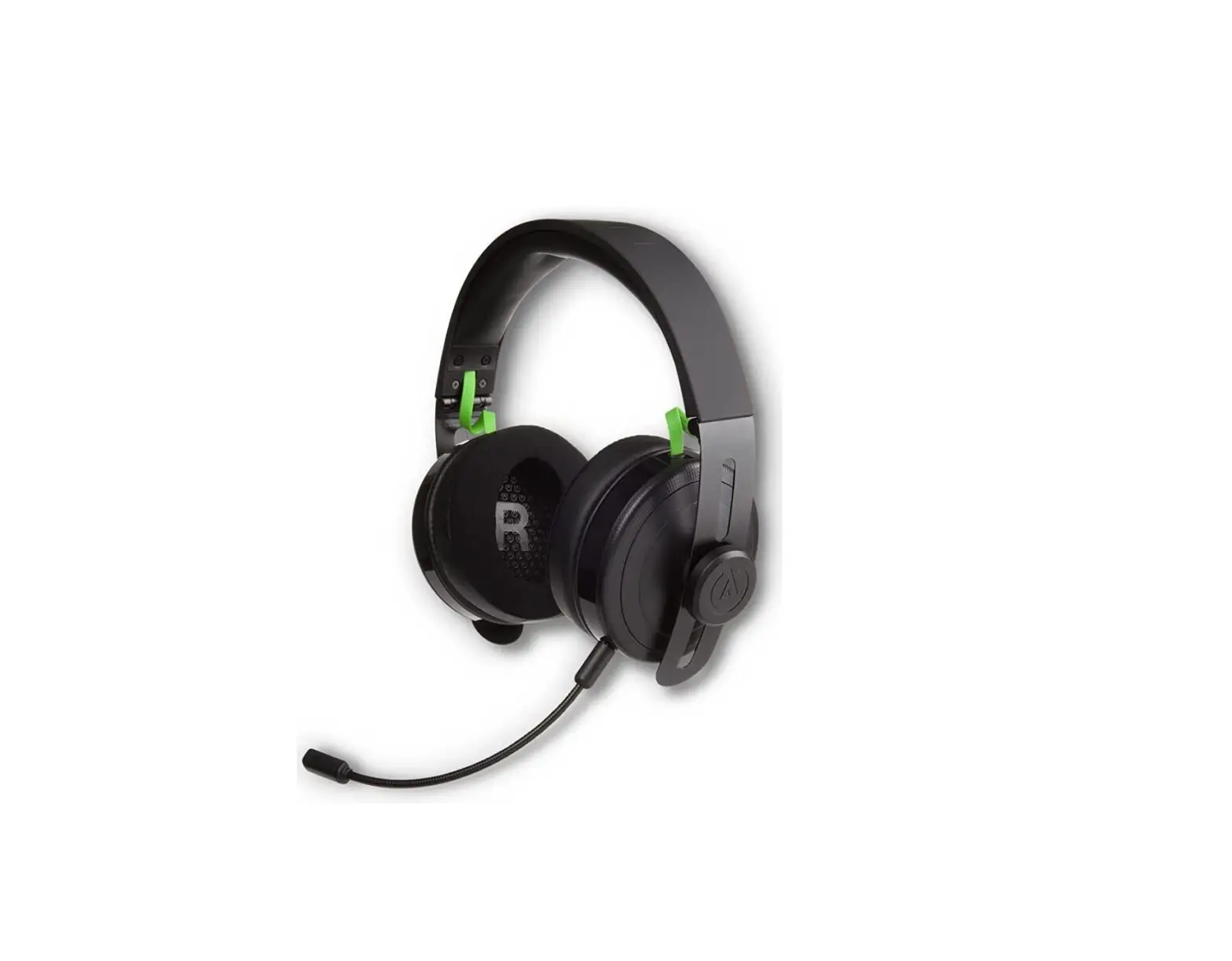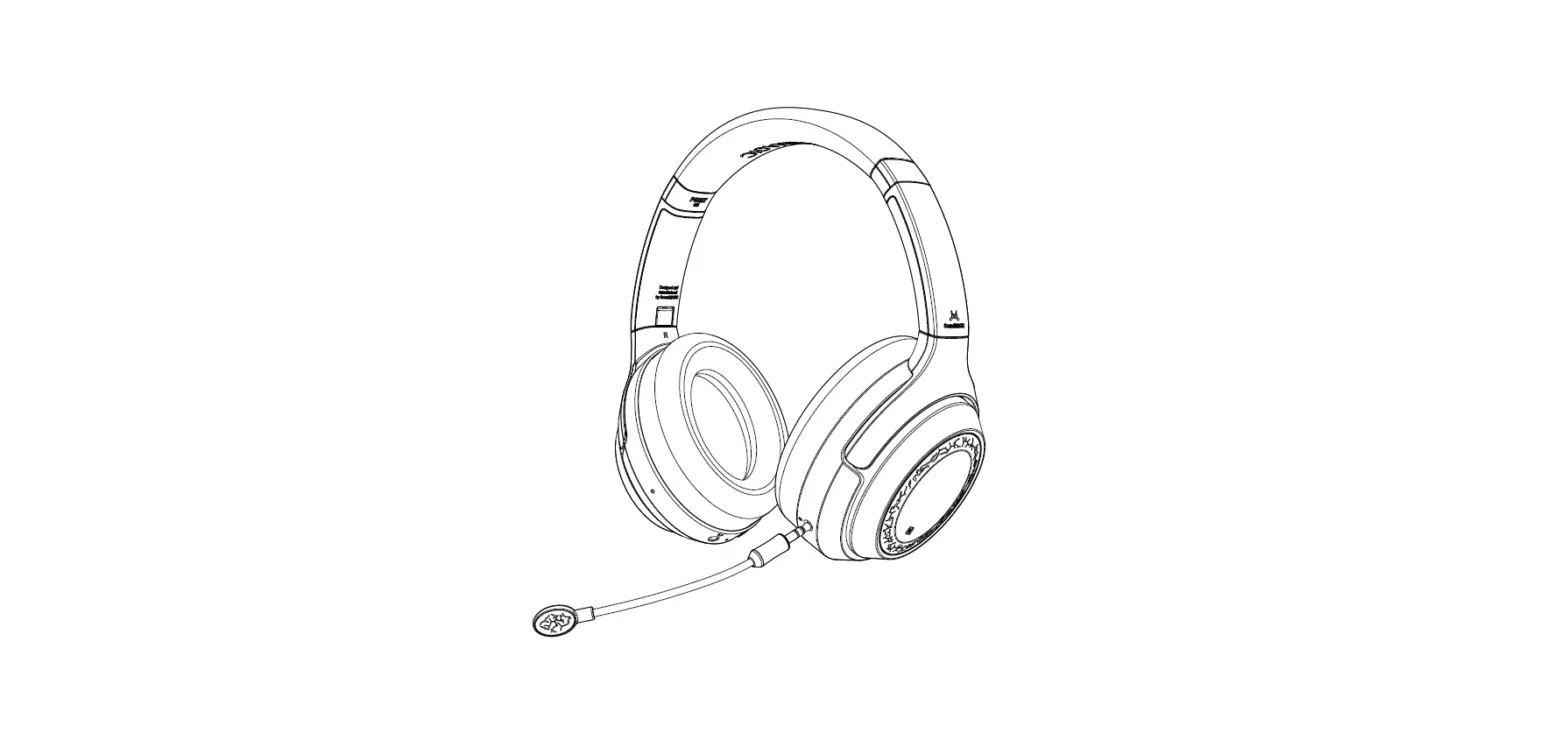

SoundMAGIC P60BT GM 2.4G Wireless Gaming and Bluetooth Headset
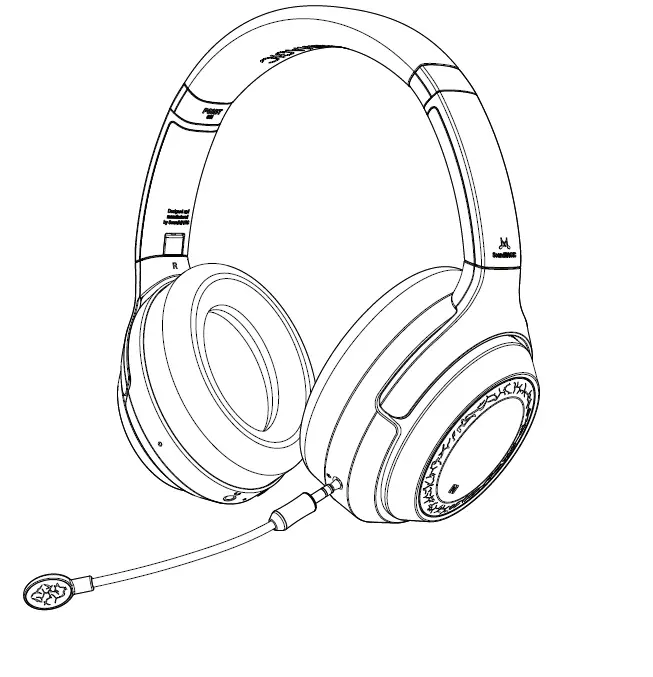
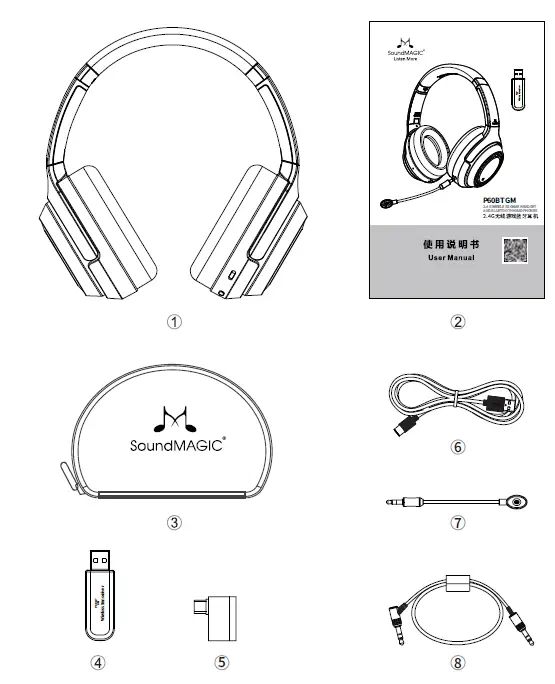
Packing List
Technical specification
- Technical standard: 2.4G Gaming/ Bluetooth 5.2
- Driver: Dynamic 40mm Neodymium
- Transmission range: up to 15m
- Impedance: 3210%

- MIC sensitivity: 42+3dB
- Continuous play time: 50h
- Continuous talk time: 50h
- Headphone weight: 311g
- Ambient temperature: 20°C-6 -60°C

Connect USB transceiver parameters
- Continuous play time: 40h
- Continuous playing game time: 40h
Functional diagram: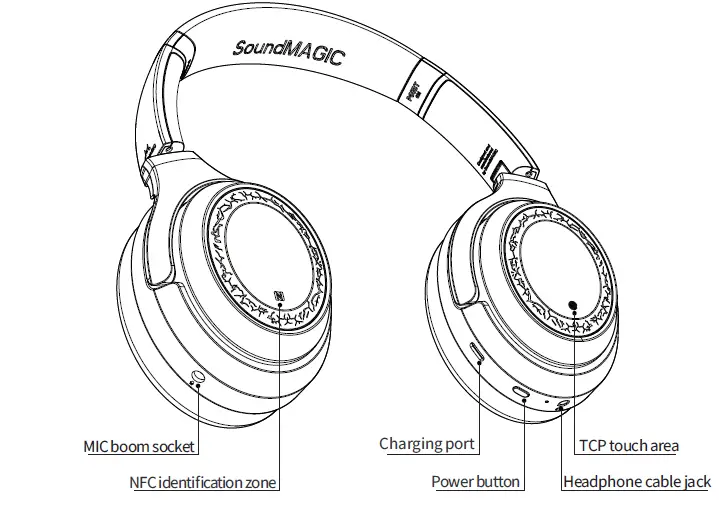
Operation/Function
Power on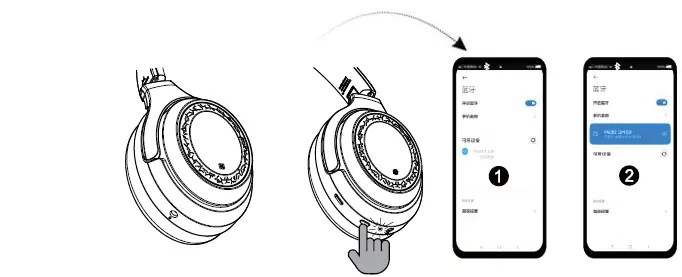
- Long press the button for 3 seconds to turn on the headphone, it will automatically enter the pairing state when there is no connection. The red-blue indicator blinks, the voice prompts “Power on”
- It will automatically connect the devices after the first time pairing successful
Power off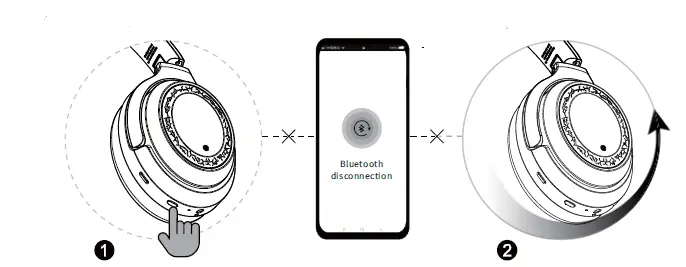
- Manual power off long press 5 seconds to power off, and the red light will light up 3 times. The power-off function is shielded during an incoming calls or during a call
- Automatic power off if there is no connected device, it will automatically power off after 5 minutes, and the red light will light up 3 times, the voice prompts “Poweroff”
Incoming call/reject call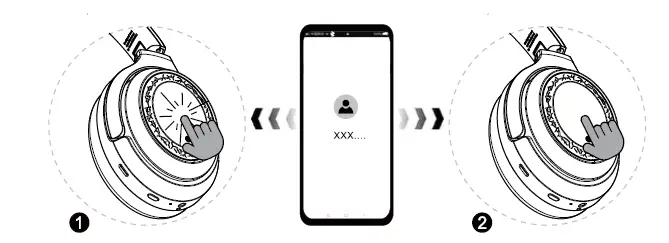
- Double-click TCP: answer/hang up
- Long press 2 seconds: reject call
Switch calls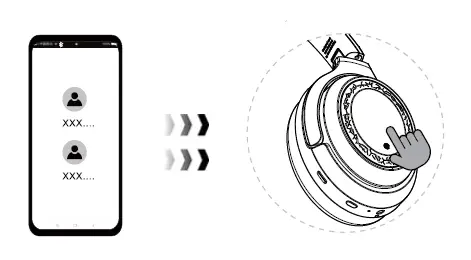
During a call, long press TCP for 2 seconds to put the current call on hold and answer the incoming call
Play Music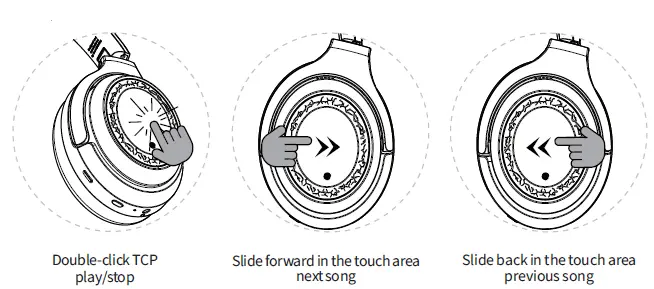
Volume control
Slide up once to turn the volume up a notch
Slide up on the touch area and pause, the volume continues to increase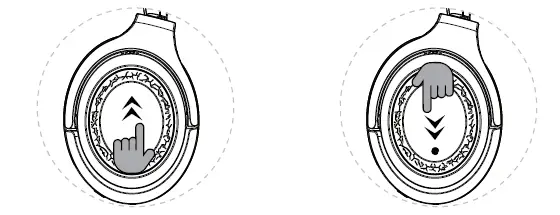
Slide down once to tum the volume down a notch
Slide down on the touch area and pause the volume continues to decrease
Voice function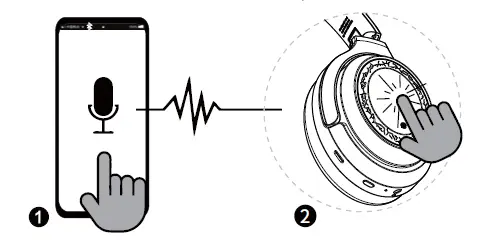
- Enable the mobile phone voice assistant
- click to activate the voice assistant function
Phone connection
NFC connection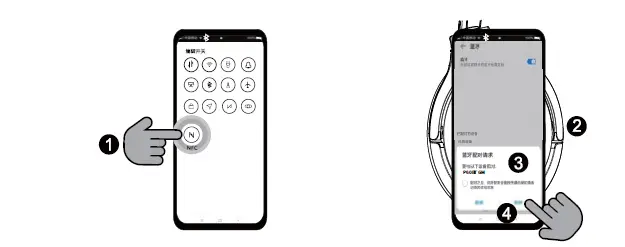
- Turn on the NFC function on your phone
- The headphone enters the pairing state, put the phone is close to the NFC identification zone
- The phone pops up with a matching request
- Click”Pair”to connect successful
Pair connection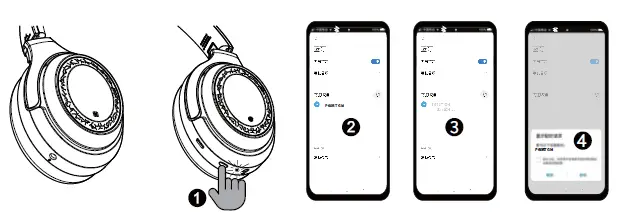
- 3-click power button to automatically enter the pairing state, the red-blue light flashing quickly
- Search the Bluetooth on the phone
- Find Bluetooth headphone “P60BT GM”
- Confirm the pairing request to connect successfully
Headphone reconnection
Manual reconnection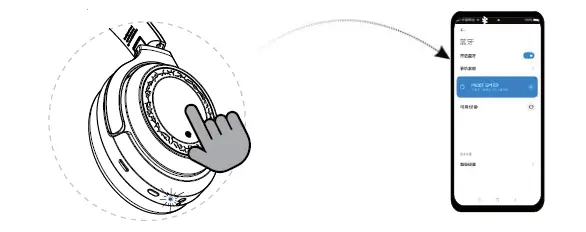
When unable to auto-reconnection, click TCP, the blue light blinks for 2 seconds, the headphone will auto connect with the phone
Automatic reconnection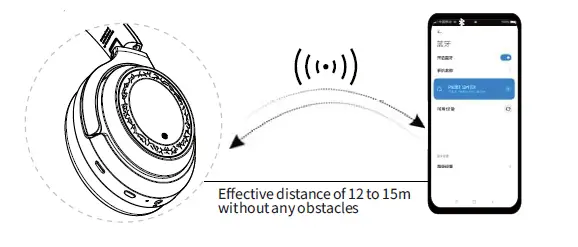
Phone and headphone are on
Reset headphone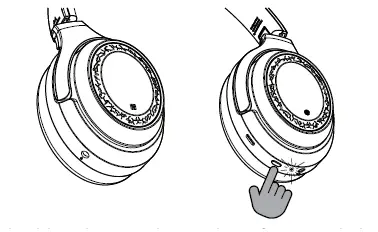
Turn off the headphone, long press the power button for 10 seconds, and the red and blue lights3 times, reset successfully
Silent mode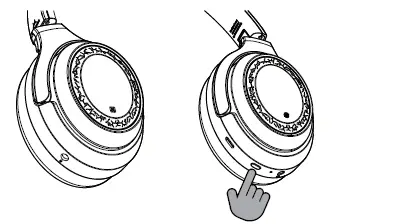
- Press the power button to turn the microphone on or oft, the voice prompts “mute” or “unmute”
- Reminder: when talking, the other party cannot hear the voice, and the microphone is on silent mode, please press the power button. When the microphone function is turned on , the voice prompt “unmute” will be heard
Wired headphone usage status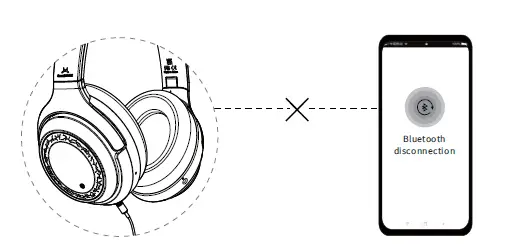
Once the audio cable is plugged in, the power will be cut off, the Bluetooth function will be disabled
Headphone charging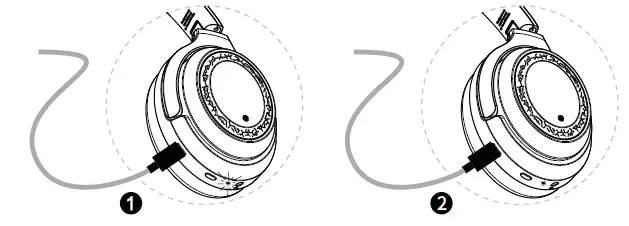
- Being charged when the headphone is on: the red and blue lights will flash,and the blue ight is on when fully charged
- Being charged when the headphone is off: the red light will on long bright, and the light will be off when fully charged
Use USB Transceiver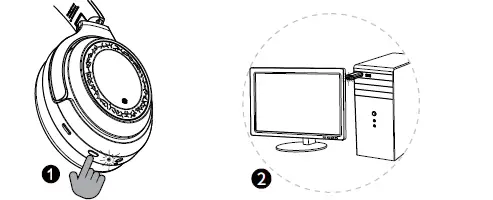
- The headphone and USB transceiver have been paired at the factory. In an automatic turn-on state, insert the USB transceiver, it will be automatically connected and the voice prompts “Connected”
- If the headphone cannot connect with the USB transceiver, please help to connect them as follows:
- Turn on the headphone, click the power button 5 times, and the red and blue lights blink alternately
- Insert the USB transceiver to the computer, the white light on the headphone blinks every 3 seconds once connected successfully
Use Type-C OTG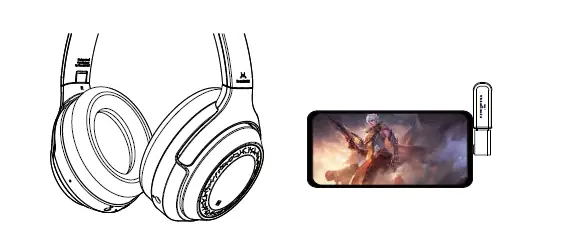
- The phone can be used once plugged in Type-C OTG and USB transceiver
- If cannot connect, please follow instructions 14
Microphone boom for gaming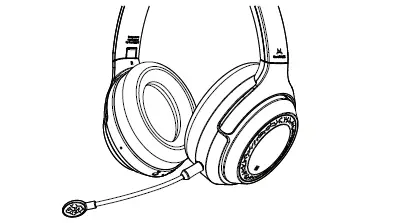
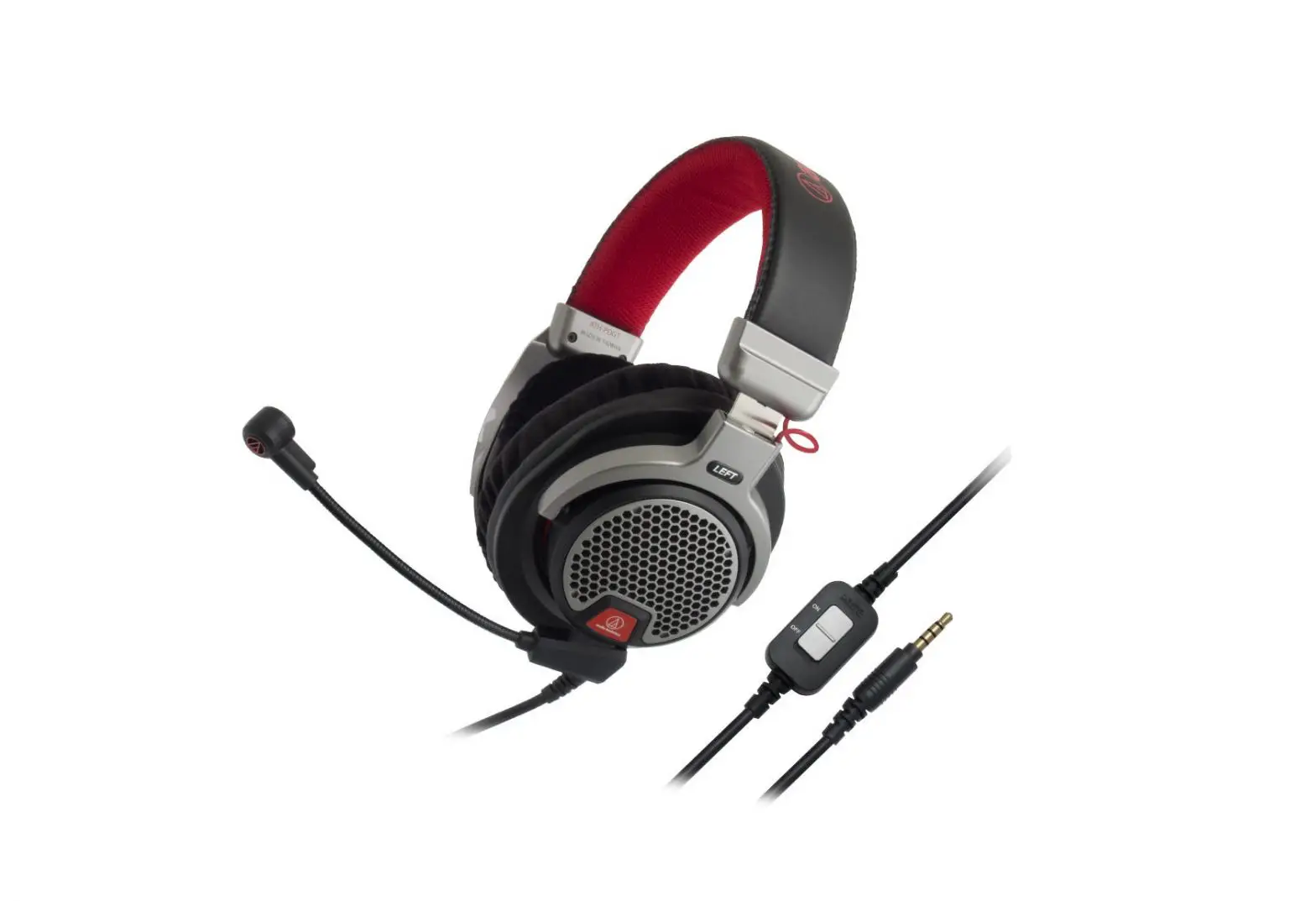
The microphone boom can be used by inserting into the left headphone jack
Bluetooth/2.4G Wireless dual mode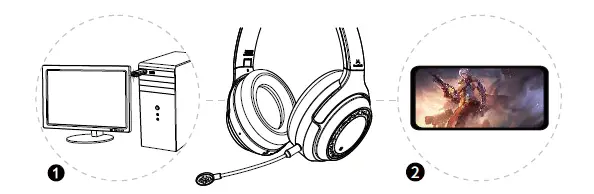
- The headphone has been connected with the wireless transceiver at the factory. Turn on the headphone, plug the wireless transceiver into the computer, the headphone will connect automatically. If need to connect the phone with the headphone, please help to follow the instructions
- When playing the game, you can directly use the headphone to answer the call without any operation
Switching mode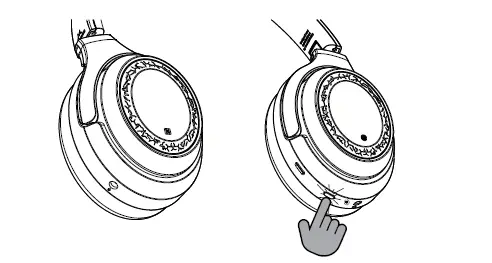
Double click the Power button, if the white light on the headphone will flash once every 3 seconds, it’s on game mode. If the blue light blinks once every 3 seconds, it’s on Bluetooth mode
Network conference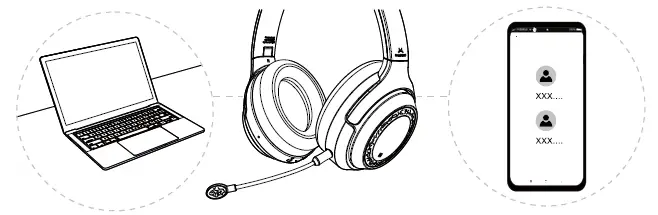
Participate in a remote network conference by connecting the headphone
Precautions
- Any improper use or unauthorized servicing that results in damage to your headphone will void the warranty
- Do not use sharp objects near your headphone
- Do not keep your headphone in charging mode for a long period
- Do not store your headphone near toxic chemicals
- Do not store your headphone near magnets
- Do not leave your headphone with a fully drained battery for long period
- If your headphone is out of use for a long time, please charge it periodically to protect the battery
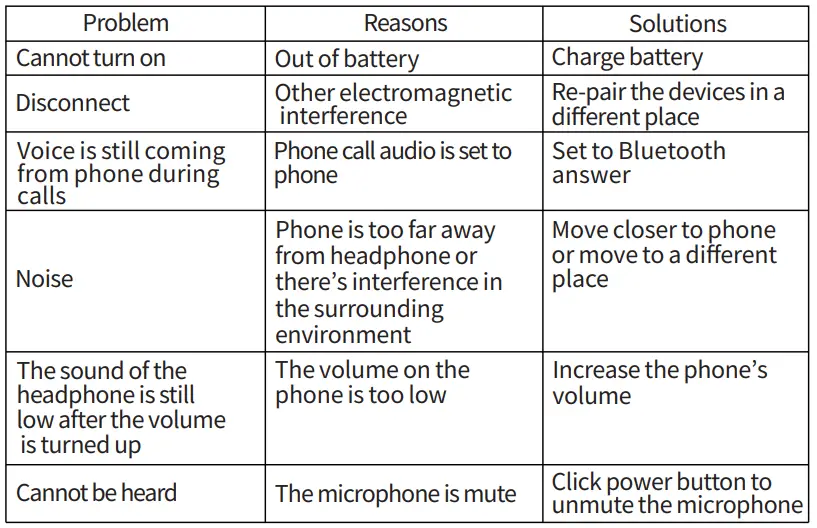
Common problems and solutions
NOTE: This equipment has been tested and found to comply with the limits for a Class B digital device, pursuant to part 15 of the FCC Rules. These limits are designed to provide reasonable protection against harmful interference in a residential installation. This equipment generates uses and can radiate radio frequency energy and, if not installed and used in accordance with the instructions, may cause harmful interference to radio communications. However, there is no guarantee that interference will not occur in a particular installation. If this equipment does cause harmful interference to radio or television reception, which can be determined by turning the equipment off and on, the user is encouraged to tryy to correct the interference by one or more of the following measures
- Reorient or relocate the receiving antenna.
- Increase the separation between the equipment and receiver.
- Connect the equipment into an outlet on a circuit different from that to which the receiver is connected.
- Consult the dealer or an experienced radio/TV technician for help
Changes or modifications not expressly approved by the party responsible for compliance could void the user’s authority to operate the equipment.
This device complies with Part 15 of the FCC Rules. Operation is subject to the following two conditions:
- this device may not cause harmful interference, and
- this device must accept any interference received, including interference that may cause undesired operation.
Please contact us for service and support.
Our professional service team is ready to help you.
Service hotline: 0769-81270118
Shenzhen SoundMAGIC Technology Development Co., Ltd
Address:
1613# Building A, Weidonglong Business Building, Longhua District, Shenzhen, China
Tel: 0755-88316487