STARLINK Business
Product Information: Starlink Business
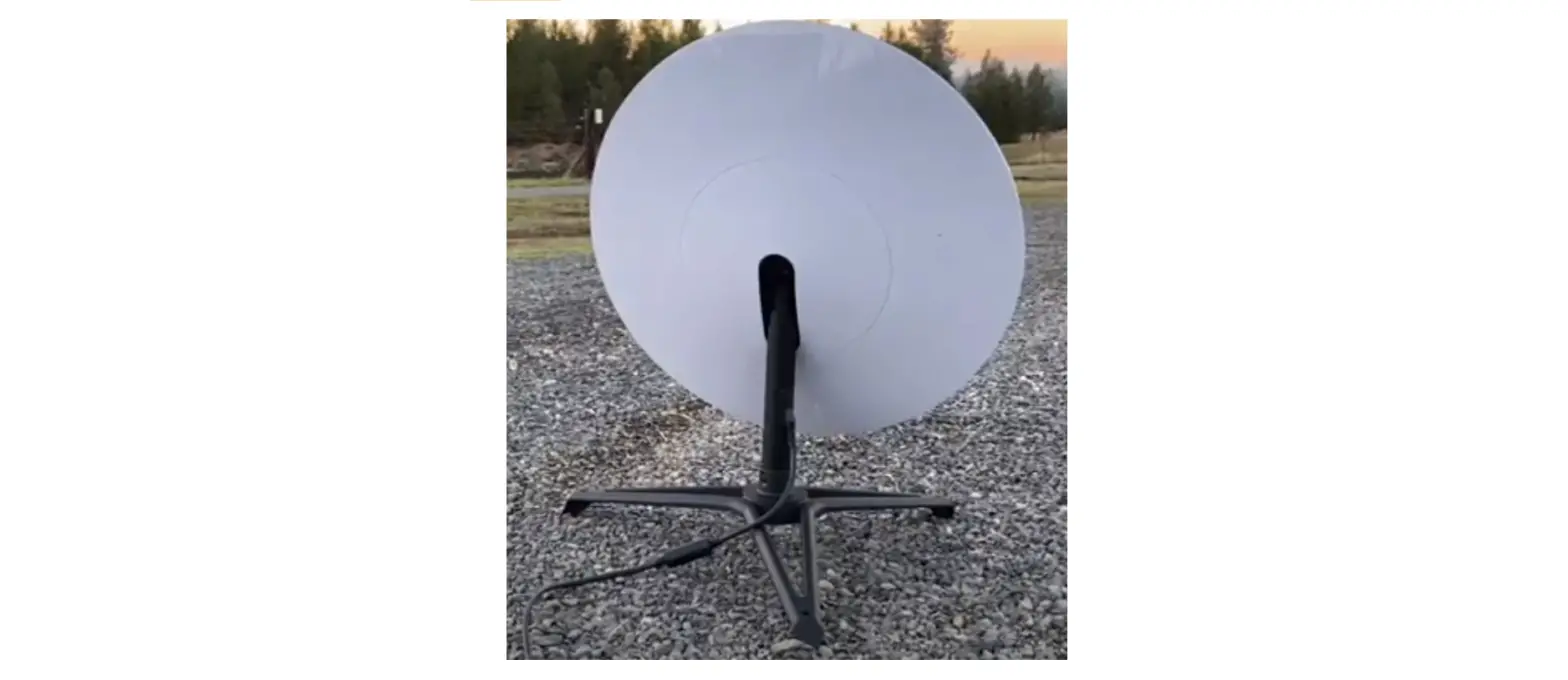
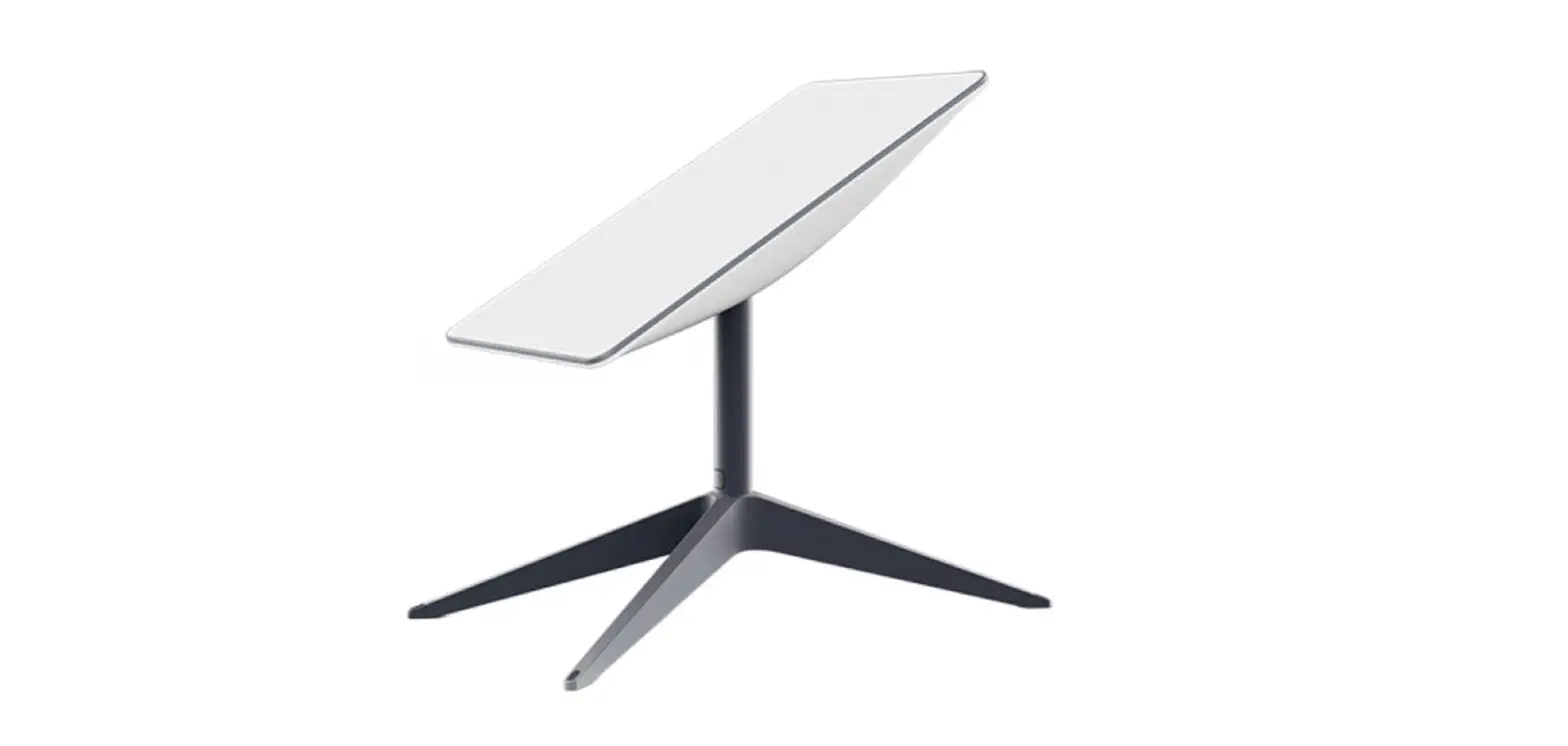
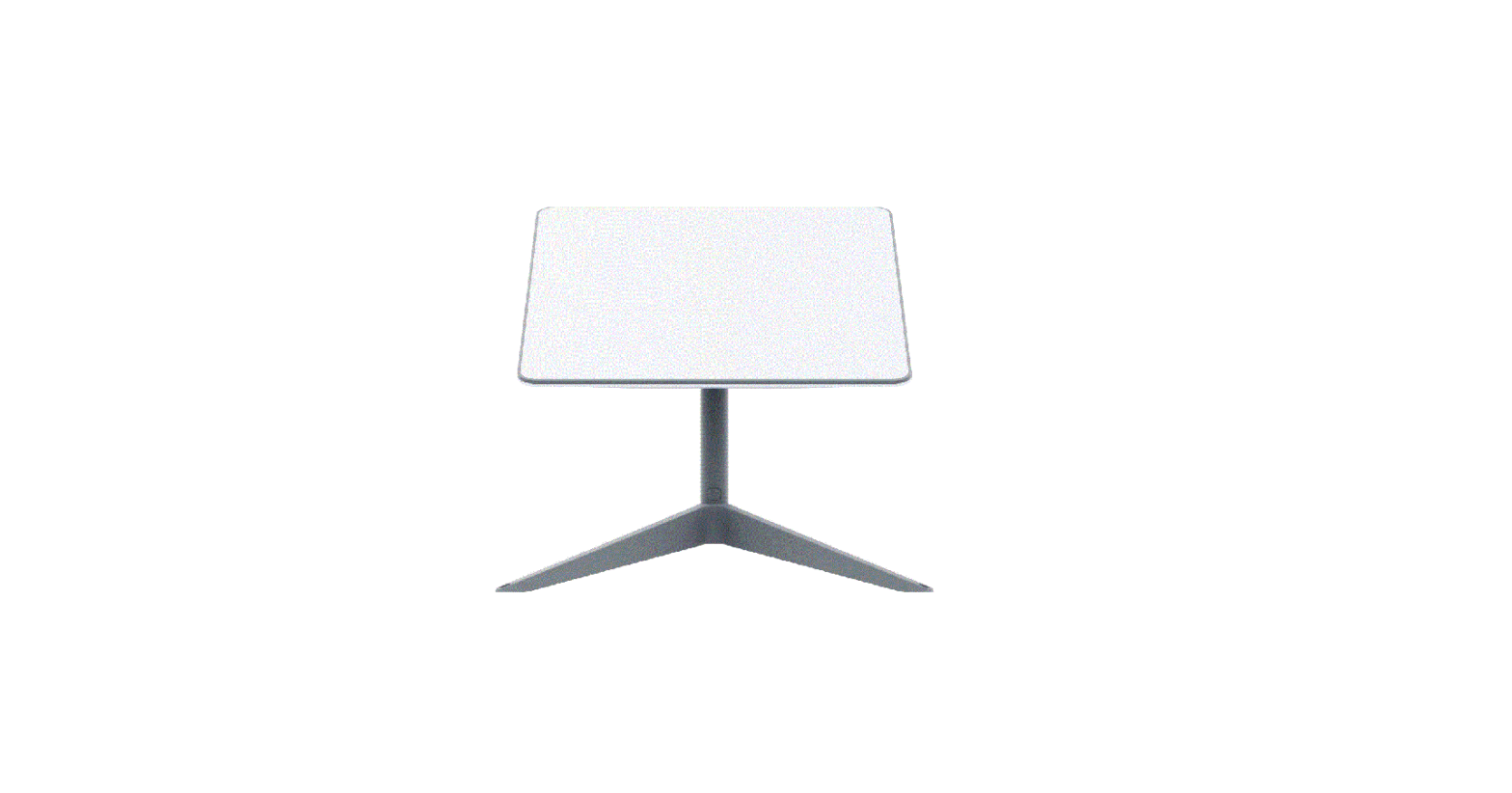
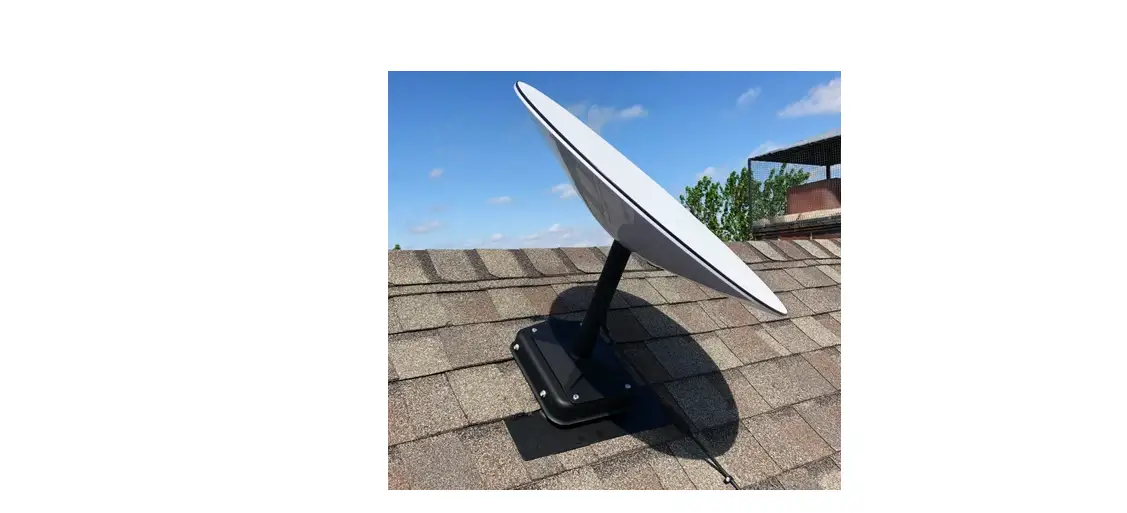
The Starlink Business is a satellite internet system that
provides high-speed internet connectivity to businesses. It
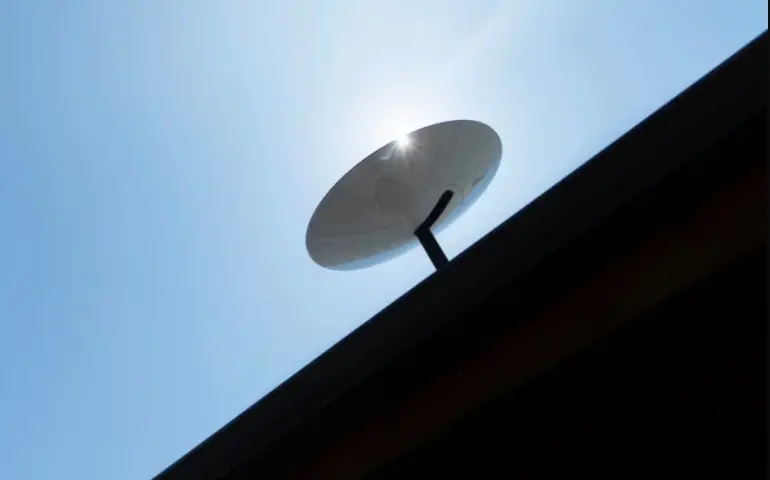
requires a clear view of the sky to stay connected with the
satellites. It automatically levels and tilts itself to search for
satellites overhead and connects to the internet.
Setup
To set up the Starlink Business, follow the below
instructions:
- Find a clear view of the sky. Download the Starlink App and use
the Check for Obstructions tool to find an install location that
will deliver the best service. - Plug the Starlink into the base and plug it into power.
- Wait for a few minutes for the Starlink to make an initial
connection to the Starlink constellation and tilt to the optimum
angle for satellite coverage (slightly north or south based on your
location in the northern or southern hemisphere).
Installation
To connect to WiFi, follow the below instructions:
- On your device, find and connect to the STARLINK network in
your WiFi settings. - Once connected, a browser window will open prompting you to
enter a new SSID (Network name) and password. This step is optional
but recommended. - You are now connected! Open the Starlink App to customize
additional settings, check your connection, and more.
Troubleshooting
If you face any issues with the Starlink Business, follow the
below steps:
- Open the Starlink App to check for any alerts, outages, or
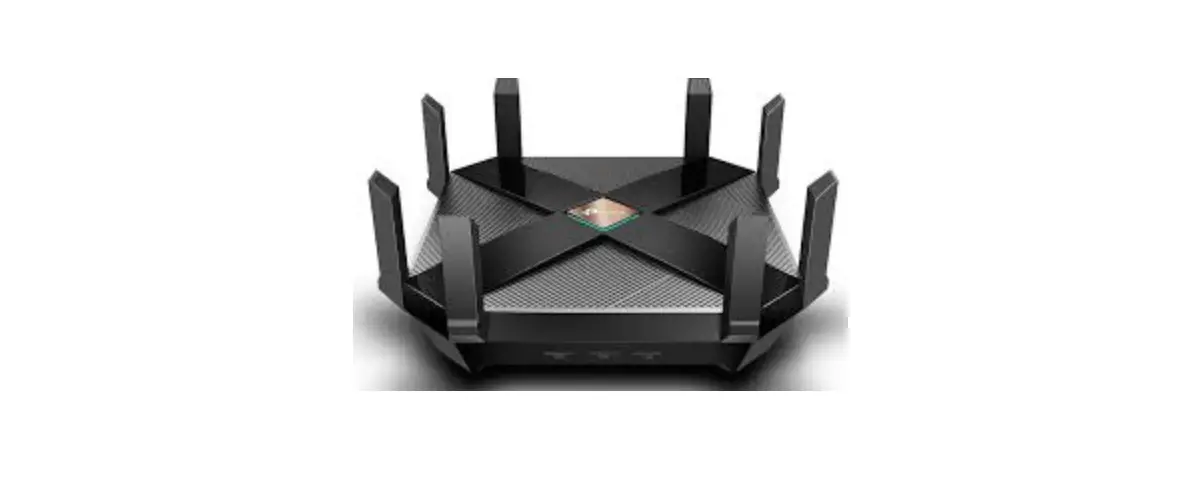
obstructions. - Check the WiFi router light.
- Make sure everything is securely plugged in and there is no
damage to hardware or cables. - Confirm you are at the correct service address listed on your
account. - Power cycle Starlink by unplugging from power and then plugging
back in. - If none of these works, contact Starlink Customer Support by
logging into your account on starlink.com.
Starlink Business
ENGLISH
Install Guide
SETUP
ENGLISH
Find A Clear View of the Sky
Your Starlink needs a clear view of the sky so it can stay connected with satellites as they move overhead. Objects that obstruct the connection between your Starlink and the satellite, such as a tree branch, pole, or roof, will cause service interruptions.
To find a location with a clear view of the sky:
1. Download the Starlink App. 2. Use the “Check for Obstructions” tool to find an install location that will deliver the best service. 3. For best results, Starlink should be installed as close to vertical as possible.
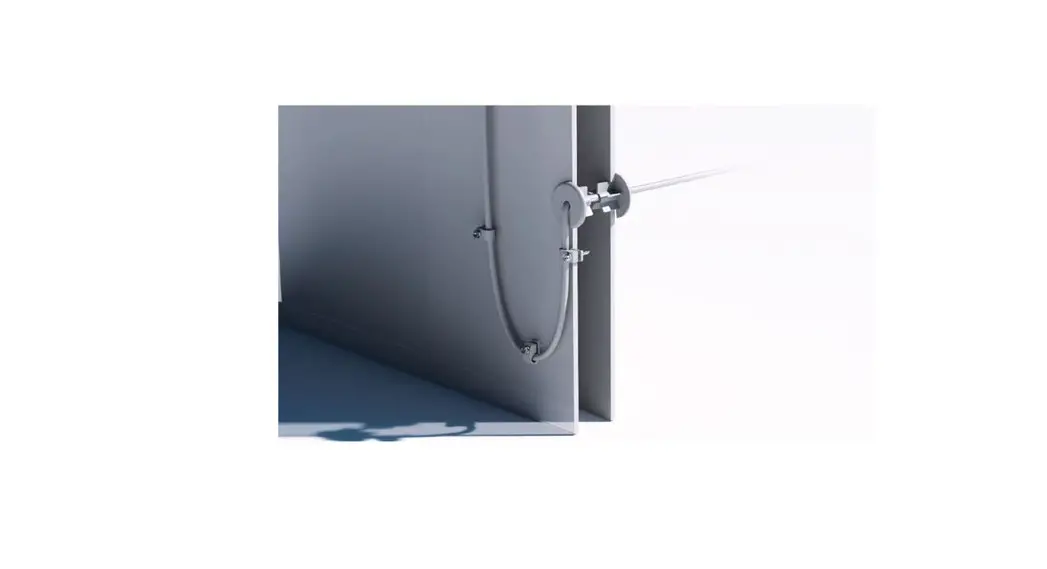
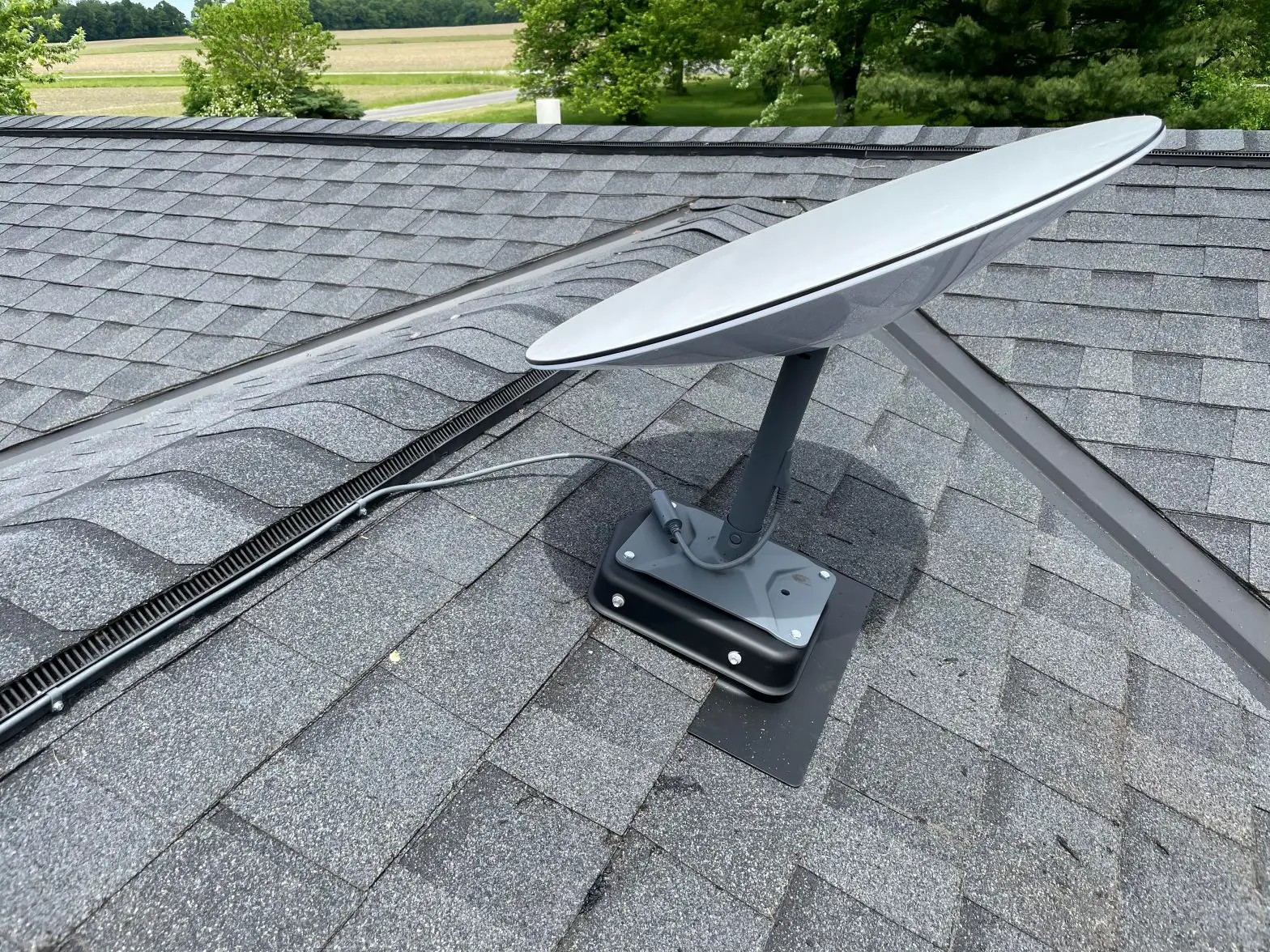
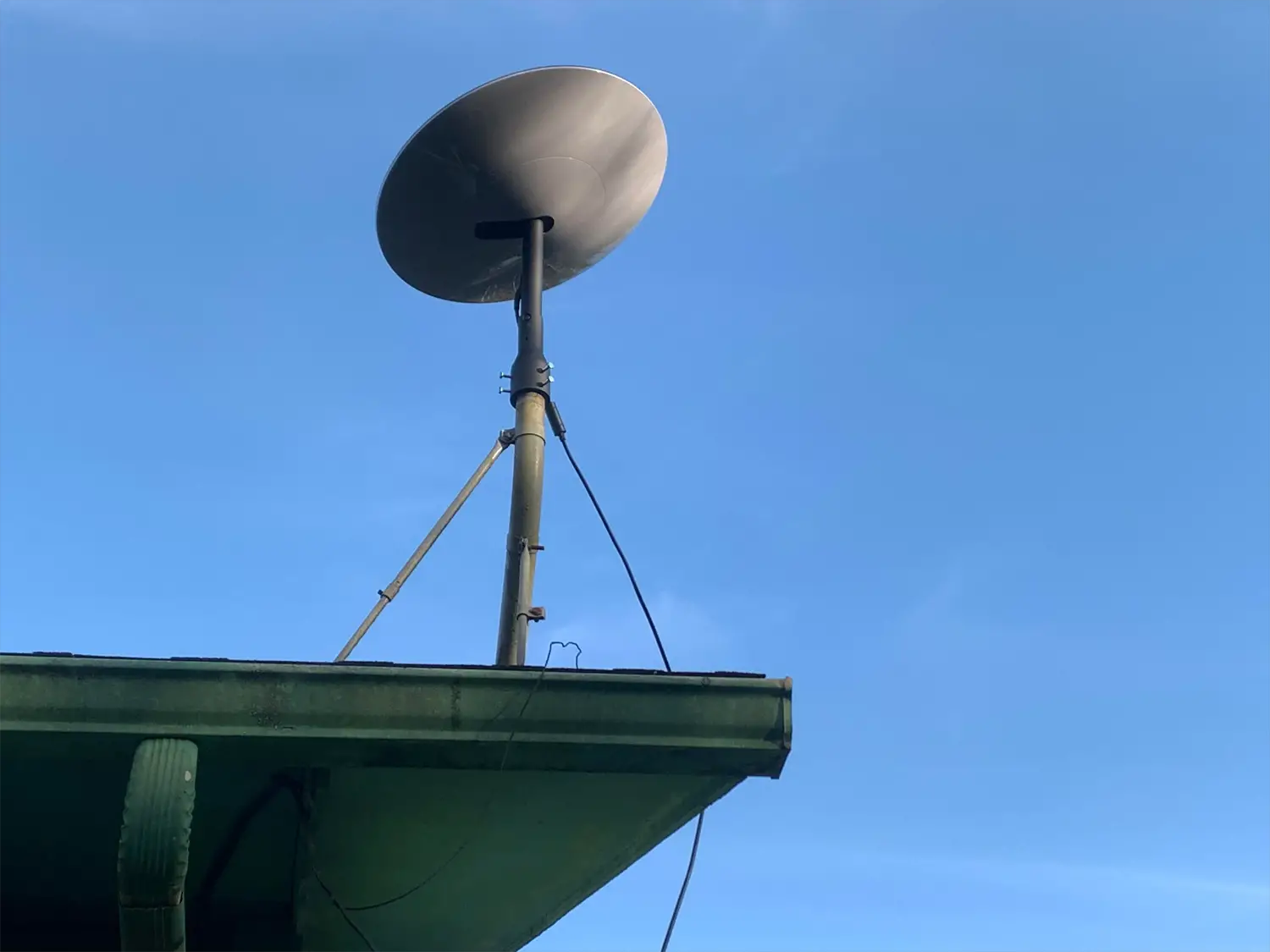
If you could not find a clear field of view from the ground level, consider installing in an elevated location, like a roof, pole, or wall. Additional mounts and accessories are available for purchase on the Starlink Shop.
Plug Starlink In
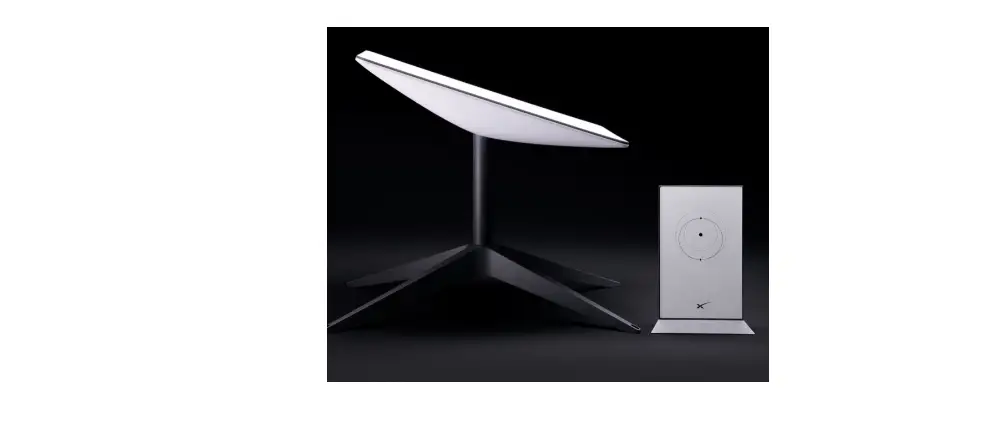
1. Put Starlink into base and plug into power. Starlink
Power Supply
Router
Outdoors
Indoors
2. Starlink will automatically level itself to search for satellites overhead. Do NOT attempt to manually adjust your Starlink. 3. After a few minutes, Starlink will make an initial connection to the Starlink constellation and tilt to the optimum angle
for satellite coverage (slightly north or south based on your location in the northern or southern hemisphere).
Stowed — Intializing
Auto-Level — Sky Searching
Auto-Tilt — Connected to Internet
INSTALLATION
Connect to WiFi
1. On your device, find and connect to the STARLINK network in your WiFi settings.
4:19 WiFi
STARLINK
ENGLISH
2. Once connected, a browser window will open prompting you to enter a new SSID (Network name) and password. This step is optional but recommended.
3. You are now connected! Open the Starlink App to customize additional settings, check your connection, and more.
Starlink
Power
LED Light
Can’t Get Online?
Solid light: Power connected. No light: No power connected.
1. Open the Starlink App to check for any alerts, outages, or obstructions. 2. Check the WiFi router light. 3. Make sure everything is securely plugged in and there is no damage to hardware or cables. 4. Confirm you are at the correct service address listed on your account. 5. Power cycle Starlink by unplugging from power and then plugging back in. 6. If none of these works, contact Starlink Customer Support by logging into your account on starlink.com.
For Further Assistance
Find answers to frequently asked questions, installation education, and additional troubleshooting in the Starlink App and the Support section of starlink.com.