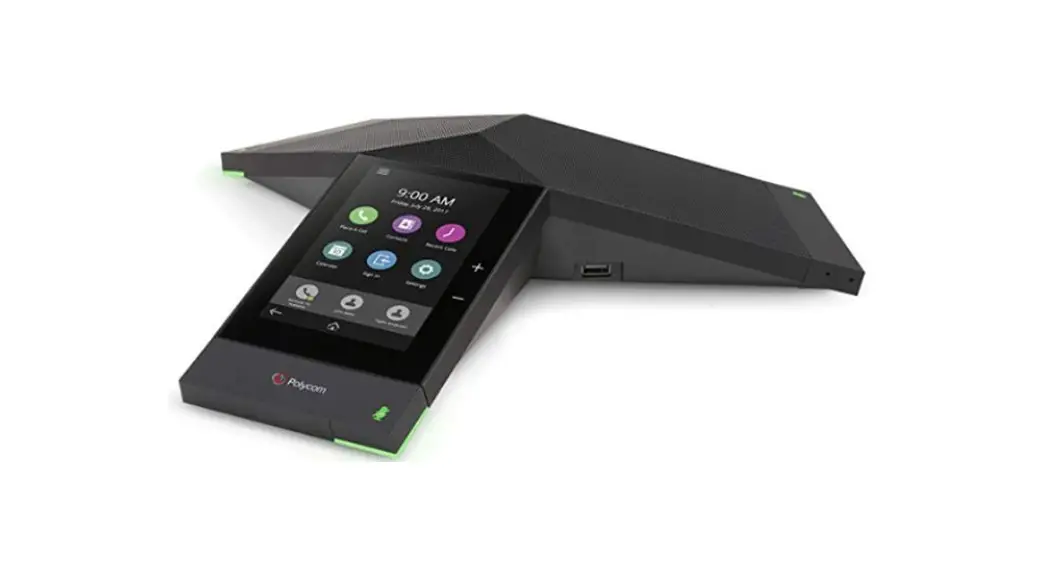
Verizon Centrex Voicemail for Any Touch Tone Telephone
Voicemail Basics
You may interact with your Centrex Voicemail service from any touch-tone telephone. You can receive messages 24 hours a day, 7 days a week. You may have a total of 15 to 60 messages depending on the type of mailbox you have (new as well as saved messages) in the system at one time. You may save new messages for a maximum of 15 to 60 days. The maximum length of each message is 2 to 6 minutes. That again depends on the type of mailbox you have.
The voice prompts guide you through the different processes. They move quickly from one step to another in order to make the use of the service fast and convenient.
Before dialing into your mailbox, please take a few minutes to review this guide and familiarize yourself with the set-up, operation, and features of your new service. This will help you to understand the options offered to you.
Important Notice: Your Verizon Voicemail service is governed by the Terms of Service for Verizon Voicemail for Business available to you at verizon.com/terms. Please review the Terms carefully. By using the service, you are agreeing to those Terms, including arbitration of any disputes. If you are unable to view them online please call 1.800.VERIZON (1.800.837.4966).
Getting Started
The first time you use your mailbox, you must “personalize” it using the following steps: Using a Touch-Tone® telephone:
- Dial your Access Number.
When calling from a remote telephone, you will need to press#and dial your mail-box number. - Dial your starter Password (4 or 7 digits).
- Create a new Password.
When prompted, enter an easy-to-remember number consisting of 4-10 digits and press the#key. Since you MUST
remember this Password, the service will recite it back.
• Press1to keep.
• Press2to cancel and change.
To ensure security, we recommend NOT using:
• Your telephone (or mailbox) number.
• A series of same numbers (e.g., 33333).
• Sequential numbers (e.g., 23456). - Record your greeting.
When prompted, record the greetings your callers will hear when you are unavailable for calls and press the#key. The service will recite it back.
• Press1to keep.
• Press2to cancel re-record. - Record your name.
When prompted, record your name and press the#key. The service will recite it back.
• Press1to keep.
• Press2to cancel and change.
Retrieving Your Messages
Using a touch-tone telephone from your Centrex line associated with the messaging service:
- Dial your Access Number. When your call is answered, the service will recite your name as you recorded it.
– OR –
Using any other touch-tone telephone (i.e., your cell phone, your home phone, etc.)1
- a. Dial your Access Number. When your call is answered, press the
#key.
1b . Dial the voicemailbox number associated with the messaging service. - Dial your 4 to 10-digit password. The system tells you how many messages you have waiting and/or saved.
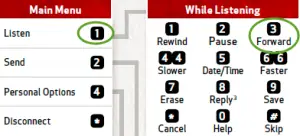
- To hear your messages, press
1from the Main Menu.
When the message ends:
- Press
2to save the message. - Press
3to erase the message. - Press
4to reply to the message sender. - Press
5to forward a copy of the message and include your comments. - Press
#to skip to the next message.
Anytime during the message, you can:
- Press
6to go to the end of the message. - Press
7to rewind a few seconds. Repeat to go further back. - Press
8to pause the message for a brief period; press any key to restart. - Press
9to forward a few seconds. Repeat to go further forward. - Press
#to skip to the next message.
Sending Messages
You may record and send messages to other Voice Messaging subscribers or a Group List on the system.
To send a message:
- Press
2from the Main Menu. - Dial a mailbox number, a group number or a Guest Mailbox number and press the
#key. - Then press
1to continue and hear options to re-dial and add mailboxes, if you desire. - After the tone, record your message and press the
#key. - After you hear the Send Menu:
• Press1to send your message.
• Press2to record your message again.
• Press3to hear your message.
• Press5to choose Delivery Options.
• Press6to continue recording where you left off. - If you choose Delivery Options:
• Press1for URGENT – Urgent messages are heard before all others.
• Press2for PRIVATE – Private messages cannot be forwarded to anyone.
• Press3for FUTURE – Future delivery allows you to choose a date and a time for messages to be sent. The system allows you to deliver a maximum of 5 messages up to 30 days in advance. The system will prompt you for the month, day, time, a.m. or p.m. of each future message to be delivered.
• Press4for CONFIRM – You will receive a confirmation message when your message has been heard.
Personal Options
The Personal Options menu provides you with the flexibility to change your name, greetings and password and establish group lists and guest mailboxes.
To change your name, greeting or password:
- Press
3from the Main Menu for the Personal Options Menu. - Press
1to go to the Name/Greeting option.
• Press1to change your greeting.
• Press2to re-record your name. - Press
2to change your password.
Notification Options1
There are three optional features with Verizon Centrex Voicemail Service that will let know of messages in your mailbox, even when you’re not in the office.
- Out dial Notification and Delivery
- Wireless Notification
When Out dial Notification and Delivery is activated and a message is left in your mailbox, the system will dial a telephone number that you program yourself and can change at any time. When you answer the call from the system, you will be asked for your mailbox password. After you input your password, the system will play your messages. You have the same capabilities in the review session as you normally have when you are in the mailbox. The telephone number that you program in your mailbox can be your home office, your other office, your cell phone or any other number where you can be reached on that day.
To schedule notification to a telephone number:
- Press
3from the Main Menu for the Personal Options Menu. - Press
5for Notification Options. If Notification is OFF, you will hear the system prompt, “To turn the Notification ON, touch1.” If Notification is ON, press1to turn it OFF. - Press
2for Notification Schedule. To back up, press*. If you press2, the system will prompt you to set/change the Notification Schedule and to change the telephone number where the system will call you. The system will also prompt you for the days of the week and times when notifications will be delivered. Follow the system prompts to specify whether all or only URGENT messages will trigger the notification.
When you’re back at your office and no longer need to use this feature, remember to turn it off.
Wireless Notification
Only available with Verizon Wireless phones. Not available in all areas. No charge for the feature but it requires activation. Contact your local business office.
You can be notified on your Verizon Wireless digital cell phone when messages are left in your mailbox. You will receive a text message, “Your have a voicemail message at XXX-XXX-XXXX (your mailbox access number).” You will not be charged for this feature or text message; however, it does require activation. To order, please call your local business office.
Group Lists
Group Lists allow you to quickly send a message to a group of people all at once. You may create up to 3 Group Lists with a maximum of 25 mailboxes per list.
For Group Lists:
- Press
3from the Main Menu for the Personal Options Menu. - Press
4for the Group Options Menu.
Press1to make a Group List. The system will select a number (such as “zero-one”) for the new Group and recite it to you.
• Press1to record a title, then press#.
• Press3to add a member, dial the mailbox number, then press#.
• If not, press*.
Press2to change a Group List and dial the 2-digit number (01, 02 or 03) the system assigned to the Group.
• Press1to change the title.
• Press2to add a member to the Group.
• Press3to delete a member from the Group.
Press3to erase a Group List, and dial the 2-digit number (01, 02 or 03) the system assigned to the Group.
• Press1to erase the Group List.
• Press2to not erase the Group List.
Press4to hear Group Lists and listen for the total number of groups, list number, list titles and number of members in each Group List. To interrupt the list at any time, press the#key.
Dial the 2-digit number (01, 02 or 03) the system assigned to the Group to hear the recorded name and mailbox number of each member.
Guest Mailboxes
Guest Mailboxes are a convenient way to communicate with “guests” who otherwise do not subscribe to Voicemail Service.
Once you have set up a Guest Mailbox, you can send a message to one, two, or all guests at the same time. You, the host, can create up to 3 Guest Mailboxes for other people (“guests”) with passwords that you choose for them. The Guest password will give your guests access only to the messages you sent to their Guest Mailboxes. They cannot access or listen to anyone else’s messages. Since your guests’ messages are included in your mailbox’s total message limit, you may want to remind them to save only their most important messages.
To create a Guest Mailbox:
- Press
3from the Main Menu for the Personal Options Menu. - Press
3to set up a Guest Mailbox. - Choose a mailbox number by pressing
1,2or3. A password is created for this guest. Listen to the password and write it down. - Keep or change the password.
Press1to keep the password. Press2to change it. - To record your guest’s name, after the tone, say the guest’s first and last name, then press
#.
Press1to keep the name. Press2to change it.
To erase any Guest Mailbox you create:
- Press
3from the Main Menu for the Personal Options Menu. - Press
3to erase a Guest Mailbox, then press the number of the Guest Mailbox you wish to erase (1, 2 or 3). After the system tells you that it already exists:
Press1to erase Guest Mailbox. Press2to not erase the Guest Mailbox.
If you need help using Verizon Voicemail
or have questions about the service, please
call 1.800.VERIZON (1.800.837.4966).

 Terms & Conditions Overview | About Verizon