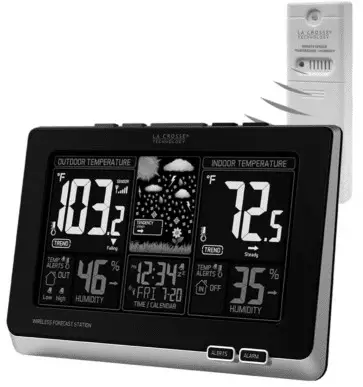
SW403 Family Weather Station
Product Information
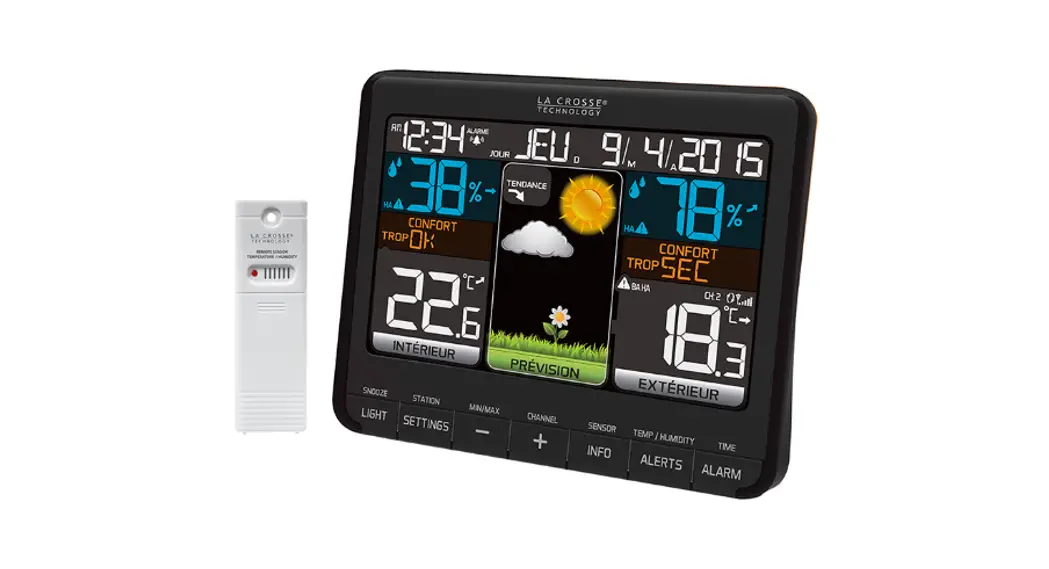
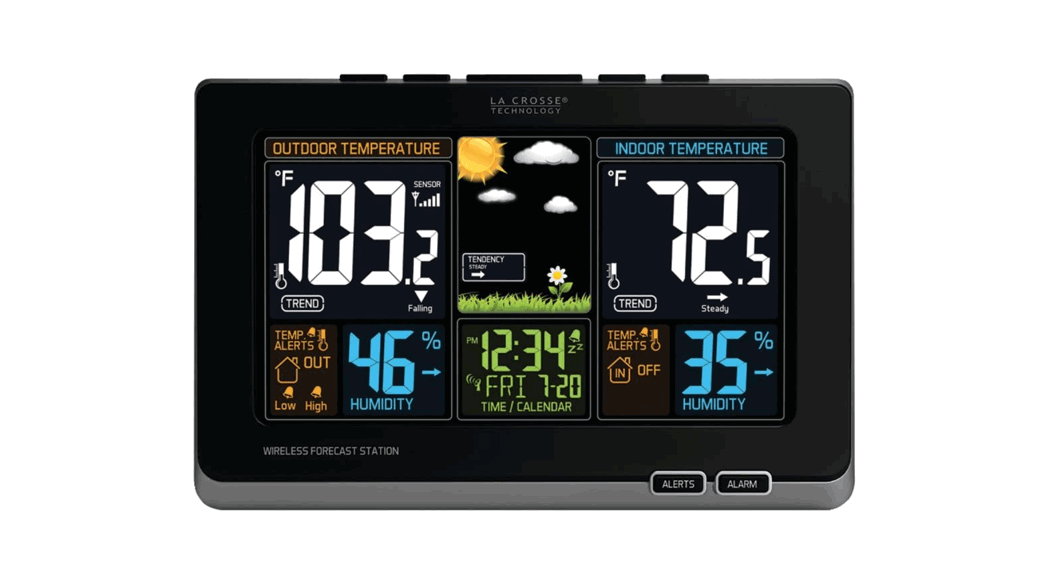
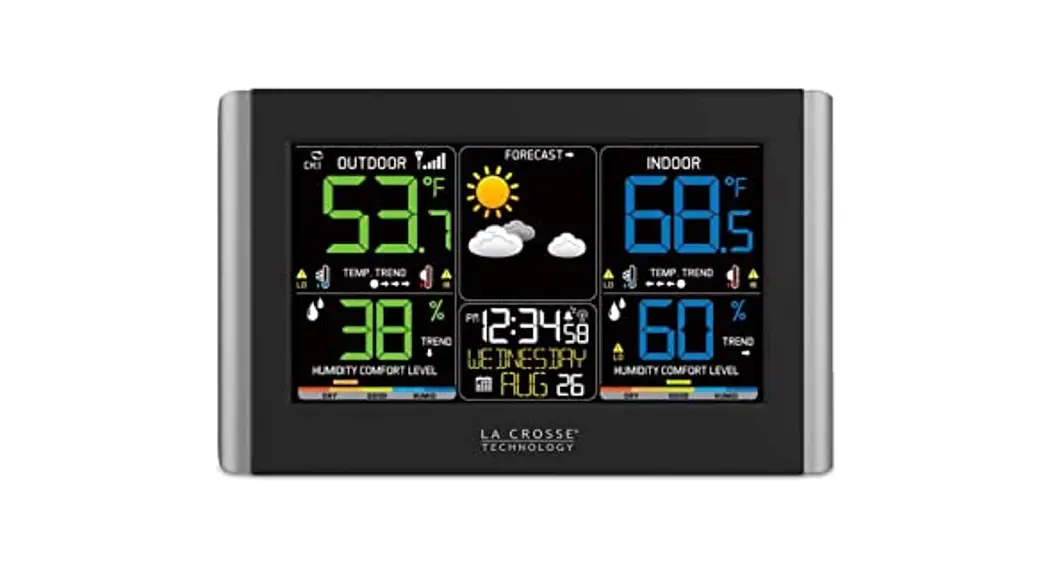
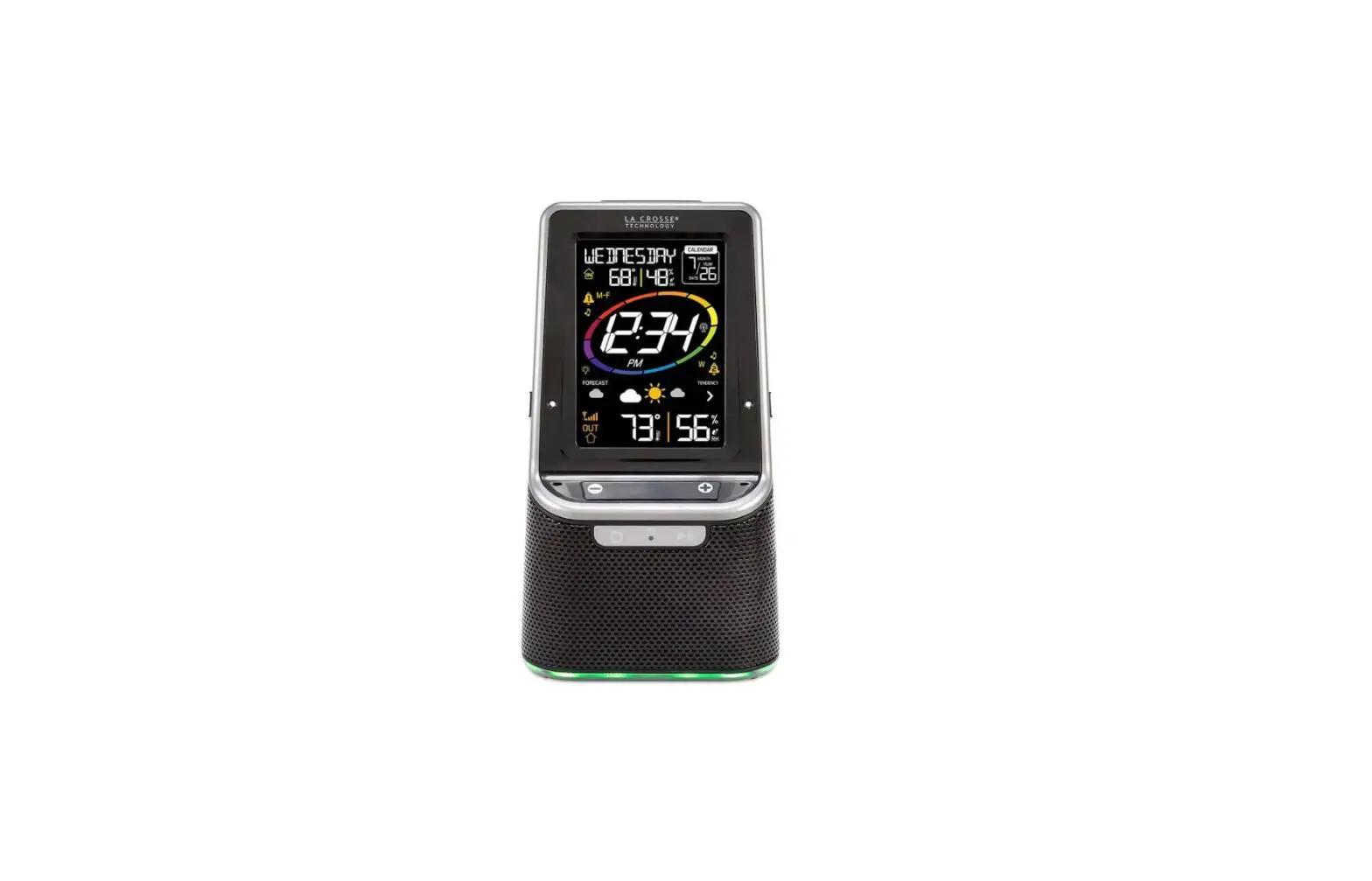
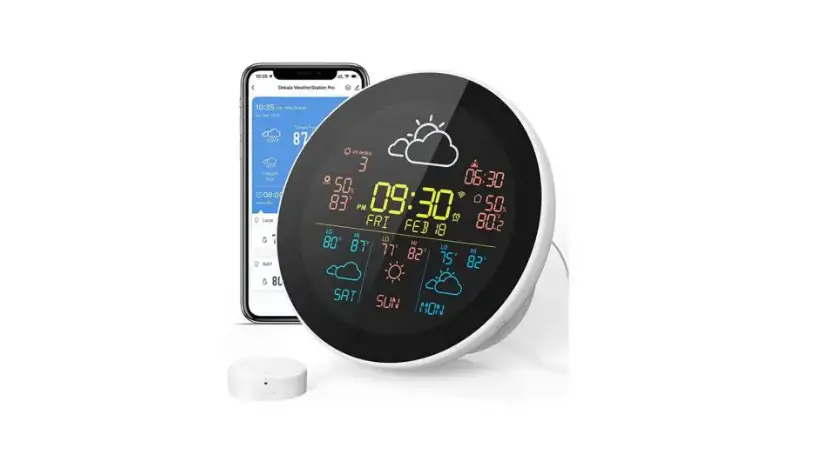
The SW403 is a weather station with various features and
capabilities. It has a perpetual calendar that can display the date
up to the year 2099. The time can be displayed in either a 12-hour
or 24-hour format, and it can automatically calibrate itself using
network time service. The weather station also has a daily alarm
function with snooze capability, allowing you to set up to three
alarms.
One of the key features of the SW403 is its ability to measure
indoor and outdoor humidity. It has a measurable range of 1%RH to
99%RH. Additionally, it can measure temperature both indoors and
outdoors.
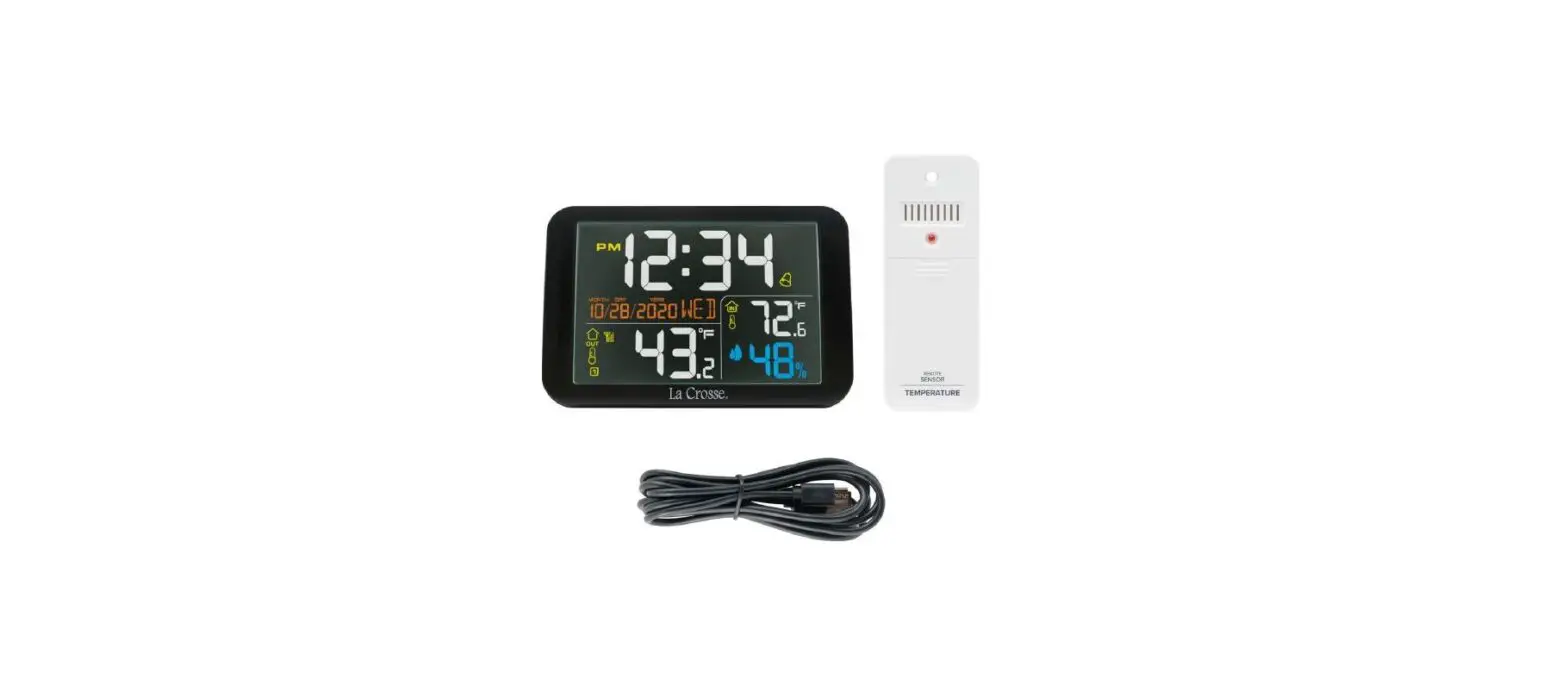
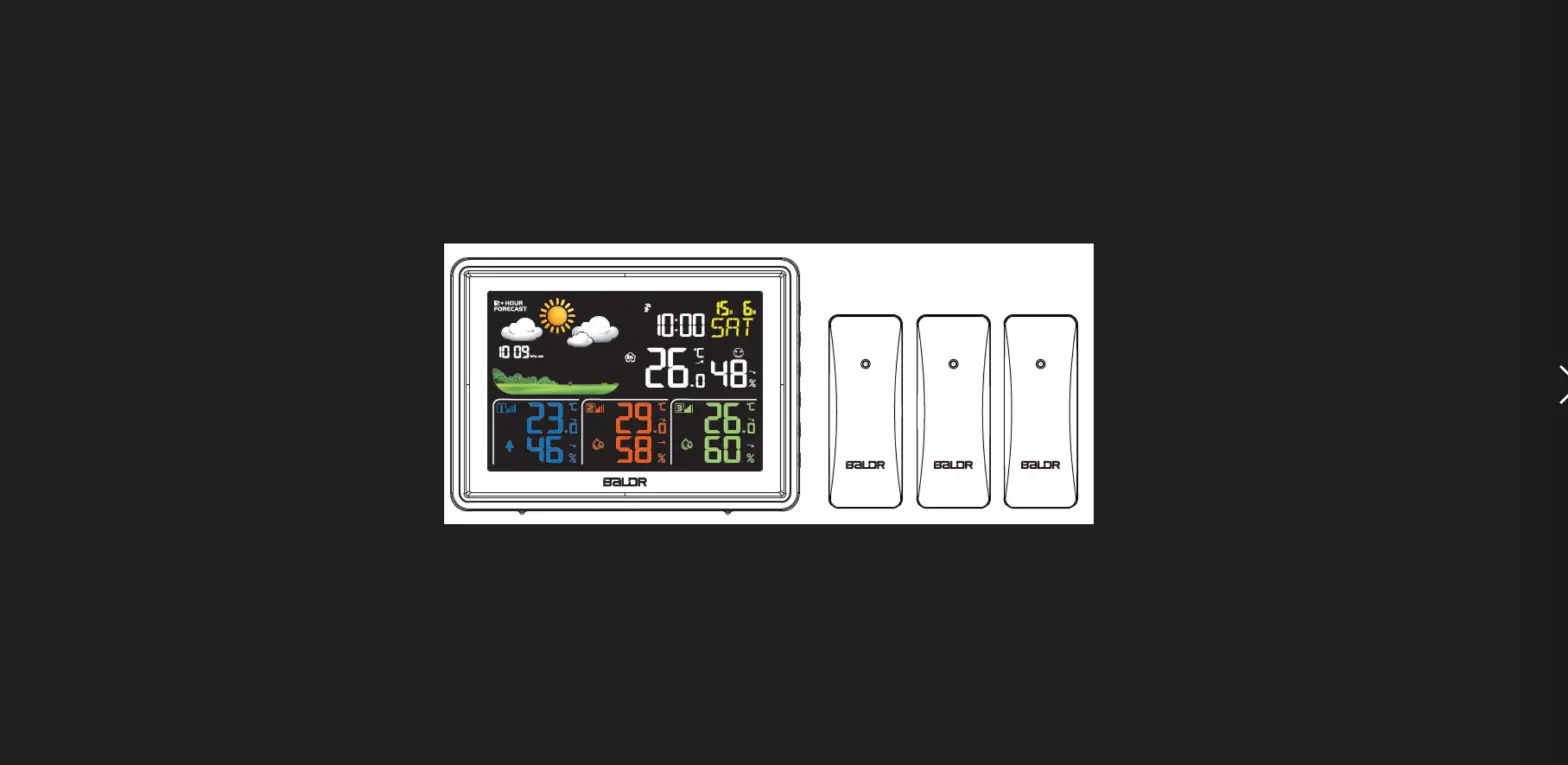
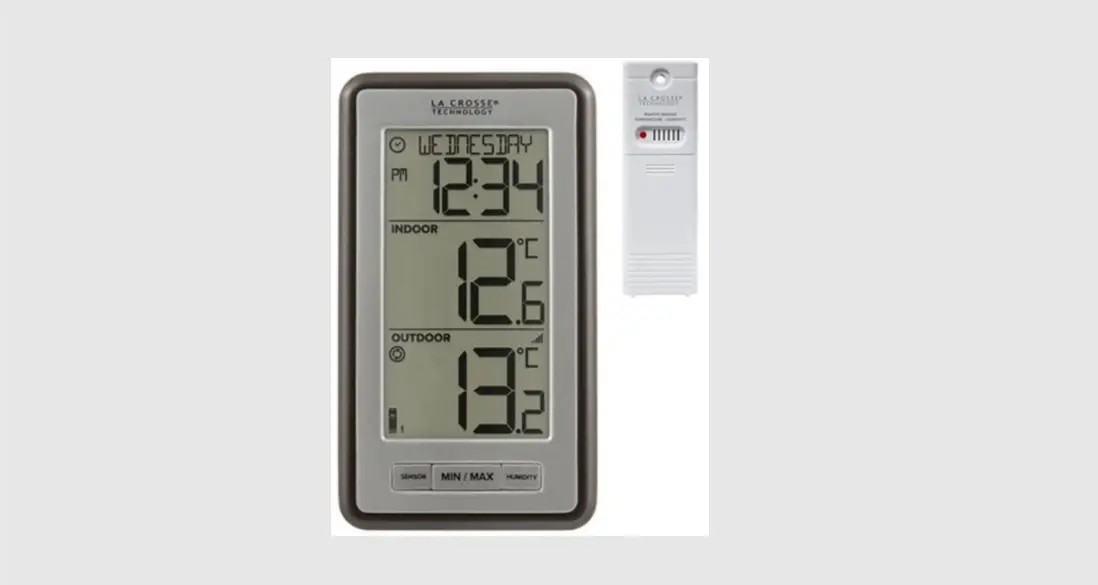
The weather station comes with a wireless outdoor sensor that
operates on three selectable channels. It uses a data transmission
frequency of 433 MHz and has a wireless range of up to 60 meters in
an open area. The sensor requires two LR03 (AAA-size)
batteries.
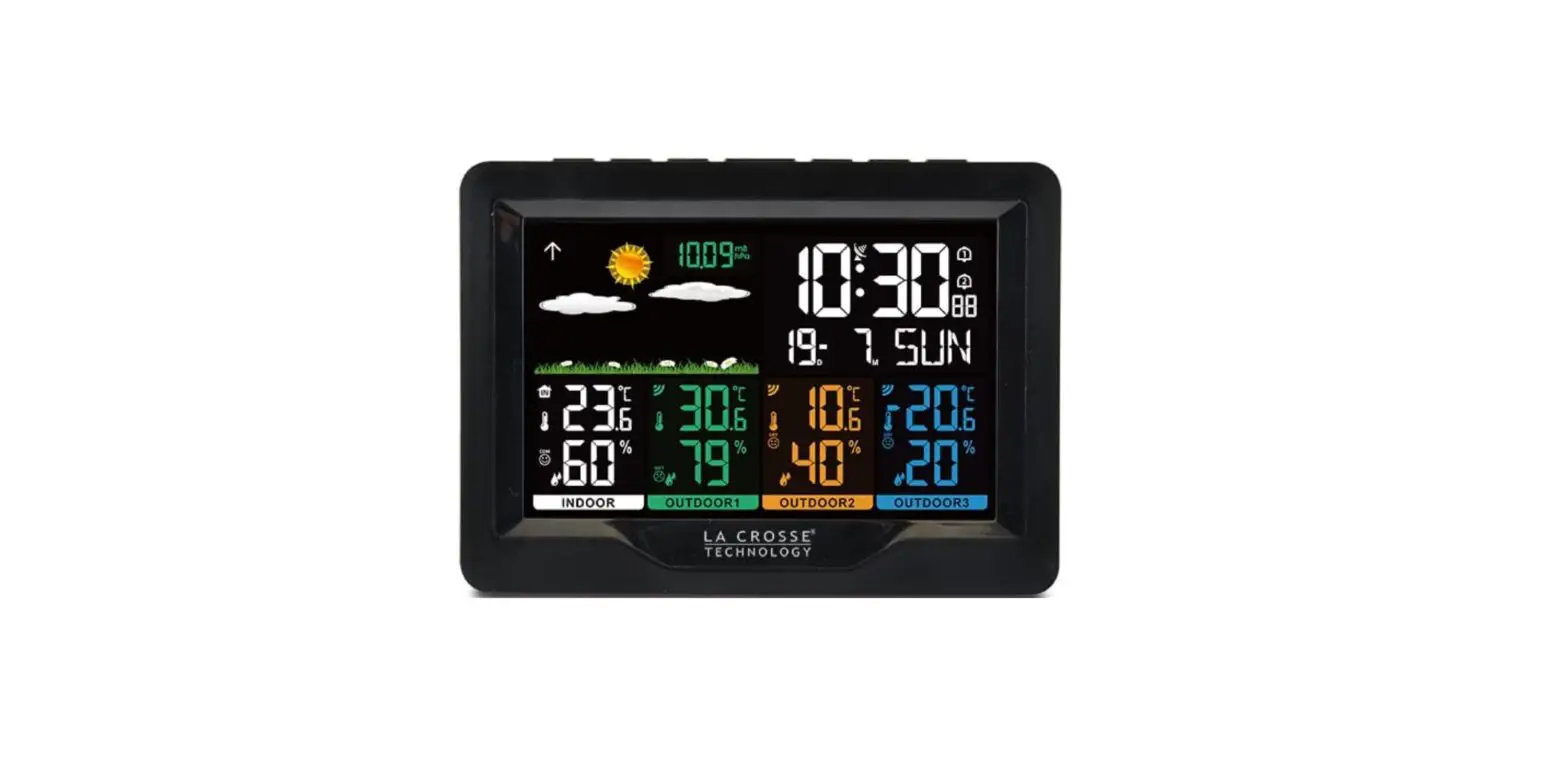
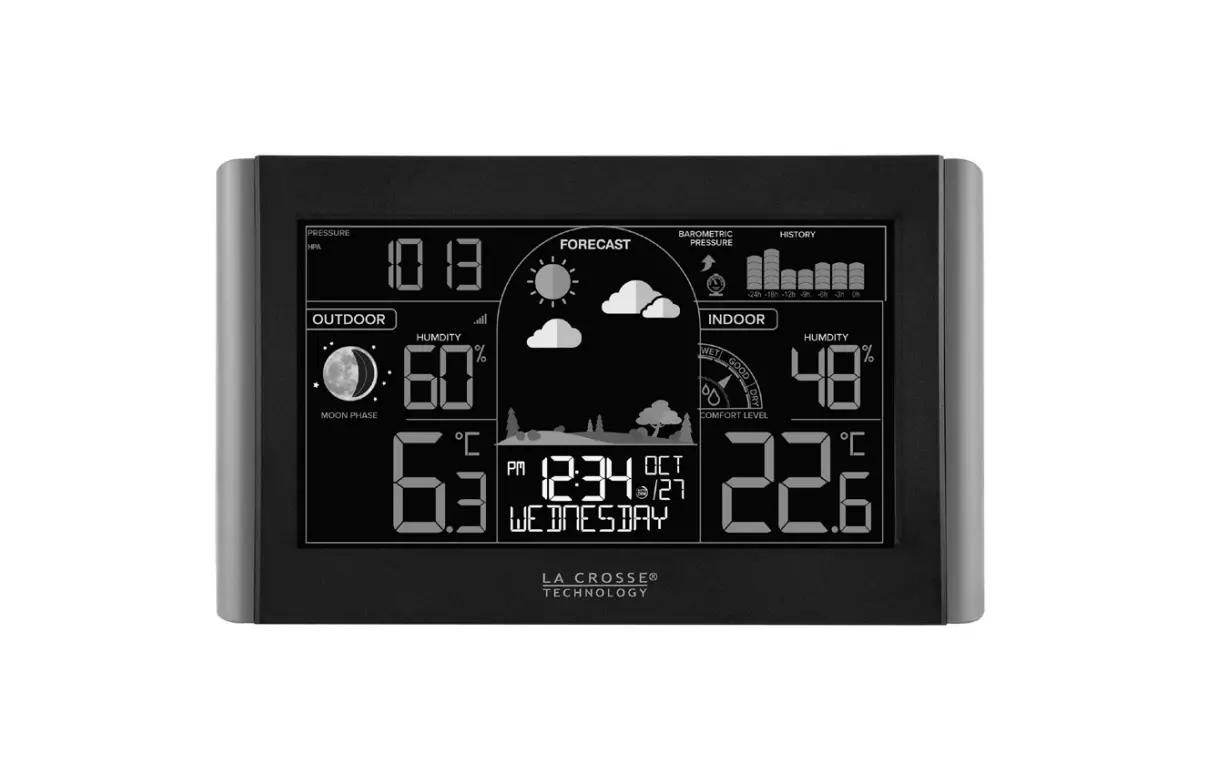
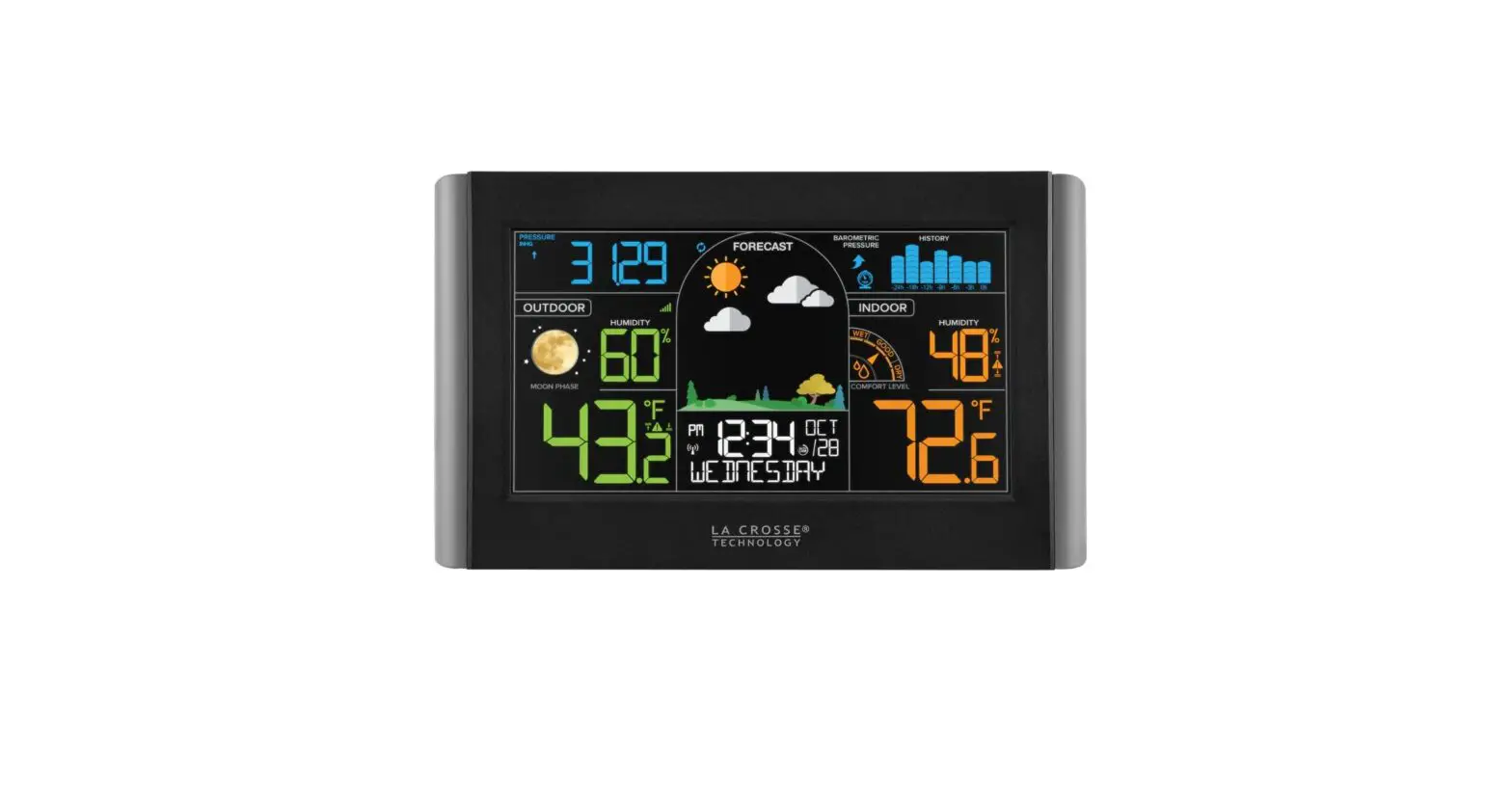
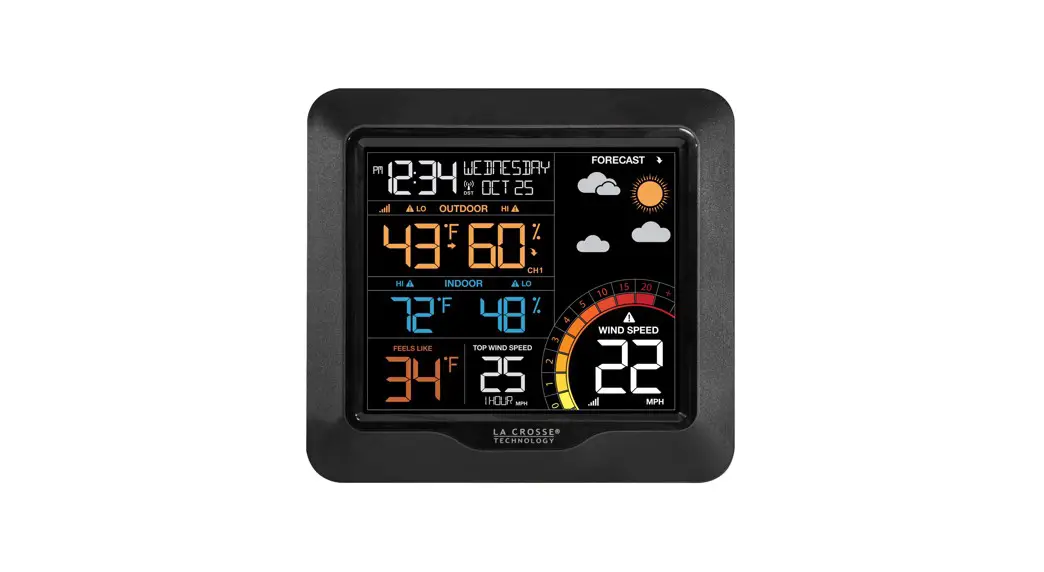
The SW403 has a clear and easy-to-read LCD display. The display
shows various information, including the time, week, remote
wireless channel, indoor temperature, indoor humidity, outdoor
temperature, calendar, outdoor humidity, predicted maximum and
minimum temperatures for the day and the next 1-4 days, weather
forecast, UV index forecast, Wi-Fi signal strength indicator,
battery level icon, wireless receiving icon, daylight saving time
icon, maximum and minimum indoor temperature and humidity record
icons, temperature upper and lower limit alert icons, and indoor
comfort level icons.
In addition to the LCD display, the weather station also has
touch keys for control, a hanging hole for wall mounting, a battery
compartment for the AAA batteries, a DC-POWER input jack for
external power supply, and a USB charging socket for charging the
device.
The setup of the weather station requires fresh batteries – two
AA alkaline or lithium batteries for the weather station itself and
two AAA alkaline or lithium batteries for the wireless outdoor
sensor. To get the most accurate results, it is recommended to
download the Tuya Smart App on your mobile phone. The app can be
found on the IOS App Store or Android Google Play.
Product Usage Instructions
- Insert 2 AA batteries into the Wireless Outdoor Sensor and set
the channel to confirm the sensor’s connection. - Plug the power cord into the weather station.
- Pair the weather station with Wi-Fi and server information
according to the prompts in the Tuya Smart App. Refer to the app’s
instructions for detailed pairing steps. - Configure basic settings such as time/date format and units in
the app. - Insert 2 AAA batteries into the weather station. The settings
will not be lost even if the power adapter is unexpectedly
disconnected. - Wait for 5 minutes and then move the remote sensor to an
outdoor or desired location.
Note: The weather station will automatically enter pairing mode
when started, indicated by the flashing Wi-Fi icon. Make sure to
follow the specific instructions in the Tuya Smart App to complete
the pairing process.
SW403 Manual
Technical Data and Features MAIN:
Perpetual Calendar Up to Year 2099 Time in optional 12/24 hour format. Automatic calibration of network time service Daily Alarm with snooze function (3 alarms) Indoor & outdoor humidity measurable range: 1%RH to 99%RH temperature measurement ranges::
— Indoor:-10°C to 50°C or (14°F to 122°F) –Outdoor:-40°C to 70°C or (-40°F to 158°F) — Temperature alternatively in °C or °F. Maximum / Minimum indoor temperature and humidity record and query The future weather forecast and temperature report function, weather forecast information provided by the network Connects directly to wifi network, connect to Tuya Smart System Power Supply: Battery: 2 x LR06, 1.5 V (size AA) Equipment power input: DC 5V more than 1A (Power cord or power adapter)
Wireless Outdoor Sensor:
— 3 Channels selectable — Data transmission frequency: 433 MHz — Wireless range: max. 60 m (open area) — Batteries: 2 x LR03, 1.5 V (size AAA)
MAIN Appearance:
SW403 Manual
Part A-Positive LCD
A1: Time A3: Week for today A5: Remote wireless channel
A2: Indoor temperature A4: Indoor humidity A6: Outdoor temperature
SW403 Manual
A7: Calendar
A8: Outdoor humidity
A9: Predicted maximum temperature today and A10: Predicted minimum temperature today and
in the next 1-4 days
in the next 1-4 days
A11: Weather forecast for today and the next
A12: UV index forecast today and in the next
1-4 days
1-4 days
: WIFI signal strength indicator
: battery level icon
: Wireless receiving icon
:Daylight saving time icon
MAX: Display the maximum indoor temperature MIN: Display the minimum indoor temperature
and humidity record icon
and humidity record icon
: Temperature upper limit alert icon
: Temperature lower limit alert icon
:Indoor comfort level: dry icon
:Indoor comfort level: comfortable icon
:Indoor comfort level: wet icon
: time alarm icon
Part B Back button and power
B1: ”
” touch key
B3: ” ” button
B5: ” ” button
B7: Hanging hole
B9: Battery compartment
B11: DC-POWER input jack
B2: ” ” button B4: ” ” button B6: ” ” button B8: Support frame B10: USB charging socket
SW403 Manual
Part C Wireless Remote Sensor: C1: LCD display Temperature C2: LCD display Humidity C3: Transmit signal LED C4: “°C/°F” button C5: “TX” button C6: “CHANNEL 1 or 2 or 3″ switch C7: Battery compartment
Setup Preparation
Items you will need to setup your weather station (not included): Fresh Batteries: 2 (two) AA alkaline or lithium batteries (1.5V) for the weather station. 2 (two) AAA alkaline or lithium batteries (1.5V) for the Wireless Outdoor Sensor.
For best results:
· Remove weather station and sensors from the package and place together on a table or bench, within easy reach. · Place batteries within reach of setup location. · Keep sensors and weather station 0.15-0.3 meter or 5-10 feet for at least 15 minutes after installing batteries, to allow the sensors and station to connect repeatedly.
Download Tuya Smart App:
APP ICON
SW403 Manual
According to the mobile phone brand, search for graffiti through the IOS APP Store or Android Google Play, find the APP with the icon below, and download the APP. At the same time, register an account, open the APP, log in to the account, and at the same time log in to the hotspot that the weather station needs to connect to, as a preparation for device pairing.
Quick Setup
1. Insert 2 AA batteries into the Wireless Outdoor Sensor, and set the channel to confirm the sensor, push the selection through the position channel 1.
2. Then plug the power cord into the weather station 3. Pair the weather station with WIFI and server information according to the APP prompts, see WIFI pairing
instructions for details. 4. Configure basic settings, set time/date format and units, etc. 5. Insert 2 AAA batteries into the weather station (when the power adapter is unexpectedly powered off, the
settings will not be lost) 6. Move the remote sensor to outdoor or other location after 5 minutes
WIFI pairing
After the weather station is started, it will automatically enter the pairing mode, and the WIFI icon ” ” will flash.
Open the tuya APP, click the ” ” icon in the upper right corner of the screen, and select Add DeviceThe
APP interface is converted to add devices, and the window for discovering devices will automatically pop up,
click AddAfter converting the interface, click ” ” according to the prompts
Then follow the APP prompts, step 4: set the WIFI name and password, step 5: pairing process, wait for the
screen to change to step 6, click Finish, switch to the main interface of step 7, indicating that the pairing is
complete.
Step1
step2
step3
step4
step5
step6
step7
Note: The paired WIFI hotspot must be 2.4GHz, this product only supports 2.4GHz wireless network
SW403 Manual
If the product does not automatically enter the pairing mode when powered on for the first time, you can press and hold the ” ” button for more than 3 seconds to enter the pairing mode manually, and the ” ” in the WIFI signal icon ” ” will flash.
After the pairing is completed, the weather station will automatically connect to the WLAN, automatically update the network time, and start searching for signals from remote wireless sensors. The ” ” icon blinks for about 3 minutes. At this time, if the outdoor wireless sensor is working normally, the host will start to search for the signal of the remote wireless sensor in about 1-2 minutes. When a signal is received indoors, the outdoor temperature and humidity will be displayed on the display of the main unit.
Outdoor sensor transmission:
The main unit can connect up to 3 channel wireless sensor registration, the use of multiple wireless sensor, the wireless sensor channel cannot choose the same channel at the same time (a total of 1, 2, 3 channel can choose)
Press the ” ” button can switch the display of different channels of outdoor temperature | humidity If the main unit cannot receive the transmission from the outdoor sensor (“- -” is displayed on the LCD),
press and hold the ” ” button for 3 seconds to receive the transmission manually. The outdoor temperature will show the RF antenna icon flashing, and the base station will re-receive the wireless signal from the outdoor sensor. Note: when the wireless sensor set up different channels, the base station OUT also want to switch to the same channel. When there is no wireless sensor signal transmission on the channel, “–“will be displayed in the channel of the base station. Please note that the channel of the sensor and the weather station should be consistent.
Time and unit settings
Press and hold the ” ” button for 3 seconds to enter the time setting mode. Press the ” ” or ” ” button to adjust the value. Hold the ” ” or ” ” button to adjust quickly. Press the ” ” button to confirm and move to the next item.
Note: After 20 seconds without pressing any button to exit the settings.
Settings order:
1. Temperature unit: °C | °F 2. Year 3. Month
4. Date
Note: After the product is connected to WIFI, there is no need to set the time, the time will be automatically timed by the network, and
Note: In the set time, the number of minutes of the change, automatically from the zero
5. Hour format: 24Hr | 12Hr 6. Hour 7. minutes
SW403 Manual
Note: The temperature unit can be set through the APP, as shown in the legend below, Click “Unit Conversion” in the main interface, jump to the second interface, click the temperature unit menu, jump to the third interface, click to select the unit to be set, and then click “Confirm” to complete the setting
Main interface second interface third interface
Setting the daily alarms:
There are three sets of daily alarm clocks, and there are two setting methods. Use the button operation of the weather station to set or click the alarm clock setting item in the Tuya APP interface to set.
Button operation of weather station
Short press the ” ” button to switch the time interface displayed in A1 | A2 | A3. In these three interfaces, short press the ” ” button to turn on or off the corresponding alarm function
In these three ALARM interfaces, press and hold the ” ” button for more than 3 seconds to enter the setting mode of the corresponding alarm time
Press the ” ” or ” ” button to adjust the value. Hold the ” ” or ” ” button to adjust quickly. Press the ” ” button to confirm and move to the next item.
Note: After 20 seconds without pressing any button to exit the settings.
Settings order:
1. Hours of alarm time
2. Minutes of the alarm time 3. Week repeat of the alarm
SW403 Manual
Note: There are 7 kinds of weekly repetitions of the alarm clock, Monday (MO), Tuesday (TU), Wednesday (WE), Thursday (TH), Friday (FR), Saturday (SA) and Sunday (SU), the weather station button operation can be set There are three options: Monday to Friday, Saturday to Sunday and Monday to Sunday
APP setting alarm
According to the picture, switch to the main panel, click “ALARM SET” in the panel, jump to the second interface, click the slider to turn on and off the alarm clock, click the three ALARM columns, jump to the third interface, you can make an alarm Repeat the setting of time and week, click “Confirm” to complete the setting after the setting is completed. All three alarms need to be independently clicked to set
Main interface second interface third interface
Note: Weekly repetition in the APP can be set independently for each day Note: The alarm will sound for 2 minutes if you do not deactivate it by pressing any button. In this case
the alarm will be repeated automatically after 24 hours. Note: Rising alarm sound (crescendo, duration: 2 minutes) changes the volume 4 times whilst the alarm
signal is heard.
Switching off the alarm signal
SW403 Manual
The alarm sound when the trigger, press any buttons except the ”
”
” button for more than 3 seconds to stop the alarm signal.
” touch button or touch and hold the
Snooze function:
When the time is up to the alarm, touch and release the ”
” touch button, the alarm signal stops, and
enter the snooze timing mode. At the end of the snooze timer, it will ring again (can repeat snooze)
In snooze timing mode, press any buttons except the ”
” touch button or touch hold down the ”
”
touch button for more than 3 seconds to exit the snooze mode
Note: The snooze time is five minutes
Maximum/Minimum Indoor Temperature/ Humidity
To toggle indoor/outdoor maximum, minimum temperature and humidity data, press the ” ” button: Once to show the maximum indoor temperature and humidity values. Twice to sow the minimum indoor temperature and humidity values. Three times to return to the current indoor temperature and humidity levels.
To reset the maximum and minimum indoor temperature and humidity a, press and hold down the ” ” button about 2 seconds. This will reset all minimum and maximum data recorded to the current displayed values, contains outdoor temperature records. F.Y.I.: If the temperature reading is below ranges, the LL.L will be displayed. If the temperature reading is above ranges, the HH.H will be displayed.
The recording curve of temperature and humidity in the APP
TThrough the APP, you can view the historical changes of temperature|humidity of the weather station,
display it with a curve graph, click the “” icon on the main interface to enter, you can view the daily|monthly
change curve graph
Main interface
daily graph
monthly graph conversion channel
SW403 Manual
Temperature allert function control
There are two ways to set the temperature alarm. Use the weather station button to operate the settings or click the alarm setting item in the Tuya APP interface to set.
Button operation of weather station
Short press the ” ” button to turn on or off the temperature alarm function. When the temperature alarm is
turned on, the icon ” ” of the temperature upper and lower limit alarms is displayed Press and hold the ” ” button for 3 seconds to enter the temperature alert setting mode. Press and release the ” ” or ” ” button to adjust the value. Hold the ” ” or ” ” button to adjust quickly. Press and release the ” ” button to confirm and move to the next item.
Note: Note: After 20 seconds without pressing any button to exit the settings. Note: Set Outdoor Temperature | Humidity alert, press and release the ” ” button to switch to other
channels. (A total of 3 channels: | | )
Settings order:
1. Indoor temperature upper limit alert value 2. Indoor temperature lower limit alert value 3. Outdoor temperature upper limit alert value 4. Outdoor temperature lower limit alert value
APP setting temperature alert
According to the picture, switch to the main panel, click “temperature alert” in the panel, jump to the second
interface, click the corresponding temperature alarm menu of different channels to jump to the third
interface. In the third interface, click the slider to turn on or off the corresponding alarm function, and set the
upper and lower limits of the alarm by sliding the temperature value. After the setting is completed, click
“Confirm” to complete the setting
Main interface
second interface
third interface
SW403 Manual
Temperature alert trigger
When the actual detection value exceeds the arming warning value, the weather station will first issue an alarm for 10 seconds, and then issue an alarm sound every 1 minute for 5 times. During this process, press any key to stop the alarm sound
LOW BATTERY:
If the battery icon ” ” appears in the ” ” column, please change the battery of the base station in time. If the battery icon ” ” appears in the ” ” column, please confirm the channel of the battery prompt and change the remote sensor battery of the channel timely
Background lighting
When the power supply of the product is inserted into the power supply adapter, the battery will
automatically disconnect the power supply, and the backlight will always be bright. Short press the ” ”
button to adjust the brightness of the backlight, you can adjust the 4 state: 3 different brightness backlight
and close the backlight. When the backlight brightness is not at the maximum brightness, press the
”
” button. Backlight turns to maximum brightness of 15 seconds.
If the product is powered by batteries, Touch the ”
” location button. Backlight lit 15 seconds.
Explanation of network weather forecast
After the weather station is connected to the WIFI hotspot, the weather station automatically downloads the weather forecast for the current day and the next four days from the network, the highest | lowest temperature and UV index forecast.
The weather station automatically uploads the temperature|humidity data detected in the station from the weather station to the server, and the APP can automatically download the data from the server through the network.
Weather station icons that can be displayed:
sunny
partly cloudy
SW403 Manual
Cloudy
thunder
thunder shower
Thunderstorms
light rain
moderate rain
heavy rain
Rainstorm (icon flashes)
showers
strong shower
snow
Medium snow
heavy snow
Blizzard (icon flashes)
small snow showers
snow showers
Sandstorm
sleet
fog
haze
Sand blowing
(icon flashes)
ABOUT AC/DC POWER SUPPLY Do not use the device: -if the power supply or the power cable is damaged, -in the event of a malfunction, -if the device has been damaged in any way. Never use sharp objects to access the inside of the power supply. Do not disassemble the power supply, do not throw it into a fire. Do not attempt to disassemble or modify this product or any of its components. Do not expose the food to high temperatures or direct sunlight. Do not incinerate it. Do not install the power supply near any heat sources, such as a radiator, hot air supply, oven, or other apparatus (including amplifiers) that produce heat. Do not store this product in a place where the temperature exceeds the following range: – 10 to 70 ° C. Do not use this product in a location where the temperature exceeds the
SW403 Manual
following range: 0 to 40 ° C, as this may damage it or shorten its life. Do not place the power supply near water or a source of moisture, such as a bathtub, kitchen sink, swimming pool, in a wet basement, or other damp locations. The device must not be exposed to splashes. Do not place objects filled with water, such as vases for example, near the appliance. Connect the power supply into an easily accessible DC outlet. Ensure that the power cord can not be crushed or pinched, particularly at plugs, convenience receptacles, and the point where they are connected to the apparatus. The supplied power supply is intended for indoor use only. Do not place naked flame sources (such as a lit candle) on or near the power supply. Unplug this power during lightning storms or during long periods of non-use to avoid damage. Turn off your device before disconnecting the power cable. This device is not intended for use by people (including children) whose physical, sensory or mental capabilities are reduced, or people without experience or knowledge, unless they could benefit ,by the” throung a person responsible for their safety, surveillance or prior instructions concerning the use of the device. Children should be supervised to make sure that they do not play with the device. If the power supply works abnormally,and especoally if it emits sounds or odors that you think are abnormal, unplug it immediately and have it examined by a qualified repairer. The socket-outlet must be installed near the equipment and must be easily accessible.
LIABILITY DISCLAIMER ·The electrical and electronic wastes contain hazardous substances. Disposal of electronic waste in wild country and/or in unauthorized grounds strongly damages the environment. ·Please contact your local or/and regional authorities to retrieve the addresses of legal dumping grounds with selective collection. ·All electronic instruments must from now on be recycled. User shall take an active part in the reuse, recycling and recovery of the electrical and electronic waste. ·The unrestricted disposal of electronic waste may do harm on public health and the quality of environment. ·As stated on the gift box and labeled on the product, reading the “User manual” is highly recommended for the benefit of the user. This product must however not be thrown in general rubbish collection points. ·The manufacturer and supplier cannot accept any responsibility for any incorrect readings and any consequences that occur should an inaccurate reading take place. ·This product is designed for use in the home only as indication of the temperature. ·The plug on the power adapter (if included) is intended to serve as the disconnect device, the socket-outlet
SW403 Manual
shall be installed near the equipment and shall be easily accessible. ·This product is not to be used for medical purposes or for public information. ·The specifications of this product may change without prior notice. ·This product is not a toy. Keep out of the reach of children. ·No part of this manual may be reproduced without written authorization of the manufacturer.
RED DIRECTIVE 2014/53/EU Summary of the Declaration of Conformity: We hereby declare that this wireless transmission device does comply with the essential requirements of RED Directive 2014/53/EU.
LA CROSSE TECHNOLOGY 6 A RUE DU COMMERCE 67118 GEISPOLSHEIM FRANCE