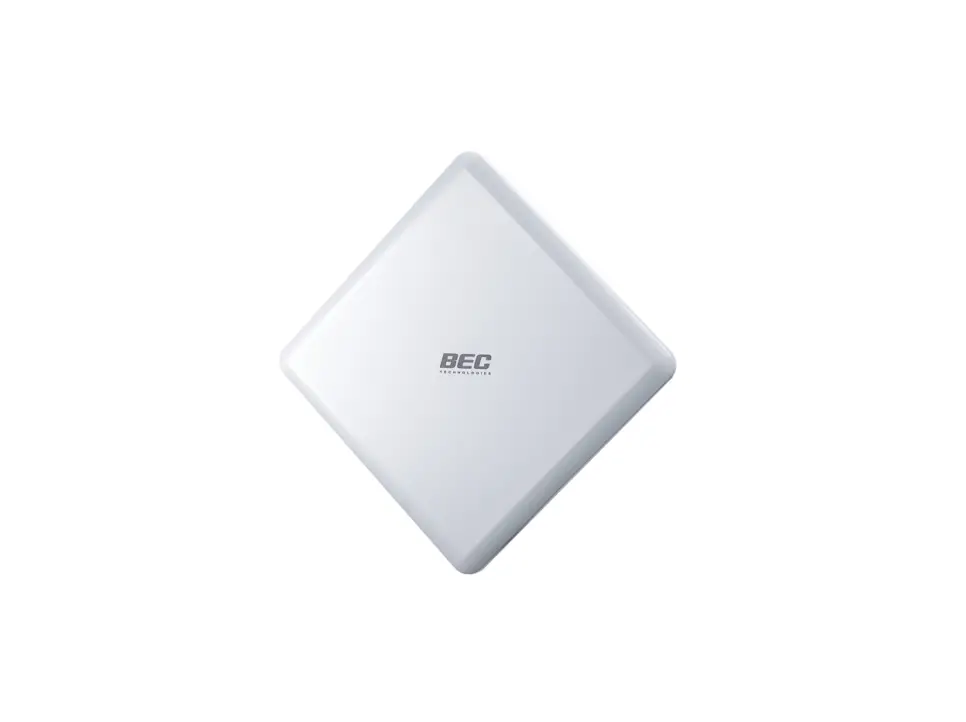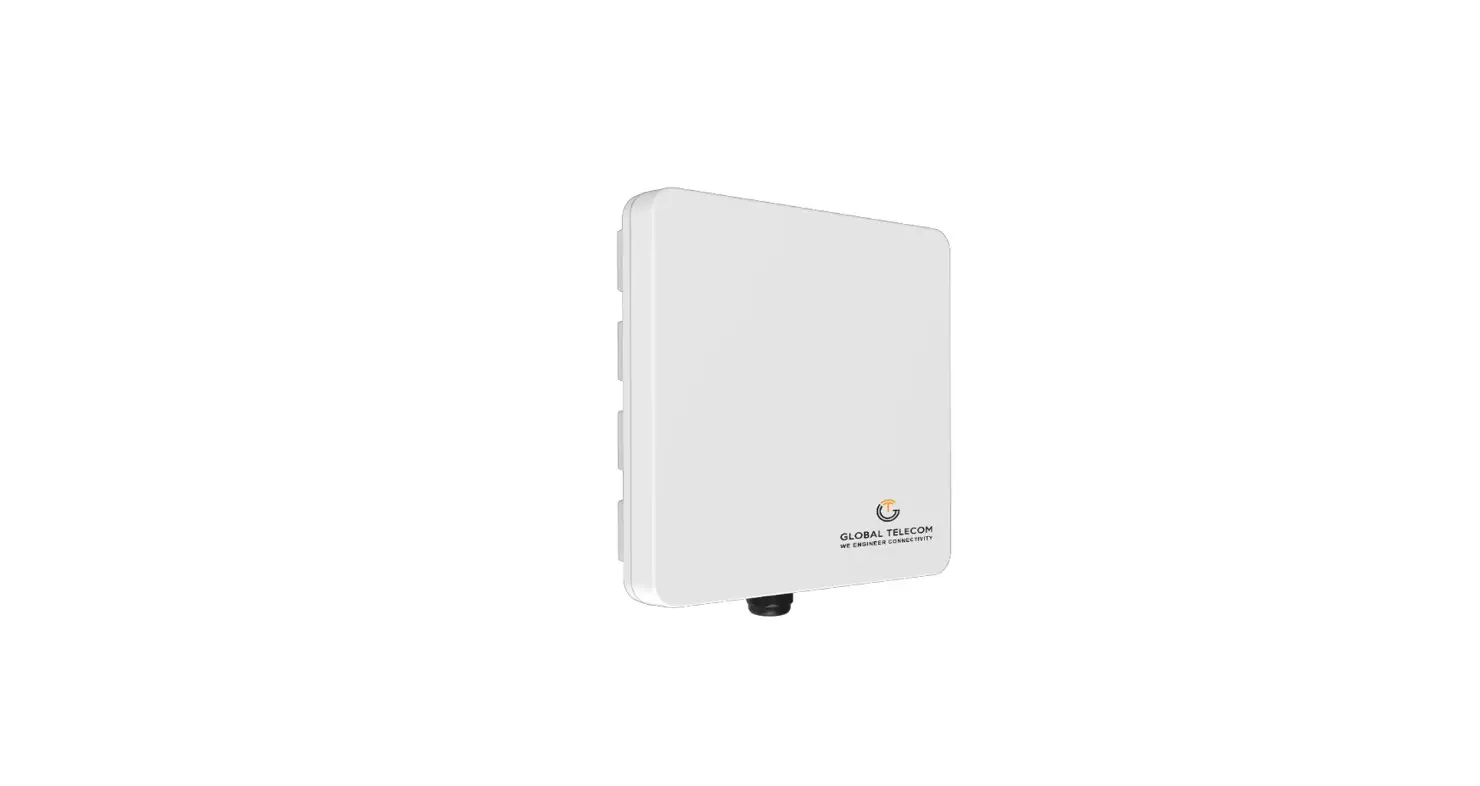
 TITAN 4000 4G LTE-A CAT12 Outdoor CPE
User Guide
PLEASE READ THESE SAFETY PRECAUTIONS!
FCC Radiation Exposure Statement:
This equipment complies with FCC radiation exposure limits set forth for an uncontrolled environment. This equipment should be installed and operated with a minimum distance 20cm between the radiator & your body.
FCC Warning
This device complies with Part 15 of the FCC Rules. Operation is subject to the following two conditions:
(1) This device may not cause harmful interference, and (2) this device must accept any interference received, including interference that may cause undesired operation.
NOTE 1: This equipment has been tested and found to comply with the limits for a Class B digital device, pursuant to part 15 of the FCC Rules. These limits are designed to provide reasonable protection against harmful interference in a residential installation. This equipment generates uses and can radiate radio frequency energy and, if not installed and used in accordance with the instructions, may cause harmful interference to radio communications. However, there is no guarantee that interference will not occur in a particular installation. If this equipment does cause harmful interference to radio or television reception, which can be determined by turning the equipment off and on, the user is encouraged to try to correct the interference by one or more of the following measures:
- Reorient or relocate the receiving antenna.
- Increase the separation between the equipment and receiver.
- Connect the equipment into an outlet on a circuit different from that to which the receiver is connected.
- Consult the dealer or an experienced radio/TV technician for help.
NOTE 2: Any changes or modifications to this unit not expressly approved by the party responsible for compliance could void the user’s authority to operate the equipment.
Overview
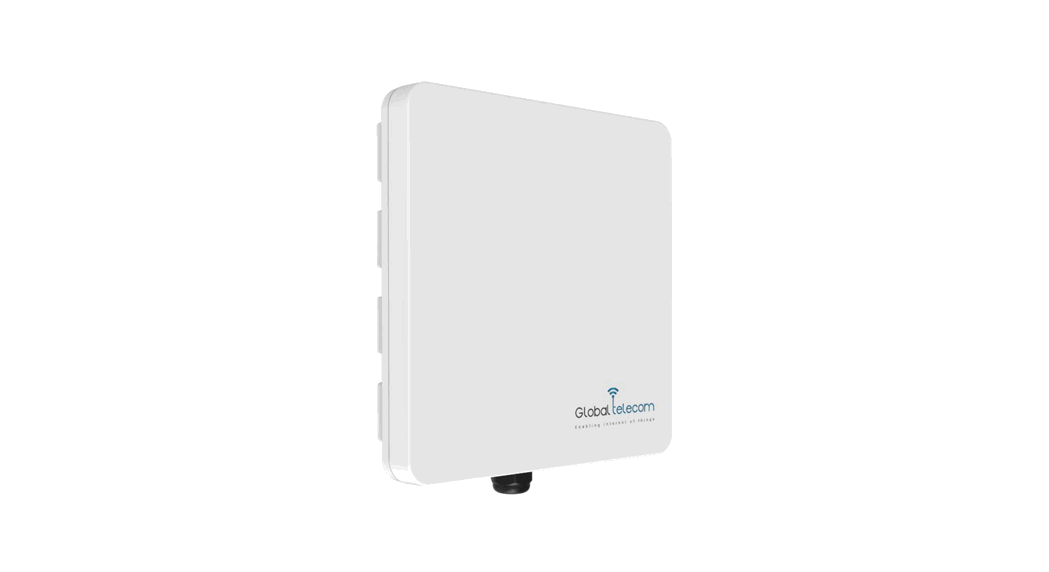
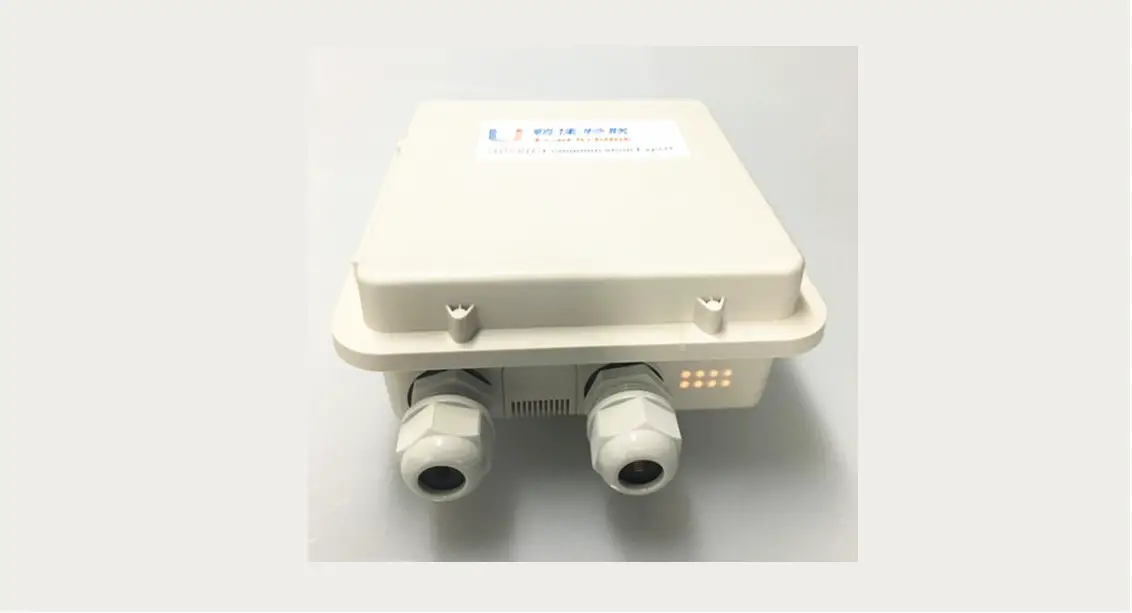
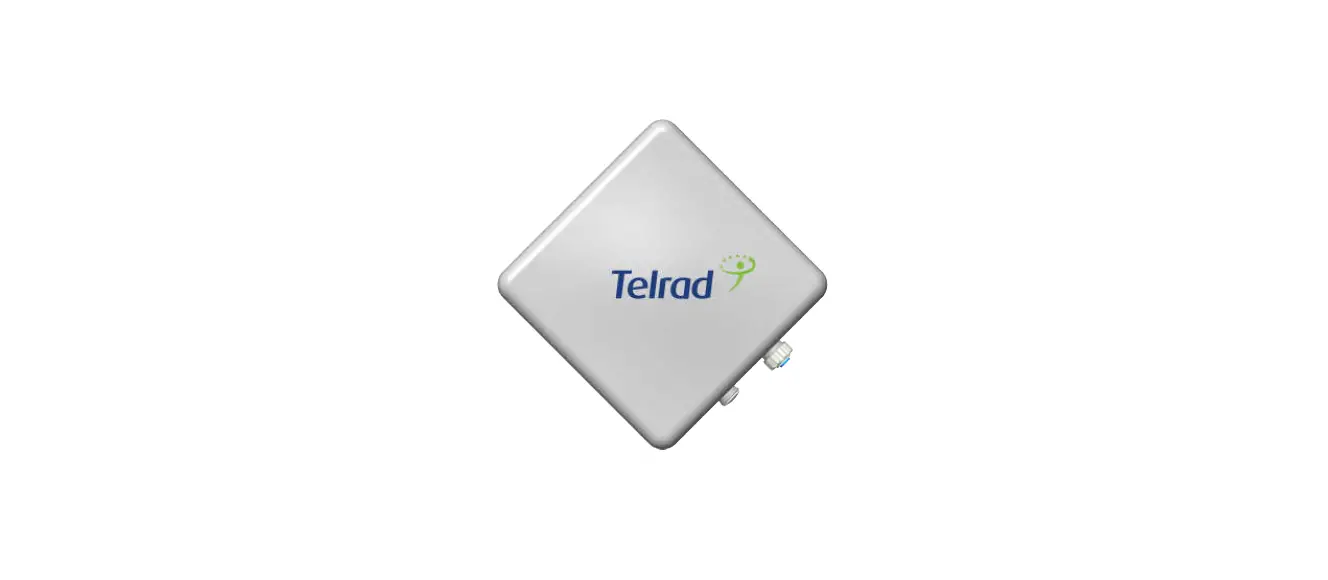
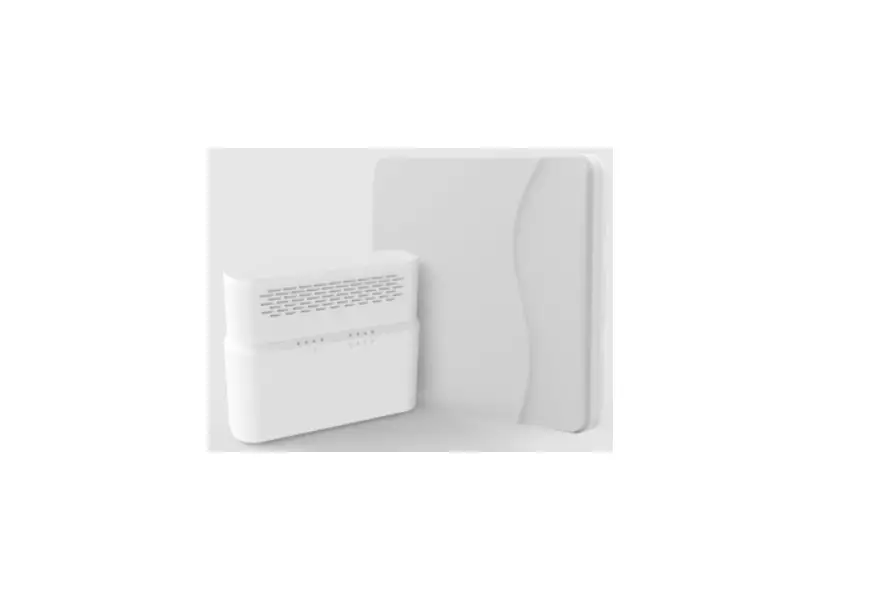
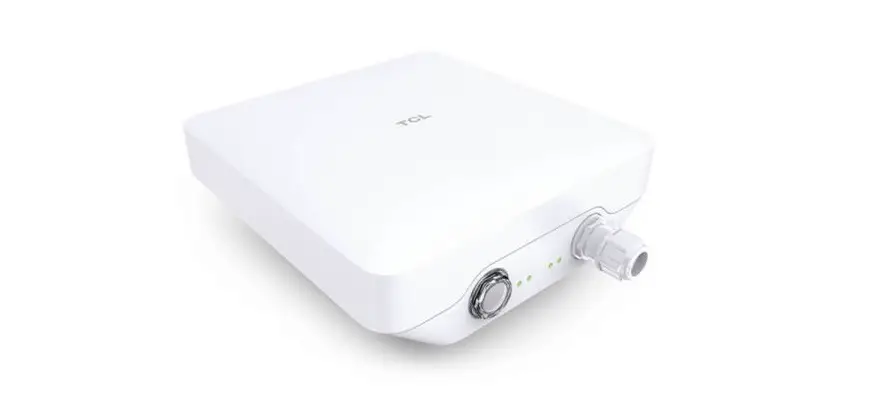
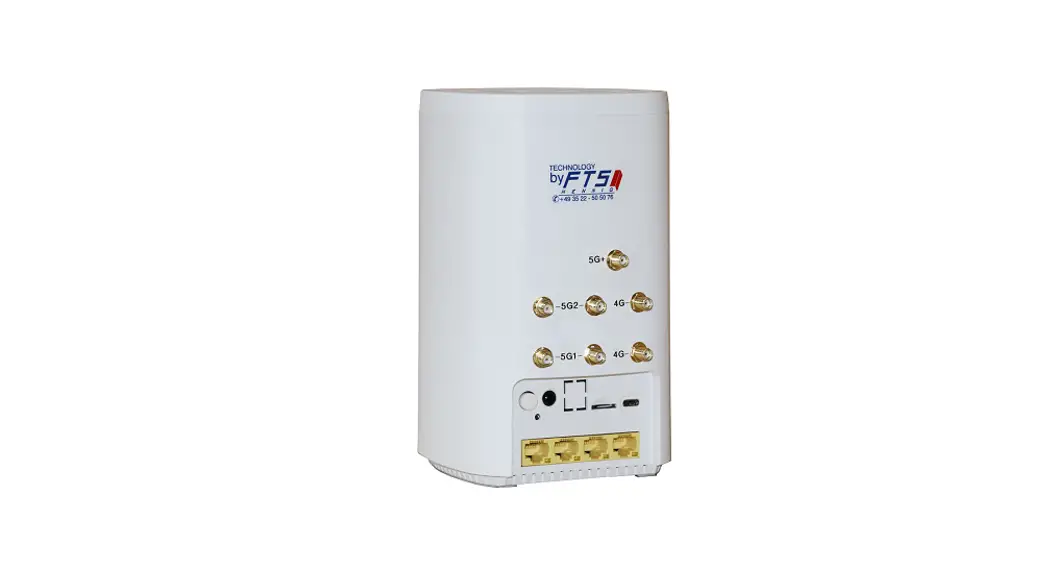
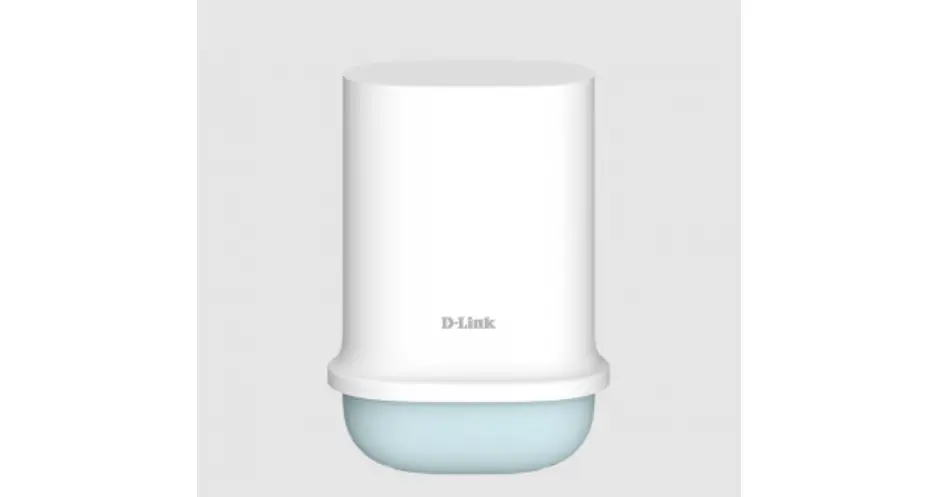
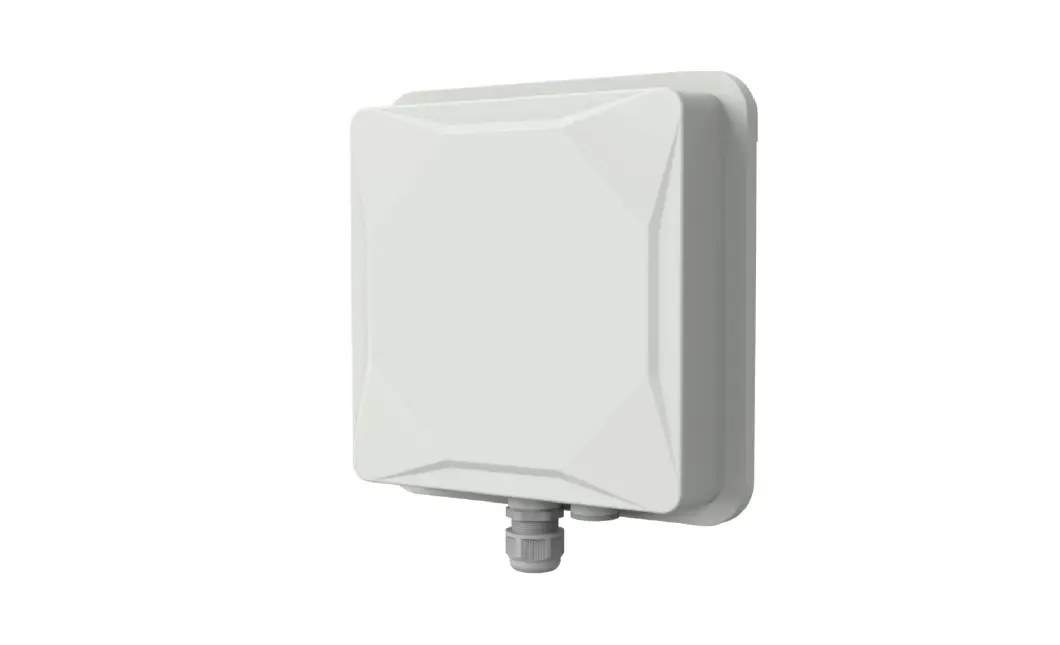
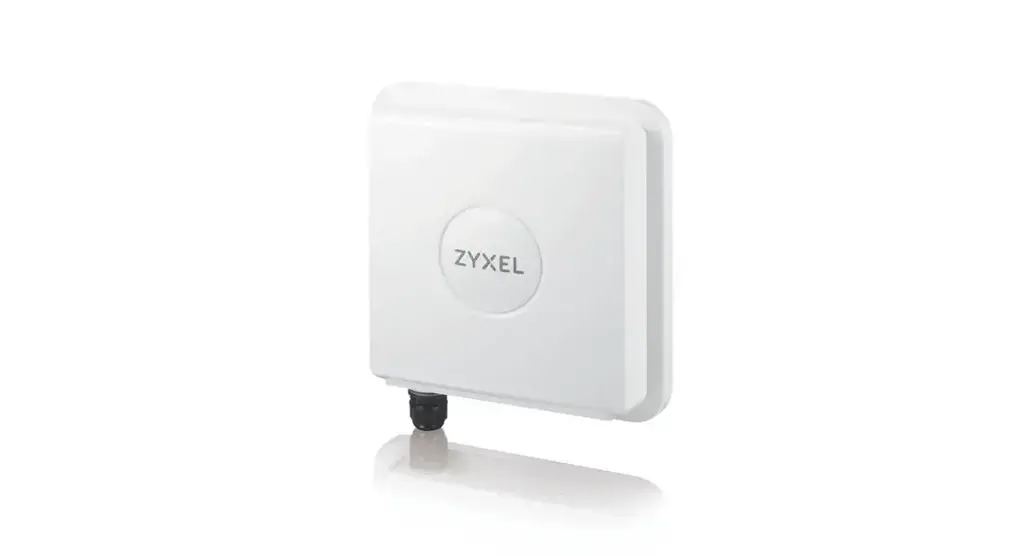
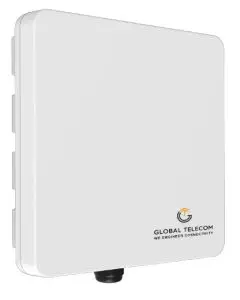
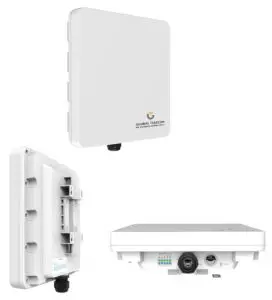
The TITAN4000 is a highly innovative and patented LTE outdoor CPE product designed to enable quick and easy LTE fixed data service deployment for residential and SOHO customers. It provides high-speed LAN services to end-users who need both bandwidth and multi-media data service in enterprise or home. It can also be used to support wireless fallback service.
User Interface Specification
| Model | Description & User Interface |
| TITAN4000 | – 1 RJ45 10/100/1000M LAN port – SYS, MOD, SIM, ETH, Wi-Fi, RF (5 Signal intensity LEDs) – PoE DC 48V, Power < 18 Watts (Average) – Dimensions: 300 mm (L) × 290 mm (W) × 97 mm (D) – Weight: <5Kg – Operating Temperature: -40℃ to 65℃ – Storage Temperature: -40℃ to 85℃ |
Getting Started
Packing list and CPE Unit
Upon receiving the product, please unpack the product package carefully. Each product is shipped with the following items:
Table 2-1 Packing List
| Products | Quantity |
| CPE Unit | 1 |
| Clamp | 2 |
| Mounting Brackets | 1 |
| ETH Cable 2.0M | 1 |
| PoE Adapter | 1 |
| Power Cord 1.5M | 1 |
| Quick User Guide | 1 |
If you find any of the items missed, please contact your local distributor immediately.
Installing the Equipment
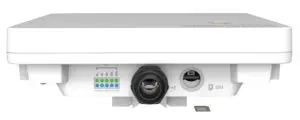
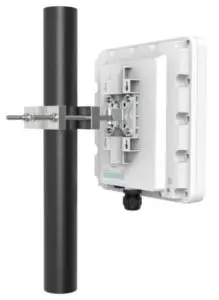
Open the SIM card cover, insert the SIM card, and connected the ETH cable. The user should use SFTP CAT5E Ethernet cable and connect to the appropriate LAN port
- Clamp Mounting Option (Preferred Method)
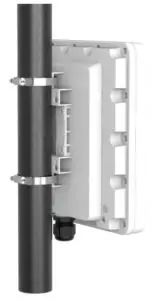
- ◼ Bracket Mounting Option
- ◼Connecting the Device
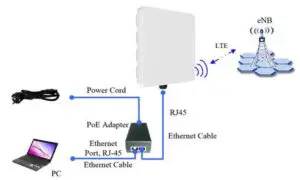
LED Display
| LED | Function | Description |
| SYS | System run indicator | Solid green – The device is in normal operation. |
| MOD | WAN port status | OFF – NO wireless network access. Solid Green – WAN data transmission in progress |
| SIM | SIM card indicator | Light is on – SIM card state is ready, Blinking Green – SIM card is error. |
| ETH | LAN port status | Solid Green – LAN port is up. Blinking Green –LAN port in working. |
| Wi-Fi | Wi-Fi indicator | Light is on –Wi-Fi is on. |
| RF | RF Signal Strength | 5 level signal strengths indication by 5 green LEDs. 1st Green LED: -115dBm < RSRP 2nd Green LED: -115dBm <= RSRP < -105dBm 3rd Green LED: -105dBm <= RSRP < -95dBm 4th Green LED: -95dBm <= RSRP < -85dBm 5th Green LED: -85 <= RSRP |
Managing the CPE Device
WEB Login
Users can access the dongle management GUI using a Web browser from a local PC connected to the device LAN port. The user should ensure that the connected PC has acquired an IP address via DHCP from the device. After IP connectivity is established between the PC and window CPE device, the user may launch a Web browser and specify Http://192.168.0.1 in the address bar, the default home page will appear. Note the default password is “admin”.
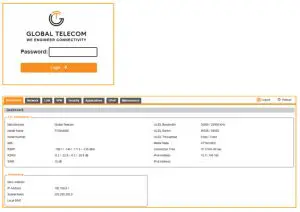
System configuration
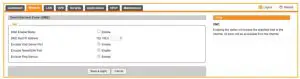
DMZ
This menu allows user to configure the DMZ setting for CPE in router mode. Web server, Telnet/SSH, and Ping Service port can be exempted from DMZ mapping if required. By enabling DMZ option will make the specified local LAN host (DMZ IP) exposed to the Internet.
Security
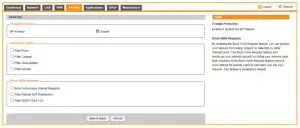
This page allows users to configure the device’s security settings.
Applications
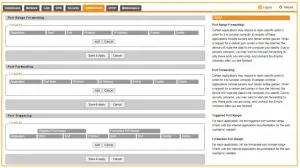
This menu allows users to configure the port forwarding rules for the CPE in router mode.
Maintenance
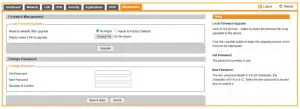
This page allows the user to update the device firmware version, rest the device to factory setting and reboot the device.
Troubleshooting
Q1: My PC cannot connect to the CPE.
- Check the PoE adapter LED is on and the CPE & PC ETH cables are securely connected. The CPE LED should work as described.
- Check the PC NIC driver is properly installed and configured.
Q2: My CPE networking is not working properly.
- Check and make sure you are within the LTE coverage area and the unit is attached to the network.
- Please also check the SIM card validity.
Q3: Unable to connect to the internet while the device is already connected to LTE.
- Check and verify your computer has a proper NIC interface configured (DHCP or static IP). Unplug the PC ETH cable and reconnect again if required.
- If necessary, you may reboot the CPE by powering off/on the CPE unit.