
Hicare Hub
User Manual
Hicare Hub Overview
Overview
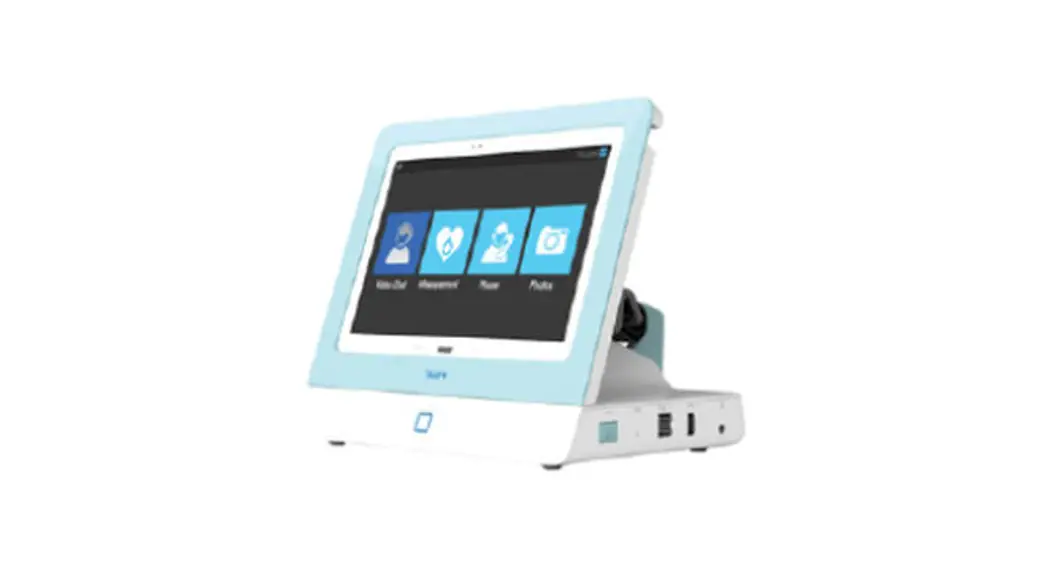
- Dedicated telehealth mobile communication and Wi-Fi hub device
- A base station with a portable hot spot concept that can extend the network function of remote patient monitoring service by connecting to an existing tablet PC, etc.
Function
- Hub device function for interworking with multiple USB-based medical devices
- Mobile communication Wi-Fi wireless router dedicated to telemedicine
- perates as WiFi-PPP AP based on mobile communication 2G/3G/LTE/5G/PSTN in areas where the local Internet environment is not established
(This function is available when an external modem is connected to the rear USB
port (Modem) of this product. (Example: USB PSTN modem, USB LTE egg, etc.) - Fast charging of Tablet PC through USB of base station and automatic switching of wired USB communication
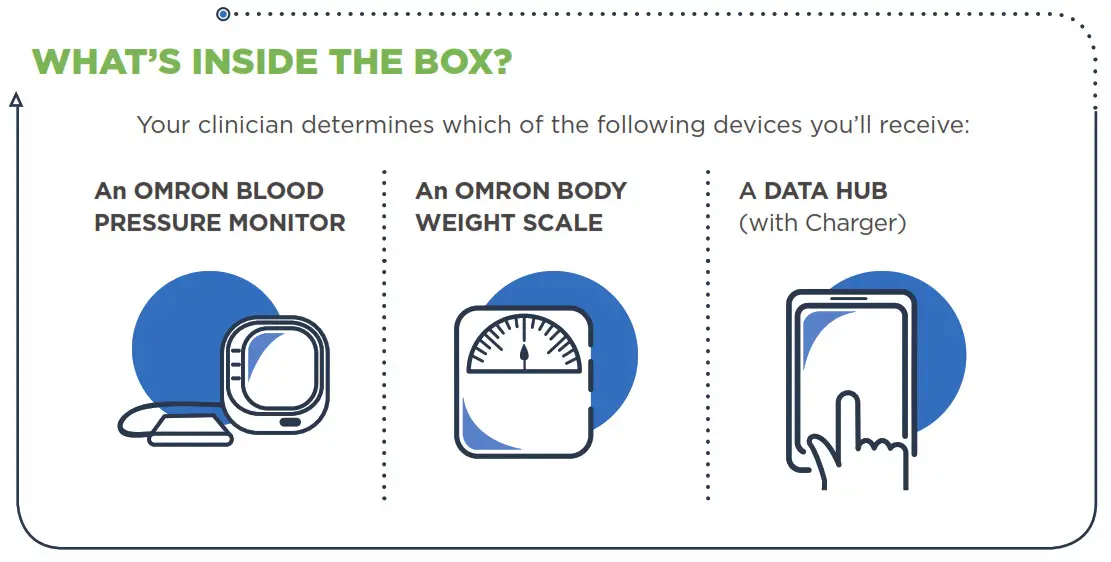
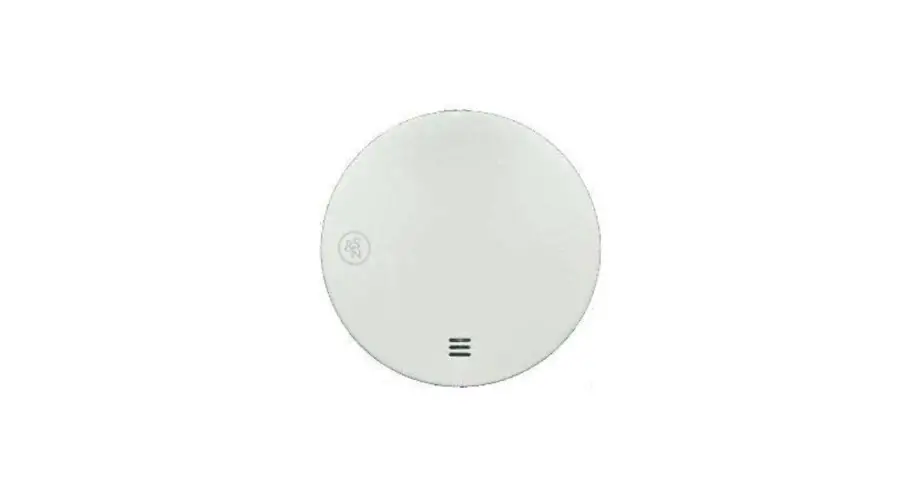
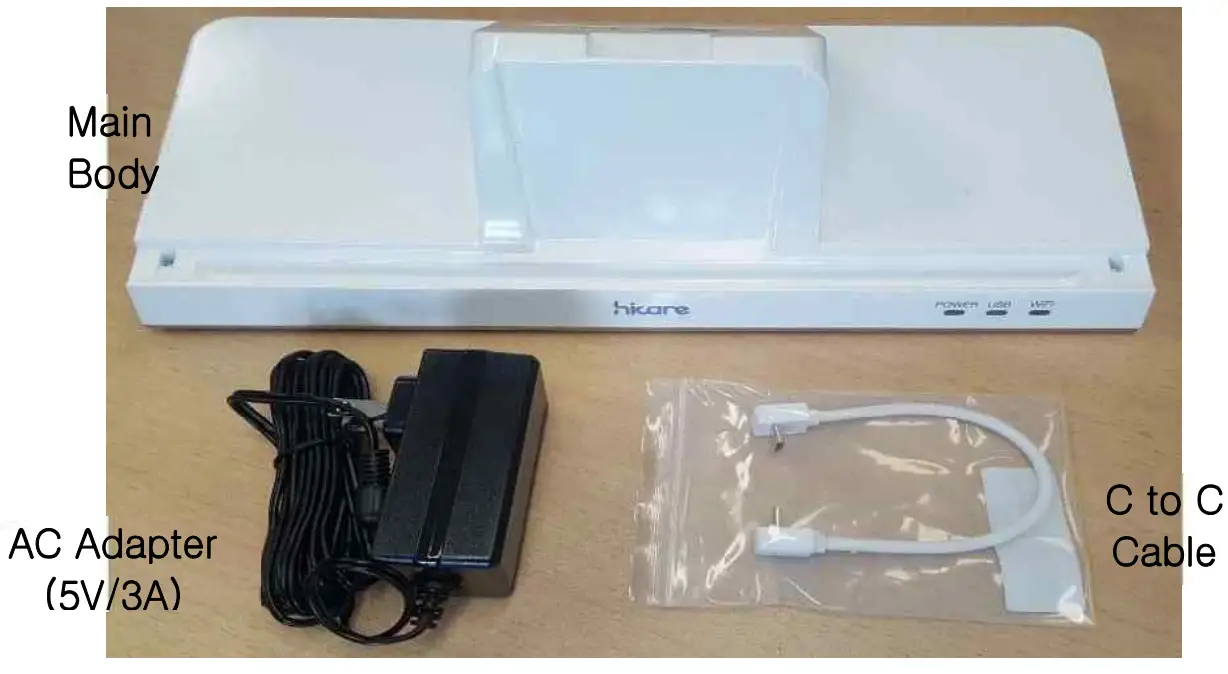
1. Product Components - Main Body, AC Adapter(5V/3A), C to C Cable
Specification
- Block Diagram
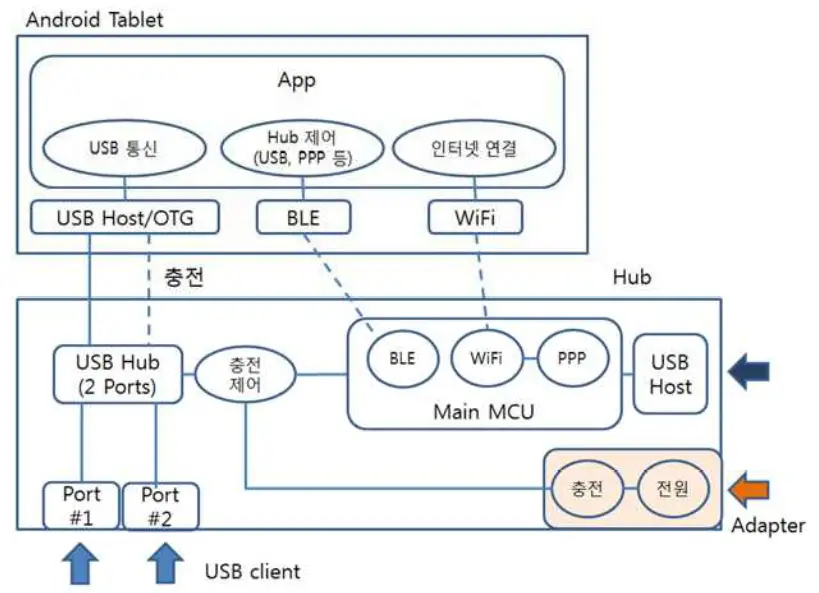
| Main MCU | ESP32 (Built-in WiFi, BT) |
| – MCU | Single-core 32-bit Microprocessor |
| – Memory | 448 KB ROM |
| 520 KB SRAM | |
| 4MB FLASH Memory | |
| – Peripheral Interface | 34 x Programmable GPIOs |
| 4 x SPI | |
| 2 x I2C | |
| 3 x UART | |
| – WiFi | 802. 11 b/g/n |
| 802.11 n(2.4GHz) up to 150Mbps | |
| – BT | Compliant with Bluetooth v4.2 BDR/EDR and |
| BLE Specification | |
| +12 dBm Transmitting power | |
| NZIF receiver with -94 dBm BLE sensitivity | |
| USB Controller | USB2412 |
| – Client | 2 Ports |
| – Function | Tablet fast charging mode ( — 1.5A) |
| Data communication with USB device (USB Host Mode) | |
| USB Host | STM32 USB Host Support model |
| – USB host | MODEM Connection |
| LED Display function | |
| – Power | Power input status |
| – USB | USB device connection status |
| – WiFi | Internet connection status |
| Works as a WiFi router | |
| – LAN | WiFi-AP |
| – WAN | PPP-PSTN Modem |
| – IP Forward, NAT | |
| F/W Download | Wired, wireless (OTA) download support |
| Power | AC Adapter (5V/3A) |
| Dimension (WDH) | 280x130x25(88) mm |
Operation Description
0. preparations
A. Hub power connection
B. Modem connection
C. Step A and Step B do not need to be in any order
- Hub Status check & Control
A. Current status and hub control with BLE communication
B. Action scenario
i. BLE Scan
ii. hicare_BLE_… Find and connection
iii. Send status check command to BLE
- Example) at+status?
- Response content (Example)
A. Internet connection-related status
i. Internet: Not connected
ii. WiFi: Off
iii. PPP: Not Connected
- Server tel: 1234
- User: hicare
- Password: 5678
iv. Modem: Ready
B. USB Status
i. Mode: Charging
ii. Tablet: Connected
iii. USB Device #1: Connected
iv. USB Device #2: Not connected
C. You can keep the BLE connection, or you can connect and use it only when necessary.
2. Internet connection scenario
A. After BLE connection
B. Send internet connection command
i. Example) at+ internet=start
C. Subsequent state change monitoring
D. When the Internet connection is ready, the status changes to:
i. Example)
- Internet: Ready
- WiFi: On
- PPP: Connected
- Modem: Ready
E. WiFi Scan
F. hicare_AR. Find and connection
G. Current password is not set.
3. USB usage scenarios
A. After BLE communication connection
B. Send communication command with USB device
i. Example) at+usbmode=com
C. Check status afterward
i. USB Status
- Mode: Comm
- Tablet: Connected
- USB Device #1: Connected
- USB Device #2: Not connected
D. USB device usage
E. When you want to return to again charge mode
i. Example) at+usbmode=charging
4. (Note) PPP Server preparation
A. Run the following command on the server side: Sudo pppd /dev/ttyACMO
B. A few AT commands are being performed and waiting
I…….
ii. AT S0=1
iii. OK
C. (Precautions)
Since there is a timeout, if you stay in this state for a long time, it exits to the shell prompt from waiting. In this case, you have to run it again.
D. Check server connection
i. Looking at the PPP server-side,
ii. After RING, related logs are uploaded,
iii. Ip-up … If it goes up to finished, it means that the PPP is connected.
1. Script /etc/PPP/IP-up-finished (PID 69802), status = Ox0
FCC compliance information
THIS DEVICE COMPLIES WITH PART 15 OF THE FCC RULES Operation is subject to the following two conditions. (1) This device may not cause harmful interference, and (2) This device must accept any interference received, including interference that may cause undesired operation
Note This equipment has been tested and found to comply with the limits for a Class B digital device, pursuant to part 15 of the FCC Rules. These limits are designed to provide reasonable protection against harmful interference in a residential installation This equipment generates, uses, and can radiate radio frequency energy and, if not installed and used in accordance with the instructions, may cause harmful interference to radio communications. However, there is no guarantee that interference will not occur in a particular installation If this equipment does cause harmful interference to radio or television reception, which can be determined by turning the equipment off and on, the user is encouraged to try to correct the interference by one or more of the following measures
- Reorient or relocate the receiving antenna
- Increase the separation between the equipment and receiver
- Connect the equipment into an outlet on a circuit different from that to which the receiver is connected
- Consult the dealer or an experienced radio/TV technician for help
Modifications not expressly approved by the manufacturer could void the user’s authority to operate the equipment under FCC rules
This appliance and its antenna must not be co-located or operated in conjunction with any other antenna or transmitter. A minimum separation distance of 20 cm must be maintained between the antenna and the person for this appliance to satisfy the RF exposure requirements.