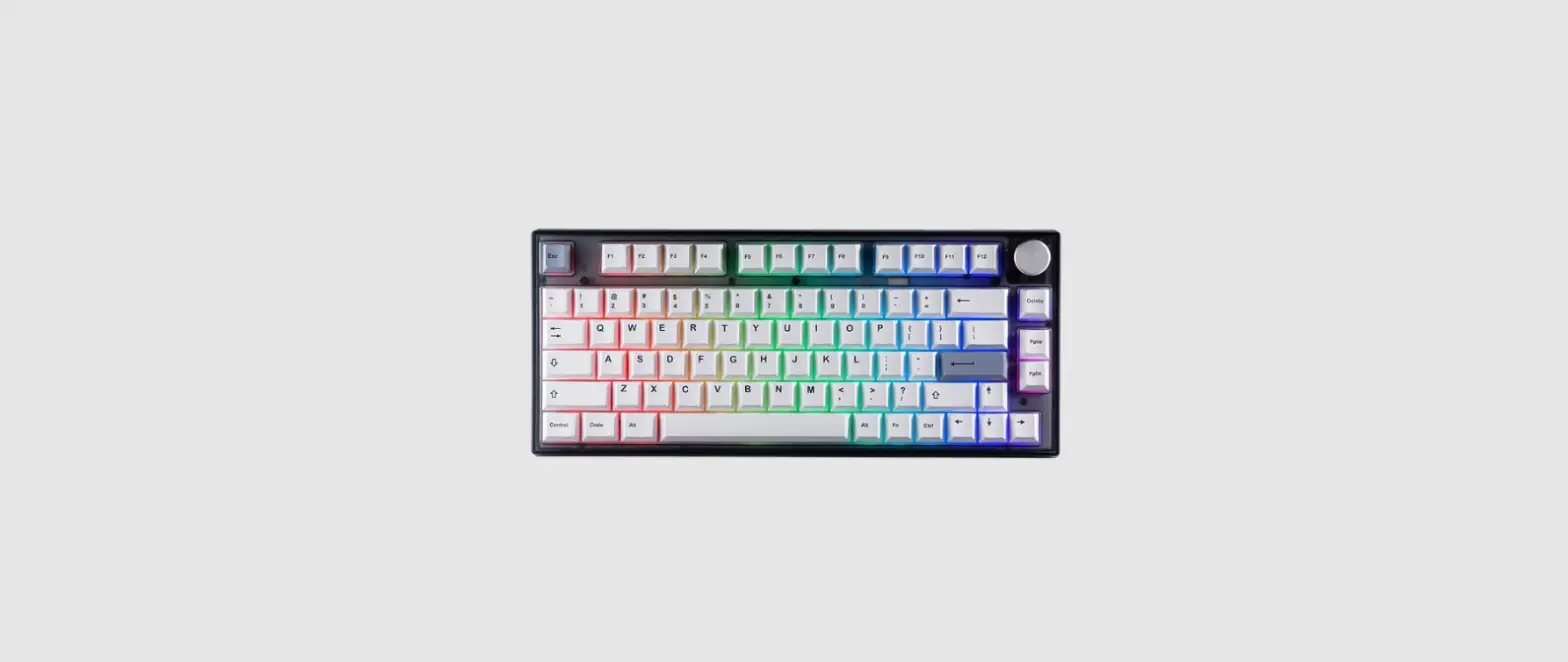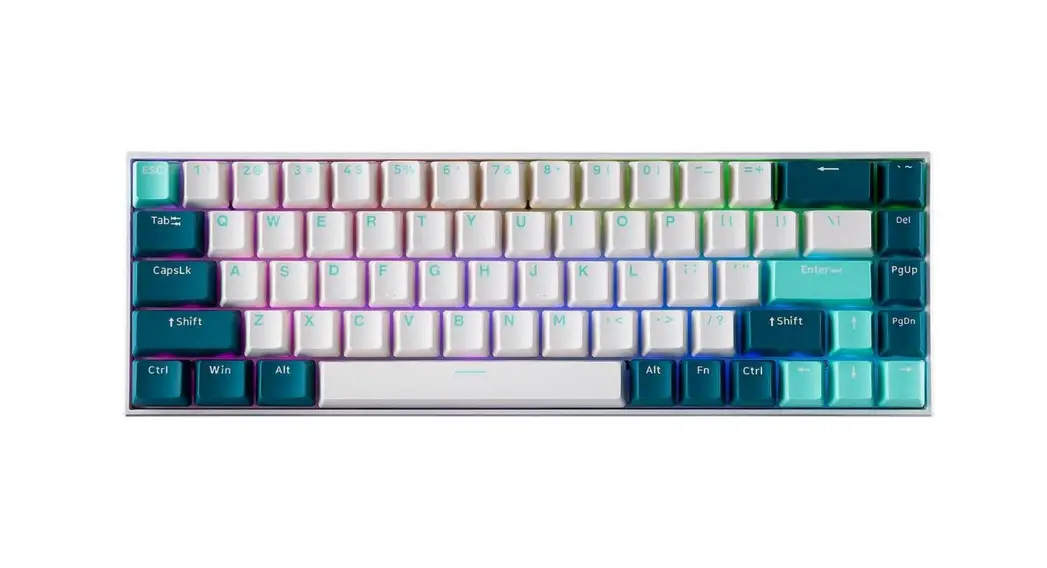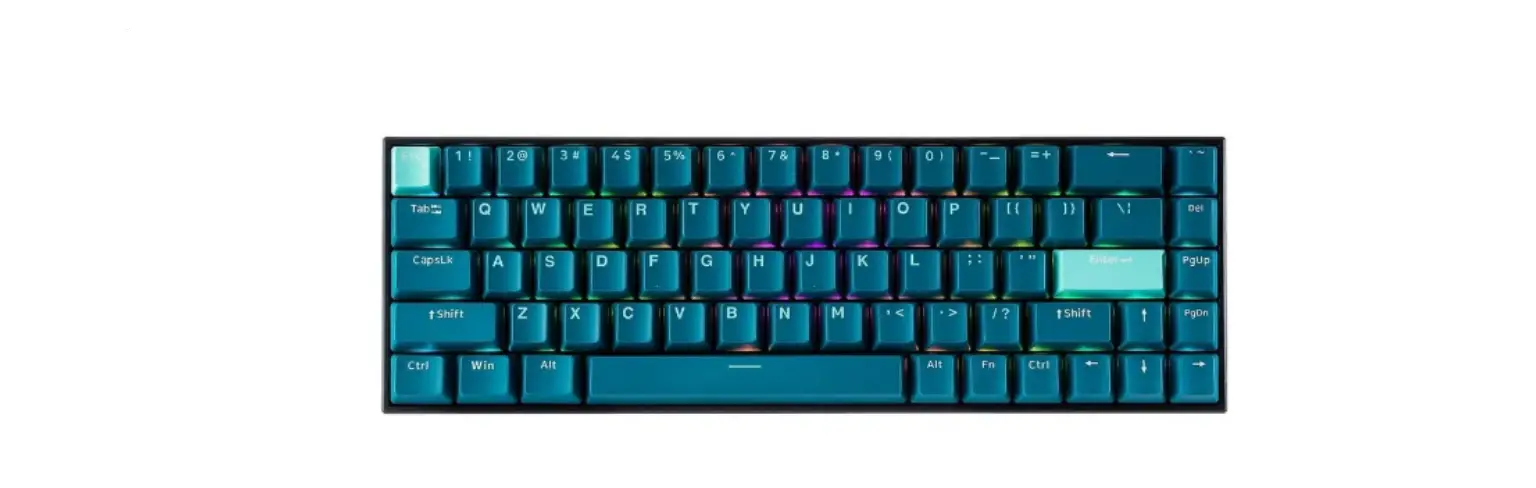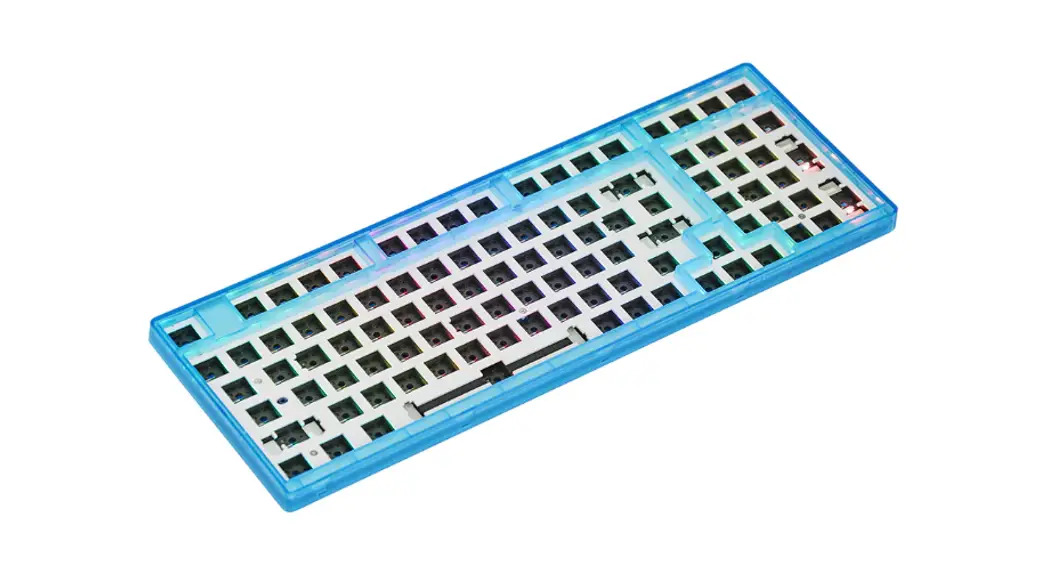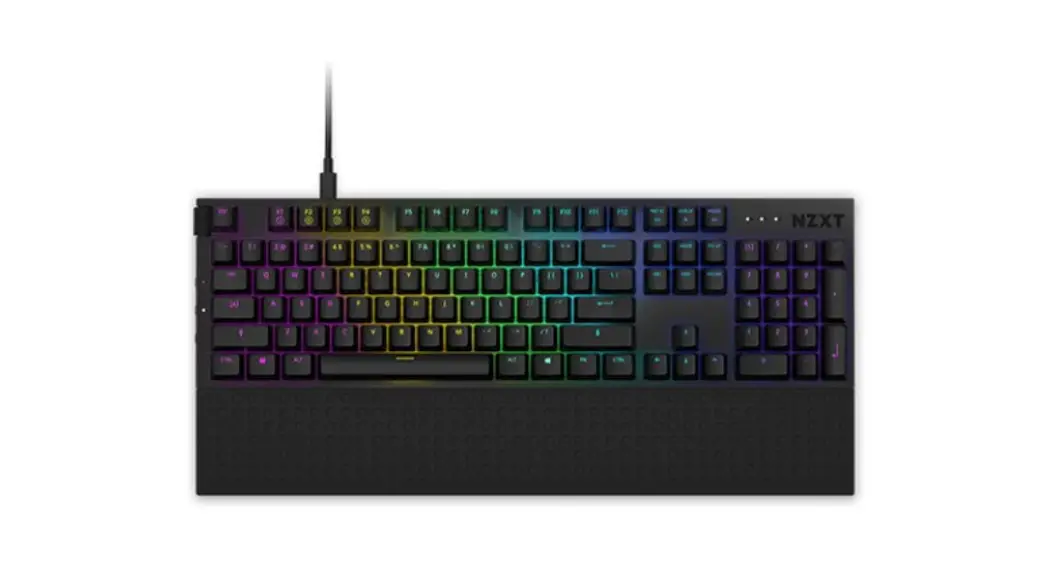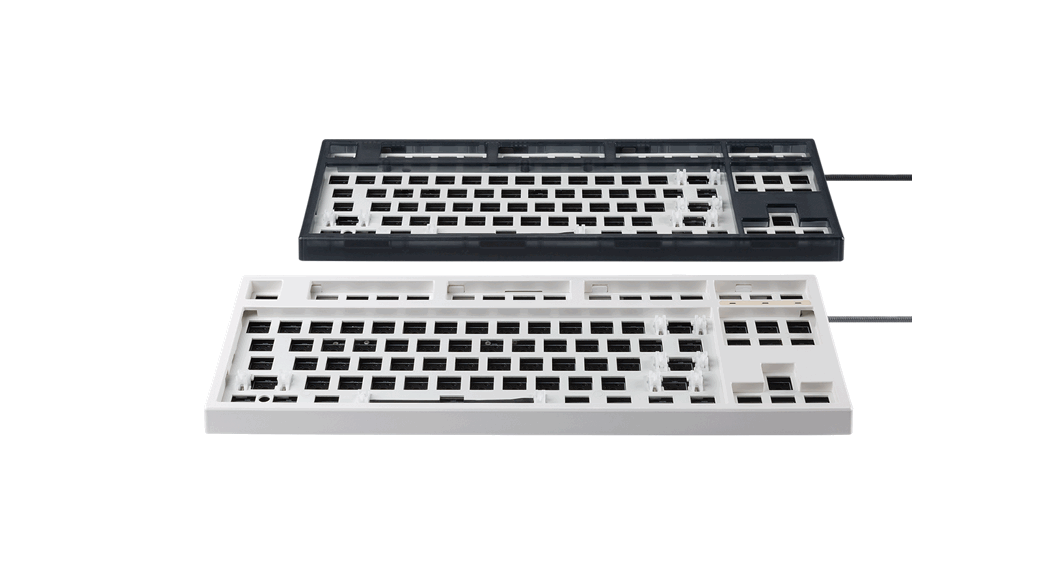
 Veil 87
Barebones Keyboard Kit
Quick Start Guide
Windows Fn Shortcut Keys
| Fn +⇑ LED Brightness Up | Fn + F5 Stop |
| Fn + ⇓ LED Brightness Down | Fn + F6 Previous |
| Fn +⇒ LED Lighting Speed Increase | Fn + F7 Play/Pause |
| Fn +⇐ LED Lighting Speed Decrease | Fn + F8 Next |
| Fn + F1 Open Media Player | Fn + F9 |
| Fn + F2 Volume Decrease | Fn + F10 Open Homepage |
| Fn + F3 Volume Increase | Fn + F11 Open Calculator |
| Fn + F4 Mute Sound | Fn + F12 Lock All Keys |
Windows Fn Shortcut Keys (continued)
| Fn + Left WIN Windows Lock | Fn + PgUp Load Light Model Profile 1 |
| Fn + PrtScr Default RGB Light Mode Color | Fn + PgDn Load Light Model Profile 2 |
| Fn + Scroll Lock Change RGB Light Mode Background Color | Fn + ~ Toggle N-key rollover / 6-key rollover |
| Fn + Pause Change RGB Light Mode Single Color | Fn + TAB Hold down 3 sec till the TAB key flashes white (Switch between Fn1 Layer and Main Layer) |
| Fn + Ins Cycle Light Modes (Total of 8 Modes) | Restore Default Hold down 3 sec (Fn + Esc) |
| Fn + Home Change Lighting Direction | |
| Fn + Del Cycle Interactive Light Modes (Total 6 Modes) | |
| Fn + End Edit / Save Custom Light Mode Profile |
iOS/Mac Fn Shortcut Keys:
| Fn + 1 Screen Brightness – | Fn + – Volume – |
| Fn + 2 Screen Brightness + | Fn + = Volume + |
| Fn + 3 Mission Control | Ctrl Control |
| Fn + 4 Back to Homepage | Alt Command |
| Fn + 7 Previous | Win Option |
| Fn + 8 Play/Pause | |
| Fn + 9 Next | |
| Fn + 0 Mute |
Custom Mode (Edit Individual Keys):
How to set custom LED colors per key:
STEP 1: Press Fn + End to enter edit mode.
STEP 2: Press PgUp / PgDn to load Light Mode Profile 1 / 2
STEP 3: Press on any key to set its color.
STEP 4: Press Fn + End to exit and save its changes.
Macro and Key-Remapping via software:
After setting your Macro or Remapping your keys, press the “Download” button to load it onto the keyboard.
FN1 Layer customization via software:
To edit the FN1 Layer:
STEP 1: Click on “Key custom” and press “Onboard editor”.
STEP 2: Click on “FN1 Layer”.
STEP 3: Select a key to add a function.
STEP 4: Select the function and press “Download” to save.
 Tecware | PC Cases & Peripherals