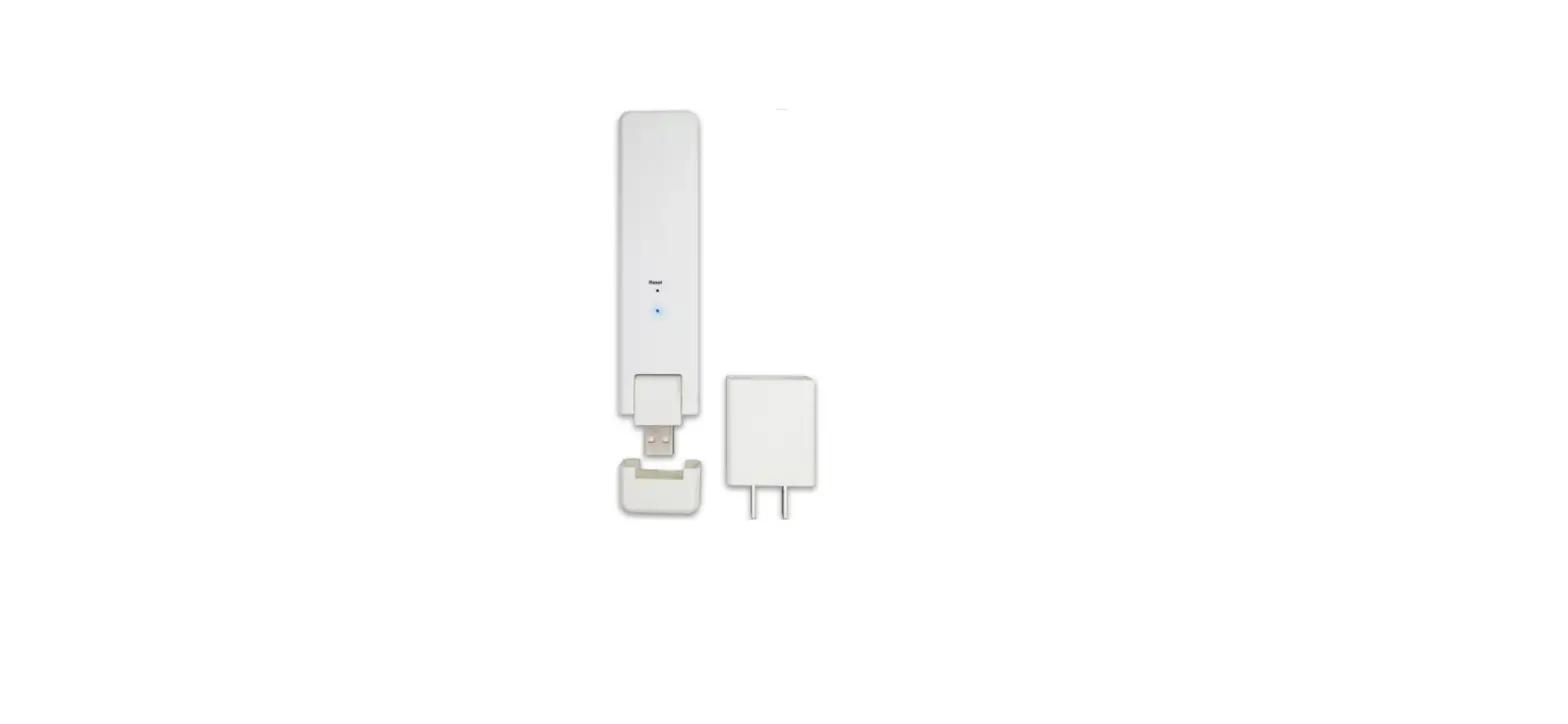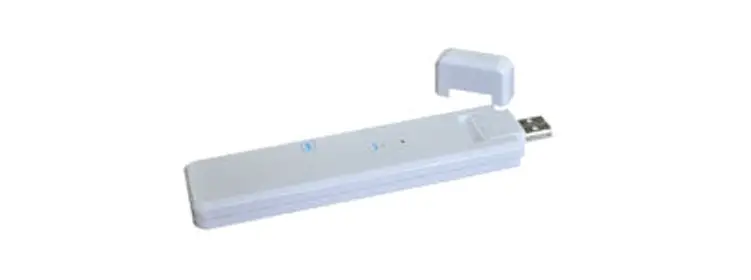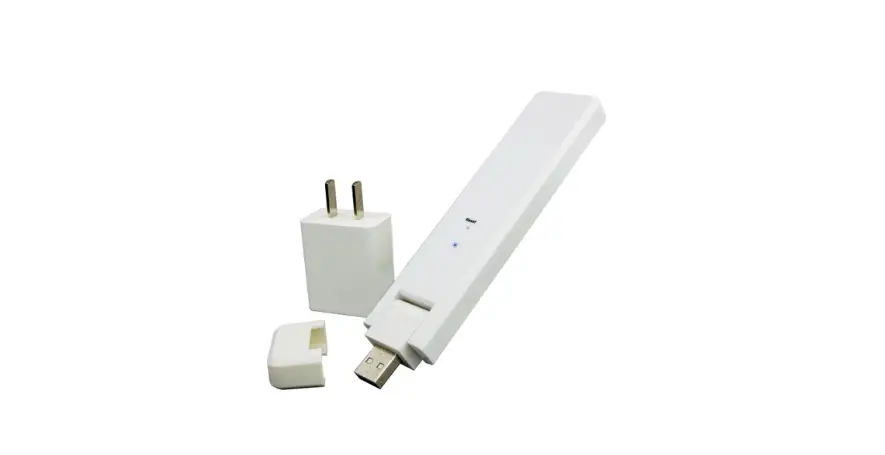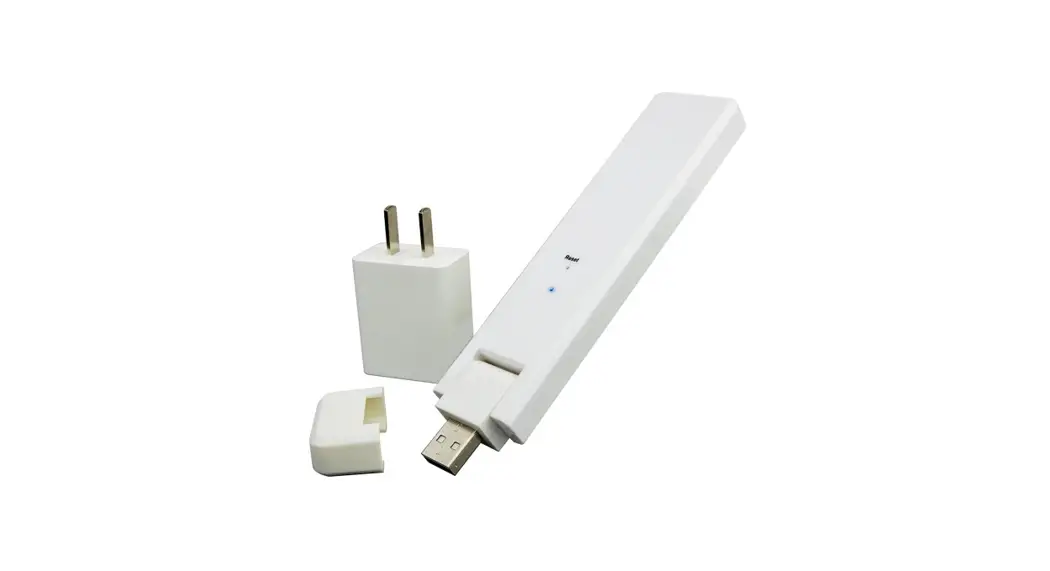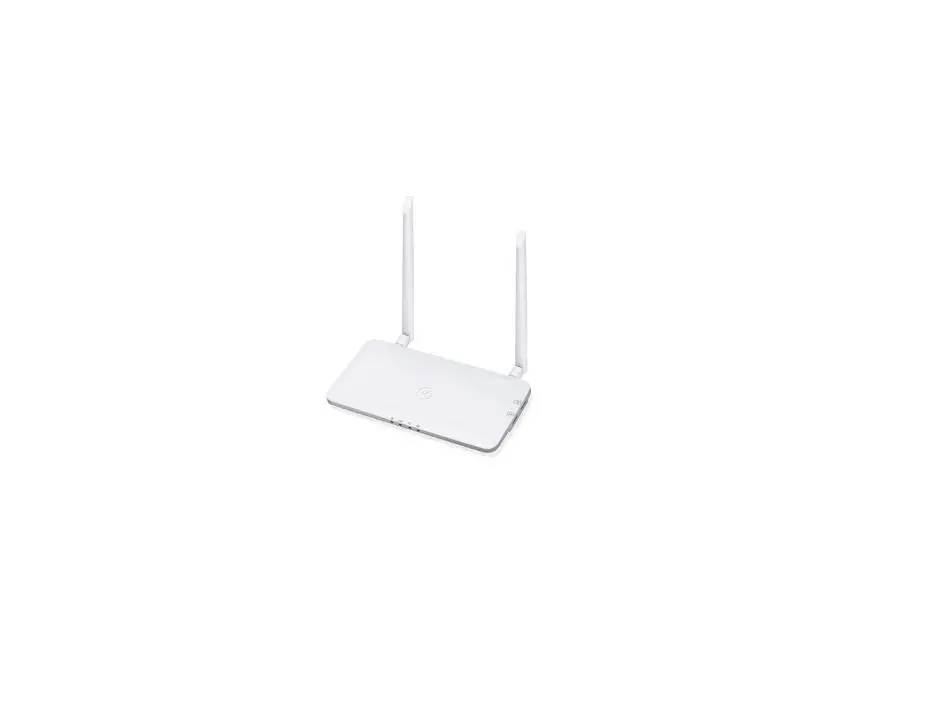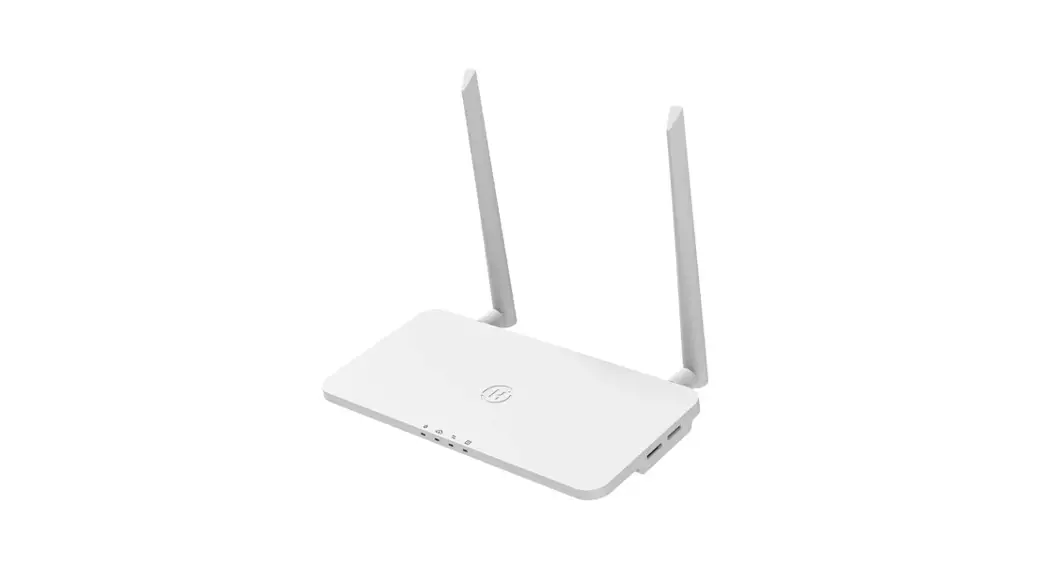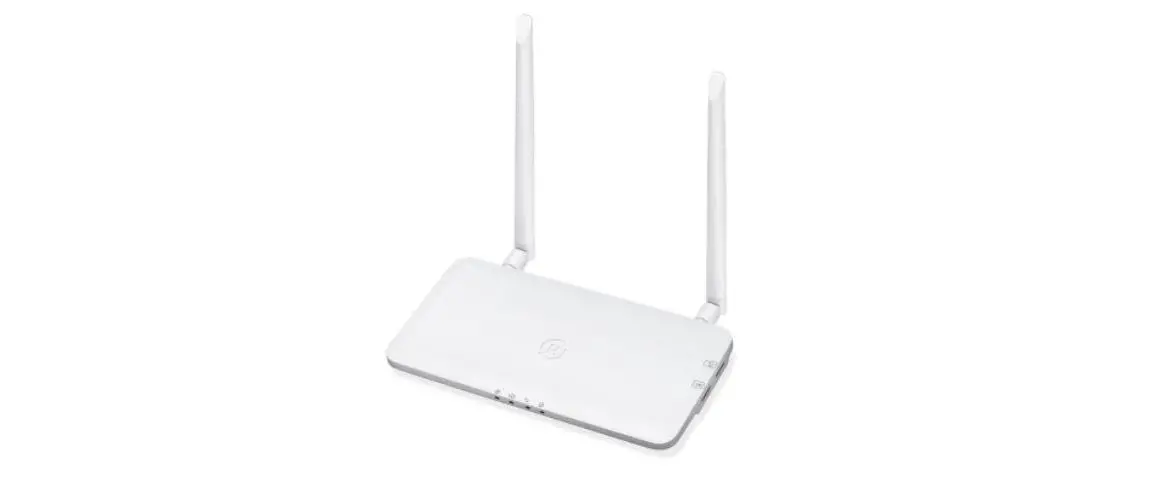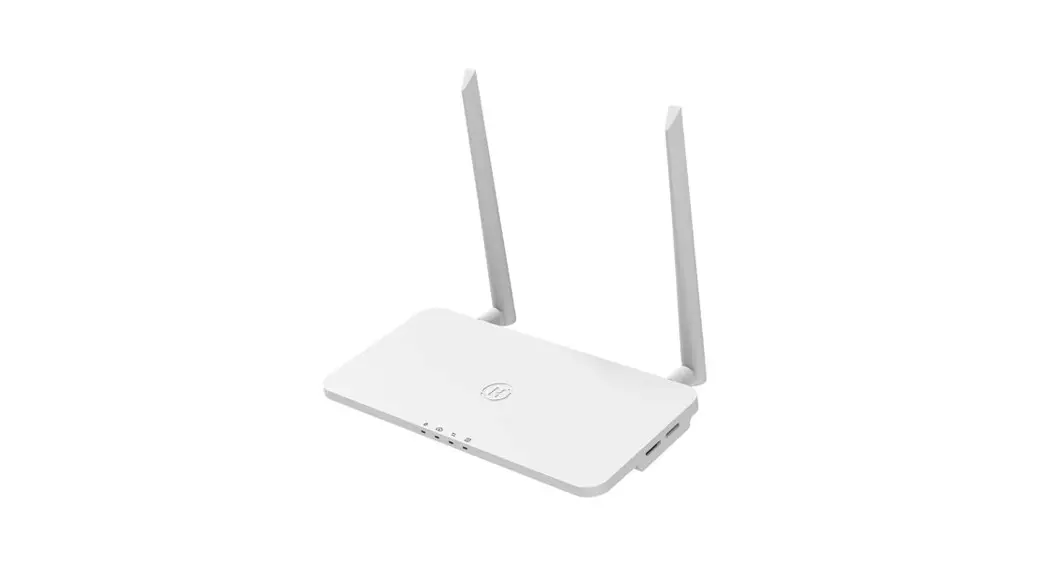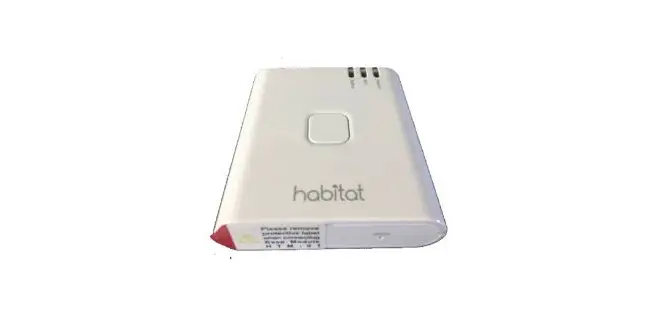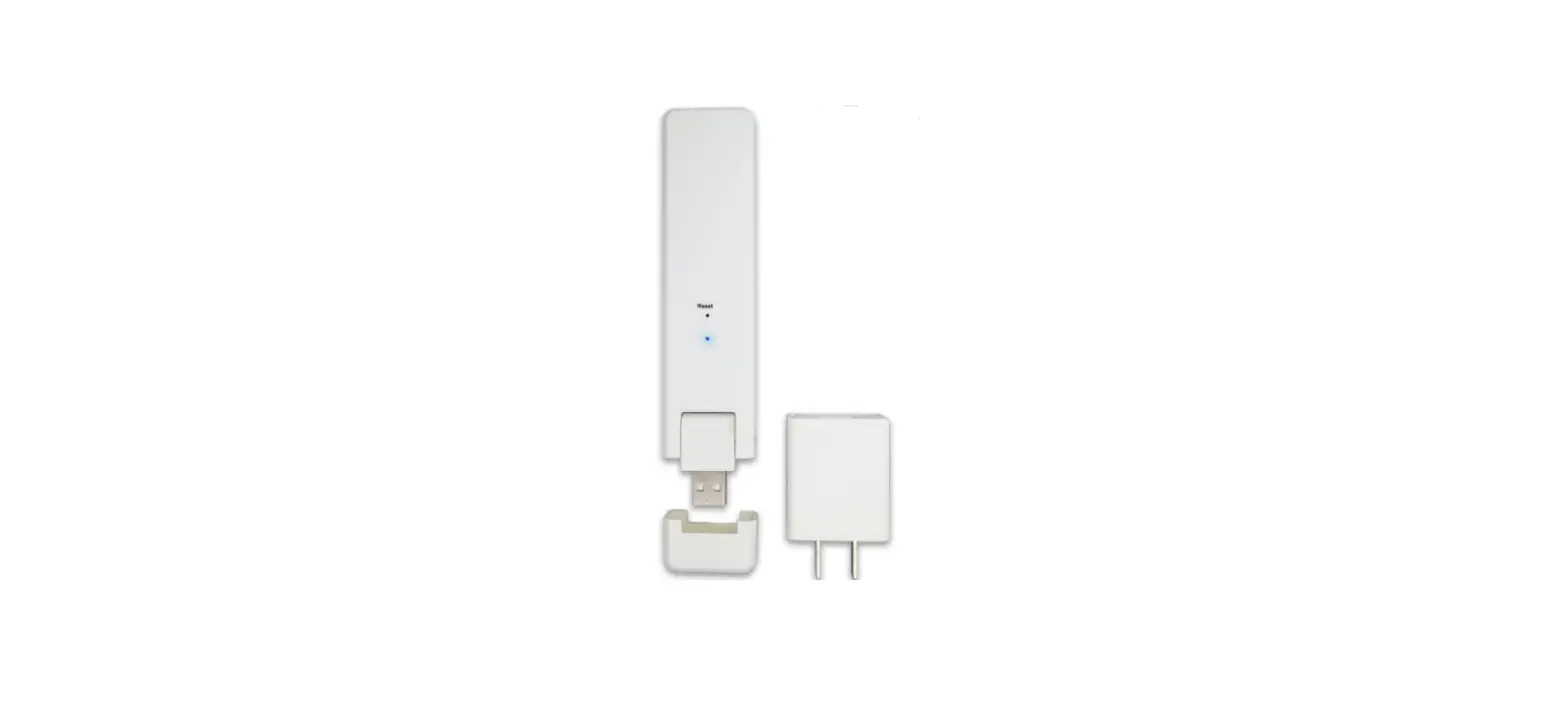

hoymiles DTU-W100 3rd Gen WiFi Model
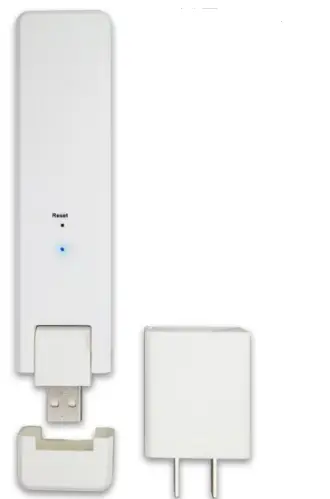
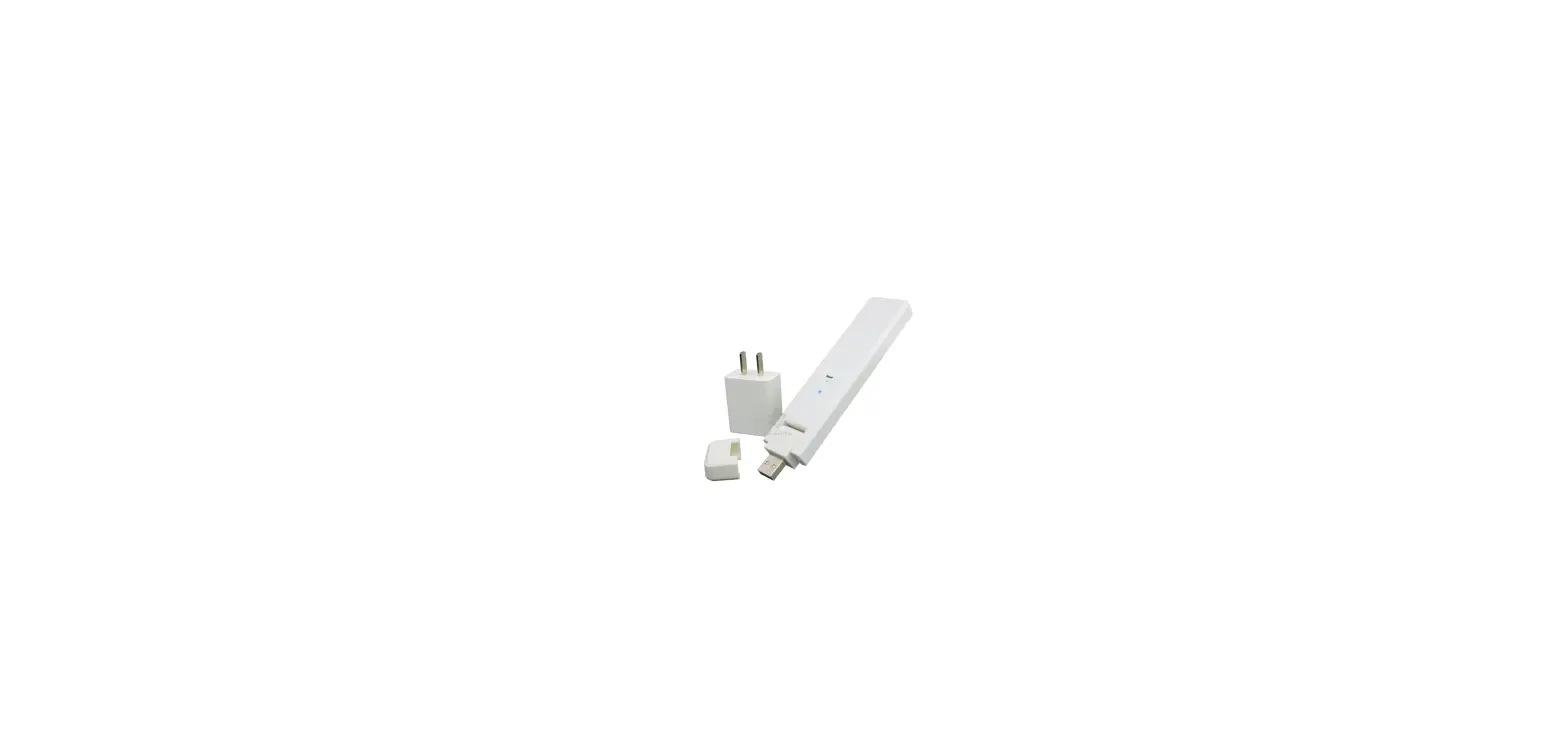
Interface Layout
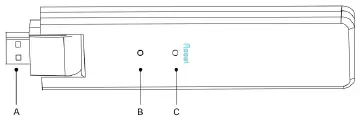
| Item | Description |
| A | USB Connector |
| B | Status Indicator |
| C | Reset Button |
Preparation
Download the Hoymiles mobile installer App

Check the box for the following items:
- Hoymiles DTU-W100
- Adapter
Installation
Power the DTU-W100 3rd Gen
- Option 1: Connect the DTU to the adapter and plug it into the wall socket

- Option 2: Connect the DTU to the adapter and plug it into the Power Strip. Please make sure it is placed at least 0.5 meter above the ground and try to install the DTU 90 degrees vertical to the ground as much as possible.

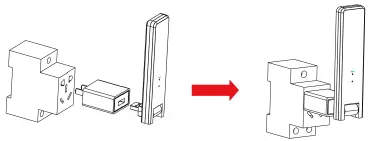
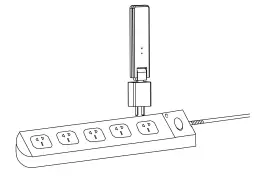
Note: Please do not install the DTU directly above the metal or concrete to prevent the signal dilution.
Start Procedure
Once the DTU powers on, the red, green and blue lights will flash for one second in turns for 30 seconds.
Set up with Internet
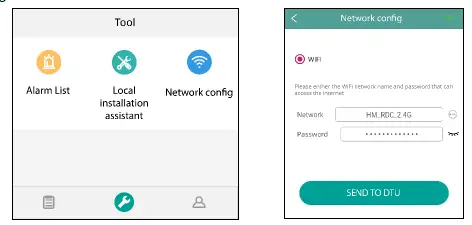
Use the smart phone/tablet open the Installer App and login. Approach to “O&M” on the bottom of the page and then “Network Configuration”. And complete the WiFi configuration.
Installation Map
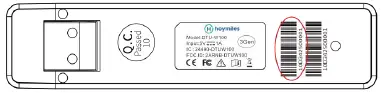
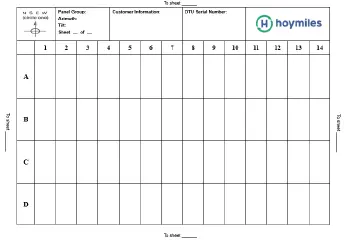
Please complete the installation map. Peel the serial number label (as circled below) from the DTU and place it on the installation map.
 Complete system information of the installation map shown as follows.
Online Setting
Please complete the online account creation to complete the DTU installation (You can refer to “Quick Installation Guide for HMP Online Registration” for detail account creation steps). Note: For more setting details regarding the Local Install Assistant please acquire the related Operation Guide from our Tech. Support Team at [email protected].
Warning
- Only qualified personnel can install or replace the DTU.
- Do not attempt to repair the DTU as it contains the parts that are not serviceable to users. If the DTU breaks down, please contact your distributor for maintenance. Open the DTU without permission will invalidate the warranty
 📧
📧