 INSTRUCTION MANUAL
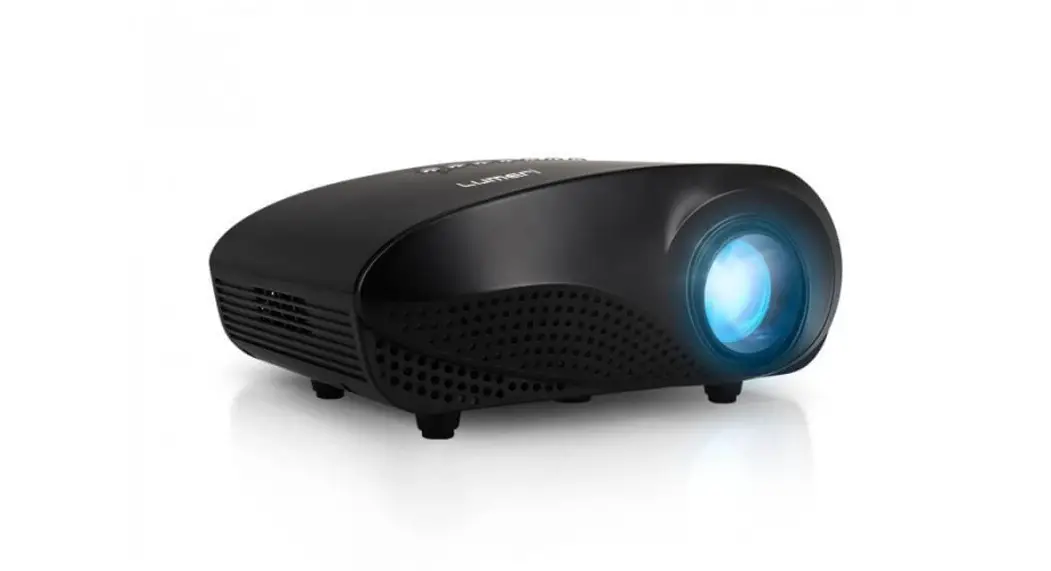
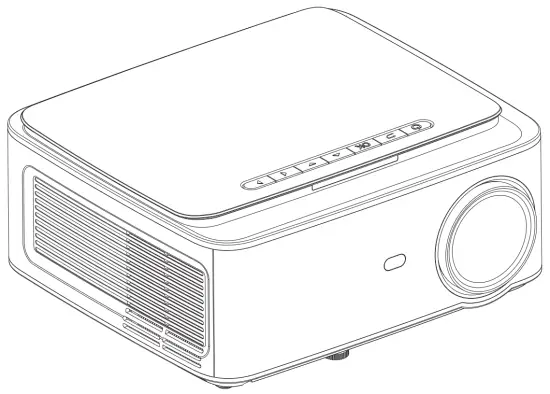 LUMERI F560
Important Safeguards
Installation
- To get a better watching, please use this projector while drawing the curtain or in a dark
- Please use the projector carefully, dropping or crashing may damage parts or result in blurred images and abnormal displaying.
Power
- Be careful while using the power cord, avoid excessive bending; the damage to the power cable may cause electric shock and
- It is better to unplug the power cord after power off.
Cleaning
- Unplug the power cable first.
- Clean the shell regularly with a damp cloth, neutral detergent can be
- Please use a glasses cloth or lens paper, not to scratch the lens.
- Please clean the projector’s vents and speakers regularly by banister brush, or the ventilation will be blocked.
High-Temperature Attention
- While projection or just finishing, the exhaust port nearby will be very hot, if touch it, would get scald.
- While projection, please do not look at the lens directly, or may hurt
*Warm Tips - Do not disassemble the projector, if not, there will be a risk of electric shock, and the disassembling affects the normal
- Please do not put any liquid or heavy stuff on the projector.
- To ensure the stability of heat dissipation, please open the height bracket at the bottom of the projector before starting.
This product is only suitable for projections of images & video, and may not be used for room lighting.
Projector Knowledge
The projector can input high-definition video signal and composite video signal, and support stereo audio signal input and output. Please refer to the following figure to connect the projector and other audio equipment according to your own needs. 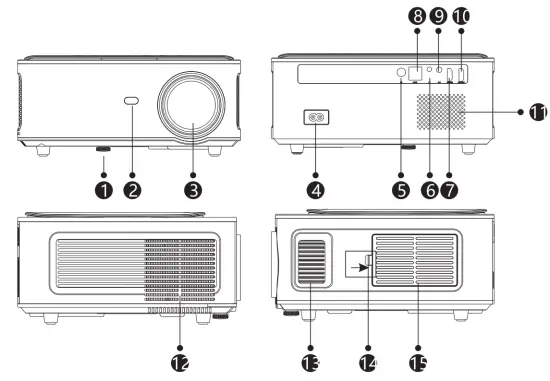
| 1. Level-Stand Adjustment 2. IR receiver 3. Focus Lens 4. Power Switch 5. IR for remote control 6. 3.5mm port for audio output 7. HDMI 1 port | 8. USB port 9. AV port 10. HDMI2 port 11. Speaker 12. Cooling window 13. Focus 14. Switch of removable dust cover 15. Removable dust cover |
Projector Knowledge
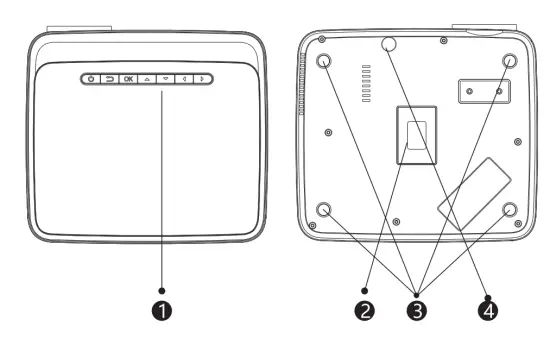
| 1. Keystrokes (picture 1) 2. Rating label | 3. Projector mount holes 4. Level-stand adjustment |
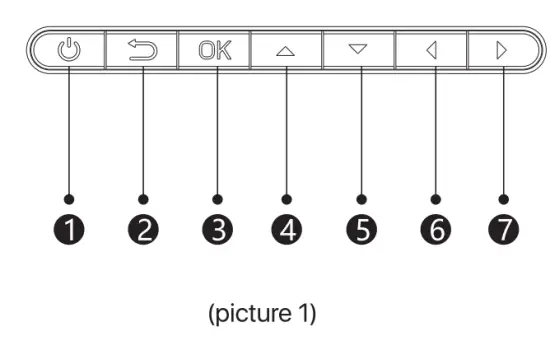
| 1. Power Key 2. Exit 3. OK Key 4. Up Key | 5. Down Key 6. Left Key 7. Right Key |
Remote Control
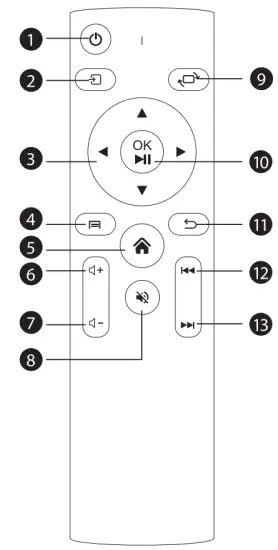
| 1. Power 2. Source 3. Arrow keys 4. Menu 5. Homepape 6. Volume + 7. Volume – | 8. Mute 9. Picture flip 10. Confirmation key (Play and Pause) 11. Return 12. Previous 13. Next |
Projector Installation
Standard Setting
Please refer to the following table to adjust your picture size and distance. (from the lens to the screen).
| Aspect ratio | 16:9 |
| Picture size (inch) | Projection distance (m) |
| 50 | 1.70 |
| 70 | 2.38 |
| 100 | 3.30 |
| 120 | 3.97 |
Please allow ± 3% to the image sizes in the table above. If the distance is less than min data and more than max data, the image could be blurry.
Warning:
Please check the diagram below for the trapezoid adjustment.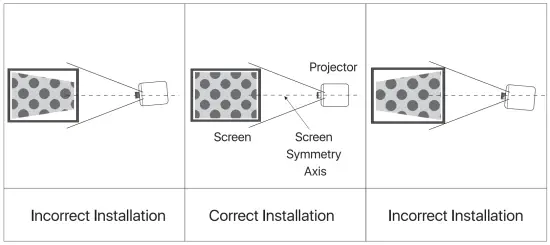
Installation Method
Contact a professional installer to mount this projector to a ceiling.
Follow the instructions below for the correct projector positions.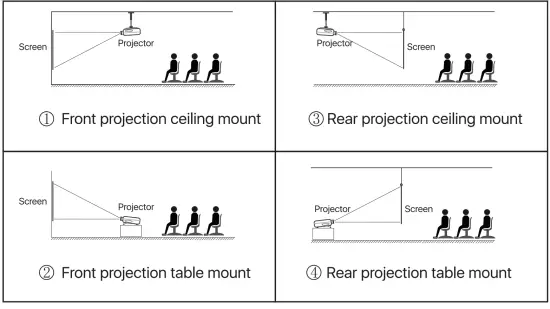
Warning:
- The projector may be damaged beyond repair if it is incorrectly mounted on a ceiling or on a surface.
- The projector should only be used in an environment where the temperature does not exceed the range of 5 C -35 C . Projector malfunction may occur if this is not adhered to.
- Malfunction may occur if the projector is subjected to dusty, wet, moist, or smoky conditions.
- Poor ventilation could cause overheating which could lead to damage to the projector as well as a life-threatening situation.
Turn the Projector Operation On/Off
When the projector is connected to a power source, the projector enters standby and the cover signal indicator is red.
Operation on: Press the power key on the body or the power key on the remote control, the indicator will turn blue and enter the working state.
Operation off: In the working state, press the power key of the body or the power key on the remote control, the indicator changes from blue to red, and the projector is turned on.
Focus Adjustment
Focus Adjustment
Turn the trackwheel clockwise to bring the trackwheel to the end, then slowly rotate the trackwheel counterclockwise. At the same time, carefully observe the pixels on the screen. When the image particles are the clearest (Subjed to the middle of the image), the pixels on the screen are the best focus of the lens.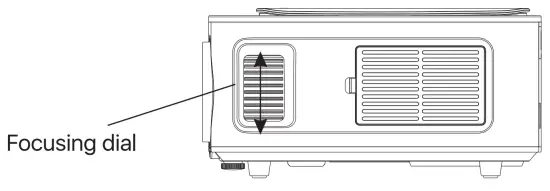
Interface Operation Instructions
How to Select the Source
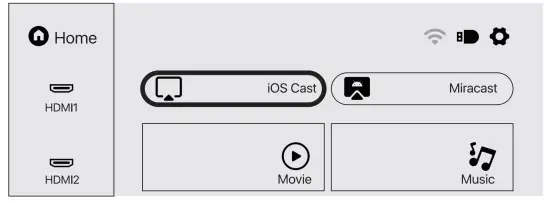
Select the source channel you want to enter in the list on the left side of the main interface, such as HDMI 1 / HDMI 2 / AV, then press the “OK” key on the remote control to enter the corresponding source interface.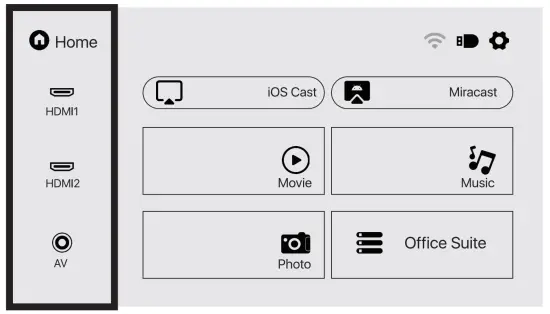
How to Connect to WiFi
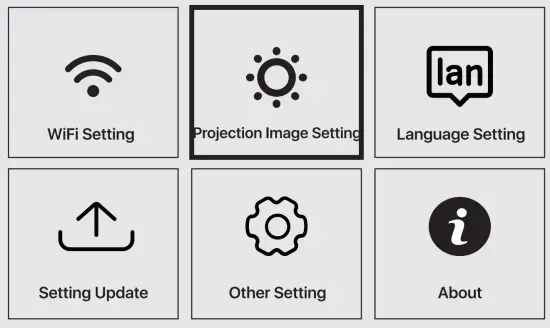
Select the settings icon in the upper-right corner of the main interface, press the “OK” key on the remote control to enter the settings interface, and select “WiFi Setting”. After entering the interface, select the WiFi you want to connect to in the list below, then enter the password and complete the connection. Connected will be displayed behind the successfully connected WiFi.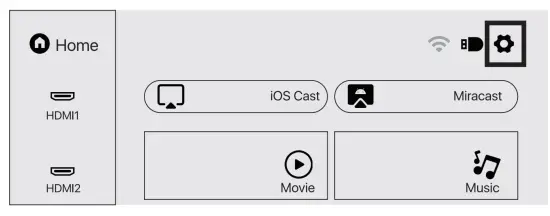
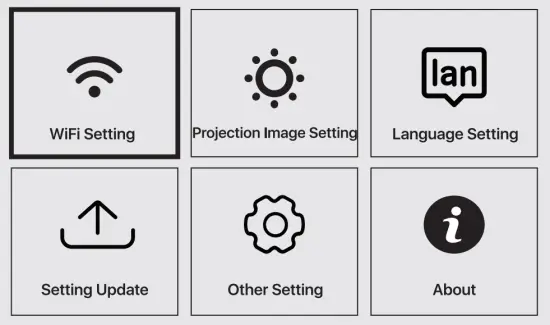 WiFi Setting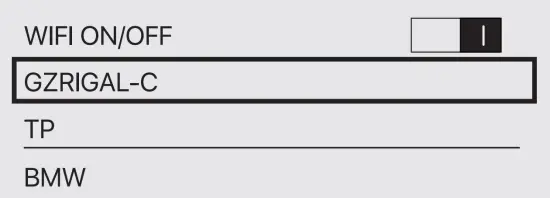
How to Use Projection Settings
Select the settings icon in the upper-right corner of the main interface, and then press the “OK” key on the remote control to enter the settings interface and select “Projection Image Setting”.
After entering the interface, select the mode you want in the projection settings.
Manual Keystone: 4-point Keystone
Projection mode: Front-Desktop / Rear-Desktop / Front-Ceiling / Rear-Ceiling Digital Zoom: 50%-100%
 Projecton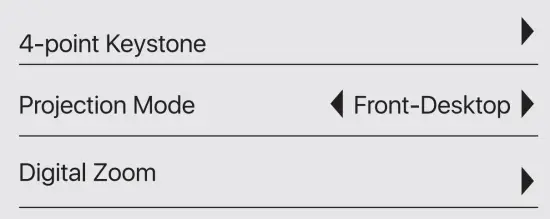
How to Use iOS Cast
In the main interface, select “i0S Cast”, press the “or key on the remote control to enter the interface, and then set up in the order in the interface
Note: The projector needs to be connected to the Internet for using the iOS Cast or upgrading the projector for the first time
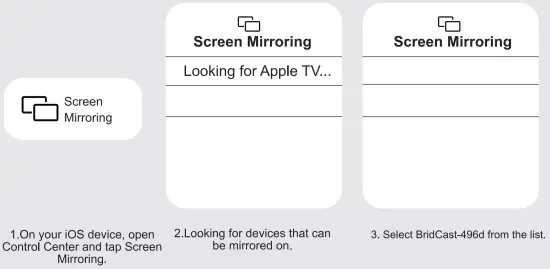
- The iOS device and the projector are connected to the same network
- Open the control center of the iOS device and select Screen mirroring
- Choose the corresponding projector device name.
 Make sure that your iOS device is connected to the same network as your Projector
How to Use Miracast
Select “Miracast” in the main interface and press the “OK” key on the remote control to enter the interface, and then set up in the order in the interface.
- Turn on the WIFI of the Android device. (It is recommended that the projector is connected to the same router or the WIFI of the Android device is not connected to any router).
- Turn on the “Wireless Display” of the Android device.
- Select the corresponding projector device name.
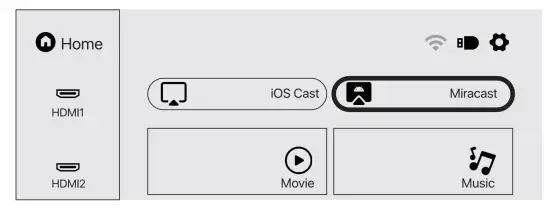 Miracast
To connect Android Mobile/Pad Device with Projector Based on WO-Display Technology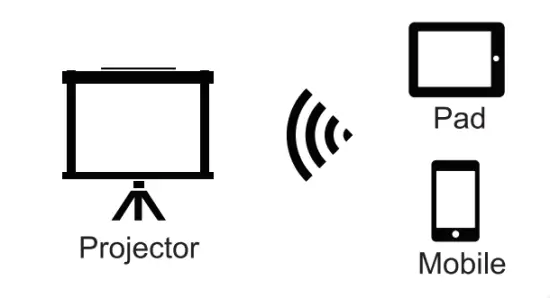
- On your Android stooneinee. open the settings menu.
- ACCeSS your display settings or screen.mitroring.
- Select your hlitacast receiyar:NEWLINK4ot1
How to Play Files in USB Disk
Select the required category “movie.; “music”, “photo” or “Office Suite” in the main interface, and press the “OK” key on the remote control to enter the corresponding category.
Then find the file you want to play in that category, start playing by pressing the “OK” key. (You cannot enter the required category without connecting a USB disk.)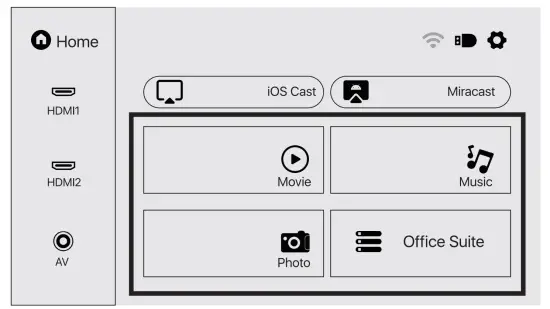
Multimedia Format Supported
- Video Format: 3GP/AVI/FLV/MP4/MPG/V0B/TS/M2TS/DAT/MKV
- Audio Format: MP3/APE/AAC/FLAC/OGG/WAV/WMA/MID/DTS/M4A
- Image Format: BMP/JPG/PNG/JPEG
 This model does not support any Dolby audio decoding due to the copyright Dolby patent.
Troubleshooting
Problem | Possible Causes |
| 1. The indicator light does not work when the power switch is turned on. |
|
| |
| 2. The projector does not work when using the remote control. |
|
| |
| |
| |
| 3. No image. |
|
| |
| |
| |
| |
| 4. Auto-off. |
|
| |
|
Specifications
| Projection Technology: | 5″ LCD TFT display |
| Native Resolution: | 1920×1080 |
| Image Flip: | 360° |
| Projection mode: | Front-Desktop / Rear-Desktop /Front-Ceiling / Rear-Ceiling |
| Lens: | 5 pieces of glasses lens |
| Aspect Ratio: | 16:9 & 4:3 |
| Lamp Type: | LED lamp, 50,000 hours life |
| Image Size: | 40-150 inch |
| Digital Zoom: | 50%-100% |
| Working Voltage: | AC100-240V/50-60Hz |
| Projector Size: | 260 x230 x110mm |
| Net Weight: | 2.2kg |
This product is only suitable for projections of images & video, and may not be used for room lighting. The terms HDMI and HDMI High-Definition Multimedia Interface, and the HDMI logos are trademarks or registered trademarks of HDMI
Licensing Administrator, Inc. in the United States and other countries.