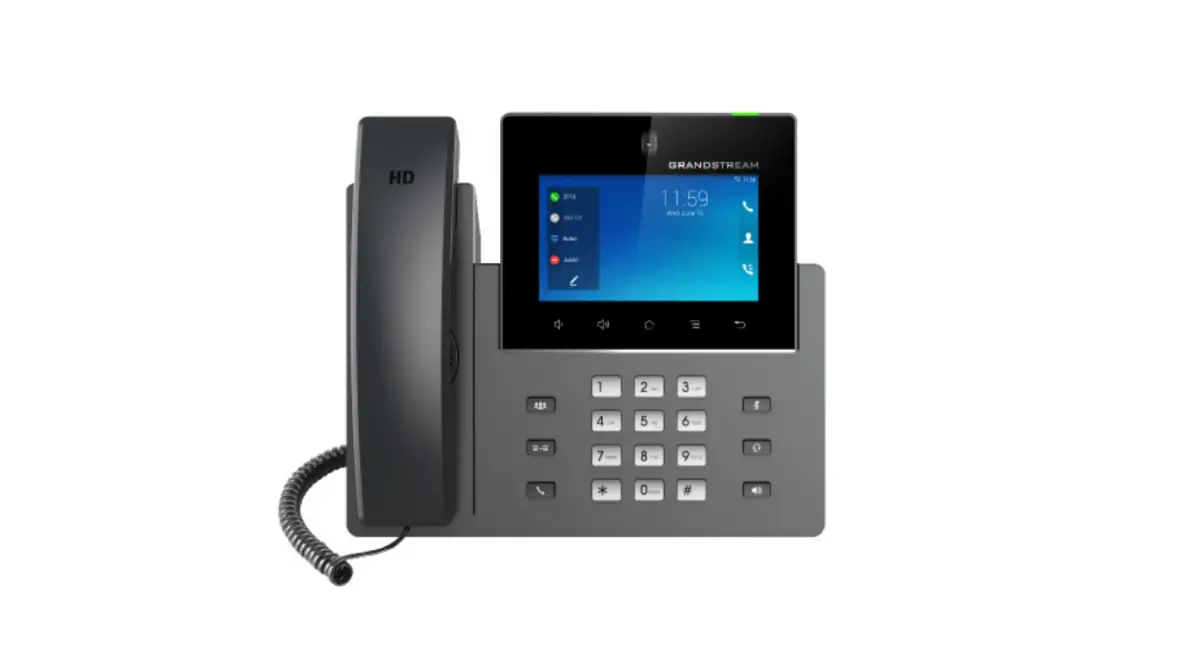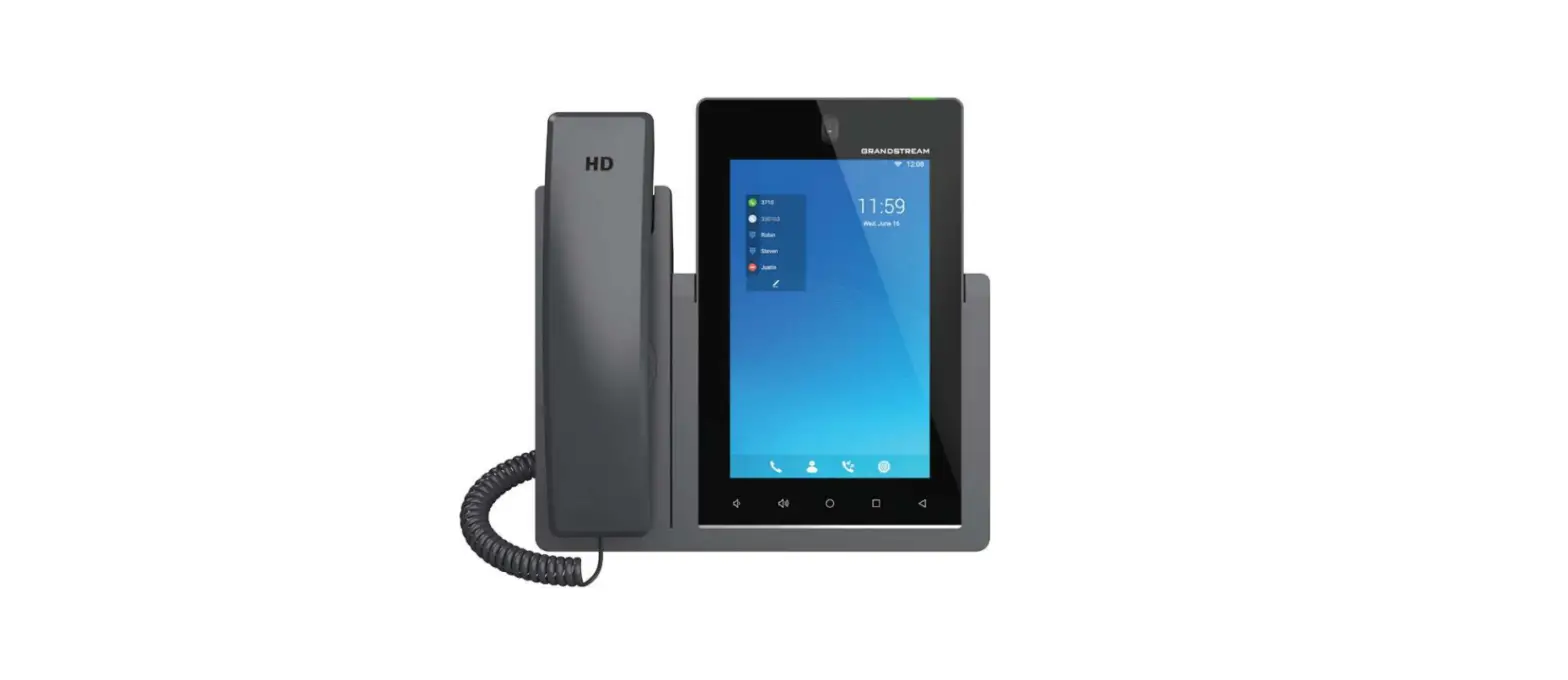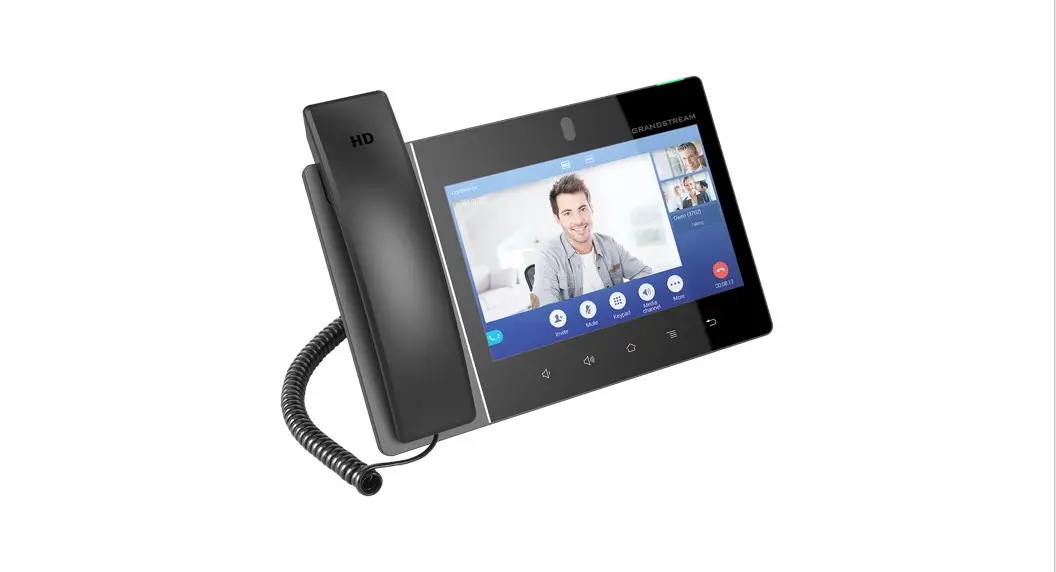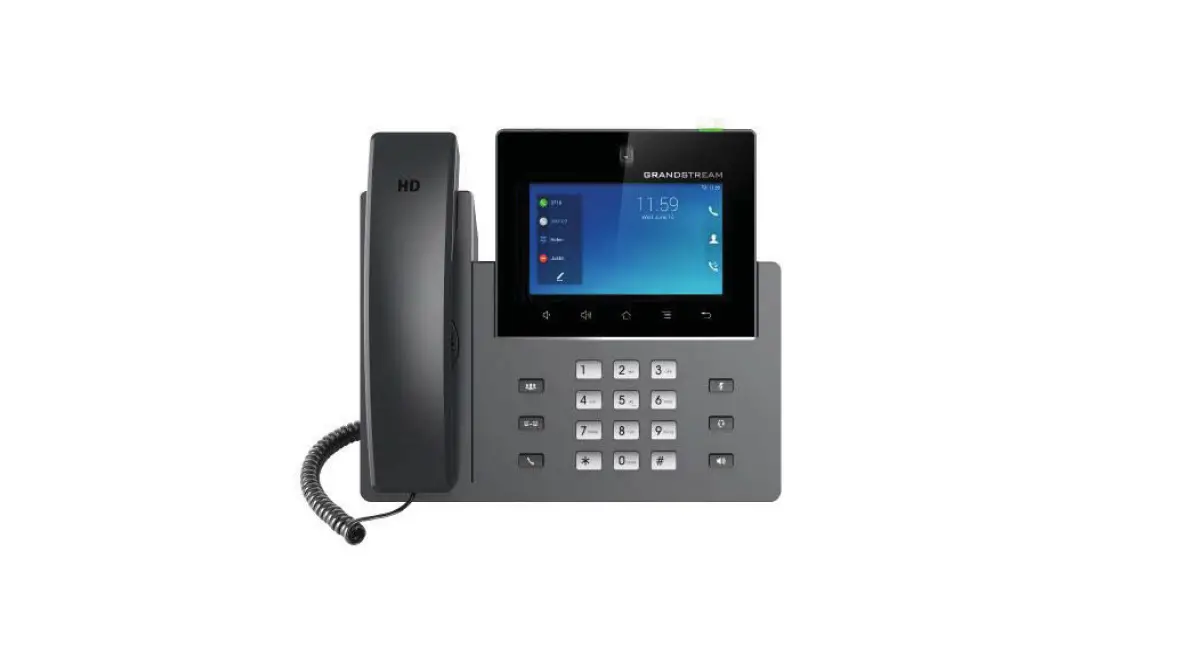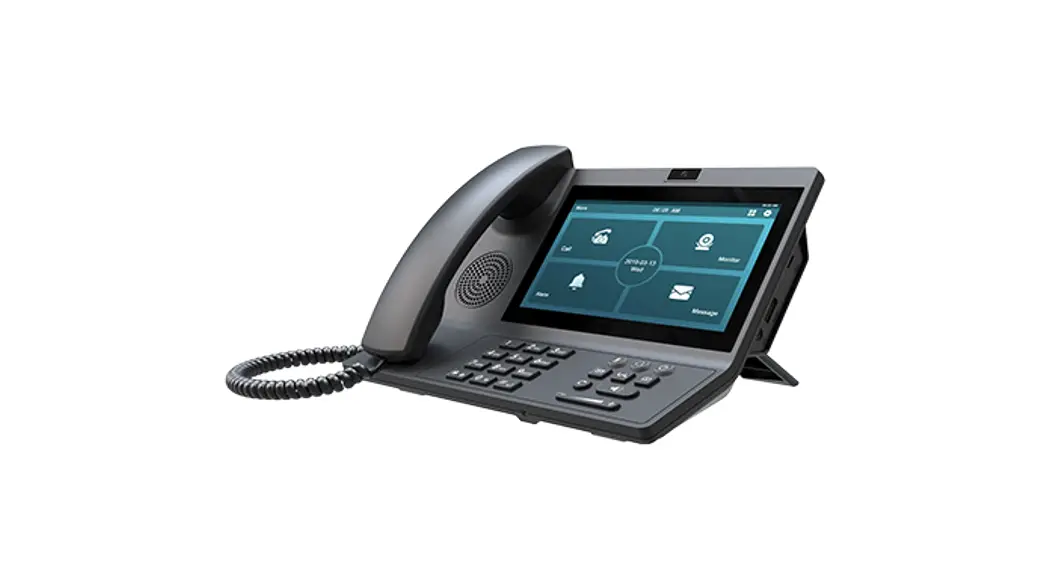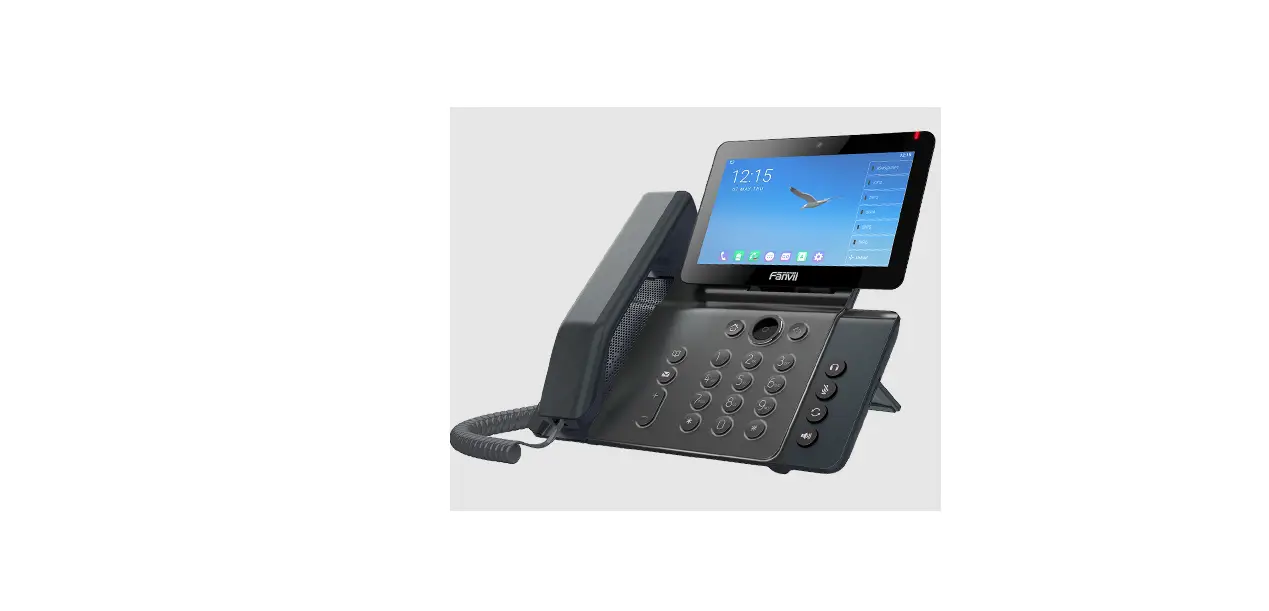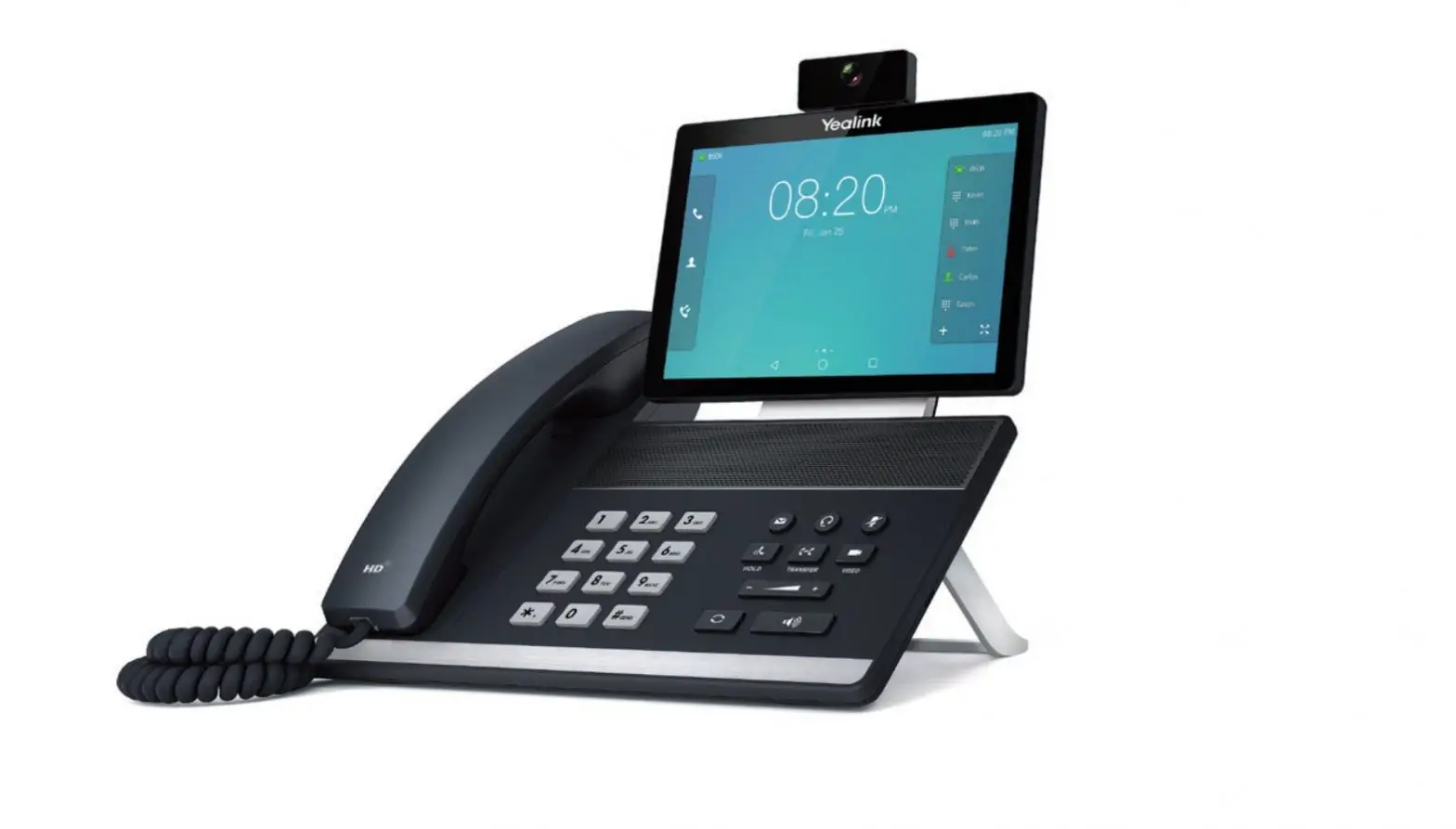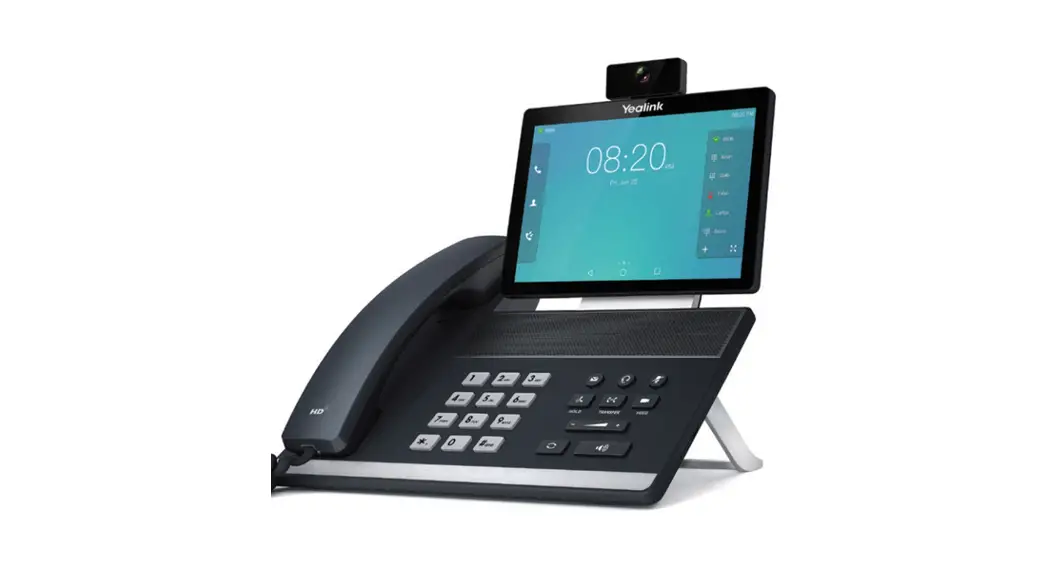

One Talk T57W
User guide
IP Desk Phone
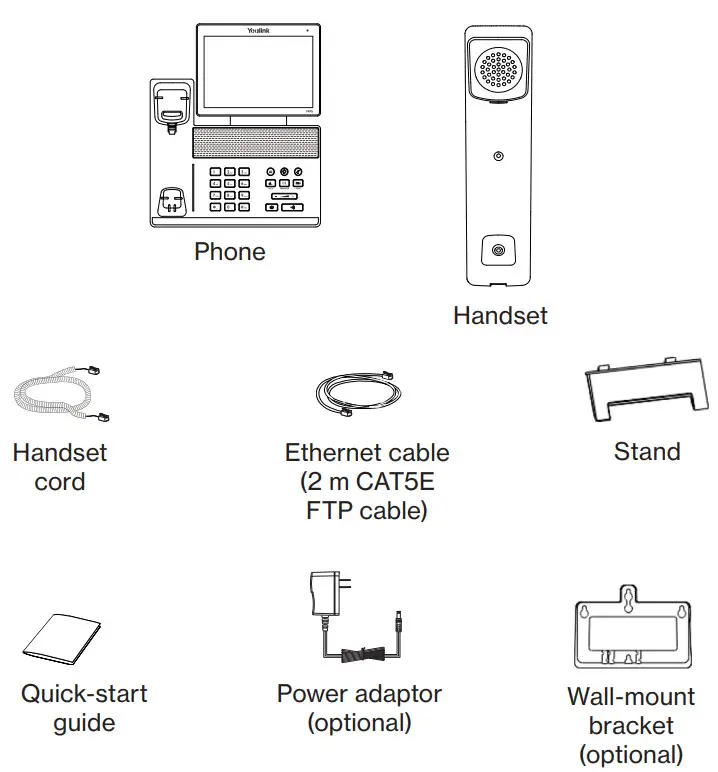
Package contents
The following items are included in your package:
Assembling your phone
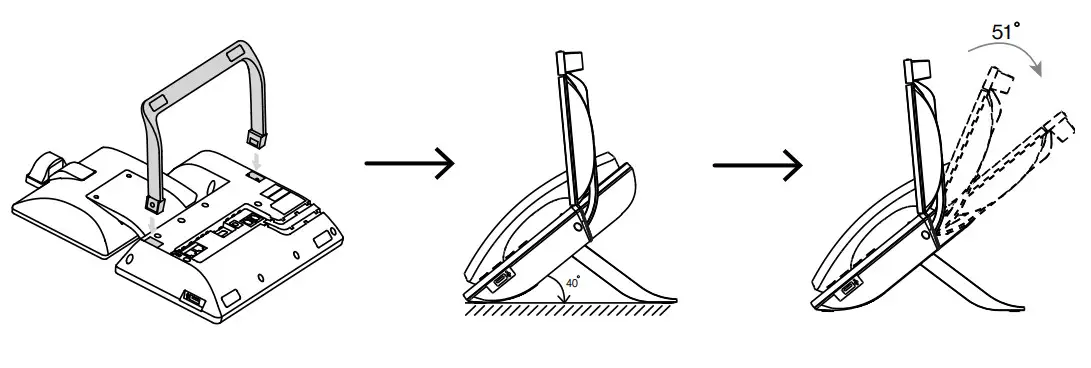
- Attach the stand and adjust the angle of the screen

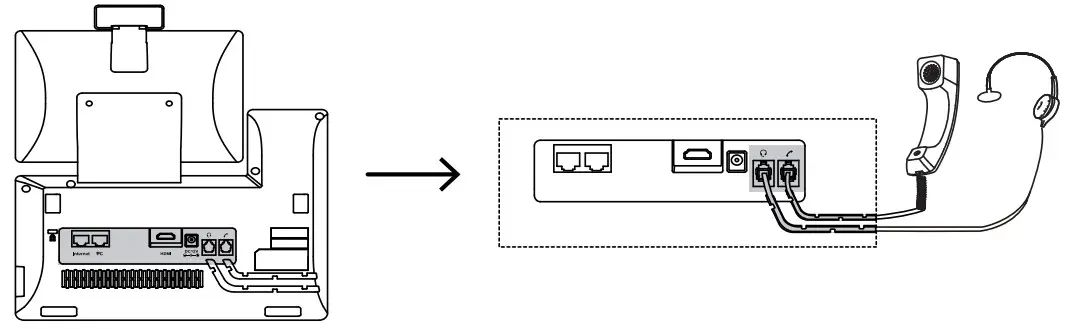
- Connect the handset and optional headset

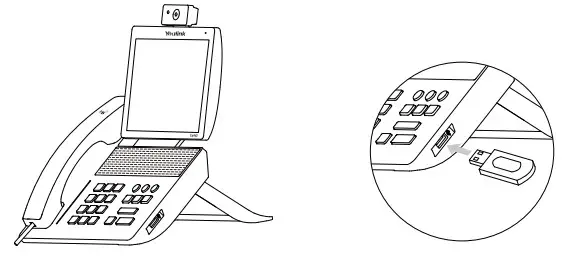
- Optional: Connect the USB devices

Note: The USB port can also be used to connect other USB devices, such as the EXP50. - Connect the AC power or Power over Ethernet (PoE)
 Note: The phone should be used with the original power adaptor (5 V/2 A) only. The use of a third-party power adaptor may cause damage to the phone.
 - Connect to the network
• Connect to the wired network
• Connect to the wireless network
1. Navigate to Menu > Basic > Wi-Fi
2. Turn on Wi-Fi
3. Select an available wireless network from the list of network
4. If the network is secure, enter its password in the Password field
5. Tap OK to connect to the wireless network
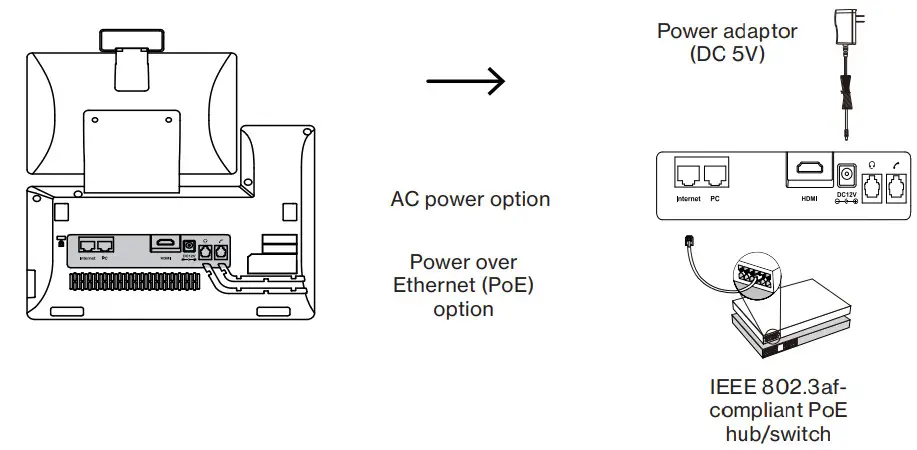 Note: The phone should be used with the original power adaptor (5 V/2 A) only. The use of a third-party power adaptor may cause damage to the phone.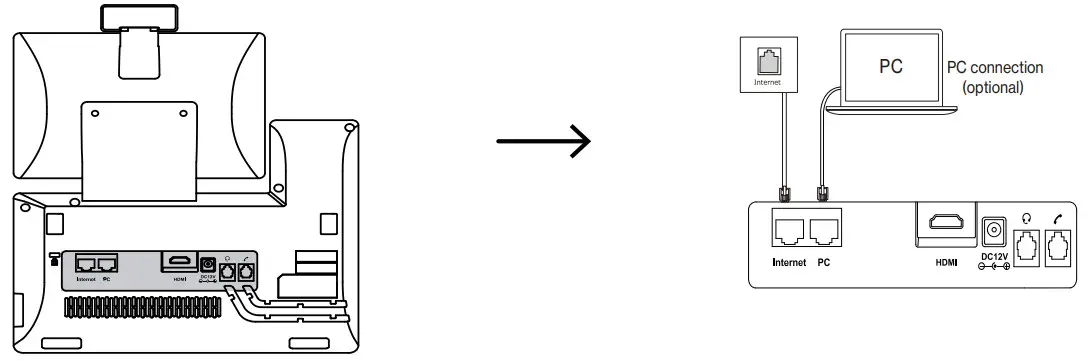
Starting the phone
After the One Talk phone is connected to a network and supplied with power, it will automatically begin the initialization process. The phone will go through a series of screens and update the firmware on the device; the first-time setup process takes about 15 minutes and should not be interrupted. You will know the phone is ready for use when the 911 address appears on the screen of the device.
ATTENTION
The current address of this phone in Verizon’s systems is:
This location will be provided to emergency response personnel when dialing 911. If the address above is incorrect, please update it in My Verizon, ask your
business administrator to update it in My Business, or call Verizon Customer Care.
OK
Basic call functions
Placing a call Using the handset:
- Pick up the handset
- Enter the number, and then tap Send
Using the speakerphone:
- With the handset on-hook, press

- Enter the number, and then tap Send
Using the headset:
- With the headset connected, press
 to activate the headset mode
 - Enter the number, and then press Send
 to activate the headset mode
Note: During a call, you can alternate between the headset, hands-free speakerphone, and handset modes by pressing the Headset key, the Speakerphone key or by picking up the handset. Headset mode requires a connected headset.
Answering a call Using the handset: Pick up the handset.
Using the speakerphone: Press.
Using the headset:
Press.
Note: You can reject an incoming call by pressing Reject.
Ending a call Using the handset: Hang up the handset or press End Call.
Using the speakerphone: Press or End Call.
Using the headset: Tap End Call.
Redialing a call
- Press
 to enter the Placed Calls list, and then tap the desired entry
 - Press twice when the phone is idle to dial out the last dialed number
 to enter the Placed Calls list, and then tap the desired entry
Muting and unmuting a call
- Press
 to mute the microphone during a call
 - Press again to unmute the call
 to mute the microphone during a call
Holding and resuming a call To hold a call:
Press or Hold during an active call.
To resume the call, do one of the following:
- If there is only one call on hold, press
 or Resume
 - If there is more than one call on hold, select the desired call, and then press or Resume
Transferring a call
You can transfer a call in the following ways:
Direct transfer
- Press the Direct soft key during an active call. The call is placed on hold
- Enter the number you want to transfer to
- Press the Direct soft key
Consultative transfer
- Press the Consult soft key during an active call. The call is placed on hold
- Enter the number you want to transfer to, and then press

- Press the Consult soft key when you hear the ringback tone

Forwarding a call
To enable call forward:
- Navigate to Menu > Features > Call Forward
- Select the desired forward type:
Always Forward–Incoming calls are forwarded unconditionally.
Busy Forward–Incoming calls are forwarded when the phone is busy.
No Answer Forward--Incoming calls are forwarded if not answered after a period of time. - Enter the number you want to forward to. For No Answer Forward, select the desired ring time to wait before forwarding from the After Ring Time field
- Tap Save to accept the change
Initiating a conference call
1. Tap Conference during an active call. The call is placed on hold
2. Enter the number of the second party and then tap Conference
3. Tap Conference again when the second party answers. Three parties are now joined in the conference
Configuring and using speed dial
To configure a speed-dial key:
- Navigate to Menu > Features > Dickey
- Select the desired DSS key
- Select Speed Dial from the Type field, select the desired line from the Account ID field, enter a label in the Label field and then enter the number in the Value field
- Tap Save to accept the change
To use the speed-dial key:
Press the speed-dial key to dial out the preset number.
Listening to voicemail messages
The “message waiting” indicator on the idle screen indicates that one or more voicemail messages are waiting at the message center. The power indicator LED slowly flashes red.
To listen to voicemail:
- Press
 or Connect
 - Follow the voice prompts to listen to your voicemail messages
 or Connect
Customizing your phone
Managing call history
- Tap History
- Select an entry from the list
- Tap
 after the desired entry, and then you can do the following:
• Tap Send to call the entry
• Tap Delete to delete the entry from the list
• Tap Edit to edit the entry before calling
• Tap Add to add the entry to the local directory
• Tap Blacklist to add the entry to the blacklist
 after the desired entry, and then you can do the following:
Managing contact directory
Adding a contact:
- Tap Directory
- Tap Add to add a contact
- Enter a unique contact name in the Name field and contact numbers in the corresponding fields
- Tap Save to accept the change
Editing a contact:
- Tap Directory
- Tap after the desired entry
- Edit the contact information
- Tap Save to accept the change
Deleting a contact:
- Tap Directory
- Tap after the desired entry and then tap Delete
- Tap OK when the LCD screen prompts “Delete selected item?”
Adjusting the volume Press to adjust the volume.
Setting ringtones
- Navigate to Menu > Settings > Basic Settings >Sound > Ring Tones
- Select Common or the desired account
- Select the desired ringtone
- Tap Save to accept the change
Regulatory notices
Operating ambient temperatures:
- Operating temperature: +14° F to 122° F (-10° C to 50° C)
- Relative humidity: 5% to 90%, noncondensing
- Storage temperature: -22° F to +160° F (-30° C to +70° C)
Safety instructions
Save these instructions. Read these safety instructions before use!
The following basic safety precautions should always be followed to reduce the risk of fire, electrical shock, and other personal injury.
 General requirements
- Before you install and use the device, read the safety instructions carefully
- During the process of storage, transportation and operation, please always keep the device dry and clean
- During the process of storage, transportation and operation, please avoid smashing or dropping the device
- Do not attempt to dismantle the device
Environmental requirements
- Place the device in a well-ventilated place. Do not expose the device to direct sunlight
- Keep the device dry and free of dust
- Place the device on a stable and level surface
- Please do not place heavy objects on the device
- Do not place the device on or near any flammable or fire-vulnerable materials, such as rubber
- Keep the device away from any heat source or open flame, such as a candle or an electric heater
- Keep the device away from any household appliance with a strong magnetic field or electromagnetic fields, such as a microwave oven or a refrigerator
Operating requirements
- Do not let a child operate the device without supervision
- Do not let a child play with the device or any accessory in case of accidental swallowing
- Please use only the accessories provided or authorized by the manufacturer
- The power supply of the device should meet the requirements of the input voltage of the device
- Before plugging in or unplugging any cable, make sure that your hands are completely dry
- Do not spill liquid of any kind on the product or use the equipment near water, for example, near a bathtub, washbowl, kitchen sink, wet basement or swimming pool
- Do not tread on, pull or overbend any cable in case of malfunction of the device
- During a thunderstorm, stop using the device and disconnect it from the power supply
- If the device emits smoke or an abnormal noise or smell, disconnect the device from the power supply and unplug the power plug immediately. Contact the specified maintenance center for repair
- Do not insert any object into equipment slots that is not part of the product or auxiliary product
- Before connecting a cable, connect the grounding cable of the device. Do not disconnect the grounding cable until you disconnect all other cables
Cleaning requirements
- Before cleaning the device, stop using it and disconnect it from the power supply
- Use a piece of soft, dry anti-static cloth to clean the device
- Keep the power plug clean and dry. Using a dirty or wet power plug may lead to electric shock or other hazards
 FCC statement
This device complies with Part 15 of the FCC Rules. Operation is subject to the following two conditions: 1) This device may not cause harmful interference, and 2) this device must accept any interference received, including interference that may cause undesired operation.Environmental recycling |
 This device needs to be treated as an electronic device for recycling purposes.
Technical support
For additional support information, please visit verizon.com/support/one-talk
Network details & coverage maps at vzw.com. © 2021 Verizon. UG0490221
 Verizon: Wireless, Internet, TV and Phone Services | Official Site