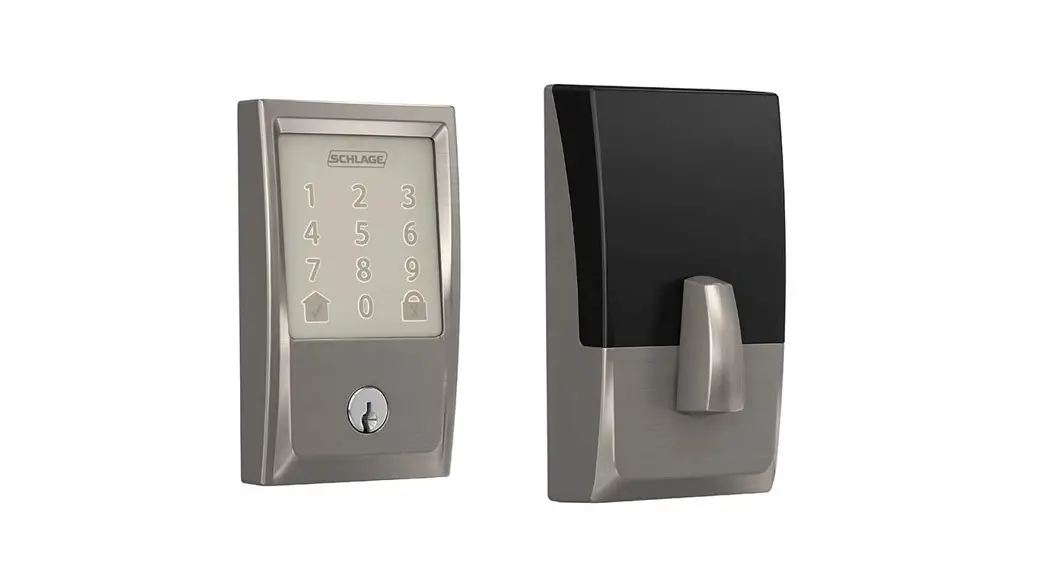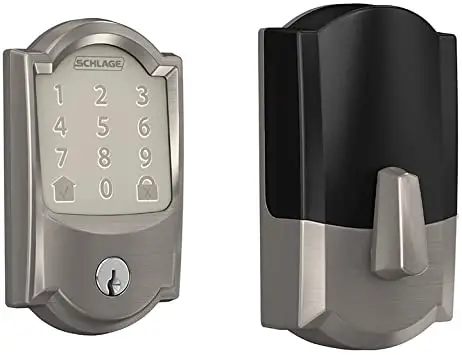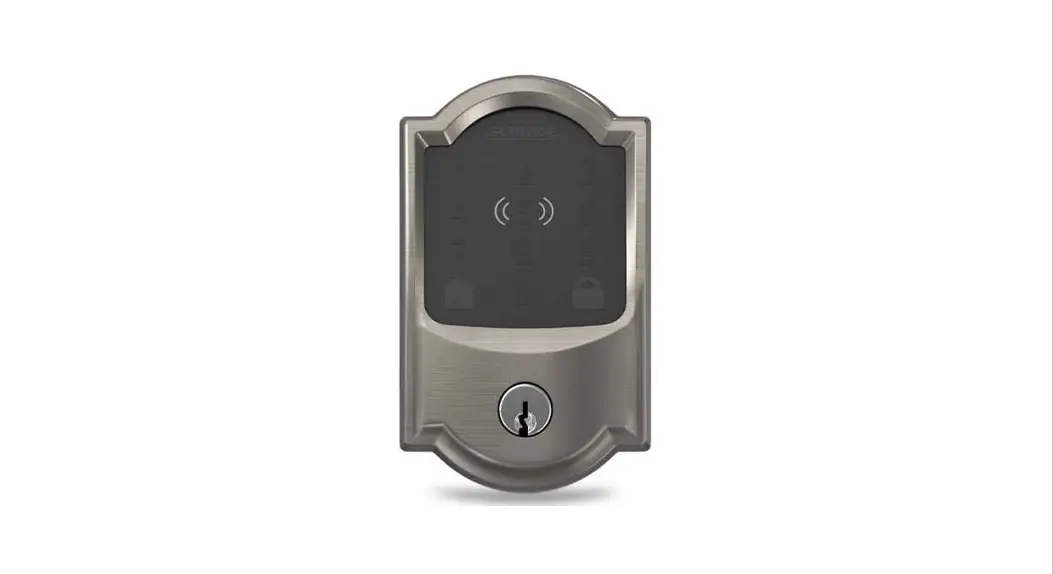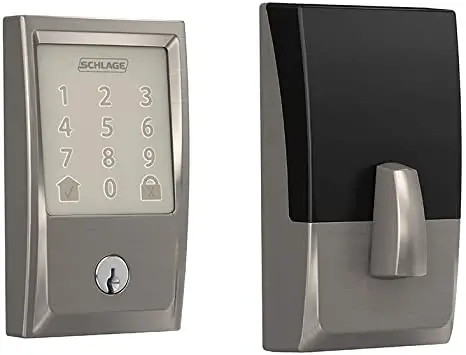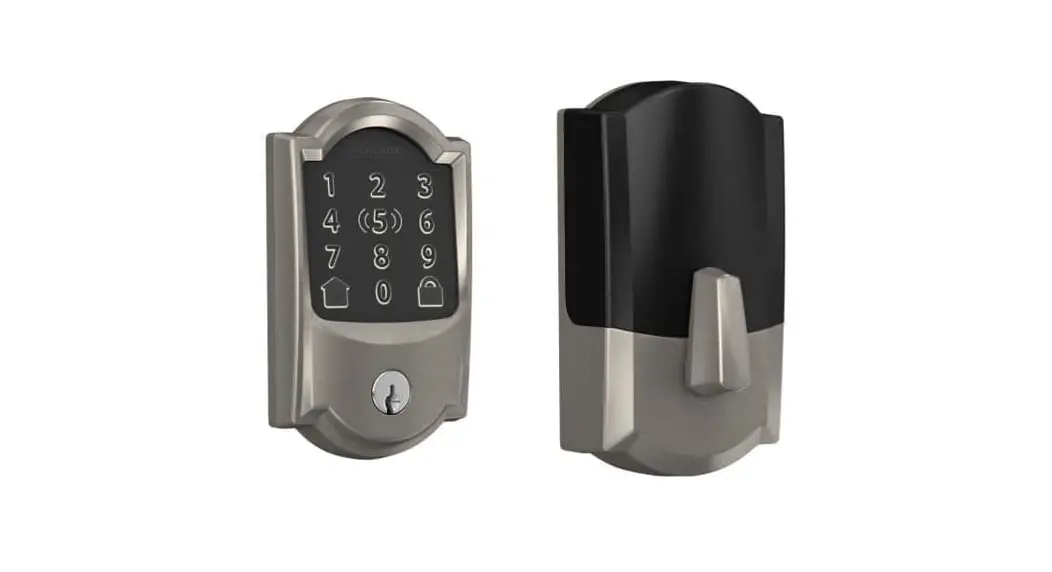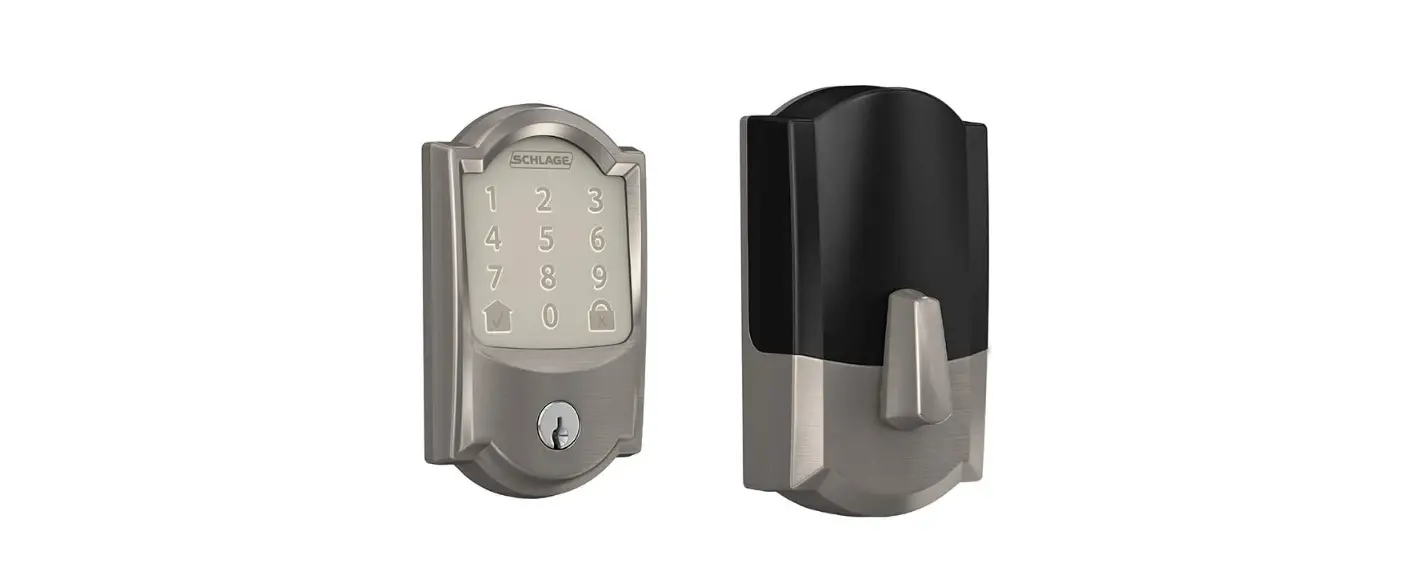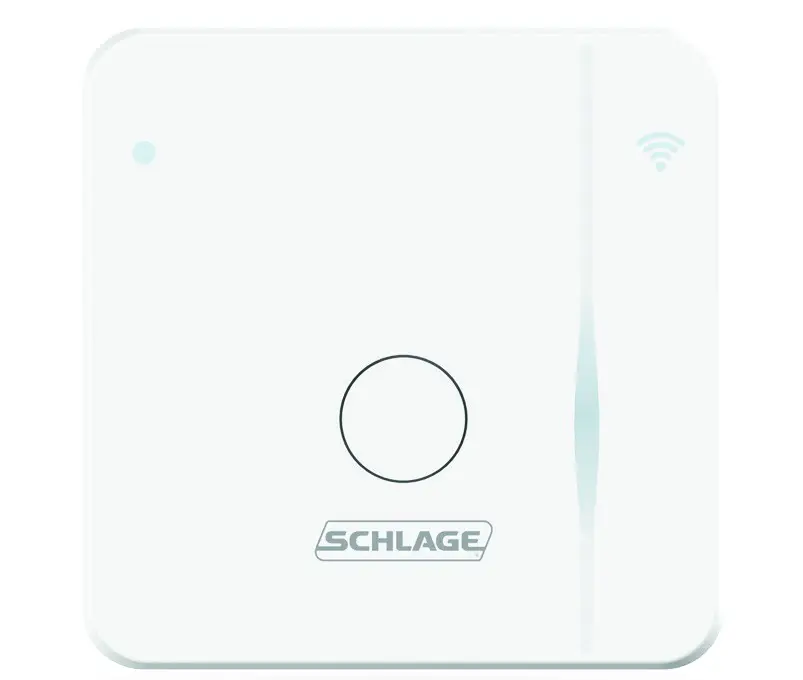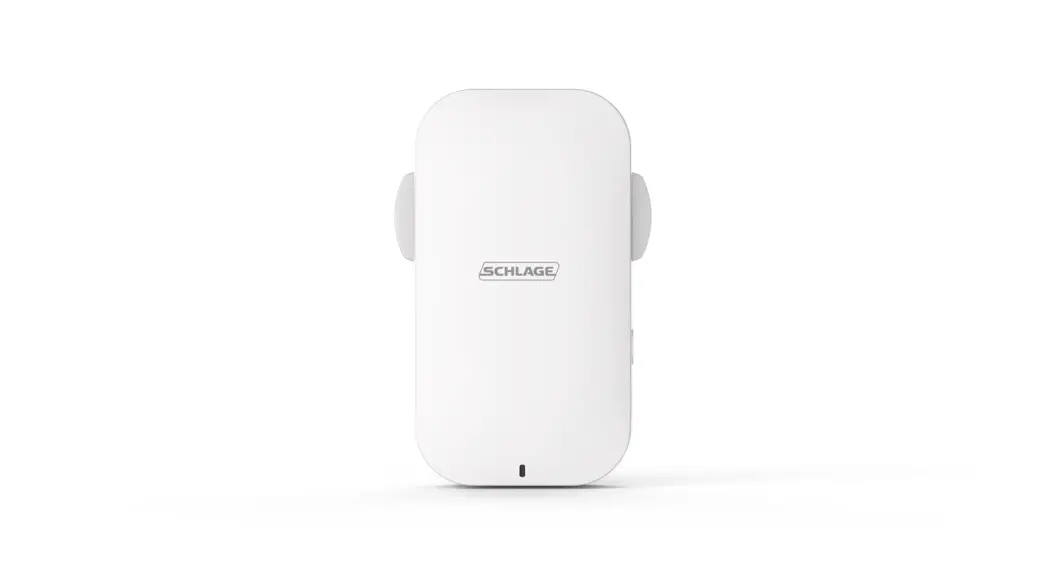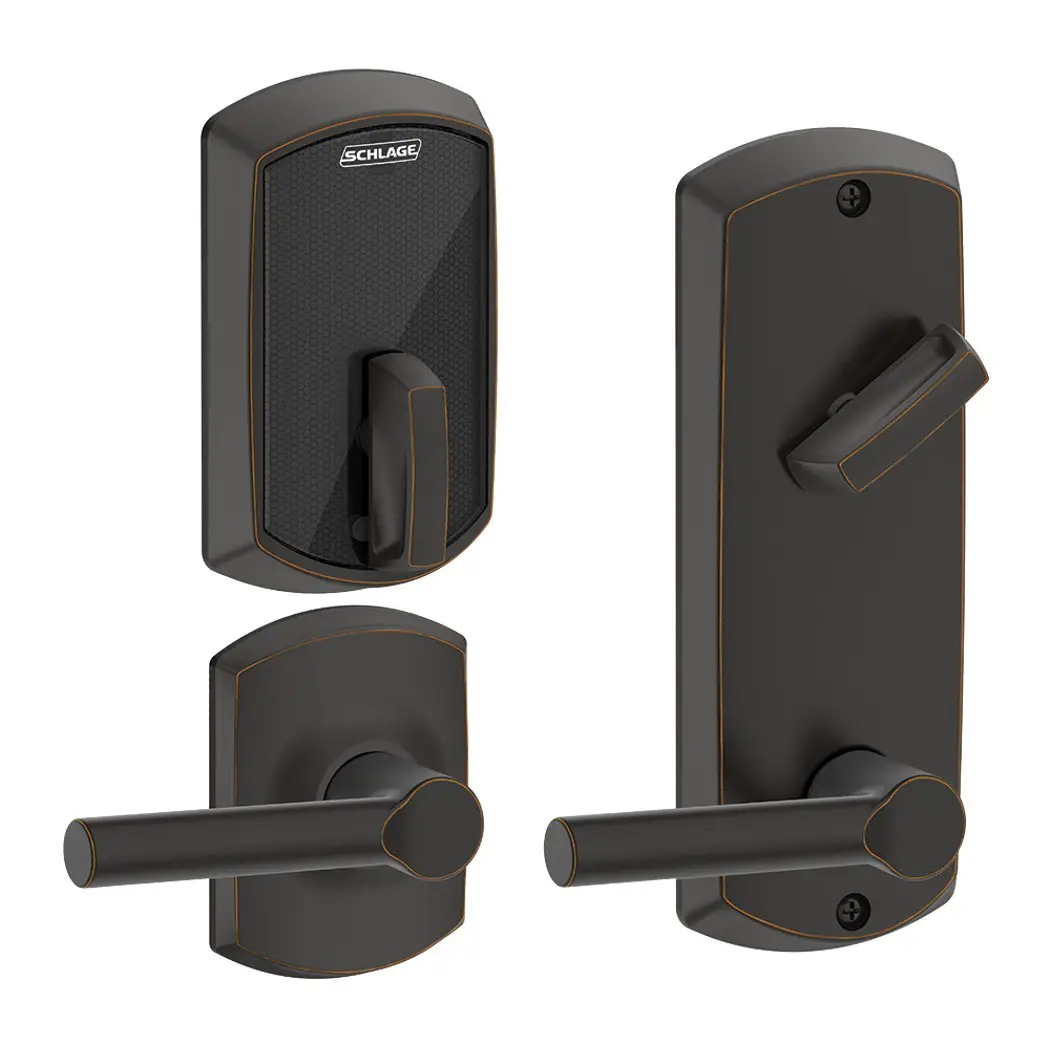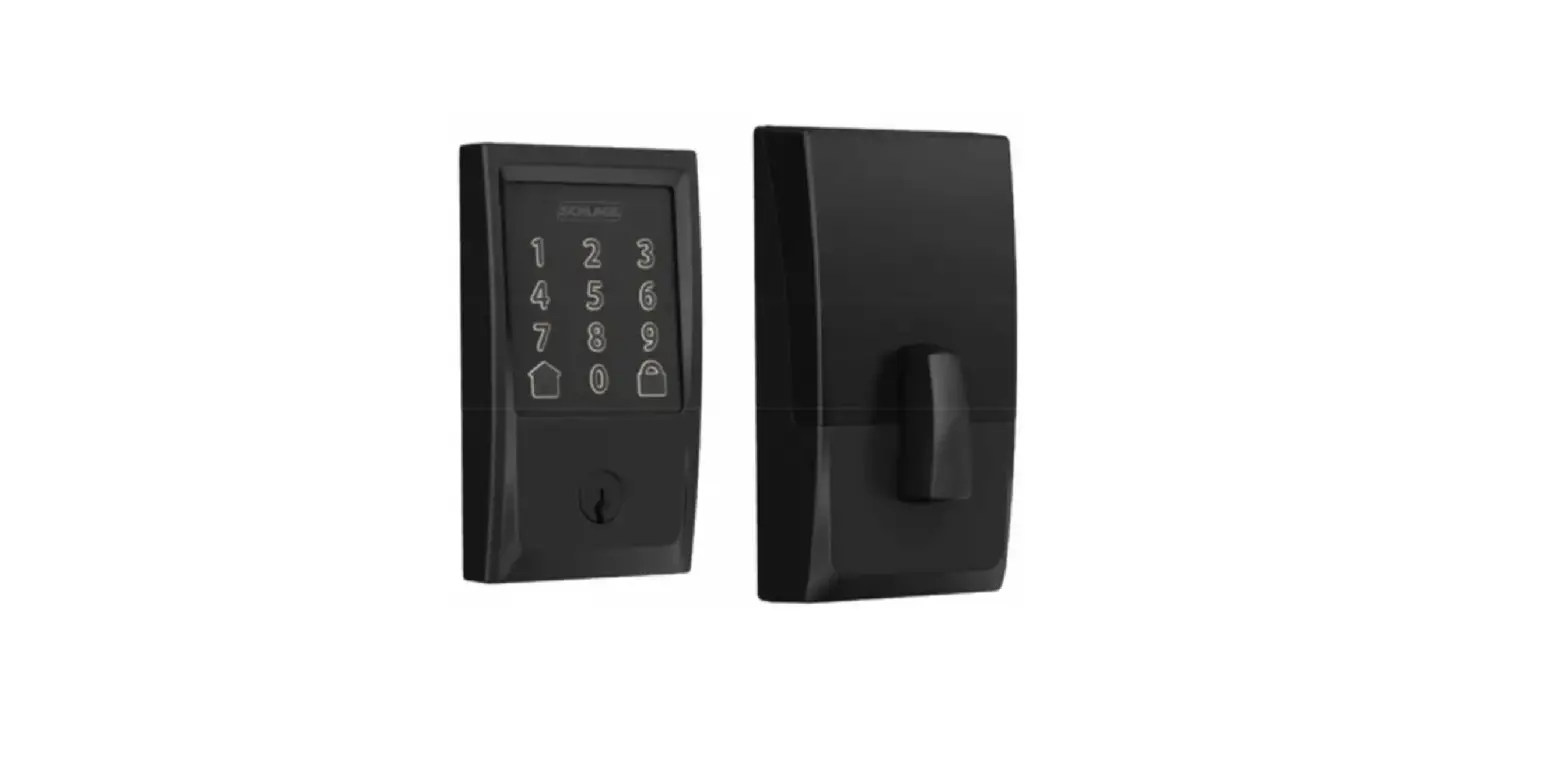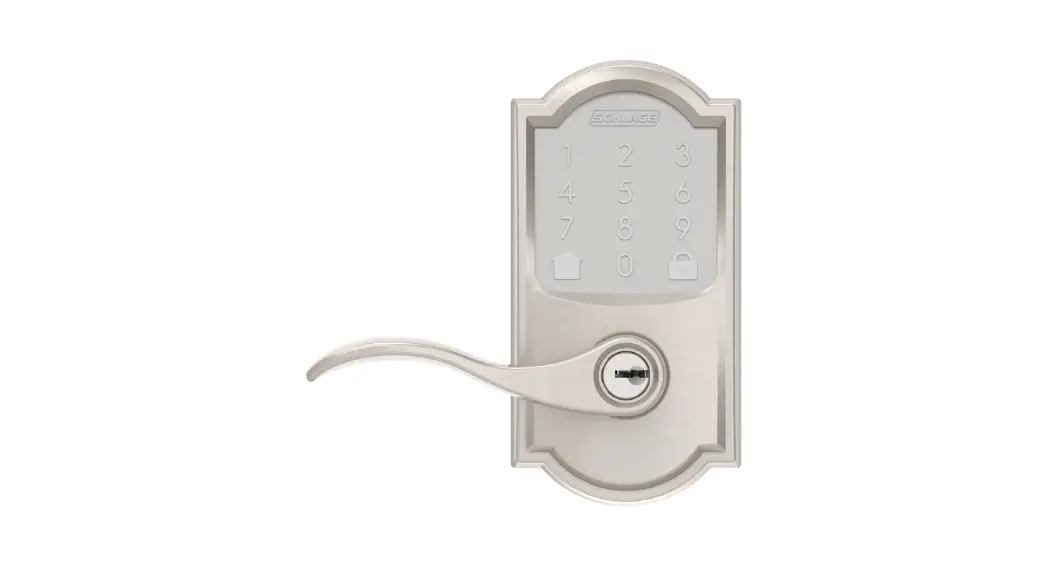

Smart WiFi Lever
User Guide
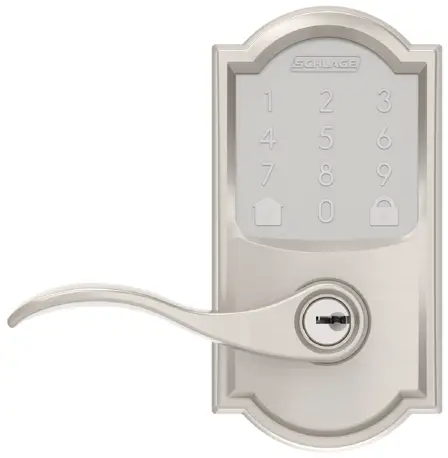
Parts
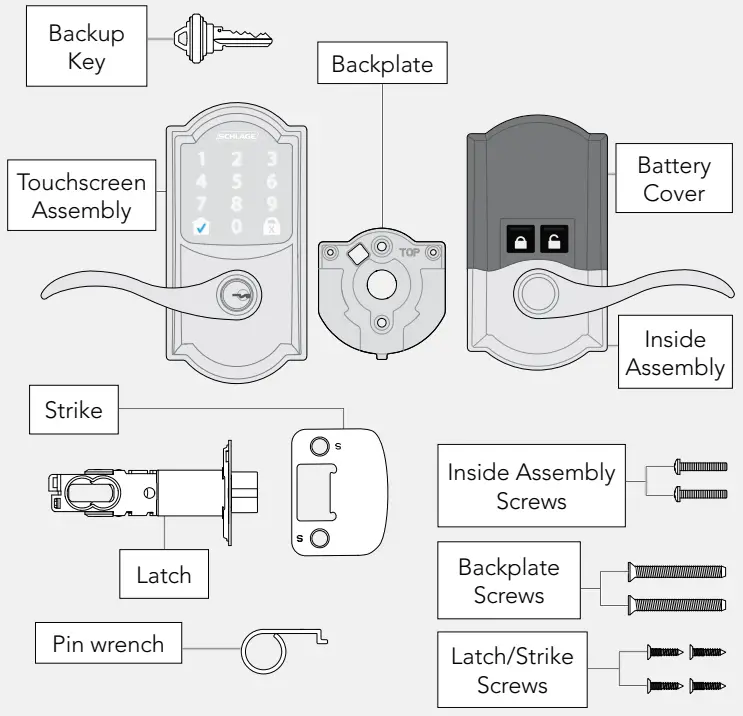
Before you begin
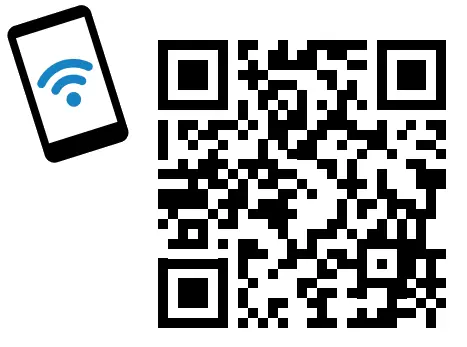
- Setting up your lock with your smartphone?
Start with the Schlage Home app for guided installation, set up, and pairing. - Not ready to start with the app?
You can access step-by-step interactive instructions and user guide information at: alle.co/EncodeLever
 - No Internet? No problem.
Follow this Quick Start Guide to install your lock.

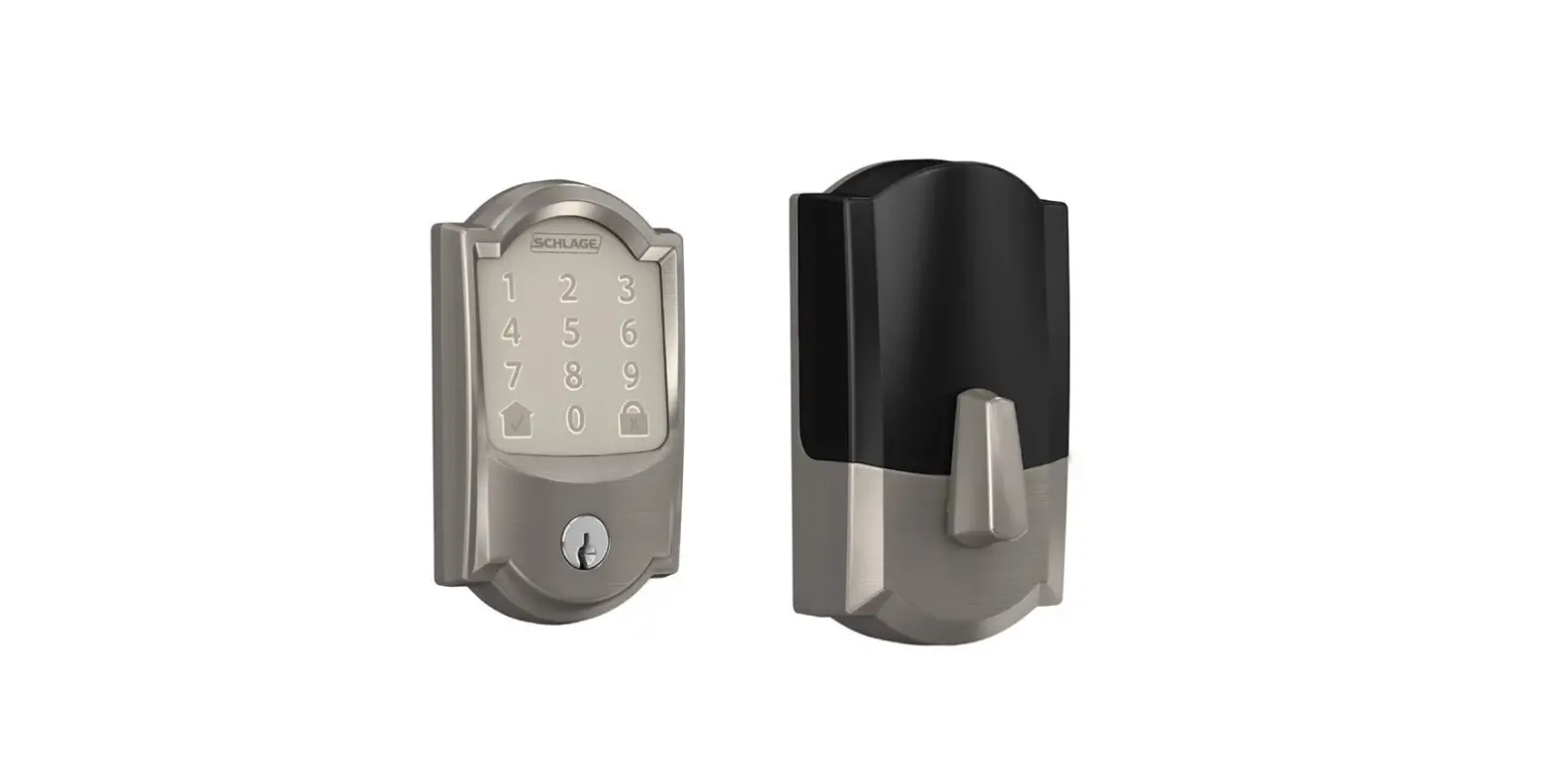
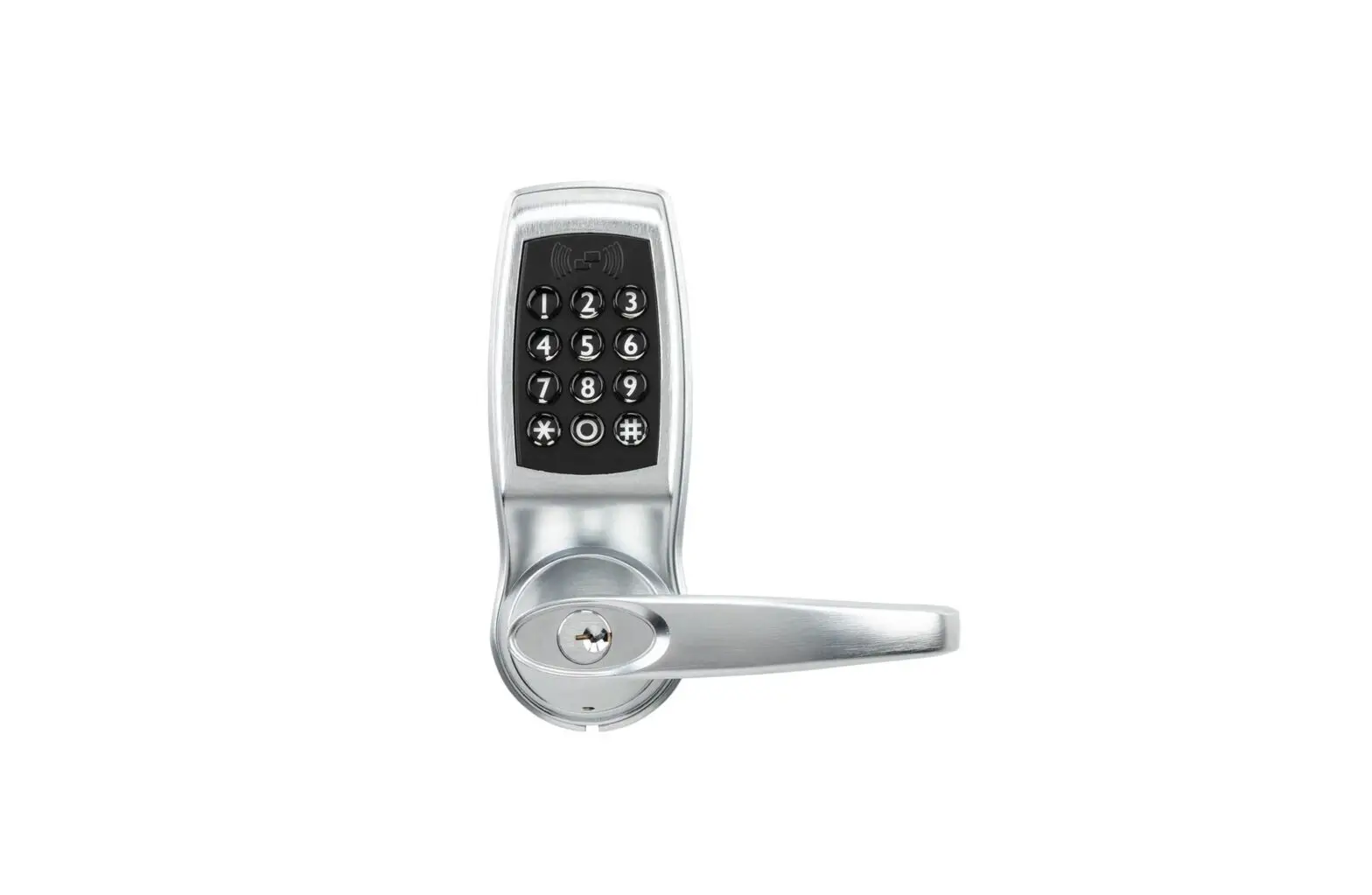
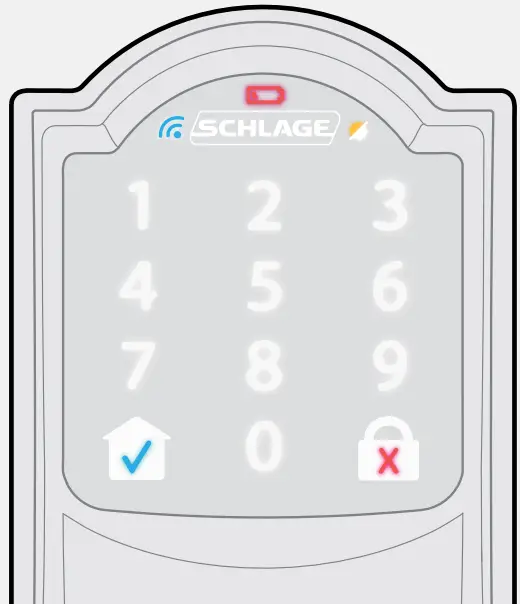
Touchscreen
 Communication Icon
- Flashes when lock is connecting to WiFi to check for updates.
 Low Battery Icon
- Flashes after code is entered when battery is low.
- Solid when battery is critical. The lock will not work without new batteries.
 Programming and Input LED
- Amber when using manual programming mode.
 Home Button and Checkmark Icon
- Turns on keypad backlight.
- Checkmark flashes when code entry is correct.
 Lock Button and “X” Icon
- Locks the lock.
- “X” flashes for a wrong user code.
Tools
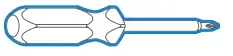
Phillips screwdriver
Don’t use a power drill!
Step 1
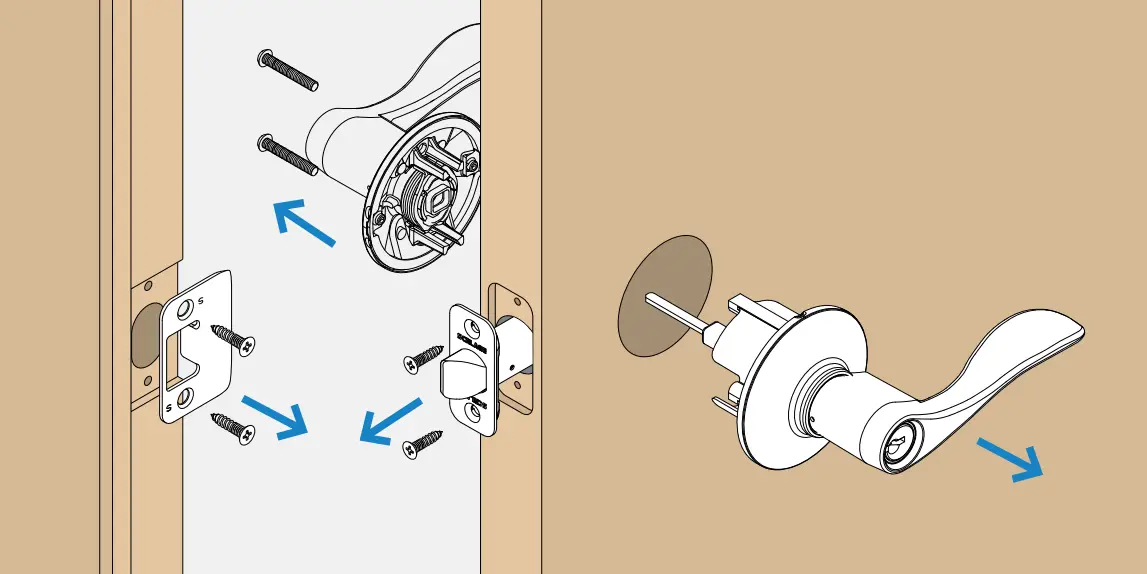
Remove existing lever or knob.
Remove the entire lever, including the latch. You may also want to remove the strike. Check with your specific lever or knob manufacturer if you need help.
Step 2
Install the latch.
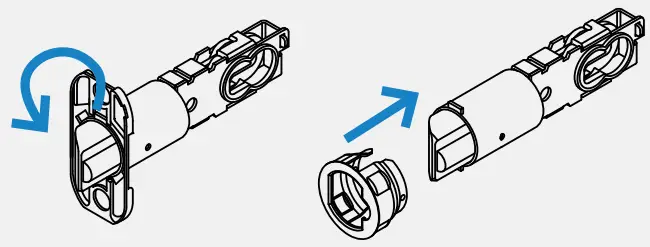
You may need to change your faceplate to fit the hole in the edge of your door.
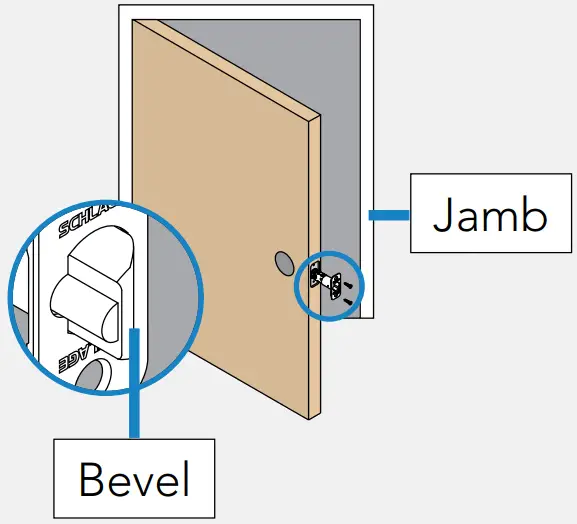
The bevel on the latch should face the door jamb.
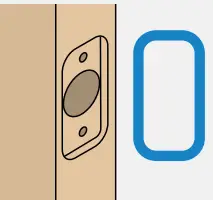 Rounded corner
No change needed.
OR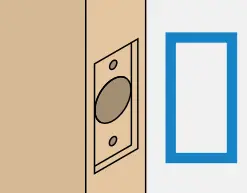 Square corner
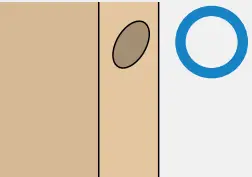 No mortise cut out
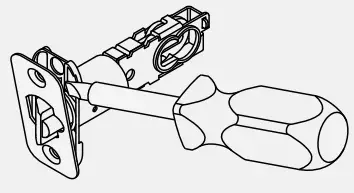
- Remove the faceplate by inserting a screwdriver into the notch and turning.
 Need Help?
Visit alle.co/EncodeLever.
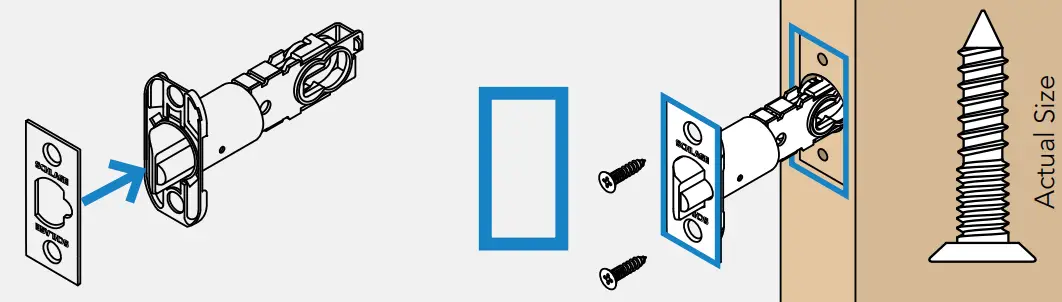
- Press square corner faceplate firmly on latch, then install.

- Turn to remove piece as shown, then press circular faceplate on latch.

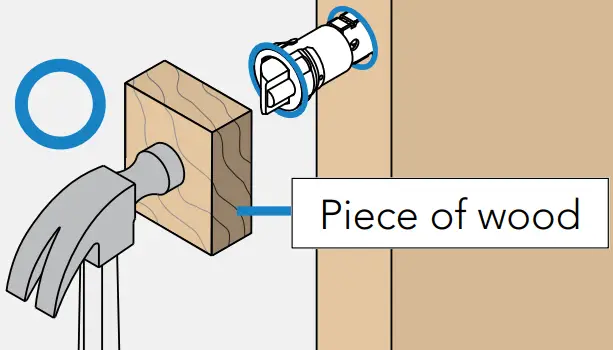
- Hammer latch into door edge using a piece of wood to protect the latch.

 Need Help?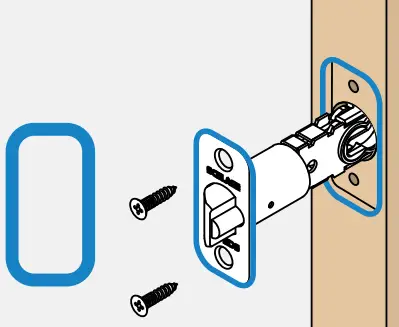
Step 3
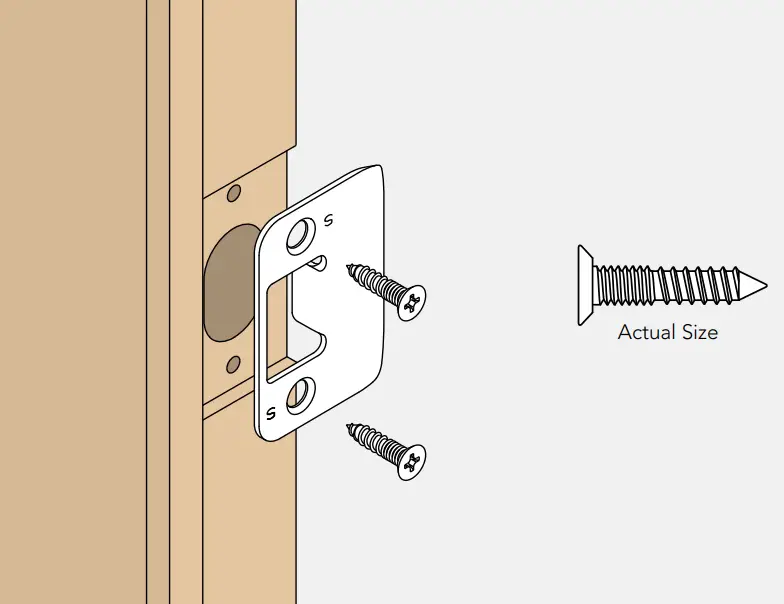
Install the strike into the door frame.
Step 4
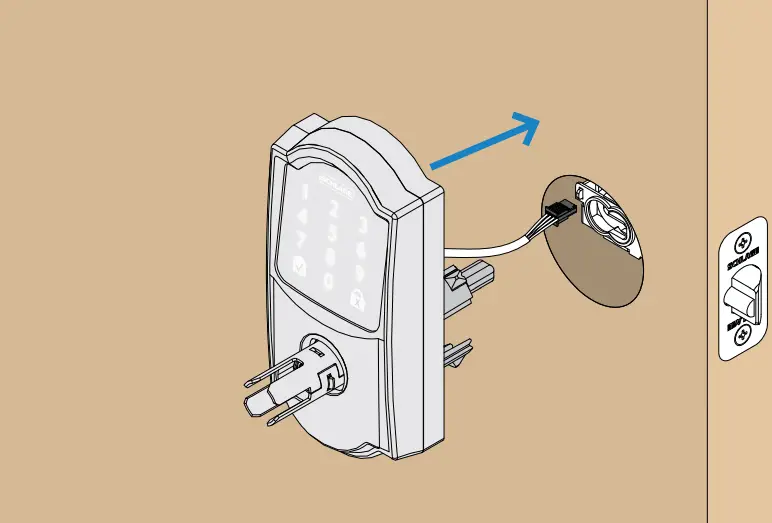
Install the touchscreen.
Route the cable through the door ABOVE the latch. Push the touchscreen onto the door.
Step 5
Install the backplate.
Phillips screwdriver
Don’t use a power drill!
You may damage your lock!
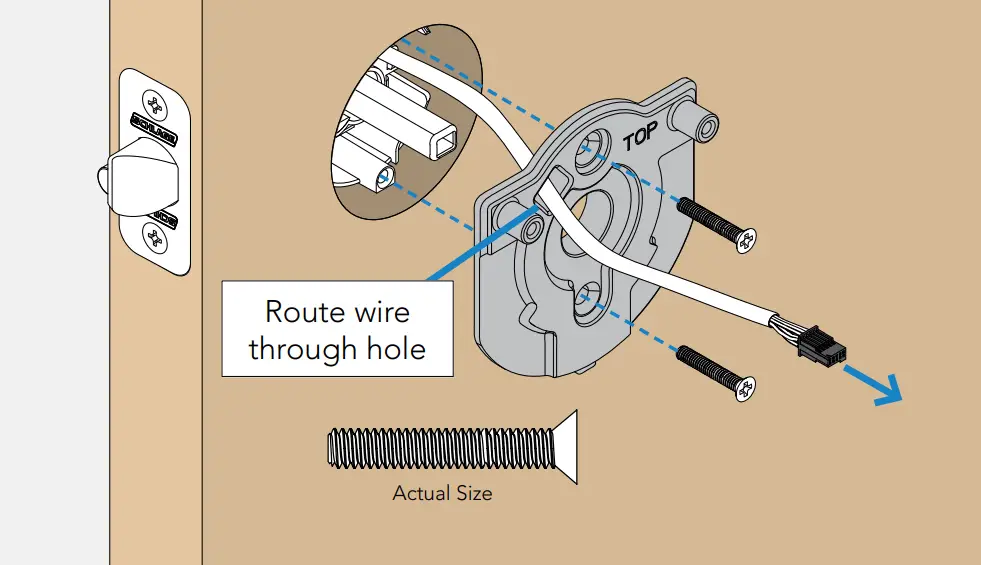
Route the cable over the latch and through the hole on the backplate. Secure the backplate with screws. Make sure the outside touchscreen is straight before tightening screws all the way.
Step 6
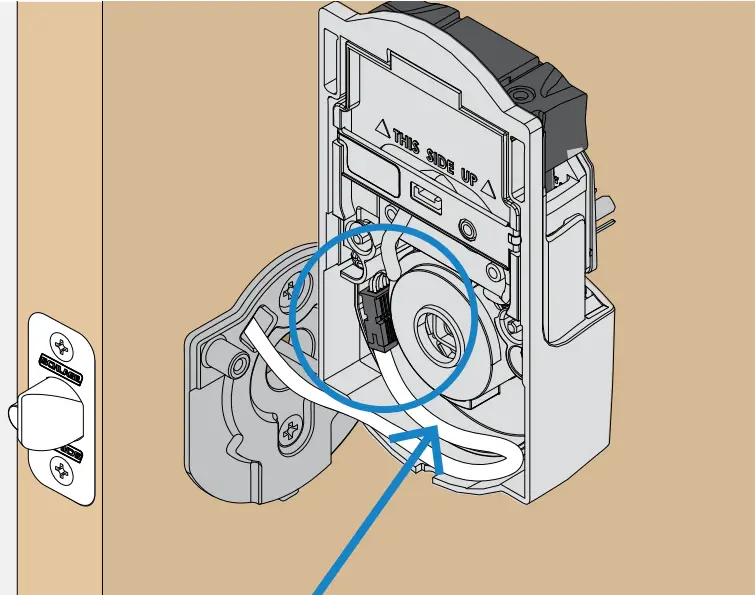
Connect the cable.
Tuck the cable and connector in the space as shown.
Phillips screwdriver
Don’t use a power drill!
You may damage your lock!
Step 7
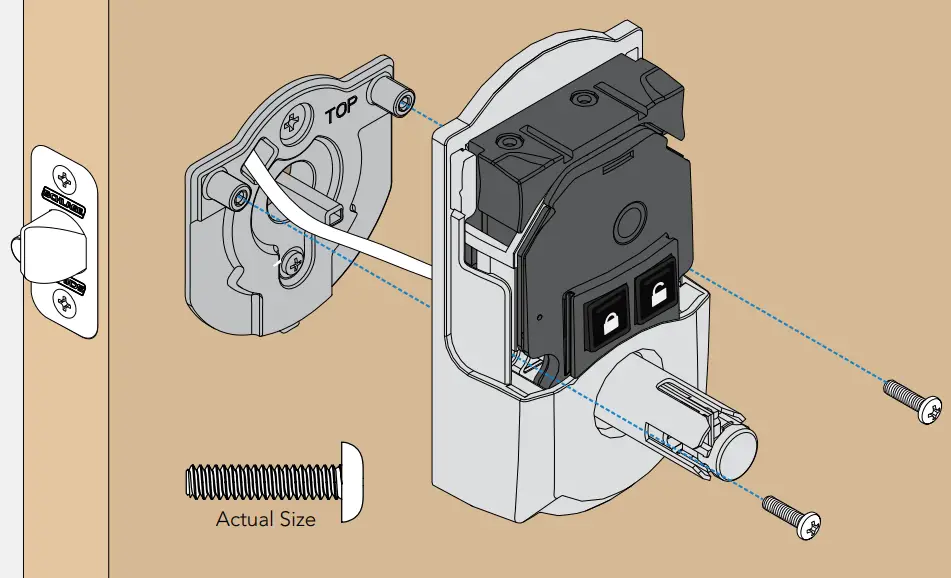
Secure the inside assembly to the door.
Remove battery cover to see the holes for the screws.
Step 8
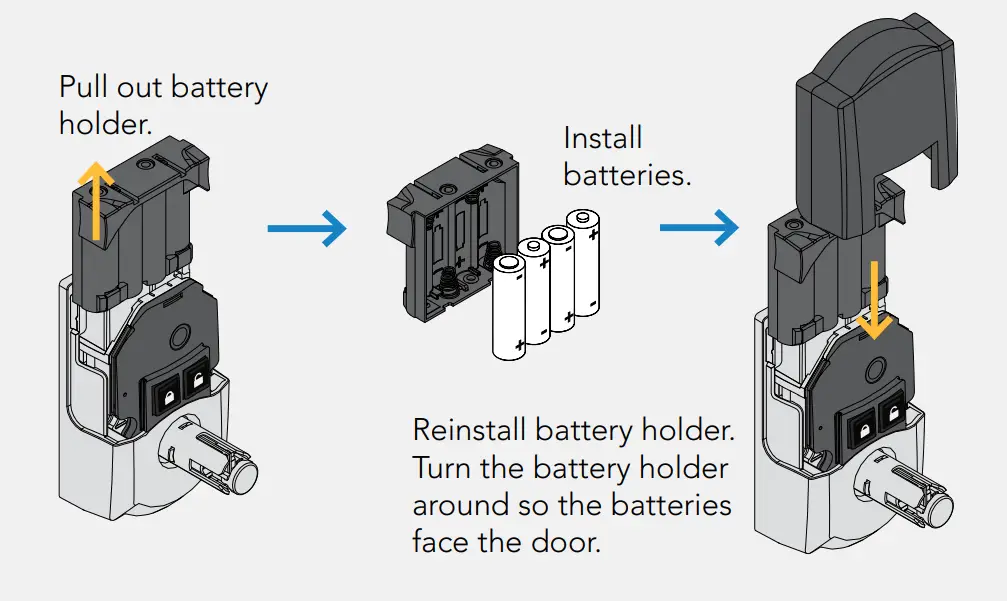
Install batteries and slide the cover on.
If you’re having trouble installing the cylinder, or if your levers block the door, go to alle.co/EncodeLever
Step 9
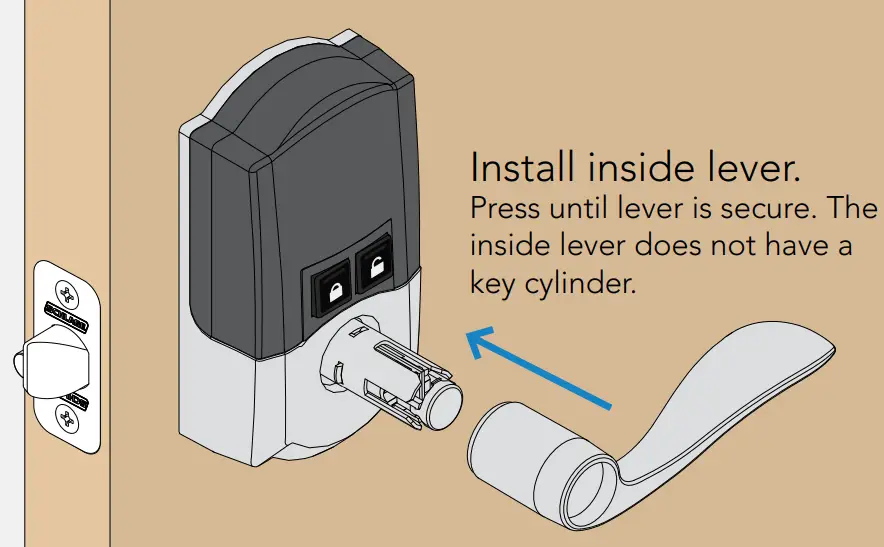
Install levers.
Levers should not block the door from closing. Levers are interchangeable. Install levers to what you feel looks best on your door.
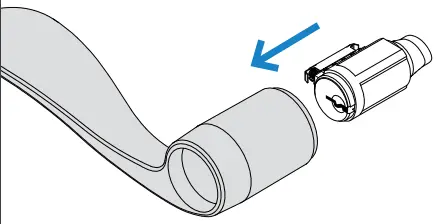
Follow the steps below to install the outside lever and key cylinder.
- Insert cylinder into lever.

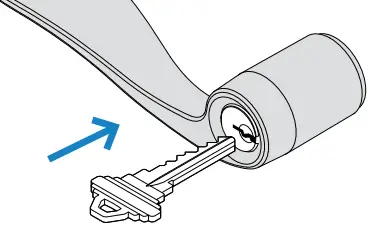
- Insert key into cylinder. Cylinder will be held in the lever by the key.

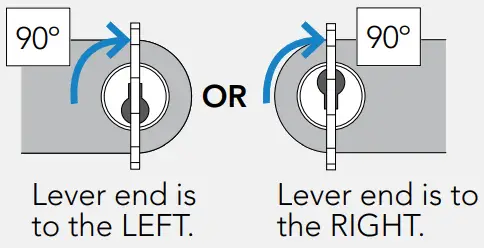
- Rotate the key according to the diagram below.

- Press the lever with rotated key onto the lever post until it clicks into place.

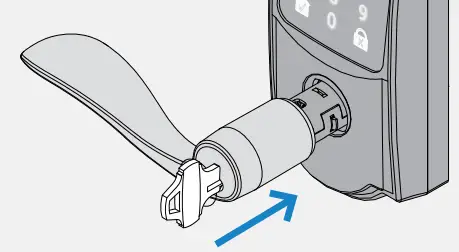
After installation rotate key 90o counter clockwise to remove, and put it in a safe place.
Step 10
Test your lock
- Open your door!
- Press the lock button (on the inside of the door).
- Find User Code A on the label on the back of this Quick Start Guide.
- Enter User Code A (four digits) into the touchscreen keypad. + beep
- Rotate then release the lever.
Did the latch retract and then extend?
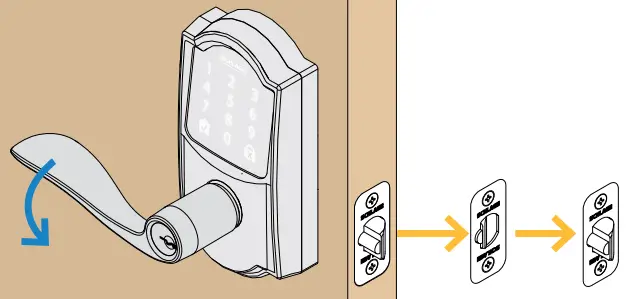 Yes. Lock is installed correctly.
No. Latch retracted but did not extend (latch is stuck). See step 2 and ensure latch is moving freely.
No. Nothing happened. First check step 8 to ensure the batteries are installed firmly and correctly. If the problem persists, check step 6.
Need Help?
If your lock isn’t working, see alle.co/EncodeLever
Now that your lock is installed
you can access manual programming instructions and factory default reset (FDR) steps in the online interactive instructions.
How to use your lock
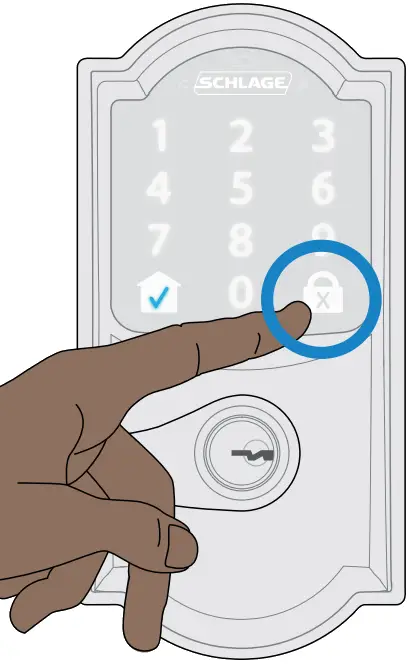
LOCK
- Tap the lock button on the outside touchscreen.
UNLOCK
- Enter a valid user code. If you have an auto-relock time set in the Schlage Home app, it will auto- lock. You can disable this setting in the app.
Want to lock/unlock from anywhere or add optional voice control?
Explore compatible smart home systems at alle.co/EncodeLever
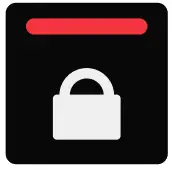 Pressing this button LOCKS the door.
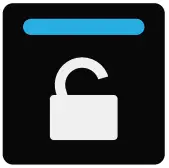 Pressing this button UNLOCKS the door.
Your door will stay unlocked (even if auto-relock is enabled) until:
 You press the inside lock button.
 You press the lock button on the outside touchscreen.
 You lock the door using a smart home system app.
 You press the lock button on the outside touchscreen.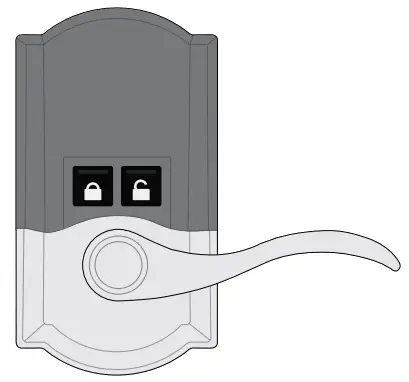
PLACE LABEL HERE
These are your backup codes.
You will need these codes if you ever factory default reset your lock. Keep these safe!
Questions about your new Smart WiFi Lever?
Please don’t return it to the store!
Let us help you first! alle.co/EncodeLever
Additional Notes: —————–
| Revision History | Revision Description: C > Release Revision | ||||||||
| A | B | C | D | E | F | ||||
| 089048 | 092568 | 094350 | |||||||
| Material White Paper | Edited By | Approved By | EC Number | Release Date | |||||
| R. Byun | D. Toppins | 094350 | 4-18-2022 | ||||||
| Notes 1. 20 page saddle-stitched booklet 2. printed two sides 3. printed full bleed 4. printed color 5. tolerance ± .13 6. printed in country may vary 7. drawings not to scale | Title Schlage Encode Lever Quick Start Guide | ||||||||
| Creation Date 01/25/2021 | Number 47376548 | Revision C | |||||||
| Created By R. Byun | Activity 3899 Hancock Expwy Security, CO 80911 | © Allegion 2022 | |||||||
| SW: InDesign CC 2022 | |||||||||
 © Allegion 2022
Printed in U.S.A.
47376548 Rev. 04/22-c
 Allegion