GMR7V1 Waterproof Touchscreen Source Unit
Product Information:
Product Name: GMR7V1 7 Waterproof Touchscreen
Source Unit
Manufacturer: MB Quart
Website: MBQuart.com
Specifications:
- Auxiliary A/V Sources
- Quick Connect Bluetooth Audio
- Auxiliary RCA Stereo Preamp Input
- Composite Video Camera Input
- USB Audio Input w/Charging
- Weather Band Radio
- Composite Video Output
- AM / FM / Weather Band Section
- USB / AUX / Bluetooth Audio Section
- RCA S/N: >81.8dB
- BT S/N: >88.1dB
- USB S/N: >84.6dB
- Preamp Output Voltage: 4 volts
- Dual Zone Capability between Preamp Outputs and Built-in
Power - Independent Subwoofer Level Control with Selectable Low Pass
Filter - 10-Band Graphic EQ (64, 150, 250, 500, 1K, 2K, 4K, 6K, 10K, and
16K)
Product Usage Instructions:
CAUTION: Always consider consulting a
professional audio installation technician before installing any
mobile audio components. Be careful and take your time. Disconnect
the power source (battery) before installing. Do not let wires make
contact with metal edges, sources of moisture, or hot engine
components.
Installation:
We recommend wire-to-wire connections such as power, ground, and
speaker wiring are soldered and protected with either heat shrink
tubing or high-quality electrical tape.
The main (yellow) power wire should be connected to a source
with at least 10 amps of additional current capability to support
the unit. This has an in-line 5 amp fuse for protection.
Wiring and Connections:
Wire Color/Tag – Location
- Black – Power Plug Pin A
- Blue – Power Plug Pin B
- Red – Power Plug Pin J
- Yellow – Power Plug Pin M
- Orange / ILL – Harness
- Purple / Cam 2 – Harness
- Pink / Cam 1 – Harness
- Green / Subwoofer Harness
- Gray / Zone 2 – Harness
- Brown / Zone 1 – Harness
- Black / Aux – Harness
- Black / Mic – Harness
- Yellow / Video Out – Harness
Note: For more detailed installation instructions, please refer
to the complete user manual available at MBQuart.com.
GMR7V1
7″ Waterproof Touchscreen Source Unit
Operator’s Guide and Installation Instructions
Congratulations on choosing the GMR7V1 7″ Waterproof Touchscreen Source Unit by MB Quart. For more detailed information about the product, please visit MBQuart.com.
CAUTION
Always consider consulting a professional audio installation technician before installing any mobile audio components. Be careful and take your time. Disconnect the power source (battery) before installing. Do not let wires make contact with metal edges, sources of moisture, or hot engine components.
Table of Contents
Specifications …………………………………………………………….3
Installation …………………………………………………………………4 Wiring and Connections ………………………………………………………….5 Mounting Radio ……………………………………………………………………..7
Controls……………………………………………………………………..8 Button Selectors and Volume Knob ………………………………………….8 HOME Touch Screen ……………………………………………………………..9 Common Top Bar for Touch Screen Displays …………………………..10 Radio Touch Screen Display ………………………………………………….10 USB1 / USB2 ………………………………………………………………………13 Aux In …………………………………………………………………………………16 Bluetooth® (BT) Mode …………………………………………………………..16 Phonelink ……………………………………………………………………………19 Camera1 / Camera2……………………………………………………………..20 Settings ……………………………………………………………………………… 21 Language Options:…………………………………………………………………….. 21 Audio Menu ………………………………………………………………………………. 21 Radio Area: ………………………………………………………………………………. 23 Display: ……………………………………………………………………………………. 23 Wallpaper: ………………………………………………………………………………… 24 Time: ……………………………………………………………………………………….. 24 Camera: …………………………………………………………………………………… 25 Other: ………………………………………………………………………………………. 25 LED Color:………………………………………………………………………………… 26 Information: ………………………………………………………………………………. 26 Day/Night: ………………………………………………………………………………… 27 Reset:………………………………………………………………………………………. 28
Diagnostics & Troubleshooting …………………………………..29
Supported Audio & Video Formats………………………………30
©2023 Maxxsonics, LLC MB Quart products are designed and engineered in the USA by
www.maxxsonics.com
2
Specifications
7″ Waterproof Touchscreen Source Unit
Phonelink, AM/FM, Weather Band Radio, USB, Bluetooth®, and AUX sources. Marine Certified to IPX67 for water and dust intrusion.
Auxiliary A/V Sources
Quick Connect Bluetooth Audio Auxiliary RCA Stereo Preamp Input Composite Video Camera Input
USB Audio Input w/Charging Weather Band Radio Composite Video Output
AM / FM / Weather Band Section
USA Frequency: FM87.5 107.9MHz / AM530 1710kHz NOAA NWR Weather Band Frequency: Preset (162.400MHz, 162.425MHz, 162.450MHz, 162.475MHz, 162.500MHz, 162.525MHz, 162.550MHz)
USB / AUX / Bluetooth Audio Section
RCA S/N: >81.8dB
BT S/N: >88.1dB
USB S/N: >84.6dB
Frequency Response: 20Hz 20KHz
Audio Section & Other Features Preamp Output Voltage: 4 volts Dual Zone Capability between Preamp Outputs and Built-in Power Independent Subwoofer Level Control with Selectable Low Pass Filter 10-Band Graphic EQ (64, 150, 250, 500, 1K, 2K, 4K, 6K, 10K, and 16K)
3
Installation
5A FUSE YELLOW
RED BLUE
BLACK
4
M (Yellow) J (Red)
MF LE KD JC HB GA
Power Plug
B (Blue) A (Black)
Power Plug
Illumination Control (Orange)
Camera 2 Trigger (Purple) Camera 1 Trigger (Pink) Red Subwoofer Out (Green) White Subwoofer Out (Green) Zone 2 Red RR Out (Gray) Zone 2 White RL Out (Gray) Zone 1 Red R Out (Brown) Zone 1 White L Out (Brown) Red AUX R In (Black) White AUX L In (Black)
Black 3.5mm Jack (Female) Microphone Input Video Out (Yellow)
Red Camera 2 (Yellow) White Camera 1 (Yellow)
Female
AUX1 AUX2 AUX3 AUX4
OOOTuuurAitttgu—TTTgxBBBeAAAr OOuut t-pTBuAt
300mA MAX
Radio Antenna (Black)
USB 1 (For Music) (Gray)
USB 2 (For iPhone®) (Black)
Male
G Brown B Red R Orange +12v Yellow
RGB Output
500mA MAX
Installation
Wiring and Connections
We recommend wire-to-wire connections such as power, ground, and speaker wiring are soldered and protected with either heat shrink tubing or high quality electrical tape.
The main (yellow) power wire should be connected to a source with at least 10 amps of additional current capability to support the unit. This has an in-line 5 amp fuse for protection.
Wire Color/Tag
Location
Black
Power Plug Pin A
Blue
Power Plug Pin B
Red
Power Plug Pin J
Yellow
Power Plug Pin M
Orange / ILL
Harness
Purple / Cam 2
Harness
Pink / Cam 1
Harness
Green / Subwoofer Harness
Gray / Zone 2
Harness
Brown / Zone 1
Harness
Black / Aux
Harness
Black / Mic
Harness
Yellow / Video Out Harness
Yellow / Cam 2 / Red Harness
Yellow / Cam 1 / Wht Harness
* White/Orange Aux Trigger
Harness
Black / Antenna
Harness
Black / USB 1
Harness
Black / USB 2
Harness
** White/Orange RGB Harness
Function Negative Chassis Ground (-) Amp Turn-On (+12v Output) +12 volt Accessory +12 volt Constant Illumination Control Camera 2 Trigger Camera 1 Trigger Subwoofer Output Female-RCA Zone 2 Lineout Female-RCA Zone 1 Lineout Female-RCA Auxillary Input Female-RCA 3.5mm Phone Female Jack Video Output Camera 2 Input Female-RCA Camera 1 Input Female-RCA
Aux 1 Aux 4 Trigger Output
Radio Antenna Input USB Input for Music USB Input for iPhone RGB Output
* Refer to Page 25 for aux trigger functionality. ** Refer to Page 26 for RGB output functionality.
Preamp Level Audio Connections Zone 1, Zone 2, and Subwoofer RCA preamp outputs are labeled as
such. These are intended to be connected to external amplifiers (not included).
5
Installation
Subwoofer RCA outputs (green RCAs) are mono and paralleled. They are identical subwoofer audio signals. Their frequency range is controlled by the low pass crossover and the subwoofer level control. Both are found in SETTINGS (refer to Page 21). We recommend starting with 100Hz for the low pass crossover point.
This unit offers zone control to balance the sound level between different zones. The zones are designated by the zone 1 & zone 2 RCA outputs (using external amplifiers). For example, if using in a boat, a passenger area can be designated as zone 1 and a wakeboard tower speaker could be designated as zone 2, allowing lower or muted volume in the passenger area zone 1 and more volume at the wakeboard speakers zone 2. Each zone can also be independently tuned to achieve the best sound output for different size or style speakers. Example, if the boat has 6.5in speakers connected to zone 1, the HPF may be set to 120Hz high pass to reduce distortion from low frequency reproduction and if zone 2 has 8in wakeboard tower speakers it can be adjusted to play a full range audio signal. (See page 21 for more information.) The volume knob will control both zones and the individual zone 1 & zone 2 buttons allow adjustment of each zone independently.( see page 8 ) A full scale cutout template can be found at mbquart.com/product-manuals/ Please print the template out or use the provided dimensions shown below for easy installation.
6.50 Inches (165 mm)
8.25 Inches (210 mm)
6
(A) Radio
(B) Rubber Seal
(D) Housing Trim
Installation
(F) Washers
Mounting Radio
(C) Outer Trim
(E) Housing
1. Disconnect the Negative Battery terminal.
2. Cut mounting surface using the template.
3. Test fit housing (E) into the cut out. Make sure mounting feet are turned into the notches.
4. If it fits good, assemble the radio (A) into housing (E) using the washers (F) and screws (G).
Mounting feet positioned for
installation
5. Insert assembled radio and housing into cut out.
6. Tighten the adjustable mounting feet screws until housing is secured in cut out. The mounting feet will turn into position as the screws are tightened.
7. Install housing trim (D), rubber seal (B), then outer trim (C) over the radio (A).
(G) Screws
7
Controls
12
3
45
Button Selectors and Volume Knob
1. SUB : Subwoofer volume decrease. Quick press to adjust.
2. Zone 1 Mute and Volume Adjust: Press, then use master volume knob (3) to independently adjust this zones volume.
3. Volume Knob: Rotate to adjust volume. Press and hold to turn unit On/Off.
4. Zone 2 Mute and Volume Adjust: Press, then use master volume knob (3) to independently adjust this zones volume.
5. SUB + : Subwoofer volume increase. Quick press to adjust.
8
Controls
1
2
3
4
5
6
7
8
HOME Touch Screen Pressing the Home Icon
on any screen will return here.
1. Radio: Touch to listen to the AM/FM/WB. (Refer to page 11.)
2. USB1/USB2 Touch to access your chosen USB music. (Refer to page 13.)
3. Aux In: Touch to gain access to the AUX input. (Refer to page 14.)
4. Music / Phone Bluetooth: Touch to gain access to your BT Audio or Phone. (Refer to page 19.)
5. Settings: Touch to gain access to your settings menu. (Refer to page 21.)
6. Dimmer: Touch to quickly dim or brighten the display.
7. Phonelink: (Refer to page 19.)
8. Camera1 / Camera2:
(Refer to page 20.)
9
9. Unavailable:
If an item on the screen is not connected the
Unavailable icon will appear briefly.
9
Controls
1
2
3 45
Common Top Bar for Touch Screen Displays
1. Home: Pressing will take you back to home screen shown on page 9.
2. Clock: Displays your current time. Can be set for 12 hr (AM/PM) or 24 hr. (Refer to settings page 24 for adjustment.)
3. EQ Shortcut: Press to shortcut to your EQ adjustments. (Refer to settings page 22 for adjustment.)
4. Day/Night Mode: Displays your current background mode and if pressed allows a quick change if Day/Night mode is disabled.
5. Battery Voltage (V): Displays current battery voltage. (A warning will be displayed if the voltage gets too low.)
4
1
2
5
3
Radio Touch Screen Display Here we cover the basic functions of your touch screen radio.
1. Seek Tuner Up: Quick touch to increase radio frequency. Long touch to seek.
2. Tuner Search: Touch to enable auto seek, the tuner will search for a frequency with good signal strength. When done, station will play and frequency will be stored in Preset 1.
10
Controls
3. Seek Tuner Down: Quick touch to decrease radio frequency. Long touch to seek.
4. Radio Frequency Display: This displays your current radio frequency.
5. Radio Presets: Quickly touch to change the current frequency to your selected preset. To save or overwrite a preset, adjust the frequency via the seek tuner up/down indicator until your desired station is achieved, then press and hold the desired preset location on one of the six available preset boxes.
Preset 1 Preset 2
Preset 3 Preset 5
Preset 4 Preset 6
123
4
5
6
Radio Touch Screen Display Here we cover the more advanced functions of the AM/FM tuner.
1. Band: Touch the band indicator and a selection box will display. Touch the desired band to change between FM1-3, AM1-2, and WB (Weather Band – see below for preset selection).
11
Controls
2. PS (Program Scan): Touch PS to listen the preset stations [1] to [6] FM1~FM3 (or AM1/AM2) for few seconds. PS will be displayed in the station area during the scan.
3. Manual: Touch to choose a manual frequency entry (use the key input to enter the station frequency).
4. ST/MO (Stereo/Mono): Touch to choose STEREO or MONO output. Recommended to set to MONO for AM as AM radio signal is broadcast in mono. Recommended to set to STEREO for FM as FM radio signal is broadcast in stereo. ST will be displayed only if in Stereo mode.
5. DX/LOC (Distant/Local): DX (distant) or LOC (local) frequency handling. This function filters out weaker signals when ON to limit only strong stations in seek feature.
6. RDS (Radio Data System): This enables FM radio stations to send additional information along with the regular program signal (touch to open selection pad). AF (Alternative Frequencies list): This provides the receiver with a list of frequencies that allows a receiver to re-tune to a different frequency providing the same station when the first signal becomes too weak (e.g., when moving out of range). TA (Traffic Announcement): Refers to the broadcasting of a specific type of traffic report on the Radio Data System. It is generally used by motorists, to assist with route planning, and for the avoidance of traffic congestion. PTY (Program Type): Some stations put a digital encoding on the program type and you can scan for pre-defined program types like rock, news, jazz, etc. (When > is selected, you can scroll through a list of variety options.)
12
Controls
USB1 / USB2
Touch to access your chosen USB music.
The multimedia controller supports MP3, WMA, and WAV audio files with a USB thumb drive connected. Additionally, M4A or Apple Lossless file types are supported if the user connects an iPhone® using iTunes as the music player.
Most smartphones with a USBbased charging connector and USB thumb drives easily connect to the multimedia controller.
Many smartphones include album art through the phone’s music player. Some USB thumb drive files may not include album art, only song information.
Music Files:
1. Folder Selector: Touch to enter your USBs folder and search for a specific track (See 7 on following page).
2. Play/Pause: Touch this to pause your music and touch
1
again to resume play.
3. Play Mode Selector
Touch to change play mode from normal, to
2
track repeat, album repeat or randomized.
A – Normal
B – Track repeat
C – Album/Folder repeat
D – Random
3
A
B
C
D
13
Controls
7
4
5
6
4. Track Back: Quick touch to return to previous track.
5. Audio Progression Indicator: Allows you to fast forward or rewind by sliding the progression dot.
6. Track Forward: Quick touch to change to
next track.
7. Folder Selector Screen:
A – Touch to show audio tracks list.
B – Touch to show the video list.
C – Touch to show the picture list.
D – Touch to return to playback page.
Video Files:
1. Previous Track: Touch to play the previous track.
A BCD
2. Play/Pause: Touch this to
pause and to resume play.
3. Next Track: Touch to play the next track.
4. Multi-Field Selector:
Touch to show the multi-field
1 2 345 67
information for
videos with multi-field information.
14
Controls
5. Language Selector Touch to select the display language in a multilingual video.
6. Video List Selector Touch to show the video list. Then select the video track to play.
7. Next Screen
Touch to show
the next selection
screen area.
8 9 10
11
8. Repeat Selector: Touch to change repeat mode: Repeat One/Repeat Directory/Repeat All.
9. Repeat A-B Selector: Touch to select which tracks to repeat.
10. Brightness Selector: Touch to adjust the brightness.
11. Previous Screen: Touch to show the previous selection screen.
Image Files:
1. Previous Image: Touch to show the
previous image.
2. Play/Pause: Touch this to
pause and to resume play.
3. Next Image:
Touch to show
the next image.
1 2 345 67
4. Rotate Image:
Touch to rotate the current image.
5. Phantom Play:
6. Zoom In/Zoom Out: Touch to zoom in on current image. Next screen allows movement
selection of image area.
7. File List: Touch to display the file list.
15
Controls
Aux In The multimedia controller has right and left preamp level RCA connections for the Auxiliary Input. If a portable device with a headphone jack is used, a 3.5mm (male) to RCA (male) adapter cable is required and not included. (For connector location refer to page 4.)
Bluetooth® (BT) Mode The Bluetooth® function allows pairing cell phones and BT equipped media playback devices with the car audio system.
Once you pair a cell phone with the audio system, you can make phone calls with the built-in hands-free function. An external 3.5mm microphone mic is required and not included. You can access the list of dialed numbers and the phone book of the registered cell phone after selecting “Sync” option.
If the connected Bluetooth® device supports the functions like A2DP and AVRCP, you can play music via the car audio system and control playback. During a call, music playback is interrupted and resumes again after the call.
If a cell phone is paired via Bluetooth® and a call is received during playback, the source playback is interrupted and the call menu is displayed.
Scan for “GMR7V1” in the Bluetooth list on the mobile device. Select “GMR7V1” and confirm that this code is shown on “GMR7V1”.
Do not enter this code on any accessory.
A “BLUETOOTH Loading” screen will appear briefly as the mobile device’s song info and album art are transfered to the multimedia source unit.
The BT icon will be displayed when successful paired.
If a PIN Code is Required: Some Bluetooth devices require inputting a pass code for connection. Please input code “0000” and the connection will be made automatically.
Automatically Connecting: Once the multimedia controller has made a connection with the Bluetooth mobile device for the first time, the unit can then connect to the Bluetooth mobile device automatically within a valid range.
16
Controls
1
2
3 4 5
6
7
Bluetooth Music:
1. Album Art: Shows album art or music note Icon.
2. Info Screen: Shows song title and artist information.
3. Random Selector: Touch to randomize playlist.
4. Play/Pause: Touch this to pause and again to resume play.
5. Repeat Selector: Touch to change repeat mode: Repeat One/Repeat All/Repeat Off.
6. Previous Track: Touch to play the previous track.
7. Next Track: Touch to play the next track.
8. Manually Disconnecting:
To disconnect and allow another user to connect, use the mobile device to forget the “GMR7V1” connection entirely or turn off device bluetooth.
17
Controls
3 4 5
1
2
6
7
8
Bluetooth Phone:
When the device is in range, the connection is established and the menu for the device is displayed.
1. Info Screen: Shows name (if available) number and time on call.
2. Keypad Screen: Use to enter phone number.
3. Call Selector: Touch to dial entered phone number or number from contact list.
4. Phone Talk: Touch for talking back to the phone.
5. End Call: Touch to end or reject incoming call.
6. Keypad Selector: Touch to enter phone number on keypad.
7. Phone Log Selector: Touch to enter dialing log page for phone number.
A – Dialed out number list.
B – Incoming call list.
A
C – Missed call list.
B
D – Sync call records.
C
D
Continued on following page
18
Continued from previous page
Controls
7
8
8. Phone Book: Touch to enter contact list for phone numbers.
Phone Book Sync: To be able to access the Phone Log/Phone Book of a connected mobile phone / device, you must allow sync phone book on your mobile phone. Car audio system support up to 1024 numbers.
Phone Log/Phone Book Download: Once device is paired with the car radio and sync option is selected the car radio begins downloading the phone log and phone book. Should this be interrupted – the download will begin the next time the device is within range and connected to the car radio.
Phonelink
1. Display Selector: Phonelink, Carplay, or apps.
2. Home Screen: Return to GMR7 home screen.
3. App Display: Shows the current installed apps.
Phonelink (app display)
3
1
2
Phonelink (map display)
19
Controls
Phonelink (screen mirror)
Screen mirror controls phone from touchscreen
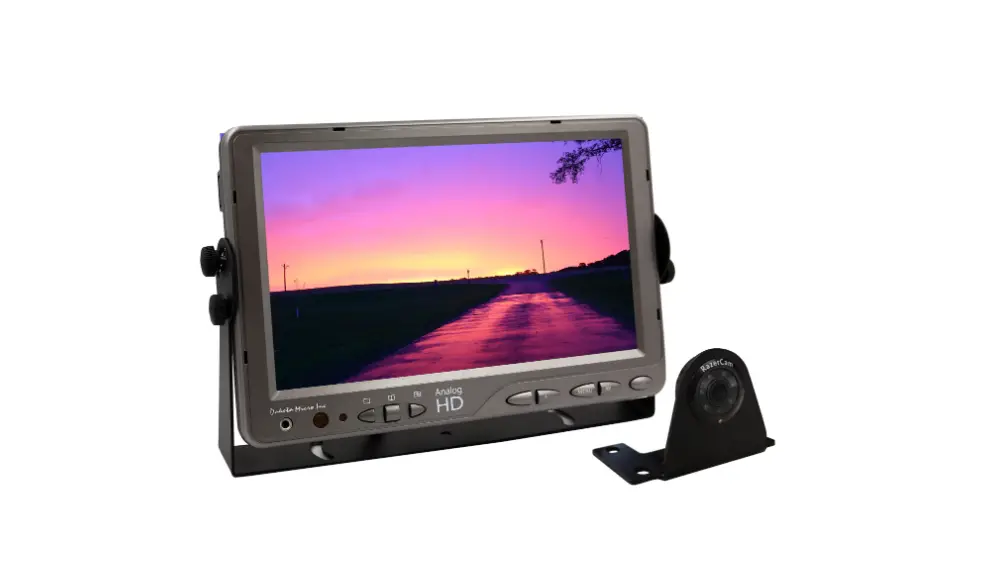
Camera1/Camera2 Dual camera inputs, for front, or rear view cameras. This device features a video input for connecting view cameras that are available as an option (sold separately). If connected – the image is displayed on the screen, when the camera is selected.
Examples External Monitor
This device features a video out for connecting an external monitor (sold separately). If connected – select the desired source via the main menu and start movie playback, e.g. from a USB, to view on the external monitor.
20
Controls
4 1
2
3
Settings
1. Sliding Menu Indicator: Indicates the position of the settings menu.
2. Settings Menu: Touch and hold from bottom to top to scroll the menu.
3. Setting Options Display Area.
4. Language Options: Touch to select language shown in the settings options display area.
A
5
B
C
D E
5. Audio Menu
A
A – Zone 1 or Zone 2: Touch to enter Zone adjustment menu.
Balance: Use slider to adjust Left and
Right speaker sound.
HPF: Select the High Pass Filter (HPF) that you want to use to block out unwanted frequencies to the speakers.
* Zone 2 has same exact adjustments.
Continued on following page
21
Controls
Continued from previous page
Loud: Select to boost sound.
A
EQ (Graphic Equalizer): Touch to take you directly to the EQ.
a – Preset Equalizer Options: Touch to select (Flat / Pop / Classic / Rock / Jazz / User).
b – 10-Band Graphic Equalizer: Use sliders to adjust the audio to personal preference.
a
b
Rename: Touch to open the rename screen. You can select between the Zone #, Front, Rear, Panel, Dash, or Custom.
Selecting Custom will bring up the keypad screen where you can enter a custom name up to 10 characters.
Select OK to set custom name.
B – Subwoofer:
B
Touch for subwoofer menu.
Use slider to adjust Sub. Level volume.
Select the Low Pass Filter (LPF) that you want to use. (Refer to subwoofers manufacturers specification on proper settings.)
22
C – Gain Level: Touch for gain level menu.
C
Use slider to adjust the gain for
different inputs (USB / Radio / Bluetooth /
Aux).
D – Max Vol: (refer to image on page 21) Slide to adjust the maximum volume for
the unit.
E – P-Vol: (refer to image on page 21) Slide to adjust start up volume for the unit.
Controls
6
6. Radio Area: Selectable radio region control, touch to select your local region.
7
7. Display: Adjust brightness, contrast, saturation, and hue. Touch and slide to make personal adjustment. Touch Reset to revert to default settings.
23
Controls
8
8. Wallpaper: Touch to make a background selection. The background will be shown when the Day/Night Mode is turned off or when the radio is in Night Mode.
9
A
B
C
9. Time:
A – Adjust Clock: Touch up/down arrows to adjust Year / Month / Day / Hour / Minute.
B – 12hr or 24hr Selection Format: Select your preference.
C – CT Sync: If the Clock Time or CT setting on your car stereo is set to ON, your
device automatically displays the current time using Radio Data
System (RDS) information.
24
Controls
10
10. Camera: Select to adjust Camera 1 and Camera 2, to reverse image.
A
B
C
11
D
11. Other: A – Beep: Select to turn on/off audible button press sound.
B – Parking: Select to turn on/off parking assist.
C – Carplay: Select to turn on/off carplay.
D – Aux Out: Touch to turn on and off aux outputs (Aux 1 Aux 4). Aux outputs are a negative output designed to trigger a standard automotive relay to power accessories such as light bars, dome lights, boat anchor lights, rock lights, or anything that can use a 12-volt switch to function (300mA Max).
25
Controls
12
12. LED Color: Built in RGB Controller for backlighting unit buttons and external RBG output. Touch to select color or to cycle color effect (Auto).
13
13. Information: Shows the current firmware installed in the unit.
26
Controls
14
A
Off
B
C
14. Day/Night: This feature, when set, automatically changes the screen for dark background or chosen background, Night ZMode to white Day Mode screen background (see below for example).
A – Night Mode Start Time: Touch up down arrows to adjust.
B – Night Mode End Time: Touch up down arrows to adjust.
C – Day/Night On/Off Toggle: Touch to turn Day/Night Mode On/Off.
If the selection shows as Off, the screen will stay in Night Mode with the dark background or optional background image.
If the selection shows as ON, use the selectors to adjust the Start Time and End Time for mode.
Example of Day Mode
27
Controls
15
15. Reset: Touch to perform a factory reset.
28
Diagnostics & Troubleshooting
Problem
No power (Unit does not turn
on)
Cause
1. Incorrect wiring 2. Fuse is blown 3. Wiring harness is not
connected
Solution
1. Re-check wiring 2. Replace fuse 3. Re-check wiring
harness connection
No sound (External amplifiers)
1. Amplifiers not connected to power
2. Amplifiers not turning on
1. Check amplifier power/ ground connections
2. Connect blue remote turn on wire
No AM/FM reception
1. Antenna cable is not connected
2. The signals are too weak
1. Insert the antenna cable securely
2. Select a station manually
AUX Input or RCA output distortion
1. Volume may be up too much on external device
1. Lower volume on external device until distortion goes away
External amplifiers have low signal input.
Gain too high (hiss)
1. Zone control is turned down too far
1. Increase zone control level to provide more signal level to amplifiers
Bluetooth can’t/ won’t connect
1. Mobile device has BT switched off
2. Mobile device is not discoverable
1. Enable the Bluetooth function
2. Make the device discoverable
USB thumb drive not reading
1. Music file is not MP3, WAV or WMA format
1. Convert music file format into MP3, WAV
or WMA format
Camera does not display in reverse,
only in camera source menu
1. Purple/white reverse trigger wire not powered
1. Power the purple/white wire on the back of the unit with +12v trigger
29
Supported Audio & Video Formats
Audio format MP3 WMA OGG FLAC APE AAC AC3 ATRA DTS
Audio Profile All Standard/Pro Ql / QlO Level 0 – Level 10
950kbps 448kbps Ar3only 132kbps Dts only
Max Bitrate 320kbps 384kbps 500kbps 1.60Mbps
132kbps
3.84Mbps
Max Sample Rate 48000 48000 48000 48000
48000 48000
48000 44100
48000
Video Format MKV
AVI
MOV/MP4
TS AS F
FLV PMP
Resolution 1280×720
720×480 640×480 1280×720
720×480 640×480 1280×720
720×480 640×480 1280×720 720×480 1280×720
720×480 640×480 1280×720 720×480 1280×720 720×480
Video Video Decode
M PEG4/XVID, DIVX4/DIVXS/M SMP EG4V3, M PEG2, RV1.0/RV2.Q/RVG2, RV 3.Q/RV 4.0/R H 264/AVC DIVX3 M PEG4/XVID, DIVX4/DIVXS/M SMP EG4V3, H 263, M JPEG H264/AVC DIVX3, M PEG4/XVID, DIVX4/DIVXS/M SMP EG4V3, M PEG2, M PEG1, H 263, M JPEG H 264/AVC DIVX3 M PEG2 H 264/AVC M PEG4/XVID, DIVX4/DIVXS/M SMP EG4V3, MPEG2, MPEG 1, H263, MJPEG H 264/AVC DIVX3 H 263 H 264/AVC M PEG4/XVID H 264/AVC
30
Supported Audio and Video Formats
Video Format Resolution
Video Decode
RMVB
1280×720 RV1.0/RV 2.0/RV G2, RV 3.0/RV4.0/RV8/RV 9
MPGNOB
1280×720 M PEG2, M PEG1
WMV
1280×720 M PEG4/XVID,
720×480 DIVX4/DIVXS/M SMPEG4V3, MPE G2
NOTE: Video decoder does not support WMV1, WMV2, WMV3, VC1, VP6, M SMPEG-41 /2
Photo format JPEG BMP /PNG GIF
Photo Max resolution Unlimited 2.SM pixels 2.SM pixels
Profile Baseline ALL 89a/87A
31
FCC Notice
This equipment has been tested and found to comply with the limits for a Class B digital device, pursuant to Part 15 of the FCC Rules. These limits are designed to provide reasonable protection against harmful interference in a mobile installation. This equipment generates, uses, and can radiate radio frequency energy and if not installed and used in accordance with the instructions may cause harmful interference to radio communications. However, there is no guarantee that interference will not occur in a particular installation.
WARNING: Changes or modifications not expressly approved by the party responsible for compliance could void the user’s authority to operate the equipment.
This equipment complied with FCC radiation exposure limits set forth for an uncontrolled environment. This equipment should be installed and operated with minimum distance 7.9 inches (20 cm) between the radiator and your body.
WARRANTY
Maxxsonics, LLC. warrants this product, to the original consumer purchaser, to be free from defects in material and workmanship for a period of one (1) year from the date of purchase.
Maxxsonics, LLC. will, at it’s discretion, repair or replace defective products during the warranty period. Components that prove to be defective in materials and workmanship under proper installation and use must be returned to the original authorized Maxxsonics, LLC. retailer from where it was purchased. A photocopy of the original receipt must accompany the product being returned. The costs associated with removal, re-installation, and freight are not the responsibility of Maxxsonics, LLC. This warranty is limited to defective parts and specifically excludes any incidental or consequential damages connected therewith. Please visit the website to view the full warranty.
The Bluetooth® word mark and logos are registered trademarks owned by the Bluetooth SIG, Inc. and any use such marks by MB Quart is under license.
All product names, logos, and brands are property of their respective owners. All company, product, and service names used in this literature are for identification purposes only. Use of these names, logos, and brands does not imply endorsement.
©2023 Maxxsonics, LLC
MB Quart products are designed and engineered in the USA by:
www.maxxsonics.com
MBQ GMR7V1 OM 01 – rev3
 Product Manuals | MB Quart | Music. Defined.