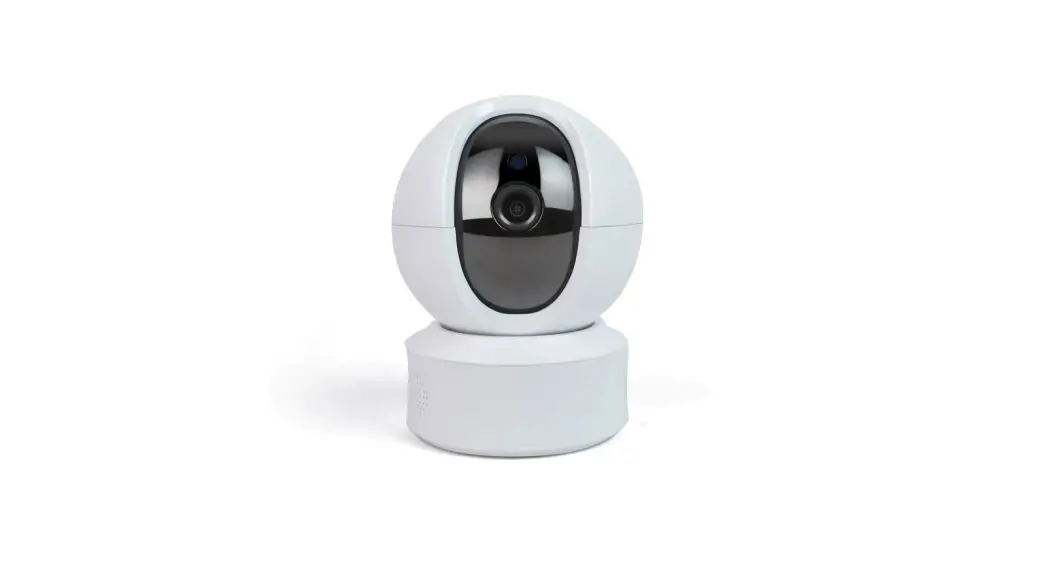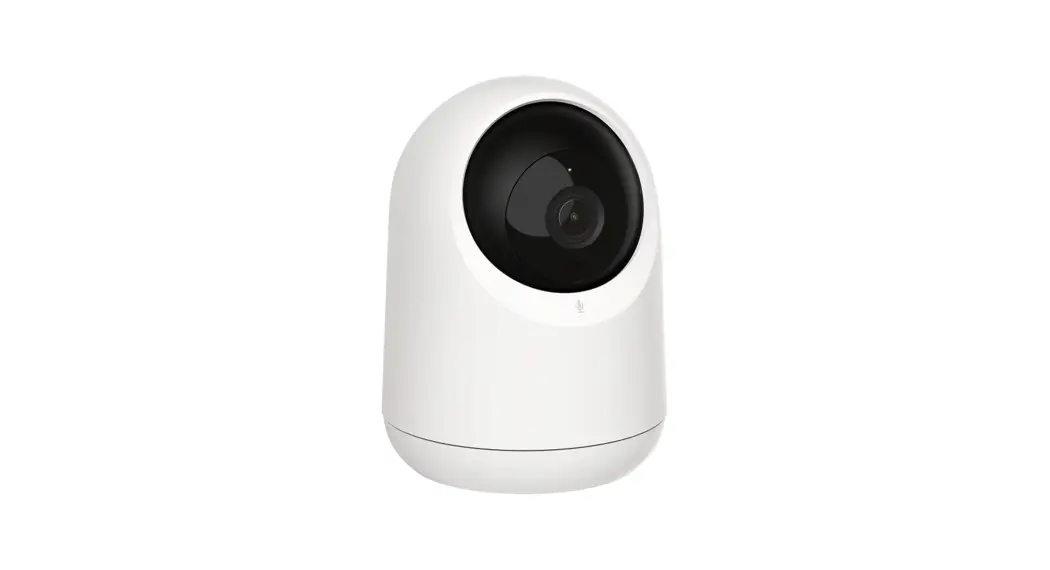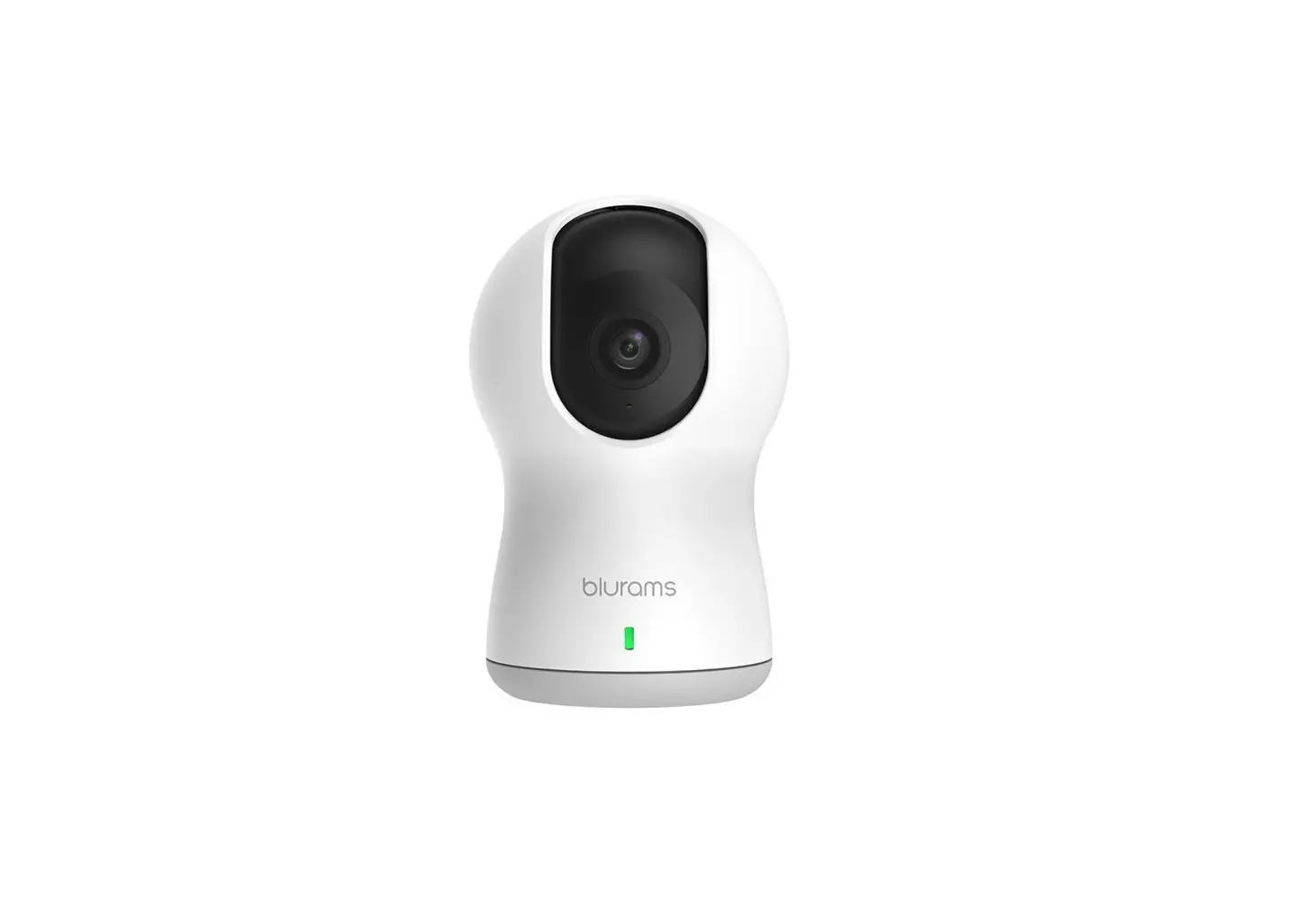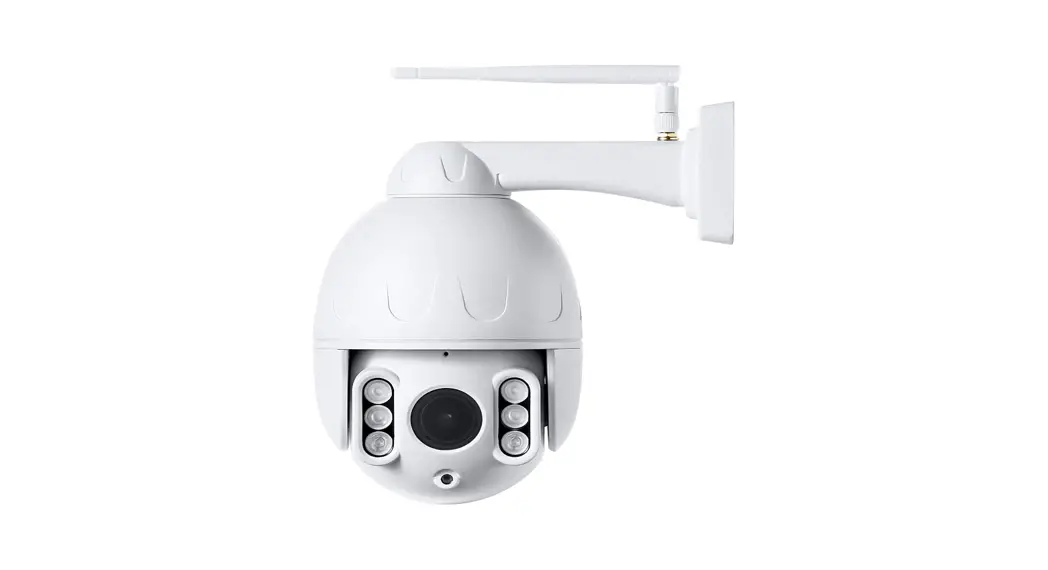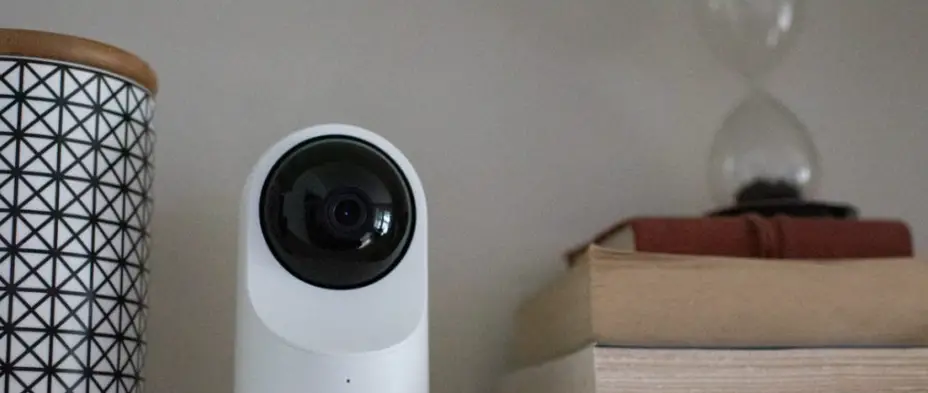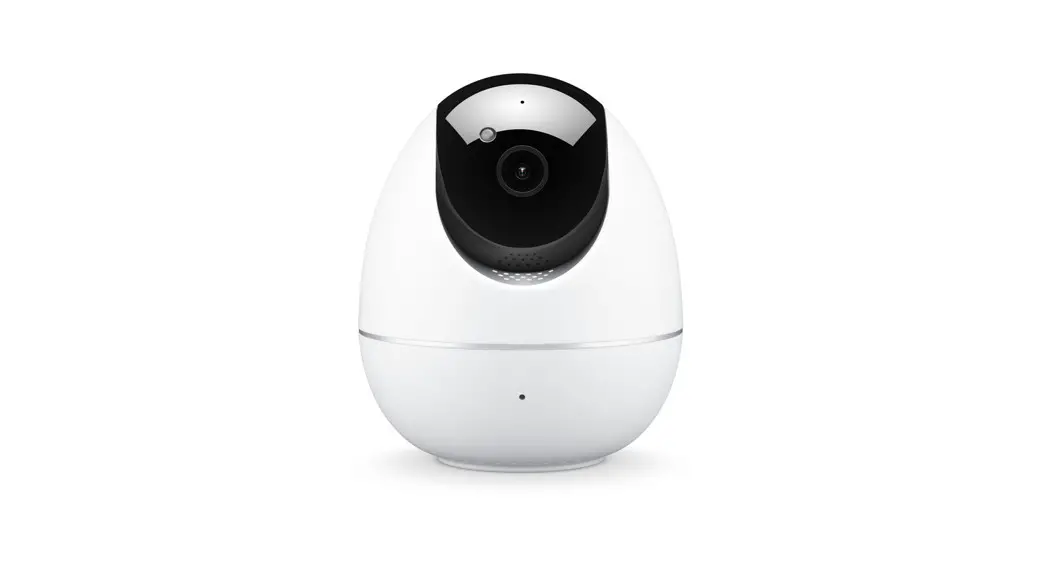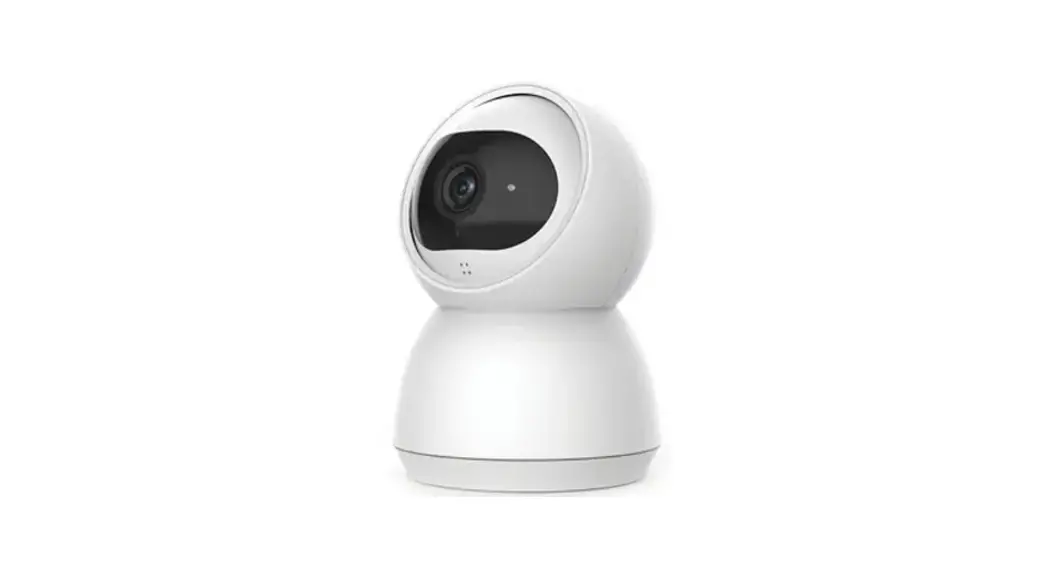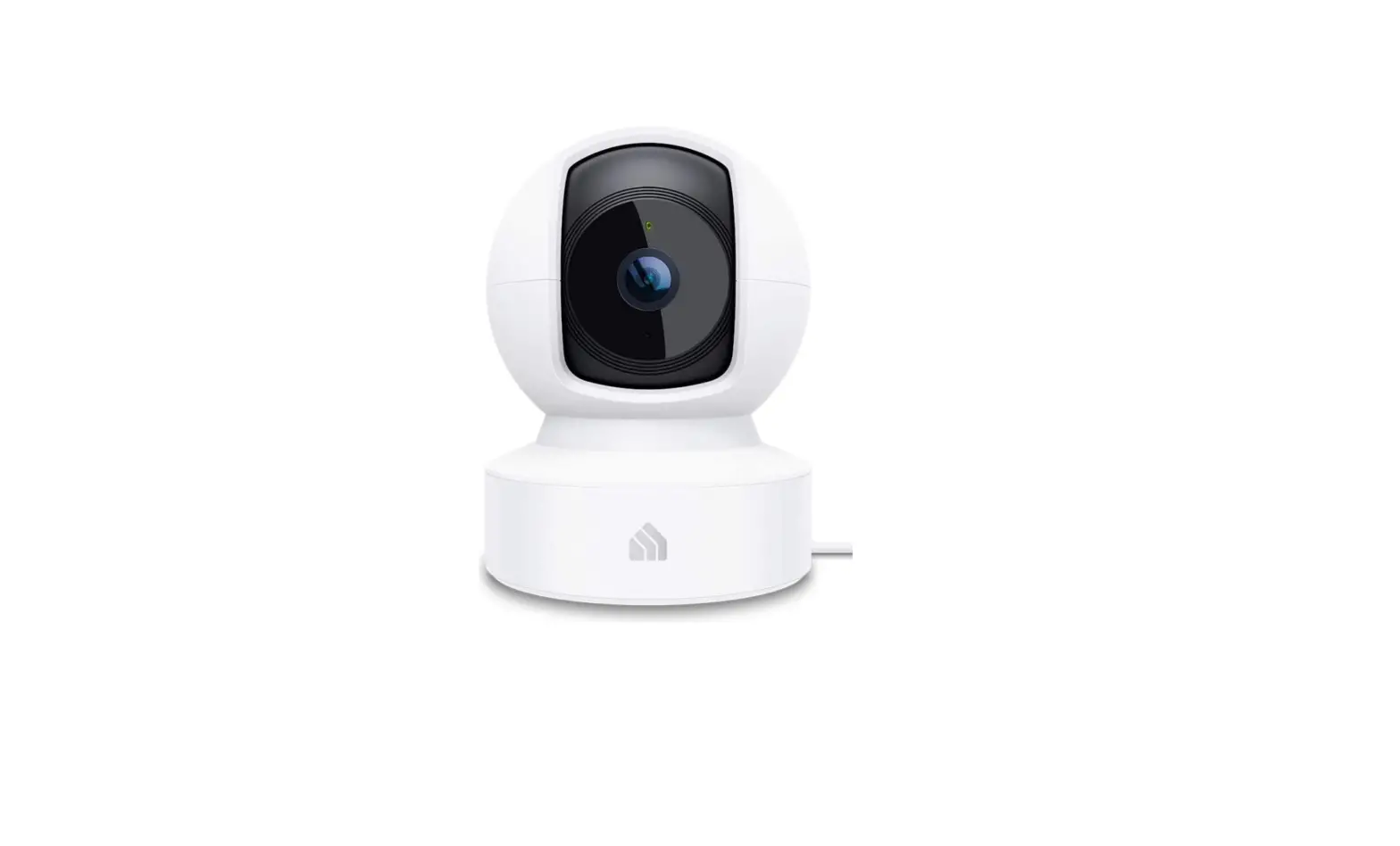

Near Pan / Tilt Smart Camera 
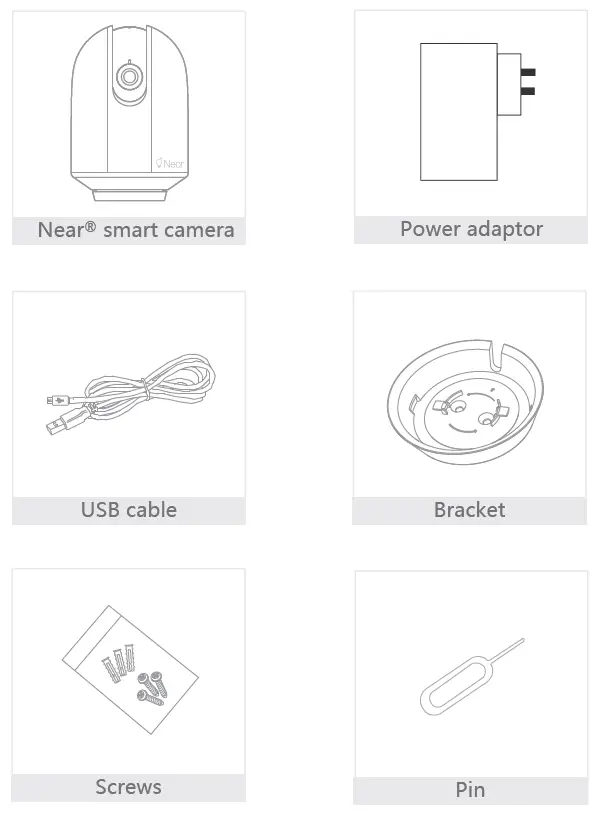
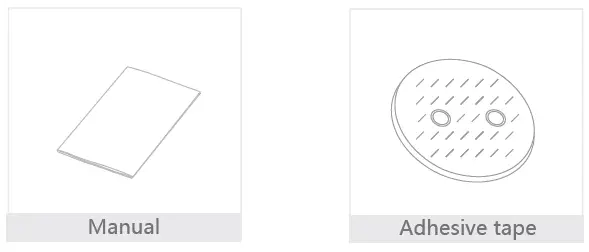
What’s in the box

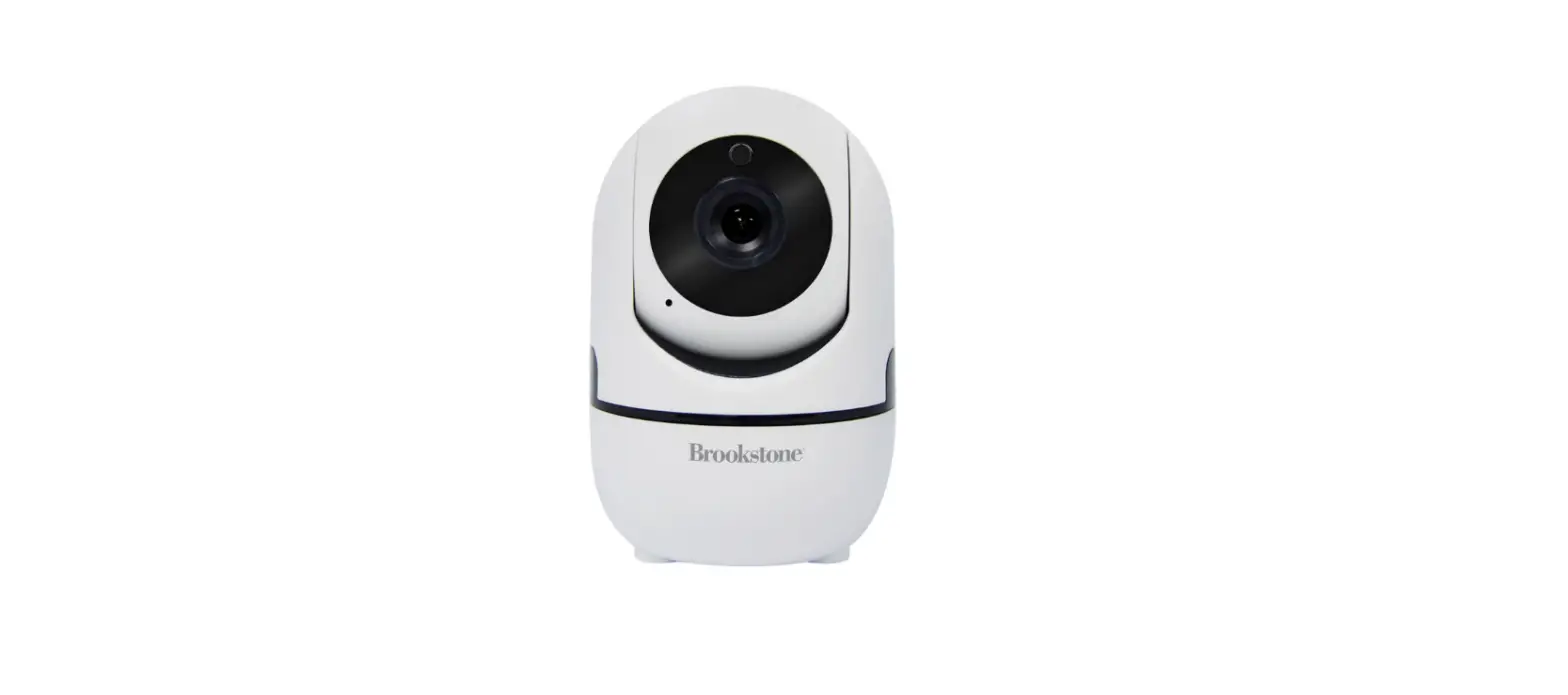
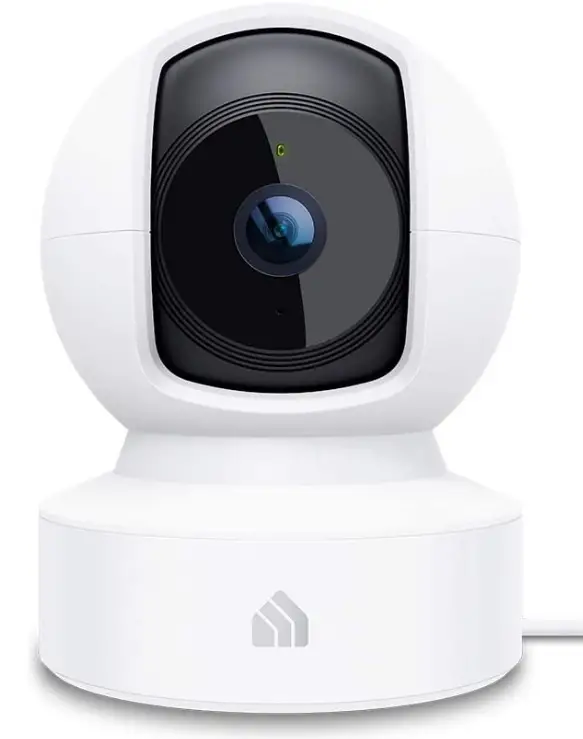
Description
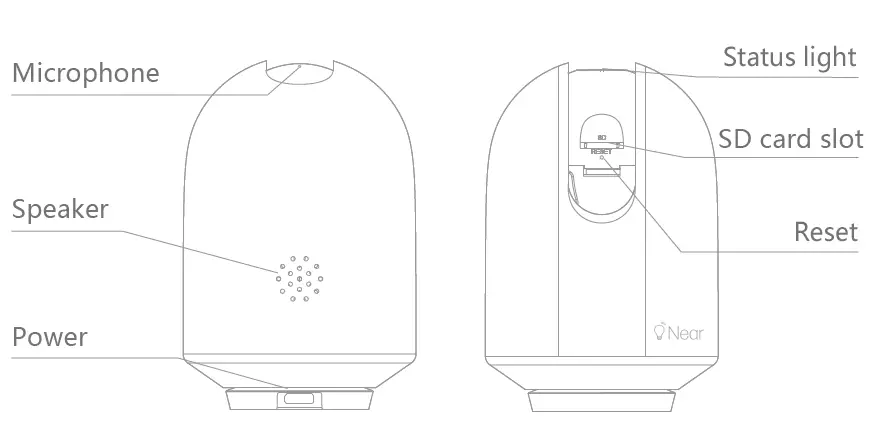
- Power
- DC 5V±10%
- Status light
- Solid red light on: The camera is turning on or malfunctioning
- Blinking red light: Awaiting Wi-Fi connection (slowly blinking)
- Connecting to the Wi-Fi (quickly blinking)
- Blinking blue light: Currently connecting
- Solid blue light on: Camera is connected & operational
- Microphone
- Captures sound for your video
- SD card slot
- Supports local SD Card storage (Max.128G)
- Reset
- Press and hold for 5 seconds with pin to reset the camera (if you have modified settings, they will return to factory defaults)
Installation and Mounting
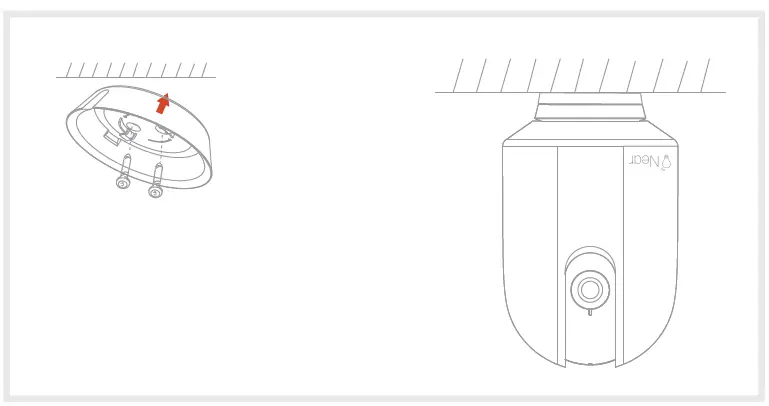
- Use the included mounting bracket to fix the camera to a clean surface.

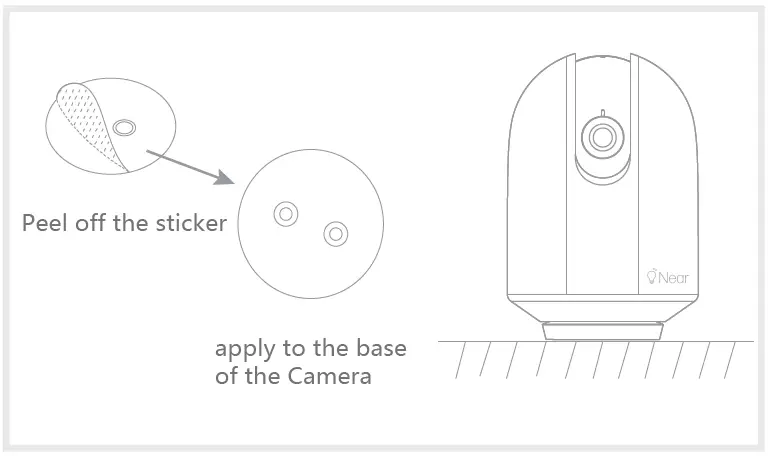
- Or, stick the camera to an inclined surface with the 3M adhesive tape

Connect
Download
Download the Near® app from the Apple app store or the Google playstore. 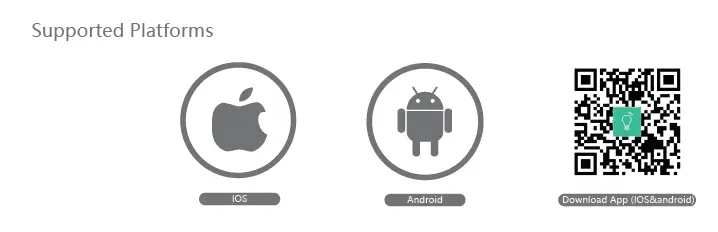
Router Settings
Near® smart camera only supports 2.4GHz frequency Wi-fi (5G not supported), and is connected via Wi-Fi network. Please check and set the parameters of your Wi-fi router before connecting to the Wi-fi network, do record the SSID and password of your Wi-Fi. 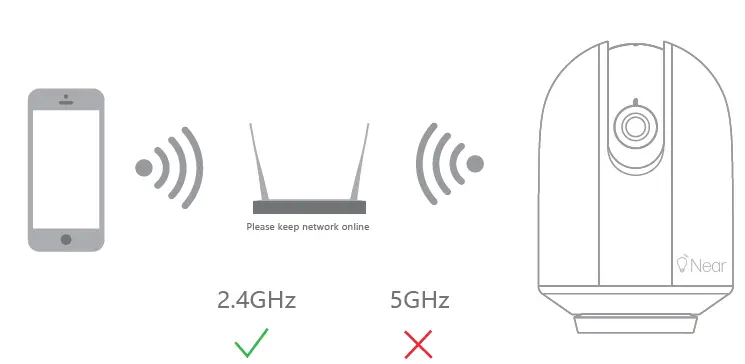
Pairing with Near® smart camera
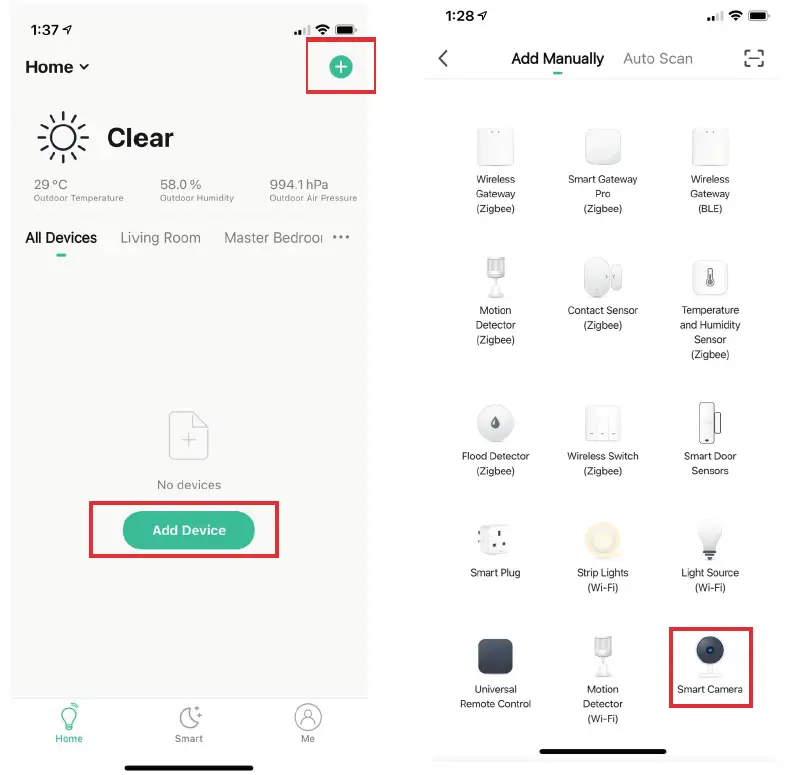
- After registering an account in the Near® app / logging in for existing users. Select “Add Device” or the “+” button on the top right hand corner of the screen.
- Select “Smart Camera” to add camera.

QR Code Configuration - Power on and reset camera until the status indicator is flashing quickly or a prompt tone is heard, and then click “Next”. Then input your WiFi’s passwords and click “Next”.
Click to change network.
Note:- Camera only supports 2.4GHz WiFi network.
- The number of bits in the ssid and passwords of the router should not exceed 24 digits.
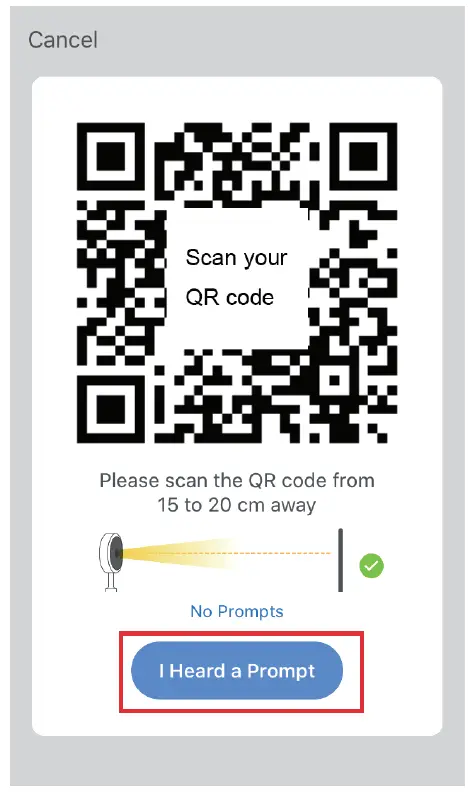
- Scan the QR code in your phone facing the camera, when the camera responds by emitting three beeping sounds. You have 30 seconds to complete the configuration.

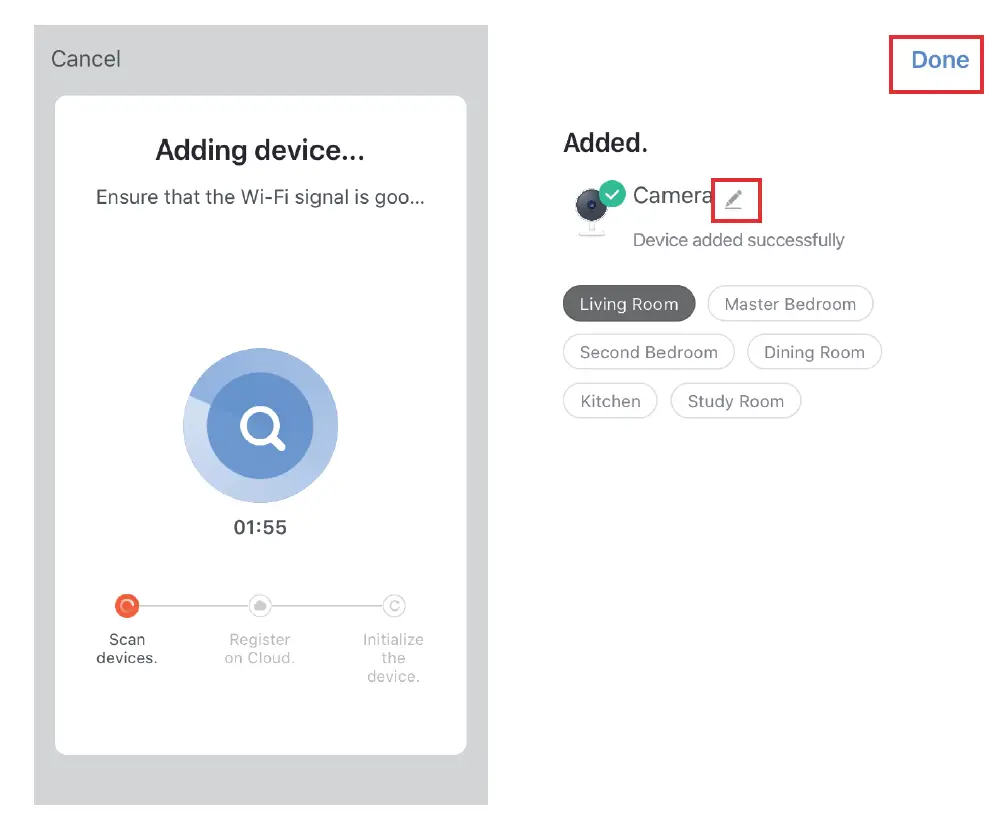
- When connecting, you should make sure that your router and smart camera are located as close as possible. When the camera is added successfully, tap on ” ” to change the camera’s name.

 to change network.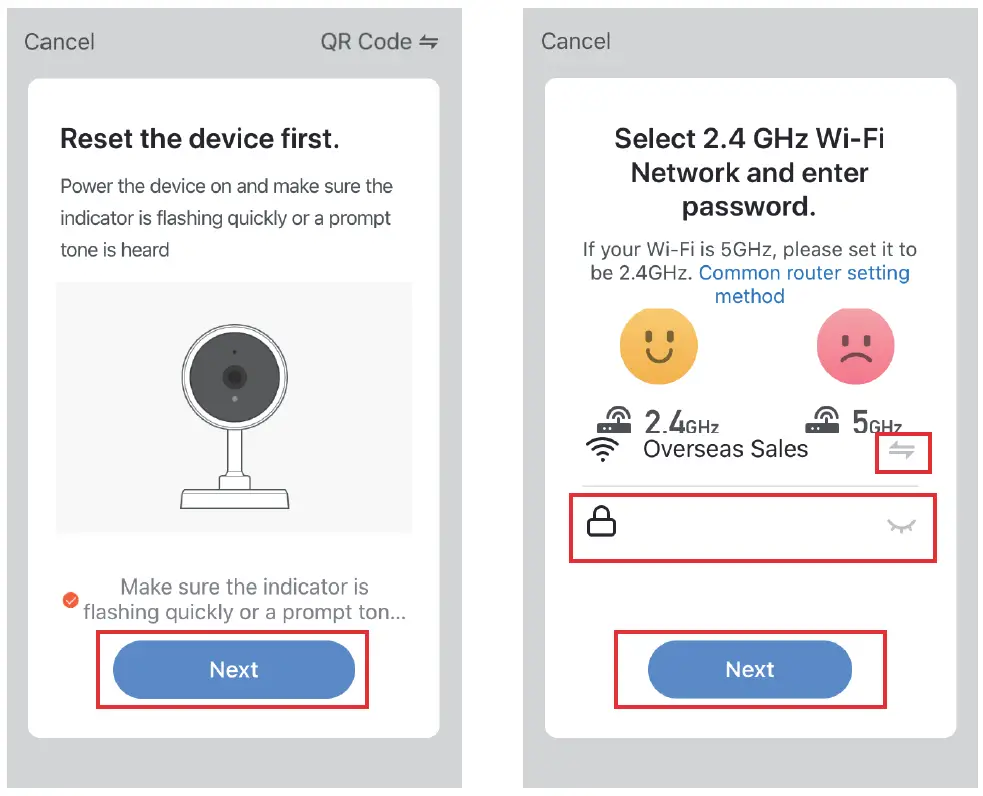
Settings
From the “Smart Camera” interface, tap on  to view more smart camera settings and device information.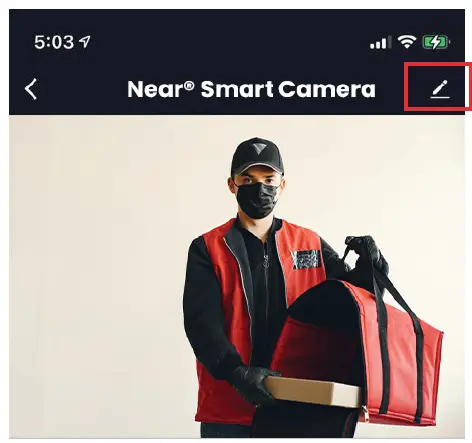
FAQ
Q: Smart camera undetectable?
A: Check whether if the network is Online, place the camera close to the router, reset the device and add it again.
Q: Why is it still in the list of devices after reseting?
A: The reset device only resets the network configuration of the camera, it does not change the configuration on the App, delete the “offline” camera via the App.
Q: How to change the camera network to another router?
A: Firstly, remove and reset the device on the App and then configure the device again.
Q: Why doesn’t the device identify the SD card?
A: It is recommended to plug-in SD card after turning the power off. Confirm whether if the SD card can be located from the App. SD Card is recommended to be in the FAT32 format. And the TF card can’t be identified when the internet environment is not good.
Q: Why can’t I receive notifications on the App?
A: Please confirm that the App is running on the smartphone, and the relevant reminder function; Message notification and authority confirmation in the mobile phone system have been enabled.
Functions
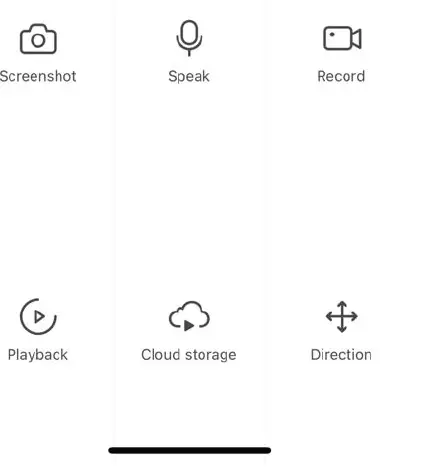
Pan/Tilt
Rotate your camera by sliding on your smartphone, providing you with 355 degrees of vision.
Video flip
Flip your video stream up or down for the ideal surveillance footage.
Motion detection
Built-in motion sensors detect movement, and the camera will send you push notifications and app alerts.
Record
Support 24H continuous recording with high capacity SD storage or Cloud storage.
Day & Night
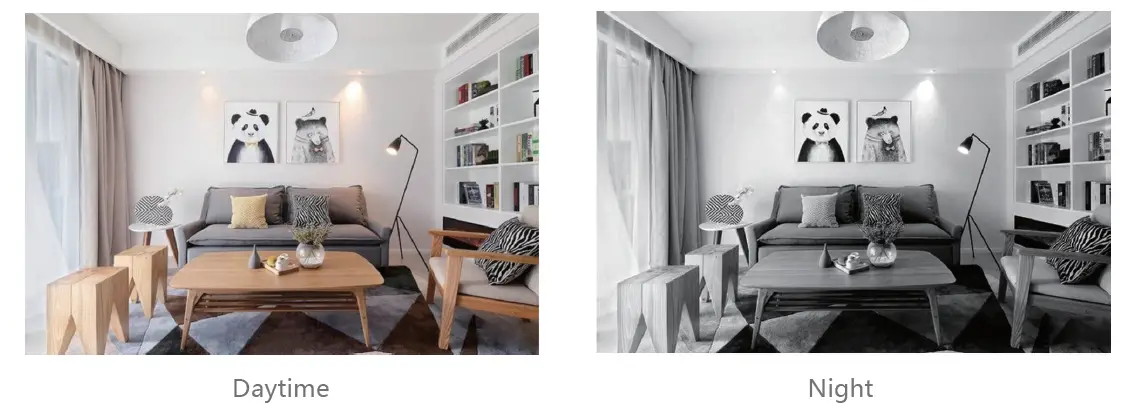
Never miss a moment, even in complete darkness, with powerful night-vision technology.