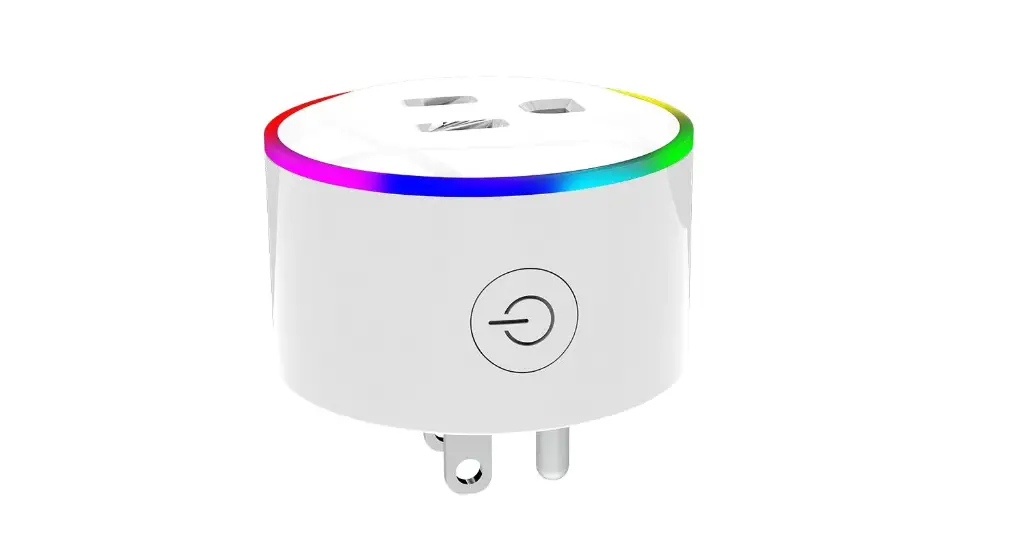
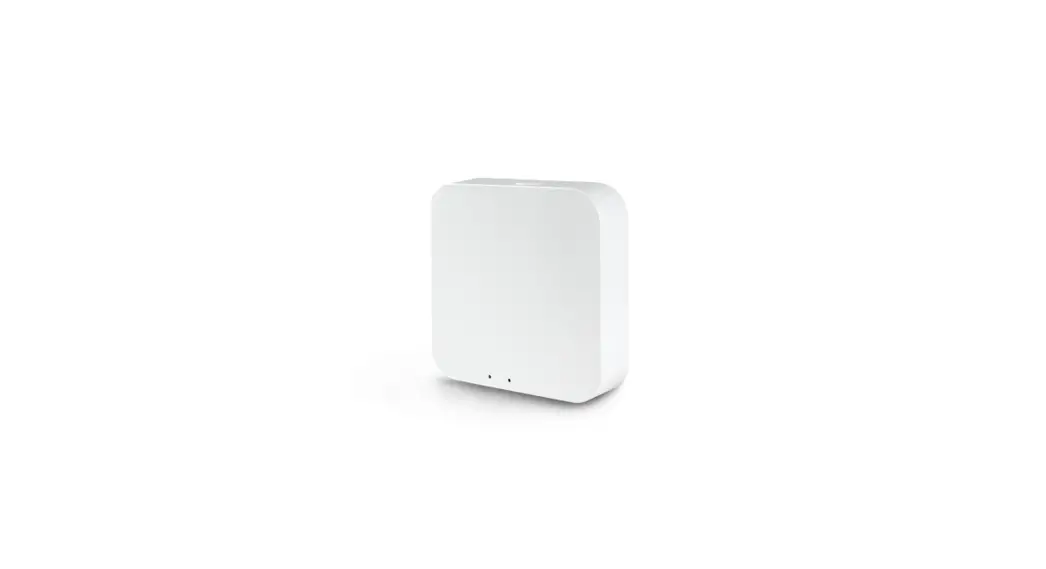
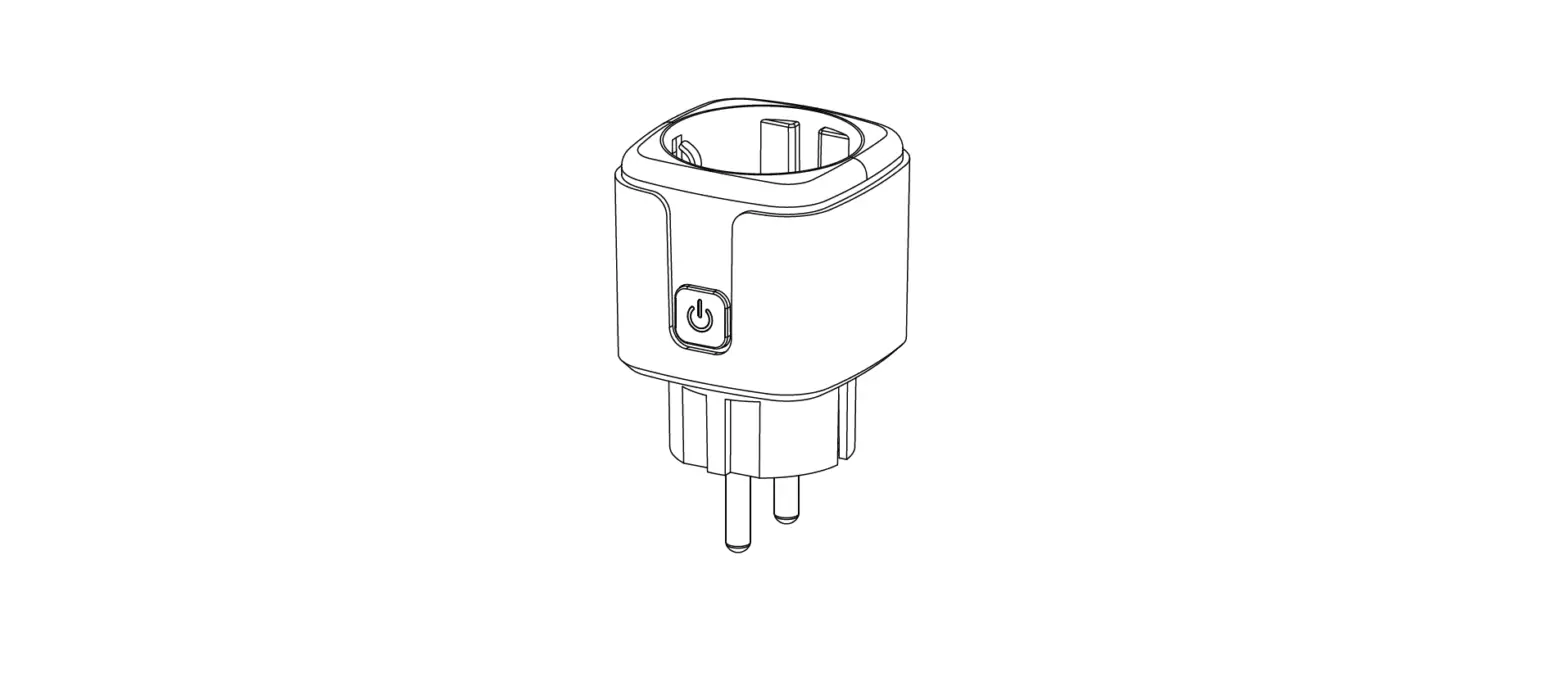
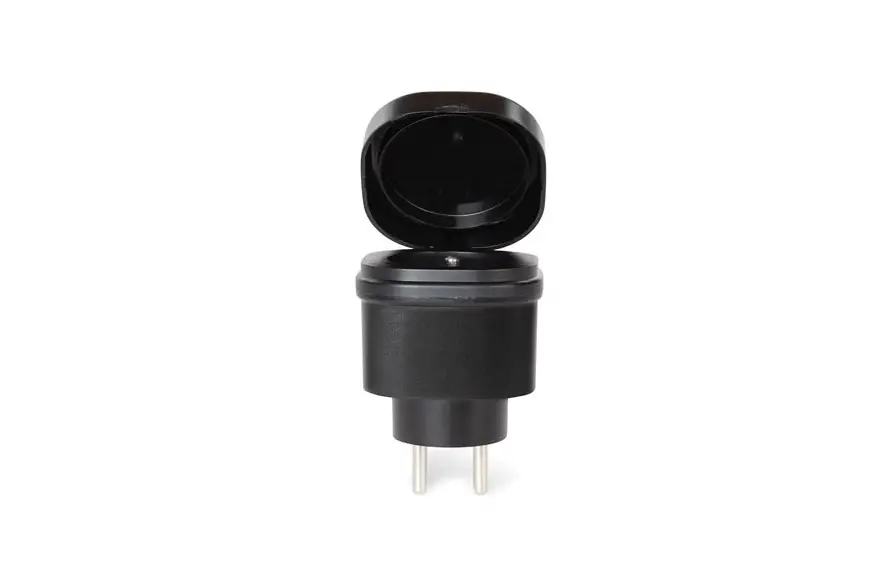
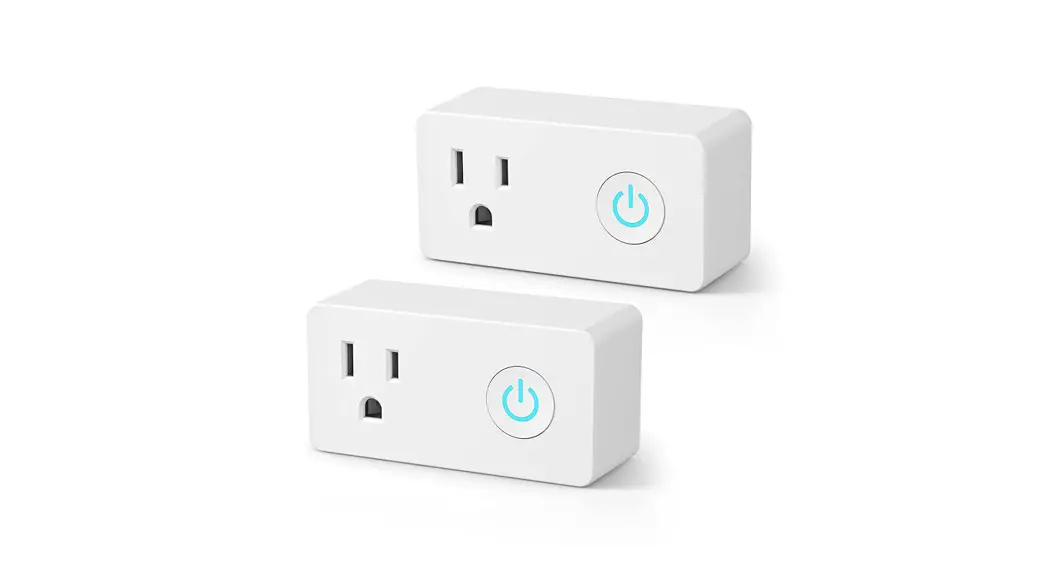
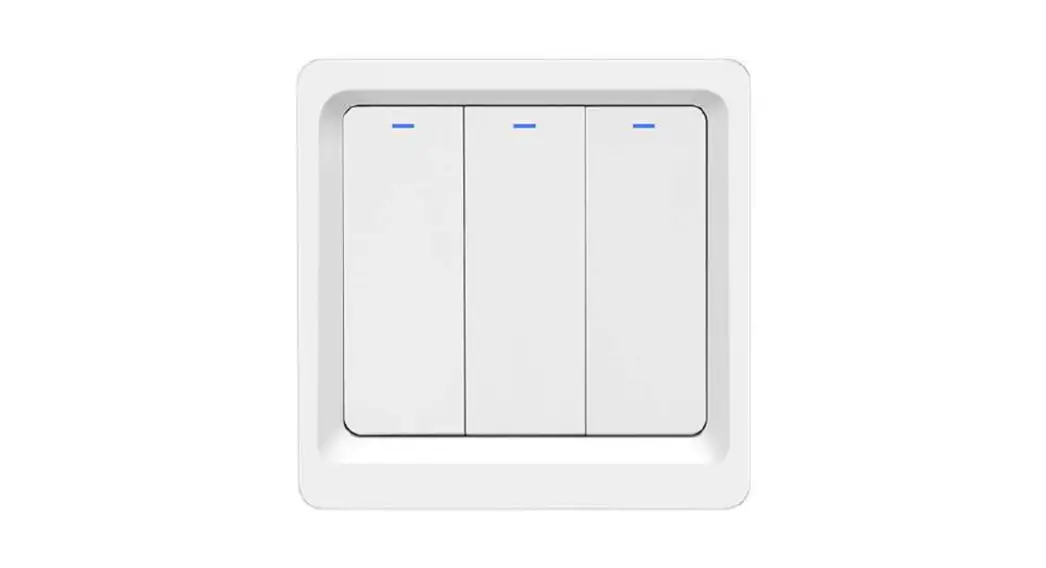
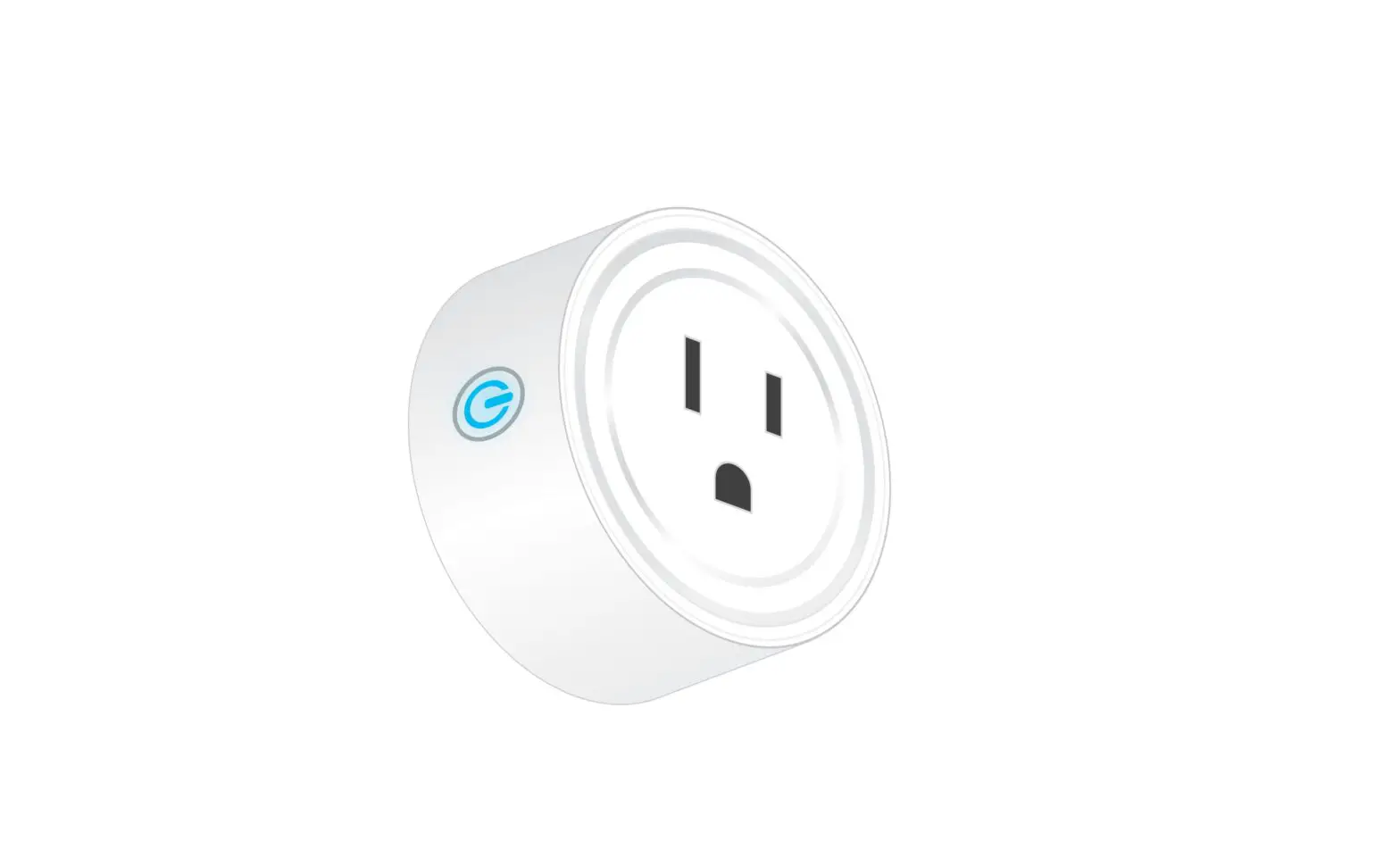
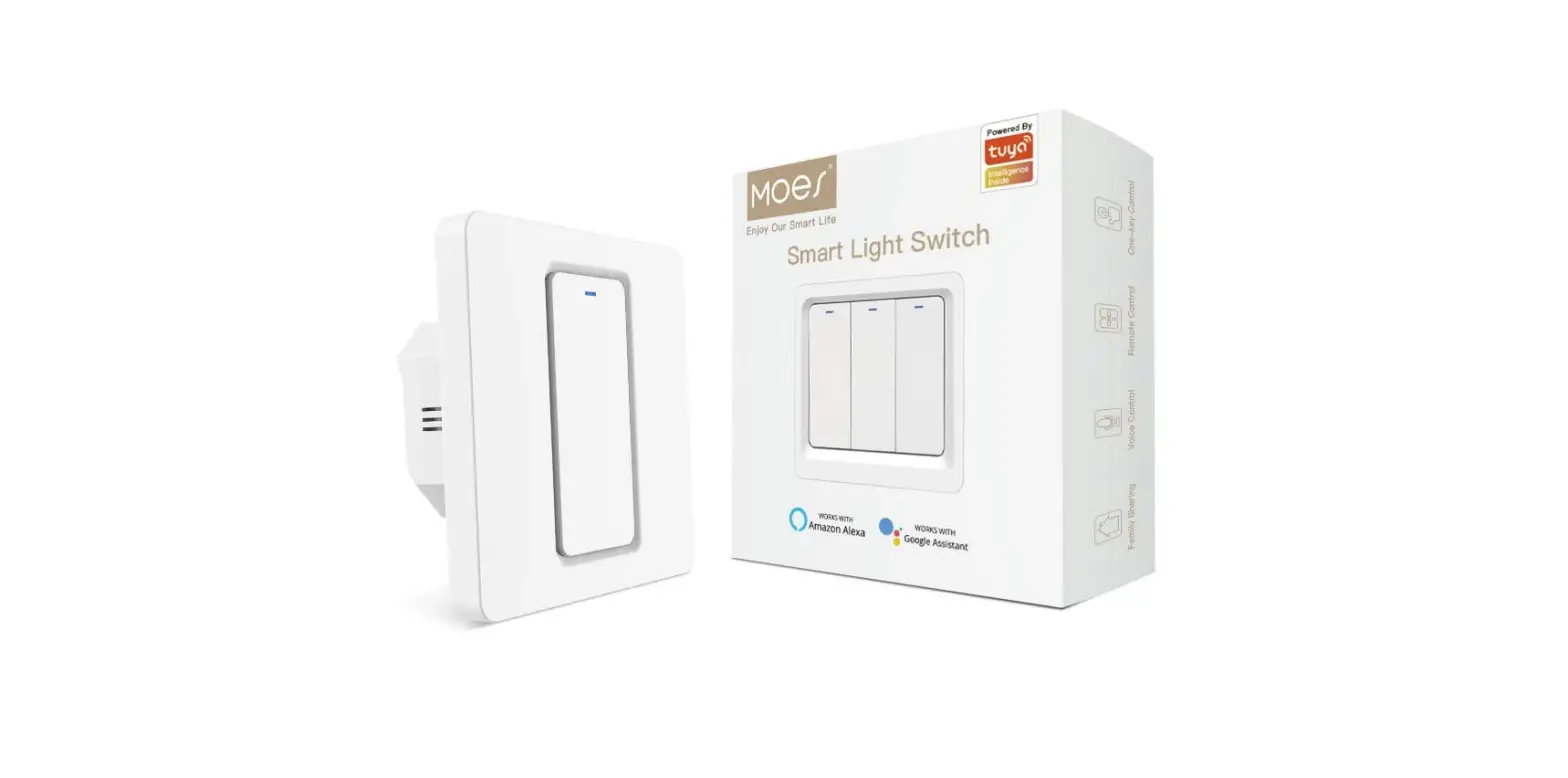
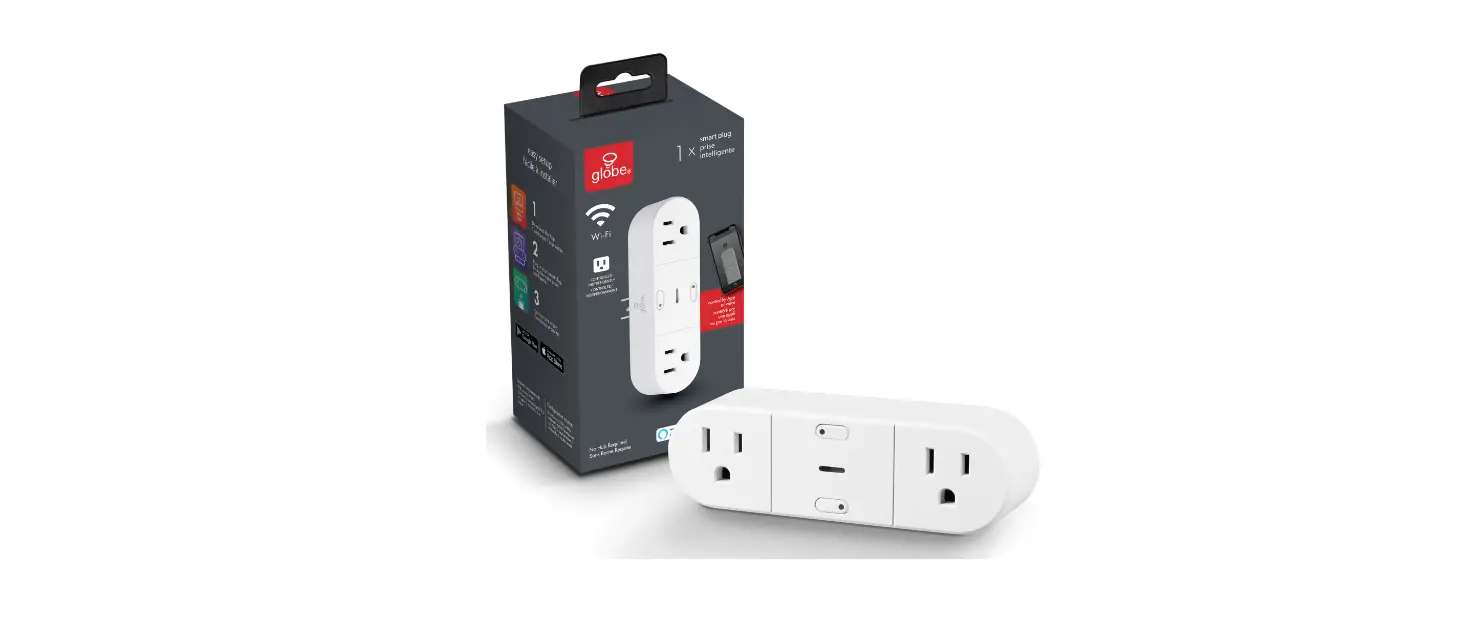
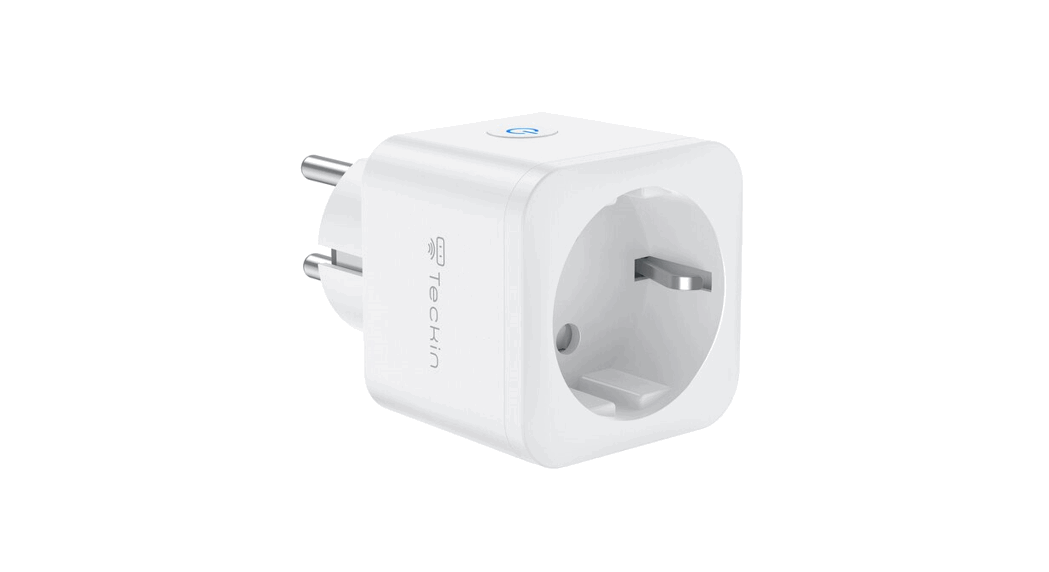
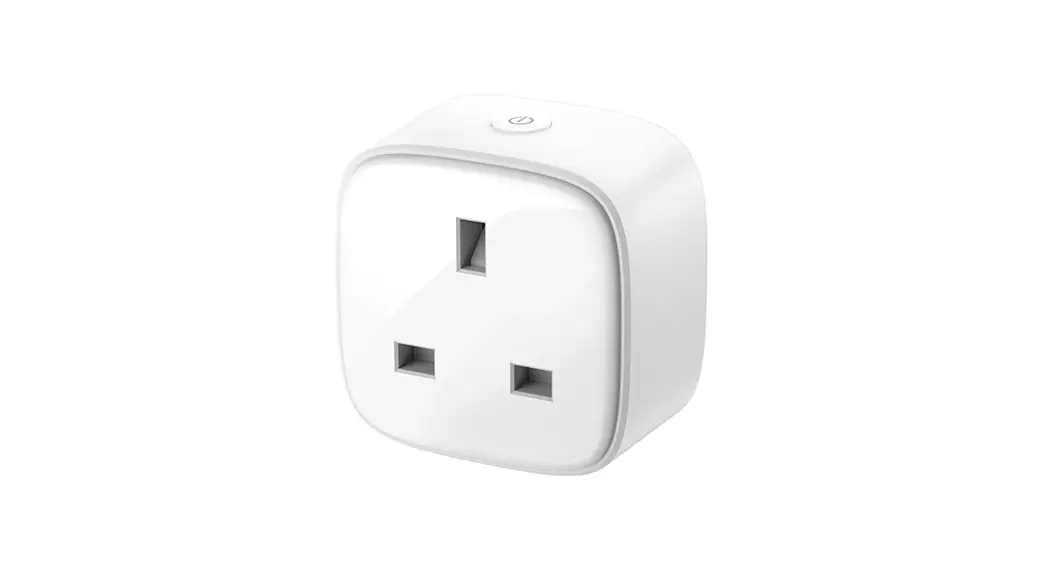
WiFi Plus BLE Smart Plug Socket
Product Information
This smart socket is compatible with the Tuya platform and can
easily connect to your home Wi-Fi network. You can plug any
electric appliance directly into the smart socket for wireless
control.
Safety Information: Electricity can cause
personal injury and property damage if handled improperly. If you
are not sure about any part of these instructions, please seek
professional assistance from a qualified electrician.
Specification:
- Electrical Rating: 100~250V AC, 50Hz
- Working Temp: -20~50
- Wireless Type: WiFi 2.4GHz & Bluetooth
- App Support: iOS/Android
Product Usage Instructions
- Download and install the Smart Life app by scanning the QR code
or downloading it from the App Store. - Register or log in to the app using your mobile number or email
address. Obtain the verification code. - Make sure your phone is connected to a 2.4G Wi-Fi network and
Bluetooth is enabled. - Initiate quick mode configuration by ensuring that the
indicator light on the Smart Plug blinks blue rapidly (twice per
second). If it blinks blue slowly (once every 3 seconds), press and
hold the power button on the Smart Plug for 6 seconds until the
indicator light blinks rapidly. - Open the Smart Life/Tuya app and tap the “+” button. Follow the
prompts to add the device. Enter the Wi-Fi password when prompted
and wait for the connection to be completed. - Once the device is successfully added, you can edit its name
and access its control page. - Click “Done” to enter the device page and start enjoying your
smart life with home automation. - If you want to integrate the device with Alexa, follow the
instructions below. - In the Alexa app, complete the product networking configuration
according to the prompts. Change the name of the device to an
easily identifiable name, such as “Alexa”. - Configure your Amazon Echo device by ensuring it is powered on
and connected to a Wi-Fi network. - Open the Alexa app on your phone and log in. Tap on the menu in
the upper left corner, select “Settings,” and tap “Set Up A New
Device” to set up the Amazon Echo. - Choose your Amazon Echo device type and language for
connecting. - Press and hold the small dot on the device until the light
turns yellow. Click “Continue” to connect to the Amazon Echo
hotspot and then connect to your home Wi-Fi network. - Wait for the Amazon Echo to connect to the network. Once the
connection is successful, tap “Continue” to finish the setup
process. - An introduction video will appear. After it ends, tap
“Continue” to jump to the Alexa home page.
NN
Enjoy Our Smart Life
Instruction Manual Smart Plug
WiFi+BLE
English
Bitte scannen Sie den QR-Code, um das deutsche Handbuch, das Installationsvideo und die Funktionseinführung zu erhalten Escanee el código QR para obtener el manual en español, el video de instalación y la introducción de la función Veuillez scanner le code QR pour obtenir le manuel en français, la vidéo d’installation et l’introduction des fonctions QR-, , Leia o código QR para obter o manual em português, o vídeo de instalação e a introdução das funções
Description
This smart socket Compatible with Tuya platform that can easily connect to your home Wi-Fi network, plug any electric appliance directly into the smart socket for wireless control.
Safety Information
Risk of Electric Shock: Electricity can cause personal injury and property damage if handled improperly. If you are not sure about any part of these instructions, please seek professional assistance from a qualified electrician.
English
1
Specification
Electrical Rating: 100~250V AC,50Hz Working Temp: -20~50 Wireless Type: WiFi 2.4GHz & Bluetooth App Support: iOS/Android
Steps for connecting the APP to the device
1.APP Download Smart Life APP
Please scan the QR code or download Smart Life on App store.
2
English
2.Register or Login
Region Mobile number/e-mail address Obtain verification code
Download “Smart Life”Application Enter the Register/Login interface; tap “Register” to create an account by entering your phone number to get verification code and “Set password”. Choose “Log in” if you already have a Smart Life account.
English
3
Steps for connecting the APP to the device APP Configuration
1. Make sure your phone is connected to 2.4G Wi-Fi and the Bluetooth is enabled
2. Make sure quick mode configuration is initiated: the indicator light blinks blue rapidly (twice per second). If it blinks blue slowly (once every 3 seconds), press and hold the power button on the Smart Plug for 6 seconds until the indicator light blinks rapidly.
Add device
On/off Button
4
English
English
5
3. Open Smart Life/Tuya App and Click”+”, then the prompt page will automatically show on the screen. Click “Add”. Enter Wi-Fi Password and click “Next”, waiting for the connection completed.
6
English
4. Add the device successfully, you can edit the name of the device to enter the device page by click “Next”
English
7
5. Click “Done” to enter the device page to enjoy your smart life with home automation.
8
English
Enter Smart Life Skill in Alexa APP
1. Complete product networking configuration in the App Complete the device’s networking configuration according to the prompts in the App. Note: In the App, change the name of the device to an easily identifiable name such as Alexa; names are usually in English, such as “bed light”.
2. Configure the Amazon Echo device (If you have already configured Amazon Echo, you can skip this step. The following instructions are based on the iOS client.)
Make sure you Amazon Echo device is powered on and connected to a Wi-Fi network.
Open the Alexa APP on your phone and log in.
Tap on the menu in the upper left corner of the Home page, select “Settings” and tap “Set Up A New Device” to set up the Amazon Echo.
Choose your Amazon Echo device type and language for connecting.
English
9
Press and hold the small dot on the device until the light turns yellow.
Click “Continue” to connect to the hotspot, connect to the Amazon Echo hotspot, and return to the APP page.
Click “Continue” to find and connect to your home Wi-Fi network.
Amazon Echo will take a few minutes to try to connect to the network.
After the network connection is successful, tap “Continue”. An introduction video will appearAfter the video endstap “Continue” to jump to the Alexa Home page.
You have now completed the Amazon Echo’s configuration process.
3. Key step —- Link Skill
Tap on “Skills” in the Alexa App menu. Then search for “App Name”. Tap “Enable” to enable the
Skill.
10
English
Enter the App account and password, then tap “Link Now” to link your App account to enable the Skill. Now you can start your smart home journey
4. Common commands Control the device via voice commands, now you can control your smart device with Echo. You can control your device (such as your bedroom light) with the following commands:
Alexa, turn ondevice name
Alexa, turn offdevice name
English
11
SERVICE
1.During the free warranty period, if the product breaks down during normal use, we will offer free maintenance for the product. 2.Natural disasters/man-made equipment failures, disassembly and repair without the permission of our company, no warranty card, products beyond the free warranty period, etc., are not within the scope of free warranty. 3.Any commitment (oral or written) made by the third party (including the dealer/service provider) to the user beyond the warranty scope shall be executed by the third party. 4.Please keep this warranty card to ensure your rights. 5.Our company may update or change the products without notice. Please refer to the official website for the updates.
RECYCLING INFORMATION
All products marked with the symbol for separate collection of waste electrical and electronic equipment (WEEE Directive 2012/19 / EU) must be disposed of separately from unsorted municipal waste. To protect your health and the environment, this equipment must be disposed of at designated collection points for electrical and electronic equipment designated by the government or local authorities. Correct disposal and recycling will help prevent potential negative consequences for the environment and human health. To find out where these collection points are and how they work, contact the installer or your local authority.
12
English
WARRANTY CARD
Product Information Product Name_______________________________________ Product Type________________________________________ Purchase Date_______________________________________ Warranty Period______________________________________ Dealer Information___________________________________ Customer’s Name____________________________________ Customer Phone_____________________________________ Customer Address___________________________________ ____________________________________________________
Maintenance Records
Failure date
Cause Of Issue
Fault Content
Principal
English
13
Thank you for your support and purchase at we Moes, we are always here for your complete satisfaction, just feel free to share your great shopping experience with us.
If you have any other need, please do not hesitate to contact us first, we will try to meet your demand.
@moessmart @moes_smart
@moes_smart @moes_smart
MOES.Official www.moes.net
WENZHOU NOVA NEW ENERGY CO.,LTD Address: Power Science and Technology Innovation Center, NO.238, Wei 11 Road, Yueqing Economic Development Zone, Yueqing, Zhejiang, China Tel:+86-577-57186815 Email:[email protected]
AMZLAB GmbH Laubenhof 23, 45326 Essen Made In China
14
English
BE09
 MOES Smart WiFi ZigBee Smart 2/3 Way Switch Socket Thermostat Sensor