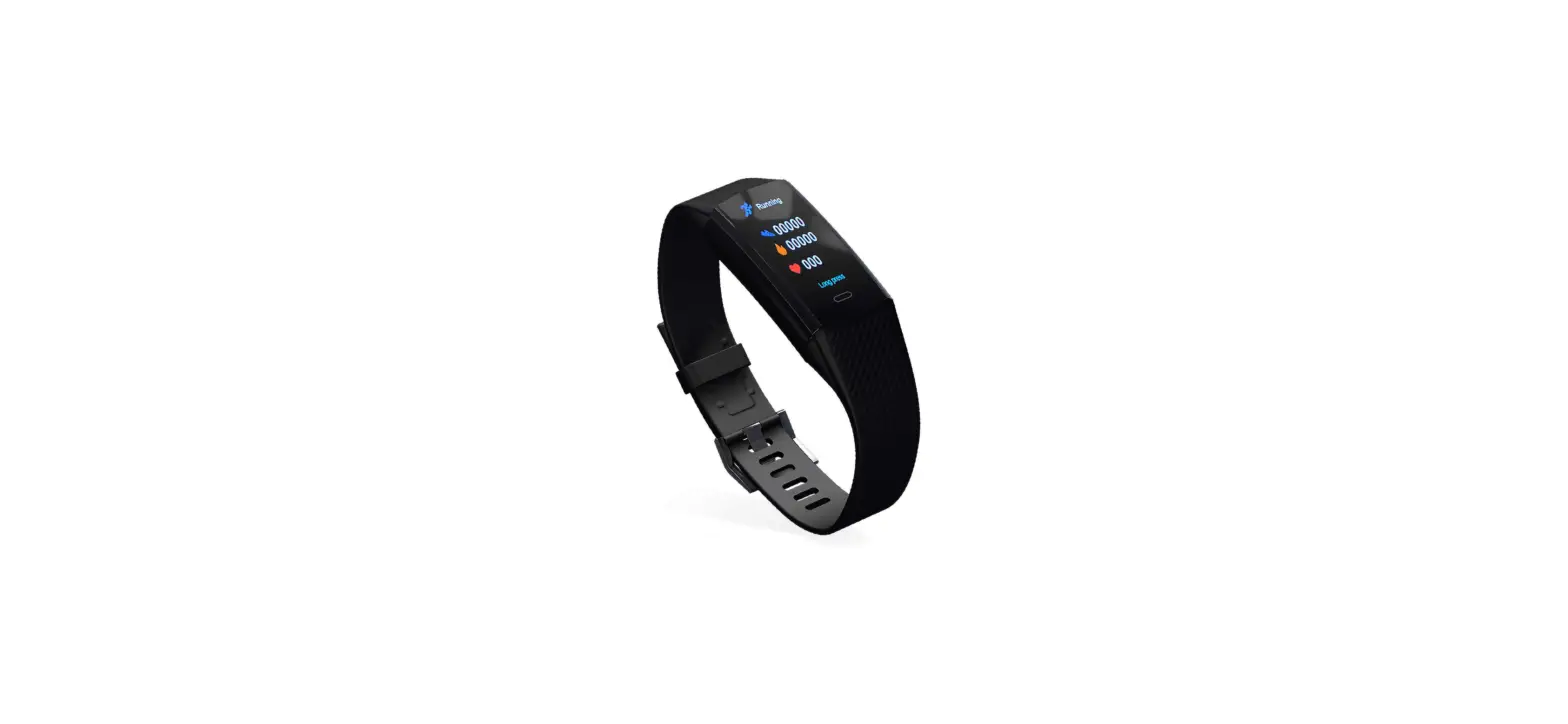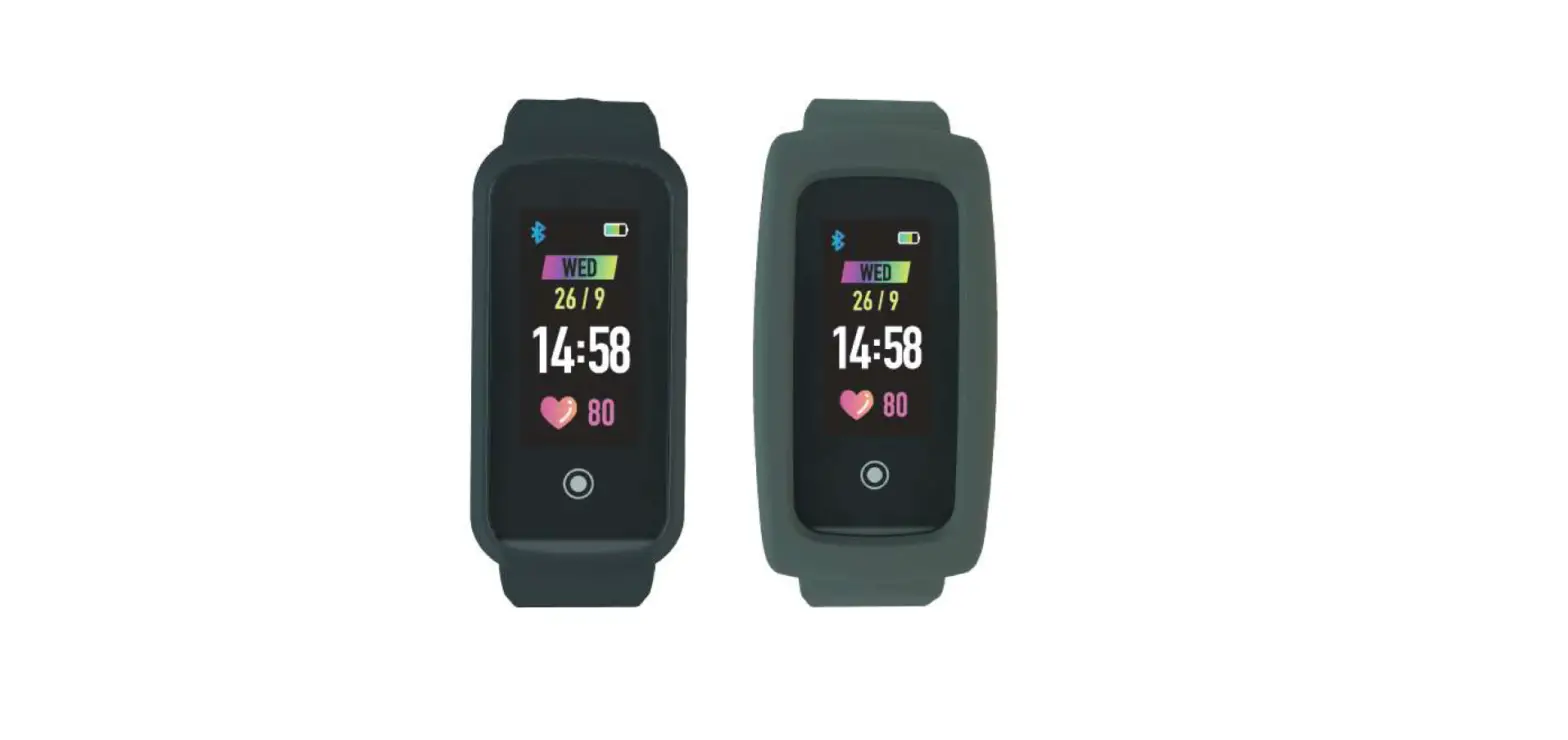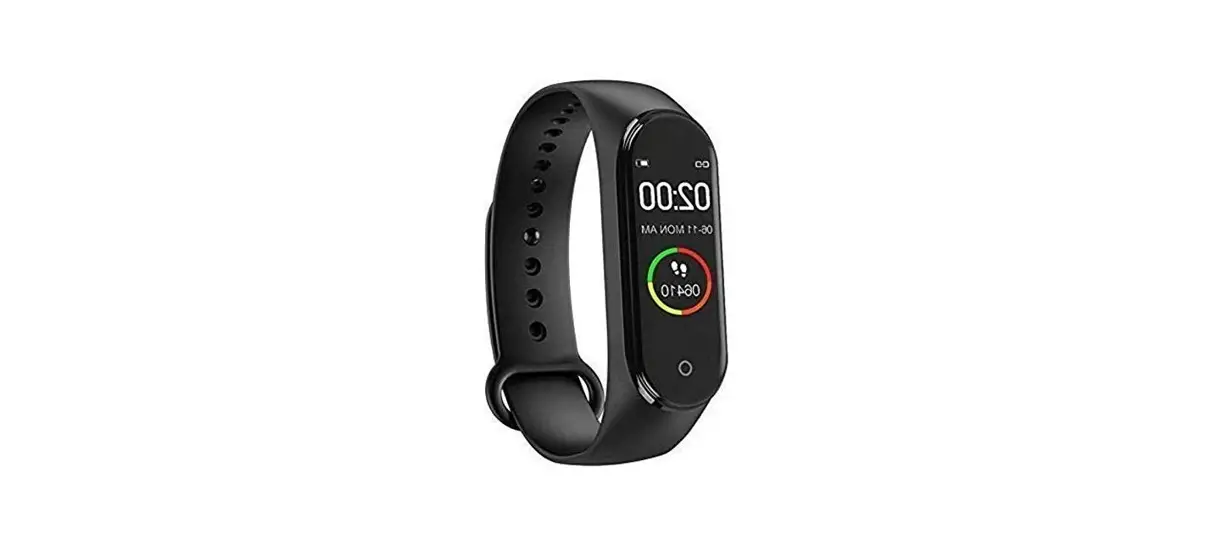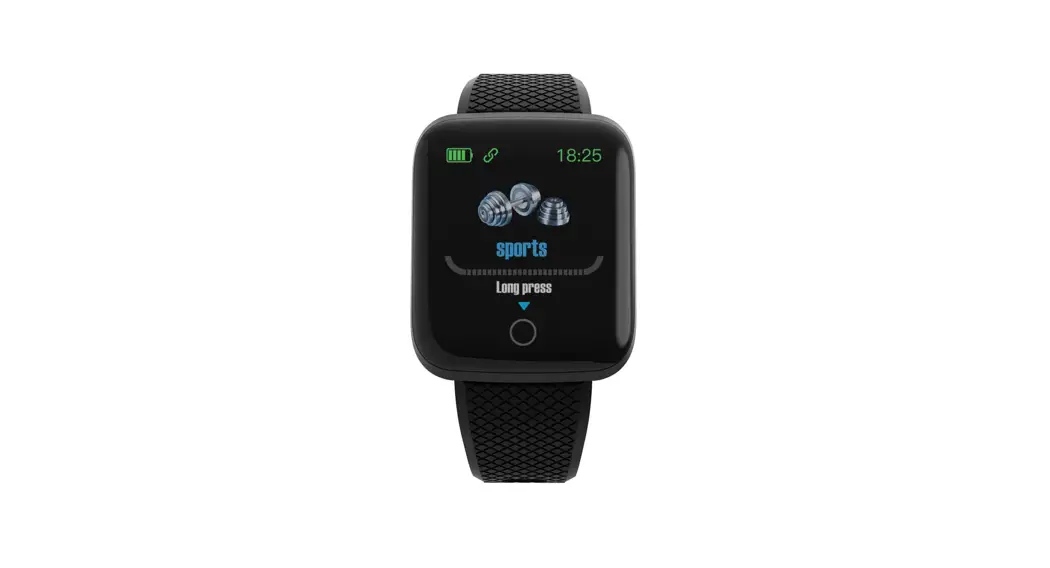
 VF-SMTW21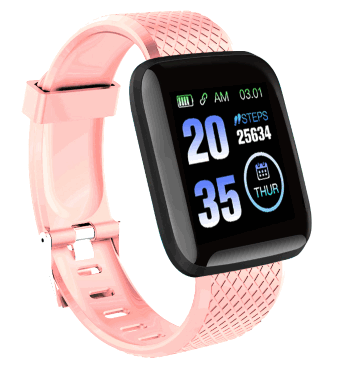
Quick Start Guide
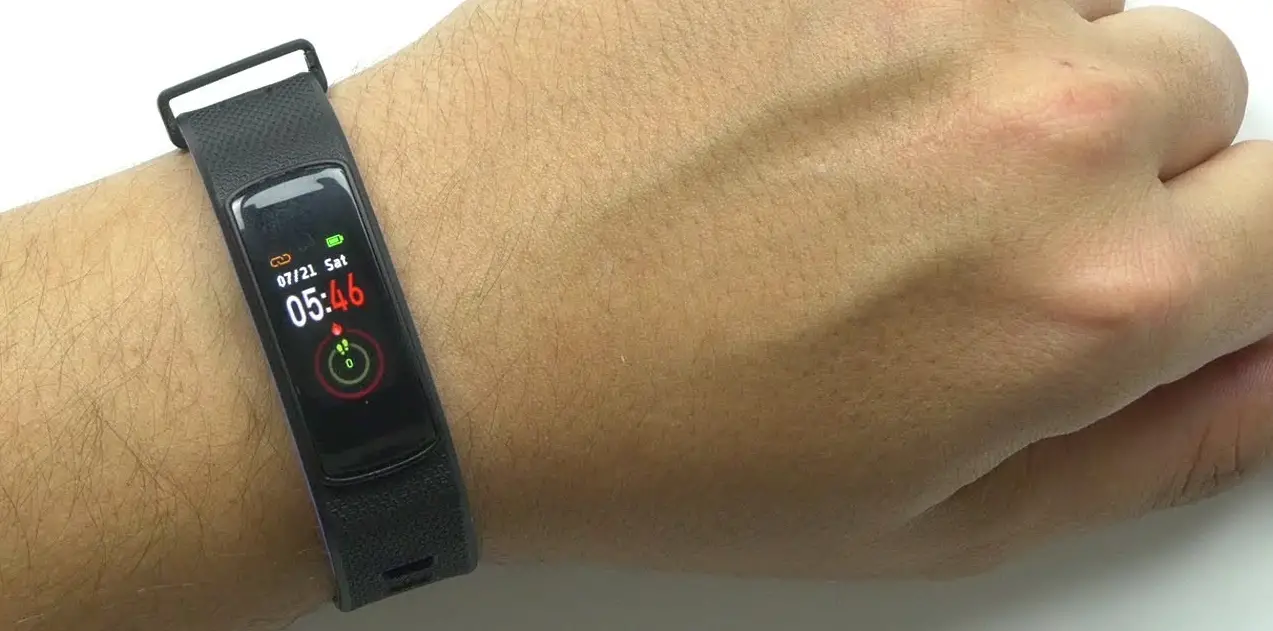
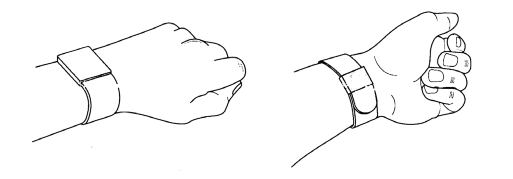
How to Wear

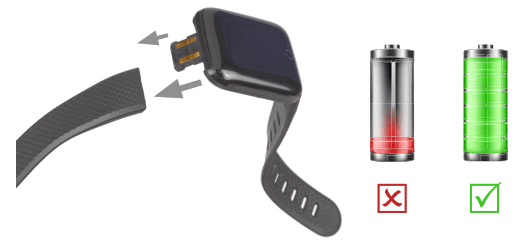
Charging and First Use
 Software
 Software
Scan QR code to download FitPro APP or download from your APP store.
 https://fitpro.jusonsmart.com/public/fitpro_download.html
Minimum Software Requirements Pairing
Step 1: Turn on the Watch.
Step 2: Open the FitPro APP on your smartphone.
Step 3: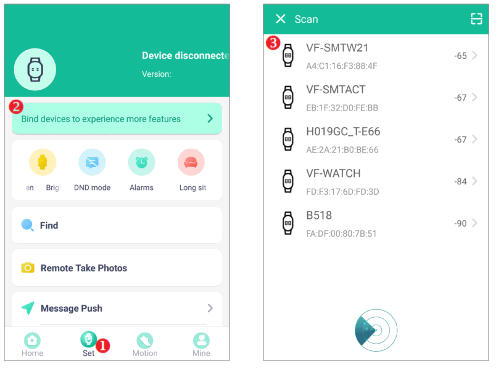
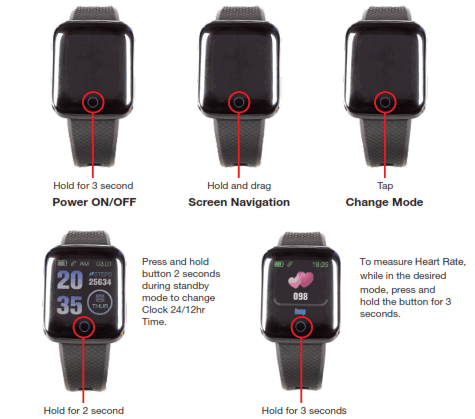
Controls
 Supported Functions
 Supported Functions
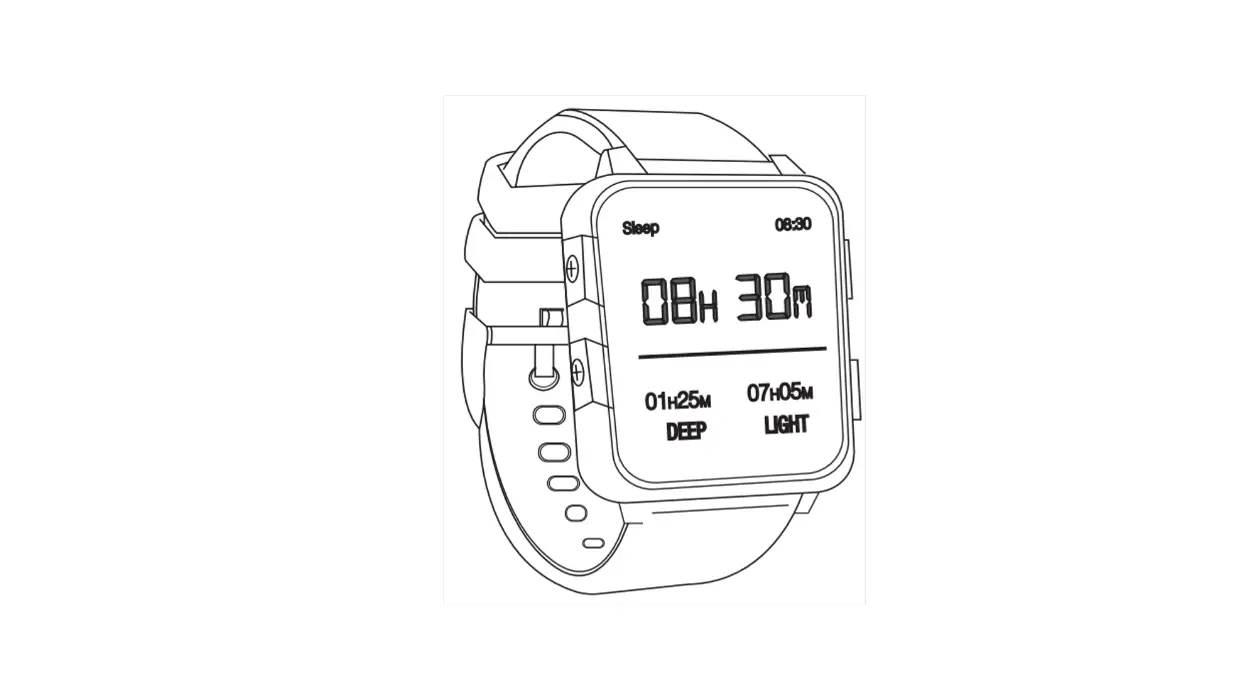
Phone Calls, Messages, Sports, Pedometer, Heart Rate, Alarm and Sleep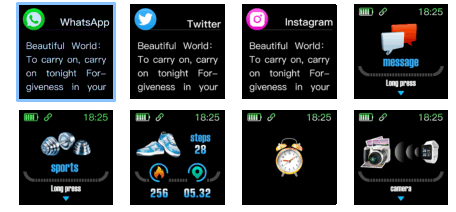
Precautions Battery Type
- Do not overcharge the watch.
- Do not leave the watch with a depleted battery for extended periods e.g 1 month.
Operating and Storage Temperature
-10˚C ~ 50˚C Watch is splashproof but not waterproof
Troubleshooting
Q. I cannot find the watch of the watch will not connect with the APP.
- Make sure Bluetooth has been activated on your phone and the watch is powered on.
- Check that your smartphone software and Bluetooth version meet the minimum requirements as set out in this guide.
- Try restarting your phone and the watch.
Q. The watch data is not updating on the APP.
Method 1: Open the APP settings on your smartphone and select the FitPro APP. Select the option to clear the FitPro APP Data and Cache, then restart the FitPro APP. The watch data should now resume updating to the APP normally.
Method 2: In the FitPro APP tap the ‘SET’ icon then select the ‘Remove’ function to unpair the watch. Next follow the instructions to re-pair the watch to the APP. The watch data should now resume updating to the APP normally.
Q. Some of the watch features are not working with the APP such as receiving phone calls and messages.
- On your smartphone go to the Settings > APP Management > Permissions. Select ‘Allow’ for all the APP feature requests.

WARRANTY
Our goods come with guarantees that cannot be excluded under the Australian Consumer Law. You are entitled to a replacement or refund for a major failure and compensation for any other reasonably foreseeable loss or damage. You are also entitled to have the goods repaired or replaced if the goods fail to be of acceptable quality and the failure does not amount to a major failure.
 Laser Co | Technology for everyone