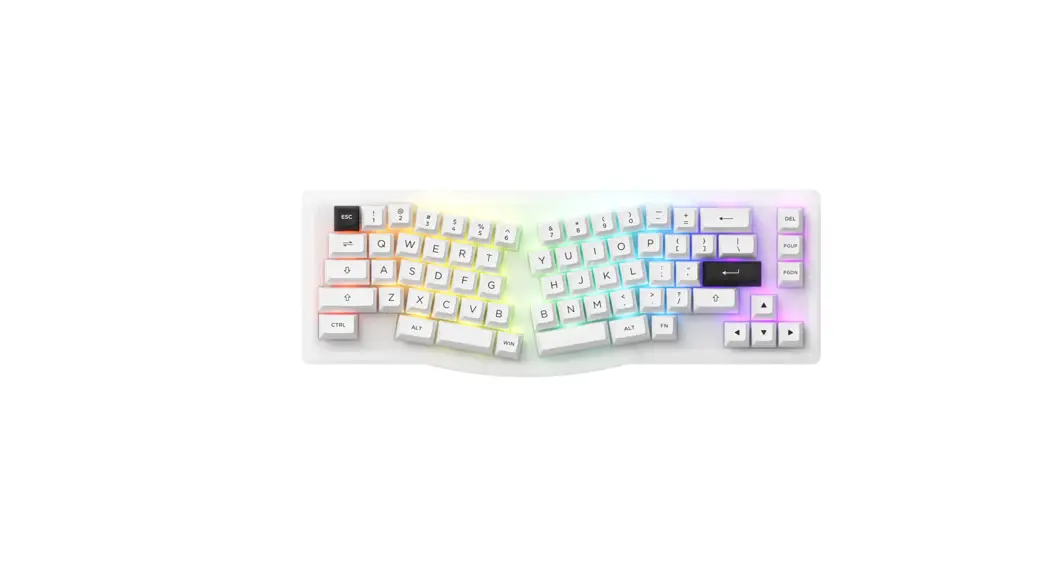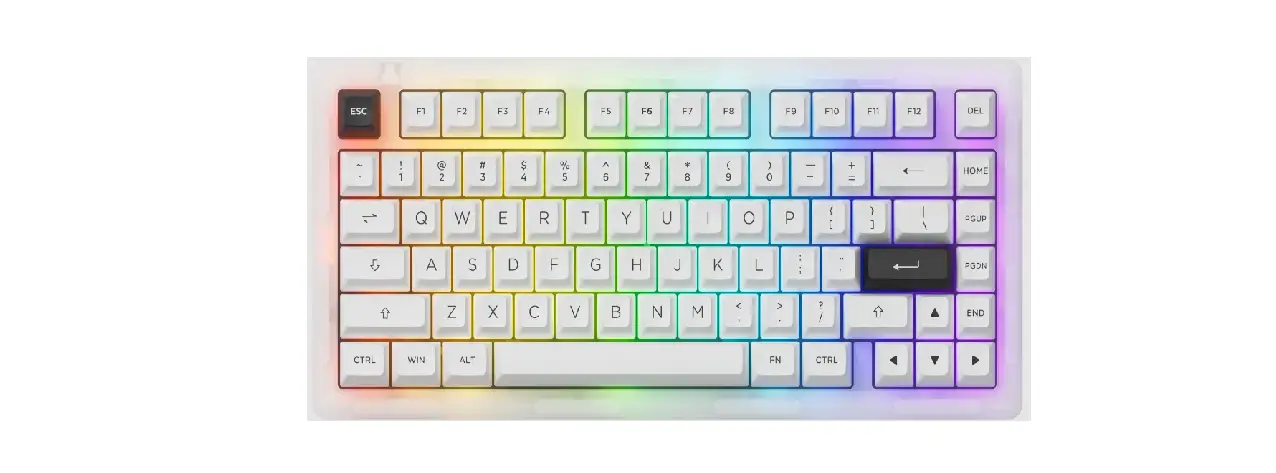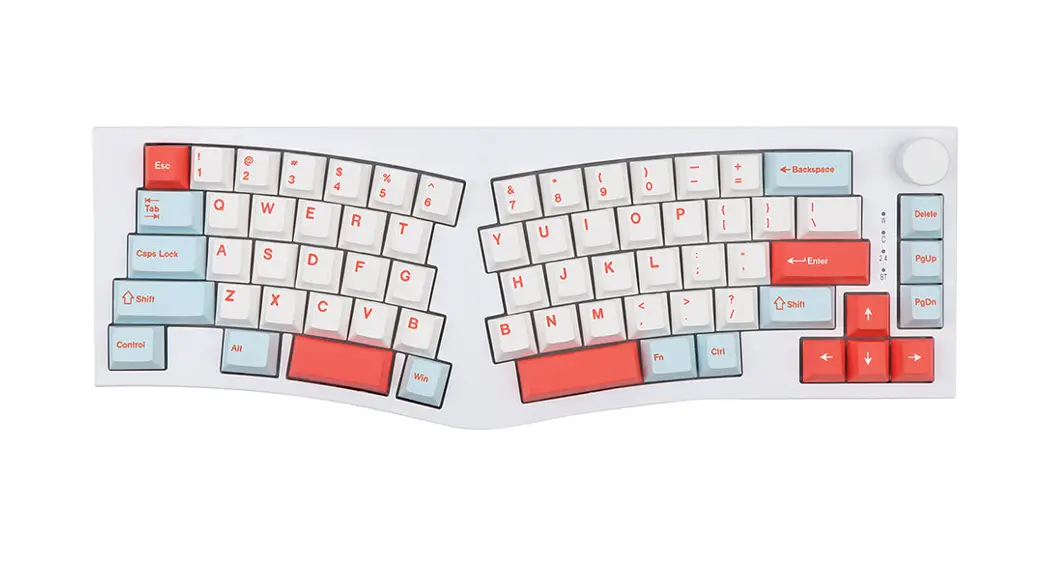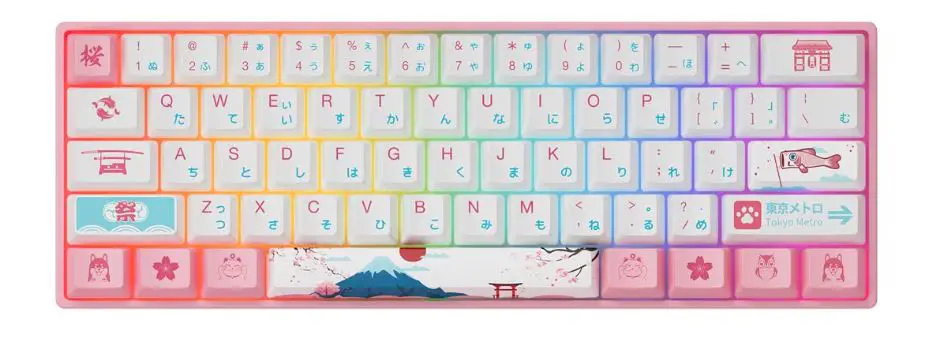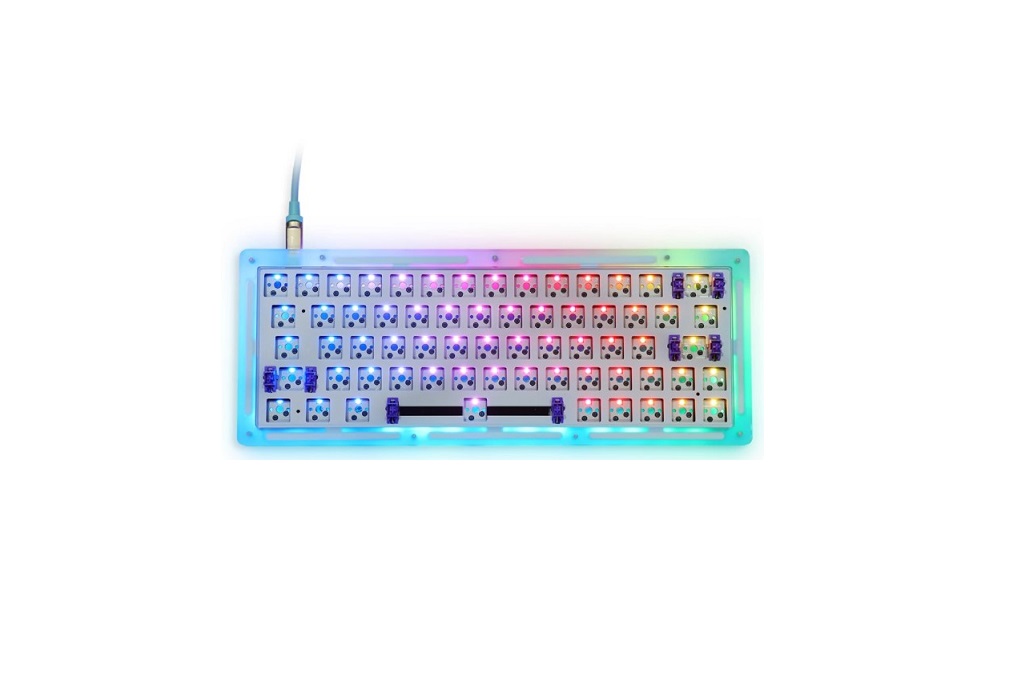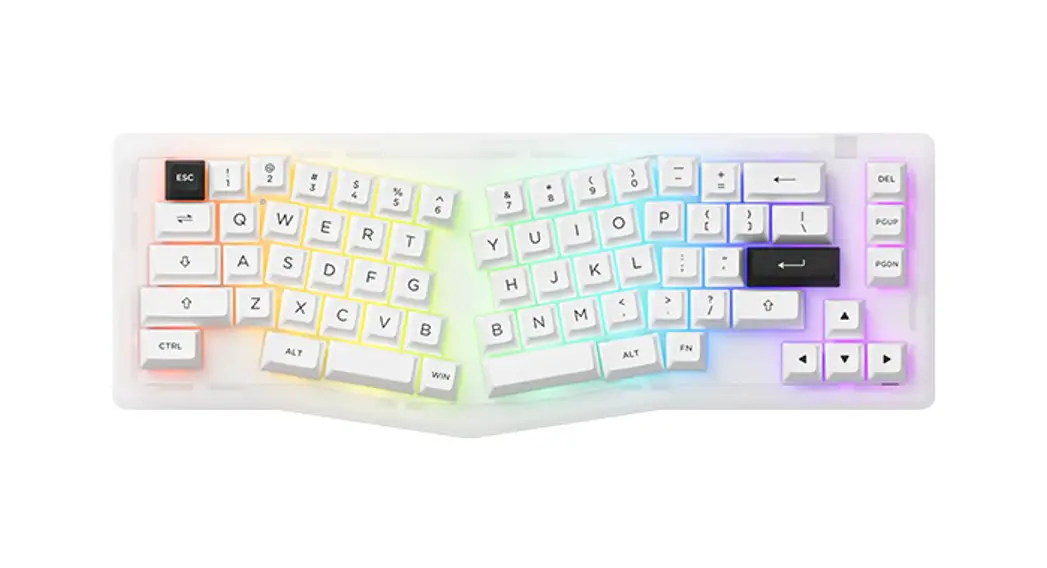

ACR PRO ALICE PLUS
User Manual
HotKeys (Windows)
Note: The following features are realized by the combination of “Fn” + corresponding key
| 1 | F1 | 9 | F9 | Esc | ~ |
| 2 | F2 | 0 | F10 | C | Calculator |
| 3 | F3 | – | F11 | M | Mute |
| 4 | F4 | + | F12 | < | Decrease Volume |
| 5 | F5 | PgUp | Home | > | Increase Volume |
| 6 | F6 | PgDn | End | W | Swap W A S D with ↑↓ ← → |
| 7 | F7 | I | Insert | ||
| 8 | F8 | P | PrtSc |
HotKeys (Mac)
Note: The following features are realized by the combination of “Fn” + corresponding key
| 1 | Decrease display brightness | – | Decrease Volume | M | Mute |
| 2 | Increases display brightness | + | Increase Volume | < | Decrease Volume |
| 3 | Open mission control | PgUp | Home | > | Increase Volume |
| 4 | Activate Siri | PgDn | End | W | Swap W A S D with ↑↓ ← → |
| 7 | Skip back (Audio) | I | Insert | Left Win | Option |
| 8 | Pause/Play (Audio) | P | PrtSc | Left Alt | Command |
| 9 | Skip forward (audio) | Esc | ~ | Right Alt | Command |
| 0 | Mute | C | Calculator |
System Commands
| Lock Windows Key | Press Fn and left Win key |
| Restore Factory Settings | Hold down Fn and press Backspace key for 5S |
| Enter Windows system | Hold down Fn and press Q key for 3S |
| Enter Mac system | Hold down Fn and press O key for 3S |
Lock Windows Key Press Fn and left Win key Restore Factory Settings Hold down Fn and press Backspace key for 5S
Enter Windows system Hold down Fn and press Q key for 3S Enter Mac system Hold down Fn and press O key for 3S
Backlight Settings
Note: The following features are realized by the combination of “Fn” + corresponding key
| L | Light On / Off |
| ↑ | Bright |
| ↓ | Dim |
| ← | Set animation direction to left |
| → | Set animation direction to right |
| ; | Slower Animation |
| ‘ | Faster Animation |
| Z | Acrylic Case Light Brightness Change |
| X | Acrylic Case Light Animation Speed Change |
| left Ctrl | Acrylic Case Light Effect Change |
| Delete | Effect1 – Effect20 |
| \ | In all multi-color RGB lighting effects, this shortcut allows you to set the backlight to 7 single color with RGB loop effect. |
| Spacebar | Set the acrylic case backlight to 7 single color with RGB loop effect. |
Key/Lighting Effects Customization Instruction 10
- The key/lighting effects customization must with Akko driver.
- In wired mode, the lighting effects can also achieve music rhythm effects with Akko driver.
- Please download the Akko Cloud driver on our website.
- Users can download the driver via en.akkogear.com
 |  |  |
@akkogear | http://weixin.qq.com/r/aDtOVoXE6tiVrcE19256 |
 Akko艾酷官方网站 | æ½®æµæ—¶å°šå¤–设_Akko机械键盘官网
 Akko | Designer for Mechanical Keyboards
 Akko艾酷官方网站 | æ½®æµæ—¶å°šå¤–设_Akko机械键盘官网