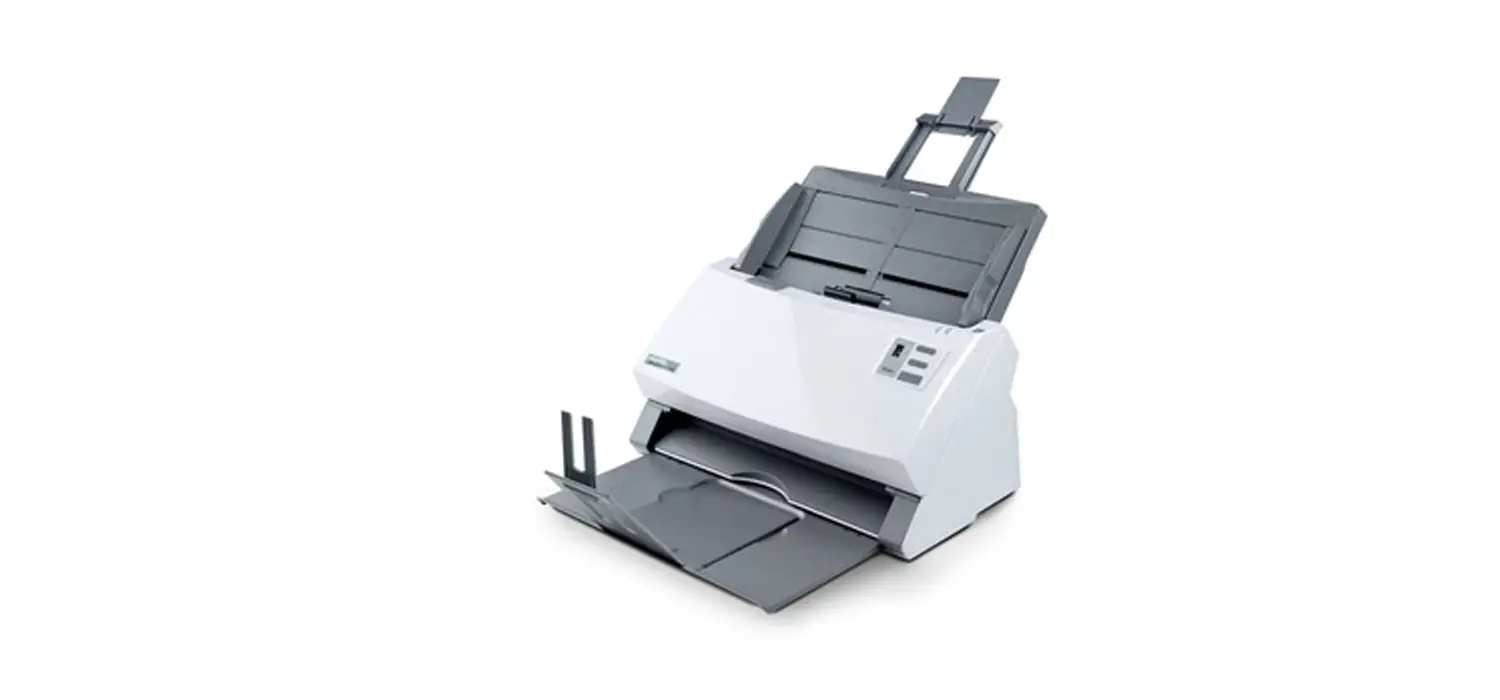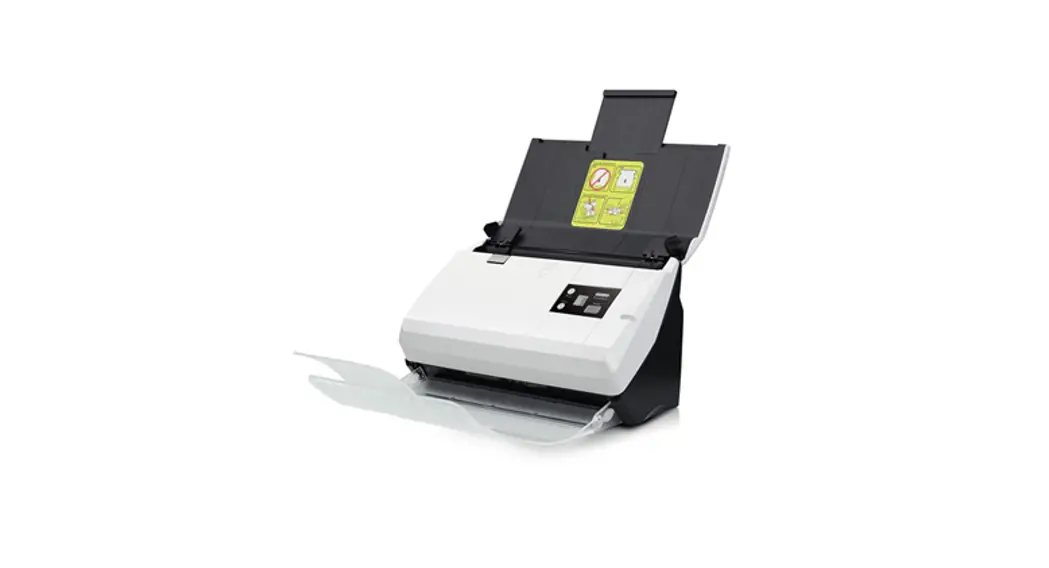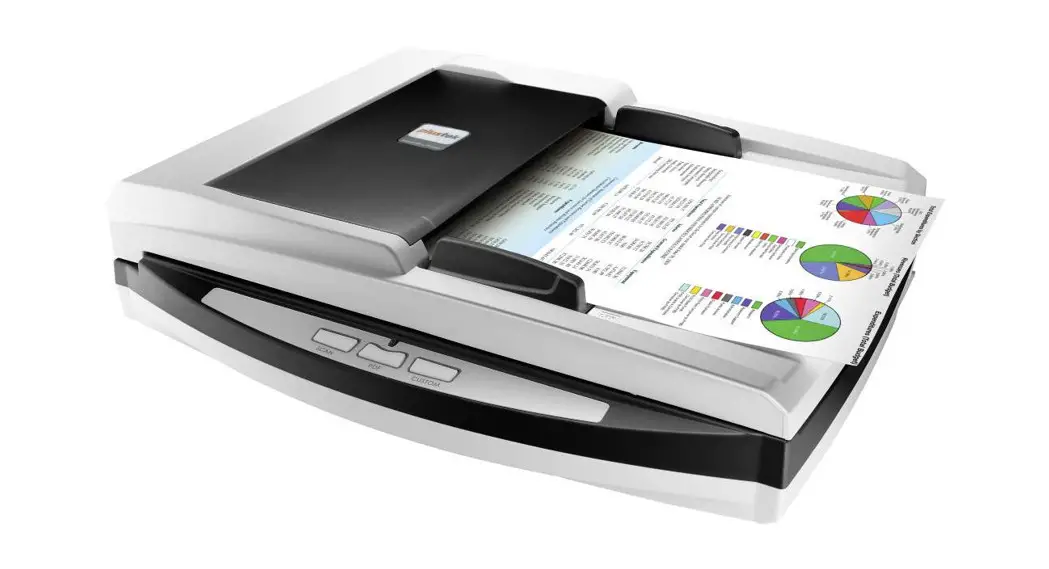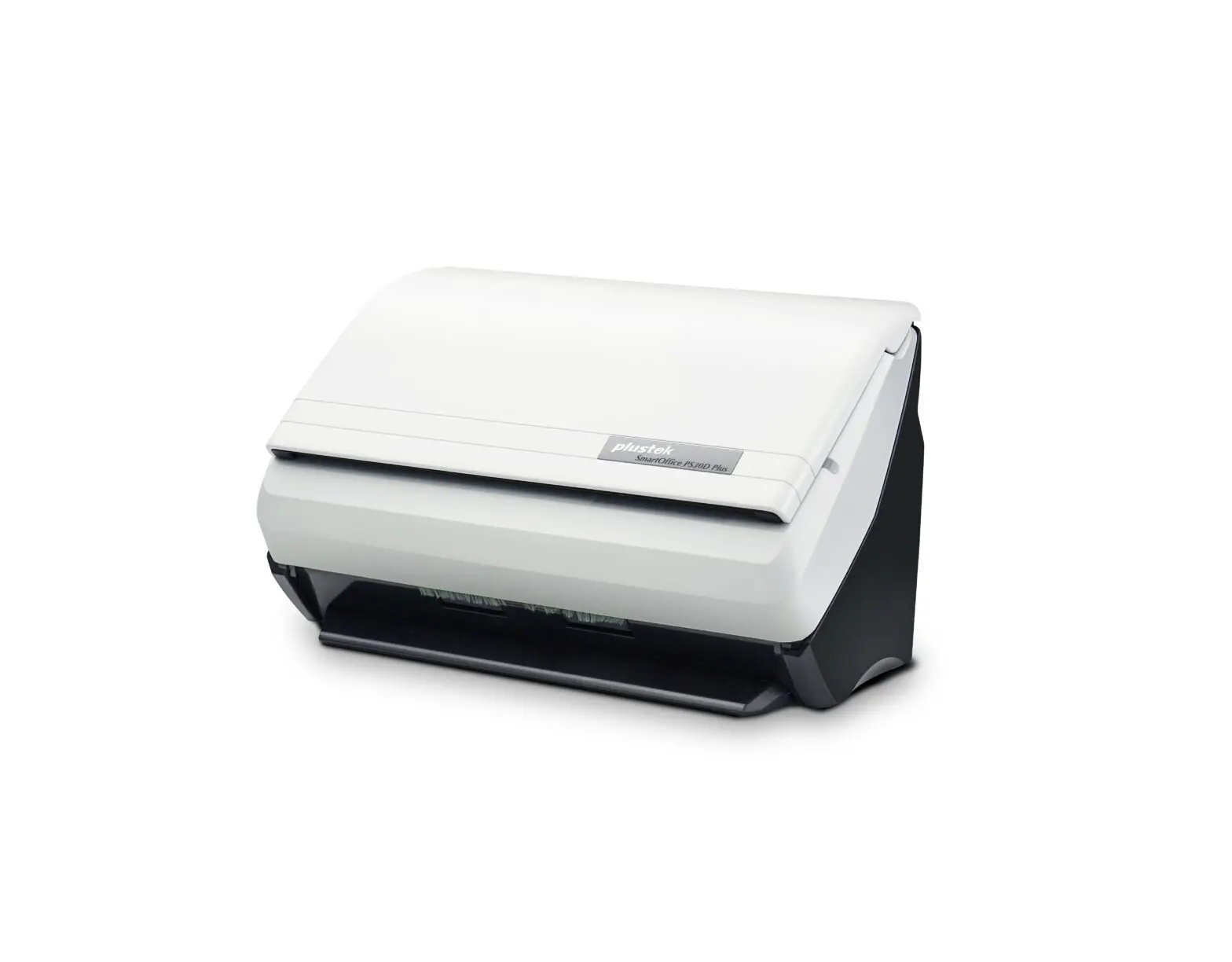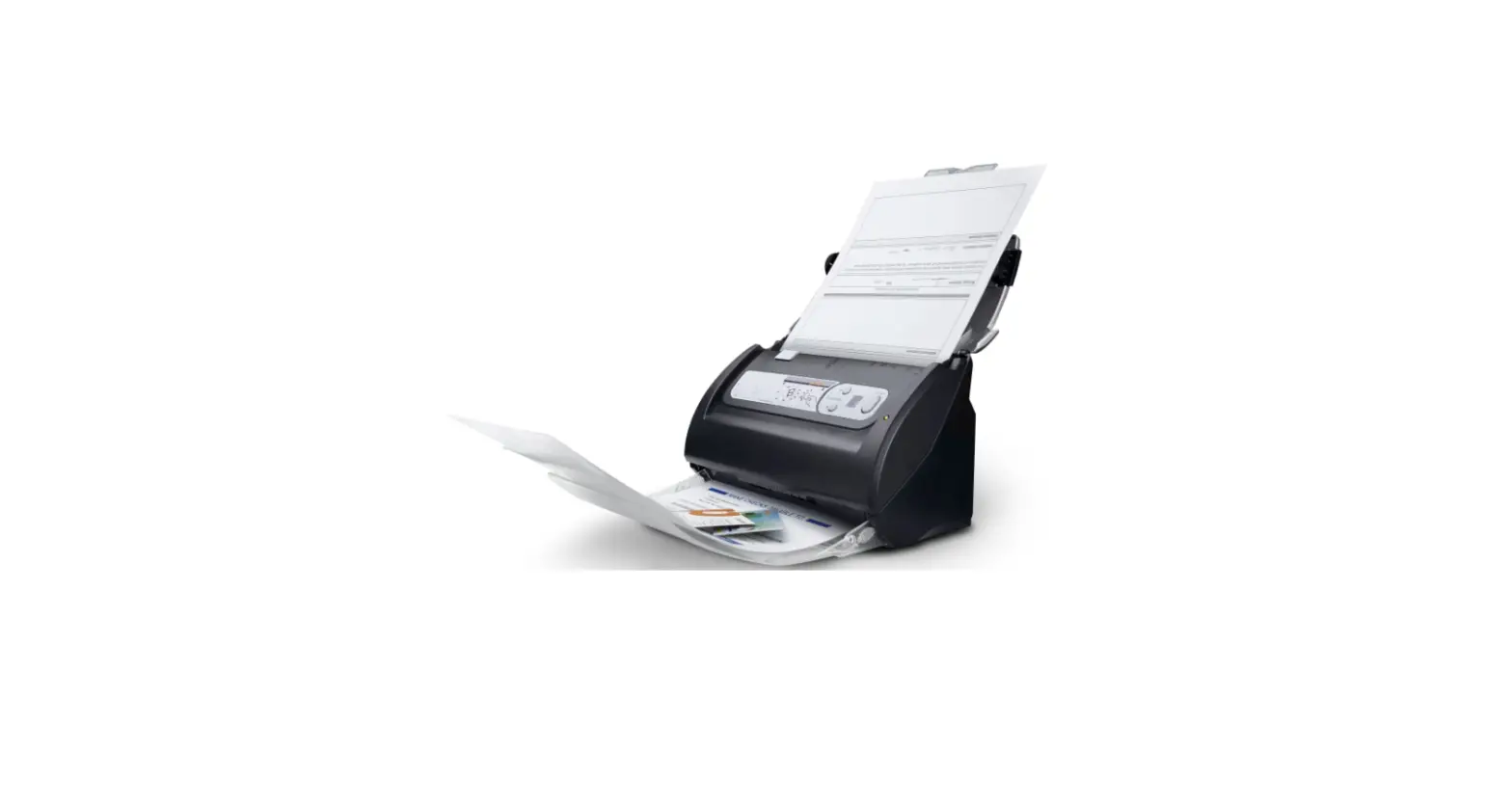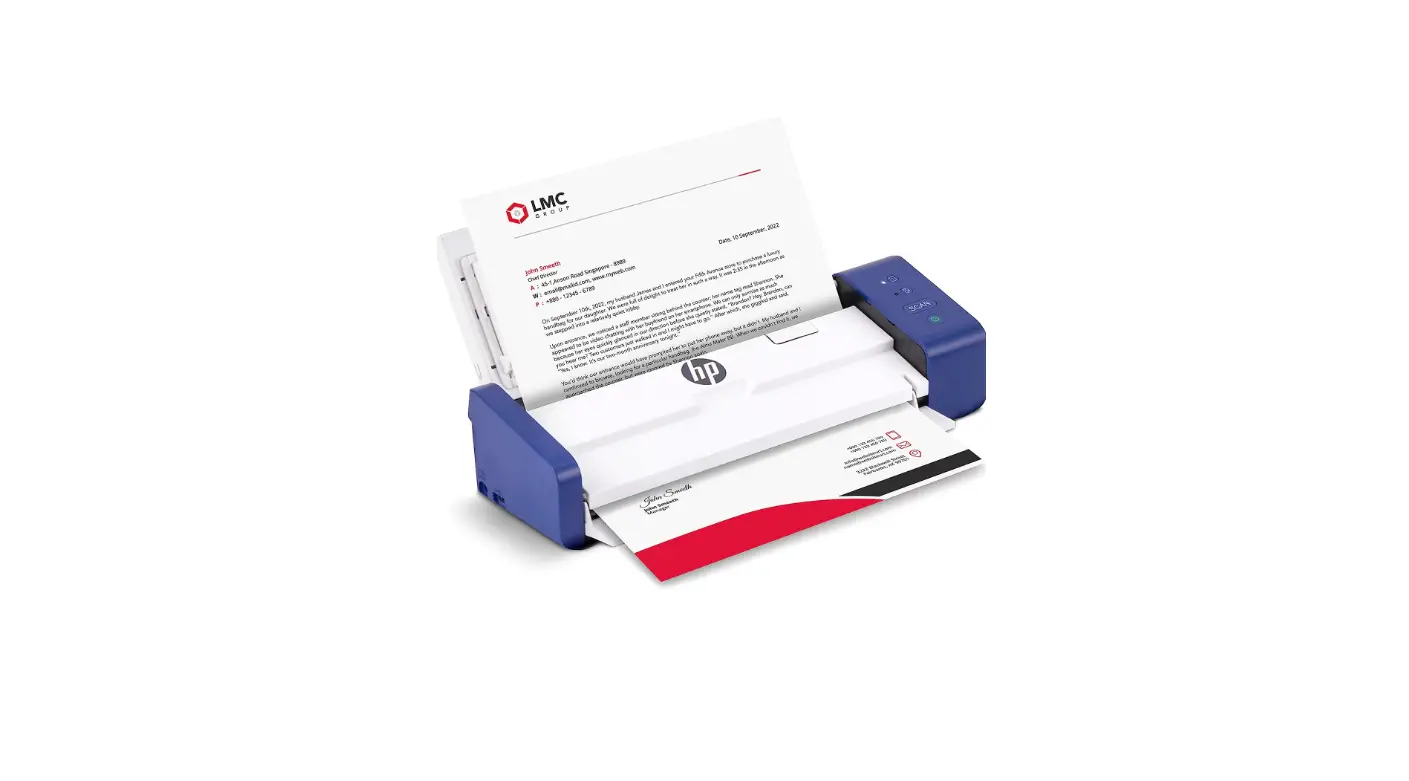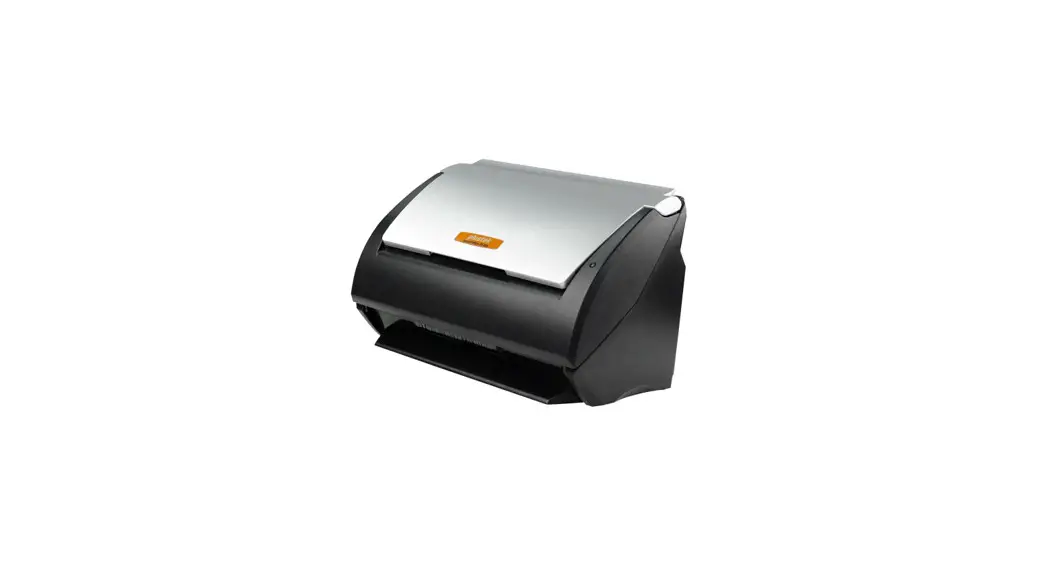
 PS186 Workgroup Scanners
User Guide
Software and Manuals

- Installation & Software Tutorial Videos
Assemble and Connect
Assembler et connecter
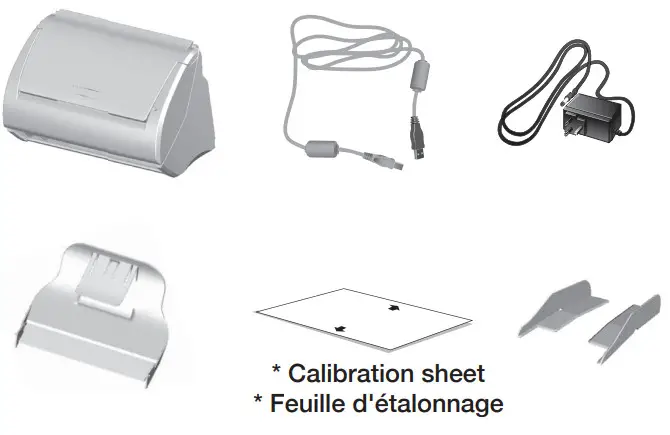
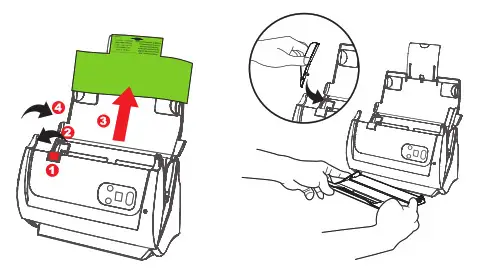
- Open cover and remove all packing material. Close the cover until you hear it click into place.

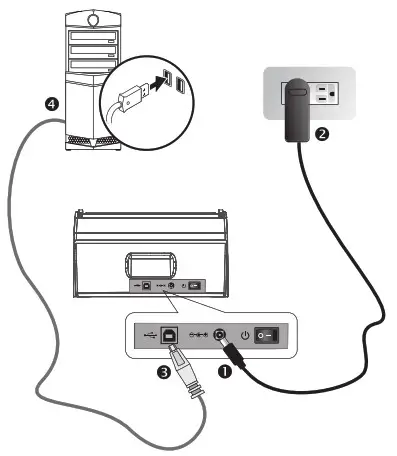
- Connect the scanner to the computer by using the bundled USB cable and AC adapter.

 Scan a Document
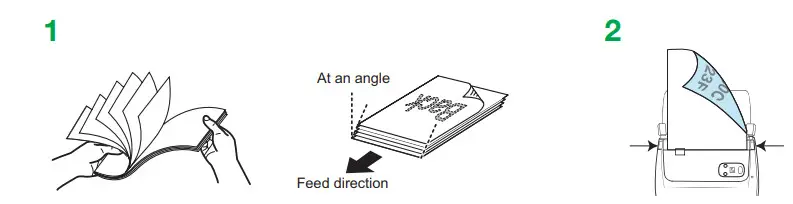
Fan the stack of paper well to avoid paper jams and misfeeds.
Load your original facedown, top edge first.
Quick Scan
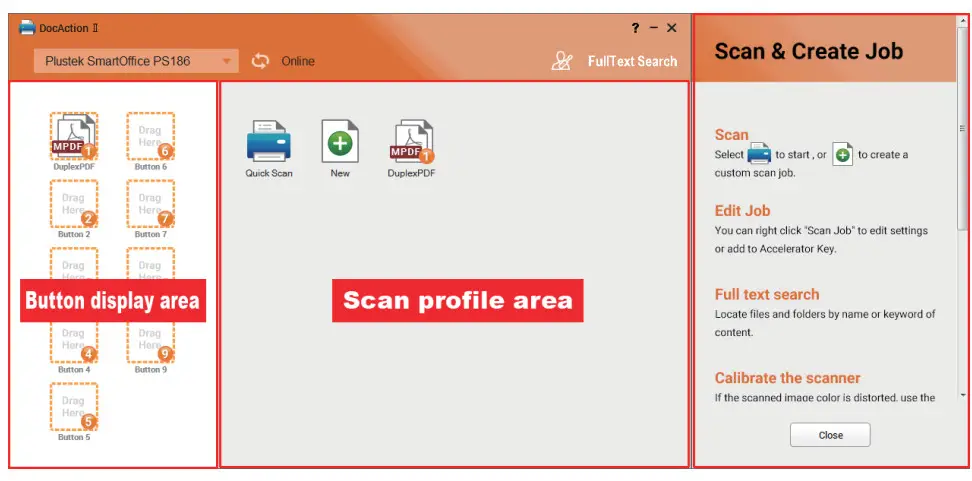
Double-click the Quick Scan button to quickly scan through the simplify settings dialog.
 New (Customize scan profile)
Add your desired scan profiles by double-clicking the New button.
Full Text Search
Full Text Search ensures that you can search not only the keyword and filename, but also the document content. The default setting is off. Open the function may slow down OCR recognition.
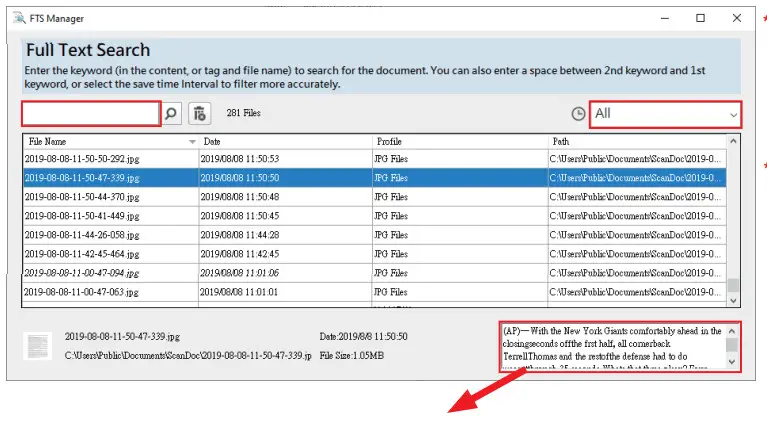
* If ‘file not exist’ message box pops-up, the file may have been changed or removed from the folder.
Select the item, the content preview shows in the window. If the recognized content is abnormal, please refer to Change OCR language or stop FTS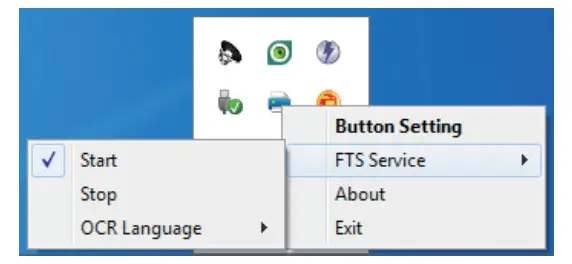
Right-click DocAction II icon under system tray and select FTS service.
Note: Modification applies from the next scan batch.
 The scanned images are strange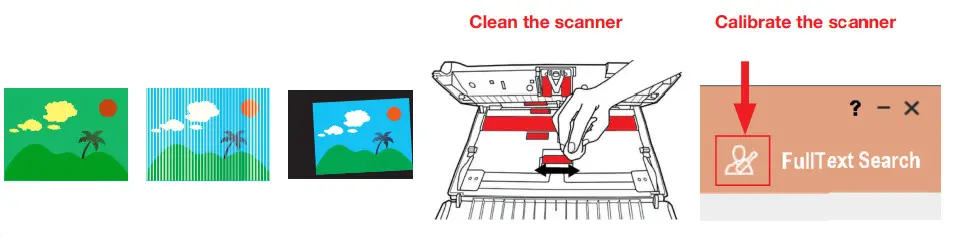
Add index to filename
Adding Index/Tags can help you locate files quickly.
New > Filename > Filename Format > Add Index to Filename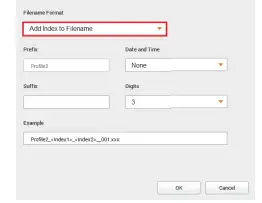
After scanning, you’ll be able to crop or manually type the words as your index.
Note: maximum 12 characters allowed per index field.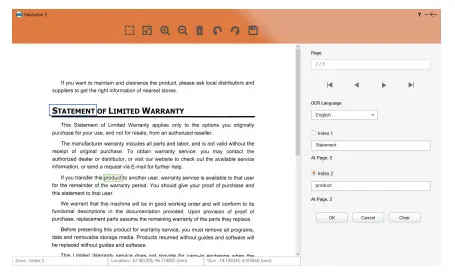
Need Help?
Technical Support for the Product & Services https://plustek.com/usa/support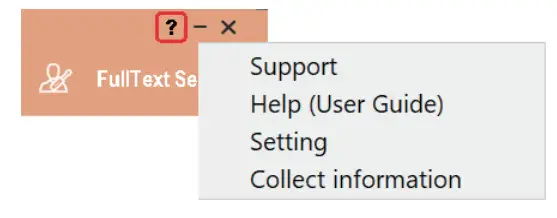
 k25-1100900-2
 plustek.com/ps186