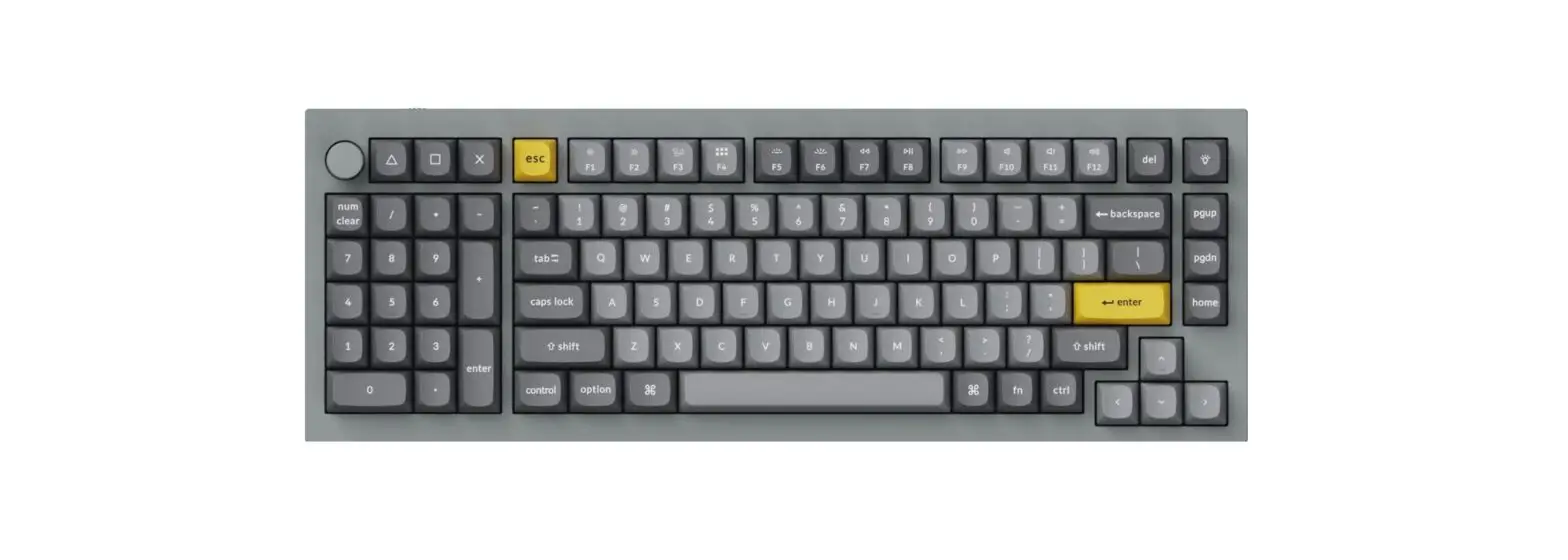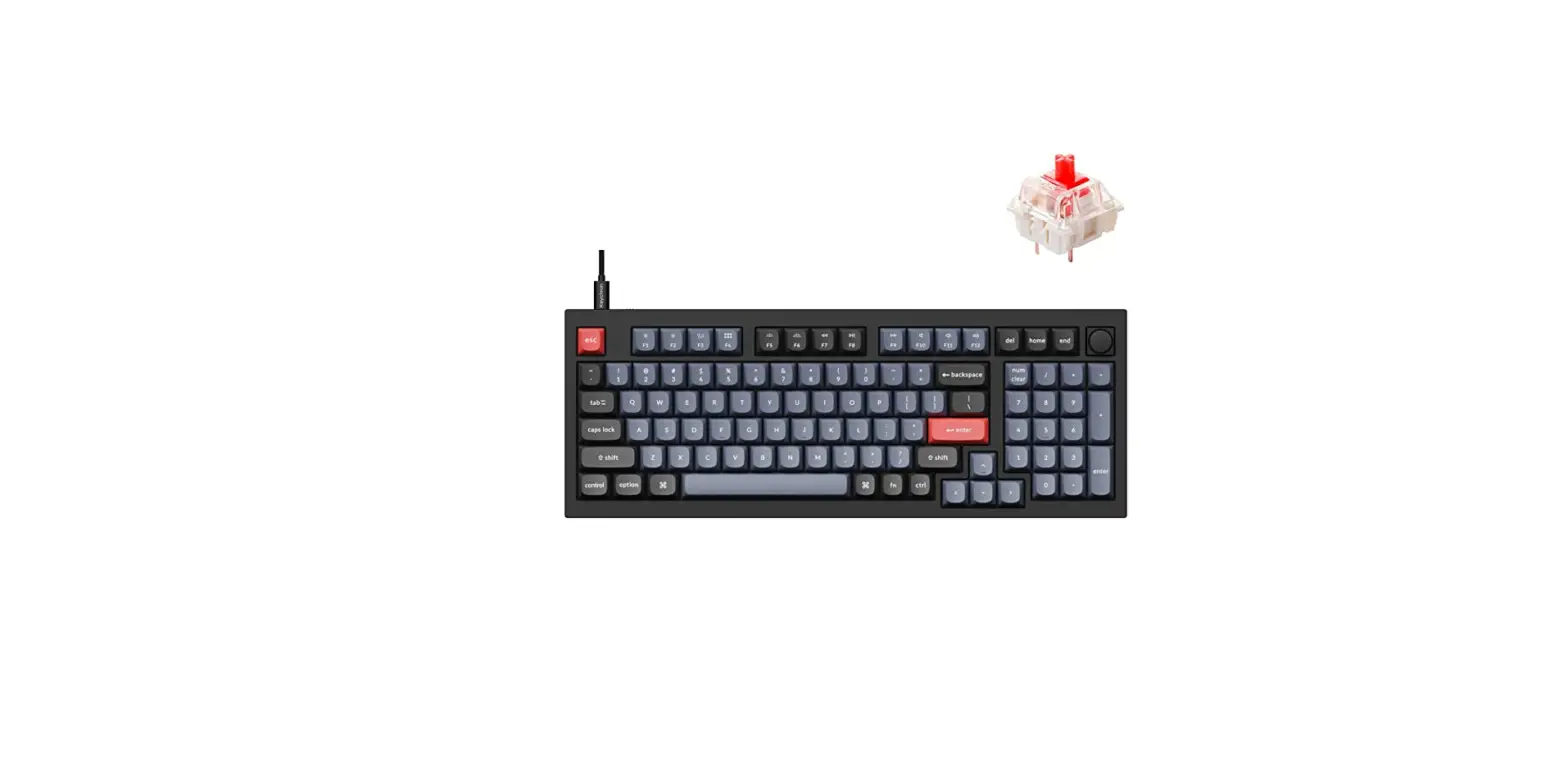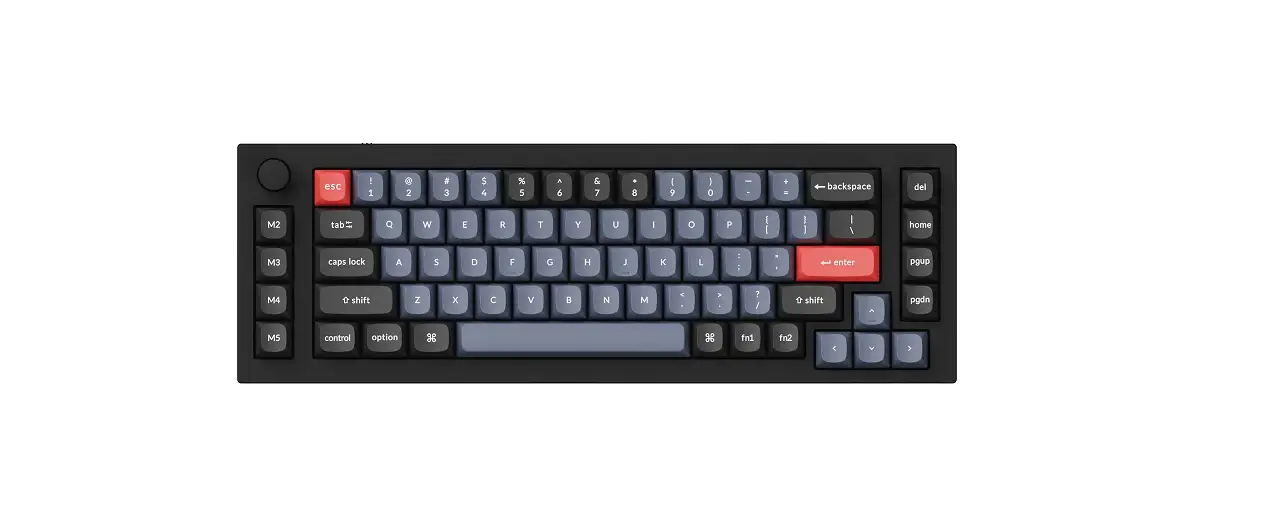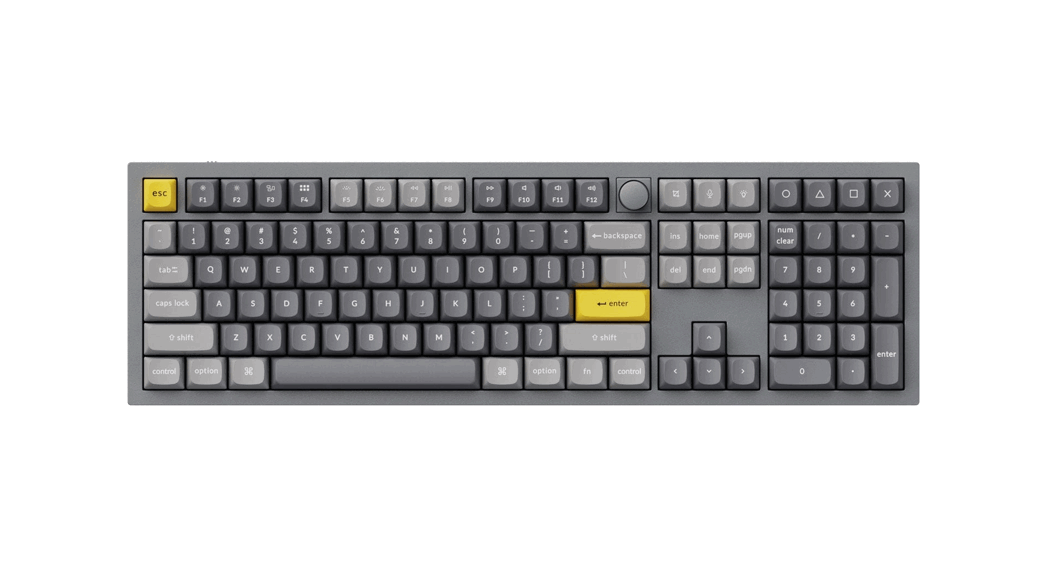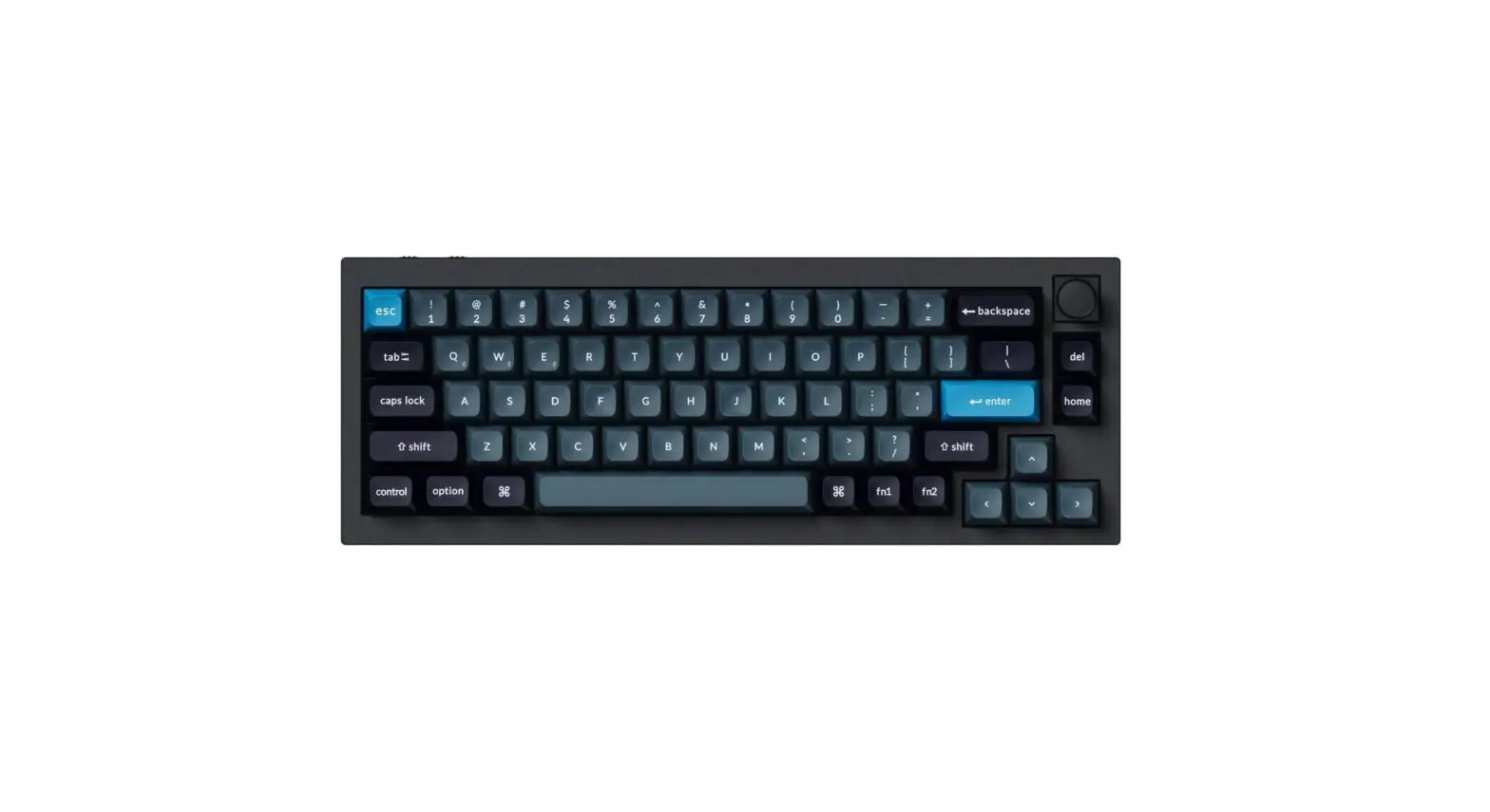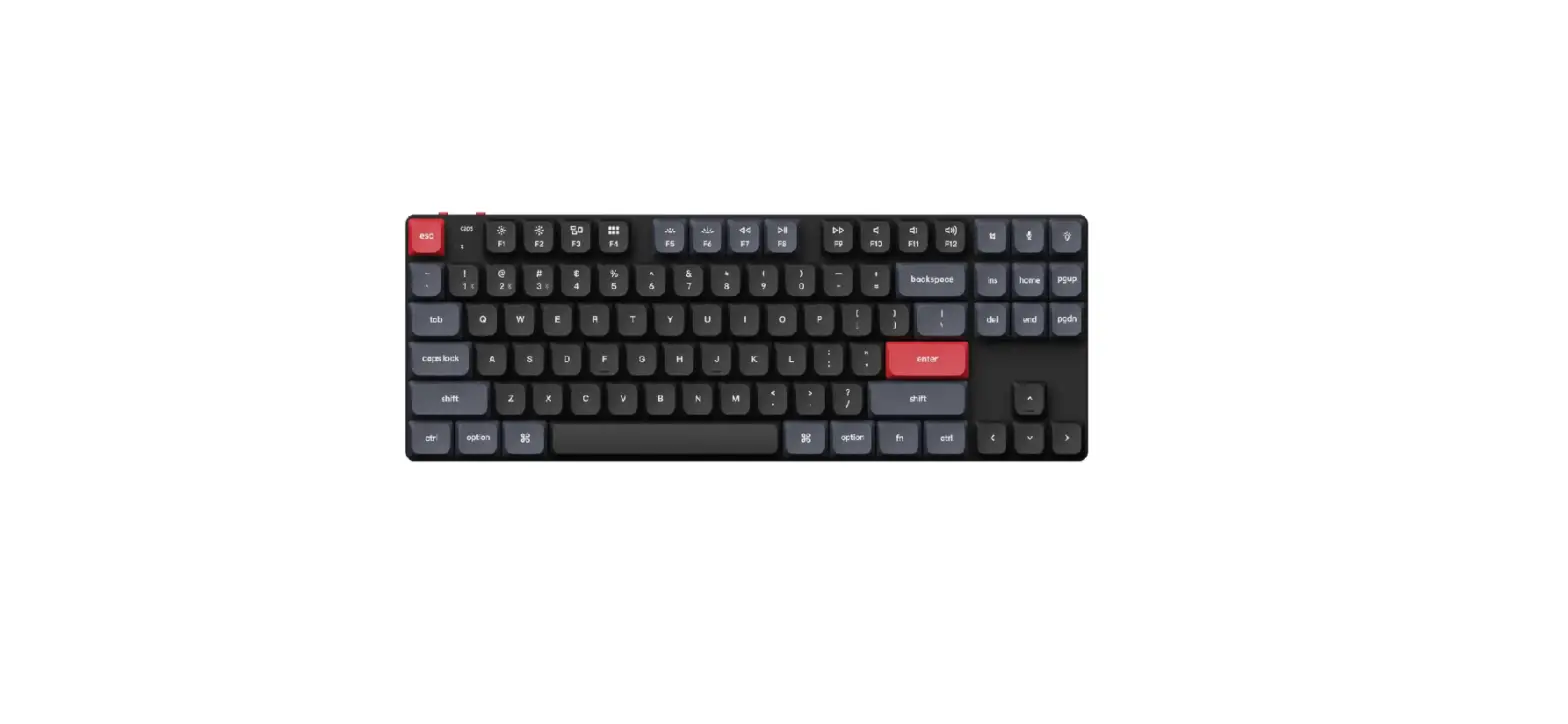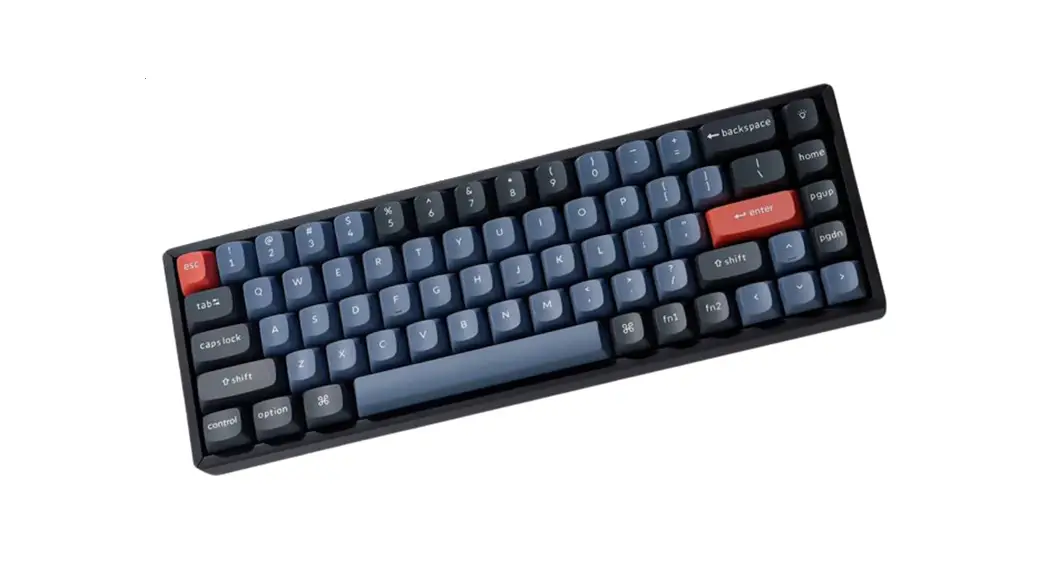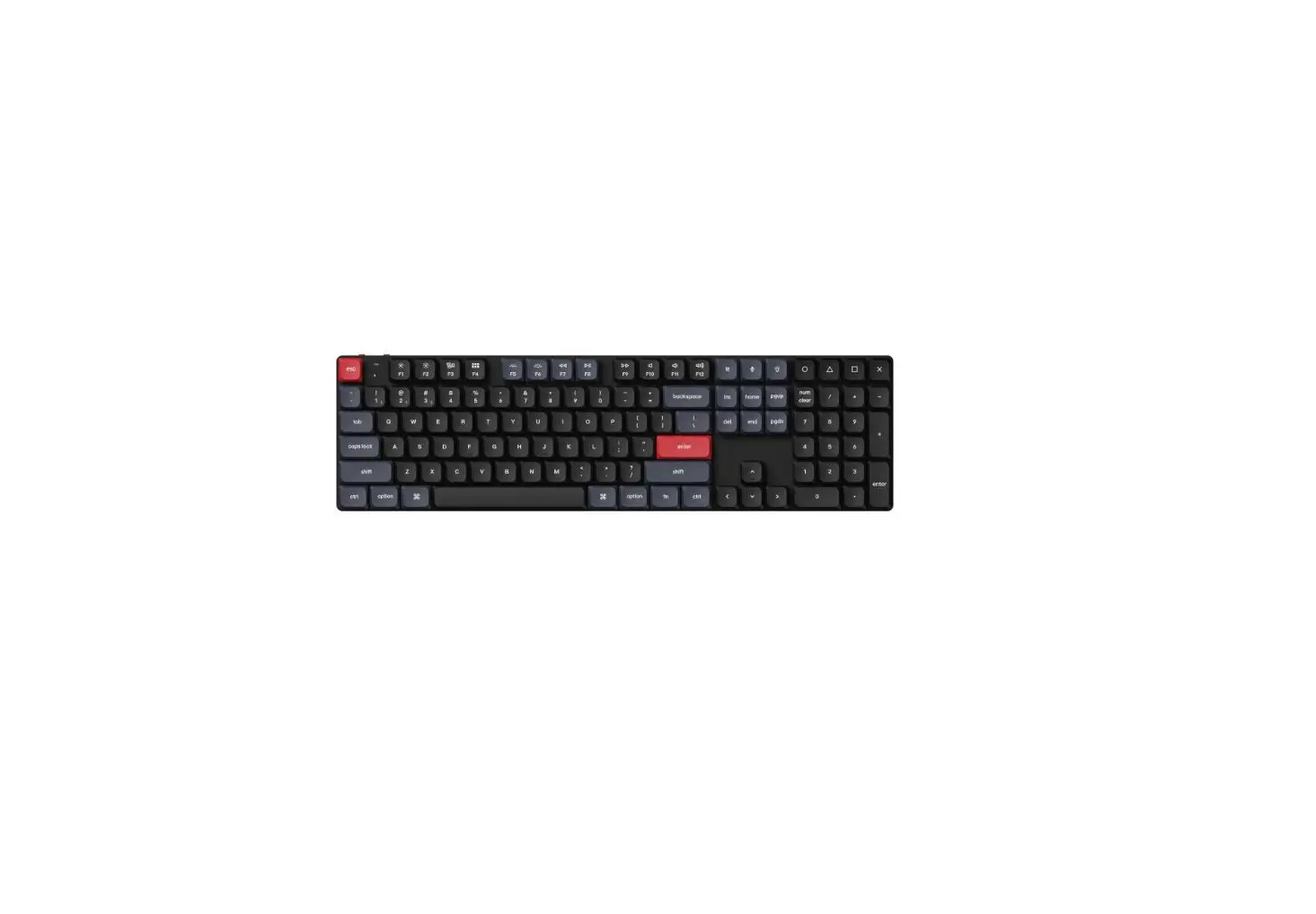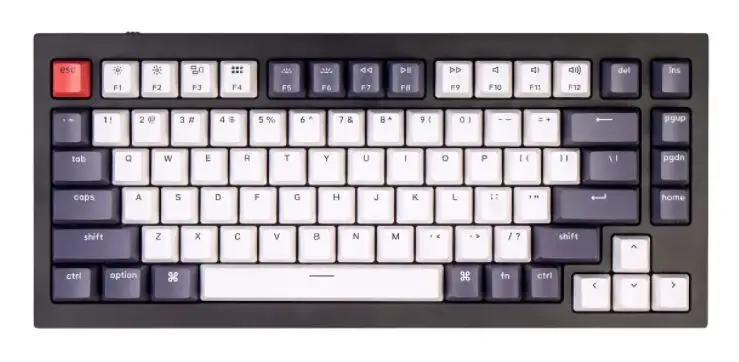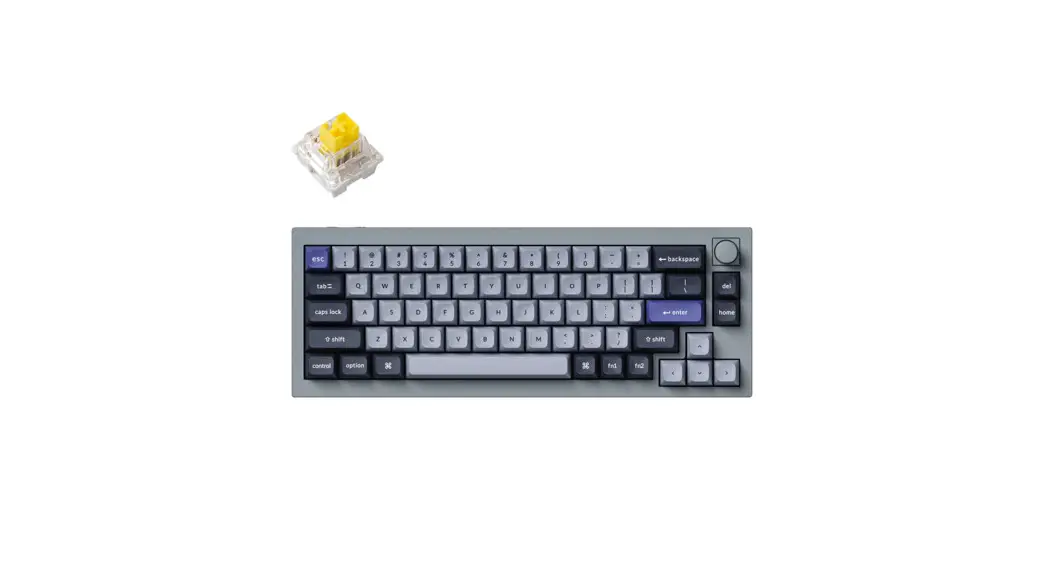
 Q60 Wireless Keyboard User Guide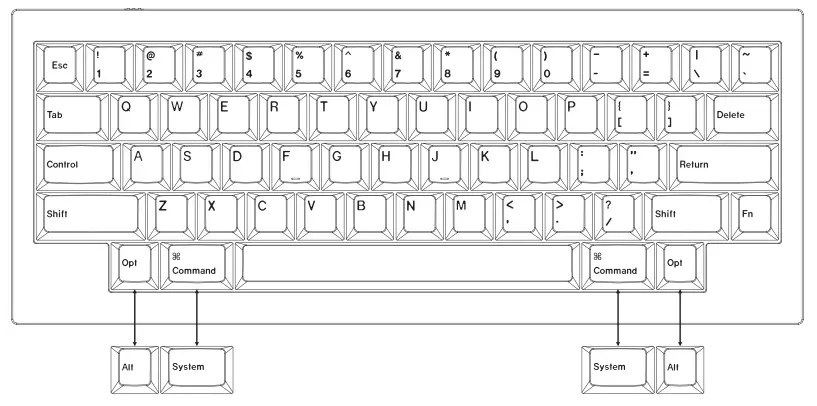
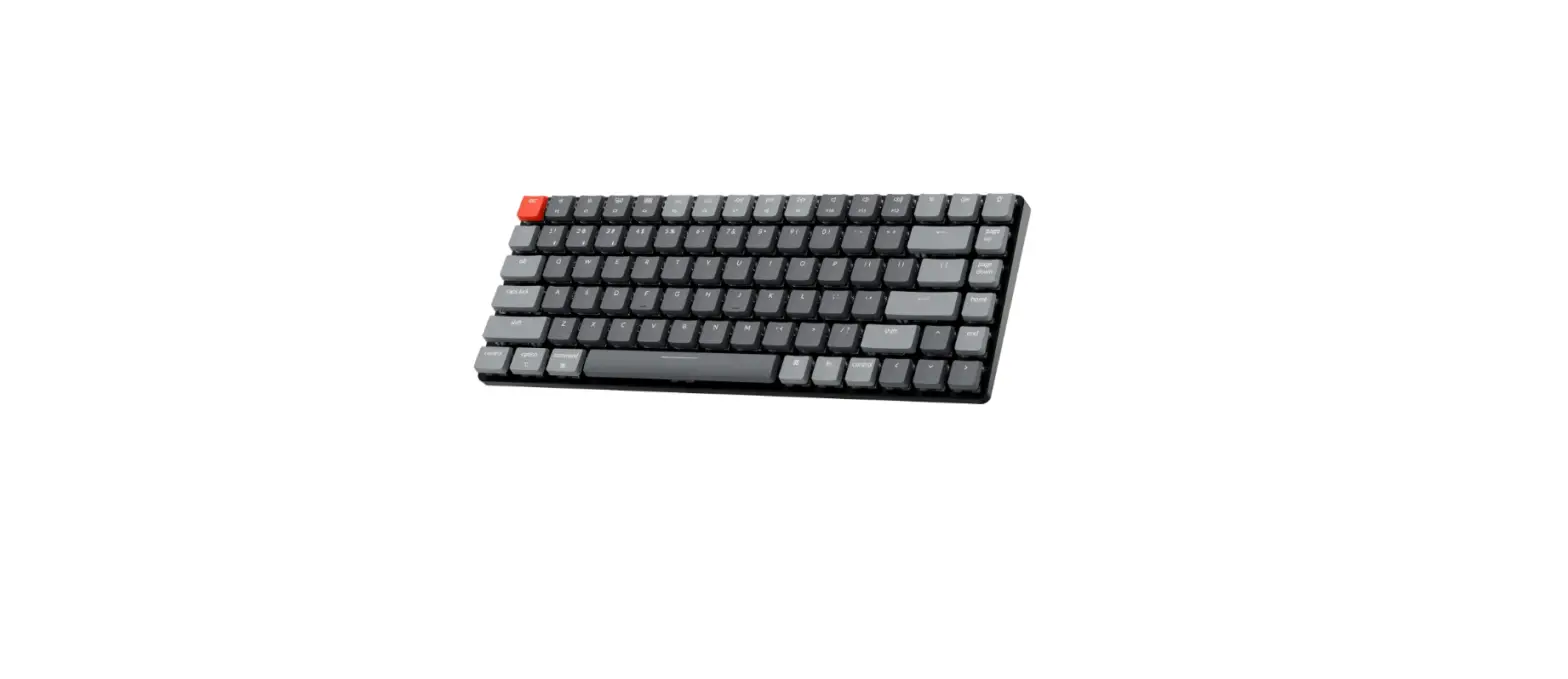
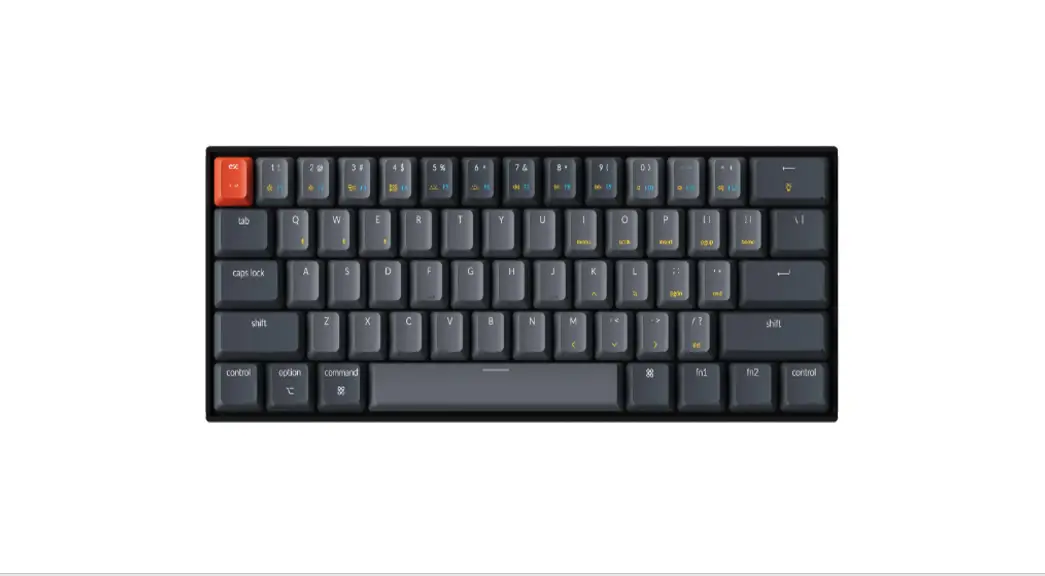
Q60 Wireless Keyboard
- Switch To The Right System
Please make sure the system toggle on the top left corner has been switched to the same system as your computer’s operating system.
- The VIA Key Remapping Software
Please visit caniusevia.com to download the latest VIA software to remap the keys.
If the VIA software cannot recognize your keyboard, please reach out to our support to get the instruction.
- The Layers
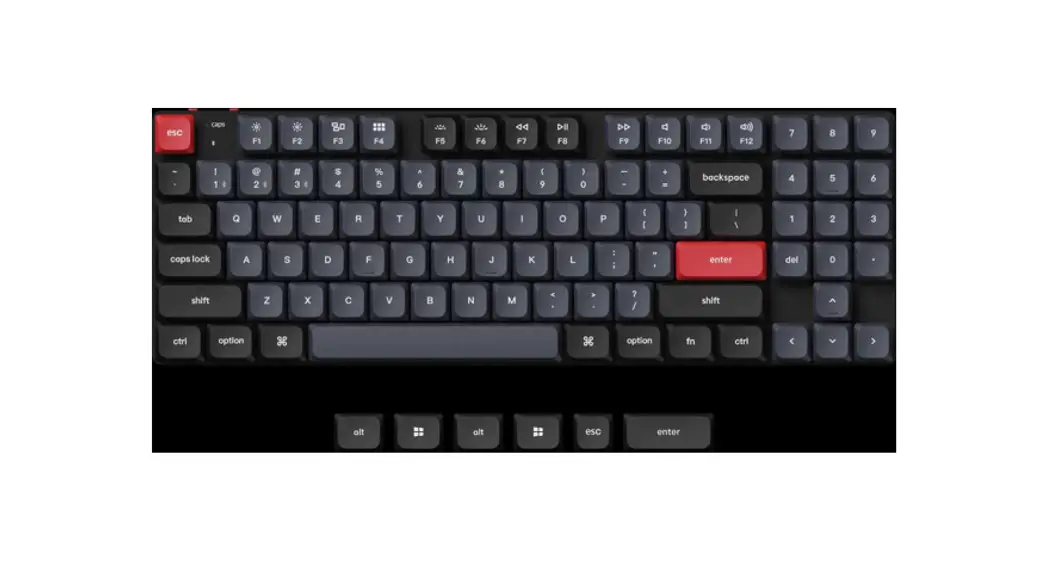
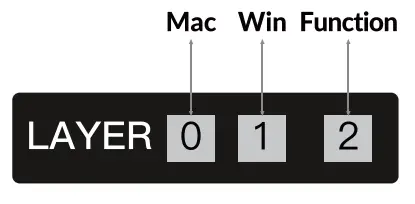
There are three layers of key settings on the keyboard.
The layer 0 is for the Mac system.
The layer 1 is for the Windows system.
The layer 2 is for the Function keys. If your system toggle is switched to Mac, then the layer O will be activated.
 If your system toggle is switched to Windows, then the layer 1 will be activated.
- Function Key
Function Keys In order to get Function Key, you need to press Fn and
 - The Backlight

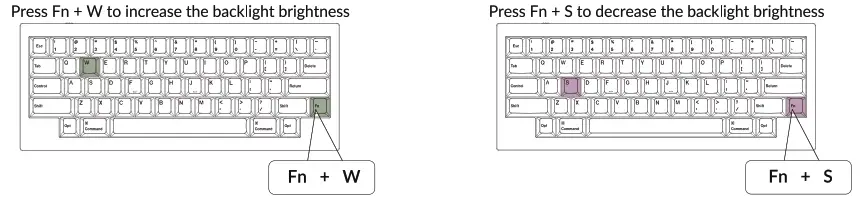
- Adjust The Backlight Brightness

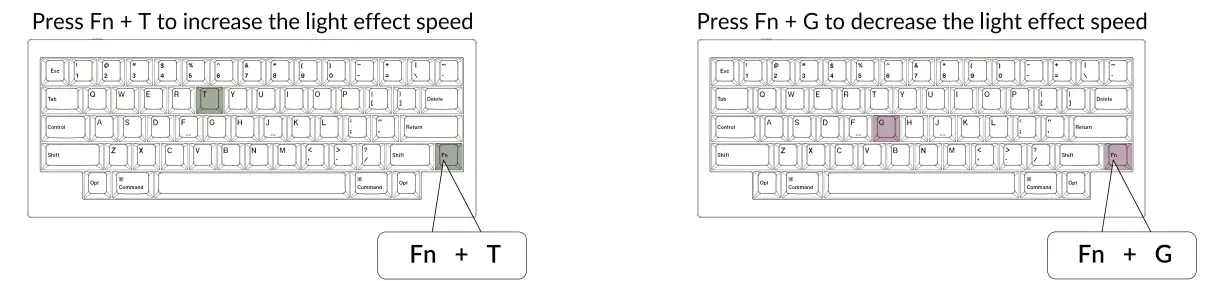
- Adjust The Backlight Speed

- warranty

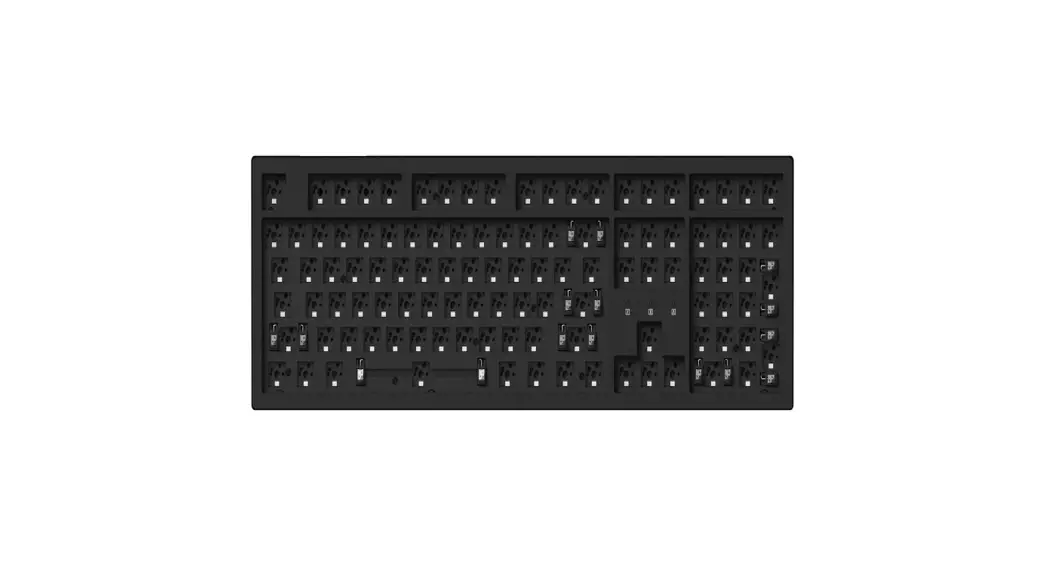
The keyboard is highly customizable and easy to be rebuilt.
If anything goes wrong with any of the keyboard components of keyboard during the warranty period. we will only replace the defective parts of the keyboard. not the whole keyboard. - Watch The Building Tutorial On Our Website
If you are building the keyboard for the first time, we highly recommend you watch the building tutorial video on our website first, then start building the keyboard yourself.
- Factory Reset



 If your system toggle is switched to Mac, then the layer O will be activated.
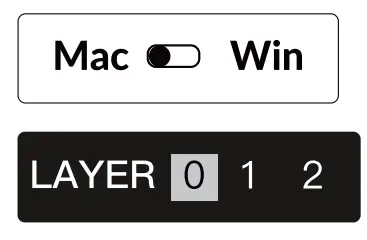 If your system toggle is switched to Windows, then the layer 1 will be activated.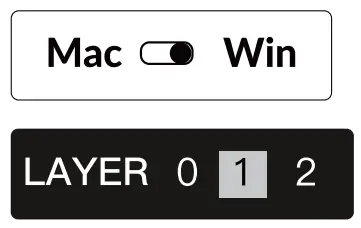
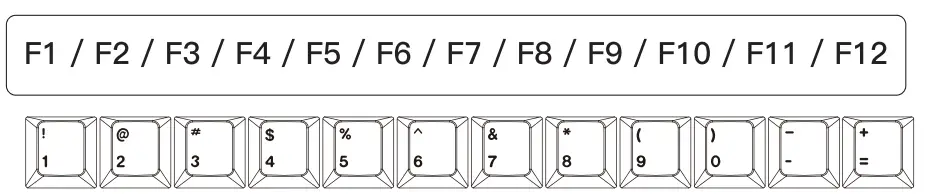 In order to get Function Key, you need to press Fn and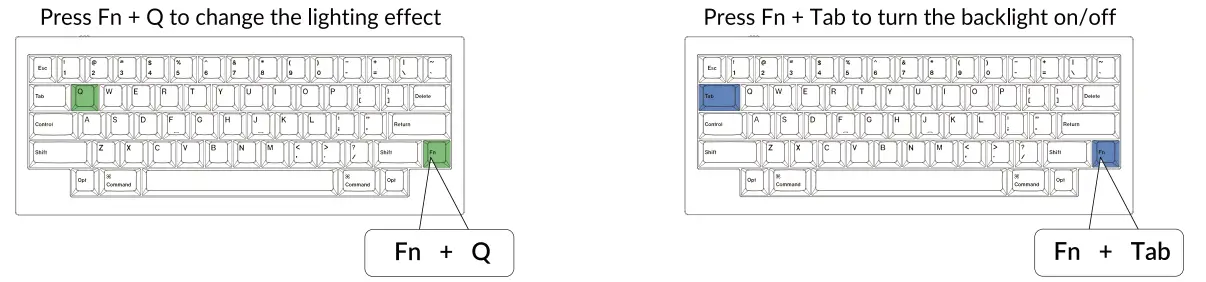


Troubleshooting? Don’t know what’s going on with the keyboard?
- Plug in the power cable and factory reset the keyboard by pressing Fn + J + Z (for 4 seconds).
- Download the right firmware and QMK Toolbox from our website.
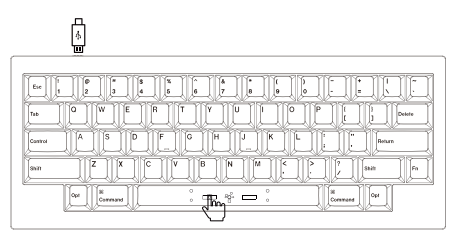
- Unplug the power cable and remove the space bar keycap to find the reset button on the PCB.
- Hold the reset key first, then plug in the power cable. Release the reset key, and the keyboard will now enter DFU mode.
- Flash the firmware with the QMK Toolbox.
- Factory reset the keyboard again by pressing Fn +J+ Z (for 4 seconds). Step by step guide can be found on our website.
 Not Happy
 [email protected]