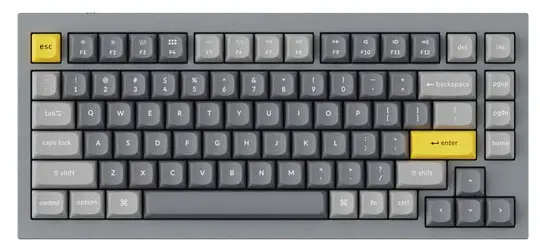
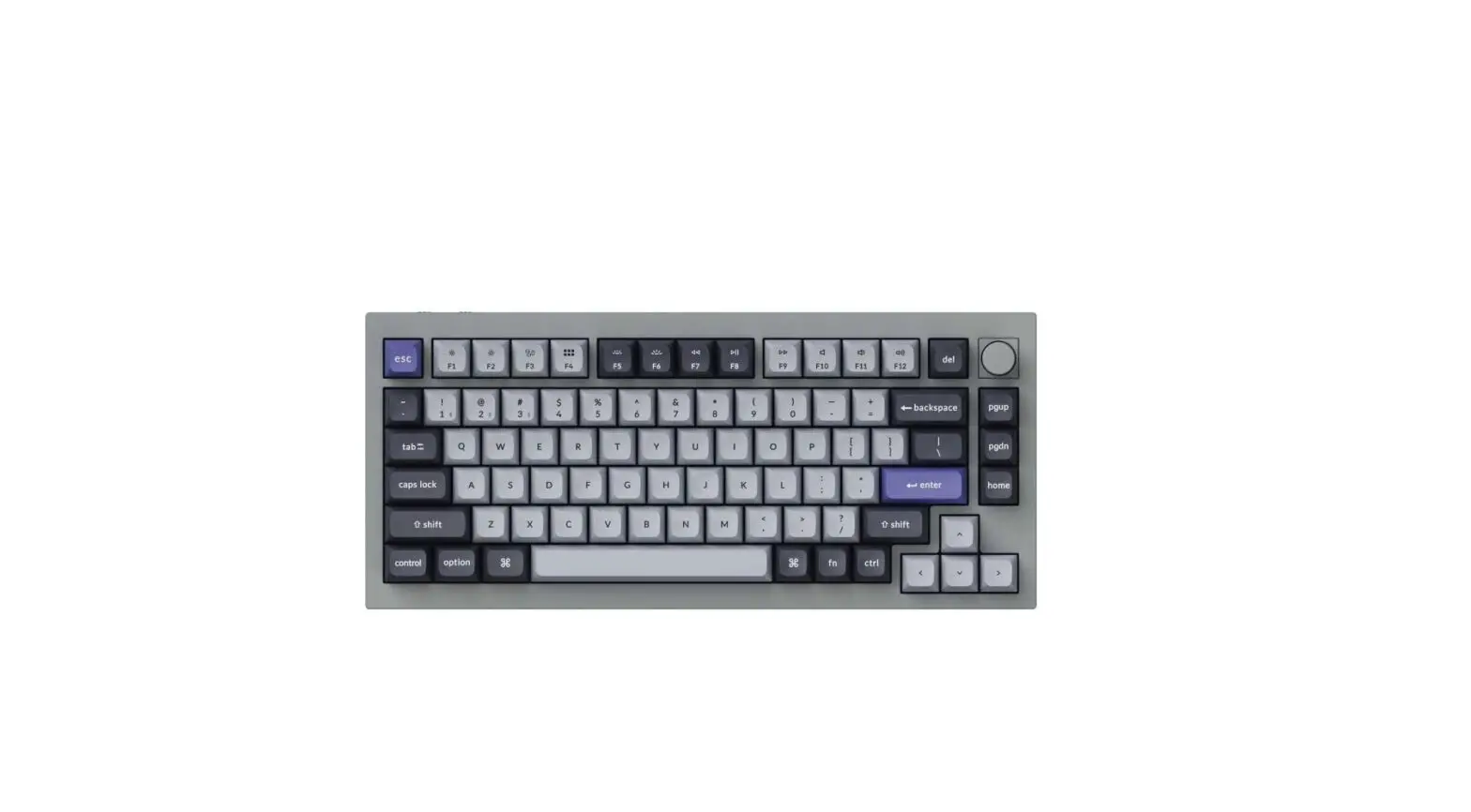
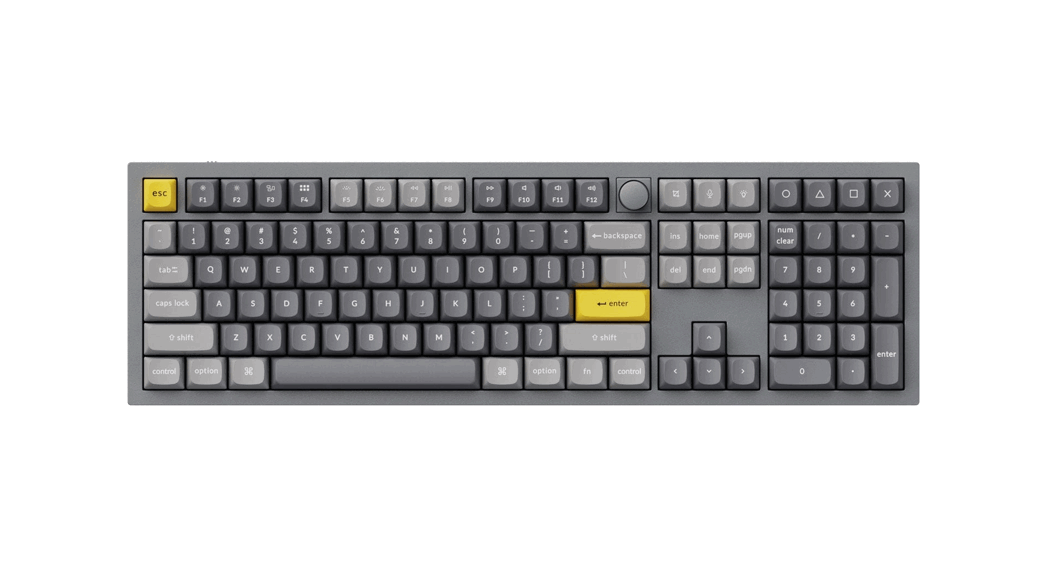
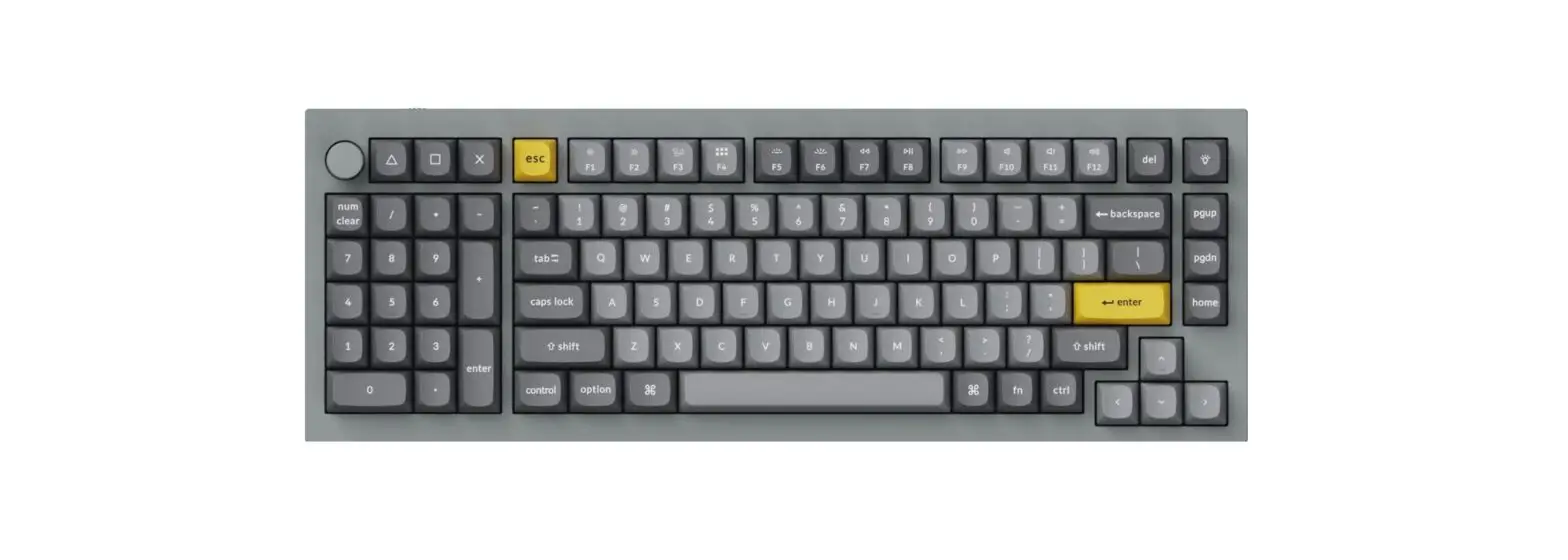
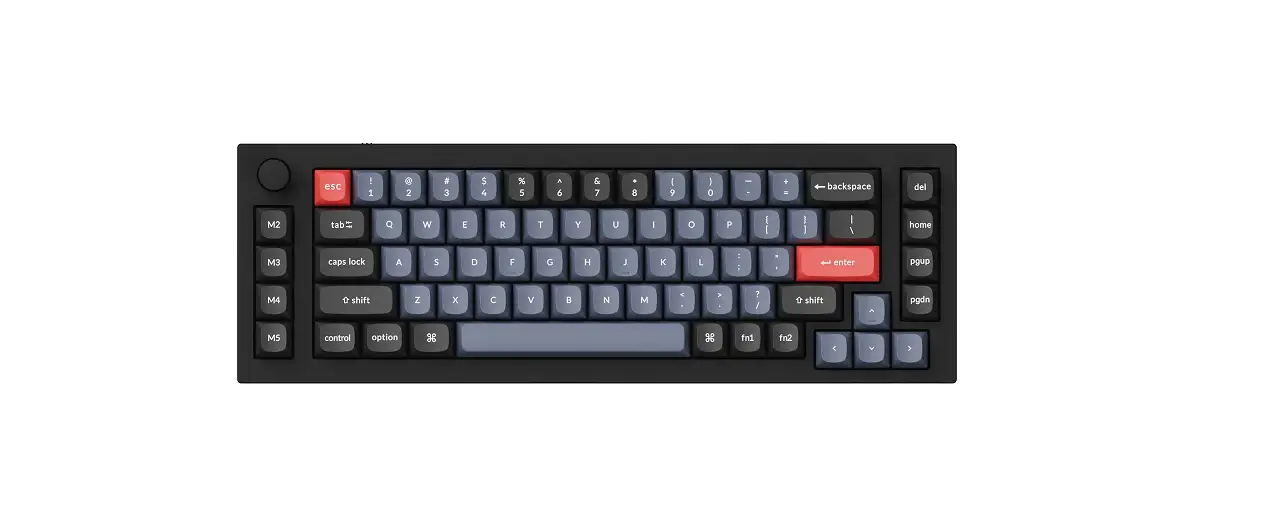
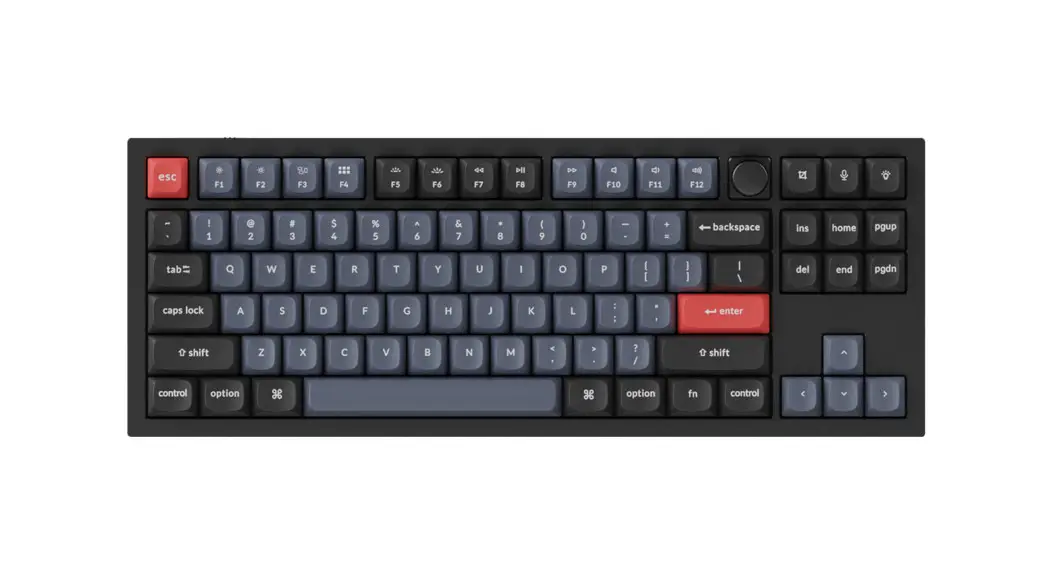
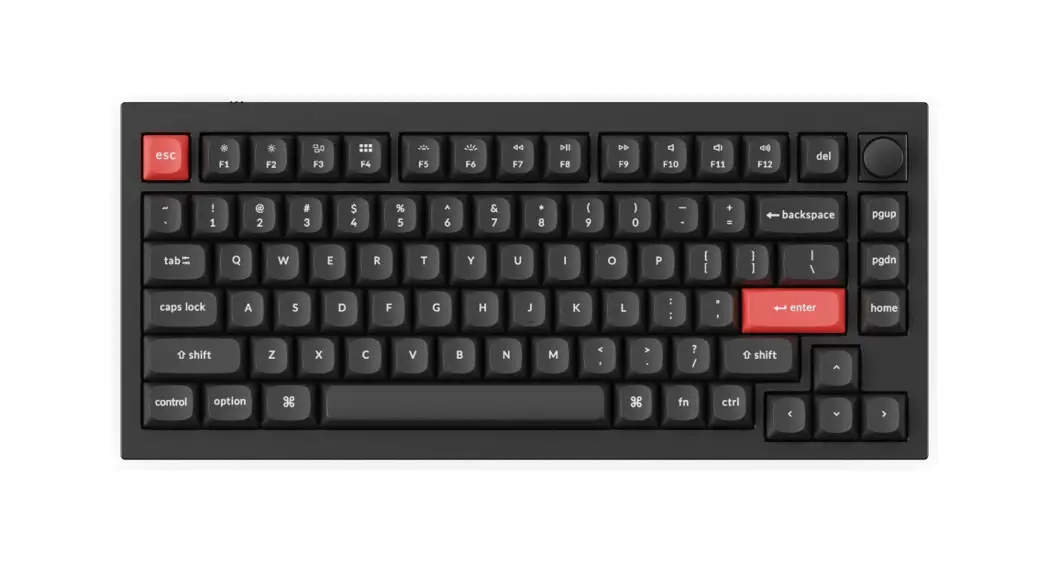
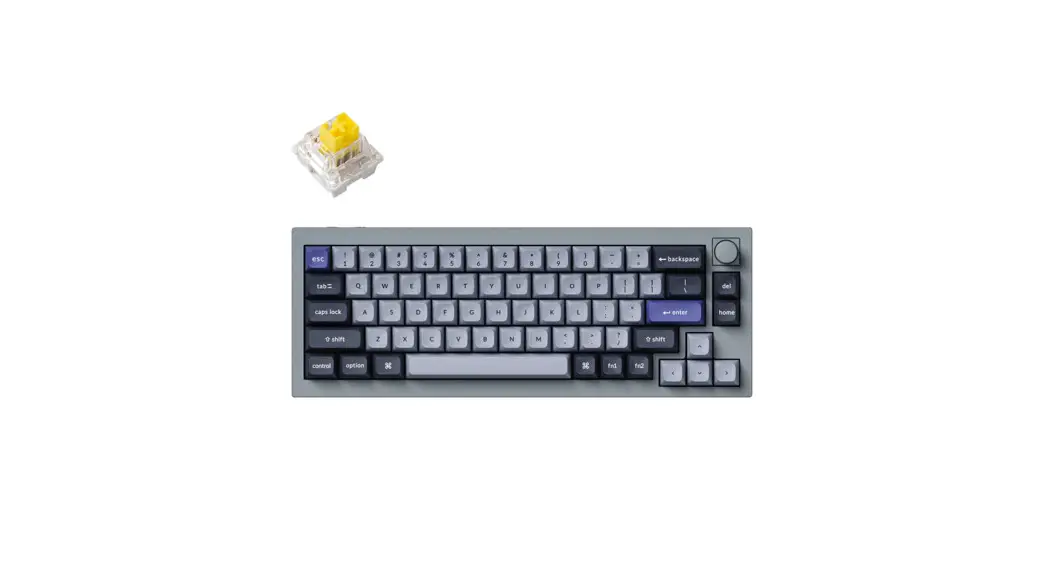
Keychron Q1 Keyboard User Guide
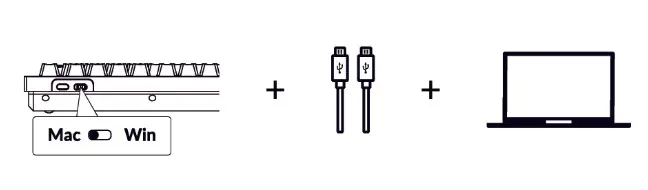
1. Switch To The Right System
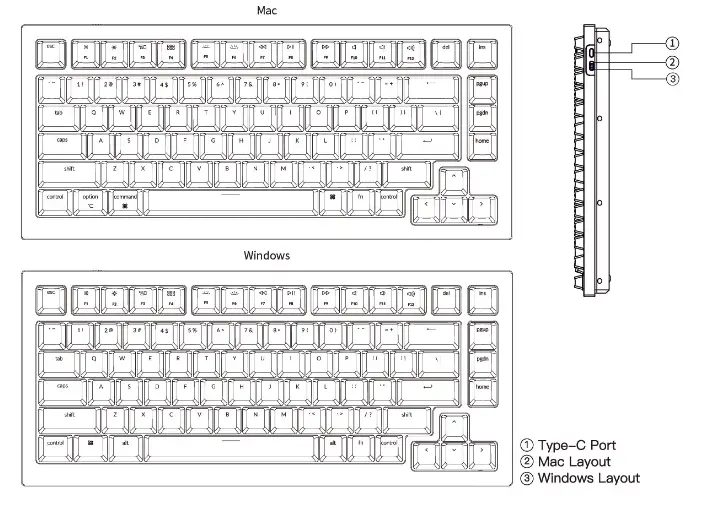
Please make sure the system toggle on the top left corner has been switched to the same system as your computer’s operating system.
2. The VIA Key Remapping Software
Please visit caniusevia.com to download the latest VIA software to remap the keys. If the VIA software cannot recognize your keyboard, please reach out to our support to get the instruction.

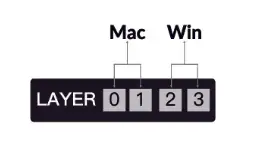
3. The Layers
There are four layers of key settings on the keyboard. The layer 0 and layer 1 are for the Mae system. The layer 2 and layer 3 are for the Windows system.
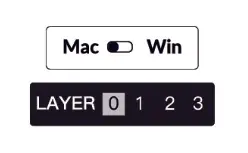
If your system toggle is switched to Mac, then the layer 0 will be Active.
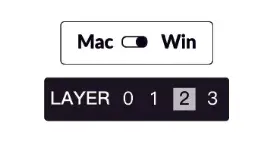
If your system toggle is switched to Windows, then the layer 2 will be activated. Remember that It you are using k In Windows mode, please make changes to the 1..2 instead of the top layer (the layer 0 ) This is a common mistake people are making.
4. The Backlight
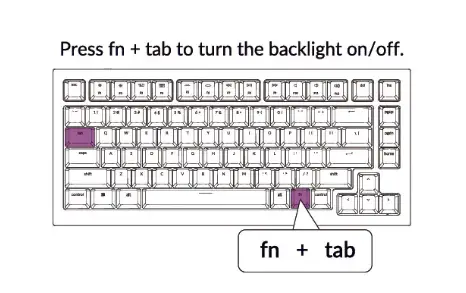
5. Adjust the Backlight Brightness
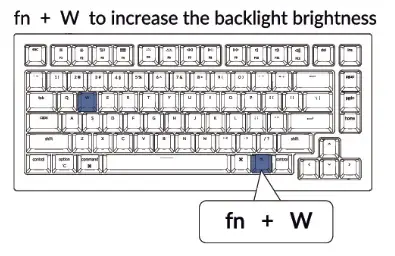
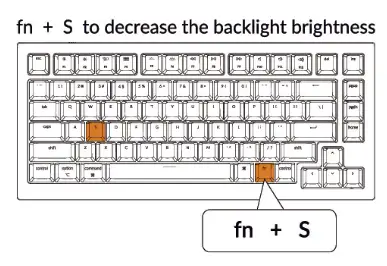
6. How to Set Mission Control And Launch Pad For The Mac
Click system preference and search ” Mission Control” and choose F3 as the shortcut for the Mission Control
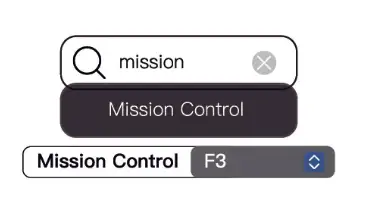
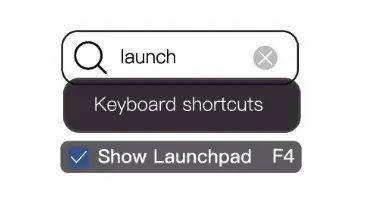
Click system preference and search ” Launch” and press F4 to set the F4 as the shortcut for the Launch Pad.
7. Warranty
The keyboard is highly customizable and easy to be rebuilt. If anything goes wrong with any of the keyboard components of keyboard during the warranty period, we will only replace the defective parts of the keyboard, not the whole keyboard.

8. Watch The Building Tutorial On Our Website
If you are building the keyboard for the first time, we highly recommend you watch the building tutorial video on our website first, then start building the keyboard yourself.

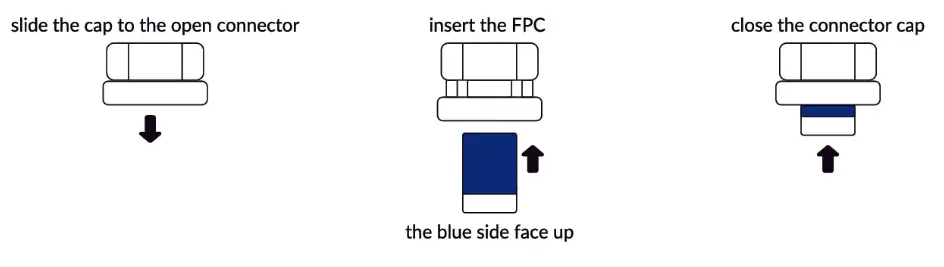
9. How To Connect The FPC ( Flexible Print Circuit) With The Two PCBs
10. Factory Reset
Troubleshooting?
Don’t know what’s going on with the keyboard?
- Download the right firmware for your keyboard from our website. Remove the power cable from the keyboard.
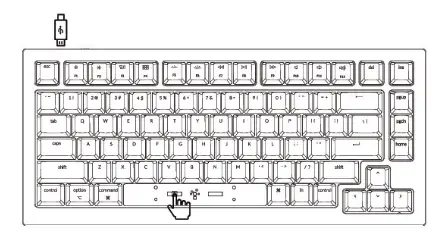
- Remove the space bar keycap to find the rest button on the PCB.
- Hold the reset key while plugging In the power cable. The keyboard now will enter DFU mode.
- Flash the firmware with the QMK Toolbox. (Make sure to choose the atmega32u4 as the MCU)
Q1 Keyboard Specifications
| Layout | 75% |
| Swatch type | Mechanical |
| Width | 145 mm |
| Length | 327.5 mm |
| Front height | 21.8 mm (wiMout keycaps) |
| Back height | 34.8 mm (without keycaps) |
| Front height | 32.2 mm (with OEM keycaps Installed) |
| Back height | 44.2 mm (with OEM keycaps installed) |
| Keyboard feet height | 2.4 mm |
| Angle | 5.2 degree |
Q1 Mechanical Keyboard Overview
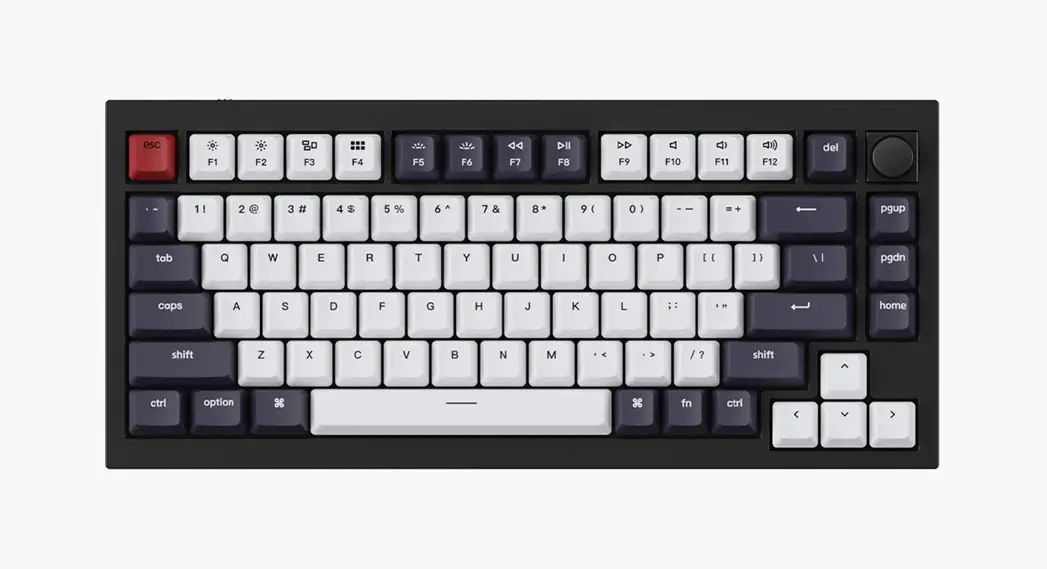
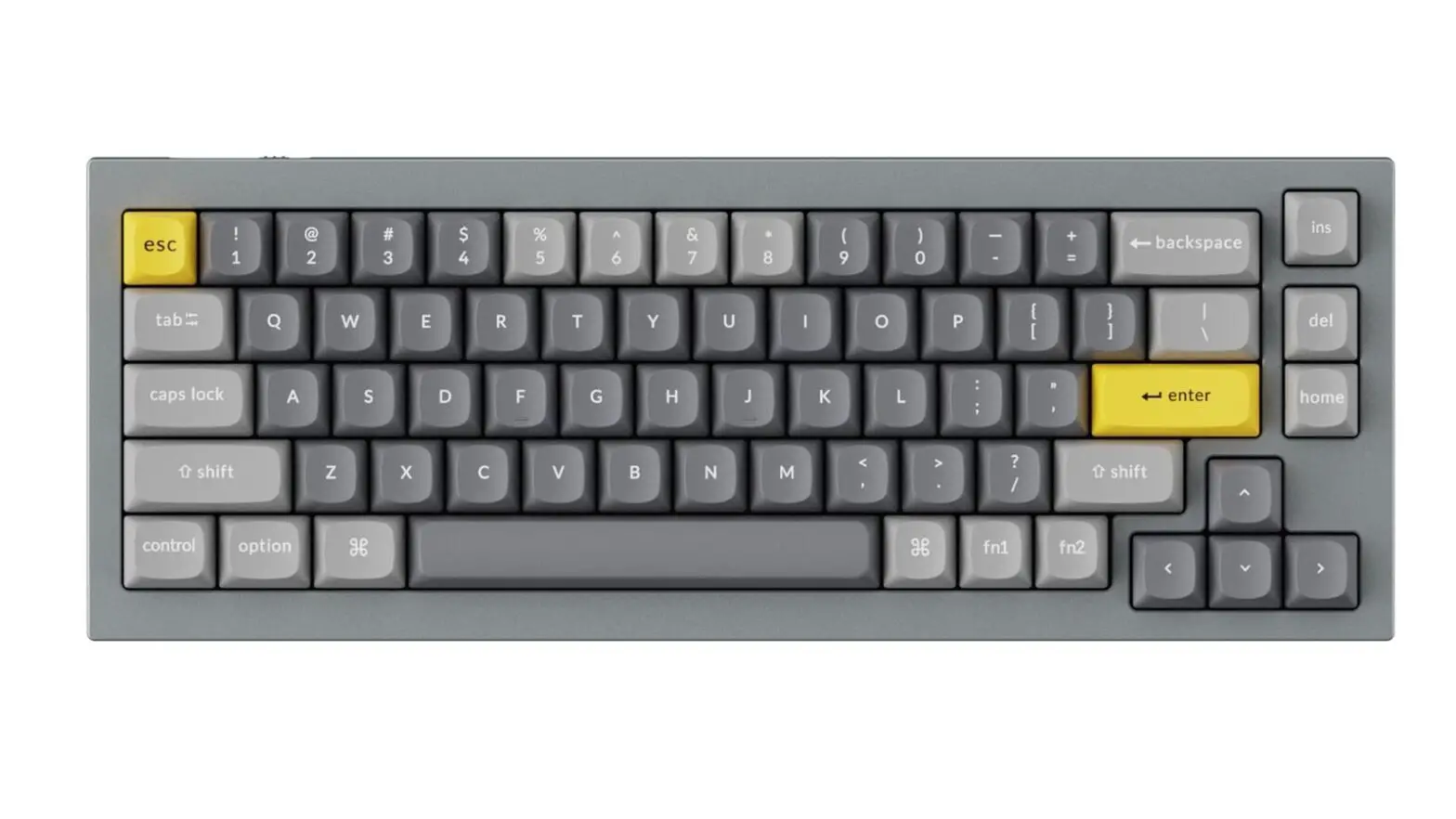
Default Key Layout:
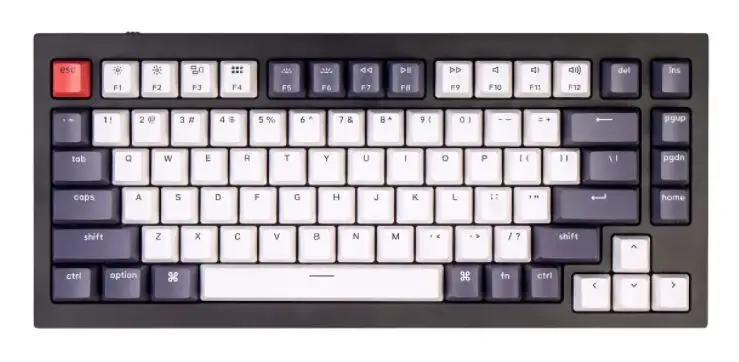
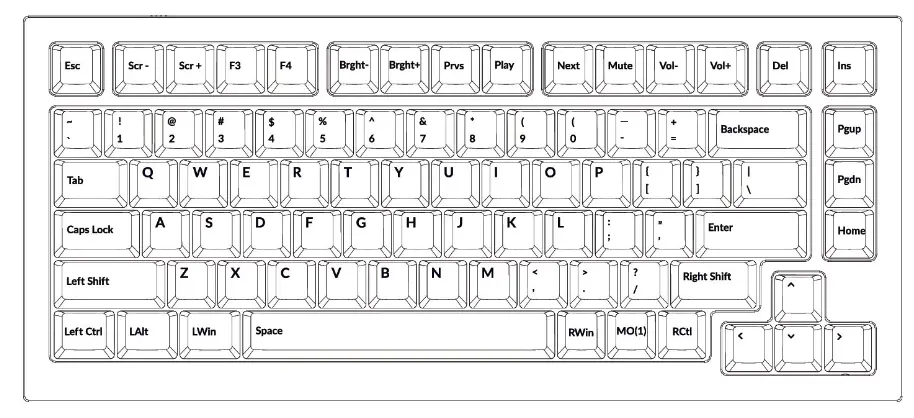
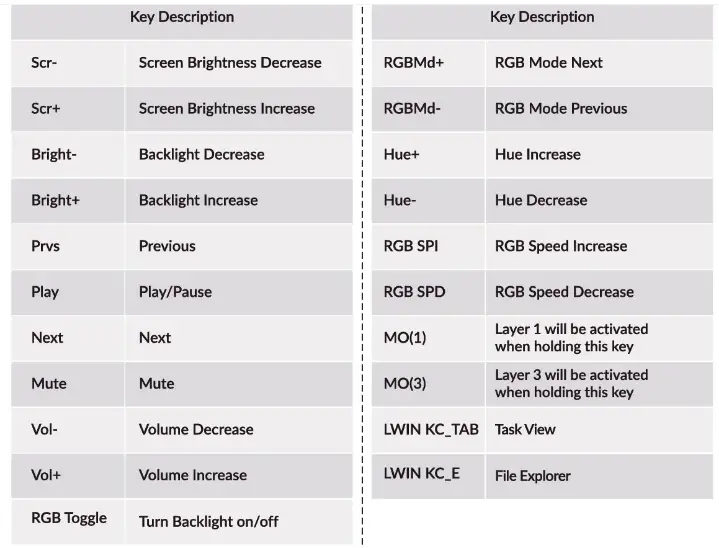
Layer 0: This Layer will be activate when your keyboard’s system toggle is switched to Mac
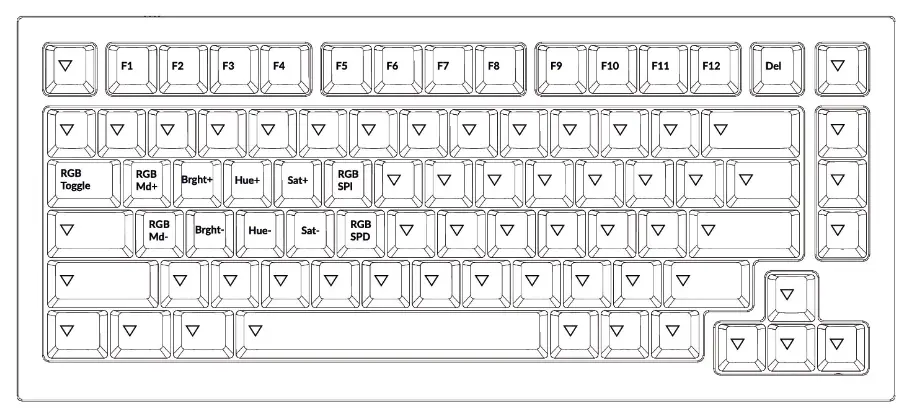
LAYER 1: This layer will be activate when your keyboard’s system toggle is switched to Mac and Press the fn/MO(1) key.
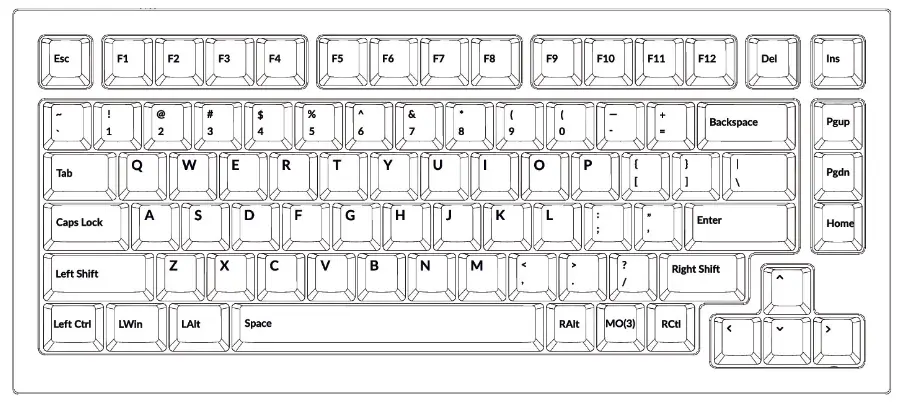
LAYER 2: This layer will be activate when your keyboard’s system toggle is switched to Windows.
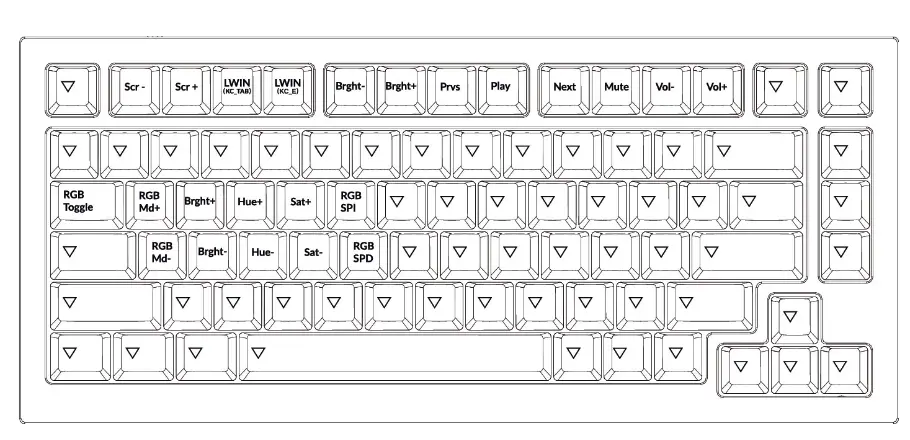
LAYER 3: This layer will be activate when your keyboard’s system toggle is switched to Windows and Press the fn/MO(3) key.
Key Description
Third party input tools are not compatible with the keyboard.
Due to compatibility, versions, brands and drivers of Windows/macOS, function a lilies of third Party input tools may be affected while using the keyboard. Please make sure your operating system and drivers are up to date.
Certain In keys or multimedia keys does not work under Windows/Android mode.
Functionalities of certain multimedia keys may be disabled due to compatibility, versions, brands and drivers of Windows/Android OS.
Safety Precaution:
Keep the product, accessories and packaging parts out of reach of children to prevent any accidents and choking hazards. Always keep the product dry to avoid corrosion. Do not expose the product to extreme temperatures below -10°C (5°F) or above 50°C (131°F) to preserve the lifespan of the keyboard.
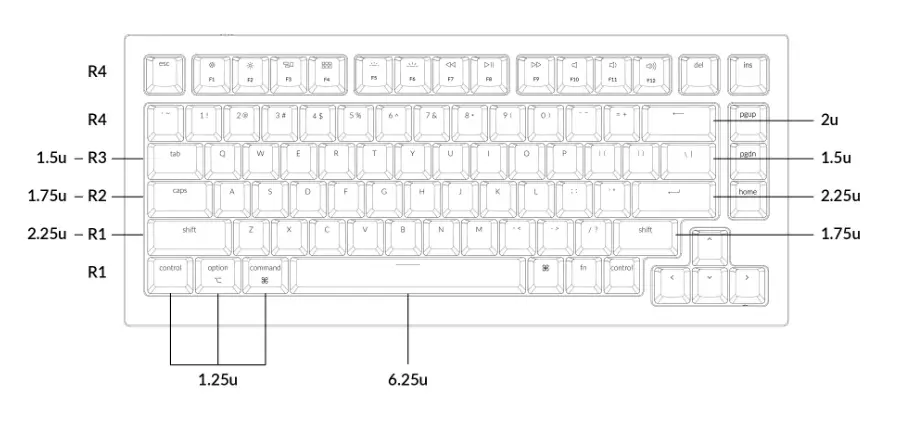
Keychron Q1 Keycap Size
Below is the hi res image of Q1 keycap size.
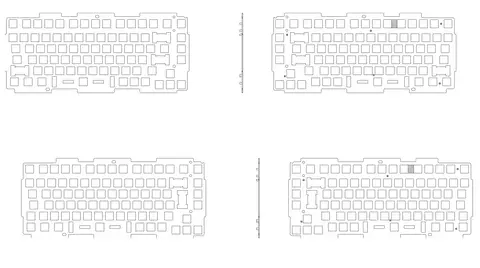
Q1 Keyboard Plate File
How to Factory Reset Your Keychron Q1
Troubleshooting? Or Don’t know what’s going on with the keyboard? Factory reset your Keychron Q1.
1. Download the Q1 firmware (the file needs to be unzipped) and download the QMK Toolbox. (If the download link below does not work, use this link: https://github.com/qmk/qmk_toolbox/releases)
Keychron Q1
2. Unplug the power cable from the keyboard.
3. Open the QMK Toolbox.
4. Remove the space bar keycap to find the reset button on the left side of the space bar switch on the PCB.
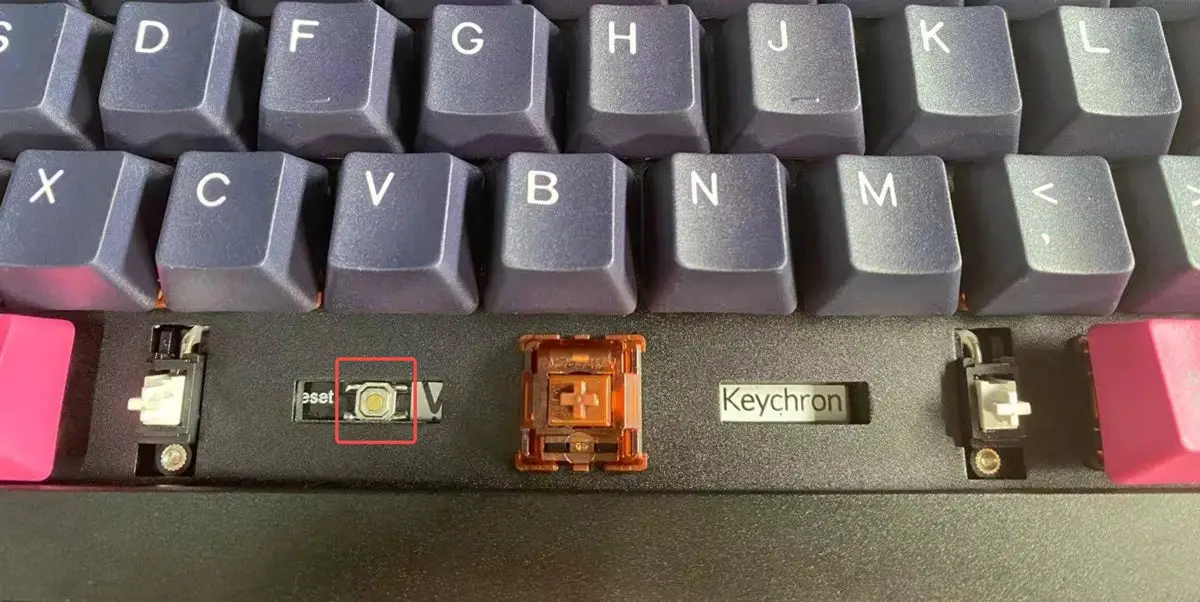
5. Press down and hold the reset button, then plug in the power cable. The keyboard will enter into DFU mode. Then, the QMK Toolbox will display in yellow words “***DFU device connected”.
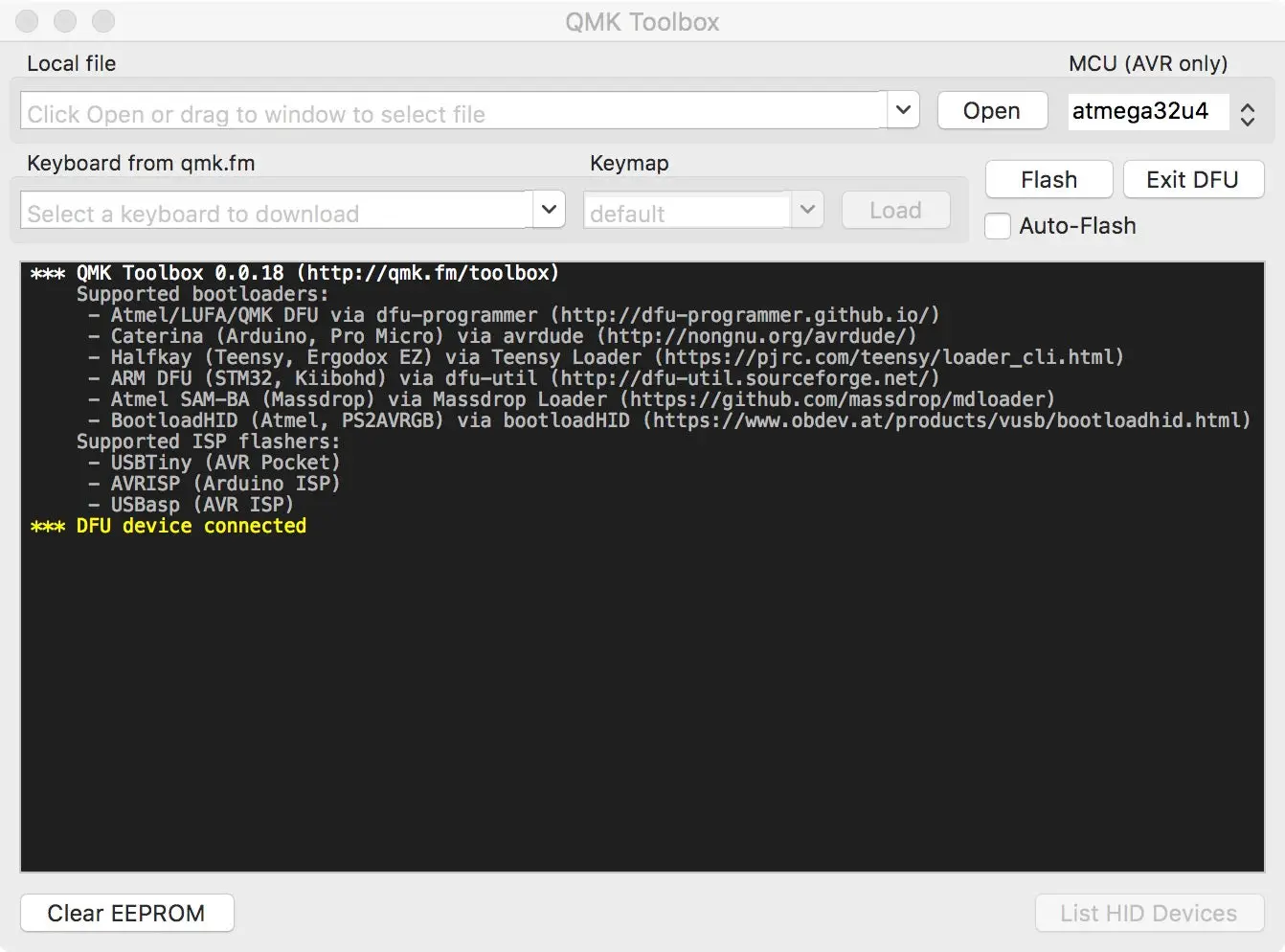
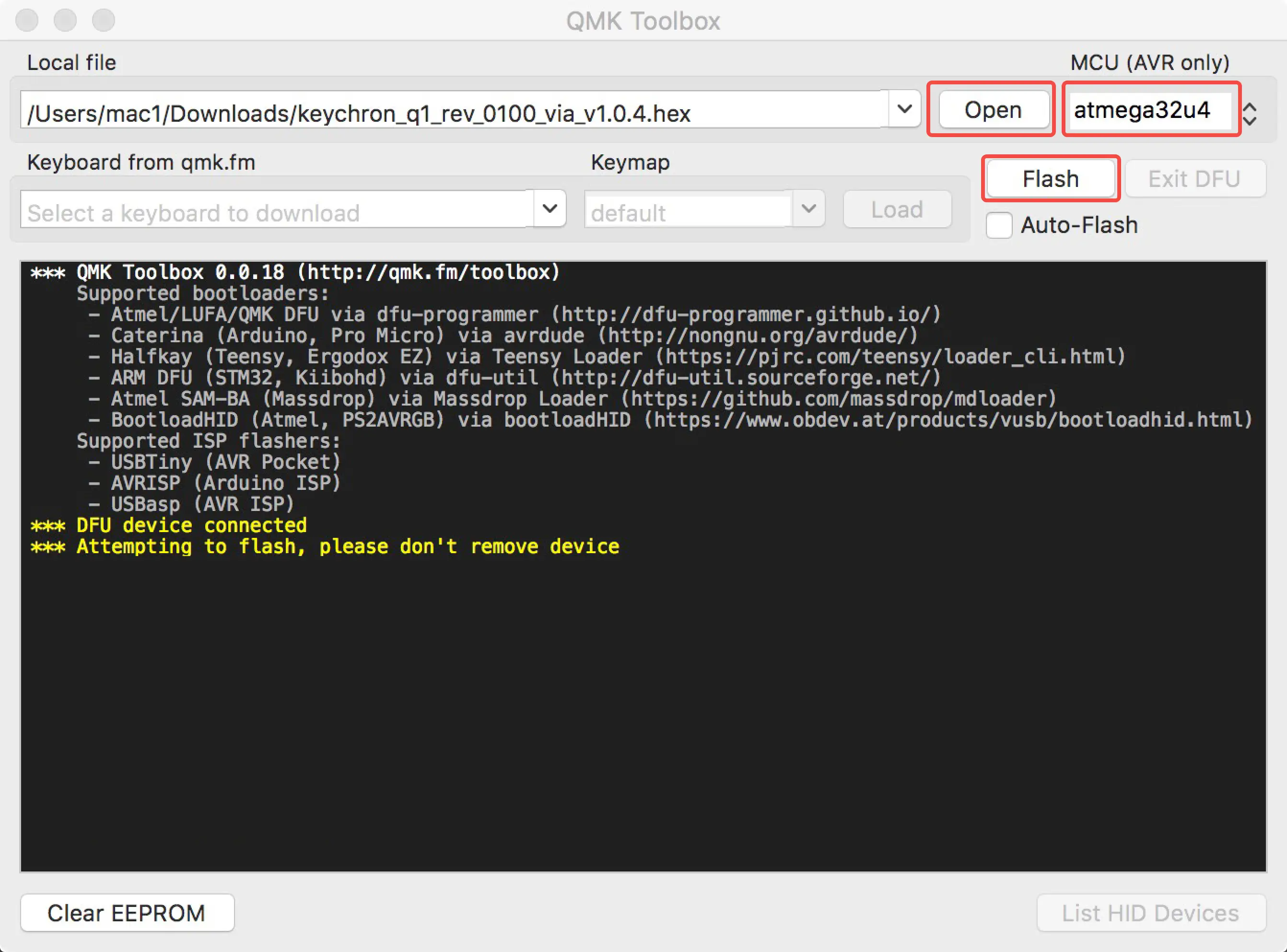
6. Click open and choose the correct Keychron Q1 firmware. For the Q1 Non Knob version, please choose atmega32u4 for MCU (No need to choose anything for MCU if you got the Q1 Knob Version) and then click the Flash button. It will start flashing. (Note: Do Not unplug the power cable to your keyboard while it’s flashing.)
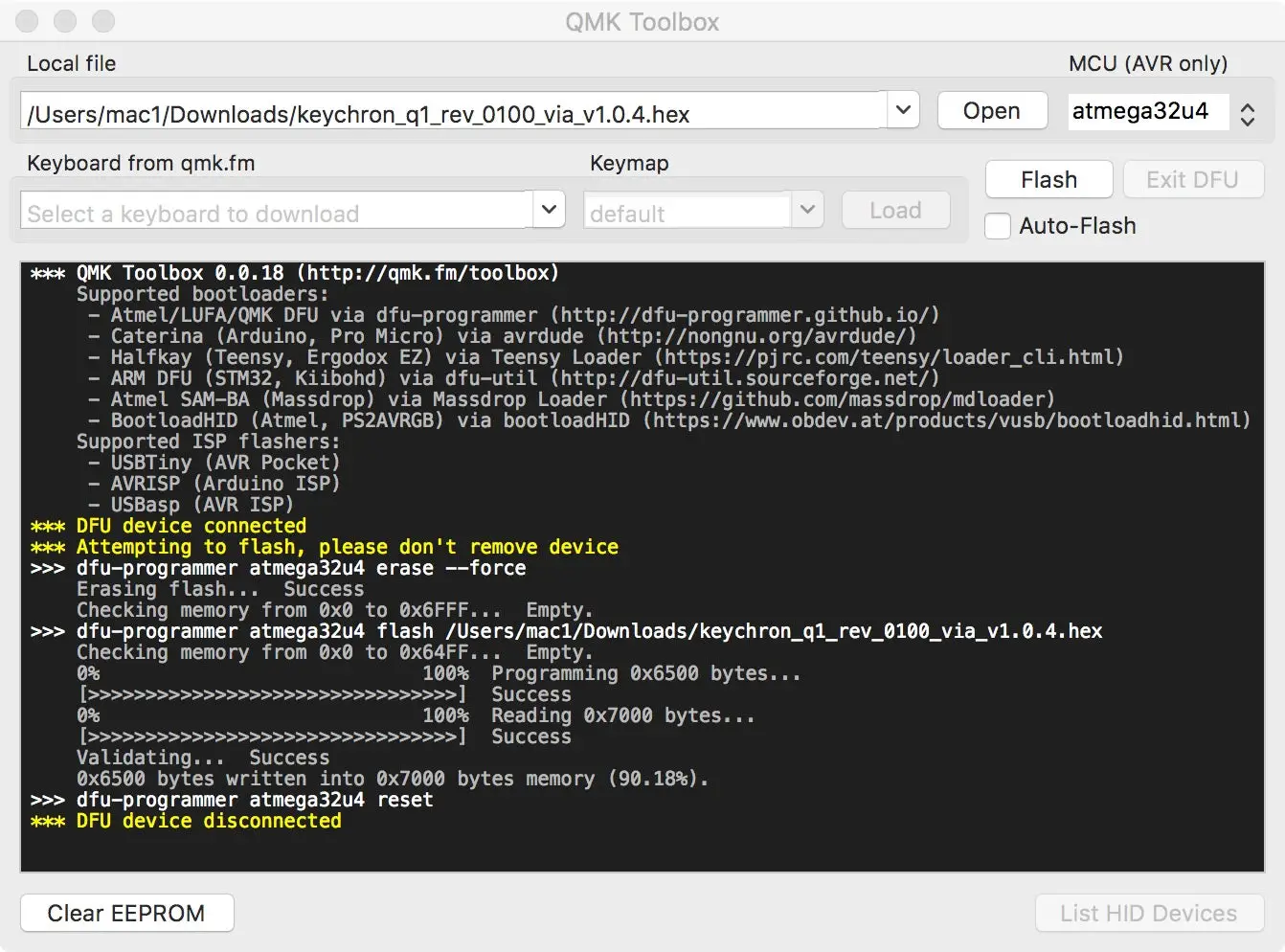
7. Wait a few seconds and when you see the content below, it means the keyboard has flashed successfully factory reset.
If VIA can’t pair with your Keychron Q1 after you tried flashing, you need to follow these steps:
1. Reconnect your keyboard power cable.
2. If VIA still doesn’t pair together after you reconnect the power cable, download the Keychron Q1 JSON file.
3. Unplug your keyboard from your computer.
4. Open VIA
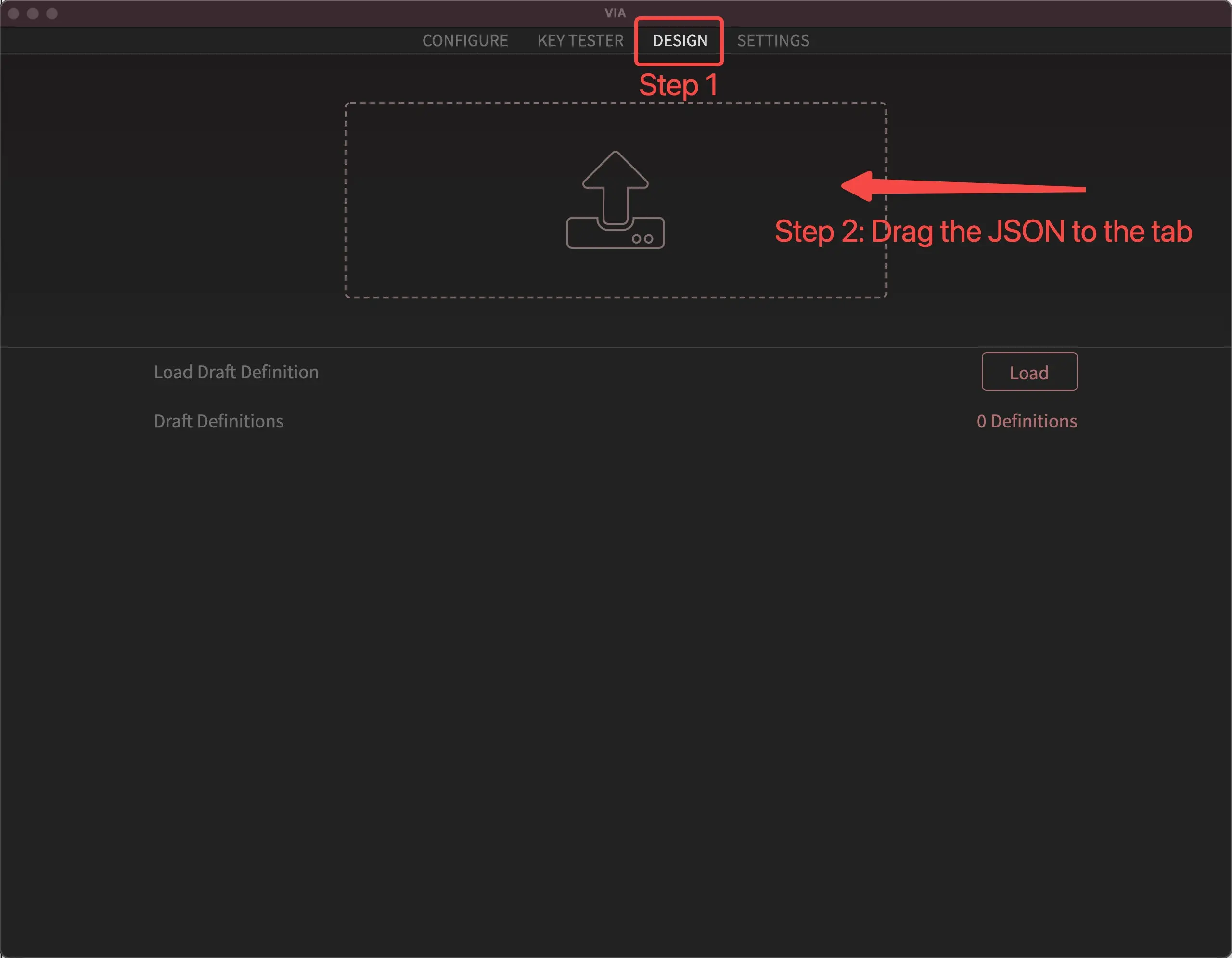
Step 1: Click the “DESIGN” section.
Step 2: Drag the JSON file to the tab and then click the “CONFIGURE” section to customize the keymap.
6. Replug your keyboard.
7. VIA should pair together with the Keychron Q1 now.
You may contact [email protected] if a defect covered by the warranty arises in your product within the warranty period. Keychron will honor the warranty of our Q and V series keyboard (e.g.: Q1, Q2, V1, V2, etc.) by one of the following methods at our discretion:
– Defects of Q and V series keyboards have been caused by manufacturing: We will only replace the defective parts of the keyboard, not the whole keyboard, as its highly customizable and easy to be rebuilt.
– Defects of Q and V series keyboards have been caused by disassembling our product, improper installation, non-factory repairs/modifications, improper adjustment of the product, or neglect, including but not limited to “burn-in”, and similar wrongful use: We will NOT offer free service. We only offer paid service to replace the defective parts at your own cost (including the cost of parts, shipping fee and tax if applicable).
The Key Combinations Table Of Keychron Q1
For Keychron Q1, we’ve included all the normal and useful functions keys that can be accessed via the default key combinations. Here is the table for all the key combinations and functions it can access.
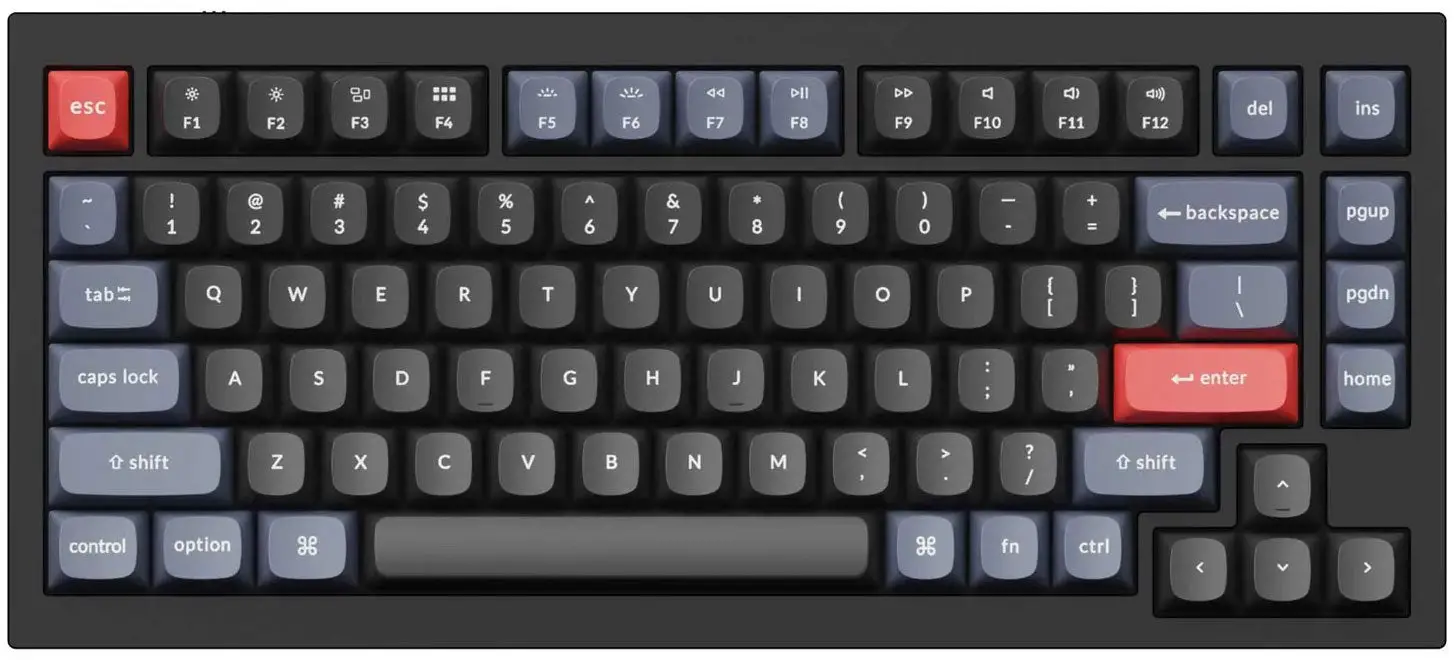
fn + Keys
| Keys | Function |
|---|---|
| fn + F1 | Screen Brightness Down (Windows mode) |
| fn + F2 | Screen Brightness Up (Windows mode) |
| fn + F3 | Task View (Windows mode) |
| fn + F4 | File Explorer (Windows mode) |
| fn + F5 | Keyboard Backlight Down (Windows mode) |
| fn + F6 | Keyboard Backlight Up (Windows mode) |
| fn + F7 | Rewind (Windows mode) |
| fn + F8 | Play / Pause (Windows mode) |
| fn + F9 | Fast Forward (Windows mode) |
| fn + F10 | Sound: Volume Mute (Windows mode) |
| fn + F11 | Sound: Volume Down (Windows mode) |
| fn + F12 | Sound: Volume Up (Windows mode) |
| fn + tab | Turn On / Off the Backlight |
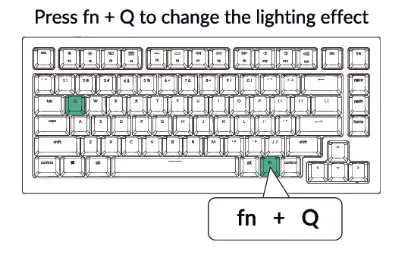
| fn + Q | RGB Mode Next |
| fn + A | RGB Mode Previous |
| fn + W | Keyboard Backlight Up |
| fn + S | Keyboard Backlight Down |
| fn + E | Hue Increase |
| fn + D | Hue Decrease |
| fn + R | Saturation Increase |
| fn + F | Saturation Decrease |
| fn + T | RGB Speed Increase |
| fn + G | RGB Speed Decrease |
| fn + F1 | F1 (Mac mode) |
| fn + F2 | F2 (Mac mode) |
| fn + F3 | F3 (Mac mode) |
| fn + F4 | F4 (Mac mode) |
| fn + F5 | F5 (Mac mode) |
| fn + F6 | F6 (Mac mode) |
| fn + F7 | F7 (Mac mode) |
| fn + F8 | F8 (Mac mode) |
| fn + F9 | F9 (Mac mode) |
| fn + F10 | F10 (Mac mode) |
| fn + F11 | F11 (Mac mode) |
| fn + F12 | F12 (Mac mode) |
| fn + J + Z (long press for 3s) | Reset the Keyboard |
A: The fully assembled version has the double-shot ABS keycaps and Gateron G Phantom switches, whereas the barebone version doesn’t.
A: The barebone version comes with the Keychron Q1 but does not include the keycaps or switches, so you would need to buy the keycaps and switches and assemble them yourself.
A: If you want to buy the other plate, not the default aluminum plate, you can go to the add-on page to choose. We have FR4 and PC material plates for sale.
A: Yes, you can design your own custom badge on our website. It costs 30 USD
A: Because the keyboard is highly customizable and easy to be rebuilt, if anything goes wrong with any of the keyboard components during the warranty period, we will only replace the defective parts of the keyboard, and not the whole keyboard.
A: The Keychron Q1 with the ISO layout is only available in the barebone version. You will need to purchase the ISO barebone version, ISO keycaps, and switches. You will also need to assemble them yourself. We currently have ISO keycaps for UK, Germany, France, Spain, Italy, and the Nordic countries.
If we made a fully assembled ISO keyboard available for all the different countries, it would be difficult for us to manage the production and inventory of products. As a result, it might be common for the products to run out of stock and might take a while to restock. So, our solution to making it available to more ISO users in more countries and not run out of stock, we created a barebones version that would make it easier for us to manage inventory and keep the product in stock for ISO users.
Read More About….
Keychron Q1 Keyboard User Guide
Download
Keychron Q1 Keyboard User Guide – [ Download PDF ]