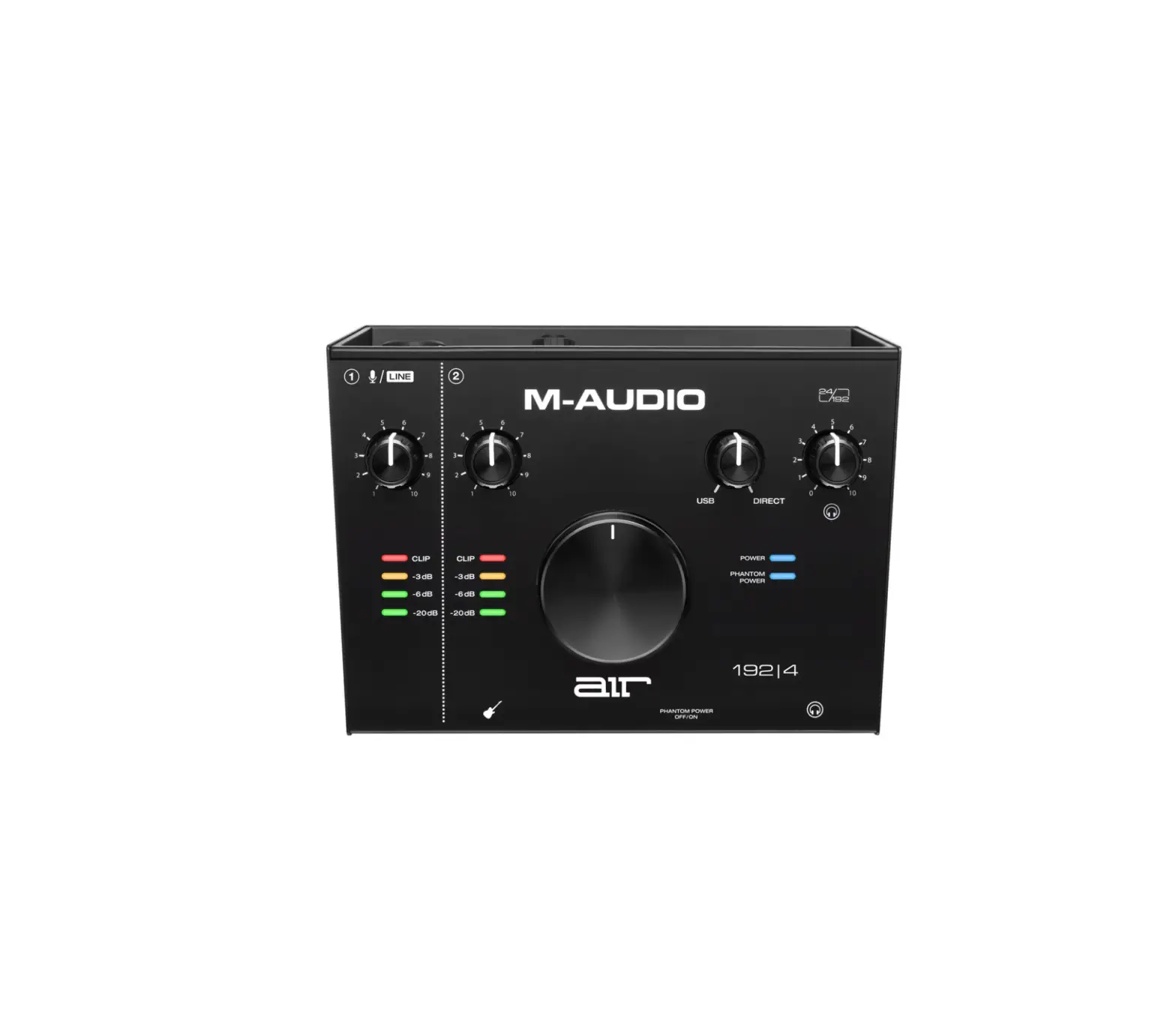
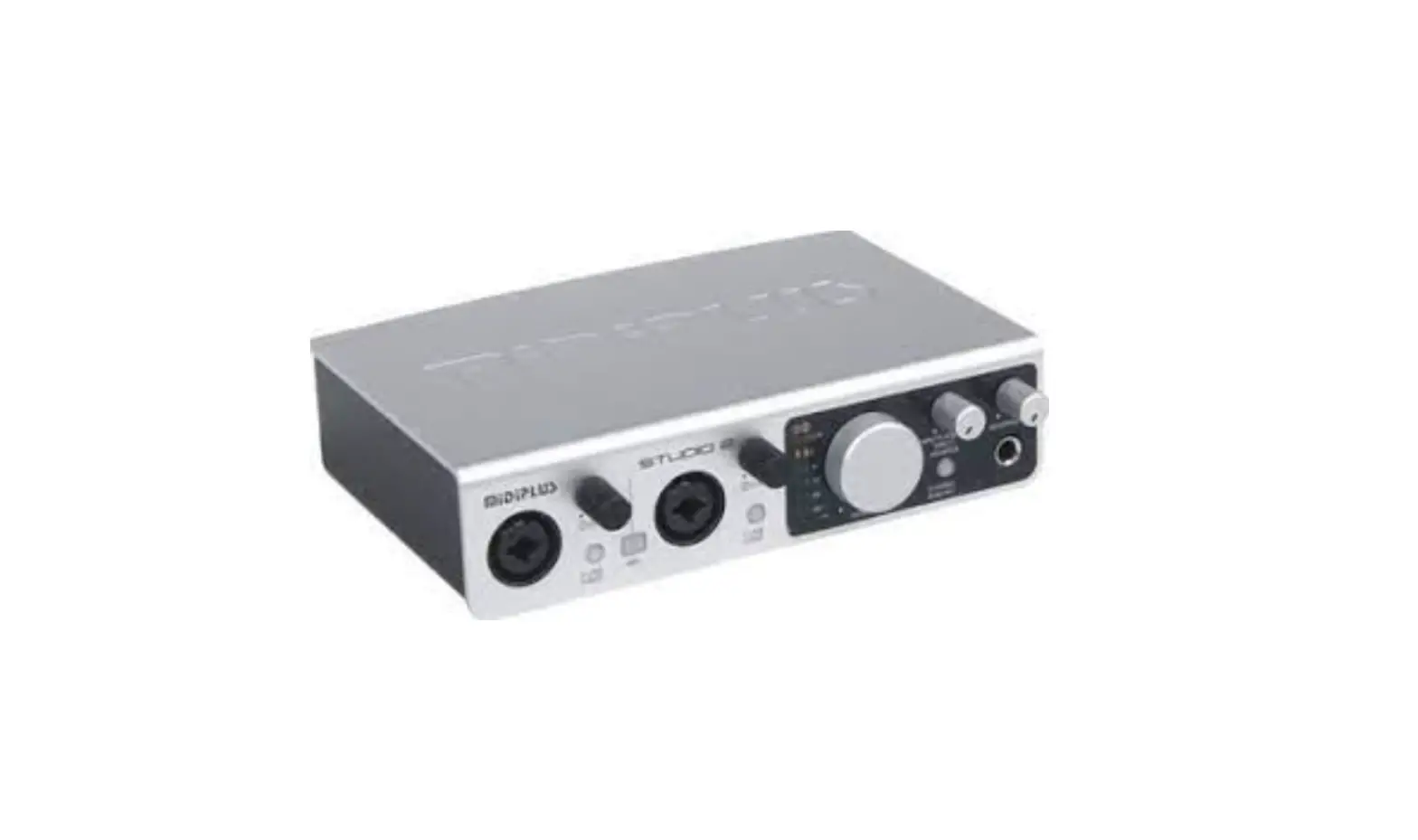
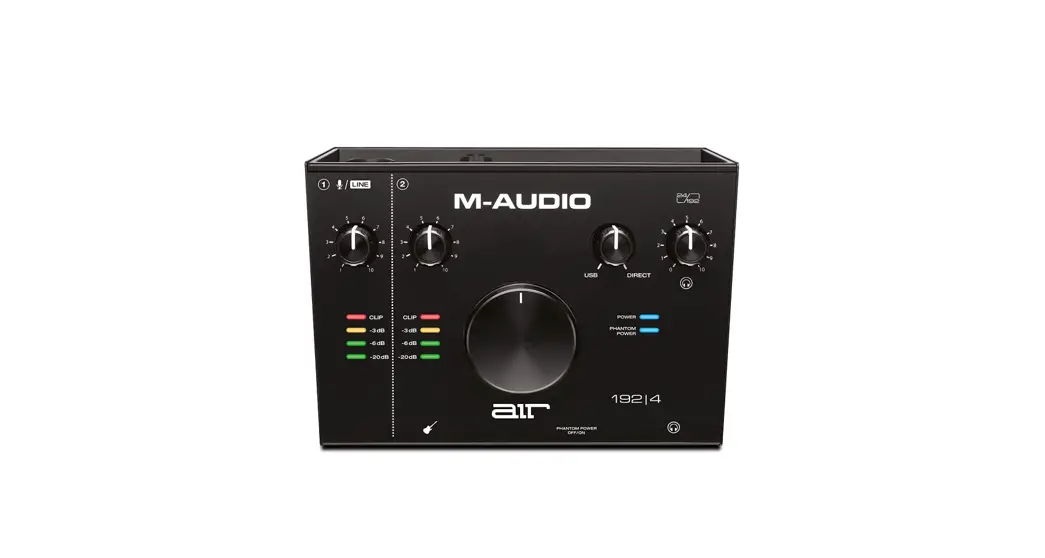
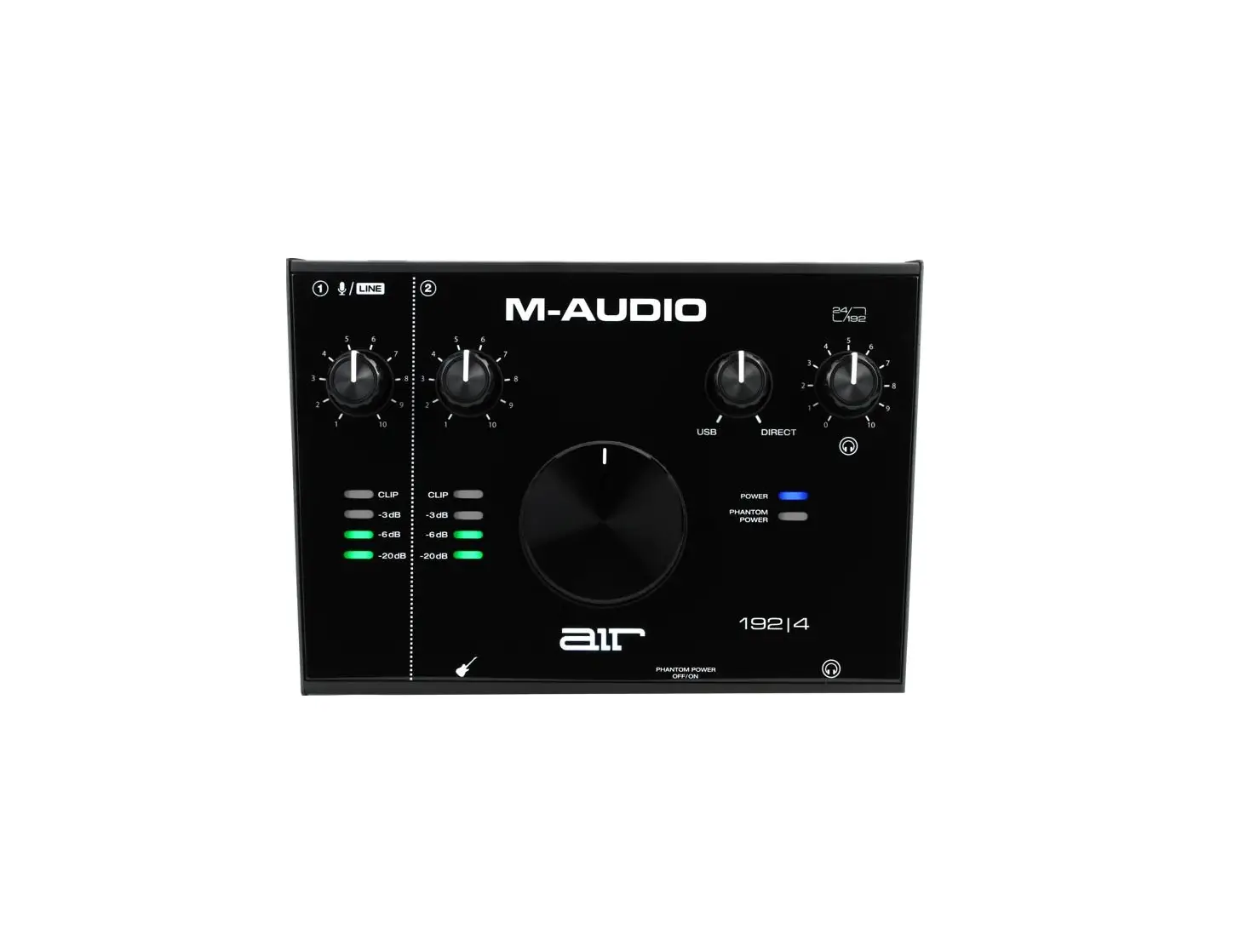
SRI-2 USB Audio Interface
Product Information
Welcome to the SRI-2 from Fluid Audio! The SRI-2 is a
high-resolution desktop music production audio interface that comes
complete with Cubase DAW software. It features a solid construction
with a robust aluminum housing and a volume knob made of solid
aluminum, giving it a vintage studio gear feel. The SRI-2 offers
24-bit/192 kHz audio quality, 2 Class-A mic preamps with +48V
phantom power, 2 XLR/TRS inputs for Line/Mic/Instrument recording,
4 TRS outputs for AB switching between two pairs of studio
monitors, and a high-power headphone output with independent level
control. It can be powered via USB for mobile recording using
either a PC or Mac, and also supports USB micro external power when
used with an iPad. The package includes Cubase LE DAW software
download version for PC and Mac, as well as Cubasis LE music for
iOS.
Product Usage Instructions
Controls Overview
The SRI-2 performs analog-to-digital (A/D) and digital-to-analog
(D/A) audio conversions on the signals from other audio gear. The
digital audio signals are routed in and out of the host computer
via the high-speed USB 2.0 protocol using the included USB
cable.
The SRI-2 has 4 outputs, allowing you to switch the routing of
your audio to either pair of speakers. This feature enables you to
compare your mix on speakers of different sizes and
configurations.
Headphones Volume Knob
The volume knob controls the level of the headphone output.
Engaging the SUM button combines both input signals to the main
channel outputs, creating a mono output to your monitors. This is
useful for live performance setups where you have different inputs
connected to each input channel.
DAW / Input Knob
By turning this knob all the way to the left (DAW), you will
only hear what your DAW is playing back. This mode allows for
near-zero latency monitoring if your system can handle low buffer
sizes.
Hardware Setup
- Place the SRI-2 on a sturdy, flat surface.
- Leave enough room behind the SRI-2 for connection cables.
- Before powering the SRI-2 on or off, lower the volume of your
monitor speakers (if connected) and remove headphones from your
ears. - Connect the included USB cable between the SRI-2 and your host
computer. Ensure that the cable is fully inserted at both
ends. - The SRI-2 will power up automatically when plugged in.
Driver Installation
For Windows 7 or Above Version:
- Connect the SRI-2 audio interface to the computer.
- The PC/Mac will detect the new USB driver and install it
automatically.
Fluid Audio SRI-2 User Guide English
Introduction
Welcome to the SRI-2 from Fluid Audio! You may know us from the studio monitors we produce, so we know a thing or two about manufacturing great products for making music. We hope you enjoy the easy to use SRI-2 and take advantage of the speaker AB switching. A unique feature that allows you to check your mix on 2 different sets of studio monitors as you record and mix.
High-Resolution Desktop Music Production
With outstanding dynamic range and low noise, the SRI-2 provides pristine 24-bit/192 kHz audio quality and clarity with best in class low latency. It’s premium mic preamps and transparent conversion translate into recordings with depth and richness. With both Combo inputs mounted on the front panel, you know exactly what is plugged in – no need to fumble with inputs on the rear panel. The convenient angled design allows you to easily reach all knobs and buttons, and LED indicators let you know exactly what position they’re in – even in dimly lit studios.
A Portable Studio Complete with Cubase DAW Software
Compact and USB powered means portable. The USB 2.0 connection provides ample power to drive headphones for tracking or mixing, while at home or on the road. An external power input (Micro USB) must be used when connecting to your iPad, using the included Cubasis software or any other iPad enabled DAW. Whether you are recording an instrument, such as guitar, or using a microphone requiring 48V phantom power, all buttons and knobs are easy to access. The SRI-2, coupled with the included Cubase LE software, is a powerful and intuitive music production system. And though it comes with Cubase LE, the SRI-2 is compatible with all major DAWs, including Pro Tools, Studio One, and Ableton Live.
Solid Construction
The robust aluminum housing is not only attractive, but sturdy. The volume knob is made of solid aluminum, which gives it the weight and the feel of vintage studio gear.
2
Key Features
24-bit/192 kHz 2 x 2 USB 2.0 audio interface 2 Class-A mic preamps supporting +48 V phantom power 2 XLR/TRS inputs for Line/Mic/Instrument recording 4 TRS outputs, for AB switching between two pair of monitors 1 High-power headphone output with independent level control USB-powered for mobile recording using either PC or Mac. USB micro external power when used with iPad Includes Cubase LE DAW software download version for PC and Mac Includes Cubasis LE music for iOS
Controls Overview
The SRI-2 connects to the outputs and inputs of other audio gear, and performs analog-to-digital (A/D) and digital-to-analog (D/A) audio conversions on the gear’s signals. The digital audio signals are routed in and out of the host computer via the high speed USB 2.0 protocol, which is carried on the single USB cable included with the SRI-2.
Speaker AB Switching Button:
The SRI-2 actually has 4 outputs (2 sets for 2 pair of speakers). (Most interfaces have only one pair of outputs). This allows you to switch the routing of your audio to either pair. This helps you evaluate your mix as you can compare on speakers of different size, configuration, etc.
Headphones Volume Knob:
This adjusts the overall listening volume of the headphones plugged into the ¼” / 6.35mm headphone jack on the front panel
3
SUM Button:
In it’s normal state, the SRI-2 will route input 1 to the left monitor output, and input 2 to the right monitor output. When the SUM button is engaged, however, it will combine both input signals to the main channel outputs, centering the input channels and creating a mono out to your monitors.
(This is handy for a live performance setup where, for instance, a microphone is in input 1 and guitar is in input 2).
NOTE: The SUM function will not sum the inputs that come out of the USB connection only through the main monitor outputs on the back of the SRI-2 hardware.
DAW / Input Knob:
When this knob is turned all the way to the left (DAW), you will only hear what your DAW is playing back. This includes tracks that are record and/or input enabled. If your system can handle low buffer sizes, you can achieve near zero latency monitoring with the SRI-2 in this mode.
When this knob is turned all the way to the right (Input), you will only be able to monitor what is plugged directly into the SRI-2’s inputs. This mode turns down the playback from your DAW completely. You will notice that the signal from input 1 is only present in your left headphone ear cup and the input from channel 2 is only present in the right ear cup (this also is true for you speakers if you are recording with your monitor volume turned up). When recording stereo signals this is fine, but when recording mono signals, you might want to sum the monitoring of the two inputs so that they end up in the center of your headphones and speakers. This is achieved by pressing the SUM button above the DAW / INPUT knob.
4
Hardware Setup
1. Place SRI-2 on a sturdy, flat surface. 2. Leave enough room behind the SRI-2 for connection cables. 3. CAUTION: Before powering the SRI-2 on or off, make sure to lower the volume of your
monitor speakers (if connected) and remove headphones from your ears. 4. Connect the included USB cable between SRI-2 and host computer. Ensure the cable
is fully inserted at both ends. 5. SRI-2 will power up automatically when plugged in.
Driver Installation
For Windows 7 or Above Version:
1. Connect the SRI-2 audio interface to the computer. 2. The PC/Mac will detect the new USB driver and install automatically.
a. On PC it will install the standard class compliant driver. 3. Go to the website www.fluidaudio.com to download the complete USB driver with
additional features. 4. Follow the driver’s install instructions. 5. After finishing the install, the SRI-2 can be used.
For Mac:
6. Connect the SRI-2 audio interface to the computer and it will be automatically detected.
5
Top Panel
1. Master Volume Knob (monitor output) 2. Input Gain Control Knob (Ch. 1) 3. Line/Mic/Instrument Button (Ch. 1) 4. 48V Phantom Power Button 5. SUM (Input summing) Button
6. Direct Monitoring Knob 7. Input Gain Control Knob (Ch. 2) 8. Line/Mic/Instrument Button (Ch. 2) 9. Speaker AB Switch 10. Headphone Volume Knob
6
Front Panel
11. XLR/TRS Combo Input 1 (Mic/Line/Instrument) 12. XLR/TRS Combo Input 2 (Mic/Line/Instrument) 13. Headphone Output Jack
7
Rear Panel
14. Speakers A Output Jacks (TS or TRS connections can be made) 15. Speakers B Output Jacks (TS or TRS connections can be made) 16. Kensington Lock 17. External Power Micro USB Input (for additional power when used with iPad) 18. USB 2.0 Power/Data Input
8
Connection Diagram
9
Package Contents
SRI-2 Audio Interface USB Cable SRI-2 User Guide Cubase LE/Cubasis Code Card Cubase LE/Cubasis Quick Start Guide
10
www.fluidaudio.com
Fluid Audio SRI-2 User Guide V1.0
11
 Fluid Audio Pro Audio Manufacturer - Studio Monitors