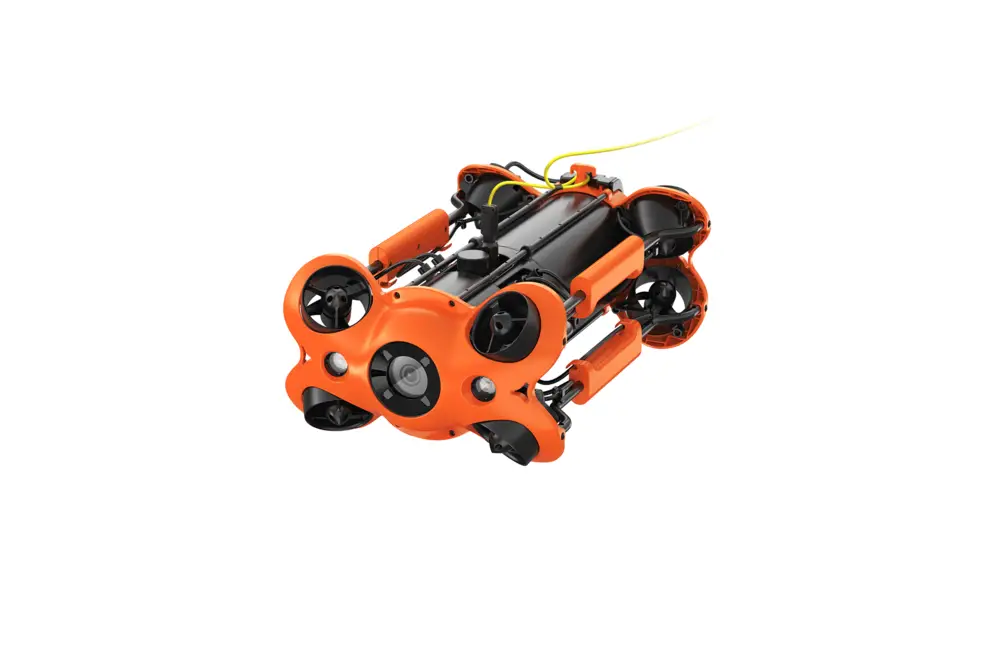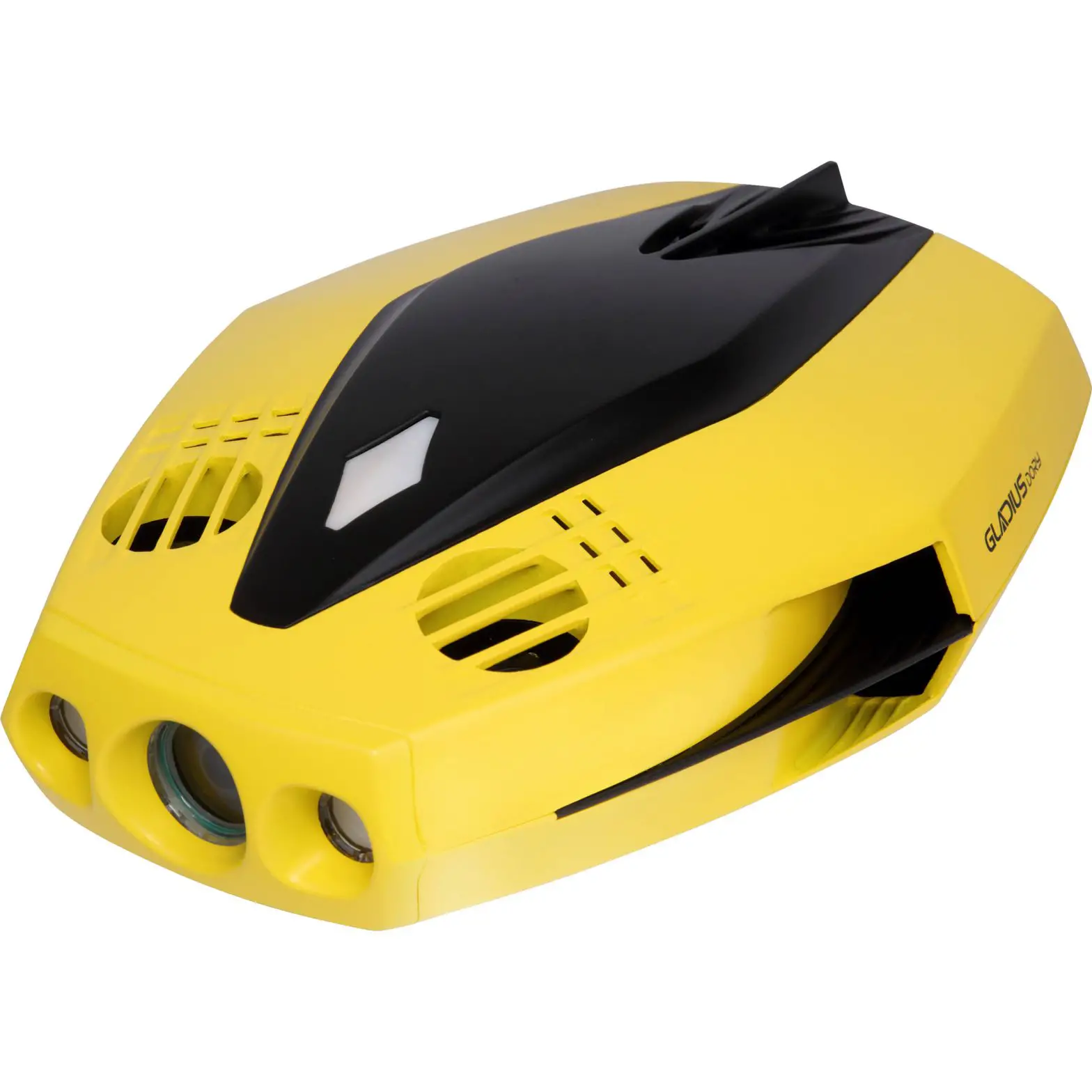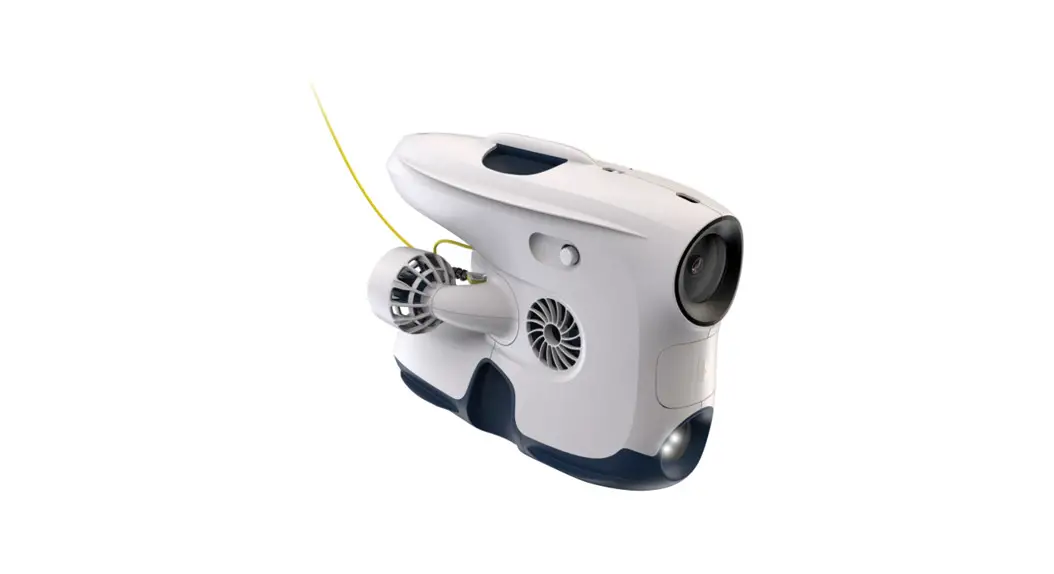
 Robotics Pioneer Underwater Drone With Camera
User Guide
CHARGING AND WIRED CONNECTIONS
1.1 Charging the accessories
Charge the Surface Unit and the controller with the included power adapter. (Xbox controllers do not incl. rechargeable batteries as standard.)
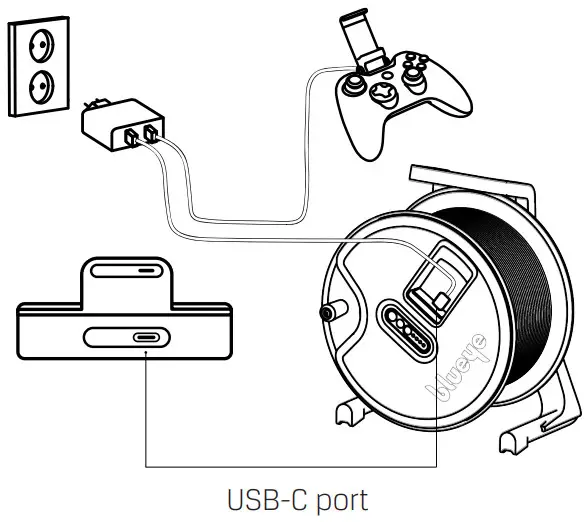
1.2Charging the drone
Unscrew the cap on the right side of the drone. Connect the drone to the Blueye Charger with the charging cable, and connect the power supply to an electrical socket.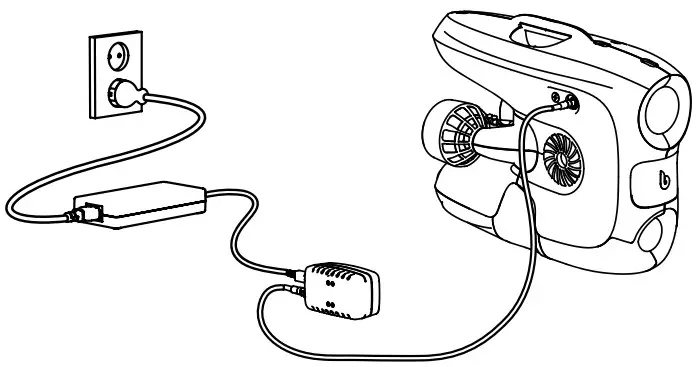
1.3 Charging the battery
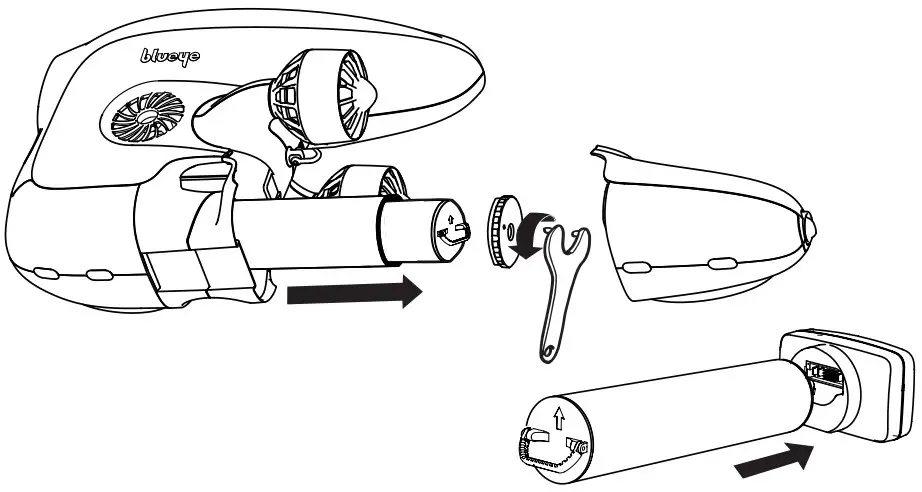
The battery can also be charged outside the drone: Open the battery cover, unscrew the aluminum lid, and pull out the battery. Remove the back cover on the charger to connect the battery.
 REV B
REV B
1.4 The Blueye Charger
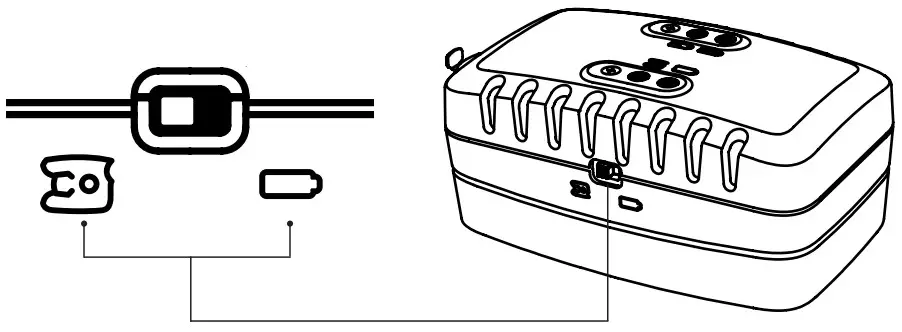
Make sure the switch is set to the «drone» symbol when charging the drone and the «battery» symbol when charging the battery outside of the drone.
INSTALLATION AND WIRELESS CONNECTIONS
2.1 The Blueye App
Download and launch the Blueye App.
 https://apps.apple.com/no/app/blueye/id1369714041?l=nb https://apps.apple.com/no/app/blueye/id1369714041?l=nb |
|
| App Store Blueye for iOS | Google Play Blueye for Android |
2.2 Powering on the system
Power on the Surface Unit (placed inside the reel) and use the magnet to power on the drone.
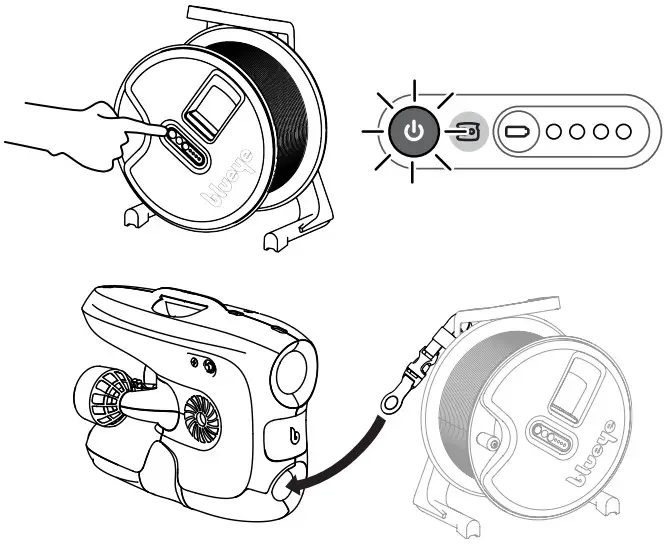
2.3 Connecting to the Wi-Fi
Open the Wi-Fi settings on your iOS or Android device and connect your mobile device to the Blueye network.
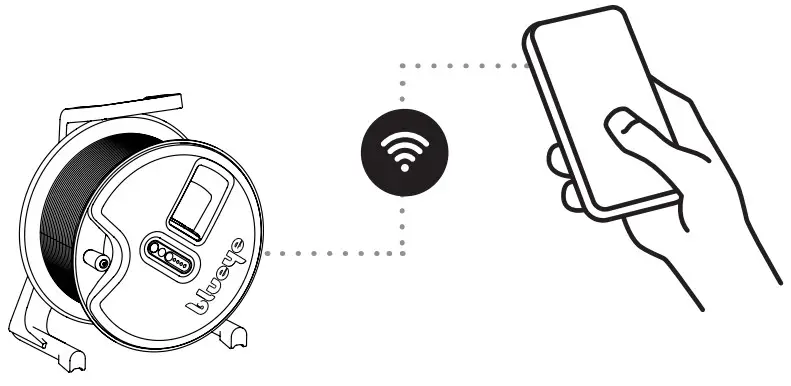
 SSID: “Blueye_XXXXXX”
Password: 1234567890
2.4 onnecting the controller
Connect the controller to your mobile device using Bluetooth. See next page for details.
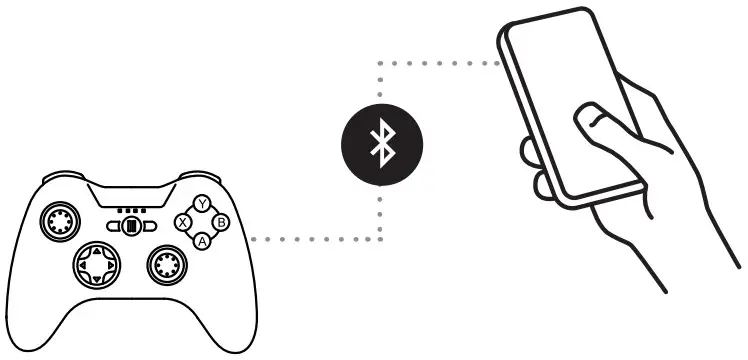
2.4.1 Setting the controller to pairing mode
Xbox Controller for iOS and Android
Press the Xbox button to turn on the controller. Press
 and hold the Pair button for 3 seconds and release.
PXN iOS Controller
Press and hold the power button until all LEDs start blinking red, then hold the Bluetooth button
 for about 5 seconds until LEDs start blinking at a faster rate.
PXN Android Controller
Press and hold the A button and then the MODE button
 at the same time until a blue LED starts blinking at a fast rate.
2.4.2 Pairing with mobile device
Open the Bluetooth settings on your mobile device and select the controller from the list of available devices.
- The Xbox Controller will appear as Xbox Wireless Controller.
- The PXN iOS Controller will appear as Speedy Gaming Controller.
- The PXN Android Controller will appear as PXN-9613. (May appear as «00:11:22:33:FF:EE» first time you connect.)
If the controller is not found or you are unable to connect, restart the controller and turn Bluetooth off and on. Check if the controller is listed under «My devices» or «Previously connected devices».
DIVING AND CONTROL
3.1 Starting a dive
Launch the Blueye App. Press «Start Dive» and follow instructions in the App to calibrate the drone, if needed. Deploy the drone and start diving.Be sure to keep the Blueye App up to date.
3.2 Controlling the drone
Open the menu bar in the App to learn how to pilot the drone.Changes in the controller layout can occur. The latest info and diagrams of the control mapping is displayed in the Blueye App.
3.3 Sharing with spectators
Watch the dive on multiple devices.
Download and launch the «Blueye Observer» App and connect the devices to the Blueye network.You can also stream the live drone footage in a Teams meeting. Visit the Blueye Help Center for more info.
3.4 Ending a dive
App: Press the drone icon in the top left corner and hit the «End Dive» button.
Equipment: Power off the drone, controller, and Surface Unit. Rinse the drone and tether in freshwater.
3.5 Further support
Visit the Blueye Help Center to learn how to generate a dive report, how to download captured media files and how to perform self-service on your drone.
Blueye Help Center
For more support articles, user manuals and video tutorials.