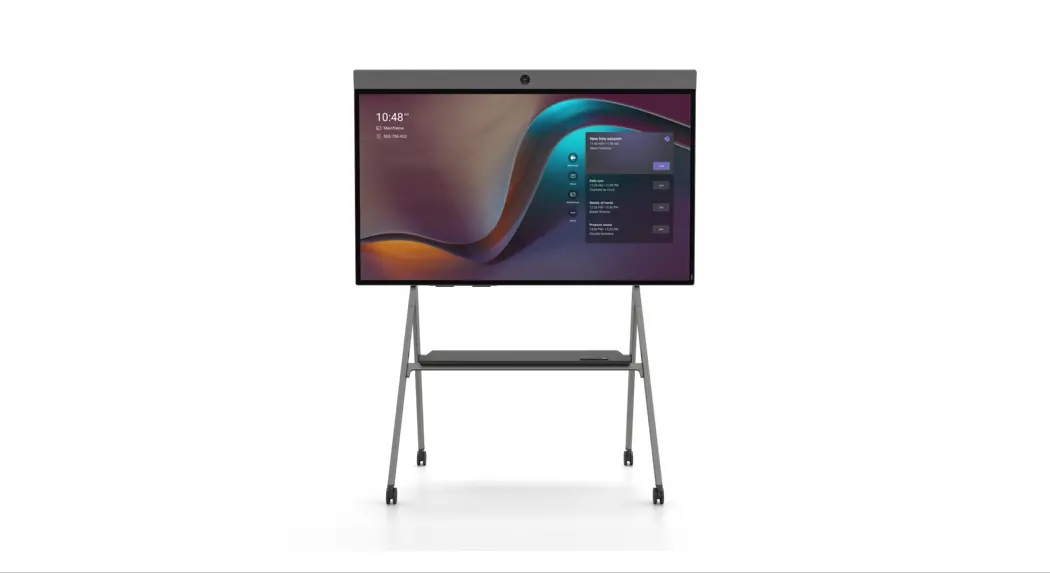
Board Video Conferencing
Neat Device Settings Guide
Updated April 2023
Table of Contents
- How to find System Settings by device and platform
- Neat Board – Microsoft Teams
- Neat Board – Zoom
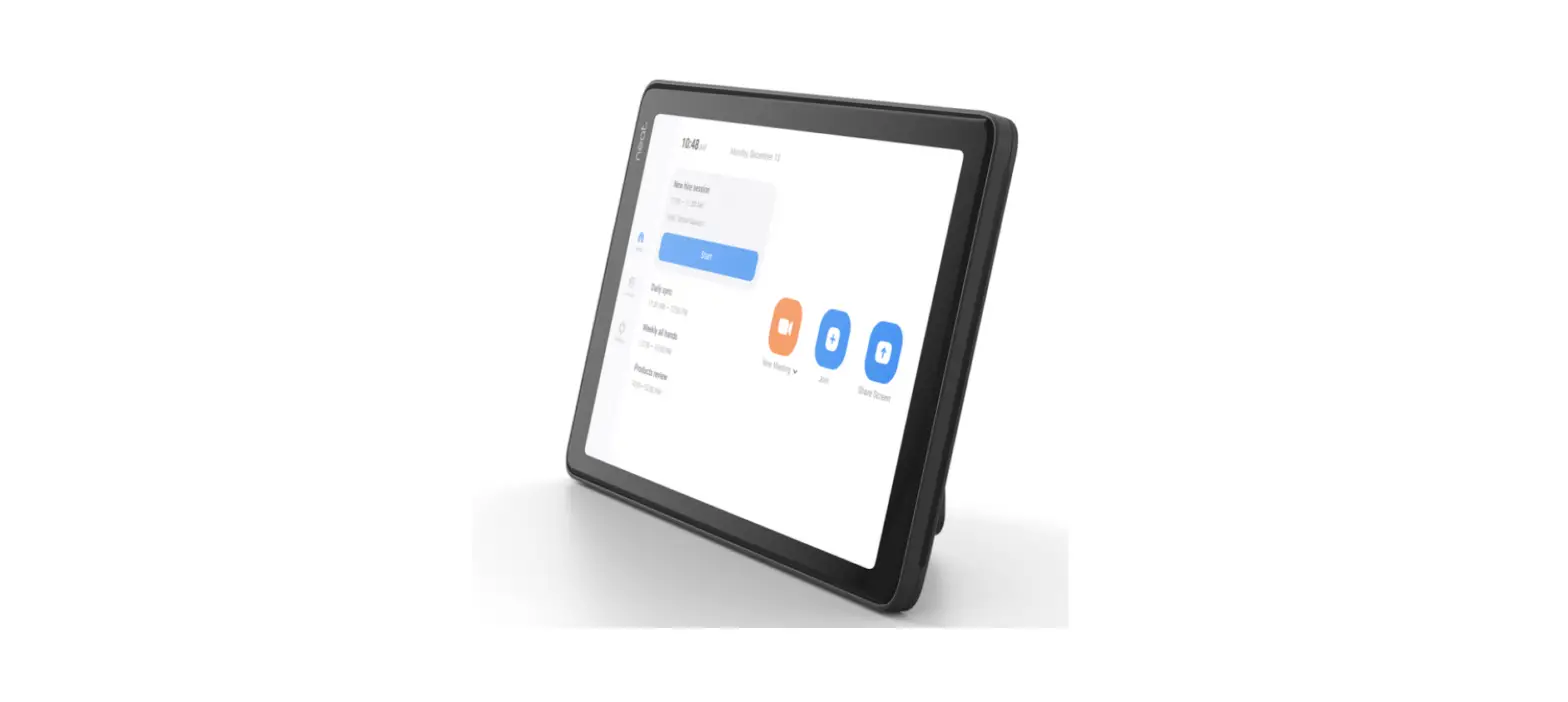
- Neat Pad as Controller – Microsoft Teams
- Neat Pad as Controller – Zoom
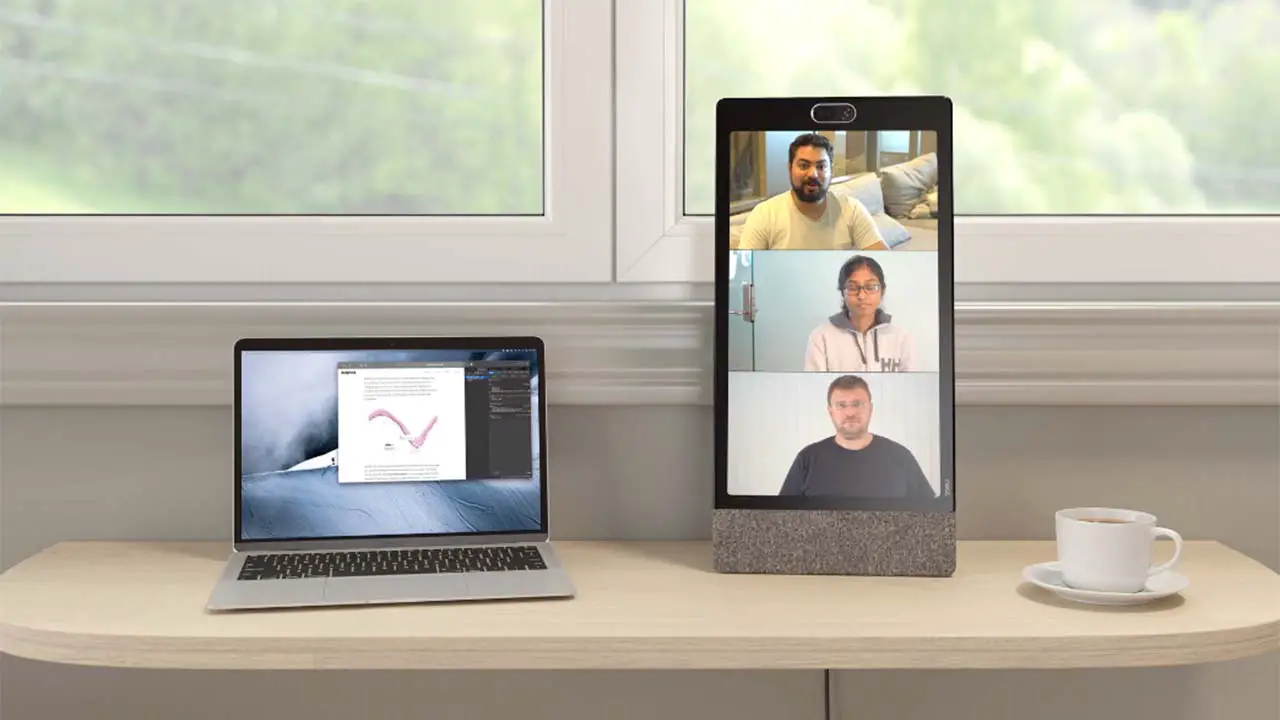
- Neat Frame – Teams
- Neat Frame – Zoom
- Neat Settings in Alphabetical order
Neat devices have a small amount of configuration settings. Most
functionality resides within the platform app – Microsoft or Zoom,
and is managed from its respective admin portal.
Neat device settings consist of: Accessibility, Time &
Language, Audio & Video, Network, and System settings. There
are also settings of features which are in Beta or complementary to
the Microsoft or Zoom platform. This guide shows in alphabetical
order all system settings available on the Neat devices. Per
setting we state on which devices and in what modes it is
available. System settings are only available when not in a
Microsoft/Zoom call.
System Settings Location
Access System Settings Neat Board – Teams
- From the device main screen click the `more’ button.
- Click on and then click `settings’.
- Click on Device settings in the menu. A settings menu with the
following will become available:- -Accessibility
- -Audio & Video
- -System
- -Admin Settings
Access System Settings Neat Board – Zoom
- Tap the Board outside of the menu box to bring up the setting
icon in the bottom right corner. - Click on the settings icon.
- Click on System Settings. A settings menu with the following
will become available:- -Accessibility
- -Time & Language
- -Audio & Video
- -Network
- -System
Access System Settings Neat Pad as Controller – Teams
- From the device main screen click the `more’ button.
- Click on and then click Settings.
- Click on Device Settings in the menu. A settings menu with the
following will become available:- -Pairing
- -Accessibility
- -Audio & Video
- -System
- -Admin Settings
Access System Settings Neat Pad as Controller – Zoom
- From the device main screen click the Settings button.
- Click on System Settings.
- The settings menu with the following will become available:
- -Pairing
- -Accessibility
- -Time & Language
- -Audio & Video
- -Network
- -System
Access System Settings Neat Frame – Teams
- From the device main screen click the Profile Icon.
- Click on Settings.
- Click on Device settings. The settings menu with the following
will become available:- -Accessibility
- -Time & Language
- -Audio & Video
- -System
- -Admin Settings
Access System Settings Neat Frame – Zoom
- From the device main screen tap anywhere. Then, tap the
settings icon in the bottom right corner. - Click on System Settings.
- The settings menu with the following will become available:
- -Pairing
- -Accessibility
- -Time & Language
- -Audio & Video
- -Network
- -System
System Settings in Alphabetical order
This guide shows all system settings available on the Neat
devices in alphabetical order. Per setting we state on which
devices and in what modes it is available. System settings are only
available when not in a Microsoft/Zoom call.
The system settings are:
- -Accessibility
- -Audio & Video
- -Network
- -Pairing
- -System
- -Time & Language
Product Usage Instructions
To access the system settings of your Neat device, follow the
instructions provided in the “System Settings Location” section
above for your specific device and platform.
Once you have accessed the system settings, you can configure
the following settings:
- Accessibility: adjust settings related to visual, auditory, and
physical accessibility needs. - Audio & Video: adjust settings related to audio and video
input/output, such as speakers, microphones, and cameras. - Network: adjust settings related to network connectivity, such
as Wi-Fi and Ethernet connections. - Pairing: pair your Neat device with other devices to enable
additional functionality. - System: adjust general system settings, such as power
management and language preferences. - Time & Language: adjust settings related to time and
language preferences, such as time zone and language
selection.
Note that system settings are only available when not in a
Microsoft/Zoom call.
Neat Device Settings Guide
Updated April 2023
Table of Contents
How to find System Settings by device and platform System SetAtidngdsa little bit of body text
Neat Board – Microsoft Teams
3
Neat Board – Zoom
4
Neat Pad as Controller – Microsoft Teams
5
Neat Pad as Controller – Zoom
6
Neat Frame – Teams
7
Neat Frame – Zoom
8
Neat Settings in Alphabetical order
9
Neat devices have a small amount of configuration settings. Most functionality resides within the platform app – Microsoft or Zoom, and is managed from its respective admin portal.
Neat device settings consist of: Accessibility, Time & Language, Audio & Video, Network, and System settings. There are also settings of features which are in Beta or complementary to the Microsoft or Zoom platform. This guide shows in alphabetical order all system settings available on the Neat devices. Per setting we state on which devices and in what modes it is available. System settings are only available when not in a Microsoft/Zoom call.
2
System Settings Location
Access System Settings Neat Board – Teams
1. From the device main screen click the `more’ button. 2. Click on and then click `settings’. 3. Click on “Device settings” in the menu. A settings menu with the following will become available: -Accessibility -Audio & Video -System -Admin Settings
1
2
Neat Settings Guide
3
System Settings Location
Access System Settings Neat Board – Zoom
1.Tap the Board outside of the menu box to bring up the setting icon in the bottom right corner. 2. Click on the settings icon. 3. Click on System Settings. A settings menu with the following will become available: -Accessibility -Time & Language -Audio & Video -Network -System
1
2
Neat Settings Guide
4
System Settings Location
Access System Settings Neat Pad as Controller – Teams
1. From the device main screen click the `more’ button. 2. Click on and then click Settings. 3. Click on Device Settings in the menu. A settings menu with the following will become available: -Pairing -Accessibility -Audio & Video -System -Admin Settings
1
Neat Settings Guide
5
System Settings Location
Access System Settings Neat Pad as Controller – Zoom
1. From the device main screen click the Settings button.
2. Click on System Settings.
3.The settings menu with the following will become available: -Pairing -Accessibility -Time & Language -Audio & Video -Network -System
Neat Settings Guide
6
System Settings Location
Access System Settings Neat Frame – Teams
1. From the device main screen click the Profile Icon. 2. Click on Settings. 3. Click on Device settings. The settings menu with the following will become available: -Accessibility -Time & Language -Audio & Video -System -Admin Settings
1
Neat Settings Guide
7
System Settings Location
Access System Settings Neat Pad as Controller – Zoom
1. From the device main screen tap anywhere. Then, tap the settings icon in the bottom right corner.
2. Click on System Settings.
3.The settings menu with the following will become available: -Pairing -Accessibility -Time & Language -Audio & Video -Network -System
Neat Settings Guide
2 8
System Settings
System Settings in Alphabetical order
About: This submenu shows all aspects of the Neat device, and paired devices such as: Privacy Policy, Serial Number, Firmware version, Software update channel, Open Source Software.
Antibanding mode: Antibanding prevents a flickering image caused by the frequency in the powerlines of power suppliers. This frequency is different across the world. Neat devices analyze the room and determine the frequency themselves (default setting). It can be set manually to 50 Hz or 60 Hz. Available on: All devices, Default value is `Default’.
Auto-framing: Neat Symmetry is Neat’s unique auto framing technology. When toggled on, the options `Group’ and `Individuals’ will become visible. More detail on page 12.
Group: Will automatically frame all participants in the room. Default value is `Selected’ Individual: Dynamically frames individuals in the meeting room and joins the frames together, eliminating the distance between them. The result is a single frame with multiple meeting participants, all roughly at the same size. Note: This is available in the system settings on all Neat devices in Microsoft mode. Neat devices in Zoom mode can access auto-framing settings in the Zoom admin portal and during the meeting in camera control options.
Auto pairing volume: This sets the volume of the ultrasound used for pairing the PC/laptop/mobile device with the Neat device for content sharing via the Zoom app. Available on: all Neat devices in Zoom mode only, apart from Neat Pad configured as room booking panel. Default value is 70%.
Auto wake up: To conserve energy, the Neat Board automatically wakes up and sleeps based on presence of people in the room. Neat uses ultrasound to detect movement/a change in its surroundings to wake up. For this, the Neat devices do have an ultrasonic speaker and ultrasonic microphones. On Neat Bar and Neat Bar Pro, Neat supports a standard called CEC (Consumer Electronics Control), which allows it to send control signals to the screen via the HDMI cable and put the screen to sleep when not in use. Please note that the TV screen will need to have support for CEC.
To enable auto wake on Teams: Go to `More’ on the device and select `Settings’. Scroll to the bottom of the list and select `Device settings’. You will then find the feature toggle switch under the `System’ menu in your system settings. To enable auto wake on Zoom: Go to Settings -> General -> System Settings -> System -> Auto wake up), the Neat Bar will automatically wake up the screen when it detects people in the room.
Neat Settings Guide
9
System Settings
Bluetooth: Bluetooth is used for wireless content sharing when running Microsoft Teams. This allows `Join from device’ and Microsoft casting functionality. On Frame, Bluetooth can be enabled for wireless headphones. Available on: All devices (different between Teams/Zoom, and by platform), Default value is `Disabled’.
BYOD Mode: Now users can connect their own laptops to the Neat Board or Neat Bar via a USBC and HDMI connection. In this way, users can connect to any meeting (Webex, Google Meet, FaceTime, etc.) on their laptop while benefiting from the beautiful audio and video experience Neat products provide. Available on: Bar and Board For more info, please visit: https://support.neat.no/article/byod-mode/
Change password: Change admin password
Color correction: Enabling color correction allows to alter the colors of the UI of the interface (also affects the paired device) for different anomalies. Options: `Deuteranomaly’, `Protanomaly’, `Tritanomaly’ Available on: all Neat devices, Default value: disabled.
Debug: This submenu allows you to Reset Custom Configurations of the following settings: Language, Time zone, Time format, Accessibility, Bluetooth enabled, Auto wake, Static ip, OTA channel, Allow USB Ad-hoc mode. The other option of Reset to Factory Defaults carries out a full reset of the system back to the out of box experience.
Display Preference: Display preference allows you to choose between higher resolution or lower latency. Available on Bar and Bar Pro for Teams
Font Size: This allows to change the text size of all text on the interface (also affects the paired device) Options: `Small’, `Default’, `Large’, `Largest’ Available on: all Neat devices, Default value: Default.
High Contrast Mode: Enabling this feature on increases the contrast around all text on the interface (this will also affect the paired device).
Maximum zoom: Neat Bar and Neat Board apply digital zoom to frame the participants. This can be done thanks to a large image sensor and good lens. The maximum zoom for optimal image quality is 4x zoom (default). If more zoom is needed and users are willing to sacrifice image quality, then this option allows to change this maximum zoom level to 6x or 8x.
Network: Choose ethernet or Wi-Fi, and connect to Wi-Fi network.
Neat Settings Guide
10 9
System Settings
Screen brightness: Allows you to change the brightness of the screen. Due to the screen technology, lowering brightness does not lower the energy consumption. Available on: Neat Board, Neat Frame and Neat Pad, Default value is `90%’.
Screen Reader: When this option is enabled it describes each item you interact with. Two fingers can be used to scroll, single tap to select and double tap to activate. Available on: all Neat devices, Default value: disabled.
Screen standby: To conserve energy, The Neat Frame can turn its screen off, or dim its screen after a certain amount of time being not in use. When a user taps the screen, the unit is woken and can be used immediately. Available on: Neat frame, Default value is `5 minutes’
Software update: Check the software version running on your device and change between `preview’ and `stable’ channels.
Subject boundary: Selecting opens a submenu where the width and depth of the room can be set by sliders. On the screen connected to Neat Bar, a self view is shown and green and red squares indicate if a person is in or outside the boundary. This means that the auto framing feature will not detect people walking outside a glass wall, in an open area, etc. Inside the boundary, auto framing will function as expected. Available on: all Neat devices. Default value is `Boundless’ (equal to `off’).
Remote access: Neat’s Remote Access feature allows administrators to login to Neat’s web admin via a web browser and access/retrieve useful information. For more info, please visit: https://support.neat.no/article/how-to-enable-remote-access-onneat/
Reset: Perform a system reset. A dialog box will pop up first to confirm this action. When the Neat device is in Microsoft Mode, Administrator credentials are needed (login into admin settings) to have this option visible.
Restart: Immediately perform a reboot of Neat Pad and Neat Bar / Bar Pro (if paired). No dialog box will pop up first to confirm this action.
Room status indicator LEDs: This setting will enable the LEDs at the side of the Neat Pad. When enabled, a slider is visible to set the brightness of the LEDs (default at 70%). Available on: Neat Pad, Default value is ‘enabled’.
Teams Admin Settings: This opens up a submenu with the Teams admin settings (Calling, Meetings, Wallpapers, Console pairing and Teams sign out).
Time and language: Set time zone and language for the device.
Neat Settings Guide
11
Neat Symmetry and Auto Framing
Neat Symmetry and Auto Framing in Detail
Neat Symmetry is Neat’s unique auto framing technology. Symmetry allows people in a Neat room to be shown in their own dynamic video frame. This improves the conference experience for other participants in the meeting by allowing people in the Neat room to be seen more easily. When Auto Framing is chosen, the camera will automatically focus on the meeting room participants and group them together. If participants move around or leave/enter the meeting room, the framing will be adjusted to accommodate those changes.
The subject boundary to define the `frame’ (width and depth) within which Neat’s camera will operate. This means that the auto framing feature will not detect people walking outside a glass wall, in an open area, etc. Inside the boundary, auto framing will function as expected.
Example: if there is a meeting room with a table and 2 persons seated as such, in `group auto framing’, these people will be framed and the frame will contain 2 small persons with a table in the middle.
With dynamic framing, the persons will be seen larger, and in 2 halves of the frame, both equally sized. The table is not visible as a whole anymore.
For more information on Neat Symmetry visit: https://support.neat.no/article/neat-symmetry-auto-framing/. For more info on Auto Framing, please visit https://support.neat.no/article/neat-framing-subject-boundary/
Neat Settings Guide
12
 BYOD Mode - Neat Support