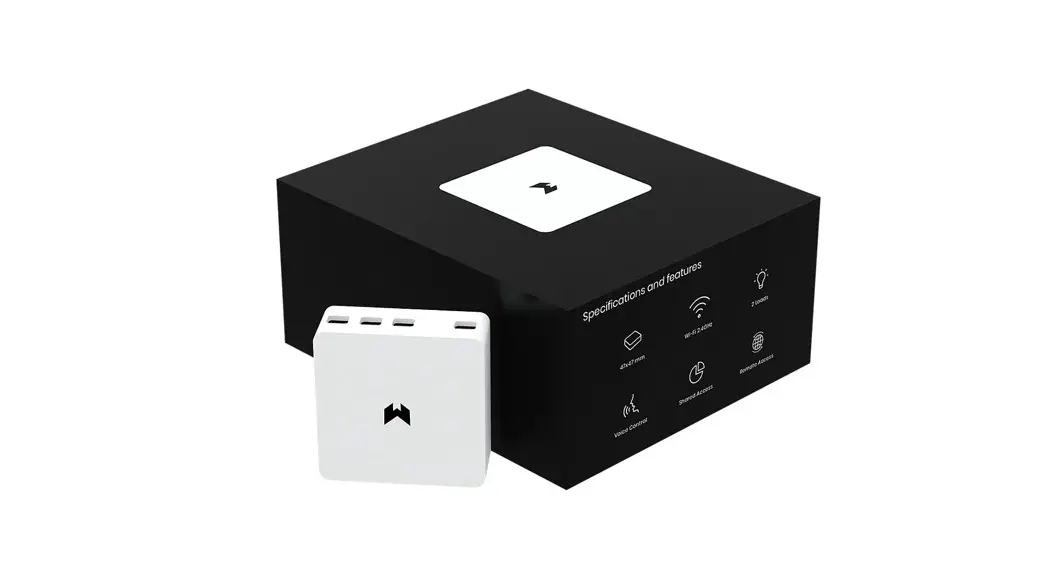
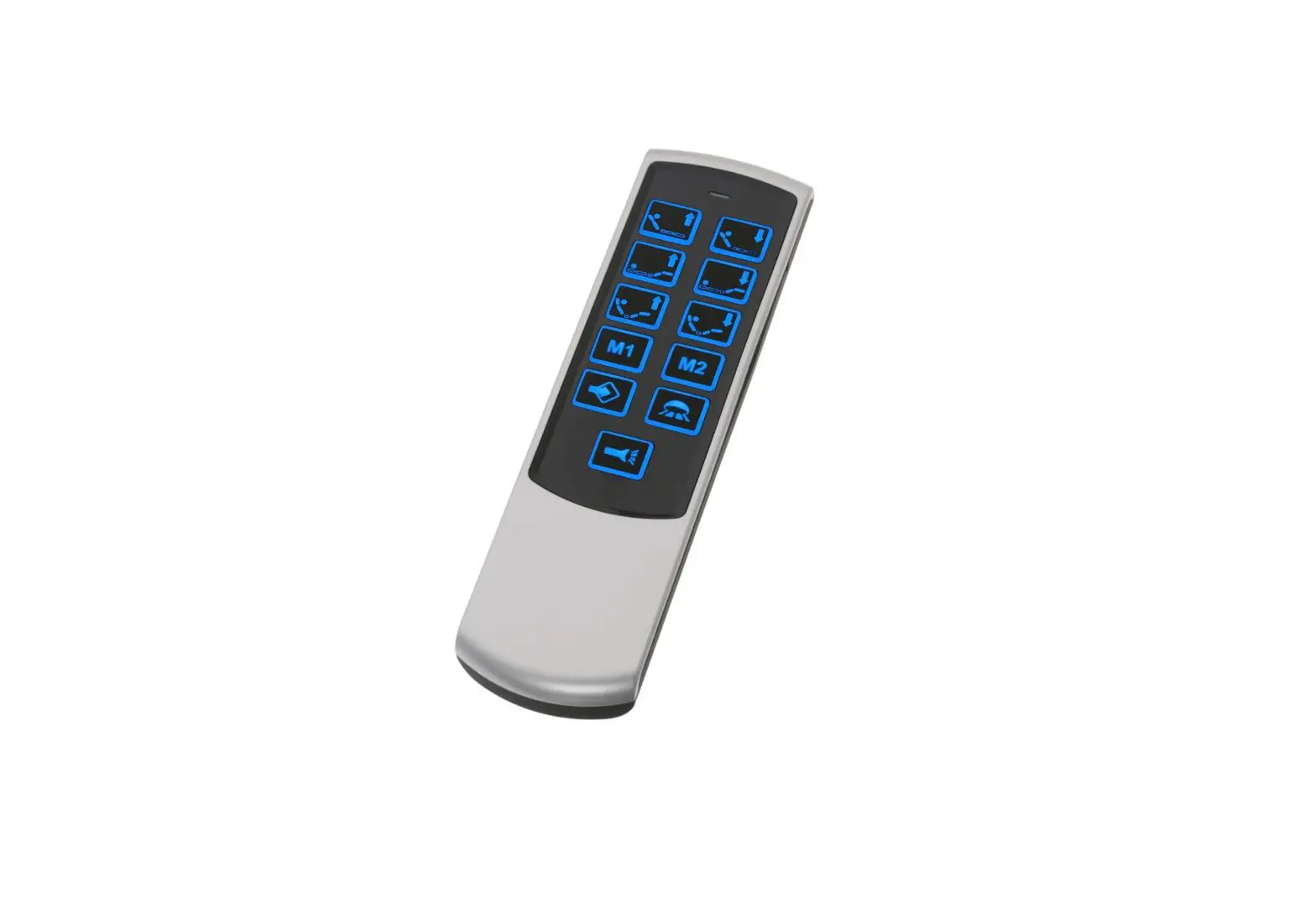
WSC010 Stage Smart Scene Controller
Product Information
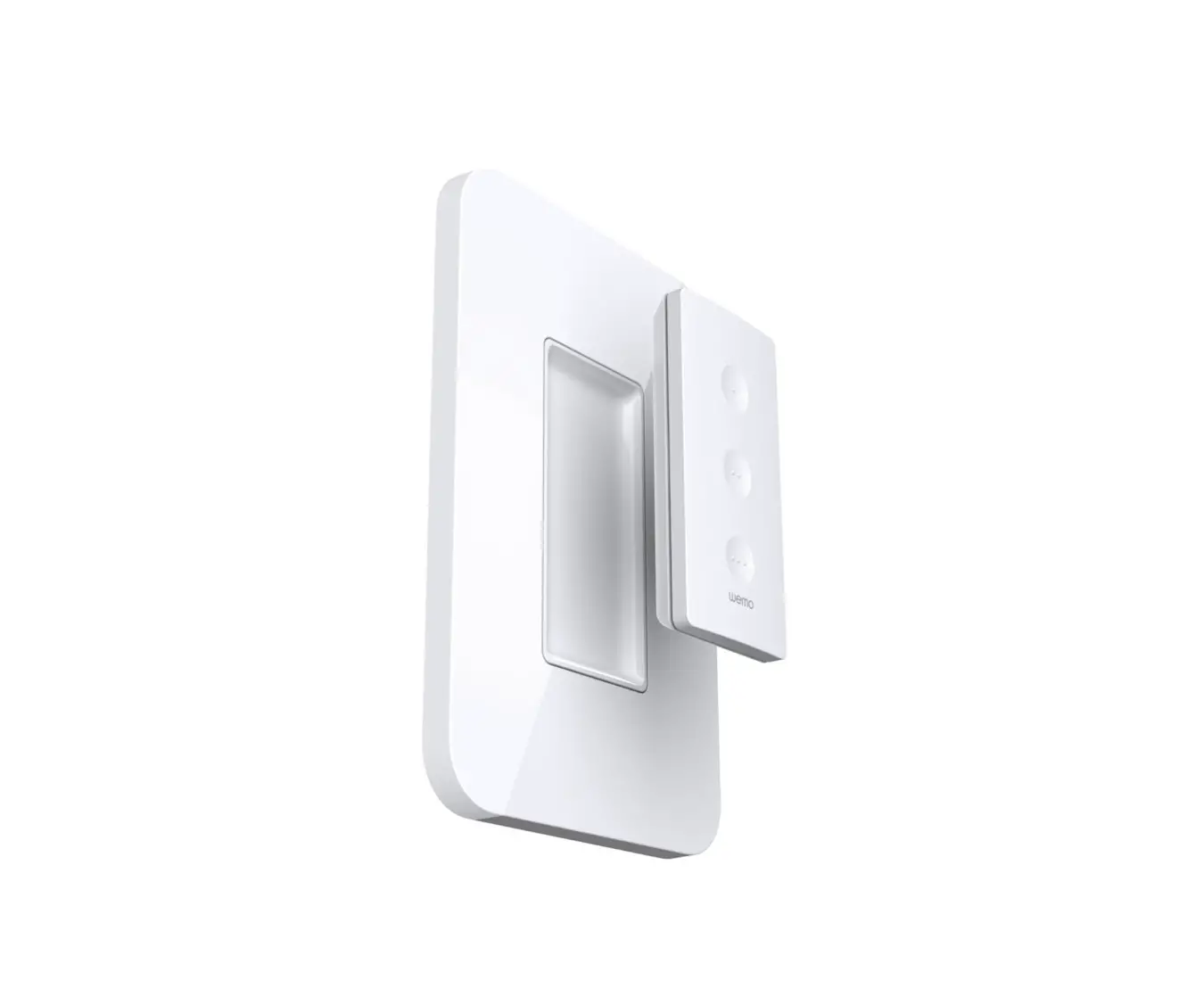
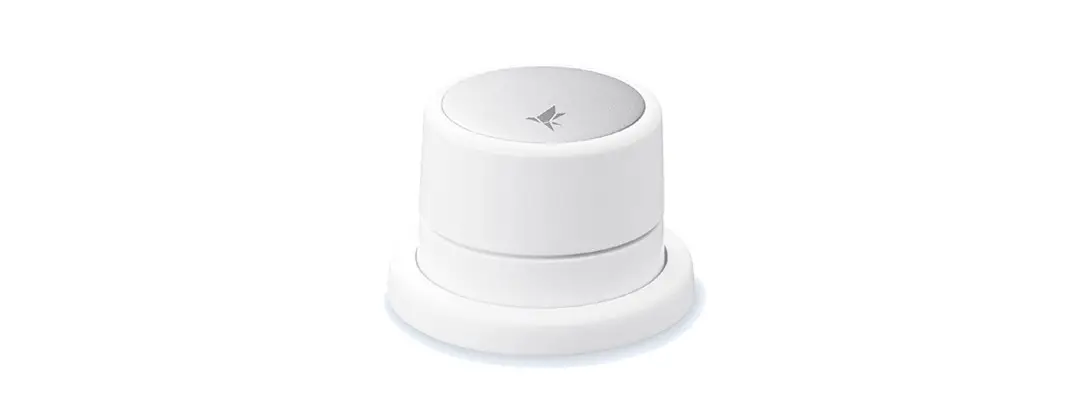
The Wemo Stage Smart Scene Controller is a device that allows
you to control multiple smart devices with the touch of a button.
It comes with a cradle and faceplate for optional wall-mounting.
The package includes a CR2032 battery and an instruction manual. To
use the Wemo Stage, you need an iPhone or iPad and a HomePod, Apple
TV, or iPad set up as a home hub. The device has a status light
that indicates its battery level and setup status.
Print Specs
- Color Plates: CM, PMS, YK, 7488
- Die Line File: IDL_WSC010_QSG
- Artwork File:
QSG_WSC010_8820-03033_RevA00_Stage_Scene_Controller - Material: 200gsm SBS Coated 2-sides
- Dimensions: 316.01 [12+7/16] x 135.7 [5+11/32]
- SKU#: WSC010
- Designer: Jonathan
- P#: 8820-03033
- Rev: A00
- Date: 01/8/21 12:24 PM
- Version: 03
Product Usage Instructions
What’s in the box?
The package includes the Wemo Stage Smart Scene Controller, a
cradle and faceplate for optional wall-mounting, and a CR2032
battery.
Quick Setup Guide
- Install the CR2032 battery into the controller with the
positive side facing up. - Wait for the controller to enter setup mode (light blinks
yellow and green). - Launch the Apple Home app.
- Hold your phone near the controller and follow the prompts when
they appear. For iPhone X or below, you’ll need to add (+) Wemo
Stage as an accessory in the Home app. - Add Wemo Stage as an accessory.
- Create scenes that control your smart devices.
- Assign scenes to buttons on Wemo Stage.
Requirements
To control Wemo Stage, you’ll need an iPhone or iPad and a
HomePod, Apple TV, or iPad set up as a home hub. Make sure your
devices have the latest software and operating system updates.
Adding to Apple Home
- Install battery into the controller with the positive side
facing up. - Wait for the controller to enter setup mode (light blinks
yellow and green). - Launch the Apple Home app.
- Hold your phone near the controller and follow the prompts when
they appear. For iPhone X or below, you’ll need to add (+) Wemo
Stage as an accessory in the Home app.
Creating Scenes
Scenes allow you to automatically control single or multiple
smart devices with the touch of a button. Creating scenes in the
Home app:
- Add a scene (+) from the Home app.
- Choose a scene name or create a custom name.
- Add accessories (smart devices) to the scene.
- Assign actions to these accessories (example: turn on/off a
light).
Assigning Scenes
Your Wemo Stage can trigger up to 6 scenes. Each button can be
assigned a scene for a short press or long press. Assigning scenes
to buttons in the Home app:
- Tap your Wemo Stage from the list of accessories.
- Decide which button you want to assign the scene to, then
choose short press or long press. - Assign your scenes.
Example Scenes
- Bedtime: Place Wemo Stage on your bedside table. Before
sleeping, press to turn off all your home lights and turn on your
security system. - Entertainment: Place Wemo Stage on your coffee table. When
ready to party, press to dim the lights and turn on the music or
TV. - Guest room on/off: Give guests control of smart lights, fans,
blinds, and other devices in their room.
Status Light
- Off: Working normally; press any button to show status.
- Green: A scene has been triggered or setup has just
completed. - Yellow: Low-battery level.
- Blinking Yellow: An error has occurred.
- Yellow and Green (Alternating): Ready for setup.
Installing or Changing Battery
- Remove the cover on the back of the controller.
- Install CR2032 battery in the compartment positive (+) side
up. - Replace back cover.
Troubleshooting
If you encounter setup or control issues, try restarting the
device by removing and re-inserting the battery. If this does not
work, you can factory restore your controller by pressing and
holding the Restore button for 5 seconds, waiting for the light to
blink yellow, then green and releasing it. After that, you can
re-add your Wemo Stage to Apple Home and reassign scenes to
buttons.
DIE LAYOUT
PRINT SPECS:
Color Plates:
CM
PMS
YK
7488
Die Line File: IDL_WSC010_QSG
Artwork File: QSG_WSC010_8820-03033_RevA00_Stage_Scene_Controller
200gsm SBS Coated 2-sides
316.01 [12+7/16]
INNOVATION CREATIVE GROUP
FILE NAME
QSG_WSC010_8820-03033_RevA00_Stage_Scene_Controller
SKU#
WSC010
DESIGNER
Jonathan
295800
P#
8820-03033
REV
A00
DATE
01/8/21 12:24 PM
VERSION 03
Front
135.7 [5+11/32]
Stage
Smart Scene Controller
Setup Guide
What’s in the box
Cradle and faceplate (for optional wall-mounting)
Quick setup
Use the Apple Home app to:
Controller
CR2032 battery (install + side up)
What you’ll need
To control Wemo Stage, you’ll need an iPhone or iPad and a HomePod, Apple TV, or iPad set up as a home hub. Make sure your devices have the latest software and operating system updates.
· How to set up a home hub: support.apple.com/en-us/HT207057 · HomeKit-compatible devices: apple.com/ios/home/accessories
1
2
Add Wemo Stage as an accessory
Create scenes that control your smart devices
3
Assign scenes to buttons on Wemo Stage
1 Adding to Apple Home
1. Install battery into the controller with the positive side facing up
2. Wait for the controller to enter setup mode (light blinks yellow and green)
3. Launch the Apple Home app
4. Hold your phone near the controller and follow the prompts when they appear For iPhone X or below, you’ll need to add (+) Wemo Stage as an accessory in the Home app.
2 Creating scenes
Scenes allow you to automatically control single or multiple smart devices with the touch of a button. Creating scenes in the Home app 1. Add a scene (+) from the Home app
2. Choose a scene name or create a custom name
3. Add accessories (smart devices) to the scene
4. Assign actions to these accessories (example: turn on/off a light)
3 Assigning scenes
Your Wemo Stage can trigger up to 6 scenes. Each button can be assigned a scene for a short press or long press.
Assigning scenes to buttons in the Home app 1. Tap your Wemo Stage from
the list of accessories
2. Decide which button you want to assign the scene to, then choose short press or long press
3. Assign your scenes
316.01 [12+7/16]
Back
135.7 [5+11/32]
Example scenes
Bedtime: Place Wemo Stage on your bedside table. Before sleeping, press to turn off all your home lights and turn on your security system.
Entertainment: Place Wemo Stage on your coffee table. When ready to party, press to dim the lights and turn on the music or TV.
Guest room on/off: Give guests control of smart lights, fans, blinds, and other devices in their room.
Status light
Off Working normally; press any button to show status
Green A scene has been triggered or setup has just completed
Yellow Low-battery level
Blinking Yellow An error has occurred
Yellow and Green (Alternating) Ready for setup
Installing or changing battery
Remove the cover on the back of the controller
Install CR2032 battery in the compartment positive (+) side up
Replace back cover
Troubleshooting
Restart
Having setup or control issues? Remove and re-insert the battery to restart.
Factory restore
If a restart doesn’t help, factory restore your controller.
1. Press and hold Restore button for 5 seconds
2. Wait for the light to blink yellow, then green and release
Restore button
3. Re-add your Wemo Stage to Apple Home and reassign scenes to buttons
S/N: 202012345678912
Wall-mounting
Thoroughly clean wall surface. Remove the paper from the adhesive strips on the back of the cradle.
Attach the cradle to the wall
Snap the faceplate onto the mounted cradle
A magnet in the controller holds it to the wall mount
Have questions?
HomeKit Setup Code
Keep this HomeKit Code handy in case you need it for setup later
Wemo Stage Support
Visit wemo.com/stage for support with your Wemo Stage or call us at 1-844-745-WEMO.
For warranty information, go to wemo.com/warranty
8820-03033 Rev. A00
Finish:
OVERALL PP COAT
Notes:
ALL TEXT AND GRAPHIC ELEMENTS COLOR: CMYK, PMS 7488C
REV
0 00
Business Unit: Belkin
Program Manager:
Packaging Engineer: Caleb Nelson
Retail Outside Dimension (Including Hang Tab) L x W x D (in): L x W x D (mm):
DIE/MATERIAL SPECS:
Material: Please refer to drawing Blank Size (in): 316.01 x 308.70 Blank Size (mm): 316.01 x 308.70
This dieline works for following skus (if any):
WSC010
Unit: IN/MM Side Shown: PRINT SIDE Flute/Grain: horizontal
Tolerance:+/- 1/32″ – 0.8mm Drawing Scale 1:1
RELEASE DATE: 12/15/2020
DIELINE:
Caleb Nelson
THIS DOCUMENT & THE INFORMATION IN IT ARE THE CONFIDENTIAL PROPERTY OF BELKIN INTERNATIONAL AND MUST NOT BE COPIED, REPRODUCED OR USED IN ANY MANNER WITHOUT THE WRITTEN CONSENT OF BELKIN CORPORATION. IT MUST BE RETURNED UPON REQUEST
DO NOT PRINT DIE LINES, PRINTERS NOTES
 Home app - Accessories - Apple
 Set up your HomePod, HomePod mini, Apple TV, or iPad as a home hub - Apple Support
 Wemo Stage Scene Controller with Thread | Belkin | Belkin: US