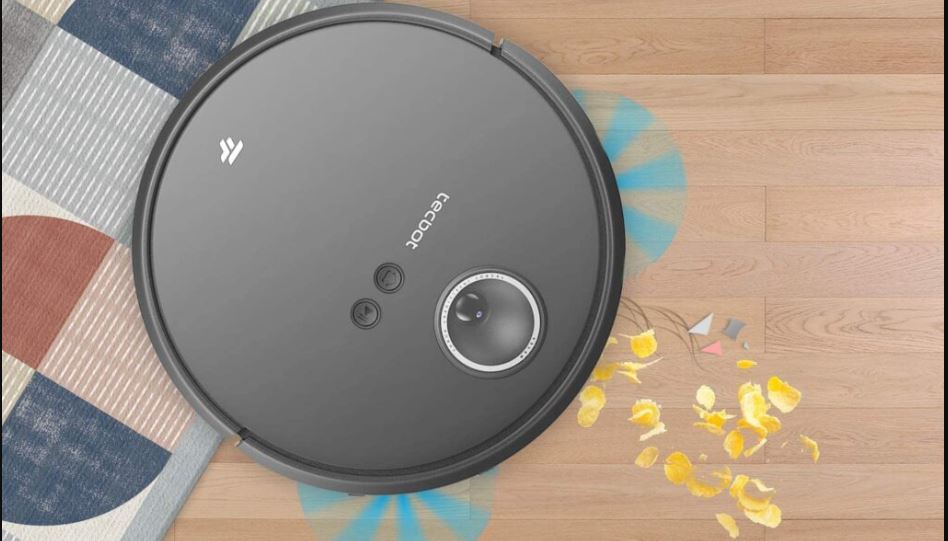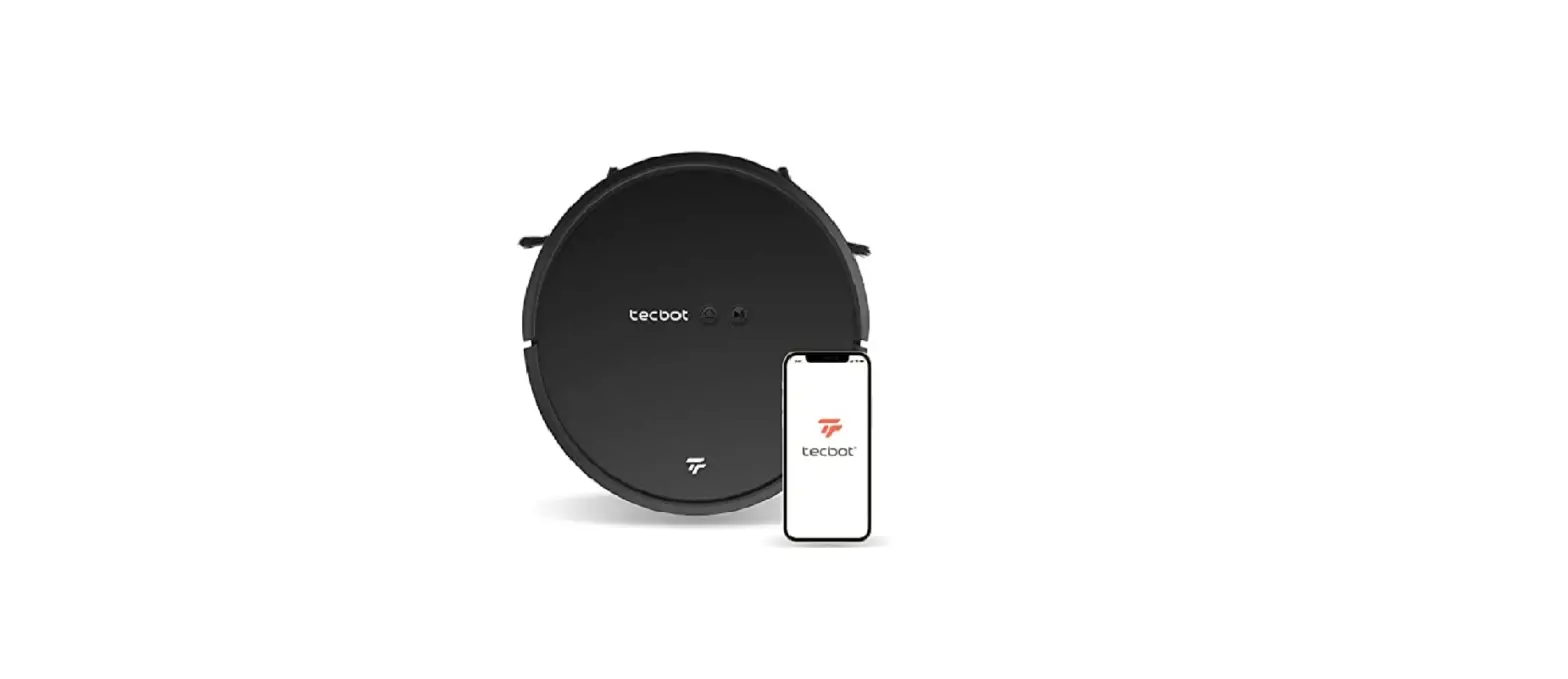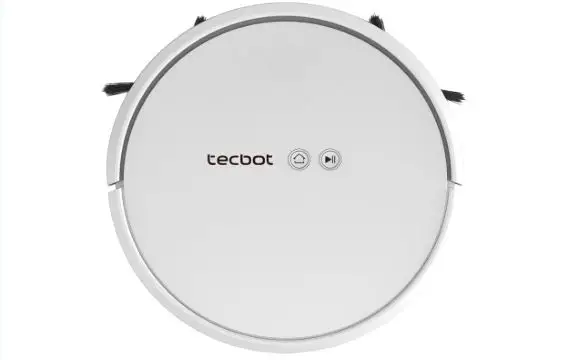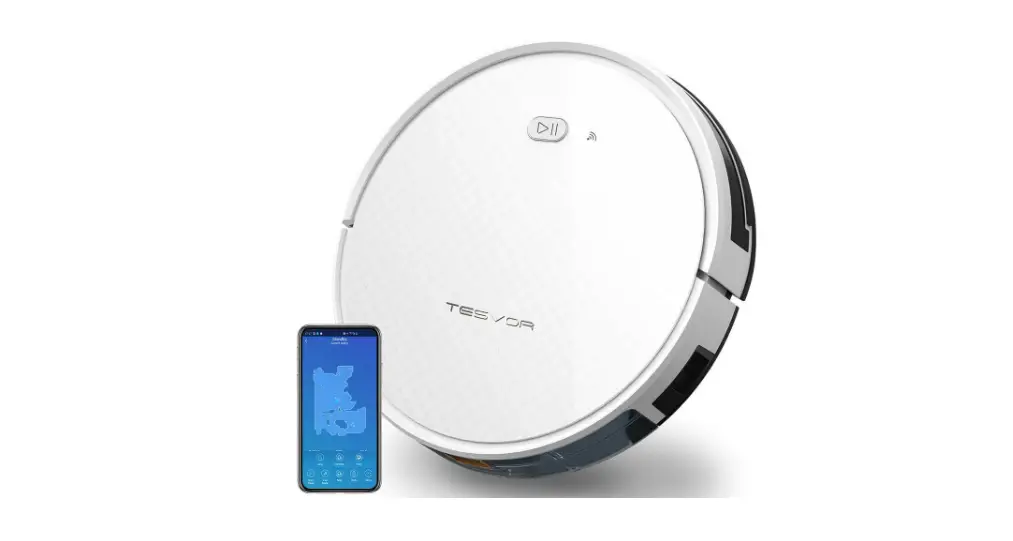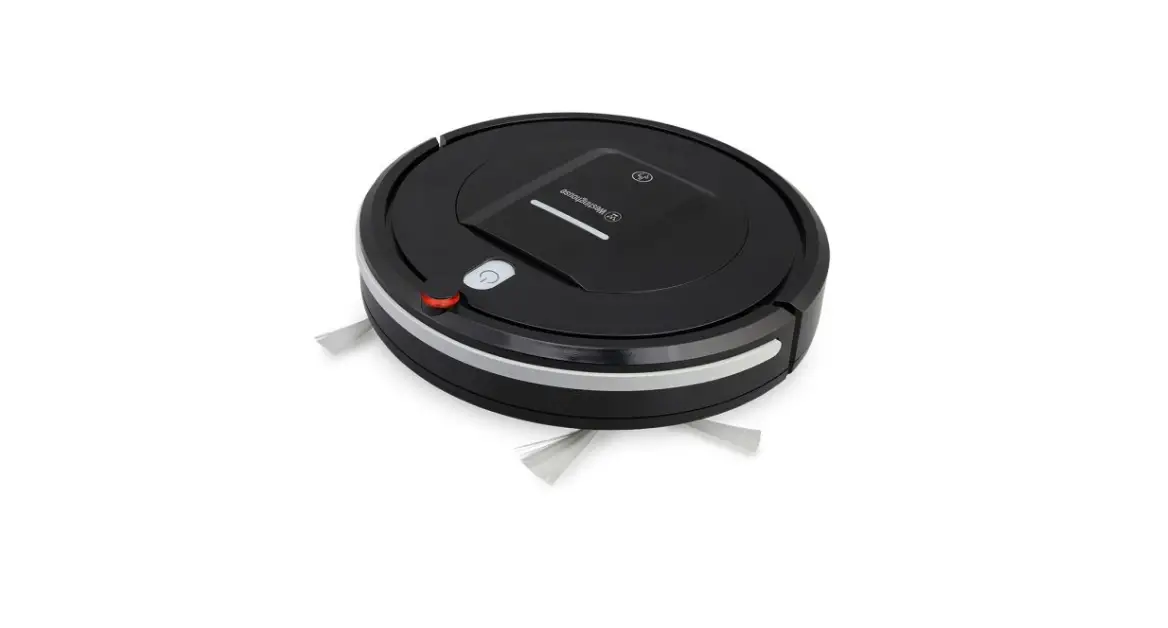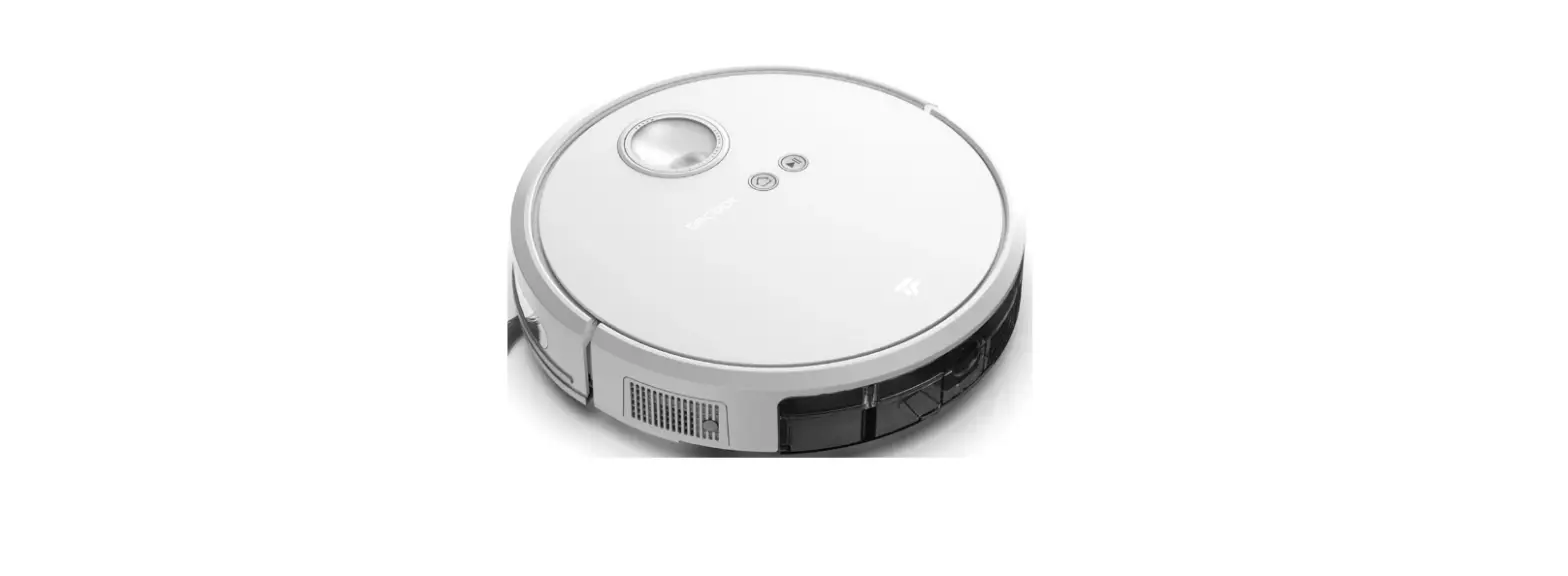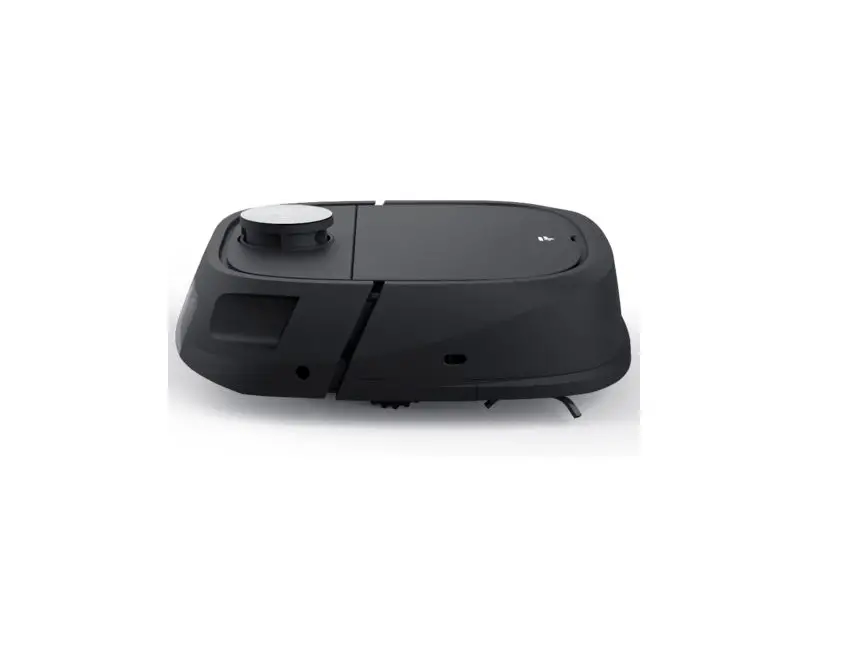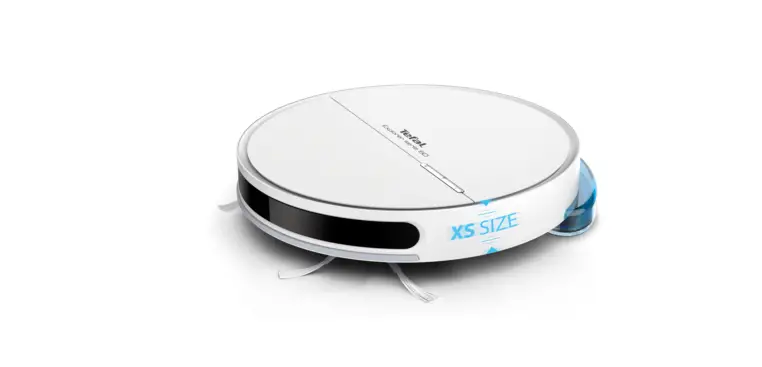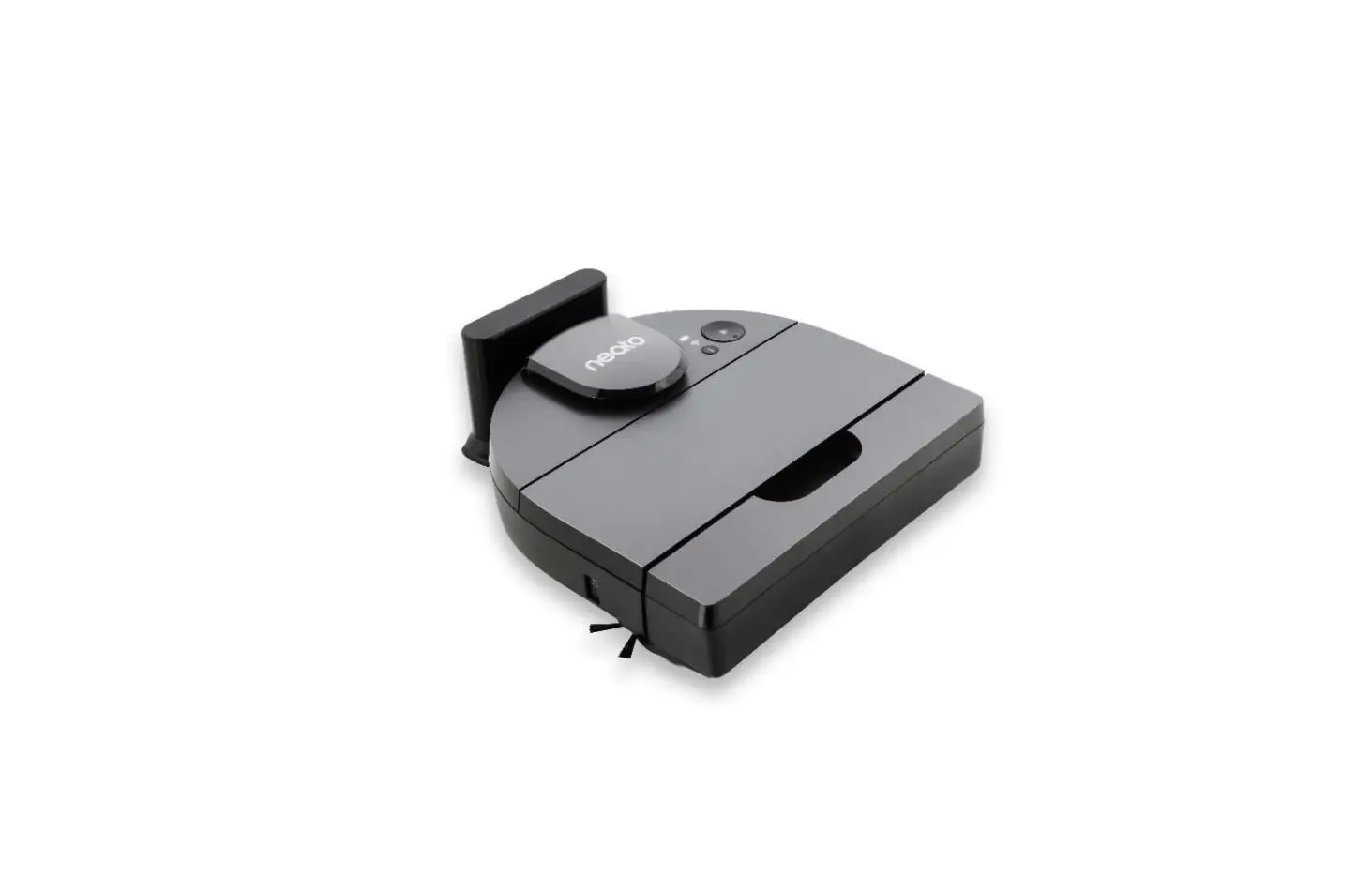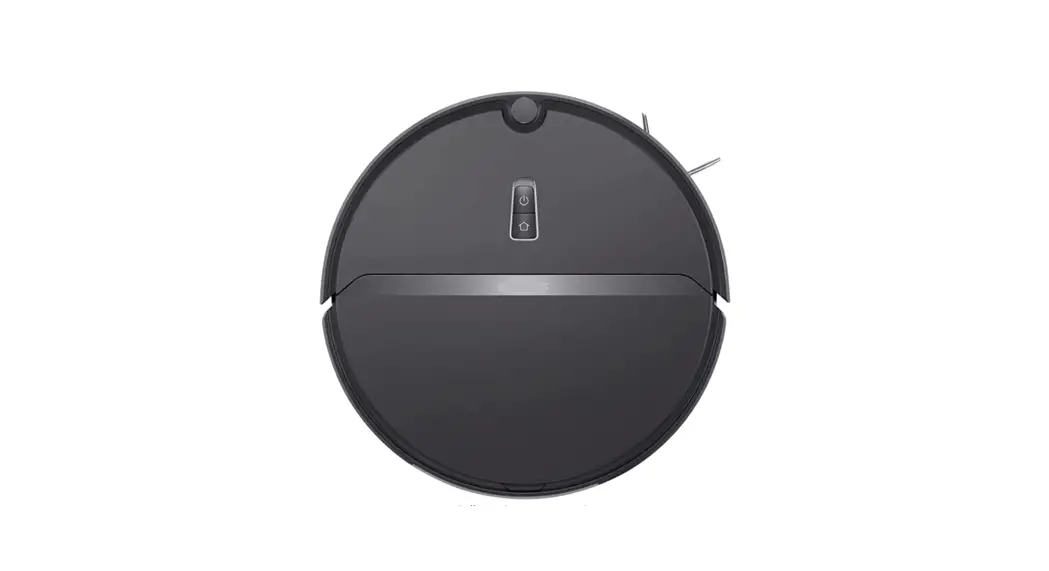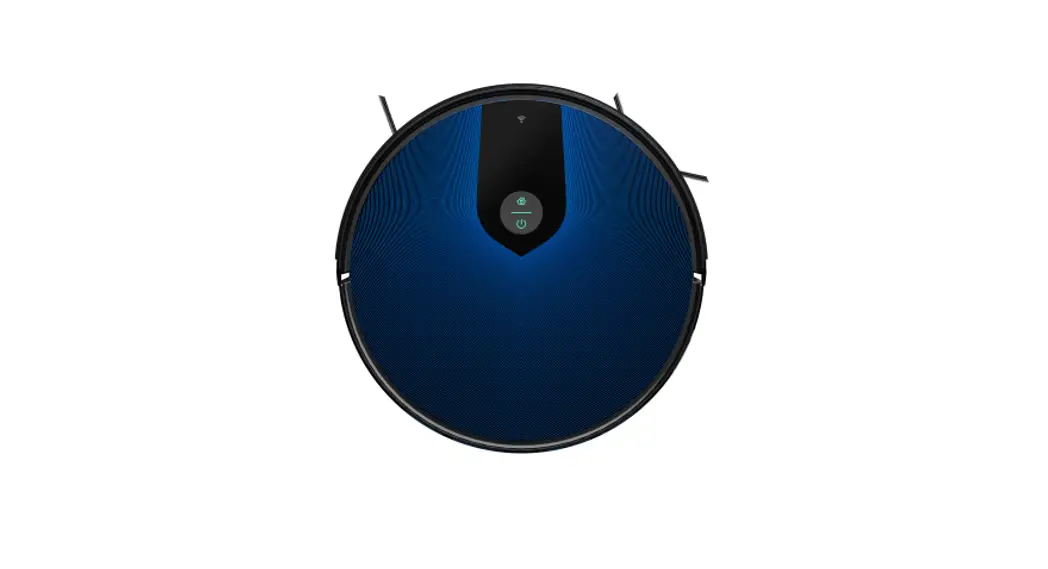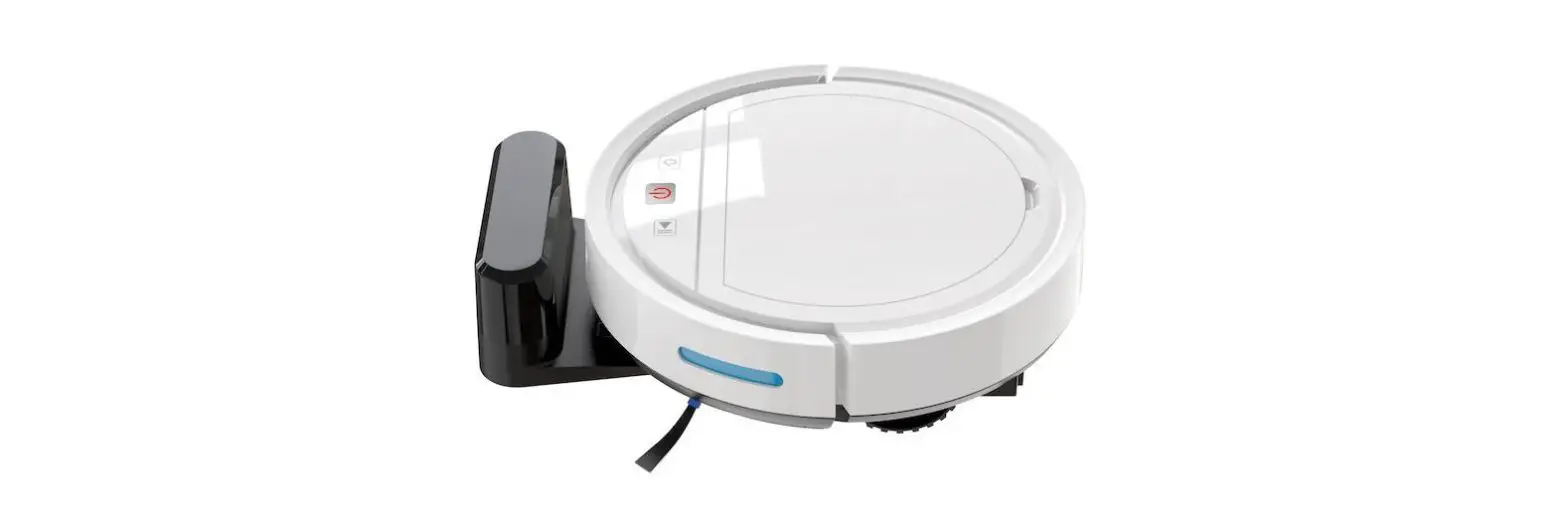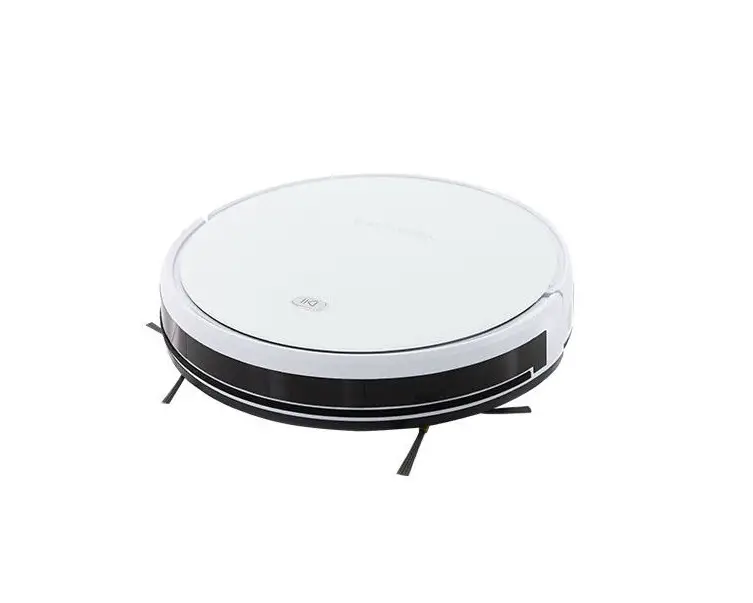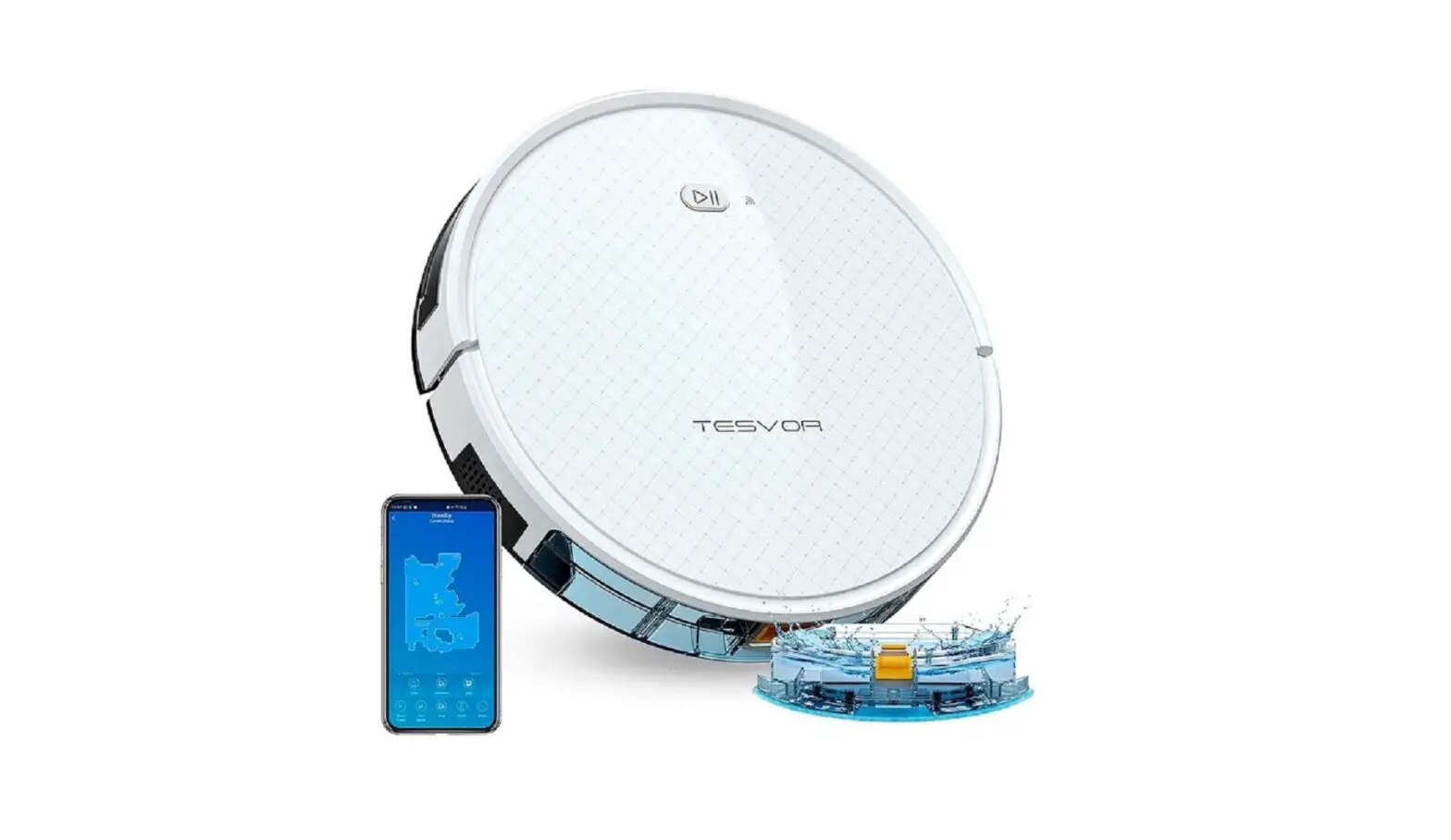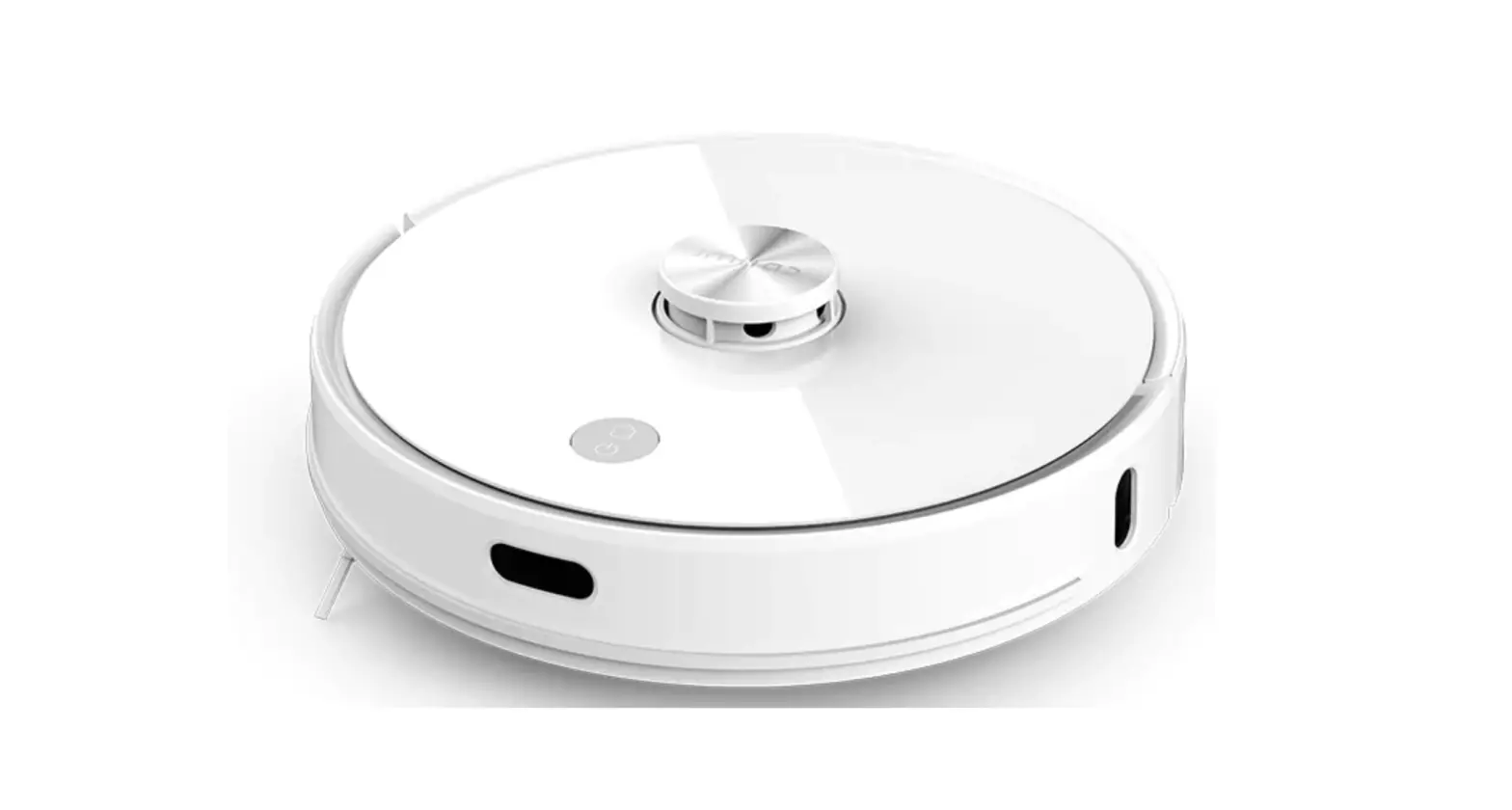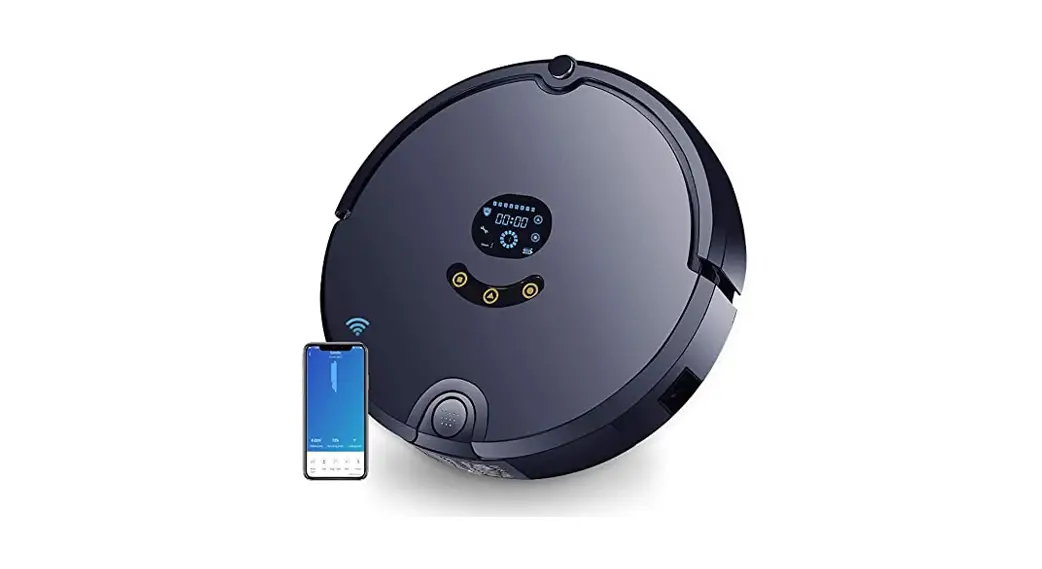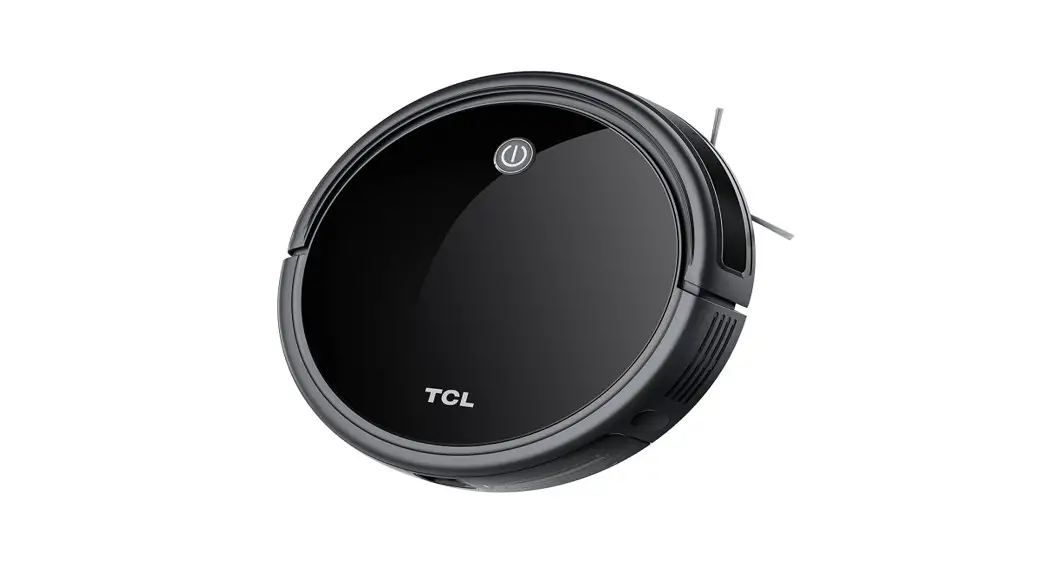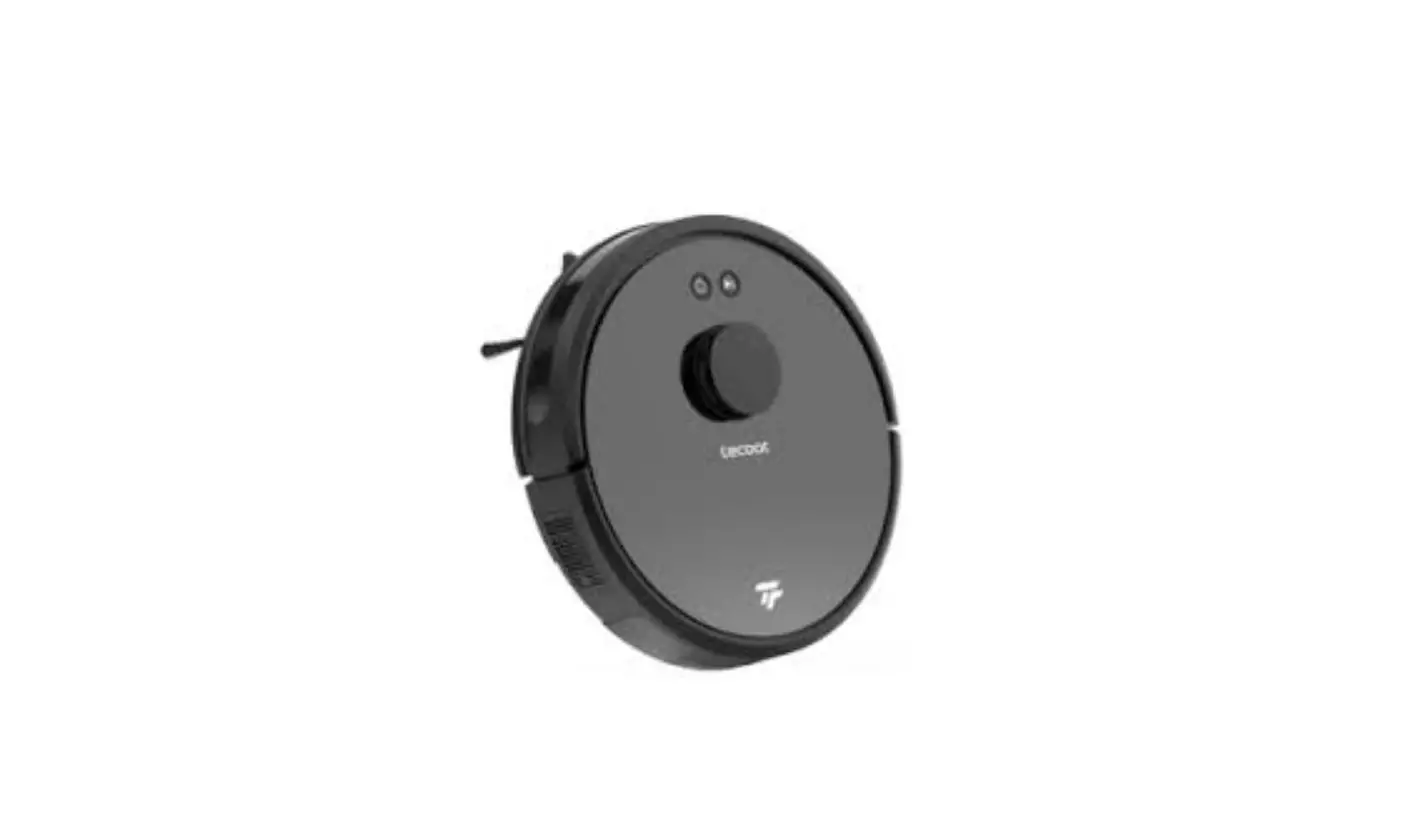
Shenzhen Tecbot Intelligent Robot TL-02T Robot Vacuum Cleaner Instruction Manual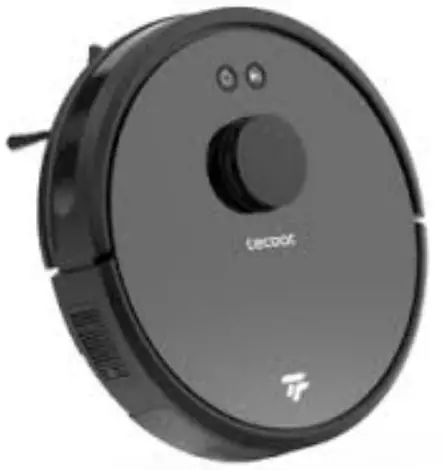
App Download and Network control
In order to make good use of the robot, we suggest that you to use the APP to control the robot.
Before start, please confirm:
- Your smartphone or tablet connected to the Wi-Fi.
- IOS 8.0 or later
Android 4.4 or later - Support 2.4G Wi-Fi
- Wi-Fi indicator blinks quickly.
- The robot is charging on the charging dock or the battery is in a high level.
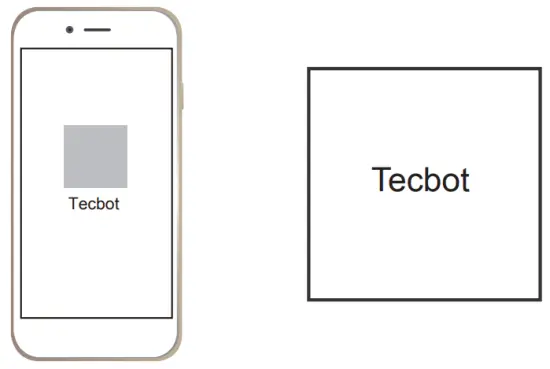
- Search “Tecbot ”on IOS App Store or Google Play Store.

If connection failed, check the following:
- make sure the router is in networking.
- make sure the Wi-Fi password correct.
- only support 2.4G Wi-Fi
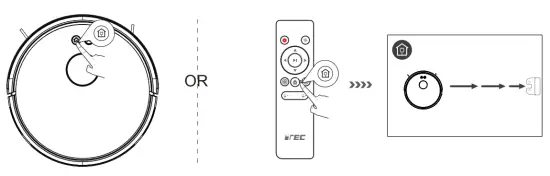
You can just press the  on the robot or remote control, it will return to the charging dock station.
Add the robot in the APP and connect to Wi-Fi
- Download the “Tecbot” APP from the IOS APP store or Android Google Play.
- Go to the “Tecbot”APP and create your account.
- Hit the “Robot” icon on the left-bottom corner to add the robot, scan the QR code on the side of the robot.
- Wi-Fi settings:
a. Press and hold the button for 3-5 seconds, you will hear ” beep”, that means the robot is on the connection mode, the button blinks quickly, follow the APP instructions.
b. If the above setting failed, select the compatible mode. - You can connect the Amazon Alexa or Google Asistant by following the APP instruction.

Diagram:Add the robot in the APP and connect to Wi-Fi
 button for 3-5 seconds, you will hear ” beep”, that means the robot is on the connection mode, the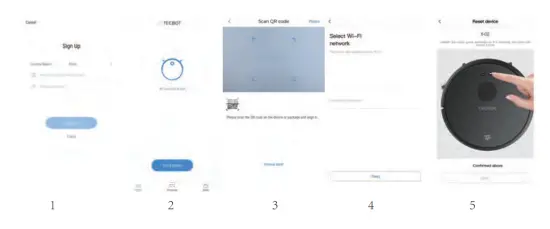
Product Using / Start Cleaning
The robot has multiple cleaning modes, you can change the mode through the robot, remote control, or APP.
Auto cleaning
Application scenario : Smart S shape cleaning route.
Setting: on a standby mode, press the button on the robot or button on the remote control, it will start Auto cleaning mode.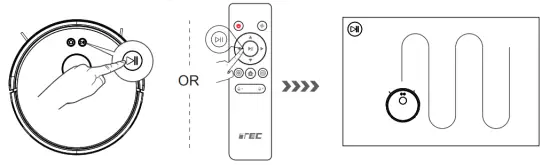
Warm Prompt: when you use the robot clean only in a single room, please close the door and make . sure it only runs in this room, if there is no charging dock station in the room, it will returns to the place where it starts.
Edge Cleaning
Application Scenario:
The robot runs on the edge of walls into corners, after the edge cleaning completed, it will returns to the charging dock station.
Settings: Press the  button on the remote control, it will start the edge cleaning.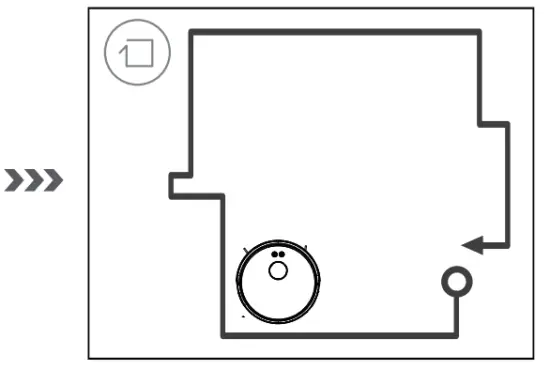
Spot Cleaning
Application Scenario:
The robot runs on the edge of walls into corners, after the edge cleaning completed, it will returns to the charging dock station.
Settings: Press  button on the remote control, it will start spot cleaning.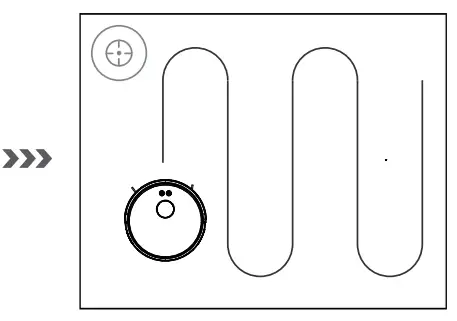
Warm Prompt:
When you try to add the water or the robot got stuck during the cleaning process, please keep the robot stay in a range of less 1 meter radius, so that the robot will continue to finish the remaining work.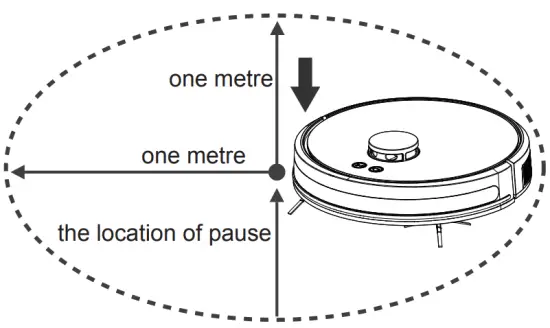
If the pausing lasts more than 60 minutes, the robot will forget the previous memory, and it will start cleaning in the beginning
Product Using / Main brush & inlet
Application scenario
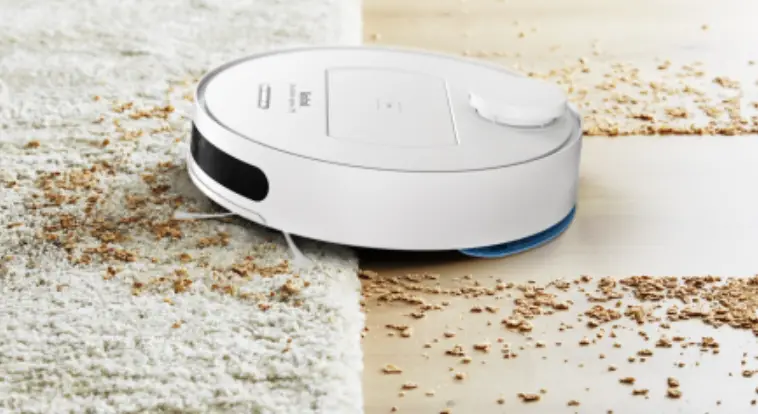
- The main brush applied for the floors that has more debris, or carpet.
- Suction inlet is more suitable for the pet hair.
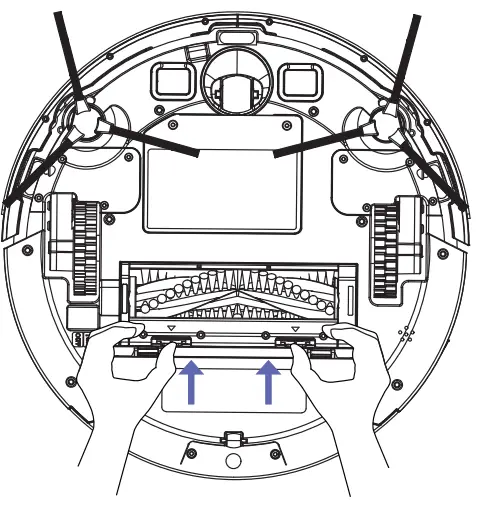
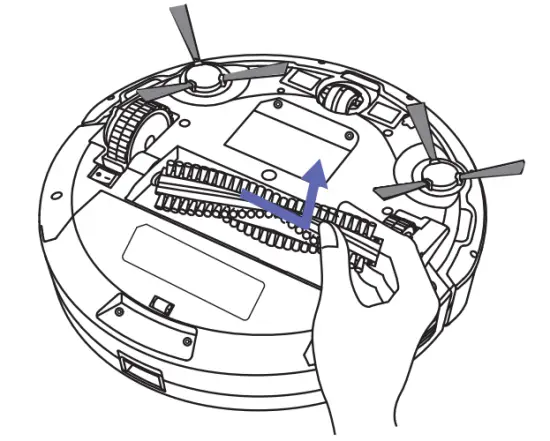
Disassembly method:
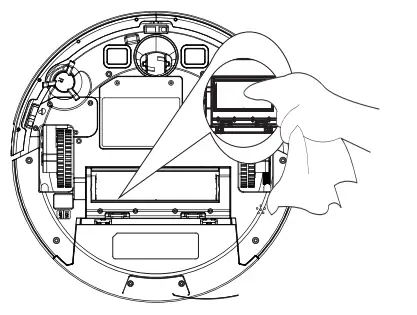
- push the main brush release button on both sides and take out the main brush cover.
- Lift up the main brush from the left side and take it out.
- Use the cloth to clean the dust inlet.
Using Water tank
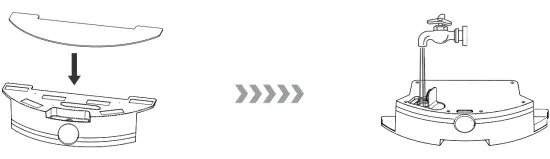
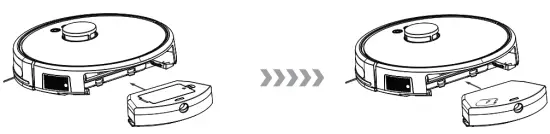
Warm Prompt: do not use the mop when the robot work on the carpet, when the robot cleaning the hardwood floor, please pay attention to the water level in the tank, fill the water in time, when you try to add the water, please remove the water tank from the robot. When charging, remove the water tank and replace it with the dustbin
- In order to extending the lifetime, we suggest you to use the pure water or softened water.
- Please do not use the mop on the carpet floor.
- When you try to add the water or clean the mop during the cleaning process, please keep the robot stay in a range of less 1 meter radius.
- After finish mopping the floor, please empty the water tank and remove the mop.
- Stick the mop on the bottom of the water tank, open the plug, inject the water slowly, close the plug

- Press the dustbin release button, take out the dustbin, and replace it with the water tank.

Regular Maintenance
Warm Prompt : Please turn off the power when you clean the robot and its accessories.
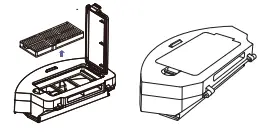
Dustbin
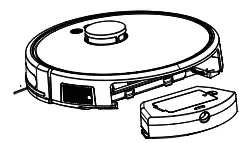
- Remove the dustbin

- Open the cap of the dustbin

- Empty the dustbin

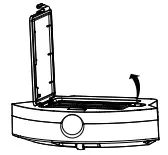
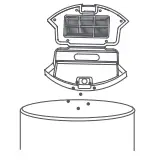
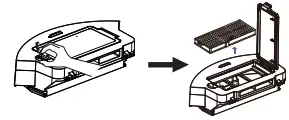
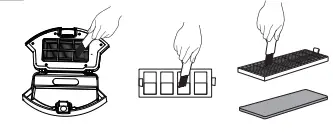
Filter
- Remove the high efficiency filter, sponge filter and high efficiency filter

- Use the cleaning brush to clean them

- Put the filter net, sponge filter and high efficiency filter back to the dustbin, and close the dustbin cap

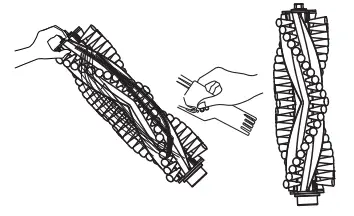
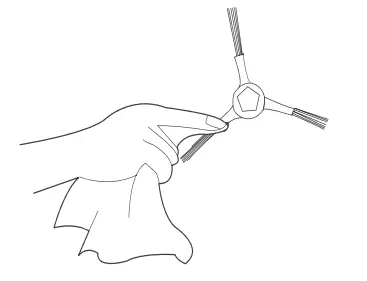
Clean the main brush & side brush
- Clean the main brush use the cleaning tool

- Remove the side brush, use the cloth to clean it

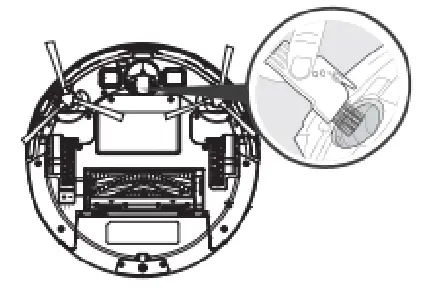
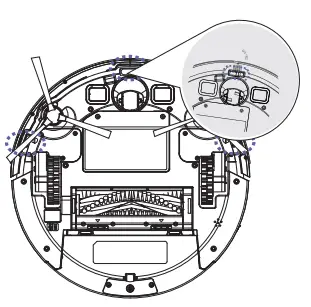
Clean the caster wheel & sensors
- Clean the caster wheel with the cleaning brush

- Clean the dust on the sensors, make sure it works properly

Troubleshooting
| Serial Number | Malfanction | Likely cause | What to do |
1 | Robot will not charge | Robot has not made a connection with the charging dock | Be sure that robot’s charging contacts have made a connection with the charging dock pins. |
| Charging dock is unplugged while the robot is powered ON, which causes battery consumption | Plug in the charging dock and ensure the robot is powered ON, keep the robot on the charging dock to make sure it has a full battery to work at any time. | ||
2 | The robot could not returns to the charging dock | The charging dock may placed in a wrong position. | Please refer to the ” Robot Charging” |
| 3 | The robot gets into trouble while working | The robot is tangled with something on the floor(electrical cords, drooping curtains, carpet fringe etc.) | The robot will try various ways to get itself out of trouble, if it is failed, manually remove the obstacles and restart. |
| Side brush is stuck or the rotation speed of the side brush decreases. | Remove the debris tangled around the side brush, if the side brush still rotates slowly, contact the customer service. | ||
| 4 | The robot returns to the charging dock before it finishes the cleaning. | When battery power gets low, the robot automatically switches to return to charger mode and returns to the charging dock to recharge itself. | This is normal, no solution necessary. |
| Working time varies according to the floor types, room complexity. | This is normal, no solution necessary. | ||
| 5 | Remote control failure (effective control range of remote control is 5 meters) | The robot is powered off. | Power ON the robot. |
| Time scheduling is cancelled. | Set time scheduling. |
| Serial Number | Malfanction | Likely cause | What to do |
6 | Remote control failure (effective control range of remote control is 5 meters) | The batteries in the remote control need to be replaced. | Replace the new batteries and make sure they are installed correctly. |
| The robot is powered off or the robot’s battery is low. | Make sure the robot is powered ON and fully charged. | ||
| The infrared signal cannot transmitted because the infrared emitter on the remote control or the robot’s infrared receiver is dirty. | Use a dry cloth or multi-function cleaning tool to wipe the infrared emitter on the remote control and the infrared receiver on the robot. | ||
| There is other equipment interfering with the infrared signal to the robot. | Avoid using the remote control near other equipment using infrared signals. | ||
| Use the remote control under the strong light. | Avoid the strong light when using the remote control. | ||
| 7 | No water leaking after the mop installed. | No water in the water tank | Add the water in the water tank. |
| The water outlet on the robot bottom is blocked. | Cleaning the water outlet or the water tank filter. | ||
| 8 | The robot cleaning route is irregular and missed some area cleaning, APP shows the irregular route. | Something on the floor like the electrical cords, slipper. | Remove the electrical cords and other sundries before start the cleaning job. |
| 9 | The robot cleans the some area repeatedly and missed other area. | The robot will cover the the missed area automatically. | When the robot working, please do not interfere it ( do not move it or block the way artificially.) |
| Due to the various surroundings in a house, the robot detection angle vareis. | Place the robot to the position where it started. | ||
| 10 | The robot generates loud noise when working. | Side brush, main brush tangled, dustbin and filters blocked. | Clean and maintain the side brush, main brush, dustbin and filters. |
Products Parameters
| models | TL Series | Charging Dock | TEC410 | ||||
| Working Voltage (V) | 14 | Rated Power (W) | 25 | Rated Input Voltage (V) | DC19 | Rated Output Current (A) | DC1.0 |
| Charging Time (H) | 4 | Runtime On A Single Charge (min) | 100 | Rated Output Voltage (V) | 19 | Rated Input Power (W) | 19 |
| Remote Control Model | TEC1089 | Rated Input Voltage (V) | |||||
| Battery Type | Chargable Li-ion Battery Pack 3200mAh / 5200mAh | ||||||
Due to the continuous improvement of products, this user manual is subject to the actual product, and Tecbot reserves the right to update the product.
App Download
- Scan the QR code To Download The APP

- Search “Tecbot ”on IOS App Store or Google Play Store.