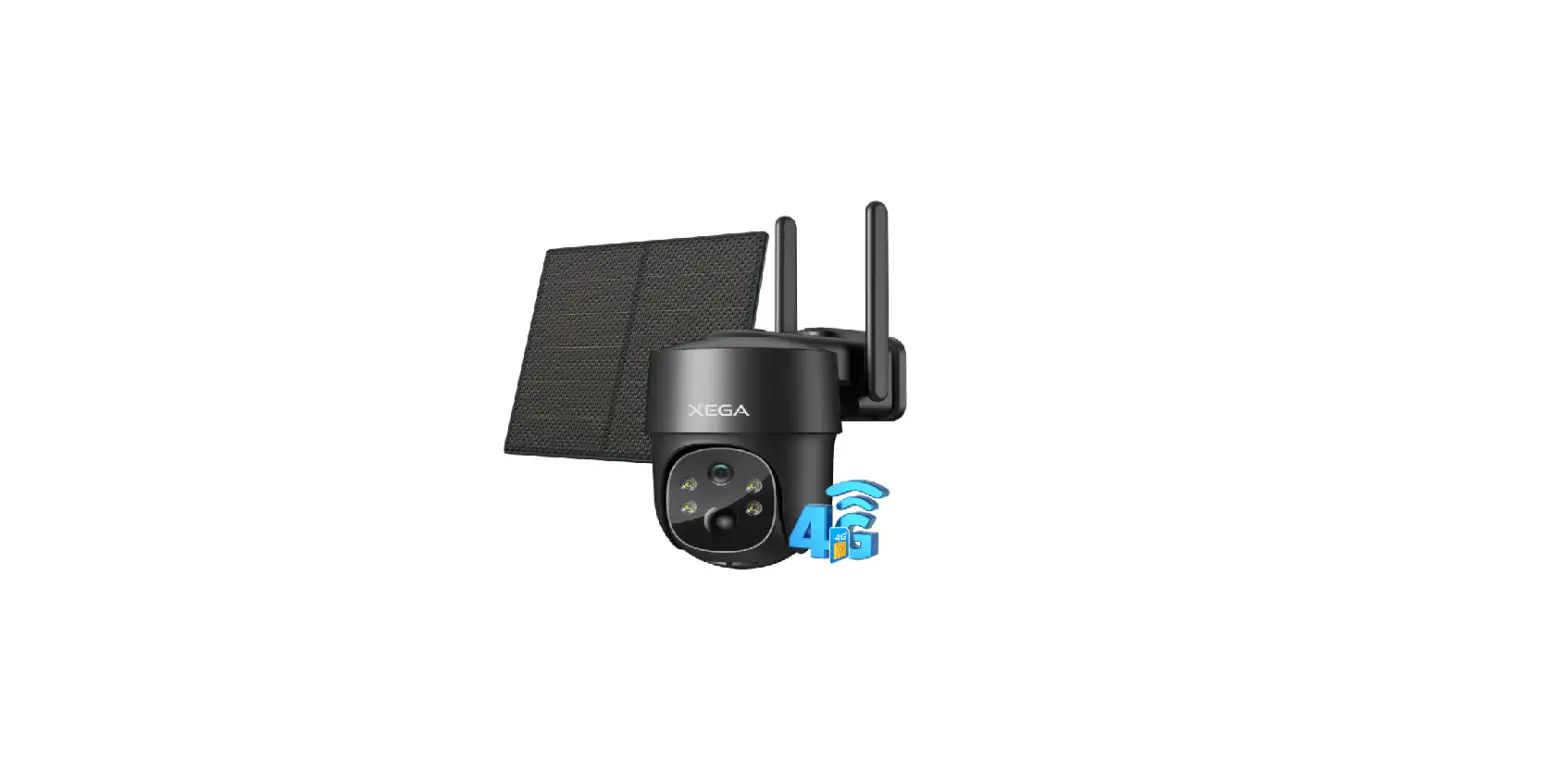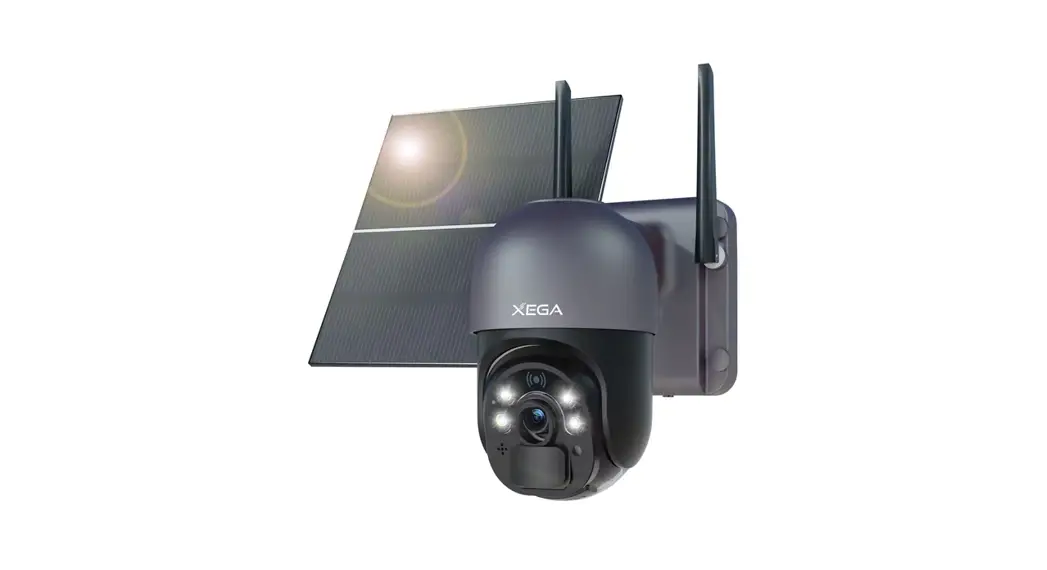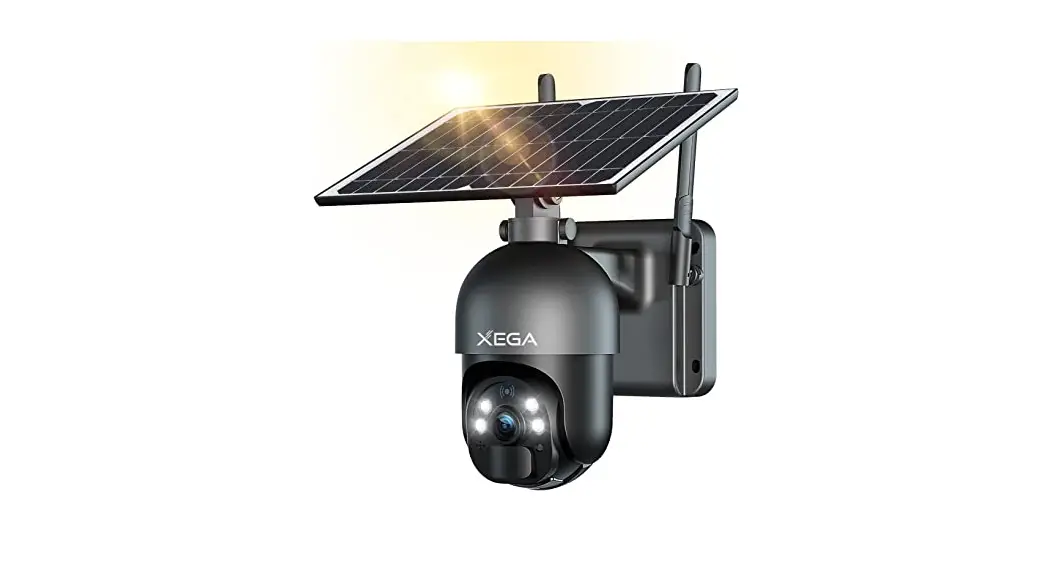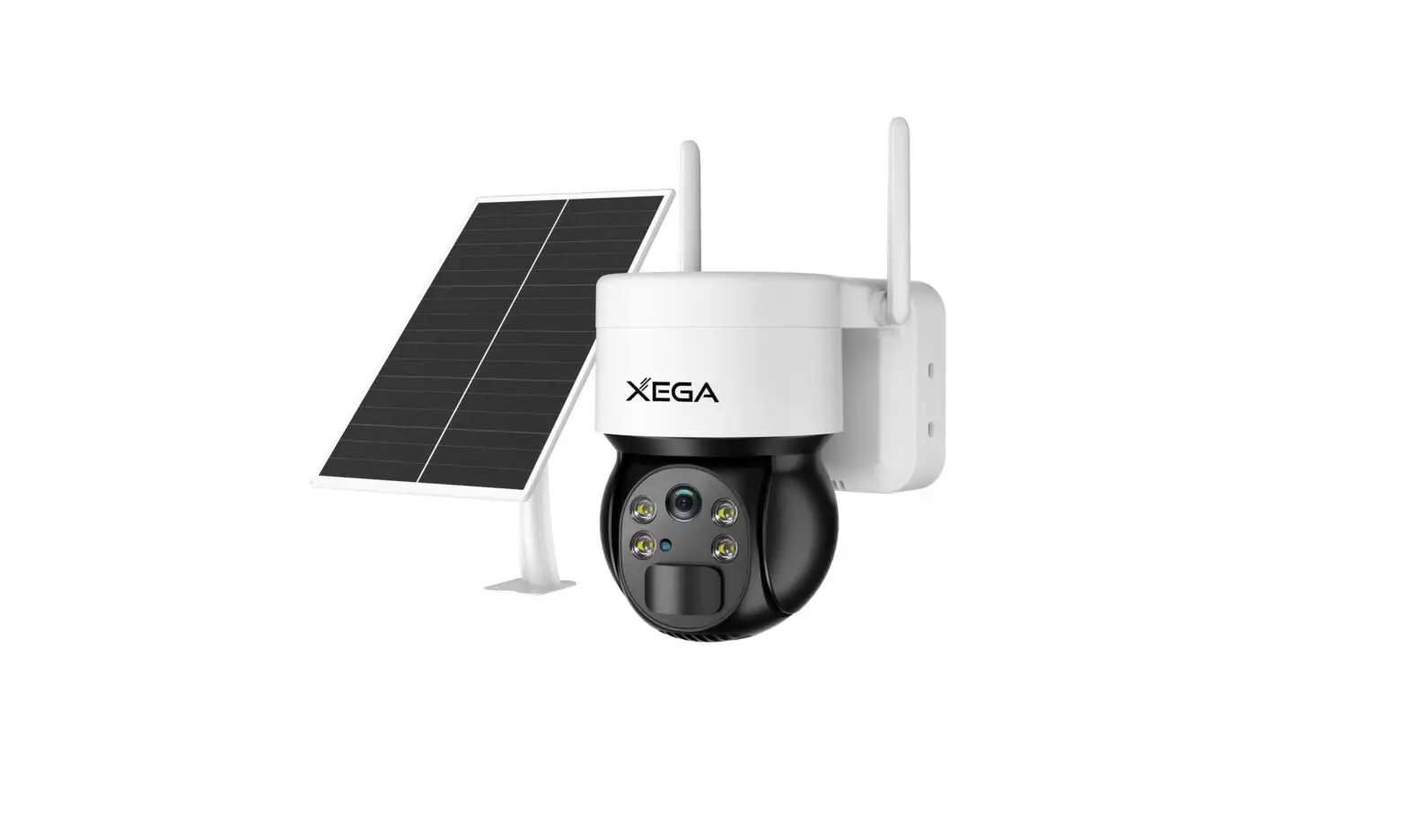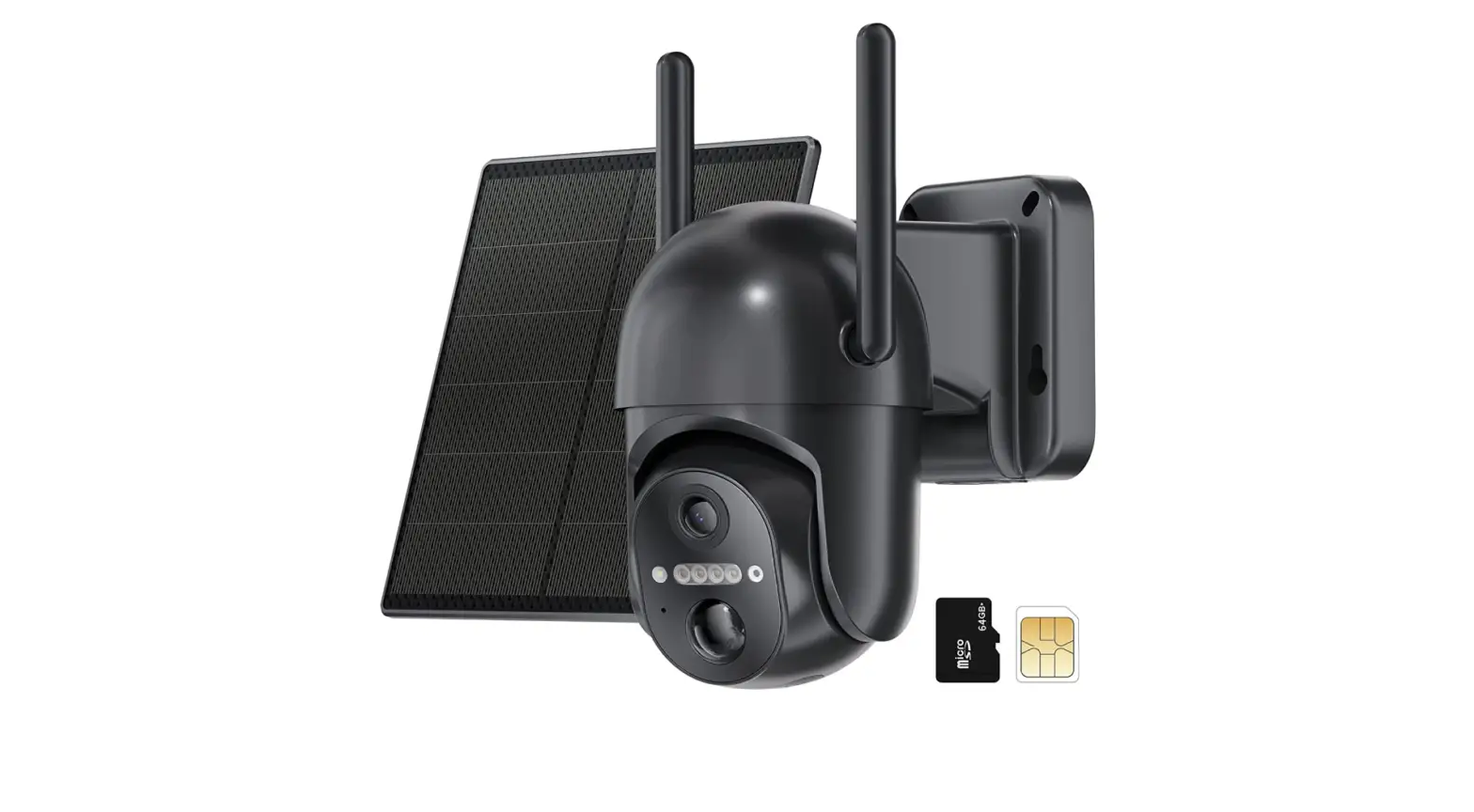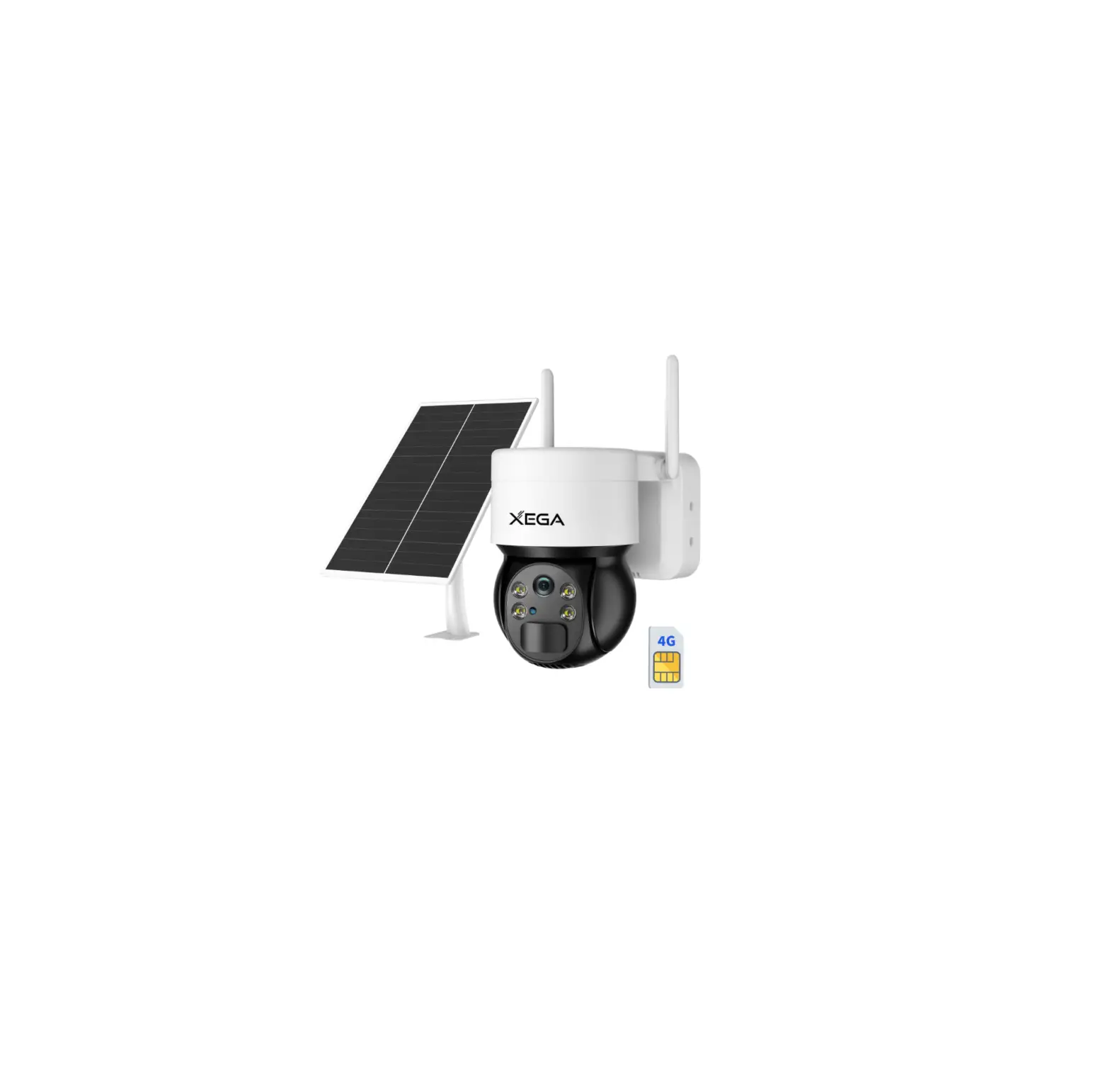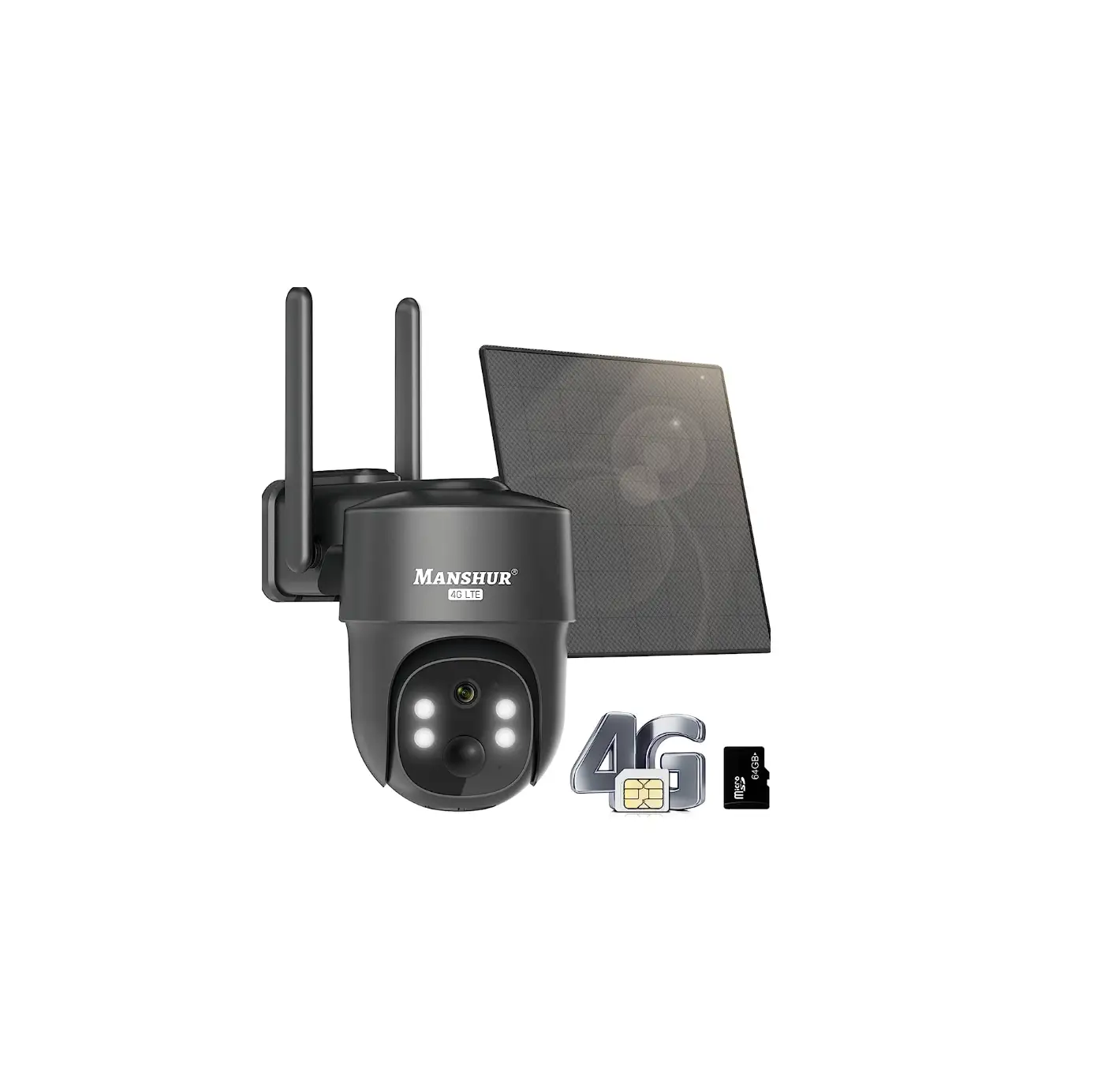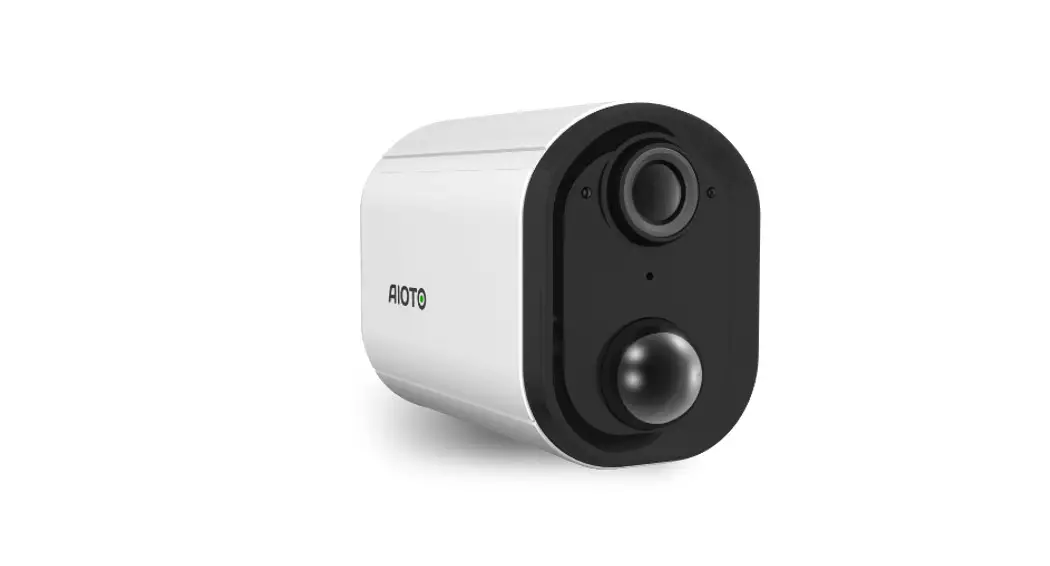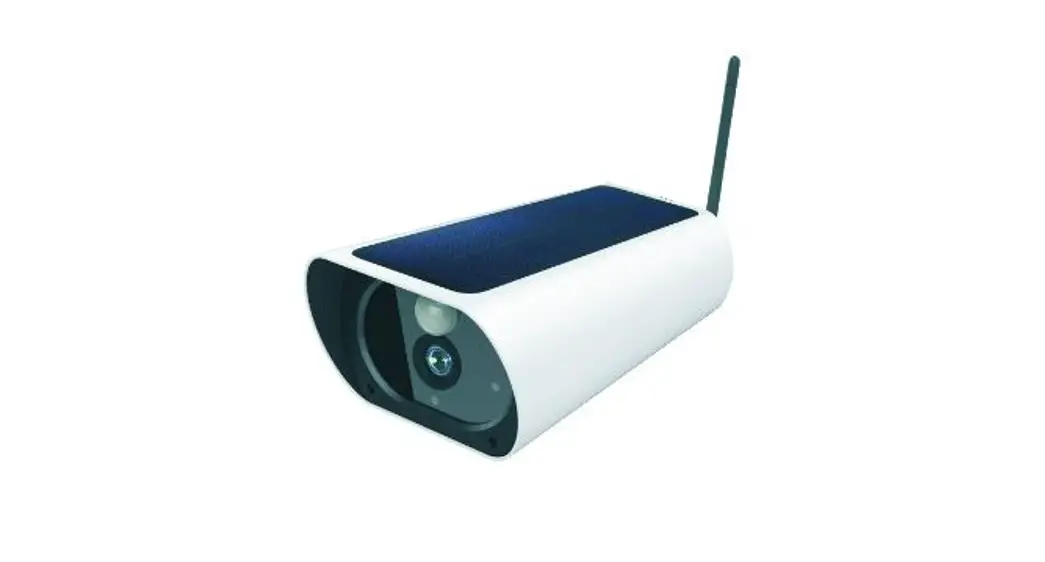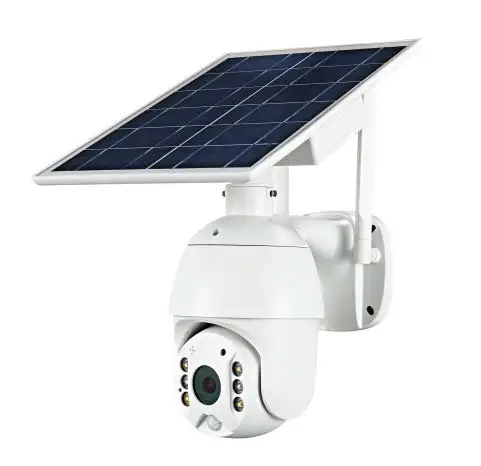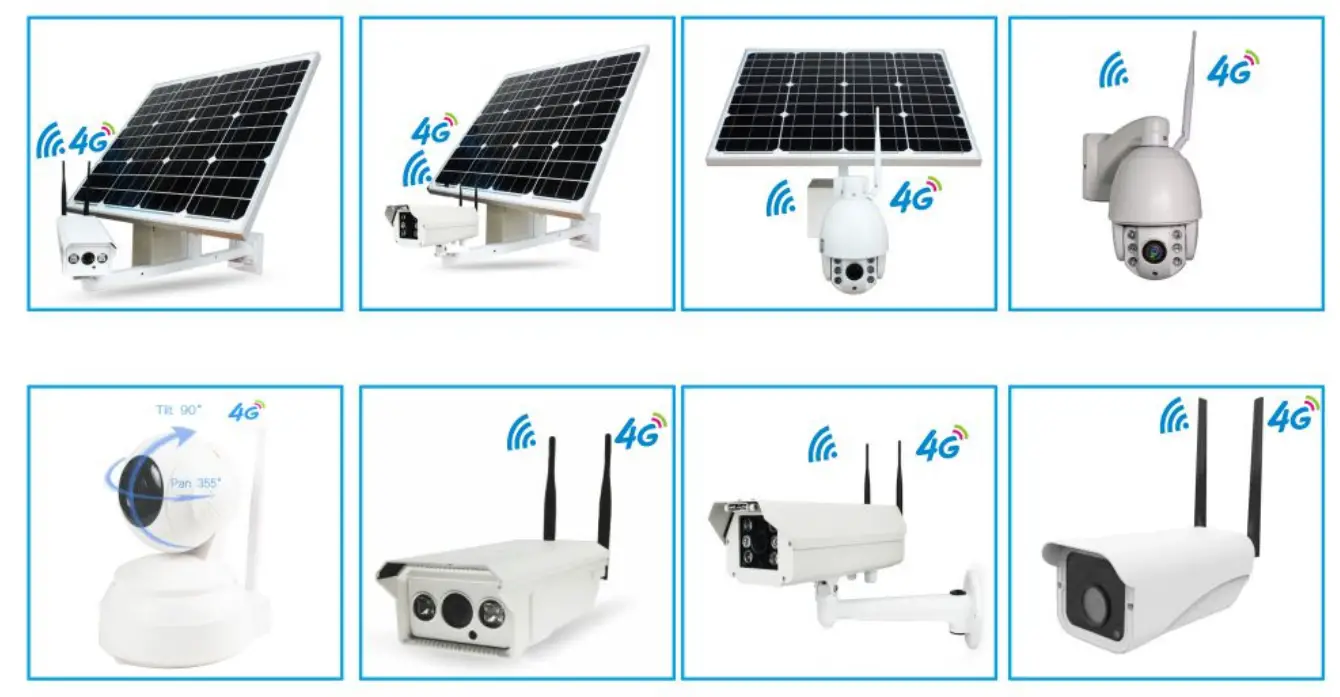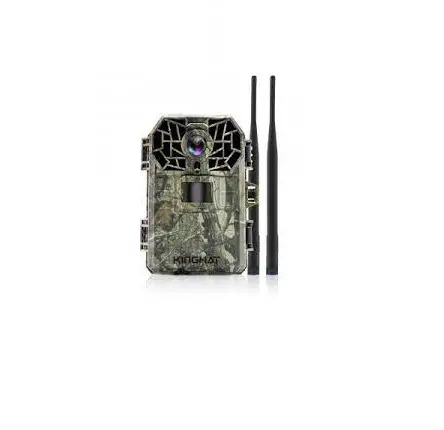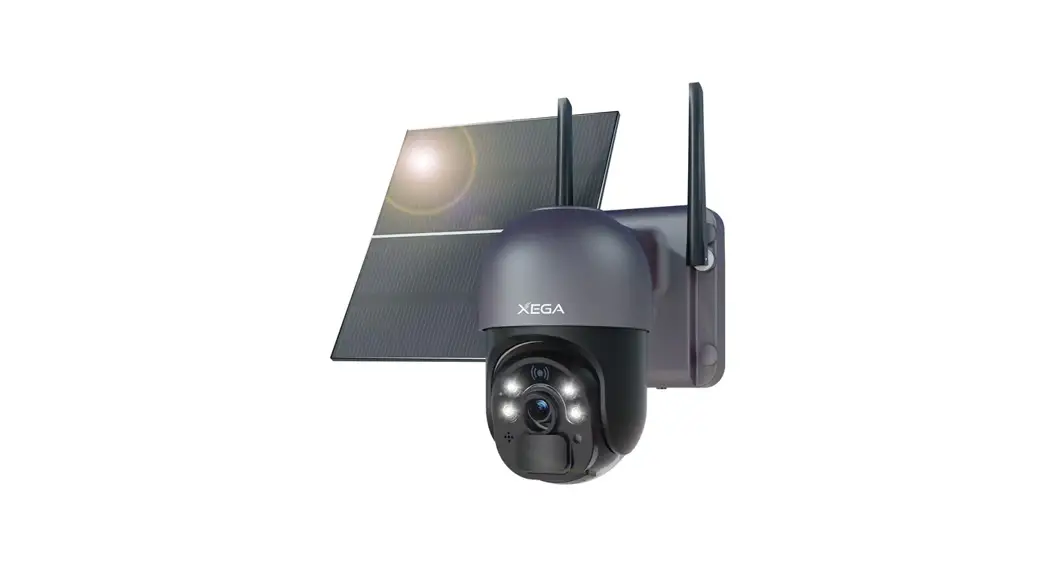

XG-02 4G LTE Cellular Security
Camera Solar with SIM Card
User Guide
XG-02 4G LTE Cellular Security Camera Solar with SIM Card
Hi, here is a list of questions you may have before or after your purchase.
If it can’t solve your problem, please don’t hesitate to contact our Customer Support via Unbox App or email us via Amazon.
Providing your SIM card number(on the card), UID or QR code(on the camera), and a detailed description of your problems will be a great help.
We will find the problem together and troubleshoot it for you at the first time.
– The SIM card in the package supports Verizon,T-Mobile, AT&T. Only works for 3g/4g LTE connection. Each camera needs its own data plan.
– Option 1: Use the SIM card built in advance by the seller.
– 1. Power on the camera, press and hold the reset button for 8 seconds, hearing a beep means the reset was successful.
– 2. Turn the camera off, insert the SIM card (pre-inserted), insert the SD card (if needed) and turn the camera on again. Wait for about 2 minutes, the blue light next to the lens indicator will come on (stay on).
– 3. Go to the UBOX app and scan the QR code to connect.
(If needed, pls refer to the video posted on our Amazon product page or email us directly)
– Option 2: Use the SIM card purchased by the buyer himself.
– 1. The same steps as for option 1.
– 2. If the blue light next to the lens indicator does not stay on during step 2, you will need to remove the SIM card and use your phone to clear the PIN code of the SIM card. Then repeat the steps mentioned in option 1.
– Please feel free to contact us if you have any problems with operation.
– Data usage depends on actual working conditions. Normally, 1-2GB of data will be enough for a month. The pre-installed SIM card has only 100MB of data. If the network connection is suddenly disconnected, Pls reload cellular data in time.
– Since it’s a 4G camera, you need to get the data plan. We provide 100M data JUST FOR TRIAL.
DATA PACKAGE: USD 10 for 2 GB (30 days), 60 for 12 GB (180 days), 100 for 24 GB (360 days), depends on your SIM card service Operator.
– Of course, if your SIM card signal supports the same frequency band as the camera’s. US version (B2 B4 B5 B12 B13 B25 B26).
– The 4G Cellular Security Camera cannot auto tracking moving objects, but it can pan tilt 355° horizontally and 90° vertically to see the scene with wide angle via the App Ubox.
– Insert it according to the SIM card and SD card icons on the Camera. If you want to
remove it, just push it in again.
– Just enter the SIM card number (available on the SIM card and on the Unbox APP) at EIOTCLUB official website and select the package to top up. Please be patient, it may take a few minutes before the new traffic is activated (please contact us for the EIOTCLUB official website address if needed).
– Insert the SIM card when the camera is switched off, then switch on the camera, press and hold the reset button for 8 seconds, when you hear a beep it means the reset is successful. Wait 2 minutes to see if the light turns blue.
– If not, please insert the SIM card into your mobile phone, open the data roaming to activate the sim card.
– If you can use the mobile phone to access the Internet normally, it means that the SIM card has been activated, then re-insert the camera to connect.
– If the SIM card is still not working, please provide us with the SIM card number and we will check it for you.
– SIM Card Activation Video: (If needed, pls refer to the video posted on our Amazon
product page “Customer Questions & Answers” or email us directly)
– Turn off the camera, insert the SIM card, then turn on the camera and reset it, wait for 2 minutes. Check if the light turns blue (always on), if positif, you can continue to the next step.
– If not, please insert the SIM card into your mobile phone, see if the PIN code of the card is closed. Close it and see if you can access the internet normally on your mobile phone, if Yes, then insert the SIM card into the camera to continue the next step.
– Close the PIN code of the SIM card: (If needed, pls refer to the video posted on our Amazon product page “Customer Questions & Answers” or email us directly)
– Please check whether the alarm notification button on the APP is on;
– Whether the Ubox APP is kept running continuously in the background of the phone;
– Whether all system permissions of the Ubox APP are agreed.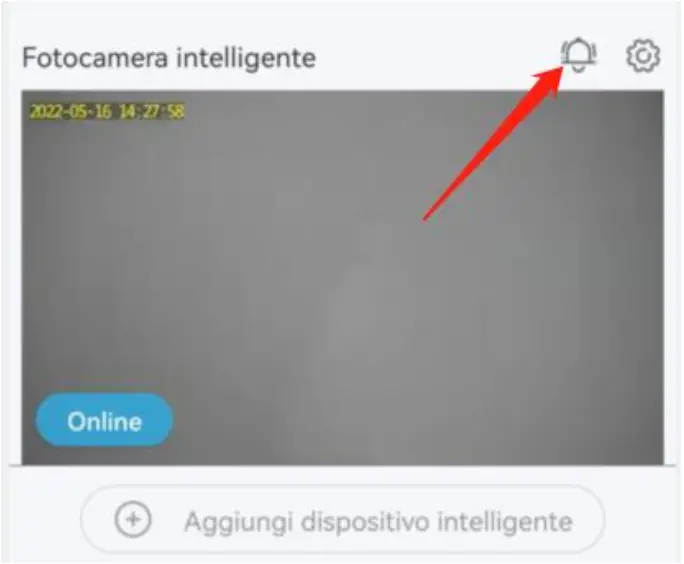
– First of all, please confirm whether the traffic package in the SIM card is sufficient.
– Then, confirm that the 4G signal strength of the connection is normal. If the signal is weak, it is recommended to change the installation location to a location with a stronger 4G signal on it.
– Also, please check if the network on the mobile phone side is working properly.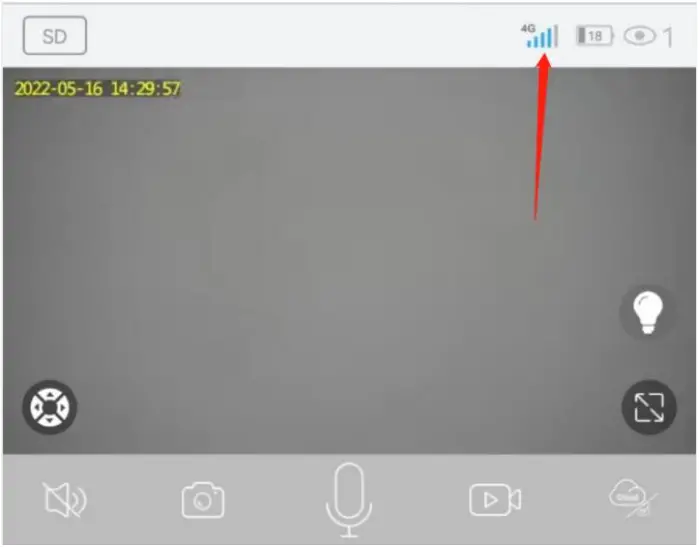
– Not supported.
– It is possible that the battery has run out of power. Please use a 5V2A power supply to charge the camera for 8 hours and then check if it can be turned on properly.
– Please format the SD card in the APP settings interface.
– If you still can’t read the SD card, turn off the camera first, remove the SD card, put it into the computer to format the card, then reinsert the card into the camera and see if it can read and record normally.
– Pls Check that the camera is installed at a height of between 2.6m and 3m and that the lens is tilted at an angle of 15 degrees to 30 degrees.
– Check if the PIR detection is on and adjust the detection sensitivity.
– Then check if the protective molding on the lens has been removed.
– Go to Settings and click on the Memory card button to turn off Cloud service.
– Go to Settings —- and select Share —- and enter the email address of another user (who needs to register with UBOX first), select Permissions and confirm sharing.
How to save live video manually?
– Clicking on the screenshot or video button, then it will automatically save the image and video to your phone album.
– Go to the Settings of the Unbox app, click on the LED indicator and turn it off.
– Yes, there are two modes, 24/7 recording or motion detection only mode. You can configure it in the Ubox app.
– XEGA 4G LTE cameras work with 5G SIM cards but only support 4G signals. So when activating the 5G SIM card, please select the 4G service. Please note that the SIM card used in your phone will not affect the camera.
– It can’t hook up 2 cameras, as each camera needs a separated data plan.
– Motion detection is about 33ft. Once human motion detected, you‘ll receive a notification via UBOX APP. Please
– 1). Turn on the notification function in the Unbox APP in advance and adjust the detection sensitivity.
– 2). Allow notification permissions for the APP in your phone settings.
– 3). Make sure the Unbox app runs continuously in the background of your phone.
– As long as the 4G signal of the camera, the battery and mobile data is good, you can view the camera remotely.
– The camera requires a 4G connection. As for you, you can access the video feed from your phone that has the app Ubox, and access to the internet with 4G,5G or wifi.
– You can delete individual videos from the cloud storage, but you cannot delete individual videos from the SD card (to protect the integrity of the data, videos are only recorded in a loop, with later videos automatically overwriting earlier ones). If you really need to, you can format the SD card.
– This is caused by temperature differences and will disappear automatically once the temperature has stabilised. If you feel the need, you can wipe it manually.
– There is a low battery prompt, it will be pushed once when the battery is lower than 20%, and it will be pushed again when the battery is lower than 10%.
– Cellular network disconnection SMS notifications are not supported. But you can check via the websites where you reload cellular data.
– Firstly, if you are using a SIM card pre-inserted in your camera, then you can check by going to the website where you purchased the traffic data and entering the SIM card number (please contact us for the EIOTCLUB official website address if needed).
– If you are using your own SIM card, you can check through your Mobile Operator.
For the camera indicator, a long blue light means it’s running normally, alternating red and blue lights means the traffic has run out and you need to reload it in time