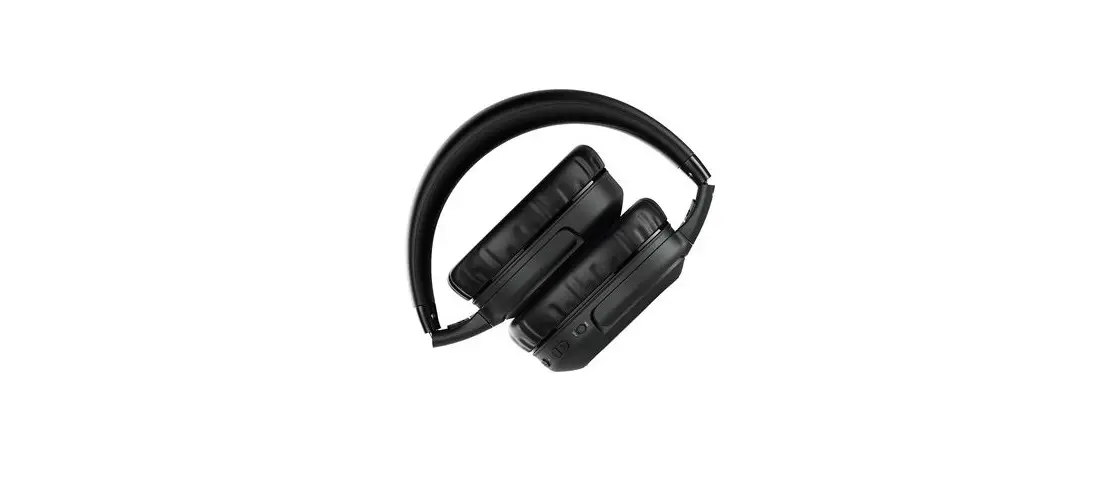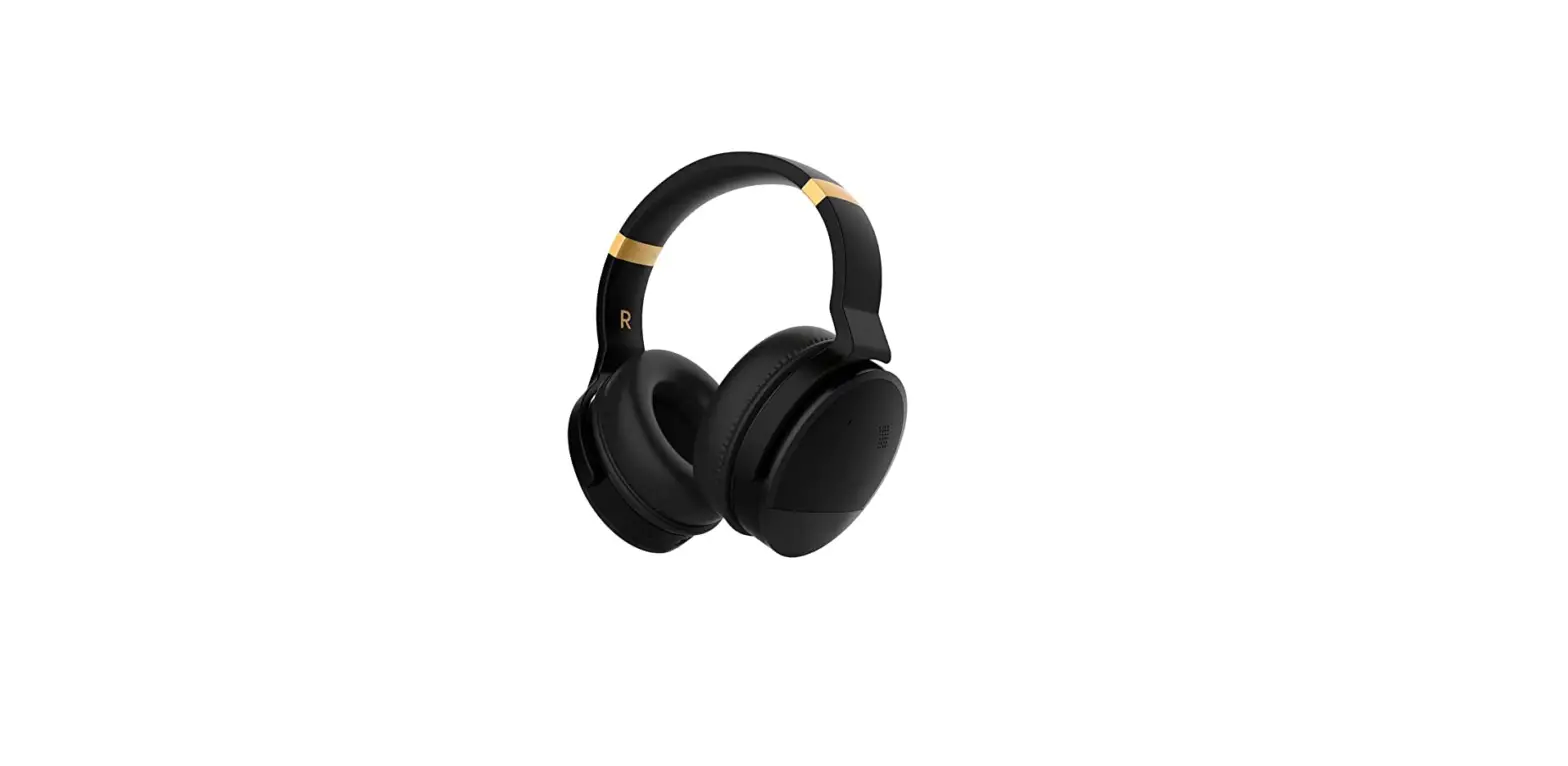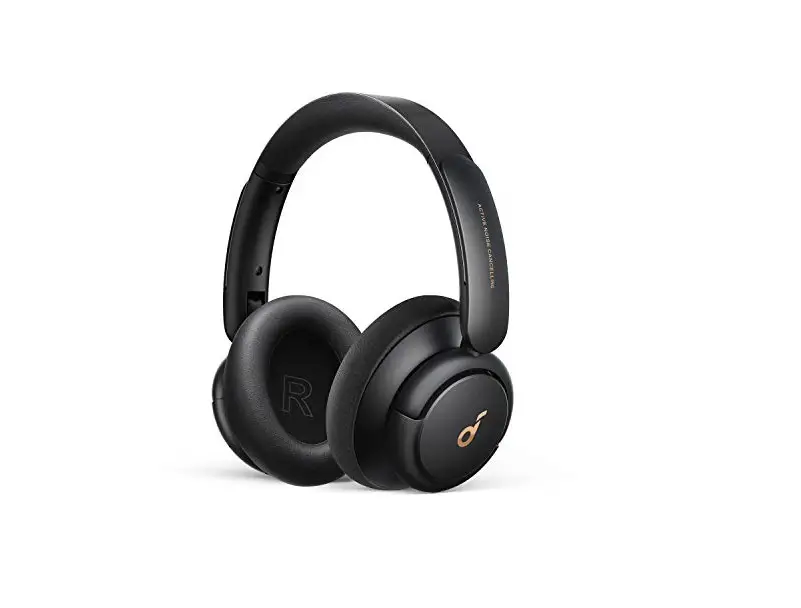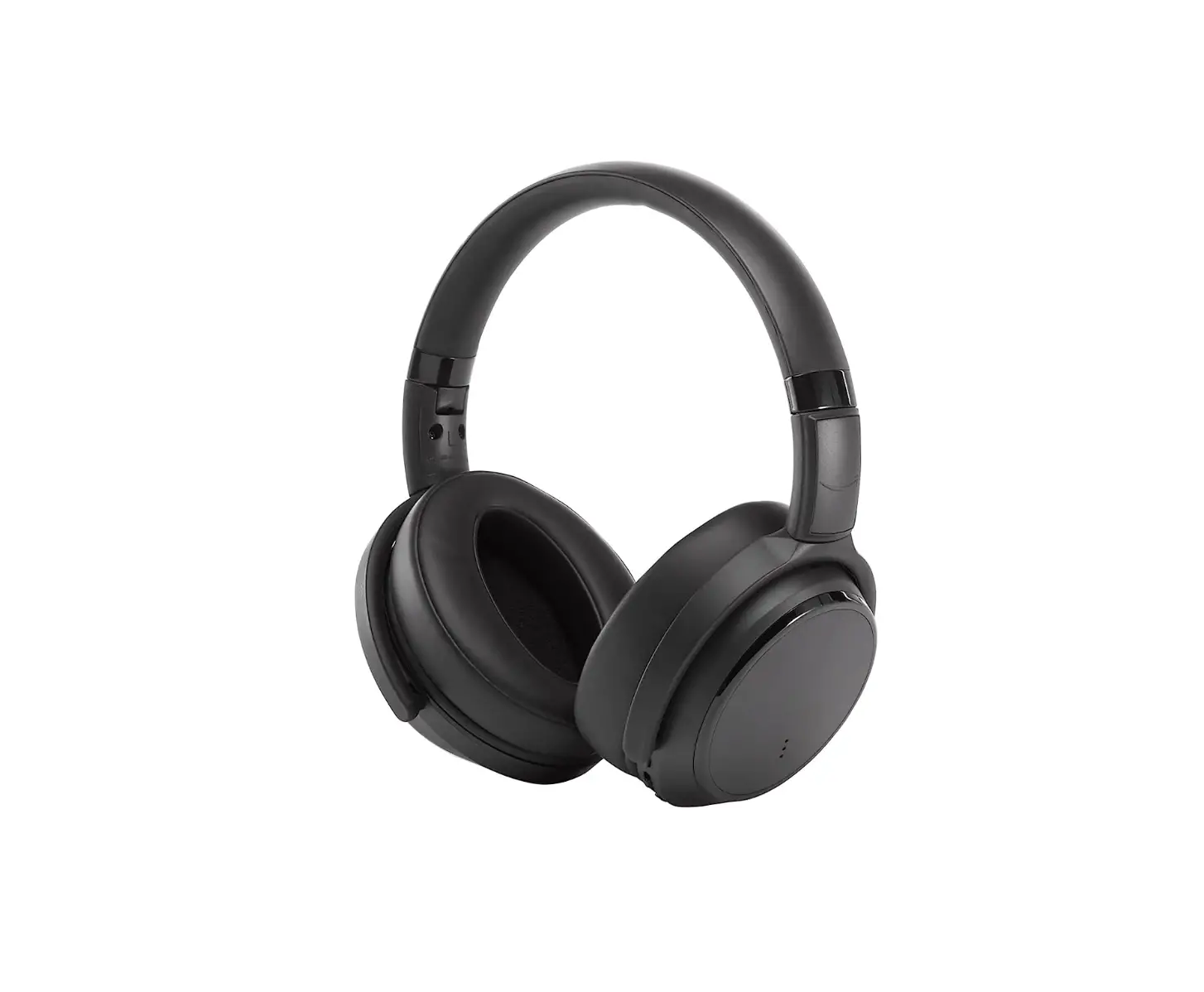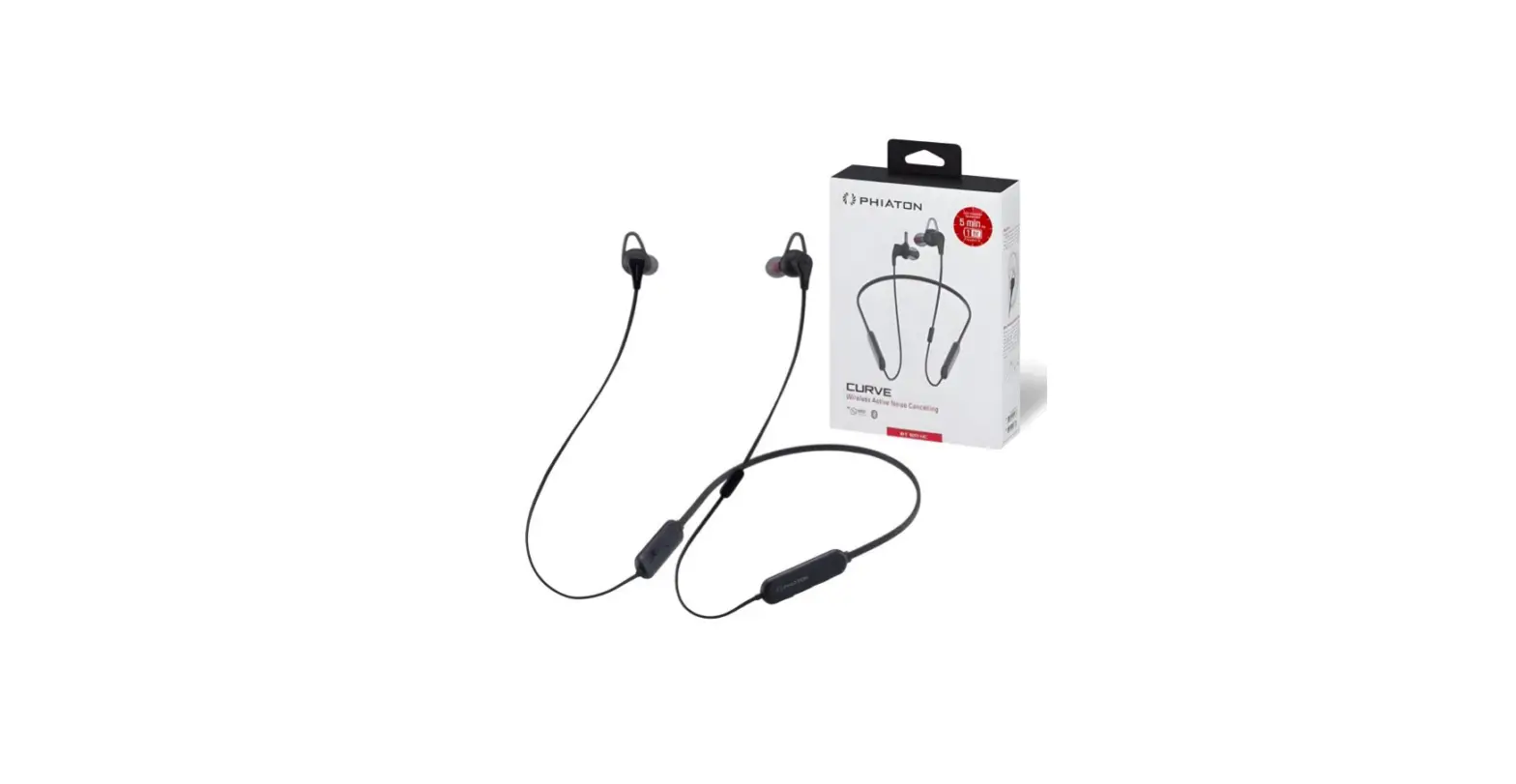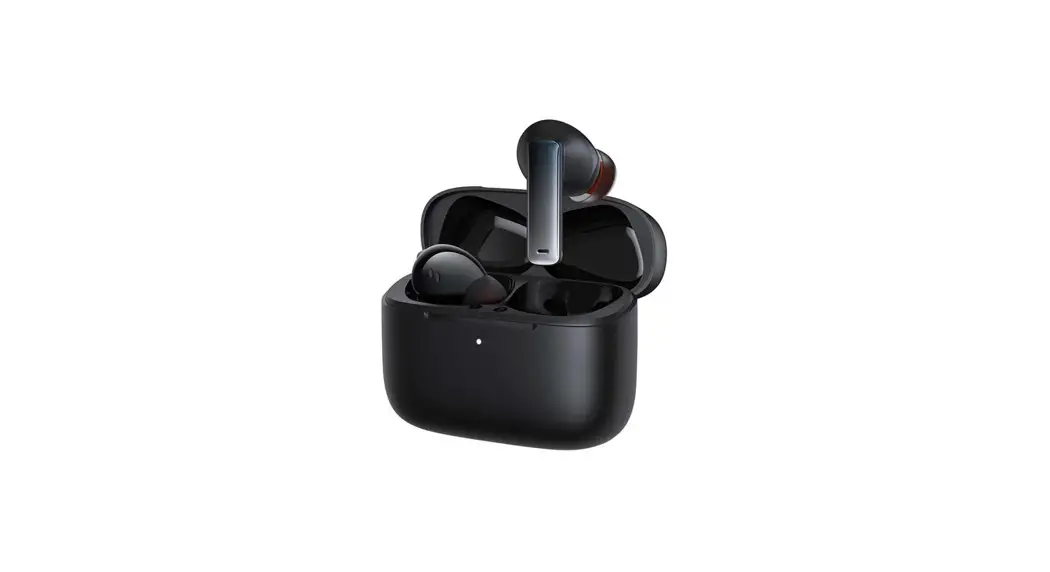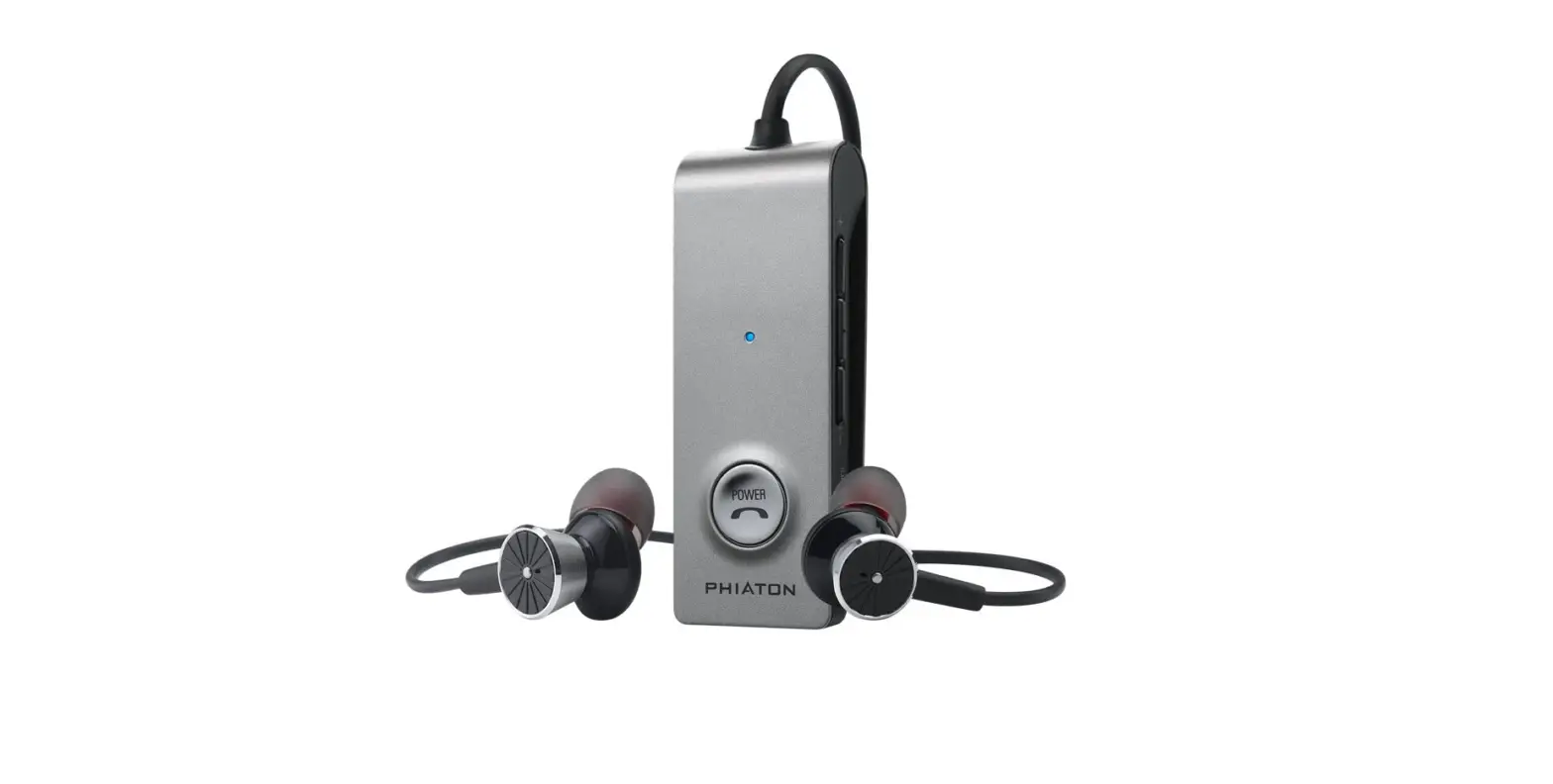

Phiaton BT 220 NC Wireless Bluetooth Headphones – Active Noise Cancelling
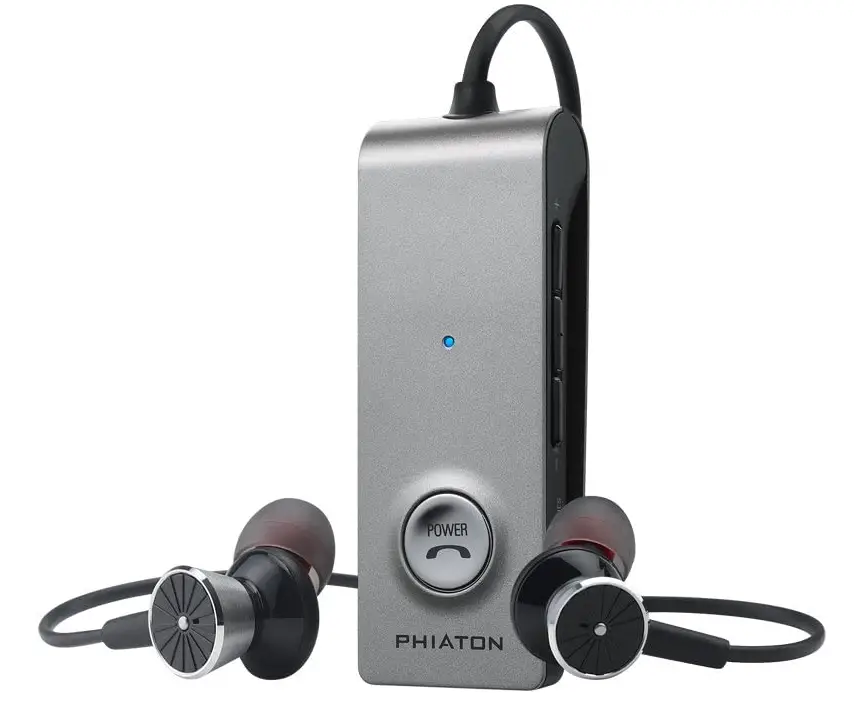
Specifications
- Product Dimensions
0.5 x 2.5 x 0.9 inches - Item Weight
1.25 ounces - Batteries
1 Lithium Polymer batteries - Connectivity Technology
Bluetooth - Connector Type
3.5mm Jack - Audio Sensitivity
100 dB - Impedance
32 Ohm - Brand
Phiaton
Introduction
The BT 220 Noise Cancelling Wireless Earbuds from Phiaton are the ideal addition to your mobile lifestyle. When using Bluetooth headphones, pairing is quick and simple, allowing you to have a seamless listening experience whether you’re exploring sonic landscapes or taking an essential call. Active Noise Cancelling Earbuds reduce background noise disturbance. Enter a world of high-calibre audio. All throughout the world, music enthusiasts are taking advantage of the Phiaton comprehensive audio experience. These wireless noise-cancelling headphones offer vibration notifications so you can listen to music without being interrupted by incoming calls or other sounds. The most popular headphone features of the moment—active sound cancellation, Bluetooth 4.0, and NFC technology—are combined in ANC cordless in-ear earbuds. Improved sound quality, increased range, and longer battery life Bluetooth 4.0 on the BT 220 NC makes life easier. Additionally including apt-X, which improves overall dynamic range and boosts the efficiency of digital streaming. You can simultaneously connect two devices to the BT 220 NC using the Multipoint connection feature. Up to 16 hours of talk time, 17 hours of music listening time, and 300 hours of standby are possible with the long battery life of the BT 220 NC. The person on the other end of the line may clearly hear phone calls thanks to Clear Voice Capture (CVC) technology. You can control your tunes with full in-line musical controls without having to look for your smartphone. With the monitor button pressed, you may turn off your music and noise cancellation so you can hear what’s going on outside without taking out your wireless earphones.
The Phiaton BT 220 Bluetooth earbuds will ensure that your listening experience is enjoyable and undisturbed, whether you’re enjoying noise-cancellation on your daily commute or working out at the gym. The strong 14.3mm drivers used by Phiaton deliver clear and precise sound.
SAFETY AND GENERAL INFORMATION
- Use a standard USB charging cable (included), with or without a charging adaptor (5V, over 500mA). * Adapter Not Included
- Lower the volume prior to listening to audio to prevent potential damage to eardrums caused by a sudden loud sounds.
- Listening to loud music for extended periods of time may cause hearing damage.
- Do not store the device in places with a temperature higher than 113 ℉/ 45 ℃.
- Keep the device dry. If the device becomes wet, turn the power off, dry the device with a dry towel and contact Phiaton Customer Service for an inspection. (For more information, refer to the contact us page on our website ‒ phiaton.com).
- Do not attempt to disassemble, modify or repair the device
- Do not cause shock to the device.
- Keep out of the reach of children and pets.
- Do not tug on cords or touch power plugs with wet hands.
- Do not use the device nearby microwave ovens or wireless LAN adaptors.
- When the product is not being used, set the device power switch to ‘OFF’.
- When storing BT 220 NC, place the device within the provided carrying case.
- When cleaning the device, use a clean dry cloth to wipe the device clean (Do not use solvents).
- Remove the ear tips from the earphones, wash them with warm water, dry completely and check for any debris before reattaching (Please use a clean cloth to clean the Comply™ Foam tips).
- Replacement ear tips can be purchased from Phiaton Customer Service.
- Use while driving or walking will prevent outside noise, such as signals or alarms, from being heard and may be dangerous to yourself and others. Heed caution during use.
- The radio waves of this device may affect electronic medical devices. If you use any electronic medical device, consult your doctor or the medical device company before using the BT 220 NC.
- Use the BT 220 NC only for its intended purposes.
- This device cannot be used for purposes related to human safety as it may cause radio interference during operation.
What’s In the Box?
- BT 220 NC Earphones
- USB Charging Cable
- Audio Cable
- Carrying Case
- 4 sizes of Silicon Eartips
- TM
- 1 pair Comply Foam Tips
- Neck Strap
- Quick Guide / Warranty Card
FEATURES
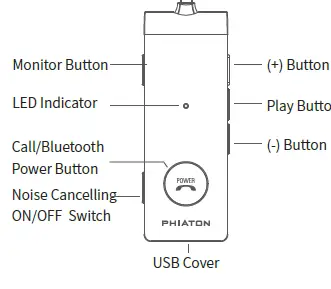
WEARING EARPHONES
- On the earphones, “L” indicates Left and “R” indicates Right. (For best performance, it is recommended to wear ear tips that fit your ears).
- Use the clip or neck strap for your convenience.

[How to Attach Neckstrap]
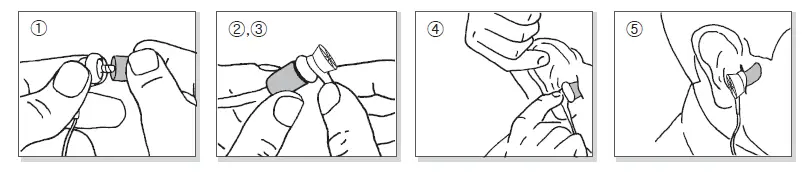
[How to Wear BT 220 NC] - How to Use the Comply™ Foam tip
- First, remove silicon tips.
- Place the bottom side of a foam tip to the end of a waveguide.
- Press the foam tip until it reaches the middle of a waveguide.
- Apply pressure on the foam tip to minimize its size.
- Insert it carefully into the ear.
- The foam tip will gradually expand for about 10 seconds, blocking external noise.(You can purchase additional foam tips at www.complyfoam.com)
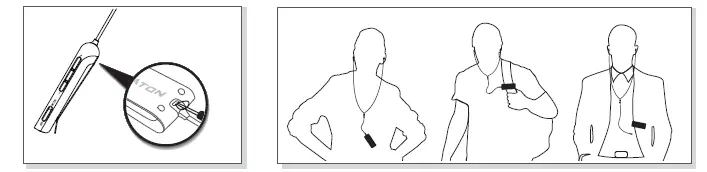
CHARGING
The device may be not charged upon purchase and must first be charged before use.
- Open the USB cover on BT 220 NC and connect the provided USB charging cable.
- Connect the provided USB charging cable with a computer (laptop) or you may also use a separately purchased USB adaptor (rating: 5V/over 500mA) to begin charging.
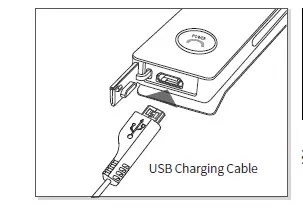
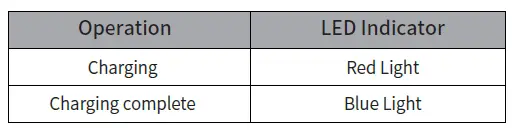
This device is equipped with a battery and will automatically charge once a charging cable is connected.
POWER ON/OFF AND HEADPHONE CONNECTION WAIT MODE
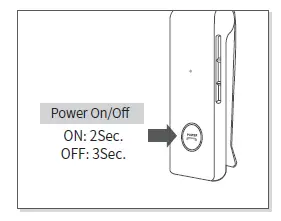
- Power ON/OFF
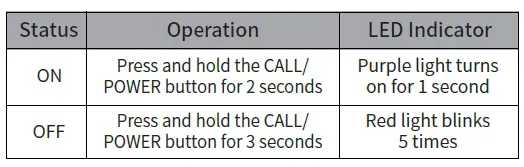
Press and hold the [CALL/POWER] button for two seconds to turn the power on.
When turning the power off, press and hold the [CALL/POWER] button for three seconds to turn off.

- Connection Waiting Mode
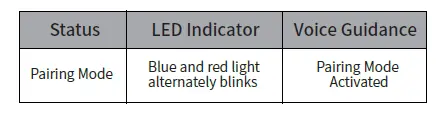
When power is turned on, ‘Connection Waiting Mode’ will start if ‘Pairing Mode’ cannot be entered or the headphones cannot connect with the ‘Bluetooth’ device.
If the ‘Bluetooth’ device is not connected within 5 minutes in ‘ Connection Waiting Mode, ’ the headphones will automatically turn off.
PAIRING WITH A BLUETOOTH DEVICE
- Pairing
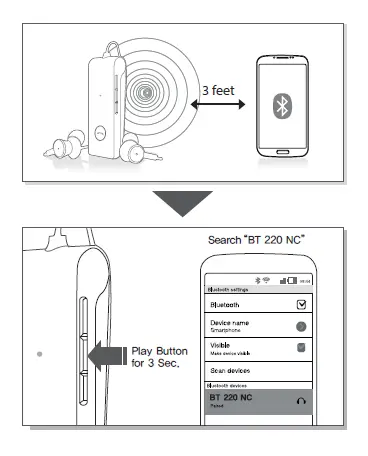
Turn on the Bluetooth feature with the ‘Bluetooth Device’ you want to connect with the BT 220 NC.
Place the BT 220 NC within 3 feet of the ‘Bluetooth Device’ you want to connect.
Press and hold the PLAY button for over 3 seconds with the BT 220 NC power on to enter Pairing Mode.
Within the ‘Bluetooth Device’ you want to connect, search/select ‘BT 220 NC’.
If the “Bluetooth device” requires a PIN CODE or password enter ‘0000’.
Use the earphones to play music or connect a call.- Use the earphones to play music or connect a call.

- Re-connecting a Disconnected Device
Auto Connection
Once the device has been paired with a Bluetooth device, it will automatically be connected to a previously connected device once the BT 220 NC power is turned on. If Bluetooth becomes disconnected as the discovered range between the Bluetooth device and the BT 220 NC is exceeded, then Bluetooth will not be automatically re-connected. When you are back within the discovered range (30 feet), you must then connect manually.
Manual Connection
When having entered ‘Connection Waiting Mode’ during connection Press the CALL/POWER button or the PLAY Button on the headphone to connect. The BT 220 NC will also be connected if you select ‘BT 220 NC’ from the device search list within your ‘Bluetooth Device’. - Checkpoints upon Pairing
Check to see whether the Bluetooth feature is activated within the ‘Bluetooth Device’ you want to connect. When selecting the connection device, connect by selecting stereo headset device. Music cannot be played when connected through the mono headset.

In order to properly use the Bluetooth feature of this device, the profile (A2DP, HSP, HFP and AVRCP) of the ‘Bluetooth Device’ you are trying to connect must support the profile of this device. * A2DP–“Advanced Audio Distribution Profile”, HSP–“Headset Profile”, HFP–“Handsfree Profile”. AVRCP–“Audio/Video Remote Control Profile” The device will not operate properly if the profiles are not supported equally. Even when the profiles are supported equally, some features may not properly operate depending on the Bluetooth device specifications. To check the detail specifications of this headphone’s profile, refer to ’17 – Product Specifications’. For more information, please visit phiaton.com or contact Phiaton customer service.
PAIRING WITH NFC
- You can easily pair the BT 220 NC with a Bluetooth device that has NFC capability.
- Pairing with NFC
Activate NFC function on your Bluetooth device.
Contact the front side of the BT 220 NC to the section of ‘Bluetooth device’ where the ‘NFC Antenna’ is located.
When the ‘Bluetooth device’ asks “Yes” or “No” to connect, click “Yes”.
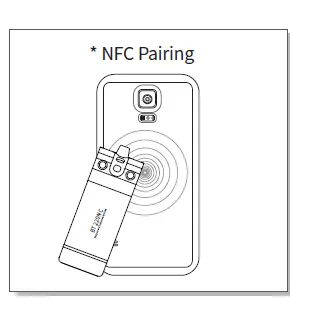
- For the ‘Bluetooth devices’ NFC antenna location, refer to the device manual or contact the device manufacturer.
MULTIPOINT CONNECTION
- ‘What is Multipoint Connection’?
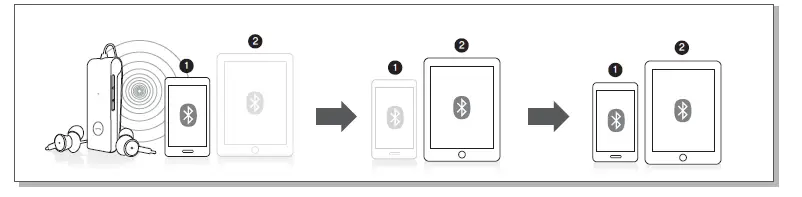
This is a feature where BT 220 NC’s user can simultaneously connect two Bluetooth devices. - Multipoint Connecting
Turn on the Bluetooth feature within the two ‘Bluetooth Devices’ you want to connect with BT 220 NC.
Refer to ‘7-Pairing’ to pair the first device with the BT 220 NC.
Press and hold the PLAY button again to enter Pairing Mode (Here, the first device becomes disconnected).
Once ‘Pairing Mode’ has been entered, pair the second device.
Re-connect the first device. Now, both of the devices will remain connected.
- Sleep Mode will be entered when devices are not connected within two minutes. When trying to connect a device while in Sleep Mode, pressing any button will re-enter Connection Waiting Mode where the connection is possible.
- When the BT 220 NC power is turned off and back on, only the second paired device will auto -matically be connected. When the first paired device is reconnected, then both of the devices will remain connected.
What is ’Auto Mode’?
This is a mode used to automatically reconnect both previously connected ‘Bluetooth Devices’ when the power is turned off and back on.
Using Auto Mode
Within Pairing Mode, press the (+) Button for 3 seconds to turn on Auto Mode. If you press the (+) button for 3 seconds again, then Auto Mode will turn off and switch to Manual Mode.
- Upon Multipoint connection, the features operated within BT 220 NC usually operate within the second paired device (when using the first paired device, it is possible to operate the device from BT 220 NC).
- When using Multipoint connecting, the order of the paired devices may change. To change the order, re-connect the device you usually use.
USING NOISE CANCELLING FEATURE
- What is Noise Cancelling?
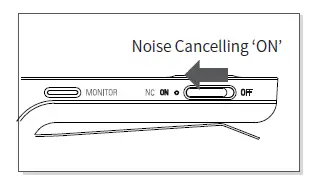
Noise Cancelling refers to a technology that reduces noise from mid/low pitched sounds under 1kHz. - Turning Noise Cancelling Feature On/Off
Pushing the NC Button towards the ON direction will turn Noise Cancelling ON and pushing the button towards OFF will discontinue Noise Cancelling.

- Cautions upon using Noise Cancelling Feature
Noise Cancelling cannot be used when the battery is completely drained.
Use while driving or walking will prevent outside noise, such as signals or alarms, from being heard and may be dangerous to yourself and others. Heed caution during use.
Noise Cancelling is optimized for mechanical noises from aeroplanes, buses, and subway trains and is not required for use within quiet interior environments.

MONITOR FEATURE
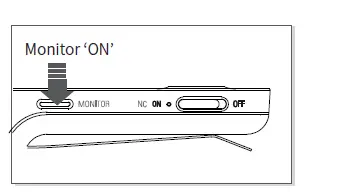
- The monitor feature allows you to mute your music and noise-cancelling so you can hear the surrounding sounds without removing the earbuds.
- Press the Monitor Button when you want to hear the sounds around you.
LISTENING TO MUSIC (PLAY & CONTROL)
Playing Music
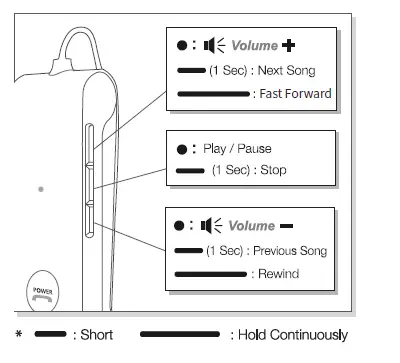
- Shortly press the PLAY Button once to play music from the ‘Bluetooth Device’.
- While music is playing, shortly press the PLAY Button to pause the playing music. The music will be played from the paused point when playing music again.
- While music is playing, pressing and holding the PLAY Button for one second will stop the playing music. The music will be played from the start when playing music again.
- The Stop function may not be supported depending on your ‘Bluetooth Device’.
Controlling Volume and Using Seek
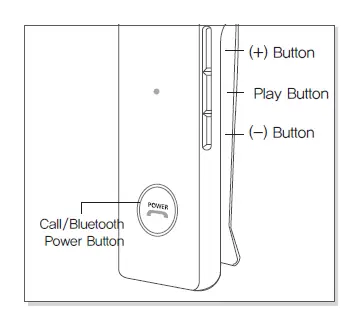
- Press the (+)/(-) Button to control the volume.
- Press and hold the (+)/(-) Button for about one second to go to the next/previous song.
- After 1 second, the signal tone is provided.
- Press and hold the (+)/(-) Button continuously to fast-forward/rewind the current song.
Music can be listened to through BT 220 NC by directly operating your Bluetooth device. When the battery is completely drained, you can connect the provided audio cable to continue listening.
ACCEPTING / MAKING A CALL WHILE PLAYING MUSIC
- Accepting a Call while Playing Music
When the incoming call tone is heard through the earphones, press the CALL/POWER button.
The music will be paused and the call is connected.
Once the call has ended, press the CALL/POWER button to terminate the call. Once the call is terminated, the paused music will play again. - Making a Call while Playing Music
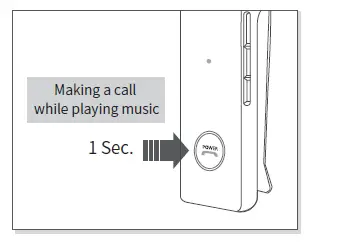
While playing music, press and hold the CALL/POWER button for about 1 second to pause the music and connect with the most recent number.
This feature may slightly differ depending on your ‘Bluetooth Device’.
USING THE CALL FUNCTION
- Accepting a Call
When the incoming call tone is heard through the earphones, press the CALL/POWER button. (Adjusting Call Volume: to control the call volume, Press the (+)/(-) Button). - Ending a Call
While on a call, shortly press the CALL/POWER button to end the call. - Rejecting a Call
When the incoming call tone is heard through the earphones, press and holds the CALL/POWER button for about 1 second. (The ‘Call Ignored’ voice guidance is provided and the incoming call is rejected). - Turning Mute On/Off
While on a call, press the (-) Button for about 1 second to mute the sound. To turn it back on, press the (-) Button again for about 1 second. - Making a Call
Press and hold the CALL/POWER button for about 1 second. The ‘Redialing’ voice guidance is provided and a call is connected with the most recent number.
This feature may slightly differ depending on your ‘Bluetooth Device’. - Call Waiting
When there is another incoming call while on a call (supported only when having applied for this service with your telecom provider).
Press and hold the CALL/POWER button for about 1 second to place the current call on call waiting and connect the second call (Press the CALL/POWER button again for about 1 second to switch between the waiting call and connected call).
Shortly press the CALL/POWER button to end the current call and connect the second call. - Calling by Voice (supported within mobile phones that support the voice command feature).
While waiting, shortly press the CALL/POWER button. - Switching between the Device and Mobile Phone
To switch the call from mobile phone to the headphone, press the CALL button for 1 second.
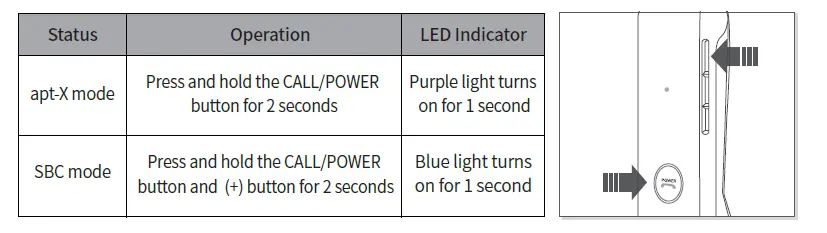
CHANGING SOUND MODE
- When the BT 220 NC connects with the apt-X high-quality sound compatible ‘Bluetooth Device’, it connects in apt-X mode automatically.
- You can switch to SBC mode which is less draining on the battery
Press the CALL/POWER button with the Volume (+) button for 2 seconds when the device powered on.
Battery use time
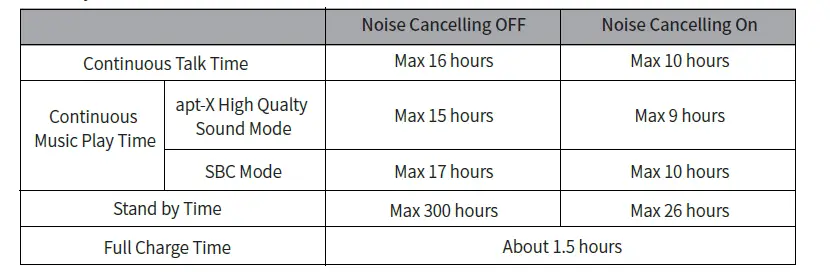
the above times may differ depending on the environment in which it is used.
MISCELLANEOUS FEATURES
- Checking Remaining Battery
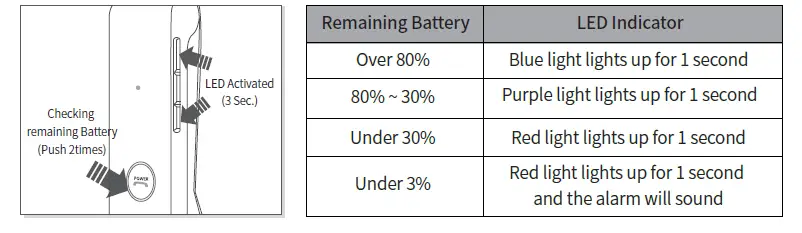
With the power on, shortly press the CALL/Power button twice to display the remaining battery indicator (LED)
The Battery Check feature will not operate while the battery is being charged.
When the battery charge is under 3%, the alarm will sound.
If use is continued for several minutes the battery will be completely drained, the ‘Power Off’ voice guidance is provided and the power will automatically turn off. - Activating/Deactivating the LED Indicator
BT 220 NC is equipped with an indicator that shows operating features to provide information on operating states.
Press the (-) Button and (+) Button simultaneously for about 3 seconds to deactivate the indicator (LED) that shows operating states. To activate again, Press the (-) Button and (+) Button simultaneously for about 3 seconds. - Enabling/Disabling Voice Guidance
Within ‘Pairing Mode’, pressing the PLAY Button for about 3 seconds will enable voice guidance and provide guidance when starting various features via voice (this feature may not be supported immediately after ending/connecting a call).
Within ‘Pairing Mode’, again pressing the PLAY Button for about 3 seconds will disable voice guidance.
Upon factory shipment, the voice guidance feature is enabled by default.
Once the voice guidance feature is disabled, the following signal tones are provided in place of voice guidance. - Resetting the Device
To reset to factory settings, press the Play button and (+) Button for 5 seconds simultaneously while in the Pairing Mode.
CONNECTING AND USING THE AUDIO CABLE
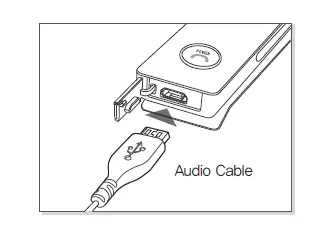
- BT 220 NC can also be used with the audio cable connected as shown in the figure.
When connected to a device with the provided audio cable, the Bluetooth remote features are disabled and you must use the device you are connected to answer calls and play music.
Frequently Asked Questions
- Looking at the pictures, it seems that the cable only supports stereo audio and not the mic. Can I place a call while connected to a device with a cable?
Hi Fabio. The answer is yes. When you are connected to a device with the audio cable, you can place a call or accept a call. The audio cable feature allows you to listen to music & make calls when your battery runs out or you don’t have a Bluetooth-enabled device. The audio cable turns the BT 220 NC into a hard-wired earphone, so you still can make calls and listen to music. Hope that helps. Brian / WiredForLess. - There are times when i want to hear sounds around me. with nc off, how are these at allowing sound in (ie apple earpods our bose items)?
If you are wanting to hear noises around you there is also a monitor button of which you can click on and it will omit the sounds coming from the earphones so that you can hear the sounds around you. - Does NC work when the battery is dead but you are plugged into a phone? I’m hoping it can use the power from the device to continue the NC feature.
No, the BT 220 NC does not pull off the battery of the device when hard wired. The battery needs to be charged in order to use the NC feature whether connected via Bluetooth or hard-wired with the supplied audio cable. The optional audio cable is provided to allow you to continue listening to your music in the event the battery dies or you want to use a non-Bluetooth device. - How comfortable are the earbuds, could you sleep with them?
As a slightly obsessed audiophile and side-sleeper myself, I can tell you that you want an earbud with a super flat profile for sleeping- and I’ve done more than my share of research into the most comfortable for this purpose! My favourite brand (for most comfortable side-sleeping/lying down) is “Mee Audio,” hands down! AND they start out dirt-cheap at just $14.99 for corded w/out mic for the M6 model to just $29.99 for their entry Bluetooth model M6B. All but one model (that I’ve seen anyway) are also designed with memory wire that “hooks” around the ear to help them stay put- another big plus, especially if you tend to toss and turn at night. - Why does the unit turn off when I connect the audio cable?
My guess is that if it is connected to a device there is no need for amplification, therefore saving battery power. I personally use Bluetooth for a connection to my iPad. - Can it work with google pixel 2?
If it is Bluetooth capable then it will work. - Do they fit underneath a helmet? And how do they behave while driving?
I can’t wear mine with a helmet since they stick out a bit, and hurt my ears but while driving they worked great. They drown out all car noise but you still can hear horns or people talking to you - Is the cord long enough to clip on your belt? How long is it?
No. I believe it’s about 18″ long…enough to put in a breast pocket or clip to a collar or jacket. Brian / WiredForLess - Do the headphones have to be in your ear in order to hear an incoming call?
if your phone ringer is on you will hear the call. - Why doesn’t the green “noise cancelling on” lead go out even though the power is off?
Does the noise-cancelling feature have a separate on-off switch have you tried moving the switch back to the opposite side ? Which would be the off feature.