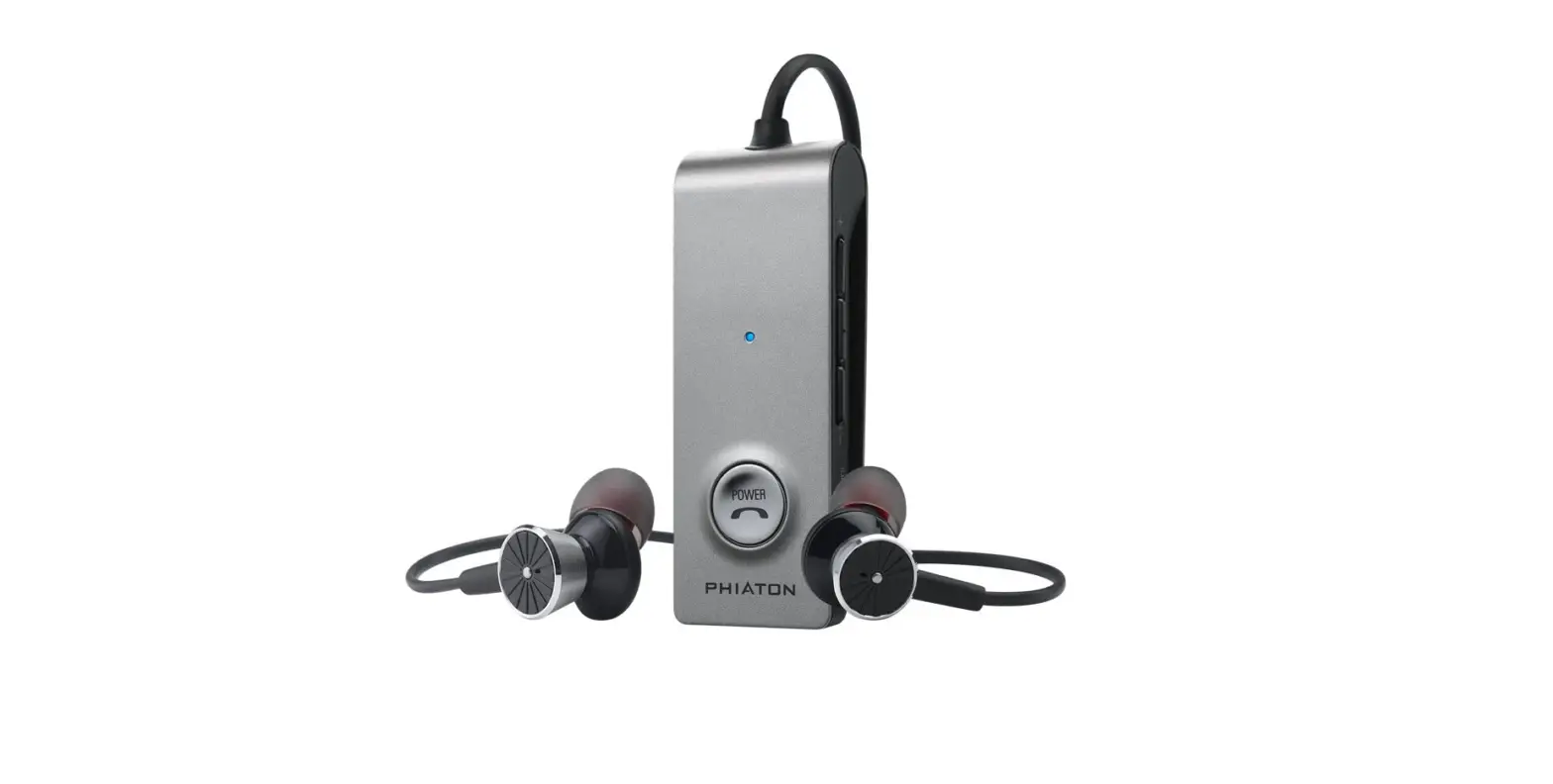
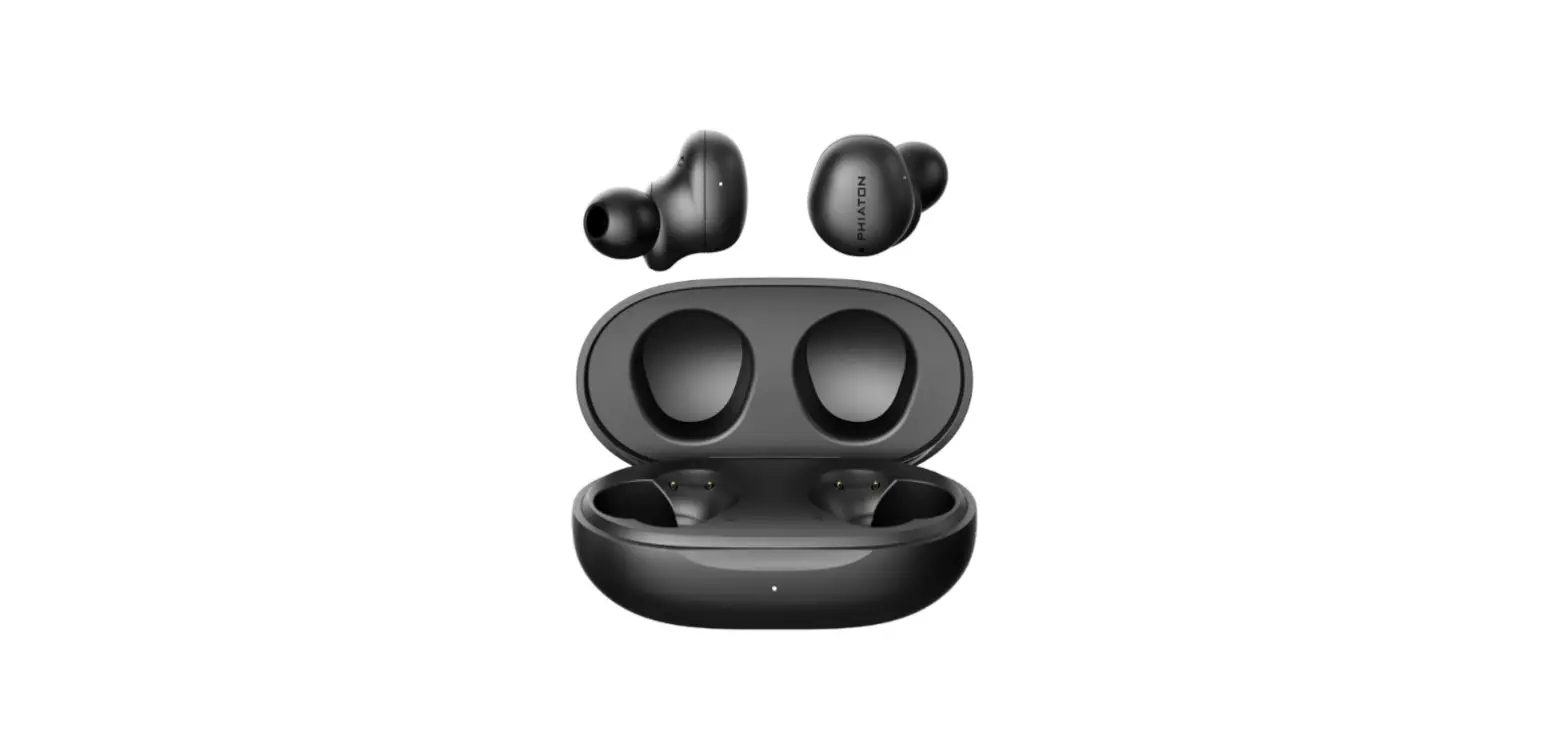
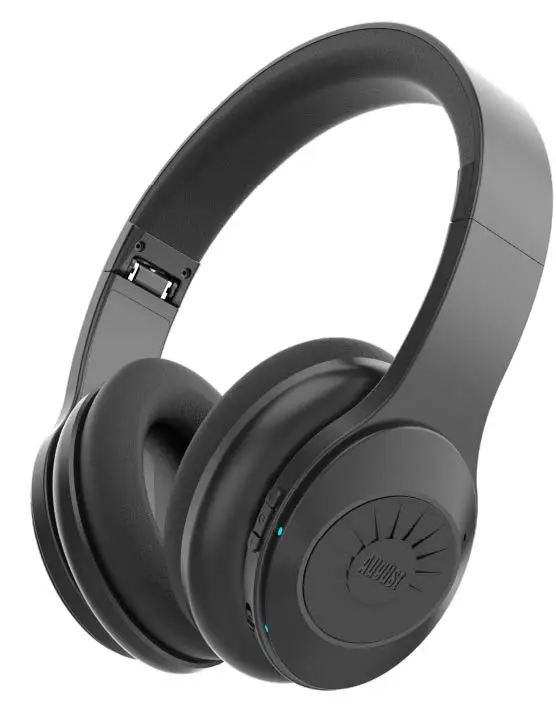
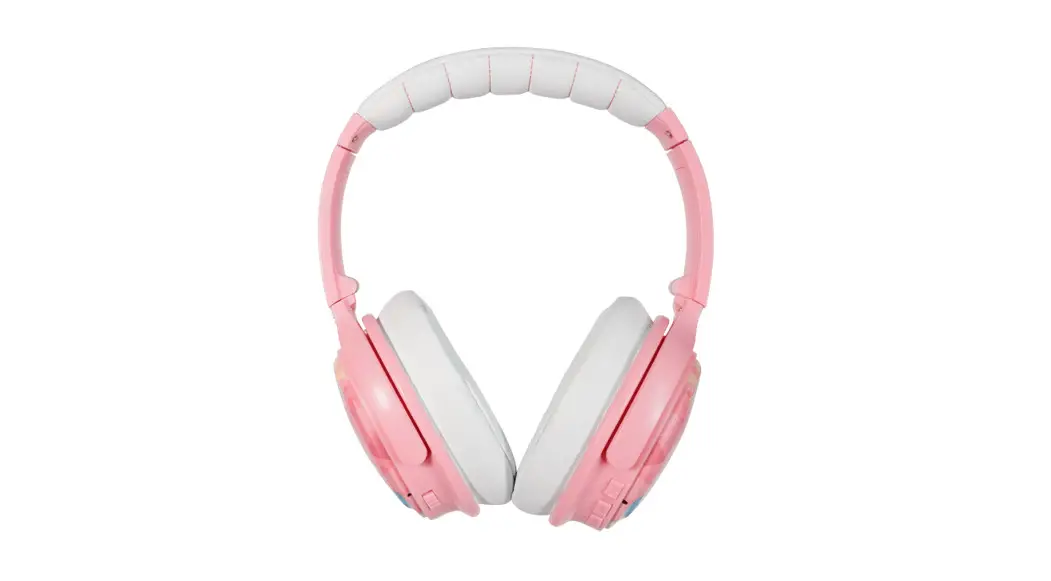
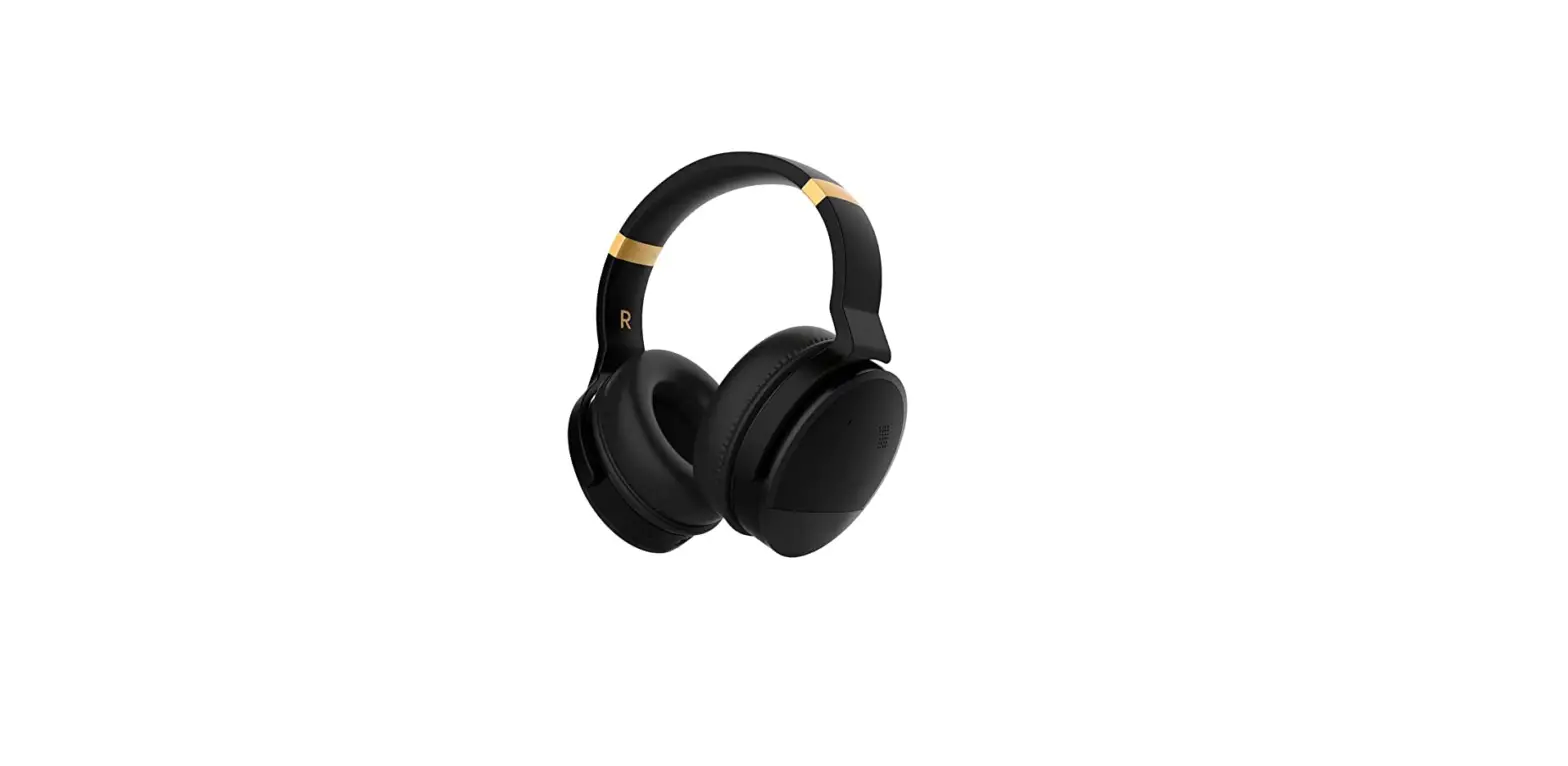
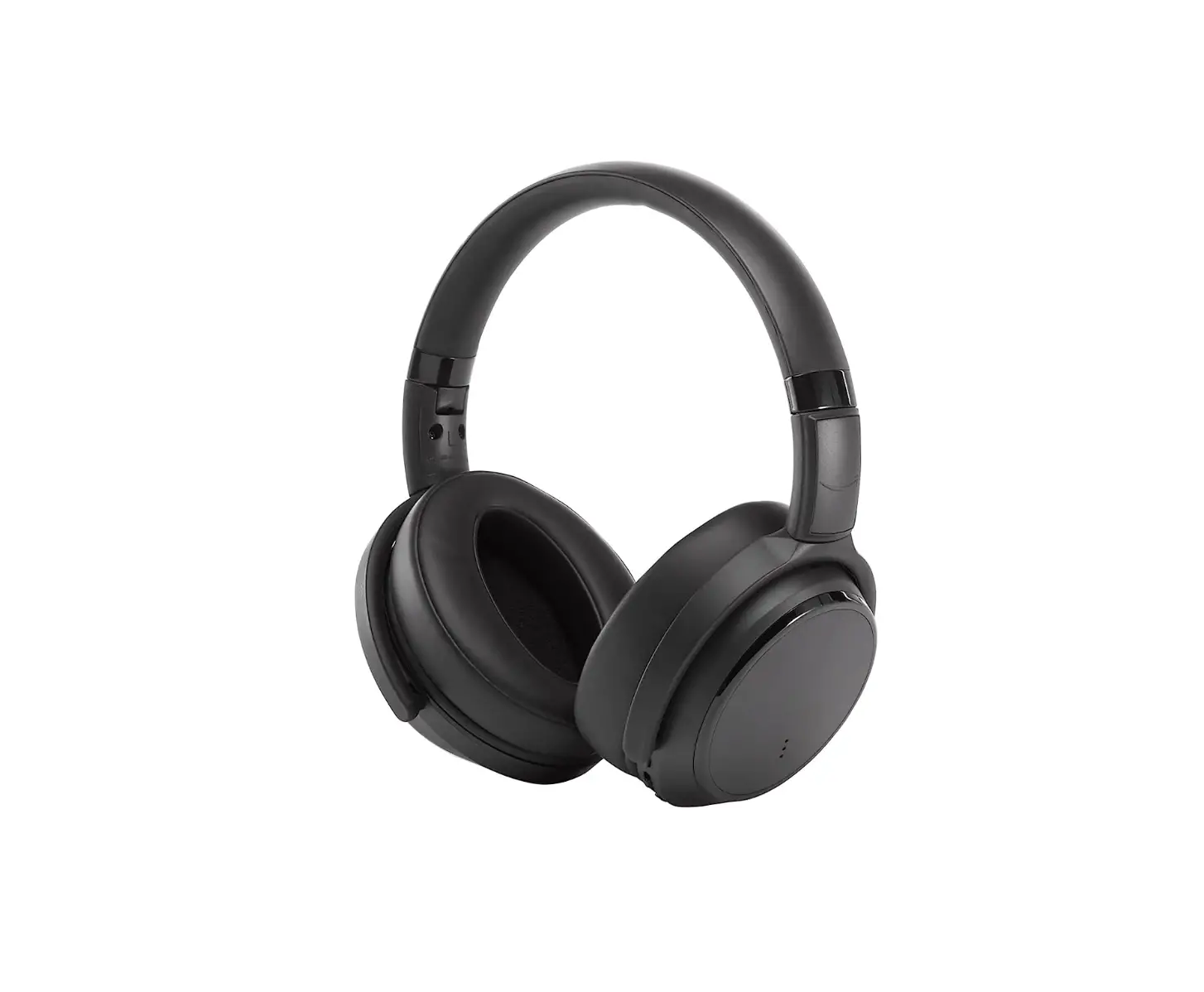
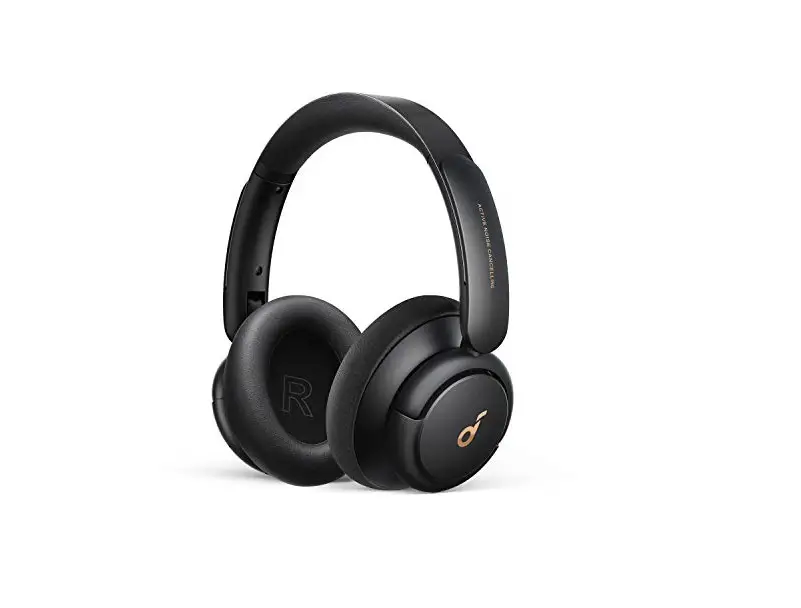
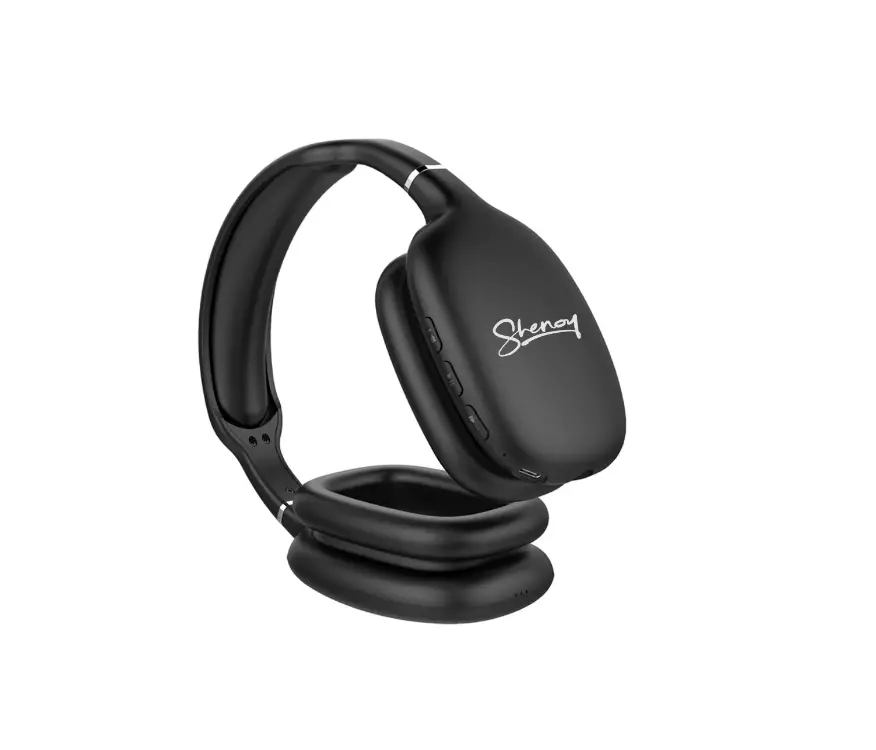
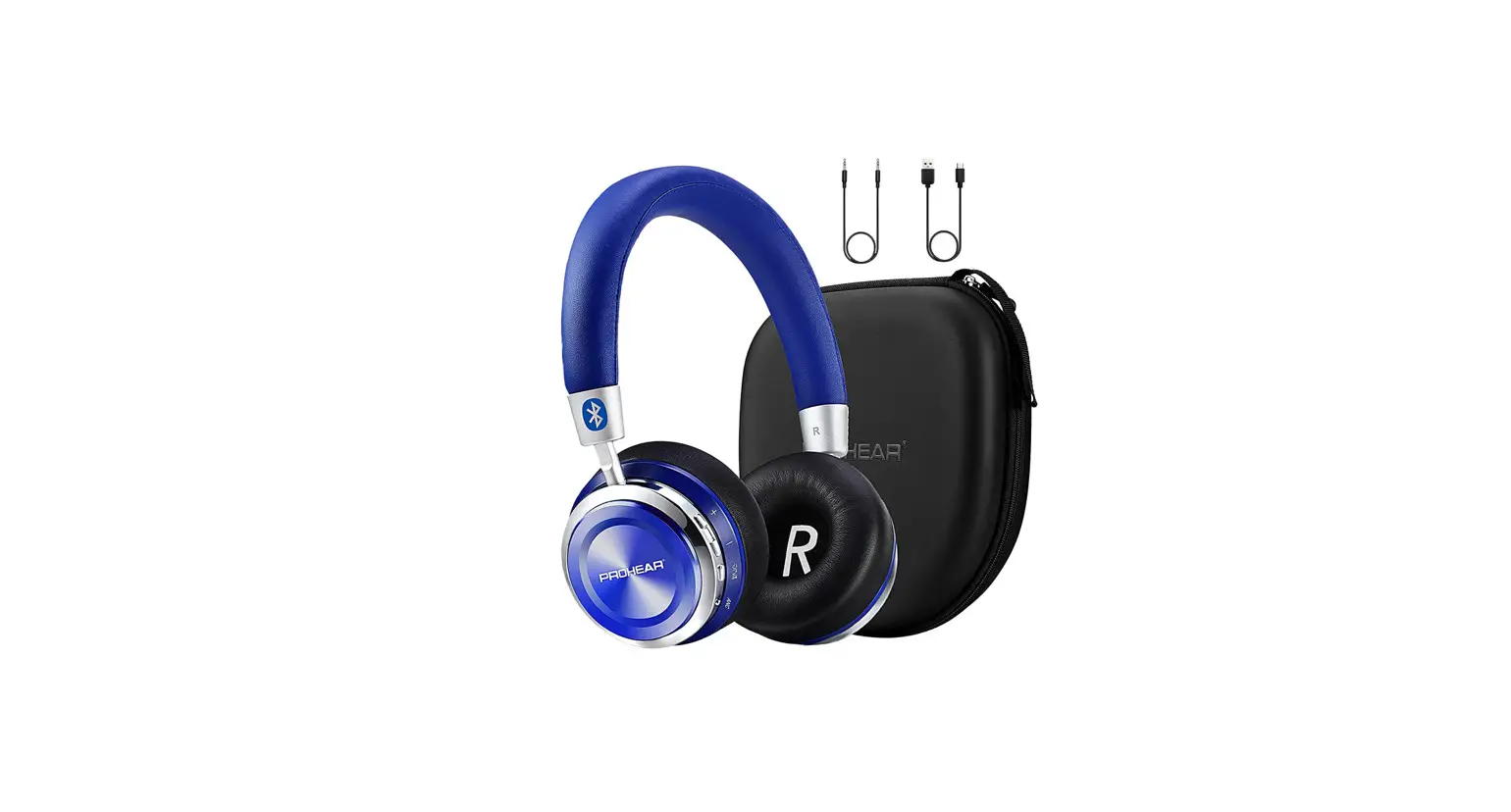
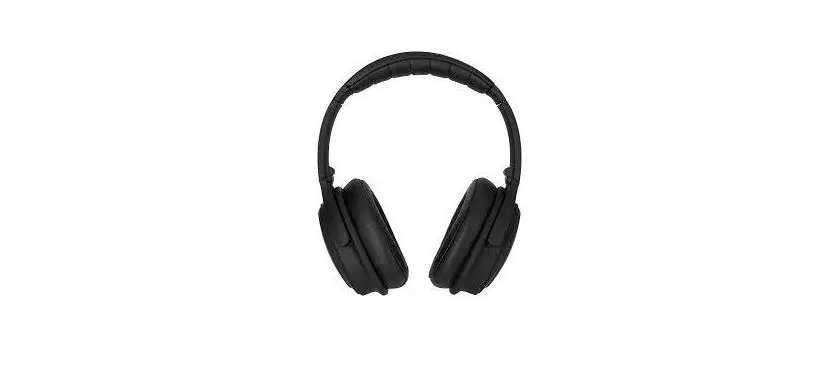
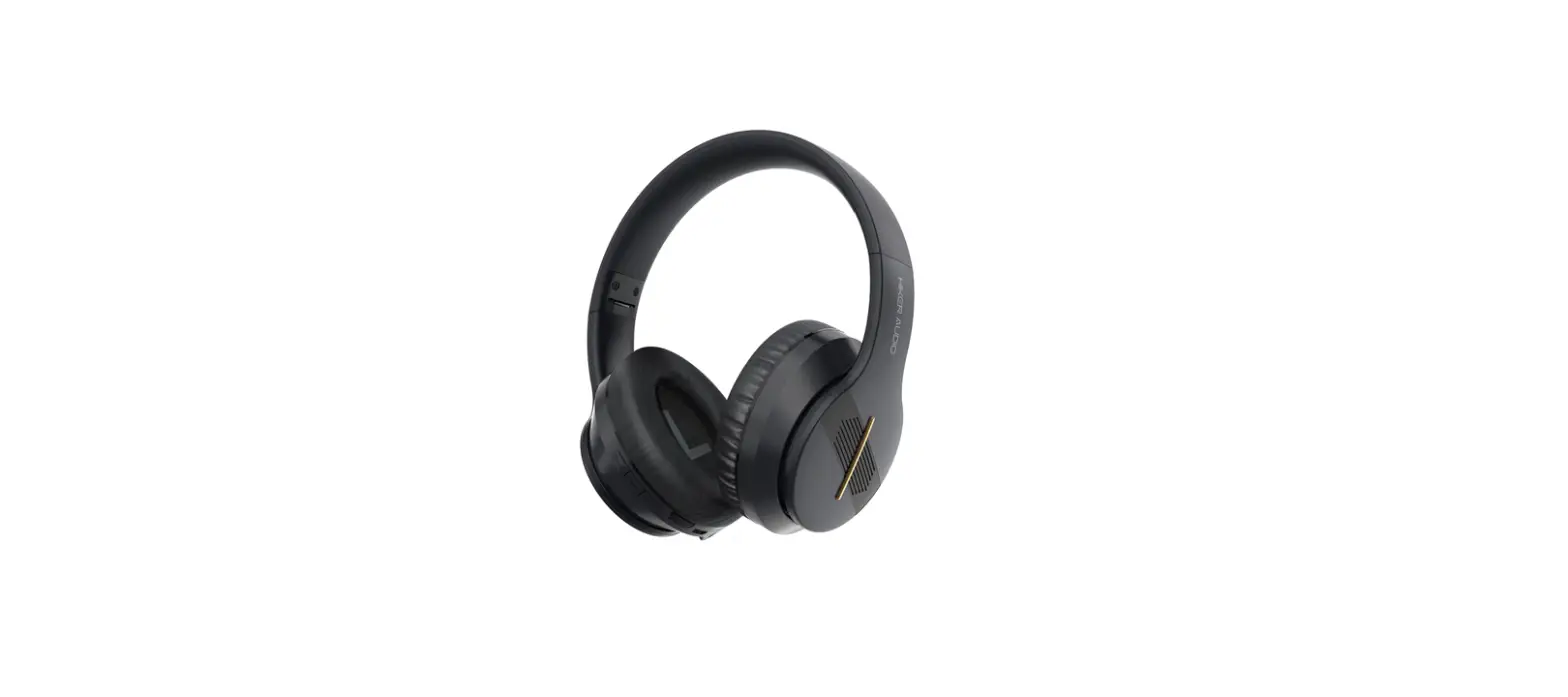
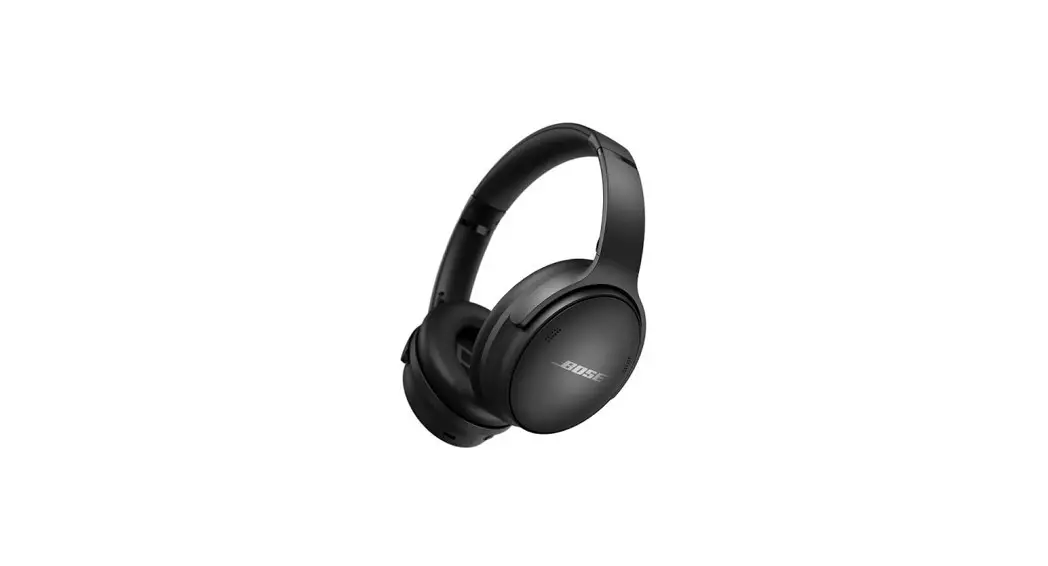
BonoBeats Lite Bluetooth Noise cancelling Headphone
Product Information: Bluetooth Noise Cancelling Headphone
SAFETY AND GENERAL INFORMATION
– Use a standard USB charging cable (included) with or without a
charging adaptor. (5V, over 1 A)
– Sudden, loud music can potentially cause hearing damage. Lower
the volume before placing headphones on your ears and gradually
increase the volume until a comfortable level has been reached.
– Using the device while walking or driving may prevent the user
from hearing important sounds such as signals or alarms and may
impose hazardous conditions on yourself or others. Heed caution
during use.
– The radio waves of this device may affect electronic medical
devices. If you use any electronic medical device, consult your
doctor or the medical device company before you use.
– Use the BonoBeats Lite only for its intended purposes. This
device cannot be used for purposes related to human safety as it
may cause radio interference during operation.
– Risk of fire or explosion if the battery is disposed into fire
or hot oven, mechanically crushing or cutting.
– Risk of explosion or leakage of flammable liquid or gas if the
battery is left in an extremely high-temperature surrounding
environment.
– Risk of explosion or leakage of flammable liquid or gas if the
battery is subjected to extremely low air pressure.
COMPONENTS & FEATURES
– Contents: BonoBeats Lite, USB-C TO USB-C Charging cable, Quick
Guide, Warranty Card
– Features: NC mode button, + button, MFB button, – button, LED
Indicator, USB TYPE C Port
CHARGING
The device may have low battery and should be charged before
first use.
1) Connect the provided USB charging cable to BonoBeats
Lite.
2) Connect the provided USB charging cable with a computer
(laptop) or you may also use a USB adaptor.
OWNER’S GUIDE
Bluetooth Noise cancelling Headphone
WIRELESS DIGITAL HYBRID NOISE CANCELLING HEADPHONES – Please follow the directions and read the guidelines carefully before use. – Please keep the owner’s guide for future reference. – Some functions of the BonoBeats Lite may not be available when it is paired
with certain devices. – The specifications are subject to change without prior notice for quality
improvement.
CONTENTS
1. SAFETY AND GENERAL INFORMATION 2. COMPONENTS & FEATURES 3. CHARGING 4. POWER ON/OFF AND HEADPHONE CONNECTION WAITING MODE 5. PAIRING WITH A `BLUETOOTH DEVICE’ 6. MULTIPOINT CONNECTION 7. NOISE CANCELLING FUNCTION 8. MONITORING (AUDIO TRANSPARENCY) 9. LISTENING TO MUSIC (PLAY & CONTROL) 10. ACCEPTING / MAKING A CALL WHILE PLAYING MUSIC 11. USING THE CALL FUNCTION 12. MISCELLANEOUS FEATURES 13. SPECIFICATIONS 14. PRODUCT ISSUES AND TROUBLESHOOTING 15. CERTIFICATION
2
1. SAFETY AND GENERAL INFORMATION
1) Use a standard USB charging cable (included) with or without a charging adaptor. (5V, over 1 A) * Adaptor Not Included. * Use products that satisfy IEC/EN 62368-1, LPS
2) Sudden, loud music can potentially cause hearing damage. Lower the volume before placing headphones on your ears and gradually increase the volume until a comfortable level has been reached.
3) Listening to loud music for extended periods of time may cause hearing damage. 4) Do not store the device in places with a temperature higher than 122 / 50 5) Do not attempt to disassemble, modify or repair the device. 6) Do not cause shock to the device. 7) Keep out of reach of children and pets. 8) Do not tug on cords or touch power plugs with wet hands. 9) Do not use the device near microwave ovens or wireless LAN adaptors. 10) When cleaning the device, use a clean dry cloth to wipe the device clean. (Do not use solvents.) 11) When the product is not being used, please keep it in the Protective Case. 12) Replacement ear pads can be purchased from Phiaton Customer Service.
Email us at [email protected] 13) Using the device while walking or driving may prevent user from hearing important sounds such as
signals or alarms and may impose hazardous conditions on yourself or others. Heed caution during use. 14) The radio waves of this device may affect electronic medical devices. If you use any electronic medical
device, consult your doctor or the medical device company before you use.
Use the BonoBeats Lite only for its intended purposes. This device cannot be used for purposes related to human safety as it may cause radio interference
during operation. Risk of fire or explosion if the battery is disposal into fire or hot oven, mechanically crushing or cutting. Risk of explosion or the leakage of flammable liquid or gas if the battery is leaving in an extremely high temperature surrounding environment. Risk of explosion or the leakage of flammable liquid or gas if the battery is subjected to extremely low air pressure.
– high or low extreme temperatures that a battery can be subjected to during use, storage or transportation; and – low air pressure at high altitude. – disposal of a battery into fire or a hot oven, or mechanically crushing or cutting of a battery, that can result in
an explosion; – leaving a battery in an extremely high temperature surrounding environment that can result in an explosion or
the leakage of flammable liquid or gas; and – a battery subjected to extremely low air pressure that may result in an explosion or the leakage of flammable
liquid or gas.
3
2. COMPONENTS & FEATURES
1) Contents – BonoBeats Lite – USB-C TO USB-C Charging cable – Quick Guide – Warranty Card
2) Features
NC mode button + button MFB button – button LED Indicator USB TYPE C Port
4
3. CHARGING
The device may have low battery and should be charged before first use. 1) Connect the provided USB charging cable to BonoBeats Lite. 2) Connect the provided USB charging cable with a computer (laptop) or you may also use an USB adaptor
(purchased separately) with a minimum rating of 5V (over 500mA).
Operation Charging Charging complete
LED indicator Red Light Blue Light
USB Charging cable
– This device has a built-in battery, and will begin charging automatically when you connect the charging cable.
4. POWER ON/OFF AND HEADPHONE CONNECTION WAITING MODE
1) Power ON/OFF – Press and hold the `Power’ Button for 2.5 seconds to turn the power on. – When turning the power off, press and hold the POWER Button for 2.5
seconds to turn off.
Power ON/OFF ON: 2.5 Seconds OFF: 2.5 Seconds
Status Operation
LED Indicator
Notice
Press and hold the POWER ON
Button for 2.5 seconds
After Purple light, Blue light blinks 2 times
Sound effect
OFF
Press and hold the POWER Button for 2.5 seconds
Red light blinks 5 times
Sound effect
When powering on for the first time after purchase, pairing mode is automatically activated.
2) Connection Waiting Mode – When power is turned on, `Connection Waiting Mode’ will start if `Pairing Mode’ cannot be entered
or the headphones cannot connect with `Bluetooth Device’. – If the `Bluetooth Device’ is not connected within 5 minutes in `Connection Waiting Mode’,
the headphones will automatically turn off. At Connection Waiting Mode, the headphone should be entered to `Pairing Mode’ for connection to
`Bluetooth device’ again after power off. If not, BonoBeats Lite will turn off within 5 minutes after starting `Connection Waiting Mode’.
Status Connection Waiting Mode
LED Indicator Blue light blinks twice in 6 second intervals
5
5. PAIRING WITH A BLUETOOTH DEVICE
Press MFB
ECO
button for 6
seconds
1) Pairing – Turn on the Bluetooth feature with the `Bluetooth Device’ you want to connect with the BonoBeats Lite. – Place the BonoBeats Lite within 3 feet of the `Bluetooth Device’ you want to connect. – Press and hold the MFB button for over 6 seconds with the BonoBeats Lite power on to enter Pairing Mode.
Pairing mode will start once the power is turned on for the first time after purchase.
Status Pairing Mode
LED Indicator Blue and Red light alternately blinks
Voice Guidance Pairing Mode activated
– Within the `Bluetooth Device’ you want to connect, search/select `BonoBeats Lite ‘.
If the `Bluetooth Device’ requires a PIN CODE or password, enter `0000′. – Use the headphones to play music or connect a call.
Operation
LED Indicator
Voice Guidance
Connection success Blue light blinks once in 6 second intervals
Device connected
2) Re-connecting a Disconnected Device Auto Connection – Once the device has been paired with a `Bluetooth Device’ it will automatically be connected to a previously
connected device once the BonoBeats Lite power is turned on. – If Bluetooth becomes disconnected and the range between the BonoBeats Lite and the `Bluetooth Device’ is exceeded,
then Bluetooth will not be automatically reconnected when back in range. When you are back within the discover range (33 feet), you must then connect manually. Manual Connection – When having entered `Connection Waiting Mode’ during connection. – Press the POWER Button on the headphone to connect. – The BonoBeats Lite will also be connected if you select `BonoBeats Lite’ from the device search list within your `Bluetooth Device’. 3) Checkpoints Upon Pairing – Check to see whether the Bluetooth mode is activated within the `Bluetooth Device’ you want to connect. – When selecting the connection device, connect by selecting stereo headset device. Music cannot be played when connected through mono headset.
In order to properly use the Bluetooth feature of this device, the profile (A2DP, HSP, HFP and AVRCP) of the `Bluetooth Device’ you are trying to connect must support the profile of this device.
6
A2DP-“Advanced Audio Distribution Profile”, HSP-“Headset Profile”, HFP-“Hands Free Profile”. AVRCP-“Audio/Video Remote Control Profile”
The device will not operate properly if the profiles are not supported equally. Even when the profiles are supported equally, some features may not properly operate depending on the `Bluetooth Device’ specifications. To check the detail specifications of this headphone’s profile, refer to `15. SPECIFICATIONS’. For more information, please visit phiaton.com or contact Phiaton customer service.
6. MULTIPOINT CONNECTION
1) What is `Multipoint Connection’? – This is a feature where BonoBeats Lite’s user can simultaneously connect two Bluetooth devices.
2) Multipoint Connecting – Turn on the Bluetooth feature within the two `Bluetooth Devices’ you want to connect with BonoBeats Lite. – Refer to 5. PAIRING WITH A `BLUETOOTH DEVICE’ to pair the first device with the BonoBeats Lite. – Press and hold the POWER Button again for 5 seconds to enter `Pairing Mode’.
(Here, the first device becomes disconnected.) – Once `Pairing Mode’ has been entered, pair the second device. – Within the first `Bluetooth Device’ you want to
connect, select `BonoBeats Lite’ again. – Now, both of the `Bluetooth Devices’ will be connected simultaneously, and now the `BonoBeats Lite’ will control
the secondly paired device.
Sleep Mode will be entered when devices are not connected within 1 minute. When trying to connect a device while in Sleep Mode, pressing any button will re-enter `Connection Waiting Mode’ where connection is possible.
When the BonoBeats Lite power is turned off and back on, the first and second paired device will automatically be connected.
2 1
2 1
2 1
Upon Multipoint Connection, the features operated within BonoBeats Lite usually operate within the first paired device. (When using the second paired device, it is possible to operate the device from BonoBeats Lite.)
When using Multipoint Connection, the order of the paired devices may change. To change the order, re-connect the device you usually use.
7
7. NOISE CANCELLING FUNCTION
Noise Cancelling Button
1) What is `Noise Cancelling’? – Noise Cancelling refers to a technology that reduces noise from mid/low
pitched sounds under 1kHz.
2) Turning Noise Cancelling – The Noise Cancelation function is automatically activated when the device is
powered on or when the audio cable is plugged in. When pressing the Noise Cancellation button you will activate the Audio Transparency feature which will allow you to hear the sounds around you better. Hit the NC button again and Noise Cancellation feature is activated again.
3) Cautions in regards to the Noise Cancelling function – The Noise Cancelling function cannot be used when the battery is completely
discharged or completely empty. – Using this function while driving or walking could prevent outside noise, such as
signals or alarms, from being heard and may present a hazard to yourself and others. Proceed with caution when in use. – Noise Cancelling is optimized for mechanical noises from airplanes, buses, and subway trains and is not necessary within quiet indoor environments.
8. MONITORING (AUDIO TRANSPARENCY)
1) The AUDIO TRANSPARENCY feature allows you to stop noise cancelling temporarily so you can hear the surrounding sounds without removing the headphone.
2) When AUDIO TRANSPARENCY is activated, the noise cancelling function is stopped and external sounds can be heard.
3) When the NC button is pressed while the noise cancelling function is running, the AUDIO TRANSPARENCY is activated. Press again to stop the AUDIO TRANSPARENCY.
AUDIO TRANSPARENCY `ON’
8
9. LISTENING TO MUSIC (PLAY & CONTROL)
1) Playing Music
– Shortly press the MFB Button once to play music from the
`Bluetooth Device’.
– While music is playing, shortly press the MFB Button to pause
x 1
2 s
the playing music.
The music will resume from the paused point when playing
music again.
x 1
x 1
2 s
SBC (Sub Band Codec) is default audio codec installed for any `Bluetooth Device’. aptXTM, aptXTM-HD and AAC are high quality audio codec.
2) Controlling Volume and Using Seek – Press the (+)/(-) Button to control the volume. – Press and hold the (+)/(-) Button for about 2 second to go to the next / previous song.
After 1 second, the `beep’ signal tone is provided. – Press and hold the (+)/(-) Button continuously to fast-forward / rewind the current song. Music can be listened to through 900 LEGACY by directly operating your `Bluetooth Device’.
10. ACCEPTING / MAKING A CALL WHILE PLAYING MUSIC
1) Accepting a Call while Playing Music
– When an incoming call tone is heard through the headphones,
press the MFB button. The music will pause and the call will be
x 1
connected.
– Once the call has ended, press the MFB button to terminate the call.
Once the call is terminated, the paused music will play again.
x 1
9
11. USING THE CALL FUNCTION
1) Accepting a Call – When an incoming call tone is heard through the headphones, press the MFB button.
(Volume control: While on a call, use the + / – button to control volume.)
2) Ending a Call – While on a call, press the MFB button
3) Rejecting a Call – When an incoming call tone is heard through the headphones, press and hold the MFB button for about 1 second.
(After hearing the `beep’ signal tone, the incoming call is rejected and the voice guidance “Call Ignored” is heard.)
4) Call Waiting – When receiving another incoming call while on a call.
(Supported only when having applied for this service with your telecom provider.) – Shortly Press the MFB button to place the current call on call waiting and connect the second call.
(Quickly double press the MFB button again to switch between the waiting call and connected call.) – Press and hold the MFB button for about 1 second to end the current call and connect the second call.
5) Switching between Mobile Phone to 900 LEGACY – To switch the call from mobile phone to the headphone, press the MFB button for 1 second.
Status Incoming Bell/Outgoing Bell During Call When there are two calls connected
LED Indicator Purple light blinks in 1.5 second intervals Blue light slowly blinks every 6 seconds Purple light slowly blinks every 6 seconds
Battery use time
Status Call Time Music Play Time Standby Time 10 min. Charging Full Charging Time
Noise Cancelling `ON’ Max. 34 hours Max. 30 hours Max. 40 hours Max. 5 hours About 2 hours
The above times may differ depending on the environment in which it is used.
10
12. MISCELLANEOUS FEATURES
Push 2 times quickly
LED Indicator
1) Checking Remaining Battery – With the power on, short press the MFB button twice to display the
remaining battery indicator (LED). – For Apple iOS version 5 or above, the remaining battery is displayed
at the top right side of the screen.
Remaining Battery Over 80% 80% ~ 30% Under 30% Red light Under 3%
Voice Guidance Battery is full Battery is moderate Battery is low Please recharge
The Battery Check feature will not operate while the battery is being charged. When the battery charge is under 3%, the alarm will sound.
If headphone usage persists for several minutes the battery will be completely drained, the `Power Off’ voice guidance will be provided and the power will automatically turn off.
2) Resetting the Device – To reset to factory settings, when power on, continue to press and hold the MFB button and Vol – for over
6 seconds and device will reset itself.
Operation
LED Indicator
Factory Settings
5 times Purble light blinking
11
13. SPECIFICATIONS
Communication Network
Bluetooth 5.2
Bluetooth Profiles
HFP v1.8 / HSP v1.2 / A2DP v1.3.1 / AVRCP v1.6.2
Audio Codec
SBC, Qualcomm® aptX HDTM, aptXTM, AAC
Operating Frequencies
2.4 GHz (2.402 GHz ~ 2.480 GHz)
Operating Range
Within 10 m / 33 ft.
Music Play
NC ON 30 hrs
Standby Time
40 hrs
Full Charge Time
2 hrs
Headphone Dimensions
182.4 X 185.4 X 53.4 mm
Weight
148 g (0.32 lb)
Driver Unit
Ø30 mm
Sensitivity
105 dB/mW
The specifications are subject to change without prior notice for quality improvement.
12
14. PRODUCT ISSUES AND TROUBLESHOOTING
1) The power does not turn on: – Charge the device. If the power does not turn on even after charging, contact Phiaton Customer Service. 2) The device does not charge: – Check whether the USB charging cable has been properly connected with the device. – Check whether the PC power is on and that it has been properly connected. – When using an USB AC adapter, check to see that it is properly connected. – Check by plugging into a different port or outlet to ensure it isn’t an issue with outlet or port. 3) The device does not pair: – Check whether the power of the `Bluetooth Device’ you want to connect is on. – Check whether the Bluetooth feature within the `Bluetooth Device’ you want to connect is enabled. – Check whether the `Bluetooth Device’ you want to connect is within the supported range.
(Pairing is supported only when within 3 feet.) – Check whether the Bluetooth profile within the `Bluetooth Device’ is compatible. – Check whether the BonoBeats Lite is in `Pairing Mode’. – Power OFF, then try repairing again by following direction from 5. PAIRING WITH A `BLUETOOTH DEVICE’. – Make sure the BonoBeats Lite is fully charged. 4) Music cannot be played: – Check whether the power of the device and `Bluetooth Device’ is on. – Check whether music is being played within the connected `Bluetooth Device’. – Check whether the volume within the connected `Bluetooth Device’ is low. – When using an audio cord, check to see that the plug is properly connected. 5) Noise is heard or the sound lags: – Check whether there is an electronic device nearby using the 2.4 GHz frequency band and it’s also
Connected to the `Bluetooth Device’. (i.e. Wi-Fi routers, smart devices, baby monitors, and etc.) – Check whether the connected `Bluetooth Device’ is far away from this device.
(Maximum communication range: within 33 feet.) – Make sure there isn’t an issue with Wi-Fi if streaming. 6) The music sound quality is low: – If the `Bluetooth Device’ you are trying to connect with this device is accessed to HSP, change the access to A2DP. 7) The other party cannot be heard while on a call: – Check whether the power of the `Bluetooth Device’ you want to connect is on. – Access Bluetooth through HFP or HSP. – Check whether the volume within the connected `Bluetooth Device’ is low. 8) Outside noise is too high or not reduced: – Check whether Noise Cancelling is turned ON. – Check if AUDIO TRANSPARENCY has been activated 9) Product does not work or operation has stopped: – Reset the device by simultaneously pressing the power button and connecting the USB charging cable. – This will power off the device but will not delete previously deleted devices. – This performs a hardware reset. Headphone power will be forced to quit but pairing history will remain. – This method is recommended when headphone or function keys do not work. 10) The device is paired with PC/Laptop but does not work: – PC/Laptop is equipped with various Bluetooth drivers depending on the manufacturer and it is possible it
does not support BonoBeats Lite. – Please contact to PC/Laptop manufacturer to download the latest software driver or for further assistance
in connecting to a `Bluetooth Device’.
13
15. CERTIFICATION
FCC Compliance Information FCC ID: V2R-BN0300 This device complies with Part 15 of the FCC Rules. Operation is subject to the following two conditions: (1) this device may not cause harmful interference, and (2) this device must accept any interference received, including interference that may cause undesired operation.
Warning: Changes or modifications not expressly approved by the party responsible for compliance could void the user’s authority to operate the equipment
NOTE : This equipment has been tested and found to comply with the limits for a Class B Digital Device, pursuant to Part 15 of the FCC Rules. These limits are designed to provide reasonable protection against harmful interference in a residential installation. This equipment generates, uses and can radiate radio frequency energy and, if not installed and used in accordance with the instruction, may cause harmful interference to radio communication. However, there is no guarantee that interference will not occur in a particular installation. If this equipment dose cause harmful interference to radio or television reception. Which can be determined by turning the equipment off and on, the user is encouraged to try to correct the interference by one or more of the following measures : – Reorient or relocate the receiving antenna. – Increase the separation between the equipment and receiver – Connect the equipment into an outlet on a circuit different from that to which the receiver is connected. – Consult the dealer or an experienced radio/TV technician for help.
This equipment complies with FCC radiation exposure limits set forth for an uncontrolled environment and meets the FCC radio frequency (PF) Exposure Guidelines.
This equipment has very low levels of RF energy that is deemed to comply without testing of specific absorption rate (SAR).
Caution: Changes or modifications not expressly approved by the party responsible for compliance could void the user’s authority to operate the equipment.
IC Compliance Information IC : 10488A-BN0300 This device complies with Industry Canada’s license-exempt RSS(s). Operation is subject to the following two conditions: (1) This device may not cause interference. (2) This device must accept any interference, including interference that may cause undesired operation of the device.
14
IC RF Radiation Exposure Statement: This equipment complies with IC RF Radiation exposure limits set forth for an uncontrolled environment. This device and its antenna must not be co-located or operating in conjunction with any other antenna or transmitter.
Pour la clientèle au Canada L’émetteur/récepteur exempt de licence contenu dans le présent appareil est conforme aux CNR d’Innovation, Sciences et Développement économique Canada applicables aux appareils radio exempts de licence. L’exploitation est autorisée aux deux conditions suivantes : (1) L’ appareil ne doit pas produire de brouillage; (2) L’ appareil doit accepter tout brouillage radioélectrique subi, même si le brouillage est susceptible d’ en compromettre le fonctionnement.
RF du IC d’exposition aux radiations: Cet équipement est conforme à l’exposition de la IC rayonnements RF limites établies pour un environnement non contrôlé. L’antenne pour ce transmetteur ne doit pas être même endroit avec d’autres émetteur sauf conformément à la IC procédures de produits Multi-émetteur.
*FCC/IC ID is printed on the tag under the left side ear pad.
CE Compliance Information
Hereby, PHIATON declares that this product is in compliance with the essential requirements and other relevant provisions of RE Directive 2014/53/EU 2011/65/EU.
Responsible Party-U.S. Contact Information PHIATON Corporation 10231 Slater Ave., #211, Fountain Valley, CA 92708, USA To learn more, visit our website, www.phiaton.com Phiaton is a trademark of Phiaton Corporation
 Premium Headphones with Mic: Noise Cancelling Headphones – PHIATON
 Premium Headphones with Mic: Noise Cancelling Headphones – PHIATON