
 Instruction Manual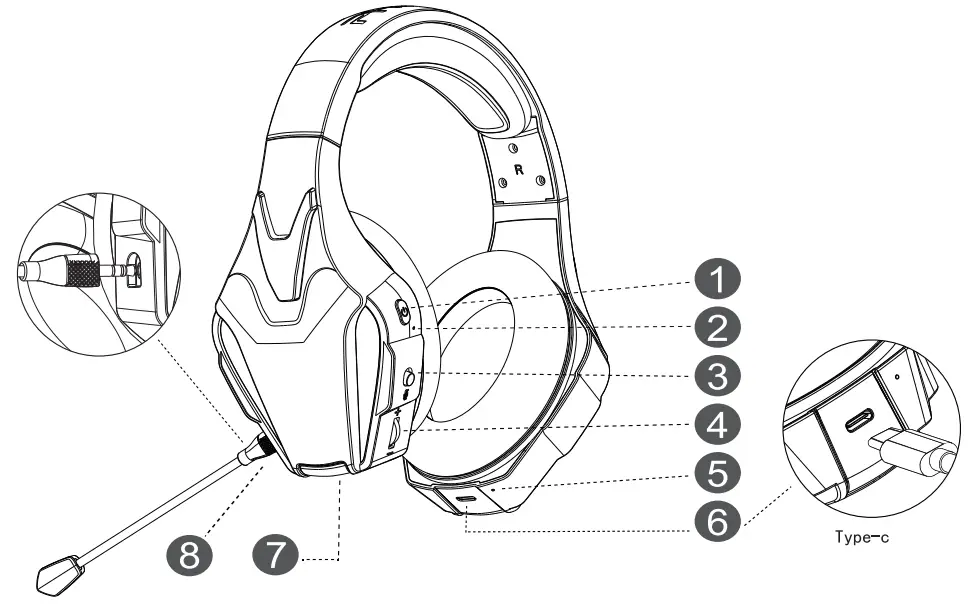
Product Description
| 1. Power/7.1 sound/LED Light 2. Status Indicator 3. Mic On/Off 4. Volume Adjustment Wheel | 5. Charging Indicator 6. Type-C Interface 7. LINE-IN Interface 8. External Mic Interface |
Product Details
| Horn diameter | 40MM | Transmission distance | 15 meters,360 degrees |
| Speaker impedance | 160 | Operating Voltage | 3.7V |
| Battery capacity | 800mAh | Charging voltage | DC5V-1A |
| Battery Type | Polymer lithium battery | Microphone sensitivity | -40±3dB |
| Charging time | 2 hours | Microphone indicative | Omni-directional |
| Battery life | ? 12 hours | Low latency | <20MS |
Transmitter parameters
| Working voltage | 5V | Transmitting power | 7dBm |
| Working current | 100mA | Transmission distance | 15m, 360° |
| Frequency range | 2.402GHz-2.480GHz | Receiving sensitivity | -85dBm |
| Bandwidth | 2MHz |
Connection Mode of the Gaming Headset
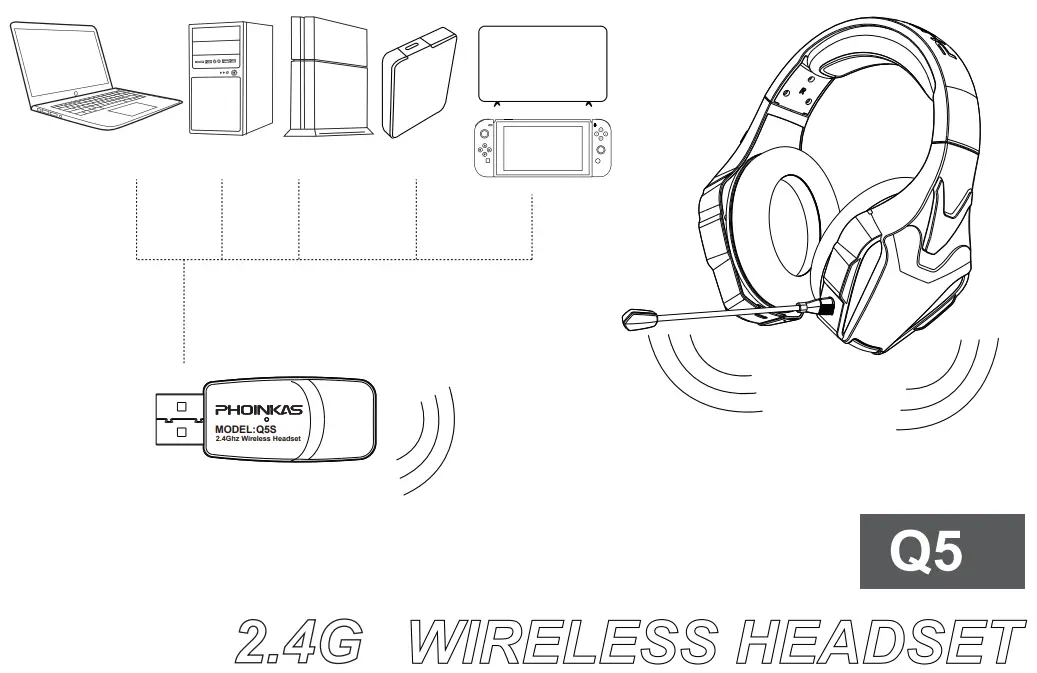
| Connection Mode: | 2.4G Wireless Mode | wired Mode (3.5mm ) |
| Compatible Devices: | PC/P54/PS5/TV/Swith/Laptop | PC/Laptop/Appareil ios/Appareil Android/PlayStation 4/PlayStation 5 /PS Vita/Xbox ones/devices with 3.5 audio interface |
| Operation Method: | Plug in the USB receive , plug and play | Plug in the 3.5mm audio cable, plug and play |
| Steps (First Use): | PC Laptop | a) When using, insert the USB receive into the USB port of the computer, the blue indicator light of the receive flashes, and the“Q5” wireless headset device is displayed in the viewing device on the computer, indicating that the installation is successful; b) After the receive is inserted into the computer, the Windows system of the computer will be automatically connected without requiring the user to install the driver and run the software separately; c) When using the device for the first time, pen the “Audio” of the “Sound and Audio Device Properties” of this evice and s et it to default, turn off the PC “listening function” and click “Speaker” to adjust the volume. | a) For PC, please use 3.5mm 1 point 2 adapter cable b) For the first use, please set the “Audio” of “Sound and Audio Device Properties” on the computer as the default, turn off the PC listening function” and click “Speaker” to adjust thevolume.”Speaker” to adjust the volume. |
| PS4 PS5 | a) Insert the USB receive into the game device, and the blue indicator light of the receive flashes to be connected; | a)Insert the 3.5mm audio cable into the game device; b)Open PS4/PS5 settings–select “peripheral devices”–select “audio devices”–select “output to headphones”–select “automatically switch output devices”. | |
| Notice: | • In 2.4G wireless mode, the battery power is lower than 3.4V, the red light flashes quickly, and a “Battery low” prompt sound is issued. • The receivedoes not need to be paired, it can be used synchronously with the headset when it is plugged in; • If the receive is lost or damaged , please contact the merchant to purchase the same type of receive from the original factory. The new receive needs to be re-paired with the earphone and connected with the operation steps “Refer to the first use steps” and then re-match. | ① Please make sure that the audio cable is fully inserted nto the gaming headset; ② Devices using Non-3.5mm interface require additional adapters; | |
| Button | Function | Operate | Step |
 | Power / Pairing Mode | Long press X 5s | • Power On: long press the power button for 5 seconds, the prompt sound “POWER ON”; • Power Off: long press the power button for 5 seconds, the prompt sound “POWER OFF”; • Pairing: Automatically search for pairing connection after power on |
| 7.1 Sound | Click X 1 time | The prompt sound “Surround Sound On / Surround Sound Off” | |
| Led Light On /Off | Click X 2 time | Turn on by default, click 2 times to turn on/off | |
 | Mic On / Off | On / Off | • Adjust Up: open the microphone • Adjust Down: turn off the microphone |
 | Volume+/Volume | Roll Adjustment | • Scroll up (+): Volume + • scroll down (-): volume- |
| Notice: Plug in the charging cable and the headset will enter the shutdown state; When the headset is charging, it is forbidden to operate the button to turn it on. | |||
Q&A
- Q: After connecting to the PC, the headset has sound, but the volume cannot be controlled?
A: ①Open “Control” and click “Sound Audio Device”;
②Click on the headphone device in the “Play” panel of the sound setting, set it as the default value and confirm (the default headset is the sound from the headset, and the default sound is the sound from the audio);
③There is no sound after the operation, please restart the computer. - Q: In wireless mode, what should I do if the sound of the headset is distorted or stuck?
A: ① Check the source of the sound;
② Disconnect other devices;
③Re-pair the wireless gaming headset. - Q: When playing multiple players on the PC, the stuck operation fails, but the headset functions normally?
A: ① Check the playback decoder;
②Please close multiple players;
③Check whether there are obstacles between the headset and the PC, which will affect the signal transmission between them.