
Atos Unify
OpenScape
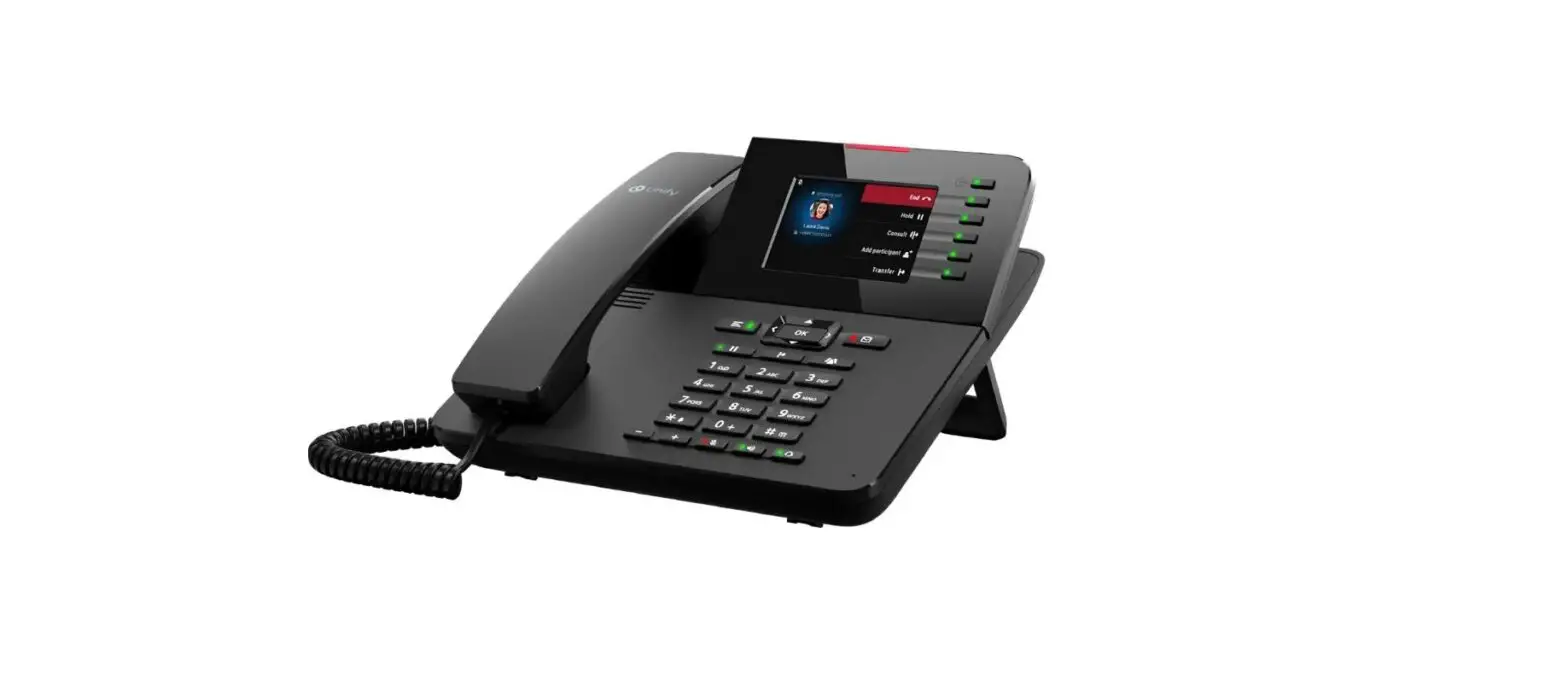
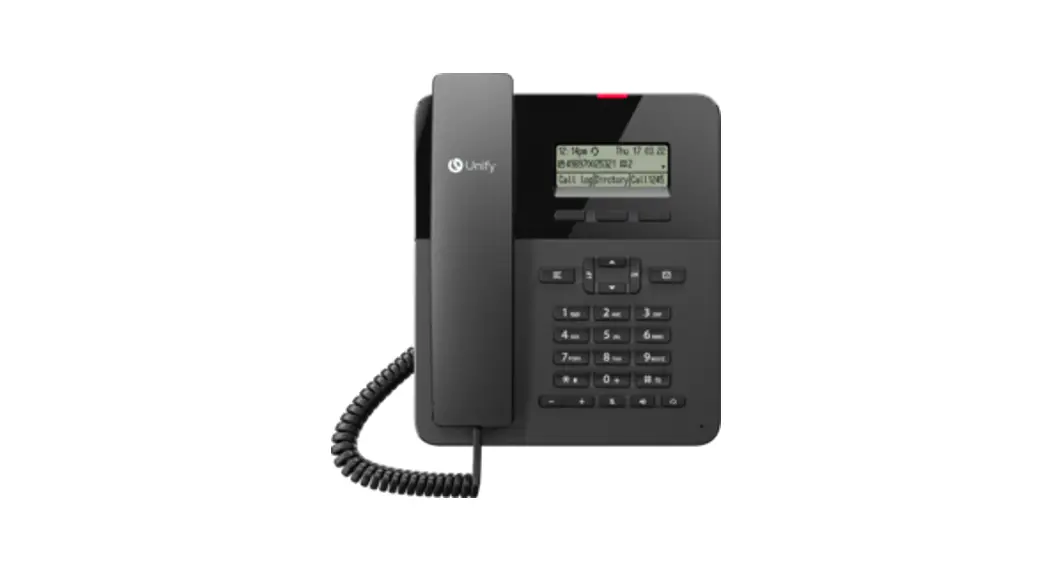
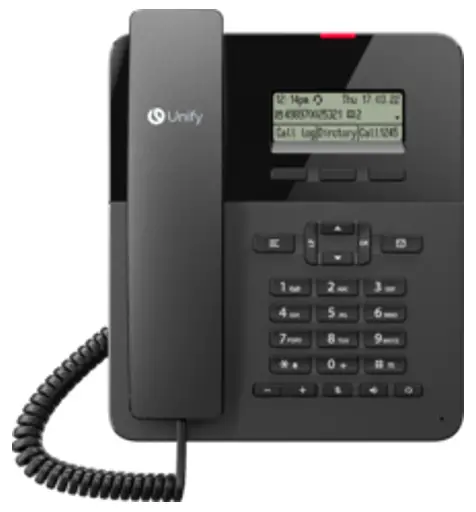
Desk Phone CP110
SIP
Quick Reference Card
Using your OpenScape Desk Phone CP100
Place a Call
- Lift handset, dial number and press
 or
or - Dial number and lift handset or
- For handsfree mode: dial number and press .
Answer a Call
- Lift handset or
- for handsfree mode: press
 or .
or .
 or
or End a Call
- Hang up, or
- For handsfree mode: press .
Redial the Last Dialed Number
- Lift handset and press .
Dial from the Call Log
- Press
 and
and  to select the desired conversation.
 - Press and lift handset.
Deflecting an Incoming Call while ringing
- Select “Deflect” in menu and press
- Enter a destination phone number and press .
Hold or Retrieve a Call
- Choose Hold in the displayed menu and press .
- To retrieve a held call: choose the option Reconnect in the displayed menu.
Make a Conference Call
- During a call with party A, press function key
 Conferen if programmed or choose Start conference from the displayed menu and press . Hear dial tone. Party A is automatically put on hold.
 - Enter the phone number for party B and press .
- Once connected with party B, press function key Conferen if programmed or choose Start conference from the displayed menu and press .
 Conferen if programmed or choose Start conference from the displayed menu and press
 You are now connected in a conference with parties A and B.
Switch to Handsfree Mode during a Call
- Hold down until you hang up handset.
Switch to Handset Mode during a Call
- Lift handset.
Using Mute during a Call
- Press
 to mute.
 - Press again to un-mute.
 to mute.
Transfer a Call
- During a call with party A, you may either:
press function key Call Fwd if programmed or choose Transfer from the displayed menu and press. - Enter the phone number of party B and press .
- You may then either: press function key Call Fwd while party B is ringing, or wait for party B to answer, announce the call and thenpress function key Call Fwd.
The party A will be transfered to party B.
Call Voicemail
- Press
 and confirm with .
 and confirm with
 Change Forwarding Destination
- Press function key FwdMenu if programmed.
- Select “Enter destination”.
- Enter the destination number and press .
- Press
 .
.
Turn Call Forwarding on/off
- Press function key FwdMenu if programmed.
Programmable Functions (Examples)
| Function | Explanation |
| Alternate | Switches between two calls |
| Blind transfer | Transfers a call without consultation |
| Build in fwd | Default call forwarding |
| Call log | List of placed, answered and missed calls |
| Call recording | Records the call on a central Call Recorder |
| Call waiting | Allows a second incoming call while in an active call |
| Callback | Requests an automatic call back (busy/no answer) |
| Cancel callbacks | Cancels a callback request |
| CF busy | Forwards all incoming calls to the programmed destination when the line is busy |
| CF no reply | Forwards all incoming calls to the programmed destination if they are not answered |
| CF unconditional | Forwards all incoming calls to the programmed destination |
| Consultation | Puts an active call on hold and provides a prompt for dialing |
| Corporate directory | LDAP phonebook |
| Deflect | Deflects a call to another destination |
| Directed pickup | Picks up another ringing phone |
| Directory | Phonebook |
| Do not disturb | Incoming calls do not ring; callers hear the busy signal |
| Feature toggle | Toggles OpenScape Voice services |
| Group pickup | Picks up a group call |
| Immediate ring | Ringing keyset line without delay (Executive/Assistant configuration) |
| Pause callbacks | Pauses automatic callbacks |
| Personal directory | Personal phonebook |
| PreView | Preview line details for shared lines |
| Redial | Calls the last dialed number |
| Release | Ends a call |
| Repertory dial | Dials pre-defined numbers and control sequences |
| Resume callbacks | Resumes automatic callbacks |
| Ringer off | Switches the ringer off/on |
| Selected dialing | Dials a pre-defined number |
| Shift | Switches to the shifted key level |
| Show phone screen | Switches to idle screen |
| Transfer call | Transfers a call without consultation |
Key Operation
Programmable Keys
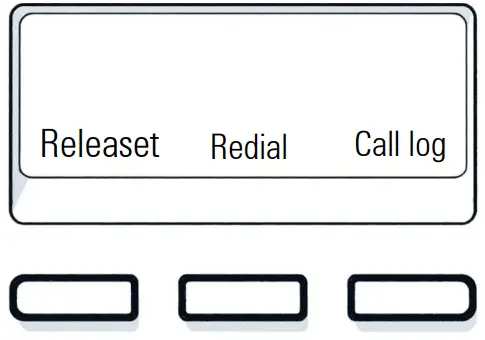
Your phone has three programmable function keys, shown on the left with default configuration.
In addition, functions are also available on a second level accessable via long press on the function keys.
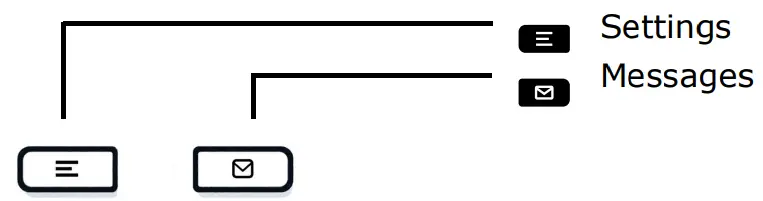
Fixed Function Keys
4-Way-Navigator
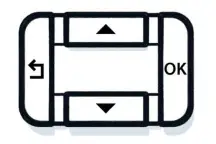
 Cancel function, delete characters left of the cursor, step up one menu level
 Scroll upwards
Hold down: Jump to top of list Confirm input, perform action or step down one menu level
 Scroll downwards Hold down: Jump to the end of list
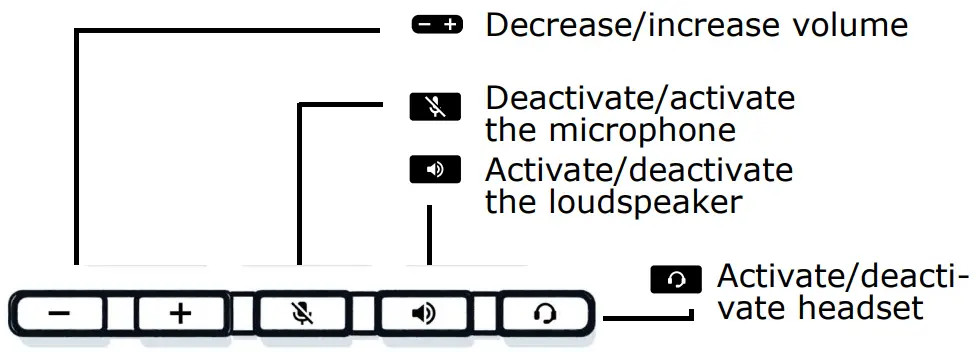
Audio keys
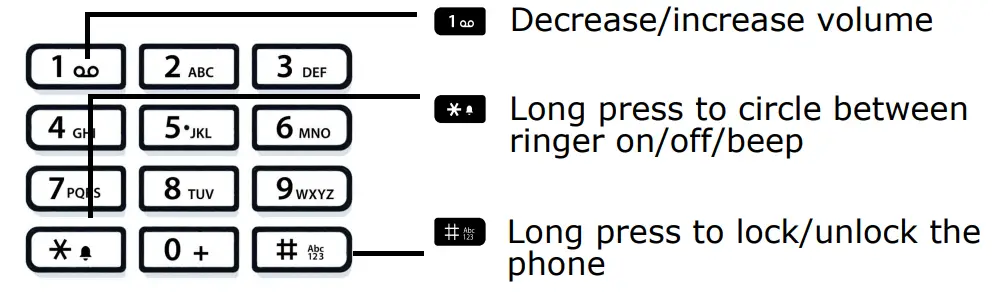
Key Pad Shortcuts
Notification LED
With the Notification LED different phone status can be identified:

Off: Idle
Red solid: Active call / New missed call
Red quick pulsing: Incoming call
Red quick pulsing: Call(s) on hold
Red slow pulsing: New Voicemail
Notification on the display
The display of the status label will be controlled by the state of the key.
Line or function key can be pulsing or inverted similar to a LED.
Display Icon in Idle State (Examples)
| Icon | Explanation |
 | You have received one or more new messages |
 | You have one or more new missed calls |
 | Call Forwarding is activated for all calls |
 | Ringer is off |
 | Remote maintenance has been activated |
 | Do not disturb is activated |
 | Phone lock is activated |
 | A mobile user is logged on to the telephone |
Display Icons during a Call (Examples)
| Icon | Explanation |
 | Call is active |
 | Call has been disconnected |
 | You have placed the call on hold |
 | Your call partner has placed the call on hold |
 | Secure voice connection |
 | Not secure voice connection |

© Unify Software and Solutions GmbH & Co. KG
All rights reserved. 05/2022
Reference No.: A31003-C1000-U135-01-7619
atos.net
 Atos – Home