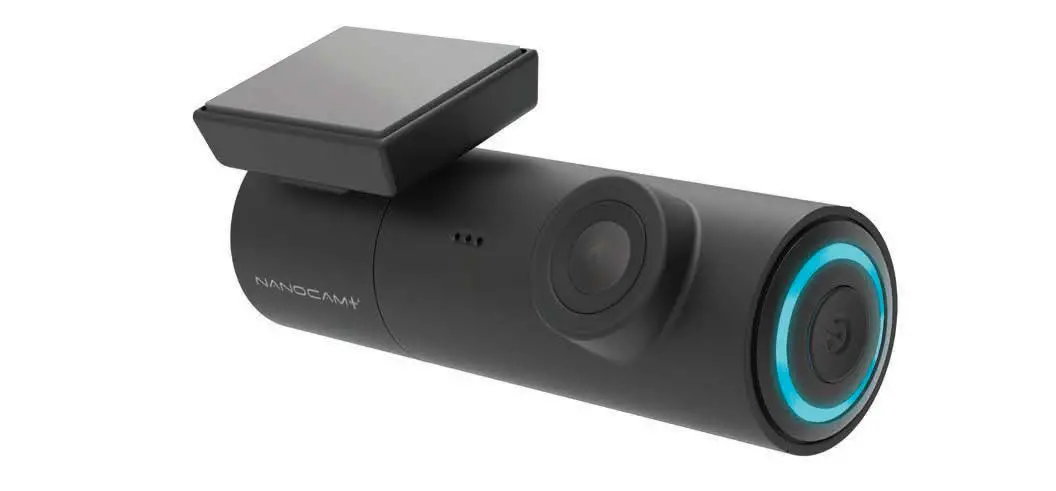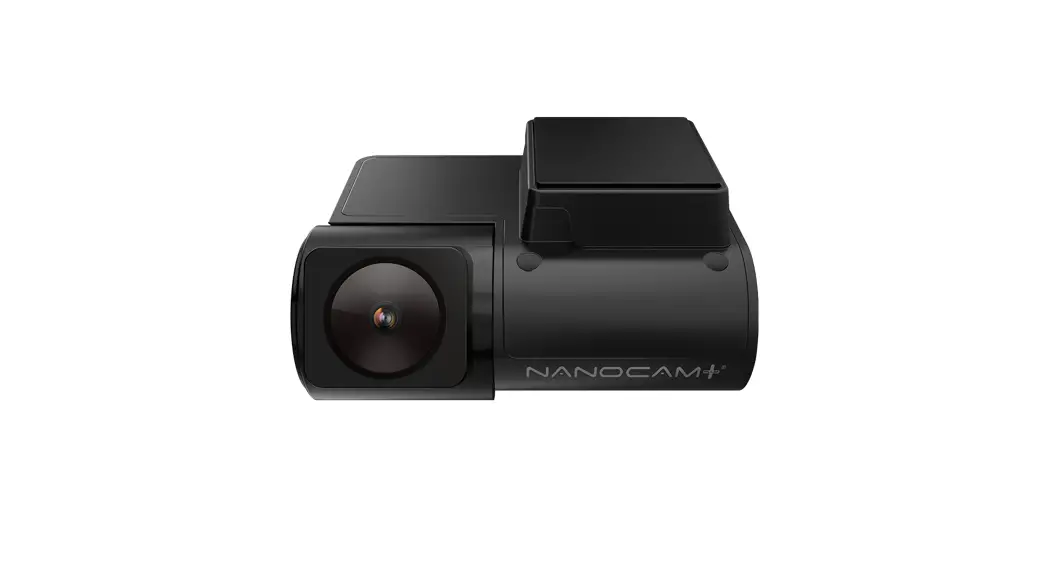
 NCP-DVR100 Full HD Dash
Camera with WiFi and Supercapacitor
User Manual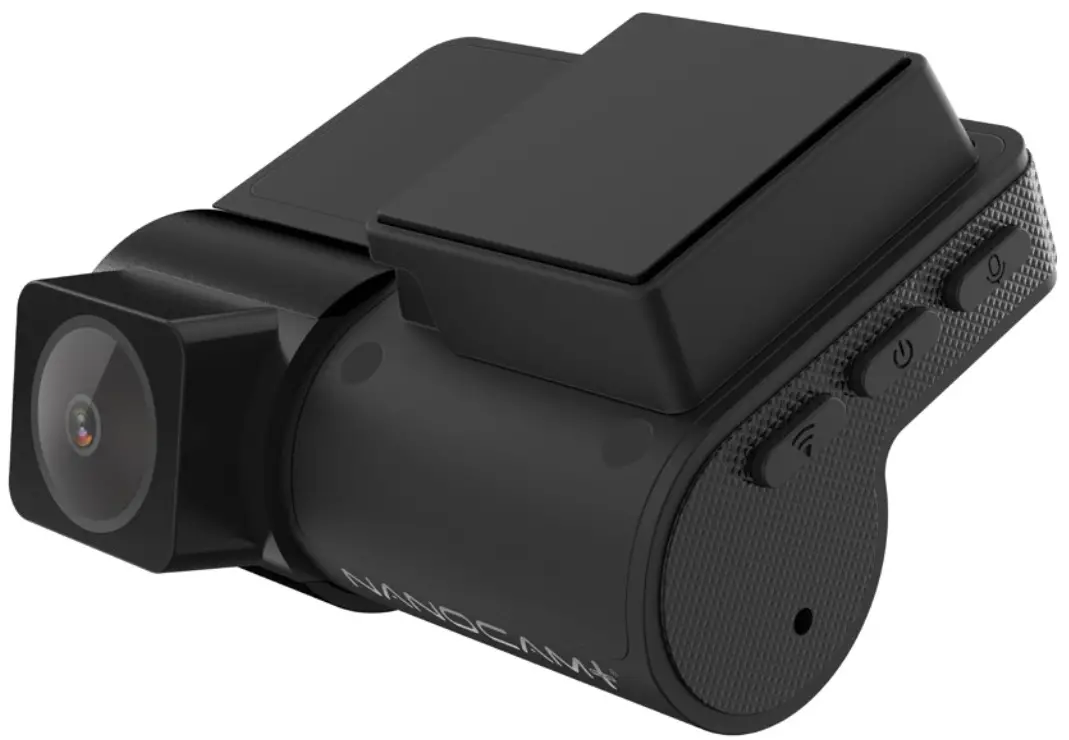

NCP-DVR100 Full HD Dash Camera with WiFi and Supercapacitor
Full HD Dash Camera with WiFi & Supercapacitor
CAUTION
- Ensure you are using your dash camera within your countries’ road laws. Please make sure you are familiar with your local road legislation before use.
- Please set the time and date before you start using this device to record.
- The notifications given by the dash camera are suggestions only, please always remain alert and aware of the actual road conditions.
- The system is to be used for non-commercial use only, within the limits permitted by relevant laws.
- Avoid using the dash camera in the vicinity of any devices that emit radio interference (eg. microwave ovens).
- It is considered normal for the dash camera to get warm while using it.
IT IS HIGHLY RECOMMENDED THAT YOU FORMAT BOTH USED OR NEW MICRO SD CARDS BEFORE USE.
INTRODUCTION
This product and its safety features will help improve your driving experience. However, like most after-market safety enhanced devices, they are designed to assist and aid the driver.
They are not designed to replace the skill, ability, and awareness of the person operating the vehicle.
Please read through these instructions before attempting to install this product.
For the latest manual and product updates, please visit our website at www.nanocamplus.com.au or www.nanocamplus.co.nz
MICRO SD CARD WARNING
This dash camera can only be used with Micro SD Cards, Class 10 or above with 32GB – 128
GB storage capacity. Please format your Micro SD card before use.*
NOTE:
- Formatting the Micro SD card will permanently remove the data on the inserted Miro SD card and prepare it for use with the dash camera.
*Micro SD cards are not included and will need to be purchased separately.
3.1 FORMATTING THE INSERTED MICRO SD CARD
Please download the NCP-DVR100 App and connect your dash camera with the downloaded App by following the steps as outlined on page 8.
Please select SETTINGS and press FORMAT SD CARD.
The dash camera will format the Micro SD card and will communicate via the unit’s audio commands that the Micro SD card has been formatted.
NOTES ON INSTALLATION
- It is advisable to install the dash camera near the rearview mirror, at the top centre of the windshield.
- Place the lens within the windscreen wiper range to ensure it has a clear recording view when it rains.
- Do not touch the lens with your fingers. Fingerprints left on the lens will result in unclear videos or photos. If photos or videos are blurred, please clean the lens gently with a microfibre cloth.
- Only use the included charging cable to power the dash camera.
PACKAGE CONTENTS
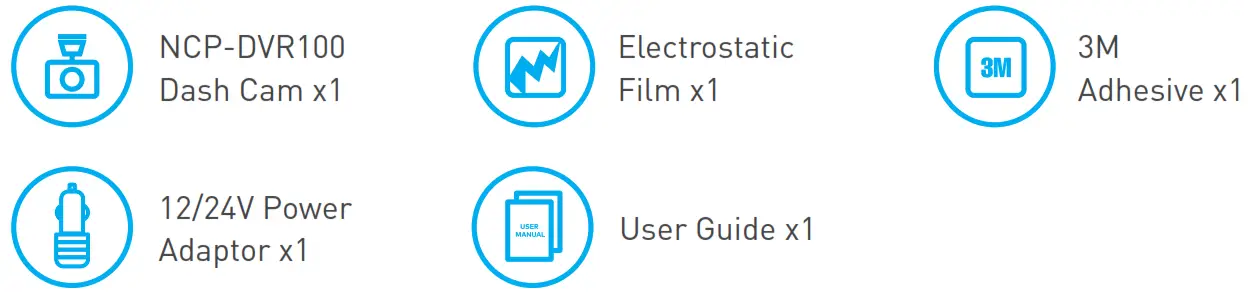
PRODUCT OVERVIEW
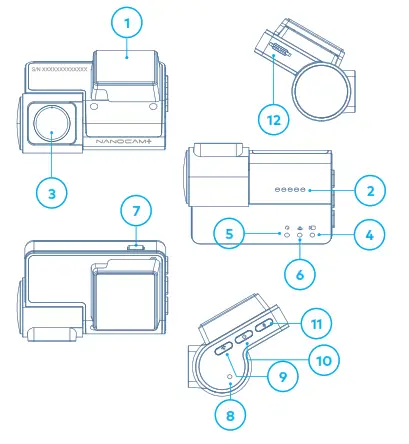
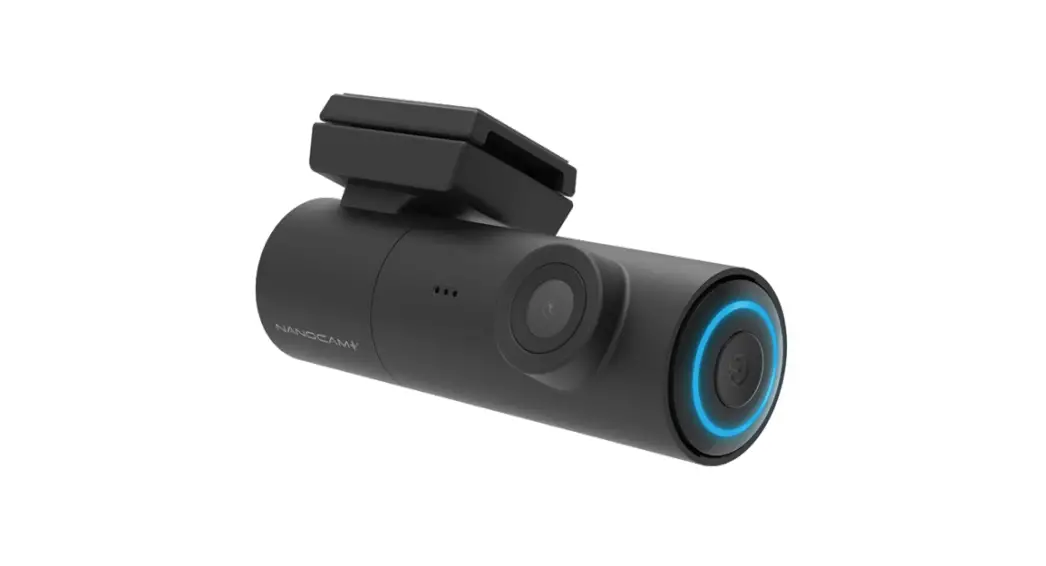
CAMERA
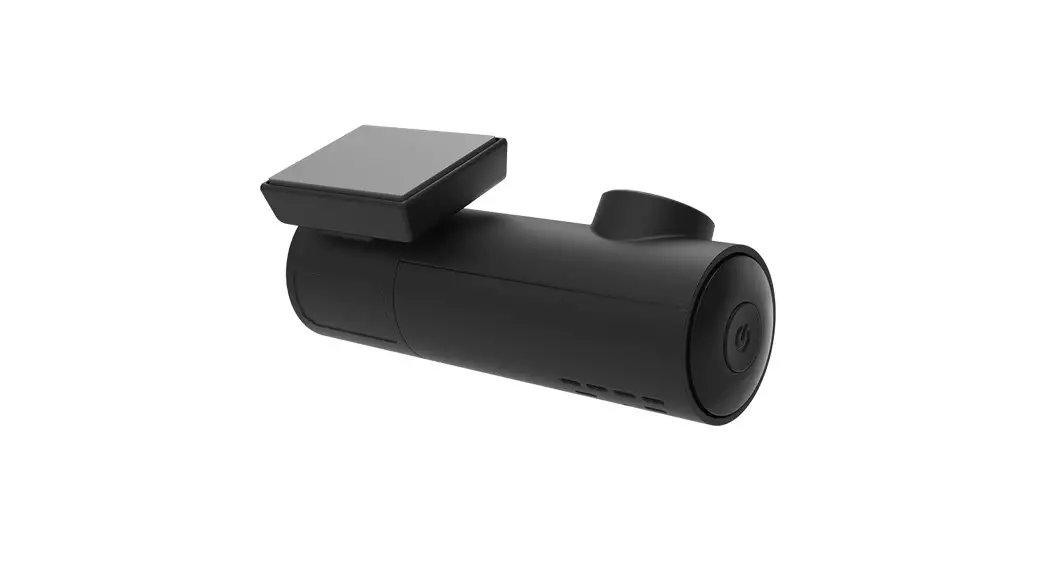
| 1. Adhesive sticker 2. Speaker vent 3. Camera lens 4. Recording indicator LED 5. Power connected LED 6. WIFI connected LED | 7. Mini USB connector (for power) 8. Microphone 9. WIFI On/Off 10. Power & Recording On/Off 11. Microphone On/Off 12. Micro SD Card slot |
INSTALLATION INSTRUCTIONS
- OPTIONAL: Select the electrostatic film from the box and adhere it to the front windshield in the recommended position (as shown below). Please wipe the glass before adhering it and push out the bubbles between the static film and the glass before installation.
- Remove the protective film from the adhesive sticker of the NCP-DVR100 and position the dash camera in the middle of the (optional) electrostatic film. Press down on the base of the bracket with your hand for 30 seconds to ensure that the sticker adhesive is attached to the electrostatic film. Adjust the camera by rotating the barrel until the entire road (in front of the car) is in the camera frame.
- Run the NCP-DVR100 cable along the top of the front windshield through the A pillar and around and under the storage compartment of the passenger side of your vehicle to the 12/24v adaptor port. Connect the 12/24v adaptor to the car power.

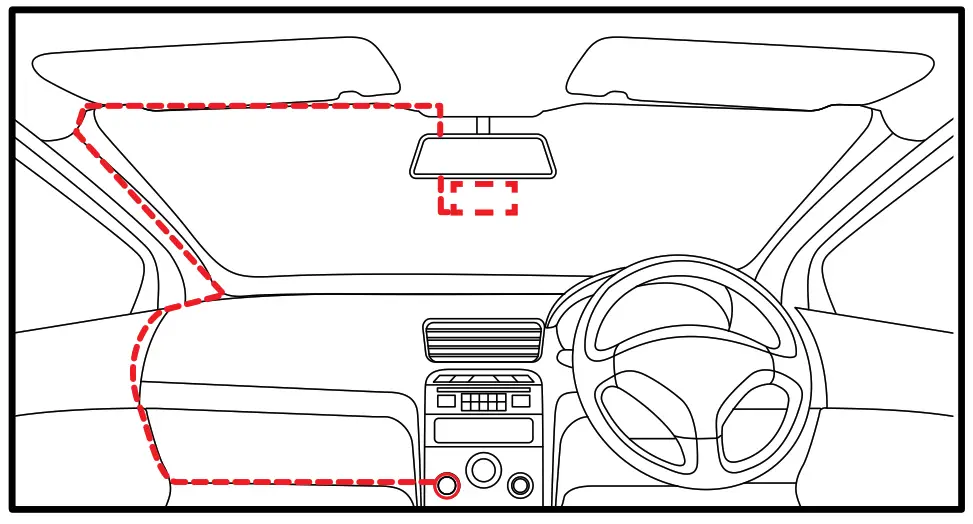
NOTE:
- The electrostatic film will help you easily remove the dash camera from the windshield.
This film is included in the package contents.
SOUND ALERTS
The NCP-DVR100 will communicate commands and updates to the driver via pre-recorded voice alerts. This information will keep you updated on the status of your dash camera. Audio notifications will come through the in-built speaker of the NCP-DVR100 and are specified below.
| • Take a picture • Your Micro SD card is damaged, please replace • Format complete • Format failed • Your Micro SD card is full, please replace or reformat • Please connect your smartphone to format the Micro SD card • Please connect your smartphone to synchronise time • Please insert your Micro SD card • The video is now locked • Recording is now off • Recording is now on • Battery will shut down once fully charged | • Power is disconnected and this device will now shut down • Start recording • Recording has stopped • Please replace the MicroSD card • Timelapse video • Warning tone • Voice control is now off • Voice control is now on • WIFI is connected • WIFI is disconnected • WIFI is off • WIFI is now turned on |
KEY FUNCTIONS
| OPERATION | FUNCTION |
| Recording indicator | The indicator light will flash BLUE whilst recording. |
| WIFI indicator light | The indicator light will flash GREEN when connected to WIFI. |
| Charging indicator light | A Red light will be constant when charging. The Red light will turn off once charging is complete. |
| Down button | Short press to take a photo, hold for 3 seconds to turn on/off WIFI. |
| Power button | Power on/off : Hold down for 3 seconds to power on /off. Reset: Hold down for 8-10 seconds to reset the device and again for 3 seconds to power on. Recording: Quicly press to start/stop recording once power is on. |
| Up Button | Quickly press to turn sound on or off. |
NOTE:
- This device features a supercapacitor instead of a Li-ion battery to enhance the safety of the product. It requires a constant power supply to work, and it is always recommended to keep it connected to the car charger.
DOWNLOADING AND INSTALLING THE NCP-DVR100 APP
To take advantage of all the functions of the NCP-DVR100 you will need to connect it via WiFi with the NCP-DVR100 App on your smartphone. Your smartphone (via the App) can also function as a screen where you can monitor and review driving footage.
All major settings on the NCP-DVR100 are edited through the NCP-DVR100 App. The system requirements for your smartphone are below:
iPhone: iPhone 5 or later using iOS 10.0 and above.
Samsung Galaxy: S3 and later using Android 6.0 and above.
For you to correctly connect your smart device to your NCP-DVR100 you will need to download and install the NCP-DVR100 App from the App store. Alternatively you can scan the QR code at the bottom of this page to download it. You will need to connect your smartphone to the NCP- DVR100’s WiFi signal using your smartphone’s WiFi settings.
For Android devices
Please search NCP-DVR100 in Google Play Store for installation.
For iOS devices
Please search NCP-DVR100 in the iOS App Store for installation.
Or scan the below QR code:
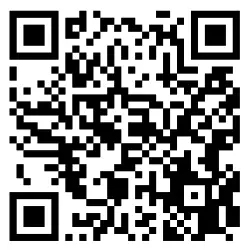 https://www.nanocamplus.com.au/qrc/ncp-dvr100.html
For a step-by-step guide on connecting to your dash cam to your smart device via WiFi please follow the steps below:
- On your smart device, download the NCP-DVR100 App from the Google Play store (if you are using an Android device) or the iOS App store if you are using an iPhone.
- Turn on the NCP-DVR100 and allow 2 minutes for the WiFi connection.
- Once the App is downloaded and installed on your smartphone and the dash camera has been turned on, open your phone’s WiFi settings and connect to the wireless connection named NCPDVR100.
- When prompted enter the password 12345678
WIFI Name: NCP-DVR100_XXXXXX
Password: 12345678 - Once connected, open the NCP-DVR100 App. You can now access the live-recording screen for the front camera as well as stored videos and other dash cam settings.
- You can open the NCP-DVR100 App to connect the camera to the dash camera WiFi network. (For Android users only)
PLEASE NOTE:
- WiFi connection does not create an Internet connection.
NCP-DVR100 APP OPERATION
To use the NCP-DVR100 App, your smart device will need to be connected to the dash camera’s WiFi connection. For instructions on connecting please see “9.0 Downloading and installing the NCP-DVR100 App” on page 8 of this manual.
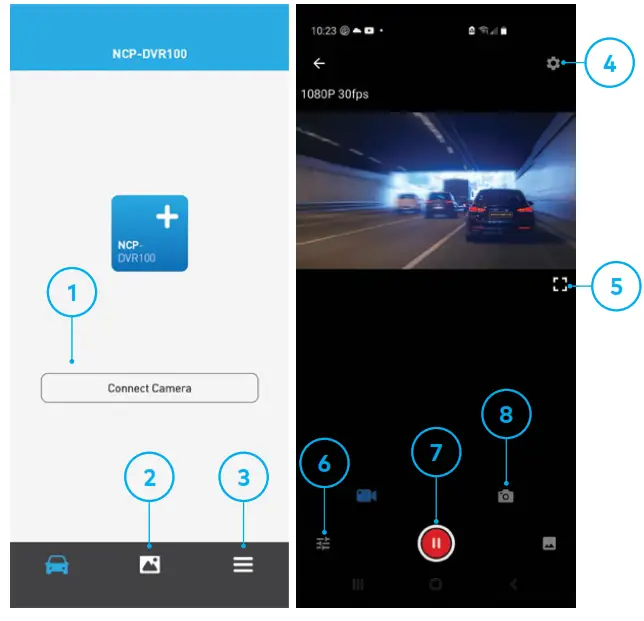
After connecting with the dash camera’s WIFI, follow the below steps to use the App:
- Press
 to connect with the dash camera.
 - Press
 to open the local library of folders to access videos and photos saved from the dash camera to your phone, via the App.
 - Press
 to check the Firmware version and for instructions on how to work the APP user manual.
 - After connecting with the camera, the screen will change to live view. Whilst in live view you can adjust the position of the lens or position of the dash camera.
- Press
 to enter settings.
 - Press
 to change to full screen.
 - Press
 to change the Video recording resolution.
 - Press
 to START and STOP RECORDING & press
  to change to Picture Mode.
 to connect with the dash camera.
 to open the local library of folders to access videos and photos saved from the dash camera to your phone, via the App.
 to check the Firmware version and for instructions on how to work the APP user manual.
 to enter settings.
 to change to full screen.
 to change the Video recording resolution.
 to START and STOP RECORDING & press
  to change to Picture Mode.
SETTINGS
After pressing the settings button, the settings menu pictured will be displayed:
- Press each setting to change. Please refer the table on page “12.4 NCP-DVR100 App Settings” on page 14 to access setting options and default settings.

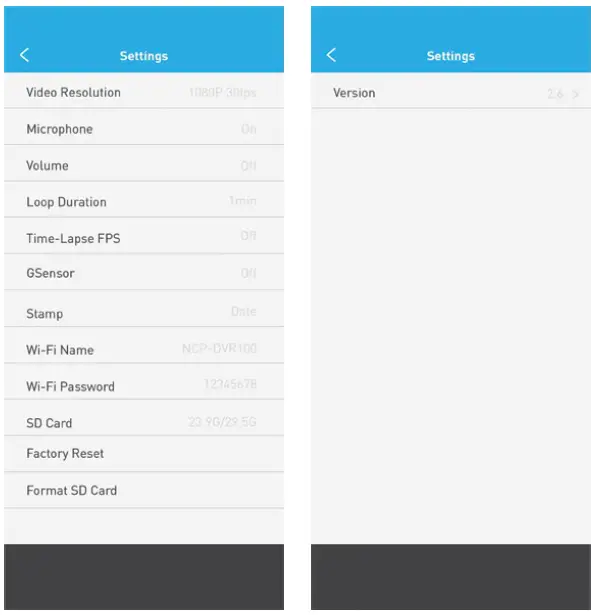
PLAYBACK , DELTE AND DOWNLOAD THE FILES FROM THE DASH CAMERA TO PHONE
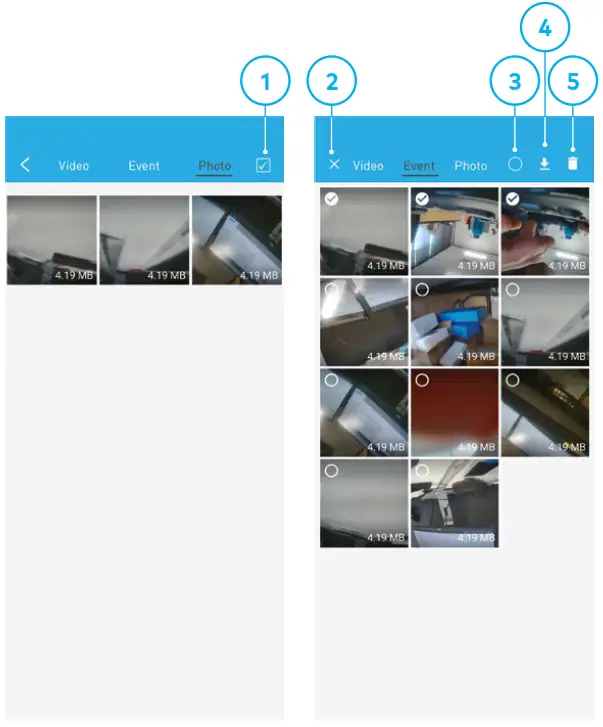
- Press
 to select files.
 - Press
 to cancel and go back to the previous menu.
 - Press
 to select all files or select individual files by pressing on the
 in the top left hand corner of the preview image.
 - After selection(s) is made pressto download the files to your phone.
- Press
 to delete selected filesfrom your dash camera.
 to select files.
 to cancel and go back to the previous menu.
 to select all files or select individual files by pressing on the
 in the top left hand corner of the preview image.
 to download the files to your phone.
 to delete selected filesfrom your dash camera.
12.1 APP VIDEO PLAYBACK
For Video Playback, please follow the instructions below:
- Open the NCP-DVR100 App.
- Press CONNECT CAMERA.
- Click on the VIDEO FOLDER and select the video you would like to view.
12.2 DOWNLOADING VIDEOS FROM THE APP
To download videos to your smartphone photo reel, please follow the instructions below:
- Open the NCP-DVR100 App.
- Press thebutton.
- Press the button.
- Select video/videos and press the button.
- The download will start and automatically save footage to your phone. This data can be accessed through the NCP-DVR100 App in the Folder named Local.
12.3 SHARING VIDEOS ON SOCIAL MEDIA
To share videos on social media, please follow the instructions below:
- Open the NCP-DVR100 App.
- Press the button.
- Open the Local folder on the NCP-DVR100 App. All downloaded files can be accessed via the local folder.
- Select the files you want to share, and then press the share button below.
- Select the social media application you wish to share your footage to.
12.4 NCP-DVR100 APP SETTINGS
PLEASE NOTE:
- To access settings, please stop recording by pressing the button below the live screen.
| MENU | SETTING | DESCRIPTION |
| Video Resolution | 1080p 30fps, 720p 30fps | Adjusts the video resolution. |
| Microphone | On, Off | You can turn the in-built microphone on or off. Please note, if you turn off the microphone there will be no sound on your recorded videos. |
| Volume | Off, Low. Mid, High | Allows you to adjust the sound level of the inbuilt speaker. |
| Loop Duration | 1, 3 and 5 minutes | Loop recording allows you to set the duration of video the camera will record before creating a new clip. |
| Time Lapse FPS | OFF, 1 FPS, 2 FPS, 3 FPS, 4 FPS | The time lapse function will only work when the unit is connected with a 3 wire, hard wire kit (sold separately). The dash camera will sense the car is not in motion and will record in time lapse mode to help save memory. |
| G Sensor | Off, High, Mid, Low | Both date and time will be stamped on recorded videos. |
| Stamp | On, Off | ON will Stamp Date and Time on all recorded Videos. |
| WI-FI Name | This setting allows you to change the name of the DVR WIFI. | |
| WI-FI Password | 12345678 | You can change the supplied password to help ensure the privacy of your recorded videos. If you forget your password, you can reset it in the dash camera by holding down the power button on the dash camera for 8-10 seconds or by selecting Factory Reset in the App menu. |
| Micro SD Card Info | Indicates how much memory has been used on the Micro SD Card. | |
| Factory Reset | Resets the DVR to original, factory settings. | |
| Format SD Card | Formats the SD card. | Deletes all recorded data from the Micro SD Card. |
| Version | N/A | Firmware version. |
PRODUCT SPECIFICATIONS
| CPU | MSTAR | G-sensor | Built-in |
| Sensor Pixel | 200W | Loop record | Yes |
| Lens | 130° | Park mode | Supported |
| Sensor | 200W Pixel | Resolution | 1920*1080P 30FPS |
| Battery | Supercapacitor | Video Format | TS/MOV |
| Mic | 42db | Photo format | JPG |
| Speaker | 80 1W | Frequency | 50HZ/60HZ |
| Power interface | 5V 1A | Timestamp | Supported |
| WIFI | Supported | Photograph | Supported |
| WorkingTemperature | – 20°C -70°C | Storage | Micro SD Card Class 10 [Max 128GB) |
WARRANTY TERMS & CONDITIONS
Our goods come with guarantees that cannot be excluded under the Australian Consumer Law. You are entitled to a replacement or refund for a major failure and for compensation for any other reasonably foreseeable loss or damage. You are also entitled to have the goods repaired or replaced if the goods fail to be of acceptable quality and the failure does not amount to a major failure.
This warranty is provided in addition to your rights under the Australian Consumer Law.
Directed Electronics Australia Pty Ltd (Directed Electronics) warrants that this product is free from defects in material and workmanship for a period of 12 months from the date of purchase or for the period stated on the packaging. This warranty is only valid where you have used the product in accordance with any recommendations or instructions provided by Directed Electronics.
This warranty excludes defects resulting from alterations of the product, accident, misuse, abuse or neglect. In order to claim the warranty, you must return the product to the retailer from which it was purchased or if that retailer is part of a National network, a store within that chain, along with satisfactory proof of purchase. The retailer will then return the goods to Directed Electronics.
Directed Electronics will repair, replace or refurbish the product at its discretion. The retailer will contact you when the product is ready for collection. All costs involved in claiming this warranty, including the cost of the retailer sending the product to Directed Electronics, will be borne by you.
Ph: +61 03 8331 4800
Email: [email protected]
INDEMNITY
You agree to defend, indemnify and hold harmless Nanocam Plus and its subsidiaries and affiliates from and against any and all claims, proceedings, injuries, liabilities, losses, costs and expenses (including reasonable legal fees), including but not limited to, claims alleging negligence, invasion of privacy, copyright infringement and/or trademark infringement against Nanocam Plus and its subsidiaries and affiliates, relating to or arising out of your breach of any provision of these terms, your misuse of Nanocam Plus products or its services, or your unauthorized modification or alteration of products or software.
WARRANTY AND WARRANTY DISCLAIMER
Nanocam Plus has a limited warranty, whereby Nanocam Plus warrants to you and only to you that this Nanocam Plus product will be free from defects in materials and workmanship for one (1) year from the date of your purchase (unless a longer warranty period is required by law). The specifics of this Nanocam Plus limited warranty are covered in this manual.
To the extent possible under governing law, other than the above product warranty for the Nanocam Plus product you understand and agree that the Nanocam Plus products and services are provided on an “as is” and “as available” basis.
Nanocam Plus makes no warranty that the Nanocam Plus products and services will meet your requirements or that use of the Nanocam Plus products and services will be uninterrupted, timely, secure or error-free. Nor does Nanocam Plus make any warranty as to the accuracy or reliability of any information obtained through Nanocam Plus (including third party content), that any defects in the Nanocam Plus products or services be corrected or that the Nanocam Plus products or Nanocam Plus services will be compatible with any other specific hardware or service.
Further, Nanocam Plus does not warrant that Nanocam Plus products or services or Nanocam Plus servers that provide you with data and content are free of viruses or other harmful components. Nanocam Plus also assumes no responsibility for and shall not be liable, for any damages caused by viruses that may infect your Nanocam Plus product or software.
In the event of any loss, damage or injury, you will not look to Nanocam Plus to compensate you or anyone else. You release and waive for yourself and your insurer all subrogation and other rights to recover against Nanocam Plus arising as a result of the payment of any claim for loss, damage or injury.
Nanocam Plus equipment and services do not cause and cannot eliminate occurrences of certain events and Nanocam Plus makes no guarantee or warranty, including any implied warranty of merchantability or fitness for a particular purpose or that Nanocam Plus equipment and services provided will detect or avert such incidents or their consequences.
Nanocam Plus does not undertake any risk that you or property, or the person or property of others, may be subject to injury or loss if such an event occurs. The allocation of such risk remains with you, not Nanocam Plus.
Other than the above product warranty for Nanocam Plus products, its suppliers disclaim all warranties of any kind, whether express, implied, or statutory, regarding the Nanocam Plus products and services, including any implied warranty of title, merchantability, fitness for a particular purpose, or non-infringement of third party rights.
Because some jurisdictions do not permit the exclusion of implied warranties, the last sentence of this section may not apply to you. Nanocam Plus hereby further expressly
disclaims all liability for any claims for service failures that are due to normal product wear, product misuse, abuse, product modification, improper product selection or your noncompliance with all applicable federal, state or local laws.
This warranty and warranty disclaimer give you specific legal rights, and you may have other rights that vary by state, province, or country. Other than as permitted by law, Nanocam Plus does not exclude, limit or suspend other rights you have, including those that may arise from the nonconformity of a sales contract.
For a full understanding of your rights, you should consult the laws of your state, province, or country. For our Australian customers: Please note that this warranty is in addition to any statutory rights in Australia in relation to your goods which, pursuant to Australian Consumer Law, cannot be excluded.
LIMITATIONS OF NANOCAM PLUS LIABILITY
Under no circumstances will Nanocam Plus be liable in any way for any content, including, but not limited to, the loss of content, any errors or omissions in any content, or any loss or damage of any kind incurred in connection with use of or exposure to any content posted, emailed, accessed, transmitted, or otherwise made available via Nanocam Plus.
Nanocam Plus liability for damages, especially for breach of duty or obligation, delay in performance, non-performance, or malperformance shall be precluded, except when these are due to negligent breaches of any significant contractual duty or obligation on the part of Nanocam Plus. Any liability for negligence is limited to direct losses usually and typically foreseeable in such case. Should the claim for damages be based on wilful or grossly negligent breach of contractual duty or obligation on the part of Nanocam Plus, the preclusion and limitation of liability mentioned in the preceding sentences will not apply. The preceding preclusion and limitation of liability will also not apply to claims for damages arising out of loss of life, bodily injury or health impacts for which Nanocam Plus may be liable, or for noncontractual liability.
Some states and countries do not allow the exclusion or limitation of incidental or consequential damages, so the above limitation or exclusion may not apply to you.
Additionally, this provision is not intended to limit Nanocam Plus’s liability in the event of Nanocam Plus’s wilful or intentional misconduct.
Your Safety. Our Priority
All Images, Information and Content are Copyright © 2021
Directed Electronics Australia Pty Ltd. All Rights Reserved.
www.nanocamplus.com.au | www.nanocamplus.co.nz
www.directed.com.au
www.directed.co.nz
References
 Directed Electronics New Zealand – Directed Electronics New Zealand is a leading automotive and consumer electronics solutions supplier and developer.
-
Directed Electronics Australia – Directed Australia is a leading automotive and consumer electronics solutions supplier and developer.
 Nanocamplus – Best Value Dash Cams for Personal and Commercial Vehicles
-
NanocamPlus - Best Value Dash Camera
 Directed Electronics New Zealand – Directed Electronics New Zealand is a leading automotive and consumer electronics solutions supplier and developer.
 Directed Electronics Australia – Directed Australia is a leading automotive and consumer electronics solutions supplier and developer.
 Nanocamplus – Best Value Dash Cams for Personal and Commercial Vehicles
 NanocamPlus - Best Value Dash Camera