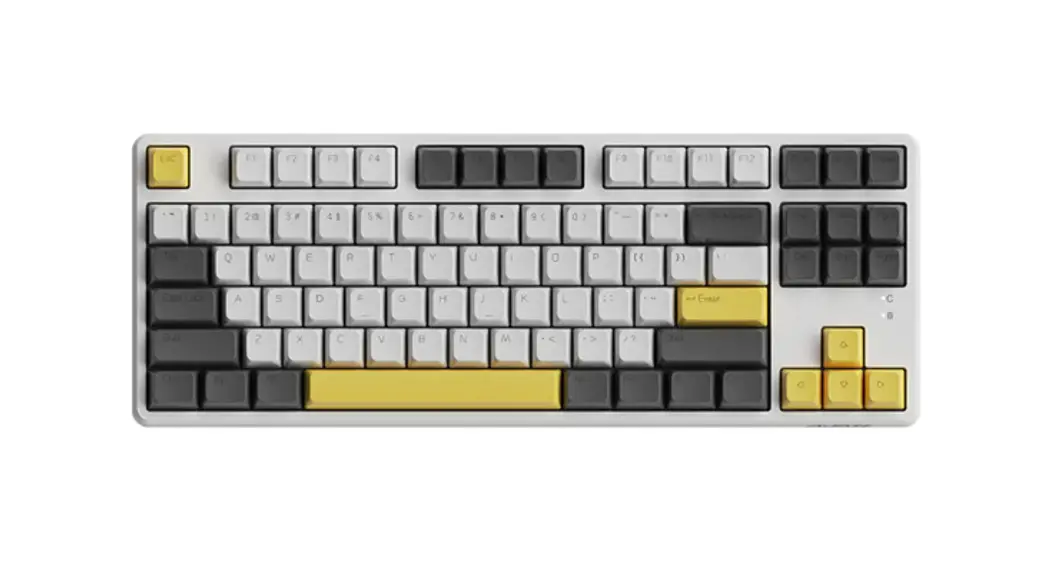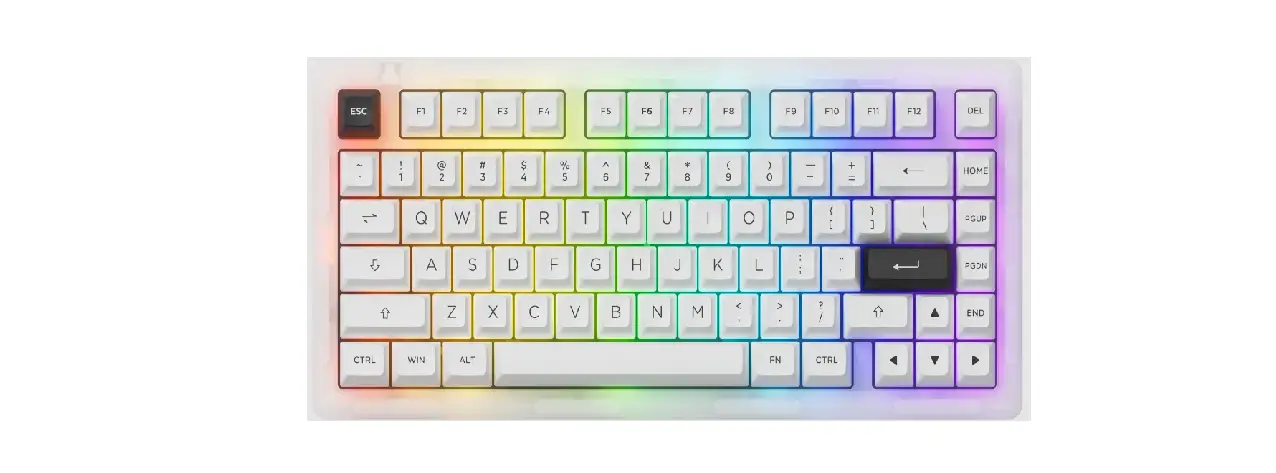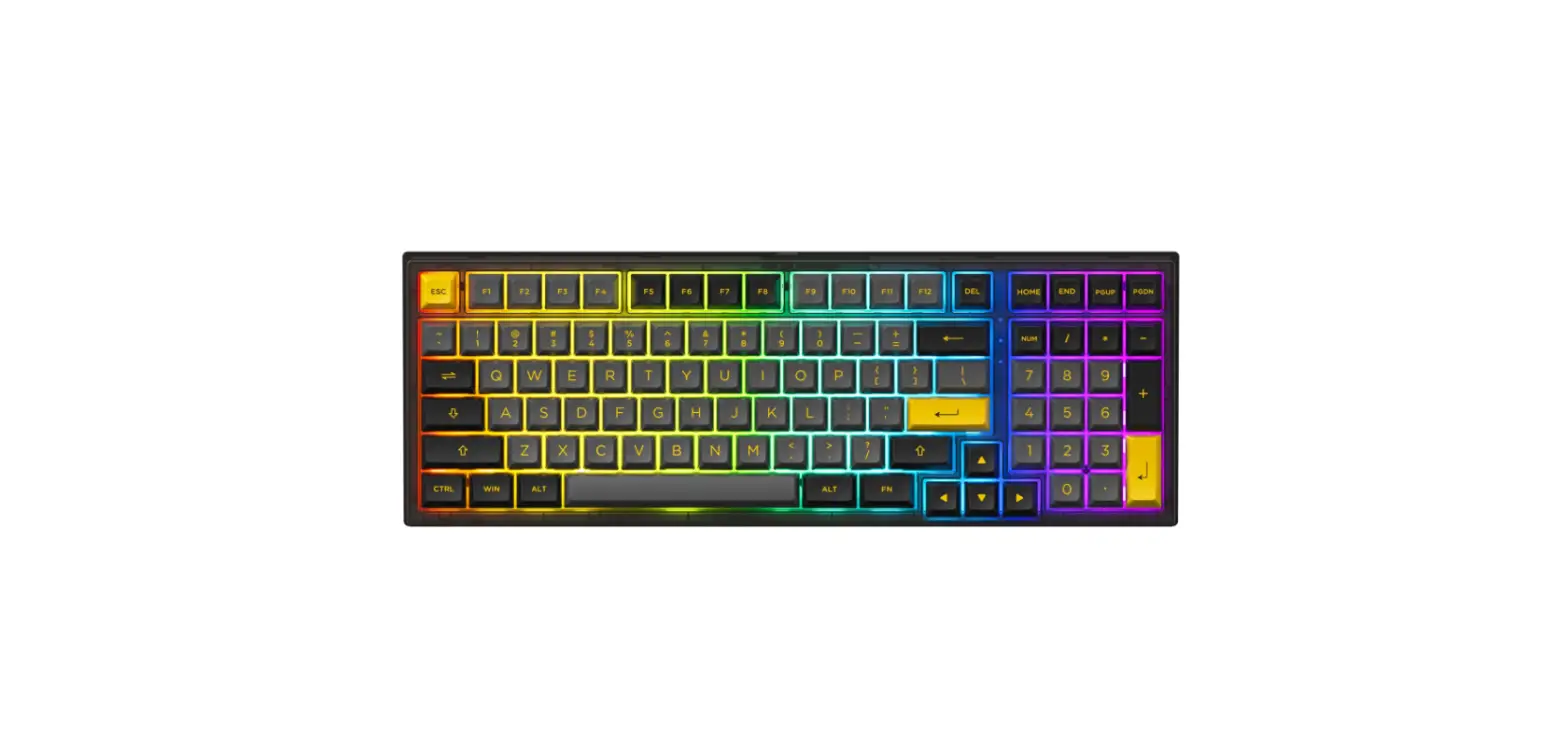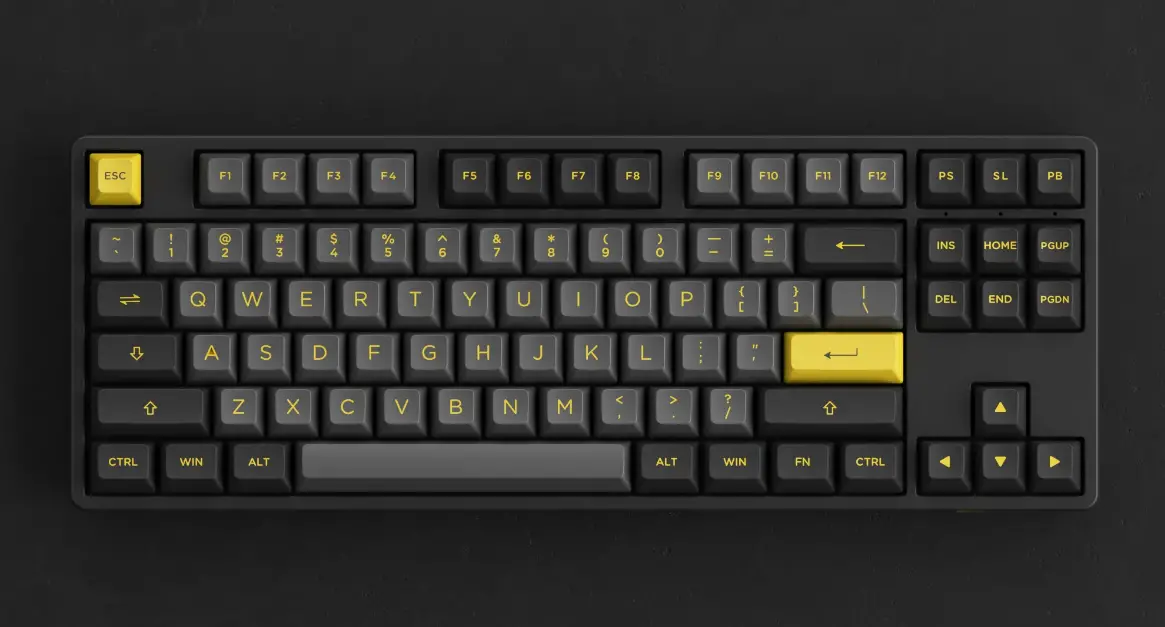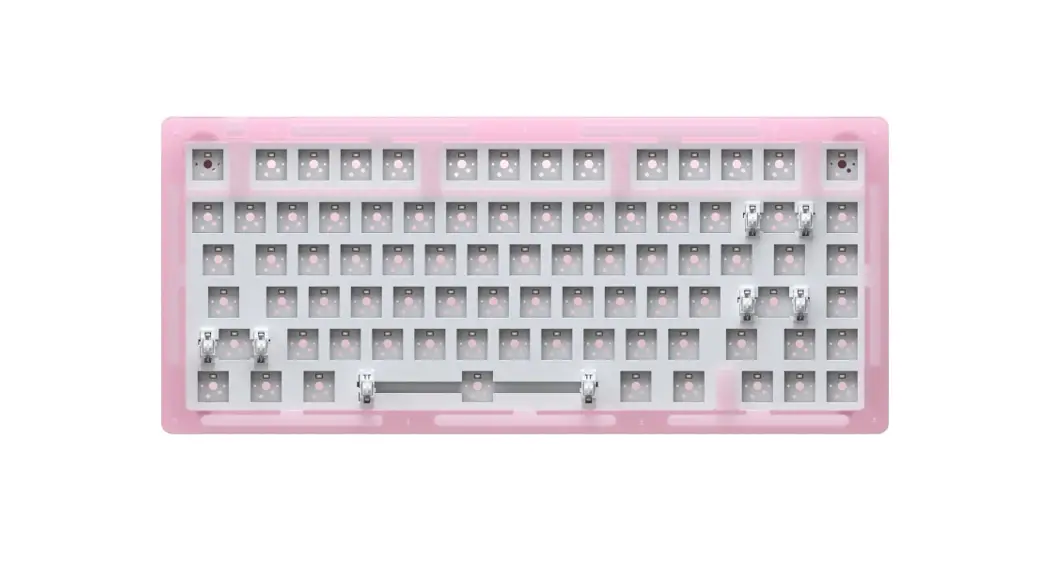


System Commands
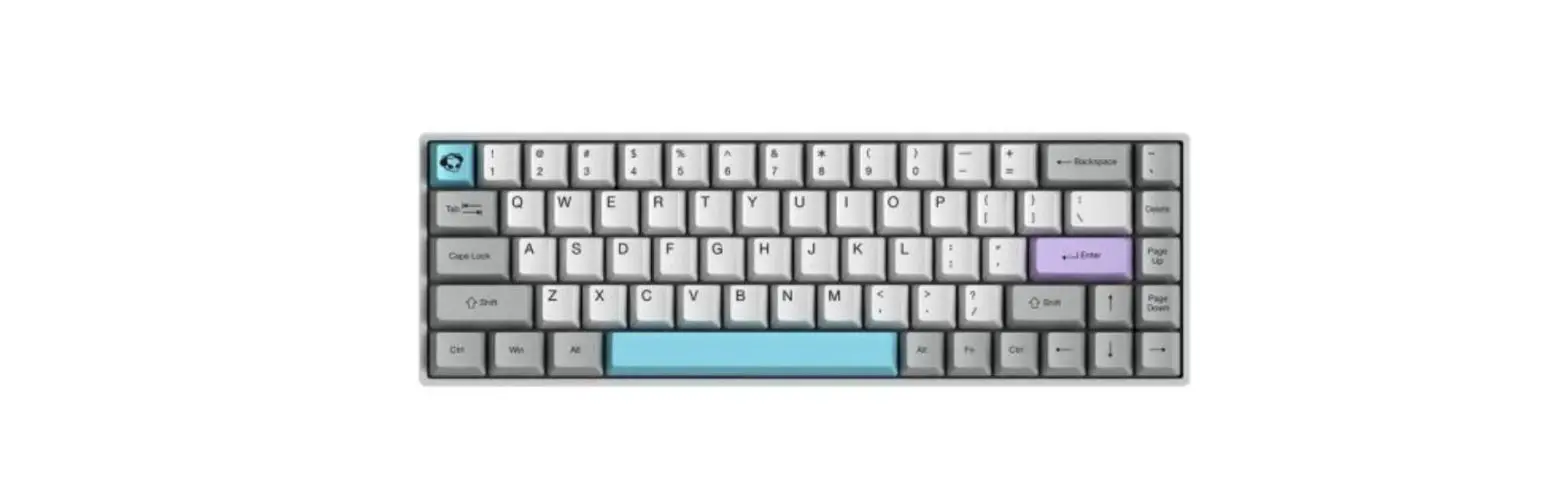
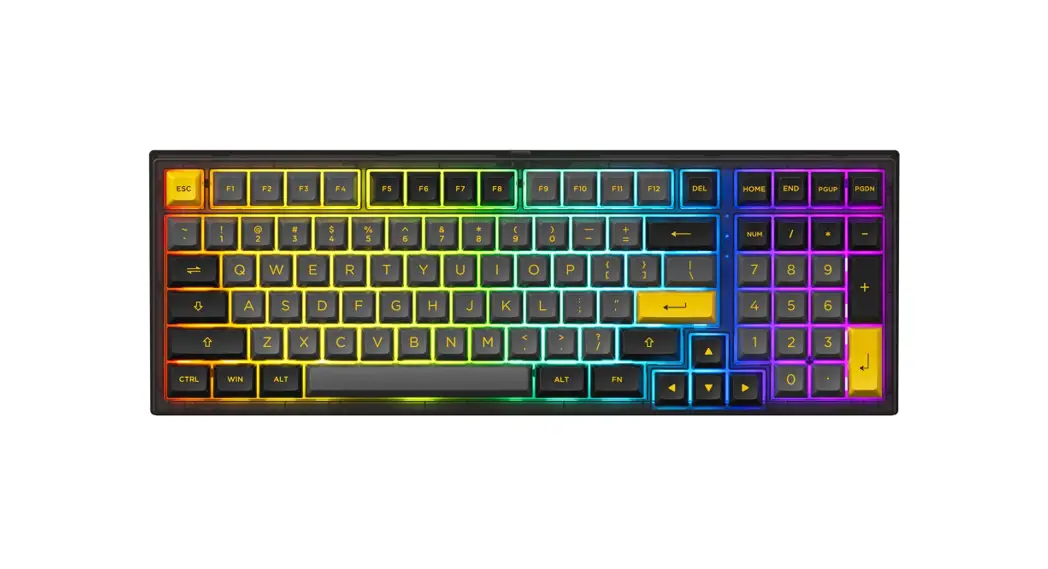
Note: The following features are realized by the combination of “Fn” + corresponding key
| F1 | File Explorer | I | Insert | Left-Wing | Lock Win |
| F2 | P | PrtSc | Restore Factory Settings Press and hold the left Win + ~ together for 5 seconds. | ||
| F3 | Windows Search | C | Calculator | ||
| F4 | Browser Homepage | M | Mute | ||
| F5 | Media | < | Decrease Volume | ||
| F6 | Pause /Playback | > | Increase Volume | ||
| F7 | Previous Song | Swap W A S D with ↑↓ ← → | |||
| F8 | Next Song | ||||
Backlight Settings
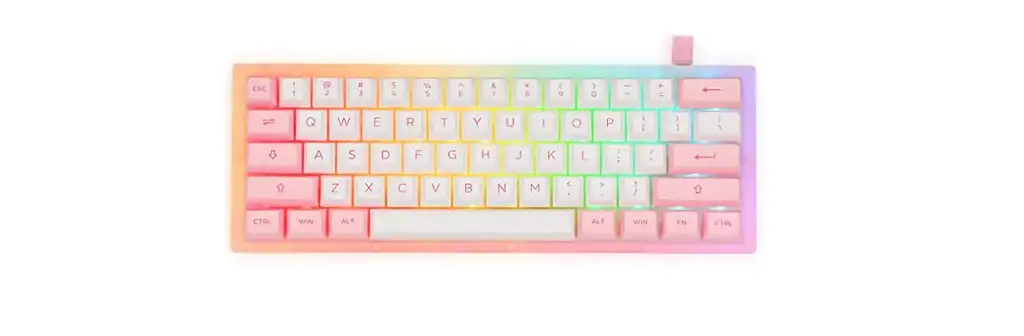
Note: The following features are realized by the combination of “Fn” + corresponding key
| F9 | Acrylic Case Light Animation Faster |
| F10 | Acrylic Case Light Animation Slower |
| F11 | Acrylic Case Light Brighter |
| F12 | Acrylic Case Light Dimmer |
| – | Slower Animation |
| + | Faster Animation |
| L | Light On / Off |
| ↑ | Bright |
| ↓ | Dim |
| ← | Change Animation Direction |
| → | Change Color |
| PgUp | Keyboard Lighting Effects Switch |
| PgDn | Acrylic Case Light Effect Change |
| Spacebar | Single-color light palette. Users can select a color and both the front and sidelights will switch correspondingly |
Akko Macro V1.0 Macro Setup Instruction 1
- Akko Macro V1.0 is hardware-based and works without software-driven.
- The following keys cannot be programmed: “Esc”, “Fn”, “Left-Wing”, and “Right Wing”.
- Akko Macro V1.0 does not support simultaneous triggers, that is, pressing “AB” at the same time will trigger the two keys in the order of A followed by B.
- Akko Macro V1.0 does not support customized interval time, that is, the trigger interval between key A and key B cannot be defined and will follow the system’s default trigger time.
Akko Macro V1.0 Macro Setup Instruction 2
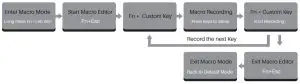
Clear Macro:
If a key has been defined, after entering the Macro editor, you can press “FN + the key” to clear its definition.
If you want to re-customize that key, press “FN + the key” again to start the new Macro recording after clearing its old definition.
Akko Macro V1.0 Macro Setup Instruction 3
Macro Recording Example: Define “A” as “AKKOGEAR”
Step 1: Press Fn + left Win for 3 seconds to enter the Macro mode.
Step 2: Press Fn + ESC to launch Macro editor.
Step 3: Press Fn + A. This means we choose key “A” to record.
Step 4: Press A, K, K, O, G, E, A, R in order as replacement definition of “A”.
Step 5: Press Fn + A again to end the Macro recording of key “A”.
At this point, pressing “A” in the notepad will display “AKKOGEAR”.
If you want to create a Macro for key “B”, press Fn + B to start the Macro recording.
Step 6: Press Fn + Esc to exit Macro editor.
Under the Macro mode, you can configure the keys and Macros you set.
Step 7: Press and hold Fn + Left Win for 3 seconds to exit the Macro mode and return to the default key definition.
Akko Macro V1.0 Calling Macros
Method A:
Enter the Macro mode by long-pressing Fn+left Win. Then all keys will turn to pre-configured definitions with locked Win key. Press Fn+Win to unlock the Win key if necessary. In the Macro mode, you can use keys with customized definitions. Note, every time you reboot or re-plugged the cable of the keyboard, the Macro mode will be turned off by default and all keys will return to default definitions until you re-enter the Macro mode.
Method B:
Under the default key definition, you can also quickly call the customized content of specific keys through “Fn+right Alt+the key that has been defined through Macro”. Note that you must first press Fn and then press Alt to call the Macro.
Akko Warranty and Service Statement
- Akko provides 1-yr warranty for customers in mainland China. For other regions, please contact your seller (Akko distributor) for a specific warranty policy.
- If the warranty window expires, customers need to pay for repairs. Akko will also provide instructions if users prefer to repair the keyboard by themselves. However, users shall take full responsibility for any loss that happened during self-repair.
- Dissembling the keyboard without the manufacturer/seller’s instruction will immediately void the warranty.
- The return and warranty policy may vary in different platforms and are subject to the specific distributor at the time of purchase.
Precautions Man-made damage is not limited to immersion, falling off, pulling off the wires with excessive forces, etc.