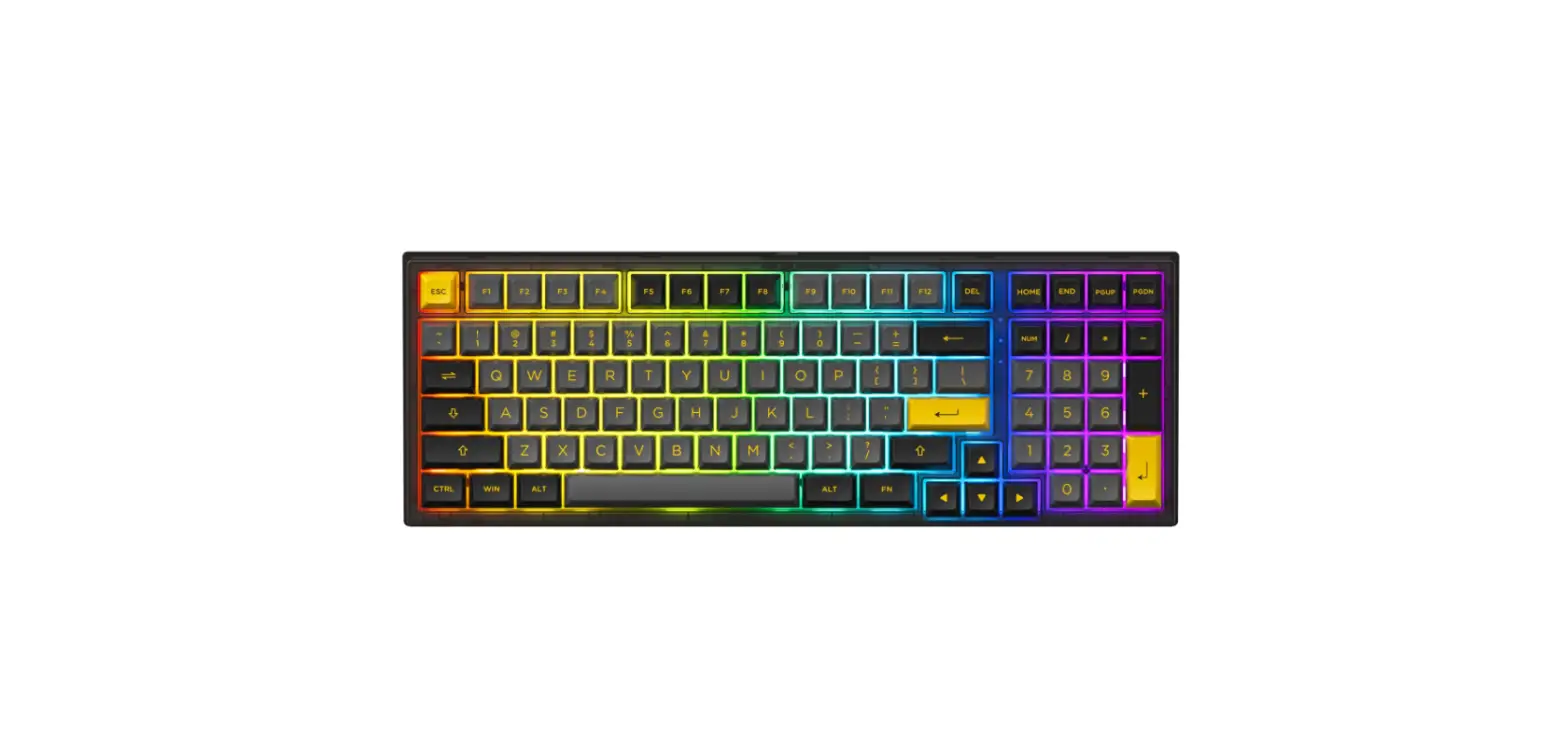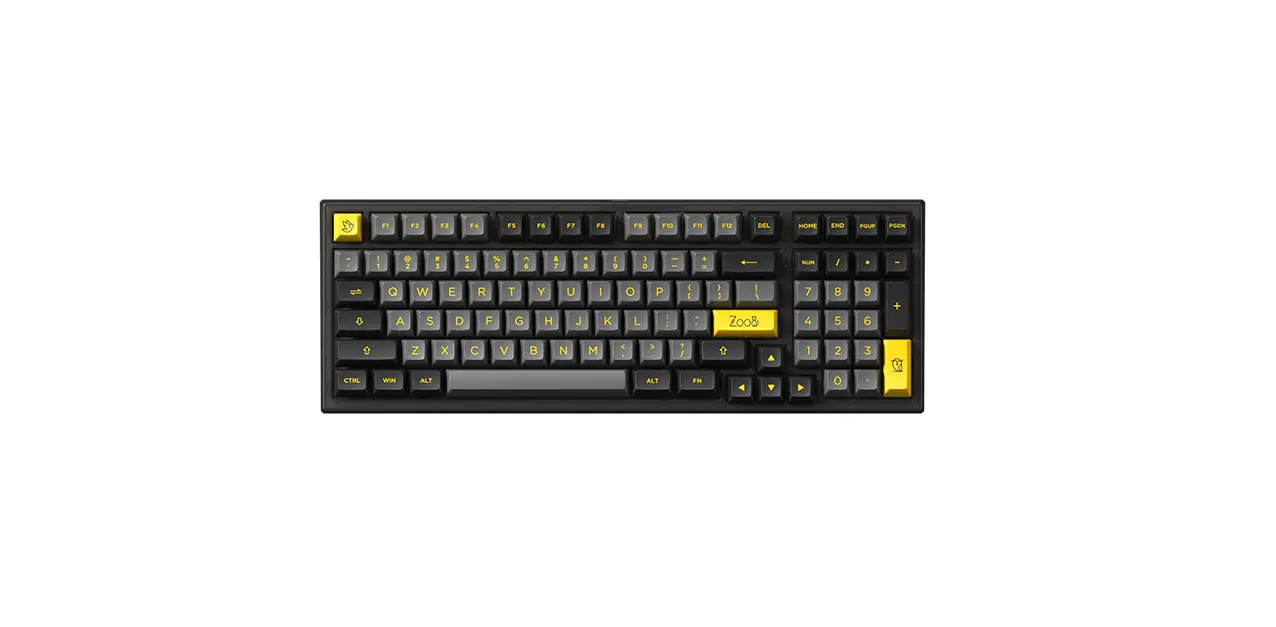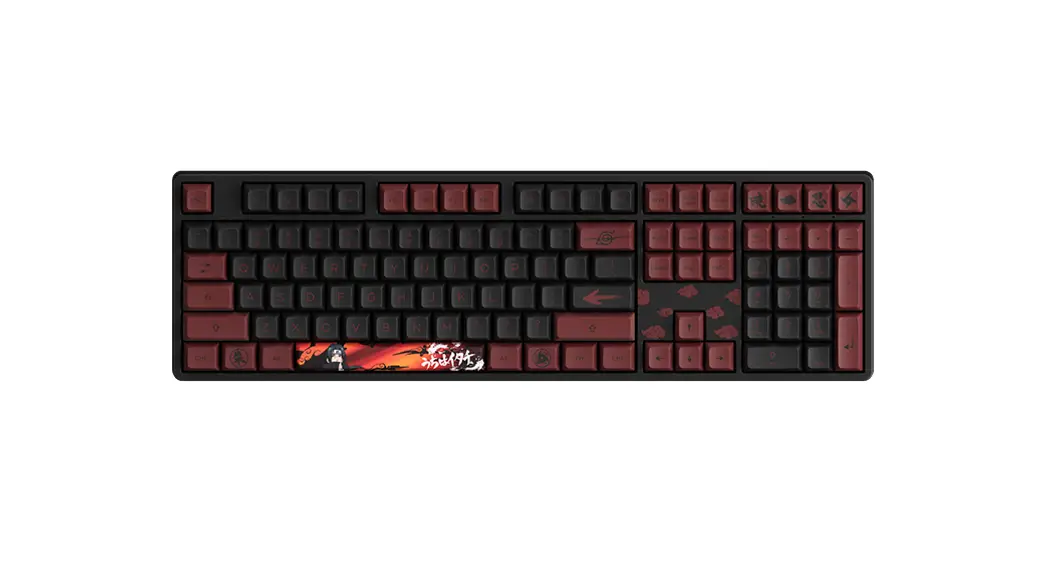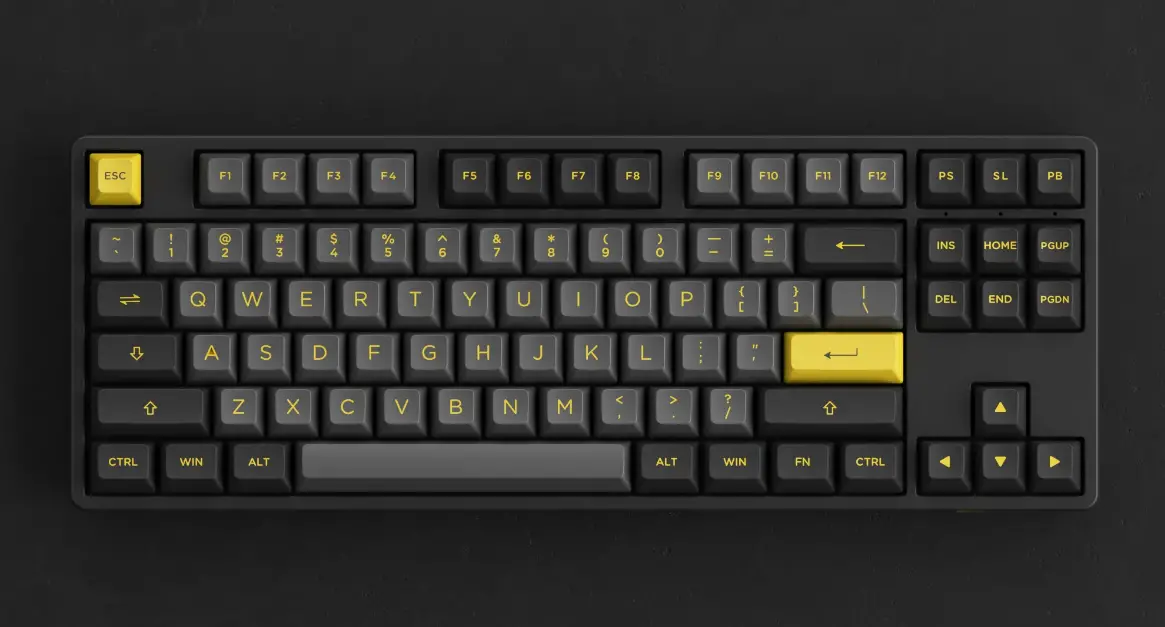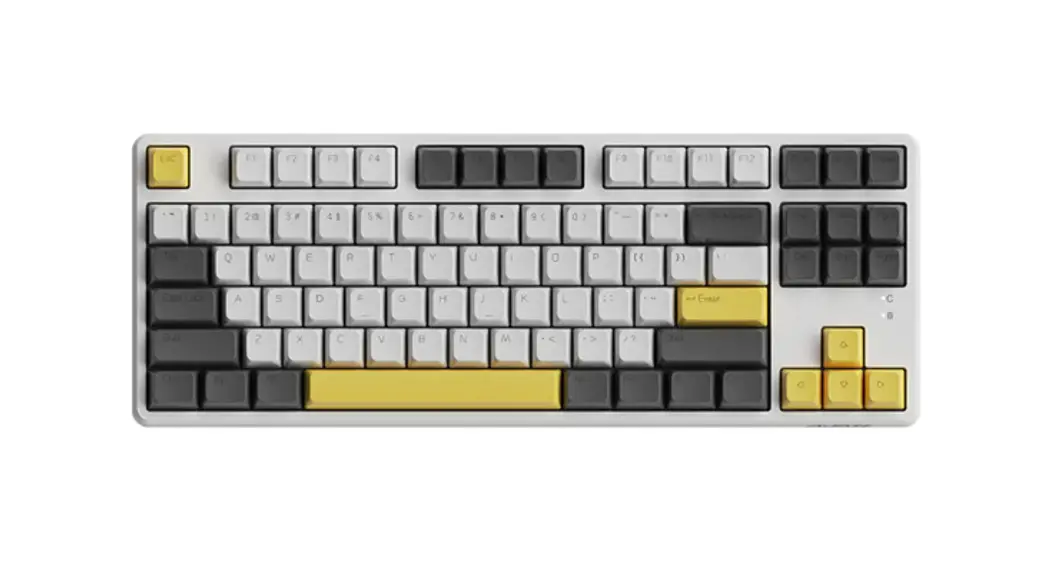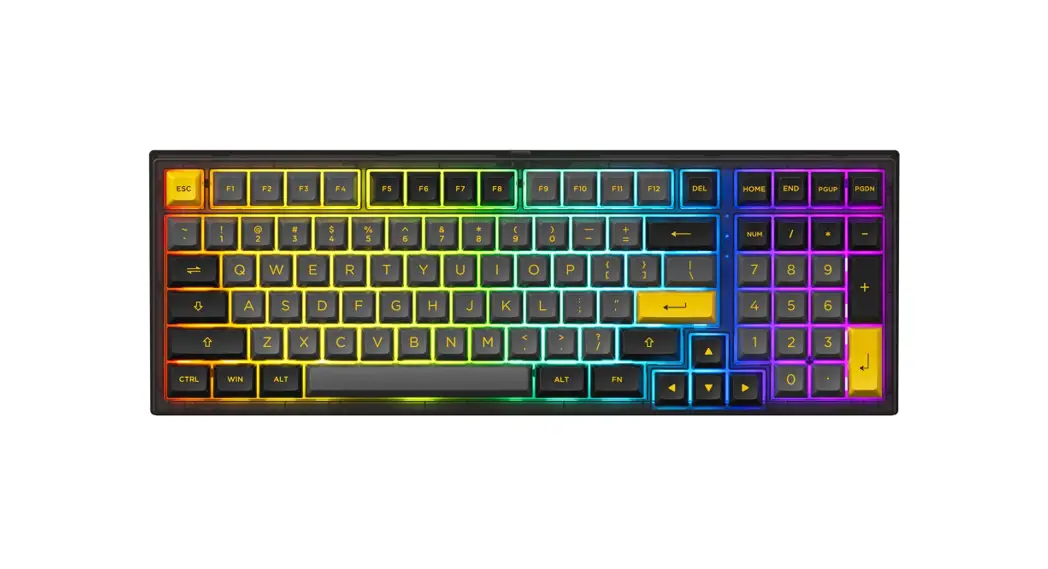
 PC98B-Plus Black and Gold Keyboard
User Manual
FCC STATEMENT
This device complies with Part 15 of the FCC Rules. Operation is subject to the following two conditions:
(1) This device may not cause harmful interference, and (2) This device must accept any interference received, including interference that may cause undesired operation.
Warning: Changes or modifications not expressly approved by the party responsible for compliance could void the user’s authority to operate the equipment.
NOTE: This equipment has been tested and found to comply with the limits for a Class B digital device,pursuant to Part 15 of the FCC Rules.
These limits are designed to provide reasonable protection against harmful interference in a residential installation. This equipment generates uses and can radiate radio frequency energy and, if not installed and used in accordance with the instructions, may cause harmful interference to radio communications. However, there is no guarantee that interference will not occur in a particular installation. If this equipment does cause harmful interference to radio or telev ision reception, which can be determined by turning the equipment off and on, the user is encouraged to try to correct the interference by one or more of thefollowing measures: Reorient or relocate the receiving antenna.
- Increase the separation between the equipment and receiver.
- Connect the equipment into an outlet on a circuit different from that to which the receiver is connected .
- Consult the dealer or an experienced radio/TV technician for help.
RF WARNING STATEMENT
The device has been evaluated to meet general RF exposure requirement. The device can be used in portable exposure condition without restriction.
Technical Specifications
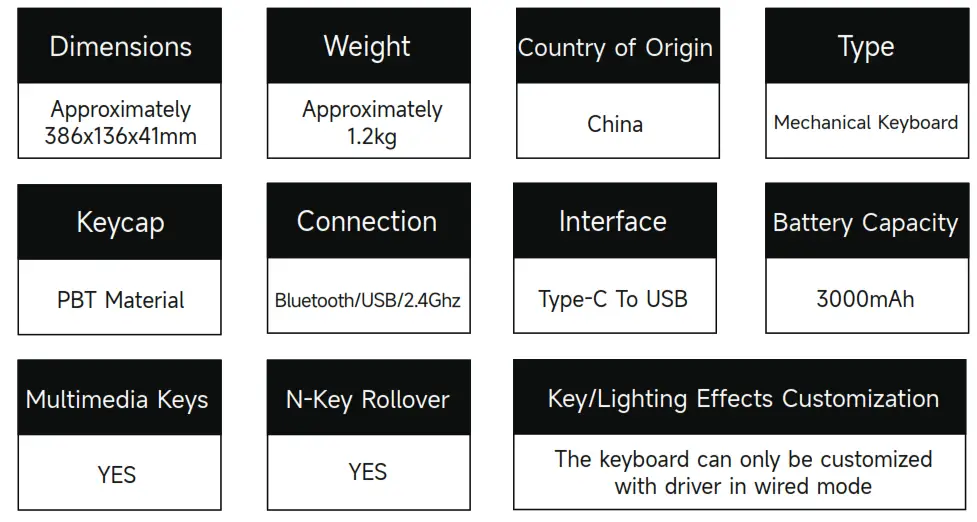
Note: The following features are realized by the combination of “Fn” + corresponding key
| F1 | File Explorer |
| F2 | |
| F3 | Windows Search |
| F4 | Browser Homepage |
| F5 | Media |
| F6 | Pause / Playback |
| F7 | Previous Song |
| F8 | Next Song |
| I | Insert |
| P | PrtSc |
| C | Calculator |
| M | Mute |
| < | Decrease Volume |
| > | Increase Volume |
| W | Swap W A S D with ↑↓ ← → |
System Commands(Windows)
| Lock Windows Key | Press Fn and left Win key |
| Restore Factory Settings | Hold down Fn and press ~ key for 5S |
| Enter Windows system | Hold down Fn and press Q key for 3S |
| Enter Mac system | Hold down Fn and press O key for 3S |
System Commands(Mac)
| F1 | Decrease display brightness |
| F2 | Increases display brightness |
| F3 | Open mission control |
| F4 | Activate Siri |
| F5 | N/A |
| F6 | N/A |
| F7 | Skip back (Audio) |
| F8 | Pause/Play (Audio) |
| F9 | Skip forward (audio) |
| F10 | Mute |
| F11 | Volume down |
| F12 | Volume up |
| left Win | Option |
| left Alt | Command |
| right Alt | Command |
 | |
Backlight Settings
Note: The following features are realized by the combination of “Fn” + corresponding key
| – | lower Animation |
| = | Faster Animation |
| L | Light On / Off |
| ↑ | Bright |
| ↓ | Dim |
| ← | Set animation direction to left |
| → | Set animation direction to Right |
| \ | 7 different backlit colors + RGB loop |
| Home | Effect1 —— Effect5 |
| End | Effect6 —— Effect10 |
| PgUp | Effect11 —— Effect15 |
| PgDn | Effect16 —— Effect20 |
| Z | PC Case Light Brightness Change |
| X | PC Case Light Animation Speed Change |
| left Ctrl | PC Case Light Effect Change |
| left Alt | 7 different side LED colors + RGB loop |
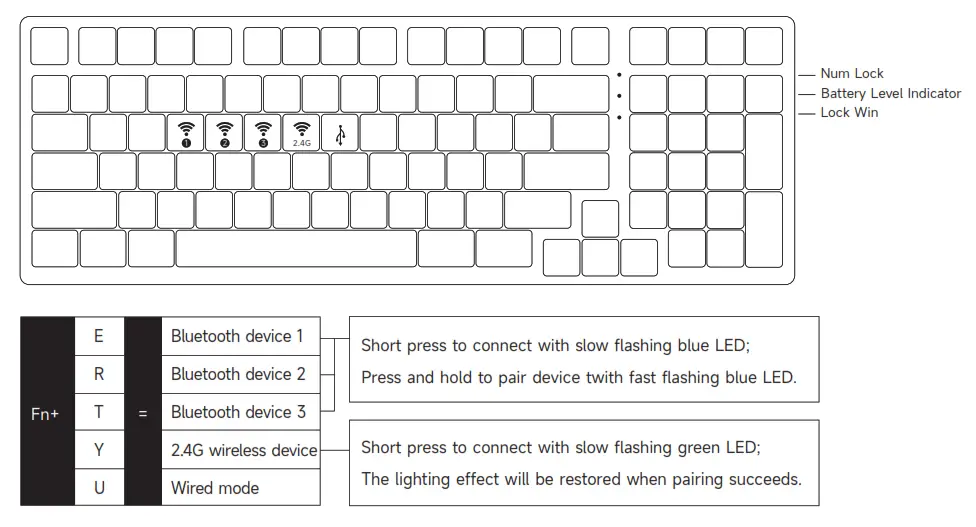
Bluetooth Feature Overview
Bluetooth Setup Instruction 1
- Switch to Bluetooth mode
① When the keyboard remains unplugged, turn the back switch to ON. Then long press and hold Fn + E / R / T to start pairing with Bluetooth devices. The keyboard will enter Bluetooth pairing mode when the blue LEDs under E / R / T keys flash quickly.
② When the Keyboard is plugged into the computer through USB interface, it will enter Bluetooth mode automatically without having to push the switch on the back. Users can directly long press and hold Fn + E / R / T to enable Bluetooth pairing. The keyboard will enter Bluetooth pairing mode when the blue LEDs under E / R / T keys flash quickly. - Set the Bluetooth profile
To help user recognize individual Bluetooth device, the keyboard is equipped with both Bluetooth 5.0 and 3.0 frameworks.
The device name under the Bluetooth 5.0 framework is PC98BP-1/PC98BP-2/PC98BP-3 while the device name under Bluetooth 3.0 is Akko PC98BP BT3.0. Once the devices are paired through Fn + E / R / T, the system will by default memorize the last connected device before you turn off the Bluetooth mode.
Bluetooth Setup Instruction 2 - Bluetooth Pairing
The keyboard can be paired with PC, Pad, smartphone and other devices with Bluetooth turned on. When you first try to search Bluetooth devices, two groups of device names shall appear with Akko PC98BP BT3.0 (Bluetooth 3.0) and PC98BP-1 (Bluetooth 5.0). Select a Bluetooth group based on your preferences (Note: some devices can only search for the Bluetooth 5.0 group). - Switch the Bluetooth device
After 4 Bluetooth devices have been paired with the keyboard, press Fn+E / Fn+R / Fn+T / Fn+Y for at least 3 seconds to quickly switch between them. - Shut off the keyboard
Turn the power off on the keyboard back panel while unused for power saving; If the keyboard remains unused for over 10 mins, it would go to sleep mode and you can activate it by pressing any key.
Note: The battery saver mode for Windows system would affect/delay the sleep activation time of the keyboard. - Reset the keyboard
If you forgot the specific paired front-end device or if there remains disorder in Bluetooth connection and communication, you’ll need to clear the computer’s Bluetooth cache by removing the PC98 keyboard from the list of connected device.
Key/Lighting Effects Customization Instruction
- The key/lighting effects customization can be programmed by Akko driver.
- In wired mode, the lighting effects can also achieve audio visualizer effects with Akko driver.
- Please download the Akko Cloud driver on our website.
- Users can download the driver via en.akkogear.com
Akko Warranty and Service Statement
- Akko provides 1-yr warranty for customers in mainland China. For other regions, please contact your seller (Akko distributor) for specific warranty policy.
- If the warranty window expires, customers need to pay for repairs. Akko will also provide instructions if users prefer to repair the keyboard by themselves. However, users shall take full responsibility for any loss happenedduring self-repair.
- Dissembling the keyboard without manufacturer/seller’s instruction will immediately void the warranty.
- The return and warranty policy may vary in different platforms and are subject to the specific distributor at the time of purchase.
Precautions Man-made damage is not limited to immersion, falling off, and pulling off the wires with excessive forces, etc.

 |  |
| http://weixin.qq.com/r/aDtOVoXE6tiVrcE19256 | http://qr.weibo.cn/g/49ssmq |
 Akko艾酷官方网站 | æ½®æµæ—¶å°šå¤–设_Akko机械键盘官网
 Akko | Designer for Mechanical Keyboards
 Akko艾酷官方网站 | æ½®æµæ—¶å°šå¤–设_Akko机械键盘官网