

Contact us:
[email protected]
www.ecoflow.com
 WARNING
- Keep RIVER 600 PRO and the accessories dry and do not expose them to high heat.
- Never disassemble, puncture, shock, crush, or incinerate the product.
- Recycle and dispose of RIVER 600 PRO in accordance with the local regulations.
- Pay attention to safety when handling the RIVER 600 PRO.
- People with disabilities or children should use the machine under the protection of the supervisor.
Glossary
The following terms are used in this document to indicate various levels of potential harm that may be caused by improper operation.
NOTICE
The instructions, if not properly followed, may result in property damage and minor physical damage. CAUTION
The instructions, if not properly followed, may result in property damage and serious physical damage.WARNING
The instructions, if not properly followed, may result in property damage, major accident, and serious injury.
WARNING
Read the ENTIRE user manual to be familiar with the features of this product before operating. Failure to operate the product correctly may result in damage to the product or personal property and cause serious injury. EcoFlow will not assume any legal responsibility. DO NOT use the product with incompatible components or alter the product in any way without following the instructions provided by EcoFlow. Otherwise, you cannot get after-sales service from EcoFlow under warranty conditions. These Safety Guidelines include instructions for safety, operation, and maintenance. It is important to read and follow all the instructions and warnings in the user manual before assembly, setup, or using the product.
Product Safety GuidelinesWARNING
Improper use may result in fire, property damage or personal injury. Make sure to use the product according to the following safety rules and guidelines.
Product Use:
- DO NOT expose the product to any liquids. Do not immerse the product in water. DO NOT leave the batteries out in the rain or near a source of moisture. Moisture in the device could cause short circuits, component failure, fires or even an explosion.
- Never use NON- EcoFlow parts. Go to http://www.EcoFlow.com to purchase new parts. EcoFlow takes no responsibility for any damage caused by the use of non-EcoFlow parts.
- Never install or remove other modules from the RIVER 600 PRO when it is turned on. Do Not plug or unplug
other modules when the power of the product is turned on, otherwise, the power interface may be damaged. - The product should be used in temperatures between -4ºF and 140 ºF( -20 ℃ and 60 ℃) . The use of products in environments above 140 ºF ( 60 ℃) may cause fire or explosion. Using products below -4 ºF ( -20 ℃) will severely affect the performance of the product. Allow the product to return to a normal operating temperature before use it.
- DO NOT use the batteries in strong electrostatic or electromagnetic environments. Otherwise, the battery control board may malfunction and cause a serious accident during use.
- Never disassemble or pierce the product in any way. Otherwise, it may leak, catch on fire, or explode.
- DO NOT use the product if it was involved in a crash or a heavy bump.
- If the product falls into the water during use, take the product out immediately and put it in a safe and open area. Keep a safe distance from it until it is completely dry. Never use it again and dispose of it properly as described in the Battery Disposal section below. If the product catches fire, it is recommended to use fire extinguishing equipment in the following order: water or water mist, sand, fire blanket, dry powder, carbon dioxide fire extinguisher.
- DO NOT put the machine in a microwave oven or in a pressurized container.
10. Do Not allow pins, wires or other metal pieces to insert to the device case, outlets or controls. Metal pieces may short circuit the product.
11. Avoid collision. DO NOT place heavy objects on the machine.
12. If there is dirt on any plug or outlet surface, use a dry cloth to clean it. Otherwise, it will cause abrasion and result in energy loss or inability to charge.
Product Charging:
- Always use EcoFlow approved charging cables. EcoFlow does not respond to any damage caused by using the non-EcoFlow charging cable.
- When charging, please place the product on the ground with no flammable or combustible materials around. To prevent accidents, never leave the machine unattended during charging.
- DO NOT charge a product immediately after a long heavy load, because the product’s temperature may be too high. DO NOT charge a product until it cools down to room temperature. The product may be unable to charge out of the temperature range 32 ºF to 104 ºF (0 to 40 ℃ ). The ideal charging temperature range is 71 ºF to 82 ºF (22 ℃ to 28 ℃ ).
Product Storage and Transportation:
- Keep the product out of the reach of children. If any children accidentally swallow parts, please go to a doctor immediately.
- If a low-battery warning appears, charge the battery before store it. Otherwise, long-term storage may cause damage to the battery in the product. Batteries in the product will enter hibernation mode if it is depleted and stored for a long time. Recharge the product can bring the battery out of hibernation.
- DO NOT place the product near a heat source, such as a car in direct sunlight, a fire source, or a heating stove.
- Store the product in dry environments. Please keep the machine away from water.
- Make sure no small metal objects can fall on or around the product while in storage.
- Never ship a product with a battery power level higher than 30%.
Product Battery Disposal:
1. Dispose of the product in specific recycling boxes only after a complete discharge. Batteries are hazardous chemicals. Please strictly follow your local regulations regarding battery disposal and recycling.
2. Dispose of the product immediately if it cannot be powered on after over-discharging.
Product Maintenance:
1. Never store the product in environments below -4 ºF (-20 ℃ ) or above 140 ºF (60 ℃ ).
2. If the product is not used for a long time, the battery life may be reduced.
3. Fully charge and discharge the battery at least once every 3 months to keep the battery healthy.
Travel Notice:
It is forbidden to carry lithium batteries and equipment with a capacity greater than 160Wh on airplanes due to the regulation; Do Not bring this product on flights.
RIVER 600 PRO Use Care and Safety Guide
CONGRATULATIONS!
You now own the best quality Portable Battery Generator in the world. This brief pamphlet is meant to help you. Please take some time to read it before using the product. Read it through to fully understand how to use the Lithium Generator!
NOTICE
To turn RIVER 600 PRO on or off, you need to PRESS and HOLD the ON/OFF system Power Button. To turn on the AC power outlet, you need to PRESS and HOLD the AC Button after turning on RIVER 600 PRO. We set the AC power button for users to turn off AC power when they don’t need it to save power usage. Please follow this introduction step-by-step to be familiar with each of RIVER 600 PRO’s ports, buttons, display screens and more. Please fully charge (100%) your RIVER 600 PRO before use it.
FCC Statement:
This device complies with Part 15 of the FCC Rules. Operation is subject to the following two conditions:
(1) This device may not cause harmful interference, and
(2) This device must accept any interference received, including interference that may cause undesired operation.WARNING
Changes or modifications not expressly approved by the party responsible for compliance could void the user’s authority to operate the equipment.
NOTICE
This equipment has been tested and found to comply with the limits for a Class B digital device, pursuant to Part 15 of the FCC Rules. These limits are designed to provide reasonable protection against harmful interference in a residential installation. This equipment generates uses and can radiate radio frequency energy and, if not installed and used in accordance with the instructions, may cause harmful interference to radio communications. However, there is no guarantee that interference will not occur in a particular installation. If this equipment does cause harmful interference to radio or television reception, which can be determined by turning the equipment off and on, the user is encouraged to try to correct the interference by one or more of the following measures:
1. Orient or relocate the receiving antenna.
2. Increase the separation between the equipment and receiver.
3. Connect the equipment into an outlet on a circuit different from that to which the receiver is connected.
4. Consult the dealer or an experienced radio/TV technician for help.
FCC Radiation Exposure Statement:
This equipment complies with FCC radiation exposure limits set forth for an uncontrolled environment. This equipment should be installed and operated with minimum distance of 20cm between the radiator & your body.
EcoFlow App User Guide
1. EcoFlow App Download Guide
Search “EcoFlow” in the Google Play Store or App Store to download the App.
You may also use your mobile phone to scan this QR code or enter the download link in your browser: https://ecoflow.com/pages/RIVER600-app-download
https://ecoflow.com/pages/r600-app-download
2. App Login and Registration Guide
1. Open your App, click on “Sign up” to register. (If you already have an account, please click on “Login”).
2. Fill in your information and click on “Submit” to receive the activation email.
3. Open your activation email and click the link to activate your account. Go back to the EcoFlow app to log in.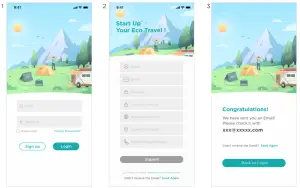
3. Device Connection Guide
Outdoor Mode: Connect to the nearby RIVER 600 PRO hotspot. Make sure the mobile phone is within the hotspot range).
1. Open your App, click on the “+” on the top right corner.
Press and hold the “IOT RESET” button for more than 3 seconds on the EF product. After a beep sound, your device is ready to be connected.
2. Go to your phone Settings > Wi-Fi, turn on Wi-Fi and find the new device in the network list: Ecoflow_XXXX. Tap it to make a connection.
3. Return to EcoFlow App, click on “Nearby” and wait for the device to appear. If it doesn’t, please scroll down to refresh the list.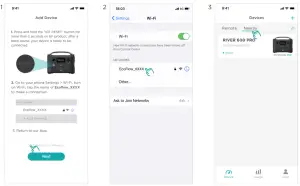
Indoor Mode: Connet to the home router (support remote control).
1. Open your App, click on the “+” on the top right corner.
Press and hold the “IOT RESET” button for more than 3 seconds on EF product, after a beep sound, your device is ready to be connected.
• Go to your phone Settings > Wi-Fi, turn on Wi-Fi and find the new device in the network list: Ecoflow_XXXX. Tap it to make a connection.
• Return to EcoFlow App.
• Confirm the operation, and tap “Next” to continue.
2. Choose Wi-Fi for your EF product. Your EF product can only connect to 2.4 GHz Wi-Fi networks.
• Enter a Name for your EF product.
• Tap “Next” to finish adding your EF product.
3. Please confirm:
EF product
√ Connection successful
√ Device info setup successful
√ Network setup successful
√ Server connection successful
√ Device registration successful
If it fails to connect, move the EF product closer to the router, confirm whether it is a 2.4GHz network, and repeat the operations of the first step.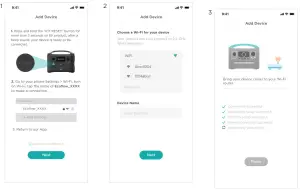
4. For more information about the App, please follow the instruction on the App or our official website www.ecoflow.com.
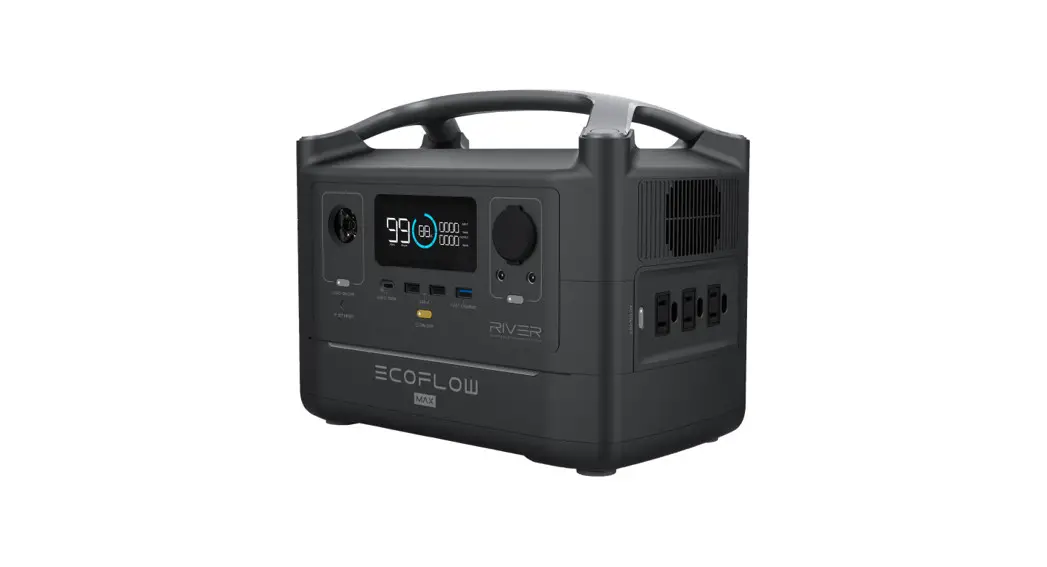
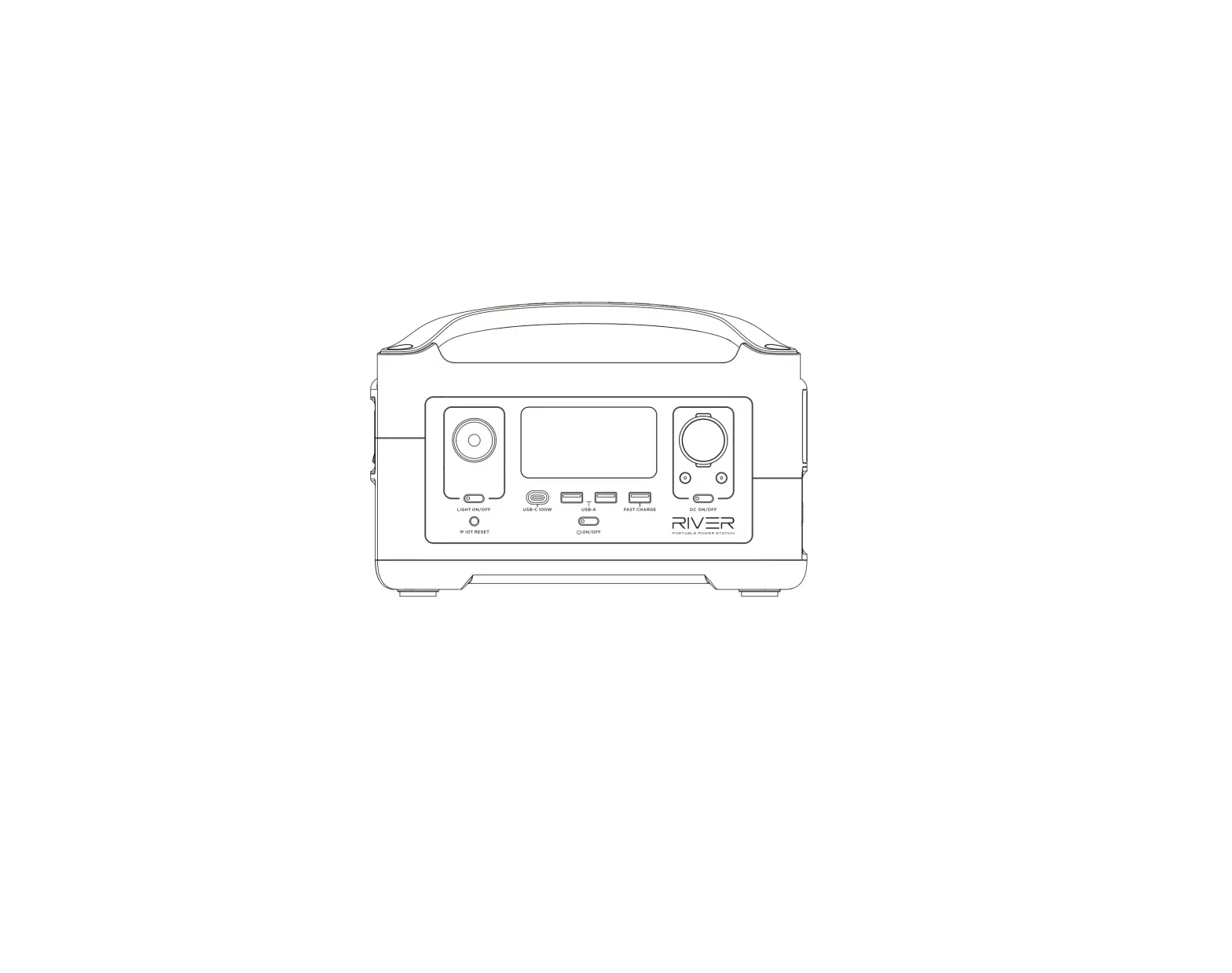
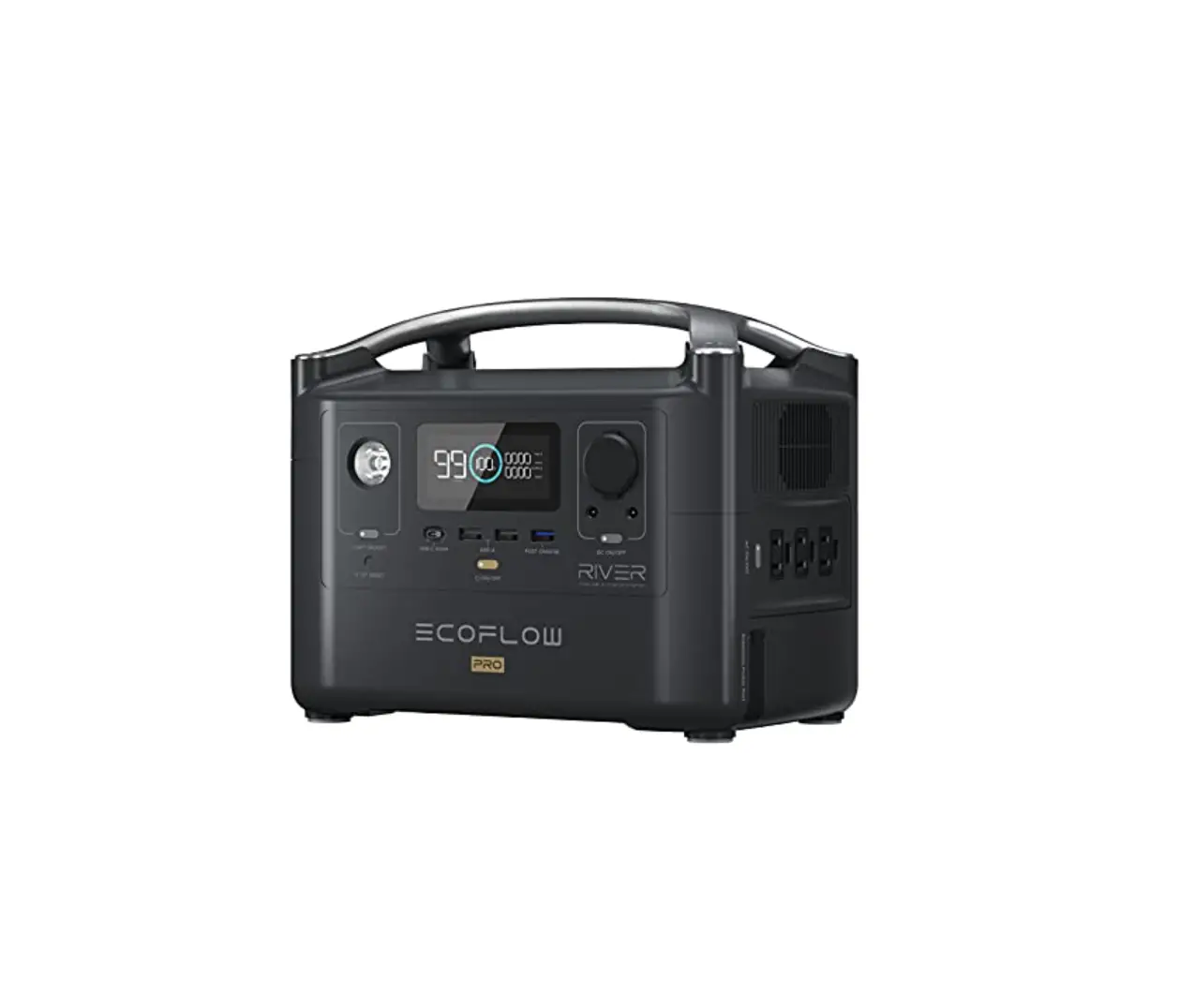
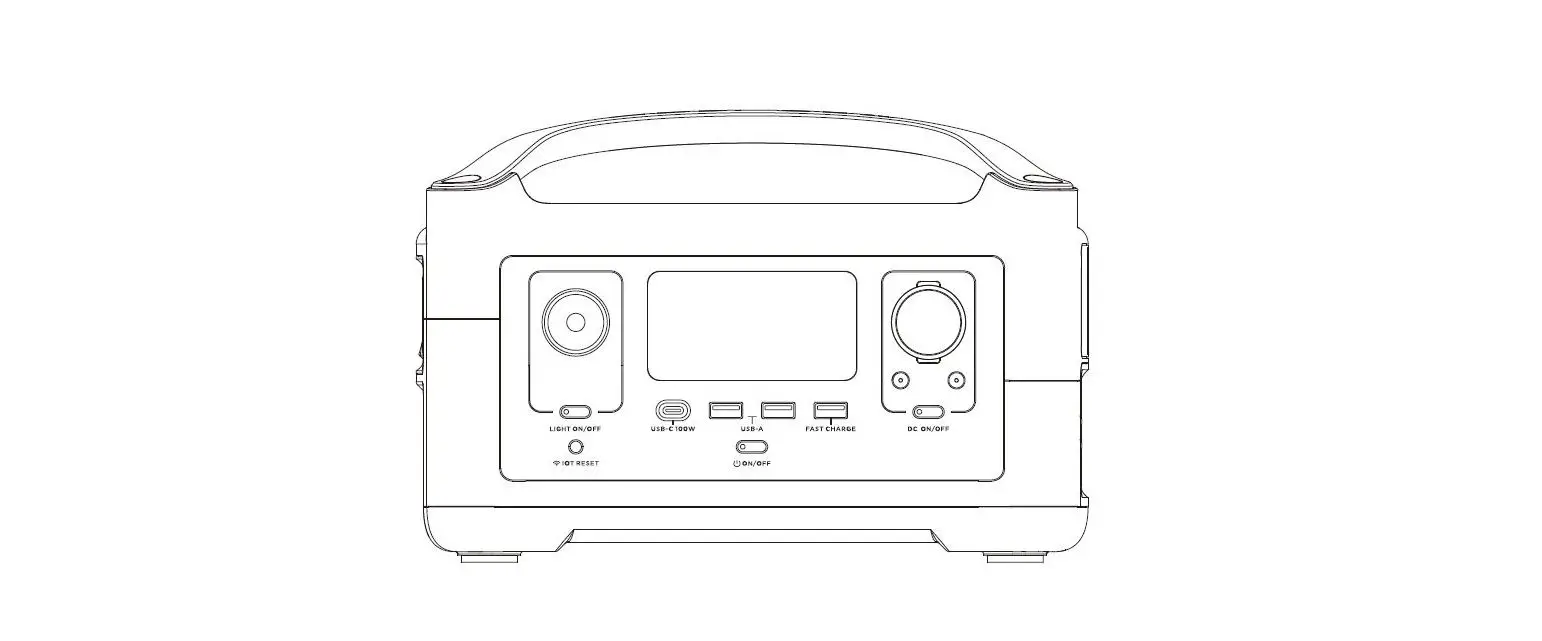
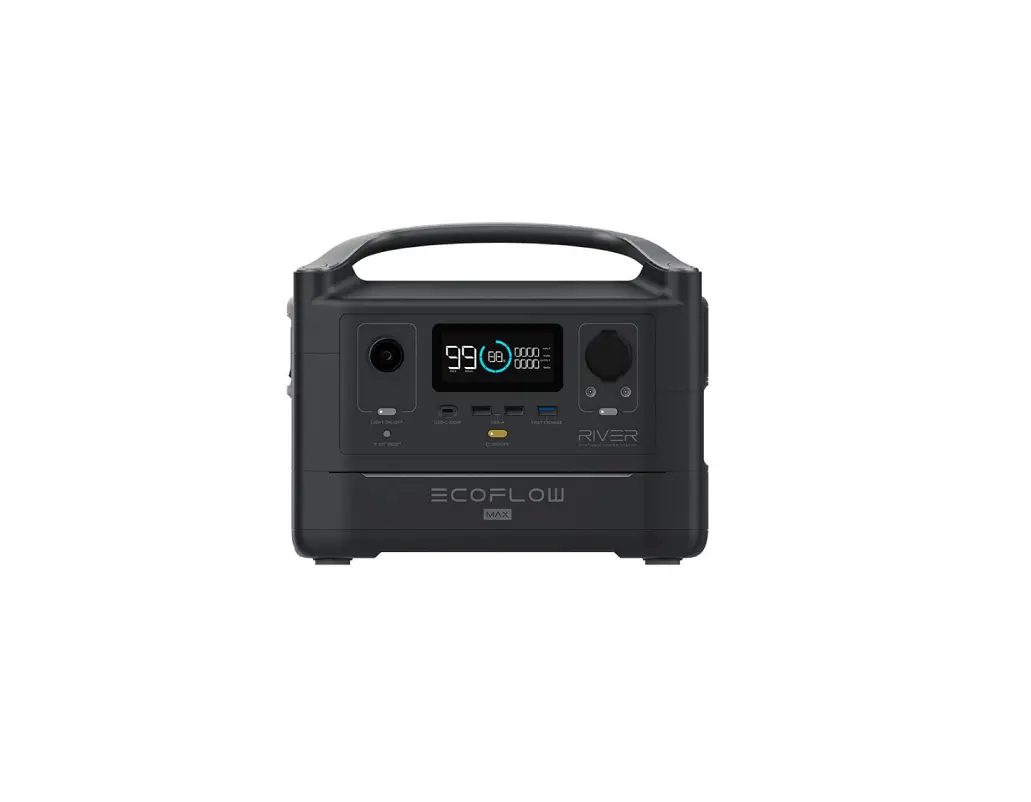
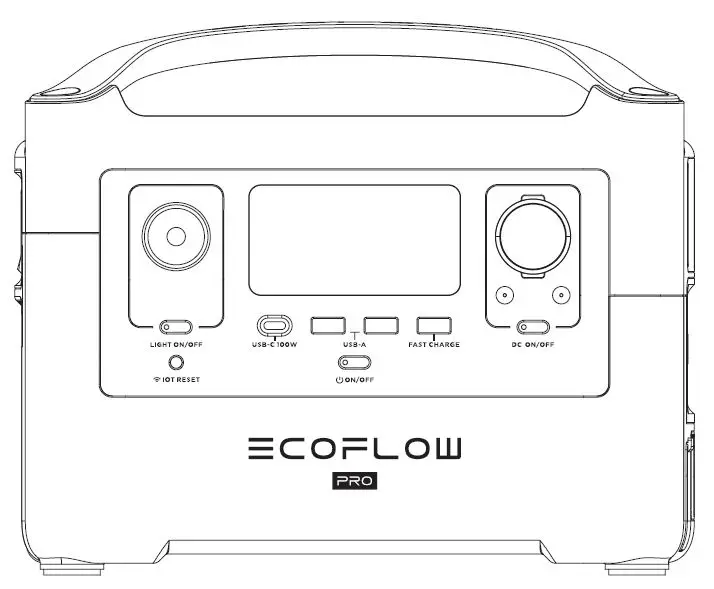
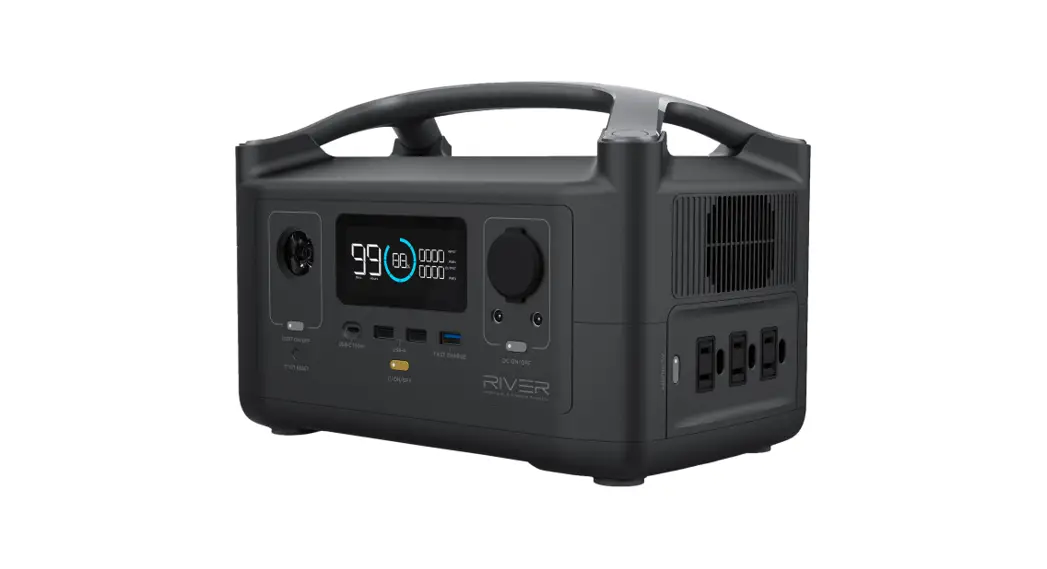
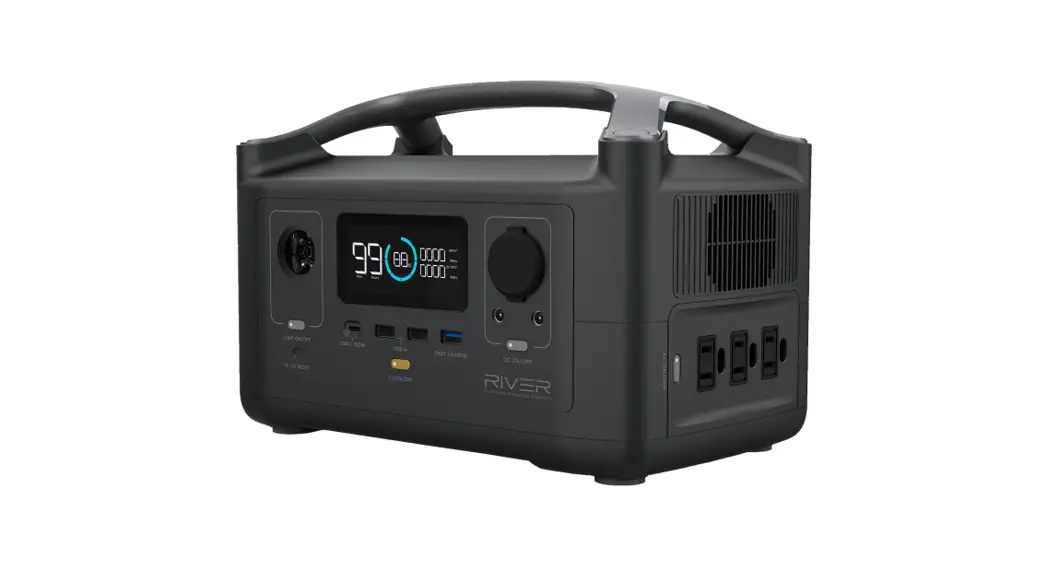
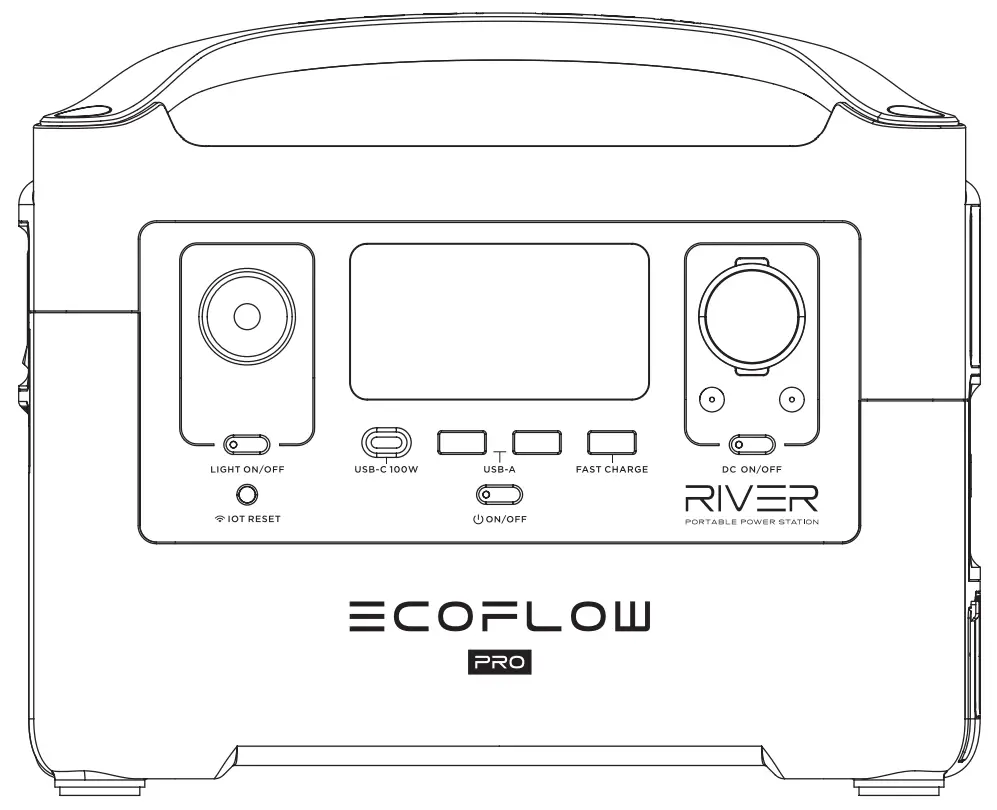
Features of the RIVER 600 PRO
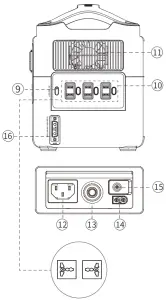
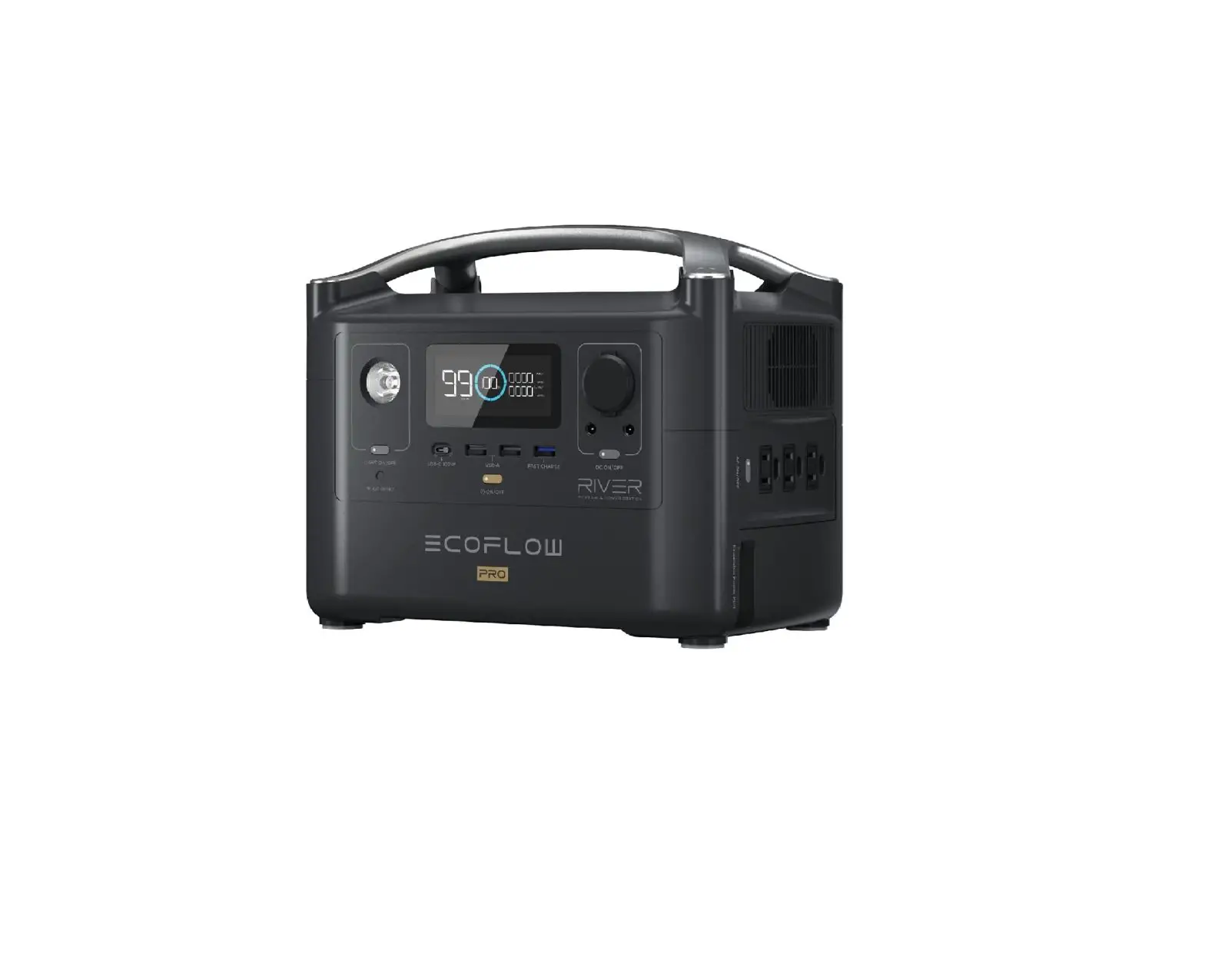
- LCD Display
- USB-A Output Ports
- ON/OFF Button of LED Light
- I Reset Button (PRESS & HOLD 3s to reset WiFi)
- USB-C 100W Output Port
- Power Button & LCD Display Screen
- DC Output ON/OFF Button (Car Outlet, 2 DC 5521 Output Ports) & DC Output Indicator
- Fast Charge USB-A Output Port
- AC Power Button (PRESS for ON/ OFF) AC Output Indicator
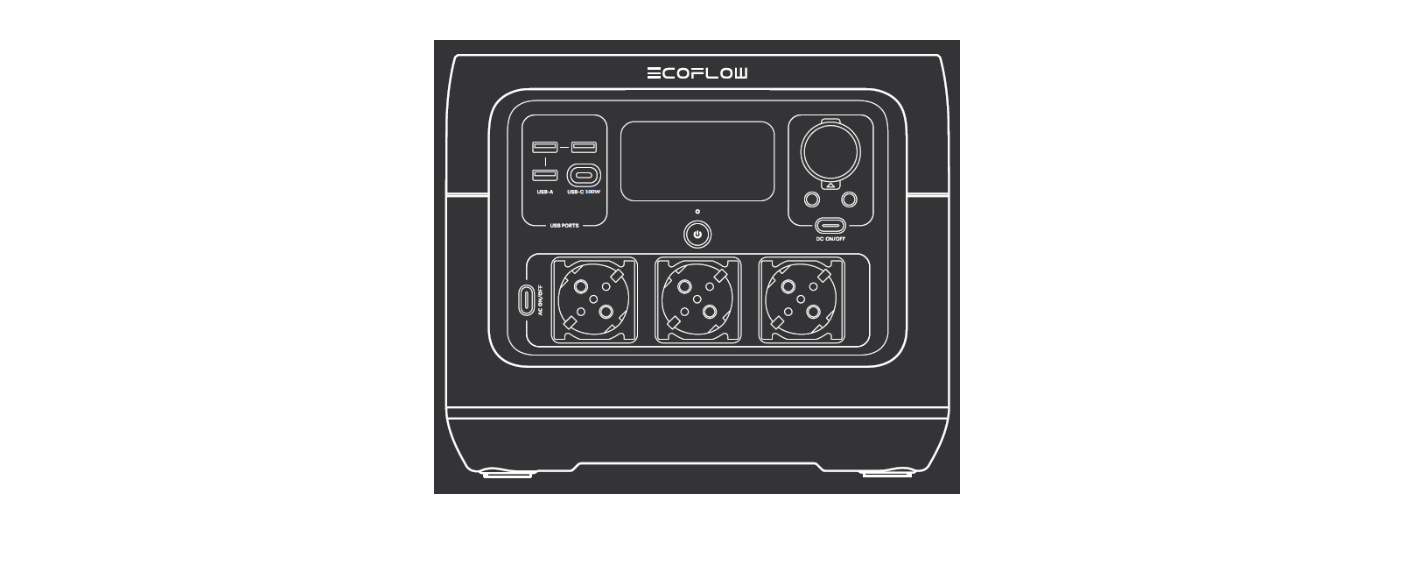
- 3 AC Output Sockets (100-120V) 2 AC Output Sockets (220-240V)
- Ventilation Fan
- X-STREAM Charging Input Port
- Overload Protection Switch
- Solar Charge/Car Charge Input Port
- Power Earth Screw
- Expansion Power Port
220-240V region*Dedicated AC Output
*EcoFlow has designed different AC output sockets following the local regulations of different countries.
1. LCD Display
Displays various conditions of the product.
2. USB-A Output Ports
Charge a wide array of devices such as your iPhone, tablet, GoPro, speakers, or anything else that could be charged through a USB Port. The USB Output Indicator Light will automatically light up when a USB port is in use.
3. ON/OFF Button of LED Light
There’re three types of LED light: low light, strong light, and SOS rescue signal flash. Press it once to turn on the low light; press it twice to turn on the strong light; press it one more time to turn on the SOS rescue signal flash; then press it again to turn off the LED light. Long-press can turn off the LED directly.
4. IOT Reset Button (PRESS & HOLD 3s to reset WiFi)
When you first use the IoT function or you are changing the network environment, you need to press and hold IOT Reset the button for 3 seconds to reset the WiFi. It can connect with the mobile phone, then reconfigure the wireless network through the APP. When using the IoT mode, make sure the power station has a sufficient amount of power or is connected to a power source to keep IoT on standby.
5. USB-C 100W Output Port
Devices that charge through a USB-C port, such as a MacBook Pro, Android phone, or other devices can be charged by the RIVER 600 PRO USB-C port. The USB-C Output icon will appear on LCD Display when a USB port is in use.
6. System Power Button & LCD Display Screen ON/OFF Power Indicator
Press and hold the system power button to turn RIVER 600 PRO on or off. When RIVER 600 PRO is turned on, the power indicator is in breathing mode, and the display is on; to turn on or off the LCD and keep RIVER 600 PRO running, short press the power button; when RIVER 600 PRO senses that any output port is in use, the display will automatically light up. Also, if no output port is in use, the RIVER 600 PRO screen will enter into the sleep mode after being idle for more than 5 minutes, but the battery is still running; two hours after the idle mode, the RIVER 600 PRO will automatically shut down (You can set up the system standby time via APP).
7. DC Output Port (Car Outlet, 2 DC 5521 Output Ports) DC Output Indicator
Press DC ON/OFF to turn on or off RIVER 600 PRO-DC power. The 13.6V DC power button controls the RIVER 600 PRO’s car charger output and two direct currents (DC 5521) outputs. The car charger output supports output up to 10A, which is sufficient to power most electrical appliances use in vehicles (such as mini-refrigerator). It can also be used to fully charge a 12V lead-acid car battery (must be used under the guidance of professionals).
8. Fast Charge USB-A Output Port
The USB-A Output Indicator Light will automatically light up when a USB-A port is in use. Fast charge-enabled devices can be charged at a maximum speed of 28W. If your device does not support fast charging, the device will charge in a normal speed.
9. AC Power Button AC Output Indicator
The AC power button controls the AC output of the RIVER 600 PRO. The AC power needs to be turned on manually. To enable power, press the AC power button.
When AC power is not in use to charge a device, press the AC power button to turn off the AC power. Make sure to unplug the power cord from the AC port. When the
AC power of the RIVER 600 PRO is enabled, the AC indicator will light up. If the C power is not used for more than 12 hours, the product will turn off automatically (You can set up the system standby time via APP).
10. 3 AC Output Sockets (100-120V) / 2 AC Output Sockets (220-240V)
Charging devices that require a 230V (220-240V region)/100-120V (220-240V region) wall charger such as laptops, TVs, mini-refrigerators, vacuums, etc. The X-Boost function upports an additional 600W-1,200W of power reduction. This function does not support all electrical devices with higher power ratings, please test to confirm before use.
11. Ventilation Fan
The fan prevents RIVER 600 from overheating. Please make sure nothing blocks the vents at both ends of the RIVER 600 PRO.
12. X-STREAM Charging Input Port
Plug in an AC cable with a universal three-pin plug (one that can withstand an effective current of 15A) into the port and connect the cable to an AC power source. The U.S. and Japanese versions support 100Vac120Vac (50Hz/60Hz)/the international version support 220Vac-240Vac (50Hz/60Hz) charging. RIVER 600 PRO’s X-STREAM system supports an entry-level UPS function, and users can use the RIVER 600 PRO AC socket while the device is connected to a wall socket with an AC power supply (the AC power comes from the grid, not the battery). When the grid loses power suddenly, the device can automatically switch to RIVER 600 PRO battery power mode in <30ms to ensure your work is uninterrupted. This is an entry-level grade UPS function that does not support 0ms switching. Do not connect devices with high uninterrupted power supply requirements, and perform multiple tests to confirm compatibility before connecting such devices as data servers and workstations with RIVER 600 PRO. EcoFlow will not be responsible for any loss of data or equipment damage caused by customers’ failure in following the instruction.
13. Overload Protection Switch
When the input current continuously exceeds 10A during a charge, the AC charging port will trigger the overload protection (the Overload Protection Switch button will automatically pop out). When the device is confirmed to be normal, press the overload protection switch button to continue charging.
14. Solar Charge/Car Charge Input Port
Support a maximum of two 110W solar panels to be connected in parallel. RIVER 600 PRO has a limited input of 200W which supports a 12V/24V car charge up to 10A (remember to start the engine, otherwise, the car battery may be drained).
15. Power Earth Screw
For safety concerns, some electrical appliances need to be grounded. The power earth screw provides an option to get your RIVER 600 PRO grounded using a grounding cable.
16. Expansion Power Port
This port is used to connect the RIVER 600 PRO Extra Battery through the Expansion Power Cable to expand the battery capacity to 1440Wh.
User Interface Introduction
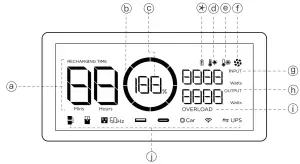
a.Remaining Charge/Discharge Time
The number indicates the remaining charge/discharge time (in minutes) for RIVER 600 PRO.
b. Battery Level Indicator
Shows the remaining power. The icon rotates while charging.
c. Battery Level Percentage
Shows the percentage of the power. If it displays 0%, please charge RIVER 600 PRO immediately.
d. High-Temperature Indicator
When the temperature of the RIVER 600 PRO is too high, a high-temperature warning icon appears on the screen to warn that the temperature of the product is too high. Please cool down the product.
e. Low-Temperature Indicator
When the temperature of the RIVER 600 PRO is too low, a low-temperature warning icon appears on the screen to warn that the temperature of the product is too low. Please warm up the product properly before use.
f. Fan Indicator
The RIVER 600 PRO fan speed is intelligently controlled by the RIVER 600 PRO, and the displayed speed is related to the fan speed.
g. Current Input
Shows the current input power of RIVER 600 PRO in watts.
h. Current Output
Shows the current output power of RIVER 600 PRO in watts.
i. Overload Warning
The overload icon and corresponding icon indicate the corresponding overload module.
j. Port Usage Indicators
Indicates the usage status of each port.
Protection Information Instruction
The RIVER 600 PRO display screen uses different icons and combined icons to indicate the reason for device protection.
OVERHEAD | USB-A Overload Protection | USB-A and OVERLOAD icons flash together. Disconnect all electrical appliances and wait 10 seconds before adding each appliance back. |
  | USB-C High-Temperature Protection | USB-C and High-Temperature icons flash together. Let RIVER 600 PRO cool before adding each appliance back. |
| OVERHEAD | USB-C Overload Protection | The USB-C icon and the OVERLOAD icon flash together. After unplugging the appliance, it will automatically resume operation after 10 seconds. |
RECHARGING THE | High-Temperature Recharge-protection | Recharging Time, Exclamation and High-Temperature icons flash together. This will happen especially when you charge your device immediately after a heavy battery use. Let RIVER 600 PRO cool down before Recharging. |
| High-Temperature Discharge-protection | Exclamation and High-temperature icons flash together. The power supply can be resumed after the battery is cooled down. |
| RECHARGING THE | Low-Temperature Recharging-protection | RECHARGING TIME, Exclamation, and Low-Temperature icons flash together. Place RIVER 600 PRO in a warmer place before recharging. |
RECHARGING THE | Low-Temperature Discharge-protection | Exclamation and Low-Temperature icons flash together. Place RIVER 600 PRO in a warmer place before turning Power back on. |
| Overload Recharging-protection | RECHARGING TIME, Exclamation, and OVERLOAD icons flash together. Unplug Charging cables, restart RIVER 600 PRO and plug back in, If the light keeps flashing contact [email protected] |
| RECHARGING THE OVERHEAD | Overload Discharging-protection | Exclamation and Overload icons flash together. Disconnect all appliances, restart RIVER 600 PRO, and add each appliance back in turn. Please note that electrical appliances must be operated within rated power. |
| OVERHEAD | Communication Failure between Main Board and BMS | Only the Exclamation icon is flashing. Restart RIVER 600 PRO. If the light keeps flashing, contact [email protected] |
| Light stays on | The Exclamation icon is on. Restart the device. If the light stays on, contact [email protected] |
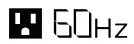 | Communication Failure between Main Board and AC | AC icon Flashes. Restart RIVER 600 PRO. If icon keeps flashing, contact [email protected] |
| OVERHEAD | Inverter Output Overload | AC and Overload icons flash together. Wait 10 seconds, turn AC Power ON/OFF. Please note that electrical appliances must be operated within rated power. (For more information about the X-Boost function, go to P12 to see the power limit for appliance use in X-Boost mode. ) |
| Inverter High-Temperature Protection | AC and High-temperature icons flash together. Let RIVER 600 PRO cool down. Then turn AC Power On/OFF the interface will automatically resume operation. |
| Inverter Low-Temperature Protection | The AC and Low-Temperature icons flash together. Move RIVER 600 PRO to a warmer place and wait for the inverter to warm up. Press AC Power ON/ OFF button again. It will automatically recover. If it doesn’t, contact [email protected] |
 | Fan Blockage | Fan icon flashes. Turn Off RIVER 600 PRO and carefully clean and vacuum around vents on both ends. |
 OVERHEAD OVERHEAD | Car Charger Overload | Turn System Power On. If the icon keeps flashing contact [email protected] |
| Car Charger High-Temperature Protection | Car and High-Temperature icons flash together. Wait for RIVER 600 PRO to cool down and it will automatically recover. |
Solar Panel Connection
How to recharge the RIVER 600 PRO using solar panels?
If you need to know more about the connection of solar panels, please refer to the Solar Panel User Guide.
Here we focus on demonstrating how one or two solar panels in parallel. The RIVER 600 PRO can support a 1025V DC input.
When the input exceeds 25V, the RIVER 600 PRO’s overvoltage protection will be triggered. Overvoltage may damage the product. Users should follow these instructions. EcoFlow does not provide free repair services for any product damage caused by connecting any solar panels to the product or incorrect connection, even during the warranty
period.
1. Recommend Charging Method
Users can connect a solar panel (do not connect more than one in series) as shown in Example 1. Connect to EF MC4 to XT60 solar charge cable. Connect the XT60 connector to the RIVER 600 PRO’s XT60 input to charge the device. Users can connect up to 2 sets of solar panels in parallel to the MC4 port as shown in Example 2. If you want to connect 2 pieces of solar panels, connect them with our solar MC4 parallel connection cable. Connect the XT60connector to the RIVER 600PRO’s XT60 input to charge the device. The parallel connection cable is an optional accessory that is purchased separately.e.g.1
RIVER 600 PRO Charging Port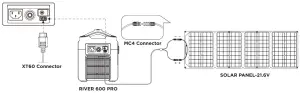
e.g.2(Only supports parallel connection, NOT serial connection) RIVER 600 PRO Charging Port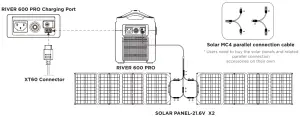
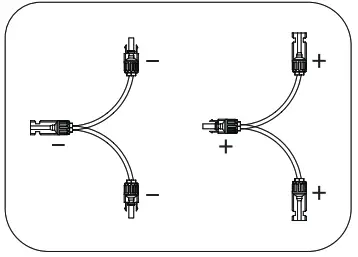
Solar MC4 parallel connection cable
* Users need to buy the solar panels and related parallel connection accessories on their own.
2. RIVER 600 PRO supports the use of third party solar panels (DIY solution)
Users can buy universal solar panels of MC4 connection standard on their own to power RIVER 600 PRO, as long as the voltage and current (10-25V DC, 12A Max) comply ith the specifications of RIVER 600 PRO, the panels will be able to recharge RIVER 600 PRO through the MC4 to XT60 conversion cable. However, EcoFlow does not provide free repair services for any damage to the product caused by the quality issue or improper operation of the third-party solar panels, even in the warranty period.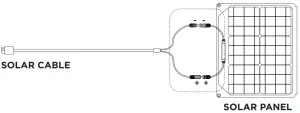
Entry-Level UPS
RIVER 600 PRO Entry-level UPS and Parallel Connection Use Reminder
Entry-level UPS function. RIVER 600 PRO’s X-STREAM system supports an entry-level UPS function. You can use the RIVER 600 PRO AC socket while the device is connected to a wall socket with an AC power supply (the AC power comes from the grid, not the battery). When the grid loses power suddenly, the device can automatically switch to RIVER 600 RRO battery power mode in <30ms to ensure your work is uninterrupted. This is an entry-level grade UPS function that does not support 0msswitching. Do not connect devices with high uninterrupted power supply requirements. Perform multiple tests to confirm compatibility before connecting such devices as data servers and workstations with RIVER 600 PRO. the flow will not be responsible for any loss of data or equipment damage caused by users’ failure in following the instructions. For example, data server and workstation, otherwise it will affect your user experience. The parallel mode uses Parallel Cables to connect the Parallel Outlets of two products to provide almost doubled power of a single product. Since the UL2743 standard socket cannot be grounded effectively, please connect the grounded wire to the grounding screw ort of the input end according to your own needs, to ensure the safety using of the electrical appliances.
Entry-Level UPS User Guide
Users can connect the AC charging cable of RIVER 600 PRO to the power grid and connect a device to RIVER 600 PRO and turn on the AC switch to automatically enter the entry-level UPS mode. When the external power is cut off, power will be supplied from the battery of RIVER 600 PRO immediately to protect your device (as shown below).UPS is only applicable to electrical appliances below 600W. Please do not use other equipment at the same time to avoid OVERLOAD. EcoFlow is not responsible for any abnormal operation or data loss caused y careless use. Only one RIVER 600 PRO can conduct the UPS function. To connect, follow the instructions below. More than one RIVER 600 PRO connected CANNOT conduct the UPS function.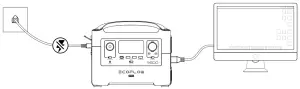
AC X-Boost Mode
EcoFlow AC X-Boost allows you to use 600W-1200W appliances with the RIVER 600 PRO AC inverter without the disruption caused by overload protection. As a result, there s no need to buy different electrical devices in order to use it on the product. Traditional inverters will overload when one electrical appliance with a higher rated power is connected. Those inverters cannot be used to power such appliances. EcoFlow AC X-Boost enables the powering of 600W-1200W electrical appliances. Please take note of the following when using this mode:
1. The X-Boost mode is enabled by default. You can use the App to turn on or off this function. Please do not connect AC output to the home grid under X-Boost mode, otherwise, the low voltage protection will trip during use.
2. The X-Boost mode is not available in the following situations: in the parallel connection state, the charging state, X-Boost mode off state.
3. When using appliances with a rated power of 600W-1200W, please only connect to one appliance. When more than one electrical device are connected, the change of voltage may affect the usage of other electrical devices.
* The X-Boost mode is not applicable for all electrical devices. Some devices with a rated power of 600W-1200W that have strict voltage requirements are still not compatible. Please conduct a full test to confirm before usage, so it will not affect your work. It is recommended to use electrical equipment with heating elements and with rated power between 600-1200W, such as hair dryers, electric kettles, coffee machines.
RIVER 600 PRO and RIVER 600 PRO Extra Battery Connection
First prepare the RIVER 600 PRO, RIVER 600 PRO Extra Battery, and Expansion Power Cable, then turn off the power of the RIVER 600 PRO and RIVER 600 PRO Extra Battery to ensure accurate operation. If it is operated in the power-on state, it will not be able to connect successfully.
1. Open the soft plug under the AC port of the RIVER 600 PRO to expose the Expansion Power Port, connect with the Expansion Power Cable, and tighten the screws on both sides of the interface to prevent it from accidentally falling off.
2. Open the RIVER 600 PRO Extra Battery dust cover, find the Expansion Power Port interface, connect the other end of the Expansion Power Cable, and tighten the screws on both sides of the interface to prevent it from accidentally falling off.
3. Turn on the power switch of RIVER 600 PRO, or turn on the power switch of RIVER 600 PRO Extra Battery. The power-on icon displayed on the screen of RIVER 600 PRO indicates that the connection is successful. It is recommended to fully recharge the battery for the first time to ensure that the capacity of the two machines is balanced and the maximum efficiency of the RIVER 600 PRO Extra Battery can be exerted.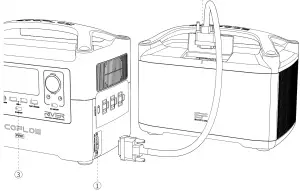
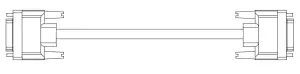
Expansion Power Cable
* Not included in the package, this cable only comes with RIVER 600 PRO Extra Battery
Technical Specifications
| General Specs | |
| Net Weight | * 15.9 lbs (7.2kg) |
| Dimensions | * 11.3 x 7.3 x 9.96in (28.8 x 18.5 x 25.3cm) |
| Capacity | 720Wh (28.8V) |
| Testing and certification | UL Standard, CE, FCC, RoHS |
| Outputs | |
| AC Output (x3) / (x2 International Version) Full Sine Wave | 600W (Surge 1200W) total, 120Vac (50Hz/60Hz) / 230Vac (50Hz/60Hz) |
| USB-A Output (x2) | 5V DC, 2.4A, 12W Max, per port |
| USB-A Fast Charge (x1) | 5V DC, 9V DC, 12V DC, 2.4A, 28W Max |
| USB-C Output (x1) | 5V DC, 9V DC, 12V DC, 15V DC, 20V DC, 5A, 100W Max |
| Car Power Output (x1) | 136W, 13.6V DC, 10A Max |
| DC5521 Output (x2) | 13.6V DC, 3A Max (per port) |
| Input | |
| AC Charge Input Voltage | 100-120Vac (50Hz/60Hz) International Version 220-240Vac (50Hz/60Hz) |
| AC Charge Input Power (Example 1) | 100-120Vac (50Hz/60Hz) |
| Solar Charge Input | International Version 220-240Vac (50Hz/60Hz) |
| Car Charger (Example 2) | 12V/24V DC 10A max |
| Battery | |
| Cell Chemistry | Lithium-ion |
| Discharge Temperature | -4 to 140°F +/-5°F (-20 to 60°C +/-3°C) |
| Charge Temperature | 32 to 113°F +/-5°F (0 to 45°C +/-3°C) |
| Shelf Life | 1 Year (after fully charged) |
| Cycle Life | 800 Cycles (80+%) |
* Please Note: The above weight, size, etc. have certain measurement errors. Please refer to the actual measurement.
How to Recharge RIVER 600 PRO
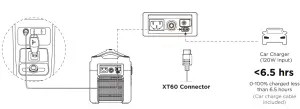
Example 1: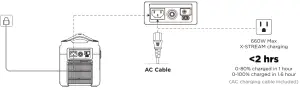 Example 2:
How do I recharge my RIVER 600 PRO?
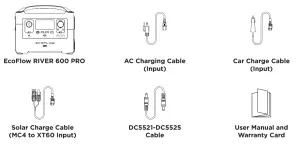
RIVER 600 PRO has an AC charging port and an XT60 charging port located on the side of the RIVER 600 PRO. The RIVER 600 PRO can be charged via AC power or a 12V car charger. Besides, you can also use solar panels and connect the solar charge cable to the XT60 solar charging port of RIVER 600 PRO for charging.
Can RIVER 600 PRO power my device while it’s charging?
Yes, RIVER 600 PRO can output power while being charged.
FAQs
How do I clean for RIVER 600 PRO?
The RIVER 600 PRO is a versatile tool on many adventures, so that simple cleaning will likely be required from time to time. Use dry, non-abrasive cloths to wipe. If you need to clean more thoroughly, we recommend that you use a detergent that is used for cleaning mobile phones and computer screens. Do Not expose RIVER 600 PRO to lots of
liquid.
How do I store RIVER 600 PRO?
Please store RIVER 600 PRO in a dry and cool place. DO NOT place it near water. If you need to store RIVER 600 PRO for a long time, please charge the battery to around 85%, in order to extend battery life. Then turn off the main switch and store at room temperature.
How do I use RIVER 600 PRO safely?
Please use RIVER 600 PRO in its operating temperature range. Using RIVER 600 PRO out of the optimal operating temperature range may cause RIVER 600 PRO to exceed its safe and effective working limits. DO NOT immerse RIVER 600 PRO in water. Doing so will void the warranty. RIVER 600 PRO is not waterproofed. If RIVER 600 PRO power electrical devices with heating elements (600W) over half hours, it is normal to appear over-temperature protection. Please wait about 1 hour before using or charging.
Can it be upgraded?
The firmware can be upgraded using the EcoFlow App. It is recommended that RIVER 600 PRO is plugged into AC or has 50% power and System Power is ON when upgrading. For more details, please refer to the “How to upgrade firmware” FAQ in APP.