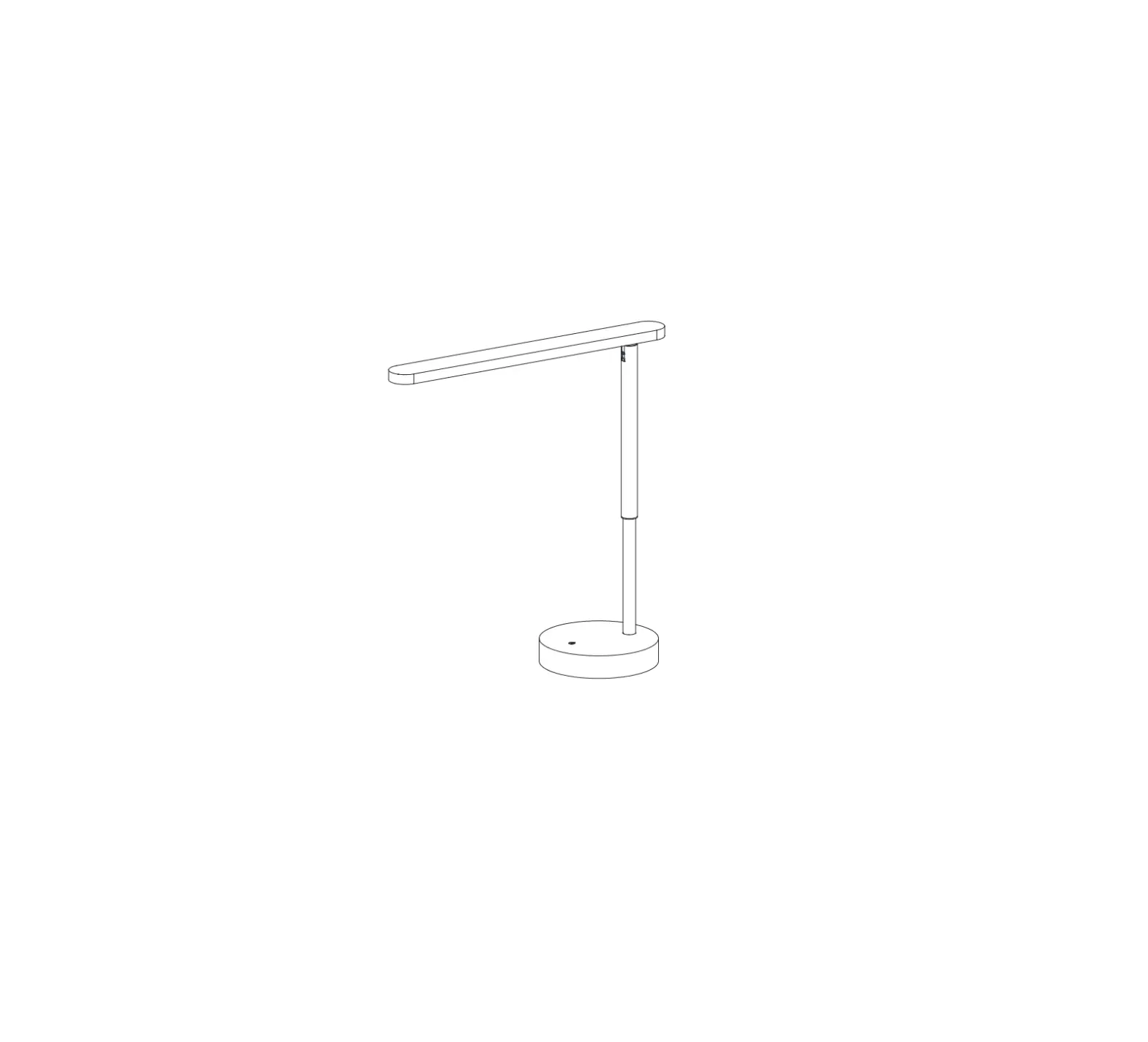
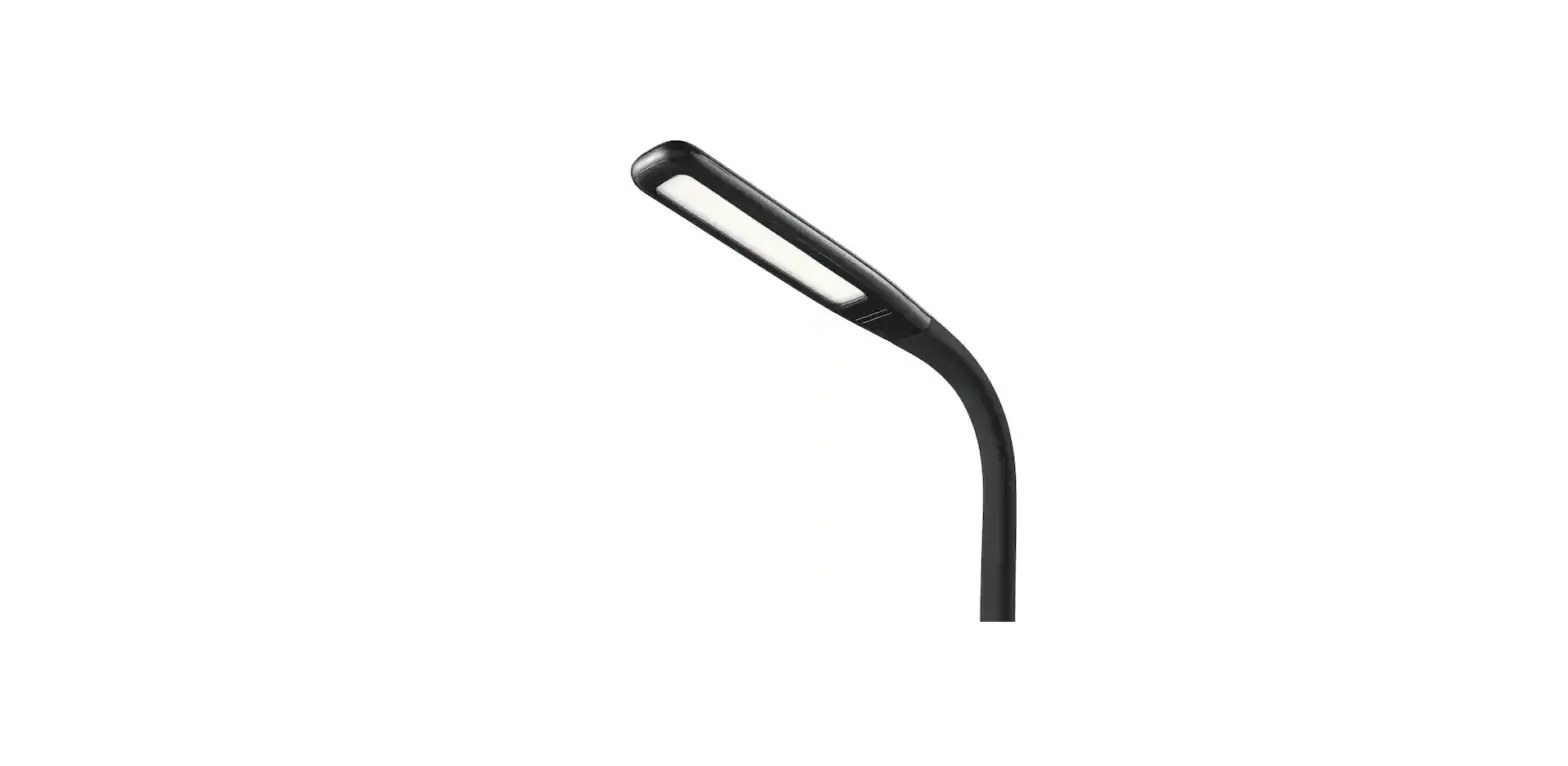
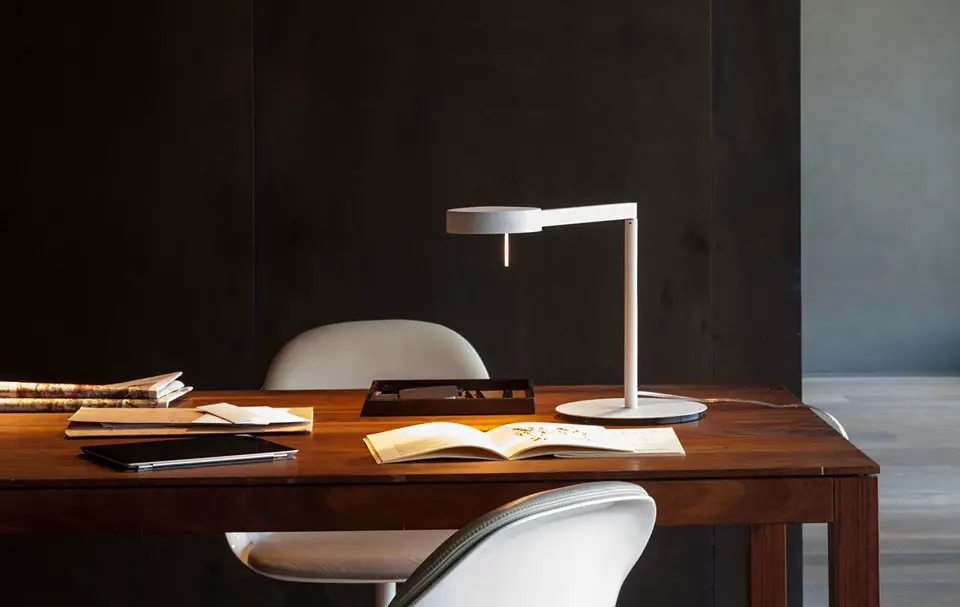
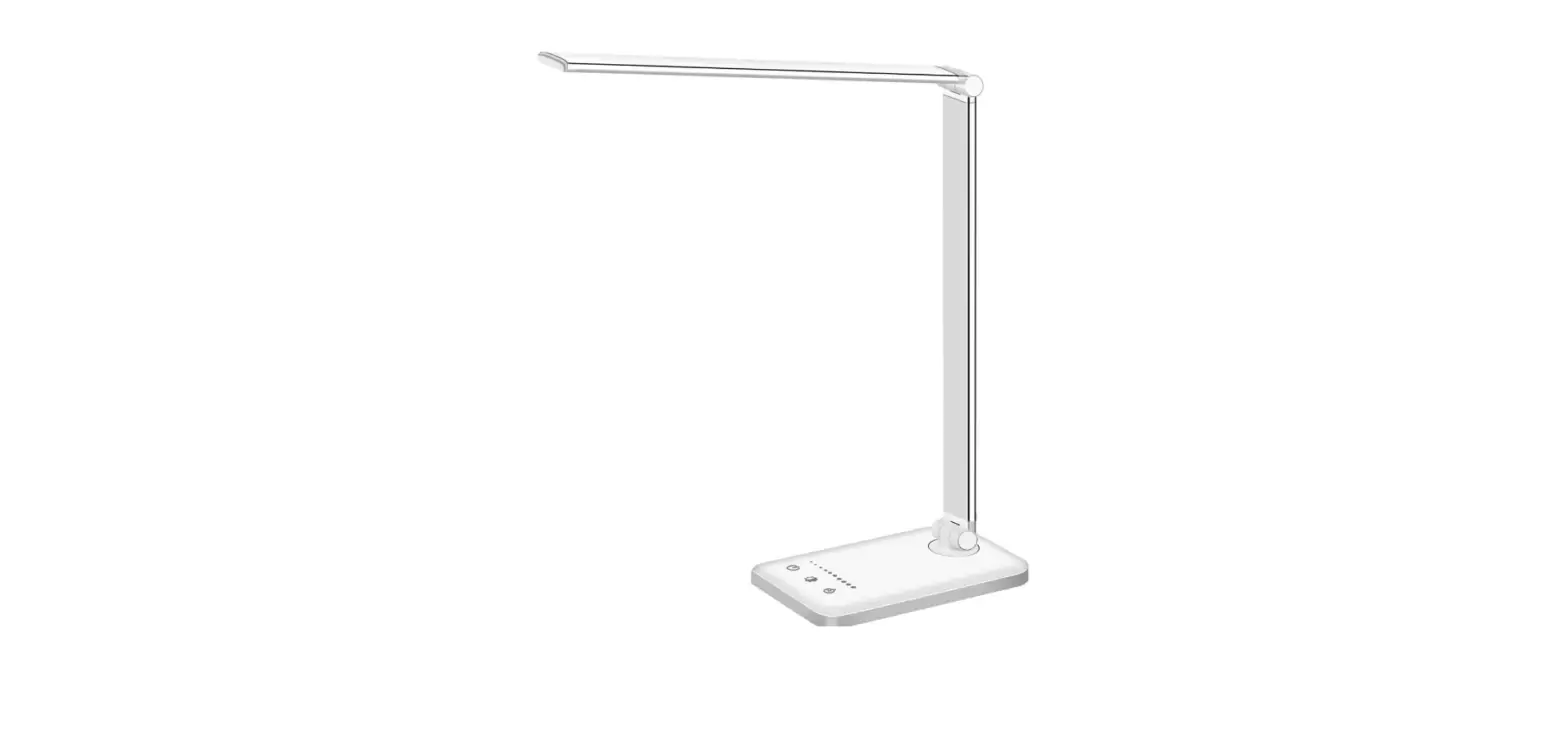
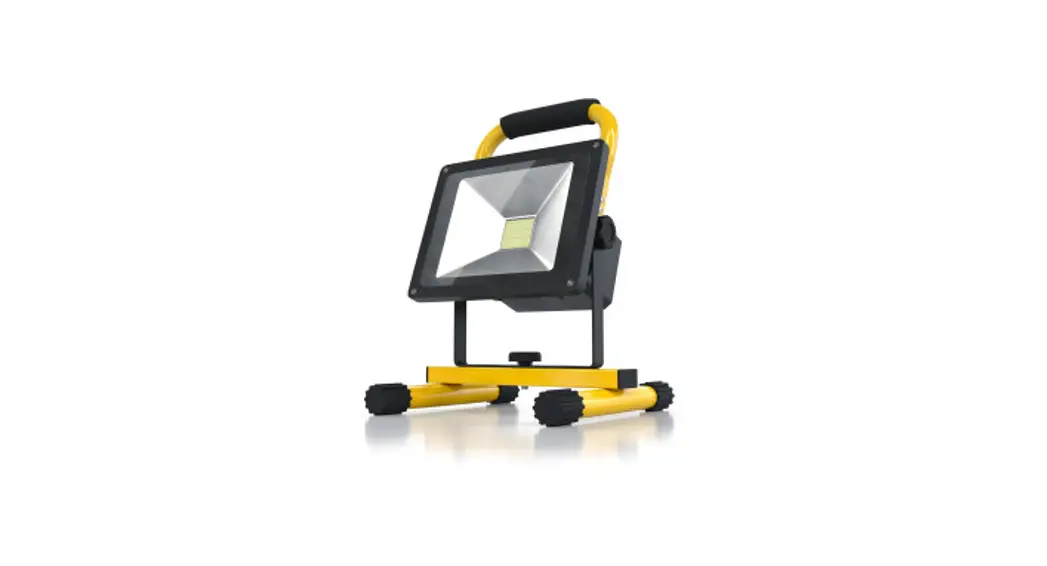
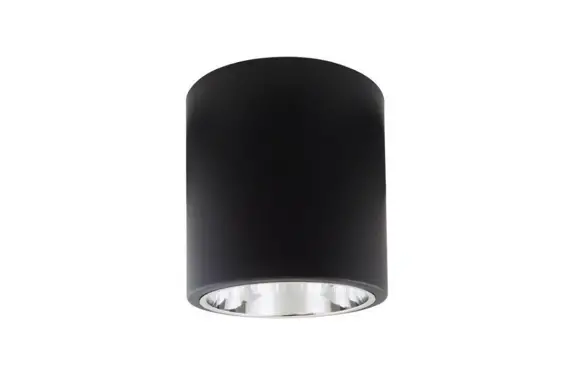
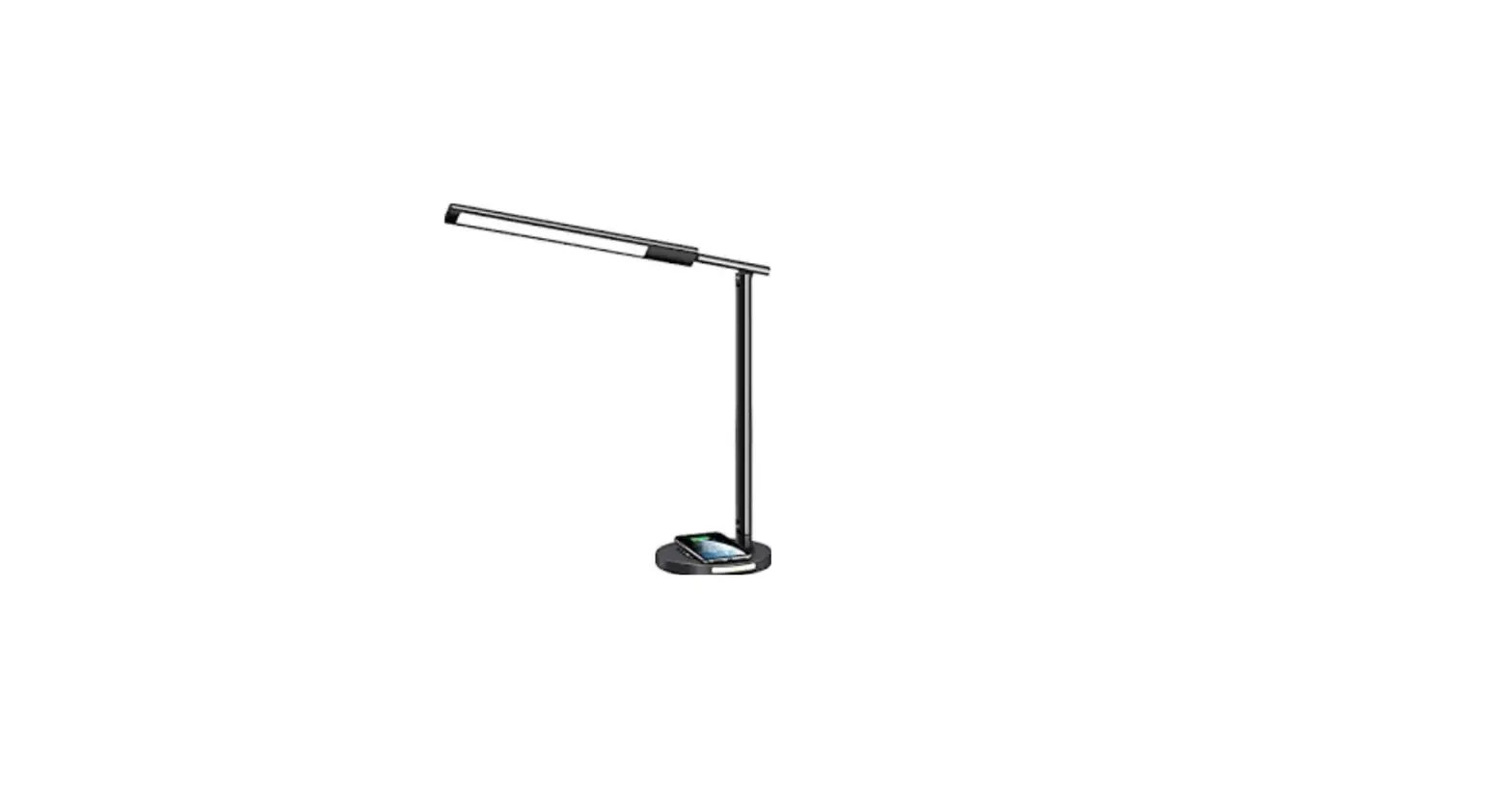
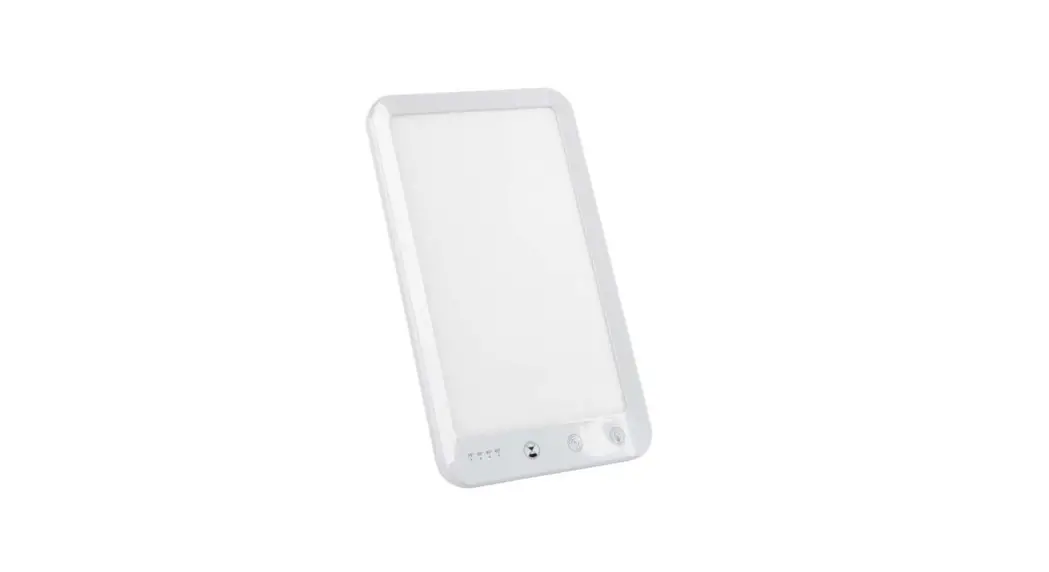
BW450 LED Lamp
Product Information
The MERKURY smart home product is a LED Lamp that can be
controlled using the Merkury Smart App. It allows you to easily
connect to your home Wi-Fi and manage multiple devices from your
phone or tablet.
Features:
- LED Lamp
- Compatible with Amazon Alexa and Google Assistant
- Supports voice control
- Allows device renaming for easier control
- Convenient app for managing all devices
Specifications:
- Complies with part 15 of the FCC Rules
- Operates without causing harmful interference
- Can be used in portable exposure condition without
restriction - Minimum distance of 20cm required between the radiator and your
body
Product Usage Instructions
Amazon Alexa:
- Download and open the Alexa app on your phone or tablet.
- Go to Skills in the menu and search for “Merkury Smart”.
- Enable the Merkury Smart skill.
- Authorize your account with Smart Home Skills using the
username and password from your Geeni app. - Choose Discover Devices in the Alexa app. After a few seconds,
your Merkury devices will be displayed under Smart Home. - You can control your devices by saying commands like “Alexa,
turn on the bedroom light” or “Alexa, set the living room to
50%”.
Google Assistant:
- Download and open the Google Home app on your phone or
tablet. - Go to Home Control partners and choose Merkury Smart from the
list. - Authorize your account with Google Assistant using the username
and password from your Merkury Smart app. - Your Google Home app and Merkury devices are now linked.
- You can control your devices by saying commands like “Hey
Google, turn on the bedroom light” or “Hey Google, set the living
room to 50%”.
Note: Make sure your devices are already set up using the Geeni
app before attempting to control them with Amazon Alexa or Google
Assistant.
Can’t connect? Need help?
WE CAN HELP
DO NOT RETURN THIS PRODUCT TO
THE STORE
support.merkurysmart.com or tap `support` for help in the
Merkury Smart app.
START GUIDE
LED LAMP
Scan code for the latest manual online
Thank you for purchasing your MERKURY smart home product. Get started using your new devices by downloading the Merkury Smart App, one convenient app that manages everything straight from your phone or tablet. Easily connect to your home Wi-Fi, and control multiple devices from the touch of your fingertips.
13
Amazon Alexa
03
Authorize your account with Smart Home Skills using the username and password from your Geeni app.
04
Choose “Discover Devices.” After a few seconds your Merkury devices will be displayed under Smart Home in the Alexa app.
By signing in, you are authorizing Google to access your devices
Email Address*
Password* Sign In
Contents
You can rename your devices in the Merkury Smart app, and Alexa will
refer to them by the same name.
Start Guide
So if you rename a smart strip to “Living Room” or a nickname like
Download & Register
01
“Blossom,” then Alexa will use that same name later on.
Prepare
02
Alternatively, you can create an Alexa group, like “Bedroom” or
“Downstairs,” and add the device to the group.
Connect (Auto Discovery)
03
Alexa will recognize the group name in the Alexa app, or the device name
Questions, Troubleshooting, Notices
05
in the Merkury Smart app.
Voice Control Guide
Google Assistant
09
Amazon Alexa
11
12
FCC Notice: This equipment has been tested and found to comply with the limits for a Class B digital device, pursuant to part 15 of the FCC Rules. These limits are designed to provide reasonable protection against harmful interference in a residential installation. This equipment generates, uses and can radiate radio frequency energy and, if not installed and used in accordance with the instructions, may cause harmful interference to radio communications. However, there is no guarantee that interference will not occur in a particular installation. If this equipment does cause harmful interference to radio or television reception, which can be determined by turning the equipment off and on, the user is encouraged to try to correct the interference by one or more of the following measures: · Reorient or relocate the receiving antenna. · Increase the separation between the equipment and receiver. · Connect the equipment into an outlet on a circuit different from that to which the receiver is connected. · Consult the dealer or an experienced radio/TV technician for help.
Caution: Any changes or modifications to this device not explicitly approved by manufacturer could void your authority to operate this equipment.
This device complies with part 15 of the FCC Rules. Operation is subject to the following two conditions: (1) This device may not cause harmful interference, and (2) this device must accept any interference received, including interference that may cause undesired operation.
The device has been evaluated to meet general RF exposure requirement. The device can be used in portable exposure condition without restriction.
This equipment should be installed and operated with minimum distance 20cm between the radiator& your body.
Things you can say*:
Amazon Alexa
To control your Merkury smart bulbs, plugs or surge protectors, just ask Alexa. Make sure your devices are already set up using the Geeni app.
“Alexa, discover my devices.” “Alexa, turn on the bedroom light.” “Alexa, set the bedroom light to orange.” “Alexa, set the living room to 50%.” “Alexa, dim porch light.”
*Some commands require compatible devices.
01
Open the Alexa app and go to Skills in the menu.
02
Search for Merkury Smart then tap Enable.
Merkury Smart
11
Google Assistant
03
Choose “Merkury Smart” from the list of Home Control partners.
04
Authorize your account with Google Assistant using the username and password from your Merkury Smart app.
Now your Google Home app and Merkury devices are linked!
You’re now able to say “Hey Google” and control your Merkury devices.
/account.mymerkurysmart.com/
By signing in, you are authorizing Google to access your devices
Email Address*
Password* Sign In
At any time, go into the “Home Control” section of the Google Home app to set nicknames and rooms for your devices. You can rename your devices in the Merkury Smart app, and Google Assistant will refer to them by the same name.
So if you rename a smart bulb to “Living Room” or a nickname like “Blossom,” then Google Assistant will use that same name later on. You can always give it a nickname using the Google Home app as well. You can also assign bulbs to a specific room, like “Bedroom” or “Kitchen.”
Google Assistant will be able to control devices by room.
10
Important Information: Read and follow all precautions, including the following: CAUTION: RISK OF ELECTRIC SHOCK OR BURNS – USE IN A DRY LOCATION ONLY. The weather resistant IP44 rating only protects the LED bulb from splashes in any direction. DO NOT IMMERSE IN WATER. WARNING: The LED bulb must be unplugged when making any modifications to the device. Electrical currents are dangerous and may cause electrical shock, injury, or death (in some cases)
Support: If you encounter any issues, please contact us at support.merkurysmart.com for help. To explore our full selection of products, visit us at: www.merkurysmart.com
© 2023 Merkury Innovations · 45 Broadway 3rd FL, New York NY 10006. The illustrated product and specifications may differ slightly from those supplied. iPhone, Apple and the Apple logo are trademarks of Apple Inc., registered in the U.S. and other countries. App Store is a service mark of Apple Inc. Google, Google Play, and related marks and logos are trademarks of Google LLC. iOS is a registered trademark of Cisco in the U.S. and other countries and is used under license. Amazon, Alexa and all related logos are trademarks of Amazon.com, Inc. or its affiliates. All other trademarks and trade names are those of their respective owners. Made in China
START GUIDE
What’s in the Box
4x Smart Wi-Fi LED Bulbs
User Manual
Get Ready
Know your Wi-Fi network and password
E26
Find an existing light socket (E26 shape)
2.4GHz
Make sure you’re connecting to a 2.4GHz Wi-Fi network (This device can’t connect to 5GHz networks)
iOS 13 Android 10 Make sure your mobile
device is running iOS® 13 or higher or
AndroidTM 10 or higher
Things you can say*:
Google Assistant
To control your Merkury smart bulbs, plugs or surge protectors, just say “OK Google,” or “Hey Google,” and ask. Make sure your devices are already set up using the Merkury Smart app.
“Hey Google, turn on all the lights in my bedroom.” “Hey Google, set the bedroom light to orange.” “Hey Google, set the living room to 50%.” “Hey Google, dim porch light.”
*Some commands require compatible devices.
01 Open the Google Home app and go to Home Control in the menu.
02 Tap the “+” button.
9
VOICE CONTROL GUIDE
Thank you for purchasing your MERKURY smart home product. Make sure your devices are already set up using the Merkury Smart app, then follow these steps.
Name and Control Each Device by Voice
Contents
Voice Control Guide
Google Assistant
09
Amazon Alexa
11
STEP 1
Download & Register
Download the Merkury Smart App from App Store or Google Play.
Register an account on your App.
01. Enter your email address.
02. Enter the verification code and create a password.
03. Log in to the App.
By creating an account, I agree to Merkury’s Terms of Service.
1
Prepare
STEP 2 Screw In
Screw in the bulb and turn on the power. The bulb should be flashing. *see reset instructions on p. 7
2
7
Questions. Troubleshooting. Notices
Troubleshooting
Cannot connect to your Wi-Fi network. Make sure you entered the correct Wi-Fi password during the Wi-Fi setup. Check whether there are any Internet connection problems. If the Wi-Fi signal is too weak, reset your Wi-Fi router and try again.
Reset the device
Reset the LED bulb by switching the bulb off then on, 3 times. The LED bulb will flash and your device will be in pairing mode again.
System Requirements
Mobile device running iOS® 13 or higher or AndroidTM 10 or higher Existing Wi-Fi Network
Technical Specifications
E26 base 110 -130V, 60 Hz Wi-Fi: IEEE 802.11n, 2.4GHz (not compatible with 5GHz Wi-Fi networks)
STEP 3
Set Up:
Auto Discover Device
Your device is now able to be discovered magically to connect to your home Wi-Fi network. It’s quicker and easier than ever to connect.
01.
Device is Flashing
Connect (Auto Discovery)
Connect to 2.4GHz Wi-Fi
Add device:
02. While the device is flashing, tap “Auto-Discovery” on the Add Device screen of the Merkury Smart app.
03. The Merkury Smart app will automatically detect your Smart Bulbs.
6
3
Connect (Auto Discovery) 04. The Merkury Smart app will automatically detect the network that your smartphone is connected to. Enter the password to your Wi-Fi network, then tap “Next Step” and the device will connect. 05. The Merkury Smart app will try to connect your device.
NOTE: This device can’t connect to 5GHz networks. *If you are unable to pair initially, reset your device and try pairing using the alternative method provided in the app.
Pairing Device
06. The Merkury Smart app will attempt to connect. This may take a few moments.
4
Questions. Troubleshooting. Notices
Frequently Asked Questions
How do I customize my dashboard? Select the “Edit” option on the top of “Home” page. Create additional pages on your dashboard by dragging tiles to the right and organize devices to fit how you use them.
How Many Devices Can I Control? Merkury Smart app can control an unlimited amount of devices in an unlimited amount of locations. Your router may have a limit of how many devices can be connected to one router.
How do I rename my device? From your main device list, click on the device you want to rename, then click “Device Settings”, then click on “Device Name”. Rename your device to a more familiar name like “Bedroom” or “Living Room” and then click Save.
The device appears offline or unreachable, what should I do? Make sure your Wi-Fi router is online and in range. Make sure your device is plugged in and paired. You may also try restarting the device or if needed, re-pairing it.
What’s the Wireless Range? The range of your home Wi-Fi is heavily dependent on your home router and the conditions of the room. Check with your router specifications for exact range data.
If my Wi-Fi/Internet goes down, will Merkury Smart still work? Merkury products need to be connected to Wi-Fi in order to control them remotely.
5
 Amazon.com. Spend less. Smile more.
 Merkury Smart - Smart Home Products for a Smarter Lifestyle