
Sharp How To Power Down A Cb-series Display With Ops Pc Installed Instructions

Sharp How To Power Down A Cb-series Display With Ops Pc Installed Instructions

SHARP-LOGO

SHARP How to Power DOWN a CB-Series Display with OPS PC Installed

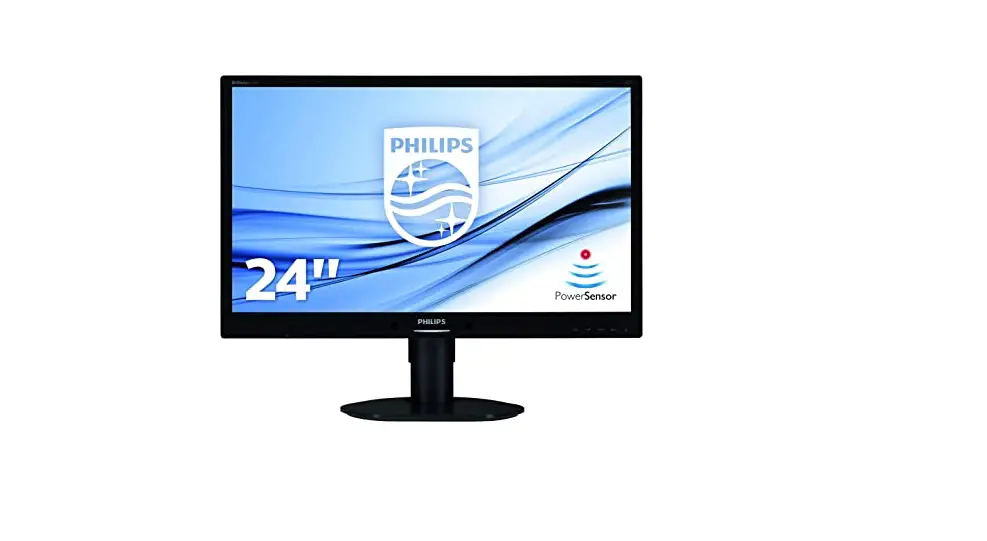
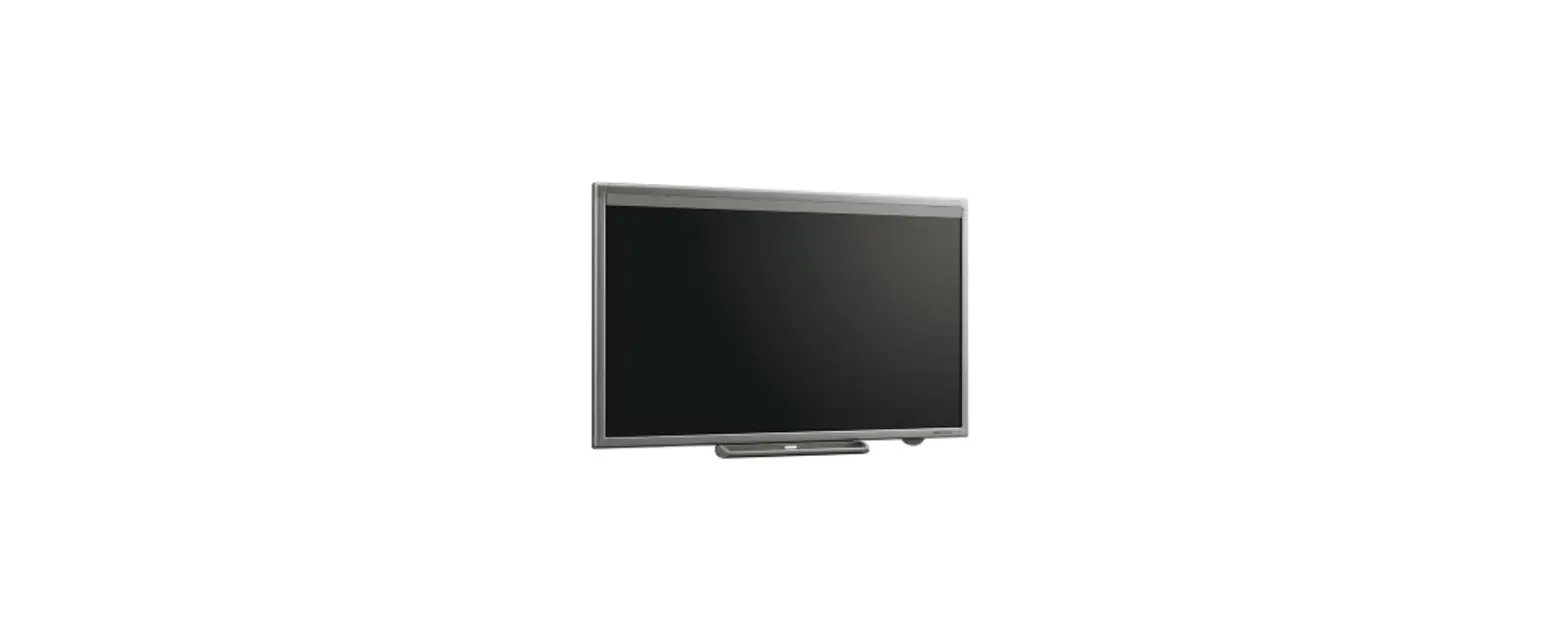
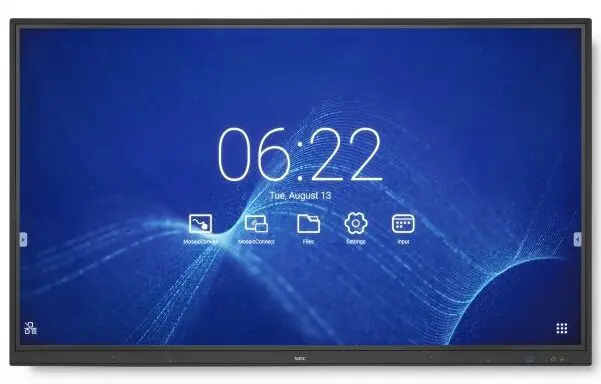
SHARP-How -tO- Power-DOWN-a -CB-Series-Display-with-OPS-PC-Installed-PRODUCT-IMAGE

How to Power DOWN a CB-Series Display with OPS PC Installed


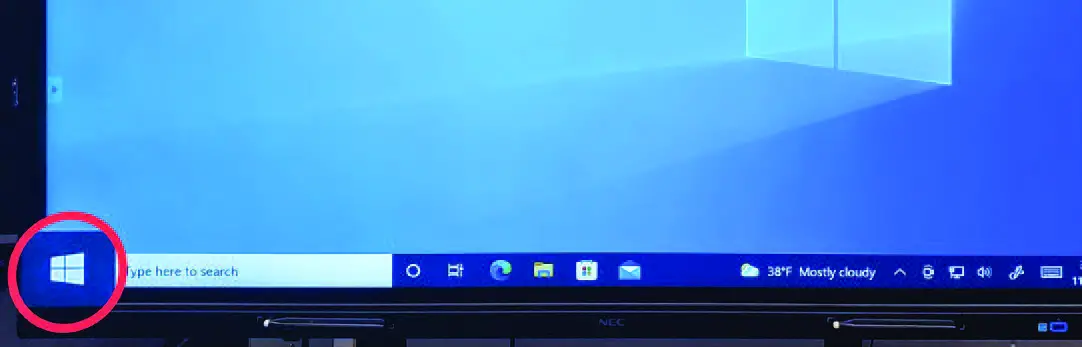
Step 1: Select the `Windows’ button at the bottom left-hand corner of your screenSHARP-How -tO- Power-DOWN-a -CB-Series-Display-with-OPS-PC-Installed-01
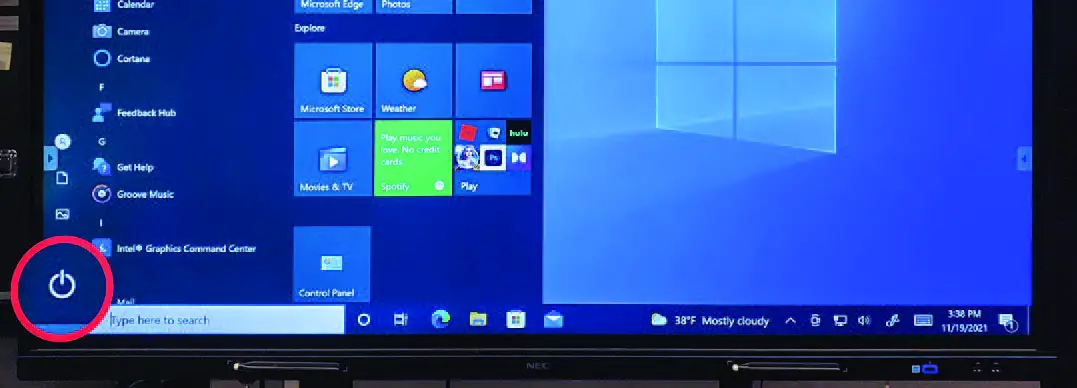
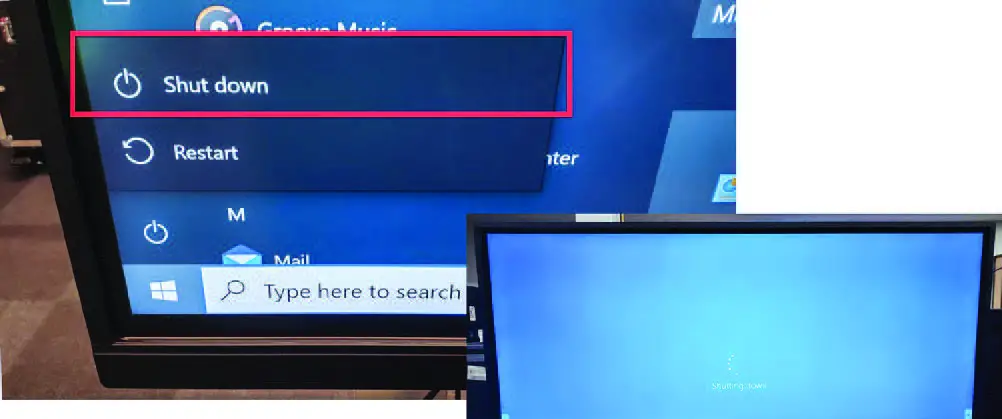
Step 2: Select the power buttonSHARP-How -tO- Power-DOWN-a -CB-Series-Display-with-OPS-PC-Installed-02

Step 3: Select Shutdown and wait for the system to shut itself downSHARP-How -tO- Power-DOWN-a -CB-Series-Display-with-OPS-PC-Installed-03
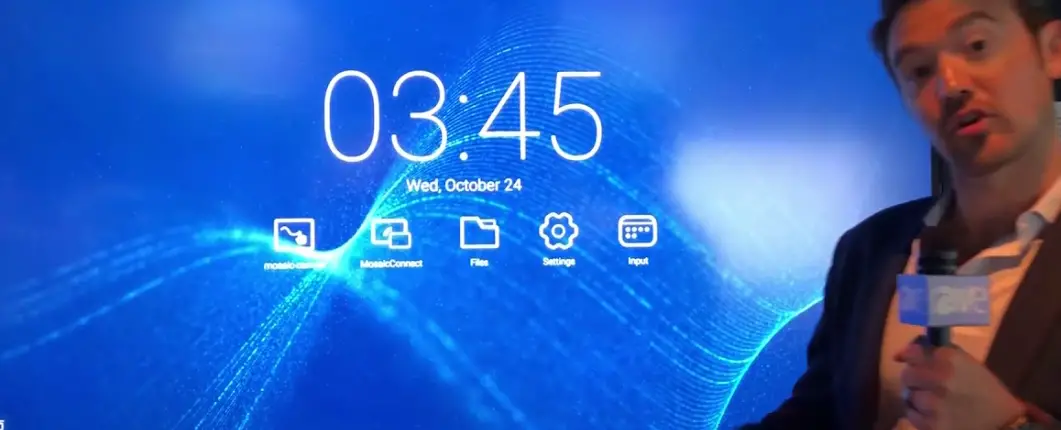
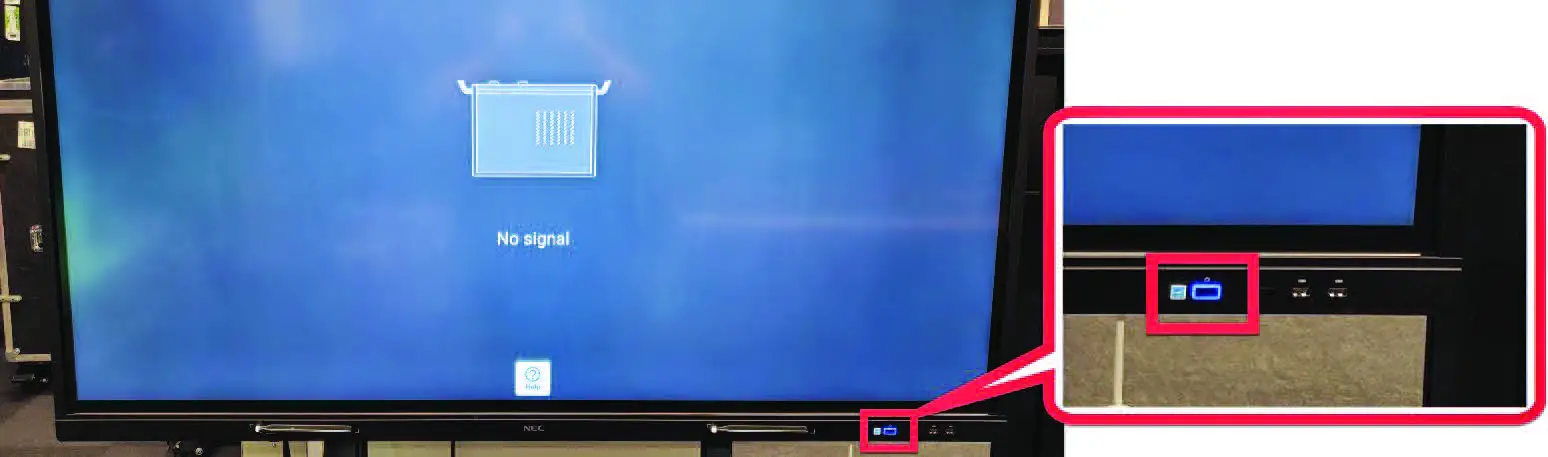
Step 4: When the following image is displayed press the power button located near the lower right- hand corner of the monitorSHARP-How -tO- Power-DOWN-a -CB-Series-Display-with-OPS-PC-Installed-04
How to Power UP a CB-Series Display with OPS PC Installed

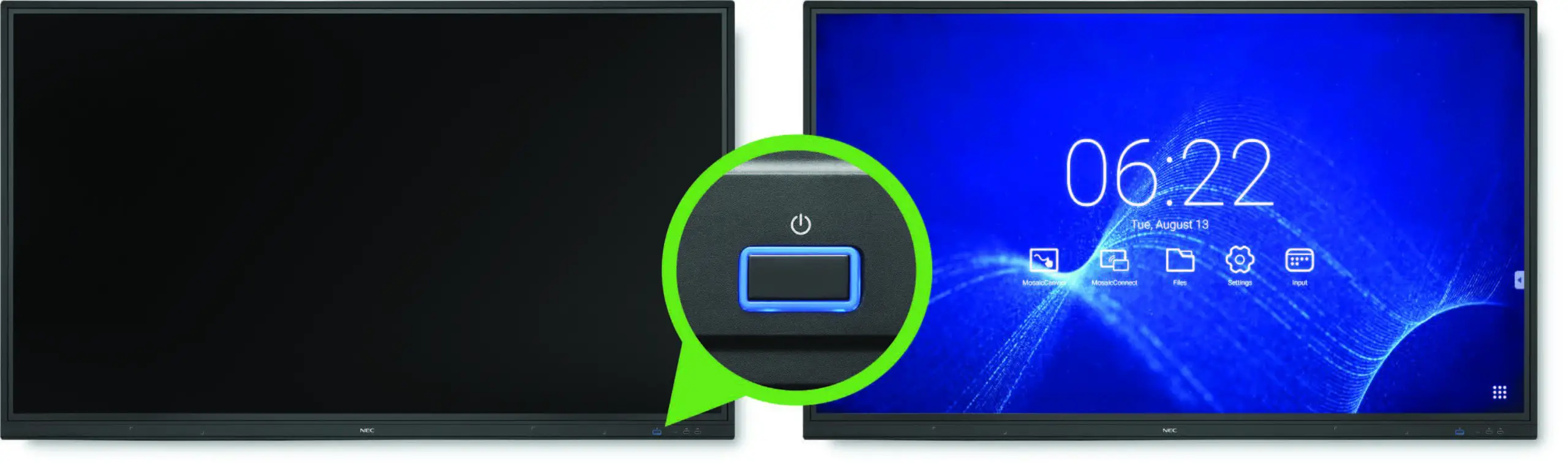
Step 1: Press the Power button located near the lower right-hand corner of the monitor to Power UP the Display and OPS PC. Once the display turns ON the OPS will begin the boot up process.

Note: You may need to log in with username and password.SHARP-How -tO- Power-DOWN-a -CB-Series-Display-with-OPS-PC-Installed-05
Documents / Resouces

Download manual
Here you can download full pdf version of manual, it may contain additional safety instructions, warranty information, FCC rules, etc.


Related Manuals