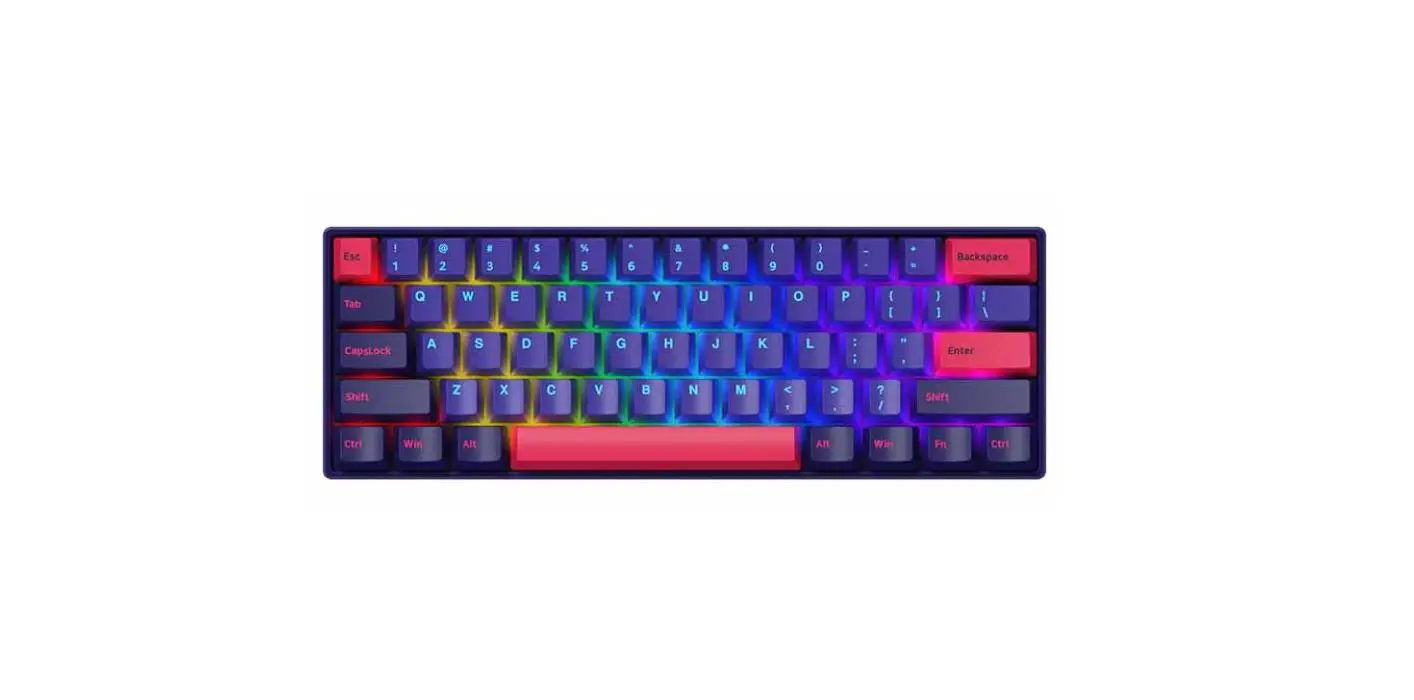
FC630MBT Series 60 Keys Bluetooth Mini Mechanical Keyboard
Product Information
Product Name: Leopold FC630MBT Bluetooth Mini
Mechanical Keyboard
Product Model: 630MBT Series
Manufacturer: LEOPOLD
Designed in: Korea
Contact Information: TEL 050-2020-1030
Website: www.leopold.co.kr
Product Usage Instructions
1. Important Safety Instruction
Please follow the safety instructions to ensure safe and proper
usage of the keyboard:
- Do not use the keyboard for a long time to prevent physical
disabilities. - If you experience discomfort, tiredness, pain, or muscle
stiffness, stop using the keyboard immediately and rest. - Use the keyboard on a flat surface to prevent falling
accidents. - Avoid liquid spills and foreign substances from entering the
keyboard. - Do not disassemble the keyboard.
The keyboard’s navigation features allow you to easily access
different sections of the user manual:
- Press the language key to navigate through different pages for
each language. - Press the title in the table of contents to move to the
corresponding page. - Press the button at the top of the page to move to the contents
page.
3. Keyboard Usage
To use the Leopold FC630MBT mechanical keyboard, follow the
instructions below:
Connecting the Keyboard
The keyboard supports Bluetooth connectivity and USB Type-C
connection.
- To connect via Bluetooth, make sure your device’s Bluetooth is
enabled, then follow the device pairing instructions. - To connect via USB, plug the USB Type-C cable into your
device’s USB port.
Keyboard Layout
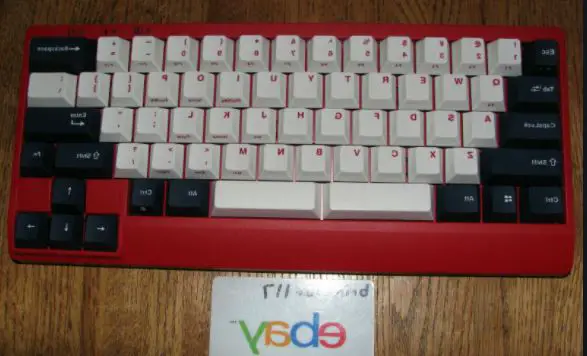
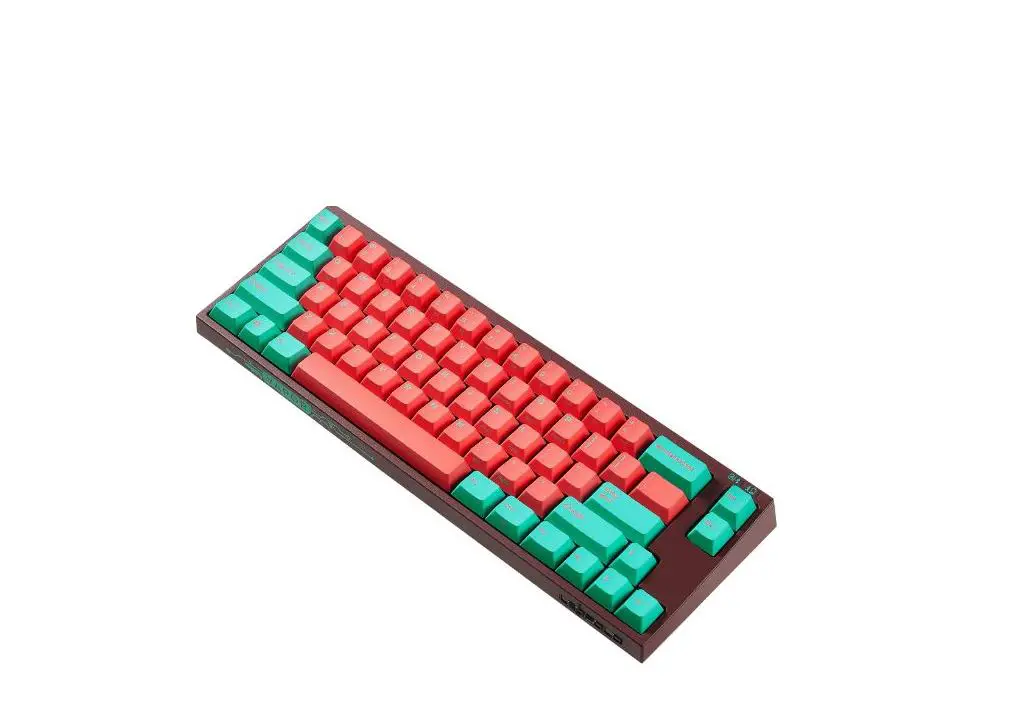
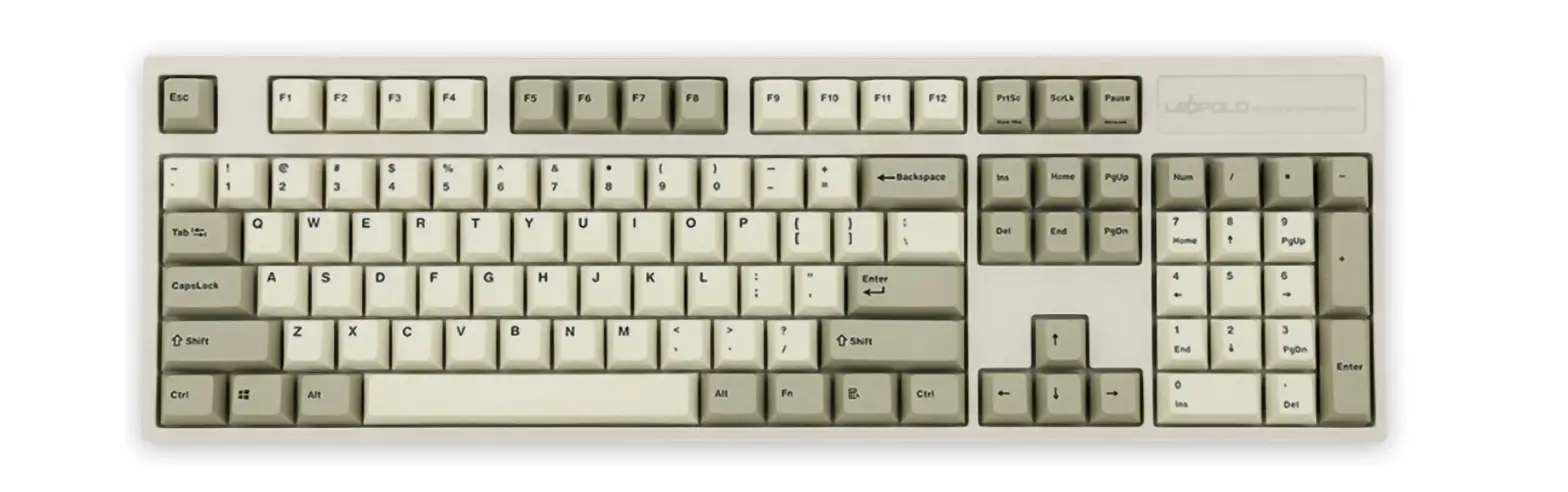
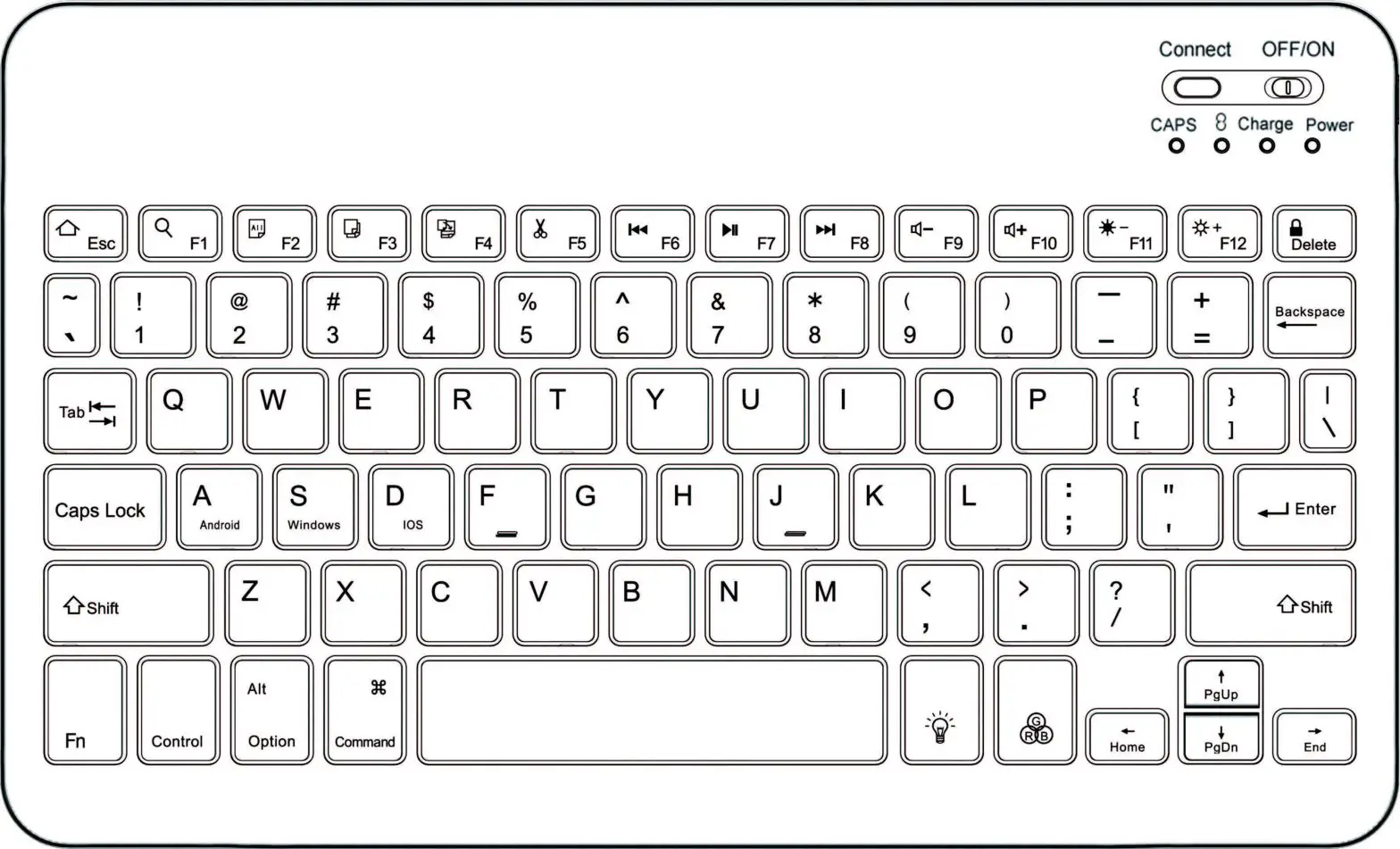
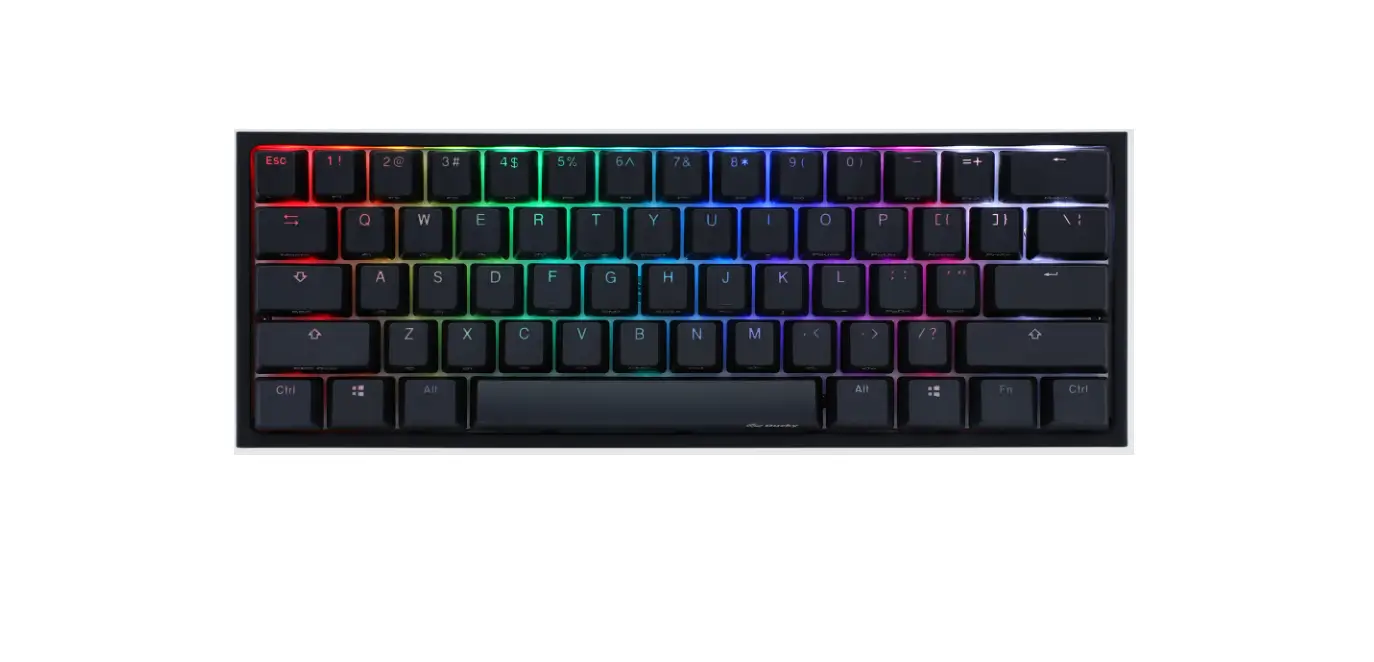
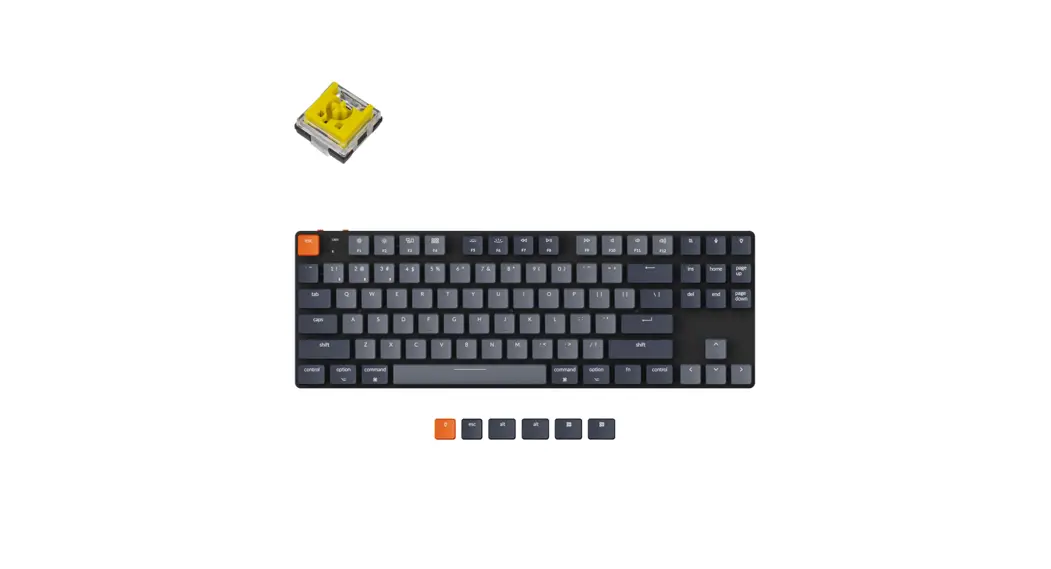
The Leopold FC630MBT keyboard features a mini layout with 60
keys. The keys are mechanical and use Cherry MX Switches for a
tactile typing experience.
Function Keys
The keyboard includes various function key combinations for
different actions:
- Fn + Z: Enable/disable Bluetooth pairing mode
- Fn + X: Cut
- Fn + C: Copy
- Fn + V: Paste
- Fn + B: Toggle LED backlight
- Fn + Tab: Switch between different layouts or profiles
Special Key Combinations
The keyboard includes special key combinations for specific
functions:
- Fn + Q: Toggle Caps Lock
- Fn + [ and Fn + ;: Adjust LED brightness
- Fn + ‘ and Fn + ~: Adjust LED effects
- Fn + /, Fn + W, Fn + A, Fn + D, Fn + S, Fn + I: Arrow keys
navigation - Fn + O: Print Screen
- Fn + P: Scroll Lock
- Fn + J and Fn + K: Insert and Home keys
- Fn + L: Page Up
- Fn + M: Delete
- Fn + <: End
- Fn + >: Page Down
- Fn + : Delete (alternative)
- Fn + Ctrl (right): Delete (alternative)
- Fn + Caps Lock: App key
- Fn + Space (left) and Fn + Space (right): Switch between
different keyboard layouts or profiles
Note: The user manual contains additional information on LED
settings, wireless connectivity, and other advanced features.
Please refer to the manual for further instructions.
Thank you for choosing the Leopold FC630MBT mechanical keyboard.
If you have any further questions or need assistance, please
contact our customer support.
630MBTSeries
60 keys Bluetooth mini mechanical keyboard Manual
&OHMJTI
When pressing the language key which you want to read, the screen will move on the page for each language.
www.leopold.co.kr
Designed by LEOPOLD in KOREA
TEL 050-2020-1030
‘$.#5
/(‘
$6
AS
A/S
64#
“””
1#5
Leopold FC630MBT1.5mmPBT PBTABS
$IFSSZ.94XJUDI
Leopold FC630MBTCherry MX Switch
7
Cherry MX Switch
jaJ
64#5ZQF$#MVFUPPUI
Leopold FC630MBTUSB Type-C 5.14
Compatible
1$64#1$ 8JOEPXT
0$&26
PC USB
PC 5
FC630MBT
AAA2
On
rFC630 MBTs
FC630MBT
‘$.#5
FC630MBT
+
FC630MBT FC630MBT
PIN Code ENTER
On
2Fn + Z~V
Fn + Z Fn + X Fn + C Fn + V
1 2 3 4
rFC630 MBTs
PIN Code ENTER
rFn+Zs 1
USB
rFn+Zs 1
rFn+Bs
FC630MBT
rFn+Tabs
rFn + Tabs rFC630MBTs rFC630MBTs
WindowsrFC630MBTs
Windows rFC630MBTs
Fn+rZ
X
C, Vs
PC
PC2.4GHz Wi-Fi
Wi-FiOff
5GHz
USBUSB 2.0 USB 3.0
USB
USB
/(‘
LED 0.52
$BQT-PDL LED
4DSPMM-PDL LED ‘O0
‘OQ
ESCC LED
/(‘
/(‘
/(‘
/(‘
/(‘
‘O5BC
/(‘
a /(‘
&4$
ESC ESC + Shift ESC + Fn
Fn + Q
‘O
Fn + [ Fn + ; Fn + ‘
ESC ~ `
(6&C
/(‘
Up Left Right
Fn + /
Down
Fn + W
Up
Fn + A
Left
Fn + D
Right
Fn + S
Down
Fn + I
PSc / SRq
Fn + O
ScrLk
Fn + P
Pus / Brk
‘O
Fn + J Fn + K
Insert Home
Fn + L
Page Up
Fn + M
Delete (1)
Fn + <
End
Fn + >
Page Down
Fn +
Delete (2)
Fn + Ctrl (right)
App
Fn + Caps Lock
Windows Key
Fn+QLED
Fn + Z
Fn + X
‘O
Fn + C Fn + V
Fn + B
Fn + Tab
OFF(Default) Ctrl (left) Caps Lock
Number Keys Caps Lock Ctrl (right) Fn Ctrl (left) Fn Space (left) Fn Space (right) Fn
ON Caps Lock Ctrl (left)
F1 ~ F12 Windows Key
Delete Fn
Ctrl (right) Fn
Ctrl (left) Fn
Space (left) Fn
Space (right)
1~5 5~8
a
1, 3, 6
Ctrl (left) Windows Key Caps Lock Ctrl (left)
Ctrl (left) Caps Lock
Caps Lock Fn
Fn
Ctrl (left)
Ctrl (left) Windows Key
Caps Lock Fn
Fn
Ctrl (left)
3& 3&
2))
$6
$6 $6
(This warranty is
valid only in korea.)
Thank you for purchasing the Leopold FC630MBT mechanical keyboard. Please read the instruction manual carefully before using FC630MBT.
Contents
1. Important Safety Instruction 2. Basic product composition 3. Product features tÐÆÐÌÐÌÐÆæð 5. Connecting the keyboard 6. Notice for Bluetooth connection 7. Notice for using a Bluetooth dongle adapter 8. LED indicator 9. Setting the keyboard (1) 10. Setting the keyboard (2) 11. Warranty
When pressing the title in the table of contents, the screen
will move on the corresponding page.
When pressing button at the top of the page, the screen
will move on the contents page.
1. Important Safety Instruction
Please do not use the keyboard for a long time.
The excessive use of the keyboard will be hard on the hands, arms, neck, shoulders, or back, and physical disabilities can occur. If you feel displeasure, tiredness, pain, or muscle stiffness, please stop using the keyboard immediately and get enough rest. All these physical symptoms can also occur even when you are not using the keyboard.
Please be careful when using the keyboard.
Please use the keyboard on a flat surface to prevent a falling accident of the keyboard. The Leopold keyboard is a precision instrument that is equipped with an electric circuit and potential device. Please be careful and keep drinks and liquids, foreign substances, and etc from being inside the keyboard.
Please do not disassemble the keyboard.
Do not arbitrarily disassemble, repair, and remodel the keyboard. It may result in electric shock or hurt your hand. A product defect caused by a user will be claimed for a paid repair service. A disassembled or remodeled product by a user will not be eligible for warranty service even during the warranty period.
2. Basic product composition
,FZCPBSECPEZ
64#DBCMF
,FZCPBSEDPWFS
“””CBUUFSJFT
2VJDLHVJEF
3. Product features
The advanced PBT Double-Shot keycap
The Leopold FC630MBT is equipped with the advanced PBT Double-Shot keycaps that are 1.5mm in thickness. Compared to the material of ABS, PBT is more durable and has a higher wear resistance than ABS. PBT material keycap provides not only the soft touch feeling but also a comfortable tactile feeling when pressing the keycaps. The print quality of characters of the Double-Shot keycap can last permanently without being erased and express a more vivid color.
The genuine Cherry MX Switch Shaft is used
The Leopold FC630MBT is an advanced mechanical keyboard equipped with a German Cherry MX switch Shaft. Also, you can choose a switch that suits you with Ð ì ÐOEÐ oeðÆìÐ Æì T oeÐ U ÆðÆTÐðÆTtÐÌÆwðÐtÐÌOðÐT Silver(Speed), etc.
Notice before using the keyboard Cherry MX switches
can have a pressure deviation of ±10~15g, Even if switches are manufactured in the same process. This deviation includes operating key pressure and operating sounds, but it is not defective.
Supporting the wireless and wired connection for Bluetooth 5.1 and USB Type-C
The Leopold FC630MBT supports a highly compatible and fast wired connection of USB Type-C and a stable and uninterrupted wireless connection of Bluetooth 5.1. Also, the wireless connection mode can provide a Multi-Pairing system for a maximum of 4 devices.
tÐÆÐÌÐÌÐÆæð
Compatible
1$1$DPNQBUJCMFXJUI64#JOUFSGBDFPS#MVFUPPUINPEF 048JOEPXT
MAC OS is not supported.
5. Connecting the keyboard
Please connect correctly in the following order.
W ired connection
Connect the PC and the keyboard with a USB cable.
The PC automatically recognizes the keyboard.
(It takes up to 5 minutes depending on
your computer spec)
FC630MBT
Wireless connection
Open the battery cover on the back of the keyboard and insert two AAA batteries.
Set the power switch on the back of the keyboard to the ON position.
Press the pairing button on the back of the product by using a clip or a pin.
Select `FC630MBT’ from the device you want to pair.
FC630MBT
‘$.#5
FC630MBT
+
FC630MBT FC630MBT
Type in PIN code shown on the device you want to pair into the keyboard and press Enter.
Completed
Multi-pairing connection
Turn on the Bluetooth function of the device that you want to pair.
Set the Bluetooth power switch on the back of the keyboard to the ON position.
Press Fn + key(Z~V) for 2 seconds to try pairing with the device you want to connect with.
Fn + Z
Device 1
Fn + X
Device 2
Fn + C
Device 3
Fn + V
Device 4
Press the pairing button on the back of the product by using a clip or a pin.
Select `FC630MBT’ from the device you want to pair.
Type in PIN code shown on the device you want to pair into the keyboard and press Enter.
Completed
6. Notice for Bluetooth connection
The initial device connected with Bluetooth is set to `Fn+Z'(Device 1).
When the USB cable (Wired mode) is disconnected, the keyboard will be automatically connected to `Fn+Z’ device (Device 1).
If you want to switch to wired mode while using wireless mode, the combination key is ‘Fn+B’.
The combination key to initialize all devices connected to FC630MBT is ‘Fn+Tab’. (It is important that each device does not
have an individual initialization function.)
Even if all connected devices are initialized by the ‘Fn+Tab’ combination key, the ‘FC630MBT’ item may appear on the connected devices. In this case, you need to delete the `FC630MBT’ item and start over with the process for the initial connection.
Even if `FC630MBT’ appears on the Windows Bluetooth device and looks like that it is connected to the device, the connection information may be deleted because of the Windows update or other reasons. To solve this situation, please delete `FC630MBT’ from the list and reconnect the device again.
If you connect the current connected combination keys(Fn+’Z, X, C, V’) to another device, the current connected device will be disconnected.
If there is an obstacle(especially magnetic material: iron desk, etc.) between the keyboard and the connected devices such as a PC or a laptop, the connection may be unstable or disconnected. Please use the keyboard in a place where there are no obstacles.
If a connected PC or a laptop uses a 2.4 GHz Wi-Fi band, the connection may be unstable or disconnected. In this case, please turn off the Wi-Fi of the connected device or switch to another frequency band such as 5 GHz, etc.
A dongle adapter will be required to connect with the device which does not have a Bluetooth function.
7. Notice for using a Bluetooth dongle adapter
Please contact the manufacturer or the importer of the dongle for the basics about the dongle adapter. Leopold is not liable for any problems with the dongle adapter such as connection problems from the dongle adapter.
It is recommended to connect to the USB 2.0 port when using the USB dongle. If the dongle is connected to the USB 3.0 port, interference may occur and cause disconnection or an unstable connection.
If the connection is unstable due to interference, unintended malfunction may occur. In this case, please change the USB dongle setting(remove the device and reconnect it) or replace another USB dongle.
The USB dongle adapter is sold separately.
8. LED indicator
W ired mode
When the wired the LED on the left will
mode is connected flicker the blue light
normally
0.5 seconds for twice.
When pressing The LED on the left
Caps Lock key
will turn on the green light.
When pressing The LED on the middle Scroll Lock will turn on the green key(FN + O) light.
When pressing Fn + Q
combination key
ESC key changes to `key, and the LED on the right will turn on the red light.
The green LED only turns on wired mode.
W ireless mode
Standby status
When pressing the pairing button on the back of the keyboard, the LED on the left will flicker the blue light every 0.25 seconds for 3 minutes.
Begin The LED on the left will ðÆÐìÐÅÐðæìÐOEÐ
Multi-Pairing 0.5 seconds for twice.
The LED on the left will Completion flicker the blue light for 3
to pair seconds and turn off the light.
Failure to pair
When pairing is not completed or failed, the LED on the left will turn on the blue light once for a second and turn off the light.
Initialize pairing (Fn+Tab)
The LED on the middle will turn on the red light once for 5 seconds and turn off the light.
When the battery capacity is low (20~30%) and you need to change the new Low battery batter y, the LED on the condition middle will flicker the red light every 0.5 seconds more than 4 times and turn off the light.
For saving the power, it will enter the sleep mode(When it is not used
for more than 30 minutes). When pressing any keys over 5 times, the
sleep mode will be cleared.
9. Setting the keyboard (1)
ðÐÌ ðÐÐÌÐåÆðÐÐðæ
ESC key setting
Fn key setting
ESC ESC + Shift ESC + Fn
Fn + Q
Fn + [ Fn + ;
ESC ~ ` Change ESC key to ` key
(Red light on the right LED)
Up Left
Fn key setting
Fn + ‘ Fn + / Fn + W Fn + A Fn + D Fn + S Fn + I Fn + O Fn + P Fn + J Fn + K Fn + L Fn + M Fn + < Fn + > Fn + Fn + Ctrl (right) Fn + Caps Lock
Right Down Up Left Right Down PSc / SRq ScrLk Pus / Brk Insert Home Page Up Delete (1) End Page Down Delete (2) App Windows Key
W hen entering the Fn+Q combination key, the LED light is only
available on wired mode.
W ireless mode function key setting
Fn + Z
Pairing Device 1
Fn key setting
Fn + X Fn + C
Pairing Device 2 Pairing Device 3
Fn + V
Pairing Device 4
Fn key setting
Fn + B Fn + Tab
Wired mode switch Remove all paired devices
10. Setting the keyboard (2)
D IP Switch setting
DIP Switch
OFF(Default)
ON
Switch 1 Switch 2 Switch 3 Switch 4 Switch 5
Switch 6
Ctrl (left) Caps Lock Number Keys Caps Lock
Ctrl (right)
Fn Ctrl (left)
Fn
Caps Lock Ctrl (left) F1 ~ F12 Windows Key Delete
Fn Ctrl (right)
Fn Ctrl (left)
Switch 7
Space (left) Fn
Fn Space (left)
Switch 8
Space (right) Fn
Fn Space (right)
N otice before setting the DIP switch
Switch 1~5 operate as a separate switch. If you set up more than two DIP switches(Switch 5~8), the
lowest number DIP switch will have priority.
H[ All DIP switch 5~8 on Only switch 5 operates
H[ DIP switch 6, 8 on Only switch 6 operates
Switch 1, 3, 6 operate as below.
H[ Switch 1, 3 on
Ctrl (left)
Caps Lock
Windows Key Ctrl (left)
H[ S witch 1, 6 on
Ctrl (left)
Caps Lock
Fn
Caps Lock Fn Ctrl (left)
H[ S witch 1, 3, 6 on
Ctrl (left)
Caps Lock
Fn
Windows Key Fn Ctrl (left)
/PUF Please disconnect the keyboard from the PC and turn off the
Bluetooth switch on the back of the keyboard, and operate the DIP switch. Erro operation and failure can occur if you operate the DIP
switch while connecting between the PC and keyboard.
11. Warranty
Leopold Co., Ltd. guarantees the products during the warranty period. If you suspect the product defect within a week of ÆìÐÐÐÆÆ However, if you suspect the product defect over a week of purchase and want to request the warranty service, you need to agree with the warranty clause below.
1. This warranty covers a one-year warranty from the time of purchase.
2. The warranty policy is based on the Settlement of Consumer Disputes of the Framework Act-On Consumers.
3. If you need an exchange or repair service during the warranty period, you must have proof of purchase(receipt, credit card history).
4. For the following cases, the repair service will be paid despite during the warranty period. 5IFVTFSEPFTOPUIBWFBOZQSPGFSQSPPGPGQVSDIBTF 5IFQSPPGPGQVSDIBTFEPFTOPUTIPXBOZQSPGFSJOGPSNB
UJPOTVDIBTQVSDIBTFIJTUPSZ
UIFOBNFPGUIFTUPSF
FUD
5IF QSPPG PG QVSDIBTF JT OPU PG UIJT LFZCPBSE BOE
JNQPTTJCMFUPCFDPOGJSNFE
5IFQSPPGPGQVSDIBTFJTBSCJUSBSJMZFEJUFECZTPNFPOF 5IF QSPEVDU IBT EBNBHF PS GBJMVSF GSPN UIF NPWFNFOU
GBMMJOH BDDJEFOU
PS MJRVJE BOE GPSFJHO TVCTUBODFT CZ UIF VTFS
5IFQSPEVDUXIJDIJTOPUNBEFBOESFDPHOJ[FECZ-FPQPME
5. For the following cases, the repair service will be unavailable despite during the warranty period.
5IFQSPEVDUTXIJDIBSFEJTBTTFNCMFE
SFQBJSFE
PS
BTTFNCMFECZUIFVTFS
5IFQSPEVDUEPFTOPUIBWFBTFSJBMMBCFMPOUIFCBDLPS
IBTBUSBDFPGQFFMJOHPGG
5IF QSPEVDU HPU B QSPCMFN EVF UP PUIFS VOQSFEJDUBCMF
BDDJEFOUT TVDI BT GJSF
FBSUIRVBLF
TUPSN BOE GMPPE EBNBHF
MJHIUOJOH
FUD
5IF QSPEVDUT XIJDI BSF OPU TPME BOE EJTUSJCVUFE CZ
-FPQPME
5IFQSPEVDUXIJDIJTJNQPTTJCMFUPCFSFQBJSFEEVFUPUIF
TFWFSFEBNBHFDPOUBNJOBUJPO
6. The keycaps, cable, keyboard cover, etc. are expendable products, so these are not guaranteed for free.
7. This warranty is valid only in South Korea.
8. Limitation of warranty for this product does not have any legal right of customers.
-FPQPME ‘$.#5 ‘$.#5
-&%
64#
“””
1#5 1#5%PVCMF 4IPU
-FPQPME ‘$.#5 NN 1#5″#41#5 “#41#5
$IFSSZ.9
-FPQPME’$.#5$IFSSZ.9
$IFSSZ .9 d_ H
64# 5ZQF$
-FPQPME ‘$.#5 64# 5ZQF$
Compatible
1$1$64# 048JOEPXT
.”$04
64#1$
1$
FC630MBT
“””
0/
‘$ .#5
FC630MBT
‘$.#5
FC630MBT
+
FC630MBT FC630MBT
1*/&OUFS
0/
‘O ;_7
Fn + Z Fn + X Fn + C Fn + V
‘$.#5
1*/&OUFS
‘O;
64 # t’O;
t’O#
‘$.#5 t’O5BC
‘O5BC t’$.#5
‘$.#5
‘$.#5 8JOEPXT
8 JOEPXT ‘$.#5
‘Or;
9
$
7
1$
1$ ()[ 8J’J
8J’J
()[
-FPQPME
64#64# 64#
64#
64# 64#
-&%
-&%
$BQT-PDL -&%
4DSPMM-PDL -&% ‘/0
‘O2 &4$ A
-&%
-&%
-&%
-&%
-&%
-&%
-&% ‘O5BC
_ -&%
e
&4$
ESC ESC + Shift ESC + Fn
‘O
Fn + Q Fn + [ Fn + ;
ESC ~ `
&4$A -&%
Up Left
Fn + ‘
Right
Fn + /
Down
Fn + W
Up
Fn + A
Left
Fn + D
Right
Fn + S
Down
Fn + I
PSc / SRq
Fn + O
ScrLk
‘O
Fn + P Fn + J
Pus / Brk Insert
Fn + K
Home
Fn + L
Page Up
Fn + M
Delete (1)
Fn + <
End
Fn + >
Page Down
Fn +
Delete (2)
Fn + Ctrl (right)
App
Fn + Caps Lock
Windows Key
‘O2-&%
Fn + Z
‘O
Fn + X Fn + C
Fn + V
‘O
Fn + B Fn + Tab
%*1
DIP Switch Switch 1 Switch 2 Switch 3 Switch 4 Switch 5
Switch 6
Switch 7
Switch 8
OFF
Ctrl (left) Caps Lock Number Keys Caps Lock
Ctrl (right)
Fn Ctrl (left)
Fn Space (left)
Fn Space (right)
Fn
ON Caps Lock Ctrl (left)
F1 ~ F12 Windows Key
Delete Fn
Ctrl (right) Fn
Ctrl (left) Fn
Space (left) Fn
Space (right)
%*1
_ %*1_%*1
%*1_
%*1
Ctrl (left) Windows Key Caps Lock Ctrl (left)
Ctrl (left) Caps Lock
Caps Lock Fn
Fn
Ctrl (left)
Ctrl (left) Windows Key
Caps Lock Fn
Fn
Ctrl (left)
1$
%*1 1$ %*1
-FPQPME$P
-UE
-FPQPME
Leopold FC630MBT FC630MBT
b
1
2.
3
4.
5
6
7. (dongle)
8. LED
9(1)
10. (2)
11.
b
64#”””
1#5 1#5%PVCMF 4IPU
-FPQPME ‘$.#5 NN 1#5″#41#5″#4 1#5
$IFSSZ.9
-FPQPME’$.#5$IFSSZ.9
$IFSSZ.9d_ H
64# 5ZQF$
-FPQPME ‘$.#5 64# 5ZQF$
Compatible
1$1$64# 048JOEPXT
.”$04
64#1$ 1$
FC630MBT
“””
0/
‘$ .#5
FC630MBT
‘$.#5
FC630MBT
+
FC630MBT FC630MBT
1*/&OUFS
0/
‘O ;_7
Fn + Z Fn + X Fn + C Fn + V
‘$.#5
1*/&OUFS
‘O;
64#
t’O;
t’O#
‘$.#5 t’O5BC
‘O5BC t’$.#5 ‘$.#5
8JOEPXT’$.#5 8JOEPXT
‘$.#5
‘Or;
9
$
7
1$ ()[ 8J’J
8J’J
-&%
-&%
$BQT-PDL -&%
4DSPMM-PDL -&% ‘/0
‘O2 &4$ A
-&%
-&%
-&%
-&%
-&%
-&%
-&% ‘O5BC
_ -&%
þ
&4$
ESC ESC + Shift ESC + Fn
‘O
Fn + Q Fn + [ Fn + ;
ESC ~ `
&4$A -&%
Up Left
Fn + ‘
Right
Fn + /
Down
Fn + W
Up
Fn + A
Left
Fn + D
Right
Fn + S
Down
Fn + I
PSc / SRq
Fn + O
ScrLk
‘O
Fn + P Fn + J
Pus / Brk Insert
Fn + K
Home
Fn + L
Page Up
Fn + M
Delete (1)
Fn + <
End
Fn + >
Page Down
Fn +
Delete (2)
Fn + Ctrl (right)
App
Fn + Caps Lock
Windows Key
‘O2-&%
Fn + Z
‘O
Fn + X Fn + C
Fn + V
‘O
Fn + B Fn + Tab
%*1
DIP Switch
OFF
ON
Switch 1
Ctrl (left) Caps Lock
Caps Lock Ctrl (left)
Switch 2
Number Keys
F1 ~ F12
Switch 3 Switch 4
Caps Lock
Windows Key Delete
Switch 5
Ctrl (right) Fn
Fn Ctrl (right)
Switch 6
Ctrl (left) Fn
Fn Ctrl (left)
Switch 7
Space (left) Fn
Fn Space (left)
Switch 8
Space (right) Fn
Fn Space (right)
%*1
_ %*1 _
%*1
%*1_
%*1
Ctrl (left) Windows Key Caps Lock Ctrl (left)
Ctrl (left) Caps Lock
Caps Lock Fn
Fn
Ctrl (left)
Ctrl (left) Windows Key
Caps Lock Fn
Fn
Ctrl (left)
1$
%*1 1$ %*1
11.
b
Leopold Co., Ltd.
1. — 2. “””
3.
4.
(a) (b) (c) (d) (e)
(f)
5. (a) (b) (c) (d) (e)
-FPQPME
Equipment name ‘ TypeidesignatioFnC(6Ty3p0eM) BT
Restricted substa’1ces a’1d crerpical syrpbols
Unit
(PLeba) d
M(Hegrc) ury
Ca(Cddm) ium
rlexavdlent chromium
(Cr-‘6)
III
PoLybOip(rPohBmeBrii)nyalstea
Pdoiplyh ue(rProiBymDlEemt)ahteedS
0
u
u^
0
0
0
r,
0
1 ,,OJ wt%” 00. 1 wt%”ia Jote 1.”Epexrcceeendtaingge0.va1 lwuet%ot”parneds”eenxcceeceodnindgit0io.0n1 wt%” indicate that the percentage content of the restricted substance exceeds the reference
2 1Ctt Jote 2.O” indicates that the percentage content of the restricted substance doe:, not exceed the percentc1ge of reference value of presence .
3.”-” IJotP 1·The “-0 indictes tht thP restrictPd
substance
corresponds
to
the
Pxerription
FCC ID: RPK-FC630MBT
Federal Communications Commission (FCC) Statement
15.21 You are cautioned that changes ormodifications not expressly approved by the part responsible for compliance could void the user’s authority to operate the equipment.
15.lOS(b) This equipment has been tested and found to comply with the limits for a Class B digital device, pursuant to part 15 of the FCC rules. These limits are designed to provide reasonable protection against harmful interference in a residential installation This equipment generates, uses and can radiate radio frequency energy and, if not installed and used in accordance with the instructions, may cause harmful interference to radio communications. However, there is no guarantee that interference will not occur in a particular installation. If this equipment does cause harmful interference to radio or television reception, which can be determined by turning the equipment off and on, the user is encouraged to try to correct the interference by one or more of the folloving measures:
– Reorient or relocate the receiving antenna. – Increase the separation between the equipment and receiver. – Connect the equipment into an outlet on a circuit different from that to which the receiver is connected – Consult the dealer or an experienced radio/1V technician for help.
This device complies with Partof the FCC Rules. Operation is subject to the following two conditions 1) this device may not cause harmful interference, and 2) this device must accept any interference received, including interference that may tause undesired
operation of the device.
FCC RF Radiation Exposure Statement:
The product comply with FCC portable RF exposure limit set forth for an uncontrolled environment and are safe for intended operation as described in this manual. The further RF exposure reduction can be achieved if the product can be kept as far as possible from the user body or set the device to lower output power if such function is available.
NCC
mll
T 1 U
0-45 USBDCSV 30mA
DC3V 25rnA
M-X 11r'”‘. I CHERRY· II 1·s a registered trademark of Cherry AG. “BluetoothTM” is a registered trademark owned by Bluetooth SG, Inc. “Windows®” is a registered trademark of Microsoft Corporation in the United States
and other countries. Logo Key Licensed by Microsoft. Windows is a registered.
 leopold.co.kr