Adjust the volume on iPhone
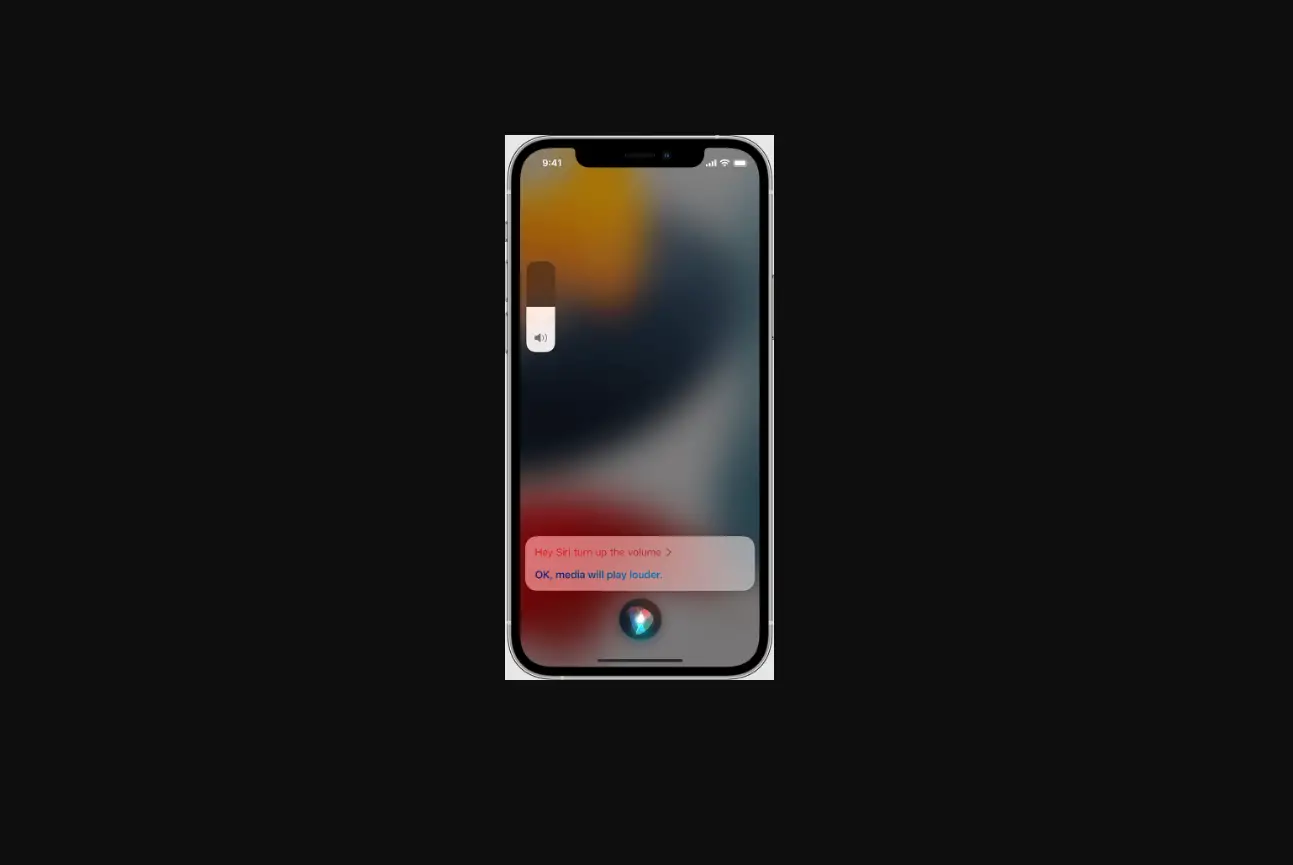
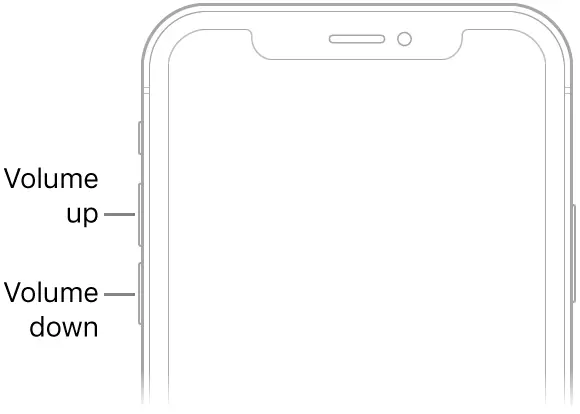
When you’re on the phone or listening to songs, movies, or other media, the buttons on the side of iPhone adjust the audio volume. Otherwise, the buttons control the volume for the ringer, alerts, and other sound effects. You can also use Siri to turn the volume up or down.
Ask Siri. Say something like: “Turn up the volume” or “Turn down the volume.” Learn how to ask Siri.
WARNING: For information about avoiding hearing loss, see Important safety information for iPhone.
Lock the ringer and alert volumes in Settings
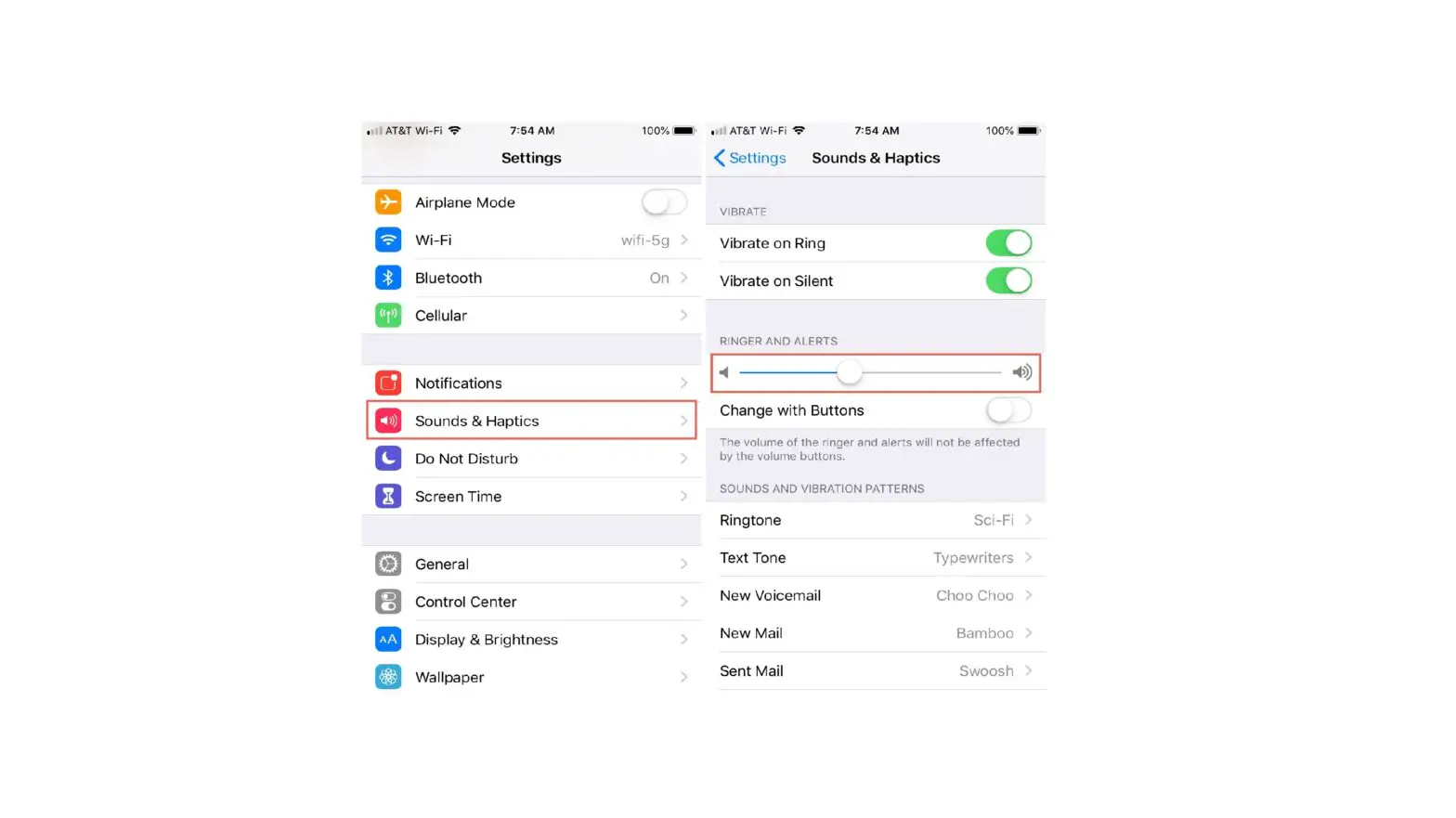
- Go to Settings
 .
. - Tap Sounds & Haptics (on supported models) or Sounds (on other iPhone models).
- Turn off Change with Buttons.
 .
.Adjust the volume in Control Center
When iPhone is locked or when you’re using an app, you can adjust the volume in Control Center.
Open Control Center, then drag  .
.
Limit the headphone volume
You can limit the maximum headphone volume for music and videos to protect your hearing.
- Go to Settings .
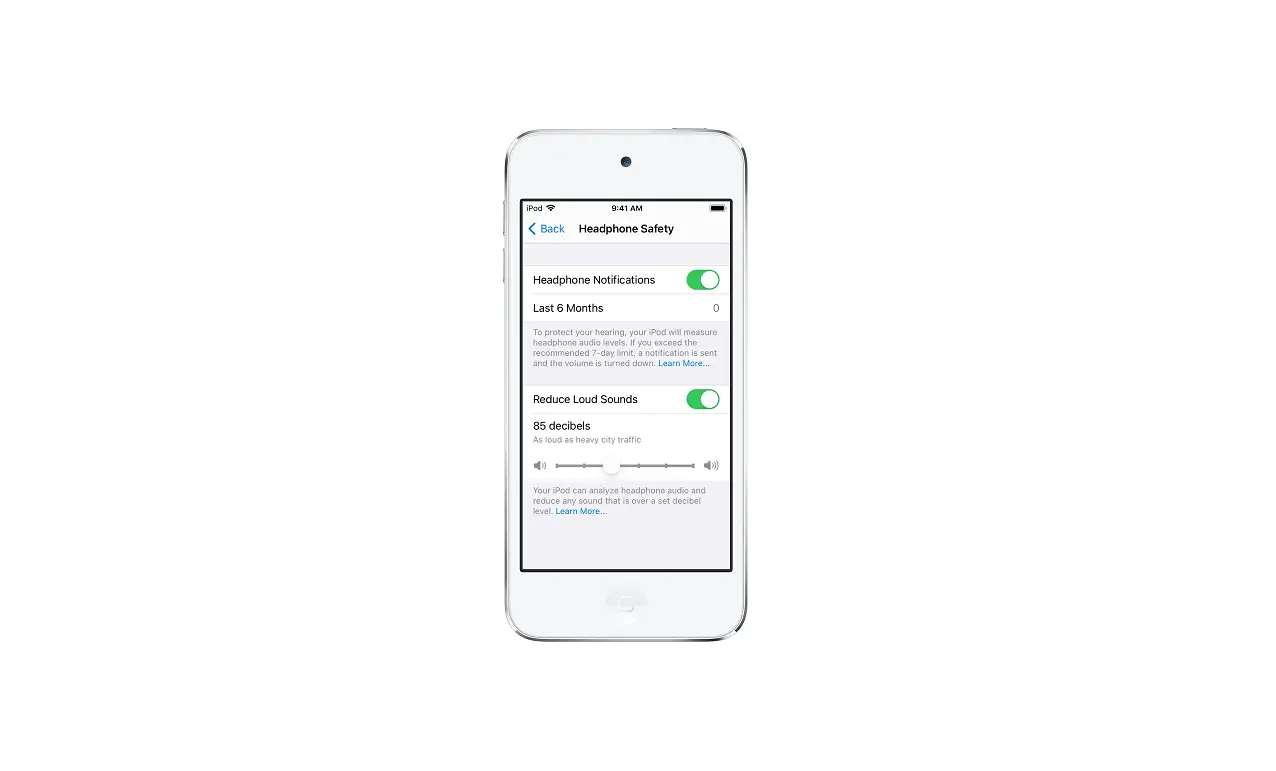
- Tap Sounds & Haptics (on supported models) or Sounds (on other iPhone models), then tap Headphone Safety.
- Turn on Reduce Loud Sounds, then drag the slider to choose the maximum decibel level for headphone audio.

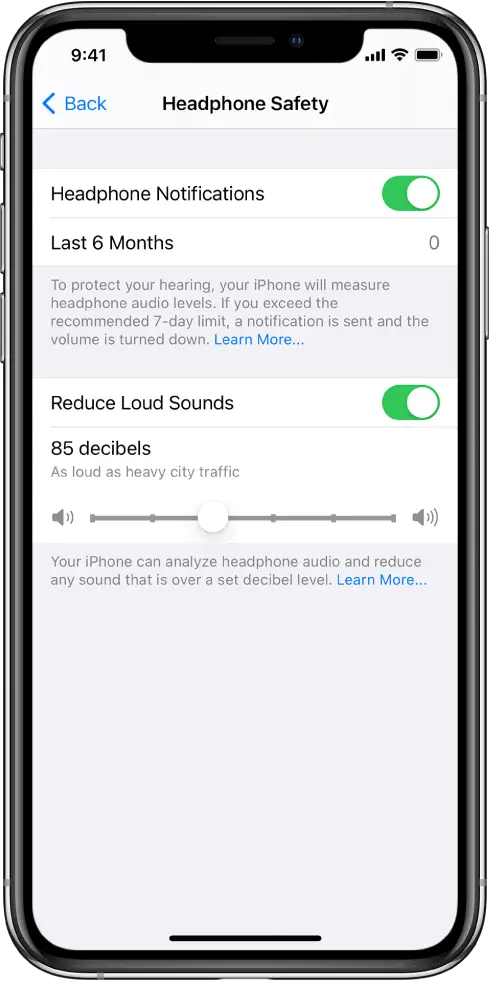
Note: If you have Screen Time turned on in Settings, you can prevent changes to the maximum headphone volume. Go to Settings > Screen Time > Content & Privacy Restrictions > Reduce Loud Sounds, then select Don’t Allow.
See Track headphone and environmental sound-level exposure in Health on iPhone.
Temporarily silence calls, alerts, and notifications
Open Control Center, then tap  . (See Set Do Not Disturb on iPhone.)
Put iPhone in silent mode
To put iPhone in silent mode  , flip the Ring/Silent switch (so that the switch shows orange). To turn off silent mode, flip the switch again.
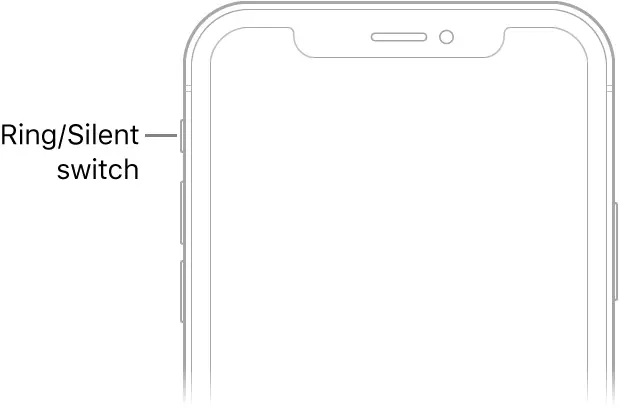
When silent mode is off, iPhone plays all sounds. When silent mode is on, iPhone doesn’t ring or play alerts or other sound effects (but iPhone may still vibrate).
Important: Clock alarms, audio apps such as Music, and many games play sounds through the built-in speaker, even when silent mode is on. In some countries or regions, the sound effects for Camera, Voice Memos, and Emergency Alerts are played, even when the Ring/Silent switch is set to silent.