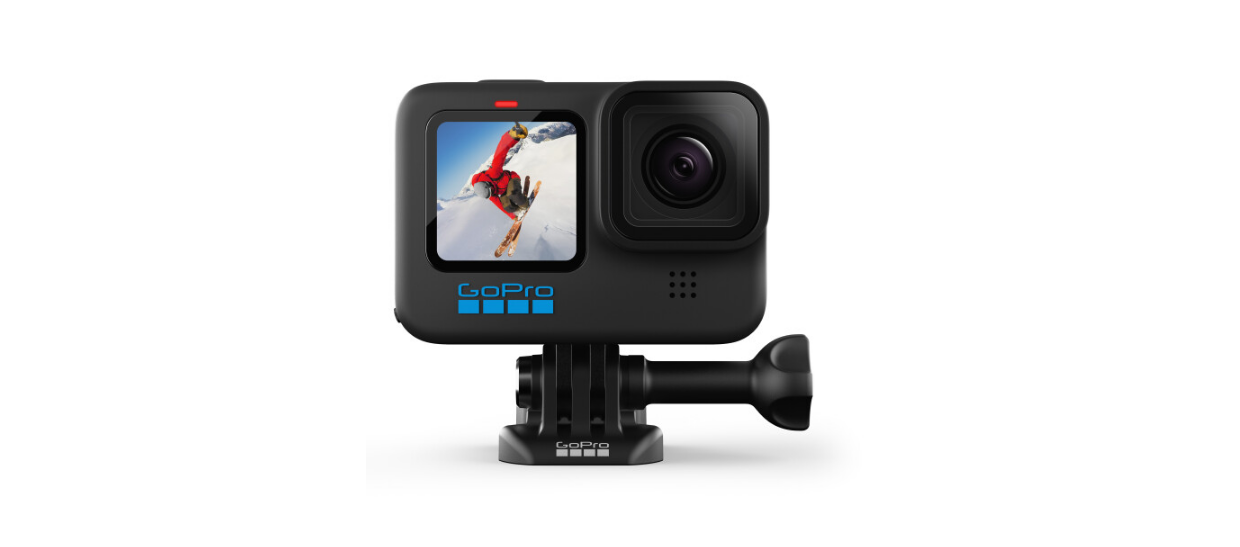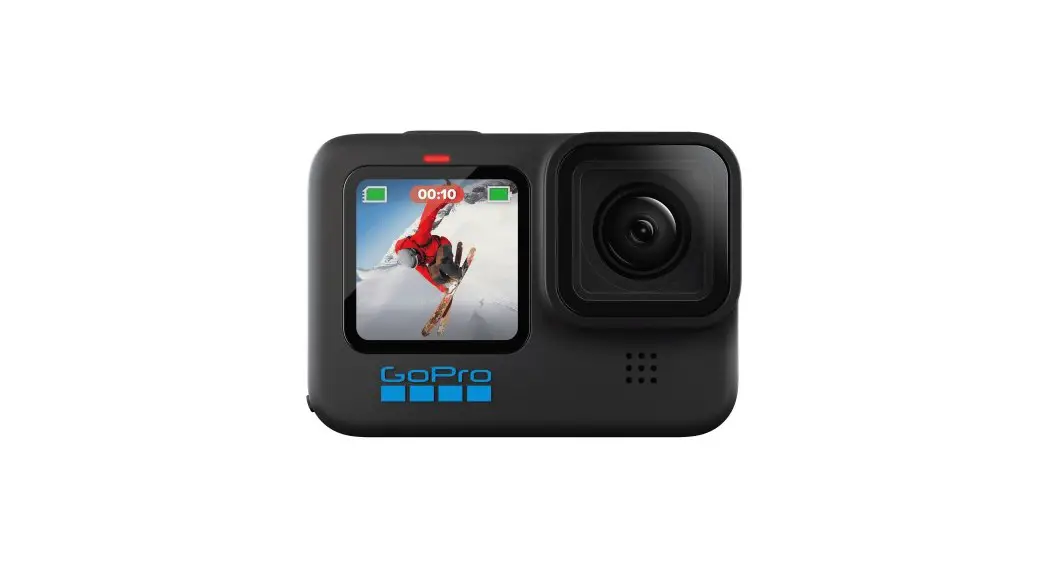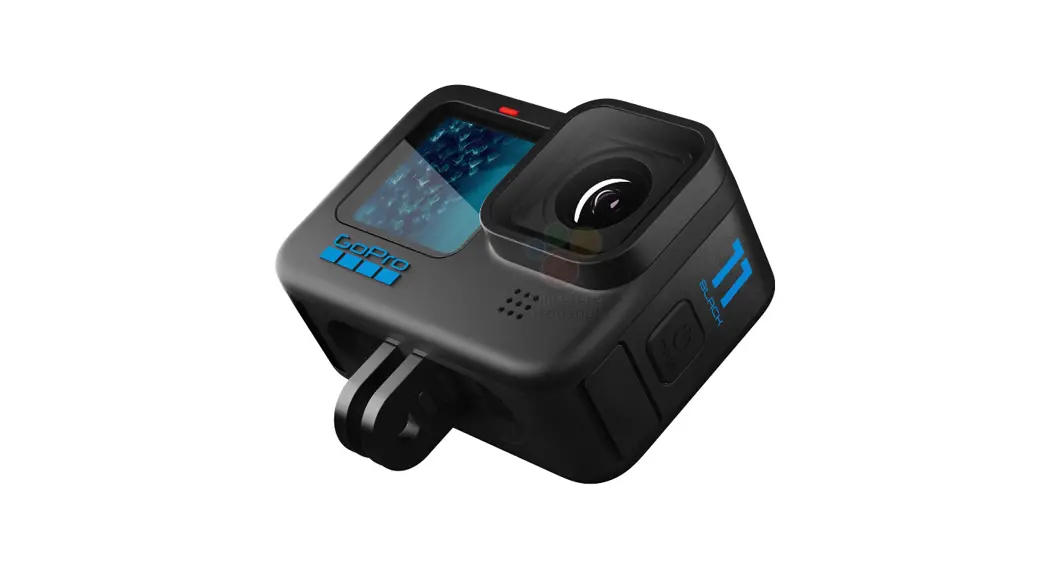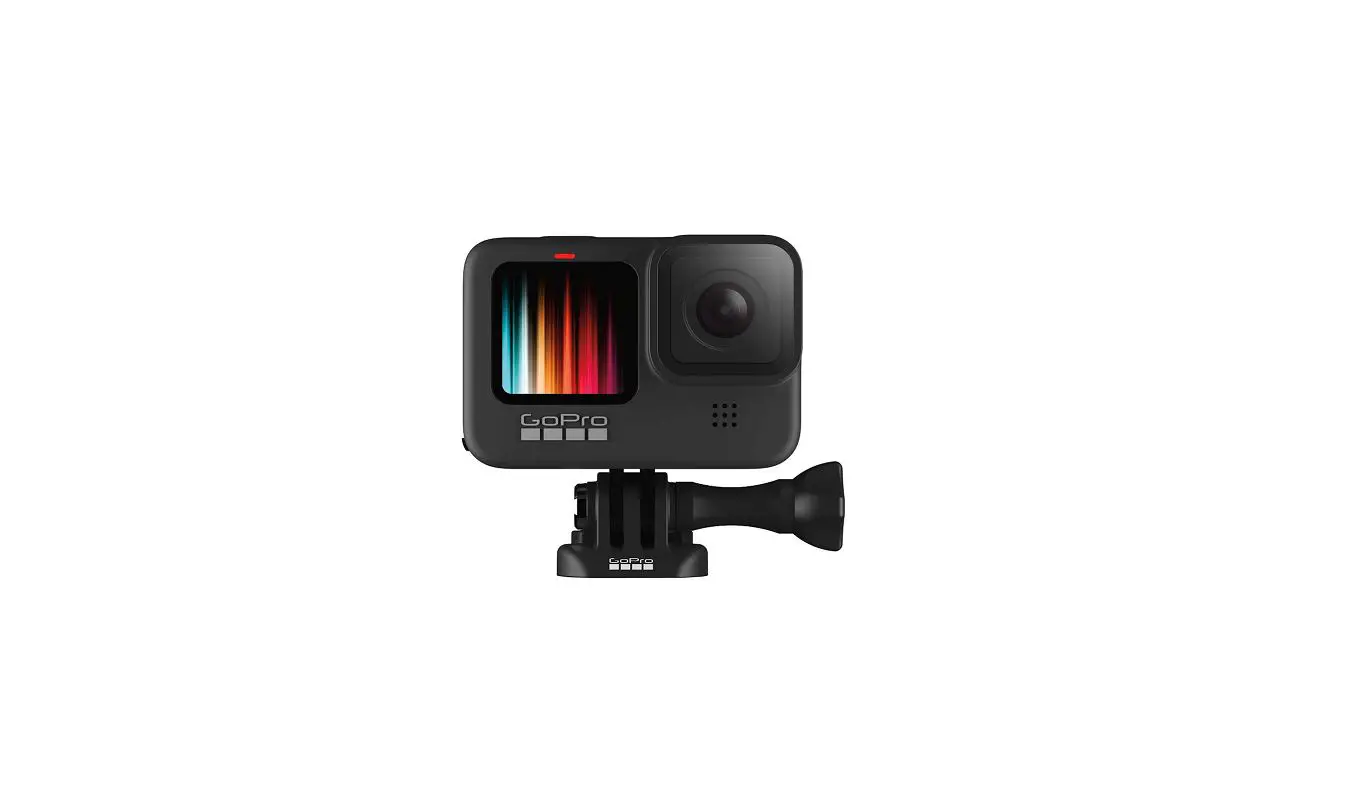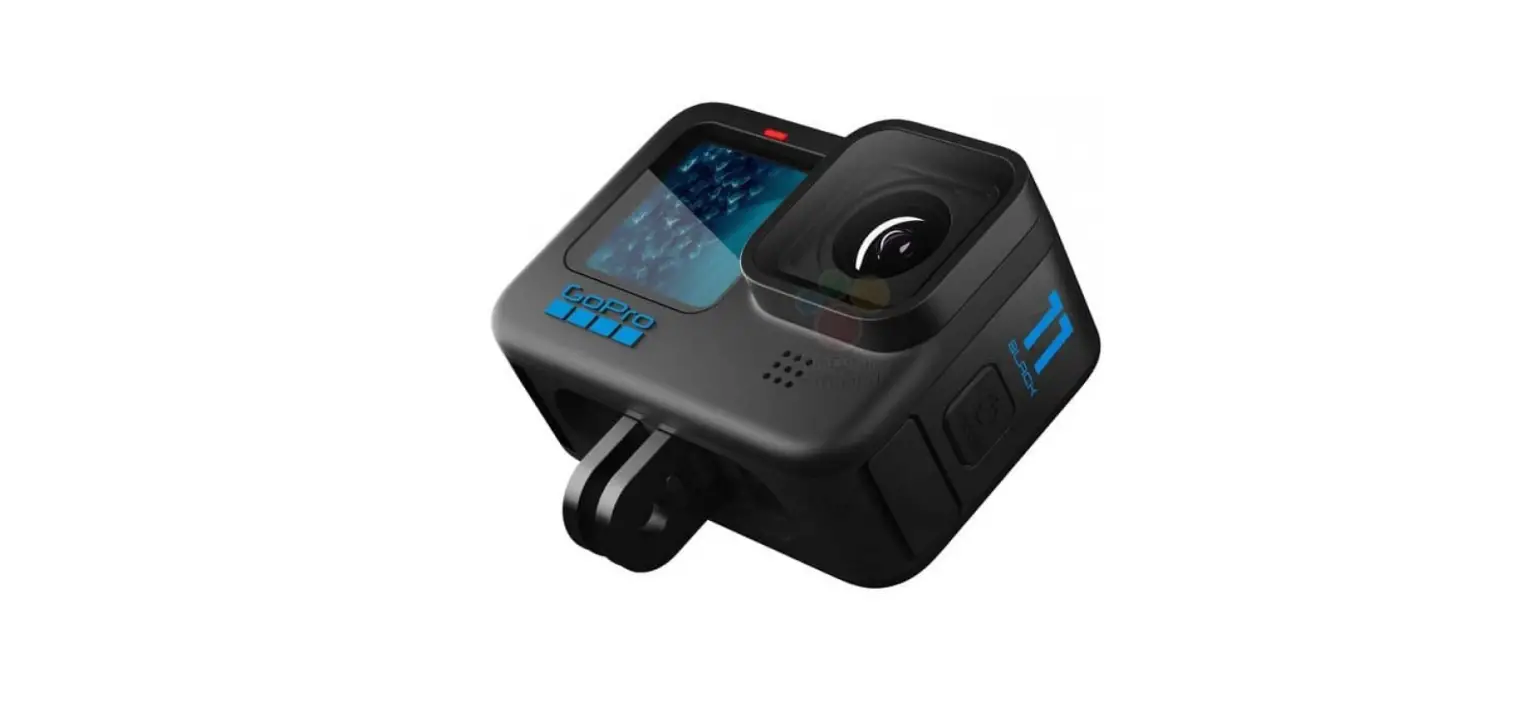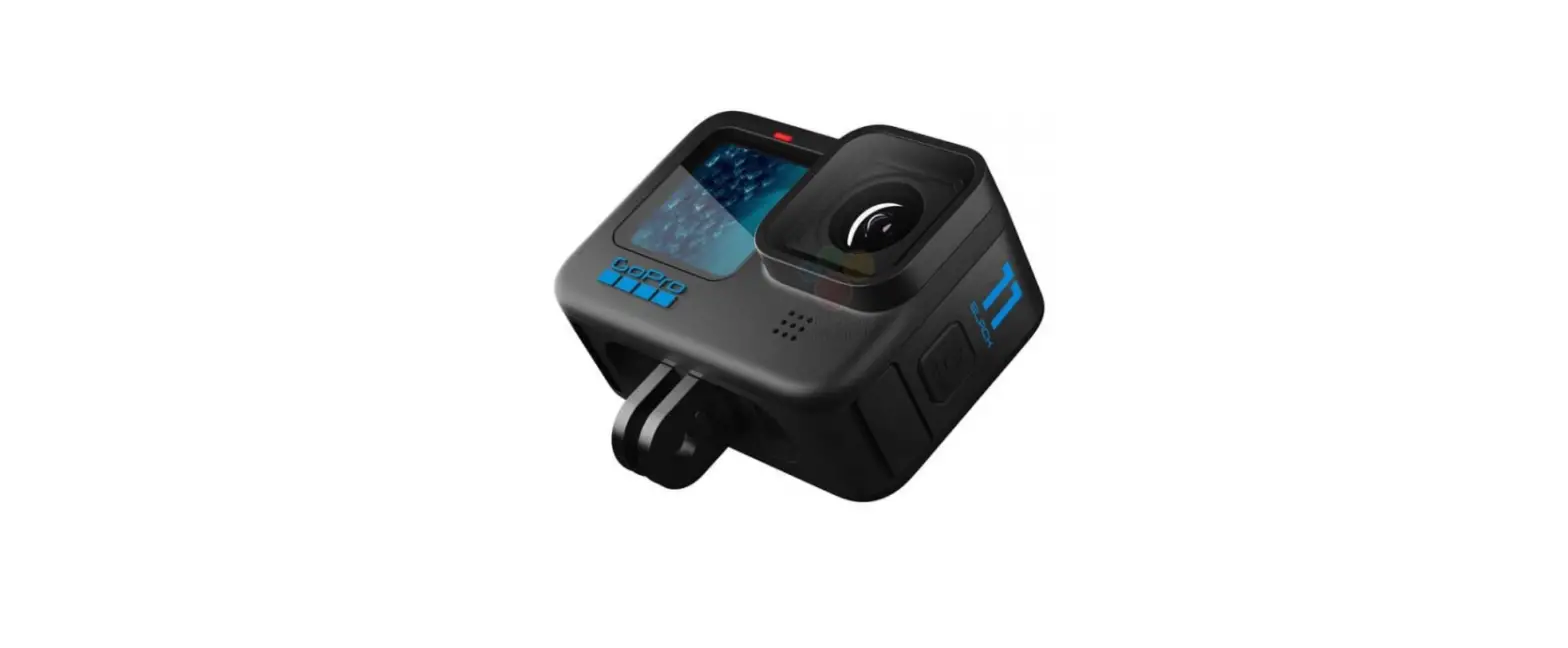

GoPro HERO 11 Black
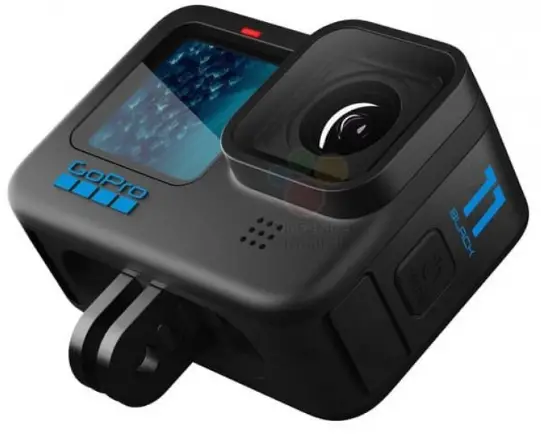
Easy Controls
Come preloaded with ultra versatile capture settings that are great for most shots. You’ll notice fewer settings and capture choices so you can just frame your shot and hit the Shutter button for amazing results.
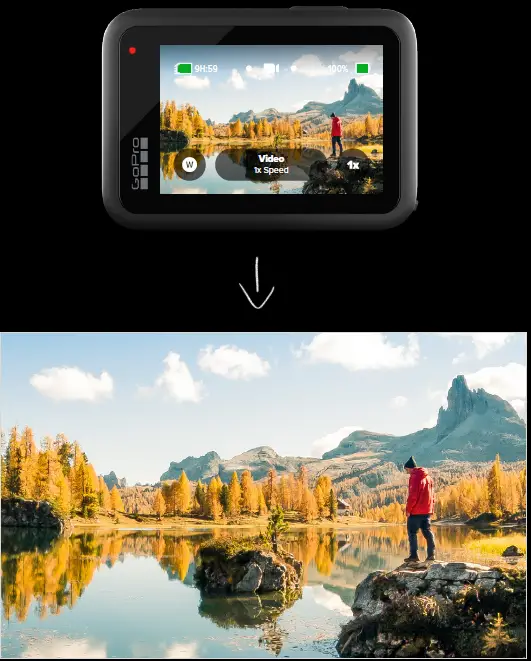
Pro Controls
Toggling Pro Controls
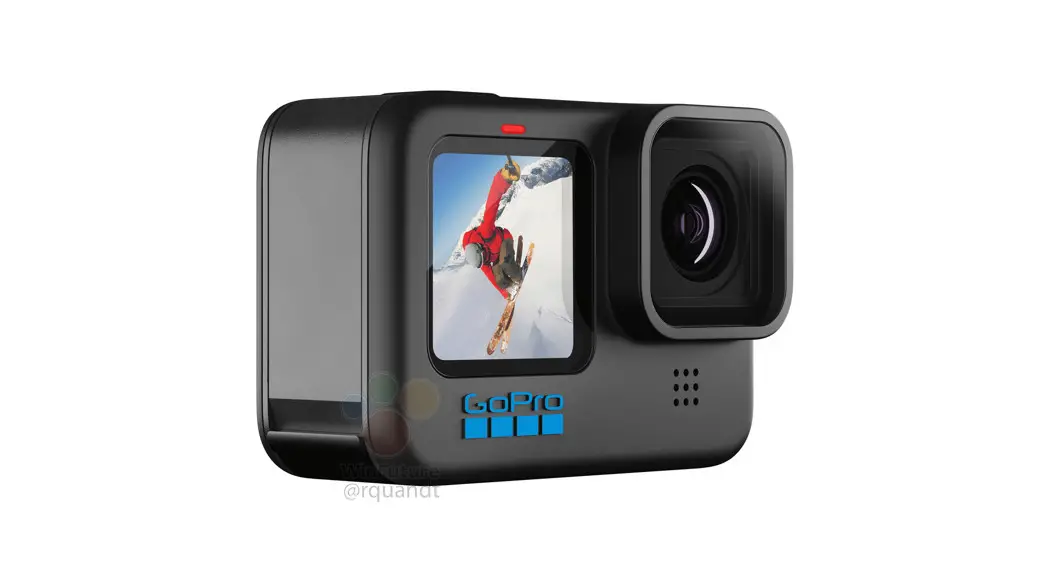
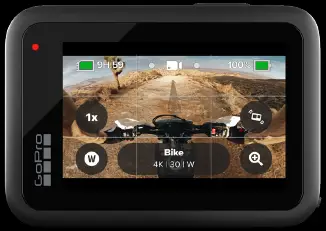
Users can quickly turn on Pro Controls for full camera control from the camera dashboard, accessible via the rear LCD screen or in the Quik app. Swipe down > Camera Dashboard
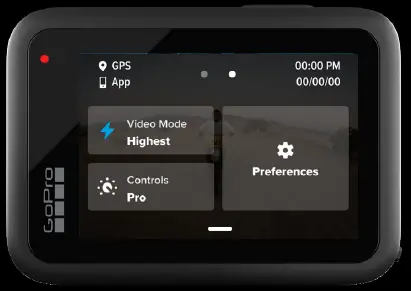
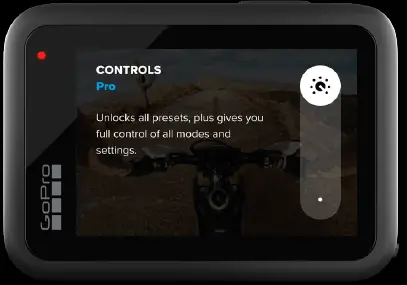
Swipe Left > Toggle Pro Control
Video
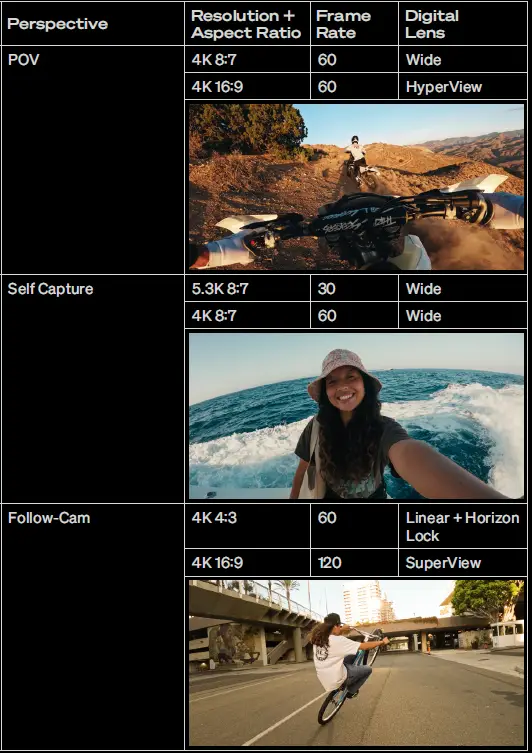
Pro Tips
Slo-Mo Guide
Standard video plays back at 30fps. Try a higher frame rate for epic slo-mo shots.
- 60 FPS = 2x slo-mo
- 120 FPS = 4x slo-mo
- 240 FPS = 8x slo-mo
Go the Distance With Extended Battery Mode
Mid-range quality video resolutions and frame rates to help you capture stunning quality footage while extending your battery life.
Keep the Horizon Locked + Steady
Use the Linear + Horizon Lock digital lens to keep your footage steady and straight even if your camera rotates 360° during capture. Not sure which level of stabilization to use?
Use HyperSmooth AutoBoost.
HyperSmooth AutoBoost dynamically crops your footage based on the speed and movement in your shot. The result is maximum video stabilization and the wides field of view possible.
Protune
| 10-Bit | On |
| Bit rate | High |
| Shutter | Auto |
| EV Comp | 0 |
| White Balance | Auto |
| ISO Min | 100 |
| ISO Max | 1600 |
| Sharpness | Low |
| Color | Natural |
| Wind | Auto |
Rear Screen Grid
Dashboard > Preferences > Display > Rear Screen Grid
Photo
Photo Output
RAW
Saves your photo as both .jpg and .gpr files. RAW files give you more post-production flexibility.
HDR
Captures photos using High Dynamic Range processing. Great for shooting high-contrast scenes with minimal motion.
SuperPhoto
Automatically analyzes the scene and intelligently applies the best image processing for the shot.
Frame Grab Resolution
| Resolution | Aspect Ratio | Frame Grab Resolution |
| 5.3K | 8:7 | 24.7MP |
| 5.3K | 4:3 | 21MP |
| 5.3K | 16:9 | 15.8MP |
| 4K | 8:7 | 12.9MP |
| 4K | 4:3 | 12MP |
| 4K | 16:9 | 8MP |
Time Lapse
Time Lapse vs. TimeWarp
What is it?
| Time Lapse Video | TimeWarp |
| Transforms long events into short sharable moments by taking a frame of video at set intervals. | Speeds up time to create an ultra smooth time lapse video while while you’re on the move. |
When to Use it
| Time Lapse Video | TimeWarp |
| When your camera is mounted to a tripod or stationary. | Body-mounted footage or any shot when your GoPro is in motion. |
Recommended Settings
| Time Lapse Video | The longer the interval, the faster time will appear to pass, and your resulting video will be shorter. |
| 0.5 – 1sec: Fast Action > Busy street | |
| 2sec or more: Slow Action > Sunsets |
Time Lapse Video Pro Tip: Tap and hold the screen to toggle Exposure Control to ensure that the selected part of the screen is always well exposed.
| TimeWarp | Auto: Automatically adjusts capture speed based on lighting and other conditions. |
| 5x – 10x: Shorter or Limited-Motion Activities | |
| 15x – 30x: Longer or Higher-Motion Activities |
Night Effects
Light up the night with three amazing new night effects.
| What is it? | Preferred Settings | |
| Star Trail | Captures beautiful trails of lights across the sky. Mount your camera to a stationary object or tripod, point it toward the night sky. | Trail Length: Maximum |
| Light Painting | Uses long exposure to create brilliant brush stroke effects with moving lights. Mount your camera to a stationary object or tripod, grab a flashlight, glow stick, or other light source, and get creative. | Trail Length: Long |
| Vehicle Lights | Record night-time traffic and transform it into stunning light trail footage. Mount your camera to a stationary object or tripod and point your camera at moving vehicles to create stunning light trail footage. | Trail Length: Short |
Pro Tip: Choose a longer exposure (up to 30sec) and bump up the ISO (up to 1600) for darker environments.
Scheduled + Duration Capture
Pro Tip: Use Scheduled Capture to set a start time for your shot.
Use Duration Capture to set how long your camera records before it automatically stops.
For more info, head over to GoPro Tips YouTube.